Trading Pal MT5

Why choose Trading Pal EA:

This is a EA utility that auto-manage your positions' Stop-Loss (SL) and Take-Profits (TP) dynamically. When opening a single position, it is easy to set the SL and TP manually. But when dealing with multiple positions, it can be very tedious or overwhelming to fill in so many SL and TP values consistently, especially in a short span of time, like in scalping. Over time and after many such trades, trading itself can become a chore. That is where this EA can serve as a pal or assistant in your semi-automated trading journey by handling the unglamorous aspect of trading.

Whether you are trading on your own, or following signals from other providers, sometimes the situation can easily turn frustrating. For example, a potential trade setup is identified with the following information:

Gold Buy: 3328-3325
SL:   3323
TP-1: 3331
TP-2: 3333
TP-3: 3338

You start to layer multiple positions to fill the indicated zone according to your risk management. While still at it, you try to enter the SL and TP of these positions, one by one. Before you can finish, the market accelerates favorably and a Break-Even is called for these positions to be risk-free. Or the price suddenly reverse much beyond your planned SL, and you realize some positions' SL were not set. Needless to say, a lot of other scenes can happen that require the constant updating of the positions' SL and TP, like in consecutive trade setups. Also, it is difficult to set and manually track the TP of multiple positions according to a planned allocation strategy, e.g. 30% for TP-1, 50% for TP-2, and 20% for TP-3.

When SL and TP are not set upfront, there is usually an emotional tendency to let losing positions run and winning positions cut short. With this EA, SL and TP are set accordingly and sent to the broker for a hands-free outcome. When entering with a single but bigger sized position, the opening price is usually not optimized, and subsequent partial closure at different TP prices also require manual attention and execution. So why not let yourself focus on the most important part of opening your positions, then allow this EA to handle the rest of the trade without any human error or emotion. Moreover, when trading using the MetaTrader app on a mobile phone, cell connection can be dropped while travelling, or your attention may be drawn to other matters at hand. And so, it becomes less stressful if you are backed by a trusted companion EA running in the background, knowingly that your SL and TP settings will be handled systematically.

How Trading Pal EA works:

The Trading Pal EA works on individual symbol by attaching it to that specific symbol's chart, with a set of inputs customized to that symbol if need be. It does not matter which timeframe is selected on the chart, as this EA is pre-set to run either on each tick event, or on a periodic timer. The latter is preferred if the market has not much tick movement, so that the SL and TP can be set on a regular basis. On each pass, the EA will run through all open positions (active trades) to perform specific tasks according to these key features. Note that a pending order (buy/sell limit, etc.) when triggered will become an open position with its opening time set to the latest time. The EA will then treat this as the last position to be managed accordingly.

  1. Smart SL Application:
    Automatically applies SL to all open positions if missing, based on either the default level (in pips) or the last position's SL. For the first position's SL, it can be set manually or left empty for the EA to set using the default level. For subsequent positions with no SL, the EA will either, based on input selection, use the exact SL from the last position to fill them in, or set them using the default level. In other words, a specific SL can be set once manually for the EA to use on subsequent related positions. For this feature, buy and sell positions are handled separately.

  2. Flexible TP Allocation:
    Distribute TP targets among all open positions using a smart allocation algorithm based on percentage, with support for up to 4 levels (in pips, from lowest level 1 to highest level 4), including a default one, e.g. 30% - 40% - 20% - 10%. For positions with no TP, the EA will fill them using the 4 TP levels according to the allocation percentages defined in the inputs. The EA will also respect a manually set TP, which will be automatically allocated into one of the 4 levels by range; A manual TP can also be marked as a potential loss if it is set negatively below/above the open price for a buy/sell position. In sum, profits-taking can be automated according to a pre-defined set of target levels by percentages, and enhanced manually by setting the TP for any position along the way. For this feature, the allocation algorithm encompasses both buy and sell positions.

  3. Advance SL mode [Auto] - Break-Even, Trailing or Trail-TP (optional):
    For all open positions, choose between a fully customizable Break-Even (BE) mechanism to go risk-free, Trailing stop or Trail-TP to lock in profits, as your trade moves favorably. BE is defined using a trigger, and a offset level, measured in pips. Similarly, Trailing is defined using a start, a stop, and a step level, all also measured in pips. To illustrate using a buy position, BE is set when the current price is more than the position's open price by the trigger level, and the stop level is set above the open price by an offset amount; Trailing starts after current price is more than the position's open price by the start input, and the stop level is set at an interval below the current price, which then move upon each step increase in the current price. For Trail-TP, profits are locked in at the 4 different TP levels of each position, i.e. when the current price reaches TP-1 of a position, its SL is moved to BE, then when the current prices reaches the next TP level, its SL is moved to that of the last TP. Each mode in advancing SL can be applied on positions either individually as a buy/sell, or as a layer of buys/sells together. The latter considers the top (for buys) or bottom (for sells) position only when determining whether to advance the SL for the remaining positions.

  4. Order Hotkeys [Manual] (optional):
    "Special" pending orders can be used as hotkeys to manually set the SL and TP of all open positions quickly, or close positions above (for buys) or below (for sells) a specific price in bulk, which is very useful when trading on just the MetaTrader mobile app. Imagine when having to shift the TP of multiple positions, the new TP value has to be keyed into each position individually. But with this hotkey function, the new TP value would only need to be keyed once via a pending order serving as a placeholder. For such orders to work, they are specially created at prices that are unlikely to be triggered in the near future. For example, a buy-limit order for XAUUSD can be set at a price of 123, which is so much lower than the current price that chances of it being triggered is almost nil. The price '123' then acts as a code for enabling the hotkey that can be used to set the TP of all buy positions by setting the TP of the buy-limit order correspondingly. For the full explanation of these order hotkeys, see the section below.

  5. Control-Panel [Manual] (optional):
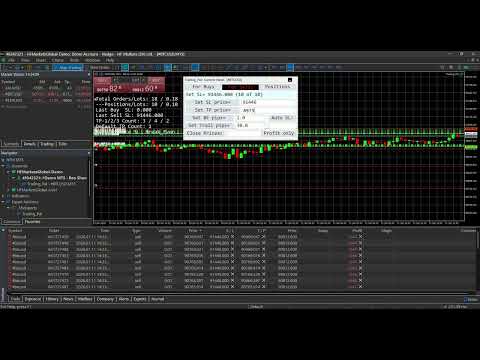
    A dialog panel can be enabled for interactive management of all open positions or pending orders on the MetaTrader terminal only. It features direct controls over the SL and TP of the open positions, including a special function for closing them. It also has functions to manage limit or stop orders (that match the input Magic Number). This user interface works on an ad-hoc basis via input edits and button clicks, alongside other automated functions. The control-panel can be minimized when not in use, and its text size can be adjusted via the EA inputs. It can be dragged around to avoid overlapping with other objects on the chart window; Otherwise, re-maximizing the control-panel will bring it on top of the existing chart objects. The states of the applicable controls, e.g. SL and TP edits, on the panel will be retained when switching the symbol's timeframe on the chart, or changing the EA inputs. See the section below for more details on the control-panel functions, together with a few screenshots of its display on the chart.

  6. Dashboard Overlay (optional):
    See a summary of your pending orders and open positions that the EA is managing in real-time via a display on the symbol's chart. The mean or average SL and TP of all positions will be computed in pips-per-minimum-lot to reflect the potential loss (if negative) or profit (if positive), and to indicate the current risk and reward ratio. Please see the screenshot of an example dashboard on a symbol's chart, available only on a MetaTrader terminal (not mobile app).

  7. Pip Value Calculation:
    Accurate pip distance handling for XAU/GOLD, Bitcoin, Ethereum and Forex majors (including JPY) by default. For other symbols, there is a pip-price factor input that can be set, which has to be confirmed on a demo account first if unsure. For examples, XAU=0.1, BTC=10, ETH=1, JPY=0.01, MajorFX=0.0001. If the pip-price factor is not set on a symbol not mentioned above, the EA will not run, and no dashboard will be shown even if enabled.

  8. Failsafe Execution and Logging:
    Built-in retry mechanisms and detailed logging to the Experts tab on a MetaTrader terminal to help you track and debug in case of broker rejections. The EA will log messages with prefix "INFO", "WARN" and "ERROR" respectively. If SL or TP cannot be set, try to adjust the default level or related input.

What to expect of this EA:

  1. This is a utility EA, so no results will be shown on MetaTrader strategy tester.
  2. This EA can be run on a home PC or VPS with minimal resources.
  3. This EA can be restarted (inputs changed, etc.) anytime, and still continue to function thereafter.
  4. This EA can also be used to manage open positions from other EA by setting the Magic Number input (default 0 is for manual positions).
  5. This EA does not open nor close positions on its own unless manually instructed via the Control-Panel or Order Hotkey. So for any position that has not touch SL or TP yet, it may incur swap fee or suffer from market gaps overnight.
  6. Positions can still be manually updated/closed, or pending orders placed/deleted manually, even when this EA is running, which will not affect its operation.

Control-Panel Functions:

  • Set the same Stop-Loss (SL) or Take-Profit (TP) price level to all buy or sell positions quickly. For TP input, there are 2 price levels that can be allocated according to an input percentage, e.g. 20% of all positions to TP-1 and remaining 80% to TP-2.
  • Set all buy or sell positions to Break-Even (BE) or Trail by pips, which is similar to the corresponding automated functions.
  • Change the Advance/Auto SL mode (None, BE, Trailing or Trail-TP) on the fly.
  • Close positions above (for buys) or below (for sells) a price margin in bulk quickly, with an option to close only those positions in profit or with losses acceptable. This is slightly different from the bulk close functions that are in-built in MT5, which the native MT4 platform is lacking of.
  • Place multiple limit or stop orders quickly across a specified price range, at regular price gaps, to help with position layering in an organized (and preemptive) manner. To avoid input errors, the maximum lots size per pending order, and the maximum quota number per order placement can be set via the EA inputs.
  • Delete pending orders whose prices fall within a specified price range in bulk quickly.
  • Draw lines or dashes with description on the chart window, to mark key price levels visually with different colors for buy, sell or neither.

Actual usage of the control-panel is quite intuitive, as there is a "[Control Info & Status]" bar to show the info regarding a specific control (if the related edit input is blank), and the status of the corresponding function when applied. This info-status bar will be colored in cyan if the function of a control is executed successfully on all affected positions or orders, and in yellow if some failed due to broker rejections, etc. The font "Consolas" that is used on the control-panel (and dashboard) is a monospaced typeface optimized for screen readability.

    Order Hotkeys Explained:

    A pending order needs to be created specially in order to use it as a hotkey. To enable an order hotkey, its price must be set to match the pre-set code (and also the Magic Number) in the EA inputs. Such orders' expiry can be specified, or set to Good-Till-Cancelled. But once these orders are deleted, the respective hotkey functions will cease. The different types of pending orders have different hotkey functions as described:

    • A Buy-Stop order hotkey is used to set the SL of all buy positions. Set its price much higher than the current price of that symbol, e.g. code 8800 for XAUUSD. As and when needed, set its SL to a specific level below the current price to be 'transferred' to all buy positions. If its TP is non-zero, setting the SL below/equal the current price will cause Break-Even to be set for all applicable buy positions (using the BE offset input). Having the SL above the current price will put the BE hotkey on hold until the current price move above the SL.

    • A Buy-Limit order hotkey is used to set the TP of all buy positions. Set its price much lower than the current price of that symbol, e.g. code 770 for XAUUSD. As and when needed, set its TP to a specific level above the current price to be 'transferred' to all buy positions. If its SL is non-zero, e.g. 3.0 or 30 pips, setting the TP below/equal the current price will shift the SL of all buy positions to an amount below the current price by the indicated SL value. Having the TP above the current price will put the trailing hotkey on hold until the current price move above the TP.

    • A Sell-Stop order hotkey is used to set the SL of all sell positions. Set its price much lower than the current price of that symbol, e.g. code 770 for XAUUSD. As and when needed, set its SL to a specific level above the current price to be 'transferred' to all sell positions. If its TP is non-zero, setting the SL above/equal the current price will cause Break-Even to be set for all applicable sell positions (using the BE offset input). Having the SL below the current price will put the BE hotkey on hold until the current price move below the SL.

    • A Sell-Limit order hotkey is used to set the TP of all sell positions. Set its price much higher than the current price of that symbol, e.g. code 8800 for XAUUSD. As and when needed, set its TP to a specific level below the current price to be 'transferred' to all sell positions. If its SL is non-zero, e.g. 8803.0 or 30 pips more than its price, setting the TP above/equal the current price will shift the SL of all sell positions to an amount above the current price by the indicated SL value. Having the TP below the current price will put the trailing hotkey on hold until the current price move below the TP.

    • A pending order of any of the above types with a unique price code is used as a hotkey to change the Auto/Advance SL mode accordingly. If both its SL and TP are zero, no Auto SL mode will be applied. If only its SL is non-zero, the Auto BE mode will be applied. If only its TP is non-zero, the Auto Trailing mode will be applied. If both its SL and TP are non-zero, the Auto Trail-TP mode will be applied. If this order hotkey is deleted or its price changed, the original input mode will be applied.

    • Buy-Limit or Sell-Limit order hotkey with differing price code is used to close positions above (for buys) or below (for sells) a price margin in bulk quickly. For this buy-limit hotkey, its SL value as "multiplied by 10" represents the price margin, so any position whose open price lies above this margin will be closed. The close action will be applied immediately if its TP is set below/equal the current price, otherwise it will be put on hold until the current price move above the TP. For this sell-limit hotkey, its SL value as "divided by 10" represents the price margin, so any position whose open price falls below this margin will be closed. The close action will be applied immediately if its TP is set above/equal the current price, otherwise it will be put on hold until the current price move below the TP.

    With order hotkeys, SL and TP of open positions can be managed manually in an assisted manner, which is similar to how they are managed automatically by the Trading Pal EA. In fact, certain hotkey functions can still apply (semi-manual) while the EA works autonomously behind the scene. Also, multiple order hotkeys of the same type and price code can be created, e.g. one Buy-Stop for setting SL, and another for setting BE. In the case of trailing stops, multiple hotkeys can be created beforehand to be applied in chrono order so that as the current price moves, each hotkey gets triggered one after another to advance the SL in stages. Although order hotkeys may seem complicated, using them to manage all positions' SL and TP manually is definitely easier and faster! Even the close-positions hotkey is different from the bulk close function in MT5, and which MT4 is lacking of. For a start, practice them on a demo account first. The EA dashboard will help to show whether a specific hotkey is turned on or off, provided this feature is enabled.
    Recommended products
    One chart. Total control. Stop wasting time managing objects, colors, and settings on every chart separately. With   Chart Sync Manager , you can   sync, copy, and control all your MetaTrader charts   instantly—using just one panel and a few shortcuts. Draw once, update everywhere. Open and close charts with a single click. Keep your workspace clean with   symbol-based object management . And never miss important details with   spread display, countdown timers, and candle-close alerts. Save t
    Equity Guard AI
    Niccyril Chirindo
    5 (1)
    Equity Guard AI Professional account protection system that closes trades and removes EAs when drawdown limits are breached.Equity Guard is a professional account protection utility designed to safeguard your trading capital. This tool monitors your account equity and drawdown in real-time, automatically executing protective measures when predefined risk thresholds are exceeded. Perfect for prop firm traders, FTMO challenges, and personal accounts. How It Works Equity Guard continuously monito
    SMT Trade Planner is a professional on-chart risk calculator and trade execution panel for MetaTrader. It calculates lot sizes based on your risk settings, displays visual Entry, Stop Loss and Take Profit lines that you can drag directly on the chart, validates your trade against configurable risk rules, and lets you execute trades with one click.   How it works Attach the Trade Planner to any chart. The panel displays your account information and a set of quick-select risk buttons. Three horizo
    ️ UMNi-CMND MT5 Remote Command & Trade Control System UMNi-CMND turns Telegram into a full remote control panel for your MetaTrader terminal. Send commands from your phone to open trades, manage positions, query account status, and receive complete trade telemetry — all without touching the platform. KEY FEATURES Full remote trade execution via Telegram Open, close, and manage positions by command Move SL/TP, set breakeven, partial close Live status, account, and position
    MultiChart Pro
    Pablo Filipe Soares De Almeida
    MultiChart Pro – Chart Management Tool for MetaTrader 5 This Expert Advisor (EA) enables users to automate the opening and configuration of charts in MetaTrader 5. It supports the setup of up to four charts with specified timeframes and templates, including offline charts. Functionality Chart Opening: Opens up to three additional charts (e.g., D1, M1, M15) and one offline chart (e.g., 10 seconds), while configuring the current chart (e.g., M5). Template Application: Applies user-defined templat
    Synchronizer
    PATRICK PAARSCH
    This Expert Advisor monitors all open positions across all symbols in MetaTrader 5. Whenever a Stop Loss (SL) or Take Profit (TP) is manually set or adjusted on any position, the EA automatically applies that value to all other open positions , regardless of symbol or order type (Buy/Sell). This ensures consistent and synchronized SL and TP levels across your account. Perfect for mobile trading via tablet or smartphone!
    Smart Charts
    Fyodor Korotkov
    Hello, boys and girls! Script allows you either to quickly save opened charts and then close all charts opened by visual tester mode or just faster close all charts. Feel free to take a look at video manual about how to use this script on my YouTube channel. Also, feel free to join my telegram channel , where time to time I publish some exclusive stuffs. Feel free to leave feedback and thoughts how to improve this script - I'd highly appreciate that. All the best.
    Hello traders! I'm your trading assistant. No need for lengthy introductions—let me tell you about my specialties: I excel in managing your positions, whether you place orders on either side, I can promptly add appropriate stop-loss lines and implement trailing stops for you. 2. I can help you avoid chasing gains and selling in losses, fundamentally eliminating the human weakness of failing to stick to principles. 3. I will send you a notification message to the MT5 client on your mobile device
    Orydax Keldrix
    Pablo Orcaray Lopez
    Orydax Keldrix — XAUUSD Expert Advisor for MetaTrader 5 Turn a demanding market routine into a clear, automated process. Orydax Keldrix is a liquidity-structure breakout strategy for MetaTrader 5, with XAUUSD M15 as the recommended starting setup. It follows the market continuously, waits for a defined liquidity structure with room for expansion, and handles the trading workflow when its confirmation process is complete. It is designed for users seeking selective structure-based breakout exposu
    DeletePendingOrder
    Konstantin Chernov
    5 (1)
    Script for deleting pending orders If you need to delete all pending orders you placed, this script will do it for you! It doesn't have any input parameters. Allow AutoTrading before running the script. Usage: Run the script on a chart. If you need a possibility to adjust parameters of the script, use the version with input parameters https://www.mql5.com/en/market/product/627 You can download MetaTrader 4 version here: https://www.mql5.com/en/market/product/2782
    FREE
    XAU Steady Gain Pro
    Sivakumar Subbaiya
    XAU Steady Gain Pro: Institutional-Grade Neural Trading for XAU/USD Complete Trading Suite: Gain full market transparency. When you buy this EA, you’ll also receive two professional-grade Signal Generation Indicators to help you confirm every entry with institutional precision. MT4 Indicator Nebula Pullback System – Worth $50  : See the Indicator     https://www.mql5.com/en/market/product/162844 MT5 Indicator Quantum Cross Indicator – Worth $50 : See the Indicator     https://www.mql5.com/en/m
    VENIQOR Smart Trade Copier PRO is more than a simple MT5 trade copier. It combines fast local trade synchronization with flexible risk management, Account Protection and optional News Protection for every Receiver account. As with our other VENIQOR products, we welcome useful customer feedback and are happy to implement meaningful improvements and new features whenever possible. The same EA works as both Master and Receiver . One Master can copy trades to multiple Receivers running on the same
    Is your trade at a loss? Does not matter ! You can use this Extra martingale tool.  In the set loss of your trade or your EA's trade , this tool will open another trade at a better price. It can also open multiple trades at different distances and with different lot sizes. Each trade will be assigned a TakeProfit. This tool has a lot of settings. You can set variable lot sizes, variable trade distances, variable TakeProfit sizes, maximum total profit or loss in money. You can also close trades
    Trend Pyramid v5.00 | Gold XAUUSD Floating‑Profit Pyramid EA   This floating‑profit pyramid gold EA only adds positions after existing orders generate floating profit, avoiding blind position‑adding under loss conditions. It adopts EMA20 plus ADX24 dual‑indicator filter to filter false oscillation signals and reduce invalid order openings. Multiple hard risk controls are built‑in to protect your account.   Core advantages   1. Add positions only on floating profit, no position‑adding at loss: a
    FlexiTrade
    Johny Gomez Macaranas
    Flexi Trade   is a powerful, fully automated Expert Advisor (EA) designed for MetaTrader 5. It combines intelligent money management, dynamic trailing stops, and an intuitive draggable dashboard – all in one package. Whether you are a novice trader looking for a "set-and-forget" solution or an experienced trader wanting full control over risk and entry logic, Flexi Trade adapts to your needs. The EA is built with   robust risk management   at its core: it calculates lot sizes based on a percenta
    Continuum EA
    Alexandre Vincent Traber
    Overview Continuum is a fully automated trading robot built around continuous, disciplined money management rather than a single entry trick. A single Aggressiveness input, from 1 to 100, scales every risk and behavior parameter at once, so the same core logic runs conservatively or actively without touching a single line of code. Entries come from a weighted multi-timeframe confluence read across the M15, H1, H4 and D1 charts, combining trend, momentum and volatility indicators already built in
    FREE
    Trade Panel HotKey – MT5 Scalping Utility Fast Trade Panel HotKey is a lightweight MT5 trading utility designed for traders who need to open, manage, and close positions as quickly as possible . The main purpose of this tool is to reduce the time between a trading decision and execution. Instead of moving the mouse, opening order windows, or manually modifying multiple positions, most important actions can be performed instantly through customizable keyboard hotkeys or directly from the compact
    One Click MT5
    MQL TOOLS SL
    5 (1)
    One Click Close MT5 is an EA which allows you close orders quickly. EA display on chart two buttons. The first button "Close All Positions" is using to close all opened orders. The second button "Close Profit Positions" is using to close only profitable orders. EA is closing orders for all available symbols, not only for chart symbol. In EA params you can set distance from upper chart frame (Y Offset) and from left chart frame (X Offset). For installation EA it is only need to copy One Click Clo
    FREE
    Quick Lines Tool: A User-Friendly Indicator for Drawing Trend Lines and Rectangles Quick Lines Tool is a powerful and intuitive indicator for MetaTrader 4 designed for traders who need fast and effective tools for technical analysis. With this indicator, you can easily create trend lines, support/resistance levels (AP/DW), and rectangles, optimizing your chart marking process. It is ideal for both beginners and professional traders looking to enhance their analysis accuracy and speed. Main adv
    Trade Manager MVP MT5 is a chart-based position sizing, order execution and trade management tool designed to help manual traders plan setups, control risk and manage positions from one compact panel. Define Entry, Stop Loss, TP1, TP2 and Final TP using draggable chart lines. Set your preferred risk percentage, and the EA calculates the position size from the Stop Loss distance. Moving the Entry line automatically moves the other levels while preserving their configured pip distances. Key Featur
    EA is parsing trade signals from Telegram bot and executes it in MT5 terminal. To configure you need to complete the following steps: Specify the bot tokein in input settings. Specify a list of key words used for detecting a type of signal (Buy/Sell), for entry price and for stops. Specify default settings for stops and lot size in case incoming signal don't include these details.
    Trade Control Panel
    Jerry Jilun Anak Liban
    Trade Control Panel Function Normal One Click Function Close All Close All Profit Close All Loss Close All Pending Order Close All Sell Close All Buy Advance One Click Function 1.  Close Partial Lot Sell by Percent It will help you partial close for all open position by desire percent you wanted. No longer partial close one by one for every open position Manual input for desire percent 2. Close Partial Lot Buy by Percent It will help you partial close for all open position by desire percent
    TradeGramBot
    Mario Fuentes Valenzuela
    Telegram Bot EA This Expert Advisor (EA) is a powerful tool that allows traders to receive Telegram notifications, manage Drawdown alerts, set up charts, and much more, all directly from the MetaTrader 5 platform. The Expert Advisor (EA) tool, integrated with Telegram, offers extensive customizable options to enhance your trading activities. The product allows you to display the signal name in the messages for easy tracking. It further provides the feature of sending the MQL5 link, either with
    UTralVirtualMT5
    Viktor Shpakovskiy
    Utility for managing open positions and pending orders. The built-in trailing stop has five modes and seven tools. There is a virtual stop loss and a virtual take profit, which can be freely moved around the chart. With the help of the built-in trading simulator, you can check how the EA works in the strategy tester. A detailed guide to UTralVirtualMT5 can be found in the "Comments" section. In the MT5 tester, manual movement of virtual SL and TP lines according to the chart does not work! Benef
    Account Profit & Loss Killer Full Account-Level Intelligent Risk Management EA (MT5) ⸻ Product Introduction Account Profit & Loss Killer is a true "overall account control and risk management tool". It does not participate in any trading strategy; it focuses on only one thing: When the total floating profit or total floating loss of all positions in the account reaches your set amount, it immediately and within milliseconds forcibly closes all orders in the account. This is a true "
    FREE
    Quick Simple Trade
    Gabriele Giorgetti
    Quick Simple Trade is a very simple order panel for MT5 to quickly open a trade specifyng Stop Loss and Take Profit calculating and showing the price values. The panel can be also minimized to not interfere with the chart. When the order is open you can instantly move SL and TP directly on the chart. It makes up for one of the shortcomings of MT5, which I find most annoying.
    BlackBox XAU
    Enrique Van Rooyen
    BlackBox XAU — Advanced Expert Advisor for Gold Overview BlackBox XAU is a carefully engineered trading system built to capture profit in the Gold market while keeping drawdown firmly under control. Instead of chasing every move, it applies a disciplined, rules-based approach that adapts to volatility and isolates only high-probability opportunities . The EA continuously evaluates market conditions in real time, filtering out weak or low-quality signals and waiting patiently until the balance be
    如果产品有任何问题或者您需要在此产品上添加功能,请联系我 Contact/message me if you encounter any issue using the product or need extra feature to add on the base version. There is a demo version of this panel Dashboard Trading Made Simple Demo in my product list, please try it out to get familiar with all functionalities free, LINK . This system basically utilizes TDI as the main indicator to generate trading signal mainly on H1 and H4 time-frame. The signal will be further filtered and trimmed. Stochastic; Heiken Ashi ca
    Online Accounts Manager MT5
    Kyra Nickaline Watson-gordon
    5 (1)
    OneClick Online Account Manager is a powerful utility that helps you to manage all your accounts from a centralized panel. It is suitable for all single account traders and specially for multiple accounts traders. The utility help you to : Monitor status of all accounts on a private web page. Some information such as account connection status, account profit, DD, Balance, Equity, Margin Level, Number of positions and orders, Daily and Weekly profit/loss and also overall summation of all these p
    FlowAxis
    Aysar Alafif
    5 (1)
    Product Overview   FlowAxis is a semi-automated Expert Advisor for Meta Trader 5 designed for traders who rely on manual trendline analysis and want precise, rule-based trade execution.   Instead of guessing market direction, the trader defines the trend visually, and FlowAxis executes trades automatically when price interacts with predefined trendlines. This approach       combines human market analysis with disciplined, rule-based execution. Important – Please Read Before Use   FlowAxis EA
    Buyers of this product also purchase
    Trade Assistant MT5
    Evgeniy Kravchenko
    4.43 (215)
    It helps to calculate the risk per trade, the easy installation of a new order, order management with partial closing functions, trailing stop of 7 types and other useful functions. Additional materials and instructions Installation instructions - Application instructions - Trial version of the application for a demo account Line function -   shows on the chart the Opening line, Stop Loss, Take Profit. With this function it is easy to set a new order and see its additional characteristics bef
    Forex Trade Manager MT5
    InvestSoft
    4.98 (677)
    Trade Manager MT5 is an advanced position size calculator and trade management tool for MetaTrader 5, designed to help traders plan trades faster, control risk more precisely, and manage open positions directly from the chart. It combines order placement, risk based lot calculation, Stop Loss and Take Profit management, Break Even, Trailing Stop, Partial Close, Equity Protection, and external trade management in one panel. Whether you trade forex, indices, metals, commodities, crypto, or future
    Local Trade Copier EA MT5
    Juvenille Emperor Limited
    4.94 (148)
    Local Trade Copier EA MT5 is a fast and flexible trade copier for copying and managing trades between multiple MetaTrader 5 accounts on the same Windows computer or Windows VPS. It combines local trade synchronization with Receiver-side controls for lot sizing, risk management, trade filtering, symbol mapping, trade management and account protection. Set up your Transmitter and Receiver terminals in about 1 minute and copy manual or EA trades between accounts at the same or different brokers. U
    ================================================================================ POC BREAKOUT - V20.72. Full Professional Grade Toolkit ================================================================================ POC Breakout is a full MetaTrader 5 trading dashboard for discretionary traders who want breakout signals, Point of Control (POC) context, volume profiles, order flow, market structure, news, alerts, and advanced trade planning in one professional workspace. Attached directly to you
    TradePanel MT5
    Alfiya Fazylova
    4.88 (167)
    Trade Panel is a multi-functional trading assistant. The app contains over 50 trading functions for manual trading and allows you to automate most trading tasks. Application instructions + video instructions: https://www.mql5.com/en/blogs/post/772292 Trial version of the application for a demo account: https://www.mql5.com/en/blogs/post/750865 How to install the application: https://www.mql5.com/en/blogs/post/756239 How to test the application in visual mode: https://www.mql5.com/en/blogs/post/7
    Telegram to MT5 MultiChannel Copier
    Sergio Marquez Uroz
    4.46 (13)
    Telegram to MT5 Multi-Channel Copier   automatically copies trading signals from your Telegram channels straight to MetaTrader 5. No bots, no browser extensions, no manual copying. A signal arrives in Telegram and the EA opens the trade in your terminal within seconds. And before you copy a channel, the built-in backtester shows you what that channel would have done in your account. The product has two components: a Windows application that listens to your Telegram channels, and this Expert Advi
    Copy Telegram signals with your own trading rules Telegram to MT5 Signal Trader automatically copies text-based trading signals from public and private Telegram channels and groups into MetaTrader 5. Manage multiple providers and MT5 accounts from one desktop app, with individual risk and trade settings for each provider . No Telegram bot or API setup needed for copying. Simply sign in with your own Telegram account by phone or QR code and select the channels or groups you have already joined. Y
    FarmedHedge Pair Trading Dashboard
    Tanapisit Tepawarapruek
    5 (5)
    Farmed Hedge Yield Farming | All Markets (Manual - Hybrid - Semi/Automated EA) VERIFIED TRADING RESULTS - Farmed Hedge Yield Axi Copy:  https://www.mql5.com/en/signals/2356376 - Farmed Hedge Yield Exn Copy:   https://www.mql5.com/en/signals/2356404 - Farmed Hedge Yield V Copy:  https://www.mql5.com/en/signals/2357156 IMPORTANT NOTICE: FarmedHedge is a MANUAL-FOCUSED TRADING UTILITY ,not a fully automated EA. Results shown on this Signal include manual trades and overall strategic management.
    Strategy Ledger Pro
    Abdullah Uygar Tuna
    5 (2)
    Strategy Ledger Pro is a read-only account analysis panel for MetaTrader 5. It separates account results by Expert Advisor, strategy, symbol, and magic number. Before you download the demo. The Market runs the demo of any paid product in the Strategy Tester only. This panel analyses the trades on your own account, and a Strategy Tester run has no account history to read, so the demo opens on an empty panel and says so. That is the demo mechanism, not the product. To see it working on real data,
    Telegram To MT5 Ultra
    Mirel Daniel Gheonu
    5 (5)
    Telegram To MT5 — Signal Copier Turn the trading calls from your Telegram channels into real MT5 orders — automatically, on as many accounts as you like, with risk and rules fully under your control. Telegram To MT5 connects the VIP / signal channels you already follow on Telegram to your MetaTrader 5 terminal. A free companion desktop app reads the messages (even from channels that block bots), and this Expert Advisor executes them on your account — applying your own risk settings, symbol mappi
    Astro Trade MT5
    Indra Maulana
    5 (7)
    25% discount on the release of the tool: only for the next 3 buyers Send a message to receive a demo version. AstroTrade Trading Assistant AstroTrade is a comprehensive multi-functional trading utility developed for the MetaTrader 5 platform. It integrates essential tools for trade execution, risk management, and technical monitoring into a single unified interface. The application is designed to assist traders in managing their daily operations through a visual and structured environment. Vi
    Premium Trade Manager - The Trade Panel With a Coach Built In Premium Trade Manager puts a trading coach inside your chart, with a full execution engine underneath it. Set the trade up the way you always do, then let Max, your AI trading coach, read that exact setup against your live account and give you a straight verdict before you commit: is the stop disciplined, is the risk sane, is a high-impact release minutes away, are you near a prop-firm limit. Below sits the engine that runs everything
    EA Overfitter
    Stephen J Martret
    5 (1)
    That backtest looks great. But will it still be making money tomorrow, next week, next month? EA Overfitter re-runs your EA on 100 price histories it has never seen. One score tells you if the edge is real. A backtest tells you what an EA did on one price history — the one that happened to occur. What you cannot tell from it is how much of that result was the strategy and how much was the particular path. EA Overfitter answers that. It builds up to 100 synthetic price histories your EA has n
    Exp COPYLOT CLIENT for MT5
    Vladislav Andruschenko
    3.97 (35)
    Professional Trade Copier for MetaTrader 5 Fast, professional, and reliable trade copier for MetaTrader . COPYLOT allows you to copy Forex trades between MT4 and MT5 terminals with support for Hedge and Netting accounts. COPYLOT MT5 version supports: - MT5 Hedge to MT5 Hedge - MT5 Hedge to MT5 Netting - MT5 Netting to MT5 Hedge - MT5 Netting to MT5 Netting - MT4 to MT5 Hedge - MT4 to MT5 Netting MT4 version Full Description +DEMO +PDF How To Buy How To Install How to get Log Files H
    HINN MagicEntry Extra
    ALGOFLOW OÜ
    4.74 (19)
    HINN MAGIC ENTRY – the ultimate tool for entry and position management! SIMPLE. FASTEST. INTUITIVE. MAX AUTOMATED. Place orders by selecting a level directly on the chart! full description   ::  demo-version  :: 60-sec-video-description Key features: - Market, limit, and pending orders - Automatic lot size calculation - Automatic spread and commission accounting - Unlimited partitial take-profits  - Breakeven and trailing stop-loss and take-profit  functions - Invalidation leves - Intuitive, a
    Welcome to ENTRY IN THE ZONE WITH SMC MULTI TIMEFRAME Entry In The Zone and SMC Multi Timeframe is a real-time market analysis tool based on Smart Money Concepts (SMC), designed to analyze market structure, price direction, and key trading zones. It supports both Single-Timeframe Analysis and Multi-Timeframe Analysis, providing a clearer view of the overall market structure across multiple timeframes, with real-time BUY / SELL signals that do not repaint. It is designed to help filter trading op
    Grid Manual MT5
    Alfiya Fazylova
    4.73 (22)
    Grid Manual is a trading panel for working with grid strategies. The utility is universal, has flexible settings and an intuitive interface. It works with a grid of orders not only in the direction of averaging losses, but also in the direction of increasing profits. The trader does not need to create and maintain a grid of orders, the utility will do it. It is enough to open an order and the "Grid manual" will automatically create a grid of orders for it and will accompany it until the close. F
    Seconds Chart MT5
    Boris Sedov
    4.61 (18)
    Seconds Chart is a unique tool for creating second-based charts in MetaTrader 5 . With Seconds Chart , you can construct charts with timeframes set in seconds, providing unparalleled flexibility and precision in analysis that is unavailable with standard minute or hourly charts. For example, the S15 timeframe indicates a chart with candles lasting 15 seconds. You can use any indicators and Expert Advisors that support custom symbols. Working with them is just as convenient as on standard charts.
    The product will copy all telegram signal to MT5 ( which you are member) , also it can work as remote copier.  Easy to set up, copy order instant, can work with almost signal formats, image signal,  s upport to translate other language to English Work with all type of channel or group, even channel have "Restrict Saving Content", work with  multi channel, multi MT5 Work as remote copier: with signal have ticket number, it will copy exactly via ticket number. Support to backtest signal. How to s
    Signal Trading View to MT5 Pro
    Mirel Daniel Gheonu
    4.5 (2)
    Signal TradingView to MT5 Pro  Instant professional execution between TradingView and MetaTrader 5 Automate your trading strategy with the most robust communication bridge between TradingView alerts and real execution in MT5. Designed for traders who demand speed, flexibility, and impeccable risk management, this Expert Advisor transforms any alert message into a precise market or limit order.   Install and TEST the TRIAL version HERE STRENGTHS AND ADVANTAGES Universal Parsing Engine (Propriet
    Trade Dashboard MT5
    Fatemeh Ameri
    4.95 (132)
    Trade Dashboard simplifies how you open, manage, and control your trades, with built-in lot size calculation. It allows you to execute trades, manage risk, and control positions directly on the chart, with tools such as partial close, breakeven, and trailing stop. Designed to reduce manual work and help you stay focused on your trading decisions. A demo version is available for testing. Detailed explanations of features are provided within the MQL5 platform. Installation instructions are include
    FUTURES ORDERFLOW FOOTPRINT CHART Professional OrderFlow EA for MetaTrader 5 Version 1.01| Professional tool for real traders | Institutional-Grade Visualization STRATEGY TESTER USERS - PLEASE SELECT EVERY REAL TICK WHEN TESTING AND YOU HAVE DOWNLOADED HISTORICAL DATA. IF YOU SEE A WAITING SCREEN AND IT IS NOT DOWNLOADING, IT MEANS YOU HAVE LOW HISTORICAL DATA. TRY 1 MIN AND 5 MIN FIRST ON 1 DAY DATA. ONE DAY DATA SHOULD BE THE NEWEST AND MOST CURRENT DATE. PLEASE WAIT UNTIL THE MARKET HAS ROL
    Footprint Chart Pro — Professional OrderFlow EA for MetaTrader 5 Version 6.34 | Professional tool for real traders | Institutional-Grade Visualization DEMO USERS - PLEASE SELECT EVERY TICK / REAL TICK WHEN TESTING AND YOU HAVE DOWNLOADED HISTORICAL DATA. IF YOU SEE A WAITING SCREEN AND IT IS NOT DOWNLOADING, IT MEANS YOU HAVE LOW HISTORICAL DATA. TRY 1 MIN AND 5 MIN FIRST ON 1 DAY DATA. ONE DAY DATA SHOULD BE THE NEWEST AND MOST CURRENT DATE. PLEASE WAIT UNTIL THE MARKET HAS ROLLED OVER PERIOD.
    Trade Copier Ultimate
    Janitha Sandaruwan Amaradasa Wickramasingha Arachchilage
    5 (5)
    Trade Copier Ultimate - Telegram to MT5 Signal Copier Trade Copier Ultimate automatically copies Telegram trading signals into MetaTrader 5. The EA can read signal messages, detect the symbol, order type, entry price, Stop Loss, Take Profit levels and selected update commands, then execute or manage the trade in MT5 using your lot and risk settings. It is more than a basic Telegram to MT5 copier. TCU also supports Bot API and user-account Bridge workflows, Discord signal routing, local MT5 to MT
    Timeless Charts
    Samuel Manoel De Souza
    5 (8)
    Timeless Charts is an all-in-one trading utility for professional traders. It combines custom chart types such as Seconds Charts and Renko with advanced order flow analysis using Footprints , Clusters , Volume Profiles , VWAP studies, and anchored analysis tools for deeper market insight. Trading and position management are handled directly from the chart through an integrated trade management panel , while Market Replay and Virtual Accounts provide environments for practicing trading skills and
    MT5 to Telegram Signal Provider turns your trading account into a signal provider. Every trade action, whether manual, by EA or from your phone, is instantly sent as a message to Telegram. You can fully customize the format or use a ready-made template for quick setup. [ Demo ] [ Manual ] [ MT4 Version ] [ Discord Version ]     New: [ Telegram To MT5 ] Setup A step by step user guide is available. Key Features Ability to customize order details sent to subscribers You can create a tiered subs
    Trade Indicator Assistant   is a powerful MT5 utility designed to turn indicators into automated trading systems. Its main feature is the ability to automatically detect an indicator’s   BUY and SELL signal buffers , without requiring you to know the buffer numbers, search through indicator settings, or modify the indicator source code. Bonus Indicator:   After purchasing Trade Indicator Assistant, contact me to receive   Trade Signal Pro   completely free as a bonus indicator. [Download Demo V
    VirtualTradePad One Click Trading Panel
    Vladislav Andruschenko
    4.59 (74)
    Trading Panel for MetaTrader 5 — professional one-click trading from chart and keyboard A powerful trading panel for active manual trading, designed to open, manage, and close trades far faster and more efficiently than the standard MetaTrader interface. This panel is built for traders who want full control over positions, pending orders, profit management, and trading execution inside one professional workspace. This is not just another utility. It is a complete trading cockpit for MetaTrader
    Trade copier MT5
    Alfiya Fazylova
    4.6 (55)
    Trade Copier is a professional utility designed to copy and synchronize trades between trading accounts. Copying occurs from the account / terminal of the supplier to the account / terminal of the recipient, which are installed on the same computer or VPS . PROMOTION - If you have already purchased the "Trade Copier MT5," you can receive the "Trade Copier MT4" for free (for copying MT4 > MT5 and MT4 < MT5). For more detailed information about the conditions, please contact us via private message
    Anchor Trade Manager
    Kalinskie Gilliam
    5 (9)
    Your EAs cannot see each other, but Anchor can. Anchor gives you one place to coordinate your EAs, manage risk, and decide when trading is allowed. It works alongside the trading bots you already use without any changes to them. The Problem One EA opens a trade. Then another starts trading. The next thing you know, you wake up to multiple grids built across your account. Each EA may be doing exactly what it was designed to do, but together they can place far more risk on your account than you in
    More from author
    Trading Pal MT4
    Tan Bao Shen Chen
    Why choose Trading Pal EA: This is a EA utility that auto-manage your   positions ' Stop-Loss (SL) and Take-Profits (TP) dynamically. When opening a single   position , it is easy to set the SL and TP manually. But when dealing with multiple   positions , it can be very tedious or   overwhelming   to fill in so many SL and TP values consistently, especially in a short span of time, like in scalping. Over time and after many such trades, trading itself can become a chore. That is where this EA c
    Filter:
    No reviews
    Reply to review