Beta Entry Hybrid EA
- Эксперты
- Версия: 3.0
- Активации: 10

Beta Entry Navigator EA - Multi-Symbol Trading Scanner, Smart Entry Confluence & Advanced Trade Management
1. PRODUCT POSITIONING
Beta Entry Navigator EA v2.10, by SaintEmma FX Systems, is an advanced MetaTrader 5 Expert Advisor combining multi-symbol scanning, technical confluence analysis, Smart Money Concepts, structured trade levels, and automated trade management in one integrated system.
It evaluates BUY and SELL opportunities across multiple instruments using two complementary engines — a Triple Confluence signal engine and an Entry Terminal market-structure engine — before presenting ranked trading opportunities.
2. WHAT THE EA DOES
Instead of switching between charts, the EA scans Market Watch symbols on M5 and M15 and evaluates qualifying setups.
Key capabilities:
· Multi-symbol scanning of Market Watch instruments on M5 and M15.
· Confluence-based analysis combining momentum, direction, and market structure.
· Entry confirmation via a configurable Entry Terminal engine.
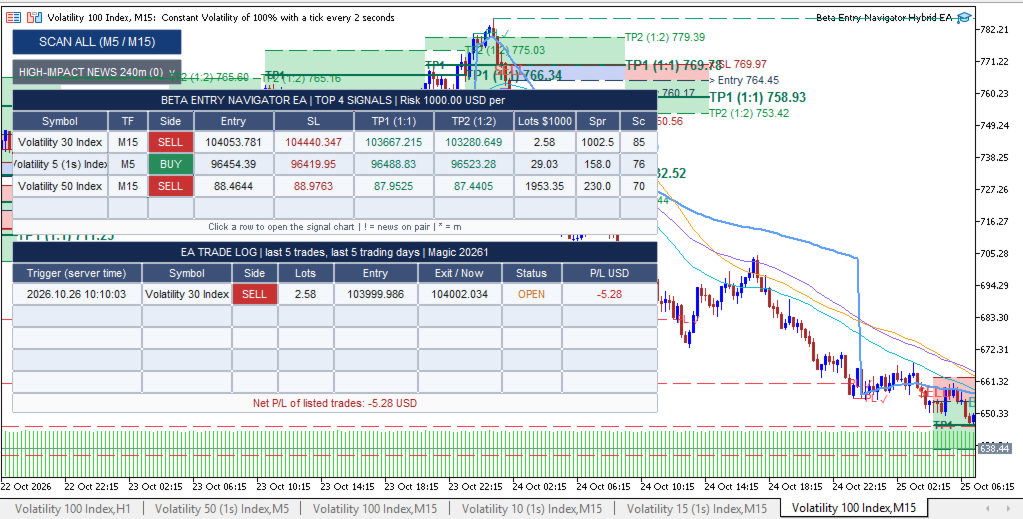
· Ranked dashboard showing up to four leading candidates.
· Structured trade planning with entry, stop-loss, TP1, and TP2.
· Automated trading when execution conditions are met.
· Position sizing via monetary risk, percentage risk, or fixed lot.
· Dual-layer protection combining broker-side orders with internal management.
3. HOW THE TECHNOLOGY WORKS
Engine One — Triple Confluence evaluates directional conditions using Cardwell-style RSI and moving-average analysis, adaptive RSI filtering, Supertrend-style direction applied to adaptive RSI, swing-point and structural break analysis, and ATR-based trade levels. Optional higher-timeframe and ADX filters are available.
Engine Two — Entry signals evaluates market structure including swing highs/lows, breaks of significant levels, Break of Structure (BOS), rejected blocks, Fair Value Gaps and breaker zones, liquidity levels, Fibonacci projections, and ATR-based boundaries.
Confluence Process:
1. Scan M5 and M15 history for each Market Watch symbol.
2. Calculate Triple Confluence directional signals.
3. Evaluate Entry Terminal market structure.
4. Apply the selected confluence mode (Off, Direction, or Full Entry).
5. Apply eligibility checks (signal age, SL/TP1 interaction, spread, news).
6. Rank candidates by engine agreement, Entry Terminal progression, and recency.
7. Display on the dashboard and, if enabled, execute automatically.
4. CORE FEATURES
4.1 Multi-Symbol Scanner — Scans all Market Watch symbols on M5 and M15 from one workspace.
4.2 Dual-Engine Confluence — Users choose how strictly the two engines must agree, balancing signal discovery against selectivity.
4.3 Ranked Opportunities — Dashboard shows up to four signals ordered by internal score. The score is a ranking measure, not a probability of success.
4.4 Structured Levels — Entry, stop-loss, TP1 (default 1:1), and TP2 (default 1:2) are calculated and displayed on the dashboard and chart.
4.5 Automated Execution — Subject to confluence mode, signal freshness, daily limit, position checks, spread, data availability, and broker permissions.
4.6 Three Sizing Modes — Fixed monetary risk, percentage of balance, or fixed lot. An option can reject trades where the broker's minimum lot would exceed the intended risk. Actual risk may differ due to slippage, gaps, and execution costs.
4.7 Dual-Layer SL/TP — Internally monitored levels plus physical broker-side backup orders calculated from ATR distances. Backup levels may not coincide with analytical levels.
4.8 Two-Stage Trailing — Stage one moves the stop partway toward entry after a configurable percentage of target distance; stage two moves it to entry plus/minus a pip offset at a later threshold.
4.9 Spread Protection — Rejects candidates on excessive pip spread, spread relative to stop distance, or unusual spread versus the recent M5 average. Cannot eliminate slippage.
4.10 Economic Calendar — Displays high-impact events within a configurable window and can optionally exclude affected-currency signals. Disabled by default.
5. BUY AND SELL SIGNALS
A BUY candidate is generated when the Triple Confluence engine identifies a qualifying bullish signal, with entry and protective levels calculated accordingly. A SELL candidate follows the same process in reverse. Depending on the Entry Terminal mode, additional directional or full-entry-stage confirmation may be required.
Dashboard entries include symbol, timeframe, direction, entry, SL, TP1, TP2, suggested volume, spread, and internal score.
Candidates are rejected if too old, already touched SL or TP1 in analysed history, fail confluence requirements, or fail other filters. A displayed signal identifies a potential opportunity under the EA's rules — it does not establish that price will move in that direction.
6. TRADE SETUP INTERPRETATION
Each candidate shows symbol and timeframe, direction, entry, SL, TP1, TP2, lots, spread, and score. A news marker flags candidates affected by high-impact events; another flags cases where minimum broker volume exceeds risk-based volume. Clicking a row opens the corresponding chart.
These outputs are decision-support information, not independent evidence that a trade suits every account or market condition.
7. CONFIRMATION AND FILTERS
· Entry Terminal Modes: Off (no agreement required), Direction (default — direction must agree), Full Entry (direction plus full-entry stage).
· Higher-Timeframe Filter: Optional H4 filter using RSI-based MA relationships. Disabled by default.
· ADX Filter: Optional minimum trend strength (period 14, threshold 20).
· Signal Age and Validity: Maximum age in closed bars; skips signals whose history already touched SL or TP1.
· Spread Filter: Applied before acceptance and before execution.
· News Filter: Optional exclusion of signals affected by high-impact events.
8. CHART VISUALIZATION
Chart objects can include entry, SL, TP1, and TP2 levels; risk and reward rectangles; market-structure lines; Fair Value Gap and breaker zones; rejected blocks; liquidity levels; higher-timeframe opens; Fibonacci projections; ATR boundaries and trailing lines; moving averages and VWAP; previous highs and lows; and signal labels. The EA can also apply a white background, remove the grid, and use a blue-and-brown candle scheme. Most elements are independently configurable.
9. SUPPORTED TIMEFRAMES AND MARKETS
Scanning timeframes: M5 and M15 (verified).
Higher-timeframe analysis: Optional filter defaults to H4; opening-level overlay defaults to D1. These are not additional scanner timeframes.
Instruments: All Market Watch symbols, subject to price history, valid quotes, broker permissions, and specifications. Forex-specific spread checks apply to Forex instruments. Verify contract specifications before enabling automated trading.
10. KEY USER SETTINGS
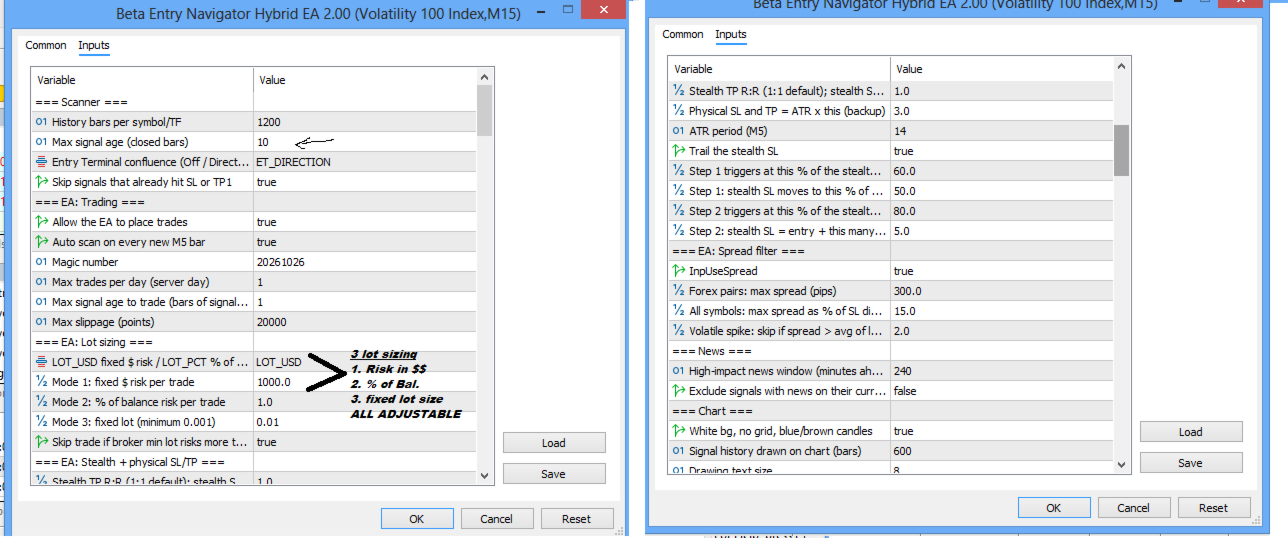
Scanner: InpScanBars (1200), InpMaxSignalAge (6), InpEtMode (Direction), InpSkipInvalid (true).
Trading: InpTradeEnabled (true), InpAutoScan (true), InpMagic (20261026), InpMaxPerDay (1), InpTradeMaxAge (1), InpSlippage (20 points).
Sizing: InpLotMode (Fixed monetary risk), InpRiskUsd (10.0), InpRiskPct (1.0), InpFixedLot (0.01), InpSkipOverRisk (true).
Management: InpStealthRR (1.0), InpPhysAtrMult (3.0), InpPhysAtrLen (14), InpUseTrail (true), InpTrail1Pct (60.0), InpTrail1SlPct (50.0), InpTrail2Pct (80.0), InpBePips (5.0).
Spread/News: InpUseSpread (true), InpMaxSpreadPips (3.0), InpMaxSprSlPct (15.0), InpSprSpikeMult (2.0), InpNewsMin (240), InpNewsExclude (false).
Technical inputs control RSI and adaptive RSI periods, MA methods, Kalman filtering, Supertrend ATR, swing detection, ATR stop buffers, TP ratios, HTF and ADX filters, market-structure and FVG settings, liquidity and Fibonacci references, VWAP/SMA/EMA/WMA overlays, and trailing references.
11. INSTALLATION
1. Open MetaTrader 5.
2. Select File → Open Data Folder.
3. Navigate to MQL5 → Experts.
4. Copy Beta Entry Navigator EA v2.10.mq5 into the folder.
5. Compile in MetaEditor and resolve any errors.
6. Refresh the Expert Advisors list.
7. Enable desired symbols in Market Watch with price history available.
8. Attach the EA to a chart (scanner evaluates M5/M15 regardless of host timeframe).
9. Configure inputs.
10. Enable automated trading permissions if required.
Run on a demo account before using real funds.
12. PRACTICAL WORKFLOW
1. Prepare Market Watch symbols and confirm price histories.
2. Choose the analysis mode (Off, Direction, or Full Entry).
3. Configure risk, daily limit, spread, and news filters.
4. Scan manually via SCAN ALL (M5/M15) or enable automatic scanning.
5. Review ranked candidates, treating the score as a ranking aid only.
6. Click a row to inspect the chart, levels, and structure.
7. Verify tradability, spread, signal recency, and position size before execution.
8. Monitor internal SL/TP and trailing while keeping the terminal running.
9. Review results over a meaningful sample and test on demo.
13. RISK MANAGEMENT
· Position sizing from monetary risk, percentage of balance, or fixed lot, with a minimum-lot safeguard.
· Daily trade limit restricting new trades per server day (default one).
· Spread controls rejecting excessive or unusual spreads.
· Dual-layer protection with physical broker orders plus internal management.
· Two-stage trailing adjusting exposure as price progresses.
Internal management requires the EA to remain operational. Broker-side orders add protection but remain subject to execution conditions. Physical backup levels may differ from analytical levels. Test on demo and never assume the configured risk is a guaranteed maximum loss.
14. LIMITATIONS
· Setups can fail in ranging, volatile, or fast-changing markets.
· Historical validity checks do not guarantee live behaviour.
· M5-triggered scanning introduces a short delay; execution may differ from the calculated entry.
· No unconditional non-repainting guarantee is established; validate through forward testing.
· Entries and exits may differ from analytical levels due to spread, slippage, gaps, delays, or broker restrictions.
· Risk-based sizing is an estimate affected by currency conversion, commissions, swaps, and volume constraints.
· Internal management requires the EA to remain running.
· Calendar data availability varies; the news filter does not predict market reactions.
· Only Market Watch symbols with available history are scanned.
· Broker suffixes, sessions, volumes, stop distances, and policies affect results.
· No win rate, profit factor, or return is guaranteed.
Evaluate in the Strategy Tester and on demo before live deployment.
15. WHO SHOULD USE THIS EA
Suitable for multi-symbol Forex traders, M5/M15 short-term traders, Smart Money Concepts traders, confluence-based traders, algorithmic trading users wanting configurable execution, and discretionary traders using the scanner for candidate discovery. It is not a substitute for understanding leverage, sizing, broker conditions, or leveraged-instrument risk.
16. WHY IT DESERVES ATTENTION
Beta Entry Navigator integrates multi-symbol M5/M15 scanning, RSI-based directional analysis, adaptive momentum, market-structure and FVG analysis, configurable Entry Terminal confirmation, a ranked dashboard, structured SL/TP levels, three sizing modes, spread and optional news filtering, dual-layer protection, two-stage trailing, and detailed chart overlays in one EA. Its distinction is combining opportunity discovery, signal qualification, trade planning, and execution controls in a single configurable environment.
17. RISK DISCLAIMER
Trading Forex, CFDs, and other leveraged instruments involves substantial risk and may result in loss of some or all capital. Past performance and historical signals do not guarantee future results. Beta Entry Navigator EA is a software tool, not a guarantee of profitability or a substitute for independent financial judgment. Test thoroughly, understand your broker's conditions, and use risk limits appropriate to your circumstances.