Chart Post Maker
- Utilities
- Version: 1.0
- Activations: 10

Chart Post Maker turns the current MetaTrader 5 chart into a clean, signed image for social media in one click.
Traders who share their analysis usually take a screenshot, crop it, hide indicators, add text in another program and only then publish. Chart Post Maker does all of this inside the terminal. You choose the format, check the preview and save. The image is ready to post on a feed, in a story or in a channel.
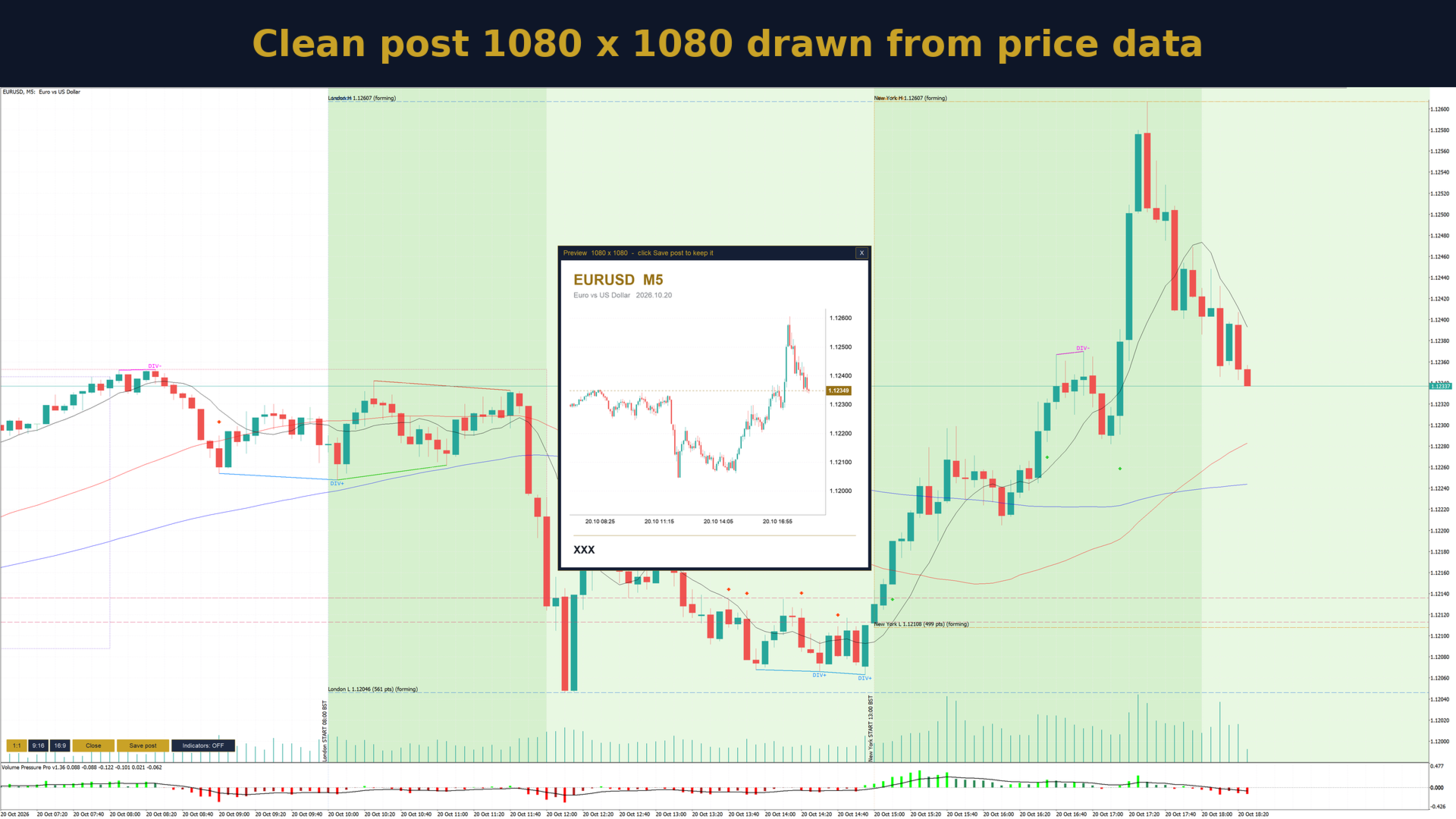
The indicator works in two modes. In the clean mode (Indicators: OFF) it draws the image itself from the price data: candles, price scale, time scale, a header with the symbol, timeframe and date, and your signature. Indicators and objects of other programs are not drawn, so the image stays clear. Your own drawings stay on the image: rectangles such as stop loss and take profit boxes, horizontal levels, trend lines and texts. The chart in the terminal is not changed at any moment.
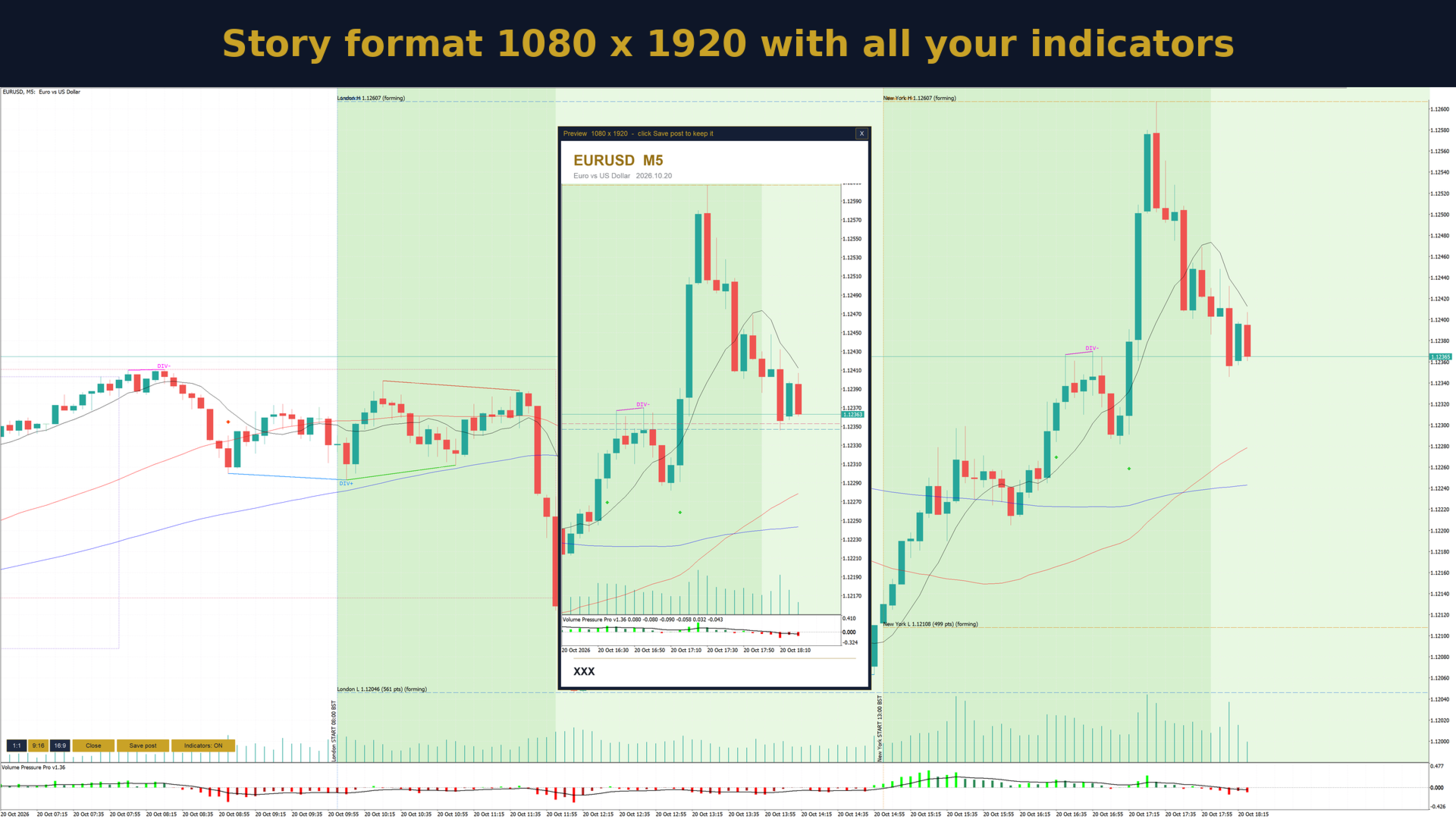
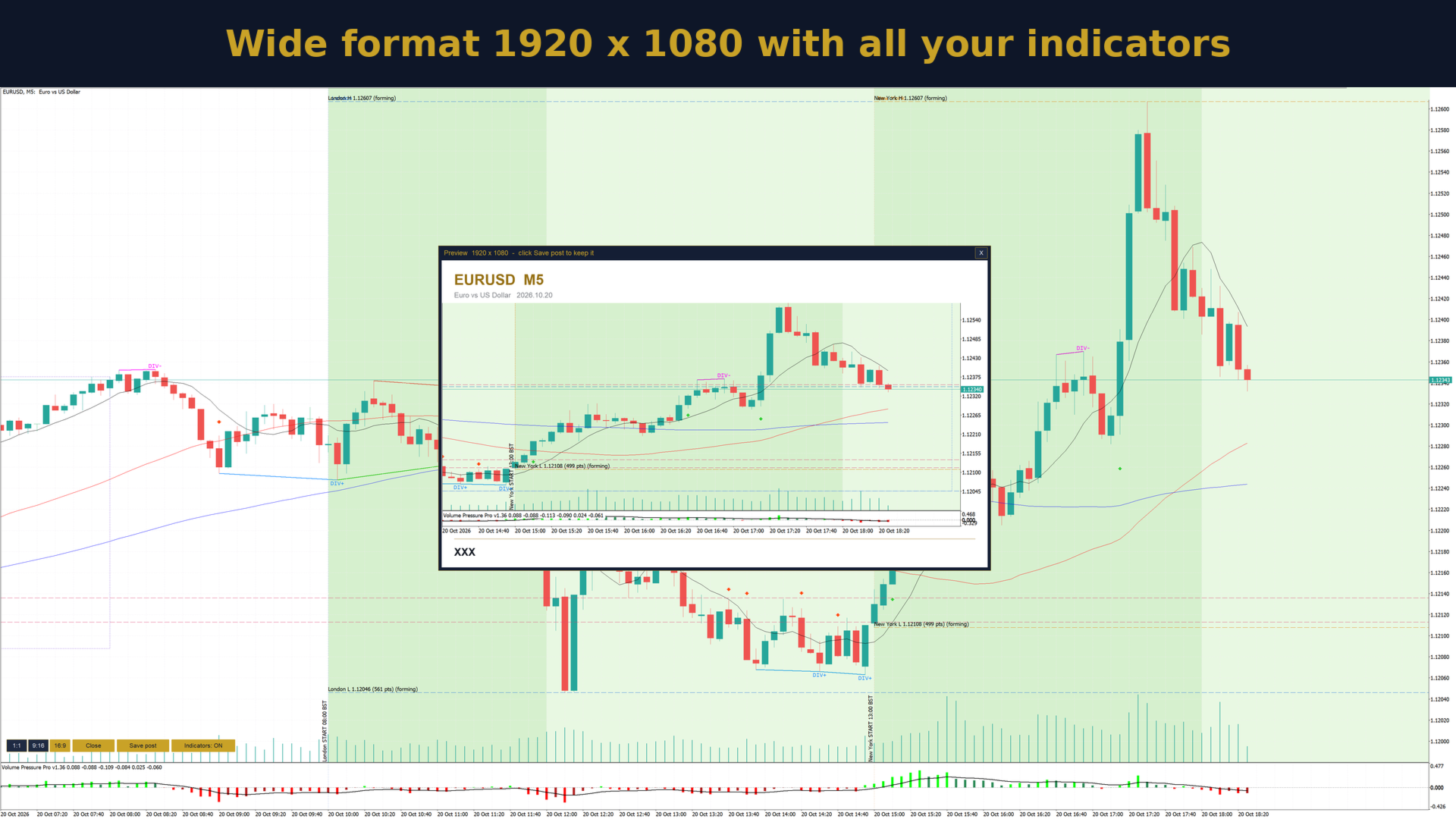
In the full mode (Indicators: ON) the indicator saves the chart exactly as you see it, with all indicators, and adds the header and signature.
If you have an open position or a recently closed trade on the symbol, the image can also show the entry, stop loss, take profit, the result in pips and the risk to reward ratio. Entry, stop loss and take profit are drawn as zones and lines with labels.
Main features
- One click: choose the format, preview and save.
- Three formats: square 1080 x 1080, vertical 1080 x 1920 and wide 1920 x 1080.
- Preview window on the chart before saving.
- Clean mode drawn from price data, without indicators, in the colours of your own chart.
- Your own rectangles, levels, trend lines and texts are kept on the clean image.
- Full mode with all indicators visible on the chart.
- Trade overlay: entry, stop loss, take profit, result in pips and risk to reward ratio.
- Header with symbol, timeframe and date, your signature and optional logo.
- Compact PNG files, usually 25 to 150 KB, saved in MQL5\Files\ChartPosts.
- Buttons in English or Polish, scaled correctly on high resolution screens.
- No DLL and no external connections.
Recommendations
- Works on any symbol and timeframe: forex, gold, indices and others.
- Works with light and dark chart colour schemes; the image follows the colours of your chart.
- The trade overlay uses positions and deals of the current symbol on your account.
How to use
- Attach Chart Post Maker to a chart.
- Use the buttons at the bottom left: 1:1, 9:16 or 16:9 selects the format and opens the preview.
- Indicators: OFF gives a clean image, Indicators: ON keeps all indicators.
- Save post writes the image. The message on the chart shows the file name.
- Open the file: File > Open Data Folder > MQL5 > Files > ChartPosts.
Input parameters
Signature
- Signature — your name or nickname shown at the bottom left of the image (default: empty).
- Show symbol, timeframe and date — header at the top of the image (default: true).
- Logo .bmp in MQL5\Files — optional logo file in BMP format (default: empty).
Image
- Default format — format selected at start (default: square 1080 x 1080).
- Folder inside MQL5\Files — where images are saved (default: ChartPosts).
Trade
- Trade shown on the image — open position, otherwise last closed trade; open position only; last closed trade only; no trade (default: open position, otherwise last closed trade).
- Search closed trades (days back) — how far back the last closed trade is searched (default: 30).
- Points per pip — 0 means automatic for 3 and 5 digit quotes and gold (default: 0).
Colours
- Accent — colour of the header and entry line (default: gold).
- Take profit and gains — colour of the take profit zone and positive result (default: green).
- Stop loss and losses — colour of the stop loss zone and negative result (default: red).
Mode
- Start with indicators off — the clean mode is active when the indicator starts (default: true).
- Keep my own rectangles, lines and texts on the clean image (default: true).
Buttons
- Button language — English or Polish (default: English).
- Buttons X offset and Y offset — position of the buttons from the bottom left corner (default: 10 and 40).
Important notes
- MetaTrader 5 allows programs to save files only inside the MQL5\Files folder of the terminal. Use File > Open Data Folder to find your images.
- In the Strategy Tester the buttons are visible, but the tester does not pass button clicks, so images are created on a live or demo chart.
- The indicator does not open or manage trades and does not give trading signals.
Questions and suggestions are welcome in the comments or through MQL5 private messages.