
SyncTrader Risk Manager
- Utilities
- Version: 1.27
- Updated: 11 August 2026

SyncTrader Risk Manager
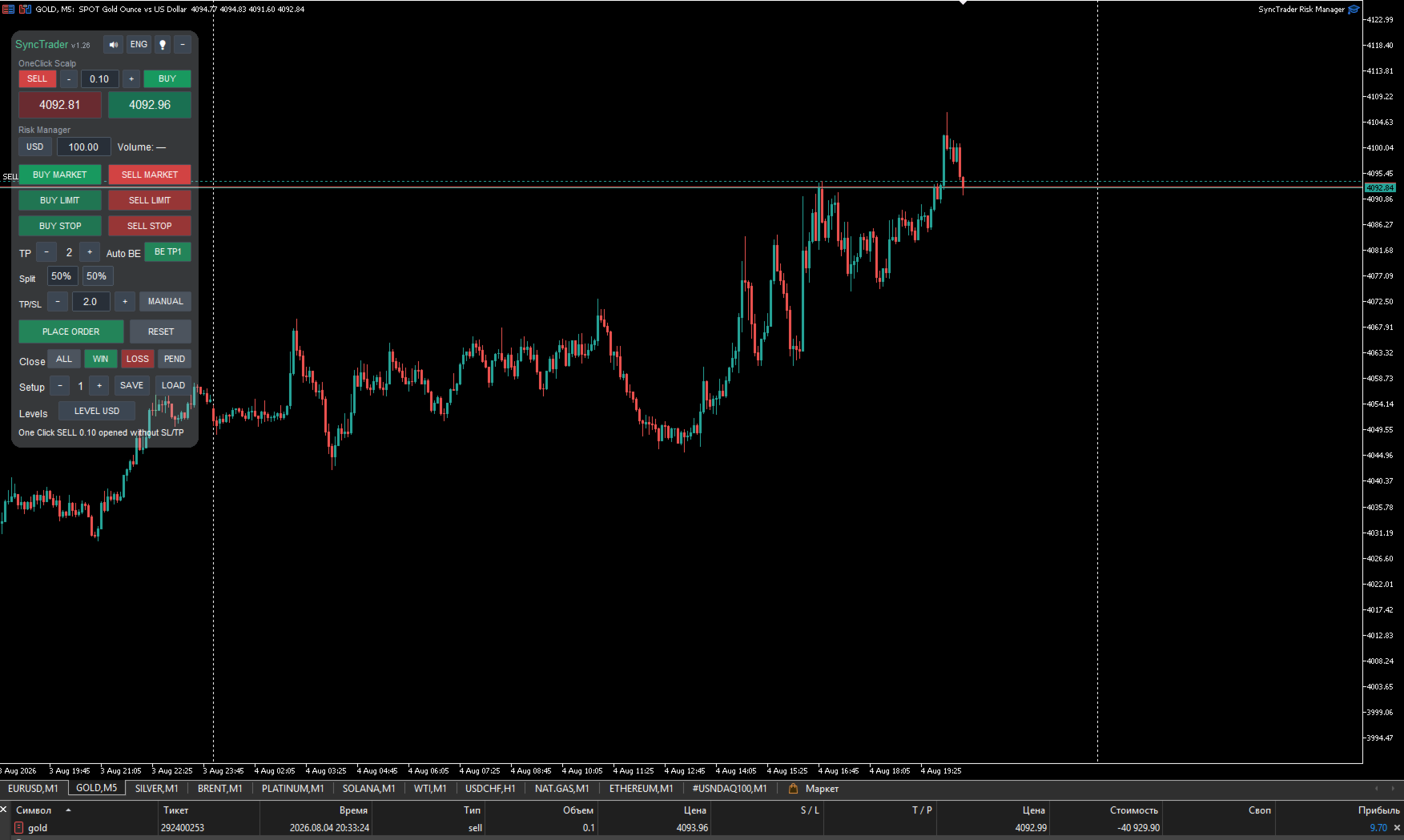
SyncTrader Risk Manager is a free manual trading panel and risk management utility for MetaTrader 5.
It combines two workflows: fast fixed-lot market entry and structured trade planning with automatic volume calculation, Stop Loss and multiple Take Profit levels.
SyncTrader does not generate trading signals or make trading decisions. Every trade is opened only after a user action.
TWO TRADING MODES
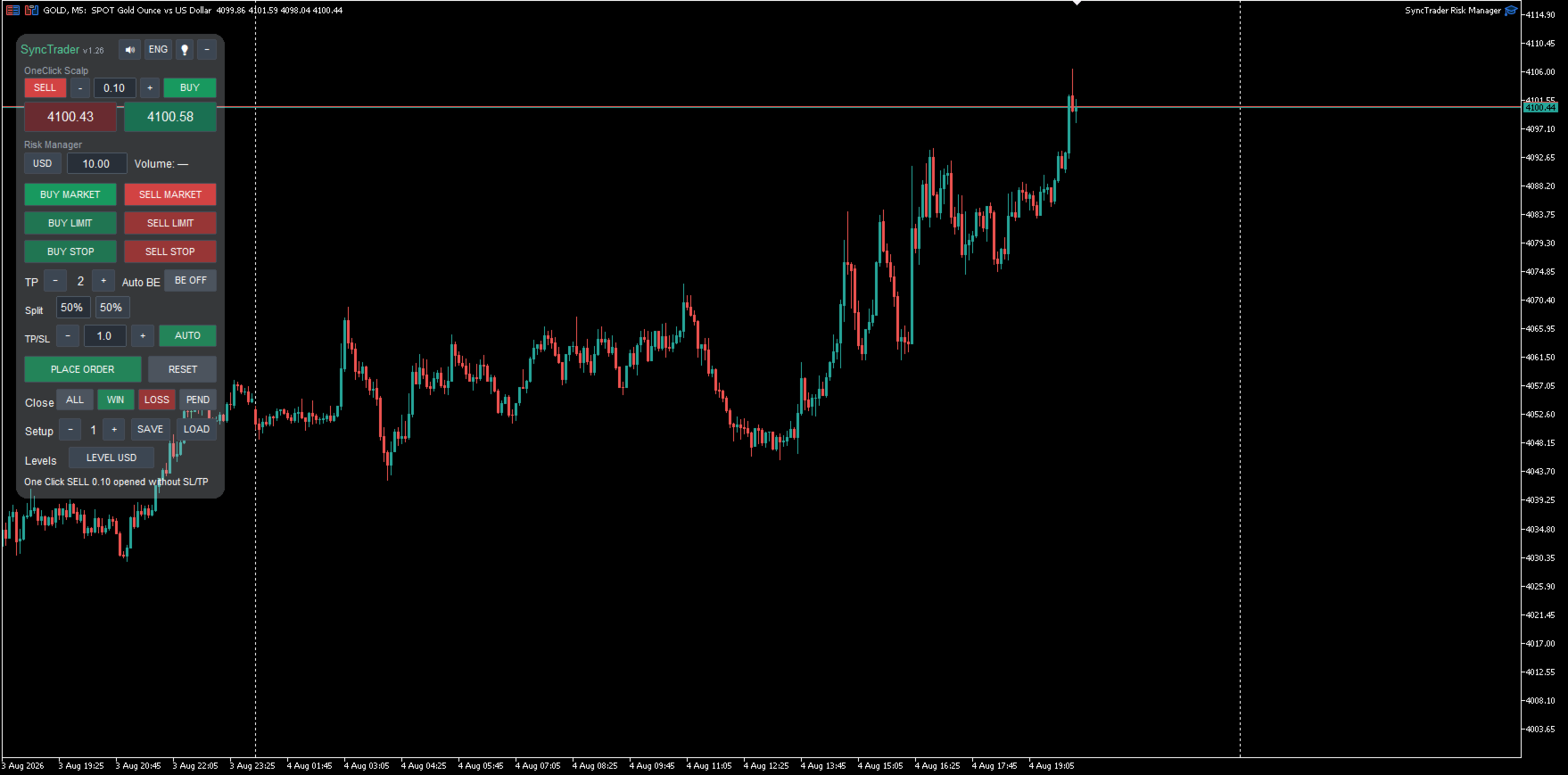
OneClick Scalp
A fast market-entry mode featuring:
- large live Bid and Ask prices;
- dedicated BUY and SELL buttons;
- adjustable fixed trading volume;
- instant entry without a preconfigured Stop Loss or Take Profit;
- a streamlined workflow for scalping and quick market decisions.
Risk Manager
A structured mode for preparing trades with predefined risk:
- position sizing by risk amount in account currency;
- position sizing by percentage of account balance;
- BUY MARKET and SELL MARKET;
- BUY LIMIT and SELL LIMIT;
- BUY STOP and SELL STOP;
- draggable Entry, Stop Loss and Take Profit lines;
- one to four Take Profit levels;
- calculated trading volume displayed before execution.
CUSTOM TAKE PROFIT ALLOCATION
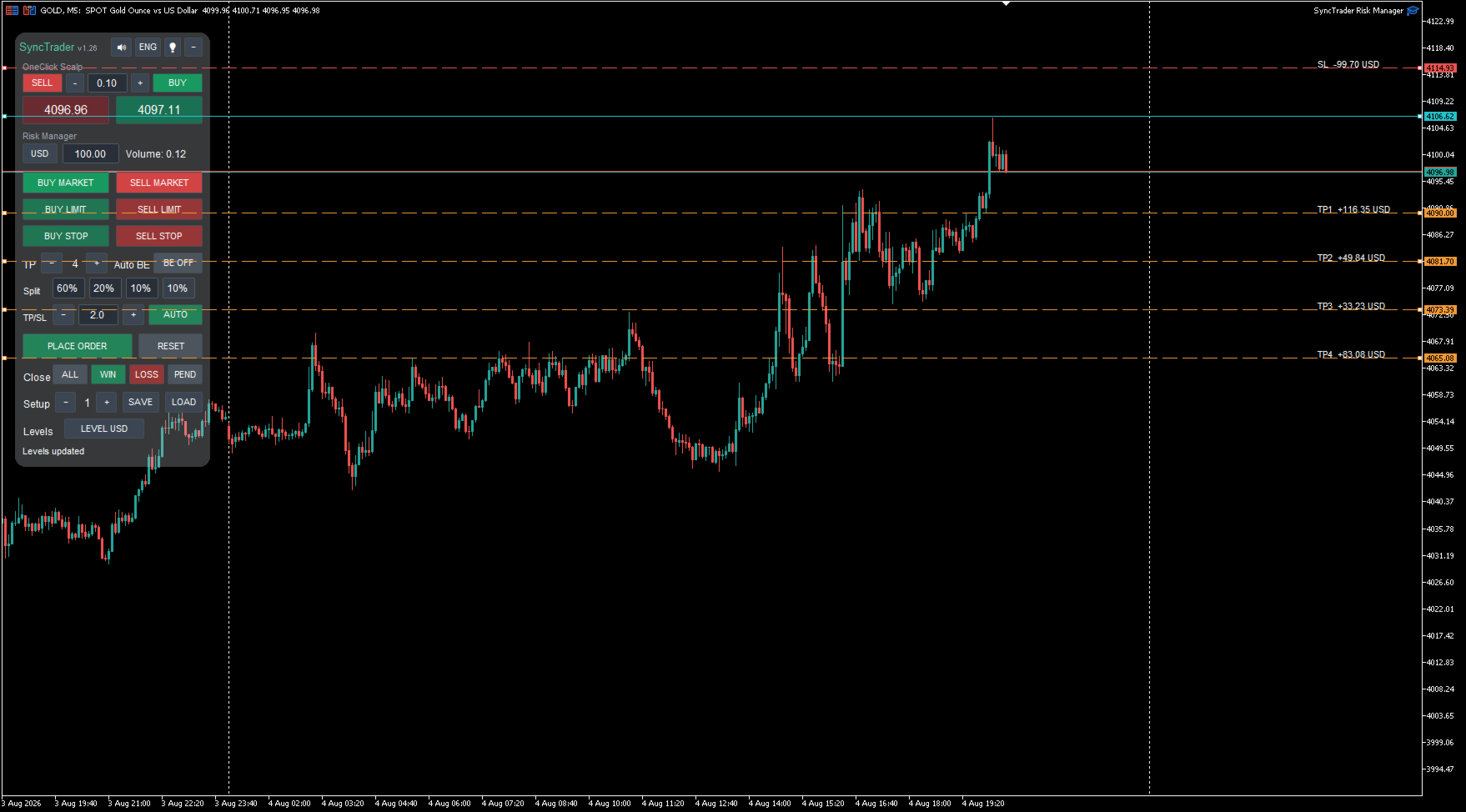
The closing percentage can be configured separately for every Take Profit.
Default allocation examples:
- 2 TP: 50% / 50%;
- 3 TP: 50% / 25% / 25%;
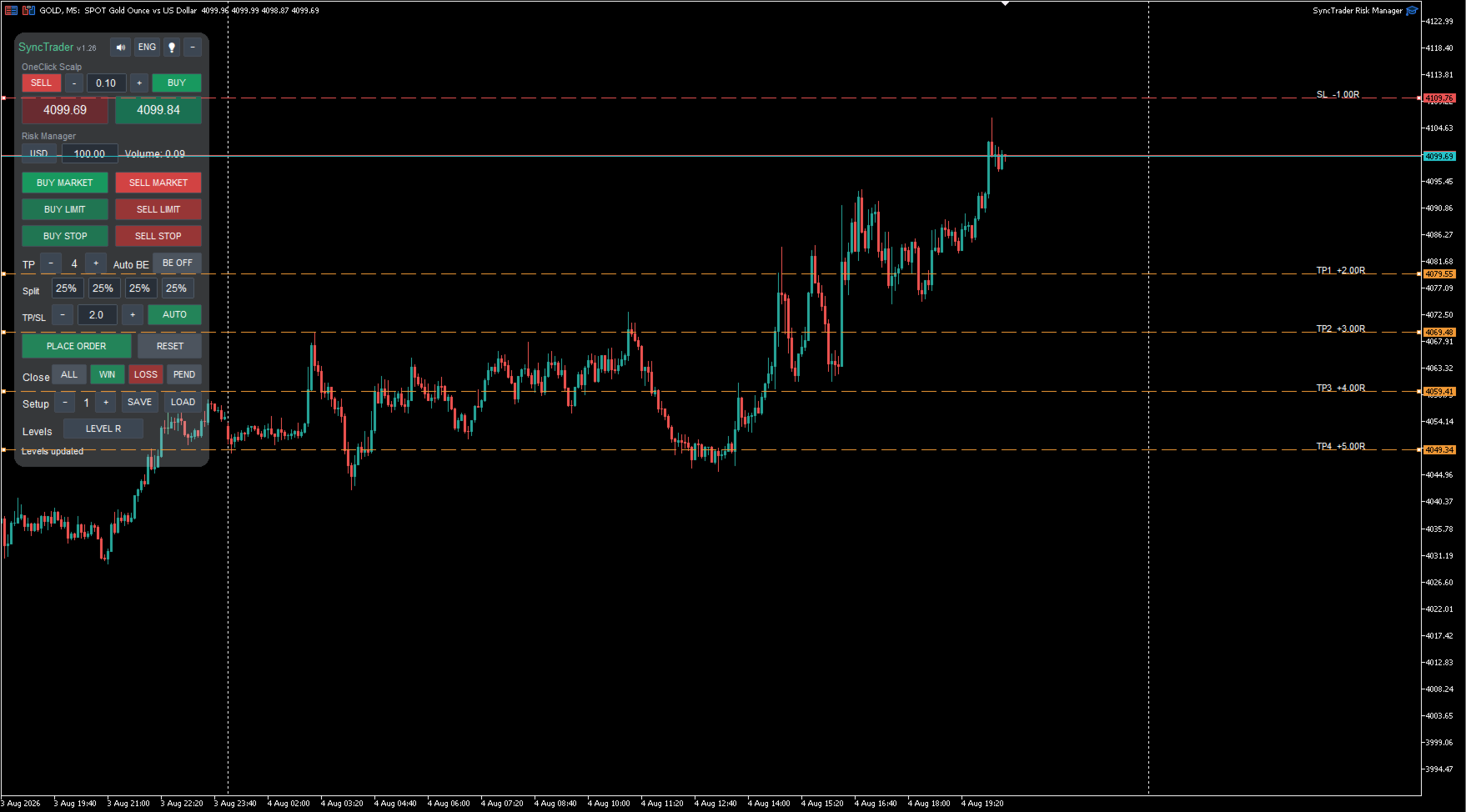
- 4 TP: 25% / 25% / 25% / 25%.
When one value is changed, the remaining volume is redistributed automatically. The final Take Profit always receives the remainder so that the total allocation equals exactly 100%.
The selected percentages are stored in templates and restored after an Expert Advisor or terminal restart.
AUTOMATIC TP/SL RATIO
Ratio mode positions Take Profit levels relative to the Stop Loss distance.
For example, with Ratio 2.0:
- TP1 is positioned at 2R;
- TP2 at 3R;
- TP3 at 4R;
- TP4 at 5R.
When Stop Loss is moved, automatic Take Profit levels are recalculated from the new risk distance.
Stop Loss can also be moved after a position is opened. The remaining automatic targets are recalculated accordingly.
Any Take Profit can be moved manually, for example to a liquidity level. A manually moved target becomes fixed and is excluded from subsequent Ratio recalculations, while the remaining automatic targets continue to update.
AUTOMATIC BREAKEVEN
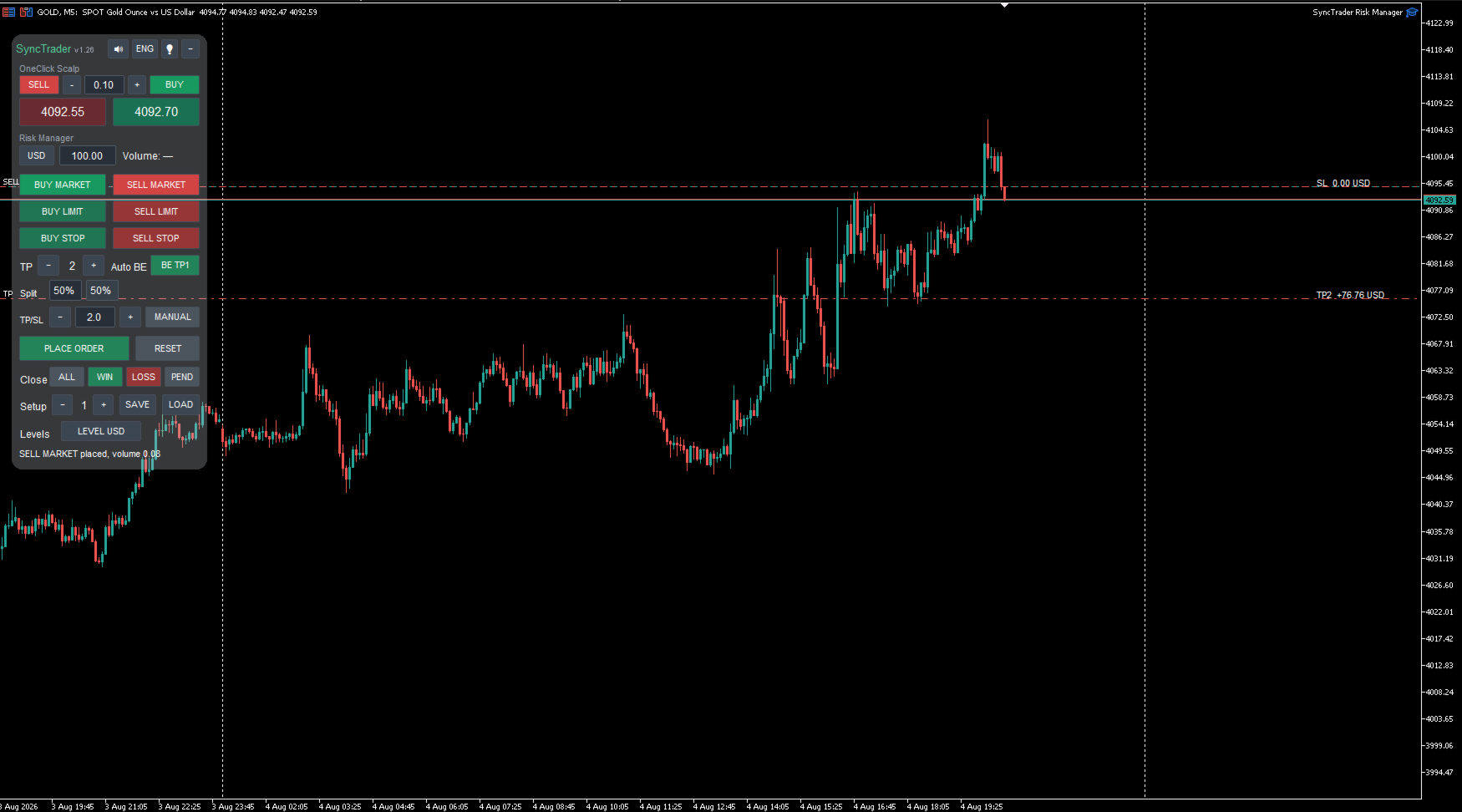
Stop Loss can be moved automatically to breakeven after a selected Take Profit is reached.
Available controls include:
- Take Profit number that activates breakeven;
- optional Stop Loss offset from the entry price;
- continued management of the remaining position parts;
- management recovery after a terminal restart.
LEVEL DISPLAY
Stop Loss and Take Profit values can be displayed in:
- account currency;
- points;
- risk units R.
Labels for identical or nearby levels are merged automatically to prevent overlapping values.
POSITION ADD-ONS
When adding to a position in the same direction, SyncTrader can reuse the Take Profit levels of the first trade.
This allows the utility to:
- merge an add-on with the active trade plan;
- preserve the original targets;
- recalculate the remaining partial volumes;
- continue automatic breakeven management;
- work on both hedging and netting accounts.
TRADING TEMPLATES
Nine setup slots are available.
A template stores:
- risk mode and risk value;
- Take Profit count;
- volume allocation between Take Profits;
- automatic breakeven settings;
- Ratio value;
- trading level positions.
QUICK ACTIONS
The panel can:
- close all managed positions;
- close only profitable managed positions;
- close only losing managed positions;
- remove managed pending orders.
The action scope can be limited to the current symbol or extended to all symbols. Quick actions affect only positions and orders using the configured SyncTrader Magic Number.
TRADING PROTECTION
Before sending an order, SyncTrader can check:
- maximum allowed spread;
- available free margin;
- required free-margin reserve;
- maximum risk per trade;
- maximum daily loss;
- daily result with or without floating P/L;
- correct Entry, Stop Loss and Take Profit placement;
- the broker's minimum stop-distance requirements.
INTERFACE
- English and Russian languages;
- full panel scaling from 75% to 150%;
- separate font scaling option;
- optional semi-transparent backdrop for better readability;
- automatic text color for light and dark charts;
- collapsible panel;
- optional interface sounds;
- selectable icon rendering mode;
- improved support for high-DPI displays;
- panel state restored after restart.
HEDGING AND NETTING
On hedging accounts, separate position parts are managed individually while common levels are visually grouped.
On netting accounts, MetaTrader stores one combined position per symbol. Intermediate Take Profit levels are executed by SyncTrader as virtual partial exits. The final Take Profit and Stop Loss remain at the broker.
MetaTrader 5 and SyncTrader must remain running for virtual partial exits and automatic breakeven execution.
TRADING WORKFLOW
- Select OneClick Scalp or Risk Manager.
- In Risk Manager mode, enter a monetary or percentage risk.
- Select direction and order type.
- Move the Entry, Stop Loss and Take Profit lines.
- Configure the TP count and volume allocation.
- Enable Ratio and automatic breakeven if required.
- Review the calculated volume.
- Press PLACE ORDER.
MAIN INPUT PARAMETERS
Trading
- SyncMagicNumber — identifier for SyncTrader positions and orders.
- DefaultRiskMode — risk in account currency or as a balance percentage.
- DefaultRiskValue — initial risk value.
- DefaultTPCount — initial number of Take Profit levels.
- DeviationPoints — maximum allowed execution deviation.
- DefaultOneClickLot — initial OneClick Scalp volume.
- DefaultTPSLRatio — initial TP/SL ratio.
- EnableTPSLRatioLink — initial automatic Ratio state.
Trading protection
- MaxSpreadPoints — maximum spread for market entry; 0 disables the limit.
- CheckFreeMargin — checks available free margin.
- MarginReservePercent — required additional free-margin reserve.
- MaxRiskPerTradeMoney — maximum risk per trade; 0 disables the limit.
- MaxDailyLossMoney — maximum daily loss; 0 disables the limit.
- IncludeFloatingPnLInDailyLoss — includes floating P/L in the daily limit.
- QuickActionScope — current symbol or all symbols for quick actions.
Automatic management
- EnableAutoBreakeven — initial automatic breakeven state.
- AutoBreakevenAfterTP — Take Profit number that activates breakeven.
- AutoBreakevenOffsetPoints — optional offset from the entry price.
- ReuseFirstTradeTPsForAddOns — reuses first-trade targets for additions.
Level display and templates
- DefaultLevelDisplay — account currency, points or R.
- SLLabelMergeTolerancePoints — tolerance for grouping nearby labels.
- LevelTemplateSlot — initial template slot from 1 to 9.
Panel
- PanelX and PanelY — panel position.
- PanelForeground — primary text color.
- AutoPanelTextColor — automatic text color selection.
- BuyColor and SellColor — trading button colors.
- StartPanelCollapsed — starts with the panel collapsed.
- DefaultPanelLanguage — English or Russian interface.
- StartPanelBackdrop — initial backdrop state.
- PanelScalePercent — full panel scale from 75% to 150%.
- PanelFontScalePercent — additional font scale.
- PanelIconMode — automatic icons, symbols or text.
IMPORTANT
- Enable algorithmic trading in MetaTrader 5 before placing orders.
- Test new settings on a demo account first.
- Check the symbol's minimum volume, volume step and broker stop-distance requirements.
- Calculated volume can differ slightly from requested risk because it is rounded to the broker's valid volume step.
- Virtual partial exits require the terminal to remain running.
- SyncTrader is not a trading signal and does not guarantee financial results.
- Trading financial markets involves risk.
Frequently asked questions
Does SyncTrader open trades automatically?
No. SyncTrader does not analyze the market, select direction or generate signals. In Risk Manager mode, an order is sent only after pressing PLACE ORDER. In OneClick Scalp mode, a market order is sent only after pressing BUY or SELL.
What is the difference between OneClick Scalp and Risk Manager?
OneClick Scalp provides instant fixed-lot entry without a predefined SL/TP. Risk Manager calculates volume from selected risk and prepares Entry, Stop Loss and up to four Take Profit levels before execution.
Why are the lines visible but no position has been opened?
The lines indicate a prepared trade plan. Adjust the levels and press PLACE ORDER. Any rejection reason is displayed in the panel status line and in the MetaTrader Experts tab.
How is trading volume calculated?
The calculation uses the Entry-to-Stop-Loss distance, selected monetary or balance-percentage risk and the symbol specification. Volume is rounded to the broker's valid volume step.
How many Take Profit levels are supported?
One to four. The closing percentage of every TP can be edited. The final TP receives the remaining percentage automatically, keeping the total at exactly 100%.
How does TP/SL Ratio work?
Ratio positions targets relative to the Entry-to-Stop-Loss distance. With Ratio 2.0, TP1 is 2R, TP2 is 3R, TP3 is 4R and TP4 is 5R. Automatic targets are recalculated when Stop Loss is moved.
Can I move an individual TP manually while Ratio is enabled?
Yes. A manually moved TP becomes fixed and is excluded from subsequent Ratio updates. The remaining automatic targets continue to recalculate.
How does automatic breakeven work?
Select the TP that should trigger breakeven and optionally set an offset in points. After that target is reached, SyncTrader moves the remaining position's SL to the entry area.
Why are several positions shown on a hedging account?
Each trade-plan part is opened as a separate position with its own Take Profit. This is normal hedging-account behavior.
How are multiple targets managed on a netting account?
MetaTrader keeps one combined position per symbol. Intermediate targets are executed by SyncTrader as virtual partial exits, while the final Take Profit and Stop Loss are placed at the broker.
Must the terminal remain running?
Yes, for virtual partial exits, automatic breakeven and program-side management. Server-side Stop Loss and the final Take Profit remain active at the broker.
What happens when I add to a position in the same direction?
When ReuseFirstTradeTPsForAddOns is enabled, the new part reuses the first trade's targets. Remaining volumes are recalculated while the active plan is retained.
What is stored in a Setup template?
Risk mode and value, TP count, closing percentages, Ratio, Auto BE and trading-level placement. Nine slots are available.
Why did ALL, WIN, LOSS or PEND not affect a manual trade?
Quick actions affect only positions and orders using the configured SyncMagicNumber. This protects other account trades.
What happens when the daily loss limit is reached?
SyncTrader blocks new managed entries. Existing positions are not closed automatically. A value of 0 disables the limit.
How can I resize the panel?
Set PanelScalePercent from 75 to 150. Buttons, spacing, backdrop and click areas are scaled together. PanelFontScalePercent can adjust text separately.
Are Windows HiDPI and macOS Retina supported?
Yes. The panel accounts for interface scaling. Manual panel scale, font scale and icon-mode options are available for uncommon configurations.
Does the free version send Telegram notifications?
No. SyncTrader Risk Manager is a standalone free utility without Telegram connectivity.
Does the utility guarantee trading results?
No. Direction, levels and risk are selected by the user. Trading financial markets involves risk.







































User didn't leave any comment to the rating