List of changes in MetaTrader 5 Client Terminal builds - page 20

You are missing trading opportunities:
- Free trading apps
- Over 8,000 signals for copying
- Economic news for exploring financial markets
Registration
Log in
You agree to website policy and terms of use
If you do not have an account, please register
Forum on trading, automated trading systems and testing trading strategies
New MetaTrader 5 Platform build 2265: DirectX functions for 3D visualization in MQL5 and symbol settings in Strategy Tester
MetaQuotes Software Corp., 2019.11.29 13:41
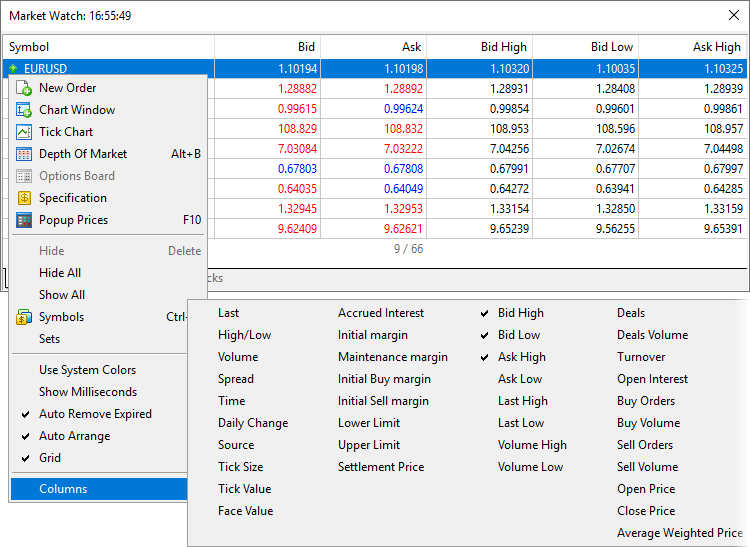
The MetaTrader 5 platform update will be released on Friday, December the 6th, 2019. The new version features the following changes:- Terminal: More columns have become available in Market
Watch. The main section now features 40 additional symbol parameters, which were previously available only under the
Details tab.
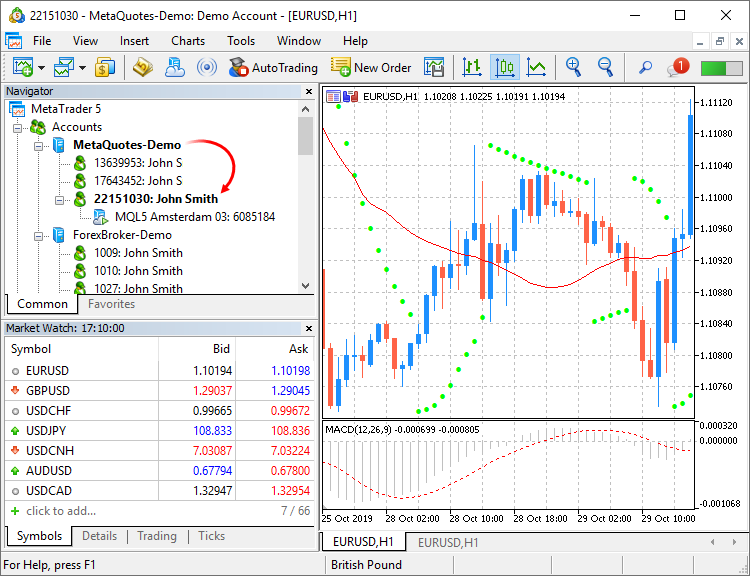
- Terminal: Added highlighting of the currently connected account and the current server in the Navigator. The function will be
useful if you have multiple accounts with different brokers.
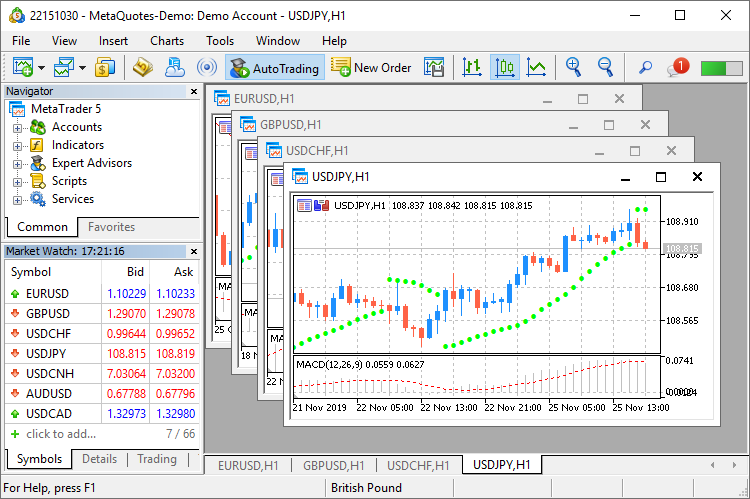
- Terminal: Updated frame design for charts. Frames have become smaller and thus more space is now available for useful information.
- Terminal: Modified algorithm for calculating trading totals when displaying the trading
history as positions. The values are now calculated based on actual records.
- Terminal: Implemented faster launching of MQL5 programs.
- Terminal: New /beta key has been added for the terminal installation file, which allows downloading the beta version. In normal
mode, the release version should be installed first, which can then be updated till a beta version. By skipping this step, you
can save time and traffic. Installation start example:
C:\mt5setup.exe /beta
- Terminal: Fixed display of margin requirements for instruments with the "Exchange Stocks" type.
- Terminal: Accelerated operation of all platform components through the use of the Clang/LLVM compiler. In some cases compilation
is 20% faster.
- MQL5: Added new DirectX 11 functions and shaders for 3D visualization. Now powerful three-dimensional graphics can be created
directly in MQL5.
- Create — creates a scene.
- Attach — binds a scene to a chart.
- Destroy — destroys a scene.
- ObjectAdd — adds to the scene a descendant object inherited from the base CDXObject class.
- Render — the full render loop, with buffer clearing and rendering of all CDXObject, added via the ObjectAdd method.
- RenderBegin — starts scene rendering, fills the render buffer with the specified color (if DX_CLEAR_COLOR flag is set) and the
depth buffers (when using DX_CLEAR_DEPTH), as well as sets the DXInputScene scene buffer for default shaders.
- RenderEnd — completes scene rendering and receives a result to an internal buffer. If redraw==true, displays the image on the
chart, on which it is running.
- ViewMatrixGet — receives a view matrix.
- ViewMatrixSet — sets a view matrix. The matrix is not compatible with ViewPositionSet, ViewRotationSet, ViewTargetSet and
ViewUpDirectionsSet methods.
- ViewPositionSet — sets camera position.
- ViewRotationSet — sets camera rotation matrix.
- ViewTargetSet — sets the point the camera is pointing at. Together with ViewUpDirectionsSet, it is an alternative to
ViewRotationSet.
- ViewUpDirectionsSet — sets the vertical position of the camera. Together with ViewTargetSet, it is an alternative to ViewRotationSet.
- ProjectionMatrixGet — receives a projection matrix.
- ProjectionMatrixSet — sets a projection matrix.

- MQL5: Added support for operations with SQLite databases directly from MQL5.
This enables easy execution of SQL queries without creating complex instructions. The internal operation is implemented by
the new standard library extension.
- DatabaseOpen — opens or creates a database in the specified file
- DatabaseClose — closes a database
- DatabaseTableExists — checks if there is a table in the database
- DatabaseExecute — executes a query to the specified database
- DatabasePrepare — creates a query handle, which can be further executed using DatabaseRead()
- DatabaseRead — jumps to the next record in the query result
- DatabaseFinalize — deletes a query which was created in DatabasePrepare()
- DatabaseTransactionBegin — starts the execution of a transaction
- DatabaseTransactionCommit — completes the execution of a transaction
- DatabaseTransactionRollback — rolls back a transaction
- DatabaseColumnsCount — receives the number of fields in a query
- DatabaseColumnName — receives field name by number
- DatabaseColumnType — receives field type by number
- DatabaseColumnSize — receives field size in bytes
- DatabaseColumnText — receives a string value of a field from the current record
- DatabaseColumnInteger — receives an int value from the current record
- DatabaseColumnLong — receives a long value from the current record
- DatabaseColumnDouble — receives a double value from the current record
- DatabaseColumnBlob — receives an array of field values from the current record
- ERR_MQL_DATABASE_INTERNAL (5120) — internal database error
- ERR_MQL_DATABASE_INVALID_HANDLE (5121) — invalid database handle
- ERR_MQL_DATABASE_TOO_MANY_OBJECTS (5122) — maximum number of Database objects exceeded
- ERR_MQL_DATABASE_CONNECT (5123) — database connection error
- ERR_MQL_DATABASE_EXECUTE (5124) — request execution error
- ERR_MQL_DATABASE_PREPARE (5125) — request creation error
- ERR_MQL_DATABASE_NO_MORE_DATA (5126) — no more data to read
- ERR_MQL_DATABASE_STEP (5127) — error moving to the next query record
- ERR_MQL_DATABASE_NOT_READY (5128) — data to read query results is not yet ready
- ERR_MQL_DATABASE_BIND_PARAMETERS (5129) — SQL query auto-substitution error
- MQL5: Added new property of MQL5 programs, which enables the selection of a default visualization method.
- MQL5: New MathArctan2 function. Returns the radian value of the angle, the tangent of which is equal to the ratio of the two
specified numbers.
- MQL5: We have performed the general optimization of programs to improve performance and reduce resource consumption.
- MQL5: Added examples of math calculations which can be performed in the strategy tester. They are available under the
\MQL5\Experts\Examples\Math 3D\ directory.
- MQL5: Introduced tighter control of namespaces.
- MQL5: Added loading of linked libraries when using .NET libraries in MQL5 programs. If the used .NET library requires other
libraries for operation, the compiler will try to download required libraries automatically from \MQL5\Libraries.
- MQL5: Fixed time operations in the MetaTrader
module for Python integration. Now all output data use the time of the trading server to which the terminal is connected.
- Tester: A plethora of new features and improvements:
- MetaEditor: Added ability to work with C/C++ and Python projects directly from MetaEditor. Now, multi-lingual projects can be
managed using the built-in editor.
- MetaEditor: Added support for sub-projects inside the Shared Projects directory intended for shared project development via MQL5
Storage. Previously, only single projects could be created at the top level.
- MetaEditor: Built-in debugger updates.
- MetaEditor: Fixed addition of a function header when using a code styler.
- MetaEditor: 'Jump to previous/next cursor position' commands are now available not only in the View menu, but also on the toolbar.
- MetaEditor: Spaces can now be used in project names.
- Android: Added ability to quickly switch to deposit/withdrawal pages on the broker website.
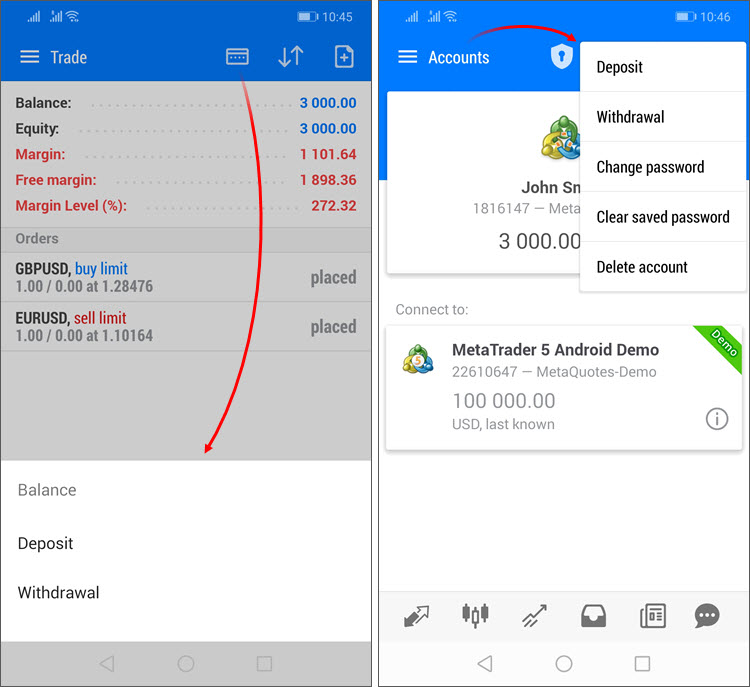
- Deposit/withdrawal operations are only available if appropriate functions are enabled for the trading account on the broker side.
- The trading terminal does not perform any account deposit/withdrawal operations. The integrated functions
redirect the user to the appropriate broker website pages.
- Android: Positions in history are sorted now by closing date.
- Android: Added marking of positions closed by Stop Loss or Take Profit with red and green vertical lines in the history
section.
- Android: Added new fields in the trading
symbol specification:
- Category — the property is used for additional marking of financial instruments. For example, this can be the market sector to
which the symbol belongs: Agriculture, Oil & Gas and others. The category is displayed only if the appropriate
information is provided by the broker.
- Exchange — the name of the exchange in which the security is traded. The category is displayed only if the appropriate
information is provided by the broker.
- Android: Added Margin Call state indication in the trading
section. Upon the emergence of this state, Margin, Free Margin and Margin Level parameters will be shown in red.
- Android: Fixed display of the OTP
section opening button in tablets.
- Android: Other fixes and improvements.
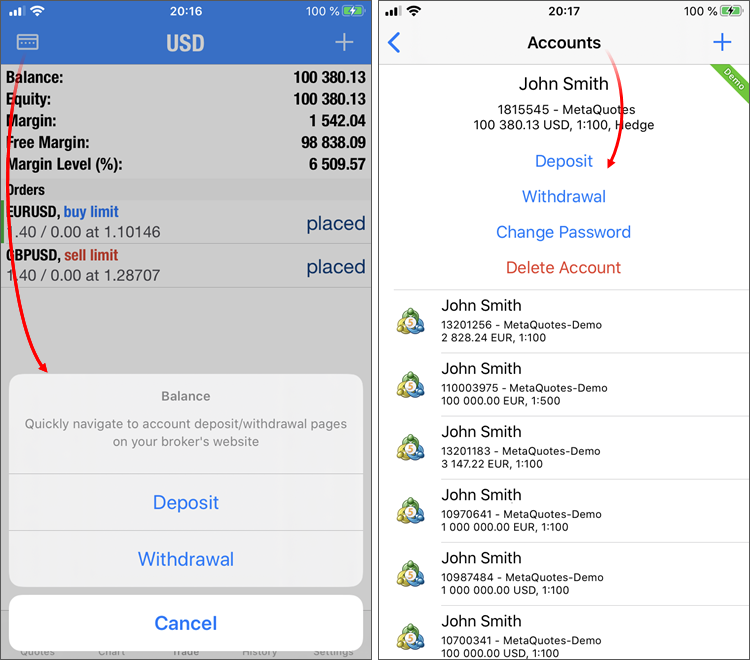
- iPhone/iPad: Added ability to quickly switch to deposit/withdrawal pages on the broker website. For further details, please see the
What's New list of MetaTrader 5 for Android.
- iPhone/iPad: Added dark mode support for iOS/iPadOS.
- iPhone/iPad: The one-time
password section has become available in the iPad version.
- iPhone/iPad: The positions closed by Stop Loss or Take Profit are marked with red and green vertical lines in the history
section.
- iPhone/iPad: Positions in history are sorted now by closing date. If the position has not yet been closed, its opening date is used for
sorting.
- iPhone/iPad: Other fixes and improvements.
- Fixes based on crash logs.
The update will be available through the Live Update system.To display the trading history as positions, the terminal uses information about deals executed during the requested period. Only the positions closed within this period will be shown in history. If the position is still open or its close time does not fall within the selected interval, it will not be displayed in the history. Therefore, the total profit and commission in the 'positions' mode can differ from those in the 'orders/deals' history mode.
For example, you are viewing the past week history. During this period, 100 deals were executed, 98 of which participated in the opening and closing of 20 positions. The last two deals opened new positions, which have not been closed up to now. In this case, the history of deals contains 100 records and appropriate total values calculated based on these deals. When viewing the history as positions, you will see 20 records collected based on 98 deals. Only this data will be taken into account when calculating total values. If the broker charges entry deal fees, the final commission value in the deals history will differ from the commissions shown in the positions history, because the two last deals will be ignored in the latter case.
The new CCanvas3D class is an extension of the CCanvas custom graphics class. It is available in the \MQL5\Include\Canvas\ directory. The class features functions for rendering three-dimensional objects via DirectX API.
Detailed documentation for the new library will be published soon.
The following functions are available:
The following error codes have been added for function operations:
The property allows setting the type of chart which opens at the end of optimization, as well as program parameters for the X and Y axes.
The property only sets the default chart view. It can be changed manually at any time, using the context menu.
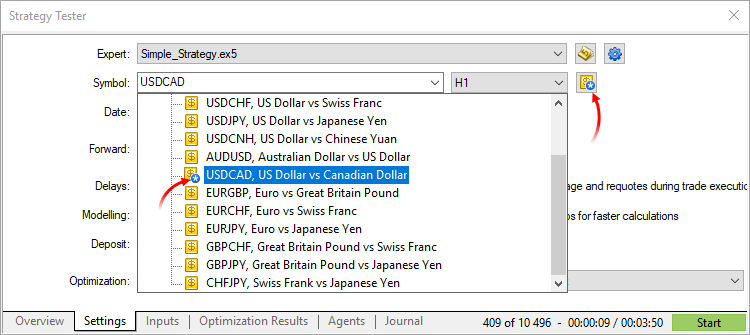
Custom settings for financial instruments
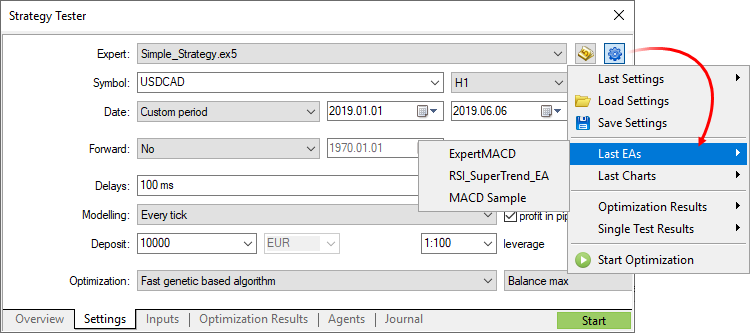
Now you can change settings of the main trading instrument, for which testing/optimization is performed. Almost all specification parameters can be overwritten: volumes, trading modes, margin requirements, execution mode and other settings. Thus, if you need to check an Expert Advisor under different conditions, there is no need to create a separate custom symbol and download its history. This can be done by changing standard symbol settings.
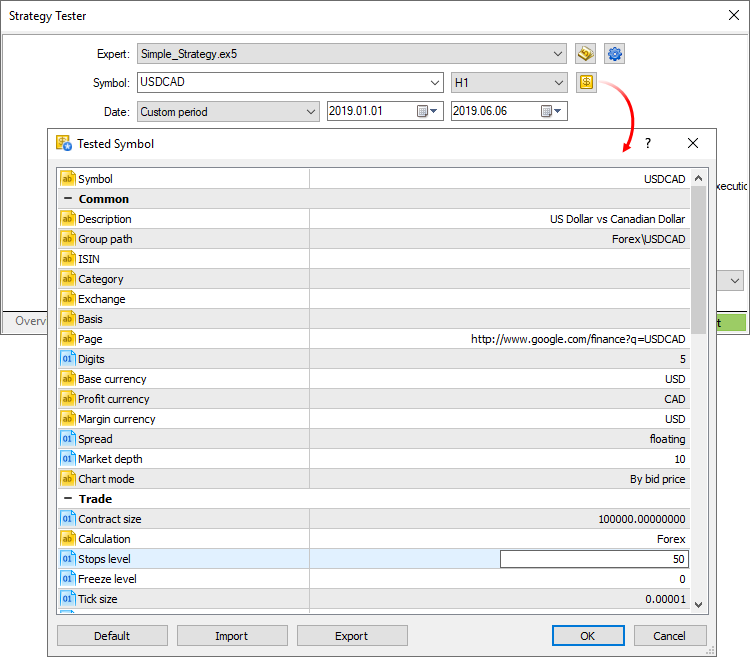
If the symbol specification is customized, the gear icon and the symbol icon are marked with an asterisk. This shows that custom parameters are used for the current test.Last settings/Expert Advisors/charts
Use the new context menu commands for fast testing or optimization setup. Choose the last used tester settings, recent charts or applications:
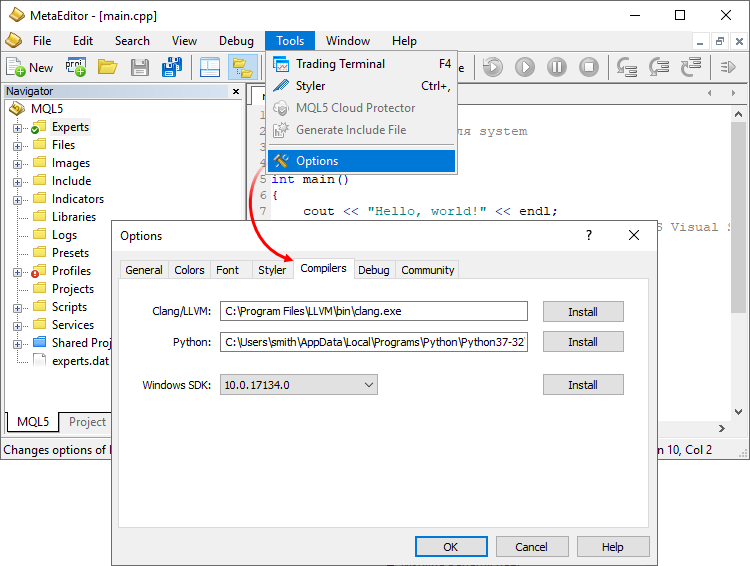
If appropriate compilers are installed on your PC, MetaEditor will detect them and add to settings. Optionally, you can specify paths to required components under the Compilers tab. From the same tab, you can download the components by clicking Install next to the appropriate field.
After that you can work with C/C++ and Python projects similarly to MQL5 programs.
There is no need to search for appropriate functions in a trader's room on the broker site. Fast navigation commands are available directly in terminals: users can switch to deposit and withdrawal pages from the Accounts and Trading sections:
Forum on trading, automated trading systems and testing trading strategies
New MetaTrader 5 Platform Build 2280
MetaQuotes, 2019.12.12 15:54
The MetaTrader 5 platform update will be released on Friday, December the 13th, 2019. The update features important additions and fixes based on the feedback we have received after the previous MetaTrader 5 build 2265 major update:
The update will be available through the Live Update system.
Forum on trading, automated trading systems and testing trading strategies
New MetaTrader 5 Platform Build 2340: Managing account settings in the Tester and expanded integration with Python
MetaQuotes, 2020.02.20 14:59
The MetaTrader 5 platform update will be released on Friday, February the 21st, 2020. The new version features the following changes:
In the previous platform update, we introduced support for operations with SQLite databases directly from MQL5. The main functions have become available through the MetaEditor user interface:
How it works
The quick database creation functionality is available from the MQL5 Wizard. You can easily create your first table and define its fields.
Upon the database creation, you will be forwarded to a new Navigator section, which features commands for managing the data.
Database tables are shown in the left-hand side window. Double-click on the table name to quickly query the first 1,000 records. In this navigator section, you can also create and open other databases, as well as work with tables.
The database can be managed in the main editor window, in which you can fill in the table, search and select data, enter SQL queries and execute other operations:

For further details about MetaTrader 5 operations with databases, please read the article entitled "SQLite: Native handling of SQL databases in MQL5".Click "Compile" in the editor to run the script:
To work with Python, do not forget to specify its path under the Settings \ Compilers section in MetaEditor. To enable the use of the MetaTrader 5 library, install it using the following command:
New naming
The existing commands have been renamed as follows:
MT5Shutdown -> shutdown
MT5TerminalInfo -> terminal_info
MT5Version -> version
MT5CopyRatesFrom -> copy_rates_from
MT5CopyRatesFromPos -> copy_rates_from_pos
MT5CopyRatesRange -> copy_rates_range
MT5CopyTicksFrom -> copy_ticks_from
MT5CopyTicksRange -> copy_tick_range
New commands
The list of supported commands has been expanded. Added trading functions, as well as functions for working with the trading history and for receiving financial symbol and current account data.
Running Python scripts on charts
Python scripts can be run directly on platform charts, similarly to regular MQL5 programs. These scripts are marked with special icons in the Navigator.
Script messages will be displayed under the "Toolbox \ Experts" section. If a MetaTrader 5 library is used in the script, it can receive trading symbol and account data, as well as perform trading operations.
Python scripts can be executed on the same chart in parallel with other MQL5 scripts and Expert Advisors. To stop a script with a looped execution, remove it from the chart.
Additional protection
To enable additional account protection when using third-party Python libraries, you may activate the "Disable automated trading via external Python API" option in terminal settings.
Python scripts can only perform trading operations when this option is disabled.
DatabaseImport
Imports data from a file to a table.
DatabaseExport
Exports a table or an SQL query result to a CSV file. The file is created in UTF-8 encoding.
DatabasePrint
Prints the table or SQL query result to the Experts journal.
The new function enables the efficient user interaction with the MQL5 program.
Common settings
In this section, you can set the maximum number of open orders and positions, which can simultaneously exist on the account. Additionally, you can configure sessions during which the program is not allowed to trade.
Margin
The section allows configuration of margin reserving rules and position accounting systems to be used in testing:
Commission
This section provides control over commissions charged for all trading operations.
The new MetaTrader 5 version will be available through the LiveUpdate system.
Forum on trading, automated trading systems and testing trading strategies
New MetaTrader 5 build 2360: Extension of SQLite integration
MetaQuotes, 2020.03.05 16:30
The MetaTrader 5 platform update will be released on Friday, March the 6th, 2020. The new version features the following updates:
The new MetaTrader 5 version will be available through the LiveUpdate system.
Forum on trading, automated trading systems and testing trading strategies
New MetaTrader 5 Platform Build 2450: "Subscriptions" service, UI improvements and revised features in MetaEditor
MetaQuotes, 2020.05.15 13:43
The MetaTrader 5 platform update will be released on Friday, May the 22nd, 2020.
The update only includes 64-bit platform components
We have previously announced the upcoming end-of-support for 32-bit components. From the current update and onward, new versions will only be released for the 64-bit platform. The latest available 32-bit terminal version is build 2360.
If you are still using 32-bit solutions, we recommend switching to 64-bit versions as soon as possible.
The new version features the following changes:
The service is currently under development and will become available for use in the next versions.
How it works
A new Subscriptions section has been added in the Navigator. All available services are displayed under this section. The list of services is configured on the broker side and thus it depends on the server to which you are connected. Subscriptions are divided into categories for easy browsing.
Select a service to view its detailed description. Next, click Subscribe. All your active subscriptions are displayed under a separate section.
When you subscribe to market data, appropriate trading instruments become available for selection in Market Watch. They can be used as regular symbols: view quotes in Market Watch, open charts and analyze them using objects and indicators, as well as run Expert Advisors in the strategy tester. Trading operations for these symbols are not supported.
How to pay for subscriptions
You can pay for the services using your trading account funds. There is no need to visit other websites, as the payment can be performed directly from the platform.
Soon, we will add the possibility to purchase market data subscriptions by connecting to MetaQuotes-Demo
We plan to set up subscriptions to market data from various exchanges around the world. In just a few clicks, you will be able to receive real-time quotes from Nasdaq, CME, NYSE, BOVESPA and other exchanges. You will be able to pay for subscriptions using an MQL5.community account, similarly to Market, Signals and Hosting purchases.
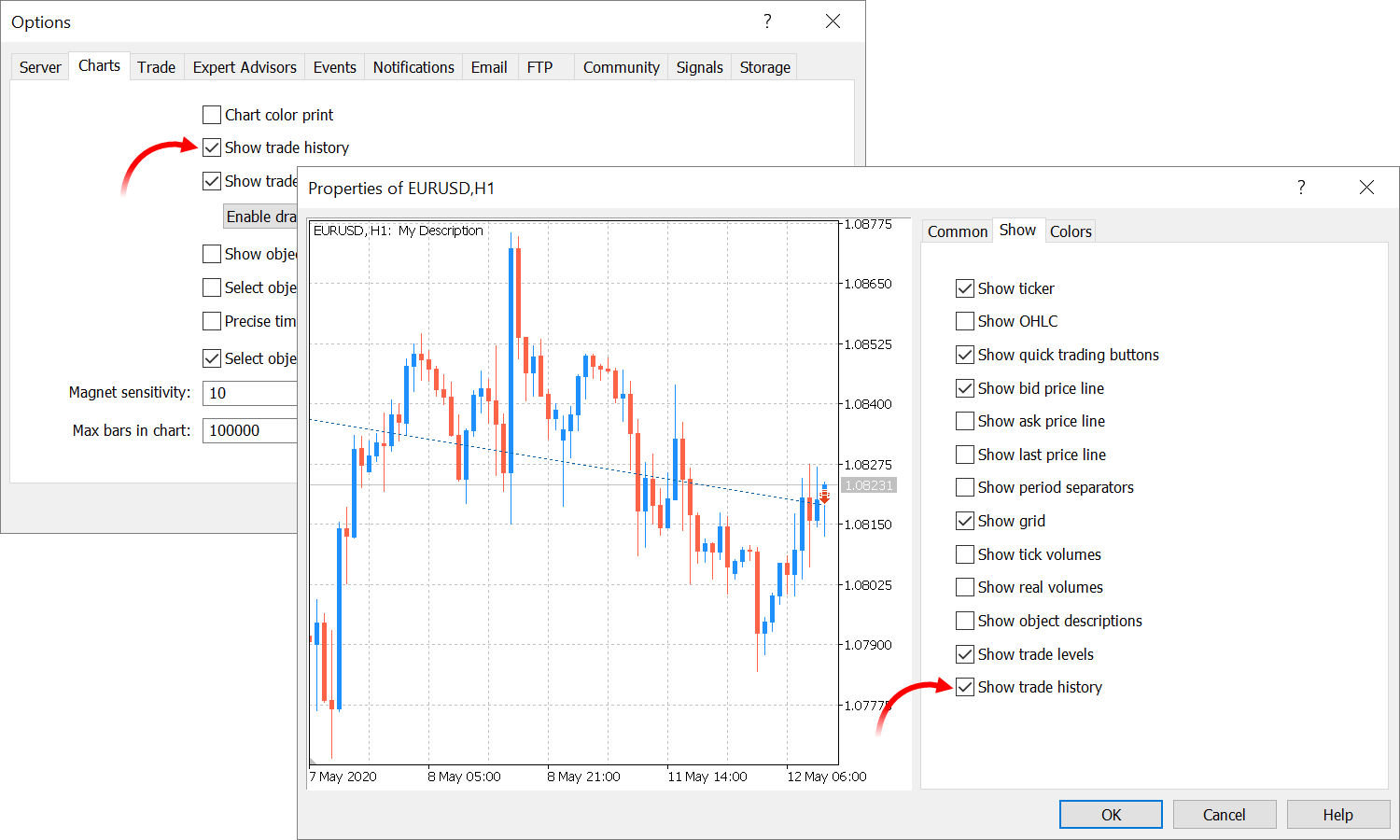
Furthermore, you can quickly enable the display of trading history and trading levels using the chart context menu:The new columns can be shown/hidden using the context menu.
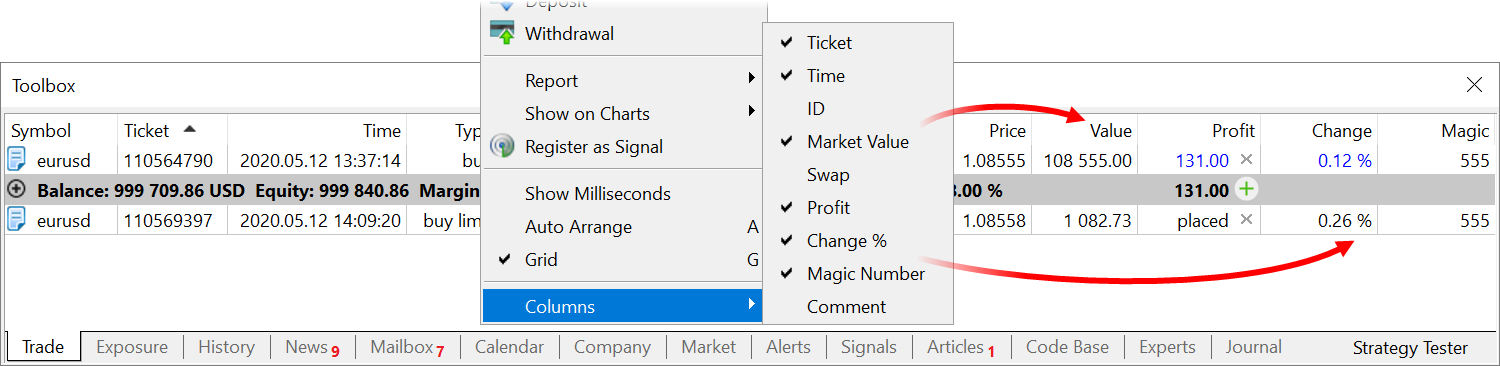
Position value and magic columns have also been added to the trading history section.Furthermore, the profit field in the open positions and history sections is highlighted depending on the operation result.
comment=Request executed
request_id=55
retcode_external=0
request=TradeRequest(action=1, magic=234000, order=0, symbol='USDJPY', volume=0.1, price=108.018, stoplimit=0.0, ...
traderequest: action=1
traderequest: magic=234000
traderequest: order=0
traderequest: symbol=USDJPY
traderequest: volume=0.1
traderequest: price=108.018
traderequest: stoplimit=0.0
...
import sys chart_symbol='unknown' chart_tf=1 if len(sys.argv) == 3: chart_symbol, chart_tf = sys.argv[1:3]; print("Hello world from", chart_symbol, chart_tf) >> Hello world from T.NYSE 15Added extended search features with partial regular expression support. Use \r, \n, \t to specify line feed and tab characters in search requests. Search and replace dialogs have been combined into a single multi-tab dialog.
Added a separate tab for searching in programmer communities. These include MQL5.community, as well as GitHub, MSDN and Stack Overflow.
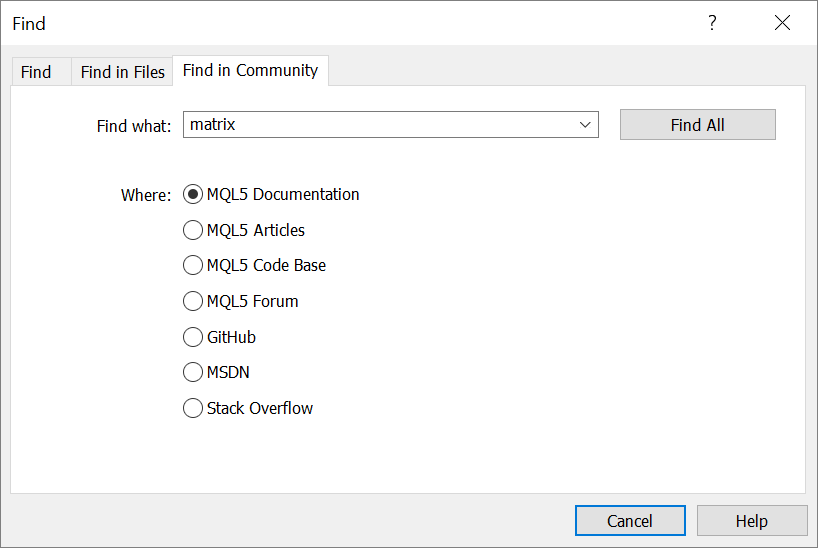
Search results from external resources appear in the MetaEditor toolbox window:
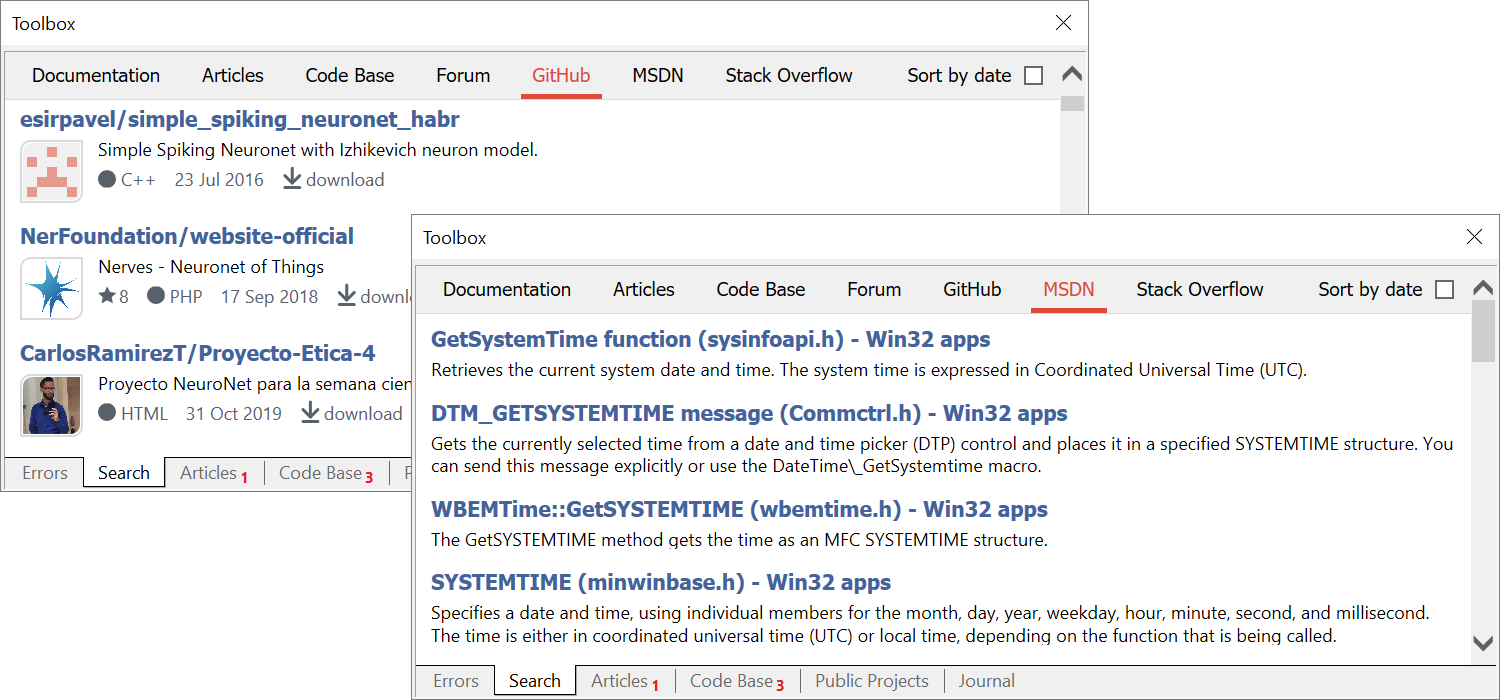
Furthermore, you can immediately download source files from GitHub. Files are downloaded into a separate subdirectory of the Projects folder, named in accordance with the GitHub project name.Search results can be additionally sorted by date.
The new version will be available through the LiveUpdate system.
Forum on trading, automated trading systems and testing trading strategies
New MetaTrader 5 Platform build 2470
MetaQuotes, 2020.05.28 16:12
The MetaTrader 5 platform update will be released on Friday, May the 29th, 2020. The new version features the following changes:
The new version will be available through the LiveUpdate system.
Forum on trading, automated trading systems and testing trading strategies
New MetaTrader 5 Platform Build 2485: iCustom improvements and overall optimization in MQL5
MetaQuotes, 2020.06.05 08:44
The MetaTrader 5 platform update will be released on Friday, June the 5th, 2020.
Recompile your products in the Market
We urge the programmers who publish their products in the Market to recompile files using the new platform version and to upload the updated files into the Market. The current version provides important fixes in MQL5. The errors can negatively affect the execution of programs and we therefore recommend recompiling your files.
The new version features the following changes:
- Terminal: Optimized and significantly accelerated bar history editing for custom financial instruments. The improvement also concerns the CustomRatesUpdate function.
- Terminal: Fixed exporting of custom symbol settings to a JSON file.
- MQL5: This version features a revised custom indicator loading algorithm via iCustom.
- The EX5 file is searched in the same folder, where the caller program's EX5 is located. For example, the CrossMA.EX5 Expert Advisor is located at MQL5\Experts\MyExperts. It contains the following call: iCustom(Symbol(), Period(), "SecondIndicator"...). In this case, the indicator is searched at MQL5\Experts\MyExperts\SecondIndicator.ex5.
- If the indicator is not found, a search relative to the Indicators root directory is performed: MQL5\Indicators. Thus, file MQL5\Indicators\SecondIndicator.ex5 is searched. If the indicator is not found, the function returns INVALID_HANDLE and error 4802 (ERR_INDICATOR_CANNOT_CREATE) is raised.
If the indicator path is set in a subdirectory such as MyIndicators\ThirdIndicator, the search starts in the folder of the calling program (the Expert Advisor is located in the folder MQL5\Experts\MyExperts) at the following path: MQL5\Experts\MyExperts\MyIndicators\ThirdIndicator.ex5. In case of failure, file MQL5\Indicators\MyIndicators\ThirdIndicator.ex5 is searched. Please note that the path separator should be specified as a double backslash '\\'. For example: iCustom(Symbol(), Period(), "MyIndicators\\ThirdIndicator"...)
- MQL5: Optimized and significantly accelerated HistorySelect function, which allows requesting the history of deals and orders.
- MQL5: Fixed an occasional error in tick requesting via the CopyTicksRange function. The error caused the range beginning to be set to the day beginning rather than to the specified time.
- MQL5: Optimized and significantly accelerated display of alerts via the Alert function.
- MQL5: New property SYMBOL_TIME_MSC for the symbol's last tick time in milliseconds. The property can be obtained using the SymbolInfoInteger function.
- Fixed errors reported in crash logs.
The new version will be available through the Live Update system.If the backslash '\' is indicated before the custom indicator name, the EX5 indicator file is searched relative to the MQL5 root folder. So, for a call of iCustom(Symbol(), Period(), "\FirstIndicator"...), the indicator will be loaded as MQL5\FirstIndicator.ex5. If the file is not found at this path, error 4802 (ERR_INDICATOR_CANNOT_CREATE) is returned.
If the path does not start with a backslash '\', the indicator is searched and loaded based on the following sequence of actions:
Also, if a custom indicator call via iCustom is found in the program code, the compiler will implicitly add the "#property tester_indicator XXX" directive if it is not specified.
Forum on trading, automated trading systems and testing trading strategies
New MetaTrader 5 platform build 2530: Sorting in Market Watch and advanced operations with optimization results
MetaQuotes, 2020.07.09 16:20
The MetaTrader 5 platform update will be released on Friday, July the 10th, 2020. The new version features the following changes:
All interactive hints are grouped into various categories for easier navigation. The number of completed and remaining hints is shown for each category.
Every hint is now provided with a checklist, indicating the key action which the user should execute in order to complete training.
We have also revised the learning system design and fixed errors in the total progress calculation.
The new option enables faster operations with projects consisting of multiple files. For example, to replace a text in all files, you will not need to specify their directories manually. The editor can automatically find them through the #include directives.
Tester: We have revised optimization criteria which include two variables, one of which is the balance. Now, the criteria only take into account the second variable and ignore the balance. The new optimization criteria are easier to analyze.
The graph is colored with a green-to-red gradient, depending on the value of the optimization criterion. The following colors are used for the table:
The update will be available through the Live Update system.
Forum on trading, automated trading systems and testing trading strategies
New MetaTrader 5 Platform build 2560: Built-in learning system improvements
MetaQuotes, 2020.07.23 14:34
The MetaTrader 5 platform update will be released on Friday, July the 24th, 2020. The new version features the following changes:
Complete all lessons to start using the platform capabilities to the maximum.
The update will be available through the Live Update system.