
MQL5 MVC架构中表格视图与控制器组件:简单控件
 451
451
 0
0

内容
概述
作为在MVC(模型-视图-控制器)架构下开发表格视图控件的一部分,我们已创建表格模型(即模型组件),并开始构建视图组件。在第一阶段,我们创建一个基础对象,它是所有其他图形元素的始祖。
今天我们来开发简单控件,以后它们就是搭建复合界面元素的基础组件。每个控件元素都将具备与用户及其他元素交互的功能。换句话说,这就相当于实现了控制器的功能。
由于MQL语言已经把事件模型已被集成到图表事件对象中,因此接下来的控件都会用到事件处理机制,把视图和控制器连起来。因此,需要优化图形元素的基类。
接下来,我们来创建文本标签和各种按钮等简单控件。每个元素都支持绘制图标。这样我们就能用简单按钮构建出各种不同的控件。举个例子,树形视图的一行,左边是图标,右边是文字,看似一个独立控件。但实际上,我们可以轻松地基于普通按钮创建这类控件。同时还能调整字符串参数,让它在鼠标悬停或点击时变色响应,或者保持静态只响应点击。
创建好对象后,编写几行配置代码就能实现这些功能。并且,我们将继续利用这些元素创建复杂且完全交互式的复合控件,并且直接投入使用。
控制器组件优化基类
为了达成目的,我们必须对已实现的类、宏替换和枚举进行稍许优化。大部分的必要功能都在图形元素的基对象中。因此,这才是优化主体。
此前,此类位于MQL5\Scripts\tables\controls\Base.mqh路径下。
今天我们要编写一个测试指标,因此,要在指标目录\MQ5\Indicators\下新建一个\tables\controls\文件夹,并将Base.mqh文件置于其中。这就是我们当前的工作。
此外,对象将包含所附加控件的列表。例如,容器可以是这类对象。为了使这些列表能够正确处理文件(即创建存储在列表中的对象),必须预先声明所有要创建的元素类。将类声明、新的宏替换、枚举以及枚举常量写入Base.mqh文件中:
//+------------------------------------------------------------------+
//|                                                         Base.mqh |
//|                                  Copyright 2025, MetaQuotes Ltd. |
//|                                             https://www.mql5.com |
//+------------------------------------------------------------------+
#property copyright "Copyright 2025, MetaQuotes Ltd."
#property link      "https://www.mql5.com"

//+------------------------------------------------------------------+
//| Include libraries                                                |
//+------------------------------------------------------------------+
#include <Canvas\Canvas.mqh>              // CCanvas class
#include <Arrays\List.mqh>                // CList class

//--- Forward declaration of control element classes
class    CImagePainter;                   // Image drawing class
class    CLabel;                          // Text label class
class    CButton;                         // Simple button class
class    CButtonTriggered;                // Two-position button class
class    CButtonArrowUp;                  // Up arrow button class
class    CButtonArrowDown;                // Down arrow button class
class    CButtonArrowLeft;                // Left arrow button class
class    CButtonArrowRight;               // Right arrow button class
class    CCheckBox;                       // CheckBox control class
class    CRadioButton;                    // RadioButton control class

//+------------------------------------------------------------------+
//| Macro substitutions                                              |
//+------------------------------------------------------------------+
#define  clrNULL              0x00FFFFFF  // Transparent color for CCanvas
#define  MARKER_START_DATA    -1          // Data start marker in a file
#define  DEF_FONTNAME         "Calibri"   // Default font
#define  DEF_FONTSIZE         10          // Default font size

//+------------------------------------------------------------------+
//| Enumerations                                                     |
//+------------------------------------------------------------------+
enum ENUM_ELEMENT_TYPE                    // Enumeration of graphical element types
  {
   ELEMENT_TYPE_BASE = 0x10000,           // Basic object of graphical elements
   ELEMENT_TYPE_COLOR,                    // Color object
   ELEMENT_TYPE_COLORS_ELEMENT,           // Color object of the graphical object element
   ELEMENT_TYPE_RECTANGLE_AREA,           // Rectangular area of the element
   ELEMENT_TYPE_IMAGE_PAINTER,            // Object for drawing images
   ELEMENT_TYPE_CANVAS_BASE,              // Basic canvas object for graphical elements
   ELEMENT_TYPE_LABEL,                    // Text label
   ELEMENT_TYPE_BUTTON,                   // Simple button
   ELEMENT_TYPE_BUTTON_TRIGGERED,         // Two-position button
   ELEMENT_TYPE_BUTTON_ARROW_UP,          // Up arrow button
   ELEMENT_TYPE_BUTTON_ARROW_DOWN,        // Down arrow button
   ELEMENT_TYPE_BUTTON_ARROW_LEFT,        // Left arrow button
   ELEMENT_TYPE_BUTTON_ARROW_RIGHT,       // Right arrow button
   ELEMENT_TYPE_CHECKBOX,                 // CheckBox control
   ELEMENT_TYPE_RADIOBUTTON,              // RadioButton control
  };

enum ENUM_ELEMENT_STATE                   // Control state
  {
   ELEMENT_STATE_DEF,                     // By default (e.g. button released etc.)
   ELEMENT_STATE_ACT,                     // Activated (e.g. button pressed, etc.)
  };

enum ENUM_COLOR_STATE                     // Enumeration of element state colors
  {
   COLOR_STATE_DEFAULT,                   // Normal state color
   COLOR_STATE_FOCUSED,                   // Color when hovering over an element
   COLOR_STATE_PRESSED,                   // Color when clicking on an element
   COLOR_STATE_BLOCKED,                   // Blocked element color
  };
//+------------------------------------------------------------------+
//| Functions                                                        |
//+------------------------------------------------------------------+
在创建用于将对象保存到文件、或从文件加载对象的方法时,每次都要重复写入相同的代码:
//--- Check the handle
   if(file_handle==INVALID_HANDLE)
      return false;
//--- Save data start marker - 0xFFFFFFFFFFFFFFFF
   if(::FileWriteLong(file_handle,-1)!=sizeof(long))
      return false;
//--- Save the object type
   if(::FileWriteInteger(file_handle,this.Type(),INT_VALUE)!=INT_VALUE)
      return false;

//--- Save the ID
   if(::FileWriteInteger(file_handle,this.m_id,INT_VALUE)!=INT_VALUE)
      return false;
//--- Save the name
   if(::FileWriteArray(file_handle,this.m_name)!=sizeof(this.m_name))
      return false;
与此相同的还有“Description”和“Print”方法。因此,应该将这些字符串转移到基类对象中的加载/保存方法中。这样一来,在每个提供文件操作的新类中,无需在每个新的加载/保存方法中编写这些字符串。
在基对象中声明这些方法:
public:
//--- Set (1) name and (2) ID
   void              SetName(const string name)                { ::StringToShortArray(name,this.m_name);    }
   void              SetID(const int id)                       { this.m_id=id;                              }
//--- Return (1) name and (2) ID
   string            Name(void)                          const { return ::ShortArrayToString(this.m_name);  }
   int               ID(void)                            const { return this.m_id;                          }

//--- Virtual methods of (1) comparing, (2) saving to file, (3) loading from file, (4) object type
   virtual int       Compare(const CObject *node,const int mode=0) const;
   virtual bool      Save(const int file_handle);
   virtual bool      Load(const int file_handle);
   virtual int       Type(void)                          const { return(ELEMENT_TYPE_BASE); }

//--- (1) Return and (2) display the object description in the journal
   virtual string    Description(void);
   virtual void      Print(void);

//--- Constructor/destructor
                     CBaseObj (void) : m_id(-1) { this.SetName(""); }
                    ~CBaseObj (void) {}
  };
编写方法的实现代码:
//+------------------------------------------------------------------+
//| CBaseObj::Return the object description                          |
//+------------------------------------------------------------------+
string CBaseObj::Description(void)
  {
   string nm=this.Name();
   string name=(nm!="" ? ::StringFormat(" \"%s\"",nm) : nm);
   return ::StringFormat("%s%s ID %d",ElementDescription((ENUM_ELEMENT_TYPE)this.Type()),name,this.ID());
  }
//+------------------------------------------------------------------+
//| CBaseObj::Display the object description in the journal          |
//+------------------------------------------------------------------+
void CBaseObj::Print(void)
  {
   ::Print(this.Description());
  }
//+------------------------------------------------------------------+
//| CBaseObj::Save to file                                           |
//+------------------------------------------------------------------+
bool CBaseObj::Save(const int file_handle)
  {
//--- Check the handle
   if(file_handle==INVALID_HANDLE)
      return false;
//--- Save data start marker - 0xFFFFFFFFFFFFFFFF
   if(::FileWriteLong(file_handle,-1)!=sizeof(long))
      return false;
//--- Save the object type
   if(::FileWriteInteger(file_handle,this.Type(),INT_VALUE)!=INT_VALUE)
      return false;

//--- Save the ID
   if(::FileWriteInteger(file_handle,this.m_id,INT_VALUE)!=INT_VALUE)
      return false;
//--- Save the name
   if(::FileWriteArray(file_handle,this.m_name)!=sizeof(this.m_name))
      return false;

//--- All is successful
   return true;
  }
//+------------------------------------------------------------------+
//| CBaseObj::Load from file                                         |
//+------------------------------------------------------------------+
bool CBaseObj::Load(const int file_handle)
  {
//--- Check the handle
   if(file_handle==INVALID_HANDLE)
      return false;
//--- Load and check the data start marker - 0xFFFFFFFFFFFFFFFF
   if(::FileReadLong(file_handle)!=-1)
      return false;
//--- Load the object type
   if(::FileReadInteger(file_handle,INT_VALUE)!=this.Type())
      return false;

//--- Load the ID
   this.m_id=::FileReadInteger(file_handle,INT_VALUE);
//--- Load the name
   if(::FileReadArray(file_handle,this.m_name)!=sizeof(this.m_name))
      return false;

//--- All is successful
   return true;
  }
现在,对于每个新类,只有当其逻辑与基类中规定的逻辑不同时,才需要声明并实现Description和Print方法。
而在派生类中处理文件的方法,我们无需在每个类的各个方法中重复编写相同的代码行,只需调用该基对象中处理文件的方法即可。
从该文件(Base.mqh)的所有后续类中,移除所有的Print方法 —— 它们已存在于基对象中,且完全重复。
在所有处理文件的方法中,删除这些字符串:
//+------------------------------------------------------------------+
//| CColor::Save to file                                             |
//+------------------------------------------------------------------+
bool CColor::Save(const int file_handle)
  {
//--- Check the handle
   if(file_handle==INVALID_HANDLE)
      return false;
//--- Save data start marker - 0xFFFFFFFFFFFFFFFF
   if(::FileWriteLong(file_handle,-1)!=sizeof(long))
      return false;
//--- Save the object type
   if(::FileWriteInteger(file_handle,this.Type(),INT_VALUE)!=INT_VALUE)
      return false;

//--- Save the color
   if(::FileWriteInteger(file_handle,this.m_color,INT_VALUE)!=INT_VALUE)
      return false;
//--- Save the ID
   if(::FileWriteInteger(file_handle,this.m_id,INT_VALUE)!=INT_VALUE)
      return false;
//--- Save the name
   if(::FileWriteArray(file_handle,this.m_name)!=sizeof(this.m_name))
      return false;

//--- All is successful
   return true;
  }
在此, 我们只需调用基类的方法来替代这些字符串 :
//+------------------------------------------------------------------+
//| CColor::Save to file                                             |
//+------------------------------------------------------------------+
bool CColor::Save(const int file_handle)
  {
//--- Save the parent object data
   if(!CBaseObj::Save(file_handle))
      return false;

//--- Save the color
   if(::FileWriteInteger(file_handle,this.m_color,INT_VALUE)!=INT_VALUE)
      return false;

//--- All is successful
   return true;
  }
在该文件中,已将上述更改应用于所有处理文件的方法。在编写后续类时,我们将考虑这些变更。
在CColorElement类中,替换类构造函数中的完全相同的重复字符串。
//+-----------------------------------------------------------------------------+
//| CColorControl::Constructor with setting the transparent colors of the object|
//+-----------------------------------------------------------------------------+
CColorElement::CColorElement(void)
  {
   this.InitColors(clrNULL,clrNULL,clrNULL,clrNULL);
   this.m_default.SetName("Default"); this.m_default.SetID(1);
   this.m_focused.SetName("Focused"); this.m_focused.SetID(2);
   this.m_pressed.SetName("Pressed"); this.m_pressed.SetID(3);
   this.m_blocked.SetName("Blocked"); this.m_blocked.SetID(4);
   this.SetCurrentAs(COLOR_STATE_DEFAULT);
   this.m_current.SetName("Current");
   this.m_current.SetID(0);
  }
使用一个Init()方法:
public:
//--- Return a new color
   color             NewColor(color base_color, int shift_red, int shift_green, int shift_blue);

//--- Class initialization
   void              Init(void);

//--- Initialize colors for different states
...
具体实现:
//+------------------------------------------------------------------+
//| CColorControl::Class initialization                              |
//+------------------------------------------------------------------+
void CColorElement::Init(void)
  {
   this.m_default.SetName("Default"); this.m_default.SetID(1);
   this.m_focused.SetName("Focused"); this.m_focused.SetID(2);
   this.m_pressed.SetName("Pressed"); this.m_pressed.SetID(3);
   this.m_blocked.SetName("Blocked"); this.m_blocked.SetID(4);
   this.SetCurrentAs(COLOR_STATE_DEFAULT);
   this.m_current.SetName("Current");
   this.m_current.SetID(0);
  }
//+------------------------------------------------------------------+
如果初始化时传入的是透明色,那么不管什么状态都不用更改。
在方法实现过程中请关注这一点:
//+----------------------------------------------------------------------+
//| CColorControl::Set the colors for all states based on the current one|
//+----------------------------------------------------------------------+
void CColorElement::InitColors(const color clr)
  {
   this.InitDefault(clr);
   this.InitFocused(clr!=clrNULL ? this.NewColor(clr,-20,-20,-20) : clrNULL);
   this.InitPressed(clr!=clrNULL ? this.NewColor(clr,-40,-40,-40) : clrNULL);
   this.InitBlocked(clrWhiteSmoke);
  }
在CBound类中,添加一个方法,返回光标是否位于矩形区域内的标识。此方法用于实现控制器组件:
//+------------------------------------------------------------------+
//| Rectangular region class                                         |
//+------------------------------------------------------------------+
class CBound : public CBaseObj
  {
protected:
   CRect             m_bound;                                  // Rectangular area structure

public:
//--- Change the bounding rectangular (1) width, (2) height and (3) size
   void              ResizeW(const int size)                   { this.m_bound.Width(size);                                    }
   void              ResizeH(const int size)                   { this.m_bound.Height(size);                                   }
   void              Resize(const int w,const int h)           { this.m_bound.Width(w); this.m_bound.Height(h);               }

//--- Set (1) X, (2) Y and (3) both coordinates of the bounding rectangle
   void              SetX(const int x)                         { this.m_bound.left=x;                                         }
   void              SetY(const int y)                         { this.m_bound.top=y;                                          }
   void              SetXY(const int x,const int y)            { this.m_bound.LeftTop(x,y);                                   }

//--- (1) Set and (2) shift the bounding rectangle by the specified coordinates/offset size
   void              Move(const int x,const int y)             { this.m_bound.Move(x,y);                                      }
   void              Shift(const int dx,const int dy)          { this.m_bound.Shift(dx,dy);                                   }

//--- Returns the object coordinates, dimensions, and boundaries
   int               X(void)                             const { return this.m_bound.left;                                    }
   int               Y(void)                             const { return this.m_bound.top;                                     }
   int               Width(void)                         const { return this.m_bound.Width();                                 }
   int               Height(void)                        const { return this.m_bound.Height();                                }
   int               Right(void)                         const { return this.m_bound.right-(this.m_bound.Width()  >0 ? 1 : 0);}
   int               Bottom(void)                        const { return this.m_bound.bottom-(this.m_bound.Height()>0 ? 1 : 0);}

//--- Returns the flag indicating whether the cursor is inside the area
   bool              Contains(const int x,const int y)   const { return this.m_bound.Contains(x,y);                           }

//--- Return the object description
   virtual string    Description(void);


//--- Virtual methods of (1) comparing, (2) saving to file, (3) loading from file, (4) object type
   virtual int       Compare(const CObject *node,const int mode=0) const;
   virtual bool      Save(const int file_handle);
   virtual bool      Load(const int file_handle);
   virtual int       Type(void)                          const { return(ELEMENT_TYPE_RECTANGLE_AREA);                         }

//--- Constructors/destructor
                     CBound(void) { ::ZeroMemory(this.m_bound); }
                     CBound(const int x,const int y,const int w,const int h) { this.SetXY(x,y); this.Resize(w,h);             }
                    ~CBound(void) { ::ZeroMemory(this.m_bound); }
  };
现在,要将实现控制器组件所需的所有功能添加到图形元素画布的基类CCanvasBase中。
当图形元素与鼠标互动时,需要禁用图表的一些属性,比如滚轮滚动、右健菜单等。每个图形元素对象都将执行此操作。但第一次启动时,必须记住程序启动前图表属性的状态。等到操作完成后,再将所有内容恢复原状。
为此,在CCanvasBase类的私有部分中声明用于存储图表属性值的变量,并声明一个用于设置图表属性限制的方法:
//+------------------------------------------------------------------+
//| Base class of graphical elements canvas                          |
//+------------------------------------------------------------------+
class CCanvasBase : public CBaseObj
  {
private:
   bool              m_chart_mouse_wheel_flag;                 // Flag for sending mouse wheel scroll messages
   bool              m_chart_mouse_move_flag;                  // Flag for sending mouse cursor movement messages
   bool              m_chart_object_create_flag;               // Flag for sending messages about the graphical object creation event
   bool              m_chart_mouse_scroll_flag;                // Flag for scrolling the chart with the left button and mouse wheel


//--- Set chart restrictions (wheel scrolling, context menu, and crosshair)
   void              SetFlags(const bool flag);

protected:
UI元素一般有两种状态(暂时先定为两种,以后可能更多)。例如,对于按钮而言 —— 按下状态、释放状态。这意味着我们需要控制好元素在不同状态下的颜色。在类的受保护部分中,定义一个用于存储元素状态的变量,再定义一组颜色管理对象,并为背景和前景画布分别设置独立的透明度控制:
protected:
   CCanvas           m_background;                             // Background canvas
   CCanvas           m_foreground;                             // Foreground canvas
   CBound            m_bound;                                  // Object boundaries
   CCanvasBase      *m_container;                              // Parent container object
   CColorElement     m_color_background;                       // Background color control object
   CColorElement     m_color_foreground;                       // Foreground color control object
   CColorElement     m_color_border;                           // Border color control object

   CColorElement     m_color_background_act;                   // Activated element background color control object
   CColorElement     m_color_foreground_act;                   // Activated element foreground color control object
   CColorElement     m_color_border_act;                       // Activated element frame color control object

   ENUM_ELEMENT_STATE m_state;                                 // Control state (e.g. buttons (on/off))
   long              m_chart_id;                               // Chart ID
   int               m_wnd;                                    // Chart subwindow index
   int               m_wnd_y;                                  // Cursor Y coordinate offset in the subwindow
   int               m_obj_x;                                  // Graphical object X coordinate
   int               m_obj_y;                                  // Graphical object Y coordinate
   uchar             m_alpha_bg;                               // Background transparency
   uchar             m_alpha_fg;                               // Foreground transparency
   uint              m_border_width;                           // Frame width
   string            m_program_name;                           // Program name
   bool              m_hidden;                                 // Hidden object flag
   bool              m_blocked;                                // Blocked element flag
   bool              m_focused;                                // Element flag in focus
在此,还需声明用于控制鼠标光标、颜色管理的方法,以及虚事件处理函数:
//--- Limit the graphical object by the container dimensions
   virtual void      ObjectTrim(void);
//--- Returns the flag indicating whether the cursor is inside the object
   bool              Contains(const int x,const int y);


//--- Check if the set color is equal to the specified one
   bool              CheckColor(const ENUM_COLOR_STATE state) const;
//--- Change the background, text, and border colors depending on the condition
   void              ColorChange(const ENUM_COLOR_STATE state);

//--- Initialize (1) the class object and (2) default object colors
   void              Init(void);
   virtual void      InitColors(void);

//--- (1) Cursor hovering (Focus), (2) button clicks (Press), (3) wheel scrolling (Wheel),
//--- (4) release (Release), (5) graphical object creation (Create) event handlers. Should be identified in the descendants
   virtual void      OnFocusEvent(const int id, const long lparam, const double dparam, const string sparam);
   virtual void      OnPressEvent(const int id, const long lparam, const double dparam, const string sparam);
   virtual void      OnReleaseEvent(const int id, const long lparam, const double dparam, const string sparam);
   virtual void      OnCreateEvent(const int id, const long lparam, const double dparam, const string sparam);
   virtual void      OnWheelEvent(const int id, const long lparam, const double dparam, const string sparam)      { return;   }  // handler is disabled here
//--- Handlers for custom events of the element when hovering, clicking, and scrolling the wheel in the object area
   virtual void      MouseMoveHandler(const int id, const long lparam, const double dparam, const string sparam)  { return;   }  // handler is disabled here
   virtual void      MousePressHandler(const int id, const long lparam, const double dparam, const string sparam) { return;   }  // handler is disabled here
   virtual void      MouseWheelHandler(const int id, const long lparam, const double dparam, const string sparam) { return;   }  // handler is disabled here

public:
在类的公有部分中,添加用于获取激活状态下元素颜色管理对象的方法,以及用于获取元素各种状态下颜色的方法:
public:
//--- Return the pointer to the canvas (1) background and (2) foreground
   CCanvas          *GetBackground(void)                       { return &this.m_background;                                                        }
   CCanvas          *GetForeground(void)                       { return &this.m_foreground;                                                        }

//--- Return the pointer to the color management object for the (1) background, (2) foreground and (3) border
   CColorElement    *GetBackColorControl(void)                 { return &this.m_color_background;                                                  }
   CColorElement    *GetForeColorControl(void)                 { return &this.m_color_foreground;                                                  }
   CColorElement    *GetBorderColorControl(void)               { return &this.m_color_border;                                                      }

//--- Return the pointer to the color management object for the (1) background, (2) foreground and (3) activated element border
   CColorElement    *GetBackColorActControl(void)              { return &this.m_color_background_act;                                              }
   CColorElement    *GetForeColorActControl(void)              { return &this.m_color_foreground_act;                                              }
   CColorElement    *GetBorderColorActControl(void)            { return &this.m_color_border_act;                                                  }

//--- Return the (1) background, (2) foreground and (3) border color
   color             BackColor(void)         const { return(!this.State() ? this.m_color_background.GetCurrent() : this.m_color_background_act.GetCurrent());  }
   color             ForeColor(void)         const { return(!this.State() ? this.m_color_foreground.GetCurrent() : this.m_color_foreground_act.GetCurrent());  }
   color             BorderColor(void)       const { return(!this.State() ? this.m_color_border.GetCurrent()     : this.m_color_border_act.GetCurrent());      }

//--- Return the DEFAULT color of (1) background, (2) foreground, (3) border
   color             BackColorDefault(void)  const { return(!this.State() ? this.m_color_background.GetDefault() : this.m_color_background_act.GetDefault());  }
   color             ForeColorDefault(void)  const { return(!this.State() ? this.m_color_foreground.GetDefault() : this.m_color_foreground_act.GetDefault());  }
   color             BorderColorDefault(void)const { return(!this.State() ? this.m_color_border.GetDefault()     : this.m_color_border_act.GetDefault());      }

//--- Return the FOCUSED preset color of the (1) background, (2) foreground, (3) border
   color             BackColorFocused(void)  const { return(!this.State() ? this.m_color_background.GetFocused() : this.m_color_background_act.GetFocused());  }
   color             ForeColorFocused(void)  const { return(!this.State() ? this.m_color_foreground.GetFocused() : this.m_color_foreground_act.GetFocused());  }
   color             BorderColorFocused(void)const { return(!this.State() ? this.m_color_border.GetFocused()     : this.m_color_border_act.GetFocused());      }

//--- Return the preset PRESSED color of the (1) background, (2) foreground, (3) frame
   color             BackColorPressed(void)  const { return(!this.State() ? this.m_color_background.GetPressed() : this.m_color_background_act.GetPressed());  }
   color             ForeColorPressed(void)  const { return(!this.State() ? this.m_color_foreground.GetPressed() : this.m_color_foreground_act.GetPressed());  }
   color             BorderColorPressed(void)const { return(!this.State() ? this.m_color_border.GetPressed()     : this.m_color_border_act.GetPressed());      }

//--- Return the BLOCKED color of (1) background, (2) foreground, (3) border
   color             BackColorBlocked(void)              const { return this.m_color_background.GetBlocked();                                      }
   color             ForeColorBlocked(void)              const { return this.m_color_foreground.GetBlocked();                                      }
   color             BorderColorBlocked(void)            const { return this.m_color_border.GetBlocked();                                          }

//--- Set background colors for all states
现在,在每个获取颜色的方法中,都会检查元素的状态(激活/未激活),并根据元素状态返回所需的颜色。
添加用于设置激活状态下元素颜色的方法,并根据元素的激活/未激活状态,优化用于设置与鼠标光标相关的元素状态颜色的方法:
//--- Set background colors for all states
   void              InitBackColorsAct(const color clr_default, const color clr_focused, const color clr_pressed, const color clr_blocked)
                       {
                        this.m_color_background_act.InitColors(clr_default,clr_focused,clr_pressed,clr_blocked);
                       }
   void              InitBackColorsAct(const color clr)        { this.m_color_background_act.InitColors(clr);                                      }

//--- Set foreground colors for all states
   void              InitForeColorsAct(const color clr_default, const color clr_focused, const color clr_pressed, const color clr_blocked)
                       {
                        this.m_color_foreground_act.InitColors(clr_default,clr_focused,clr_pressed,clr_blocked);
                       }
   void              InitForeColorsAct(const color clr)        { this.m_color_foreground_act.InitColors(clr);                                      }

//--- Set border colors for all states
   void              InitBorderColorsAct(const color clr_default, const color clr_focused, const color clr_pressed, const color clr_blocked)
                       {
                        this.m_color_border_act.InitColors(clr_default,clr_focused,clr_pressed,clr_blocked);
                       }
   void              InitBorderColorsAct(const color clr)      { this.m_color_border_act.InitColors(clr);                                          }

//--- Initialize the color of (1) background, (2) foreground and (3) frame with initial values
   void              InitBackColorActDefault(const color clr)  { this.m_color_background_act.InitDefault(clr);                                     }
   void              InitForeColorActDefault(const color clr)  { this.m_color_foreground_act.InitDefault(clr);                                     }
   void              InitBorderColorActDefault(const color clr){ this.m_color_border_act.InitDefault(clr);                                         }

//--- Initialize the color of (1) background, (2) foreground and (3) frame on hover with initial values
   void              InitBackColorActFocused(const color clr)  { this.m_color_background_act.InitFocused(clr);                                     }
   void              InitForeColorActFocused(const color clr)  { this.m_color_foreground_act.InitFocused(clr);                                     }
   void              InitBorderColorActFocused(const color clr){ this.m_color_border_act.InitFocused(clr);                                         }

//--- Initialize the color of (1) background, (2) foreground and (3) frame on click with initial values
   void              InitBackColorActPressed(const color clr)  { this.m_color_background_act.InitPressed(clr);                                     }
   void              InitForeColorActPressed(const color clr)  { this.m_color_foreground_act.InitPressed(clr);                                     }
   void              InitBorderColorActPressed(const color clr){ this.m_color_border_act.InitPressed(clr);                                         }

//--- Set the current background color to different states
   bool              BackColorToDefault(void)
                       {
                        return(!this.State() ? this.m_color_background.SetCurrentAs(COLOR_STATE_DEFAULT) :
                                               this.m_color_background_act.SetCurrentAs(COLOR_STATE_DEFAULT));
                       }
   bool              BackColorToFocused(void)
                       {
                        return(!this.State() ? this.m_color_background.SetCurrentAs(COLOR_STATE_FOCUSED) :
                                               this.m_color_background_act.SetCurrentAs(COLOR_STATE_FOCUSED));
                       }
   bool              BackColorToPressed(void)
                       {
                        return(!this.State() ? this.m_color_background.SetCurrentAs(COLOR_STATE_PRESSED) :
                                               this.m_color_background_act.SetCurrentAs(COLOR_STATE_PRESSED));
                       }
   bool              BackColorToBlocked(void)   { return this.m_color_background.SetCurrentAs(COLOR_STATE_BLOCKED);  }

//--- Set the current foreground color to different states
   bool              ForeColorToDefault(void)
                       { return(!this.State() ? this.m_color_foreground.SetCurrentAs(COLOR_STATE_DEFAULT) :
                                                this.m_color_foreground_act.SetCurrentAs(COLOR_STATE_DEFAULT));
                       }
   bool              ForeColorToFocused(void)
                       { return(!this.State() ? this.m_color_foreground.SetCurrentAs(COLOR_STATE_FOCUSED) :
                                                this.m_color_foreground_act.SetCurrentAs(COLOR_STATE_FOCUSED));
                       }
   bool              ForeColorToPressed(void)
                       { return(!this.State() ? this.m_color_foreground.SetCurrentAs(COLOR_STATE_PRESSED) :
                                                this.m_color_foreground_act.SetCurrentAs(COLOR_STATE_PRESSED));
                       }
   bool              ForeColorToBlocked(void)   { return this.m_color_foreground.SetCurrentAs(COLOR_STATE_BLOCKED);  }

//--- Set the current frame color to different states
   bool              BorderColorToDefault(void)
                       { return(!this.State() ? this.m_color_border.SetCurrentAs(COLOR_STATE_DEFAULT) :
                                                this.m_color_border_act.SetCurrentAs(COLOR_STATE_DEFAULT));
                       }
   bool              BorderColorToFocused(void)
                       { return(!this.State() ? this.m_color_border.SetCurrentAs(COLOR_STATE_FOCUSED) :
                                                this.m_color_border_act.SetCurrentAs(COLOR_STATE_FOCUSED));
                       }
   bool              BorderColorToPressed(void)
                       { return(!this.State() ? this.m_color_border.SetCurrentAs(COLOR_STATE_PRESSED) :
                                                this.m_color_border_act.SetCurrentAs(COLOR_STATE_PRESSED));
                       }
   bool              BorderColorToBlocked(void) { return this.m_color_border.SetCurrentAs(COLOR_STATE_BLOCKED);      }
添加用于设置和返回元素状态的方法:
//--- Create OBJ_BITMAP_LABEL
   bool              Create(const long chart_id,const int wnd,const string object_name,const int x,const int y,const int w,const int h);

//--- (1) Set and (2) return the state
   void              SetState(ENUM_ELEMENT_STATE state)        { this.m_state=state; this.ColorsToDefault();                                       }
   ENUM_ELEMENT_STATE State(void)                        const { return this.m_state;                                                              }

//--- Return (1) the object's belonging to the program, the flag (2) of a hidden element, (3) a blocked element, (4) element in focus and (5) the graphical object name (background, text)
如需设置元素状态,在确定状态标识后,必须将元素的当前所有颜色都记录下来。例如,如果元素被激活(按钮被按下),则将所有当前颜色都设置为按下按钮的颜色。否则,当前颜色从释放按钮的颜色列表中获取。
由于我们现已将背景和前景的透明度设置与返回功能分离,需新增用于设置和返回透明度的方法:
   string            NameBG(void)                        const { return this.m_background.ChartObjectName();                                       }
   string            NameFG(void)                        const { return this.m_foreground.ChartObjectName();                                       }

//--- (1) Return and (2) set background transparency
   uchar             AlphaBG(void)                       const { return this.m_alpha_bg;                                                           }
   void              SetAlphaBG(const uchar value)             { this.m_alpha_bg=value;                                                            }
//--- (1) Return and (2) set the foreground transparency
   uchar             AlphaFG(void)                       const { return this.m_alpha_fg;                                                           }
   void              SetAlphaFG(const uchar value)             { this.m_alpha_fg=value;                                                            }

//--- Sets the background and foreground transparency
   void              SetAlpha(const uchar value)               { this.m_alpha_fg=this.m_alpha_bg=value;                                            }

//--- (1) Return and (2) set the frame width
声明一个事件处理器 ,其应由控制程序的事件处理器调用:
//--- Event handler                                                    |
   void              OnChartEvent(const int id,const long& lparam,const double& dparam,const string& sparam);

//--- Constructors/destructor
                     CCanvasBase(void) :
                        m_program_name(::MQLInfoString(MQL_PROGRAM_NAME)), m_chart_id(::ChartID()), m_wnd(0),
                        m_alpha_bg(0), m_alpha_fg(255), m_hidden(false), m_blocked(false), m_focused(false), m_border_width(0), m_wnd_y(0), m_state(0) { this.Init(); }
                     CCanvasBase(const string object_name,const long chart_id,const int wnd,const int x,const int y,const int w,const int h);
                    ~CCanvasBase(void);
  };
在类的构造函数中,正确指定画布上绘制字体的属性,并调用Init()方法以存储图表和鼠标的属性:
//+------------------------------------------------------------------+
//| CCanvasBase::Constructor                                         |
//+------------------------------------------------------------------+
CCanvasBase::CCanvasBase(const string object_name,const long chart_id,const int wnd,const int x,const int y,const int w,const int h) :
   m_program_name(::MQLInfoString(MQL_PROGRAM_NAME)), m_wnd(wnd<0 ? 0 : wnd), m_alpha_bg(0), m_alpha_fg(255), m_hidden(false), m_blocked(false), m_focused(false), m_border_width(0), m_state(0)
  {
//--- Get the adjusted chart ID and the distance in pixels along the vertical Y axis
//--- between the upper frame of the indicator subwindow and the upper frame of the chart main window
   this.m_chart_id=this.CorrectChartID(chart_id);
   this.m_wnd_y=(int)::ChartGetInteger(this.m_chart_id,CHART_WINDOW_YDISTANCE,this.m_wnd);
//--- If the graphical resource and graphical object are created
   if(this.Create(this.m_chart_id,this.m_wnd,object_name,x,y,w,h))
     {
      //--- Clear the background and foreground canvases and set the initial coordinate values,
      //--- names of graphic objects and properties of text drawn in the foreground
      this.Clear(false);
      this.m_obj_x=x;
      this.m_obj_y=y;
      this.m_color_background.SetName("Background");
      this.m_color_foreground.SetName("Foreground");
      this.m_color_border.SetName("Border");
      this.m_foreground.FontSet(DEF_FONTNAME,-DEF_FONTSIZE*10,FW_MEDIUM);
      this.m_bound.SetName("Perimeter");

      //--- Remember permissions for the mouse and chart tools
      this.Init();
     }
  }
在类的析构函数中,销毁创建的图形对象,并恢复存储的图表和鼠标权限属性:
//+------------------------------------------------------------------+
//| CCanvasBase::Destructor                                          |
//+------------------------------------------------------------------+
CCanvasBase::~CCanvasBase(void)
  {
//--- Destroy the object
   this.Destroy();
//--- Return permissions for the mouse and chart tools
   ::ChartSetInteger(this.m_chart_id, CHART_EVENT_MOUSE_WHEEL, this.m_chart_mouse_wheel_flag);
   ::ChartSetInteger(this.m_chart_id, CHART_EVENT_MOUSE_MOVE, this.m_chart_mouse_move_flag);
   ::ChartSetInteger(this.m_chart_id, CHART_EVENT_OBJECT_CREATE, this.m_chart_object_create_flag);
   ::ChartSetInteger(this.m_chart_id, CHART_MOUSE_SCROLL, this.m_chart_mouse_scroll_flag);
   ::ChartSetInteger(this.m_chart_id, CHART_CONTEXT_MENU, this.m_chart_context_menu_flag);
   ::ChartSetInteger(this.m_chart_id, CHART_CROSSHAIR_TOOL, this.m_chart_crosshair_tool_flag);
  }
在创建图形元素的方法中,待创建的图形对象名称不应包含空格。可通过将名称中的空格替换为下划线来修正这一问题:
//+------------------------------------------------------------------+
//| CCanvasBase::Create background and foreground graphical objects  |
//+------------------------------------------------------------------+
bool CCanvasBase::Create(const long chart_id,const int wnd,const string object_name,const int x,const int y,const int w,const int h)
  {
//--- Get the adjusted chart ID
   long id=this.CorrectChartID(chart_id);
//--- Correct the passed object name
   string nm=object_name;
   ::StringReplace(nm," ","_");
//--- Create a graphical object name for the background and create a canvas
   string obj_name=nm+"_BG";
   if(!this.m_background.CreateBitmapLabel(id,(wnd<0 ? 0 : wnd),obj_name,x,y,(w>0 ? w : 1),(h>0 ? h : 1),COLOR_FORMAT_ARGB_NORMALIZE))
     {
      ::PrintFormat("%s: The CreateBitmapLabel() method of the CCanvas class returned an error creating a \"%s\" graphic object",__FUNCTION__,obj_name);
      return false;
     }
//--- Create a graphical object name for the foreground and create a canvas
   obj_name=nm+"_FG";
   if(!this.m_foreground.CreateBitmapLabel(id,(wnd<0 ? 0 : wnd),obj_name,x,y,(w>0 ? w : 1),(h>0 ? h : 1),COLOR_FORMAT_ARGB_NORMALIZE))
     {
      ::PrintFormat("%s: The CreateBitmapLabel() method of the CCanvas class returned an error creating a \"%s\" graphic object",__FUNCTION__,obj_name);
      return false;
     }
//--- If created successfully, enter the program name into the OBJPROP_TEXT property of the graphical object
   ::ObjectSetString(id,this.NameBG(),OBJPROP_TEXT,this.m_program_name);
   ::ObjectSetString(id,this.NameFG(),OBJPROP_TEXT,this.m_program_name);

//--- Set the dimensions of the rectangular area and return 'true'
   this.m_bound.SetXY(x,y);
   this.m_bound.Resize(w,h);
   return true;
  }
返回对象内部光标位置标识的方法:
//+-----------------------------------------------------------------------------------+
//| CCanvasBase::Return the flag indicating whether the cursor is inside the object   |
//+-----------------------------------------------------------------------------------+
bool CCanvasBase::Contains(const int x,const int y)
  {
//--- check and return the result
   int left=::fmax(this.X(),this.ObjectX());
   int right=::fmin(this.Right(),this.ObjectRight());
   int top=::fmax(this.Y(),this.ObjectY());
   int bottom=::fmin(this.Bottom(),this.ObjectBottom());
   return(x>=left && x<=right && y>=top && y<=bottom);
  }
由于对象大小和画布大小可能不同(ObjectTrim方法会在不调整对象大小的情况下调整画布大小),因此这里会以某个值作为判断光标位置的边界:要么是对象边界,要么是画布对应的边缘。该方法返回一个标识,用于指示传递给该方法的坐标是否位于所接收的边界范围内。
在元素锁定方法中,设置锁定标识必须在调用元素绘制方法之前,修正如下:
//+------------------------------------------------------------------+
//| CCanvasBase::Block the element                                   |
//+------------------------------------------------------------------+
void CCanvasBase::Block(const bool chart_redraw)
  {
//--- If the element has already been blocked, leave
   if(this.m_blocked)
      return;
//--- Set the current colors as the colors of the blocked element,
//--- set the lock flag and redraw the object
   this.ColorsToBlocked();
   this.m_blocked=true;
   this.Draw(chart_redraw);
  }
这一修正可确保正确绘制被锁定的元素。在此修正之前,由于锁定标识是在锁定操作之后设置的,因此在绘制元素时,系统会从默认状态而非锁定状态获取颜色。
设置图表禁用的方法如下:
//+------------------------------------------------------------------+
//| CCanvasBase::Set chart restrictions                              |
//| (wheel scrolling, context menu and crosshair)                    |
//+------------------------------------------------------------------+
void CCanvasBase::SetFlags(const bool flag)
  {
//--- If you need to set flags, and they have already been set before, leave
   if(flag && this.m_flags_state)
      return;
//--- If we need to reset the flags, and they have already been reset earlier, leave
   if(!flag && !this.m_flags_state)
      return;
//--- Set the required flag for the context menu,
//--- crosshair tool and scrolling the chart with the mouse wheel.
//--- After installation, remember the value of the set flag
   ::ChartSetInteger(this.m_chart_id, CHART_CONTEXT_MENU,  flag);
   ::ChartSetInteger(this.m_chart_id, CHART_CROSSHAIR_TOOL,flag);
   ::ChartSetInteger(this.m_chart_id, CHART_MOUSE_SCROLL,  flag);
   this.m_flags_state=flag;
//--- Update the chart to immediately apply the set flags
   ::ChartRedraw(this.m_chart_id);
  }
类的初始化方法:
//+------------------------------------------------------------------+
//| CCanvasBase::Class initialization                                |
//+------------------------------------------------------------------+
void CCanvasBase::Init(void)
  {
//--- Remember permissions for the mouse and chart tools
   this.m_chart_mouse_wheel_flag   = ::ChartGetInteger(this.m_chart_id, CHART_EVENT_MOUSE_WHEEL);
   this.m_chart_mouse_move_flag    = ::ChartGetInteger(this.m_chart_id, CHART_EVENT_MOUSE_MOVE);
   this.m_chart_object_create_flag = ::ChartGetInteger(this.m_chart_id, CHART_EVENT_OBJECT_CREATE);
   this.m_chart_mouse_scroll_flag  = ::ChartGetInteger(this.m_chart_id, CHART_MOUSE_SCROLL);
   this.m_chart_context_menu_flag  = ::ChartGetInteger(this.m_chart_id, CHART_CONTEXT_MENU);
   this.m_chart_crosshair_tool_flag= ::ChartGetInteger(this.m_chart_id, CHART_CROSSHAIR_TOOL);
//--- Set permissions for the mouse and chart
   ::ChartSetInteger(this.m_chart_id, CHART_EVENT_MOUSE_WHEEL, true);
   ::ChartSetInteger(this.m_chart_id, CHART_EVENT_MOUSE_MOVE, true);
   ::ChartSetInteger(this.m_chart_id, CHART_EVENT_OBJECT_CREATE, true);

//--- Initialize the object default colors
   this.InitColors();
  }
默认对象颜色的初始化方法:
//+------------------------------------------------------------------+
//| CCanvasBase::Initialize the object default colors                |
//+------------------------------------------------------------------+
void CCanvasBase::InitColors(void)
  {
//--- Initialize the background colors for the normal and activated states and make it the current background color
   this.InitBackColors(clrWhiteSmoke);
   this.InitBackColorsAct(clrWhiteSmoke);
   this.BackColorToDefault();

//--- Initialize the foreground colors for the normal and activated states and make it the current text color
   this.InitForeColors(clrBlack);
   this.InitForeColorsAct(clrBlack);
   this.ForeColorToDefault();

//--- Initialize the border colors for the normal and activated states and make it the current border color
   this.InitBorderColors(clrDarkGray);
   this.InitBorderColorsAct(clrDarkGray);
   this.BorderColorToDefault();

//--- Initialize the border color and foreground color for the disabled element
   this.InitBorderColorBlocked(clrLightGray);
   this.InitForeColorBlocked(clrSilver);
  }
检查所设置颜色是否与指定颜色相同的方法:
//+------------------------------------------------------------------+
//| CCanvasBase::Check if the set color is equal to the specified one|
//+------------------------------------------------------------------+
bool CCanvasBase::CheckColor(const ENUM_COLOR_STATE state) const
  {
   bool res=true;
 //--- Depending on the event being checked
   switch(state)
     {
//--- check that all STANDARD background, text, and frame colors are equal to the preset values
      case COLOR_STATE_DEFAULT :
        res &=this.BackColor()==this.BackColorDefault();
        res &=this.ForeColor()==this.ForeColorDefault();
        res &=this.BorderColor()==this.BorderColorDefault();
        break;

//--- check if all FOCUSED background, text, and border colors are equal to the preset values
      case COLOR_STATE_FOCUSED :
        res &=this.BackColor()==this.BackColorFocused();
        res &=this.ForeColor()==this.ForeColorFocused();
        res &=this.BorderColor()==this.BorderColorFocused();
        break;

//--- check if all PRESSED background, text, and border colors are equal to the preset values
      case COLOR_STATE_PRESSED :
        res &=this.BackColor()==this.BackColorPressed();
        res &=this.ForeColor()==this.ForeColorPressed();
        res &=this.BorderColor()==this.BorderColorPressed();
        break;

//--- check if all BLOCKED background, text, and border colors are equal to the preset values
      case COLOR_STATE_BLOCKED :
        res &=this.BackColor()==this.BackColorBlocked();
        res &=this.ForeColor()==this.ForeColorBlocked();
        res &=this.BorderColor()==this.BorderColorBlocked();
        break;

      default: res=false;
        break;
     }
   return res;
  }
为了仅在元素状态切换时更改元素颜色,此方法返回一个标识,用于指示是否已针对元素状态设置了相应的颜色。如果元素的当前颜色与所检查状态下的设定颜色不相等,则该方法允许更改颜色并重绘图形元素。如果颜色已根据元素状态设置,则无需更改颜色和重绘对象,该方法禁止更改颜色。
一种根据事件更改对象元素颜色的方法:
//+------------------------------------------------------------------+
//| CCanvasBase::Change the color of object elements by event        |
//+------------------------------------------------------------------+
void CCanvasBase::ColorChange(const ENUM_COLOR_STATE state)
  {
//--- Depending on the event, set the event colors as primary ones
   switch(state)
     {
      case COLOR_STATE_DEFAULT   :  this.ColorsToDefault(); break;
      case COLOR_STATE_FOCUSED   :  this.ColorsToFocused(); break;
      case COLOR_STATE_PRESSED   :  this.ColorsToPressed(); break;
      case COLOR_STATE_BLOCKED   :  this.ColorsToBlocked(); break;
      default                    :  break;
     }
  }
根据需要更改颜色的对应事件,当前颜色会根据事件(元素状态)进行设置。
事件处理器:
//+------------------------------------------------------------------+
//| CCanvasBase::Event handler                                       |
//+------------------------------------------------------------------+
void CCanvasBase::OnChartEvent(const int id,const long& lparam,const double& dparam,const string& sparam)
  {
//--- If the chart changes
   if(id==CHARTEVENT_CHART_CHANGE)
     {
      //--- adjust the distance between the upper frame of the indicator subwindow and the upper frame of the chart main window
      this.m_wnd_y=(int)::ChartGetInteger(this.m_chart_id,CHART_WINDOW_YDISTANCE,this.m_wnd);
     }

//--- If the element is blocked or hidden, leave
   if(this.IsBlocked() || this.IsHidden())
      return;

//--- Mouse cursor coordinates
   int x=(int)lparam;
   int y=(int)dparam-this.m_wnd_y;  // Adjust Y by the height of the indicator window

//--- Event of cursor movement or mouse button click
   if(id==CHARTEVENT_MOUSE_MOVE || id==CHARTEVENT_OBJECT_CLICK)
     {
      //--- If the cursor is within the object
      if(this.Contains(x, y))
        {
         //--- If the object is not a part of the container, disable chart scrolling, the context menu, and the Crosshair tool
         if(this.m_container==NULL)
            this.SetFlags(false);
         //--- Get the state of the mouse buttons; if they are pressed, call the click handler
         if(sparam=="1" || sparam=="2" || sparam=="16")
            this.OnPressEvent(id, lparam, dparam, sparam);
         //--- buttons are not pressed - handle the cursor movement
         else
            this.OnFocusEvent(id, lparam, dparam, sparam);
        }
      //--- Cursor outside the object
      else
        {
         //--- Handle the cursor moving beyond the object boundaries
         this.OnReleaseEvent(id,lparam,dparam,sparam);
         //--- If the object is not a part of the container, enable chart scrolling, the context menu, and the Crosshair tool
         if(this.m_container==NULL)
            this.SetFlags(true);
        }
     }

//--- Mouse wheel scroll event
   if(id==CHARTEVENT_MOUSE_WHEEL)
     {
      this.OnWheelEvent(id,lparam,dparam,sparam);
     }

//--- Graphical object creation event
   if(id==CHARTEVENT_OBJECT_CREATE)
     {
      this.OnCreateEvent(id,lparam,dparam,sparam);
     }

//--- If a custom chart event has arrived
   if(id>CHARTEVENT_CUSTOM)
     {
      //--- do not handle its own events
      if(sparam==this.NameBG())
         return;

      //--- bring the custom event in line with the standard ones
      ENUM_CHART_EVENT chart_event=ENUM_CHART_EVENT(id-CHARTEVENT_CUSTOM);
      //--- If clicking an object
      if(chart_event==CHARTEVENT_OBJECT_CLICK)
        {
         this.MousePressHandler(chart_event, lparam, dparam, sparam);
        }
      //--- If the mouse cursor is moving
      if(chart_event==CHARTEVENT_MOUSE_MOVE)
        {
         this.MouseMoveHandler(chart_event, lparam, dparam, sparam);
        }
      //--- If the mouse wheel is scrolling
      if(chart_event==CHARTEVENT_MOUSE_WHEEL)
        {
         this.MouseWheelHandler(chart_event, lparam, dparam, sparam);
        }
     }
  }
在图形元素的基础对象中实现鼠标光标与图形元素交互的处理逻辑。对于正在监测的各种事件,会调用虚拟处理器。一部分处理器直接在该类中实现,而一部分则必须在该类的派生对象中实现。
以*Handler结尾的事件处理器用于处理控件内部各组成组件之间的交互。而名称中包含*Event的处理器则直接处理图表事件,并向图表发送自定义事件,这些事件可用于确定事件类型及其发送来源的控件。允许用户在程序中处理此类事件。
失去焦点处理器:
//+------------------------------------------------------------------+
//| CCanvasBase::Out of focus handler                                |
//+------------------------------------------------------------------+
void CCanvasBase::OnReleaseEvent(const int id,const long lparam,const double dparam,const string sparam)
  {
//--- The element is not in focus when the cursor is moved away
   this.m_focused=false;
//--- restore the original colors, reset the Focused flag and redraw the object
   if(!this.CheckColor(COLOR_STATE_DEFAULT))
     {
      this.ColorChange(COLOR_STATE_DEFAULT);
      this.Draw(true);
     }
  }
光标悬停处理器:
//+------------------------------------------------------------------+
//| CCanvasBase::Hover positioning handler                           |
//+------------------------------------------------------------------+
void CCanvasBase::OnFocusEvent(const int id,const long lparam,const double dparam,const string sparam)
  {
//--- Element in focus
   this.m_focused=true;
//--- If the object colors are not for Focused mode
   if(!this.CheckColor(COLOR_STATE_FOCUSED))
     {
      //--- set the colors and the Focused flag and redraw the object
      this.ColorChange(COLOR_STATE_FOCUSED);
      this.Draw(true);
     }
  }
对象按下处理器:
//+------------------------------------------------------------------+
//| CCanvasBase::Object click handler                                |
//+------------------------------------------------------------------+
void CCanvasBase::OnPressEvent(const int id,const long lparam,const double dparam,const string sparam)
  {
//--- The element is in focus when clicked on
   this.m_focused=true;
//--- If the object colors are not for Pressed mode
   if(!this.CheckColor(COLOR_STATE_PRESSED))
     {
      //--- set the Pressed colors and redraw the object
      this.ColorChange(COLOR_STATE_PRESSED);
      this.Draw(true);
     }

   //--- send a custom event to the chart with the passed values in lparam, dparam, and the object name in sparam
   ::EventChartCustom(this.m_chart_id, (ushort)CHARTEVENT_OBJECT_CLICK, lparam, dparam, this.NameBG());
  }
图形对象创建事件的处理器:
//+------------------------------------------------------------------+
//| CCanvasBase::Graphical object creation event handler             |
//+------------------------------------------------------------------+
void CCanvasBase::OnCreateEvent(const int id,const long lparam,const double dparam,const string sparam)
  {
//--- if this is an object belonging to this program, leave
   if(this.IsBelongsToThis(sparam))
      return;
//--- bring the object to the front
   this.BringToTop(true);
  }
所有处理器的逻辑在代码中都有详细注释。实际上,仅实现以图形元素颜色变化形式对事件做出响应的处理,并在必要时向图表发送自定义事件。最后一个处理器对于在图表上创建图形对象做出响应,并将图形元素置于前景。例如,这将使面板始终保持在前景。
这些处理器都是虚函数,如有需要,应在子类中重新定义。
至此,我们已经完成对所有图形元素基础对象的优化。现在,基于基础对象中创建的控制器组件以及之前创建的视图组件,开始创建最简单的图形元素(这些元素也是视图组件的一部分)。它们将成为“构建块”,最终将用于创建复杂的控件,特别是表格视图控件 —— 我们已在多篇文章中致力于实现这类控件。
简单控件
在相同的文件夹\MQL5\Indicators\tables\controls\中创建一个新的包含文件Controls.mqh。
在创建好的文件中,连接图形元素基础对象的文件Base.mqh,并添加一些宏替换和枚举:
//+------------------------------------------------------------------+
//|                                                     Controls.mqh |
//|                                  Copyright 2025, MetaQuotes Ltd. |
//|                                             https://www.mql5.com |
//+------------------------------------------------------------------+
#property copyright "Copyright 2025, MetaQuotes Ltd."
#property link      "https://www.mql5.com"

//+------------------------------------------------------------------+
//| Include libraries                                                |
//+------------------------------------------------------------------+
#include "Base.mqh"

//+------------------------------------------------------------------+
//| Macro substitutions                                              |
//+------------------------------------------------------------------+
#define  DEF_LABEL_W          40          // Text label default width
#define  DEF_LABEL_H          16          // Text label default height
#define  DEF_BUTTON_W         50          // Default button width
#define  DEF_BUTTON_H         16          // Default button height

//+------------------------------------------------------------------+
//| Enumerations                                                     |
//+------------------------------------------------------------------+
enum ENUM_ELEMENT_COMPARE_BY              // Compared properties
  {
   ELEMENT_SORT_BY_ID   =  0,             // Comparison by element ID
   ELEMENT_SORT_BY_NAME,                  // Comparison by element name
   ELEMENT_SORT_BY_TEXT,                  // Comparison by element text
   ELEMENT_SORT_BY_COLOR,                 // Comparison by element color
   ELEMENT_SORT_BY_ALPHA,                 // Comparison by element transparency
   ELEMENT_SORT_BY_STATE,                 // Comparison by element state
  };
//+------------------------------------------------------------------+
//| Functions                                                        |
//+------------------------------------------------------------------+

//+------------------------------------------------------------------+
//| Classes                                                          |
//+------------------------------------------------------------------+
在宏替换中,我们定义了文本标签和按钮的默认尺寸。在枚举中,我们指定了基础图形元素可用的属性。您可以利用这些属性来搜索对象、对它们进行排序以及比较。当向任何对象添加新属性时,请向此枚举中添加新的常量。
辅助类
每个图形元素都可以包含图像作为其组成部分。因此能够为按钮、文本行等绘制图标。
创建一个专门用于绘制图像的类,该类将成为简单控件的组成部分。
在指定区域内绘制图像的类
//+------------------------------------------------------------------+
//| Classes                                                          |
//+------------------------------------------------------------------+
//+------------------------------------------------------------------+
//| Image drawing class                                              |
//+------------------------------------------------------------------+
class CImagePainter : public CBaseObj
  {
protected:
   CCanvas          *m_canvas;                                 // Pointer to the canvas where we draw
   CBound            m_bound;                                  // Image coordinates and boundaries
   uchar             m_alpha;                                  // Transparency

//--- Check the canvas validity and correct dimensions
   bool              CheckBound(void);

public:
//--- (1) Assigns the canvas to draw on, (2) sets and (3) returns transparency
   void              CanvasAssign(CCanvas *canvas)             { this.m_canvas=canvas;                }
   void              SetAlpha(const uchar value)               { this.m_alpha=value;                  }
   uchar             Alpha(void)                         const { return this.m_alpha;                 }

//--- (1) Set the coordinates and (2) change the area size
   void              SetXY(const int x,const int y)            { this.m_bound.SetXY(x,y);             }
   void              SetSize(const int w,const int h)          { this.m_bound.Resize(w,h);            }
//--- Set the area coordinates and dimensions
   void              SetBound(const int x,const int y,const int w,const int h)
                       {
                        this.SetXY(x,y);
                        this.SetSize(w,h);
                       }

//--- Returns the image boundaries and dimensions
   int               X(void)                             const { return this.m_bound.X();             }
   int               Y(void)                             const { return this.m_bound.Y();             }
   int               Right(void)                         const { return this.m_bound.Right();         }
   int               Bottom(void)                        const { return this.m_bound.Bottom();        }
   int               Width(void)                         const { return this.m_bound.Width();         }
   int               Height(void)                        const { return this.m_bound.Height();        }

//--- Clear the area
   bool              Clear(const int x,const int y,const int w,const int h,const bool update=true);
//--- Draw a filled (1) up, (2) down, (3) left and (4) right arrow
   bool              ArrowUp(const int x,const int y,const int w,const int h,const color clr,const uchar alpha,const bool update=true);
   bool              ArrowDown(const int x,const int y,const int w,const int h,const color clr,const uchar alpha,const bool update=true);
   bool              ArrowLeft(const int x,const int y,const int w,const int h,const color clr,const uchar alpha,const bool update=true);
   bool              ArrowRight(const int x,const int y,const int w,const int h,const color clr,const uchar alpha,const bool update=true);

//--- Draw (1) checked and (2) unchecked CheckBox
   bool              CheckedBox(const int x,const int y,const int w,const int h,const color clr,const uchar alpha,const bool update=true);
   bool              UncheckedBox(const int x,const int y,const int w,const int h,const color clr,const uchar alpha,const bool update=true);

//--- Draw (1) checked and (2) unchecked RadioButton
   bool              CheckedRadioButton(const int x,const int y,const int w,const int h,const color clr,const uchar alpha,const bool update=true);
   bool              UncheckedRadioButton(const int x,const int y,const int w,const int h,const color clr,const uchar alpha,const bool update=true);

//--- Virtual methods of (1) comparing, (2) saving to file, (3) loading from file, (4) object type
   virtual int       Compare(const CObject *node,const int mode=0) const;
   virtual bool      Save(const int file_handle);
   virtual bool      Load(const int file_handle);
   virtual int       Type(void)                          const { return(ELEMENT_TYPE_IMAGE_PAINTER);  }

//--- Constructors/destructor
                     CImagePainter(void) : m_canvas(NULL)               { this.SetBound(1,1,DEF_BUTTON_H-2,DEF_BUTTON_H-2); this.SetName("Image Painter");  }
                     CImagePainter(CCanvas *canvas) : m_canvas(canvas)  { this.SetBound(1,1,DEF_BUTTON_H-2,DEF_BUTTON_H-2); this.SetName("Image Painter");  }
                     CImagePainter(CCanvas *canvas,const int id,const string name) : m_canvas(canvas)
                       {
                        this.m_id=id;
                        this.SetName(name);
                        this.SetBound(1,1,DEF_BUTTON_H-2,DEF_BUTTON_H-2);
                       }
                     CImagePainter(CCanvas *canvas,const int id,const int dx,const int dy,const int w,const int h,const string name) : m_canvas(canvas)
                       {
                        this.m_id=id;
                        this.SetName(name);
                        this.SetBound(dx,dy,w,h);
                       }
                    ~CImagePainter(void) {}
  };
下面让我们来探究类方法。
一种比较两个绘图对象的方法:
//+------------------------------------------------------------------+
//| CImagePainter::Compare two objects                               |
//+------------------------------------------------------------------+
int CImagePainter::Compare(const CObject *node,const int mode=0) const
  {
   const CImagePainter *obj=node;
   switch(mode)
     {
      case ELEMENT_SORT_BY_NAME  :  return(this.Name() >obj.Name()   ? 1 : this.Name() <obj.Name() ? -1 : 0);
      case ELEMENT_SORT_BY_ALPHA :  return(this.Alpha()>obj.Alpha()  ? 1 : this.Alpha()<obj.Alpha()? -1 : 0);
      default                    :  return(this.ID()   >obj.ID()     ? 1 : this.ID()   <obj.ID()   ? -1 : 0);
     }
  }
此方法用来查找所需的绘图对象。默认情况下,搜索是通过对象ID进行的。当控件对象包含存储绘图对象的列表时,需要使用此方法。目前,每个控件中将声明一个绘图对象。该绘图对象用于绘制元素的主图标。
一种验证画布有效性及图像区域尺寸正确性的方法:
//+------------------------------------------------------------------+
//|CImagePainter::Check the canvas validity and correct dimensions   |
//+------------------------------------------------------------------+
bool CImagePainter::CheckBound(void)
  {
   if(this.m_canvas==NULL)
     {
      ::PrintFormat("%s: Error. First you need to assign the canvas using the CanvasAssign() method",__FUNCTION__);
      return false;
     }
   if(this.Width()==0 || this.Height()==0)
     {
      ::PrintFormat("%s: Error. First you need to set the area size using the SetSize() or SetBound() methods",__FUNCTION__);
      return false;
     }
   return true;
  }
如果未将指向画布的指针传递给对象,或者未设置图像区域的宽度和高度,则该方法返回false。否则,返回true。
一种清除图像区域的方法:
//+------------------------------------------------------------------+
//| CImagePainter::Clear the area                                    |
//+------------------------------------------------------------------+
bool CImagePainter::Clear(const int x,const int y,const int w,const int h,const bool update=true)
  {
//--- If the image area is not valid, return 'false'
   if(!this.CheckBound())
      return false;
//--- Clear the entire image area with transparent color
   this.m_canvas.FillRectangle(x,y,x+w-1,y+h-1,clrNULL);
//--- If specified, update the canvas
   if(update)
      this.m_canvas.Update(false);
//--- All is successful
   return true;
  }
该方法会完全清空整个图像区域,并用透明颜色填充。
一种绘制阴影向上箭头的方法:
//+------------------------------------------------------------------+
//| CImagePainter::Draw a filled up arrow                            |
//+------------------------------------------------------------------+
bool CImagePainter::ArrowUp(const int x,const int y,const int w,const int h,const color clr,const uchar alpha,const bool update=true)
  {
//--- If the image area is not valid, return 'false'
   if(!this.CheckBound())
      return false;

//--- Calculate the coordinates of the arrow corners inside the image area
   int hw=(int)::floor(w/2);  // Half width
   if(hw==0)
      hw=1;

   int x1 = x + 1;            // X. Base (left point)
   int y1 = y + h - 4;        // Y. Left base point
   int x2 = x1 + hw;          // X. Vertex (central top point)
   int y2 = y + 3;            // Y. Vertex (highest point)
   int x3 = x1 + w - 1;       // X. Base (right point)
   int y3 = y1;               // Y. Base (right point)

//--- Draw a triangle
   this.m_canvas.FillTriangle(x1, y1, x2, y2, x3, y3, ::ColorToARGB(clr, alpha));
   if(update)
      this.m_canvas.Update(false);
   return true;
  }
一种绘制阴影向下箭头的方法:
//+------------------------------------------------------------------+
//| CImagePainter::Draw a filled down arrow                          |
//+------------------------------------------------------------------+
bool CImagePainter::ArrowDown(const int x,const int y,const int w,const int h,const color clr,const uchar alpha,const bool update=true)
  {
//--- If the image area is not valid, return 'false'
   if(!this.CheckBound())
      return false;

//--- Calculate the coordinates of the arrow corners inside the image area
   int hw=(int)::floor(w/2);  // Half width
   if(hw==0)
      hw=1;

   int x1=x+1;                // X. Base (left point)
   int y1=y+4;                // Y. Left base point
   int x2=x1+hw;              // X. Vertex (central bottom point)
   int y2=y+h-3;              // Y. Vertex (lowest point)
   int x3=x1+w-1;             // X. Base (right point)
   int y3=y1;                 // Y. Base (right point)

//--- Draw a triangle
   this.m_canvas.FillTriangle(x1, y1, x2, y2, x3, y3, ::ColorToARGB(clr, alpha));
   if(update)
      this.m_canvas.Update(false);
   return true;
  }
一种绘制阴影向左箭头的方法:
//+------------------------------------------------------------------+
//| CImagePainter::Draw a filled left arrow                          |
//+------------------------------------------------------------------+
bool CImagePainter::ArrowLeft(const int x,const int y,const int w,const int h,const color clr,const uchar alpha,const bool update=true)
  {
//--- If the image area is not valid, return 'false'
   if(!this.CheckBound())
      return false;

//--- Calculate the coordinates of the arrow corners inside the image area
   int hh=(int)::floor(h/2);  // Half height
   if(hh==0)
      hh=1;

   int x1=x+w-4;              // X. Base (right side)
   int y1=y+1;                // Y. Base upper corner
   int x2=x+3;                // X. Vertex (left center point)
   int y2=y1+hh;              // Y. Central point (vertex)
   int x3=x1;                 // X. Bottom base corner
   int y3=y1+h-1;             // Y. Bottom base corner

//--- Draw a triangle
   this.m_canvas.FillTriangle(x1, y1, x2, y2, x3, y3, ::ColorToARGB(clr, alpha));

   if(update)
      this.m_canvas.Update(false);
   return true;
  }
一种绘制阴影向右箭头的方法:
//+------------------------------------------------------------------+
//| CImagePainter::Draw a filled right arrow                         |
//+------------------------------------------------------------------+
bool CImagePainter::ArrowRight(const int x,const int y,const int w,const int h,const color clr,const uchar alpha,const bool update=true)
  {
//--- If the image area is not valid, return 'false'
   if(!this.CheckBound())
      return false;

//--- Calculate the coordinates of the arrow corners inside the image area
   int hh=(int)::floor(h/2);  // Half height
   if(hh==0)
      hh=1;

   int x1=x+4;                // X. Triangle base (left side)
   int y1=y+1;                // Y. Base upper corner
   int x2=x+w-3;              // X. Vertex (right center point)
   int y2=y1+hh;              // Y. Central point (vertex)
   int x3=x1;                 // X. Bottom base corner
   int y3=y1+h-1;             // Y. Bottom base corner

//--- Draw a triangle
   this.m_canvas.FillTriangle(x1, y1, x2, y2, x3, y3, ::ColorToARGB(clr, alpha));
   if(update)
      this.m_canvas.Update(false);
   return true;
  }
在图像区域内,定义一个箭头区域,该区域在矩形区域的每侧各有一个像素的内缩,并在内部绘制一个阴影箭头。
一种绘制已勾选复选框的方法:
//+------------------------------------------------------------------+
//| CImagePainter::Draw a checked CheckBox                           |
//+------------------------------------------------------------------+
bool CImagePainter::CheckedBox(const int x,const int y,const int w,const int h,const color clr,const uchar alpha,const bool update=true)
  {
//--- If the image area is not valid, return 'false'
   if(!this.CheckBound())
      return false;

//--- Rectangle coordinates
   int x1=x+1;                // Upper left corner, X
   int y1=y+1;                // Upper left corner, Y
   int x2=x+w-2;              // Bottom right corner, X
   int y2=y+h-2;              // Bottom right corner, Y

//--- Draw a rectangle
   this.m_canvas.Rectangle(x1, y1, x2, y2, ::ColorToARGB(clr, alpha));

//--- Checkmark coordinates
   int arrx[3], arry[3];

   arrx[0]=x1+(x2-x1)/4;      // X. Left point
   arrx[1]=x1+w/3;            // X. Central point
   arrx[2]=x2-(x2-x1)/4;      // X. Right point

   arry[0]=y1+1+(y2-y1)/2;    // Y. Left point
   arry[1]=y2-(y2-y1)/3;      // Y. Central point
   arry[2]=y1+(y2-y1)/3;      // Y. Right point

//--- Draw a "tick" with a double-thickness line
   this.m_canvas.Polyline(arrx, arry, ::ColorToARGB(clr, alpha));
   arrx[0]++;
   arrx[1]++;
   arrx[2]++;
   this.m_canvas.Polyline(arrx, arry, ::ColorToARGB(clr, alpha));

   if(update)
      this.m_canvas.Update(false);
   return true;
  }
一种绘制未勾选复选框的方法:
//+------------------------------------------------------------------+
//| CImagePainter::Draw unchecked CheckBox                           |
//+------------------------------------------------------------------+
bool CImagePainter::UncheckedBox(const int x,const int y,const int w,const int h,const color clr,const uchar alpha,const bool update=true)
  {
//--- If the image area is not valid, return 'false'
   if(!this.CheckBound())
      return false;

//--- Rectangle coordinates
   int x1=x+1;                // Upper left corner, X
   int y1=y+1;                // Upper left corner, Y
   int x2=x+w-2;              // Bottom right corner, X
   int y2=y+h-2;              // Bottom right corner, Y

//--- Draw a rectangle
   this.m_canvas.Rectangle(x1, y1, x2, y2, ::ColorToARGB(clr, alpha));

   if(update)
      this.m_canvas.Update(false);
   return true;
  }
一种绘制已选中单选按钮的方法:
//+------------------------------------------------------------------+
//| CImagePainter::Draw checked RadioButton                          |
//+------------------------------------------------------------------+
bool CImagePainter::CheckedRadioButton(const int x,const int y,const int w,const int h,const color clr,const uchar alpha,const bool update=true)
  {
//--- If the image area is not valid, return 'false'
   if(!this.CheckBound())
      return false;

//--- Circle coordinates and radius
   int x1=x+1;                // Circle region upper left corner, X
   int y1=y+1;                // Circle region upper left corner, Y
   int x2=x+w-2;              // Circle region lower right corner, X
   int y2=y+h-2;              // Circle region lower right corner, Y

//--- Circle coordinates and radius
   int d=::fmin(x2-x1,y2-y1); // Shorter side diameter (width or height)
   int r=d/2;                 // Radius
   int cx=x1+r;               // Center X coordinate
   int cy=y1+r;               // Center Y coordinate

//--- Draw a circle
   this.m_canvas.CircleWu(cx, cy, r, ::ColorToARGB(clr, alpha));

//--- Label radius
   r/=2;
   if(r<1)
      r=1;
//--- Draw a label
   this.m_canvas.FillCircle(cx, cy, r, ::ColorToARGB(clr, alpha));

   if(update)
      this.m_canvas.Update(false);
   return true;
  }
一种绘制未选中单选按钮的方法:
//+------------------------------------------------------------------+
//| CImagePainter::Draw unchecked RadioButton                        |
//+------------------------------------------------------------------+
bool CImagePainter::UncheckedRadioButton(const int x,const int y,const int w,const int h,const color clr,const uchar alpha,const bool update=true)
  {
//--- If the image area is not valid, return 'false'
   if(!this.CheckBound())
      return false;

//--- Circle coordinates and radius
   int x1=x+1;                // Circle region upper left corner, X
   int y1=y+1;                // Circle region upper left corner, Y
   int x2=x+w-2;              // Circle region lower right corner, X
   int y2=y+h-2;              // Circle region lower right corner, Y

//--- Circle coordinates and radius
   int d=::fmin(x2-x1,y2-y1); // Shorter side diameter (width or height)
   int r=d/2;                 // Radius
   int cx=x1+r;               // Center X coordinate
   int cy=y1+r;               // Center Y coordinate

//--- Draw a circle
   this.m_canvas.CircleWu(cx, cy, r, ::ColorToARGB(clr, alpha));

   if(update)
      this.m_canvas.Update(false);
   return true;
  }
这些是简单的方法,无需自行实现即可绘制所需的图形。接下来,在此处添加其他绘制图形元素设计所需图标的方法。
将绘图区域保存到文件以及从文件加载绘图区域的方法:
//+------------------------------------------------------------------+
//| CImagePainter::Save to file                                      |
//+------------------------------------------------------------------+
bool CImagePainter::Save(const int file_handle)
  {
//--- Save the parent object data
   if(!CBaseObj::Save(file_handle))
      return false;

//--- Save transparency
   if(::FileWriteInteger(file_handle,this.m_alpha,INT_VALUE)!=INT_VALUE)
      return false;
//--- Save area data
   if(!this.m_bound.Save(file_handle))
      return false;

//--- All is successful
   return true;
  }
//+------------------------------------------------------------------+
//| CImagePainter::Load from file                                    |
//+------------------------------------------------------------------+
bool CImagePainter::Load(const int file_handle)
  {
//--- Load parent object data
   if(!CBaseObj::Load(file_handle))
      return false;

//--- Load transparency
   this.m_alpha=(uchar)::FileReadInteger(file_handle,INT_VALUE);
//--- Load area data
   if(!this.m_bound.Load(file_handle))
      return false;

//--- All is successful
   return true;
  }
在此,我们可以从简单控件的类入手。这类对象中最基础的就是文本标签类。其他控件的类都将从这个元素继承而来。
在同一个Controls.mqh文件中,继续编写类代码。
“文本标签”控件类
这个类将包含一组变量和方法,用于处理任何控件,设置和获取对象参数,以及保存和加载其属性。如今,所有控件(控制器组件)的交互性都已添加到所有控件的基类中。现在,我们来探讨一下文本标签类:
//+------------------------------------------------------------------+
//| Text label class                                                 |
//+------------------------------------------------------------------+
class CLabel : public CCanvasBase
  {
protected:
   CImagePainter     m_painter;                                // Drawing class
   ushort            m_text[];                                 // Text
   ushort            m_text_prev[];                            // Previous text
   int               m_text_x;                                 // Text X coordinate (offset relative to the object left border)
   int               m_text_y;                                 // Text Y coordinate (offset relative to the object upper border)

//--- (1) Set and (2) return the previous text
   void              SetTextPrev(const string text)            { ::StringToShortArray(text,this.m_text_prev);  }
   string            TextPrev(void)                      const { return ::ShortArrayToString(this.m_text_prev);}

//--- Delete the text
   void              ClearText(void);

public:
//--- Return the pointer to the drawing class
   CImagePainter    *Painter(void)                             { return &this.m_painter;           }

//--- (1) Set and (2) return the text
   void              SetText(const string text)                { ::StringToShortArray(text,this.m_text);       }
   string            Text(void)                          const { return ::ShortArrayToString(this.m_text);     }

//--- Return the text (1) X and (2) Y coordinate
   int               TextX(void)                         const { return this.m_text_x;                         }
   int               TextY(void)                         const { return this.m_text_y;                         }

//--- Set the text (1) X and (2) Y coordinate
   void              SetTextShiftH(const int x)                { this.m_text_x=x;                              }
   void              SetTextShiftV(const int y)                { this.m_text_y=y;                              }

//--- (1) Set the coordinates and (2) change the image area size
   void              SetImageXY(const int x,const int y)       { this.m_painter.SetXY(x,y);                    }
   void              SetImageSize(const int w,const int h)     { this.m_painter.SetSize(w,h);                  }
//--- Set the area coordinates and image area dimensions
   void              SetImageBound(const int x,const int y,const int w,const int h)
                       {
                        this.SetImageXY(x,y);
                        this.SetImageSize(w,h);
                       }
//--- Return the (1) X, (2) Y coordinate, (3) width, (4) height, (5) right, (6) bottom image area border
   int               ImageX(void)                        const { return this.m_painter.X();                    }
   int               ImageY(void)                        const { return this.m_painter.Y();                    }
   int               ImageWidth(void)                    const { return this.m_painter.Width();                }
   int               ImageHeight(void)                   const { return this.m_painter.Height();               }
   int               ImageRight(void)                    const { return this.m_painter.Right();                }
   int               ImageBottom(void)                   const { return this.m_painter.Bottom();               }

//--- Display the text
   void              DrawText(const int dx, const int dy, const string text, const bool chart_redraw);

//--- Draw the appearance
   virtual void      Draw(const bool chart_redraw);

//--- Virtual methods of (1) comparing, (2) saving to file, (3) loading from file, (4) object type
   virtual int       Compare(const CObject *node,const int mode=0) const;
   virtual bool      Save(const int file_handle);
   virtual bool      Load(const int file_handle);
   virtual int       Type(void)                          const { return(ELEMENT_TYPE_LABEL);                   }

//--- Constructors/destructor
                     CLabel(void);
                     CLabel(const string object_name, const string text, const int x, const int y, const int w, const int h);
                     CLabel(const string object_name, const string text, const int wnd, const int x, const int y, const int w, const int h);
                     CLabel(const string object_name, const long chart_id, const int wnd, const string text, const int x, const int y, const int w, const int h);
                    ~CLabel(void) {}
  };
该类定义了两个ushort数组,分别存当前和过去的标签文本。这样,在绘制时可知先前文本的大小,并且在显示新文本前,能够正确擦掉旧文本所覆盖的区域。
考虑已声明的方法。
该类具有四个构造函数,允许使用不同的参数集来创建对象:
//+------------------------------------------------------------------+
//| CLabel::Default constructor. Build a label in the main window    |
//| of the current chart at coordinates 0,0 with default dimensions  |
//+------------------------------------------------------------------+
CLabel::CLabel(void) : CCanvasBase("Label",::ChartID(),0,0,0,DEF_LABEL_W,DEF_LABEL_H), m_text_x(0), m_text_y(0)
  {
//--- Assign the foreground canvas to the drawing object and
//--- reset the coordinates and dimensions, which makes it inactive
   this.m_painter.CanvasAssign(this.GetForeground());
   this.m_painter.SetXY(0,0);
   this.m_painter.SetSize(0,0);
//--- Set the current and previous text
   this.SetText("Label");
   this.SetTextPrev("");
//--- Background is transparent, foreground is not
   this.SetAlphaBG(0);
   this.SetAlphaFG(255);
  }
//+-----------------------------------------------------------------------------+
//| CLabel::Parametric constructor. Build a label in the main window            |
//| of the current chart with the specified text, coordinates and dimensions    |
//+-----------------------------------------------------------------------------+
CLabel::CLabel(const string object_name, const string text,const int x,const int y,const int w,const int h) :
   CCanvasBase(object_name,::ChartID(),0,x,y,w,h), m_text_x(0), m_text_y(0)
  {
//--- Assign the foreground canvas to the drawing object and
//--- reset the coordinates and dimensions, which makes it inactive
   this.m_painter.CanvasAssign(this.GetForeground());
   this.m_painter.SetXY(0,0);
   this.m_painter.SetSize(0,0);
//--- Set the current and previous text
   this.SetText(text);
   this.SetTextPrev("");
//--- Background is transparent, foreground is not
   this.SetAlphaBG(0);
   this.SetAlphaFG(255);
  }
//+-----------------------------------------------------------------------------+
//| CLabel::Parametric constructor. Builds a label in the specified window      |
//| of the current chart with the specified text, coordinates and dimensions    |
//+-----------------------------------------------------------------------------+
CLabel::CLabel(const string object_name, const string text,const int wnd,const int x,const int y,const int w,const int h) :
   CCanvasBase(object_name,::ChartID(),wnd,x,y,w,h), m_text_x(0), m_text_y(0)
  {
//--- Assign the foreground canvas to the drawing object and
//--- reset the coordinates and dimensions, which makes it inactive
   this.m_painter.CanvasAssign(this.GetForeground());
   this.m_painter.SetXY(0,0);
   this.m_painter.SetSize(0,0);
//--- Set the current and previous text
   this.SetText(text);
   this.SetTextPrev("");
//--- Background is transparent, foreground is not
   this.SetAlphaBG(0);
   this.SetAlphaFG(255);
  }
//+------------------------------------------------------------------------------+
//| CLabel::Parametric constructor. Builds a label in the specified window       |
//| of the specified chart with the specified text, coordinates and dimensions   |
//+------------------------------------------------------------------------------+
CLabel::CLabel(const string object_name,const long chart_id,const int wnd,const string text,const int x,const int y,const int w,const int h) :
   CCanvasBase(object_name,chart_id,wnd,x,y,w,h), m_text_x(0), m_text_y(0)
  {
//--- Assign the foreground canvas to the drawing object and
//--- reset the coordinates and dimensions, which makes it inactive
   this.m_painter.CanvasAssign(this.GetForeground());
   this.m_painter.SetXY(0,0);
   this.m_painter.SetSize(0,0);
//--- Set the current and previous text
   this.SetText(text);
   this.SetTextPrev("");
//--- Background is transparent, foreground is not
   this.SetAlphaBG(0);
   this.SetAlphaFG(255);
  }
绘图(元素图标)区域的尺寸被设置为0,这意味着该元素没有图标。设置元素的文本,将背景设置为完全透明,而前景设置为完全不透明。
比较两个对象的方法如下:
//+------------------------------------------------------------------+
//| CLabel::Compare two objects                                      |
//+------------------------------------------------------------------+
int CLabel::Compare(const CObject *node,const int mode=0) const
  {
   const CLabel *obj=node;
   switch(mode)
     {
      case ELEMENT_SORT_BY_NAME  :  return(this.Name()     >obj.Name()      ? 1 : this.Name()     <obj.Name()      ? -1 : 0);
      case ELEMENT_SORT_BY_TEXT  :  return(this.Text()     >obj.Text()      ? 1 : this.Text()     <obj.Text()      ? -1 : 0);
      case ELEMENT_SORT_BY_COLOR :  return(this.ForeColor()>obj.ForeColor() ? 1 : this.ForeColor()<obj.ForeColor() ? -1 : 0);
      case ELEMENT_SORT_BY_ALPHA :  return(this.AlphaFG()  >obj.AlphaFG()   ? 1 : this.AlphaFG()  <obj.AlphaFG()   ? -1 : 0);
      default                    :  return(this.ID()       >obj.ID()        ? 1 : this.ID()       <obj.ID()        ? -1 : 0);
     }
  }
可以通过对象名称、标签文本、颜色、透明度和标识符来比较对象。默认情况下,对象是通过对象ID进行比较的,因为当对象位于同一列表中时,通过ID区分它们可以更快地访问所需对象。
一种擦除标签文本的方法:
//+------------------------------------------------------------------+
//| CLabel::Delete the text                                          |
//+------------------------------------------------------------------+
void CLabel::ClearText(void)
  {
   int w=0, h=0;
   string text=this.TextPrev();
//--- Get the dimensions of the previous text
   if(text!="")
      this.m_foreground.TextSize(text,w,h);
//--- If the dimensions are received, draw a transparent rectangle in place of the text erasing it
   if(w>0 && h>0)
      this.m_foreground.FillRectangle(this.AdjX(this.m_text_x),this.AdjY(this.m_text_y),this.AdjX(this.m_text_x+w),this.AdjY(this.m_text_y+h),clrNULL);
//--- Otherwise, clear the entire foreground
   else
      this.m_foreground.Erase(clrNULL);
  }
如果之前有文本内容,那么可以根据文本的尺寸,用完全透明的矩形覆盖它来擦除文本。如果之前没有文本内容,则擦除对象的整个画布区域。
一种在画布上显示文本的方法:
//+------------------------------------------------------------------+
//| CLabel::Display the text                                         |
//+------------------------------------------------------------------+
void CLabel::DrawText(const int dx,const int dy,const string text,const bool chart_redraw)
  {
//--- Clear the previous text and set the new one
   this.ClearText();
   this.SetText(text);
//--- Display the set text
   this.m_foreground.TextOut(this.AdjX(dx),this.AdjY(dy),this.Text(),::ColorToARGB(this.ForeColor(),this.AlphaFG()));

//--- If the text goes beyond the object right border
   if(this.Width()-dx<this.m_foreground.TextWidth(text))
     {
      //--- Get the dimensions of the "..." text
      int w=0,h=0;
      this.m_foreground.TextSize("... ",w,h);
      if(w>0 && h>0)
        {
         //--- Erase the text at the right edge of the object to the size of the "..." text and replace the end of the label text with "..."
         this.m_foreground.FillRectangle(this.AdjX(this.Width()-w),this.AdjY(this.m_text_y),this.AdjX(this.Width()),this.AdjY(this.m_text_y+h),clrNULL);
         this.m_foreground.TextOut(this.AdjX(this.Width()-w),this.AdjY(dy),"...",::ColorToARGB(this.ForeColor(),this.AlphaFG()));
        }
     }
//--- Update the foreground canvas and remember the new text coordinates
   this.m_foreground.Update(chart_redraw);
   this.m_text_x=dx;
   this.m_text_y=dy;
//--- Save the rendered text as the previous one
   this.SetTextPrev(text);
  }
在此,首先会擦除画布上之前的文本,然后再显示新文本。如果新文本超出了对象的边界,那么在右侧超出元素边界的位置会显示一个冒号,表明文本无法完全容纳在对象区域内,类似这样:“这段文本超界..." 。
绘制对象外观的方法:
//+------------------------------------------------------------------+
//| CLabel::Draw the appearance                                      |
//+------------------------------------------------------------------+
void CLabel::Draw(const bool chart_redraw)
  {
   this.DrawText(this.m_text_x,this.m_text_y,this.Text(),chart_redraw);
  }
在此,只是简单地调用了绘制标签文本的方法。
文件的操作方法:
//+------------------------------------------------------------------+
//| CLabel::Save to file                                             |
//+------------------------------------------------------------------+
bool CLabel::Save(const int file_handle)
  {
//--- Save the parent object data
   if(!CCanvasBase::Save(file_handle))
      return false;

//--- Save the text
   if(::FileWriteArray(file_handle,this.m_text)!=sizeof(this.m_text))
      return false;
//--- Save the previous text
   if(::FileWriteArray(file_handle,this.m_text_prev)!=sizeof(this.m_text_prev))
      return false;
//--- Save the text X coordinate
   if(::FileWriteInteger(file_handle,this.m_text_x,INT_VALUE)!=INT_VALUE)
      return false;
//--- Save the text Y coordinate
   if(::FileWriteInteger(file_handle,this.m_text_y,INT_VALUE)!=INT_VALUE)
      return false;

//--- All is successful
   return true;
  }
//+------------------------------------------------------------------+
//| CLabel::Load from file                                           |
//+------------------------------------------------------------------+
bool CLabel::Load(const int file_handle)
  {
//--- Load parent object data
   if(!CCanvasBase::Load(file_handle))
      return false;

//--- Load the text
   if(::FileReadArray(file_handle,this.m_text)!=sizeof(this.m_text))
      return false;
//--- Load the previous text
   if(::FileReadArray(file_handle,this.m_text_prev)!=sizeof(this.m_text_prev))
      return false;
//--- Load the text X coordinate
   this.m_text_x=::FileReadInteger(file_handle,INT_VALUE);
//--- Load the text Y coordinate
   this.m_text_y=::FileReadInteger(file_handle,INT_VALUE);

//--- All is successful
   return true;
  }
基于所讨论的类,创建一个简单的按钮类。
“简单按钮”控件类:
//+------------------------------------------------------------------+
//| Simple button class                                              |
//+------------------------------------------------------------------+
class CButton : public CLabel
  {
public:
//--- Draw the appearance
   virtual void      Draw(const bool chart_redraw);

//--- Virtual methods of (1) comparing, (2) saving to file, (3) loading from file, (4) object type
   virtual int       Compare(const CObject *node,const int mode=0) const;
   virtual bool      Save(const int file_handle)               { return CLabel::Save(file_handle); }
   virtual bool      Load(const int file_handle)               { return CLabel::Load(file_handle); }
   virtual int       Type(void)                          const { return(ELEMENT_TYPE_BUTTON);      }

//--- Constructors/destructor
                     CButton(void);
                     CButton(const string object_name, const string text, const int x, const int y, const int w, const int h);
                     CButton(const string object_name, const string text, const int wnd, const int x, const int y, const int w, const int h);
                     CButton(const string object_name, const long chart_id, const int wnd, const string text, const int x, const int y, const int w, const int h);
                    ~CButton (void) {}
  };
简单按钮类与文本标签类的区别仅在于绘制外观的方法。
该类具有四个构造函数,允许使用指定参数创建按钮:
//+-------------------------------------------------------------------+
//| CButton::Default constructor. Builds a button in the main window  |
//| of the current chart at coordinates 0,0 with default dimensions   |
//+-------------------------------------------------------------------+
CButton::CButton(void) : CLabel("Button",::ChartID(),0,"Button",0,0,DEF_BUTTON_W,DEF_BUTTON_H)
  {
   this.SetState(ELEMENT_STATE_DEF);
   this.SetAlpha(255);
  }
//+-----------------------------------------------------------------------------+
//| CButton::Parametric constructor. Builds a button in the main window         |
//| of the current chart with the specified text, coordinates and dimensions    |
//+-----------------------------------------------------------------------------+
CButton::CButton(const string object_name,const string text,const int x,const int y,const int w,const int h) :
   CLabel(object_name,::ChartID(),0,text,x,y,w,h)
  {
   this.SetState(ELEMENT_STATE_DEF);
   this.SetAlpha(255);
  }
//+-------------------------------------------------------------------------------+
//| CButton::Parametric constructor. Builds a button in the specified window      |
//| of the current chart with the specified text, coordinates and dimensions      |
//+-------------------------------------------------------------------------------+
CButton::CButton(const string object_name,const string text,const int wnd,const int x,const int y,const int w,const int h) :
   CLabel(object_name,::ChartID(),wnd,text,x,y,w,h)
  {
   this.SetState(ELEMENT_STATE_DEF);
   this.SetAlpha(255);
  }
//+-------------------------------------------------------------------------------+
//| CButton::Parametric constructor. Builds a button in the specified window      |
//| of the specified chart with the specified text, coordinates and dimensions    |
//+-------------------------------------------------------------------------------+
CButton::CButton(const string object_name,const long chart_id,const int wnd,const string text,const int x,const int y,const int w,const int h) :
   CLabel(object_name,chart_id,wnd,text,x,y,w,h)
  {
   this.SetState(ELEMENT_STATE_DEF);
   this.SetAlpha(255);
  }
设置“按钮未按下”状态,并将背景和前景均设为完全不透明。
比较两个对象的方法如下:
//+------------------------------------------------------------------+
//| CButton::Compare two objects                                     |
//+------------------------------------------------------------------+
int CButton::Compare(const CObject *node,const int mode=0) const
  {
   const CButton *obj=node;
   switch(mode)
     {
      case ELEMENT_SORT_BY_NAME  :  return(this.Name()     >obj.Name()      ? 1 : this.Name()     <obj.Name()      ? -1 : 0);
      case ELEMENT_SORT_BY_TEXT  :  return(this.Text()     >obj.Text()      ? 1 : this.Text()     <obj.Text()      ? -1 : 0);
      case ELEMENT_SORT_BY_COLOR :  return(this.BackColor()>obj.BackColor() ? 1 : this.BackColor()<obj.BackColor() ? -1 : 0);
      case ELEMENT_SORT_BY_ALPHA :  return(this.AlphaBG()  >obj.AlphaBG()   ? 1 : this.AlphaBG()  <obj.AlphaBG()   ? -1 : 0);
      default                    :  return(this.ID()       >obj.ID()        ? 1 : this.ID()       <obj.ID()        ? -1 : 0);
     }
  }
该方法与文本标签类中的方法完全相同。如果按钮没有其他属性,那么最有可能的是从该类中删除此方法,直接用父类的方法。
绘制按钮外观的方法:
//+------------------------------------------------------------------+
//| CButton::Draw the appearance                                     |
//+------------------------------------------------------------------+
void CButton::Draw(const bool chart_redraw)
  {
//--- Fill the button with the background color, draw the frame and update the background canvas
   this.Fill(this.BackColor(),false);
   this.m_background.Rectangle(this.AdjX(0),this.AdjY(0),this.AdjX(this.Width()-1),this.AdjY(this.Height()-1),::ColorToARGB(this.BorderColor(),this.AlphaBG()));
   this.m_background.Update(false);
//--- Display the button text
   CLabel::Draw(false);

//--- If specified, update the chart
   if(chart_redraw)
      ::ChartRedraw(this.m_chart_id);
  }
首先,用设定的颜色填充背景,然后绘制边框并显示按钮文本。
基于此类,创建一个两位按钮(双状态按钮)类。
“两位按钮”控件类
//+------------------------------------------------------------------+
//| Toggle button class                                              |
//+------------------------------------------------------------------+
class CButtonTriggered : public CButton
  {
public:
//--- Draw the appearance
   virtual void      Draw(const bool chart_redraw);

//--- Mouse button click event handler (Press)
   virtual void      OnPressEvent(const int id, const long lparam, const double dparam, const string sparam);

//--- Virtual methods of (1) comparing, (2) saving to file, (3) loading from file, (4) object type
   virtual int       Compare(const CObject *node,const int mode=0) const;
   virtual bool      Save(const int file_handle)               { return CButton::Save(file_handle);      }
   virtual bool      Load(const int file_handle)               { return CButton::Load(file_handle);      }
   virtual int       Type(void)                          const { return(ELEMENT_TYPE_BUTTON_TRIGGERED);  }

//--- Initialize the object default colors
   virtual void      InitColors(void);

//--- Constructors/destructor
                     CButtonTriggered(void);
                     CButtonTriggered(const string object_name, const string text, const int x, const int y, const int w, const int h);
                     CButtonTriggered(const string object_name, const string text, const int wnd, const int x, const int y, const int w, const int h);
                     CButtonTriggered(const string object_name, const long chart_id, const int wnd, const string text, const int x, const int y, const int w, const int h);
                    ~CButtonTriggered (void) {}
  };
该对象有四个构造函数,允许您使用指定参数创建按钮:
//+------------------------------------------------------------------+
//| CButtonTriggered::Default constructor.                           |
//| Builds a button in the main window of the current chart          |
//| at 0,0 coordinates with default dimensions                       |
//+------------------------------------------------------------------+
CButtonTriggered::CButtonTriggered(void) : CButton("Button",::ChartID(),0,"Button",0,0,DEF_BUTTON_W,DEF_BUTTON_H)
  {
   this.InitColors();
  }
//+------------------------------------------------------------------+
//| CButtonTriggered::Parametric constructor.                        |
//| Builds a button in the main window of the current chart          |
//| with the specified text, coordinates and dimensions              |
//+------------------------------------------------------------------+
CButtonTriggered::CButtonTriggered(const string object_name,const string text,const int x,const int y,const int w,const int h) :
   CButton(object_name,::ChartID(),0,text,x,y,w,h)
  {
   this.InitColors();
  }
//+------------------------------------------------------------------+
//| CButtonTriggered::Parametric constructor.                        |
//| Builds a button in the specified window of the current chart     |
//| with the specified text, coordinates and dimensions              |
//+------------------------------------------------------------------+
CButtonTriggered::CButtonTriggered(const string object_name,const string text,const int wnd,const int x,const int y,const int w,const int h) :
   CButton(object_name,::ChartID(),wnd,text,x,y,w,h)
  {
   this.InitColors();
  }
//+------------------------------------------------------------------+
//| CButtonTriggered::Parametric constructor.                        |
//| Builds a button in the specified window of the specified chart   |
//| with the specified text, coordinates and dimensions              |
//+------------------------------------------------------------------+
CButtonTriggered::CButtonTriggered(const string object_name,const long chart_id,const int wnd,const string text,const int x,const int y,const int w,const int h) :
   CButton(object_name,chart_id,wnd,text,x,y,w,h)
  {
   this.InitColors();
  }
每个构造函数中都会调用默认颜色初始化方法:
//+------------------------------------------------------------------+
//| CButtonTriggered::Initialize the object default colors           |
//+------------------------------------------------------------------+
void CButtonTriggered::InitColors(void)
  {
//--- Initialize the background colors for the normal and activated states and make it the current background color
   this.InitBackColors(clrWhiteSmoke);
   this.InitBackColorsAct(clrLightBlue);
   this.BackColorToDefault();

//--- Initialize the foreground colors for the normal and activated states and make it the current text color
   this.InitForeColors(clrBlack);
   this.InitForeColorsAct(clrBlack);
   this.ForeColorToDefault();

//--- Initialize the border colors for the normal and activated states and make it the current border color
   this.InitBorderColors(clrDarkGray);
   this.InitBorderColorsAct(clrGreen);
   this.BorderColorToDefault();

//--- Initialize the border color and foreground color for the disabled element
   this.InitBorderColorBlocked(clrLightGray);
   this.InitForeColorBlocked(clrSilver);
  }
这些是为新创建的按钮设置的默认颜色。创建对象后,您可以根据需要自定义所有颜色。
添加比较方法后,可根据按钮状态进行比较:
//+------------------------------------------------------------------+
//| CButtonTriggered::Compare two objects                            |
//+------------------------------------------------------------------+
int CButtonTriggered::Compare(const CObject *node,const int mode=0) const
  {
   const CButtonTriggered *obj=node;
   switch(mode)
     {
      case ELEMENT_SORT_BY_NAME  :  return(this.Name()     >obj.Name()      ? 1 : this.Name()     <obj.Name()      ? -1 : 0);
      case ELEMENT_SORT_BY_TEXT  :  return(this.Text()     >obj.Text()      ? 1 : this.Text()     <obj.Text()      ? -1 : 0);
      case ELEMENT_SORT_BY_COLOR :  return(this.BackColor()>obj.BackColor() ? 1 : this.BackColor()<obj.BackColor() ? -1 : 0);
      case ELEMENT_SORT_BY_ALPHA :  return(this.AlphaBG()  >obj.AlphaBG()   ? 1 : this.AlphaBG()  <obj.AlphaBG()   ? -1 : 0);
      case ELEMENT_SORT_BY_STATE :  return(this.State()    >obj.State()     ? 1 : this.State()    <obj.State()     ? -1 : 0);
      default                    :  return(this.ID()       >obj.ID()        ? 1 : this.ID()       <obj.ID()        ? -1 : 0);
     }
  }
绘制按钮外观的方法:
//+------------------------------------------------------------------+
//| CButtonTriggered::Draw the appearance                            |
//+------------------------------------------------------------------+
void CButtonTriggered::Draw(const bool chart_redraw)
  {
//--- Fill the button with the background color, draw the frame and update the background canvas
   this.Fill(this.BackColor(),false);
   this.m_background.Rectangle(this.AdjX(0),this.AdjY(0),this.AdjX(this.Width()-1),this.AdjY(this.Height()-1),::ColorToARGB(this.BorderColor(),this.AlphaBG()));
   this.m_background.Update(false);
//--- Display the button text
   CLabel::Draw(false);

//--- If specified, update the chart
   if(chart_redraw)
      ::ChartRedraw(this.m_chart_id);
  }
该方法与父类中的方法完全相同,如果此类没有进一步的改进,那么可以删除该方法——将使用父类的绘制方法。
两位按钮包含两种状态:
- 按下
- 释放
为了跟踪和切换状态,这里重写了父类的鼠标点击处理器OnPressEvent:
//+------------------------------------------------------------------+
//| CButtonTriggered::Mouse button click event handler (Press)       |
//+------------------------------------------------------------------+
void CButtonTriggered::OnPressEvent(const int id,const long lparam,const double dparam,const string sparam)
  {
//--- Set the button state to the opposite of the one already set
   ENUM_ELEMENT_STATE state=(this.State()==ELEMENT_STATE_DEF ? ELEMENT_STATE_ACT : ELEMENT_STATE_DEF);
   this.SetState(state);

//--- Call the parent object handler with the ID in lparam and the state in dparam
   CCanvasBase::OnPressEvent(id,this.m_id,this.m_state,sparam);
  }
基于CButton类,创建四个方向箭头按钮:上、下、左、右。这些对象将使用图像绘制类来绘制箭头。
“上箭头按钮”控件类
//+------------------------------------------------------------------+
//| Up arrow button class                                            |
//+------------------------------------------------------------------+
class CButtonArrowUp : public CButton
  {
public:
//--- Draw the appearance
   virtual void      Draw(const bool chart_redraw);

//--- Virtual methods of (1) comparing, (2) saving to file, (3) loading from file, (4) object type
   virtual int       Compare(const CObject *node,const int mode=0) const;
   virtual bool      Save(const int file_handle)               { return CButton::Save(file_handle);   }
   virtual bool      Load(const int file_handle)               { return CButton::Load(file_handle);   }
   virtual int       Type(void)                          const { return(ELEMENT_TYPE_BUTTON_ARROW_UP);}

//--- Constructors/destructor
                     CButtonArrowUp(void);
                     CButtonArrowUp(const string object_name, const int x, const int y, const int w, const int h);
                     CButtonArrowUp(const string object_name, const int wnd, const int x, const int y, const int w, const int h);
                     CButtonArrowUp(const string object_name, const long chart_id, const int wnd, const int x, const int y, const int w, const int h);
                    ~CButtonArrowUp (void) {}
  };
四个构造函数允许您使用指定的参数创建对象:
//+------------------------------------------------------------------+
//| CButtonArrowUp::Default constructor.                             |
//| Builds a button in the main window of the current chart          |
//| at 0,0 coordinates with default dimensions                       |
//+------------------------------------------------------------------+
CButtonArrowUp::CButtonArrowUp(void) : CButton("Arrow Up Button",::ChartID(),0,"",0,0,DEF_BUTTON_W,DEF_BUTTON_H)
  {
   this.InitColors();
   this.SetImageBound(1,1,this.Height()-2,this.Height()-2);
  }
//+------------------------------------------------------------------+
//| CButtonArrowUp::Parametric constructor.                          |
//| Builds a button in the main window of the current chart          |
//| with the specified text, coordinates and dimensions              |
//+------------------------------------------------------------------+
CButtonArrowUp::CButtonArrowUp(const string object_name,const int x,const int y,const int w,const int h) :
   CButton(object_name,::ChartID(),0,"",x,y,w,h)
  {
   this.InitColors();
   this.SetImageBound(1,1,this.Height()-2,this.Height()-2);
  }
//+------------------------------------------------------------------+
//| CButtonArrowUp::Parametric constructor.                          |
//| Builds a button in the specified window of the current chart     |
//| with the specified text, coordinates and dimensions              |
//+------------------------------------------------------------------+
CButtonArrowUp::CButtonArrowUp(const string object_name,const int wnd,const int x,const int y,const int w,const int h) :
   CButton(object_name,::ChartID(),wnd,"",x,y,w,h)
  {
   this.InitColors();
   this.SetImageBound(1,1,this.Height()-2,this.Height()-2);
  }
//+------------------------------------------------------------------+
//| CButtonArrowUp::Parametric constructor.                          |
//| Builds a button in the specified window of the specified chart   |
//| with the specified text, coordinates and dimensions              |
//+------------------------------------------------------------------+
CButtonArrowUp::CButtonArrowUp(const string object_name,const long chart_id,const int wnd,const int x,const int y,const int w,const int h) :
   CButton(object_name,chart_id,wnd,"",x,y,w,h)
  {
   this.InitColors();
   this.SetImageBound(1,1,this.Height()-2,this.Height()-2);
  }
构造函数中会初始化默认颜色,并设置图像区域的坐标和尺寸。
绘制按钮外观的方法:
//+------------------------------------------------------------------+
//| CButtonArrowUp::Draw the appearance                              |
//+------------------------------------------------------------------+
void CButtonArrowUp::Draw(const bool chart_redraw)
  {
//--- Fill the button with the background color, draw the frame and update the background canvas
   this.Fill(this.BackColor(),false);
   this.m_background.Rectangle(this.AdjX(0),this.AdjY(0),this.AdjX(this.Width()-1),this.AdjY(this.Height()-1),::ColorToARGB(this.BorderColor(),this.AlphaBG()));
   this.m_background.Update(false);
//--- Display the button text
   CLabel::Draw(false);
//--- Clear the drawing area
   this.m_painter.Clear(this.AdjX(this.m_painter.X()),this.AdjY(this.m_painter.Y()),this.m_painter.Width(),this.m_painter.Height(),false);
//--- Set the arrow color for the normal and disabled states of the button and draw the up arrow
   color clr=(!this.IsBlocked() ? this.GetForeColorControl().NewColor(this.ForeColor(),90,90,90) : this.ForeColor());
   this.m_painter.ArrowUp(this.AdjX(this.m_painter.X()),this.AdjY(this.m_painter.Y()),this.m_painter.Width(),this.m_painter.Height(),clr,this.AlphaFG(),true);

//--- If specified, update the chart
   if(chart_redraw)
      ::ChartRedraw(this.m_chart_id);
  }
该方法与绘制按钮的方法类似,但会额外使用绘图对象的ArrowUp方法显示一个向上的箭头。
所有其他类均与上述类相同,但绘制方法会使用与按钮用途对应的图标。
“下箭头按钮”控件类
//+------------------------------------------------------------------+
//| Down arrow button class                                          |
//+------------------------------------------------------------------+
class CButtonArrowDown : public CButton
  {
public:
//--- Draw the appearance
   virtual void      Draw(const bool chart_redraw);

//--- Virtual methods of (1) comparing, (2) saving to file, (3) loading from file, (4) object type
   virtual int       Compare(const CObject *node,const int mode=0) const;
   virtual bool      Save(const int file_handle)               { return CButton::Save(file_handle);      }
   virtual bool      Load(const int file_handle)               { return CButton::Load(file_handle);      }
   virtual int       Type(void)                          const { return(ELEMENT_TYPE_BUTTON_ARROW_DOWN); }

//--- Constructors/destructor
                     CButtonArrowDown(void);
                     CButtonArrowDown(const string object_name, const int x, const int y, const int w, const int h);
                     CButtonArrowDown(const string object_name, const int wnd, const int x, const int y, const int w, const int h);
                     CButtonArrowDown(const string object_name, const long chart_id, const int wnd, const int x, const int y, const int w, const int h);
                    ~CButtonArrowDown (void) {}
  };
//+------------------------------------------------------------------+
//| CButtonArrowDown::Default constructor.                           |
//| Builds a button in the main window of the current chart          |
//| at 0,0 coordinates with default dimensions                       |
//+------------------------------------------------------------------+
CButtonArrowDown::CButtonArrowDown(void) : CButton("Arrow Up Button",::ChartID(),0,"",0,0,DEF_BUTTON_W,DEF_BUTTON_H)
  {
   this.InitColors();
   this.SetImageBound(1,1,this.Height()-2,this.Height()-2);
  }
//+------------------------------------------------------------------+
//| CButtonArrowDown::Parametric constructor.                        |
//| Builds a button in the main window of the current chart          |
//| with the specified text, coordinates and dimensions              |
//+------------------------------------------------------------------+
CButtonArrowDown::CButtonArrowDown(const string object_name,const int x,const int y,const int w,const int h) :
   CButton(object_name,::ChartID(),0,"",x,y,w,h)
  {
   this.InitColors();
   this.SetImageBound(1,1,this.Height()-2,this.Height()-2);
  }
//+------------------------------------------------------------------+
//| CButtonArrowDown::Parametric constructor.                        |
//| Builds a button in the specified window of the current chart     |
//| with the specified text, coordinates and dimensions              |
//+------------------------------------------------------------------+
CButtonArrowDown::CButtonArrowDown(const string object_name,const int wnd,const int x,const int y,const int w,const int h) :
   CButton(object_name,::ChartID(),wnd,"",x,y,w,h)
  {
   this.InitColors();
   this.SetImageBound(1,1,this.Height()-2,this.Height()-2);
  }
//+------------------------------------------------------------------+
//| CButtonArrowDown::Parametric constructor.                        |
//| Builds a button in the specified window of the specified chart   |
//| with the specified text, coordinates and dimensions              |
//+------------------------------------------------------------------+
CButtonArrowDown::CButtonArrowDown(const string object_name,const long chart_id,const int wnd,const int x,const int y,const int w,const int h) :
   CButton(object_name,chart_id,wnd,"",x,y,w,h)
  {
   this.InitColors();
   this.SetImageBound(1,1,this.Height()-2,this.Height()-2);
  }
//+------------------------------------------------------------------+
//| CButtonArrowDown::Draw the appearance                            |
//+------------------------------------------------------------------+
void CButtonArrowDown::Draw(const bool chart_redraw)
  {
//--- Fill the button with the background color, draw the frame and update the background canvas
   this.Fill(this.BackColor(),false);
   this.m_background.Rectangle(this.AdjX(0),this.AdjY(0),this.AdjX(this.Width()-1),this.AdjY(this.Height()-1),::ColorToARGB(this.BorderColor(),this.AlphaBG()));
   this.m_background.Update(false);
//--- Display the button text
   CLabel::Draw(false);
//--- Clear the drawing area
   this.m_painter.Clear(this.AdjX(this.m_painter.X()),this.AdjY(this.m_painter.Y()),this.m_painter.Width(),this.m_painter.Height(),false);
//--- Set the arrow color for the normal and disabled states of the button and draw the down arrow
   color clr=(!this.IsBlocked() ? this.GetForeColorControl().NewColor(this.ForeColor(),90,90,90) : this.ForeColor());
   this.m_painter.ArrowDown(this.AdjX(this.m_painter.X()),this.AdjY(this.m_painter.Y()),this.m_painter.Width(),this.m_painter.Height(),clr,this.AlphaFG(),true);

//--- If specified, update the chart
   if(chart_redraw)
      ::ChartRedraw(this.m_chart_id);
  }
“左箭头按钮”控件类
//+------------------------------------------------------------------+
//| Left arrow button class                                          |
//+------------------------------------------------------------------+
class CButtonArrowLeft : public CButton
  {
public:
//--- Draw the appearance
   virtual void      Draw(const bool chart_redraw);

//--- Virtual methods of (1) comparing, (2) saving to file, (3) loading from file, (4) object type
   virtual int       Compare(const CObject *node,const int mode=0) const;
   virtual bool      Save(const int file_handle)               { return CButton::Save(file_handle);      }
   virtual bool      Load(const int file_handle)               { return CButton::Load(file_handle);      }
   virtual int       Type(void)                          const { return(ELEMENT_TYPE_BUTTON_ARROW_DOWN); }

//--- Constructors/destructor
                     CButtonArrowLeft(void);
                     CButtonArrowLeft(const string object_name, const int x, const int y, const int w, const int h);
                     CButtonArrowLeft(const string object_name, const int wnd, const int x, const int y, const int w, const int h);
                     CButtonArrowLeft(const string object_name, const long chart_id, const int wnd, const int x, const int y, const int w, const int h);
                    ~CButtonArrowLeft (void) {}
  };
//+------------------------------------------------------------------+
//| CButtonArrowLeft::Default constructor.                           |
//| Builds a button in the main window of the current chart          |
//| at 0,0 coordinates with default dimensions                       |
//+------------------------------------------------------------------+
CButtonArrowLeft::CButtonArrowLeft(void) : CButton("Arrow Up Button",::ChartID(),0,"",0,0,DEF_BUTTON_W,DEF_BUTTON_H)
  {
   this.InitColors();
   this.SetImageBound(1,1,this.Height()-2,this.Height()-2);
  }
//+------------------------------------------------------------------+
//| CButtonArrowLeft::Parametric constructor.                        |
//| Builds a button in the main window of the current chart          |
//| with the specified text, coordinates and dimensions              |
//+------------------------------------------------------------------+
CButtonArrowLeft::CButtonArrowLeft(const string object_name,const int x,const int y,const int w,const int h) :
   CButton(object_name,::ChartID(),0,"",x,y,w,h)
  {
   this.InitColors();
   this.SetImageBound(1,1,this.Height()-2,this.Height()-2);
  }
//+------------------------------------------------------------------+
//| CButtonArrowLeft::Parametric constructor.                        |
//| Builds a button in the specified window of the current chart     |
//| with the specified text, coordinates and dimensions              |
//+------------------------------------------------------------------+
CButtonArrowLeft::CButtonArrowLeft(const string object_name,const int wnd,const int x,const int y,const int w,const int h) :
   CButton(object_name,::ChartID(),wnd,"",x,y,w,h)
  {
   this.InitColors();
   this.SetImageBound(1,1,this.Height()-2,this.Height()-2);
  }
//+------------------------------------------------------------------+
//| CButtonArrowLeft::Parametric constructor.                        |
//| Builds a button in the specified window of the specified chart   |
//| with the specified text, coordinates and dimensions              |
//+------------------------------------------------------------------+
CButtonArrowLeft::CButtonArrowLeft(const string object_name,const long chart_id,const int wnd,const int x,const int y,const int w,const int h) :
   CButton(object_name,chart_id,wnd,"",x,y,w,h)
  {
   this.InitColors();
   this.SetImageBound(1,1,this.Height()-2,this.Height()-2);
  }
//+------------------------------------------------------------------+
//| CButtonArrowLeft::Draw the appearance                            |
//+------------------------------------------------------------------+
void CButtonArrowLeft::Draw(const bool chart_redraw)
  {
//--- Fill the button with the background color, draw the frame and update the background canvas
   this.Fill(this.BackColor(),false);
   this.m_background.Rectangle(this.AdjX(0),this.AdjY(0),this.AdjX(this.Width()-1),this.AdjY(this.Height()-1),::ColorToARGB(this.BorderColor(),this.AlphaBG()));
   this.m_background.Update(false);
//--- Display the button text
   CLabel::Draw(false);
//--- Clear the drawing area
   this.m_painter.Clear(this.AdjX(this.m_painter.X()),this.AdjY(this.m_painter.Y()),this.m_painter.Width(),this.m_painter.Height(),false);
//--- Set the arrow color for the normal and disabled states of the button and draw the left arrow
   color clr=(!this.IsBlocked() ? this.GetForeColorControl().NewColor(this.ForeColor(),90,90,90) : this.ForeColor());
   this.m_painter.ArrowLeft(this.AdjX(this.m_painter.X()),this.AdjY(this.m_painter.Y()),this.m_painter.Width(),this.m_painter.Height(),clr,this.AlphaFG(),true);

//--- If specified, update the chart
   if(chart_redraw)
      ::ChartRedraw(this.m_chart_id);
  }
“右箭头按钮”控件类
//+------------------------------------------------------------------+
//| Right arrow button class                                         |
//+------------------------------------------------------------------+
class CButtonArrowRight : public CButton
  {
public:
//--- Draw the appearance
   virtual void      Draw(const bool chart_redraw);

//--- Virtual methods of (1) comparing, (2) saving to file, (3) loading from file, (4) object type
   virtual int       Compare(const CObject *node,const int mode=0) const;
   virtual bool      Save(const int file_handle)               { return CButton::Save(file_handle);      }
   virtual bool      Load(const int file_handle)               { return CButton::Load(file_handle);      }
   virtual int       Type(void)                          const { return(ELEMENT_TYPE_BUTTON_ARROW_DOWN); }

//--- Constructors/destructor
                     CButtonArrowRight(void);
                     CButtonArrowRight(const string object_name, const int x, const int y, const int w, const int h);
                     CButtonArrowRight(const string object_name, const int wnd, const int x, const int y, const int w, const int h);
                     CButtonArrowRight(const string object_name, const long chart_id, const int wnd, const int x, const int y, const int w, const int h);
                    ~CButtonArrowRight (void) {}
  };
//+------------------------------------------------------------------+
//| CButtonArrowRight::Default constructor.                          |
//| Builds a button in the main window of the current chart          |
//| at 0,0 coordinates with default dimensions                       |
//+------------------------------------------------------------------+
CButtonArrowRight::CButtonArrowRight(void) : CButton("Arrow Up Button",::ChartID(),0,"",0,0,DEF_BUTTON_W,DEF_BUTTON_H)
  {
   this.InitColors();
   this.SetImageBound(1,1,this.Height()-2,this.Height()-2);
  }
//+------------------------------------------------------------------+
//| CButtonArrowRight::Parametric constructor.                       |
//| Builds a button in the main window of the current chart          |
//| with the specified text, coordinates and dimensions              |
//+------------------------------------------------------------------+
CButtonArrowRight::CButtonArrowRight(const string object_name,const int x,const int y,const int w,const int h) :
   CButton(object_name,::ChartID(),0,"",x,y,w,h)
  {
   this.InitColors();
   this.SetImageBound(1,1,this.Height()-2,this.Height()-2);
  }
//+------------------------------------------------------------------+
//| CButtonArrowRight::Parametric constructor.                       |
//| Builds a button in the specified window of the current chart     |
//| with the specified text, coordinates and dimensions              |
//+------------------------------------------------------------------+
CButtonArrowRight::CButtonArrowRight(const string object_name,const int wnd,const int x,const int y,const int w,const int h) :
   CButton(object_name,::ChartID(),wnd,"",x,y,w,h)
  {
   this.InitColors();
   this.SetImageBound(1,1,this.Height()-2,this.Height()-2);
  }
//+------------------------------------------------------------------+
//| CButtonArrowRight::Parametric constructor.                       |
//| Builds a button in the specified window of the specified chart   |
//| with the specified text, coordinates and dimensions              |
//+------------------------------------------------------------------+
CButtonArrowRight::CButtonArrowRight(const string object_name,const long chart_id,const int wnd,const int x,const int y,const int w,const int h) :
   CButton(object_name,chart_id,wnd,"",x,y,w,h)
  {
   this.InitColors();
   this.SetImageBound(1,1,this.Height()-2,this.Height()-2);
  }
//+------------------------------------------------------------------+
//| CButtonArrowRight::Draw the appearance                           |
//+------------------------------------------------------------------+
void CButtonArrowRight::Draw(const bool chart_redraw)
  {
//--- Fill the button with the background color, draw the frame and update the background canvas
   this.Fill(this.BackColor(),false);
   this.m_background.Rectangle(this.AdjX(0),this.AdjY(0),this.AdjX(this.Width()-1),this.AdjY(this.Height()-1),::ColorToARGB(this.BorderColor(),this.AlphaBG()));
   this.m_background.Update(false);
//--- Display the button text
   CLabel::Draw(false);
//--- Clear the drawing area
   this.m_painter.Clear(this.AdjX(this.m_painter.X()),this.AdjY(this.m_painter.Y()),this.m_painter.Width(),this.m_painter.Height(),false);
//--- Set the arrow color for the normal and disabled states of the button and draw the right arrow
   color clr=(!this.IsBlocked() ? this.GetForeColorControl().NewColor(this.ForeColor(),90,90,90) : this.ForeColor());
   this.m_painter.ArrowRight(this.AdjX(this.m_painter.X()),this.AdjY(this.m_painter.Y()),this.m_painter.Width(),this.m_painter.Height(),clr,this.AlphaFG(),true);

//--- If specified, update the chart
   if(chart_redraw)
      ::ChartRedraw(this.m_chart_id);
  }
“复选框”控件类
“复选框”控件类与箭头按钮类类似。此处背景将完全透明。即仅绘制文本和复选框图标。复选框有两种状态 —— 选中和未选中,因此它将继承自两位按钮类:
//+------------------------------------------------------------------+
//| Checkbox control class                                           |
//+------------------------------------------------------------------+
class CCheckBox : public CButtonTriggered
  {
public:
//--- Draw the appearance
   virtual void      Draw(const bool chart_redraw);

//--- Virtual methods of (1) comparing, (2) saving to file, (3) loading from file, (4) object type
   virtual int       Compare(const CObject *node,const int mode=0) const;
   virtual bool      Save(const int file_handle)               { return CButton::Save(file_handle);   }
   virtual bool      Load(const int file_handle)               { return CButton::Load(file_handle);   }
   virtual int       Type(void)                          const { return(ELEMENT_TYPE_CHECKBOX);       }

//--- Initialize the object default colors
   virtual void      InitColors(void);

//--- Constructors/destructor
                     CCheckBox(void);
                     CCheckBox(const string object_name, const string text, const int x, const int y, const int w, const int h);
                     CCheckBox(const string object_name, const string text, const int wnd, const int x, const int y, const int w, const int h);
                     CCheckBox(const string object_name, const long chart_id, const int wnd, const string text, const int x, const int y, const int w, const int h);
                    ~CCheckBox (void) {}
  };
所有控件类各自都包含四个构造函数:
//+------------------------------------------------------------------+
//| CCheckBox::Default constructor.                                  |
//| Builds a button in the main window of the current chart          |
//| at 0,0 coordinates with default dimensions                       |
//+------------------------------------------------------------------+
CCheckBox::CCheckBox(void) : CButtonTriggered("CheckBox",::ChartID(),0,"CheckBox",0,0,DEF_BUTTON_W,DEF_BUTTON_H)
  {
//--- Set default colors, background and foreground transparency,
//--- as well as coordinates and boundaries of the button icon image area
   this.InitColors();
   this.SetAlphaBG(0);
   this.SetAlphaFG(255);
   this.SetImageBound(1,1,this.Height()-2,this.Height()-2);
  }
//+------------------------------------------------------------------+
//| CCheckBox::Parametric constructor.                               |
//| Builds a button in the main window of the current chart          |
//| with the specified text, coordinates and dimensions              |
//+------------------------------------------------------------------+
CCheckBox::CCheckBox(const string object_name,const string text,const int x,const int y,const int w,const int h) :
   CButtonTriggered(object_name,::ChartID(),0,text,x,y,w,h)
  {
//--- Set default colors, background and foreground transparency,
//--- as well as coordinates and boundaries of the button icon image area
   this.InitColors();
   this.SetAlphaBG(0);
   this.SetAlphaFG(255);
   this.SetImageBound(1,1,this.Height()-2,this.Height()-2);
  }
//+------------------------------------------------------------------+
//| CCheckBox::Parametric constructor.                               |
//| Builds a button in the specified window of the current chart     |
//| with the specified text, coordinates and dimensions              |
//+------------------------------------------------------------------+
CCheckBox::CCheckBox(const string object_name,const string text,const int wnd,const int x,const int y,const int w,const int h) :
   CButtonTriggered(object_name,::ChartID(),wnd,text,x,y,w,h)
  {
//--- Set default colors, background and foreground transparency,
//--- as well as coordinates and boundaries of the button icon image area
   this.InitColors();
   this.SetAlphaBG(0);
   this.SetAlphaFG(255);
   this.SetImageBound(1,1,this.Height()-2,this.Height()-2);
  }
//+------------------------------------------------------------------+
//| CCheckBox::Parametric constructor.                               |
//| Builds a button in the specified window of the specified chart   |
//| with the specified text, coordinates and dimensions              |
//+------------------------------------------------------------------+
CCheckBox::CCheckBox(const string object_name,const long chart_id,const int wnd,const string text,const int x,const int y,const int w,const int h) :
   CButtonTriggered(object_name,chart_id,wnd,text,x,y,w,h)
  {
//--- Set default colors, background and foreground transparency,
//--- as well as coordinates and boundaries of the button icon image area
   this.InitColors();
   this.SetAlphaBG(0);
   this.SetAlphaFG(255);
   this.SetImageBound(1,1,this.Height()-2,this.Height()-2);
  }
在此,会初始化对象的默认颜色,设置完全透明的背景和完全不透明的前景。接下来,设置图像区域的尺寸和坐标。
比较方法返回的是调用父类比较方法的结果:
//+------------------------------------------------------------------+
//| CCheckBox::Compare two objects                                   |
//+------------------------------------------------------------------+
int CCheckBox::Compare(const CObject *node,const int mode=0) const
  {
   return CButtonTriggered::Compare(node,mode);
  }
默认对象颜色的初始化方法:
//+------------------------------------------------------------------+
//| CCheckBox::Initialize the object default colors                  |
//+------------------------------------------------------------------+
void CCheckBox::InitColors(void)
  {
//--- Initialize the background colors for the normal and activated states and make it the current background color
   this.InitBackColors(clrNULL);
   this.InitBackColorsAct(clrNULL);
   this.BackColorToDefault();

//--- Initialize the foreground colors for the normal and activated states and make it the current text color
   this.InitForeColors(clrBlack);
   this.InitForeColorsAct(clrBlack);
   this.InitForeColorFocused(clrNavy);
   this.InitForeColorActFocused(clrNavy);
   this.ForeColorToDefault();

//--- Initialize the border colors for the normal and activated states and make it the current border color
   this.InitBorderColors(clrNULL);
   this.InitBorderColorsAct(clrNULL);
   this.BorderColorToDefault();

//--- Initialize the border color and foreground color for the disabled element
   this.InitBorderColorBlocked(clrNULL);
   this.InitForeColorBlocked(clrSilver);
  }
绘制复选框外观的方法:
//+------------------------------------------------------------------+
//| CCheckBox::Draw the appearance                                   |
//+------------------------------------------------------------------+
void CCheckBox::Draw(const bool chart_redraw)
  {
//--- Fill the button with the background color, draw the frame and update the background canvas
   this.Fill(this.BackColor(),false);
   this.m_background.Rectangle(this.AdjX(0),this.AdjY(0),this.AdjX(this.Width()-1),this.AdjY(this.Height()-1),::ColorToARGB(this.BorderColor(),this.AlphaBG()));
   this.m_background.Update(false);
//--- Display the button text
   CLabel::Draw(false);

//--- Clear the drawing area
   this.m_painter.Clear(this.AdjX(this.m_painter.X()),this.AdjY(this.m_painter.Y()),this.m_painter.Width(),this.m_painter.Height(),false);
//--- Draw the checked icon for the active state of the button,
   if(this.m_state)
      this.m_painter.CheckedBox(this.AdjX(this.m_painter.X()),this.AdjY(this.m_painter.Y()),this.m_painter.Width(),this.m_painter.Height(),this.ForeColor(),this.AlphaFG(),true);
//--- and unchecked - for inactive state
   else
      this.m_painter.UncheckedBox(this.AdjX(this.m_painter.X()),this.AdjY(this.m_painter.Y()),this.m_painter.Width(),this.m_painter.Height(),this.ForeColor(),this.AlphaFG(),true);

//--- If specified, update the chart
   if(chart_redraw)
      ::ChartRedraw(this.m_chart_id);
  }
根据元素状态,会绘制一个带有对勾标记的选中方框,或仅绘制一个空方框。
现在,基于该对象创建一个“单选按钮”控件类。
“单选按钮”控件类
由于单选按钮通常是成组工作的(选中了其中一个,组里的其他按钮就取消选中),所以这里还需要重写点击处理器。
//+------------------------------------------------------------------+
//| Radio Button control class                                       |
//+------------------------------------------------------------------+
class CRadioButton : public CCheckBox
  {
public:
//--- Draw the appearance
   virtual void      Draw(const bool chart_redraw);

//--- Mouse button click event handler (Press)
   virtual void      OnPressEvent(const int id, const long lparam, const double dparam, const string sparam);

//--- Virtual methods of (1) comparing, (2) saving to file, (3) loading from file, (4) object type
   virtual int       Compare(const CObject *node,const int mode=0) const;
   virtual bool      Save(const int file_handle)               { return CButton::Save(file_handle);   }
   virtual bool      Load(const int file_handle)               { return CButton::Load(file_handle);   }
   virtual int       Type(void)                          const { return(ELEMENT_TYPE_RADIOBUTTON);    }

//--- Constructors/destructor
                     CRadioButton(void);
                     CRadioButton(const string object_name, const string text, const int x, const int y, const int w, const int h);
                     CRadioButton(const string object_name, const string text, const int wnd, const int x, const int y, const int w, const int h);
                     CRadioButton(const string object_name, const long chart_id, const int wnd, const string text, const int x, const int y, const int w, const int h);
                    ~CRadioButton (void) {}
  };
构造函数:
//+------------------------------------------------------------------+
//| CRadioButton::Default constructor.                               |
//| Builds a button in the main window of the current chart          |
//| at 0,0 coordinates with default dimensions                       |
//+------------------------------------------------------------------+
CRadioButton::CRadioButton(void) : CCheckBox("RadioButton",::ChartID(),0,"",0,0,DEF_BUTTON_H,DEF_BUTTON_H)
  {
  }
//+------------------------------------------------------------------+
//| CRadioButton::Parametric constructor.                            |
//| Builds a button in the main window of the current chart          |
//| with the specified text, coordinates and dimensions              |
//+------------------------------------------------------------------+
CRadioButton::CRadioButton(const string object_name,const string text,const int x,const int y,const int w,const int h) :
   CCheckBox(object_name,::ChartID(),0,text,x,y,w,h)
  {
  }
//+------------------------------------------------------------------+
//| CRadioButton::Parametric constructor.                            |
//| Builds a button in the specified window of the current chart     |
//| with the specified text, coordinates and dimensions              |
//+------------------------------------------------------------------+
CRadioButton::CRadioButton(const string object_name,const string text,const int wnd,const int x,const int y,const int w,const int h) :
   CCheckBox(object_name,::ChartID(),wnd,text,x,y,w,h)
  {
  }
//+------------------------------------------------------------------+
//| CRadioButton::Parametric constructor.                            |
//| Builds a button in the specified window of the specified chart   |
//| with the specified text, coordinates and dimensions              |
//+------------------------------------------------------------------+
CRadioButton::CRadioButton(const string object_name,const long chart_id,const int wnd,const string text,const int x,const int y,const int w,const int h) :
   CCheckBox(object_name,chart_id,wnd,text,x,y,w,h)
  {
  }
调用父类构造函数后无需执行任何额外操作。因此,构造函数的函数体为空。
比较方法返回的是调用父类比较方法的结果:
//+------------------------------------------------------------------+
//| CRadioButton::Compare two objects                                |
//+------------------------------------------------------------------+
int CRadioButton::Compare(const CObject *node,const int mode=0) const
  {
   return CCheckBox::Compare(node,mode);
  }
绘制按钮外观的方法:
//+------------------------------------------------------------------+
//| CRadioButton::Draw the appearance                                |
//+------------------------------------------------------------------+
void CRadioButton::Draw(const bool chart_redraw)
  {
//--- Fill the button with the background color, draw the frame and update the background canvas
   this.Fill(this.BackColor(),false);
   this.m_background.Rectangle(this.AdjX(0),this.AdjY(0),this.AdjX(this.Width()-1),this.AdjY(this.Height()-1),::ColorToARGB(this.BorderColor(),this.AlphaBG()));
   this.m_background.Update(false);
//--- Display the button text
   CLabel::Draw(false);

//--- Clear the drawing area
   this.m_painter.Clear(this.AdjX(this.m_painter.X()),this.AdjY(this.m_painter.Y()),this.m_painter.Width(),this.m_painter.Height(),false);
//--- Draw the checked icon for the active state of the button,
   if(this.m_state)
      this.m_painter.CheckedRadioButton(this.AdjX(this.m_painter.X()),this.AdjY(this.m_painter.Y()),this.m_painter.Width(),this.m_painter.Height(),this.ForeColor(),this.AlphaFG(),true);
//--- and unchecked - for inactive state
   else
      this.m_painter.UncheckedRadioButton(this.AdjX(this.m_painter.X()),this.AdjY(this.m_painter.Y()),this.m_painter.Width(),this.m_painter.Height(),this.ForeColor(),this.AlphaFG(),true);

//--- If specified, update the chart
   if(chart_redraw)
      ::ChartRedraw(this.m_chart_id);
  }
该方法与父类的方法相同,但此处会绘制单选按钮的图标 —— 选中状态和未选中状态。
鼠标按钮点击事件处理器:
//+------------------------------------------------------------------+
//| CRadioButton::Mouse button click event handler (Press)           |
//+------------------------------------------------------------------+
void CRadioButton::OnPressEvent(const int id,const long lparam,const double dparam,const string sparam)
  {
//--- If the button is already checked, leave
   if(this.m_state)
      return;
//--- Set the button state to the opposite of the one already set
   ENUM_ELEMENT_STATE state=(this.State()==ELEMENT_STATE_DEF ? ELEMENT_STATE_ACT : ELEMENT_STATE_DEF);
   this.SetState(state);

//--- Call the parent object handler with the ID in lparam and the state in dparam
   CCanvasBase::OnPressEvent(id,this.m_id,this.m_state,sparam);
  }
在此,如果按钮已处于启用状态,则无需执行任何操作 —— 直接退出该处理器。如果按钮处于禁用状态,则切换其状态并调用父类(所有CCanvasBase控件的基础对象)的处理器。
到目前为止,这些是实现复杂控件所需的最基本控件。
让我们来测试一下当前的成果。
测试结果
在\MQL5\Indicators\tables\文件夹下创建一个名为iTestLabel.mq5的新指标文件。
将指标的计算缓冲区和图形序列数量设置为0 —— 无需绘制任何图表。连接已创建的图形元素库。该指标将在独立窗口中绘制图形元素,在创建时这些元素将被保存到一个列表中(其类文件已与指标文件关联):
//+------------------------------------------------------------------+
//|                                                   iTestLabel.mq5 |
//|                                  Copyright 2025, MetaQuotes Ltd. |
//|                                             https://www.mql5.com |
//+------------------------------------------------------------------+
#property copyright "Copyright 2025, MetaQuotes Ltd."
#property link      "https://www.mql5.com"
#property version   "1.00"
#property indicator_separate_window
#property indicator_buffers 0
#property indicator_plots   0

//+------------------------------------------------------------------+
//| Include libraries                                                |
//+------------------------------------------------------------------+
#include <Arrays\ArrayObj.mqh>
#include "Controls\Controls.mqh"

CArrayObj         list;             // List for storing tested objects
CCanvasBase      *base =NULL;       // Pointer to the base graphical element
CLabel           *label1=NULL;      // Pointer to the Label graphical element
CLabel           *label2=NULL;      // Pointer to the Label graphical element
CLabel           *label3=NULL;      // Pointer to the Label graphical element
CButton          *button1=NULL;     // Pointer to the Button graphical element
CButtonTriggered *button_t1=NULL;   // Pointer to the ButtonTriggered graphical element
CButtonTriggered *button_t2=NULL;   // Pointer to the ButtonTriggered graphical element
CButtonArrowUp   *button_up=NULL;   // Pointer to the CButtonArrowUp graphical element
CButtonArrowDown *button_dn=NULL;   // Pointer to the CButtonArrowDown graphical element
CButtonArrowLeft *button_lt=NULL;   // Pointer to the CButtonArrowLeft graphical element
CButtonArrowRight*button_rt=NULL;   // Pointer to the CButtonArrowRight graphical element
CCheckBox        *checkbox_lt=NULL; // Pointer to the CCheckBox graphical element
CCheckBox        *checkbox_rt=NULL; // Pointer to the CCheckBox graphical element
CRadioButton     *radio_bt_lt=NULL; // Pointer to the CRadioButton graphical element
CRadioButton     *radio_bt_rt=NULL; // Pointer to the CRadioButton graphical element

//+------------------------------------------------------------------+
//| Custom indicator initialization function                         |
//+------------------------------------------------------------------+
在此,为简化操作,我们直接构建指向已生成图形元素的指针。创建元素后,将使用这些指针来操作对象。
在指标的OnInit()事件处理器中创建所有对象。具体操作如下:创建一个基础对象并将其着色,使其类似面板。
在该“基底”内部实现所有图形元素,并将该基础对象指定为它们的容器。
在OnInit()中实现如下代码:
//+------------------------------------------------------------------+
//| Custom indicator initialization function                         |
//+------------------------------------------------------------------+
int OnInit()
  {
//--- Search for the chart subwindow
   int wnd=ChartWindowFind();
//--- Create a basic graphical element
   list.Add(base=new CCanvasBase("Rectangle",0,wnd,100,40,260,160));
   base.SetAlphaBG(250);      // Transparency
   base.SetBorderWidth(6);    // Border width

//--- Initialize the background color, specify the color for the blocked element
//--- and set the default background color of the element as the current color
   base.InitBackColors(clrWhiteSmoke);
   base.InitBackColorBlocked(clrLightGray);
   base.BackColorToDefault();

//--- Fill the background with color and draw a frame with an indent of one pixel from the set frame width
   base.Fill(base.BackColor(),false);
   uint wd=base.BorderWidth();
   base.GetBackground().Rectangle(0,0,base.Width()-1,base.Height()-1,ColorToARGB(clrDimGray));
   base.GetBackground().Rectangle(wd-2,wd-2,base.Width()-wd+1,base.Height()-wd+1,ColorToARGB(clrLightGray));
   base.Update(false);
//--- set the name and ID of the element and display its description in the journal
   base.SetName("Rectangle 1");
   base.SetID(1);
   base.Print();


//--- Create a text label inside the base object
//--- and specify the base element as a container for the label
   string text="Simple button:";
   int shift_x=20;
   int shift_y=8;
   int x=base.X()+shift_x-10;
   int y=base.Y()+shift_y+2;
   int w=base.GetForeground().TextWidth(text);
   int h=DEF_LABEL_H;
   list.Add(label1=new CLabel("Label 1",0,wnd,text,x,y,w,h));
   label1.SetContainerObj(base);
//--- Set the hover and click color to red
//--- (this is a change to the standard parameters of a text label after its creation).
   label1.InitForeColorFocused(clrRed);
   label1.InitForeColorPressed(clrRed);
//--- Set the element ID, draw the element
//--- and display its description to the journal.
   label1.SetID(2);
   label1.Draw(false);
   label1.Print();


//--- Create a simple button inside the base object
//--- and specify the base element as a button container
   x=label1.Right()+shift_x;
   y=label1.Y();
   w=DEF_BUTTON_W;
   h=DEF_BUTTON_H;
   list.Add(button1=new CButton("Simple Button",0,wnd,"Button 1",x,y,w,h));
   button1.SetContainerObj(base);
//--- Set the button text offset along the X axis
   button1.SetTextShiftH(2);
//--- Set the element ID, draw the element
//--- and display its description to the journal.
   button1.SetID(3);
   button1.Draw(false);
   button1.Print();


//--- Create a text label inside the base object
//--- and specify the base element as a container for the label
   text="Triggered button:";
   x=label1.X();
   y=label1.Bottom()+shift_y;
   w=base.GetForeground().TextWidth(text);
   h=DEF_LABEL_H;
   list.Add(label2=new CLabel("Label 2",0,wnd,text,x,y,w,h));
   label2.SetContainerObj(base);
//--- Set the hover and click color to red
//--- (this is a change to the standard parameters of a text label after its creation).
   label2.InitForeColorFocused(clrRed);
   label2.InitForeColorPressed(clrRed);
//--- Set the element ID, draw the element
//--- and display its description to the journal.
   label2.SetID(4);
   label2.Draw(false);
   label2.Print();


//--- Create the toggle button inside the base object
//--- and specify the base element as a button container
   x=button1.X();
   y=button1.Bottom()+shift_y;
   w=DEF_BUTTON_W;
   h=DEF_BUTTON_H;
   list.Add(button_t1=new CButtonTriggered("Triggered Button 1",0,wnd,"Button 2",x,y,w,h));
   button_t1.SetContainerObj(base);

//--- Set the button text offset along the X axis
   button_t1.SetTextShiftH(2);
//--- Set the ID and activated state of the element,
//--- draw the element and display its description to the journal.
   button_t1.SetID(5);
   button_t1.SetState(true);
   button_t1.Draw(false);
   button_t1.Print();


//--- Create the toggle button inside the base object
//--- and specify the base element as a button container
   x=button_t1.Right()+4;
   y=button_t1.Y();
   w=DEF_BUTTON_W;
   h=DEF_BUTTON_H;
   list.Add(button_t2=new CButtonTriggered("Triggered Button 2",0,wnd,"Button 3",x,y,w,h));
   button_t2.SetContainerObj(base);

//--- Set the button text offset along the X axis
   button_t2.SetTextShiftH(2);
//--- Set the element ID, draw the element
//--- and display its description to the journal.
   button_t2.SetID(6);
   button_t2.Draw(false);
   button_t2.Print();


//--- Create a text label inside the base object
//--- and specify the base element as a container for the label
   text="Arrowed buttons:";
   x=label1.X();
   y=label2.Bottom()+shift_y;
   w=base.GetForeground().TextWidth(text);
   h=DEF_LABEL_H;
   list.Add(label3=new CLabel("Label 3",0,wnd,text,x,y,w,h));
   label3.SetContainerObj(base);
//--- Set the hover and click color to red
//--- (this is a change to the standard parameters of a text label after its creation).
   label3.InitForeColorFocused(clrRed);
   label3.InitForeColorPressed(clrRed);
//--- Set the element ID, draw the element
//--- and display its description to the journal.
   label3.SetID(7);
   label3.Draw(false);
   label3.Print();


//--- Create the up arrow button inside the base object
//--- and specify the base element as a button container
   x=button1.X();
   y=button_t1.Bottom()+shift_y;
   w=DEF_BUTTON_H-1;
   h=DEF_BUTTON_H-1;
   list.Add(button_up=new CButtonArrowUp("Arrow Up Button",0,wnd,x,y,w,h));
   button_up.SetContainerObj(base);
//--- Set the image size and offset along the X axis
   button_up.SetImageBound(1,1,w-4,h-3);
//--- Here we can customize the appearance of the button, for example, remove the border
   //button_up.InitBorderColors(button_up.BackColor(),button_up.BackColorFocused(),button_up.BackColorPressed(),button_up.BackColorBlocked());
   //button_up.ColorsToDefault();
//--- Set the element ID, draw the element
//--- and display its description to the journal.
   button_up.SetID(8);
   button_up.Draw(false);
   button_up.Print();


//--- Create the down arrow button inside the base object
//--- and specify the base element as a button container
   x=button_up.Right()+4;
   y=button_up.Y();
   w=DEF_BUTTON_H-1;
   h=DEF_BUTTON_H-1;
   list.Add(button_dn=new CButtonArrowDown("Arrow Down Button",0,wnd,x,y,w,h));
   button_dn.SetContainerObj(base);
//--- Set the image size and offset along the X axis
   button_dn.SetImageBound(1,1,w-4,h-3);
//--- Set the element ID, draw the element
//--- and display its description to the journal.
   button_dn.SetID(9);
   button_dn.Draw(false);
   button_dn.Print();


//--- Create the left arrow button inside the base object
//--- and specify the base element as a button container
   x=button_dn.Right()+4;
   y=button_up.Y();
   w=DEF_BUTTON_H-1;
   h=DEF_BUTTON_H-1;
   list.Add(button_lt=new CButtonArrowLeft("Arrow Left Button",0,wnd,x,y,w,h));
   button_lt.SetContainerObj(base);
//--- Set the image size and offset along the X axis
   button_lt.SetImageBound(1,1,w-3,h-4);
//--- Set the element ID, draw the element
//--- and display its description to the journal.
   button_lt.SetID(10);
   button_lt.Draw(false);
   button_lt.Print();


//--- Create the right arrow button inside the base object
//--- and specify the base element as a button container
   x=button_lt.Right()+4;
   y=button_up.Y();
   w=DEF_BUTTON_H-1;
   h=DEF_BUTTON_H-1;
   list.Add(button_rt=new CButtonArrowRight("Arrow Right Button",0,wnd,x,y,w,h));
   button_rt.SetContainerObj(base);
//--- Set the image size and offset along the X axis
   button_rt.SetImageBound(1,1,w-3,h-4);
//--- Set the element ID, draw the element
//--- and display its description to the journal.
   button_rt.SetID(11);
   button_rt.Draw(false);
   button_rt.Print();


//--- Inside the base object, create a checkbox with a header on the right (left checkbox)
//--- and specify the base element as a button container
   x=label1.X();
   y=label3.Bottom()+shift_y;
   w=DEF_BUTTON_W+30;
   h=DEF_BUTTON_H;
   list.Add(checkbox_lt=new CCheckBox("CheckBoxL",0,wnd,"CheckBox L",x,y,w,h));
   checkbox_lt.SetContainerObj(base);
//--- Set the area coordinates and image area dimensions
   checkbox_lt.SetImageBound(2,1,h-2,h-2);
//--- Set the button text offset along the X axis
   checkbox_lt.SetTextShiftH(checkbox_lt.ImageRight()+2);
//--- Set the element ID, draw the element
//--- and display its description to the journal.
   checkbox_lt.SetID(12);
   checkbox_lt.Draw(false);
   checkbox_lt.Print();


//--- Inside the base object, create a checkbox with a header on the left (right checkbox)
//--- and specify the base element as a button container
   x=checkbox_lt.Right()+4;
   y=checkbox_lt.Y();
   w=DEF_BUTTON_W+30;
   h=DEF_BUTTON_H;
   list.Add(checkbox_rt=new CCheckBox("CheckBoxR",0,wnd,"CheckBox R",x,y,w,h));
   checkbox_rt.SetContainerObj(base);
//--- Set the area coordinates and image area dimensions
   checkbox_rt.SetTextShiftH(2);
//--- Set the button text offset along the X axis
   checkbox_rt.SetImageBound(checkbox_rt.Width()-h+2,1,h-2,h-2);
//--- Set the ID and activated state of the element,
//--- draw the element and display its description to the journal.
   checkbox_rt.SetID(13);
   checkbox_rt.SetState(true);
   checkbox_rt.Draw(false);
   checkbox_rt.Print();


//--- Inside the base object, create a radio button with a header on the right (left RadioButton)
//--- and specify the base element as a button container
   x=checkbox_lt.X();
   y=checkbox_lt.Bottom()+shift_y;
   w=DEF_BUTTON_W+46;
   h=DEF_BUTTON_H;
   list.Add(radio_bt_lt=new CRadioButton("RadioButtonL",0,wnd,"RadioButton L",x,y,w,h));
   radio_bt_lt.SetContainerObj(base);
//--- Set the area coordinates and image area dimensions
   radio_bt_lt.SetImageBound(2,1,h-2,h-2);
//--- Set the button text offset along the X axis
   radio_bt_lt.SetTextShiftH(radio_bt_lt.ImageRight()+2);
//--- Set the ID and activated state of the element,
//--- draw the element and display its description to the journal.
   radio_bt_lt.SetID(14);
   radio_bt_lt.SetState(true);
   radio_bt_lt.Draw(false);
   radio_bt_lt.Print();


//--- Inside the base object, create a radio button with a header on the left (right RadioButton)
//--- and specify the base element as a button container
   x=radio_bt_lt.Right()+4;
   y=radio_bt_lt.Y();
   w=DEF_BUTTON_W+46;
   h=DEF_BUTTON_H;
   list.Add(radio_bt_rt=new CRadioButton("RadioButtonR",0,wnd,"RadioButton R",x,y,w,h));
   radio_bt_rt.SetContainerObj(base);
//--- Set the button text offset along the X axis
   radio_bt_rt.SetTextShiftH(2);
//--- Set the area coordinates and image area dimensions
   radio_bt_rt.SetImageBound(radio_bt_rt.Width()-h+2,1,h-2,h-2);
//--- Set the element ID, draw the element
//--- and display its description to the journal.
   radio_bt_rt.SetID(15);
   radio_bt_rt.Draw(true);
   radio_bt_rt.Print();

//--- Successful initialization
   return(INIT_SUCCEEDED);
  }
请仔细阅读代码中的所有注释。在此,已充分详细地描述了创建对象的所有步骤。
在指标的OnDeinit()事件处理器中,销毁列表中的所有对象:
//+------------------------------------------------------------------+
//| Custom deindicator initialization function                       |
//+------------------------------------------------------------------+
void OnDeinit(const int reason)
  {
   list.Clear();
  }
OnCalculate()事件处理器为空 —— 我们不在图表上计算或显示任何内容:
//+------------------------------------------------------------------+
//| Custom indicator iteration function                              |
//+------------------------------------------------------------------+
int OnCalculate(const int rates_total,
                const int prev_calculated,
                const datetime &time[],
                const double &open[],
                const double &high[],
                const double &low[],
                const double &close[],
                const long &tick_volume[],
                const long &volume[],
                const int &spread[])
  {
//--- return value of prev_calculated for the next call
   return(rates_total);
  }
要给图形元素添加动画效果,需在OnChartEvent()事件处理器中遍历已创建的对象列表,并为每个元素调用相应的处理器。由于单选按钮尚未分组(相关内容将在后续文章中提到),需手动模拟单选按钮的切换逻辑,使它们像一组元素:
//+------------------------------------------------------------------+
//| ChartEvent function                                              |
//+------------------------------------------------------------------+
void OnChartEvent(const int id,
                  const long &lparam,
                  const double &dparam,
                  const string &sparam)
  {
//--- Call the event handler of each of the created objects
   for(int i=0;i<list.Total();i++)
     {
      CCanvasBase *obj=list.At(i);
      if(obj!=NULL)
         obj.OnChartEvent(id,lparam,dparam,sparam);
     }

//--- Emulate radio buttons in the group ---
//--- If a custom event is received
   if(id>=CHARTEVENT_CUSTOM)
     {
      //--- If the left radio button is clicked
      if(sparam==radio_bt_lt.NameBG())
        {
         //--- If the button state changed (was not selected)
         if(radio_bt_lt.State())
           {
            //--- make the right radio button unselected and redraw it
            radio_bt_rt.SetState(false);
            radio_bt_rt.Draw(true);
           }
        }
      //--- If the right radio button is clicked
      if(sparam==radio_bt_rt.NameBG())
        {
         //--- If the button state changed (was not selected)
         if(radio_bt_rt.State())
           {
            //--- make the left radio button unselected and redraw it
            radio_bt_lt.SetState(false);
            radio_bt_lt.Draw(true);
           }
        }
     }
  }
让我们编译指标并在图表上运行:
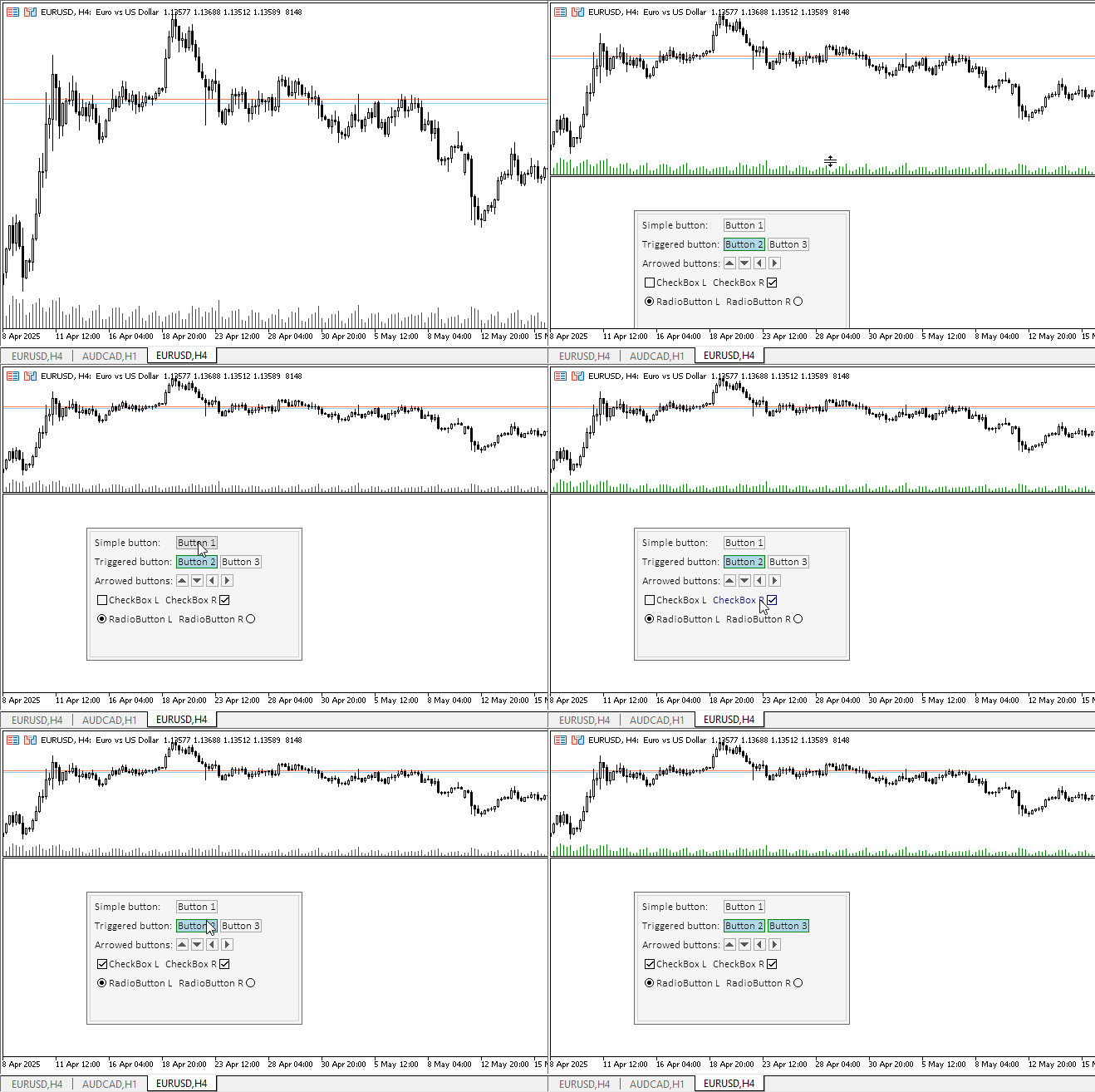
所有控件均响应鼠标交互,且单选按钮的切换效果如同已分组。文本标签设计了鼠标悬停变色,直观展示控件能够自定义。在正常状态下,标签文本为静态显示。
但此处存在一个疏漏 —— 当鼠标悬停时会弹出提示框,显示指标名称,基本没必要。为消除此问题,需为每个图形对象的OBJPROP_TOOLTIP属性设置"\n"值。请修正。
在CCanvasBase类的Create方法中,添加两行代码,分别为背景和前景图形对象设置提示框:
//+------------------------------------------------------------------+
//| CCanvasBase::Create background and foreground graphical objects  |
//+------------------------------------------------------------------+
bool CCanvasBase::Create(const long chart_id,const int wnd,const string object_name,const int x,const int y,const int w,const int h)
  {
//--- Get the adjusted chart ID
   long id=this.CorrectChartID(chart_id);
//--- Correct the passed object name
   string nm=object_name;
   ::StringReplace(nm," ","_");
//--- Create a graphical object name for the background and create a canvas
   string obj_name=nm+"_BG";
   if(!this.m_background.CreateBitmapLabel(id,(wnd<0 ? 0 : wnd),obj_name,x,y,(w>0 ? w : 1),(h>0 ? h : 1),COLOR_FORMAT_ARGB_NORMALIZE))
     {
      ::PrintFormat("%s: The CreateBitmapLabel() method of the CCanvas class returned an error creating a \"%s\" graphic object",__FUNCTION__,obj_name);
      return false;
     }
//--- Create a graphical object name for the foreground and create a canvas
   obj_name=nm+"_FG";
   if(!this.m_foreground.CreateBitmapLabel(id,(wnd<0 ? 0 : wnd),obj_name,x,y,(w>0 ? w : 1),(h>0 ? h : 1),COLOR_FORMAT_ARGB_NORMALIZE))
     {
      ::PrintFormat("%s: The CreateBitmapLabel() method of the CCanvas class returned an error creating a \"%s\" graphic object",__FUNCTION__,obj_name);
      return false;
     }
//--- If created successfully, enter the program name into the OBJPROP_TEXT property of the graphical object
   ::ObjectSetString(id,this.NameBG(),OBJPROP_TEXT,this.m_program_name);
   ::ObjectSetString(id,this.NameFG(),OBJPROP_TEXT,this.m_program_name);
   ::ObjectSetString(id,this.NameBG(),OBJPROP_TOOLTIP,"\n");
   ::ObjectSetString(id,this.NameFG(),OBJPROP_TOOLTIP,"\n");

//--- Set the dimensions of the rectangular area and return 'true'
   this.m_bound.SetXY(x,y);
   this.m_bound.Resize(w,h);
   return true;
  }
重新编译指标并检查:
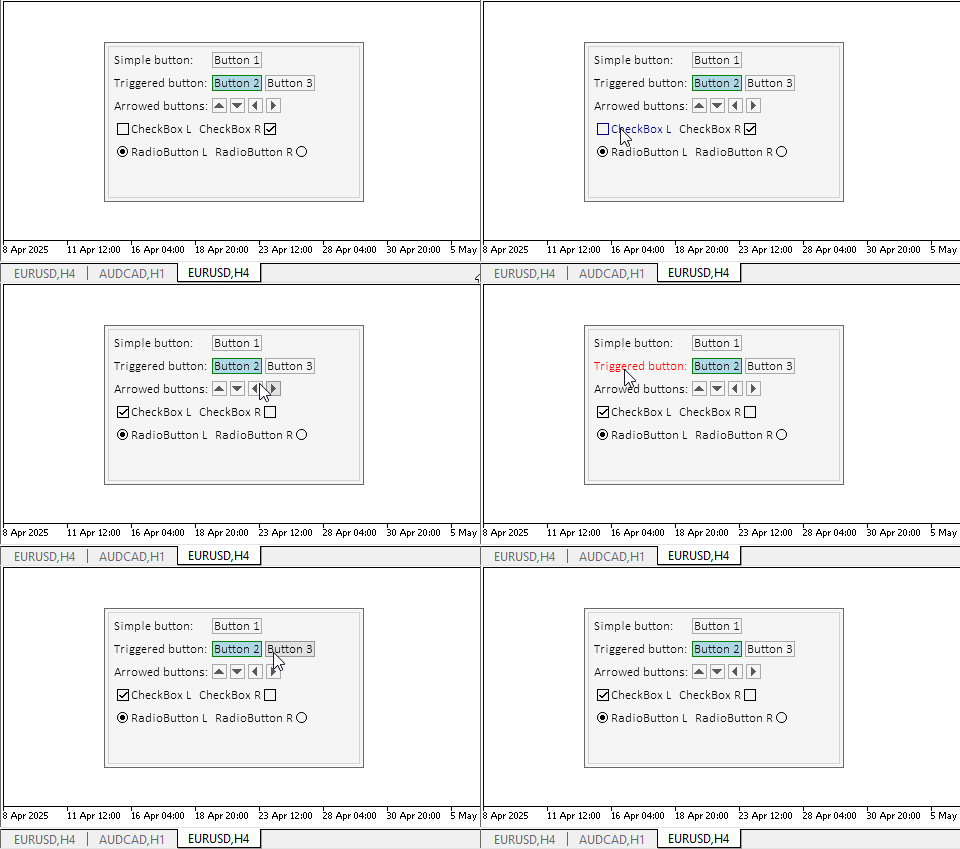
现在一切就绪。
结论
如今,我们在创建表格控件的道路上又迈进了一步。复杂控件都是由这些简单但功能强大的对象组合而成。
我们为所有对象添加了控制器组件。这使得用户能够与控件交互,同时各元素之间也能实现相互联动。
在下一篇文章中,我们将准备面板和容器元素 —— 这些是放置其他元素的主要组件。与此同时,容器还支持内部子元素的滚动功能。
本文中使用的程序:
| # | 名称 | 类型 | 描述 |
|---|---|---|---|
| 1 | Base.mqh | 类库 | 创建控件基础对象的类 |
| 2 | Controls.mqh | 类库 | 控制类 |
| 3 | iTestLabel.mq5 | 测试指标 | 测试控件类操作的指标 |
| 4 | MQL5.zip | 归档 | 以上供解压到客户端终端MQL5目录的文件存档 |
Base.mqh库中的类
| # | 名称 | 描述 |
|---|---|---|
| 1 | CBaseObj | 所有图形对象的基础类 |
| 2 | CColor | 色彩管理类 |
| 3 | CColorElement | 管理图形元素不同状态颜色的类 |
| 4 | CBound | 矩形区域控制类 |
| 5 | CCanvasBase | 画布上图形元素操作的基础类 |
Controls.mqh库中的类:
| # | 名称 | 描述 |
|---|---|---|
| 1 | CImagePainter | 在由坐标和尺寸定义的区域内绘制图像的类 |
| 2 | CLabel | “文本标签”控件类 |
| 3 | CButton | “简单按钮”控件类: |
| 4 | CButtonTriggered | “两位按钮”控件类 |
| 5 | CButtonArrowUp | “上箭头按钮”控件类 |
| 6 | CButtonArrowDown | “下箭头按钮”控件类 |
| 7 | CButtonArrowLeft | “左箭头按钮”控件类 |
| 8 | CButtonArrowRight | “右箭头按钮”控件类 |
| 9 | CCheckBox | “复选框”控件类 |
| 10 | CRadioButton | “单选按钮”控件类 |
所有创建的文件均随附于本文,供读者自学使用。该压缩文件可解压至终端文件夹,所有文件将自动放置于目标文件夹:\MQL5\Indicators\tables\。
本文由MetaQuotes Ltd译自俄文
原文地址: https://www.mql5.com/ru/articles/18221
注意: MetaQuotes Ltd.将保留所有关于这些材料的权利。全部或部分复制或者转载这些材料将被禁止。
本文由网站的一位用户撰写,反映了他们的个人观点。MetaQuotes Ltd 不对所提供信息的准确性负责,也不对因使用所述解决方案、策略或建议而产生的任何后果负责。

 MQL5中的ARIMA预测指标
 市场模拟(第 13 部分):套接字(七)
 精通日志记录(第七部分):如何在图表上显示日志

