
MQL5 MVCパラダイムのテーブルのビューコンポーネント:シンプルな操作
 252
252
 0
0

内容
はじめに
MVC (Model-View-Controller)パラダイムにおけるTable Viewコントロールの開発の一環として、テーブルモデル(モデルコンポーネント)を作成し、ビューコンポーネントの作成を開始しました。第1段階では、他のすべてのグラフィック要素の基礎となる基底オブジェクトが作成されました。
本記事では、後に複合UI要素の構成要素として使用されるシンプルなコントロールの開発を開始します。各コントロール要素は、ユーザーや他の要素との相互作用の機能を備えます。言い換えると、これは実質的にコントローラーコンポーネントの機能に相当します。
MQL言語では、イベントモデルがチャートイベントを通じて作成されたオブジェクトに統合されているため、ビューコンポーネントとコントローラーコンポーネントの接続を実現するために、以降のすべてのコントロールでイベント処理が構成されます。そのためには、グラフィック要素の基底クラスを改良します。
次に、シンプルなコントロール、具体的にはテキストラベルや各種ボタンを作成します。各要素はアイコン描画をサポートします。これにより、単純なボタンからまったく異なるコントロールを作成することが可能になります。たとえば、ツリービューの文字列で、左にアイコン、右にテキストが配置されている場合、一見別のコントロールのようですが、通常のボタンをベースにして簡単に作成できます。また、文字列のパラメータを調整することで、マウスカーソルがフォーカスされた際に色が変わるインタラクティブな挙動にすることも、静的だがクリックには反応する形にすることも可能です。
これらはオブジェクト作成後、ほんの数行の設定で実装できます。そして、こうした要素から、完全にインタラクティブで即使用可能な複雑な複合コントロールを作成していくことができます。
コントローラーコンポーネント:基底クラスの改良
そのため、これを実現するには、すでに実装されているクラス、マクロ置換、列挙型を若干改良する必要があります。必要な機能の大部分は、グラフィック要素の基底オブジェクトに配置されるため、主にこの基底オブジェクトを改良することになります。
以前、このクラスはMQL5\Scripts\Tables\Controls\Base.mqhにありました。
今回はテスト用のインジケーターを作成するので、インジケーターのディレクトリ「\MQ5\Indicators」内に新しいフォルダ「\Tables\Controls」を作成し、その中にBase.mqhファイルを配置します。これが今回作業する対象です。
さらに、オブジェクトは付随するコントロールのリストを保持します。たとえば、コンテナはそのようなオブジェクトの一例です。これらのリストでオブジェクトを正しく扱う(つまり、リストに格納されたオブジェクトを生成する)ためには、作成される要素のクラスを事前にすべて宣言しておく必要があります。そのため、Base.mqhファイルにはクラス宣言、新しいマクロ置換、列挙型および列挙定数を記述します。
//+------------------------------------------------------------------+
//|                                                         Base.mqh |
//|                                  Copyright 2025, MetaQuotes Ltd. |
//|                                             https://www.mql5.com |
//+------------------------------------------------------------------+
#property copyright "Copyright 2025, MetaQuotes Ltd."
#property link      "https://www.mql5.com"

//+------------------------------------------------------------------+
//| Include libraries                                                |
//+------------------------------------------------------------------+
#include <Canvas\Canvas.mqh>              // CCanvas class
#include <Arrays\List.mqh>                // CList class

//--- Forward declaration of control element classes
class    CImagePainter;                   // Image drawing class
class    CLabel;                          // Text label class
class    CButton;                         // Simple button class
class    CButtonTriggered;                // Two-position button class
class    CButtonArrowUp;                  // Up arrow button class
class    CButtonArrowDown;                // Down arrow button class
class    CButtonArrowLeft;                // Left arrow button class
class    CButtonArrowRight;               // Right arrow button class
class    CCheckBox;                       // CheckBox control class
class    CRadioButton;                    // RadioButton control class

//+------------------------------------------------------------------+
//| Macro substitutions                                              |
//+------------------------------------------------------------------+
#define  clrNULL              0x00FFFFFF  // Transparent color for CCanvas
#define  MARKER_START_DATA    -1          // Data start marker in a file
#define  DEF_FONTNAME         "Calibri"   // Default font
#define  DEF_FONTSIZE         10          // Default font size

//+------------------------------------------------------------------+
//| Enumerations                                                     |
//+------------------------------------------------------------------+
enum ENUM_ELEMENT_TYPE                    // Enumeration of graphical element types
  {
   ELEMENT_TYPE_BASE = 0x10000,           // Basic object of graphical elements
   ELEMENT_TYPE_COLOR,                    // Color object
   ELEMENT_TYPE_COLORS_ELEMENT,           // Color object of the graphical object element
   ELEMENT_TYPE_RECTANGLE_AREA,           // Rectangular area of the element
   ELEMENT_TYPE_IMAGE_PAINTER,            // Object for drawing images
   ELEMENT_TYPE_CANVAS_BASE,              // Basic canvas object for graphical elements
   ELEMENT_TYPE_LABEL,                    // Text label
   ELEMENT_TYPE_BUTTON,                   // Simple button
   ELEMENT_TYPE_BUTTON_TRIGGERED,         // Two-position button
   ELEMENT_TYPE_BUTTON_ARROW_UP,          // Up arrow button
   ELEMENT_TYPE_BUTTON_ARROW_DOWN,        // Down arrow button
   ELEMENT_TYPE_BUTTON_ARROW_LEFT,        // Left arrow button
   ELEMENT_TYPE_BUTTON_ARROW_RIGHT,       // Right arrow button
   ELEMENT_TYPE_CHECKBOX,                 // CheckBox control
   ELEMENT_TYPE_RADIOBUTTON,              // RadioButton control
  };

enum ENUM_ELEMENT_STATE                   // Control state
  {
   ELEMENT_STATE_DEF,                     // By default (e.g. button released etc.)
   ELEMENT_STATE_ACT,                     // Activated (e.g. button pressed, etc.)
  };

enum ENUM_COLOR_STATE                     // Enumeration of element state colors
  {
   COLOR_STATE_DEFAULT,                   // Normal state color
   COLOR_STATE_FOCUSED,                   // Color when hovering over an element
   COLOR_STATE_PRESSED,                   // Color when clicking on an element
   COLOR_STATE_BLOCKED,                   // Blocked element color
  };
//+------------------------------------------------------------------+
//| Functions                                                        |
//+------------------------------------------------------------------+
オブジェクトをファイルに保存したりファイルから読み込んだりするメソッドを作成する際、各メソッドには、メソッドごとに変わらない定数文字列が繰り返し登場します。
//--- Check the handle
   if(file_handle==INVALID_HANDLE)
      return false;
//--- Save data start marker - 0xFFFFFFFFFFFFFFFF
   if(::FileWriteLong(file_handle,-1)!=sizeof(long))
      return false;
//--- Save the object type
   if(::FileWriteInteger(file_handle,this.Type(),INT_VALUE)!=INT_VALUE)
      return false;

//--- Save the ID
   if(::FileWriteInteger(file_handle,this.m_id,INT_VALUE)!=INT_VALUE)
      return false;
//--- Save the name
   if(::FileWriteArray(file_handle,this.m_name)!=sizeof(this.m_name))
      return false;
また、同様のDescriptionやPrintメソッドも存在します。そのため、これらの文字列は基底オブジェクトのload/saveメソッドに移すのが合理的です。こうすることで、ファイル操作をおこなう新しいクラスごとに、各load/saveメソッドに文字列を毎回書く必要がなくなります。
基底オブジェクトには、これらのメソッドを次のように宣言します。
public:
//--- Set (1) name and (2) ID
   void              SetName(const string name)                { ::StringToShortArray(name,this.m_name);    }
   void              SetID(const int id)                       { this.m_id=id;                              }
//--- Return (1) name and (2) ID
   string            Name(void)                          const { return ::ShortArrayToString(this.m_name);  }
   int               ID(void)                            const { return this.m_id;                          }

//--- Virtual methods of (1) comparing, (2) saving to file, (3) loading from file, (4) object type
   virtual int       Compare(const CObject *node,const int mode=0) const;
   virtual bool      Save(const int file_handle);
   virtual bool      Load(const int file_handle);
   virtual int       Type(void)                          const { return(ELEMENT_TYPE_BASE); }

//--- (1) Return and (2) display the object description in the journal
   virtual string    Description(void);
   virtual void      Print(void);

//--- Constructor/destructor
                     CBaseObj (void) : m_id(-1) { this.SetName(""); }
                    ~CBaseObj (void) {}
  };
そして、その実装を記述します。
//+------------------------------------------------------------------+
//| CBaseObj::Return the object description                          |
//+------------------------------------------------------------------+
string CBaseObj::Description(void)
  {
   string nm=this.Name();
   string name=(nm!="" ? ::StringFormat(" \"%s\"",nm) : nm);
   return ::StringFormat("%s%s ID %d",ElementDescription((ENUM_ELEMENT_TYPE)this.Type()),name,this.ID());
  }
//+------------------------------------------------------------------+
//| CBaseObj::Display the object description in the journal          |
//+------------------------------------------------------------------+
void CBaseObj::Print(void)
  {
   ::Print(this.Description());
  }
//+------------------------------------------------------------------+
//| CBaseObj::Save to file                                           |
//+------------------------------------------------------------------+
bool CBaseObj::Save(const int file_handle)
  {
//--- Check the handle
   if(file_handle==INVALID_HANDLE)
      return false;
//--- Save data start marker - 0xFFFFFFFFFFFFFFFF
   if(::FileWriteLong(file_handle,-1)!=sizeof(long))
      return false;
//--- Save the object type
   if(::FileWriteInteger(file_handle,this.Type(),INT_VALUE)!=INT_VALUE)
      return false;

//--- Save the ID
   if(::FileWriteInteger(file_handle,this.m_id,INT_VALUE)!=INT_VALUE)
      return false;
//--- Save the name
   if(::FileWriteArray(file_handle,this.m_name)!=sizeof(this.m_name))
      return false;

//--- All is successful
   return true;
  }
//+------------------------------------------------------------------+
//| CBaseObj::Load from file                                         |
//+------------------------------------------------------------------+
bool CBaseObj::Load(const int file_handle)
  {
//--- Check the handle
   if(file_handle==INVALID_HANDLE)
      return false;
//--- Load and check the data start marker - 0xFFFFFFFFFFFFFFFF
   if(::FileReadLong(file_handle)!=-1)
      return false;
//--- Load the object type
   if(::FileReadInteger(file_handle,INT_VALUE)!=this.Type())
      return false;

//--- Load the ID
   this.m_id=::FileReadInteger(file_handle,INT_VALUE);
//--- Load the name
   if(::FileReadArray(file_handle,this.m_name)!=sizeof(this.m_name))
      return false;

//--- All is successful
   return true;
  }
これにより、各新しいクラスでは、DescriptionおよびPrintメソッドは、基底オブジェクトで定義されたロジックと異なる場合にのみ宣言し実装すればよくなります。
また、派生クラス内のファイル操作メソッドでは、各クラスの各メソッドに同じコード行を繰り返し書く代わりに、基底オブジェクトのファイル操作メソッドを呼び出すだけで済みます。
このファイル(Base.mqh)のすべての後続クラスから、Printメソッドを削除します。このメソッドはすでに基底オブジェクトに存在しており、完全に同一の内容を重複して実装しています。
さらに、すべてのファイル操作メソッド内で、以下のコード行も削除します。
//+------------------------------------------------------------------+
//| CColor::Save to file                                             |
//+------------------------------------------------------------------+
bool CColor::Save(const int file_handle)
  {
//--- Check the handle
   if(file_handle==INVALID_HANDLE)
      return false;
//--- Save data start marker - 0xFFFFFFFFFFFFFFFF
   if(::FileWriteLong(file_handle,-1)!=sizeof(long))
      return false;
//--- Save the object type
   if(::FileWriteInteger(file_handle,this.Type(),INT_VALUE)!=INT_VALUE)
      return false;

//--- Save the color
   if(::FileWriteInteger(file_handle,this.m_color,INT_VALUE)!=INT_VALUE)
      return false;
//--- Save the ID
   if(::FileWriteInteger(file_handle,this.m_id,INT_VALUE)!=INT_VALUE)
      return false;
//--- Save the name
   if(::FileWriteArray(file_handle,this.m_name)!=sizeof(this.m_name))
      return false;

//--- All is successful
   return true;
  }
これらの文字列の代わりに、基底クラスのメソッドを呼び出すだけで済みます。
//+------------------------------------------------------------------+
//| CColor::Save to file                                             |
//+------------------------------------------------------------------+
bool CColor::Save(const int file_handle)
  {
//--- Save the parent object data
   if(!CBaseObj::Save(file_handle))
      return false;

//--- Save the color
   if(::FileWriteInteger(file_handle,this.m_color,INT_VALUE)!=INT_VALUE)
      return false;

//--- All is successful
   return true;
  }
このファイル内のファイル操作メソッドには、すでにこのような変更がすべて適用されています。今後作成するクラスでは、この変更を考慮して作業を進めます。
次に、CColorElementクラスでは、クラスコンストラクタ内の同一の重複文字列を置き換えます。
//+-----------------------------------------------------------------------------+
//| CColorControl::Constructor with setting the transparent colors of the object|
//+-----------------------------------------------------------------------------+
CColorElement::CColorElement(void)
  {
   this.InitColors(clrNULL,clrNULL,clrNULL,clrNULL);
   this.m_default.SetName("Default"); this.m_default.SetID(1);
   this.m_focused.SetName("Focused"); this.m_focused.SetID(2);
   this.m_pressed.SetName("Pressed"); this.m_pressed.SetID(3);
   this.m_blocked.SetName("Blocked"); this.m_blocked.SetID(4);
   this.SetCurrentAs(COLOR_STATE_DEFAULT);
   this.m_current.SetName("Current");
   this.m_current.SetID(0);
  }
1つのInit()メソッドを使用します。
public:
//--- Return a new color
   color             NewColor(color base_color, int shift_red, int shift_green, int shift_blue);

//--- Class initialization
   void              Init(void);

//--- Initialize colors for different states
...
その実装は以下のとおりです。
//+------------------------------------------------------------------+
//| CColorControl::Class initialization                              |
//+------------------------------------------------------------------+
void CColorElement::Init(void)
  {
   this.m_default.SetName("Default"); this.m_default.SetID(1);
   this.m_focused.SetName("Focused"); this.m_focused.SetID(2);
   this.m_pressed.SetName("Pressed"); this.m_pressed.SetID(3);
   this.m_blocked.SetName("Blocked"); this.m_blocked.SetID(4);
   this.SetCurrentAs(COLOR_STATE_DEFAULT);
   this.m_current.SetName("Current");
   this.m_current.SetID(0);
  }
//+------------------------------------------------------------------+
色の初期化メソッドに透明色が渡された場合、どの状態でもその色を変更する必要はありません。
メソッドの実装時には注意してください。
//+----------------------------------------------------------------------+
//| CColorControl::Set the colors for all states based on the current one|
//+----------------------------------------------------------------------+
void CColorElement::InitColors(const color clr)
  {
   this.InitDefault(clr);
   this.InitFocused(clr!=clrNULL ? this.NewColor(clr,-20,-20,-20) : clrNULL);
   this.InitPressed(clr!=clrNULL ? this.NewColor(clr,-40,-40,-40) : clrNULL);
   this.InitBlocked(clrWhiteSmoke);
  }
CBoundクラスに、矩形領域内にカーソルが存在するかを判定する真偽値を返すメソッドを追加します。これはコントローラーコンポーネントを実装する際に必要です。
//+------------------------------------------------------------------+
//| Rectangular region class                                         |
//+------------------------------------------------------------------+
class CBound : public CBaseObj
  {
protected:
   CRect             m_bound;                                  // Rectangular area structure

public:
//--- Change the bounding rectangular (1) width, (2) height and (3) size
   void              ResizeW(const int size)                   { this.m_bound.Width(size);                                    }
   void              ResizeH(const int size)                   { this.m_bound.Height(size);                                   }
   void              Resize(const int w,const int h)           { this.m_bound.Width(w); this.m_bound.Height(h);               }

//--- Set (1) X, (2) Y and (3) both coordinates of the bounding rectangle
   void              SetX(const int x)                         { this.m_bound.left=x;                                         }
   void              SetY(const int y)                         { this.m_bound.top=y;                                          }
   void              SetXY(const int x,const int y)            { this.m_bound.LeftTop(x,y);                                   }

//--- (1) Set and (2) shift the bounding rectangle by the specified coordinates/offset size
   void              Move(const int x,const int y)             { this.m_bound.Move(x,y);                                      }
   void              Shift(const int dx,const int dy)          { this.m_bound.Shift(dx,dy);                                   }

//--- Returns the object coordinates, dimensions, and boundaries
   int               X(void)                             const { return this.m_bound.left;                                    }
   int               Y(void)                             const { return this.m_bound.top;                                     }
   int               Width(void)                         const { return this.m_bound.Width();                                 }
   int               Height(void)                        const { return this.m_bound.Height();                                }
   int               Right(void)                         const { return this.m_bound.right-(this.m_bound.Width()  >0 ? 1 : 0);}
   int               Bottom(void)                        const { return this.m_bound.bottom-(this.m_bound.Height()>0 ? 1 : 0);}

//--- Returns the flag indicating whether the cursor is inside the area
   bool              Contains(const int x,const int y)   const { return this.m_bound.Contains(x,y);                           }

//--- Return the object description
   virtual string    Description(void);


//--- Virtual methods of (1) comparing, (2) saving to file, (3) loading from file, (4) object type
   virtual int       Compare(const CObject *node,const int mode=0) const;
   virtual bool      Save(const int file_handle);
   virtual bool      Load(const int file_handle);
   virtual int       Type(void)                          const { return(ELEMENT_TYPE_RECTANGLE_AREA);                         }

//--- Constructors/destructor
                     CBound(void) { ::ZeroMemory(this.m_bound); }
                     CBound(const int x,const int y,const int w,const int h) { this.SetXY(x,y); this.Resize(w,h);             }
                    ~CBound(void) { ::ZeroMemory(this.m_bound); }
  };
次に、コントローラーコンポーネントの実装に必要なすべてを、グラフィック要素キャンバスであるCCanvasBaseの基底クラスに追加する必要があります。
グラフィック要素がマウスとやり取りする際には、チャートのいくつかのプロパティ(たとえば、ホイールによるチャートのスクロール、右クリックメニューなど)を無効化する必要があります。各グラィック要素のオブジェクトがこれをおこないます。しかし、プログラム開始時には、チャートプロパティの状態が起動前とどのような状態だったかを記憶しておく必要があります。そして作業完了後には、すべて元の状態に戻す必要があります。
そのために、CCanvasBaseクラスのprivateセクションに、保存されたチャートプロパティの値を格納する変数と、チャートプロパティに制限を設定するためのメソッドを宣言します。
//+------------------------------------------------------------------+
//| Base class of graphical elements canvas                          |
//+------------------------------------------------------------------+
class CCanvasBase : public CBaseObj
  {
private:
   bool              m_chart_mouse_wheel_flag;                 // Flag for sending mouse wheel scroll messages
   bool              m_chart_mouse_move_flag;                  // Flag for sending mouse cursor movement messages
   bool              m_chart_object_create_flag;               // Flag for sending messages about the graphical object creation event
   bool              m_chart_mouse_scroll_flag;                // Flag for scrolling the chart with the left button and mouse wheel


//--- Set chart restrictions (wheel scrolling, context menu, and crosshair)
   void              SetFlags(const bool flag);

protected:
UI要素は2つの状態(将来的にはそれ以上の状態もあり得ますが、現時点では2つ)を持つことができます。たとえばボタンの場合、「押された状態」と「離された状態」です。これはつまり、要素の2つの状態における色の状態を管理する必要があることを意味します。クラスのprotectedセクションに、要素の状態を格納する変数、色管理用オブジェクトの別セット、および背景キャンバスと前景キャンバス用の個別の透明度制御を定義します。
protected:
   CCanvas           m_background;                             // Background canvas
   CCanvas           m_foreground;                             // Foreground canvas
   CBound            m_bound;                                  // Object boundaries
   CCanvasBase      *m_container;                              // Parent container object
   CColorElement     m_color_background;                       // Background color control object
   CColorElement     m_color_foreground;                       // Foreground color control object
   CColorElement     m_color_border;                           // Border color control object

   CColorElement     m_color_background_act;                   // Activated element background color control object
   CColorElement     m_color_foreground_act;                   // Activated element foreground color control object
   CColorElement     m_color_border_act;                       // Activated element frame color control object

   ENUM_ELEMENT_STATE m_state;                                 // Control state (e.g. buttons (on/off))
   long              m_chart_id;                               // Chart ID
   int               m_wnd;                                    // Chart subwindow index
   int               m_wnd_y;                                  // Cursor Y coordinate offset in the subwindow
   int               m_obj_x;                                  // Graphical object X coordinate
   int               m_obj_y;                                  // Graphical object Y coordinate
   uchar             m_alpha_bg;                               // Background transparency
   uchar             m_alpha_fg;                               // Foreground transparency
   uint              m_border_width;                           // Frame width
   string            m_program_name;                           // Program name
   bool              m_hidden;                                 // Hidden object flag
   bool              m_blocked;                                // Blocked element flag
   bool              m_focused;                                // Element flag in focus
ここでは、マウスカーソル、カラー管理、仮想イベントハンドラを制御するメソッドも宣言します。
//--- Limit the graphical object by the container dimensions
   virtual void      ObjectTrim(void);
//--- Returns the flag indicating whether the cursor is inside the object
   bool              Contains(const int x,const int y);


//--- Check if the set color is equal to the specified one
   bool              CheckColor(const ENUM_COLOR_STATE state) const;
//--- Change the background, text, and border colors depending on the condition
   void              ColorChange(const ENUM_COLOR_STATE state);

//--- Initialize (1) the class object and (2) default object colors
   void              Init(void);
   virtual void      InitColors(void);

//--- (1) Cursor hovering (Focus), (2) button clicks (Press), (3) wheel scrolling (Wheel),
//--- (4) release (Release), (5) graphical object creation (Create) event handlers. Should be identified in the descendants
   virtual void      OnFocusEvent(const int id, const long lparam, const double dparam, const string sparam);
   virtual void      OnPressEvent(const int id, const long lparam, const double dparam, const string sparam);
   virtual void      OnReleaseEvent(const int id, const long lparam, const double dparam, const string sparam);
   virtual void      OnCreateEvent(const int id, const long lparam, const double dparam, const string sparam);
   virtual void      OnWheelEvent(const int id, const long lparam, const double dparam, const string sparam)      { return;   }  // handler is disabled here
//--- Handlers for custom events of the element when hovering, clicking, and scrolling the wheel in the object area
   virtual void      MouseMoveHandler(const int id, const long lparam, const double dparam, const string sparam)  { return;   }  // handler is disabled here
   virtual void      MousePressHandler(const int id, const long lparam, const double dparam, const string sparam) { return;   }  // handler is disabled here
   virtual void      MouseWheelHandler(const int id, const long lparam, const double dparam, const string sparam) { return;   }  // handler is disabled here

public:
クラスのpublicセクションに、要素がアクティブ状態のときの色管理オブジェクトを取得するメソッドと、要素の各状態における色を取得するメソッドを追加します。
public:
//--- Return the pointer to the canvas (1) background and (2) foreground
   CCanvas          *GetBackground(void)                       { return &this.m_background;                                                        }
   CCanvas          *GetForeground(void)                       { return &this.m_foreground;                                                        }

//--- Return the pointer to the color management object for the (1) background, (2) foreground and (3) border
   CColorElement    *GetBackColorControl(void)                 { return &this.m_color_background;                                                  }
   CColorElement    *GetForeColorControl(void)                 { return &this.m_color_foreground;                                                  }
   CColorElement    *GetBorderColorControl(void)               { return &this.m_color_border;                                                      }

//--- Return the pointer to the color management object for the (1) background, (2) foreground and (3) activated element border
   CColorElement    *GetBackColorActControl(void)              { return &this.m_color_background_act;                                              }
   CColorElement    *GetForeColorActControl(void)              { return &this.m_color_foreground_act;                                              }
   CColorElement    *GetBorderColorActControl(void)            { return &this.m_color_border_act;                                                  }

//--- Return the (1) background, (2) foreground and (3) border color
   color             BackColor(void)         const { return(!this.State() ? this.m_color_background.GetCurrent() : this.m_color_background_act.GetCurrent());  }
   color             ForeColor(void)         const { return(!this.State() ? this.m_color_foreground.GetCurrent() : this.m_color_foreground_act.GetCurrent());  }
   color             BorderColor(void)       const { return(!this.State() ? this.m_color_border.GetCurrent()     : this.m_color_border_act.GetCurrent());      }

//--- Return the DEFAULT color of (1) background, (2) foreground, (3) border
   color             BackColorDefault(void)  const { return(!this.State() ? this.m_color_background.GetDefault() : this.m_color_background_act.GetDefault());  }
   color             ForeColorDefault(void)  const { return(!this.State() ? this.m_color_foreground.GetDefault() : this.m_color_foreground_act.GetDefault());  }
   color             BorderColorDefault(void)const { return(!this.State() ? this.m_color_border.GetDefault()     : this.m_color_border_act.GetDefault());      }

//--- Return the FOCUSED preset color of the (1) background, (2) foreground, (3) border
   color             BackColorFocused(void)  const { return(!this.State() ? this.m_color_background.GetFocused() : this.m_color_background_act.GetFocused());  }
   color             ForeColorFocused(void)  const { return(!this.State() ? this.m_color_foreground.GetFocused() : this.m_color_foreground_act.GetFocused());  }
   color             BorderColorFocused(void)const { return(!this.State() ? this.m_color_border.GetFocused()     : this.m_color_border_act.GetFocused());      }

//--- Return the preset PRESSED color of the (1) background, (2) foreground, (3) frame
   color             BackColorPressed(void)  const { return(!this.State() ? this.m_color_background.GetPressed() : this.m_color_background_act.GetPressed());  }
   color             ForeColorPressed(void)  const { return(!this.State() ? this.m_color_foreground.GetPressed() : this.m_color_foreground_act.GetPressed());  }
   color             BorderColorPressed(void)const { return(!this.State() ? this.m_color_border.GetPressed()     : this.m_color_border_act.GetPressed());      }

//--- Return the BLOCKED color of (1) background, (2) foreground, (3) border
   color             BackColorBlocked(void)              const { return this.m_color_background.GetBlocked();                                      }
   color             ForeColorBlocked(void)              const { return this.m_color_foreground.GetBlocked();                                      }
   color             BorderColorBlocked(void)            const { return this.m_color_border.GetBlocked();                                          }

//--- Set background colors for all states
次に、各色取得メソッドでは、要素の状態(アクティブ/非アクティブ)がチェックされ、要素の状態に応じた色が返されます。
アクティブ状態の要素の色を設定するメソッドを追加し、マウスカーソルに応じた要素状態の色を設定するメソッド(要素がアクティブか非アクティブかに基づく)を改良します。
//--- Set background colors for all states
   void              InitBackColorsAct(const color clr_default, const color clr_focused, const color clr_pressed, const color clr_blocked)
                       {
                        this.m_color_background_act.InitColors(clr_default,clr_focused,clr_pressed,clr_blocked);
                       }
   void              InitBackColorsAct(const color clr)        { this.m_color_background_act.InitColors(clr);                                      }

//--- Set foreground colors for all states
   void              InitForeColorsAct(const color clr_default, const color clr_focused, const color clr_pressed, const color clr_blocked)
                       {
                        this.m_color_foreground_act.InitColors(clr_default,clr_focused,clr_pressed,clr_blocked);
                       }
   void              InitForeColorsAct(const color clr)        { this.m_color_foreground_act.InitColors(clr);                                      }

//--- Set border colors for all states
   void              InitBorderColorsAct(const color clr_default, const color clr_focused, const color clr_pressed, const color clr_blocked)
                       {
                        this.m_color_border_act.InitColors(clr_default,clr_focused,clr_pressed,clr_blocked);
                       }
   void              InitBorderColorsAct(const color clr)      { this.m_color_border_act.InitColors(clr);                                          }

//--- Initialize the color of (1) background, (2) foreground and (3) frame with initial values
   void              InitBackColorActDefault(const color clr)  { this.m_color_background_act.InitDefault(clr);                                     }
   void              InitForeColorActDefault(const color clr)  { this.m_color_foreground_act.InitDefault(clr);                                     }
   void              InitBorderColorActDefault(const color clr){ this.m_color_border_act.InitDefault(clr);                                         }

//--- Initialize the color of (1) background, (2) foreground and (3) frame on hover with initial values
   void              InitBackColorActFocused(const color clr)  { this.m_color_background_act.InitFocused(clr);                                     }
   void              InitForeColorActFocused(const color clr)  { this.m_color_foreground_act.InitFocused(clr);                                     }
   void              InitBorderColorActFocused(const color clr){ this.m_color_border_act.InitFocused(clr);                                         }

//--- Initialize the color of (1) background, (2) foreground and (3) frame on click with initial values
   void              InitBackColorActPressed(const color clr)  { this.m_color_background_act.InitPressed(clr);                                     }
   void              InitForeColorActPressed(const color clr)  { this.m_color_foreground_act.InitPressed(clr);                                     }
   void              InitBorderColorActPressed(const color clr){ this.m_color_border_act.InitPressed(clr);                                         }

//--- Set the current background color to different states
   bool              BackColorToDefault(void)
                       {
                        return(!this.State() ? this.m_color_background.SetCurrentAs(COLOR_STATE_DEFAULT) :
                                               this.m_color_background_act.SetCurrentAs(COLOR_STATE_DEFAULT));
                       }
   bool              BackColorToFocused(void)
                       {
                        return(!this.State() ? this.m_color_background.SetCurrentAs(COLOR_STATE_FOCUSED) :
                                               this.m_color_background_act.SetCurrentAs(COLOR_STATE_FOCUSED));
                       }
   bool              BackColorToPressed(void)
                       {
                        return(!this.State() ? this.m_color_background.SetCurrentAs(COLOR_STATE_PRESSED) :
                                               this.m_color_background_act.SetCurrentAs(COLOR_STATE_PRESSED));
                       }
   bool              BackColorToBlocked(void)   { return this.m_color_background.SetCurrentAs(COLOR_STATE_BLOCKED);  }

//--- Set the current foreground color to different states
   bool              ForeColorToDefault(void)
                       { return(!this.State() ? this.m_color_foreground.SetCurrentAs(COLOR_STATE_DEFAULT) :
                                                this.m_color_foreground_act.SetCurrentAs(COLOR_STATE_DEFAULT));
                       }
   bool              ForeColorToFocused(void)
                       { return(!this.State() ? this.m_color_foreground.SetCurrentAs(COLOR_STATE_FOCUSED) :
                                                this.m_color_foreground_act.SetCurrentAs(COLOR_STATE_FOCUSED));
                       }
   bool              ForeColorToPressed(void)
                       { return(!this.State() ? this.m_color_foreground.SetCurrentAs(COLOR_STATE_PRESSED) :
                                                this.m_color_foreground_act.SetCurrentAs(COLOR_STATE_PRESSED));
                       }
   bool              ForeColorToBlocked(void)   { return this.m_color_foreground.SetCurrentAs(COLOR_STATE_BLOCKED);  }

//--- Set the current frame color to different states
   bool              BorderColorToDefault(void)
                       { return(!this.State() ? this.m_color_border.SetCurrentAs(COLOR_STATE_DEFAULT) :
                                                this.m_color_border_act.SetCurrentAs(COLOR_STATE_DEFAULT));
                       }
   bool              BorderColorToFocused(void)
                       { return(!this.State() ? this.m_color_border.SetCurrentAs(COLOR_STATE_FOCUSED) :
                                                this.m_color_border_act.SetCurrentAs(COLOR_STATE_FOCUSED));
                       }
   bool              BorderColorToPressed(void)
                       { return(!this.State() ? this.m_color_border.SetCurrentAs(COLOR_STATE_PRESSED) :
                                                this.m_color_border_act.SetCurrentAs(COLOR_STATE_PRESSED));
                       }
   bool              BorderColorToBlocked(void) { return this.m_color_border.SetCurrentAs(COLOR_STATE_BLOCKED);      }
要素の状態を設定するメソッドと返すメソッドを追加します。
//--- Create OBJ_BITMAP_LABEL
   bool              Create(const long chart_id,const int wnd,const string object_name,const int x,const int y,const int w,const int h);

//--- (1) Set and (2) return the state
   void              SetState(ENUM_ELEMENT_STATE state)        { this.m_state=state; this.ColorsToDefault();                                       }
   ENUM_ELEMENT_STATE State(void)                        const { return this.m_state;                                                              }

//--- Return (1) the object's belonging to the program, the flag (2) of a hidden element, (3) a blocked element, (4) element in focus and (5) the graphical object name (background, text)
要素の状態を設定する際には、状態フラグを設定した後に、要素のすべての色を現在の色として記録する必要があります。たとえば、要素がアクティブ状態、つまりボタンが押された場合は、現在の色を押されたボタン用の色として設定します。それ以外の場合は、現在の色は離されたボタン用の色リストから取得されます。
背景と前景の透明度の設定および取得を分けて実装しているので、透明度を設定するメソッドと透明度を取得するメソッドを新しく追加します。
   string            NameBG(void)                        const { return this.m_background.ChartObjectName();                                       }
   string            NameFG(void)                        const { return this.m_foreground.ChartObjectName();                                       }

//--- (1) Return and (2) set background transparency
   uchar             AlphaBG(void)                       const { return this.m_alpha_bg;                                                           }
   void              SetAlphaBG(const uchar value)             { this.m_alpha_bg=value;                                                            }
//--- (1) Return and (2) set the foreground transparency
   uchar             AlphaFG(void)                       const { return this.m_alpha_fg;                                                           }
   void              SetAlphaFG(const uchar value)             { this.m_alpha_fg=value;                                                            }

//--- Sets the background and foreground transparency
   void              SetAlpha(const uchar value)               { this.m_alpha_fg=this.m_alpha_bg=value;                                            }

//--- (1) Return and (2) set the frame width
コントロールプログラムのイベントハンドラから呼び出されるイベントハンドラを宣言します。
//--- Event handler                                                    |
   void              OnChartEvent(const int id,const long& lparam,const double& dparam,const string& sparam);

//--- Constructors/destructor
                     CCanvasBase(void) :
                        m_program_name(::MQLInfoString(MQL_PROGRAM_NAME)), m_chart_id(::ChartID()), m_wnd(0),
                        m_alpha_bg(0), m_alpha_fg(255), m_hidden(false), m_blocked(false), m_focused(false), m_border_width(0), m_wnd_y(0), m_state(0) { this.Init(); }
                     CCanvasBase(const string object_name,const long chart_id,const int wnd,const int x,const int y,const int w,const int h);
                    ~CCanvasBase(void);
  };
コンストラクタでは、キャンバスに描画されるフォントのプロパティを正しく指定し、Init()メソッドを呼び出してチャートとマウスのプロパティを格納します。
//+------------------------------------------------------------------+
//| CCanvasBase::Constructor                                         |
//+------------------------------------------------------------------+
CCanvasBase::CCanvasBase(const string object_name,const long chart_id,const int wnd,const int x,const int y,const int w,const int h) :
   m_program_name(::MQLInfoString(MQL_PROGRAM_NAME)), m_wnd(wnd<0 ? 0 : wnd), m_alpha_bg(0), m_alpha_fg(255), m_hidden(false), m_blocked(false), m_focused(false), m_border_width(0), m_state(0)
  {
//--- Get the adjusted chart ID and the distance in pixels along the vertical Y axis
//--- between the upper frame of the indicator subwindow and the upper frame of the chart main window
   this.m_chart_id=this.CorrectChartID(chart_id);
   this.m_wnd_y=(int)::ChartGetInteger(this.m_chart_id,CHART_WINDOW_YDISTANCE,this.m_wnd);
//--- If the graphical resource and graphical object are created
   if(this.Create(this.m_chart_id,this.m_wnd,object_name,x,y,w,h))
     {
      //--- Clear the background and foreground canvases and set the initial coordinate values,
      //--- names of graphic objects and properties of text drawn in the foreground
      this.Clear(false);
      this.m_obj_x=x;
      this.m_obj_y=y;
      this.m_color_background.SetName("Background");
      this.m_color_foreground.SetName("Foreground");
      this.m_color_border.SetName("Border");
      this.m_foreground.FontSet(DEF_FONTNAME,-DEF_FONTSIZE*10,FW_MEDIUM);
      this.m_bound.SetName("Perimeter");

      //--- Remember permissions for the mouse and chart tools
      this.Init();
     }
  }
クラスのデストラクタでは、作成されたグラフィックオブジェクトを破棄し、チャートとマウスの権限の保存されたプロパティを復元します。
//+------------------------------------------------------------------+
//| CCanvasBase::Destructor                                          |
//+------------------------------------------------------------------+
CCanvasBase::~CCanvasBase(void)
  {
//--- Destroy the object
   this.Destroy();
//--- Return permissions for the mouse and chart tools
   ::ChartSetInteger(this.m_chart_id, CHART_EVENT_MOUSE_WHEEL, this.m_chart_mouse_wheel_flag);
   ::ChartSetInteger(this.m_chart_id, CHART_EVENT_MOUSE_MOVE, this.m_chart_mouse_move_flag);
   ::ChartSetInteger(this.m_chart_id, CHART_EVENT_OBJECT_CREATE, this.m_chart_object_create_flag);
   ::ChartSetInteger(this.m_chart_id, CHART_MOUSE_SCROLL, this.m_chart_mouse_scroll_flag);
   ::ChartSetInteger(this.m_chart_id, CHART_CONTEXT_MENU, this.m_chart_context_menu_flag);
   ::ChartSetInteger(this.m_chart_id, CHART_CROSSHAIR_TOOL, this.m_chart_crosshair_tool_flag);
  }
グラフィック要素を作成するメソッドでは、作成するグラフィックオブジェクトの名前に空白を含めないようにする必要があります。これは、名前内の空白をアンダースコアに置き換えることで修正できます。
//+------------------------------------------------------------------+
//| CCanvasBase::Create background and foreground graphical objects  |
//+------------------------------------------------------------------+
bool CCanvasBase::Create(const long chart_id,const int wnd,const string object_name,const int x,const int y,const int w,const int h)
  {
//--- Get the adjusted chart ID
   long id=this.CorrectChartID(chart_id);
//--- Correct the passed object name
   string nm=object_name;
   ::StringReplace(nm," ","_");
//--- Create a graphical object name for the background and create a canvas
   string obj_name=nm+"_BG";
   if(!this.m_background.CreateBitmapLabel(id,(wnd<0 ? 0 : wnd),obj_name,x,y,(w>0 ? w : 1),(h>0 ? h : 1),COLOR_FORMAT_ARGB_NORMALIZE))
     {
      ::PrintFormat("%s: The CreateBitmapLabel() method of the CCanvas class returned an error creating a \"%s\" graphic object",__FUNCTION__,obj_name);
      return false;
     }
//--- Create a graphical object name for the foreground and create a canvas
   obj_name=nm+"_FG";
   if(!this.m_foreground.CreateBitmapLabel(id,(wnd<0 ? 0 : wnd),obj_name,x,y,(w>0 ? w : 1),(h>0 ? h : 1),COLOR_FORMAT_ARGB_NORMALIZE))
     {
      ::PrintFormat("%s: The CreateBitmapLabel() method of the CCanvas class returned an error creating a \"%s\" graphic object",__FUNCTION__,obj_name);
      return false;
     }
//--- If created successfully, enter the program name into the OBJPROP_TEXT property of the graphical object
   ::ObjectSetString(id,this.NameBG(),OBJPROP_TEXT,this.m_program_name);
   ::ObjectSetString(id,this.NameFG(),OBJPROP_TEXT,this.m_program_name);

//--- Set the dimensions of the rectangular area and return 'true'
   this.m_bound.SetXY(x,y);
   this.m_bound.Resize(w,h);
   return true;
  }
以下は、オブジェクト内のカーソル位置フラグを返すメソッドです。
//+-----------------------------------------------------------------------------------+
//| CCanvasBase::Return the flag indicating whether the cursor is inside the object   |
//+-----------------------------------------------------------------------------------+
bool CCanvasBase::Contains(const int x,const int y)
  {
//--- check and return the result
   int left=::fmax(this.X(),this.ObjectX());
   int right=::fmin(this.Right(),this.ObjectRight());
   int top=::fmax(this.Y(),this.ObjectY());
   int bottom=::fmin(this.Bottom(),this.ObjectBottom());
   return(x>=left && x<=right && y>=top && y<=bottom);
  }
オブジェクトのサイズとキャンバスのサイズは異なる場合があります(ObjectTrimメソッドはキャンバスのサイズを変更しますが、オブジェクト自体のサイズは変更しません)。そのため、カーソルが存在する範囲として、オブジェクトの境界または対応するキャンバスの端のいずれかを使用します。このメソッドは、渡された座標が取得した範囲内に存在するかどうかを示すフラグを返します。
また、要素のロックメソッドでは、要素を描画するメソッドを呼び出す前にロックフラグを設定する必要があります。以下を修正してください。
//+------------------------------------------------------------------+
//| CCanvasBase::Block the element                                   |
//+------------------------------------------------------------------+
void CCanvasBase::Block(const bool chart_redraw)
  {
//--- If the element has already been blocked, leave
   if(this.m_blocked)
      return;
//--- Set the current colors as the colors of the blocked element,
//--- set the lock flag and redraw the object
   this.ColorsToBlocked();
   this.m_blocked=true;
   this.Draw(chart_redraw);
  }
この修正により、ロックされた要素を正しく描画できるようになります。修正前は、要素を描画する際に色がデフォルト状態から取得され、ロック状態の色が反映されませんでした。これは、ロックフラグが設定されるのが描画後だったためです。
以下は、チャートに対する制限を設定するメソッドです。
//+------------------------------------------------------------------+
//| CCanvasBase::Set chart restrictions                              |
//| (wheel scrolling, context menu and crosshair)                    |
//+------------------------------------------------------------------+
void CCanvasBase::SetFlags(const bool flag)
  {
//--- If you need to set flags, and they have already been set before, leave
   if(flag && this.m_flags_state)
      return;
//--- If we need to reset the flags, and they have already been reset earlier, leave
   if(!flag && !this.m_flags_state)
      return;
//--- Set the required flag for the context menu,
//--- crosshair tool and scrolling the chart with the mouse wheel.
//--- After installation, remember the value of the set flag
   ::ChartSetInteger(this.m_chart_id, CHART_CONTEXT_MENU,  flag);
   ::ChartSetInteger(this.m_chart_id, CHART_CROSSHAIR_TOOL,flag);
   ::ChartSetInteger(this.m_chart_id, CHART_MOUSE_SCROLL,  flag);
   this.m_flags_state=flag;
//--- Update the chart to immediately apply the set flags
   ::ChartRedraw(this.m_chart_id);
  }
以下は、クラス初期化メソッドです。
//+------------------------------------------------------------------+
//| CCanvasBase::Class initialization                                |
//+------------------------------------------------------------------+
void CCanvasBase::Init(void)
  {
//--- Remember permissions for the mouse and chart tools
   this.m_chart_mouse_wheel_flag   = ::ChartGetInteger(this.m_chart_id, CHART_EVENT_MOUSE_WHEEL);
   this.m_chart_mouse_move_flag    = ::ChartGetInteger(this.m_chart_id, CHART_EVENT_MOUSE_MOVE);
   this.m_chart_object_create_flag = ::ChartGetInteger(this.m_chart_id, CHART_EVENT_OBJECT_CREATE);
   this.m_chart_mouse_scroll_flag  = ::ChartGetInteger(this.m_chart_id, CHART_MOUSE_SCROLL);
   this.m_chart_context_menu_flag  = ::ChartGetInteger(this.m_chart_id, CHART_CONTEXT_MENU);
   this.m_chart_crosshair_tool_flag= ::ChartGetInteger(this.m_chart_id, CHART_CROSSHAIR_TOOL);
//--- Set permissions for the mouse and chart
   ::ChartSetInteger(this.m_chart_id, CHART_EVENT_MOUSE_WHEEL, true);
   ::ChartSetInteger(this.m_chart_id, CHART_EVENT_MOUSE_MOVE, true);
   ::ChartSetInteger(this.m_chart_id, CHART_EVENT_OBJECT_CREATE, true);

//--- Initialize the object default colors
   this.InitColors();
  }
以下は、デフォルトオブジェクト色初期化メソッドです。
//+------------------------------------------------------------------+
//| CCanvasBase::Initialize the object default colors                |
//+------------------------------------------------------------------+
void CCanvasBase::InitColors(void)
  {
//--- Initialize the background colors for the normal and activated states and make it the current background color
   this.InitBackColors(clrWhiteSmoke);
   this.InitBackColorsAct(clrWhiteSmoke);
   this.BackColorToDefault();

//--- Initialize the foreground colors for the normal and activated states and make it the current text color
   this.InitForeColors(clrBlack);
   this.InitForeColorsAct(clrBlack);
   this.ForeColorToDefault();

//--- Initialize the border colors for the normal and activated states and make it the current border color
   this.InitBorderColors(clrDarkGray);
   this.InitBorderColorsAct(clrDarkGray);
   this.BorderColorToDefault();

//--- Initialize the border color and foreground color for the disabled element
   this.InitBorderColorBlocked(clrLightGray);
   this.InitForeColorBlocked(clrSilver);
  }
以下は、設定された色が指定された色と等しいかどうかを確認するメソッドです。
//+------------------------------------------------------------------+
//| CCanvasBase::Check if the set color is equal to the specified one|
//+------------------------------------------------------------------+
bool CCanvasBase::CheckColor(const ENUM_COLOR_STATE state) const
  {
   bool res=true;
 //--- Depending on the event being checked
   switch(state)
     {
//--- check that all STANDARD background, text, and frame colors are equal to the preset values
      case COLOR_STATE_DEFAULT :
        res &=this.BackColor()==this.BackColorDefault();
        res &=this.ForeColor()==this.ForeColorDefault();
        res &=this.BorderColor()==this.BorderColorDefault();
        break;

//--- check if all FOCUSED background, text, and border colors are equal to the preset values
      case COLOR_STATE_FOCUSED :
        res &=this.BackColor()==this.BackColorFocused();
        res &=this.ForeColor()==this.ForeColorFocused();
        res &=this.BorderColor()==this.BorderColorFocused();
        break;

//--- check if all PRESSED background, text, and border colors are equal to the preset values
      case COLOR_STATE_PRESSED :
        res &=this.BackColor()==this.BackColorPressed();
        res &=this.ForeColor()==this.ForeColorPressed();
        res &=this.BorderColor()==this.BorderColorPressed();
        break;

//--- check if all BLOCKED background, text, and border colors are equal to the preset values
      case COLOR_STATE_BLOCKED :
        res &=this.BackColor()==this.BackColorBlocked();
        res &=this.ForeColor()==this.ForeColorBlocked();
        res &=this.BorderColor()==this.BorderColorBlocked();
        break;

      default: res=false;
        break;
     }
   return res;
  }
要素の状態が切り替わった場合にのみ色を変更するために、このメソッドは、要素の状態に対応してすでに色が設定されているかどうかを示すフラグを返します。要素の現在の色が、チェック対象の状態に設定された色と一致していない場合、このメソッドは色の変更とグラフィック要素の再描画を許可します。一方、色がすでに要素の状態に応じて設定されている場合は、色を変更して再描画する必要がないため、このメソッドは色の変更を禁止します。
以下は、イベントに基づいてオブジェクトの要素の色を変更するメソッドです。
//+------------------------------------------------------------------+
//| CCanvasBase::Change the color of object elements by event        |
//+------------------------------------------------------------------+
void CCanvasBase::ColorChange(const ENUM_COLOR_STATE state)
  {
//--- Depending on the event, set the event colors as primary ones
   switch(state)
     {
      case COLOR_STATE_DEFAULT   :  this.ColorsToDefault(); break;
      case COLOR_STATE_FOCUSED   :  this.ColorsToFocused(); break;
      case COLOR_STATE_PRESSED   :  this.ColorsToPressed(); break;
      case COLOR_STATE_BLOCKED   :  this.ColorsToBlocked(); break;
      default                    :  break;
     }
  }
色を変更する必要があるイベントに応じて、現在の色はそのイベント(要素の状態)に基づいて設定されます。
以下は、イベントハンドラです。
//+------------------------------------------------------------------+
//| CCanvasBase::Event handler                                       |
//+------------------------------------------------------------------+
void CCanvasBase::OnChartEvent(const int id,const long& lparam,const double& dparam,const string& sparam)
  {
//--- If the chart changes
   if(id==CHARTEVENT_CHART_CHANGE)
     {
      //--- adjust the distance between the upper frame of the indicator subwindow and the upper frame of the chart main window
      this.m_wnd_y=(int)::ChartGetInteger(this.m_chart_id,CHART_WINDOW_YDISTANCE,this.m_wnd);
     }

//--- If the element is blocked or hidden, leave
   if(this.IsBlocked() || this.IsHidden())
      return;

//--- Mouse cursor coordinates
   int x=(int)lparam;
   int y=(int)dparam-this.m_wnd_y;  // Adjust Y by the height of the indicator window

//--- Event of cursor movement or mouse button click
   if(id==CHARTEVENT_MOUSE_MOVE || id==CHARTEVENT_OBJECT_CLICK)
     {
      //--- If the cursor is within the object
      if(this.Contains(x, y))
        {
         //--- If the object is not a part of the container, disable chart scrolling, the context menu, and the Crosshair tool
         if(this.m_container==NULL)
            this.SetFlags(false);
         //--- Get the state of the mouse buttons; if they are pressed, call the click handler
         if(sparam=="1" || sparam=="2" || sparam=="16")
            this.OnPressEvent(id, lparam, dparam, sparam);
         //--- buttons are not pressed - handle the cursor movement
         else
            this.OnFocusEvent(id, lparam, dparam, sparam);
        }
      //--- Cursor outside the object
      else
        {
         //--- Handle the cursor moving beyond the object boundaries
         this.OnReleaseEvent(id,lparam,dparam,sparam);
         //--- If the object is not a part of the container, enable chart scrolling, the context menu, and the Crosshair tool
         if(this.m_container==NULL)
            this.SetFlags(true);
        }
     }

//--- Mouse wheel scroll event
   if(id==CHARTEVENT_MOUSE_WHEEL)
     {
      this.OnWheelEvent(id,lparam,dparam,sparam);
     }

//--- Graphical object creation event
   if(id==CHARTEVENT_OBJECT_CREATE)
     {
      this.OnCreateEvent(id,lparam,dparam,sparam);
     }

//--- If a custom chart event has arrived
   if(id>CHARTEVENT_CUSTOM)
     {
      //--- do not handle its own events
      if(sparam==this.NameBG())
         return;

      //--- bring the custom event in line with the standard ones
      ENUM_CHART_EVENT chart_event=ENUM_CHART_EVENT(id-CHARTEVENT_CUSTOM);
      //--- If clicking an object
      if(chart_event==CHARTEVENT_OBJECT_CLICK)
        {
         this.MousePressHandler(chart_event, lparam, dparam, sparam);
        }
      //--- If the mouse cursor is moving
      if(chart_event==CHARTEVENT_MOUSE_MOVE)
        {
         this.MouseMoveHandler(chart_event, lparam, dparam, sparam);
        }
      //--- If the mouse wheel is scrolling
      if(chart_event==CHARTEVENT_MOUSE_WHEEL)
        {
         this.MouseWheelHandler(chart_event, lparam, dparam, sparam);
        }
     }
  }
マウスカーソルとグラフィカル要素との相互作用を処理するロジックは、グラフィカル要素の基底オブジェクトにまとめられています。監視対象となるさまざまなイベントに対して、仮想ハンドラが呼び出されます。これらのハンドラの一部はこのクラス内で直接実装されており、残りは何も処理をおこなわず、このクラスの派生オブジェクト側で実装されることを前提としています。
名前が「*Handler」で終わるイベントハンドラは、コントロール内部における構成要素間の相互作用を処理するためのものです。一方、名前に「*Event」を含むハンドラは、チャートイベントを直接処理し、カスタムイベントをチャートに送信します。これらのイベントは、イベントの種類や、どのコントロールから送信されたかを判別するために使用できます。これにより、ユーザーは自身のプログラム内でこれらのイベントを処理できるようになります。
以下は、フォーカス外ハンドラです。
//+------------------------------------------------------------------+
//| CCanvasBase::Out of focus handler                                |
//+------------------------------------------------------------------+
void CCanvasBase::OnReleaseEvent(const int id,const long lparam,const double dparam,const string sparam)
  {
//--- The element is not in focus when the cursor is moved away
   this.m_focused=false;
//--- restore the original colors, reset the Focused flag and redraw the object
   if(!this.CheckColor(COLOR_STATE_DEFAULT))
     {
      this.ColorChange(COLOR_STATE_DEFAULT);
      this.Draw(true);
     }
  }
以下は、カーソルホバーハンドラです。
//+------------------------------------------------------------------+
//| CCanvasBase::Hover positioning handler                           |
//+------------------------------------------------------------------+
void CCanvasBase::OnFocusEvent(const int id,const long lparam,const double dparam,const string sparam)
  {
//--- Element in focus
   this.m_focused=true;
//--- If the object colors are not for Focused mode
   if(!this.CheckColor(COLOR_STATE_FOCUSED))
     {
      //--- set the colors and the Focused flag and redraw the object
      this.ColorChange(COLOR_STATE_FOCUSED);
      this.Draw(true);
     }
  }
以下は、オブジェクト押下ハンドラです。
//+------------------------------------------------------------------+
//| CCanvasBase::Object click handler                                |
//+------------------------------------------------------------------+
void CCanvasBase::OnPressEvent(const int id,const long lparam,const double dparam,const string sparam)
  {
//--- The element is in focus when clicked on
   this.m_focused=true;
//--- If the object colors are not for Pressed mode
   if(!this.CheckColor(COLOR_STATE_PRESSED))
     {
      //--- set the Pressed colors and redraw the object
      this.ColorChange(COLOR_STATE_PRESSED);
      this.Draw(true);
     }

   //--- send a custom event to the chart with the passed values in lparam, dparam, and the object name in sparam
   ::EventChartCustom(this.m_chart_id, (ushort)CHARTEVENT_OBJECT_CLICK, lparam, dparam, this.NameBG());
  }
以下は、グラフィックオブジェクト作成イベントハンドラです。
//+------------------------------------------------------------------+
//| CCanvasBase::Graphical object creation event handler             |
//+------------------------------------------------------------------+
void CCanvasBase::OnCreateEvent(const int id,const long lparam,const double dparam,const string sparam)
  {
//--- if this is an object belonging to this program, leave
   if(this.IsBelongsToThis(sparam))
      return;
//--- bring the object to the front
   this.BringToTop(true);
  }
すべてのハンドラのロジックは、コード内で詳細にコメントされています。実際には、ここで実装されているのは、グラフィカル要素の色を変更するというイベントへの反応と、必要に応じてチャートへカスタムイベントを送信する処理のみです。最後のハンドラは、チャート上にグラフィックオブジェクトが作成されたことに反応し、グラフィカル要素を前面に移動させます。これにより、たとえばパネルを常に前面に表示させることが可能になります。
これらのハンドラはすべてvirtualであり、必要に応じて派生クラスで再定義することができます。
これで、すべてのグラフィック要素の基底オブジェクトの改良は完了です。次に、この基底オブジェクトで作成したコントローラーコンポーネントと、以前に作成したビューコンポーネントを基に、最もシンプルなグラフィック要素(これもビューコンポーネントの一部です)の作成を開始します。これらは将来的に複雑なコントロールを構成するための「ビルディングブロック」となり、特に、これまで複数回の記事にわたって実装を進めてきたTable Viewコントロールの基盤となります。
シンプルな操作
同じフォルダ「\MQL5\Indicators\Tables\Controls」に、新しいインクルードファイルControls.mqhを作成します。
作成したファイルには、グラフィック要素の基底オブジェクトであるBase.mqhをインクルードし、さらにいくつかのマクロ置換および列挙型を追加します。
//+------------------------------------------------------------------+
//|                                                     Controls.mqh |
//|                                  Copyright 2025, MetaQuotes Ltd. |
//|                                             https://www.mql5.com |
//+------------------------------------------------------------------+
#property copyright "Copyright 2025, MetaQuotes Ltd."
#property link      "https://www.mql5.com"

//+------------------------------------------------------------------+
//| Include libraries                                                |
//+------------------------------------------------------------------+
#include "Base.mqh"

//+------------------------------------------------------------------+
//| Macro substitutions                                              |
//+------------------------------------------------------------------+
#define  DEF_LABEL_W          40          // Text label default width
#define  DEF_LABEL_H          16          // Text label default height
#define  DEF_BUTTON_W         50          // Default button width
#define  DEF_BUTTON_H         16          // Default button height

//+------------------------------------------------------------------+
//| Enumerations                                                     |
//+------------------------------------------------------------------+
enum ENUM_ELEMENT_COMPARE_BY              // Compared properties
  {
   ELEMENT_SORT_BY_ID   =  0,             // Comparison by element ID
   ELEMENT_SORT_BY_NAME,                  // Comparison by element name
   ELEMENT_SORT_BY_TEXT,                  // Comparison by element text
   ELEMENT_SORT_BY_COLOR,                 // Comparison by element color
   ELEMENT_SORT_BY_ALPHA,                 // Comparison by element transparency
   ELEMENT_SORT_BY_STATE,                 // Comparison by element state
  };
//+------------------------------------------------------------------+
//| Functions                                                        |
//+------------------------------------------------------------------+

//+------------------------------------------------------------------+
//| Classes                                                          |
//+------------------------------------------------------------------+
マクロ置換では、テキストラベルおよびボタンのデフォルトサイズを定義しています。列挙型では、グラフィカル要素の基底クラスで使用可能なプロパティを指定しています。これらのプロパティは、オブジェクトの検索、並び替え、比較に使用できます。新しいプロパティをオブジェクトに追加する場合は、この列挙型に新しい定数を追加します。
補助クラス
各グラフィック要素は、その構成要素として画像を持つことができます。これにより、ボタンやテキスト行などにアイコンを描画できるようになります。
画像を描画するための専用クラスを作成します。このクラスは、シンプルコントロールの不可欠な構成要素となります。
定義された領域内で画像を描画するクラス
//+------------------------------------------------------------------+
//| Classes                                                          |
//+------------------------------------------------------------------+
//+------------------------------------------------------------------+
//| Image drawing class                                              |
//+------------------------------------------------------------------+
class CImagePainter : public CBaseObj
  {
protected:
   CCanvas          *m_canvas;                                 // Pointer to the canvas where we draw
   CBound            m_bound;                                  // Image coordinates and boundaries
   uchar             m_alpha;                                  // Transparency

//--- Check the canvas validity and correct dimensions
   bool              CheckBound(void);

public:
//--- (1) Assigns the canvas to draw on, (2) sets and (3) returns transparency
   void              CanvasAssign(CCanvas *canvas)             { this.m_canvas=canvas;                }
   void              SetAlpha(const uchar value)               { this.m_alpha=value;                  }
   uchar             Alpha(void)                         const { return this.m_alpha;                 }

//--- (1) Set the coordinates and (2) change the area size
   void              SetXY(const int x,const int y)            { this.m_bound.SetXY(x,y);             }
   void              SetSize(const int w,const int h)          { this.m_bound.Resize(w,h);            }
//--- Set the area coordinates and dimensions
   void              SetBound(const int x,const int y,const int w,const int h)
                       {
                        this.SetXY(x,y);
                        this.SetSize(w,h);
                       }

//--- Returns the image boundaries and dimensions
   int               X(void)                             const { return this.m_bound.X();             }
   int               Y(void)                             const { return this.m_bound.Y();             }
   int               Right(void)                         const { return this.m_bound.Right();         }
   int               Bottom(void)                        const { return this.m_bound.Bottom();        }
   int               Width(void)                         const { return this.m_bound.Width();         }
   int               Height(void)                        const { return this.m_bound.Height();        }

//--- Clear the area
   bool              Clear(const int x,const int y,const int w,const int h,const bool update=true);
//--- Draw a filled (1) up, (2) down, (3) left and (4) right arrow
   bool              ArrowUp(const int x,const int y,const int w,const int h,const color clr,const uchar alpha,const bool update=true);
   bool              ArrowDown(const int x,const int y,const int w,const int h,const color clr,const uchar alpha,const bool update=true);
   bool              ArrowLeft(const int x,const int y,const int w,const int h,const color clr,const uchar alpha,const bool update=true);
   bool              ArrowRight(const int x,const int y,const int w,const int h,const color clr,const uchar alpha,const bool update=true);

//--- Draw (1) checked and (2) unchecked CheckBox
   bool              CheckedBox(const int x,const int y,const int w,const int h,const color clr,const uchar alpha,const bool update=true);
   bool              UncheckedBox(const int x,const int y,const int w,const int h,const color clr,const uchar alpha,const bool update=true);

//--- Draw (1) checked and (2) unchecked RadioButton
   bool              CheckedRadioButton(const int x,const int y,const int w,const int h,const color clr,const uchar alpha,const bool update=true);
   bool              UncheckedRadioButton(const int x,const int y,const int w,const int h,const color clr,const uchar alpha,const bool update=true);

//--- Virtual methods of (1) comparing, (2) saving to file, (3) loading from file, (4) object type
   virtual int       Compare(const CObject *node,const int mode=0) const;
   virtual bool      Save(const int file_handle);
   virtual bool      Load(const int file_handle);
   virtual int       Type(void)                          const { return(ELEMENT_TYPE_IMAGE_PAINTER);  }

//--- Constructors/destructor
                     CImagePainter(void) : m_canvas(NULL)               { this.SetBound(1,1,DEF_BUTTON_H-2,DEF_BUTTON_H-2); this.SetName("Image Painter");  }
                     CImagePainter(CCanvas *canvas) : m_canvas(canvas)  { this.SetBound(1,1,DEF_BUTTON_H-2,DEF_BUTTON_H-2); this.SetName("Image Painter");  }
                     CImagePainter(CCanvas *canvas,const int id,const string name) : m_canvas(canvas)
                       {
                        this.m_id=id;
                        this.SetName(name);
                        this.SetBound(1,1,DEF_BUTTON_H-2,DEF_BUTTON_H-2);
                       }
                     CImagePainter(CCanvas *canvas,const int id,const int dx,const int dy,const int w,const int h,const string name) : m_canvas(canvas)
                       {
                        this.m_id=id;
                        this.SetName(name);
                        this.SetBound(dx,dy,w,h);
                       }
                    ~CImagePainter(void) {}
  };
それでは、クラスの各メソッドを見ていきましょう。
以下は、2つの描画オブジェクトを比較するメソッドです。
//+------------------------------------------------------------------+
//| CImagePainter::Compare two objects                               |
//+------------------------------------------------------------------+
int CImagePainter::Compare(const CObject *node,const int mode=0) const
  {
   const CImagePainter *obj=node;
   switch(mode)
     {
      case ELEMENT_SORT_BY_NAME  :  return(this.Name() >obj.Name()   ? 1 : this.Name() <obj.Name() ? -1 : 0);
      case ELEMENT_SORT_BY_ALPHA :  return(this.Alpha()>obj.Alpha()  ? 1 : this.Alpha()<obj.Alpha()? -1 : 0);
      default                    :  return(this.ID()   >obj.ID()     ? 1 : this.ID()   <obj.ID()   ? -1 : 0);
     }
  }
このメソッドは、必要な描画オブジェクトを見つけるために使用されます。デフォルトでは、オブジェクトIDによって検索がおこなわれます。このメソッドは、コントロールのオブジェクトが描画オブジェクトを格納するリストを持つ場合に必要となります。現時点では、各コントロールに1つの描画オブジェクトが宣言されます。この描画オブジェクトは、要素のメインアイコンを描画するために使用されます。
以下は、キャンバスの有効性および画像描画領域のサイズの正しさを検証するメソッドです。
//+------------------------------------------------------------------+
//|CImagePainter::Check the canvas validity and correct dimensions   |
//+------------------------------------------------------------------+
bool CImagePainter::CheckBound(void)
  {
   if(this.m_canvas==NULL)
     {
      ::PrintFormat("%s: Error. First you need to assign the canvas using the CanvasAssign() method",__FUNCTION__);
      return false;
     }
   if(this.Width()==0 || this.Height()==0)
     {
      ::PrintFormat("%s: Error. First you need to set the area size using the SetSize() or SetBound() methods",__FUNCTION__);
      return false;
     }
   return true;
  }
キャンバスへのポインタがオブジェクトに渡されない場合、または画像領域の幅と高さが設定されていない場合、メソッドはfalseを返します。それ以外の場合はtrueを返します。
以下は、画像領域をクリアするメソッドです。
//+------------------------------------------------------------------+
//| CImagePainter::Clear the area                                    |
//+------------------------------------------------------------------+
bool CImagePainter::Clear(const int x,const int y,const int w,const int h,const bool update=true)
  {
//--- If the image area is not valid, return 'false'
   if(!this.CheckBound())
      return false;
//--- Clear the entire image area with transparent color
   this.m_canvas.FillRectangle(x,y,x+w-1,y+h-1,clrNULL);
//--- If specified, update the canvas
   if(update)
      this.m_canvas.Update(false);
//--- All is successful
   return true;
  }
このメソッドでは、画像の全領域を完全にクリアし、透明な色で塗りつぶします。
以下は、影付きの上向き矢印を描画するメソッドです。
//+------------------------------------------------------------------+
//| CImagePainter::Draw a filled up arrow                            |
//+------------------------------------------------------------------+
bool CImagePainter::ArrowUp(const int x,const int y,const int w,const int h,const color clr,const uchar alpha,const bool update=true)
  {
//--- If the image area is not valid, return 'false'
   if(!this.CheckBound())
      return false;

//--- Calculate the coordinates of the arrow corners inside the image area
   int hw=(int)::floor(w/2);  // Half width
   if(hw==0)
      hw=1;

   int x1 = x + 1;            // X. Base (left point)
   int y1 = y + h - 4;        // Y. Left base point
   int x2 = x1 + hw;          // X. Vertex (central top point)
   int y2 = y + 3;            // Y. Vertex (highest point)
   int x3 = x1 + w - 1;       // X. Base (right point)
   int y3 = y1;               // Y. Base (right point)

//--- Draw a triangle
   this.m_canvas.FillTriangle(x1, y1, x2, y2, x3, y3, ::ColorToARGB(clr, alpha));
   if(update)
      this.m_canvas.Update(false);
   return true;
  }
以下は、影付きの下向き矢印を描画するメソッドです。
//+------------------------------------------------------------------+
//| CImagePainter::Draw a filled down arrow                          |
//+------------------------------------------------------------------+
bool CImagePainter::ArrowDown(const int x,const int y,const int w,const int h,const color clr,const uchar alpha,const bool update=true)
  {
//--- If the image area is not valid, return 'false'
   if(!this.CheckBound())
      return false;

//--- Calculate the coordinates of the arrow corners inside the image area
   int hw=(int)::floor(w/2);  // Half width
   if(hw==0)
      hw=1;

   int x1=x+1;                // X. Base (left point)
   int y1=y+4;                // Y. Left base point
   int x2=x1+hw;              // X. Vertex (central bottom point)
   int y2=y+h-3;              // Y. Vertex (lowest point)
   int x3=x1+w-1;             // X. Base (right point)
   int y3=y1;                 // Y. Base (right point)

//--- Draw a triangle
   this.m_canvas.FillTriangle(x1, y1, x2, y2, x3, y3, ::ColorToARGB(clr, alpha));
   if(update)
      this.m_canvas.Update(false);
   return true;
  }
以下は、影付きの左向き矢印を描画するメソッドです。
//+------------------------------------------------------------------+
//| CImagePainter::Draw a filled left arrow                          |
//+------------------------------------------------------------------+
bool CImagePainter::ArrowLeft(const int x,const int y,const int w,const int h,const color clr,const uchar alpha,const bool update=true)
  {
//--- If the image area is not valid, return 'false'
   if(!this.CheckBound())
      return false;

//--- Calculate the coordinates of the arrow corners inside the image area
   int hh=(int)::floor(h/2);  // Half height
   if(hh==0)
      hh=1;

   int x1=x+w-4;              // X. Base (right side)
   int y1=y+1;                // Y. Base upper corner
   int x2=x+3;                // X. Vertex (left center point)
   int y2=y1+hh;              // Y. Central point (vertex)
   int x3=x1;                 // X. Bottom base corner
   int y3=y1+h-1;             // Y. Bottom base corner

//--- Draw a triangle
   this.m_canvas.FillTriangle(x1, y1, x2, y2, x3, y3, ::ColorToARGB(clr, alpha));

   if(update)
      this.m_canvas.Update(false);
   return true;
  }
以下は、影付きの右向き矢印を描画するメソッドです。
//+------------------------------------------------------------------+
//| CImagePainter::Draw a filled right arrow                         |
//+------------------------------------------------------------------+
bool CImagePainter::ArrowRight(const int x,const int y,const int w,const int h,const color clr,const uchar alpha,const bool update=true)
  {
//--- If the image area is not valid, return 'false'
   if(!this.CheckBound())
      return false;

//--- Calculate the coordinates of the arrow corners inside the image area
   int hh=(int)::floor(h/2);  // Half height
   if(hh==0)
      hh=1;

   int x1=x+4;                // X. Triangle base (left side)
   int y1=y+1;                // Y. Base upper corner
   int x2=x+w-3;              // X. Vertex (right center point)
   int y2=y1+hh;              // Y. Central point (vertex)
   int x3=x1;                 // X. Bottom base corner
   int y3=y1+h-1;             // Y. Bottom base corner

//--- Draw a triangle
   this.m_canvas.FillTriangle(x1, y1, x2, y2, x3, y3, ::ColorToARGB(clr, alpha));
   if(update)
      this.m_canvas.Update(false);
   return true;
  }
画像領域内では、矩形領域の各辺から1ピクセルずつ内側に余白を設け、その中に影付きの矢印を描画します。
以下は、チェックされたチェックボックスを描画するメソッドです。
//+------------------------------------------------------------------+
//| CImagePainter::Draw a checked CheckBox                           |
//+------------------------------------------------------------------+
bool CImagePainter::CheckedBox(const int x,const int y,const int w,const int h,const color clr,const uchar alpha,const bool update=true)
  {
//--- If the image area is not valid, return 'false'
   if(!this.CheckBound())
      return false;

//--- Rectangle coordinates
   int x1=x+1;                // Upper left corner, X
   int y1=y+1;                // Upper left corner, Y
   int x2=x+w-2;              // Bottom right corner, X
   int y2=y+h-2;              // Bottom right corner, Y

//--- Draw a rectangle
   this.m_canvas.Rectangle(x1, y1, x2, y2, ::ColorToARGB(clr, alpha));

//--- Checkmark coordinates
   int arrx[3], arry[3];

   arrx[0]=x1+(x2-x1)/4;      // X. Left point
   arrx[1]=x1+w/3;            // X. Central point
   arrx[2]=x2-(x2-x1)/4;      // X. Right point

   arry[0]=y1+1+(y2-y1)/2;    // Y. Left point
   arry[1]=y2-(y2-y1)/3;      // Y. Central point
   arry[2]=y1+(y2-y1)/3;      // Y. Right point

//--- Draw a "tick" with a double-thickness line
   this.m_canvas.Polyline(arrx, arry, ::ColorToARGB(clr, alpha));
   arrx[0]++;
   arrx[1]++;
   arrx[2]++;
   this.m_canvas.Polyline(arrx, arry, ::ColorToARGB(clr, alpha));

   if(update)
      this.m_canvas.Update(false);
   return true;
  }
以下は、チェックされていないチェックボックスを描画するメソッドです。
//+------------------------------------------------------------------+
//| CImagePainter::Draw unchecked CheckBox                           |
//+------------------------------------------------------------------+
bool CImagePainter::UncheckedBox(const int x,const int y,const int w,const int h,const color clr,const uchar alpha,const bool update=true)
  {
//--- If the image area is not valid, return 'false'
   if(!this.CheckBound())
      return false;

//--- Rectangle coordinates
   int x1=x+1;                // Upper left corner, X
   int y1=y+1;                // Upper left corner, Y
   int x2=x+w-2;              // Bottom right corner, X
   int y2=y+h-2;              // Bottom right corner, Y

//--- Draw a rectangle
   this.m_canvas.Rectangle(x1, y1, x2, y2, ::ColorToARGB(clr, alpha));

   if(update)
      this.m_canvas.Update(false);
   return true;
  }
以下は、チェックされたラジオボタンを描画するメソッドです。
//+------------------------------------------------------------------+
//| CImagePainter::Draw checked RadioButton                          |
//+------------------------------------------------------------------+
bool CImagePainter::CheckedRadioButton(const int x,const int y,const int w,const int h,const color clr,const uchar alpha,const bool update=true)
  {
//--- If the image area is not valid, return 'false'
   if(!this.CheckBound())
      return false;

//--- Circle coordinates and radius
   int x1=x+1;                // Circle region upper left corner, X
   int y1=y+1;                // Circle region upper left corner, Y
   int x2=x+w-2;              // Circle region lower right corner, X
   int y2=y+h-2;              // Circle region lower right corner, Y

//--- Circle coordinates and radius
   int d=::fmin(x2-x1,y2-y1); // Shorter side diameter (width or height)
   int r=d/2;                 // Radius
   int cx=x1+r;               // Center X coordinate
   int cy=y1+r;               // Center Y coordinate

//--- Draw a circle
   this.m_canvas.CircleWu(cx, cy, r, ::ColorToARGB(clr, alpha));

//--- Label radius
   r/=2;
   if(r<1)
      r=1;
//--- Draw a label
   this.m_canvas.FillCircle(cx, cy, r, ::ColorToARGB(clr, alpha));

   if(update)
      this.m_canvas.Update(false);
   return true;
  }
以下は、チェックされていないラジオボタンを描画するメソッドです。
//+------------------------------------------------------------------+
//| CImagePainter::Draw unchecked RadioButton                        |
//+------------------------------------------------------------------+
bool CImagePainter::UncheckedRadioButton(const int x,const int y,const int w,const int h,const color clr,const uchar alpha,const bool update=true)
  {
//--- If the image area is not valid, return 'false'
   if(!this.CheckBound())
      return false;

//--- Circle coordinates and radius
   int x1=x+1;                // Circle region upper left corner, X
   int y1=y+1;                // Circle region upper left corner, Y
   int x2=x+w-2;              // Circle region lower right corner, X
   int y2=y+h-2;              // Circle region lower right corner, Y

//--- Circle coordinates and radius
   int d=::fmin(x2-x1,y2-y1); // Shorter side diameter (width or height)
   int r=d/2;                 // Radius
   int cx=x1+r;               // Center X coordinate
   int cy=y1+r;               // Center Y coordinate

//--- Draw a circle
   this.m_canvas.CircleWu(cx, cy, r, ::ColorToARGB(clr, alpha));

   if(update)
      this.m_canvas.Update(false);
   return true;
  }
これらは、複雑な実装を自分でおこなうことなく、必要な図形を描画できるようにするためのシンプルなメソッドです。今後は、グラフィック要素のデザイン用として、他のアイコンを描画するメソッドもここに追加していきます。
以下は、描画領域をファイルに保存し、ファイルから読み込むためのメソッドです。
//+------------------------------------------------------------------+
//| CImagePainter::Save to file                                      |
//+------------------------------------------------------------------+
bool CImagePainter::Save(const int file_handle)
  {
//--- Save the parent object data
   if(!CBaseObj::Save(file_handle))
      return false;

//--- Save transparency
   if(::FileWriteInteger(file_handle,this.m_alpha,INT_VALUE)!=INT_VALUE)
      return false;
//--- Save area data
   if(!this.m_bound.Save(file_handle))
      return false;

//--- All is successful
   return true;
  }
//+------------------------------------------------------------------+
//| CImagePainter::Load from file                                    |
//+------------------------------------------------------------------+
bool CImagePainter::Load(const int file_handle)
  {
//--- Load parent object data
   if(!CBaseObj::Load(file_handle))
      return false;

//--- Load transparency
   this.m_alpha=(uchar)::FileReadInteger(file_handle,INT_VALUE);
//--- Load area data
   if(!this.m_bound.Load(file_handle))
      return false;

//--- All is successful
   return true;
  }
これで、シンプルコントロールのクラスの作成を開始できます。最小のオブジェクトはテキストラベルクラスです。他のコントロールのクラスは、この要素を継承して作成されます。
同じControls.mqhファイルで、クラスコードの記述を続けます。
「テキストラベル」コントロールクラス
このクラスには、任意のコントロールで使用できる変数およびメソッドが含まれ、オブジェクトのパラメータの設定と取得、プロパティの保存と読み込みが可能です。すべてのコントロールのインタラクティブ性(コントローラーコンポーネント)は、前回までにすべてのコントロールの基底クラスに追加されています。ここからは、テキストラベルクラスについて詳しく説明します。
//+------------------------------------------------------------------+
//| Text label class                                                 |
//+------------------------------------------------------------------+
class CLabel : public CCanvasBase
  {
protected:
   CImagePainter     m_painter;                                // Drawing class
   ushort            m_text[];                                 // Text
   ushort            m_text_prev[];                            // Previous text
   int               m_text_x;                                 // Text X coordinate (offset relative to the object left border)
   int               m_text_y;                                 // Text Y coordinate (offset relative to the object upper border)

//--- (1) Set and (2) return the previous text
   void              SetTextPrev(const string text)            { ::StringToShortArray(text,this.m_text_prev);  }
   string            TextPrev(void)                      const { return ::ShortArrayToString(this.m_text_prev);}

//--- Delete the text
   void              ClearText(void);

public:
//--- Return the pointer to the drawing class
   CImagePainter    *Painter(void)                             { return &this.m_painter;           }

//--- (1) Set and (2) return the text
   void              SetText(const string text)                { ::StringToShortArray(text,this.m_text);       }
   string            Text(void)                          const { return ::ShortArrayToString(this.m_text);     }

//--- Return the text (1) X and (2) Y coordinate
   int               TextX(void)                         const { return this.m_text_x;                         }
   int               TextY(void)                         const { return this.m_text_y;                         }

//--- Set the text (1) X and (2) Y coordinate
   void              SetTextShiftH(const int x)                { this.m_text_x=x;                              }
   void              SetTextShiftV(const int y)                { this.m_text_y=y;                              }

//--- (1) Set the coordinates and (2) change the image area size
   void              SetImageXY(const int x,const int y)       { this.m_painter.SetXY(x,y);                    }
   void              SetImageSize(const int w,const int h)     { this.m_painter.SetSize(w,h);                  }
//--- Set the area coordinates and image area dimensions
   void              SetImageBound(const int x,const int y,const int w,const int h)
                       {
                        this.SetImageXY(x,y);
                        this.SetImageSize(w,h);
                       }
//--- Return the (1) X, (2) Y coordinate, (3) width, (4) height, (5) right, (6) bottom image area border
   int               ImageX(void)                        const { return this.m_painter.X();                    }
   int               ImageY(void)                        const { return this.m_painter.Y();                    }
   int               ImageWidth(void)                    const { return this.m_painter.Width();                }
   int               ImageHeight(void)                   const { return this.m_painter.Height();               }
   int               ImageRight(void)                    const { return this.m_painter.Right();                }
   int               ImageBottom(void)                   const { return this.m_painter.Bottom();               }

//--- Display the text
   void              DrawText(const int dx, const int dy, const string text, const bool chart_redraw);

//--- Draw the appearance
   virtual void      Draw(const bool chart_redraw);

//--- Virtual methods of (1) comparing, (2) saving to file, (3) loading from file, (4) object type
   virtual int       Compare(const CObject *node,const int mode=0) const;
   virtual bool      Save(const int file_handle);
   virtual bool      Load(const int file_handle);
   virtual int       Type(void)                          const { return(ELEMENT_TYPE_LABEL);                   }

//--- Constructors/destructor
                     CLabel(void);
                     CLabel(const string object_name, const string text, const int x, const int y, const int w, const int h);
                     CLabel(const string object_name, const string text, const int wnd, const int x, const int y, const int w, const int h);
                     CLabel(const string object_name, const long chart_id, const int wnd, const string text, const int x, const int y, const int w, const int h);
                    ~CLabel(void) {}
  };
このクラスでは、現在のラベルテキストと過去のラベルテキスト用に2つのushort配列が定義されています。これにより、描画時に前回のテキストのサイズにアクセスでき、新しいテキストをキャンバスに表示する前に、前回のテキストが占めていた領域を正しく消去することが可能になります。
宣言されたメソッドを確認します。
このクラスには4つのコンストラクタがあり、異なるパラメータセットを使用してオブジェクトを作成できます。
//+------------------------------------------------------------------+
//| CLabel::Default constructor. Build a label in the main window    |
//| of the current chart at coordinates 0,0 with default dimensions  |
//+------------------------------------------------------------------+
CLabel::CLabel(void) : CCanvasBase("Label",::ChartID(),0,0,0,DEF_LABEL_W,DEF_LABEL_H), m_text_x(0), m_text_y(0)
  {
//--- Assign the foreground canvas to the drawing object and
//--- reset the coordinates and dimensions, which makes it inactive
   this.m_painter.CanvasAssign(this.GetForeground());
   this.m_painter.SetXY(0,0);
   this.m_painter.SetSize(0,0);
//--- Set the current and previous text
   this.SetText("Label");
   this.SetTextPrev("");
//--- Background is transparent, foreground is not
   this.SetAlphaBG(0);
   this.SetAlphaFG(255);
  }
//+-----------------------------------------------------------------------------+
//| CLabel::Parametric constructor. Build a label in the main window            |
//| of the current chart with the specified text, coordinates and dimensions    |
//+-----------------------------------------------------------------------------+
CLabel::CLabel(const string object_name, const string text,const int x,const int y,const int w,const int h) :
   CCanvasBase(object_name,::ChartID(),0,x,y,w,h), m_text_x(0), m_text_y(0)
  {
//--- Assign the foreground canvas to the drawing object and
//--- reset the coordinates and dimensions, which makes it inactive
   this.m_painter.CanvasAssign(this.GetForeground());
   this.m_painter.SetXY(0,0);
   this.m_painter.SetSize(0,0);
//--- Set the current and previous text
   this.SetText(text);
   this.SetTextPrev("");
//--- Background is transparent, foreground is not
   this.SetAlphaBG(0);
   this.SetAlphaFG(255);
  }
//+-----------------------------------------------------------------------------+
//| CLabel::Parametric constructor. Builds a label in the specified window      |
//| of the current chart with the specified text, coordinates and dimensions    |
//+-----------------------------------------------------------------------------+
CLabel::CLabel(const string object_name, const string text,const int wnd,const int x,const int y,const int w,const int h) :
   CCanvasBase(object_name,::ChartID(),wnd,x,y,w,h), m_text_x(0), m_text_y(0)
  {
//--- Assign the foreground canvas to the drawing object and
//--- reset the coordinates and dimensions, which makes it inactive
   this.m_painter.CanvasAssign(this.GetForeground());
   this.m_painter.SetXY(0,0);
   this.m_painter.SetSize(0,0);
//--- Set the current and previous text
   this.SetText(text);
   this.SetTextPrev("");
//--- Background is transparent, foreground is not
   this.SetAlphaBG(0);
   this.SetAlphaFG(255);
  }
//+------------------------------------------------------------------------------+
//| CLabel::Parametric constructor. Builds a label in the specified window       |
//| of the specified chart with the specified text, coordinates and dimensions   |
//+------------------------------------------------------------------------------+
CLabel::CLabel(const string object_name,const long chart_id,const int wnd,const string text,const int x,const int y,const int w,const int h) :
   CCanvasBase(object_name,chart_id,wnd,x,y,w,h), m_text_x(0), m_text_y(0)
  {
//--- Assign the foreground canvas to the drawing object and
//--- reset the coordinates and dimensions, which makes it inactive
   this.m_painter.CanvasAssign(this.GetForeground());
   this.m_painter.SetXY(0,0);
   this.m_painter.SetSize(0,0);
//--- Set the current and previous text
   this.SetText(text);
   this.SetTextPrev("");
//--- Background is transparent, foreground is not
   this.SetAlphaBG(0);
   this.SetAlphaFG(255);
  }
描画領域(要素アイコン)は0サイズに設定されており、これは要素にアイコンがないことを意味します。要素のテキストは設定されており、背景には完全透明、前景には完全不透明が割り当てられています。
以下は、2つのオブジェクトを比較するメソッドです。
//+------------------------------------------------------------------+
//| CLabel::Compare two objects                                      |
//+------------------------------------------------------------------+
int CLabel::Compare(const CObject *node,const int mode=0) const
  {
   const CLabel *obj=node;
   switch(mode)
     {
      case ELEMENT_SORT_BY_NAME  :  return(this.Name()     >obj.Name()      ? 1 : this.Name()     <obj.Name()      ? -1 : 0);
      case ELEMENT_SORT_BY_TEXT  :  return(this.Text()     >obj.Text()      ? 1 : this.Text()     <obj.Text()      ? -1 : 0);
      case ELEMENT_SORT_BY_COLOR :  return(this.ForeColor()>obj.ForeColor() ? 1 : this.ForeColor()<obj.ForeColor() ? -1 : 0);
      case ELEMENT_SORT_BY_ALPHA :  return(this.AlphaFG()  >obj.AlphaFG()   ? 1 : this.AlphaFG()  <obj.AlphaFG()   ? -1 : 0);
      default                    :  return(this.ID()       >obj.ID()        ? 1 : this.ID()       <obj.ID()        ? -1 : 0);
     }
  }
オブジェクトの比較は、オブジェクト名、ラベルテキスト、色、透明度、識別子によっておこなうことができます。デフォルトでは、オブジェクトはオブジェクトIDによって比較されます。これは、同じリスト内にオブジェクトが存在する場合、必要なオブジェクトに素早くアクセスするためにIDで区別する方が便利だからです。
以下は、ラベルテキストを消去するメソッドです。
//+------------------------------------------------------------------+
//| CLabel::Delete the text                                          |
//+------------------------------------------------------------------+
void CLabel::ClearText(void)
  {
   int w=0, h=0;
   string text=this.TextPrev();
//--- Get the dimensions of the previous text
   if(text!="")
      this.m_foreground.TextSize(text,w,h);
//--- If the dimensions are received, draw a transparent rectangle in place of the text erasing it
   if(w>0 && h>0)
      this.m_foreground.FillRectangle(this.AdjX(this.m_text_x),this.AdjY(this.m_text_y),this.AdjX(this.m_text_x+w),this.AdjY(this.m_text_y+h),clrNULL);
//--- Otherwise, clear the entire foreground
   else
      this.m_foreground.Erase(clrNULL);
  }
以前にテキストが描かれていた場合は、テキストのサイズに合わせて完全透明の矩形で上書きすることで消去できます。以前にテキストがなかった場合は、オブジェクトのキャンバス全体を消去します。
以下は、キャンバスにテキストを表示するメソッドです。
//+------------------------------------------------------------------+
//| CLabel::Display the text                                         |
//+------------------------------------------------------------------+
void CLabel::DrawText(const int dx,const int dy,const string text,const bool chart_redraw)
  {
//--- Clear the previous text and set the new one
   this.ClearText();
   this.SetText(text);
//--- Display the set text
   this.m_foreground.TextOut(this.AdjX(dx),this.AdjY(dy),this.Text(),::ColorToARGB(this.ForeColor(),this.AlphaFG()));

//--- If the text goes beyond the object right border
   if(this.Width()-dx<this.m_foreground.TextWidth(text))
     {
      //--- Get the dimensions of the "..." text
      int w=0,h=0;
      this.m_foreground.TextSize("... ",w,h);
      if(w>0 && h>0)
        {
         //--- Erase the text at the right edge of the object to the size of the "..." text and replace the end of the label text with "..."
         this.m_foreground.FillRectangle(this.AdjX(this.Width()-w),this.AdjY(this.m_text_y),this.AdjX(this.Width()),this.AdjY(this.m_text_y+h),clrNULL);
         this.m_foreground.TextOut(this.AdjX(this.Width()-w),this.AdjY(dy),"...",::ColorToARGB(this.ForeColor(),this.AlphaFG()));
        }
     }
//--- Update the foreground canvas and remember the new text coordinates
   this.m_foreground.Update(chart_redraw);
   this.m_text_x=dx;
   this.m_text_y=dy;
//--- Save the rendered text as the previous one
   this.SetTextPrev(text);
  }
ここでは、まずキャンバス上の既存のテキストを消去し、その後、新しいテキストを表示します。新しいテキストがオブジェクトの境界を超える場合、右端にコロンが表示され、テキストがオブジェクト領域に収まらないことを示します(例:「This text does not fit...」)。
以下は、オブジェクトの外観を描画するメソッドです。
//+------------------------------------------------------------------+
//| CLabel::Draw the appearance                                      |
//+------------------------------------------------------------------+
void CLabel::Draw(const bool chart_redraw)
  {
   this.DrawText(this.m_text_x,this.m_text_y,this.Text(),chart_redraw);
  }
ここでは、ラベルテキストを描画するメソッドが呼び出されるだけです。
以下は、ファイル操作をおこなうメソッドです。
//+------------------------------------------------------------------+
//| CLabel::Save to file                                             |
//+------------------------------------------------------------------+
bool CLabel::Save(const int file_handle)
  {
//--- Save the parent object data
   if(!CCanvasBase::Save(file_handle))
      return false;

//--- Save the text
   if(::FileWriteArray(file_handle,this.m_text)!=sizeof(this.m_text))
      return false;
//--- Save the previous text
   if(::FileWriteArray(file_handle,this.m_text_prev)!=sizeof(this.m_text_prev))
      return false;
//--- Save the text X coordinate
   if(::FileWriteInteger(file_handle,this.m_text_x,INT_VALUE)!=INT_VALUE)
      return false;
//--- Save the text Y coordinate
   if(::FileWriteInteger(file_handle,this.m_text_y,INT_VALUE)!=INT_VALUE)
      return false;

//--- All is successful
   return true;
  }
//+------------------------------------------------------------------+
//| CLabel::Load from file                                           |
//+------------------------------------------------------------------+
bool CLabel::Load(const int file_handle)
  {
//--- Load parent object data
   if(!CCanvasBase::Load(file_handle))
      return false;

//--- Load the text
   if(::FileReadArray(file_handle,this.m_text)!=sizeof(this.m_text))
      return false;
//--- Load the previous text
   if(::FileReadArray(file_handle,this.m_text_prev)!=sizeof(this.m_text_prev))
      return false;
//--- Load the text X coordinate
   this.m_text_x=::FileReadInteger(file_handle,INT_VALUE);
//--- Load the text Y coordinate
   this.m_text_y=::FileReadInteger(file_handle,INT_VALUE);

//--- All is successful
   return true;
  }
これまでに検討したクラスに基づいて、シンプルなボタンクラスを作成します。
「シンプルボタン」コントロールクラス
//+------------------------------------------------------------------+
//| Simple button class                                              |
//+------------------------------------------------------------------+
class CButton : public CLabel
  {
public:
//--- Draw the appearance
   virtual void      Draw(const bool chart_redraw);

//--- Virtual methods of (1) comparing, (2) saving to file, (3) loading from file, (4) object type
   virtual int       Compare(const CObject *node,const int mode=0) const;
   virtual bool      Save(const int file_handle)               { return CLabel::Save(file_handle); }
   virtual bool      Load(const int file_handle)               { return CLabel::Load(file_handle); }
   virtual int       Type(void)                          const { return(ELEMENT_TYPE_BUTTON);      }

//--- Constructors/destructor
                     CButton(void);
                     CButton(const string object_name, const string text, const int x, const int y, const int w, const int h);
                     CButton(const string object_name, const string text, const int wnd, const int x, const int y, const int w, const int h);
                     CButton(const string object_name, const long chart_id, const int wnd, const string text, const int x, const int y, const int w, const int h);
                    ~CButton (void) {}
  };
シンプルボタンクラスは、外観を描画するメソッド以外は、テキストラベルクラスとほとんど同じです。
このクラスには4つのコンストラクタがあり、指定したパラメータでボタンを作成できます。
//+-------------------------------------------------------------------+
//| CButton::Default constructor. Builds a button in the main window  |
//| of the current chart at coordinates 0,0 with default dimensions   |
//+-------------------------------------------------------------------+
CButton::CButton(void) : CLabel("Button",::ChartID(),0,"Button",0,0,DEF_BUTTON_W,DEF_BUTTON_H)
  {
   this.SetState(ELEMENT_STATE_DEF);
   this.SetAlpha(255);
  }
//+-----------------------------------------------------------------------------+
//| CButton::Parametric constructor. Builds a button in the main window         |
//| of the current chart with the specified text, coordinates and dimensions    |
//+-----------------------------------------------------------------------------+
CButton::CButton(const string object_name,const string text,const int x,const int y,const int w,const int h) :
   CLabel(object_name,::ChartID(),0,text,x,y,w,h)
  {
   this.SetState(ELEMENT_STATE_DEF);
   this.SetAlpha(255);
  }
//+-------------------------------------------------------------------------------+
//| CButton::Parametric constructor. Builds a button in the specified window      |
//| of the current chart with the specified text, coordinates and dimensions      |
//+-------------------------------------------------------------------------------+
CButton::CButton(const string object_name,const string text,const int wnd,const int x,const int y,const int w,const int h) :
   CLabel(object_name,::ChartID(),wnd,text,x,y,w,h)
  {
   this.SetState(ELEMENT_STATE_DEF);
   this.SetAlpha(255);
  }
//+-------------------------------------------------------------------------------+
//| CButton::Parametric constructor. Builds a button in the specified window      |
//| of the specified chart with the specified text, coordinates and dimensions    |
//+-------------------------------------------------------------------------------+
CButton::CButton(const string object_name,const long chart_id,const int wnd,const string text,const int x,const int y,const int w,const int h) :
   CLabel(object_name,chart_id,wnd,text,x,y,w,h)
  {
   this.SetState(ELEMENT_STATE_DEF);
   this.SetAlpha(255);
  }
「ボタンが押されていない」状態を設定し、背景と前景の不透明度を完全に設定します。
以下は、2つのオブジェクトを比較するメソッドです。
//+------------------------------------------------------------------+
//| CButton::Compare two objects                                     |
//+------------------------------------------------------------------+
int CButton::Compare(const CObject *node,const int mode=0) const
  {
   const CButton *obj=node;
   switch(mode)
     {
      case ELEMENT_SORT_BY_NAME  :  return(this.Name()     >obj.Name()      ? 1 : this.Name()     <obj.Name()      ? -1 : 0);
      case ELEMENT_SORT_BY_TEXT  :  return(this.Text()     >obj.Text()      ? 1 : this.Text()     <obj.Text()      ? -1 : 0);
      case ELEMENT_SORT_BY_COLOR :  return(this.BackColor()>obj.BackColor() ? 1 : this.BackColor()<obj.BackColor() ? -1 : 0);
      case ELEMENT_SORT_BY_ALPHA :  return(this.AlphaBG()  >obj.AlphaBG()   ? 1 : this.AlphaBG()  <obj.AlphaBG()   ? -1 : 0);
      default                    :  return(this.ID()       >obj.ID()        ? 1 : this.ID()       <obj.ID()        ? -1 : 0);
     }
  }
このメソッドは、テキストラベルクラスのメソッドと同じです。おそらく、ボタンに他のプロパティがない場合、このメソッドをクラスから削除して、親クラスのメソッドを使用できます。
以下は、ボタンの外観を描画するメソッドです。
//+------------------------------------------------------------------+
//| CButton::Draw the appearance                                     |
//+------------------------------------------------------------------+
void CButton::Draw(const bool chart_redraw)
  {
//--- Fill the button with the background color, draw the frame and update the background canvas
   this.Fill(this.BackColor(),false);
   this.m_background.Rectangle(this.AdjX(0),this.AdjY(0),this.AdjX(this.Width()-1),this.AdjY(this.Height()-1),::ColorToARGB(this.BorderColor(),this.AlphaBG()));
   this.m_background.Update(false);
//--- Display the button text
   CLabel::Draw(false);

//--- If specified, update the chart
   if(chart_redraw)
      ::ChartRedraw(this.m_chart_id);
  }
まず、設定した色で背景を塗りつぶし、枠を描画してボタンのテキストを表示します。
このクラスを基に、2ポジションボタンクラスを作成します。
「2ポジションボタン」コントロールクラス
//+------------------------------------------------------------------+
//| Toggle button class                                              |
//+------------------------------------------------------------------+
class CButtonTriggered : public CButton
  {
public:
//--- Draw the appearance
   virtual void      Draw(const bool chart_redraw);

//--- Mouse button click event handler (Press)
   virtual void      OnPressEvent(const int id, const long lparam, const double dparam, const string sparam);

//--- Virtual methods of (1) comparing, (2) saving to file, (3) loading from file, (4) object type
   virtual int       Compare(const CObject *node,const int mode=0) const;
   virtual bool      Save(const int file_handle)               { return CButton::Save(file_handle);      }
   virtual bool      Load(const int file_handle)               { return CButton::Load(file_handle);      }
   virtual int       Type(void)                          const { return(ELEMENT_TYPE_BUTTON_TRIGGERED);  }

//--- Initialize the object default colors
   virtual void      InitColors(void);

//--- Constructors/destructor
                     CButtonTriggered(void);
                     CButtonTriggered(const string object_name, const string text, const int x, const int y, const int w, const int h);
                     CButtonTriggered(const string object_name, const string text, const int wnd, const int x, const int y, const int w, const int h);
                     CButtonTriggered(const string object_name, const long chart_id, const int wnd, const string text, const int x, const int y, const int w, const int h);
                    ~CButtonTriggered (void) {}
  };
このオブジェクトには4つのコンストラクタがあり、指定したパラメータでボタンを作成できます。
//+------------------------------------------------------------------+
//| CButtonTriggered::Default constructor.                           |
//| Builds a button in the main window of the current chart          |
//| at 0,0 coordinates with default dimensions                       |
//+------------------------------------------------------------------+
CButtonTriggered::CButtonTriggered(void) : CButton("Button",::ChartID(),0,"Button",0,0,DEF_BUTTON_W,DEF_BUTTON_H)
  {
   this.InitColors();
  }
//+------------------------------------------------------------------+
//| CButtonTriggered::Parametric constructor.                        |
//| Builds a button in the main window of the current chart          |
//| with the specified text, coordinates and dimensions              |
//+------------------------------------------------------------------+
CButtonTriggered::CButtonTriggered(const string object_name,const string text,const int x,const int y,const int w,const int h) :
   CButton(object_name,::ChartID(),0,text,x,y,w,h)
  {
   this.InitColors();
  }
//+------------------------------------------------------------------+
//| CButtonTriggered::Parametric constructor.                        |
//| Builds a button in the specified window of the current chart     |
//| with the specified text, coordinates and dimensions              |
//+------------------------------------------------------------------+
CButtonTriggered::CButtonTriggered(const string object_name,const string text,const int wnd,const int x,const int y,const int w,const int h) :
   CButton(object_name,::ChartID(),wnd,text,x,y,w,h)
  {
   this.InitColors();
  }
//+------------------------------------------------------------------+
//| CButtonTriggered::Parametric constructor.                        |
//| Builds a button in the specified window of the specified chart   |
//| with the specified text, coordinates and dimensions              |
//+------------------------------------------------------------------+
CButtonTriggered::CButtonTriggered(const string object_name,const long chart_id,const int wnd,const string text,const int x,const int y,const int w,const int h) :
   CButton(object_name,chart_id,wnd,text,x,y,w,h)
  {
   this.InitColors();
  }
デフォルトのカラー初期化メソッドは各コンストラクタで呼び出されます。
//+------------------------------------------------------------------+
//| CButtonTriggered::Initialize the object default colors           |
//+------------------------------------------------------------------+
void CButtonTriggered::InitColors(void)
  {
//--- Initialize the background colors for the normal and activated states and make it the current background color
   this.InitBackColors(clrWhiteSmoke);
   this.InitBackColorsAct(clrLightBlue);
   this.BackColorToDefault();

//--- Initialize the foreground colors for the normal and activated states and make it the current text color
   this.InitForeColors(clrBlack);
   this.InitForeColorsAct(clrBlack);
   this.ForeColorToDefault();

//--- Initialize the border colors for the normal and activated states and make it the current border color
   this.InitBorderColors(clrDarkGray);
   this.InitBorderColorsAct(clrGreen);
   this.BorderColorToDefault();

//--- Initialize the border color and foreground color for the disabled element
   this.InitBorderColorBlocked(clrLightGray);
   this.InitForeColorBlocked(clrSilver);
  }
これらは、新しく作成されたボタンに設定されるデフォルトの色です。オブジェクトを作成した後、すべての色を自由にカスタマイズできます。
ボタンの状態による比較をおこなう比較メソッドが追加されました。
//+------------------------------------------------------------------+
//| CButtonTriggered::Compare two objects                            |
//+------------------------------------------------------------------+
int CButtonTriggered::Compare(const CObject *node,const int mode=0) const
  {
   const CButtonTriggered *obj=node;
   switch(mode)
     {
      case ELEMENT_SORT_BY_NAME  :  return(this.Name()     >obj.Name()      ? 1 : this.Name()     <obj.Name()      ? -1 : 0);
      case ELEMENT_SORT_BY_TEXT  :  return(this.Text()     >obj.Text()      ? 1 : this.Text()     <obj.Text()      ? -1 : 0);
      case ELEMENT_SORT_BY_COLOR :  return(this.BackColor()>obj.BackColor() ? 1 : this.BackColor()<obj.BackColor() ? -1 : 0);
      case ELEMENT_SORT_BY_ALPHA :  return(this.AlphaBG()  >obj.AlphaBG()   ? 1 : this.AlphaBG()  <obj.AlphaBG()   ? -1 : 0);
      case ELEMENT_SORT_BY_STATE :  return(this.State()    >obj.State()     ? 1 : this.State()    <obj.State()     ? -1 : 0);
      default                    :  return(this.ID()       >obj.ID()        ? 1 : this.ID()       <obj.ID()        ? -1 : 0);
     }
  }
以下は、ボタンの外観を描画するメソッドです。
//+------------------------------------------------------------------+
//| CButtonTriggered::Draw the appearance                            |
//+------------------------------------------------------------------+
void CButtonTriggered::Draw(const bool chart_redraw)
  {
//--- Fill the button with the background color, draw the frame and update the background canvas
   this.Fill(this.BackColor(),false);
   this.m_background.Rectangle(this.AdjX(0),this.AdjY(0),this.AdjX(this.Width()-1),this.AdjY(this.Height()-1),::ColorToARGB(this.BorderColor(),this.AlphaBG()));
   this.m_background.Update(false);
//--- Display the button text
   CLabel::Draw(false);

//--- If specified, update the chart
   if(chart_redraw)
      ::ChartRedraw(this.m_chart_id);
  }
このメソッドは親クラスのものと同一であり、クラスにさらに改良がない場合は削除できます。その場合、親クラスの描画メソッドが使用されます。
2ポジションボタンには2つの状態があります。
- 押された状態
- 離された状態
その状態を追跡・切り替えるために、親クラスのマウスクリックハンドラOnPressEventがここで再定義されています。
//+------------------------------------------------------------------+
//| CButtonTriggered::Mouse button click event handler (Press)       |
//+------------------------------------------------------------------+
void CButtonTriggered::OnPressEvent(const int id,const long lparam,const double dparam,const string sparam)
  {
//--- Set the button state to the opposite of the one already set
   ENUM_ELEMENT_STATE state=(this.State()==ELEMENT_STATE_DEF ? ELEMENT_STATE_ACT : ELEMENT_STATE_DEF);
   this.SetState(state);

//--- Call the parent object handler with the ID in lparam and the state in dparam
   CCanvasBase::OnPressEvent(id,this.m_id,this.m_state,sparam);
  }
CButtonクラスを基に、4つの矢印ボタン(上、下、左、右)を作成します。これらのオブジェクトでは、矢印を描画するために画像描画クラスを使用します。
「上矢印ボタン」コントロールクラス
//+------------------------------------------------------------------+
//| Up arrow button class                                            |
//+------------------------------------------------------------------+
class CButtonArrowUp : public CButton
  {
public:
//--- Draw the appearance
   virtual void      Draw(const bool chart_redraw);

//--- Virtual methods of (1) comparing, (2) saving to file, (3) loading from file, (4) object type
   virtual int       Compare(const CObject *node,const int mode=0) const;
   virtual bool      Save(const int file_handle)               { return CButton::Save(file_handle);   }
   virtual bool      Load(const int file_handle)               { return CButton::Load(file_handle);   }
   virtual int       Type(void)                          const { return(ELEMENT_TYPE_BUTTON_ARROW_UP);}

//--- Constructors/destructor
                     CButtonArrowUp(void);
                     CButtonArrowUp(const string object_name, const int x, const int y, const int w, const int h);
                     CButtonArrowUp(const string object_name, const int wnd, const int x, const int y, const int w, const int h);
                     CButtonArrowUp(const string object_name, const long chart_id, const int wnd, const int x, const int y, const int w, const int h);
                    ~CButtonArrowUp (void) {}
  };
4つのコンストラクタがあり、指定したパラメータでオブジェクトを作成できます。
//+------------------------------------------------------------------+
//| CButtonArrowUp::Default constructor.                             |
//| Builds a button in the main window of the current chart          |
//| at 0,0 coordinates with default dimensions                       |
//+------------------------------------------------------------------+
CButtonArrowUp::CButtonArrowUp(void) : CButton("Arrow Up Button",::ChartID(),0,"",0,0,DEF_BUTTON_W,DEF_BUTTON_H)
  {
   this.InitColors();
   this.SetImageBound(1,1,this.Height()-2,this.Height()-2);
  }
//+------------------------------------------------------------------+
//| CButtonArrowUp::Parametric constructor.                          |
//| Builds a button in the main window of the current chart          |
//| with the specified text, coordinates and dimensions              |
//+------------------------------------------------------------------+
CButtonArrowUp::CButtonArrowUp(const string object_name,const int x,const int y,const int w,const int h) :
   CButton(object_name,::ChartID(),0,"",x,y,w,h)
  {
   this.InitColors();
   this.SetImageBound(1,1,this.Height()-2,this.Height()-2);
  }
//+------------------------------------------------------------------+
//| CButtonArrowUp::Parametric constructor.                          |
//| Builds a button in the specified window of the current chart     |
//| with the specified text, coordinates and dimensions              |
//+------------------------------------------------------------------+
CButtonArrowUp::CButtonArrowUp(const string object_name,const int wnd,const int x,const int y,const int w,const int h) :
   CButton(object_name,::ChartID(),wnd,"",x,y,w,h)
  {
   this.InitColors();
   this.SetImageBound(1,1,this.Height()-2,this.Height()-2);
  }
//+------------------------------------------------------------------+
//| CButtonArrowUp::Parametric constructor.                          |
//| Builds a button in the specified window of the specified chart   |
//| with the specified text, coordinates and dimensions              |
//+------------------------------------------------------------------+
CButtonArrowUp::CButtonArrowUp(const string object_name,const long chart_id,const int wnd,const int x,const int y,const int w,const int h) :
   CButton(object_name,chart_id,wnd,"",x,y,w,h)
  {
   this.InitColors();
   this.SetImageBound(1,1,this.Height()-2,this.Height()-2);
  }
デフォルトの色はコンストラクタで初期化され、画像領域の座標と寸法が設定されます。
以下は、ボタンの外観を描画するメソッドです。
//+------------------------------------------------------------------+
//| CButtonArrowUp::Draw the appearance                              |
//+------------------------------------------------------------------+
void CButtonArrowUp::Draw(const bool chart_redraw)
  {
//--- Fill the button with the background color, draw the frame and update the background canvas
   this.Fill(this.BackColor(),false);
   this.m_background.Rectangle(this.AdjX(0),this.AdjY(0),this.AdjX(this.Width()-1),this.AdjY(this.Height()-1),::ColorToARGB(this.BorderColor(),this.AlphaBG()));
   this.m_background.Update(false);
//--- Display the button text
   CLabel::Draw(false);
//--- Clear the drawing area
   this.m_painter.Clear(this.AdjX(this.m_painter.X()),this.AdjY(this.m_painter.Y()),this.m_painter.Width(),this.m_painter.Height(),false);
//--- Set the arrow color for the normal and disabled states of the button and draw the up arrow
   color clr=(!this.IsBlocked() ? this.GetForeColorControl().NewColor(this.ForeColor(),90,90,90) : this.ForeColor());
   this.m_painter.ArrowUp(this.AdjX(this.m_painter.X()),this.AdjY(this.m_painter.Y()),this.m_painter.Width(),this.m_painter.Height(),clr,this.AlphaFG(),true);

//--- If specified, update the chart
   if(chart_redraw)
      ::ChartRedraw(this.m_chart_id);
  }
このメソッドはボタン描画のメソッドと似ていますが、さらに描画オブジェクトのArrowUpメソッドを使用して上矢印を表示します。
他のすべてのクラスも同様ですが、描画メソッドではボタンの用途に応じたアイコンが使用されます。
「下矢印ボタン」コントロールクラス
//+------------------------------------------------------------------+
//| Down arrow button class                                          |
//+------------------------------------------------------------------+
class CButtonArrowDown : public CButton
  {
public:
//--- Draw the appearance
   virtual void      Draw(const bool chart_redraw);

//--- Virtual methods of (1) comparing, (2) saving to file, (3) loading from file, (4) object type
   virtual int       Compare(const CObject *node,const int mode=0) const;
   virtual bool      Save(const int file_handle)               { return CButton::Save(file_handle);      }
   virtual bool      Load(const int file_handle)               { return CButton::Load(file_handle);      }
   virtual int       Type(void)                          const { return(ELEMENT_TYPE_BUTTON_ARROW_DOWN); }

//--- Constructors/destructor
                     CButtonArrowDown(void);
                     CButtonArrowDown(const string object_name, const int x, const int y, const int w, const int h);
                     CButtonArrowDown(const string object_name, const int wnd, const int x, const int y, const int w, const int h);
                     CButtonArrowDown(const string object_name, const long chart_id, const int wnd, const int x, const int y, const int w, const int h);
                    ~CButtonArrowDown (void) {}
  };
//+------------------------------------------------------------------+
//| CButtonArrowDown::Default constructor.                           |
//| Builds a button in the main window of the current chart          |
//| at 0,0 coordinates with default dimensions                       |
//+------------------------------------------------------------------+
CButtonArrowDown::CButtonArrowDown(void) : CButton("Arrow Up Button",::ChartID(),0,"",0,0,DEF_BUTTON_W,DEF_BUTTON_H)
  {
   this.InitColors();
   this.SetImageBound(1,1,this.Height()-2,this.Height()-2);
  }
//+------------------------------------------------------------------+
//| CButtonArrowDown::Parametric constructor.                        |
//| Builds a button in the main window of the current chart          |
//| with the specified text, coordinates and dimensions              |
//+------------------------------------------------------------------+
CButtonArrowDown::CButtonArrowDown(const string object_name,const int x,const int y,const int w,const int h) :
   CButton(object_name,::ChartID(),0,"",x,y,w,h)
  {
   this.InitColors();
   this.SetImageBound(1,1,this.Height()-2,this.Height()-2);
  }
//+------------------------------------------------------------------+
//| CButtonArrowDown::Parametric constructor.                        |
//| Builds a button in the specified window of the current chart     |
//| with the specified text, coordinates and dimensions              |
//+------------------------------------------------------------------+
CButtonArrowDown::CButtonArrowDown(const string object_name,const int wnd,const int x,const int y,const int w,const int h) :
   CButton(object_name,::ChartID(),wnd,"",x,y,w,h)
  {
   this.InitColors();
   this.SetImageBound(1,1,this.Height()-2,this.Height()-2);
  }
//+------------------------------------------------------------------+
//| CButtonArrowDown::Parametric constructor.                        |
//| Builds a button in the specified window of the specified chart   |
//| with the specified text, coordinates and dimensions              |
//+------------------------------------------------------------------+
CButtonArrowDown::CButtonArrowDown(const string object_name,const long chart_id,const int wnd,const int x,const int y,const int w,const int h) :
   CButton(object_name,chart_id,wnd,"",x,y,w,h)
  {
   this.InitColors();
   this.SetImageBound(1,1,this.Height()-2,this.Height()-2);
  }
//+------------------------------------------------------------------+
//| CButtonArrowDown::Draw the appearance                            |
//+------------------------------------------------------------------+
void CButtonArrowDown::Draw(const bool chart_redraw)
  {
//--- Fill the button with the background color, draw the frame and update the background canvas
   this.Fill(this.BackColor(),false);
   this.m_background.Rectangle(this.AdjX(0),this.AdjY(0),this.AdjX(this.Width()-1),this.AdjY(this.Height()-1),::ColorToARGB(this.BorderColor(),this.AlphaBG()));
   this.m_background.Update(false);
//--- Display the button text
   CLabel::Draw(false);
//--- Clear the drawing area
   this.m_painter.Clear(this.AdjX(this.m_painter.X()),this.AdjY(this.m_painter.Y()),this.m_painter.Width(),this.m_painter.Height(),false);
//--- Set the arrow color for the normal and disabled states of the button and draw the down arrow
   color clr=(!this.IsBlocked() ? this.GetForeColorControl().NewColor(this.ForeColor(),90,90,90) : this.ForeColor());
   this.m_painter.ArrowDown(this.AdjX(this.m_painter.X()),this.AdjY(this.m_painter.Y()),this.m_painter.Width(),this.m_painter.Height(),clr,this.AlphaFG(),true);

//--- If specified, update the chart
   if(chart_redraw)
      ::ChartRedraw(this.m_chart_id);
  }
「左矢印ボタン」コントロールクラス
//+------------------------------------------------------------------+
//| Left arrow button class                                          |
//+------------------------------------------------------------------+
class CButtonArrowLeft : public CButton
  {
public:
//--- Draw the appearance
   virtual void      Draw(const bool chart_redraw);

//--- Virtual methods of (1) comparing, (2) saving to file, (3) loading from file, (4) object type
   virtual int       Compare(const CObject *node,const int mode=0) const;
   virtual bool      Save(const int file_handle)               { return CButton::Save(file_handle);      }
   virtual bool      Load(const int file_handle)               { return CButton::Load(file_handle);      }
   virtual int       Type(void)                          const { return(ELEMENT_TYPE_BUTTON_ARROW_DOWN); }

//--- Constructors/destructor
                     CButtonArrowLeft(void);
                     CButtonArrowLeft(const string object_name, const int x, const int y, const int w, const int h);
                     CButtonArrowLeft(const string object_name, const int wnd, const int x, const int y, const int w, const int h);
                     CButtonArrowLeft(const string object_name, const long chart_id, const int wnd, const int x, const int y, const int w, const int h);
                    ~CButtonArrowLeft (void) {}
  };
//+------------------------------------------------------------------+
//| CButtonArrowLeft::Default constructor.                           |
//| Builds a button in the main window of the current chart          |
//| at 0,0 coordinates with default dimensions                       |
//+------------------------------------------------------------------+
CButtonArrowLeft::CButtonArrowLeft(void) : CButton("Arrow Up Button",::ChartID(),0,"",0,0,DEF_BUTTON_W,DEF_BUTTON_H)
  {
   this.InitColors();
   this.SetImageBound(1,1,this.Height()-2,this.Height()-2);
  }
//+------------------------------------------------------------------+
//| CButtonArrowLeft::Parametric constructor.                        |
//| Builds a button in the main window of the current chart          |
//| with the specified text, coordinates and dimensions              |
//+------------------------------------------------------------------+
CButtonArrowLeft::CButtonArrowLeft(const string object_name,const int x,const int y,const int w,const int h) :
   CButton(object_name,::ChartID(),0,"",x,y,w,h)
  {
   this.InitColors();
   this.SetImageBound(1,1,this.Height()-2,this.Height()-2);
  }
//+------------------------------------------------------------------+
//| CButtonArrowLeft::Parametric constructor.                        |
//| Builds a button in the specified window of the current chart     |
//| with the specified text, coordinates and dimensions              |
//+------------------------------------------------------------------+
CButtonArrowLeft::CButtonArrowLeft(const string object_name,const int wnd,const int x,const int y,const int w,const int h) :
   CButton(object_name,::ChartID(),wnd,"",x,y,w,h)
  {
   this.InitColors();
   this.SetImageBound(1,1,this.Height()-2,this.Height()-2);
  }
//+------------------------------------------------------------------+
//| CButtonArrowLeft::Parametric constructor.                        |
//| Builds a button in the specified window of the specified chart   |
//| with the specified text, coordinates and dimensions              |
//+------------------------------------------------------------------+
CButtonArrowLeft::CButtonArrowLeft(const string object_name,const long chart_id,const int wnd,const int x,const int y,const int w,const int h) :
   CButton(object_name,chart_id,wnd,"",x,y,w,h)
  {
   this.InitColors();
   this.SetImageBound(1,1,this.Height()-2,this.Height()-2);
  }
//+------------------------------------------------------------------+
//| CButtonArrowLeft::Draw the appearance                            |
//+------------------------------------------------------------------+
void CButtonArrowLeft::Draw(const bool chart_redraw)
  {
//--- Fill the button with the background color, draw the frame and update the background canvas
   this.Fill(this.BackColor(),false);
   this.m_background.Rectangle(this.AdjX(0),this.AdjY(0),this.AdjX(this.Width()-1),this.AdjY(this.Height()-1),::ColorToARGB(this.BorderColor(),this.AlphaBG()));
   this.m_background.Update(false);
//--- Display the button text
   CLabel::Draw(false);
//--- Clear the drawing area
   this.m_painter.Clear(this.AdjX(this.m_painter.X()),this.AdjY(this.m_painter.Y()),this.m_painter.Width(),this.m_painter.Height(),false);
//--- Set the arrow color for the normal and disabled states of the button and draw the left arrow
   color clr=(!this.IsBlocked() ? this.GetForeColorControl().NewColor(this.ForeColor(),90,90,90) : this.ForeColor());
   this.m_painter.ArrowLeft(this.AdjX(this.m_painter.X()),this.AdjY(this.m_painter.Y()),this.m_painter.Width(),this.m_painter.Height(),clr,this.AlphaFG(),true);

//--- If specified, update the chart
   if(chart_redraw)
      ::ChartRedraw(this.m_chart_id);
  }
「右矢印ボタン」コントロールクラス
//+------------------------------------------------------------------+
//| Right arrow button class                                         |
//+------------------------------------------------------------------+
class CButtonArrowRight : public CButton
  {
public:
//--- Draw the appearance
   virtual void      Draw(const bool chart_redraw);

//--- Virtual methods of (1) comparing, (2) saving to file, (3) loading from file, (4) object type
   virtual int       Compare(const CObject *node,const int mode=0) const;
   virtual bool      Save(const int file_handle)               { return CButton::Save(file_handle);      }
   virtual bool      Load(const int file_handle)               { return CButton::Load(file_handle);      }
   virtual int       Type(void)                          const { return(ELEMENT_TYPE_BUTTON_ARROW_DOWN); }

//--- Constructors/destructor
                     CButtonArrowRight(void);
                     CButtonArrowRight(const string object_name, const int x, const int y, const int w, const int h);
                     CButtonArrowRight(const string object_name, const int wnd, const int x, const int y, const int w, const int h);
                     CButtonArrowRight(const string object_name, const long chart_id, const int wnd, const int x, const int y, const int w, const int h);
                    ~CButtonArrowRight (void) {}
  };
//+------------------------------------------------------------------+
//| CButtonArrowRight::Default constructor.                          |
//| Builds a button in the main window of the current chart          |
//| at 0,0 coordinates with default dimensions                       |
//+------------------------------------------------------------------+
CButtonArrowRight::CButtonArrowRight(void) : CButton("Arrow Up Button",::ChartID(),0,"",0,0,DEF_BUTTON_W,DEF_BUTTON_H)
  {
   this.InitColors();
   this.SetImageBound(1,1,this.Height()-2,this.Height()-2);
  }
//+------------------------------------------------------------------+
//| CButtonArrowRight::Parametric constructor.                       |
//| Builds a button in the main window of the current chart          |
//| with the specified text, coordinates and dimensions              |
//+------------------------------------------------------------------+
CButtonArrowRight::CButtonArrowRight(const string object_name,const int x,const int y,const int w,const int h) :
   CButton(object_name,::ChartID(),0,"",x,y,w,h)
  {
   this.InitColors();
   this.SetImageBound(1,1,this.Height()-2,this.Height()-2);
  }
//+------------------------------------------------------------------+
//| CButtonArrowRight::Parametric constructor.                       |
//| Builds a button in the specified window of the current chart     |
//| with the specified text, coordinates and dimensions              |
//+------------------------------------------------------------------+
CButtonArrowRight::CButtonArrowRight(const string object_name,const int wnd,const int x,const int y,const int w,const int h) :
   CButton(object_name,::ChartID(),wnd,"",x,y,w,h)
  {
   this.InitColors();
   this.SetImageBound(1,1,this.Height()-2,this.Height()-2);
  }
//+------------------------------------------------------------------+
//| CButtonArrowRight::Parametric constructor.                       |
//| Builds a button in the specified window of the specified chart   |
//| with the specified text, coordinates and dimensions              |
//+------------------------------------------------------------------+
CButtonArrowRight::CButtonArrowRight(const string object_name,const long chart_id,const int wnd,const int x,const int y,const int w,const int h) :
   CButton(object_name,chart_id,wnd,"",x,y,w,h)
  {
   this.InitColors();
   this.SetImageBound(1,1,this.Height()-2,this.Height()-2);
  }
//+------------------------------------------------------------------+
//| CButtonArrowRight::Draw the appearance                           |
//+------------------------------------------------------------------+
void CButtonArrowRight::Draw(const bool chart_redraw)
  {
//--- Fill the button with the background color, draw the frame and update the background canvas
   this.Fill(this.BackColor(),false);
   this.m_background.Rectangle(this.AdjX(0),this.AdjY(0),this.AdjX(this.Width()-1),this.AdjY(this.Height()-1),::ColorToARGB(this.BorderColor(),this.AlphaBG()));
   this.m_background.Update(false);
//--- Display the button text
   CLabel::Draw(false);
//--- Clear the drawing area
   this.m_painter.Clear(this.AdjX(this.m_painter.X()),this.AdjY(this.m_painter.Y()),this.m_painter.Width(),this.m_painter.Height(),false);
//--- Set the arrow color for the normal and disabled states of the button and draw the right arrow
   color clr=(!this.IsBlocked() ? this.GetForeColorControl().NewColor(this.ForeColor(),90,90,90) : this.ForeColor());
   this.m_painter.ArrowRight(this.AdjX(this.m_painter.X()),this.AdjY(this.m_painter.Y()),this.m_painter.Width(),this.m_painter.Height(),clr,this.AlphaFG(),true);

//--- If specified, update the chart
   if(chart_redraw)
      ::ChartRedraw(this.m_chart_id);
  }
「チェックボックス」コントロールクラス
「チェックボックス」コントロールクラスは、矢印ボタンのクラスに似ています。ここでは、背景は完全に透明になります。つまり、テキストとチェックボックスアイコンのみが描画されます。チェックボックスにはチェック済みとチェックなしの2つの状態があるため、このクラスは2ポジションボタンクラスから継承されています。
//+------------------------------------------------------------------+
//| Checkbox control class                                           |
//+------------------------------------------------------------------+
class CCheckBox : public CButtonTriggered
  {
public:
//--- Draw the appearance
   virtual void      Draw(const bool chart_redraw);

//--- Virtual methods of (1) comparing, (2) saving to file, (3) loading from file, (4) object type
   virtual int       Compare(const CObject *node,const int mode=0) const;
   virtual bool      Save(const int file_handle)               { return CButton::Save(file_handle);   }
   virtual bool      Load(const int file_handle)               { return CButton::Load(file_handle);   }
   virtual int       Type(void)                          const { return(ELEMENT_TYPE_CHECKBOX);       }

//--- Initialize the object default colors
   virtual void      InitColors(void);

//--- Constructors/destructor
                     CCheckBox(void);
                     CCheckBox(const string object_name, const string text, const int x, const int y, const int w, const int h);
                     CCheckBox(const string object_name, const string text, const int wnd, const int x, const int y, const int w, const int h);
                     CCheckBox(const string object_name, const long chart_id, const int wnd, const string text, const int x, const int y, const int w, const int h);
                    ~CCheckBox (void) {}
  };
すべてのコントロールクラスには、それぞれ4つのコンストラクタがあります。
//+------------------------------------------------------------------+
//| CCheckBox::Default constructor.                                  |
//| Builds a button in the main window of the current chart          |
//| at 0,0 coordinates with default dimensions                       |
//+------------------------------------------------------------------+
CCheckBox::CCheckBox(void) : CButtonTriggered("CheckBox",::ChartID(),0,"CheckBox",0,0,DEF_BUTTON_W,DEF_BUTTON_H)
  {
//--- Set default colors, background and foreground transparency,
//--- as well as coordinates and boundaries of the button icon image area
   this.InitColors();
   this.SetAlphaBG(0);
   this.SetAlphaFG(255);
   this.SetImageBound(1,1,this.Height()-2,this.Height()-2);
  }
//+------------------------------------------------------------------+
//| CCheckBox::Parametric constructor.                               |
//| Builds a button in the main window of the current chart          |
//| with the specified text, coordinates and dimensions              |
//+------------------------------------------------------------------+
CCheckBox::CCheckBox(const string object_name,const string text,const int x,const int y,const int w,const int h) :
   CButtonTriggered(object_name,::ChartID(),0,text,x,y,w,h)
  {
//--- Set default colors, background and foreground transparency,
//--- as well as coordinates and boundaries of the button icon image area
   this.InitColors();
   this.SetAlphaBG(0);
   this.SetAlphaFG(255);
   this.SetImageBound(1,1,this.Height()-2,this.Height()-2);
  }
//+------------------------------------------------------------------+
//| CCheckBox::Parametric constructor.                               |
//| Builds a button in the specified window of the current chart     |
//| with the specified text, coordinates and dimensions              |
//+------------------------------------------------------------------+
CCheckBox::CCheckBox(const string object_name,const string text,const int wnd,const int x,const int y,const int w,const int h) :
   CButtonTriggered(object_name,::ChartID(),wnd,text,x,y,w,h)
  {
//--- Set default colors, background and foreground transparency,
//--- as well as coordinates and boundaries of the button icon image area
   this.InitColors();
   this.SetAlphaBG(0);
   this.SetAlphaFG(255);
   this.SetImageBound(1,1,this.Height()-2,this.Height()-2);
  }
//+------------------------------------------------------------------+
//| CCheckBox::Parametric constructor.                               |
//| Builds a button in the specified window of the specified chart   |
//| with the specified text, coordinates and dimensions              |
//+------------------------------------------------------------------+
CCheckBox::CCheckBox(const string object_name,const long chart_id,const int wnd,const string text,const int x,const int y,const int w,const int h) :
   CButtonTriggered(object_name,chart_id,wnd,text,x,y,w,h)
  {
//--- Set default colors, background and foreground transparency,
//--- as well as coordinates and boundaries of the button icon image area
   this.InitColors();
   this.SetAlphaBG(0);
   this.SetAlphaFG(255);
   this.SetImageBound(1,1,this.Height()-2,this.Height()-2);
  }
ここでは、デフォルトのオブジェクトの色が初期化され、完全に透明な背景と不透明な前景が設定されます。次に、画像領域の寸法と座標が設定されます。
比較メソッドは、親クラスの比較メソッドを呼び出した結果を返します。
//+------------------------------------------------------------------+
//| CCheckBox::Compare two objects                                   |
//+------------------------------------------------------------------+
int CCheckBox::Compare(const CObject *node,const int mode=0) const
  {
   return CButtonTriggered::Compare(node,mode);
  }
以下は、デフォルトオブジェクト色初期化メソッドです。
//+------------------------------------------------------------------+
//| CCheckBox::Initialize the object default colors                  |
//+------------------------------------------------------------------+
void CCheckBox::InitColors(void)
  {
//--- Initialize the background colors for the normal and activated states and make it the current background color
   this.InitBackColors(clrNULL);
   this.InitBackColorsAct(clrNULL);
   this.BackColorToDefault();

//--- Initialize the foreground colors for the normal and activated states and make it the current text color
   this.InitForeColors(clrBlack);
   this.InitForeColorsAct(clrBlack);
   this.InitForeColorFocused(clrNavy);
   this.InitForeColorActFocused(clrNavy);
   this.ForeColorToDefault();

//--- Initialize the border colors for the normal and activated states and make it the current border color
   this.InitBorderColors(clrNULL);
   this.InitBorderColorsAct(clrNULL);
   this.BorderColorToDefault();

//--- Initialize the border color and foreground color for the disabled element
   this.InitBorderColorBlocked(clrNULL);
   this.InitForeColorBlocked(clrSilver);
  }
以下は、チェックボックスの外観を描画するメソッドです。
//+------------------------------------------------------------------+
//| CCheckBox::Draw the appearance                                   |
//+------------------------------------------------------------------+
void CCheckBox::Draw(const bool chart_redraw)
  {
//--- Fill the button with the background color, draw the frame and update the background canvas
   this.Fill(this.BackColor(),false);
   this.m_background.Rectangle(this.AdjX(0),this.AdjY(0),this.AdjX(this.Width()-1),this.AdjY(this.Height()-1),::ColorToARGB(this.BorderColor(),this.AlphaBG()));
   this.m_background.Update(false);
//--- Display the button text
   CLabel::Draw(false);

//--- Clear the drawing area
   this.m_painter.Clear(this.AdjX(this.m_painter.X()),this.AdjY(this.m_painter.Y()),this.m_painter.Width(),this.m_painter.Height(),false);
//--- Draw the checked icon for the active state of the button,
   if(this.m_state)
      this.m_painter.CheckedBox(this.AdjX(this.m_painter.X()),this.AdjY(this.m_painter.Y()),this.m_painter.Width(),this.m_painter.Height(),this.ForeColor(),this.AlphaFG(),true);
//--- and unchecked - for inactive state
   else
      this.m_painter.UncheckedBox(this.AdjX(this.m_painter.X()),this.AdjY(this.m_painter.Y()),this.m_painter.Width(),this.m_painter.Height(),this.ForeColor(),this.AlphaFG(),true);

//--- If specified, update the chart
   if(chart_redraw)
      ::ChartRedraw(this.m_chart_id);
  }
要素の状態に応じて、チェックマーク付きの矩形または空の矩形が描画されます。
このオブジェクトを基に、「ラジオボタン」コントロールクラスを作成します。
「ラジオボタン」コントロールクラス
ラジオボタンは常にグループ内で動作するため、別のグループボタンがオンになったときのみオフにできる特性があります。そのため、親クラスのオブジェクトをクリックした際のハンドラもここで再定義する必要があります。
//+------------------------------------------------------------------+
//| Radio Button control class                                       |
//+------------------------------------------------------------------+
class CRadioButton : public CCheckBox
  {
public:
//--- Draw the appearance
   virtual void      Draw(const bool chart_redraw);

//--- Mouse button click event handler (Press)
   virtual void      OnPressEvent(const int id, const long lparam, const double dparam, const string sparam);

//--- Virtual methods of (1) comparing, (2) saving to file, (3) loading from file, (4) object type
   virtual int       Compare(const CObject *node,const int mode=0) const;
   virtual bool      Save(const int file_handle)               { return CButton::Save(file_handle);   }
   virtual bool      Load(const int file_handle)               { return CButton::Load(file_handle);   }
   virtual int       Type(void)                          const { return(ELEMENT_TYPE_RADIOBUTTON);    }

//--- Constructors/destructor
                     CRadioButton(void);
                     CRadioButton(const string object_name, const string text, const int x, const int y, const int w, const int h);
                     CRadioButton(const string object_name, const string text, const int wnd, const int x, const int y, const int w, const int h);
                     CRadioButton(const string object_name, const long chart_id, const int wnd, const string text, const int x, const int y, const int w, const int h);
                    ~CRadioButton (void) {}
  };
以下はコンストラクタです。
//+------------------------------------------------------------------+
//| CRadioButton::Default constructor.                               |
//| Builds a button in the main window of the current chart          |
//| at 0,0 coordinates with default dimensions                       |
//+------------------------------------------------------------------+
CRadioButton::CRadioButton(void) : CCheckBox("RadioButton",::ChartID(),0,"",0,0,DEF_BUTTON_H,DEF_BUTTON_H)
  {
  }
//+------------------------------------------------------------------+
//| CRadioButton::Parametric constructor.                            |
//| Builds a button in the main window of the current chart          |
//| with the specified text, coordinates and dimensions              |
//+------------------------------------------------------------------+
CRadioButton::CRadioButton(const string object_name,const string text,const int x,const int y,const int w,const int h) :
   CCheckBox(object_name,::ChartID(),0,text,x,y,w,h)
  {
  }
//+------------------------------------------------------------------+
//| CRadioButton::Parametric constructor.                            |
//| Builds a button in the specified window of the current chart     |
//| with the specified text, coordinates and dimensions              |
//+------------------------------------------------------------------+
CRadioButton::CRadioButton(const string object_name,const string text,const int wnd,const int x,const int y,const int w,const int h) :
   CCheckBox(object_name,::ChartID(),wnd,text,x,y,w,h)
  {
  }
//+------------------------------------------------------------------+
//| CRadioButton::Parametric constructor.                            |
//| Builds a button in the specified window of the specified chart   |
//| with the specified text, coordinates and dimensions              |
//+------------------------------------------------------------------+
CRadioButton::CRadioButton(const string object_name,const long chart_id,const int wnd,const string text,const int x,const int y,const int w,const int h) :
   CCheckBox(object_name,chart_id,wnd,text,x,y,w,h)
  {
  }
親クラスのコンストラクタを呼び出した後に追加の処理は不要です。そのため、コンストラクタの本体は空になっています。
比較メソッドは、親クラスの比較メソッドを呼び出した結果を返します。
//+------------------------------------------------------------------+
//| CRadioButton::Compare two objects                                |
//+------------------------------------------------------------------+
int CRadioButton::Compare(const CObject *node,const int mode=0) const
  {
   return CCheckBox::Compare(node,mode);
  }
以下は、ボタンの外観を描画するメソッドです。
//+------------------------------------------------------------------+
//| CRadioButton::Draw the appearance                                |
//+------------------------------------------------------------------+
void CRadioButton::Draw(const bool chart_redraw)
  {
//--- Fill the button with the background color, draw the frame and update the background canvas
   this.Fill(this.BackColor(),false);
   this.m_background.Rectangle(this.AdjX(0),this.AdjY(0),this.AdjX(this.Width()-1),this.AdjY(this.Height()-1),::ColorToARGB(this.BorderColor(),this.AlphaBG()));
   this.m_background.Update(false);
//--- Display the button text
   CLabel::Draw(false);

//--- Clear the drawing area
   this.m_painter.Clear(this.AdjX(this.m_painter.X()),this.AdjY(this.m_painter.Y()),this.m_painter.Width(),this.m_painter.Height(),false);
//--- Draw the checked icon for the active state of the button,
   if(this.m_state)
      this.m_painter.CheckedRadioButton(this.AdjX(this.m_painter.X()),this.AdjY(this.m_painter.Y()),this.m_painter.Width(),this.m_painter.Height(),this.ForeColor(),this.AlphaFG(),true);
//--- and unchecked - for inactive state
   else
      this.m_painter.UncheckedRadioButton(this.AdjX(this.m_painter.X()),this.AdjY(this.m_painter.Y()),this.m_painter.Width(),this.m_painter.Height(),this.ForeColor(),this.AlphaFG(),true);

//--- If specified, update the chart
   if(chart_redraw)
      ::ChartRedraw(this.m_chart_id);
  }
このメソッドは親クラスのメソッドと同一ですが、ここではラジオボタンのアイコン(選択済み/未選択)が描画されます。
以下は、マウスボタンクリックイベントハンドラです。
//+------------------------------------------------------------------+
//| CRadioButton::Mouse button click event handler (Press)           |
//+------------------------------------------------------------------+
void CRadioButton::OnPressEvent(const int id,const long lparam,const double dparam,const string sparam)
  {
//--- If the button is already checked, leave
   if(this.m_state)
      return;
//--- Set the button state to the opposite of the one already set
   ENUM_ELEMENT_STATE state=(this.State()==ELEMENT_STATE_DEF ? ELEMENT_STATE_ACT : ELEMENT_STATE_DEF);
   this.SetState(state);

//--- Call the parent object handler with the ID in lparam and the state in dparam
   CCanvasBase::OnPressEvent(id,this.m_id,this.m_state,sparam);
  }
ここでは、ボタンがすでに有効な状態であれば、何も処理をおこなわずハンドラはそのままにします。ボタンが無効な場合は、状態を反転させ、親クラス(すべてのCCanvasBaseコントロールの基底オブジェクト)のハンドラを呼び出します。
今のところ、複雑なコントロールを実装するために最小限必要なコントロールがすべて揃いました。
ここで、作成した内容をテストしてみましょう。
動作確認
\MQL5\Indicators\Tables\フォルダに、新しいインジケーター「iTestLabel.mq5」を作成します。
計算バッファ数およびグラフィカル系列は0に設定し、チャート描画はおこなわないようにします。作成したグラフィック要素のライブラリを接続すると、インジケーターは独立したウィンドウ内にグラフィック要素を描画します。そして、作成された要素はインジケーターに接続されたクラスファイル内のリストに保存されます。
//+------------------------------------------------------------------+
//|                                                   iTestLabel.mq5 |
//|                                  Copyright 2025, MetaQuotes Ltd. |
//|                                             https://www.mql5.com |
//+------------------------------------------------------------------+
#property copyright "Copyright 2025, MetaQuotes Ltd."
#property link      "https://www.mql5.com"
#property version   "1.00"
#property indicator_separate_window
#property indicator_buffers 0
#property indicator_plots   0

//+------------------------------------------------------------------+
//| Include libraries                                                |
//+------------------------------------------------------------------+
#include <Arrays\ArrayObj.mqh>
#include "Controls\Controls.mqh"

CArrayObj         list;             // List for storing tested objects
CCanvasBase      *base =NULL;       // Pointer to the base graphical element
CLabel           *label1=NULL;      // Pointer to the Label graphical element
CLabel           *label2=NULL;      // Pointer to the Label graphical element
CLabel           *label3=NULL;      // Pointer to the Label graphical element
CButton          *button1=NULL;     // Pointer to the Button graphical element
CButtonTriggered *button_t1=NULL;   // Pointer to the ButtonTriggered graphical element
CButtonTriggered *button_t2=NULL;   // Pointer to the ButtonTriggered graphical element
CButtonArrowUp   *button_up=NULL;   // Pointer to the CButtonArrowUp graphical element
CButtonArrowDown *button_dn=NULL;   // Pointer to the CButtonArrowDown graphical element
CButtonArrowLeft *button_lt=NULL;   // Pointer to the CButtonArrowLeft graphical element
CButtonArrowRight*button_rt=NULL;   // Pointer to the CButtonArrowRight graphical element
CCheckBox        *checkbox_lt=NULL; // Pointer to the CCheckBox graphical element
CCheckBox        *checkbox_rt=NULL; // Pointer to the CCheckBox graphical element
CRadioButton     *radio_bt_lt=NULL; // Pointer to the CRadioButton graphical element
CRadioButton     *radio_bt_rt=NULL; // Pointer to the CRadioButton graphical element

//+------------------------------------------------------------------+
//| Custom indicator initialization function                         |
//+------------------------------------------------------------------+
ここでは、簡略化のために、作成したグラフィカル要素へのポインタをすぐに作成します。要素を作成した後は、これらのポインタを使ってオブジェクトを操作します。
インジケーターのOnInit()ハンドラ内で、すべてのオブジェクトを作成します。まずは、1つの基底オブジェクトを作成し、パネルのように見えるように色を設定しましょう。
この「基盤」の中に、すべてのグラフィック要素を実装し、これらの要素のコンテナとして先ほど作成した基底オブジェクトを指定します。
OnInit()で次のようなコードを実装します。
//+------------------------------------------------------------------+
//| Custom indicator initialization function                         |
//+------------------------------------------------------------------+
int OnInit()
  {
//--- Search for the chart subwindow
   int wnd=ChartWindowFind();
//--- Create a basic graphical element
   list.Add(base=new CCanvasBase("Rectangle",0,wnd,100,40,260,160));
   base.SetAlphaBG(250);      // Transparency
   base.SetBorderWidth(6);    // Border width

//--- Initialize the background color, specify the color for the blocked element
//--- and set the default background color of the element as the current color
   base.InitBackColors(clrWhiteSmoke);
   base.InitBackColorBlocked(clrLightGray);
   base.BackColorToDefault();

//--- Fill the background with color and draw a frame with an indent of one pixel from the set frame width
   base.Fill(base.BackColor(),false);
   uint wd=base.BorderWidth();
   base.GetBackground().Rectangle(0,0,base.Width()-1,base.Height()-1,ColorToARGB(clrDimGray));
   base.GetBackground().Rectangle(wd-2,wd-2,base.Width()-wd+1,base.Height()-wd+1,ColorToARGB(clrLightGray));
   base.Update(false);
//--- set the name and ID of the element and display its description in the journal
   base.SetName("Rectangle 1");
   base.SetID(1);
   base.Print();


//--- Create a text label inside the base object
//--- and specify the base element as a container for the label
   string text="Simple button:";
   int shift_x=20;
   int shift_y=8;
   int x=base.X()+shift_x-10;
   int y=base.Y()+shift_y+2;
   int w=base.GetForeground().TextWidth(text);
   int h=DEF_LABEL_H;
   list.Add(label1=new CLabel("Label 1",0,wnd,text,x,y,w,h));
   label1.SetContainerObj(base);
//--- Set the hover and click color to red
//--- (this is a change to the standard parameters of a text label after its creation).
   label1.InitForeColorFocused(clrRed);
   label1.InitForeColorPressed(clrRed);
//--- Set the element ID, draw the element
//--- and display its description to the journal.
   label1.SetID(2);
   label1.Draw(false);
   label1.Print();


//--- Create a simple button inside the base object
//--- and specify the base element as a button container
   x=label1.Right()+shift_x;
   y=label1.Y();
   w=DEF_BUTTON_W;
   h=DEF_BUTTON_H;
   list.Add(button1=new CButton("Simple Button",0,wnd,"Button 1",x,y,w,h));
   button1.SetContainerObj(base);
//--- Set the button text offset along the X axis
   button1.SetTextShiftH(2);
//--- Set the element ID, draw the element
//--- and display its description to the journal.
   button1.SetID(3);
   button1.Draw(false);
   button1.Print();


//--- Create a text label inside the base object
//--- and specify the base element as a container for the label
   text="Triggered button:";
   x=label1.X();
   y=label1.Bottom()+shift_y;
   w=base.GetForeground().TextWidth(text);
   h=DEF_LABEL_H;
   list.Add(label2=new CLabel("Label 2",0,wnd,text,x,y,w,h));
   label2.SetContainerObj(base);
//--- Set the hover and click color to red
//--- (this is a change to the standard parameters of a text label after its creation).
   label2.InitForeColorFocused(clrRed);
   label2.InitForeColorPressed(clrRed);
//--- Set the element ID, draw the element
//--- and display its description to the journal.
   label2.SetID(4);
   label2.Draw(false);
   label2.Print();


//--- Create the toggle button inside the base object
//--- and specify the base element as a button container
   x=button1.X();
   y=button1.Bottom()+shift_y;
   w=DEF_BUTTON_W;
   h=DEF_BUTTON_H;
   list.Add(button_t1=new CButtonTriggered("Triggered Button 1",0,wnd,"Button 2",x,y,w,h));
   button_t1.SetContainerObj(base);

//--- Set the button text offset along the X axis
   button_t1.SetTextShiftH(2);
//--- Set the ID and activated state of the element,
//--- draw the element and display its description to the journal.
   button_t1.SetID(5);
   button_t1.SetState(true);
   button_t1.Draw(false);
   button_t1.Print();


//--- Create the toggle button inside the base object
//--- and specify the base element as a button container
   x=button_t1.Right()+4;
   y=button_t1.Y();
   w=DEF_BUTTON_W;
   h=DEF_BUTTON_H;
   list.Add(button_t2=new CButtonTriggered("Triggered Button 2",0,wnd,"Button 3",x,y,w,h));
   button_t2.SetContainerObj(base);

//--- Set the button text offset along the X axis
   button_t2.SetTextShiftH(2);
//--- Set the element ID, draw the element
//--- and display its description to the journal.
   button_t2.SetID(6);
   button_t2.Draw(false);
   button_t2.Print();


//--- Create a text label inside the base object
//--- and specify the base element as a container for the label
   text="Arrowed buttons:";
   x=label1.X();
   y=label2.Bottom()+shift_y;
   w=base.GetForeground().TextWidth(text);
   h=DEF_LABEL_H;
   list.Add(label3=new CLabel("Label 3",0,wnd,text,x,y,w,h));
   label3.SetContainerObj(base);
//--- Set the hover and click color to red
//--- (this is a change to the standard parameters of a text label after its creation).
   label3.InitForeColorFocused(clrRed);
   label3.InitForeColorPressed(clrRed);
//--- Set the element ID, draw the element
//--- and display its description to the journal.
   label3.SetID(7);
   label3.Draw(false);
   label3.Print();


//--- Create the up arrow button inside the base object
//--- and specify the base element as a button container
   x=button1.X();
   y=button_t1.Bottom()+shift_y;
   w=DEF_BUTTON_H-1;
   h=DEF_BUTTON_H-1;
   list.Add(button_up=new CButtonArrowUp("Arrow Up Button",0,wnd,x,y,w,h));
   button_up.SetContainerObj(base);
//--- Set the image size and offset along the X axis
   button_up.SetImageBound(1,1,w-4,h-3);
//--- Here we can customize the appearance of the button, for example, remove the border
   //button_up.InitBorderColors(button_up.BackColor(),button_up.BackColorFocused(),button_up.BackColorPressed(),button_up.BackColorBlocked());
   //button_up.ColorsToDefault();
//--- Set the element ID, draw the element
//--- and display its description to the journal.
   button_up.SetID(8);
   button_up.Draw(false);
   button_up.Print();


//--- Create the down arrow button inside the base object
//--- and specify the base element as a button container
   x=button_up.Right()+4;
   y=button_up.Y();
   w=DEF_BUTTON_H-1;
   h=DEF_BUTTON_H-1;
   list.Add(button_dn=new CButtonArrowDown("Arrow Down Button",0,wnd,x,y,w,h));
   button_dn.SetContainerObj(base);
//--- Set the image size and offset along the X axis
   button_dn.SetImageBound(1,1,w-4,h-3);
//--- Set the element ID, draw the element
//--- and display its description to the journal.
   button_dn.SetID(9);
   button_dn.Draw(false);
   button_dn.Print();


//--- Create the left arrow button inside the base object
//--- and specify the base element as a button container
   x=button_dn.Right()+4;
   y=button_up.Y();
   w=DEF_BUTTON_H-1;
   h=DEF_BUTTON_H-1;
   list.Add(button_lt=new CButtonArrowLeft("Arrow Left Button",0,wnd,x,y,w,h));
   button_lt.SetContainerObj(base);
//--- Set the image size and offset along the X axis
   button_lt.SetImageBound(1,1,w-3,h-4);
//--- Set the element ID, draw the element
//--- and display its description to the journal.
   button_lt.SetID(10);
   button_lt.Draw(false);
   button_lt.Print();


//--- Create the right arrow button inside the base object
//--- and specify the base element as a button container
   x=button_lt.Right()+4;
   y=button_up.Y();
   w=DEF_BUTTON_H-1;
   h=DEF_BUTTON_H-1;
   list.Add(button_rt=new CButtonArrowRight("Arrow Right Button",0,wnd,x,y,w,h));
   button_rt.SetContainerObj(base);
//--- Set the image size and offset along the X axis
   button_rt.SetImageBound(1,1,w-3,h-4);
//--- Set the element ID, draw the element
//--- and display its description to the journal.
   button_rt.SetID(11);
   button_rt.Draw(false);
   button_rt.Print();


//--- Inside the base object, create a checkbox with a header on the right (left checkbox)
//--- and specify the base element as a button container
   x=label1.X();
   y=label3.Bottom()+shift_y;
   w=DEF_BUTTON_W+30;
   h=DEF_BUTTON_H;
   list.Add(checkbox_lt=new CCheckBox("CheckBoxL",0,wnd,"CheckBox L",x,y,w,h));
   checkbox_lt.SetContainerObj(base);
//--- Set the area coordinates and image area dimensions
   checkbox_lt.SetImageBound(2,1,h-2,h-2);
//--- Set the button text offset along the X axis
   checkbox_lt.SetTextShiftH(checkbox_lt.ImageRight()+2);
//--- Set the element ID, draw the element
//--- and display its description to the journal.
   checkbox_lt.SetID(12);
   checkbox_lt.Draw(false);
   checkbox_lt.Print();


//--- Inside the base object, create a checkbox with a header on the left (right checkbox)
//--- and specify the base element as a button container
   x=checkbox_lt.Right()+4;
   y=checkbox_lt.Y();
   w=DEF_BUTTON_W+30;
   h=DEF_BUTTON_H;
   list.Add(checkbox_rt=new CCheckBox("CheckBoxR",0,wnd,"CheckBox R",x,y,w,h));
   checkbox_rt.SetContainerObj(base);
//--- Set the area coordinates and image area dimensions
   checkbox_rt.SetTextShiftH(2);
//--- Set the button text offset along the X axis
   checkbox_rt.SetImageBound(checkbox_rt.Width()-h+2,1,h-2,h-2);
//--- Set the ID and activated state of the element,
//--- draw the element and display its description to the journal.
   checkbox_rt.SetID(13);
   checkbox_rt.SetState(true);
   checkbox_rt.Draw(false);
   checkbox_rt.Print();


//--- Inside the base object, create a radio button with a header on the right (left RadioButton)
//--- and specify the base element as a button container
   x=checkbox_lt.X();
   y=checkbox_lt.Bottom()+shift_y;
   w=DEF_BUTTON_W+46;
   h=DEF_BUTTON_H;
   list.Add(radio_bt_lt=new CRadioButton("RadioButtonL",0,wnd,"RadioButton L",x,y,w,h));
   radio_bt_lt.SetContainerObj(base);
//--- Set the area coordinates and image area dimensions
   radio_bt_lt.SetImageBound(2,1,h-2,h-2);
//--- Set the button text offset along the X axis
   radio_bt_lt.SetTextShiftH(radio_bt_lt.ImageRight()+2);
//--- Set the ID and activated state of the element,
//--- draw the element and display its description to the journal.
   radio_bt_lt.SetID(14);
   radio_bt_lt.SetState(true);
   radio_bt_lt.Draw(false);
   radio_bt_lt.Print();


//--- Inside the base object, create a radio button with a header on the left (right RadioButton)
//--- and specify the base element as a button container
   x=radio_bt_lt.Right()+4;
   y=radio_bt_lt.Y();
   w=DEF_BUTTON_W+46;
   h=DEF_BUTTON_H;
   list.Add(radio_bt_rt=new CRadioButton("RadioButtonR",0,wnd,"RadioButton R",x,y,w,h));
   radio_bt_rt.SetContainerObj(base);
//--- Set the button text offset along the X axis
   radio_bt_rt.SetTextShiftH(2);
//--- Set the area coordinates and image area dimensions
   radio_bt_rt.SetImageBound(radio_bt_rt.Width()-h+2,1,h-2,h-2);
//--- Set the element ID, draw the element
//--- and display its description to the journal.
   radio_bt_rt.SetID(15);
   radio_bt_rt.Draw(true);
   radio_bt_rt.Print();

//--- Successful initialization
   return(INIT_SUCCEEDED);
  }
コード内のコメントを注意深く確認してください。ここでは、オブジェクトを作成する手順が十分な詳細で説明されています。
インジケーターのOnDeinit()ハンドラ内では、リスト内のすべてのオブジェクトを破棄します。
//+------------------------------------------------------------------+
//| Custom deindicator initialization function                       |
//+------------------------------------------------------------------+
void OnDeinit(const int reason)
  {
   list.Clear();
  }
OnCalculate()ハンドラは空です。計算もチャート上での表示もおこなわれません。
//+------------------------------------------------------------------+
//| Custom indicator iteration function                              |
//+------------------------------------------------------------------+
int OnCalculate(const int rates_total,
                const int prev_calculated,
                const datetime &time[],
                const double &open[],
                const double &high[],
                const double &low[],
                const double &close[],
                const long &tick_volume[],
                const long &volume[],
                const int &spread[])
  {
//--- return value of prev_calculated for the next call
   return(rates_total);
  }
作成したグラフィック要素をアニメーションさせるには、OnChartEvent()ハンドラ内で作成済みオブジェクトのリストを順に処理し、各要素の同様のハンドラを呼び出します。なお、ラジオボタンはまだグループとして接続されていないため(これは次回以降の記事で扱います)、要素のグループ内で動作するようにラジオボタンの切り替えをエミュレートします。
//+------------------------------------------------------------------+
//| ChartEvent function                                              |
//+------------------------------------------------------------------+
void OnChartEvent(const int id,
                  const long &lparam,
                  const double &dparam,
                  const string &sparam)
  {
//--- Call the event handler of each of the created objects
   for(int i=0;i<list.Total();i++)
     {
      CCanvasBase *obj=list.At(i);
      if(obj!=NULL)
         obj.OnChartEvent(id,lparam,dparam,sparam);
     }

//--- Emulate radio buttons in the group ---
//--- If a custom event is received
   if(id>=CHARTEVENT_CUSTOM)
     {
      //--- If the left radio button is clicked
      if(sparam==radio_bt_lt.NameBG())
        {
         //--- If the button state changed (was not selected)
         if(radio_bt_lt.State())
           {
            //--- make the right radio button unselected and redraw it
            radio_bt_rt.SetState(false);
            radio_bt_rt.Draw(true);
           }
        }
      //--- If the right radio button is clicked
      if(sparam==radio_bt_rt.NameBG())
        {
         //--- If the button state changed (was not selected)
         if(radio_bt_rt.State())
           {
            //--- make the left radio button unselected and redraw it
            radio_bt_lt.SetState(false);
            radio_bt_lt.Draw(true);
           }
        }
     }
  }
インジケーターをコンパイルしてチャート上で実行してみましょう。
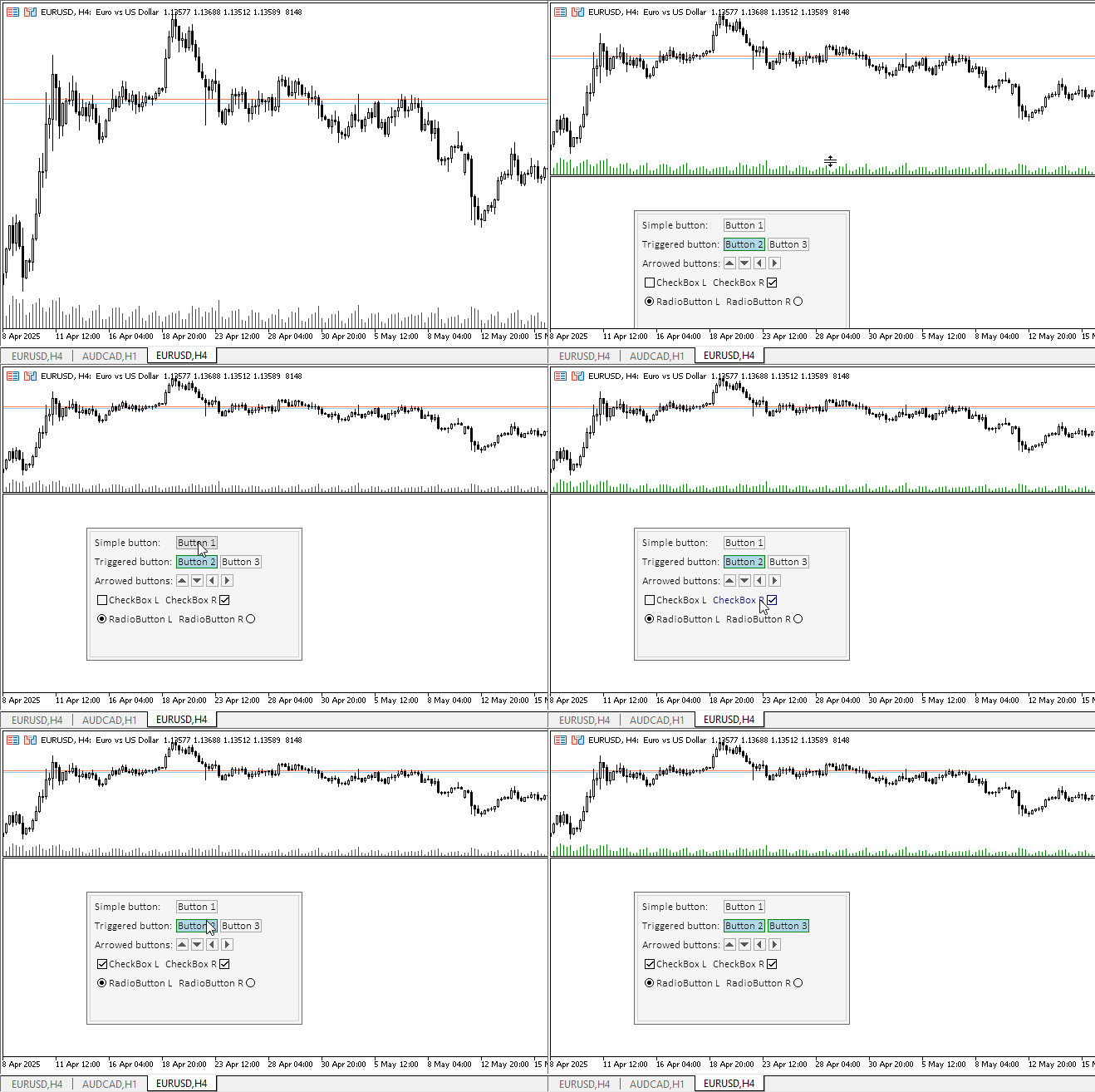
すべてのコントロールはマウス操作に反応し、ラジオボタンはまるでグループ化されているかのように切り替わります。テキストラベルは、カーソルをホバーすると色が変わるように作られており、これによりコントロールを自由にカスタマイズできることを視覚的に示しています。通常状態では、ラベルのテキストは静的です。
しかし、ここにはひとつ見落としがあります。コントロールにカーソルをホバーすると、不要なツールチップとしてインジケーター名が表示されます。この挙動をなくすには、各グラフィックオブジェクトOBJPROP_TOOLTIPプロパティに"\n"の値を設定する必要があります。これを修正します。
CCanvasBaseクラスのCreateメソッド内で、背景および前景のグラフィックオブジェクトにツールチップを設定するための2行を追加します。
//+------------------------------------------------------------------+
//| CCanvasBase::Create background and foreground graphical objects  |
//+------------------------------------------------------------------+
bool CCanvasBase::Create(const long chart_id,const int wnd,const string object_name,const int x,const int y,const int w,const int h)
  {
//--- Get the adjusted chart ID
   long id=this.CorrectChartID(chart_id);
//--- Correct the passed object name
   string nm=object_name;
   ::StringReplace(nm," ","_");
//--- Create a graphical object name for the background and create a canvas
   string obj_name=nm+"_BG";
   if(!this.m_background.CreateBitmapLabel(id,(wnd<0 ? 0 : wnd),obj_name,x,y,(w>0 ? w : 1),(h>0 ? h : 1),COLOR_FORMAT_ARGB_NORMALIZE))
     {
      ::PrintFormat("%s: The CreateBitmapLabel() method of the CCanvas class returned an error creating a \"%s\" graphic object",__FUNCTION__,obj_name);
      return false;
     }
//--- Create a graphical object name for the foreground and create a canvas
   obj_name=nm+"_FG";
   if(!this.m_foreground.CreateBitmapLabel(id,(wnd<0 ? 0 : wnd),obj_name,x,y,(w>0 ? w : 1),(h>0 ? h : 1),COLOR_FORMAT_ARGB_NORMALIZE))
     {
      ::PrintFormat("%s: The CreateBitmapLabel() method of the CCanvas class returned an error creating a \"%s\" graphic object",__FUNCTION__,obj_name);
      return false;
     }
//--- If created successfully, enter the program name into the OBJPROP_TEXT property of the graphical object
   ::ObjectSetString(id,this.NameBG(),OBJPROP_TEXT,this.m_program_name);
   ::ObjectSetString(id,this.NameFG(),OBJPROP_TEXT,this.m_program_name);
   ::ObjectSetString(id,this.NameBG(),OBJPROP_TOOLTIP,"\n");
   ::ObjectSetString(id,this.NameFG(),OBJPROP_TOOLTIP,"\n");

//--- Set the dimensions of the rectangular area and return 'true'
   this.m_bound.SetXY(x,y);
   this.m_bound.Resize(w,h);
   return true;
  }
インジケーターを再コンパイルして確認します。
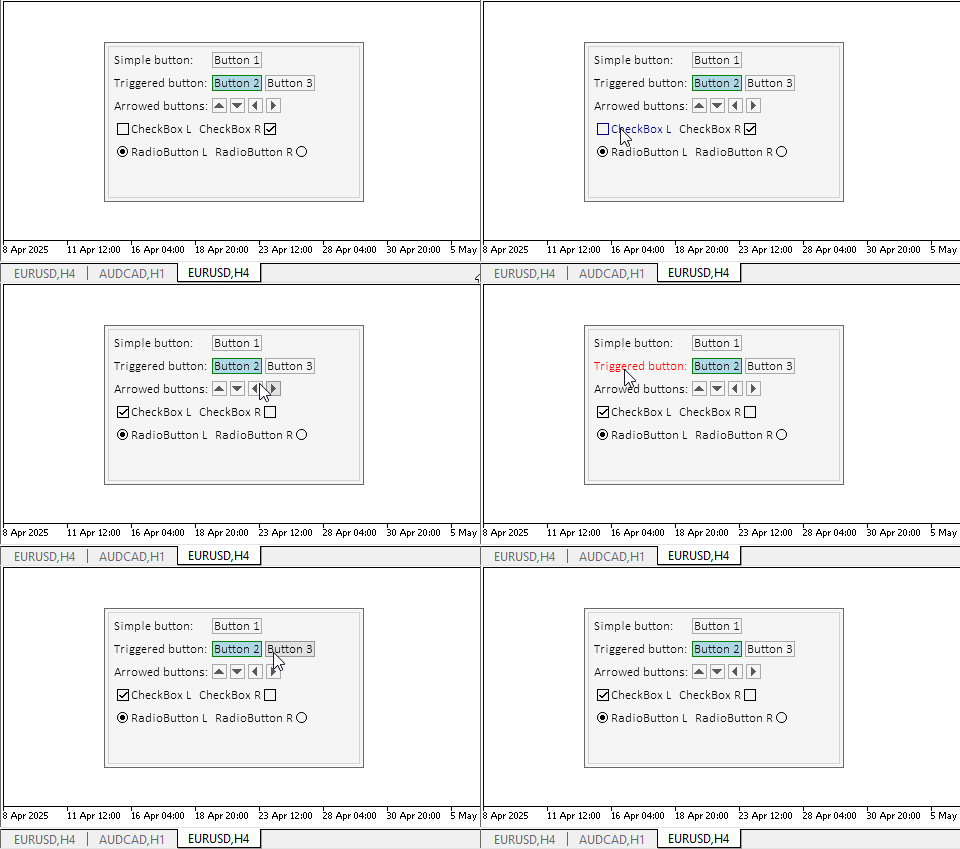
これで、すべてが正しくなりました。
結論
本日は、Table Controlの作成に向けたもう一歩を進めました。すべての複雑なコントロールは、このようにシンプルでありながら高機能なオブジェクトから組み立てられます。
本記事では、すべてのオブジェクトにコントローラーコンポーネントを追加しました。これにより、ユーザーはコントロールと直接やり取りでき、また要素同士も相互に作用できるようになりました。
次回の記事では、パネルやコンテナ要素を準備します。これらは他の要素を配置するための主要なコンポーネントです。 同時に、コンテナは内部の子要素をスクロールできる機能も持っています。
以下は本稿で使用されているプログラムです。
| # | 名前 | 種類 | 詳細 |
|---|---|---|---|
| 1 | Base.mqh | クラスライブラリ | コントロールの基底オブジェクトを作成するクラス |
| 2 | Controls.mqh | クラスライブラリ | 制御クラス |
| 3 | iTestLabel.mq5 | テストインジケーター | コントロールクラスの操作をテストするためのインジケーター |
| 4 | MQL5.zip | アーカイブ | クライアントターミナルのMQL5ディレクトリに解凍するための上記のファイルのアーカイブ |
Base.mqhライブラリ内のクラス
| # | 名前 | 説明 |
|---|---|---|
| 1 | CBaseObj | すべてのグラフィックオブジェクトの基底クラス |
| 2 | CColor | カラー管理クラス |
| 3 | CColorElement | グラフィック要素の各状態の色を管理するクラス |
| 4 | CBound | 矩形領域制御クラス |
| 5 | CCanvasBase | キャンバス上のグラフィック要素を操作するための基底クラス |
Controls.mqhライブラリ内のクラス
| # | 名前 | 説明 |
|---|---|---|
| 1 | CImagePainter | 座標と寸法で定義された領域に画像を描画するためのクラス |
| 2 | CLabel | 「テキストラベル」コントロールクラス |
| 3 | CButton | 「シンプルボタン」コントロールクラス |
| 4 | CButtonTriggered | 「2ポジションボタン」コントロールクラス |
| 5 | CButtonArrowUp | 「上矢印ボタン」コントロールクラス |
| 6 | CButtonArrowDown | 「下矢印ボタン」コントロールクラス |
| 7 | CButtonArrowLeft | 「左矢印ボタン」コントロールクラス |
| 8 | CButtonArrowRight | 「右矢印ボタン」コントロールクラス |
| 9 | CCheckBox | 「チェックボックス」コントロールクラス |
| 10 | CRadioButton | 「ラジオボタン」コントロールクラス |
すべての作成ファイルは、記事に添付されています。アーカイブファイルはターミナルフォルダに解凍できます。すべてのファイルは「\MQL5\Indicators\Tables\」に配置されます。
MetaQuotes Ltdによってロシア語から翻訳されました。
元の記事: https://www.mql5.com/ru/articles/18221
警告: これらの資料についてのすべての権利はMetaQuotes Ltd.が保有しています。これらの資料の全部または一部の複製や再プリントは禁じられています。
この記事はサイトのユーザーによって執筆されたものであり、著者の個人的な見解を反映しています。MetaQuotes Ltdは、提示された情報の正確性や、記載されているソリューション、戦略、または推奨事項の使用によって生じたいかなる結果についても責任を負いません。

 MQL5入門(第26回):MQL5のAPIとWebRequest関数の習得
 初心者からエキスパートへ:FX市場の取引期間
 初心者からエキスパートへ:予測価格経路
 MQL5のテーブルモデルに基づくテーブルクラスとヘッダクラス:MVC概念の適用

- 無料取引アプリ
- 8千を超えるシグナルをコピー
- 金融ニュースで金融マーケットを探索