 MetaTrader 5
 Experts
 Indicatori
 librerie
 Utilità
 Widget
 Regole
Guarda i video tutorial del Market su YouTube
Come acquistare un Robot di Trading o un indicatore
Esegui il tuo EA
hosting virtuale
hosting virtuale
Prova un indicatore/robot di trading prima di acquistarlo
Vuoi guadagnare nel Market?
Come presentare un prodotto per venderlo con successo
Utilità di trading per MetaTrader 5
 Di seguito sono riportati i programmi di trading che semplificano il trading in MetaTrader 5. Passa il mouse su un'utilità per leggerne la descrizione e la sua funzione.
It helps to calculate the risk per trade, the easy installation of a new order, order management with partial closing functions, trailing stop of 7 types and other useful functions.
Additional materials and instructions
Installation instructions - Application instructions
Line function - shows on the chart the Opening line, Stop Loss, Take Profit. With this function it is easy to set a new order and see its additional characteristics before opening. Risk management - The risk calculation

Benvenuto a Trade Manager EA, lo strumento definitivo per la gestione del rischio , progettato per rendere il trading più intuitivo, preciso ed efficiente. Non è solo uno strumento per l'esecuzione degli ordini, ma una soluzione completa per la pianificazione delle operazioni, la gestione delle posizioni e il controllo del rischio. Che tu sia un principiante, un trader avanzato o uno scalper che necessita di esecuzioni rapide, Trade Manager EA si adatta alle tue esigenze, offrendo flessibilità s

Local Trade Copier EA MT5 è un trade copier rapido e flessibile per copiare e gestire operazioni tra più conti MetaTrader 5 sullo stesso computer Windows o Windows VPS. Combina la sincronizzazione locale delle operazioni con controlli lato Receiver per dimensione del lotto, gestione del rischio, filtraggio delle operazioni, mappatura dei simboli, gestione delle operazioni e protezione del conto. Configura i terminali Transmitter e Receiver in circa 1 minuto e copia operazioni manuali o aperte d

Telegram to MT5 Multi-Channel Copier copia automaticamente i segnali di trading dai tuoi canali Telegram e Discord direttamente su MetaTrader 5. Niente bot, niente estensioni del browser, niente copia manuale. Il segnale arriva su Telegram o Discord e l'EA apre l'operazione nel tuo terminale in pochi secondi. E prima di copiare un canale, il backtester integrato ti mostra cosa avrebbe fatto quel canale sul tuo conto. Il prodotto include due componenti: un'applicazione Windows che ascolta i tuo

Farmed Hedge Yield Farming | All Markets
(Manual - Hybrid - Semi/Automated EA)
VERIFIED TRADING RESULTS - Farmed Hedge Yield Axi Copy: https://www.mql5.com/en/signals/2356376 - Farmed Hedge Yield Exn Copy: https://www.mql5.com/en/signals/2356404
- Farmed Hedge Yield V Copy: https://www.mql5.com/en/signals/2357156
IMPORTANT NOTICE: FarmedHedge is a MANUAL-FOCUSED TRADING UTILITY ,not a fully automated EA.
Results shown on this Signal include manual trades and overall strategic management.

Copia i segnali Telegram con le tue regole di trading Telegram to MT5 Signal Trader copia automaticamente i segnali di trading testuali dai canali e gruppi Telegram pubblici e privati in MetaTrader 5. Gestisci più fornitori e conti MT5 da un'unica applicazione desktop, con impostazioni di rischio e di trading specifiche per ogni fornitore . Per copiare i segnali non servono bot Telegram né configurazioni API. Accedi semplicemente con il tuo account Telegram tramite numero di telefono o codice QR

Trade Panel è un assistente commerciale multifunzionale. L'applicazione contiene più di 50 funzioni di trading per il trading manuale e permette di automatizzare la maggior parte delle attività commerciali. Istruzioni per l'applicazione: https://www.mql5.com/it/blogs/post/762331 Versione di prova dell'applicazione per un conto demo: https://www.mql5.com/it/blogs/post/762419 Come installare l'applicazione: https://www.mql5.com/it/blogs/post/762362 Come testare l'applicazione in modalità visuale:

Ora disponibile in italiano. Strategy Ledger Pro è un pannello di analisi del conto in sola lettura per MetaTrader 5. Separa i risultati del conto per Expert Advisor, strategia, simbolo e numero magic, così puoi vedere quanto contribuisce davvero ciascuno. Il pannello è disponibile in 11 lingue: English, Français, Deutsch, Español, Italiano, Português, Русский, Türkçe, 中文, 日本語 e 한국어. Prima di scaricare la demo. Il Market esegue la demo di qualsiasi prodotto a pagamento solo nello Strategy Teste

================================================================================ POC BREAKOUT - V20.72. Full Professional Grade Toolkit ================================================================================ POC Breakout is a full MetaTrader 5 trading dashboard for discretionary traders who want breakout signals, Point of Control (POC) context, volume profiles, order flow, market structure, news, alerts, and advanced trade planning in one professional workspace. Attached directly to you

Presento un utile robot che io stesso utilizzo da diversi anni. Questo robot può essere utilizzato sia in modalità semiautomatica che completamente automatica. >>> Chat <<<
Il programma contiene le impostazioni flessibili per fare trading sulle notizie del calendario economico. Non può essere verificato nel tester delle strategie. Soltanto il vero lavoro. Nelle impostazioni del terminale è necessario aggiungere il sito delle notizie all’elenco degli URL consentiti. Fare clic su Strumenti > Opz

Master Your Trading Discipline
Stop losing your hard-earned gains to overtrading and emotional decisions. The Discipline Tool is your ultimate trading assistant, ensuring strict risk management in real-time. Key Protection Features: Advanced Drawdown Defense : Automatically halts trading if your daily drawdown exceeds a preset threshold (percentage or dollar amount). Real-Time Equity Lock : Safeguard profits by referencing peak equity, ensuring drawdown stays within control. Hard Profit Target

Dealer's Panel
No signal decides anything here — a hand does. One click, and the panel calculates what's underneath: lot size from risk, target from a 30-step balance ladder that remembers exactly how far an account has climbed.
Toggle between market and pending without touching an input field. Set a stop, and the take-profit can write itself — a fixed share of the balance, translated into price with no arithmetic left for the trader to get wrong. One trade live at a time; it won't let a seco

Copiatore professionale di trade per MetaTrader 5 Un copiatore di trade veloce, professionale e affidabile per MetaTrader .
COPYLOT consente di copiare operazioni Forex tra terminali MT4 e MT5 con supporto per conti Hedge e Netting . La versione MT5 di COPYLOT supporta:
- MT5 Hedge → MT5 Hedge
- MT5 Hedge → MT5 Netting
- MT5 Netting → MT5 Hedge
- MT5 Netting → MT5 Netting
- MT4 → MT5 Hedge
- MT4 → MT5 Netting Versione MT4 Descrizione completa + DEMO + PDF Come acquistare Come installare Come ot
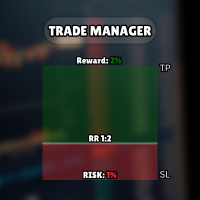
Scopri i miei altri prodotti: Clicca qui Trading visivo reso semplice: Posiziona e trascina semplicemente le linee orizzontali sul tuo grafico per impostare i tuoi livelli di Entrata, Stop Loss e Take Profit. Ciò che vedi è ciò che ottieni. Le linee visive ti danno una chiarezza immediata sulla configurazione della tua operazione. Calcolo automatico della dimensione del lotto: Smetti di rischiare più di quanto intendi. Imposta il tuo rischio come un importo fisso o come una percentuale del sald
FREE

HINN MAGIC ENTRY – the ultimate tool for entry and position management!
SIMPLE. FASTEST. INTUITIVE. MAX AUTOMATED. Place orders by selecting a level directly on the chart!
full description :: demo-version :: 60-sec-video-description
Key features:
- Market, limit, and pending orders
- Automatic lot size calculation
- Automatic spread and commission accounting
- Unlimited partitial take-profits
- Breakeven and trailing stop-loss and take-profit functions
- Invalidation leves
- Intuitive, a

Get Ready for Major New Features in Our Next Update — Version 2.52 Coming Soon! [NEW] We’re taking market analysis to the next level with 4 new features designed to meet your trading needs. Introducing:
TRADE OVERVIEW DASHBOARD CONFLUENCE AT ZONE OTE Strong & Weak High/Low 1. TRADE OVERVIEW DASHBOARD
A dashboard that helps you see the overall market picture more easily, with key information from multiple timeframes and trading guidance to support your trading decisions, helping you an

The product will copy all telegram signal to MT5 ( which you are member) , also it can work as remote copier. Easy to set up, copy order instant, can work with almost signal formats, image signal, s upport to translate other language to English Work with all type of channel or group, even channel have "Restrict Saving Content", work with multi channel, multi MT5 Work as remote copier: with signal have ticket number, it will copy exactly via ticket number. Support to backtest signal. How to s

EASY Insight AIO – La soluzione all-in-one per un trading intelligente e senza sforzo Panoramica
Immagina di poter analizzare l’intero mercato — Forex, Oro, Cripto, Indici e persino Azioni — in pochi secondi, senza dover controllare manualmente i grafici, installare indicatori o affrontare configurazioni complicate.
EASY Insight AIO è il tuo strumento definitivo di esportazione per il trading alimentato dall’IA, pronto all’uso. Offre una panoramica completa del mercato in un unico file CSV pul

Telegram To MT5 — Copiatore di segnali Trasforma le indicazioni di trading dei tuoi canali Telegram in veri ordini MT5 — automaticamente, su quanti account vuoi, con rischio e regole totalmente sotto il tuo controllo. Telegram To MT5 collega i canali VIP / di segnali che già segui su Telegram al tuo terminale MetaTrader 5. Un'app desktop companion gratuita legge i messaggi (anche dai canali che bloccano i bot), e questo Expert Advisor li esegue sul tuo conto — applicando le tue impostazioni di r

MT5 to Telegram Signal Provider è un'utilità facile da usare e completamente personalizzabile che consente l'invio di segnali specificati a una chat, canale o gruppo Telegram, rendendo il tuo account un fornitore di segnali. A differenza della maggior parte dei prodotti concorrenti, non utilizza importazioni DLL. [ Dimostrativo ] [ Manuale ] [ Versione MT4 ] [ Versione Discord ] [ Canale Telegram ] New: [ Telegram To MT5 ]
Configurazione Una guida utente passo-passo è disponibile. Nessuna cono

Power Candles Strategy Scanner - Strumento di ricerca configurazioni multi-simbolo con ottimizzazione automatica Power Candles Strategy Scanner utilizza lo stesso motore di auto-ottimizzazione che alimenta l'indicatore Power Candles, applicandolo a tutti i simboli presenti nel tuo Market Watch, uno accanto all'altro. Un unico pannello ti indica quali simboli sono statisticamente negoziabili in questo momento, quale strategia è vincente su ciascuno di essi, la coppia ottimale di Stop Loss / Take

The Patch
It never opens a trade. It walks behind the ones that did.
Every open position, every pending order — checked twice a second for the one thing that's easy to forget: a stop, a target. Found bare, it doesn't ask. It writes the missing number in, measured in points from wherever the position began, and moves on to the next.
No strategy, no opinion on direction. Just the quiet assumption that nothing should ever sit on the market unprotected — not because someone decided it shouldn't,

Grid Manual è un pannello di trading per lavorare con una griglia di ordini. L'utilità è universale, ha impostazioni flessibili e un'interfaccia intuitiva. Funziona con una griglia di ordini non solo nella direzione delle perdite, ma anche nella direzione dell'aumento dei profitti. Il trader non ha bisogno di creare e mantenere una griglia di ordini, lo farà l'utilità. È sufficiente aprire un ordine e il manuale di Grid creerà automaticamente una griglia di ordini per esso e lo accompagnerà fino

Signal TradingView to MT5 Pro Automator Esecuzione professionale istantanea tra TradingView e MetaTrader 5 Automatizza la tua strategia di trading con il ponte di comunicazione più robusto tra gli alert di TradingView e l'esecuzione reale in MT5. Progettato per i trader che richiedono velocità, flessibilità e una gestione del rischio impeccabile, questo Expert Advisor trasforma qualsiasi messaggio di avviso in un preciso ordine a mercato o limite. PUNTI DI FORZA E VANTAGGI Motore di Parsing Univ

Serve supporto? Come configurarlo? Hai domande? Chiedi qui nella tua lingua, risposta rapida: https://www.mql5.com/en/market/product/139088/comments Scarica la demo funzionante
Copy Cat More (Gatto Copione) — Copiatore di Trade (Trade Copier) MT5 è un copiatore locale di trade e un framework completo di gestione del rischio e di esecuzione, progettato per le sfide di trading di oggi. Dalle challenge delle prop firm alla gestione di portafogli personali, si adatta a ogni situazione con una comb

Your EAs cannot see each other, but Anchor can. Anchor gives you one place to coordinate your EAs, manage risk, and decide when trading is allowed. It works alongside the trading bots you already use without any changes to them. The Problem One EA opens a trade. Then another starts trading. The next thing you know, you wake up to multiple grids built across your account. Each EA may be doing exactly what it was designed to do, but together they can place far more risk on your account than you in

Trade Copier è un'utilità professionale progettata per copiare e sincronizzare le transazioni tra conti di trading. La copiatura avviene dal conto/terminale del fornitore al conto/terminale del destinatario, che sono installati sullo stesso computer o vps. Prima di acquistare, puoi testare la versione demo su un account demo. Versione demo qui . Istruzioni complete qui . Funzionalità e vantaggi principali: Supporta la copia degli ordini: MT5> MT5, MT4> MT5, MT5> MT4, inclusi i conti di compensaz

Da Telegram a MT5: la soluzione definitiva per la copia del segnale Semplifica il tuo trading con Telegram su MT5, il moderno strumento che copia i segnali di trading direttamente dai canali e dalle chat di Telegram sulla tua piattaforma MetaTrader 5, senza bisogno di DLL. Questa potente soluzione garantisce un'esecuzione precisa dei segnali, ampie opzioni di personalizzazione, fa risparmiare tempo e aumenta la tua efficienza. [ Instructions and DEMO ] Caratteristiche principali Integrazione d

Questo prodotto filtra tutti gli esperti consulenti e i grafici manuali durante il periodo delle notizie, così non dovrai preoccuparti di improvvisi picchi di prezzo che potrebbero distruggere le tue impostazioni di trading manuali o le negoziazioni effettuate da altri esperti consulenti. Questo prodotto viene fornito anche con un sistema completo di gestione degli ordini che può gestire le tue posizioni aperte e gli ordini in sospeso prima della pubblicazione di qualsiasi notizia. Una volta che

Pannello di trading per MetaTrader 5 — controllo professionale del trading in un clic dal grafico e dalla tastiera Un pannello di trading avanzato progettato per trader attivi, pensato per aprire, gestire e chiudere operazioni molto più velocemente rispetto all’interfaccia standard di MetaTrader. Questa soluzione è dedicata a chi desidera controllare posizioni, ordini pendenti, profitto totale ed esecuzione da un unico spazio di lavoro professionale. Non si tratta di un semplice utilitario. È u

Aiuta a preparare e gestire le operazioni dal grafico. Il lotto può essere calcolato in base alle impostazioni di rischio scelte. Le linee visive Buy e Sell possono essere posizionate e spostate sul grafico e poi usate per inviare gli ordini.
Opzioni di dimensionamento della posizione: Lotto fisso Rischio in denaro Percentuale del saldo Percentuale dell'equity
Take profit parziale: Fino a tre livelli di take profit parziale sul grafico Ogni livello può chiudere parte della posizione a un prez
FREE

Floor Watch
One number, watched every thirty seconds: how far equity has fallen since the day began — or since its highest point, if it's told to trail the peak instead of the open.
Cross the line and it doesn't argue. Every open position closes, every pending order vanishes, and anything that slips through afterward gets shut the moment it appears. Not asked. Removed. The floor holds until the clock turns 5 AM Pakistan time — then, and only then, does the day start over.
One rule. No except

RETAILBERG FOOTPRINT CHART PRO — Order-Flow Workspace for MetaTrader 5 Version 7.00 | Professional System | 31 tools | One chart
A full 150-page illustrated User Manual is included. Please read the full manual to understand this feature packed footprint chart elements and ui. https://www.mql5.com/en/blogs/post/777982 DEMO / STRATEGY TESTER — PLEASE READ FIRST

Seconds Chart - uno strumento unico per creare grafici in secondi su MetaTrader 5 . Con Seconds Chart , puoi generare grafici con timeframe definiti in secondi, ottenendo una flessibilità e una precisione d'analisi ideali, non disponibili nei grafici standard in minuti o ore. Ad esempio, il timeframe S15 indica un grafico con candele di 15 secondi. Puoi utilizzare qualsiasi indicatore e Expert Advisor con supporto per simboli personalizzati. Lavorare con loro è comodo quanto operare sui grafici

RS Trade Copier - il local trade copier ultra-veloce con una vera interfaccia grafica. Smetti di inserire i numeri di conto manualmente. Addio alle interminabili liste di oltre 200 parametri nelle impostazioni. Uno strumento affidabile e flessibile per copiare operazioni di trading tra multipli terminali MT5 e MT4. È adatto sia a trader esperti e servizi di segnali, sia a investitori privati. Permette di sincronizzare il trading da uno o più Fornitori a uno o più Clienti con elevata precisione e

Un solo acquisto. Tutti i miei indicatori MT4 e MT5, disponibili oggi e pubblicati in futuro, senza costi aggiuntivi. Dopo l’acquisto, contattami per sapere come riceverli. È previsto un aumento di 50$ ogni 10 acquisti, fino a 999$. Si applica il prezzo del Market al momento del pagamento. Mantieni l’indicatore di cui ti fidi. Automatizza il lavoro che lo circonda. Il tuo segnale. Le tue regole. La tua esecuzione. Hai già un indicatore MT5 su cui fai affidamento, ma devi ancora sorvegliare il g

I segnali dei suoi canali Telegram, copiati su MetaTrader 4 e MetaTrader 5 in pochi secondi. TradingMind Signal Bridge legge i canali e i gruppi che lei sceglie, riconosce ogni segnale con regole rapide integrate, passa quelli più disordinati a un modello di IA, compresi i segnali pubblicati come screenshot, e consegna l'ordine a un expert advisor sul suo terminale. Un filtro notizie, la protezione per i conti delle prop firm e un bot Telegram per il controllo a distanza lasciano a lei la decisi

Chart Drawing Toolkit is a complete drawing and chart-analysis workspace for MetaTrader 5 . It places more than 50 drawing and markup tools in one fast, clean panel that docks to the edge of your chart, so every manual analysis tool you need is a single click away. It runs as an indicator, so it works alongside your Expert Advisors and other indicators on the same chart. JOIN ALL OUR TOOLS public channel for UPDATES: CLICK HERE . Overview
The toolkit combines a docking sidebar, a quick tool flyo
FREE

Prop Guardian Risk Manager MT5 – Drawdown, Risk & Hedge Protection for Prop Firm and Managed Accounts Prop Guardian Risk Manager is a professional risk-control utility for MetaTrader 5, designed for prop firm traders, money managers and anyone who wants strict account-level risk protection. It does not generate trading signals, strategy entries or trading decisions. Instead, it runs in the background, monitors your account risk and can automatically block new exposure, close managed positions or

25% discount on the release of the tool: only for the next 3 buyers Send a message to receive a demo version. AstroTrade Trading Assistant
AstroTrade is a comprehensive multi-functional trading utility developed for the MetaTrader 5 platform. It integrates essential tools for trade execution, risk management, and technical monitoring into a single unified interface. The application is designed to assist traders in managing their daily operations through a visual and structured environment.
Vi

SMT Trade Planner e un calcolatore di rischio professionale e pannello di esecuzione ordini direttamente sul grafico MetaTrader. Calcola la dimensione del lotto, mostra linee visuali di entrata, Stop Loss e Take Profit trascinabili sul grafico, valida il trade contro regole di rischio configurabili e permette l'esecuzione con un clic. Come funziona Allega il Trade Planner a qualsiasi grafico. Il pannello mostra le informazioni del conto e pulsanti di selezione rapida del rischio. Tre linee ori

Trade Indicator Assistant is a powerful MT5 utility designed to turn indicators into automated trading systems. Its main feature is the ability to automatically detect an indicator’s BUY and SELL signal buffers , without requiring you to know the buffer numbers, search through indicator settings, or modify the indicator source code. Bonus Indicator: After purchasing Trade Indicator Assistant, contact me to receive Trade Signal Pro completely free as a bonus indicator.
[Download Demo V

Smart Stop Manager – Esecuzione automatica dello stop-loss con precisione professionale Panoramica
Smart Stop Manager è il livello di esecuzione della linea Smart Stop, progettato per i trader che richiedono una gestione dello stop-loss strutturata, affidabile e completamente automatizzata su più posizioni aperte. Monitora continuamente tutte le operazioni attive, calcola il livello di stop ottimale utilizzando la logica di struttura di mercato Smart Stop e aggiorna gli stop automaticamente se

Materiali e istruzioni aggiuntivi
Istruzioni per l'installazione - Versione di prova dell'applicazione per un conto demo ;
Informazioni Ufficiali
Canale ufficiale
Profilo del venditore
Basta tirare a indovinare la taglia dei lotti. Assumi il controllo totale di ogni trade. Hai mai perso un ingresso perfetto sul mercato solo perché hai sprecato 15 secondi per calcolare la taglia del lotto su un sito web? O peggio ancora, hai digitato un volume errato sull'Oro (XAUUSD) e hai visto un singol
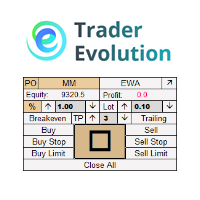
" Trader Evolution " - A utility designed for traders who use wave and technical analysis in their work. One tab of the utility is capable of money management and opening orders, and the other can help in making Elliott wave and technical analysis.
Manual (Be sure to read before purchasing) | Version for MT4
Advantages
1. Trading in a few clicks. Immediate and pending orders are available in the panel
2. Money management. The program automatically selects the appropriate lot size
3. Simplifies

That backtest looks great. But will it still be making money tomorrow, next week, next month?
EA Overfitter re-runs your EA on 100 price histories it has never seen. One score tells you if the edge is real.
A backtest tells you what an EA did on one price history — the one that happened to occur. What you cannot tell from it is how much of that result was the strategy and how much was the particular path.
EA Overfitter answers that. It builds up to 100 synthetic price histories your EA has n

Trade Dashboard simplifies how you open, manage, and control your trades, with built-in lot size calculation. It allows you to execute trades, manage risk, and control positions directly on the chart, with tools such as partial close, breakeven, and trailing stop. Designed to reduce manual work and help you stay focused on your trading decisions. A demo version is available for testing. Detailed explanations of features are provided within the MQL5 platform. Installation instructions are include
Ciao ragazzi
Un altro strumento gratuito per i trader.
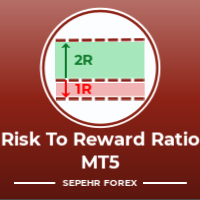
Rapporto rischio/rendimento:
È utile per ogni trader calcolare l'entità della perdita rispetto all'entità del profitto in modo da poter giudicare se si tratta di un buon trade o meno. Inoltre, mostra la perdita e il profitto in pip e percentuali.
Puoi impostare i colori di ogni parte che desideri. E se potessi fare trading anche con questo pannello?! Vedi il link qui sotto Trader Assistant Mini MT5
Puoi vedere la versione MT4 al link s
FREE

Basket EA MT5 è un potente strumento per la presa di profitto e un sistema completo di protezione del conto, tutto in una soluzione semplice e intuitiva. Il suo scopo principale è quello di offrire un controllo totale sul profitto e la perdita complessiva del conto, gestendo tutte le posizioni aperte a livello di "cestino" (basket) e non singolarmente. L’EA offre una serie completa di funzionalità a livello di basket, come take profit, stop loss, break even e trailing stop. Questi possono essere

Veloce. Preciso. Innovativo. Tecnologico. Scopri la copia istantanea delle operazioni con il rivoluzionario X2 Copy MT5. Con solo 10 secondi di semplice installazione, otterrai un potente strumento per sincronizzare le operazioni tra i terminali MetaTrader su un singolo computer o Windows VPS con una velocità senza precedenti. Che tu gestisca più account, segua segnali o espanda la tua strategia, X2 Copy MT5 si adatta al tuo flusso di lavoro con una precisione e un controllo senza pari. Lavora p

Strumento di Posizione di Trading e Backtesting:
Lo "Strumento di Posizione di Trading e Backtesting", anche conosciuto come "Strumento Rapporto Rischio/Rendimento", è un indicatore completo e innovativo progettato per migliorare la tua analisi tecnica e le tue strategie di trading. Lo strumento di Rischio è una soluzione completa e user-friendly per una gestione efficace del rischio nel trading forex. Con la possibilità di visualizzare le posizioni di trading, inclusi il prezzo di ingresso, l
FREE
Trade Manager per aiutarti a entrare e uscire rapidamente dalle operazioni calcolando automaticamente il tuo rischio. Incluse funzionalità che ti aiutano a prevenire l'eccessivo trading, il vendetta trading e il trading emotivo. Le operazioni possono essere gestite automaticamente e i parametri di performance del conto possono essere visualizzati in un grafico. Queste caratteristiche rendono questo pannello ideale per tutti i trader manuali e aiuta a migliorare la piattaforma MetaTrader 5. Suppo

VirtualTradePad PRO SE MT5 — centro di controllo professionale per il trading su MetaTrader 5 VirtualTradePad PRO SE è un pannello di trading premium basato sul grafico e un ambiente di gestione delle operazioni per MetaTrader 5 . È progettato per i trader che desiderano esecuzione più rapida, controllo più chiaro delle posizioni, gestione strutturata delle operazioni, pianificazione visiva dei livelli e un workflow professionale direttamente dal grafico. Non è soltanto un semplice pannello BUY
Drawdown Protector è uno strumento di utilità utilizzato per gestire il prelievo massimo giornaliero desiderato.
Nell'era delle aziende di scena e delle sfide, è molto importante essere consapevoli dei limiti di prelievo giornalieri. È un EA efficace e semplice da utilizzare per la gestione del prelievo azionario e la prevenzione del trading di vendetta. Parametri di input:
Quante ore bloccare il trading? - Qui puoi impostare per quante ore vuoi che l'EA blocchi le nuove operazioni,

The Ultimate TradingView to MT5 Bridge Automation Basta trading manuale e problemi di latenza. TradingView to MT5 Copier PRO è il bridge più veloce e affidabile per eseguire i tuoi alert di TradingView direttamente su MetaTrader 5. Che tu usi indicatori personalizzati, script dello Strategy Tester o disegni manuali, questo EA esegue i tuoi trade istantaneamente utilizzando la tecnologia WebSocket ad alta velocità . A differenza dei semplici copiatori, questa versione PRO include Arena Statistics

Quant AI Agents are independent trading Expert Advisors. Instead of trading using a fixed strategy like other conventional EAs, Quant AI Agents is a multi-agent AI trading framework that turns natural-language strategy prompts into live.
WANT THE SAME RESULTS AS MY LIVE SIGNAL? Use the exact same brokers I do: IC MARKETS , IC TRADING . Unlike the centralized stock market, Forex has no single, unified price feed. Every broker sources liquidity from different providers, creating un

• Please test the product in the Strategy Tester before purchasing to understand how it works.
• If you face any issues, contact me via private message—I’m always available to help.
• After purchase, send me a screenshot of your order to receive a FREE EA as a gift.
Daily Trading Limiter — the rule you cannot break Every trader knows the number. Three trades. Two percent. One bad day and stop. And every trader has watched themselves take the fourth trade anyway. The problem was never knowing th

Attention: You can view the program operation in the free version YuClusters DEMO . YuClusters is a professional market analysis system. The trader has unique opportunities to analyze the flow of orders, trade volumes, price movements using various charts, profiles, indicators, and graphical objects. YuClusters operates on data based on Time&Sales or ticks information, depending on what is available in the quotes of a financial instrument. YuClusters allows you to build graphs by combining da

Replay Study — Train the Market as If It Were Live Replay Study is a tool designed for traders who want to accelerate their growth through realistic practice. With it, the trader can go back in time, choose a specific date and time, and follow the market candle by candle, simulating decisions as if they were trading live. Instead of simply looking at a static chart after the move has already happened, Replay Study allows you to study price behavior in motion, test entries, train market reading,
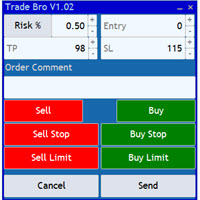
The Trade Bro tool helps you to calculate your positions size and place orders quickly. You no longer need to count ticks or do time consuming calculations. The easy to understand graphical panel is designed to interact with the chart of your symbol perfectly. Please leave a 5 star rating if you like this free tool! Thank you so much :)
List of Inputs: <Graphic> InpFontSize: FontSize of the text of the trading panel. InpShowLinesRight: When set to true the entry, TP and SL lines will be oriente
FREE

Trade Utility Pro is a bot utility designed to help you manage trades more easily, quickly, and accurately. This utility features a control panel interface and supports MetaTrader 5 exclusively. This utility does not link to any account information or external sources, ensuring safety. Main Features: Open Trade Support: Lot size calculation Fixed Lot: Custom input lot required Money Risk Lot: Automatically calculated based on stop loss and money risk Account % Risk Lot: Automatically calculated
FREE

Multi Account Local Trade Copier è un copiatore locale veloce per MetaTrader: copia le operazioni tra terminali MT4/MT5 sullo stesso PC o VPS Windows, da un conto master a più conti ricevitori — i tuoi conti reali, demo o prop firm, presso lo stesso broker o presso broker diversi. Funziona a eventi : il master pubblica ogni operazione nell'istante in cui avviene, e il ricevitore misura e registra la latenza di copia reale di ogni singola operazione — tipicamente 50-150 ms . Niente DLL, niente po

Titolo del Prodotto Trade Builder - Gestore visivo di trading e assistente al rischio interattivo sul grafico Descrizione Breve Semplifica il tuo trading con Trade Builder , un assistente di trading ( Trade Assistant ) e gestore di ordini ( Trade Manager ) altamente interattivo. Imposta ingresso, stop-loss e take-profit direttamente sul grafico, con calcolo automatico del lotto e del rapporto rischio/rendimento ( risk reward ratio ) in tempo reale. Panoramica Una gestione delle operazioni ( Trad
FREE

Pannello di trading con un clic, calcolatore di lotti e gestore di operazioni per MetaTrader 5 Trading Panel PRO MT5 è un pannello di trading per preparare, eseguire e gestire operazioni manuali e semimanuali direttamente dal grafico, con un controllo visivo del rischio a ogni passo. Riunisce l'esecuzione con un clic di ordini a mercato, Limit e Stop, un calcolatore di rischio che calcola il lotto dal rischio in percentuale, nella valuta del conto o come lotto fisso, zone di entrata, stop loss e

FUTURES ORDERFLOW FOOTPRINT CHART Professional OrderFlow EA for MetaTrader 5
Version 1.01| Professional tool for real traders | Institutional-Grade Visualization
STRATEGY TESTER USERS - PLEASE SELECT EVERY REAL TICK WHEN TESTING AND YOU HAVE DOWNLOADED HISTORICAL DATA. IF YOU SEE A WAITING SCREEN AND IT IS NOT DOWNLOADING, IT MEANS YOU HAVE LOW HISTORICAL DATA. TRY 1 MIN AND 5 MIN FIRST ON 1 DAY DATA. ONE DAY DATA SHOULD BE THE NEWEST AND MOST CURRENT DATE. PLEASE WAIT UNTIL THE MARKET HAS ROL
Hello friends. I wrote this utility specifically for use in my profile with a large number of Expert Advisors and sets ("Joint_profiles_from_grid_sets" https://www.mql5.com/en/blogs/post/747929 ). Now, in order to limit losses on the account, there is no need to change the "Close_positions_at_percentage_of_loss" parameter on each chart. Just open one additional chart, attach this utility and set the desired percentage for closing all trades on the account. The utility has the following fu

Rhino Chart Drawing Tools per MetaTrader 5 Rhino Chart Drawing Tools offre un'esperienza di disegno simile a TradingView per MetaTrader 5. Include 54 strumenti di disegno, una barra degli strumenti personalizzabile, preferiti, stili rapidi, impostazioni per ogni oggetto, modelli e un gestore degli oggetti. Strumenti di disegno Linee Linea di tendenza, raggio, linea estesa, linea orizzontale, linea verticale, raggio orizzontale, linea incrociata, angolo di tendenza, freccia, percorso, polilinea e

Premium Trade Manager - Il pannello di trading con un coach integrato Premium Trade Manager porta un coach di trading direttamente nel tuo grafico, con un motore di esecuzione completo al di sotto. Imposta il trade come fai sempre, poi lascia che Max, il tuo coach di trading IA, legga esattamente quel setup rispetto al tuo conto live e ti dia un verdetto chiaro prima che tu confermi: lo stop rispetta un approccio disciplinato, il rischio è ragionevole, c'è un evento ad alto impatto tra pochi min

This software has no equals in the world and represents a universal trade "console" covering trading signals, automated market entry, setting of Stop Loss and Take Profit, as well as Trailing Profit for multiple trades at the same time in a single open window. Intuitive control of the Expert Advisor in "three clicks" ensures a comprehensive use of all its functions on different computers, including tablets PCs. Interacting with additional signal indicators that mark the chart to give a real mark

Signalator Charts MT5 è un'utilità per grafici e trading per MetaTrader 5 che combina diversi tipi di grafici alternativi, stile professionale e strumenti pratici di trading in un'unica interfaccia. Signalator Charts MT5 consente di lavorare con Renko, Point & Figure, Kagi, Heikin Ashi e i tipi di grafico standard di MT5 da un unico pannello. Costruzione del grafico, aspetto, cronologia e overlay analitici possono essere configurati direttamente dal grafico senza utilizzare software esterno. Det
Il MetaTrader Market è l'unico negozio online dove è possibile scaricare la versione demo gratuita di un robot di trading che consente di effettuare test e ottimizzazioni utilizzando dati statistici.
Leggi la descrizione dell'applicazione e le recensioni di altri clienti, scaricala direttamente sul tuo terminale e prova un robot di trading prima di acquistarlo. Solo sul MetaTrader Market è possibile testare un'applicazione in modo assolutamente gratuito.

Ti stai perdendo delle opportunità di trading:
- App di trading gratuite
- Oltre 8.000 segnali per il copy trading
- Notizie economiche per esplorare i mercati finanziari
Registrazione
Accedi
Accetti la politica del sito e le condizioni d’uso
Se non hai un account, registrati