Assistant Trader MT5
- Utilities
- Version: 1.20
- Updated: 14 July 2026

Assistant Trader MT5
Check Pro version with OCO feature and fluid drawings :Assistant Trader Pro MT5 | Buy Trading Utility for MetaTrader 5
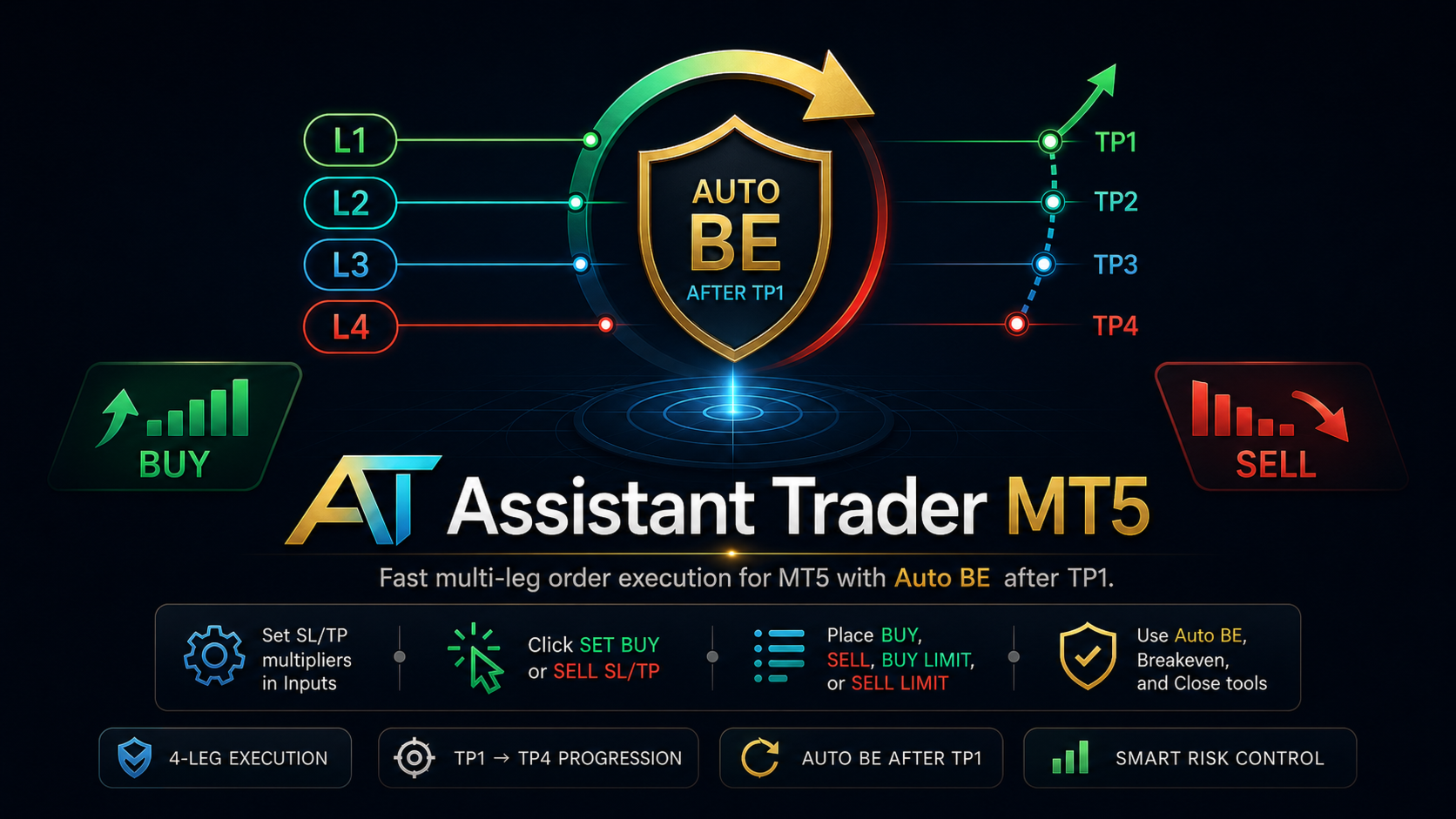
Assistant Trader MT5 is a MetaTrader 5 manual trading assistant for fast multi-leg order execution.
It is built for traders who need to copy signal levels, split entries into legs, and manage trades with less delay.
Detailed Introduction
Assistant Trader MT5 provides a compact chart dashboard for placing and managing multi-leg trades in MT5. It is intended for manual traders, scalpers, and signal-copying workflows where speed and clean order structure matter.
The EA can be used for multi-leg signal copying from Telegram in less time. When a Telegram signal includes an entry price, stop loss, and multiple take-profit levels, the trader can type those levels into the dashboard once, set the number of legs, confirm the lot size and weights, then execute the order set from the chart panel.
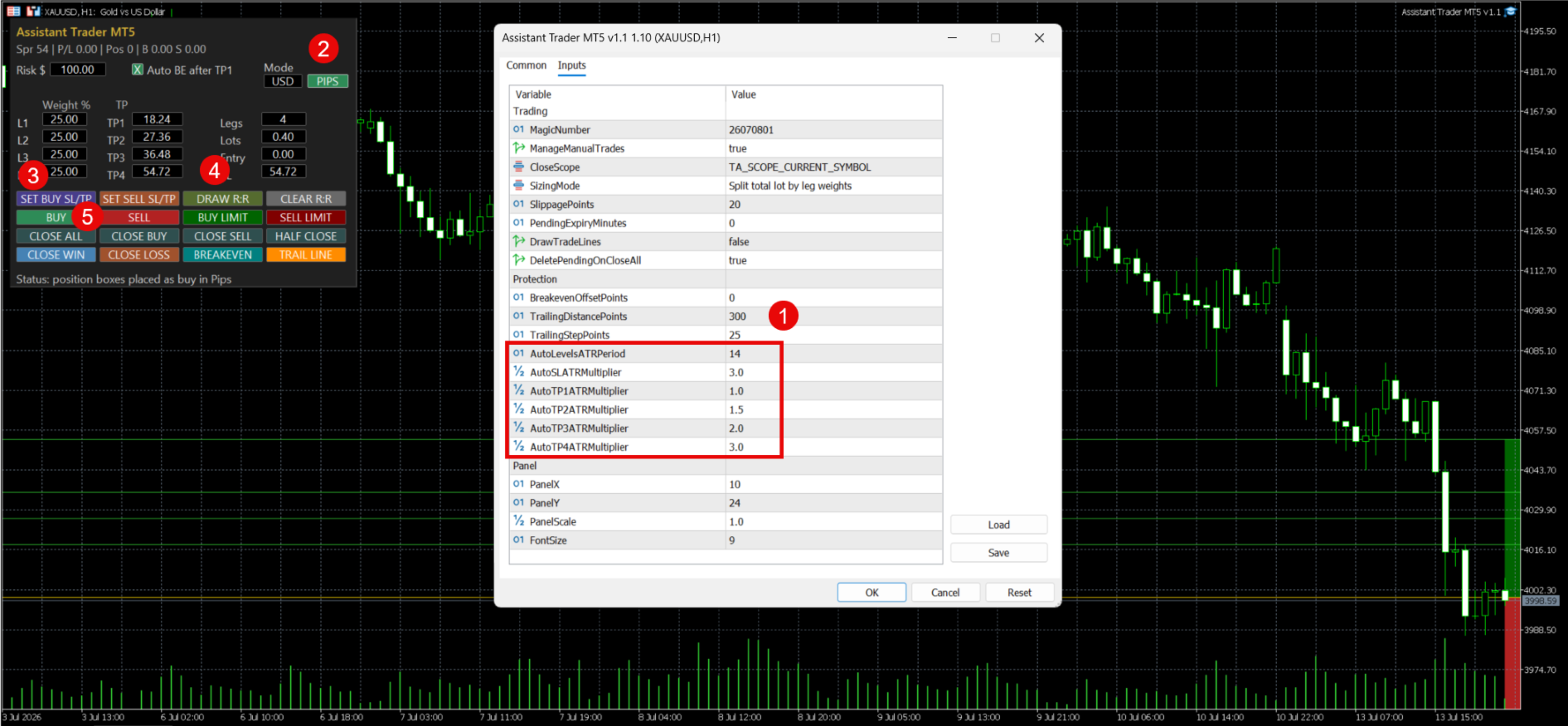
Core capabilities include market Buy/Sell execution, Buy Limit and Sell Limit orders, one shared entry field, one shared stop-loss field, four take-profit fields, per-leg weighting, USD or pips input mode, plotted position boxes, Auto BE after TP1, manual breakeven, half close, close-by-side, close winners/losers, and separate buy/sell SL/TP setup buttons.
In pips mode, the panel displays pip distances in the form while converting those distances back to MT5 price levels before drawing R:R boxes or placing orders.
Market Buy and Sell clicks require confirmation before the EA sends orders.
Basic Usage
Market order:
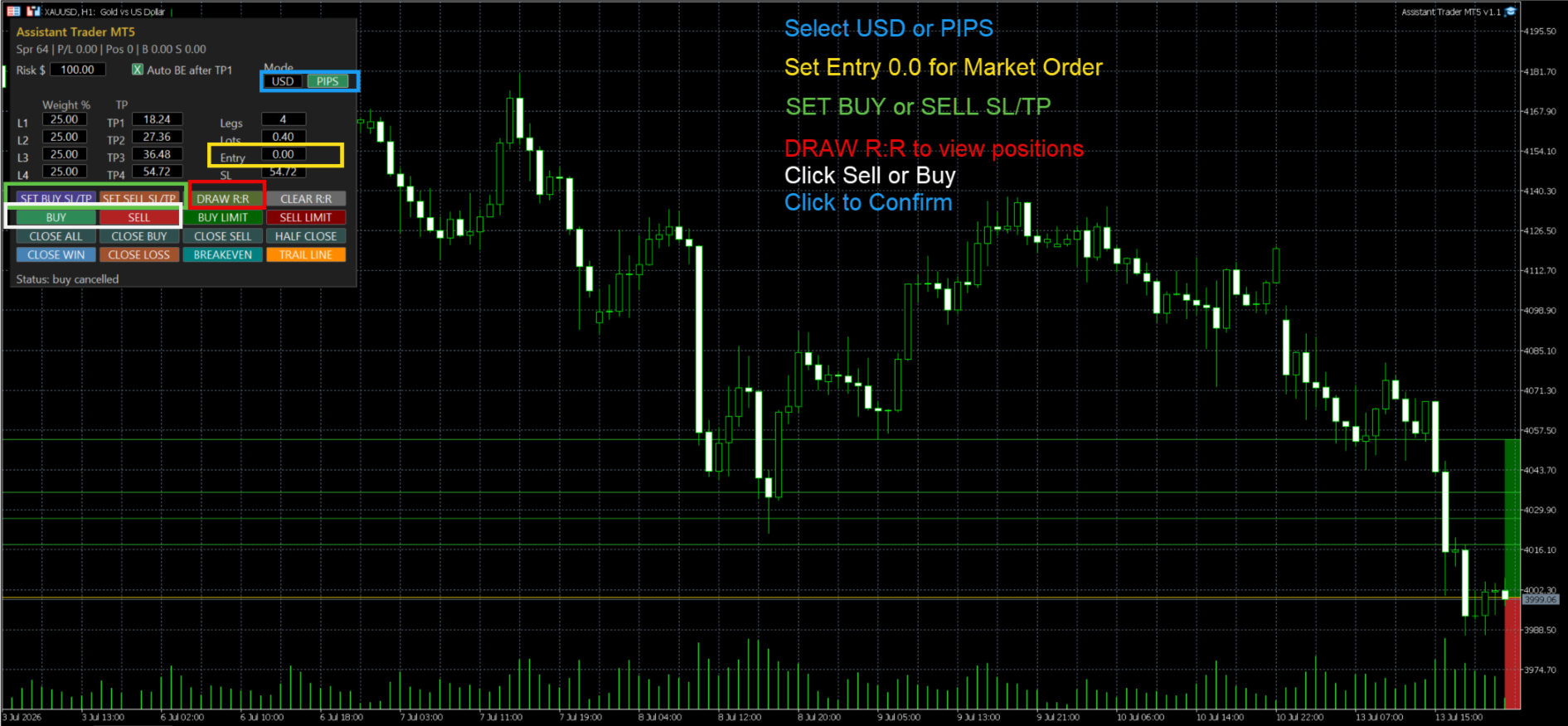
1. Select `USD` if you want to type exact price levels, or `PIPS` if you want to type distances.
2. Set `Legs`, `Lots`, and each leg's `Weight %`.
3. Leave `Entry` as `0` for market entry.
4. Fill `SL` and TP1-TP4 manually, or click `SET BUY SL/TP` or `SET SELL SL/TP`.
5. Optional: click `DRAW R:R` to preview the setup.
6. Click `BUY` or `SELL`, then confirm the order.
Buy/Sell Limit order:
1. Select `USD` to enter the exact limit price, SL price, and TP prices.
2. Or select `PIPS` to enter the entry distance, SL distance, and TP distances.
3. For `BUY LIMIT`, Entry must be below current Ask.
4. For `SELL LIMIT`, Entry must be above current Bid.
5. Click `DRAW R:R` to check the setup.
6. Click `BUY LIMIT` or `SELL LIMIT`.