[ English ] [ Русский ] [ 中文 ] [ Español ] [ Português ] [ 日本語 ] [ Deutsch ] [ 한국어 ] [ Français ] [ Italiano ] [ Türkçe ]
This guide shows how to install Local Copier from the MQL5 Market, start the Transmitter and the Receiver, and check that the trades are copied, in MetaTrader 5 and MetaTrader 4. To learn how the copier works and what each setting does, read the User Manual.
Product pages: Local Copier MT4 and Local Copier MT5. Install the MetaTrader 5 version in MetaTrader 5 terminals and the MetaTrader 4 version in MetaTrader 4 terminals. To copy between the two platforms you need both.
Before you start. All the terminals that copy to each other must run on the same Windows computer or Windows VPS, under the same Windows user. Try the setup on demo accounts first.
1. Log in to your MQL5 account in MetaTrader
Market purchases are linked to your MQL5 account, so every terminal that will run Local Copier has to know it. Open Tools > Options:
- (1) Open the Community tab.
- (2) Enter the login and password of your MQL5 account, the one you used to buy. The login is your MQL5 user name, not your email and not the number of your trading account.
- (3) MetaTrader 5 only: keep the Market service ticked.
- (4) Press OK (number 3 in MetaTrader 4).
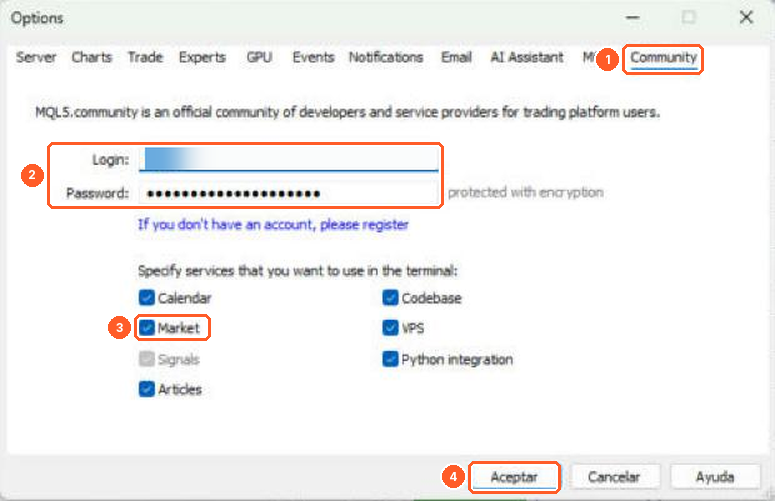
MetaTrader 5
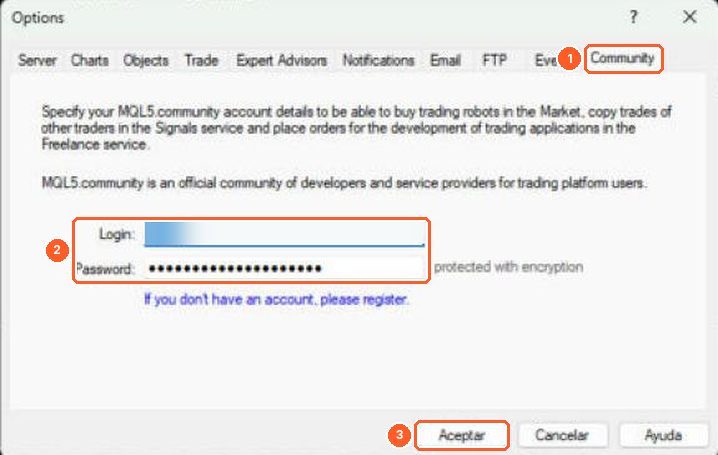
MetaTrader 4
2. Download Local Copier
- MetaTrader 5: in the Navigator, open Market and go to My Purchases. Press Install next to Local Copier MT5.
- MetaTrader 4: open the Terminal window (Ctrl+T), go to the Market tab and then to Purchased. Press Install next to Local Copier MT4.
Repeat it in each terminal. Activations are counted per computer, not per terminal: installing Local Copier in several terminals of the same computer uses one activation, and each new computer or VPS uses another one.
3. Prepare the terminals
Each terminal is logged in to one account at a time, so you need one terminal per account: one for the account you copy from (the Transmitter) and one for each account that copies (the Receivers).
- If the accounts are with different brokers, install the terminal of each broker.
- If two accounts are with the same broker, install that terminal a second time in another folder: run the installer again, press Settings and choose a different installation folder, for example with "2" at the end of the name.
- Log in to each account with File > Login to Trade Account. The Transmitter can use the investor (read-only) password. The Receiver needs the trading password.
4. Attach it to a chart
In each terminal, open any chart. Open the Navigator (Ctrl+N) and find Local Copier under Expert Advisors > Market. Drag it onto the chart, or select the chart and double-click Local Copier in the Navigator. The symbol and timeframe of the chart do not matter: use a chart that you keep open, and attach only one copy of Local Copier per chart.
The properties window opens. Before you press OK, allow algorithmic trading (step 5) and choose the mode in the Inputs tab (steps 6 and 7).
5. Allow algorithmic trading
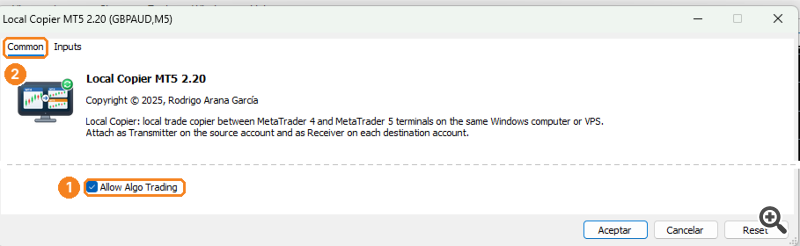
MetaTrader 5: in the Common tab (2) of the properties window, tick Allow Algo Trading (1).
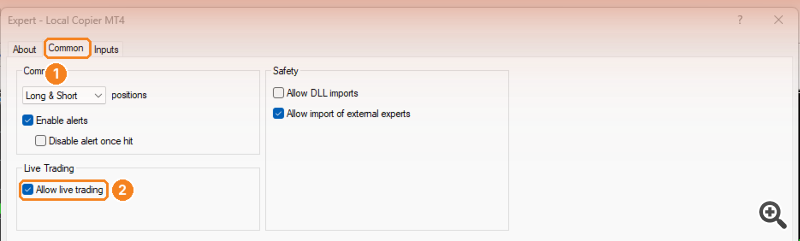
MetaTrader 4: in the Common tab (1), tick Allow live trading (2). Local Copier does not need DLL imports.
After you press OK, check that the Algo Trading button (MetaTrader 5) or AutoTrading button (MetaTrader 4) (1) on the toolbar of the terminal is on (green). This button enables or disables trading for all Expert Advisors.

MetaTrader 5

MetaTrader 4
Finally, open Tools > Options, go to the Experts tab (MetaTrader 4: Expert Advisors) (1) and check that Allow algorithmic trading (MetaTrader 4: Allow automated trading) is ticked (2).
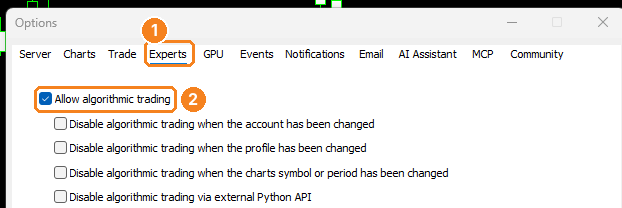
MetaTrader 5
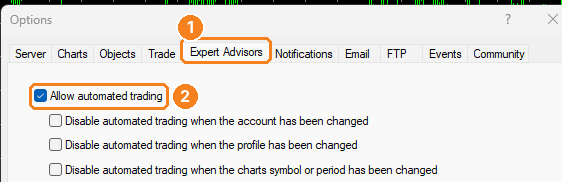
MetaTrader 4
The Receiver needs all three. The Transmitter does not trade, so it only needs them if you enable Close original when a Receiver copy is closed. Local Copier does not need DLL imports or WebRequest.
6. Start the Transmitter
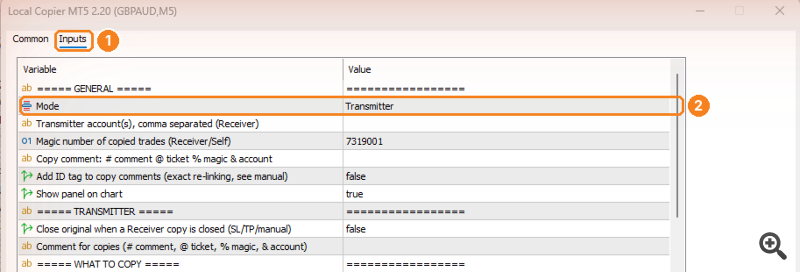
In the terminal of the account you want to copy, open the Inputs tab (1), set Mode to Transmitter (2) and press OK.
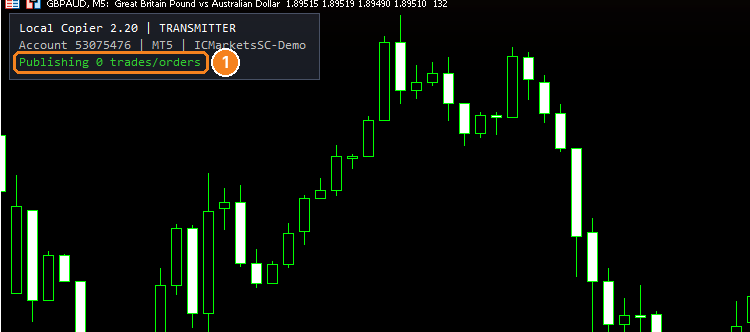
The panel on the chart must show Publishing N trades/orders (1). Write down the account number of this terminal (the number after Account): the Receivers need it.
7. Start the Receiver
In the terminal of each account that should copy, set in the Inputs tab:
- Mode = Receiver (1).
- Transmitter account(s) = the account number of the Transmitter (2). For several Transmitters, separate the numbers with commas.
- Lot size mode and its value. With the default settings, each copy has the same lot as the original, adjusted if the contract sizes of the two brokers differ and rounded down to the lot step of the broker.
- If the symbols have different names on the two brokers and Local Copier does not find them by itself, set Special symbols, for example US500,SPX500;XAUUSD,GOLD.
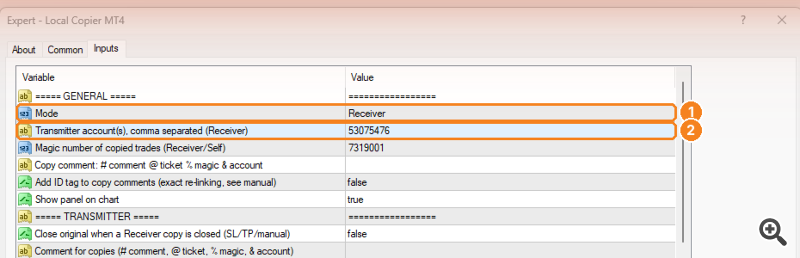
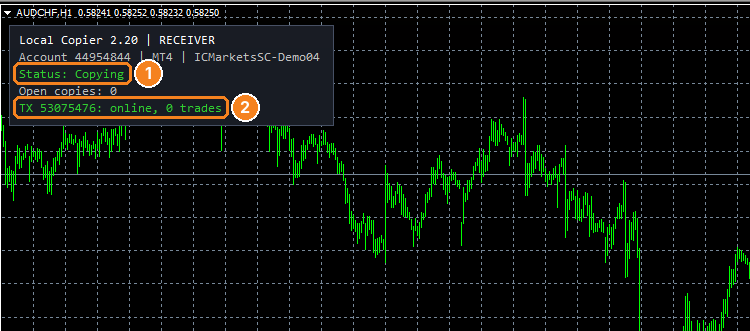
Press OK. The panel must show Status: Copying (1) and one line per Transmitter with online (2). From now on, every new trade of the Transmitter is copied. Trades that were already open are not copied, unless you set Copy trades already open at start or opened during a pause to true.
8. Check the copy
On demo accounts, open a small trade with a stop loss and a take profit on the Transmitter. Check on the Receiver that the copy appears with the expected lot, stop loss and take profit. Move the stop loss of the original and then close it: the copy must follow.
Every action and every reason why a trade was not copied is written in the Experts tab of the Receiver terminal (Toolbox in MetaTrader 5, Terminal in MetaTrader 4). Check it first if something does not behave as you expect.
9. Input parameters and .set files
To change the settings later, click the chart and press F7. Local Copier restarts with the new settings and keeps managing its open copies. Do not change Magic number of copied trades while copies are open.
In the Inputs tab, Save stores the settings in a .set file and Load reads them back. Save your settings before you update or move the terminal.
10. Running it 24/7 (VPS)
Local Copier copies and protects the copies only while the terminals are running. To copy 24 hours a day, run all the terminals on a Windows VPS, in the same way as on your computer. The built-in MetaTrader VPS (MQL5 VPS) cannot be used, because each terminal runs there on its own server and the terminals cannot share files.
The terminals open their charts and Expert Advisors again when they start. After a restart of the VPS, start the terminals again, or place their shortcuts in the Windows Startup folder so that they start by themselves. A restart does not duplicate or lose copies.
11. Updates
When a new version is published, update it in every terminal from the purchases list (step 2). Updates do not use activations. Update all the terminals at the same time: versions that use a different data format do not work together, and the Receiver panel then shows other Local Copier version. After the update, check the version on the panel of each chart.
12. Problems
- Local Copier is not in the purchases list: check that the terminal is logged in with the MQL5 account used for the purchase (step 1).
- It does not appear in the Navigator: right-click in the Navigator and choose Refresh, or restart the terminal.
- No activations left: contact MQL5 support or write to the author.
- The Receiver panel says waiting for Transmitter...: the Transmitter is not running on this computer, or the account number in Transmitter account(s) is wrong.
- The Status line says Algo Trading is disabled in the terminal: repeat step 5.
- Other messages: see the chapter "Questions and troubleshooting" of the User Manual.
For questions, please write in the product comments or send a private message on MQL5.