
🔍 BKT EdgeScope: User Guide
A read-only analysis panel for MetaTrader 5 that shows which Expert Advisor, strategy, symbol or magic number is really behind your account results.
When several robots trade at once, the balance is a single number that hides who earned it and who quietly gave it back. BKT EdgeScope reads the history your terminal already holds, rebuilds every position, groups the results by the robot that opened them and puts everything on one screen. It places no orders, changes nothing on your account and needs no DLL or web access. 🛡️
🚀 Getting Started
No configuration is needed for a first look. A few minutes of preparation make the numbers more complete:
- 📎 Attach the panel to a chart of its own. Any symbol and any timeframe will do, because the panel draws over the chart.
- 📚 Open the Toolbox, go to the History tab, right-click and choose All history. The panel can only count what the terminal has loaded.
- ✅ Look at the line in the footer. It compares the rebuilt results with your account balance and tells you if anything is missing.
- 🌐 Pick your language in the first input. English and Vietnamese are available.
🖥️ Reading the Board
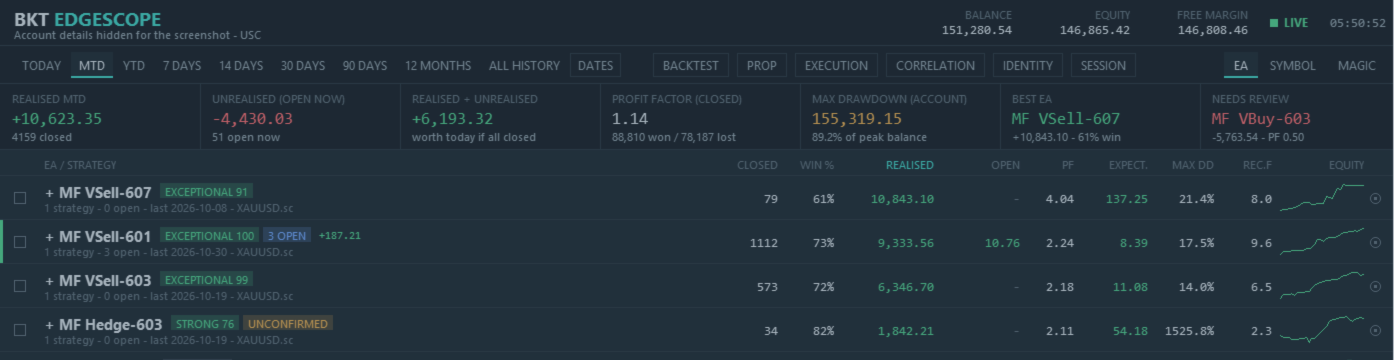
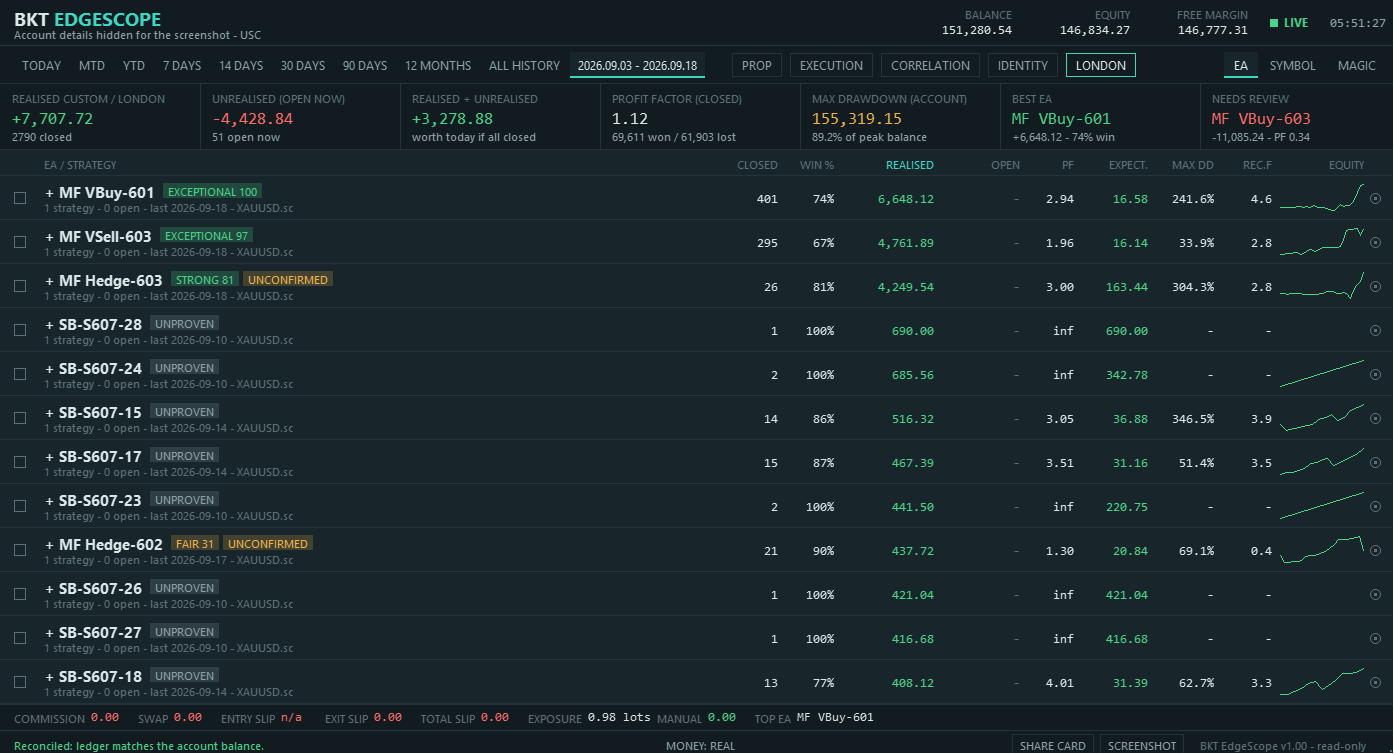
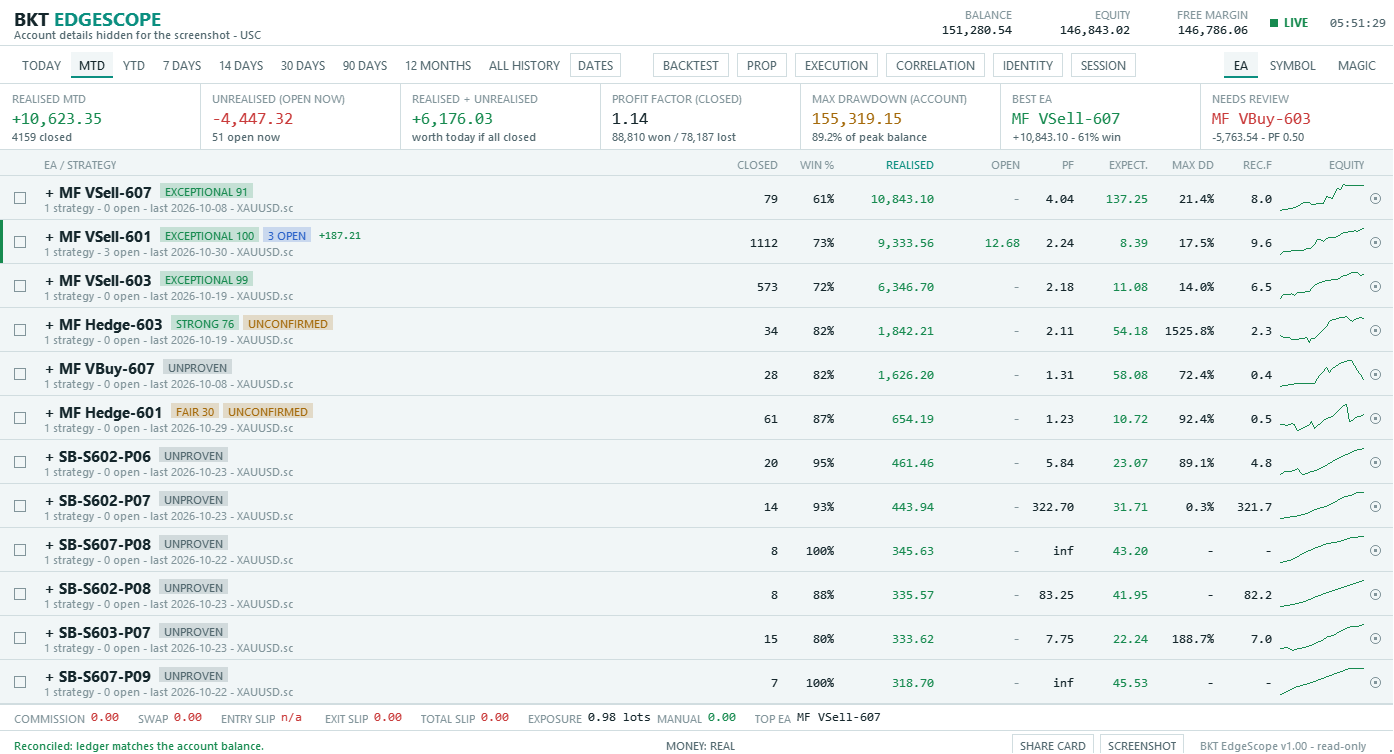
The top of the panel shows the account, balance, equity and a feed indicator that tells you whether live figures can be trusted at this moment. Below it sit the period tabs, seven summary cards and the main board.
The board has three levels. The first level is the Expert Advisor, the second is each strategy inside it, and a click on any row opens a detail panel. Every row carries closed positions, win rate, realised result, open result, profit factor, expectancy, maximum drawdown, recovery factor and a small equity curve. A green or red bar at the left edge marks rows that moved since the server day began, so you can scan for activity instead of reading every number.
Use the tick boxes to select rows and hide or group them. Hiding a row removes it from the totals, which is a quick way to ask what the account would look like without that robot. 👁️
🏅 Grades and Marks
Each row receives a grade from Losing, Weak, Fair, Good and Strong up to Exceptional. The grade blends three different views of the same record: how likely the edge is to be real, how profitable the trades are, and how well the strategy recovers from losses. Rows with too small a sample are shown as Unproven rather than being judged on a handful of trades.
Next to the grade you may see short marks that point at one specific thing worth a look, for example risk that closed trades do not reveal, an open loss that is large compared with what the strategy has earned, a fading average result, or a strategy that has gone quiet. Open the row and the written verdict explains each mark in plain words with that row's own figures. 📝
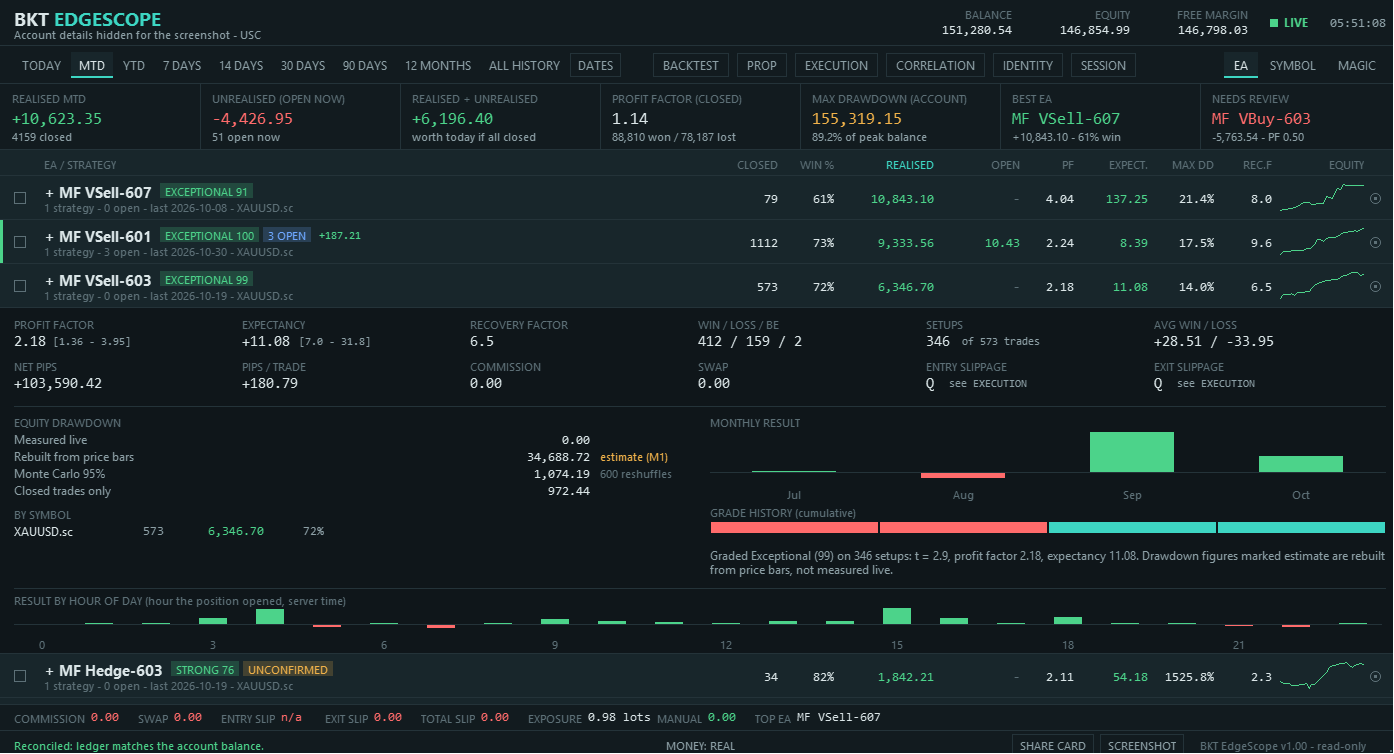
🔎 The Detail Panel
Click a row to see the full picture behind its grade:
- 📊 Profit factor, expectancy, recovery factor, win, loss and break-even counts, average win and loss.
- 🧮 Net pips, commission and swap for the selected period.
- 📉 Drawdown shown side by side from several sources: measured live while the panel was running, estimated from price bars for the time it was not, modelled from reshuffled trades, and taken from closed trades only. Estimates are always labelled as estimates.
- 📅 Monthly result bars with a grade strip that shows how the grade developed over time.
- 🕒 A 24-hour strip with the result of positions grouped by the hour they were opened.
🗓️ Periods, Views and Sessions
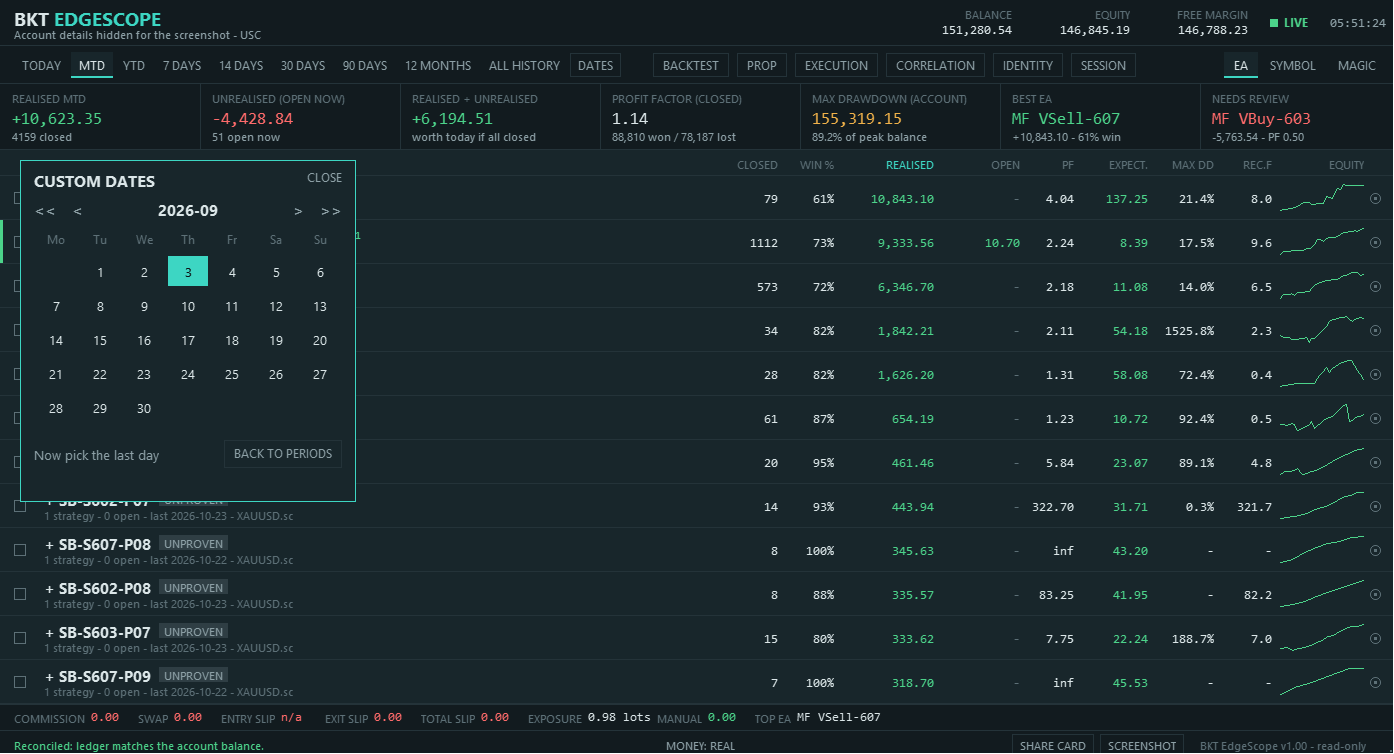
Nine period tabs cover Today, month to date, year to date, 7, 14, 30 and 90 days, 12 months and All history. The Dates tab opens a small calendar where you pick the first and last day of any range.
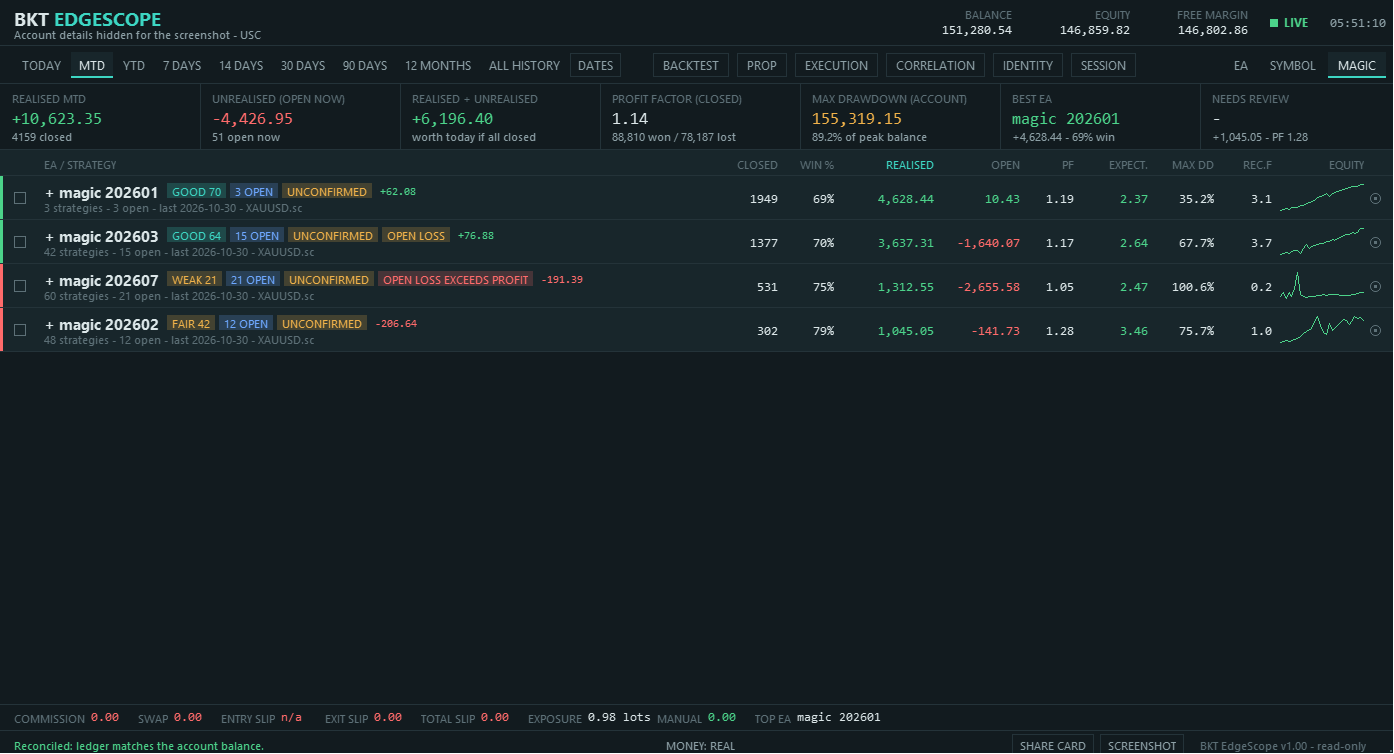
Three views answer different questions. The EA view groups by robot, the Symbol view shows whether losses are concentrated in one market, and the Magic view shows the raw identity the terminal recorded. The Session button limits the board to positions opened during the Asia, London or New York hours. Session hours are inputs in server time, so you can adjust them to your broker. 🌏
🧰 Tool Boxes
Five boxes open from the button row above the cards:
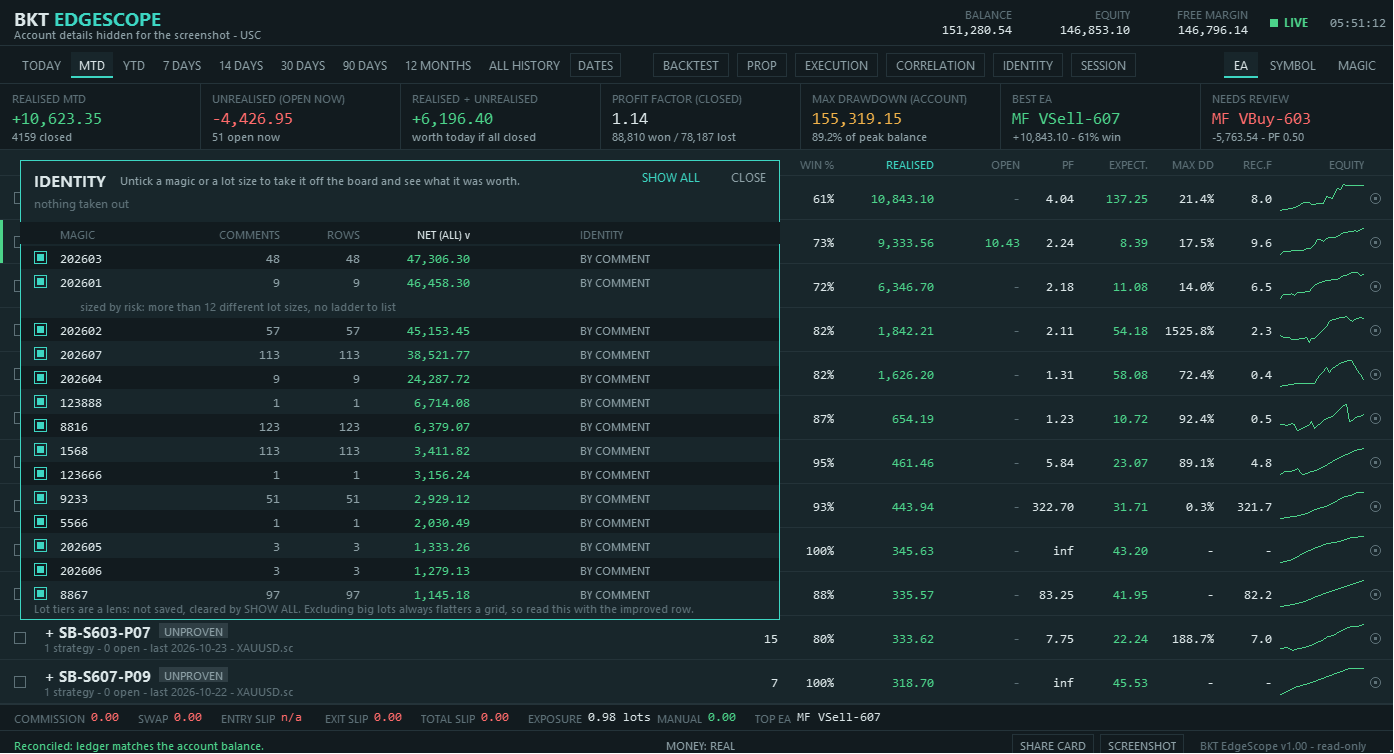
- 🪪 Identity lists every magic number, with its comments and lot sizes. Take a magic or a lot tier off the board and the box tells you what it was worth.
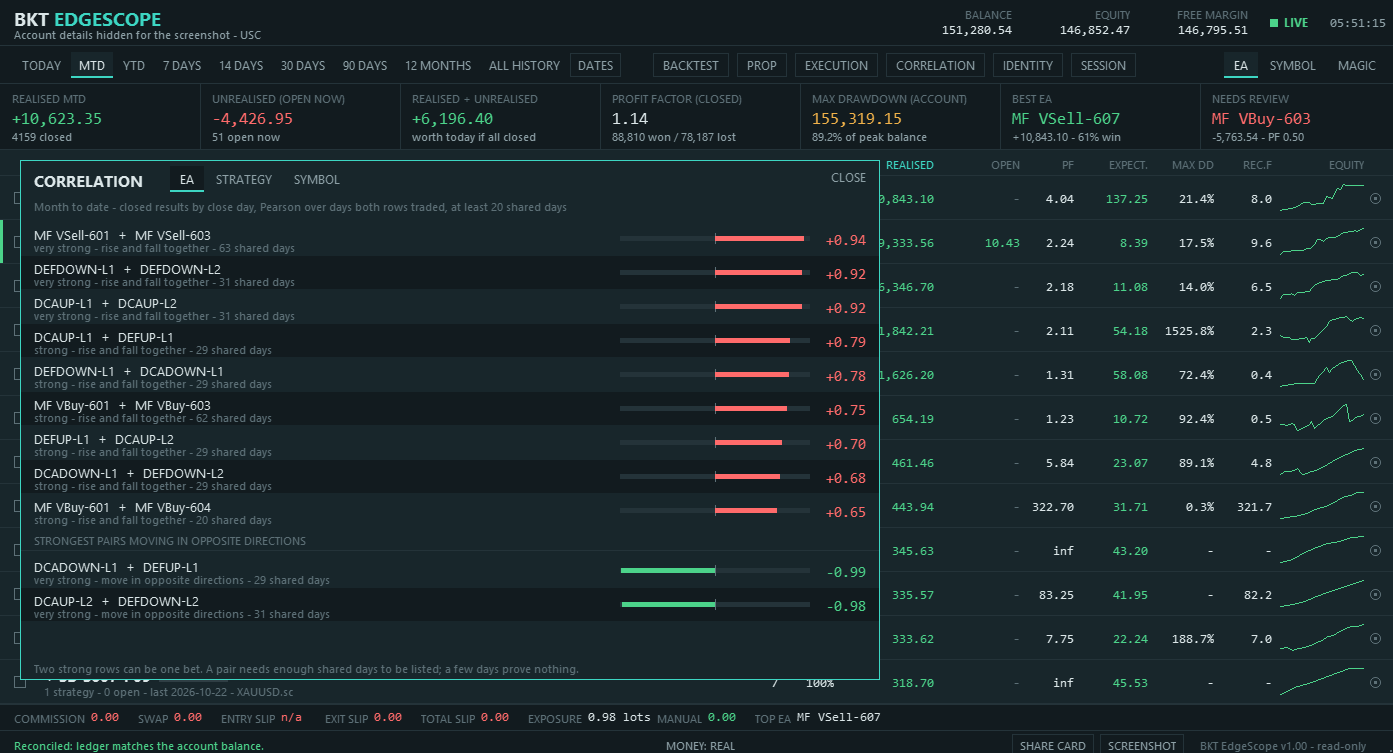
- 🔗 Correlation compares robots, strategies or symbols with each other, so you can see when several systems are one idea in disguise.
- ⚡ Execution summarises fill quality, costs and slippage, with the number of events behind every figure.
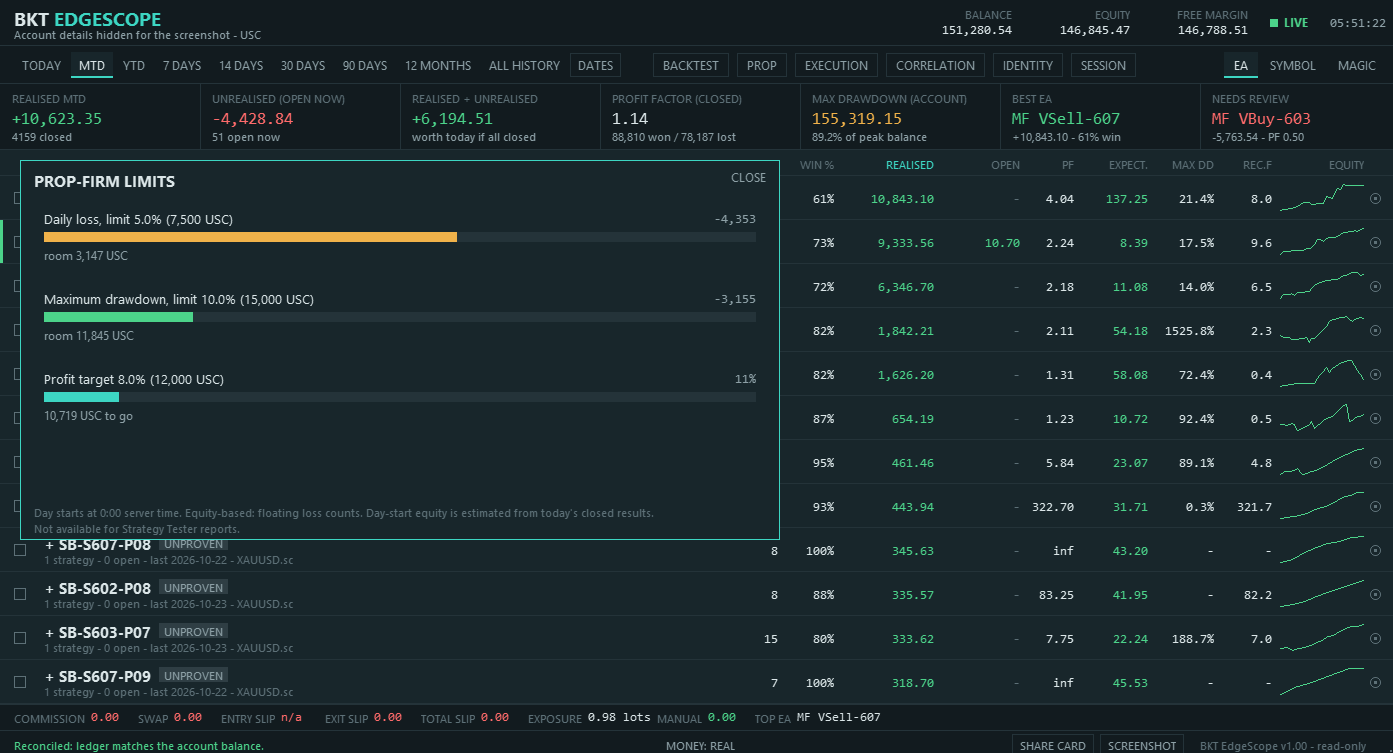
- 🏁 Prop-firm tracks daily loss, maximum drawdown and profit target against limits you enter yourself.
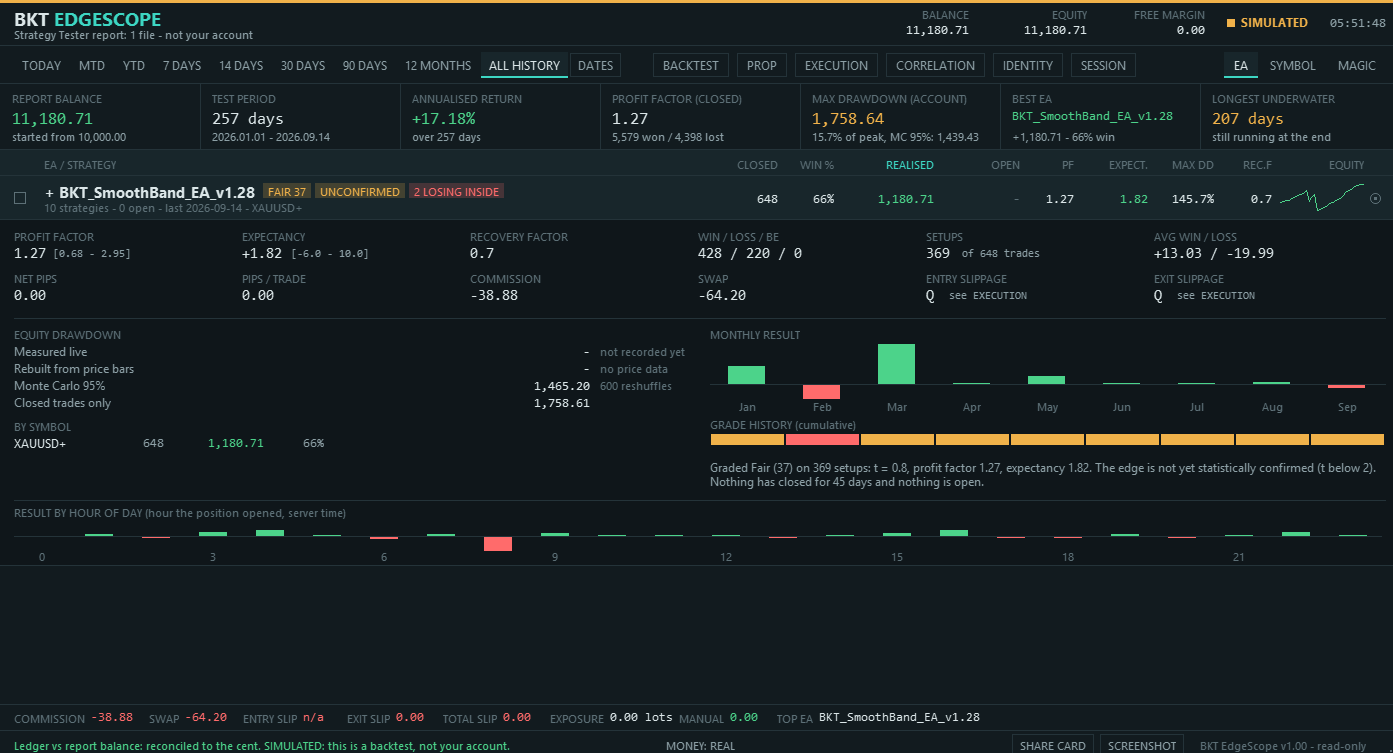
- 🧪 Backtests loads Strategy Tester HTML reports and shows them on the same board, clearly marked as simulated.
🧪 Backtest Reports and the Fixed-Lot Switch
To review a backtest, save the report as HTML from the Strategy Tester into the Backtests folder inside the tool's own folder under MQL5\Files, then open the Backtests box, tick one or more files and load them. A gold line and the word SIMULATED stay on screen the whole time, and a separate set of cards shows what a test is usually judged by. Use the Back to live button in the same box to return to your account.
The money switch in the footer replays every trade as if it had been placed at one fixed lot size. It is a lens only: nothing is saved, and every money figure is labelled as a what-if while it is on. 🔁
📤 Exports and Sharing
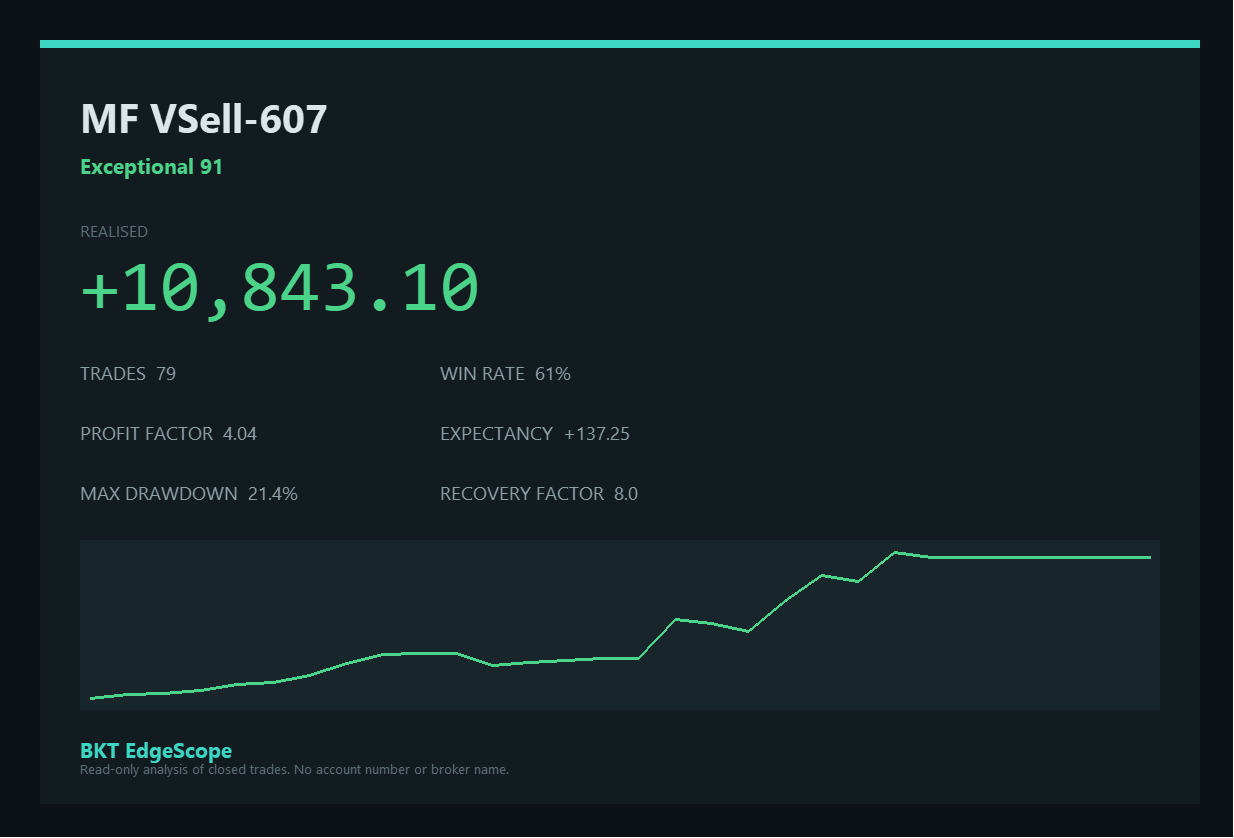
The audit export lists every position individually so you can check the panel against your own MetaTrader report. The measures export writes every statistic for every row. Both are plain CSV files with a timestamp in the name. The Share Card button creates a ready-to-post summary picture that contains no account number or broker name, and the Screenshot button saves the panel as it appears on screen. Files are written only inside the tool's own folder. 📁
⌨️ Keyboard Shortcuts
Navigation and display:
- 1 to 9: select a period
- D: open the calendar
- V: cycle EA, Symbol and Magic views
- L: cycle the session lens
- T: day or night theme
- C: compact rows
- R: rescan history
- [ and ]: shorter or taller panel
Organising rows:
- G: combine the ticked rows under one EA
- U: separate a group
- X: hide the ticked rows
- H: show hidden rows
- J: restore every hidden row
- Esc: clear the selection or close a box
Boxes and exports:
- I, K, Q, P, B: Identity, Correlation, Execution, Prop-firm, Backtests
- F: fixed-lot switch
- A and E: audit and measures export
- S and O: Share Card and screenshot
⚙️ Inputs
All inputs are optional. They are grouped as follows:
- Display: language, theme, panel position, width and height, remember layout between sessions.
- Period: period shown at start and whether positions are counted by closing time or opening time.
- Analysis: minimum number of independent decisions needed before a row is graded, the time window used to treat positions as one decision, shared trading days required for a correlation figure, fixed lot size for the what-if switch.
- Sessions: opening and closing hour of the Asia, London and New York windows in server time.
- Prop-firm: starting balance, daily loss limit, maximum drawdown, profit target, day rollover hour and an option to measure drawdown from the highest equity.
- Sharing: your own signature line for the Share Card, and an option to print timings in the Experts tab.
📌 Good to Know
Results depend on the history the terminal holds, so load All history first. Figures that cannot be measured directly, such as drawdown during the time the panel was closed or slippage valued at current tick values, are estimates and are labelled that way. Please run one copy of the panel per account, because two copies overwrite each other's saved layout.
The panel describes what happened in the past. It is not a forecast, and a strong grade does not mean future results will follow.
Questions and suggestions are welcome in the comments below. Thank you for reading. 🙏