🤖 Advance AI Scanner MT5 — Complete Beginner Guide (Install → Settings → Read the Panel → Analyse → Decide)

Welcome, and congratulations on choosing Advance AI Scanner! 🎉 This guide is made for complete beginners. Simply follow the steps from top to bottom. Every step has a screenshot, so you always know exactly where to click. In about 15 minutes you will have the scanner running and you will know how to turn its analysis into clear, confident trade decisions.
Here is what we will do together:
- Get Advance AI Scanner on MQL5.com
- Install it on MetaTrader 5
- Change the settings any time, and save your setup
- Get to know the panel: what every page shows
- Analyse a market with 5 simple checks
- Make a clear trade decision, with 3 real examples
🛒 Advance AI Scanner page: https://www.mql5.com/en/market/product/203105
🎬Prefer video? Watch the full step-by-step video with voice instructions: https://www.youtube.com/watch?v=LM9DRFWmIWE
📋 Quick Facts
| Platform | MetaTrader 5 (MT5) |
| Type | Indicator. It analyses the markets for you, and you stay in full control of every trade. |
| Markets | Forex, metals, energy, stock indices and crypto. Up to 40 markets at the same time, found automatically at your broker. |
| Chart | Any symbol. The H1 (1 hour) chart is the perfect place to start. |
| Where it runs | On your own computer. Open MetaTrader 5 whenever you want to analyse. A VPS is optional. |
| Setup | One indicator with everything built in. Install it and it is ready to go. |
| Ways to get it | Buy (yours for life, with 15 activations), Rent (1 month), or try the Free Demo in the Strategy Tester |
✅ Before You Start
Let's get these 3 things ready:
- MetaTrader 5 installed on your computer and logged in to your broker account. A demo account is perfect.
- A free MQL5.com account. You can create one in about one minute (Step 1 shows you where).
- Your PC or laptop. The scanner watches up to 40 markets at once (the FAQ shows how to make it extra light for smaller computers).
PART 1 — 🛒 Get Advance AI Scanner
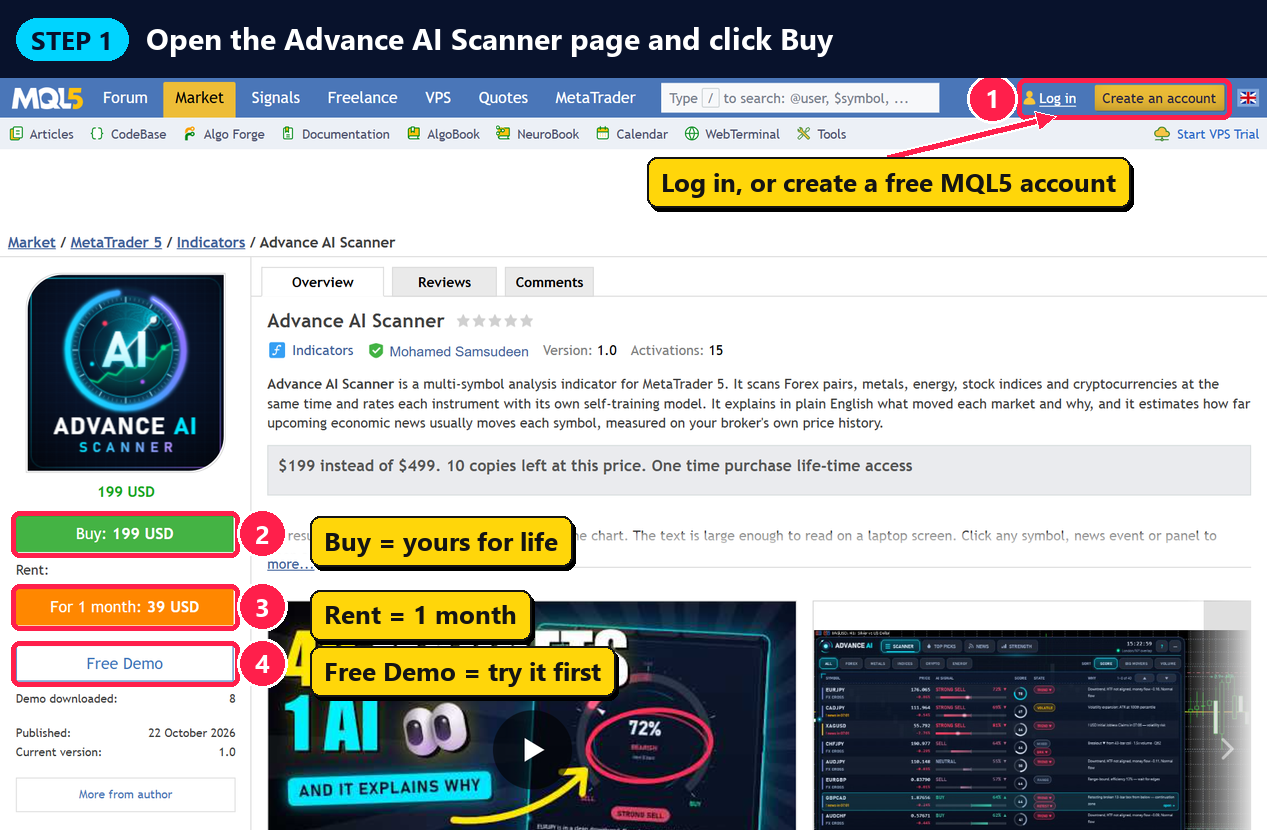
Step 1 — Open the Advance AI Scanner page and click Buy
- Open this link: https://www.mql5.com/en/market/product/203105
- At the top right, click Log in. New here? Click Create an account. It is free.
- Click the green Buy button. When you buy, the indicator is yours for life.
- Or click the orange Rent button to use it for one month.
- Want to try it first? Click Free Demo and test it in the MetaTrader Strategy Tester (the FAQ shows how).
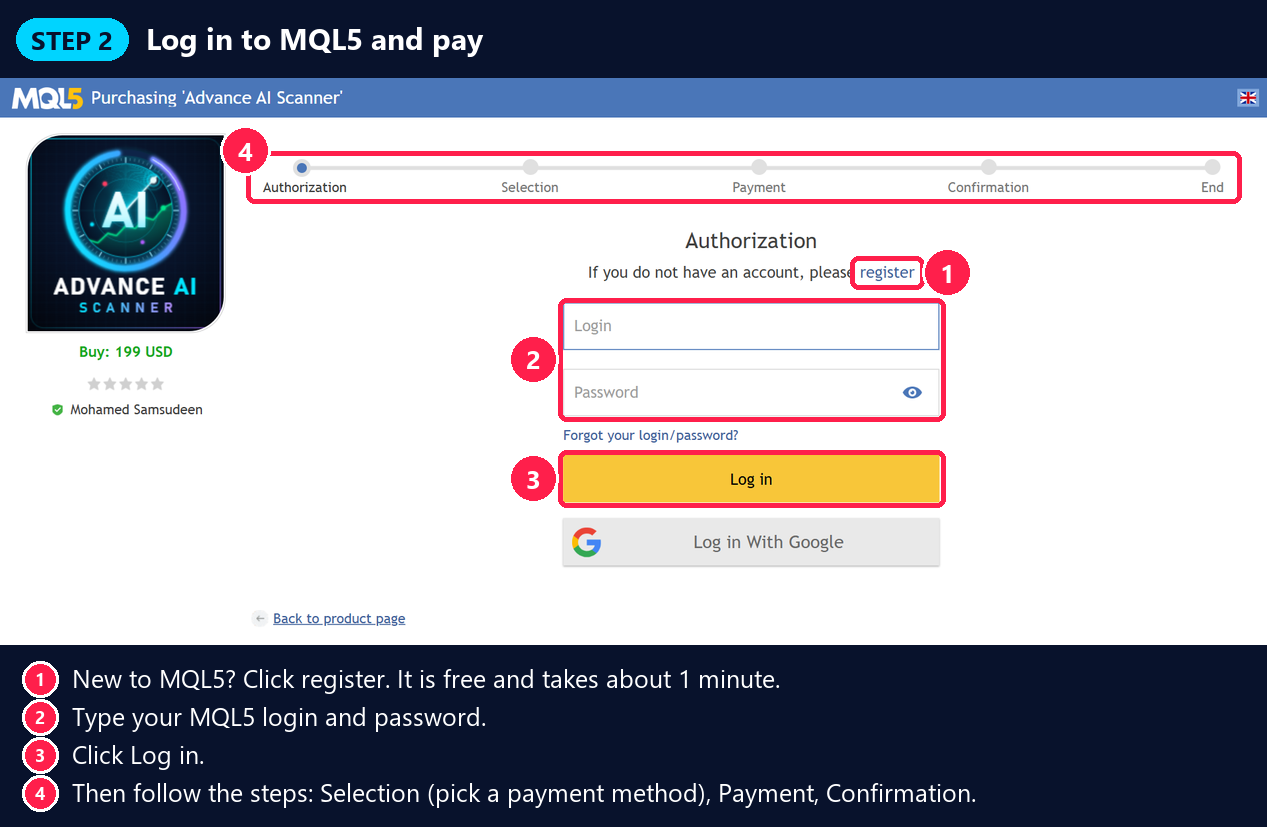
Step 2 — Log in to MQL5 and pay
- New to MQL5? Click register.
- Type your MQL5 login and password.
- Click Log in.
- Follow the steps on the screen: Selection (choose how you want to pay) → Payment → Confirmation.
Well done! Advance AI Scanner is now saved in your MQL5 account, ready to install.
PART 2 — 💻 Install Advance AI Scanner on MetaTrader 5
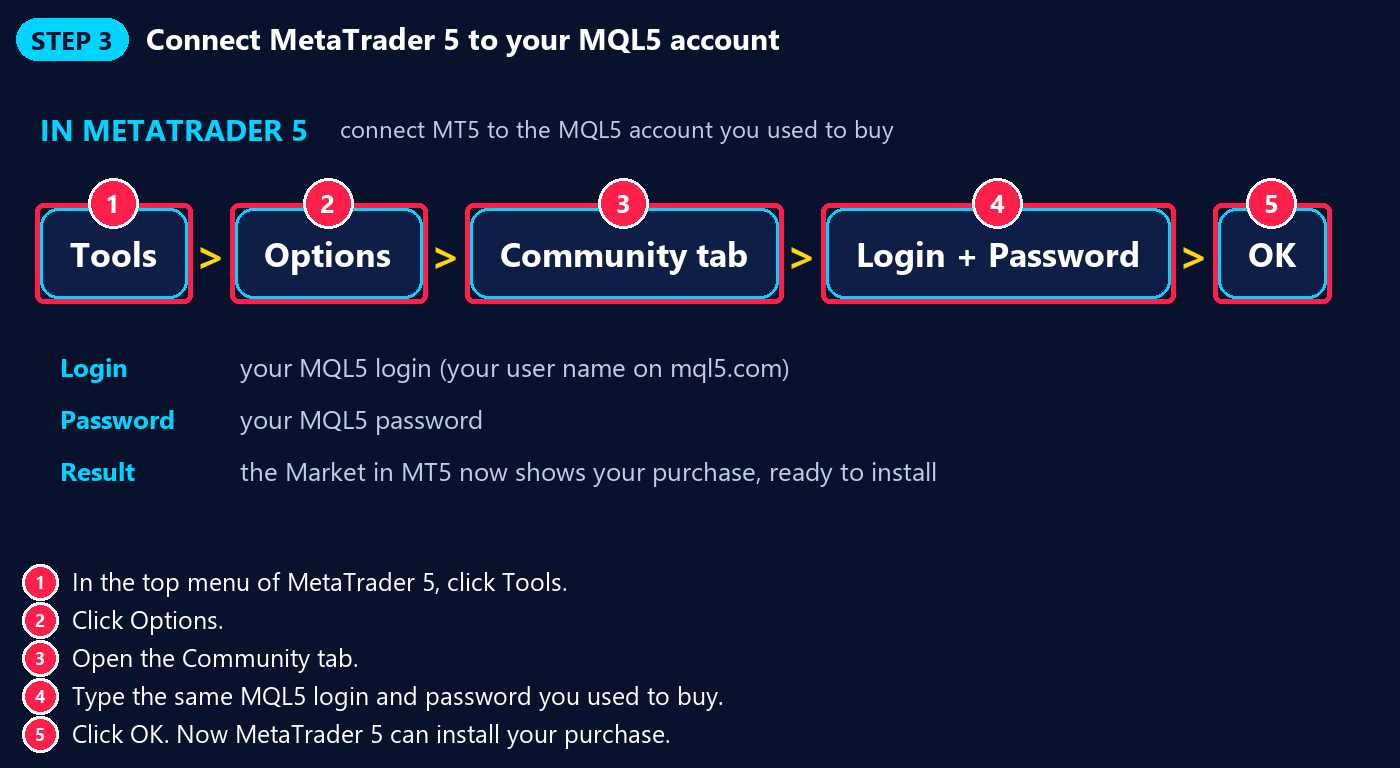
Step 3 — Connect MetaTrader 5 to your MQL5 account
This lets MetaTrader 5 install your purchase.
- In the top menu of MetaTrader 5, click Tools.
- Click Options.
- Open the Community tab.
- Type the same MQL5 login and password you used to buy. (Your MQL5 login is your user name on mql5.com.)
- Click OK.
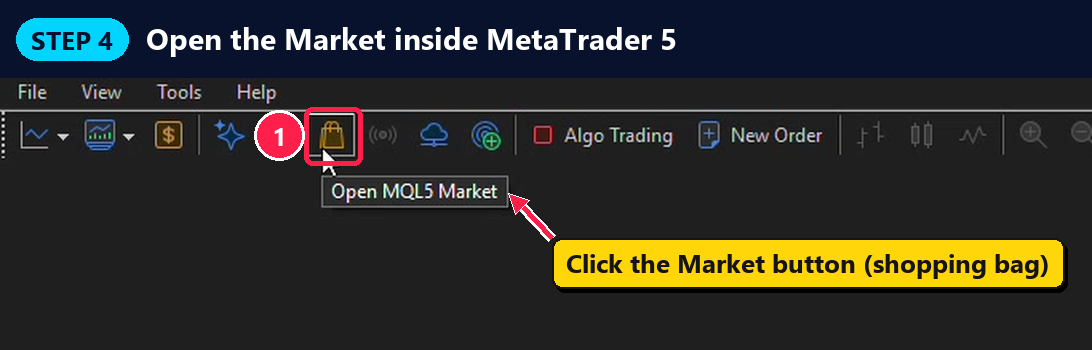
Step 4 — Open the Market inside MetaTrader 5
On the toolbar at the top, click the Market button. It looks like a small shopping bag.
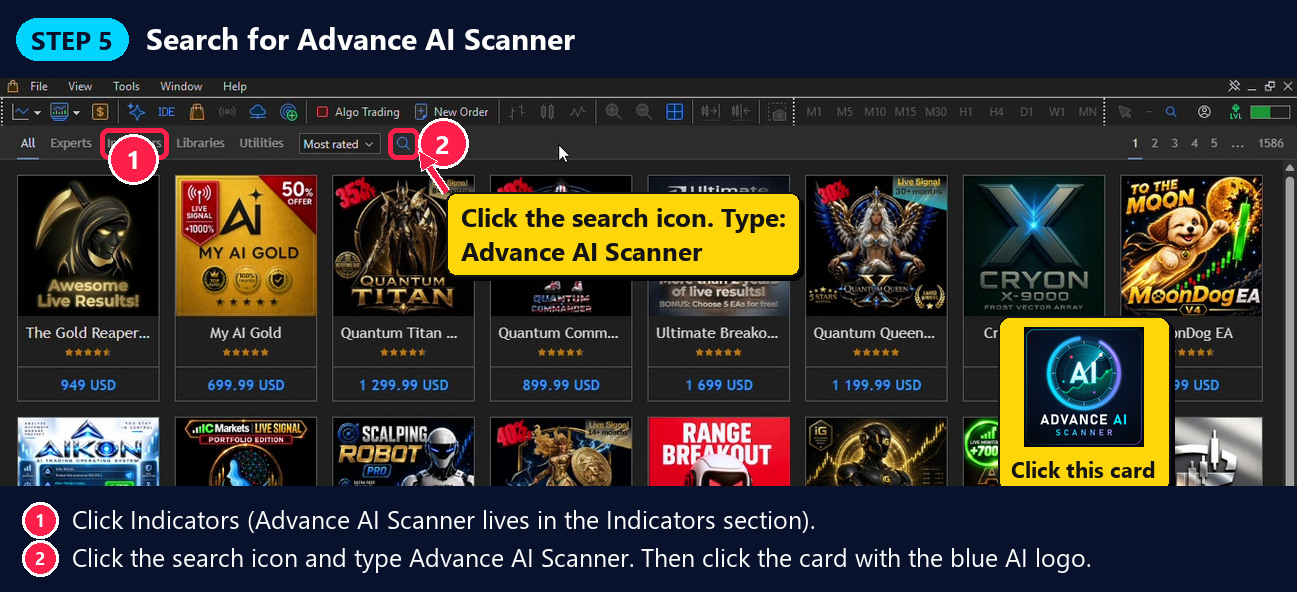
Step 5 — Search for Advance AI Scanner
- At the top of the Market, click Indicators. (Advance AI Scanner lives in the Indicators section.)
- Click the search icon (magnifying glass) and type Advance AI Scanner.
- Click the card with the blue AI logo.
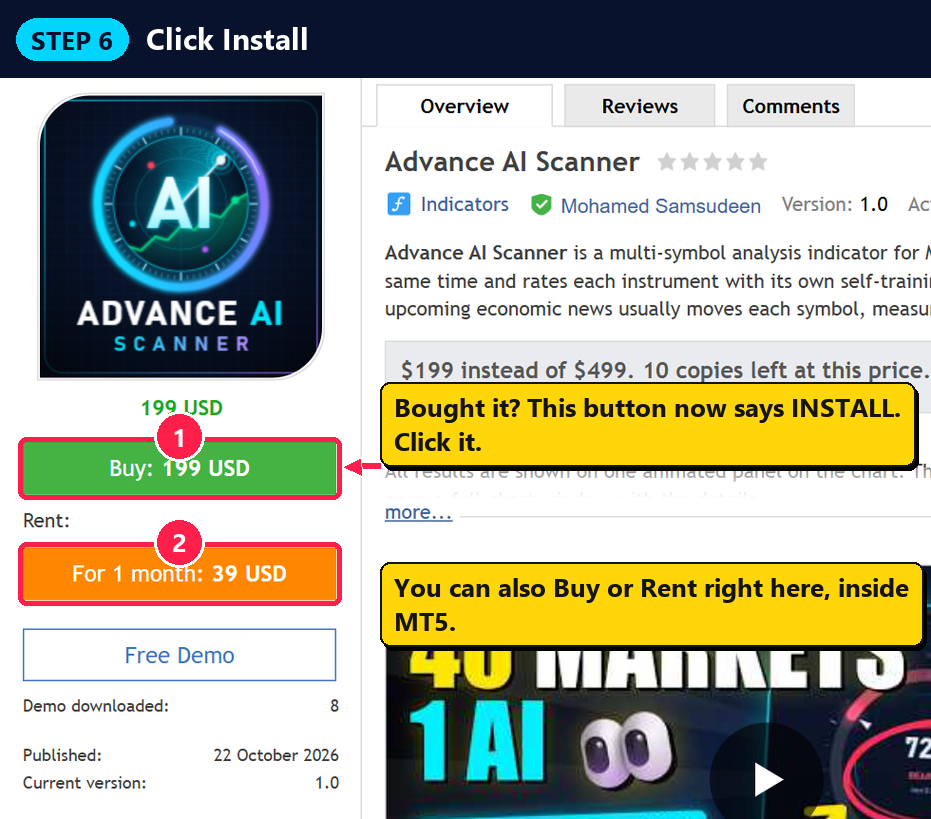
Step 6 — Click Install
The Advance AI Scanner page opens inside MetaTrader 5, just like the page on the website. Since you bought it, the green button now says Install. Click it, and in a few seconds it is ready.
You can also click Buy or Rent right here and pay inside MetaTrader 5
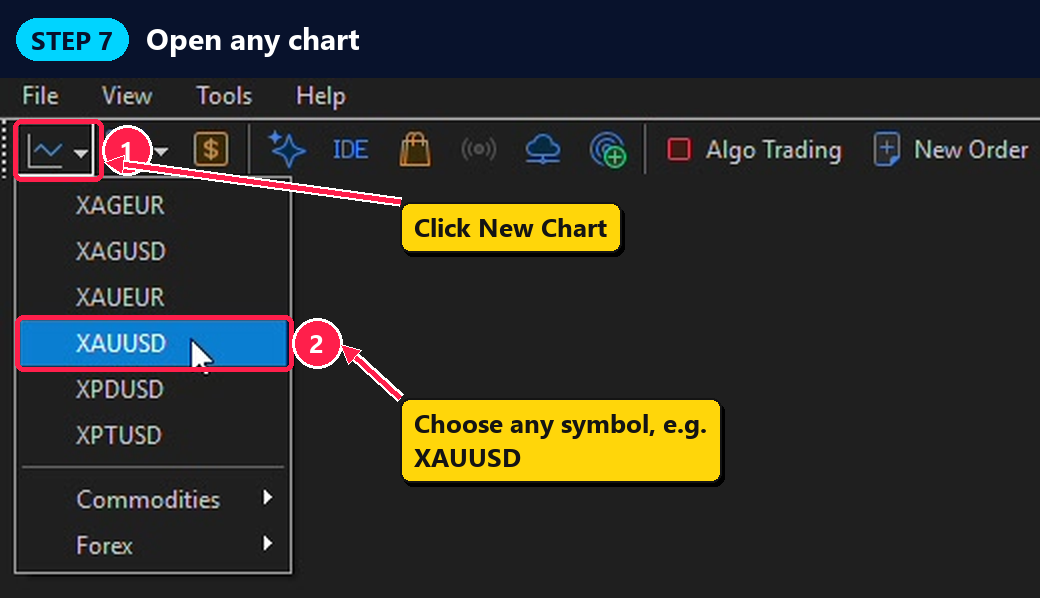
Step 7 — Open any chart
- Click the New Chart button at the top left.
- Choose any symbol, for example XAUUSD (gold) or EURUSD.
Tip: any symbol works great. The scanner watches all markets from this one chart
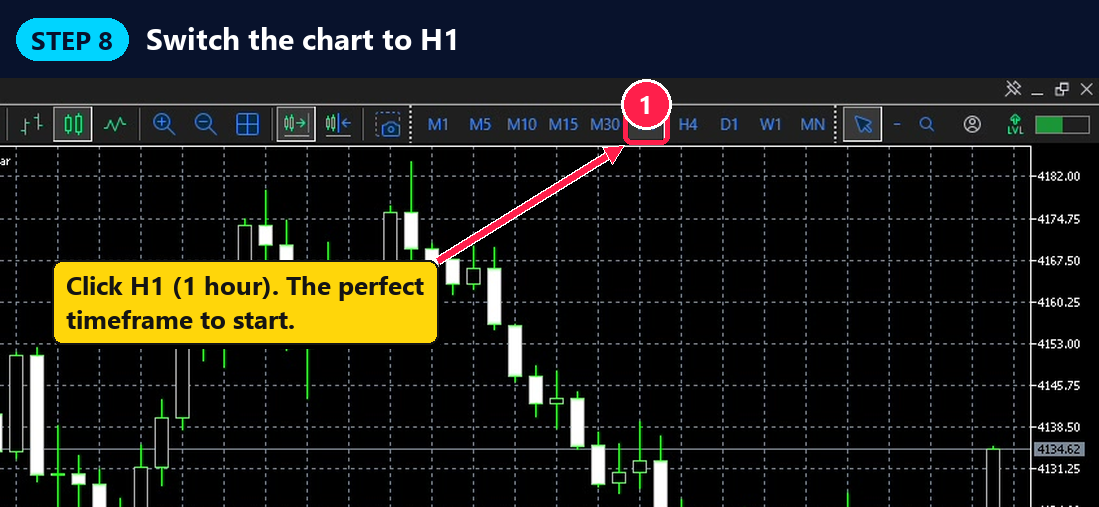
Step 8 — Switch the chart to H1
On the toolbar, click H1. This is the 1-hour chart. The AI uses 1-hour bars by default, so this is the perfect place to start.
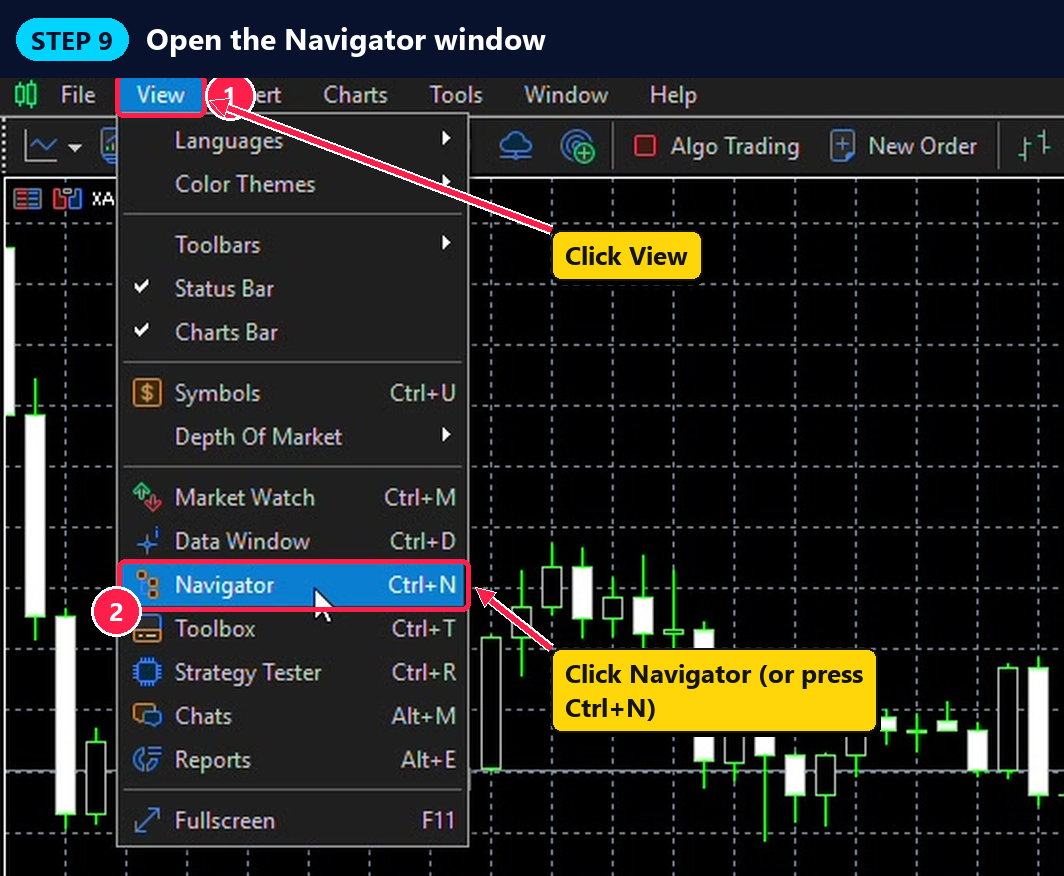
Step 9 — Open the Navigator window
- Click View in the top menu.
- Click Navigator. (Shortcut: press Ctrl + N.)
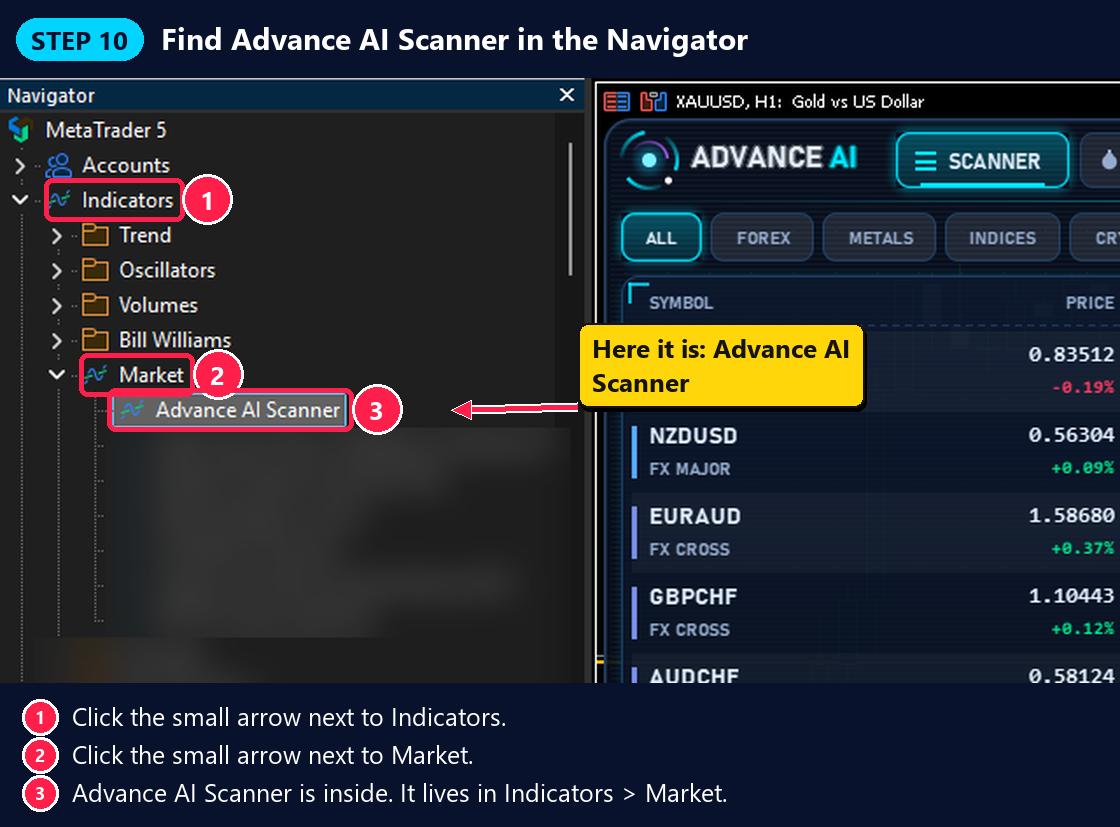
Step 10 — Find Advance AI Scanner in the Navigator
- Click the small arrow next to Indicators.
- Click the small arrow next to Market.
- Here it is: Advance AI Scanner.
Remember: it lives in Indicators → Market.
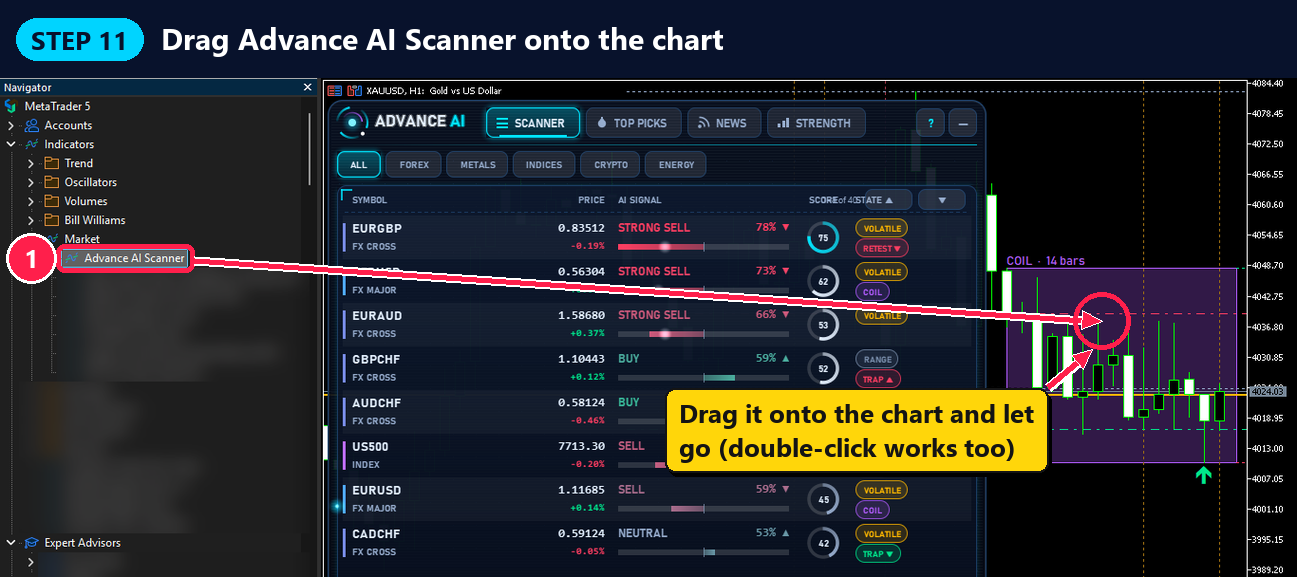
Step 11 — Drag Advance AI Scanner onto the chart
Click Advance AI Scanner, hold the mouse button down, drag it onto the chart, and let go. (Double-clicking it works too.)
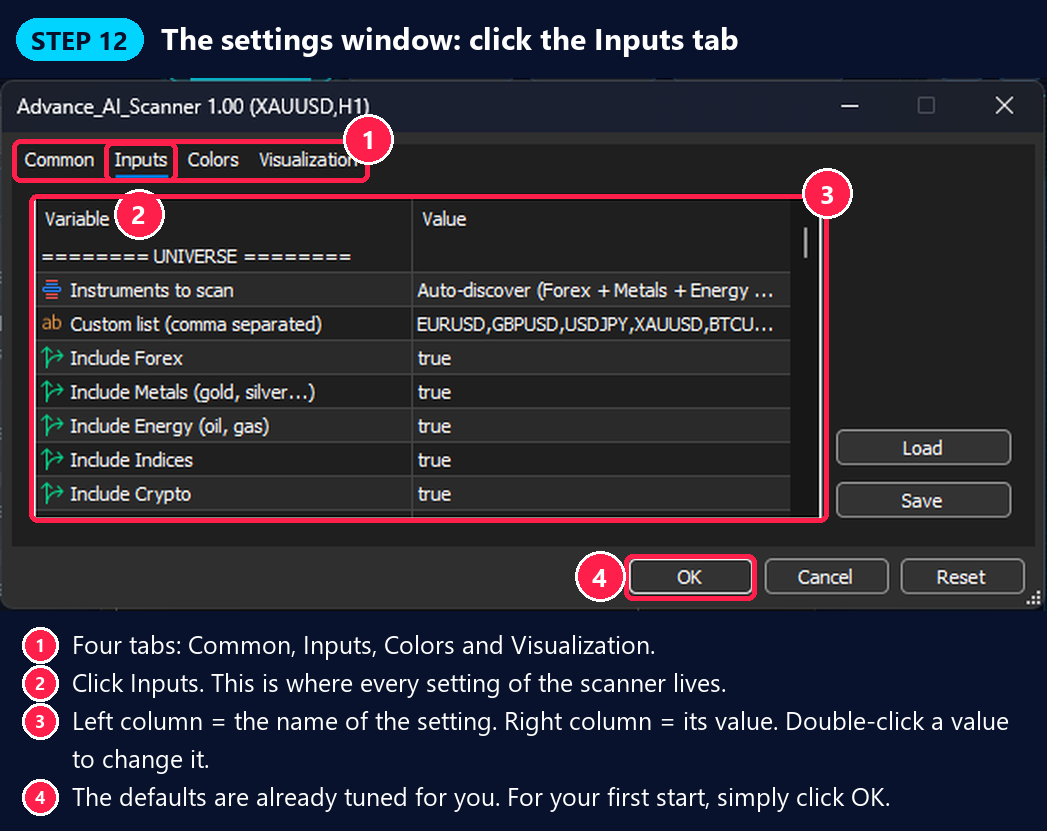
Step 12 — The settings window: click the Inputs tab
- A settings window opens with four tabs: Common, Inputs, Colors and Visualization.
- Click Inputs. This is where every setting of the scanner lives.
- Each line is one setting. The left column is the name, the right column is the value. Double-click a value to change it.
- Great news: the default settings are already tuned for you. For your first start, simply click OK.
Step 13 — The inputs you may like to change
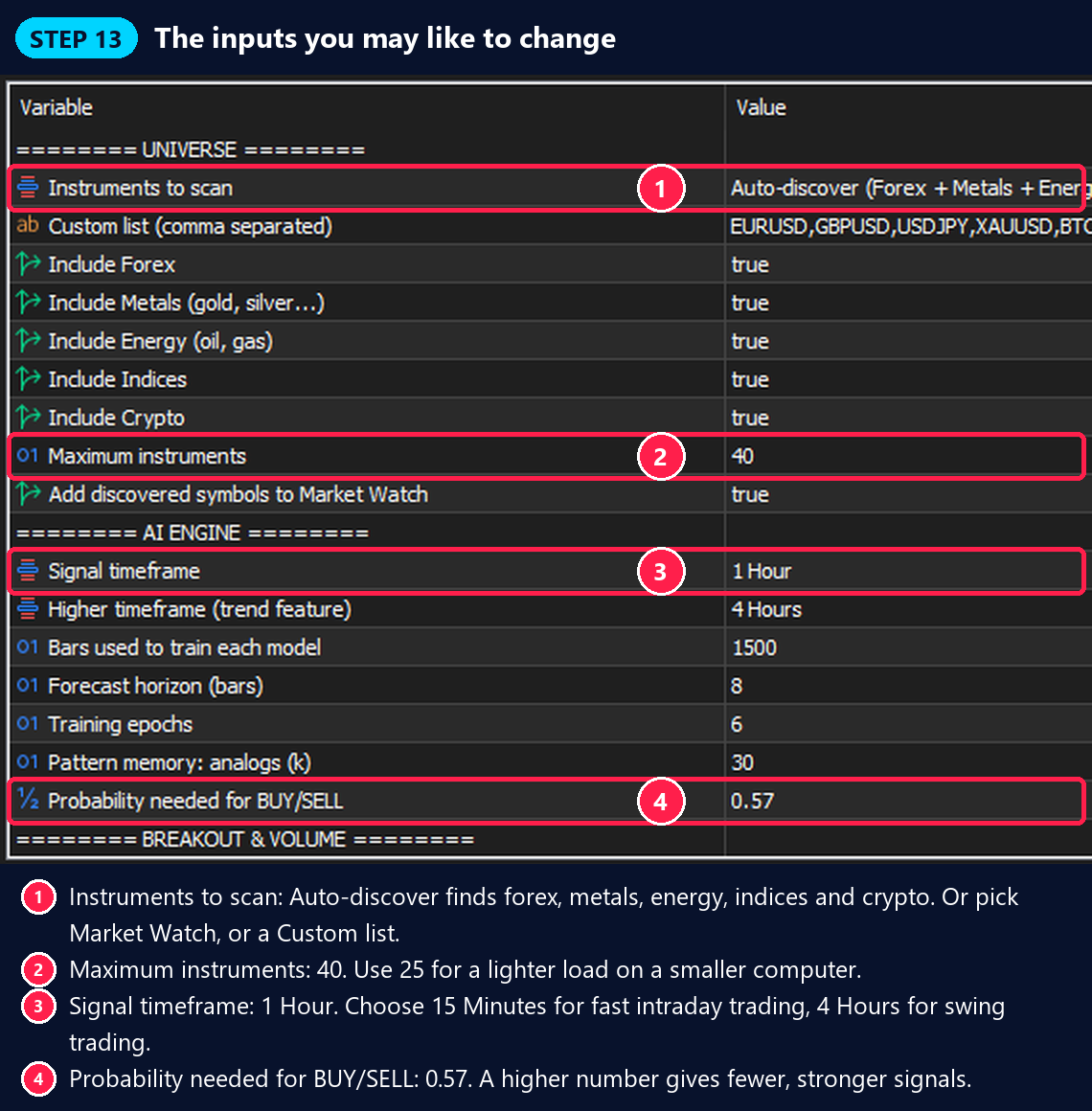
As you grow, these are the inputs traders like to adjust:
| Input | Default | What it does |
|---|---|---|
| Instruments to scan | Auto-discover | Finds forex, metals, energy, indices and crypto at your broker. You can also choose Symbols in Market Watch or a Custom list (type the symbols in "Custom list", separated by commas). |
| Maximum instruments | 40 | How many markets the scanner watches. Use 25 for a lighter load on a smaller computer. |
| Signal timeframe | 1 Hour | 15 Minutes for fast intraday trading, 4 Hours for swing trading. |
| Probability needed for BUY/SELL | 0.57 | A higher number gives fewer, stronger signals. 0.57 is a great start. |
| Input | Default | What it does |
|---|---|---|
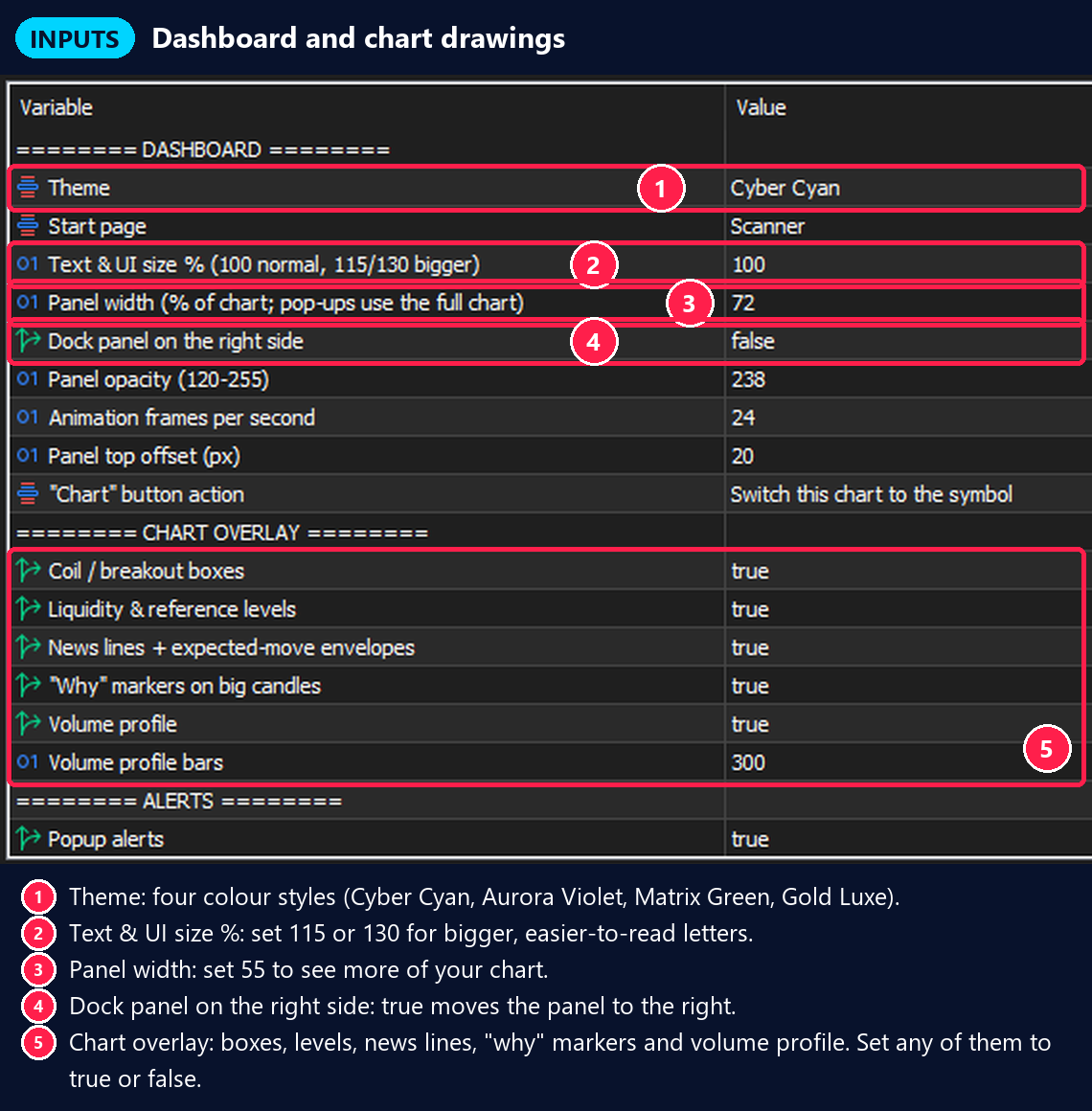
| Theme | Cyber Cyan | Four colour styles: Cyber Cyan, Aurora Violet, Matrix Green, Gold Luxe. |
| Text & UI size % | 100 | Set 115 or 130 for bigger, easier-to-read letters. |
| Panel width (% of chart) | 72 | Set 55 to see more of your chart. |
| Dock panel on the right side | false | Set true to move the panel to the right. |
| Chart overlay (5 inputs) | true | Breakout boxes, levels, news lines, "why" markers and volume profile. Choose the drawings you like. |
| Input | Default | What it does |
|---|---|---|
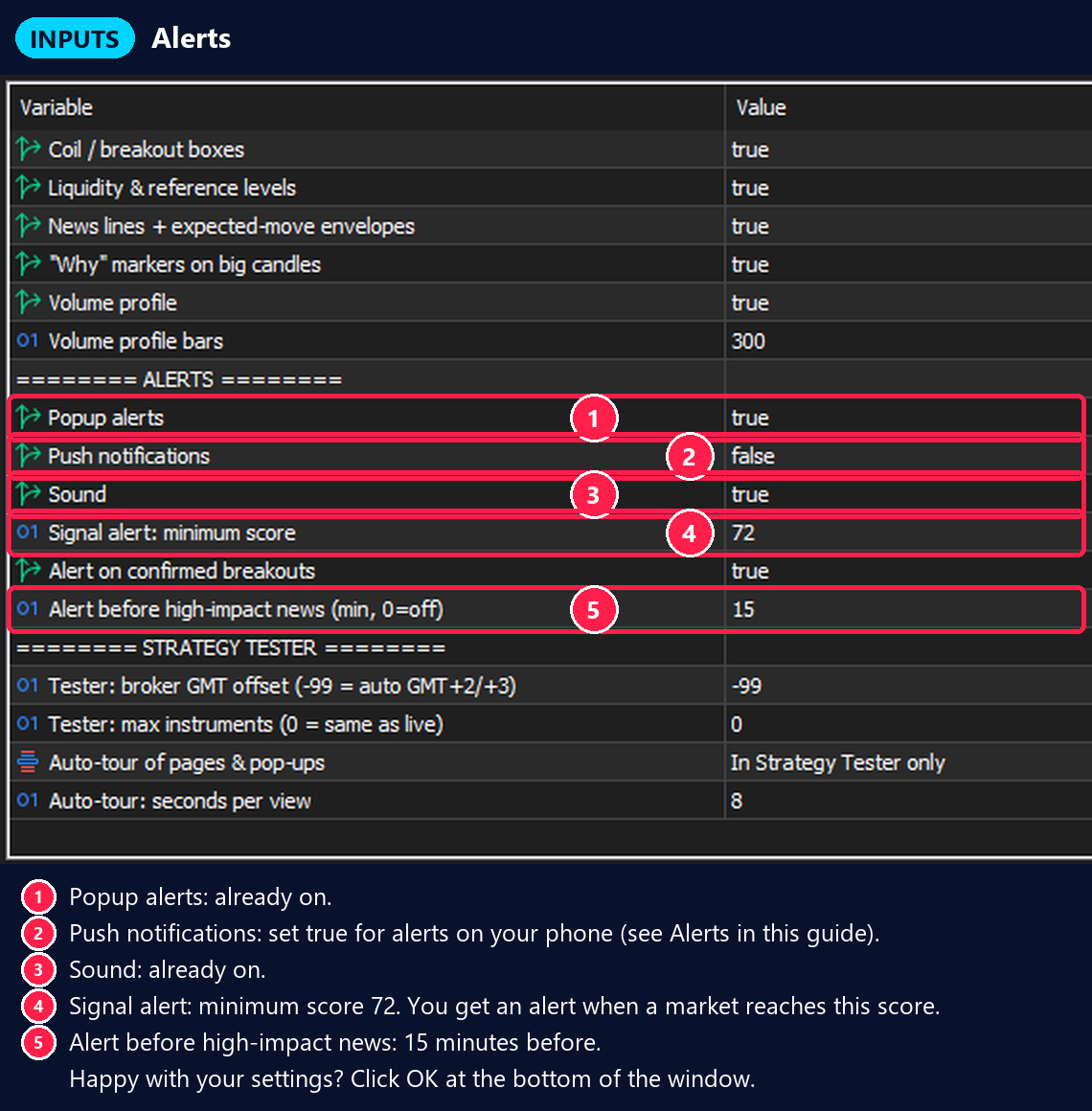
| Popup alerts / Sound | true | Already on. |
| Push notifications | false | Set true for alerts on your phone (see "Alerts on your phone" below). |
| Signal alert: minimum score | 72 | You get an alert when a market reaches this score. |
| Alert on confirmed breakouts | true | You get an alert when a breakout is confirmed. |
| Alert before high-impact news | 15 | Minutes before high-impact news. 0 switches this alert off. |
Happy with your settings? Click OK.
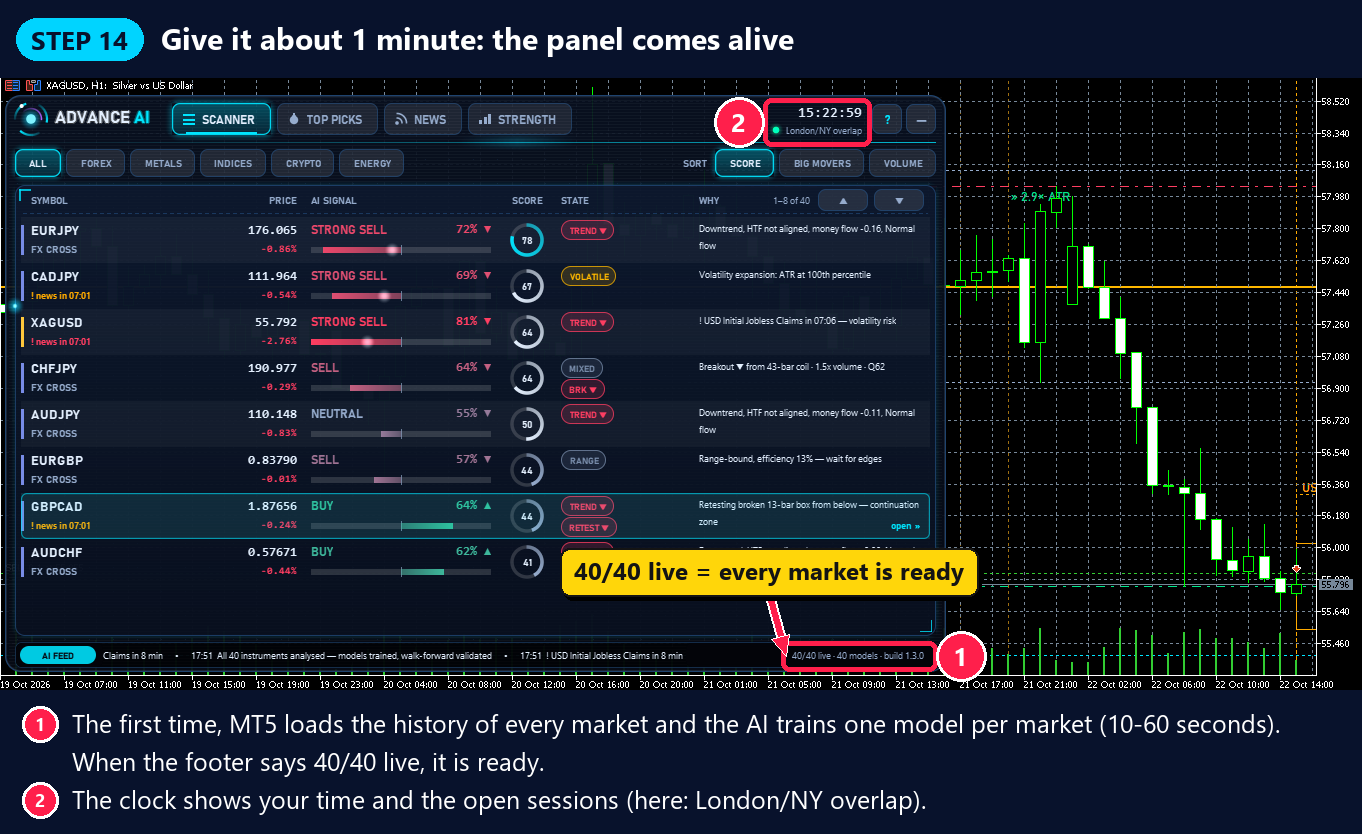
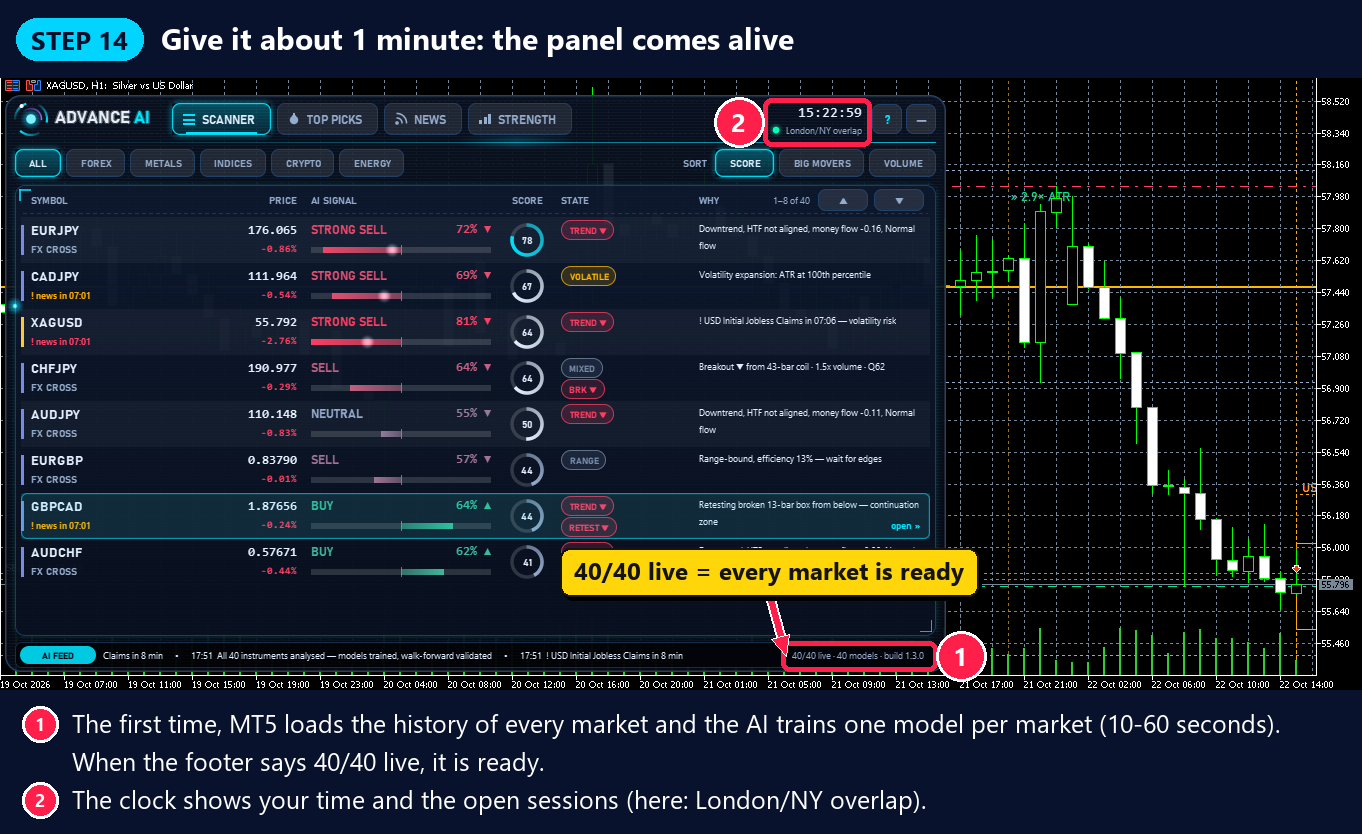
Step 14 — Give it about 1 minute: the panel comes alive
- The first time, MetaTrader 5 loads the price history of every market, and the AI trains its own model for each market. This takes about 10–60 seconds.
- When the line at the bottom says 40/40 live, everything is ready.
- The clock at the top shows the time and the sessions that are open now.
🎉 Fantastic! Advance AI Scanner is installed and running.
PART 3 — ⚙️ Change the Settings Any Time
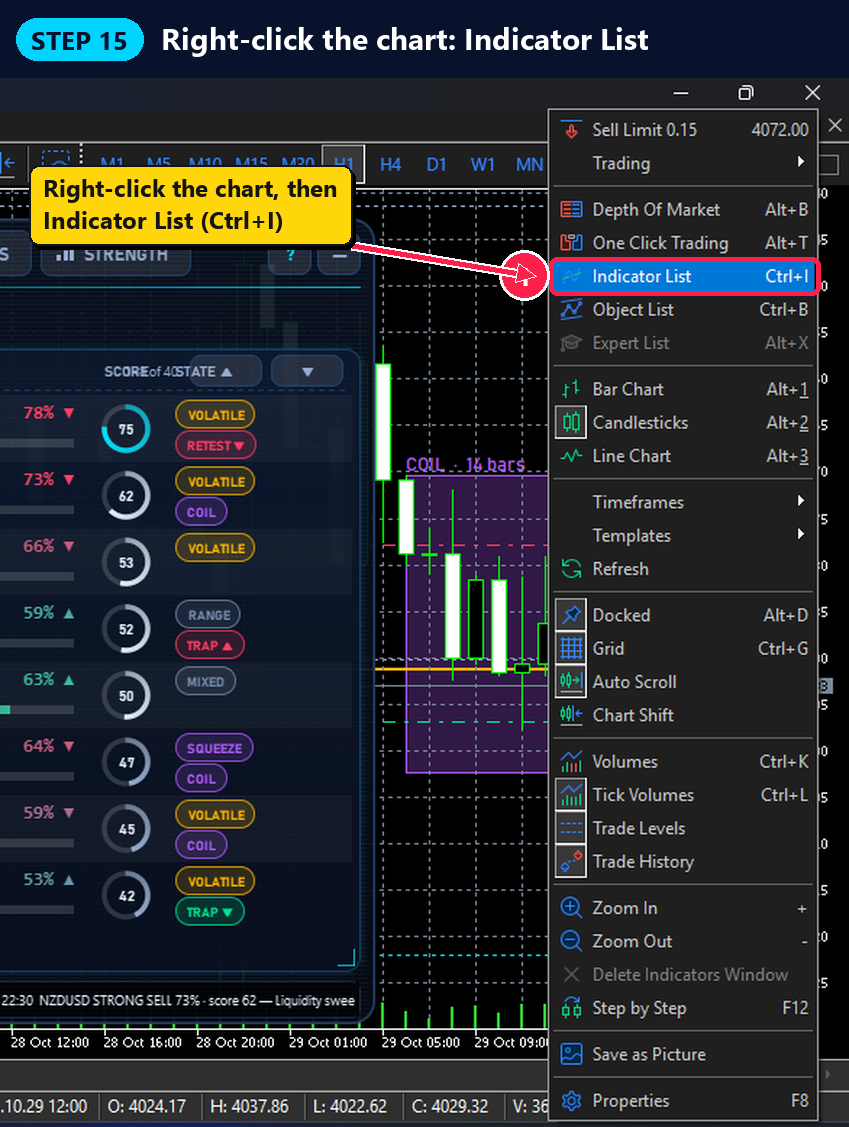
Step 15 — Right-click the chart: Indicator List
Right-click anywhere on the chart and click Indicator List. (Shortcut: Ctrl + I.)
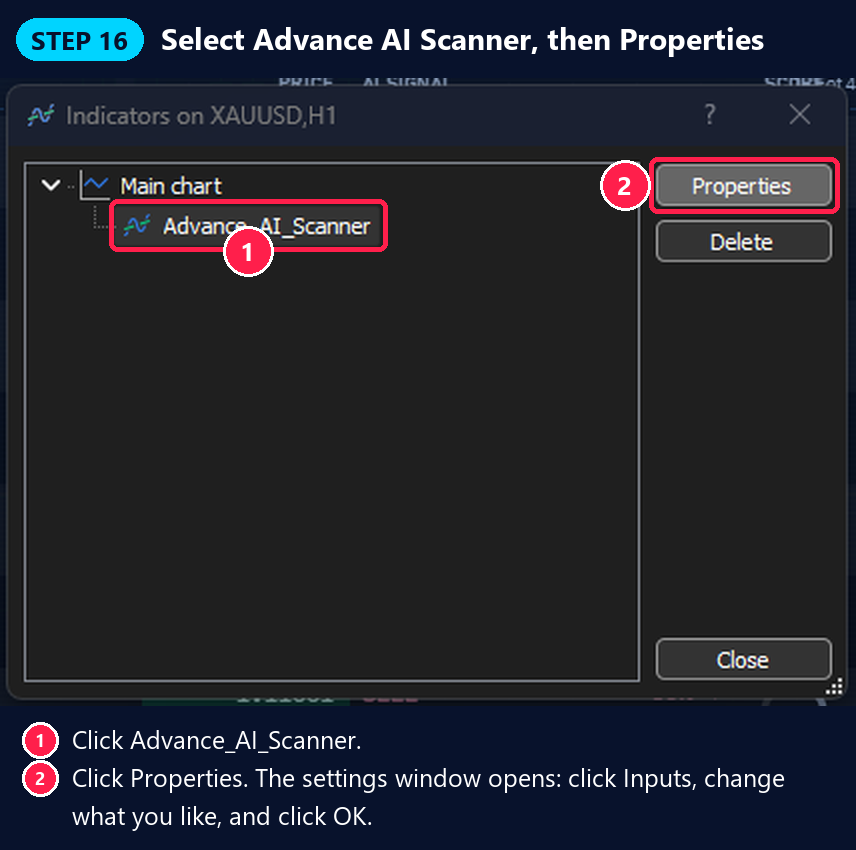
Step 16 — Select Advance AI Scanner, then Properties
- Click Advance_AI_Scanner.
- Click Properties.
The same settings window opens. Click the Inputs tab, change what you like, and click OK. In a few seconds the scanner runs with your new settings.
Tip: the Save button on the right of the Inputs tab saves your settings to a file, and Load brings them back. Reset returns every input to its default.
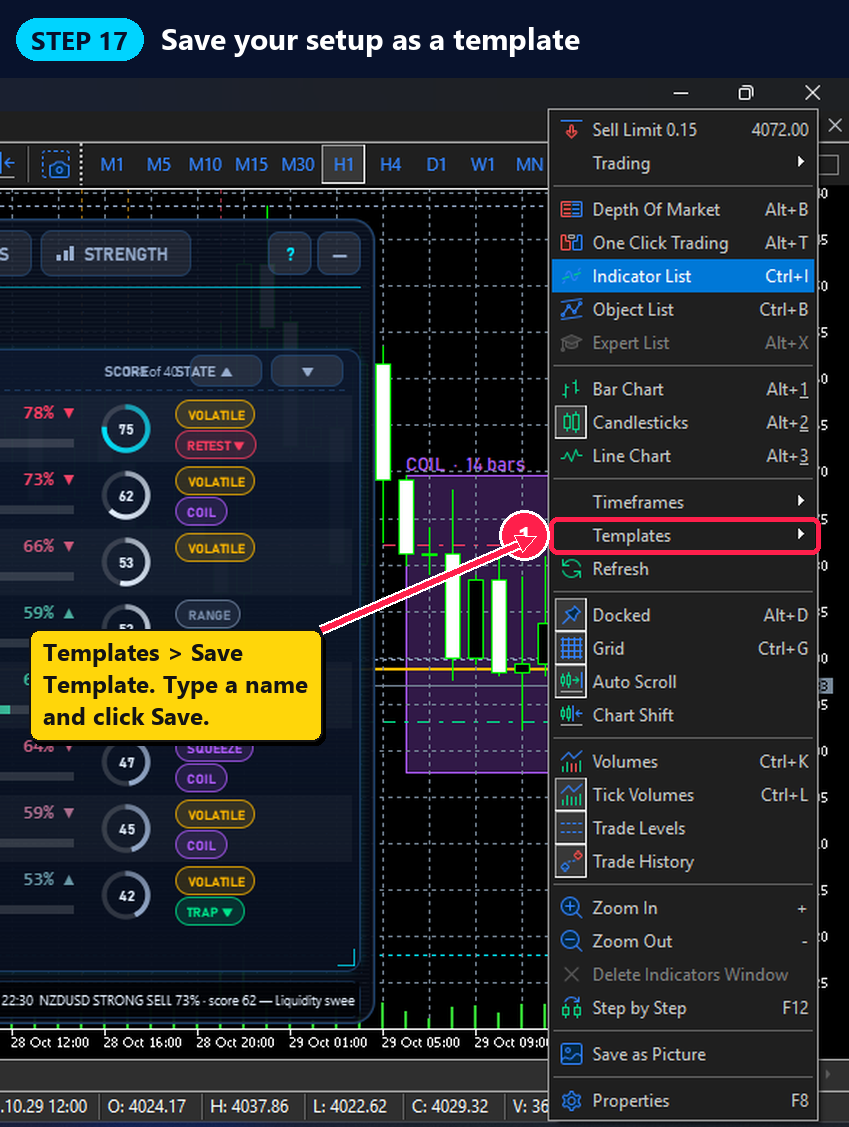
Step 17 — Save your setup as a template
- Right-click the chart and choose Templates → Save Template.
- Type a name, for example Advance AI, and click Save.
- To use it on another chart: right-click that chart → Templates → click your template.
Bonus: when you close and open MetaTrader 5 again, your chart and the scanner come back by themselves.
PART 4 — 🧭 Get to Know the Panel
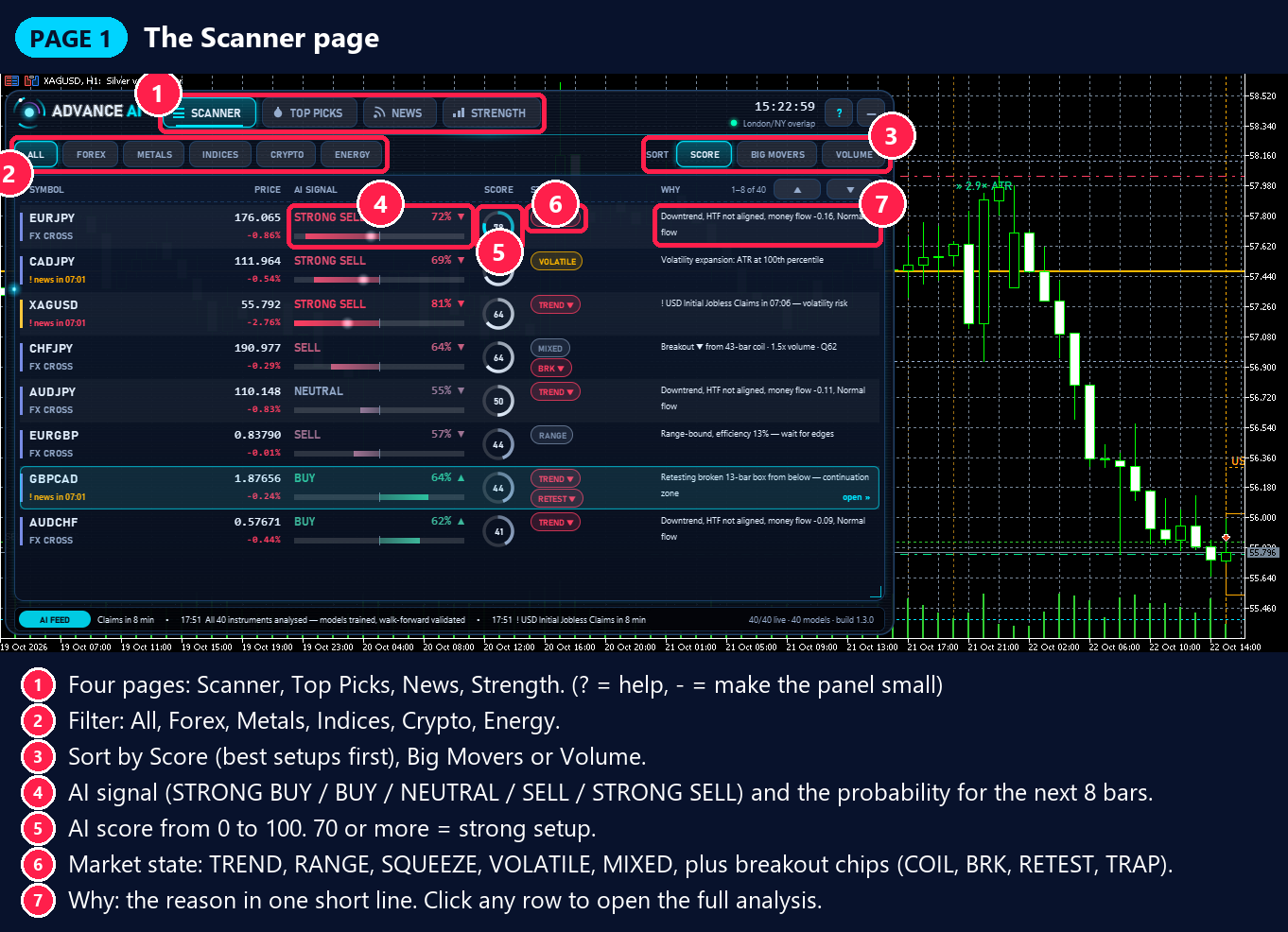
Page 1 — The Scanner page
- Four pages: Scanner, Top Picks, News, Strength. The ? button opens the help. The — button makes the panel small.
- Filter by All, Forex, Metals, Indices, Crypto or Energy.
- Sort by Score (best setups first), Big Movers or Volume.
- AI signal and the probability for the next 8 bars.
- AI score ring from 0 to 100. Higher is better.
- Market state chip (for example TREND, RANGE, BRK, RETEST).
- Why: the reason in one short line.
Click any row to open the full analysis of that market.
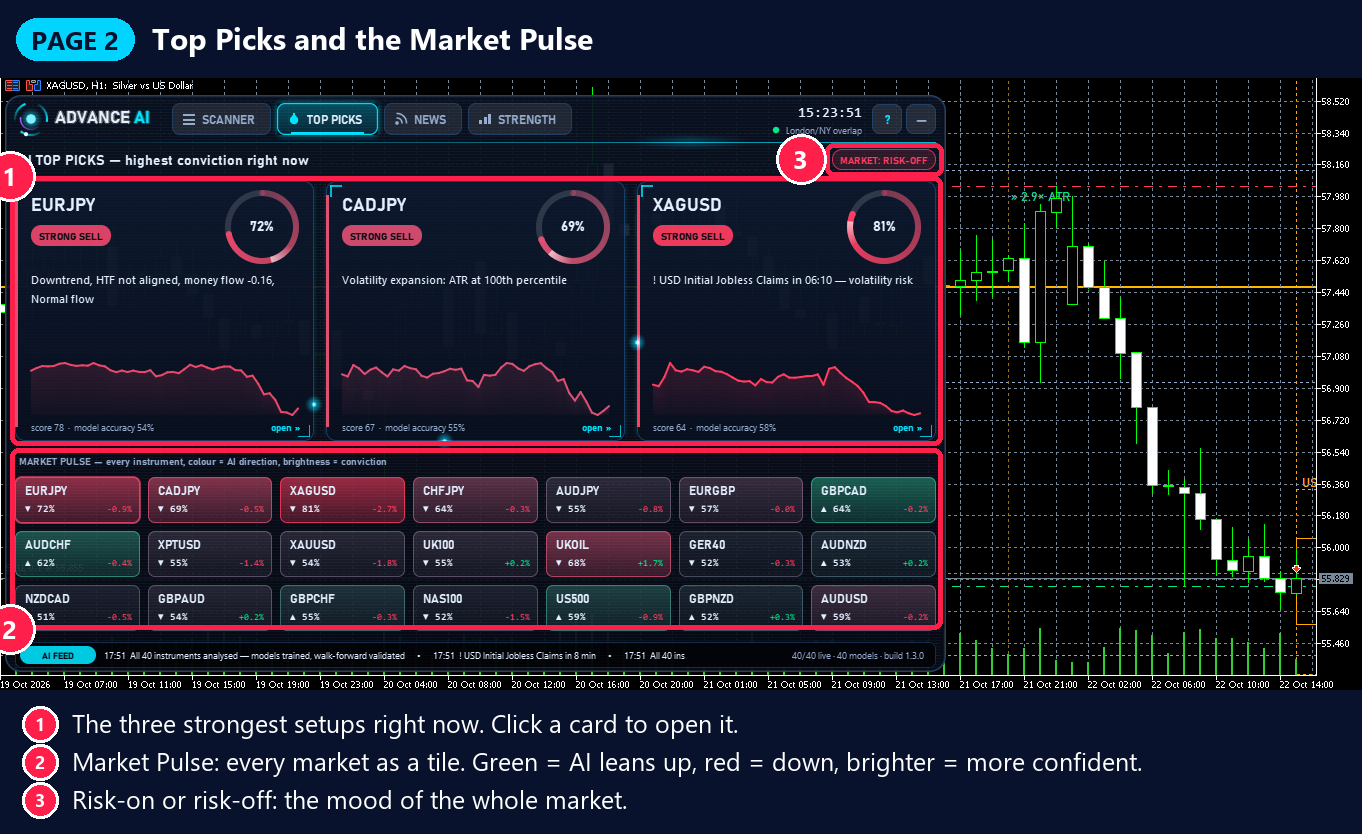
Page 2 — Top Picks and the Market Pulse
- The three strongest setups right now. Click a card to open it.
- Market Pulse: every market as a tile. Green = the AI leans up, red = down, brighter = more confident.
- Risk-on / risk-off: the mood of the whole market.
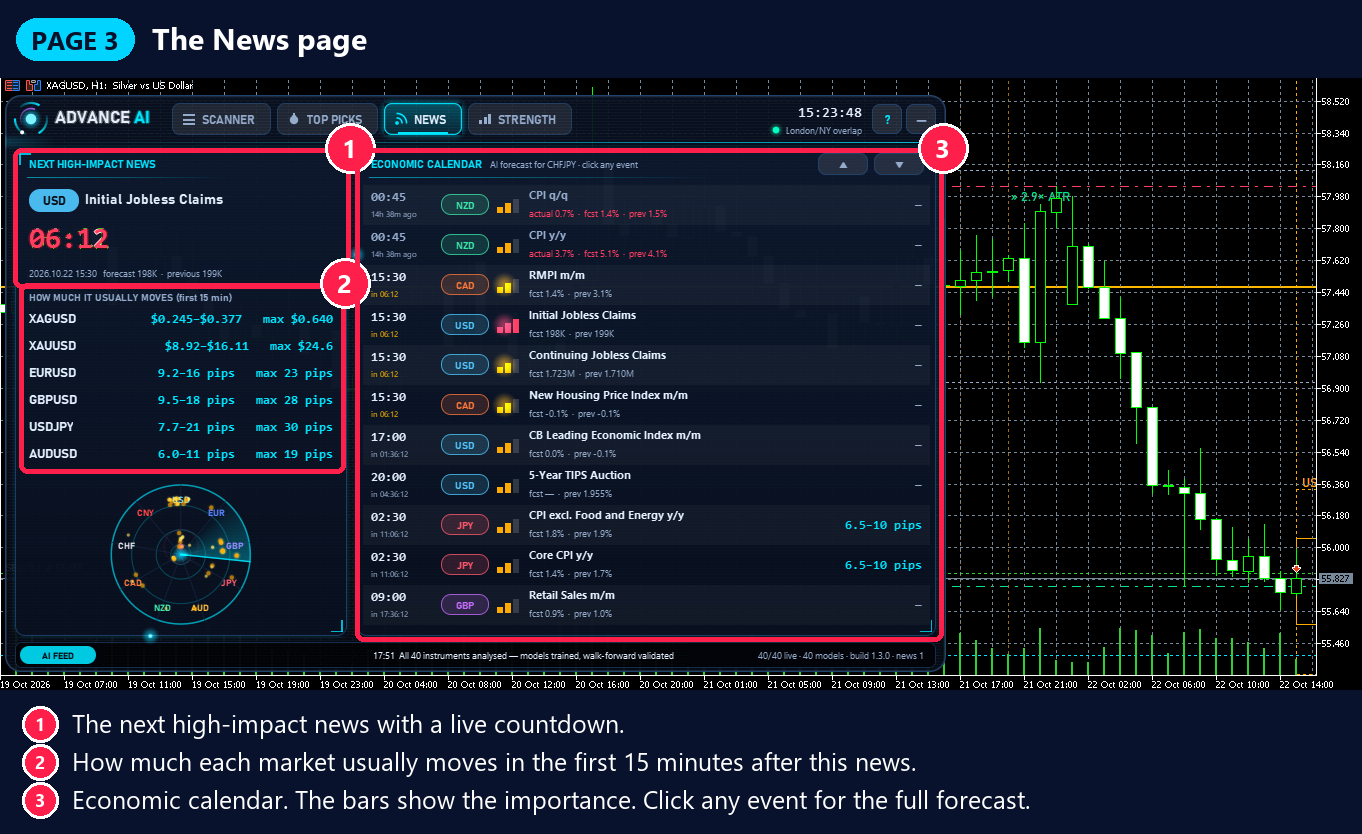
Page 3 — The News page
- The next high-impact news with a live countdown.
- How much each market usually moves in the first 15 minutes after this news. This is measured on your broker's own prices from past releases of the same news.
- The economic calendar. Click any event for the full forecast.
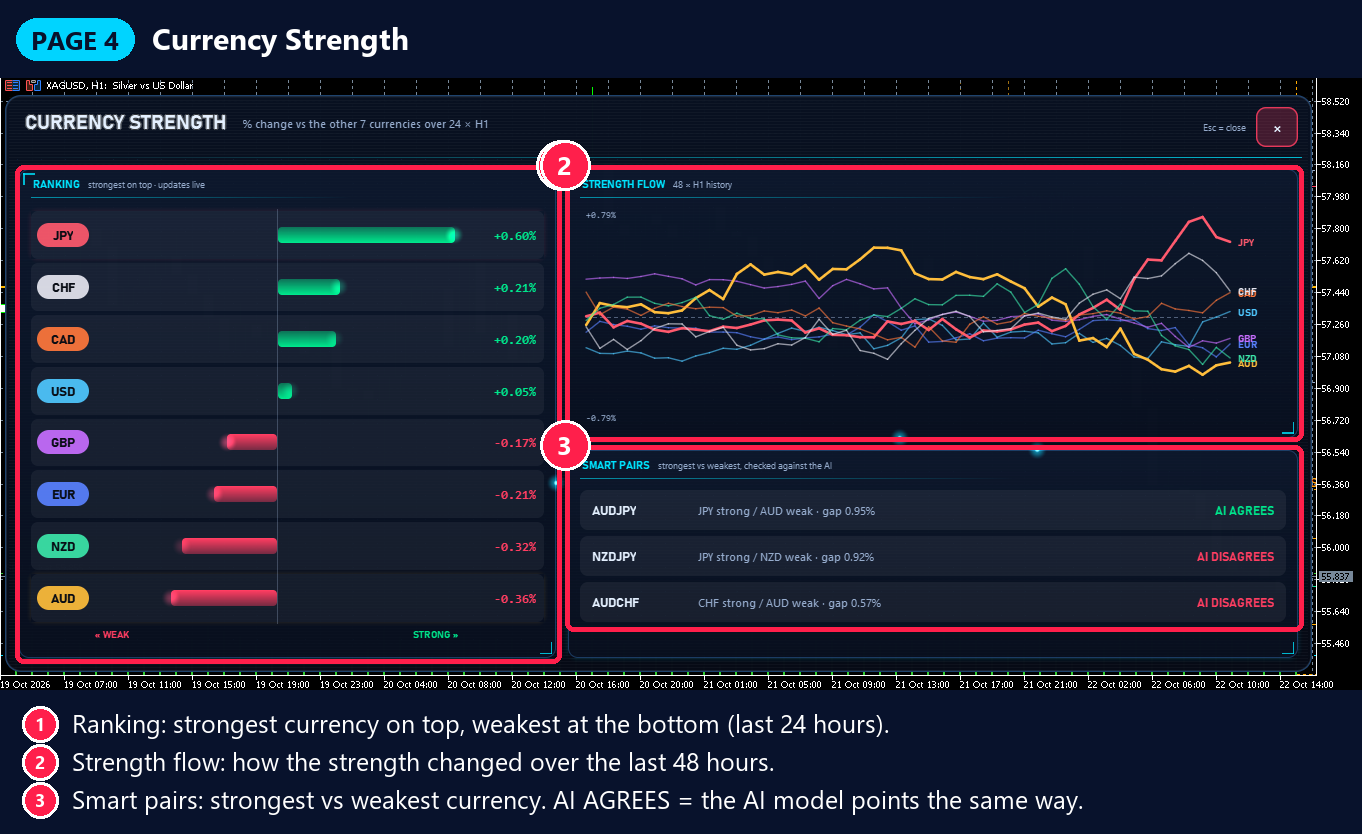
Page 4 — Currency Strength
- Ranking: the strongest currency on top, the weakest at the bottom.
- Strength flow: how the strength changed over the last 48 hours.
- Smart pairs: a strong currency against a weak one. AI AGREES means the AI model points the same way.
Sessions and best hours
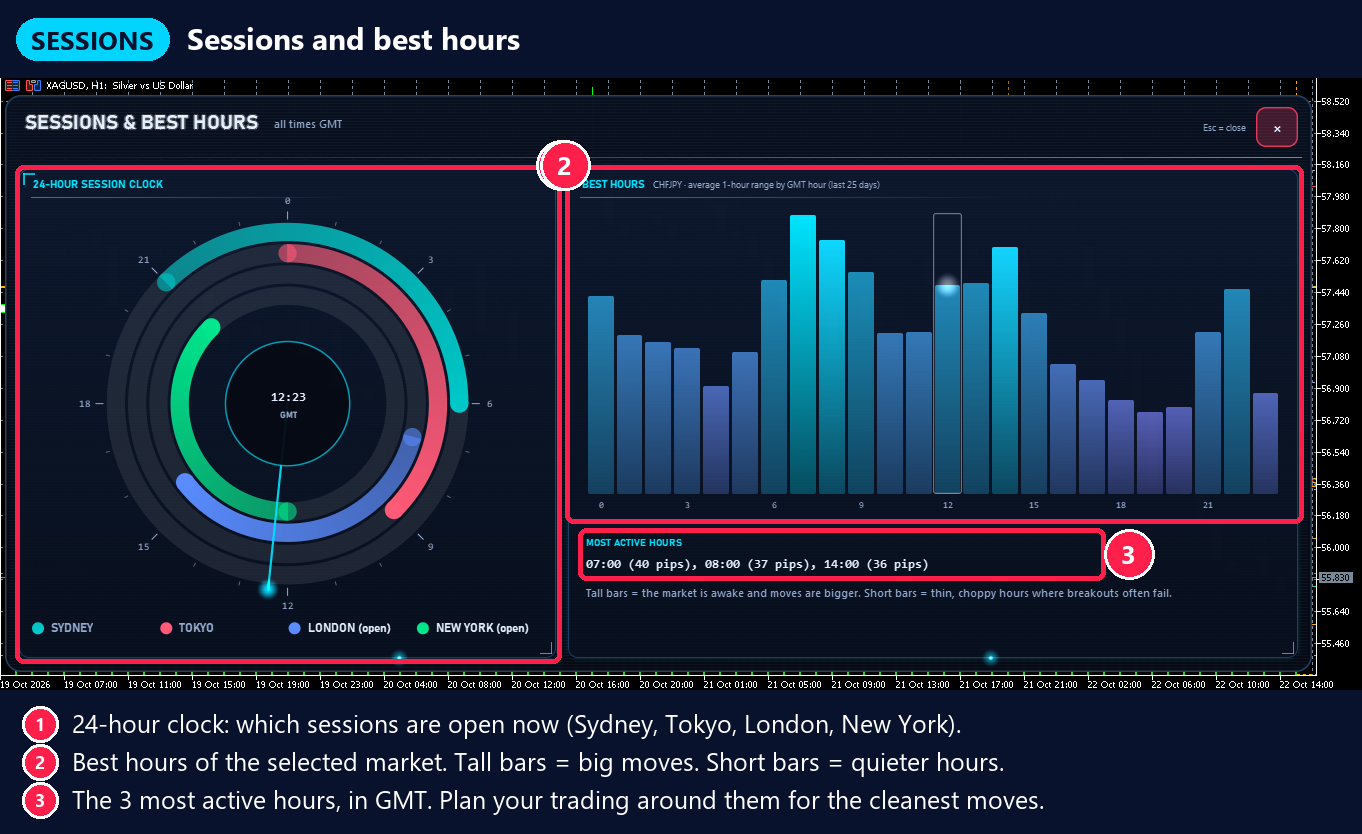
- The 24-hour clock shows which sessions are open now (Sydney, Tokyo, London, New York).
- Best hours of the selected market. Tall bars = bigger moves. Short bars = quieter hours.
- The 3 most active hours (GMT). Plan your trading around them for the cleanest moves.
🖱️ Controls
| Click a row, card, tile or news event | Opens a big window with all the details |
| × or Esc | Closes the window |
| « » or the arrow keys | Previous / next market |
| SHOW ON CHART | Switches your chart to this market |
| Mouse wheel | Scrolls lists and flips text pages |
| — | Makes the panel small, so you can see the chart |
PART 5 — 🔍 How to Analyse a Market: the 5-Check Method
Do these 5 checks in this order, every time. It takes about one minute per market, and it quickly becomes a habit.
| # | Check | Where | ✅ Green light | ⏳ Wait when you see |
|---|---|---|---|---|
| 1 | Score and signal | Scanner page | Score 70+ and STRONG BUY / STRONG SELL | NEUTRAL, or a score still under 50 |
| 2 | Verdict | Symbol window → VERDICT | Timeframes and pattern memory agree, structure confirms | Daily range used over 100%: wait for a pullback |
| 3 | Why it moved | WHY IT MOVED + AI BRAIN | A clear reason, clear swing levels for your stop | Drivers pulling in different directions |
| 4 | Volume and breakout | VOLUME & BREAKOUT | Relative volume 1.0+, BRK or RETEST in your direction | TRAP, or volume drying up |
| 5 | News | NEWS IMPACT | A calm news window for the next 30 minutes | Big news close by: enter after it |
Check 1 — Score and signal: find the best candidates
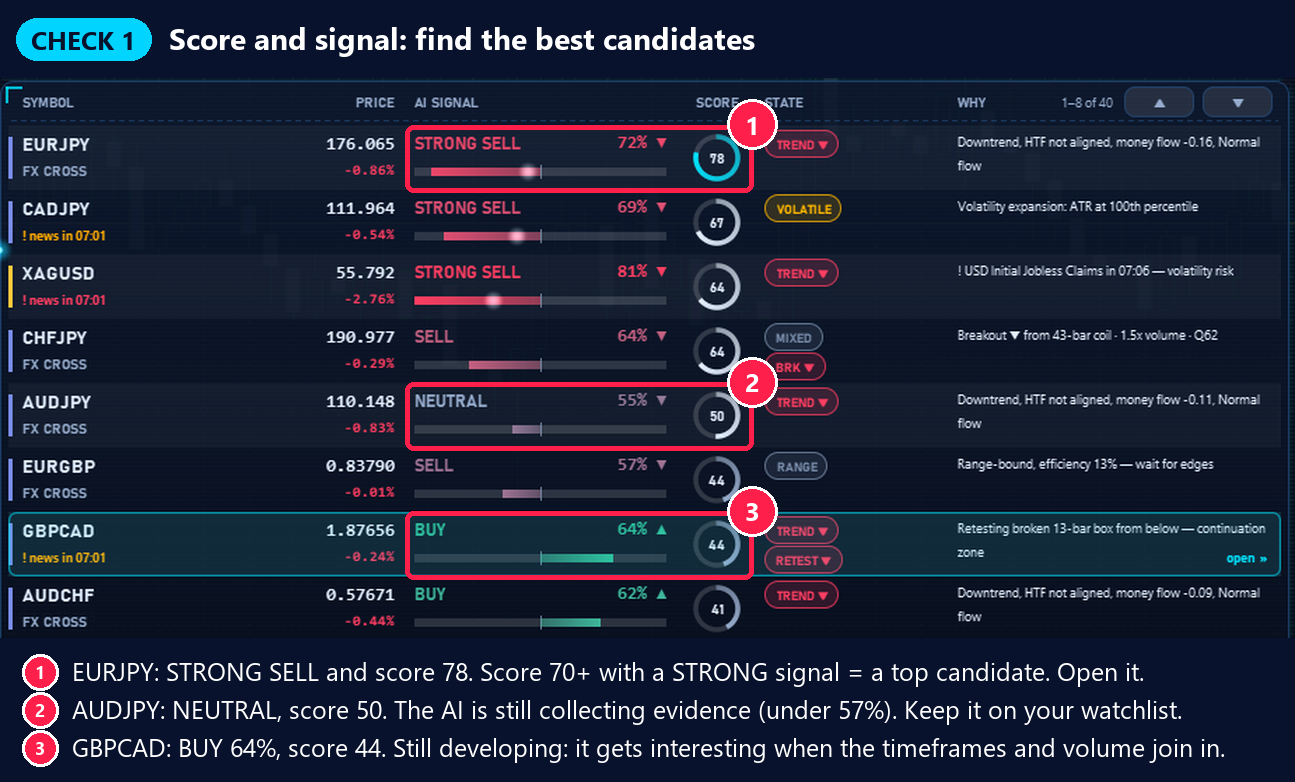
Start on the Scanner page, sorted by Score. The best setups are on top.
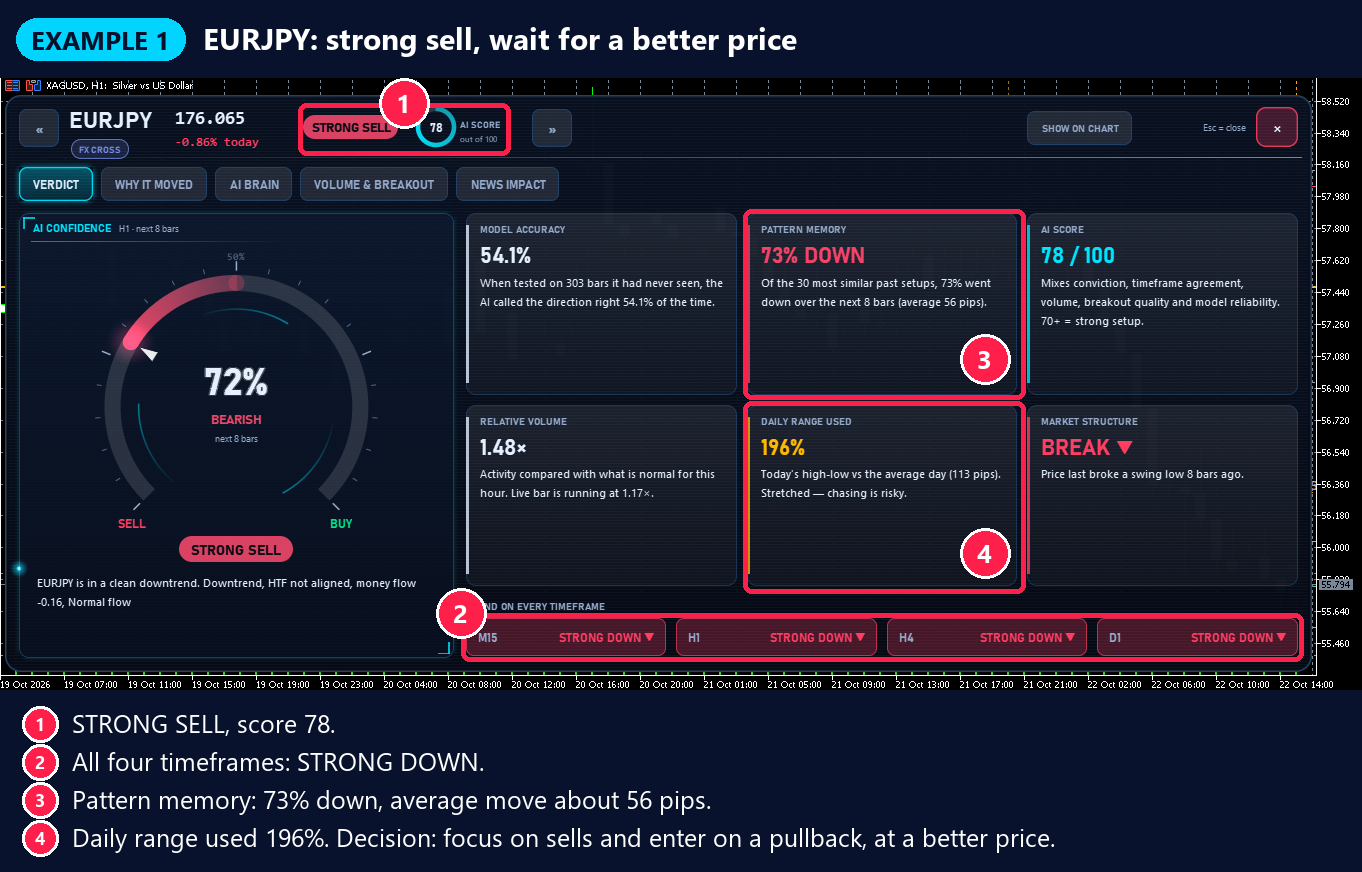
- EURJPY: STRONG SELL, score 78. Score 70+ with a STRONG signal = a top candidate. Open it.
- AUDJPY: NEUTRAL, score 50. The AI is still collecting evidence (under 57%). Keep it on your watchlist.
- GBPCAD: BUY 64%, score 44. Still developing. It gets interesting when the timeframes and the volume join in.
What the signals mean:
| STRONG BUY / STRONG SELL | The AI is at least 57% sure, it is confident, and the timeframes agree. The best signals. |
| BUY / SELL | The AI is at least 57% sure about the direction of the next 8 bars, and the timeframes are still lining up. |
| NEUTRAL | Under 57%. The AI is still collecting evidence. Watch it and focus on the strong ones. |
What the score means:
| 70 – 100 | Strong setup. Go on with checks 2–5. |
| 50 – 69 | Normal setup. Keep it on your watchlist. |
| 0 – 49 | Still building. Let it grow, and look at the stronger markets first. |
How the score is made: how sure the AI is (34%), how many timeframes agree (18%), volume (14%), breakout quality (12%), market state (12%) and how accurate the model has been (10%). Close to high-impact news the score is reduced by 20%, to help your timing.
The market state chips:
| TREND ▲ / TREND ▼ | A clean trend up or down. Trade in the trend direction. |
| RANGE | Price moves sideways. The edges of the range are the best zones. |
| SQUEEZE | Price is very quiet. A big move may come soon. |
| VOLATILE | Big candles. Use a wider stop and a smaller size. |
| MIXED | The market is still choosing a direction. Let it decide first. |
| COIL | A box is building. Get ready for the breakout. |
| BRK ▲ / BRK ▼ | Price just broke out of the box, up or down. |
| RETEST ▲ / RETEST ▼ | Price came back to test the broken line. Often a calm entry zone. |
| TRAP ▲ / TRAP ▼ | The breakout reversed. The scanner spots it for you, so you can wait for the next clean setup. |
Check 2 — Verdict: does everything agree?
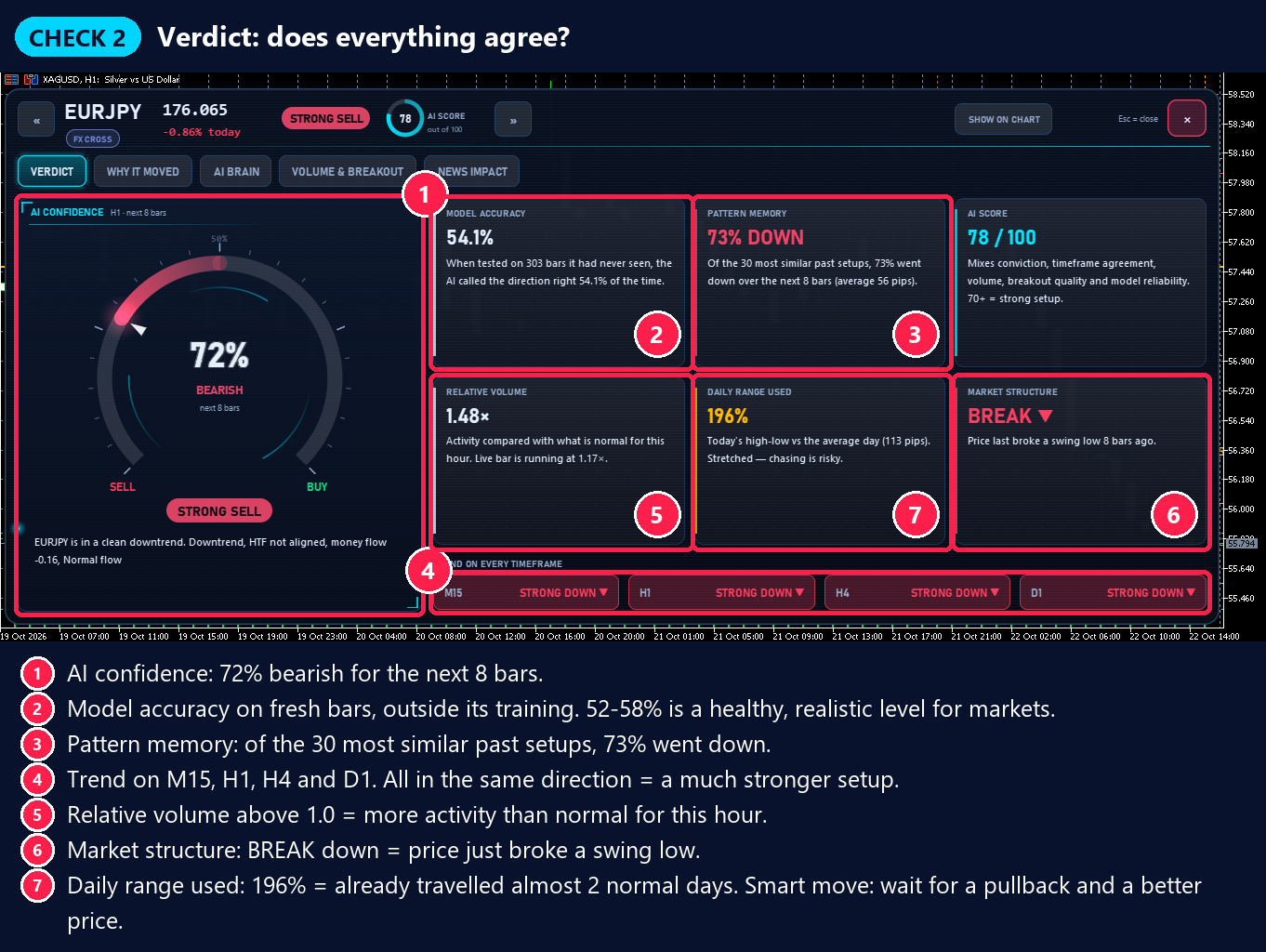
Click the market. The big window opens on the VERDICT page.
- AI confidence: here 72% bearish for the next 8 bars.
- Model accuracy: how often the AI was right on fresh bars, outside its training. 52–58% is a healthy, realistic level for markets.
- Pattern memory: of the 30 most similar setups in the past, 73% went down.
- Trend on every timeframe: M15, H1, H4 and D1. When all four point the same way, the setup is much stronger.
- Relative volume: above 1.0 = more activity than normal for this hour.
- Market structure: BREAK ▼ = price just broke a swing low. This confirms the sell.
- Daily range used: 196% = the market already travelled almost two normal days. The smart move: wait for a pullback and enter at a better price.
Check 3 — Why It Moved and AI Brain: the reason and the levels
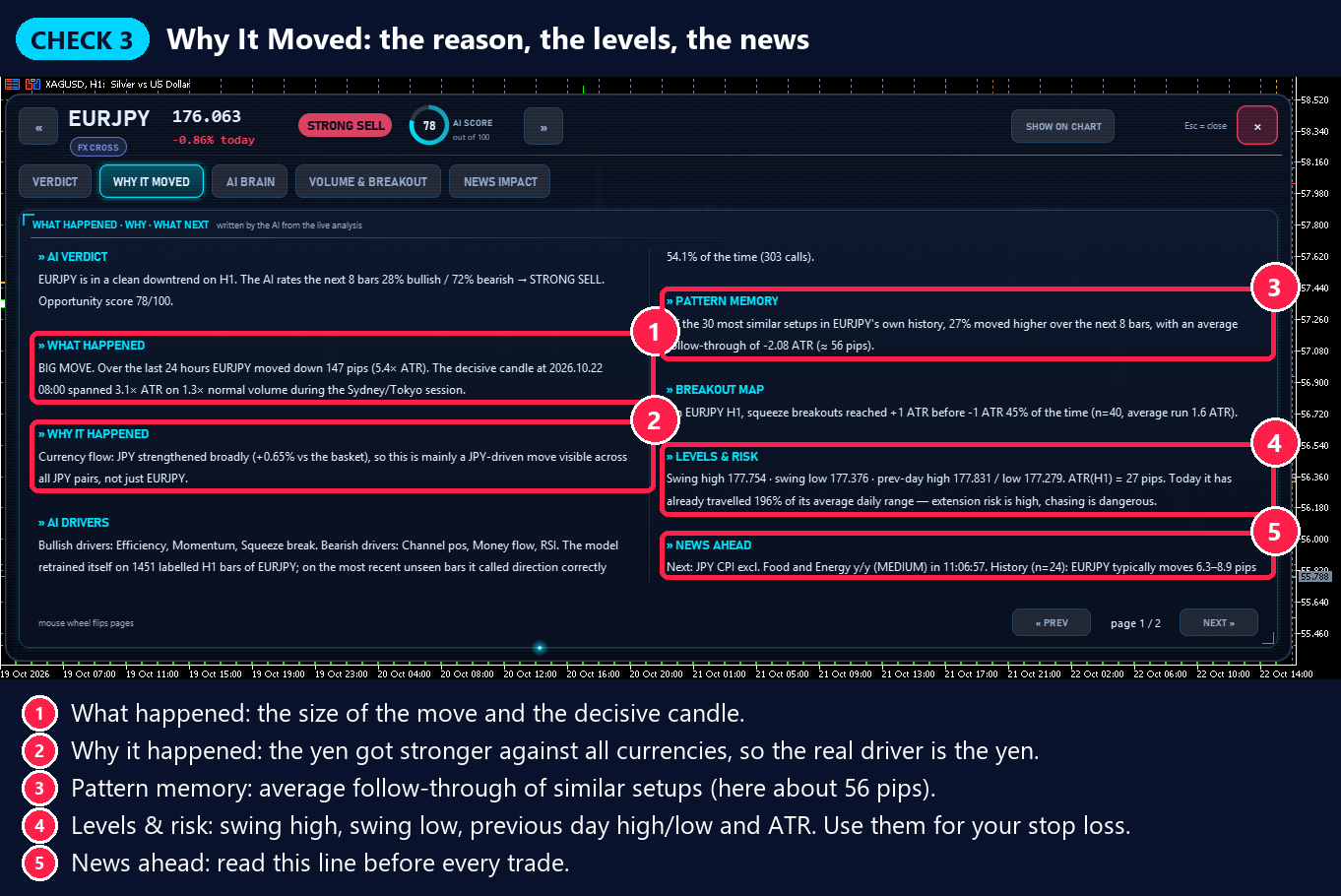
Click WHY IT MOVED. The AI explains the move in plain English.
- What happened: the size of the move and the decisive candle.
- Why it happened: here the yen got stronger against all currencies, so the real driver is the yen.
- Pattern memory: the average follow-through of similar setups (here about 56 pips). This helps you set a target.
- Levels & risk: swing high, swing low, previous day high/low and ATR. Use them to place your stop loss.
- News ahead: read this line before every trade.
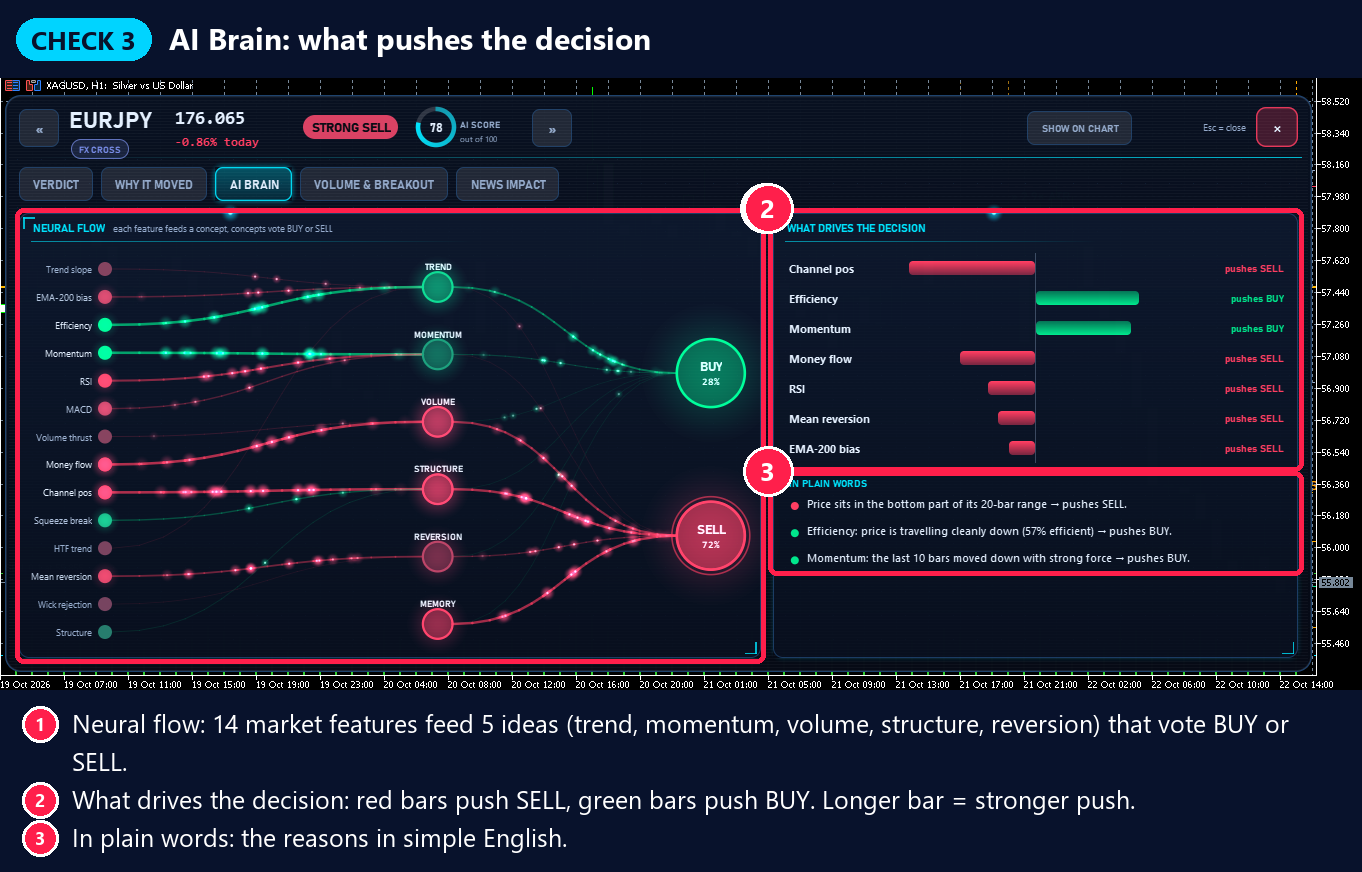
Then click AI BRAIN. It shows what pushes the AI to buy or to sell:
- Neural flow: 14 market features feed 5 ideas (trend, momentum, volume, structure, reversion) that vote BUY or SELL.
- What drives the decision: red bars push SELL, green bars push BUY. A longer bar is a stronger push.
- In plain words: the reasons in simple English.
When most of the big bars point the same way, the signal is cleaner.
Check 4 — Volume and breakout
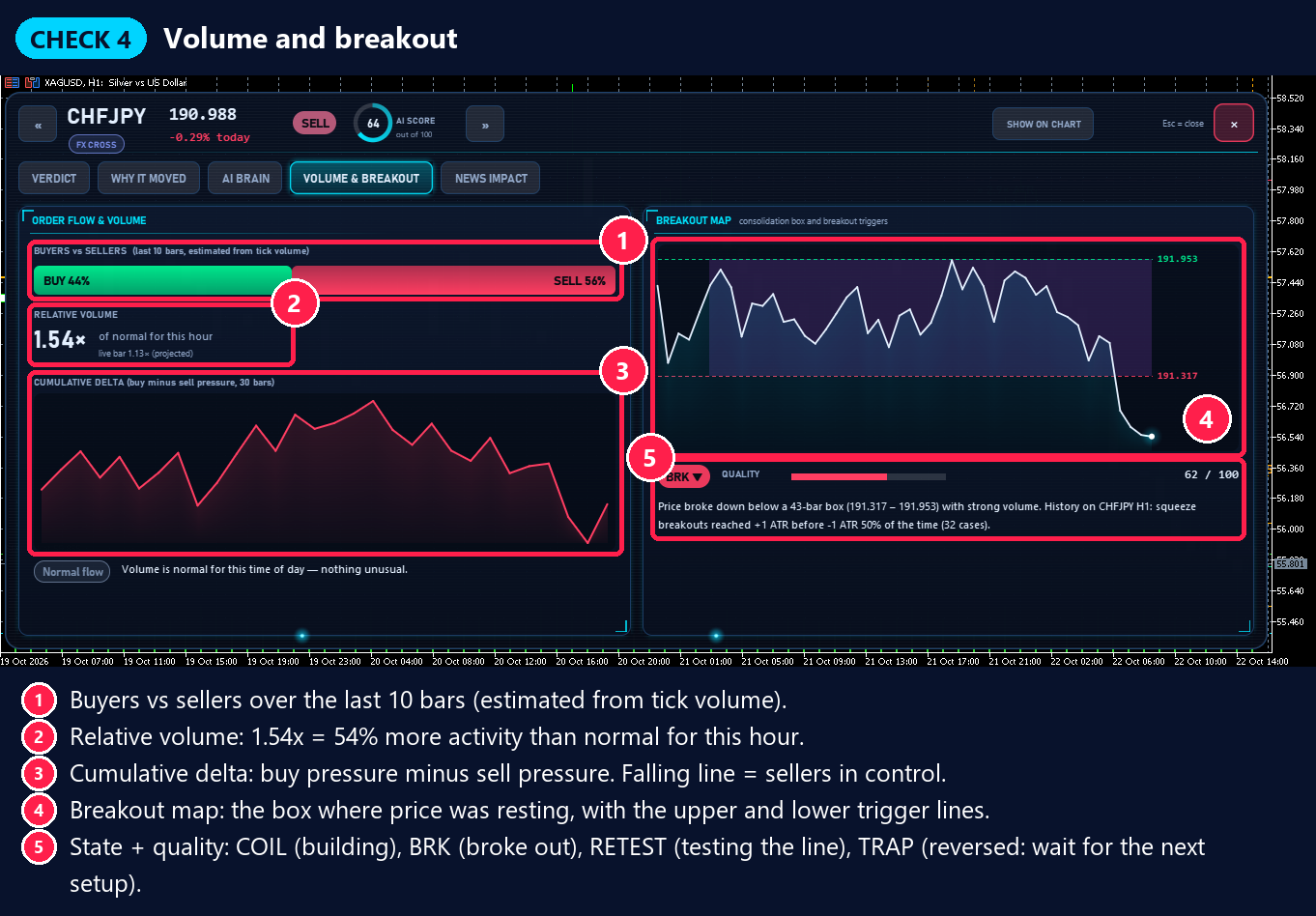
Click VOLUME & BREAKOUT.
- Buyers vs sellers over the last 10 bars.
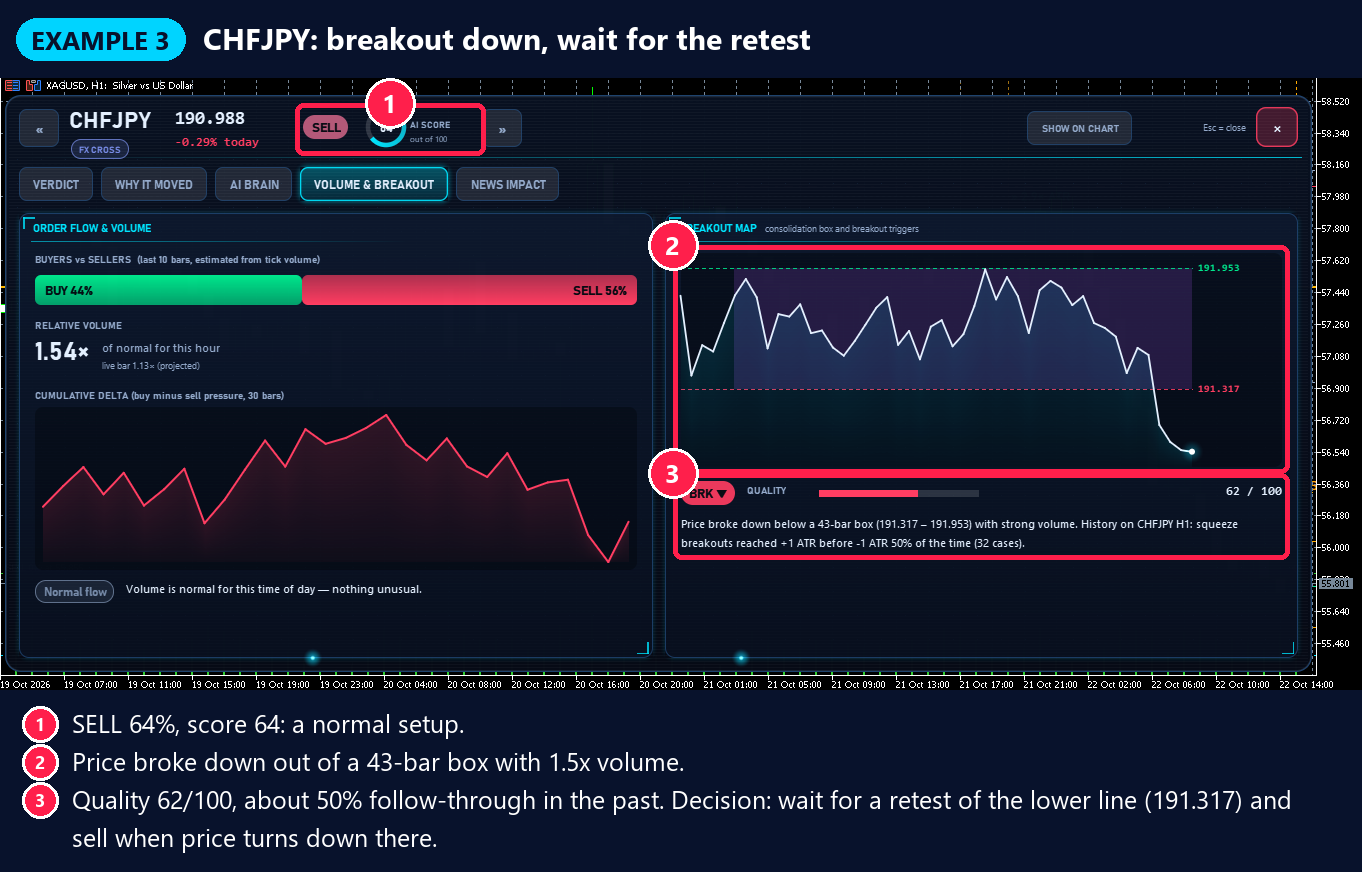
- Relative volume: 1.54× = 54% more activity than normal for this hour.
- Cumulative delta: buy pressure minus sell pressure. A falling line = sellers are in control.
- Breakout map: the box where price was resting, with the upper and lower trigger lines.
- State and quality: here BRK ▼ with quality 62/100. The text below tells you how often this kind of breakout followed through in the past on this market.
Good to know: forex volume in MetaTrader is tick volume (activity). Buying and selling pressure is estimated from the candle shape.
Check 5 — News: is big news coming?
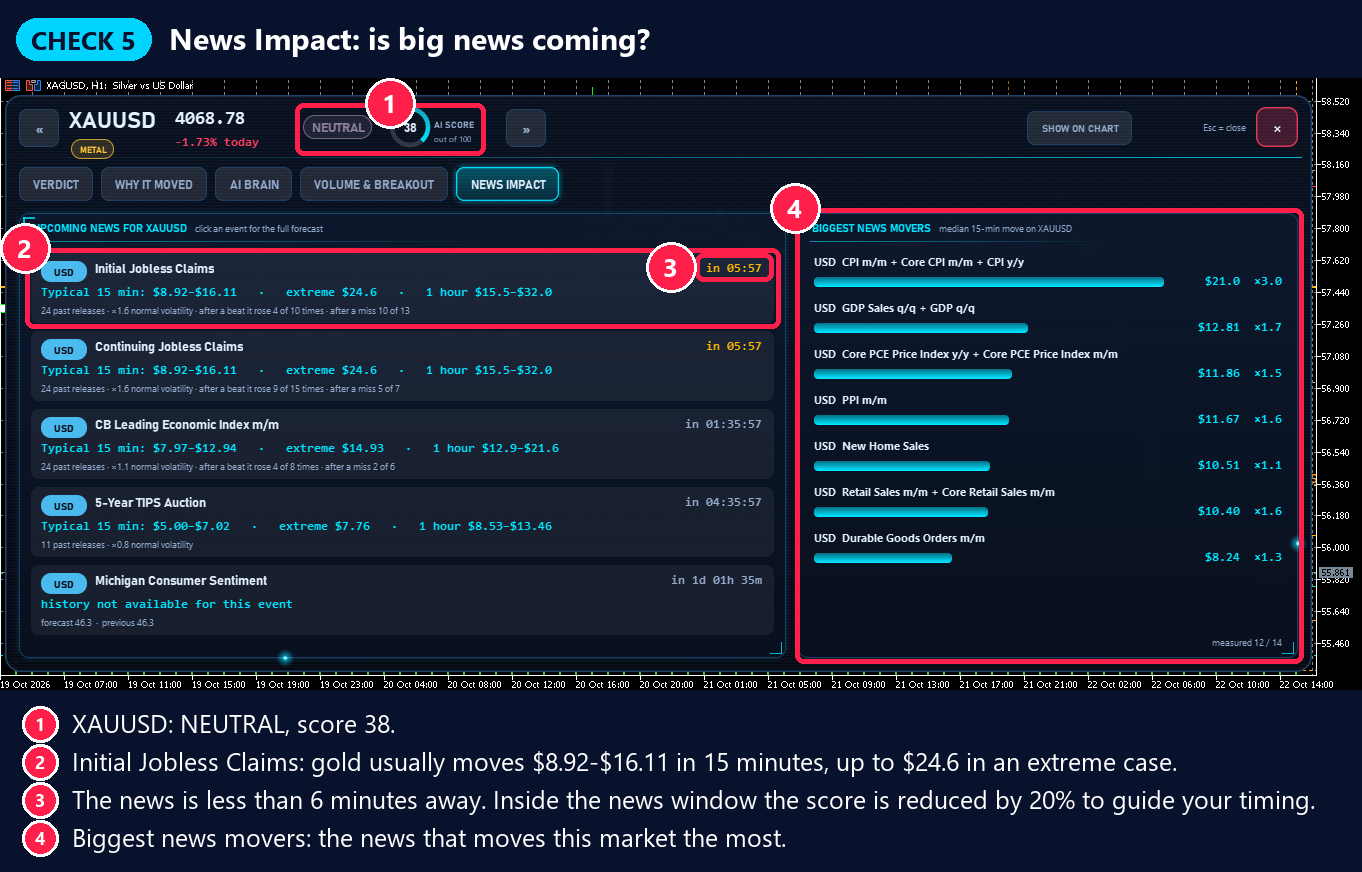
Click NEWS IMPACT.
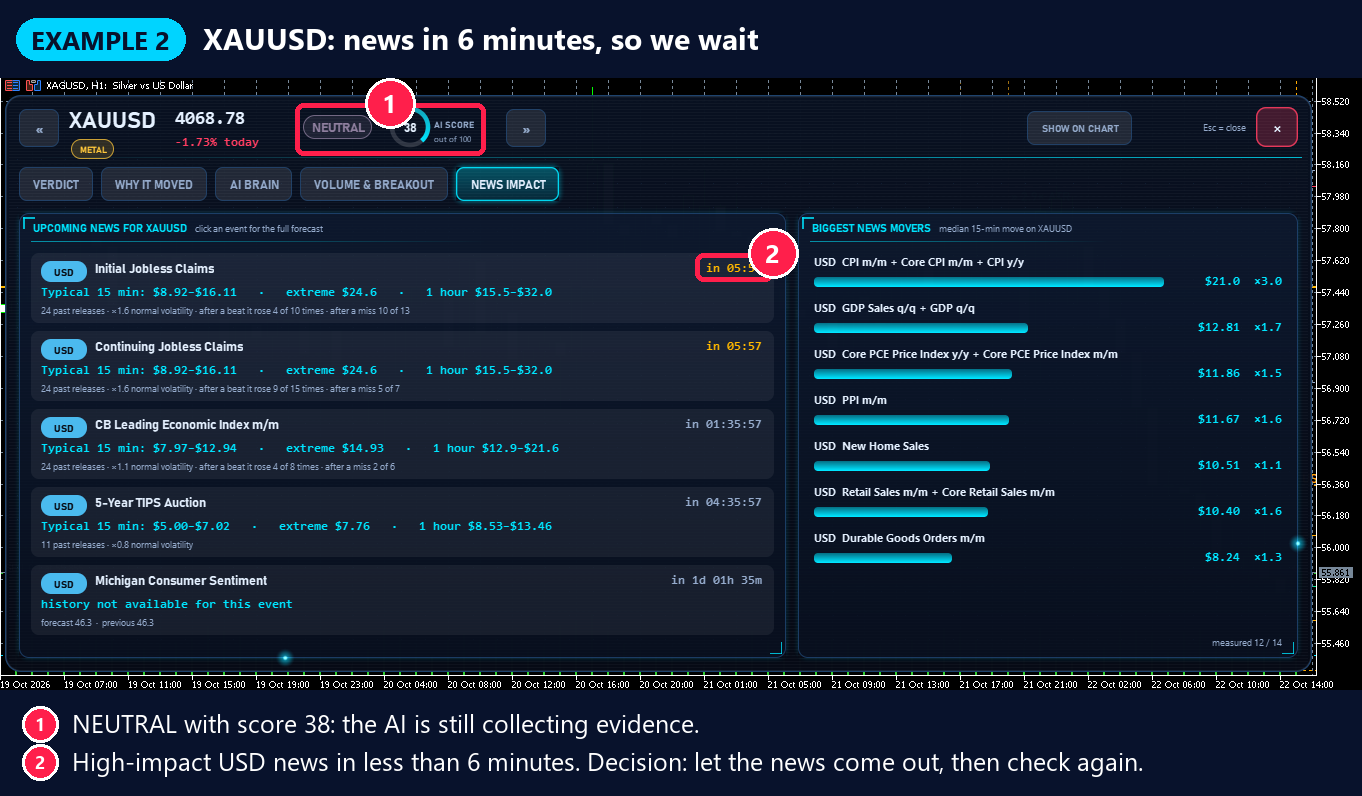
- XAUUSD: NEUTRAL, score 38.
- Initial Jobless Claims: gold usually moves $8.92–$16.11 in the first 15 minutes after this news, and up to $24.6 in an extreme case.
- The news is less than 6 minutes away.
- Biggest news movers: the news that moves this market the most.
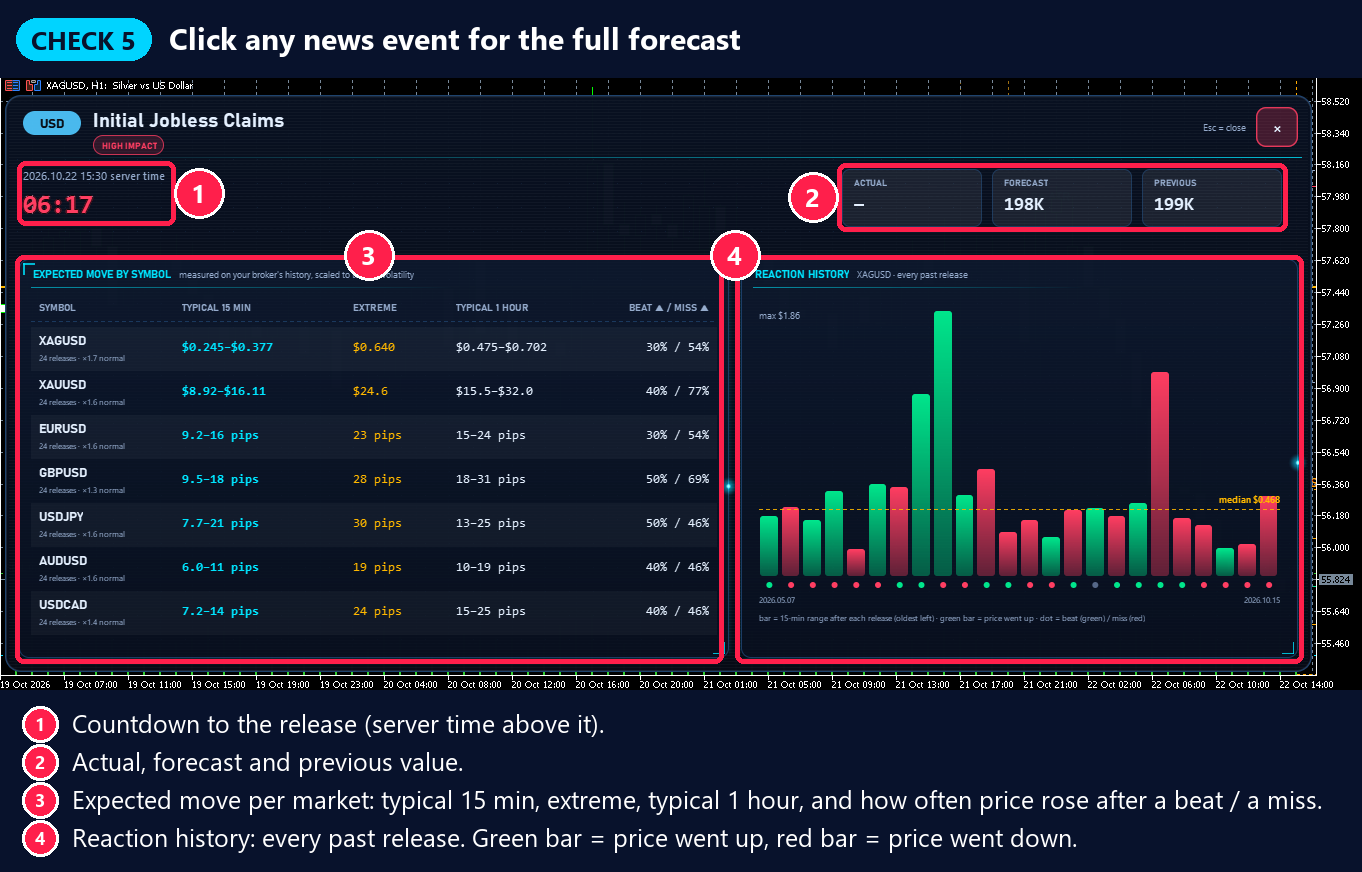
Click any news event for the full forecast:
- The countdown to the release.
- The actual, forecast and previous value.
- Expected move for every linked market: typical 15 minutes, extreme, typical 1 hour, and how often price rose after a better (beat) or worse (miss) result.
- Reaction history: every past release. Green bar = price went up, red bar = price went down.
💡 Tip: from 30 minutes before until 15 minutes after a high-impact news release, the AI score is reduced by 20%. This helps you time your entry. Best timing: open new trades after high-impact news is out. Use the "extreme" number to see how far price can travel.
Extra confirmation: Strength and Sessions
- Currency Strength: the best trades are usually a strong currency against a weak one. In our example JPY was the strongest currency, which supports the EURJPY sell.
- Sessions: trade in the most active hours of your market for the cleanest breakouts.
PART 6 — 🎯 Make Your Trade Decision
The 6-question checklist
Before every trade, answer these 6 questions:
| 1 | Is the score 70 or more, with a STRONG BUY or STRONG SELL? |
| 2 | Do the timeframes and the pattern memory agree? |
| 3 | Is the daily range used under 100%, so the move is still fresh? |
| 4 | Is the volume normal or high, with a clean breakout? |
| 5 | Is the news window calm for the next 30 minutes? |
| 6 | Can you place your stop loss behind the swing level (from Levels & risk) and risk just 1–2% of your account? |
- All 6 are yes: a high-quality setup. Take it with confidence.
- Still waiting on one? Be patient. With 40 markets on your scanner, the next great setup is always on its way.
How to plan the trade with the panel
- Direction: trade in the direction of the STRONG signal and the timeframe trend.
- Entry: when "daily range used" is high, wait for a pullback. After a breakout, a RETEST of the broken line is often a calm entry.
- Stop loss: behind the swing high (for a sell) or swing low (for a buy) shown in Why It Moved → Levels & risk.
- First target: the average follow-through from Pattern memory.
- Timing: after high-impact news, and in the most active hours.
Example 1 — EURJPY: strong sell, wait for a better price
- STRONG SELL, score 78.
- All four timeframes: STRONG DOWN.
- Pattern memory: 73% down, average move about 56 pips.
- Daily range used is 196%: price has already travelled far today.
Decision: the direction is clear: we focus on sells. Wait for a pullback, then sell at a better price. Place the stop loss above the swing high from Why It Moved. As a first target, use the average move from pattern memory. Japanese inflation data was due later that day, so the best entry comes after it.
Example 2 — XAUUSD: news in 6 minutes, so we wait
- NEUTRAL, with a score of 38: the AI is still collecting evidence.
- High-impact USD news in less than 6 minutes.
Decision: let the news come out first, then check again. Patience is a real trading skill, and the best traders use it every day.
Example 3 — CHFJPY: breakout down, wait for the retest
- SELL 64%, score 64: a normal setup.
- Price broke down out of a 43-bar box with 1.5× normal volume.
- Quality 62/100, and in the past this kind of breakout followed through about 50% of the time.
Decision: wait for a retest. When price comes back up to the lower line (191.317) and turns down there, a sell is possible with the stop loss back inside the box. If price moves back into the box, simply wait for the next setup.
📈 Chart Drawings
On the chart of the current symbol, the scanner also draws (choose each one in the Chart overlay inputs):
- Breakout boxes with dotted trigger lines above and below.
- BSL / SSL lines: the last swing high and swing low, where stops usually rest. PDH / PDL: previous day high and low.
- A » 2.9× ATR marker on big candles. Move your mouse over it to read what happened and why.
- Vertical news lines with the expected-move zone before the release.
- A volume profile with POC, VAH and VAL.
Tip: click — on the panel to make it small and enjoy the drawings.
🔔 Alerts
- Popup and sound alerts are on from the start: when a market reaches a score of 72, when a breakout is confirmed, and 15 minutes before high-impact news.
- Alerts on your phone: install the MetaTrader 5 app on your phone and find your MetaQuotes ID in the app's Settings (in the messages section). On your computer, open Tools → Options → Notifications, tick Enable Push notifications, type your MetaQuotes ID and click OK. Then set Push notifications = true in the indicator's Inputs (Steps 15–16).
🔄 Updates and Your Other Computers
- Updates: when a new version comes out, open the Market in MetaTrader 5, click Purchased, and click Update next to Advance AI Scanner.
- Your other computers: a purchase comes with 15 activations. On another computer, do Steps 3–6 again (connect your MQL5 account, open the Market, click Install).
💡 Good to Know
- You stay in control. The indicator analyses, and you make every trading decision. It runs on your own computer, so a VPS is optional. Keep MetaTrader 5 open while you analyse.
- Closed-bar signals. Signals use closed bars, so they stay fixed once the bar closes. Live values (price, live volume) are marked as live.
- Accuracy of 52–58% is healthy. Combine the score, the verdict, volume and news for the clearest picture.
- Deeper news history: in MetaTrader 5, open Tools → Options → Charts and set Max bars in chart to Unlimited.
- Practise on a demo account first. In a few days you will read the panel like a pro.
❓ Quick Answers
Where do I find Advance AI Scanner in MetaTrader 5?
In the Navigator: Indicators → Market → Advance AI Scanner. To refresh the list, right-click inside the Navigator and click Refresh. Make sure MetaTrader 5 is connected to the same MQL5 account you used to buy (Step 3), then open the Market, search Advance AI Scanner and click Install.
How do I change a setting after the scanner is on the chart?
Right-click the chart → Indicator List (Ctrl + I) → select Advance AI Scanner → Properties → Inputs tab → change the value → OK. (Steps 15–16.)
Can I choose which markets the scanner watches?
Yes. In the Inputs, set Instruments to scan to Symbols in Market Watch (the scanner then uses your Market Watch list), or to Custom list and type your symbols in Custom list, for example EURUSD,GBPUSD,XAUUSD.
Some rows say "loading history" for a while.
MetaTrader 5 is still loading that market. Give it a little time, or open that symbol's chart once to speed it up.
The News page is still empty.
The MetaTrader 5 economic calendar is still loading. The scanner checks again every 10 seconds, so give it a minute.
How do I make the letters bigger?
Set Text & UI size % to 115 or 130 in the Inputs. The panel then shows fewer rows with bigger letters.
How do I see more of my chart?
Set Panel width to 55, or click — to make the panel small.
How do I make it lighter for a smaller computer?
Set Maximum instruments to 25. You can also set Animation frames per second to 15.
How do I test the Free Demo?
Download the Free Demo, open the Strategy Tester (Ctrl + R), choose Indicator → Advance AI Scanner, any symbol, timeframe H1, modelling 1 minute OHLC, and click Start. In the tester the panel tours its pages by itself. Use the zoom + and zoom − buttons of the tester window to go to the next or previous view.
Do I need a VPS?
No need. Advance AI Scanner is an indicator that analyses for you, so simply open MetaTrader 5 whenever you want to analyse.