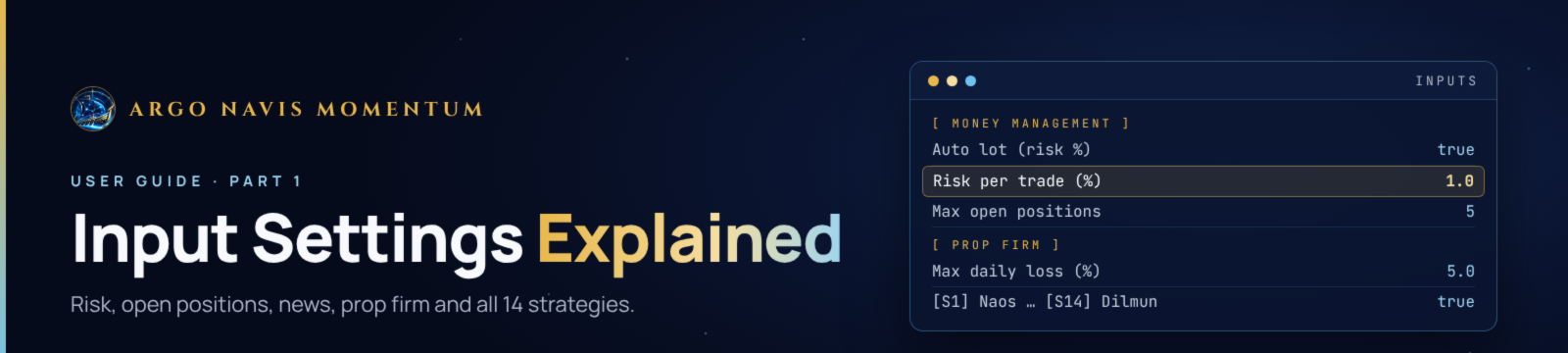

This post walks through every input of Argo Navis Momentum, group by group, in the same order you see them in the Inputs tab. For each one I explain what it does, what the default is, and when you might change it.
I kept the list short on purpose. Settings that should not be touched, such as strategy timeframes, entry distances, stop loss, take profit and trailing gaps, are built into the code. What is left are the settings that depend on you: your account size, your risk tolerance and your broker.
1. Money Management

This is the group that matters most. It decides how big every trade is.
Auto lot (risk %) — default: true
Chooses how the lot size is calculated.
- true — the EA calculates the lot from Risk per trade. Bigger balance, bigger lot.
- false — every trade uses the lot in Fixed lot. The lot never changes.
Risk per trade (%) — default: 3.0
Only used when Auto lot is true. It is the percentage of your balance you lose if a trade hits its full stop loss.
Each of the 14 strategies has its own stop loss distance, so the EA calculates a different lot for each trade to keep the risk the same. On gold, 0.01 lot gains or loses about $1 for every $1 price moves. An example with a $1,000 balance at 1% risk ($10 per trade):
| Strategy stop distance | Lot the EA opens | Real risk |
|---|---|---|
| $5 | 0.02 | $10 (1%) |
| $10 | 0.01 | $10 (1%) |
| $20 | 0.01 (minimum) | $20 (2%) |
The last row is important for small accounts. The EA cannot open less than your broker's minimum lot, so on a wide-stop strategy the real risk can be higher than what you set.
Also remember that this is risk per trade, not per day. With 14 strategies, several trades can be open at the same time. At 3%, three losing trades on the same day is already a 9% loss. That is why I treat 3% as the upper limit and suggest 0.5–1% for most accounts.
Fixed lot — default: 0.1
Only used when Auto lot is false. Every trade from every strategy opens with this lot. I recommend starting here, at your broker's minimum (usually 0.01), for at least the first week. It is the easiest way to see how the EA behaves without the lot size changing under you.
Max open positions — default: 0 (off)
Limits how many positions the EA can hold at the same time, counting all 14 strategies together. When the limit is reached, the EA stops placing new orders until a position closes.
- 0 means no limit.
- A value like 3 or 5 caps your total exposure on days when many levels break together.
Pending orders that are already on the chart can still fill, so the count can briefly go one or two above the limit on a very fast move. Use it as a soft cap, together with a sensible risk per trade.
2. Strategies

Argo Navis runs 14 breakout strategies, each named after a star in the Argo Navis constellation. Every strategy looks for its own ceiling (a recent swing high) and floor (a recent swing low) on its own timeframe, then places a Buy Stop near the ceiling and a Sell Stop near the floor.
Each switch turns one strategy on (true) or off (false). All 14 are on by default.
| Input | Swing level from | Checks entries on |
|---|---|---|
| [S1] Naos | H1 | M5 |
| [S2] Tureis | H1 | M15 |
| [S3] Avior | H4 | H1 |
| [S4] Suhail | H1 | M15 |
| [S5] Markeb | H1 | M15 |
| [S6] Azmidi | H1 | H1 |
| [S7] Ahadi | H4 | H1 |
| [S8] Miaplacidus | D1 | M15 |
| [S9] Aspidiske | D1 | H1 |
| [S10] Aiolos | D1 | H1 |
| [S11] Alsephina | H2 | H1 |
| [S12] Regor | H1 | M5 |
| [S13] Nosaxa | H2 | M15 |
| [S14] Dilmun | H2 | M15 |
The timeframes are fixed in the code, so the chart itself should stay on M5.
Should you turn strategies off? You can, but think of the 14 as one team. The short-timeframe strategies trade the intraday breaks, and the H4 and D1 strategies catch the bigger moves when intraday levels go quiet. Turning some off means fewer trades and longer flat periods, and the results will no longer match the backtest. If you want to run a subset, backtest that exact combination first.
What I would not do is switch strategies off after a losing week. That usually turns off the ones that are about to recover.
3. Trading Days

Trading-day filter — default: false
When false, the EA trades every day the market is open. When true, it only places new orders on the days you set to true below.
Monday … Sunday — default: true
One switch per day. They only matter when the trading-day filter is on. For example, set Monday to false if you want to skip the slower start of the week.
Most users can leave this filter off. The weekend protection below already handles the riskiest hours around the weekly close and open.
4. Weekend Protection

Gold can gap over the weekend, and spreads are often wide in the last and first hours of the trading week. This group keeps the EA out of those hours.
Weekend protection — default: true
Turns the protection on or off. I recommend keeping it on.
Stop before Friday close (min) — default: 240
How many minutes before the Friday close the EA stops placing new orders. At that point it also removes its pending orders, so nothing can fill into the weekend gap. 240 minutes = 4 hours.
Resume after Monday open (min) — default: 240
How many minutes after the Monday open the EA waits before placing new orders. This lets the opening gap and the wide early spreads settle first.
Positions that are already open are not closed by this filter. They keep their stop loss, take profit and trailing stop as normal.
5. News Filter

High-impact US news (NFP, CPI, FOMC and similar) can move gold $20–40 in seconds. Breakout orders placed near a level can fill at a much worse price, or get stopped out by a spike in both directions. The news filter keeps the EA out of those minutes.
On a live chart, the EA reads high-impact USD events from the MetaTrader economic calendar. Because the calendar is not available in the Strategy Tester, it also has a built-in NFP window so the filter still works in backtests.
News filter (high impact) — default: true
Turns the filter on or off. I recommend keeping it on.
Pause before news (min) — default: 60
How many minutes before the release the EA stops trading. When the pause starts, it removes its pending orders and places no new ones.
Pause after news (min) — default: 30
How many minutes after the release the EA waits before trading again, so the first spike and the wide spread can settle.
Close positions on news — default: true
- true — open positions are closed when the news pause starts. You give up some possible profit, but you are flat when the number comes out.
- false — open positions stay open through the news, protected only by their stop loss. Stops can slip on a news spike, so the loss can be larger than planned.
6. Daily Loss Limit

A brake for bad days. Once your equity has fallen a set percentage during the day, the EA stops opening new trades until the next day.
Daily loss limit — default: false
Turns the brake on or off.
Max daily loss (%) — default: 20.0
How far equity may fall during the day before the brake engages. It works like this:
- At the start of each server day, the EA records your equity as the day's baseline.
- If equity drops to baseline × (1 − Max daily loss %), new entries are blocked for the rest of that day.
- At the next server day, a new baseline is recorded and trading resumes.
Example: equity at the start of the day is $1,000 and the limit is 5%. If equity falls to $950, the EA stops opening new trades until tomorrow.
A few details:
- Open positions are not closed when the limit is reached. They finish with their own stop loss, take profit or trailing stop.
- Equity includes floating profit and loss, so open trades count toward the limit.
- The state is saved in the terminal, so restarting MetaTrader during the day does not reset the brake.
- 20% is a very loose default. If you turn this on, something like 5% is a more useful brake.
- When Prop Firm mode is on, this input is ignored. Prop Firm mode uses its own daily loss rule instead.
7. Prop Firm

Prop firm challenges fail you the moment you break a daily loss or total drawdown rule, even by a few dollars. Prop Firm mode watches those limits for you and stops the EA before you reach them.
Prop firm mode — default: false
Turns the mode on. When it is on, the normal Daily Loss Limit above is ignored and the rules below are used instead.
Starting balance — default: 0 (auto)
The balance your challenge started with. All limits are calculated from it. Leave it at 0 and the EA uses the balance at the moment you attach it. If you attach the EA partway through a challenge, enter the original starting balance here, or the limits will be wrong.
Profit target (%) — default: 8.0
When your balance reaches the starting balance plus this percentage, the EA stops opening new trades and removes its pending orders. Open positions are left to finish normally. Set it to your challenge's target.
Max daily loss (%) — default: 5.0
Your prop firm's daily loss rule, as a percentage of the starting balance. The daily baseline is your equity at the start of the server day.
Max total drawdown (%) — default: 10.0
Your prop firm's maximum loss rule, as a percentage of the starting balance, measured from the starting balance (static drawdown).
What happens at a limit. The EA keeps a safety buffer of 0.5% inside each limit. If equity reaches the daily or total floor, it closes all its positions, removes its pending orders and stops trading. It resumes the next day only if the total floor has not been hit.
Example, $100,000 challenge with the defaults:
| Rule | Your firm's limit | Where the EA stops |
|---|---|---|
| Profit target 8% | $108,000 balance | New trades stop at $108,000 |
| Daily loss 5% | $5,000 below the day's start | $4,500 below the day's start |
| Total drawdown 10% | $90,000 equity | $90,500 equity |
The EA uses static drawdown and an equity-based daily baseline, which is how many firms measure it. Some firms use trailing drawdown or a balance-based daily rule. Check your firm's rules, and if they differ, set the percentages a little tighter to stay safe.
For a challenge, I would also use a low risk per trade (0.25–0.5%) and a Max open positions limit, so a single bad day cannot reach the daily limit in one move.
8. Identification

Magic number — default: 2626
The ID the EA uses to recognise its own orders. Each strategy adds its own small offset to this number, so all 14 can be told apart in your history.
You only need to change it if you run another EA on the same account that also uses 2626. Never run Argo Navis on two charts with the same magic number. The two copies would manage and delete each other's orders.
Order comment — default: ANM
The text shown in the comment column of each order. Change it if you want to label trades from different accounts or setups.
9. Chart
Show dashboard — default: true
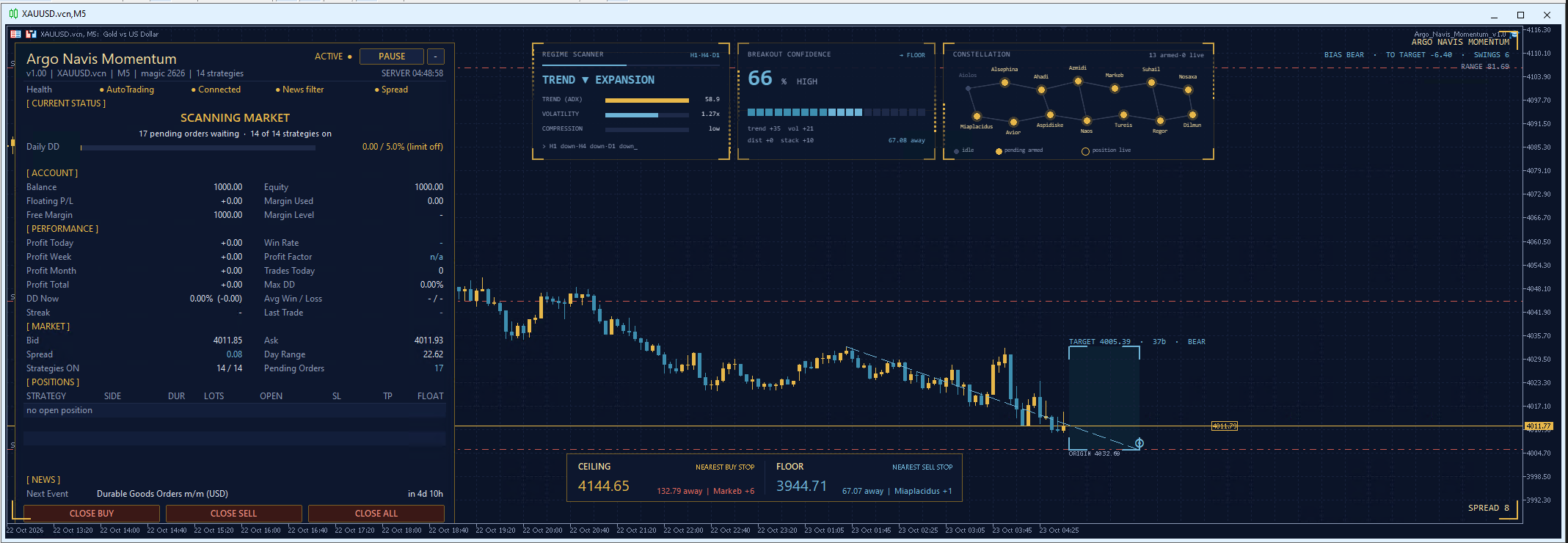
Shows or hides everything the EA draws on the chart: the dashboard, the CEILING and FLOOR lines, and the Tactical Matrix panels. These are for information only and never change how the EA trades. Set it to false for a clean chart, or to save resources on a small VPS running several terminals.
Recommended Starting Settings
If you just want a sensible place to start, here is what I would use. Anything not listed can stay at its default.
| Setting | First week | Normal account | Prop challenge |
|---|---|---|---|
| Auto lot (risk %) | false | true | true |
| Risk per trade (%) | — | 0.5–1.0 | 0.25–0.5 |
| Fixed lot | broker minimum | — | — |
| Max open positions | 0 | 0 or 5 | 3–5 |
| Strategies | all on | all on | all on |
| Weekend protection | true | true | true |
| News filter | true | true | true |
| Daily loss limit | false | true, 5% | (ignored) |
| Prop firm mode | false | false | true, your firm's rules |
Whichever column you use, run it on a demo account with your own broker first, then go live small. Settings decide how big the swings are. They do not remove them.
In the next post I will cover what you see on the chart: the dashboard, the CEILING and FLOOR lines, and the Tactical Matrix.
Argo Navis Momentum can lose money. Trading gold with leverage carries a high level of risk. Only trade money you can afford to lose.
Get Argo Navis Momentum
Argo Navis Momentum is available on the MQL5 Market for MetaTrader 5.
- 14 breakout strategies on XAUUSD, from M15 to D1 swing levels
- Stop loss and take profit on every order, break-even and trailing stop
- No martingale, no grid, no averaging
- News filter, weekend protection, daily loss limit and Prop Firm mode built in
- On-chart dashboard with CEILING and FLOOR lines and the Tactical Matrix
You can download the free demo and run it in the Strategy Tester before you buy.
Product page: Argo Navis Momentum on MQL5 Market
After purchase, send me a private message on MQL5 and I will help you with setup.




