Order manage
- Utilities
- Version: 1.12
- Activations: 20

Order Manage MT5 is an Expert Advisor for pending order management and open position management in MetaTrader 5. It monitors specified levels, cancels pending orders when their conditions are met, and can partially close positions while moving Stop Loss to the entry price.
The EA performs the following actions:
-
Cancels Buy Limit and Sell Limit orders if price reaches Take Profit before execution starts.
-
Cancels Buy Stop and Sell Stop orders if price reaches Stop Loss before execution starts.
-
Closes a configured part of a position when price covers a specified percentage of the distance from entry to Take Profit.
-
Moves Stop Loss to the entry price — Breakeven — when the same trigger is reached.
-
Manages the chart symbol or all account symbols, with filtering by Magic Number.
By default, management starts at 50% of the distance to Take Profit: the EA closes 50% of position volume and moves Stop Loss to entry. Partial Close and Breakeven can be enabled independently.
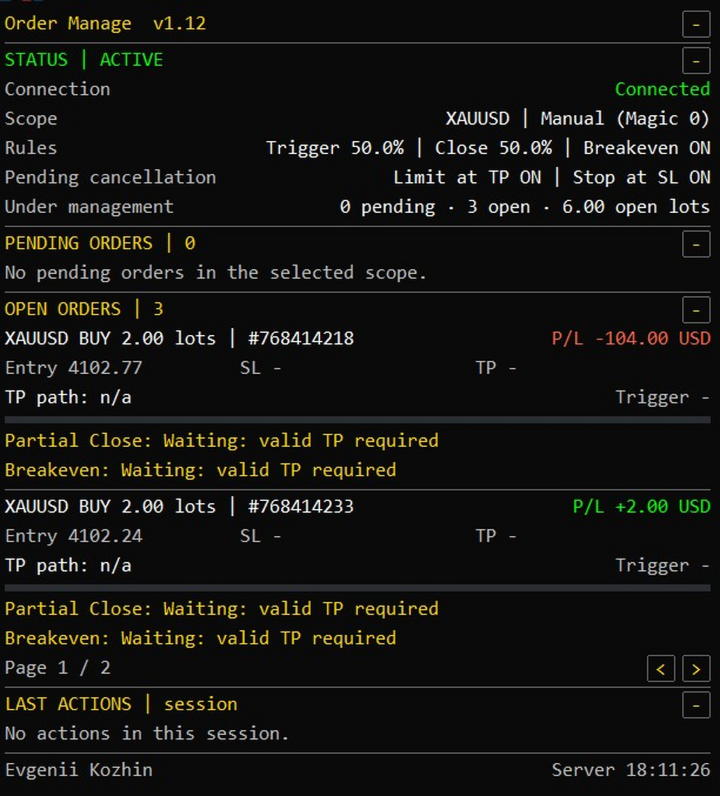
The panel displays:
-
Current EA status and trading availability.
-
Selected management scope and enabled rules.
-
Numbers of pending orders and open positions.
-
Total open-position volume, excluding pending order volume.
-
Symbol, direction, ticket, volume, entry price, SL and TP for each eligible order or position.
-
Current floating profit or loss of open positions.
-
TP Path — the percentage of the entry-to-Take-Profit distance covered.
-
Separate Partial Close and Breakeven statuses.
-
Recent actions and messages from the current session.
The panel and its sections can be collapsed. Order and position lists use page navigation. Position, width, font and colors can be adjusted through the inputs. Collapsing or hiding the panel does not stop management.
The EA respects the broker's minimum volume and volume step. For example, with a minimum and step of 0.01 lot, it closes 0.02 from a 0.04-lot position and 0.01 from a 0.03-lot position. If the volume cannot be split correctly, Partial Close is skipped while Breakeven remains available. An already more protective Stop Loss is preserved.
Management state is retained after restarting the EA or the same terminal. The remaining volume is not repeatedly reduced by the same percentage. After an uncertain server response, the EA waits for confirmation of the previously submitted partial-closing request.
One chart hosting the EA is sufficient for all-symbol management. The terminal or VPS must be running and connected to the server, and trading permissions must be enabled. Checks run on a one-second timer and on ticks of the EA's chart. The chart timeframe does not affect the management rules.
The trader specifies the entry, volume and initial SL/TP. The initial position-management trigger requires valid TP. Limit cancellation requires valid TP; Stop cancellation requires valid SL. Before-entry cancellation rules exclude already partially filled orders and Buy/Sell Stop Limit orders. On netting accounts, the aggregate position for each symbol is managed.
Breakeven uses the entry price without compensating for commission or swap. Broker restrictions can delay SL modification or request execution. Version 1.12 does not implement OCO: opening one opposing pending order does not automatically cancel the other.
INPUT PARAMETERS
Management scope
- Enable order and position management — enables or pauses order and position management. Default: true.
- Chart symbol only; false = all symbols — true: manage only the chart symbol; false: manage all account symbols. Default: true.
- Magic filter: 0 = manual; -1 = all; other = exact Magic — Magic Number filter: 0 selects manual trades with Magic 0; −1 accepts any Magic; a positive number selects that exact Magic. Default: 0. Minimum allowed value: −1.
Pending order cancellation
- Delete Buy/Sell Limit when TP is reached before entry — enables cancellation of Buy/Sell Limit orders when TP is reached before execution starts. Buy uses Bid ≥ TP; Sell uses Ask ≤ TP. Default: true.
- Delete Buy/Sell Stop when SL is reached before entry — enables cancellation of Buy/Sell Stop orders when SL is reached before execution starts. Buy uses Bid ≤ SL; Sell uses Ask ≥ SL. Default: true.
Open position management
- Trigger distance from entry to TP, % — trigger as a percentage of the price distance from entry to TP. Default: 50.0. Must be strictly between 0 and 100. This percentage describes price distance.
- Move Stop Loss to the entry price (Breakeven) — enables moving SL to entry after the trigger. An already more protective SL is preserved. Default: true.
- Enable partial position closing — enables partial closing after the trigger. Default: true.
- Position volume to close at the trigger, % — percentage of position volume to close, calculated at the first trigger. Default: 50.0. Must be strictly between 0 and 100. The closing volume is rounded down to the broker's volume step.
Trade execution
- Maximum allowed price deviation, points — allowed price deviation in partial-closing requests, in symbol points. Default: 50. Must be a non-negative integer; its application depends on the broker's execution mode.
- Retry interval after a confirmed rejection, seconds — delay between permitted trading retries, in seconds. Default: 5; minimum: 1. Does not change the one-second scan timer. An uncertain partial-closing response requires confirmation before a retry.
Panel layout
- Show the Order Manage panel — displays or hides the panel. Enabled management continues when the panel is hidden. Default: true.
- Chart corner used to anchor the panel — panel anchor corner: top left, bottom left, top right or bottom right. Default: top left.
- Horizontal panel offset, pixels — horizontal offset from the selected corner, in pixels. Default: 8. Minimum: 0.
- Vertical panel offset, pixels — vertical offset from the selected corner, in pixels. Default: 18. Minimum: 0.
- Panel width, pixels; fitted to chart width — panel width, in pixels. Default: 620. Allowed range: 320–1600. The displayed width is fitted to the chart width.
- Panel inner padding, pixels — inner panel padding, in pixels. Default: 10. Allowed range: 4–24.
- Panel font size — panel font size. Default: 10. Allowed range: 8–24.
- Panel line height, pixels — row height, in pixels. Default: 20; minimum: 12. The effective height can increase to accommodate the selected font.
- Panel font; a monospaced font is recommended — font name. Default: Consolas. Must not be empty; a monospaced font is recommended.
- Pending/open orders per page; reduced on short charts — maximum number of cards per page in each list. Default: 2. Allowed range: 1–10. The count is reduced when chart height is insufficient.
- Latest session actions shown when expanded — number of recent events shown when LAST ACTIONS is expanded. Default: 3. Allowed range: 1–8. Events belong to the current session.
- Start with only the title bar visible — starts the panel collapsed, with only its title bar visible. Default: false. Does not affect management.
Panel colors
- Main panel text — main text color. Default: White.
- Section headings and waiting status — color of headings and waiting statuses. Default: Gold.
- Positive profit and completed protection — color of positive profit and completed protection. Default: Lime.
- Negative profit and blocked actions — color of negative profit and blocked actions. Default: Tomato.
- Secondary text and footer — color of secondary text and the panel footer. Default: Silver.
- Panel background — background color. Default: RGB 10, 10, 10 — nearly black.
- Panel border and separators — border and separator color. Default: DimGray.
- Neutral progress track — color of the unfilled TP Path track. Default: RGB 42, 45, 50.
- Entry-to-TP progress fill — color of the filled TP Path bar. Default: SteelBlue.
All switches use true to enable and false to disable. Invalid values covered by startup validation prevent the EA from starting.