Super Hybrid Trinity EA
- Experts
-
Bashar Taisir Saleh Al Zubaidi
 Over the years, I have tested and evaluated hundreds of Expert Advisors available on the market, including several premium and high-priced systems. While many looked impressive in backtests or marketing materials, I often found that real trading conditions exposed weaknesses in consistency, risk
 - Version: 1.58
- Updated: 30 September 2026
- Activations: 5
Super Hybrid Trinity EA
Super Hybrid Trinity EA is a multi-strategy Expert Advisor for MetaTrader 5, combining twelve trading modules, shared money management, and an interactive chart dashboard.
The system brings together individual-entry strategy, A1–Scalping, and nine basket-management strategies, B1–B11. Each strategy uses separate trade identification, allowing the EA to track its positions and apply the corresponding entry, exit, and management rules.
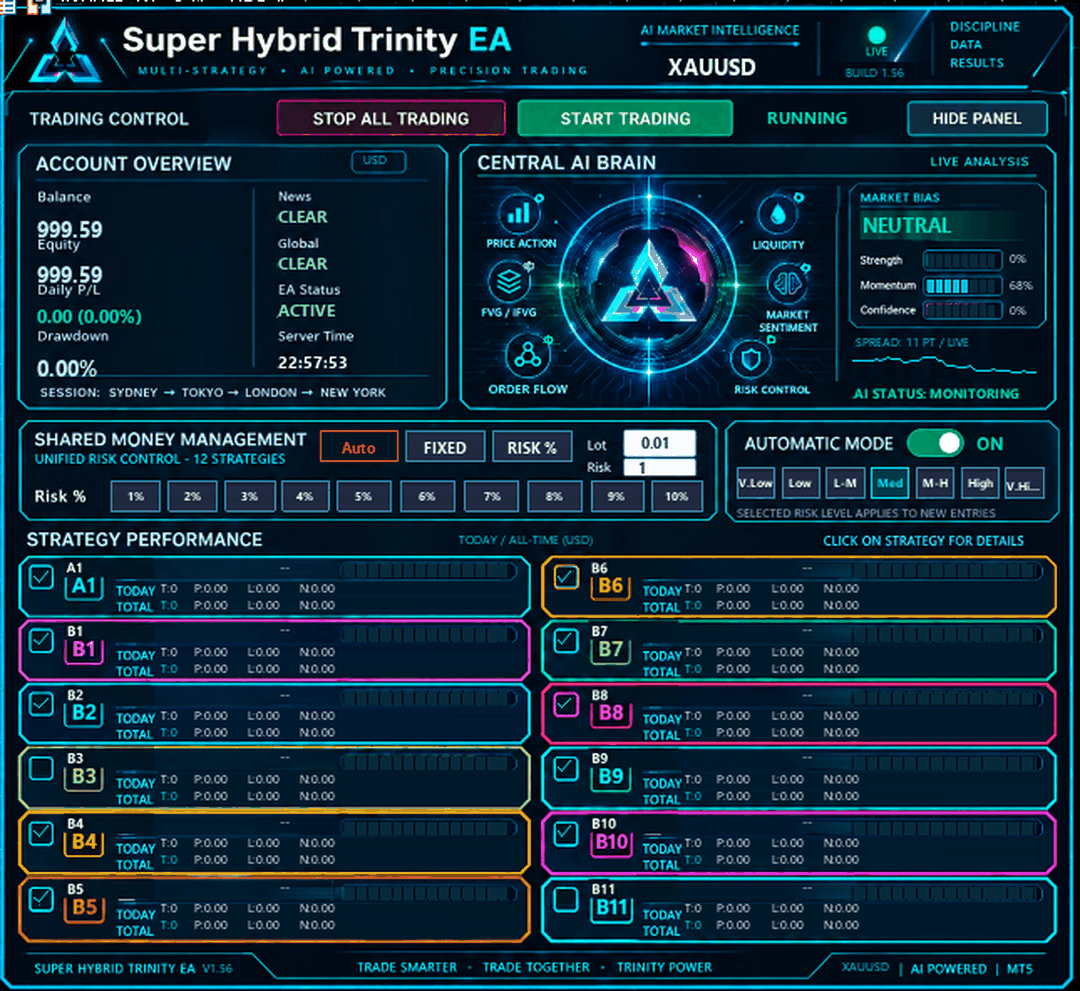
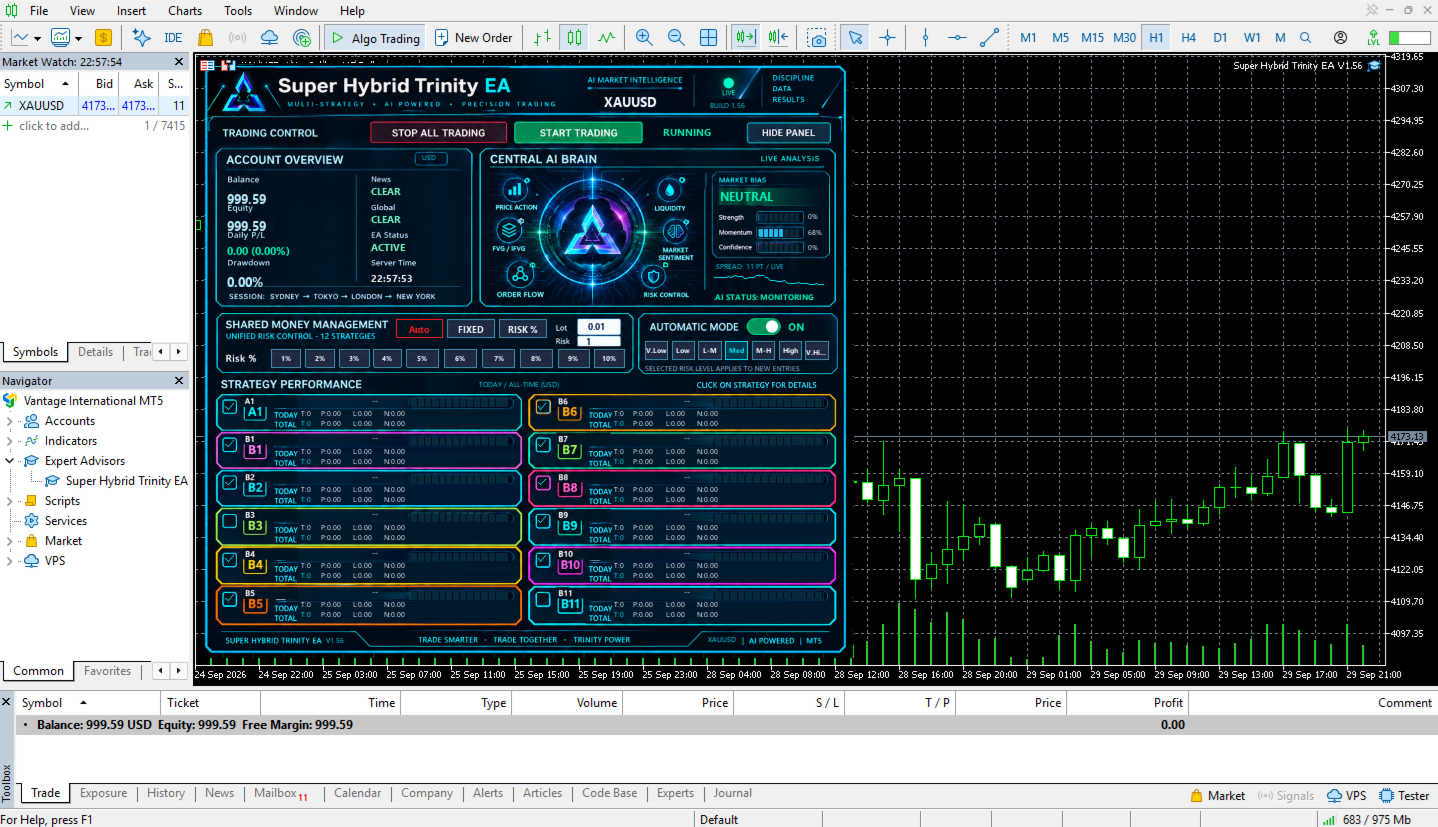
The Daily Mimic Panel provides a central workspace for monitoring the account, reviewing strategy results, controlling new trading activity, and adjusting position sizing.
Live Trading Signal:https://showmytrades.com/account/super-hybrid-trinity-ea
Strategy architecture
The EA organizes its trading logic into two groups with different position-management methods.
A1 Scalping use predefined price-level entry conditions. Positions are opened with individual stop-loss and take-profit levels, followed by trailing-stop management when the applicable conditions are reached.
B1–B11 use strategy-specific market conditions evaluated across internally defined timeframes. Each B strategy can establish a basket and add positions when its grid-distance conditions are satisfied. Basket management evaluates the combined position structure and the applicable target.
B1–B11 use grid trading and do not place a hard stop loss on each position. Additional grid entries increase exposure. Extended adverse price movements can therefore result in substantial drawdown.
The EA includes three predefined B-strategy selections—Orion, Lyra, and Atlas—and a Custom selection for configuring the individual B strategies through Inputs.
Shared money management
A common sizing framework serves both strategy groups. The panel provides three modes, with only one active at a time.
Fixed Lot uses the lot value entered in the panel as the base volume for subsequent entries. The value must comply with the symbol’s minimum volume, maximum volume, and volume step.
Risk % calculates the initial entry size from the selected percentage of account balance and the applicable sizing distance. Users can enter a percentage directly in the Risk field or select a shortcut from 1% to 10%.
For A strategies, the calculation uses the initial stop-loss distance. For B strategies, it uses an internal reference distance of 15 price units. This reference is used for sizing only; it does not place a stop-loss order.
The selected percentage is not a combined account-risk limit or a maximum loss limit for an entire grid basket. Actual exposure can increase as additional positions are opened.
Auto calculates the lot size from account balance using one of five automatic sizing presets:
-
Very Low Risk
-
Low Risk
-
Medium Risk
-
High Risk
-
Extreme High Risk
These presets represent progressively larger balance-based position sizes. They are not guaranteed loss percentages. Automatic mode controls lot calculation; it does not independently optimize the trading strategies.
Broker volume constraints and margin checks continue to apply. Where the calculated volume is below the permitted minimum, the EA does not increase a risk-sized order simply to force an entry.
Interactive sizing controls
The Shared Money Management section displays the active mode and its associated settings.
Selecting Fixed, Risk %, or Auto activates that mode exclusively. The Automatic Mode switch follows the same selection: switching it on activates Auto, while switching it off returns to the previous manual mode.
Lot and Risk values can be edited directly on the chart. The EA retains each mode’s value when the user switches between modes, allowing adjustments without repeatedly entering the same settings.
Changes apply to subsequent A entries and newly opened B baskets. Existing positions are not resized, and existing B baskets retain their original grid-sizing behavior.
Panel changes apply during the current EA session. Reinitializing the EA reloads the values configured in Inputs.
Daily Mimic Panel
The chart dashboard combines account information, trading controls, strategy statistics, and operating-status information in one interface.
The Account Overview displays balance, equity, the EA’s daily profit or loss, the current balance-to-equity drawdown, and server time. Account balance and equity are account-wide values, while the EA’s trading statistics relate to its identified trades on the chart symbol.
The Strategy Performance area presents daily and all-time results for each strategy, including trade counts and profit, loss, and net-result figures. Statistics depend on the trading history available to the terminal.
Individual strategy switches control permission to begin new trading cycles. Pausing a strategy does not abandon management of its existing positions.
The panel scales to the available chart area and includes a Hide/Show control. Hiding the panel does not disable trading or position management. Its graphics are embedded in the EA, so separate image files are not required.
Centralized analysis display
The central visualization summarizes the EA’s available strategy data and operating conditions. Interactive areas provide additional information about the corresponding status.
The display includes directional summaries, signal availability, spread information, and trading restrictions. Its indicators are summaries of programmed conditions; they should not be interpreted as probabilities of a profitable trade.
The visualization supports monitoring and understanding the EA’s current state. Trading decisions remain governed by the implemented strategy rules and selected settings.
Trade-level visualization
The EA displays applicable trade-management levels directly on the chart:
-
Blue: broker take-profit levels and available EA-managed targets.
-
Red: current stop-loss levels for A1.
-
Green: active trailing-stop or profit-lock levels.
The lines follow changes to their corresponding levels and disappear when the relevant position or basket closes. A trailing line appears only after the applicable trailing or profit-lock condition becomes active.
EA-managed targets are distinguished from broker take-profit orders. Their execution depends on the terminal remaining connected and the EA continuing to operate.
Trading schedules and execution controls
Trading-day settings determine when new entries are permitted, using broker server time. Strategy-specific schedules and filters remain part of the entry process.
The EA also applies its existing spread, margin, and volume checks. An enabled strategy does not necessarily open a trade immediately: its signal, schedule, and execution conditions must first be satisfied.
The Stop All Trading control pauses new trading cycles. It does not immediately close open positions or suspend their management. Existing B baskets may continue to add grid positions under their established management rules.
The displayed drawdown is a monitoring value. An automatic account-wide drawdown stop is not enabled in the current build. Programmed news-date filters are not a live economic-calendar service.
Platform and account requirements
Super Hybrid Trinity EA requires MetaTrader 5 and a hedging account. The current build does not support netting accounts because its strategies rely on separately identified positions on the same symbol.
Algorithmic trading must be enabled, and the terminal must remain connected while the EA manages trades. Use one instance per account and symbol for the same strategy identifiers to avoid overlapping management.
The strategies use internally defined calculation timeframes. The chart timeframe does not replace those internal settings.
Before using the EA with XAUUSD, check the broker’s contract size, price precision, volume limits, trading costs, and margin requirements. Results and exposure can differ between brokers even when the same panel settings are selected.
Testing and risk considerations
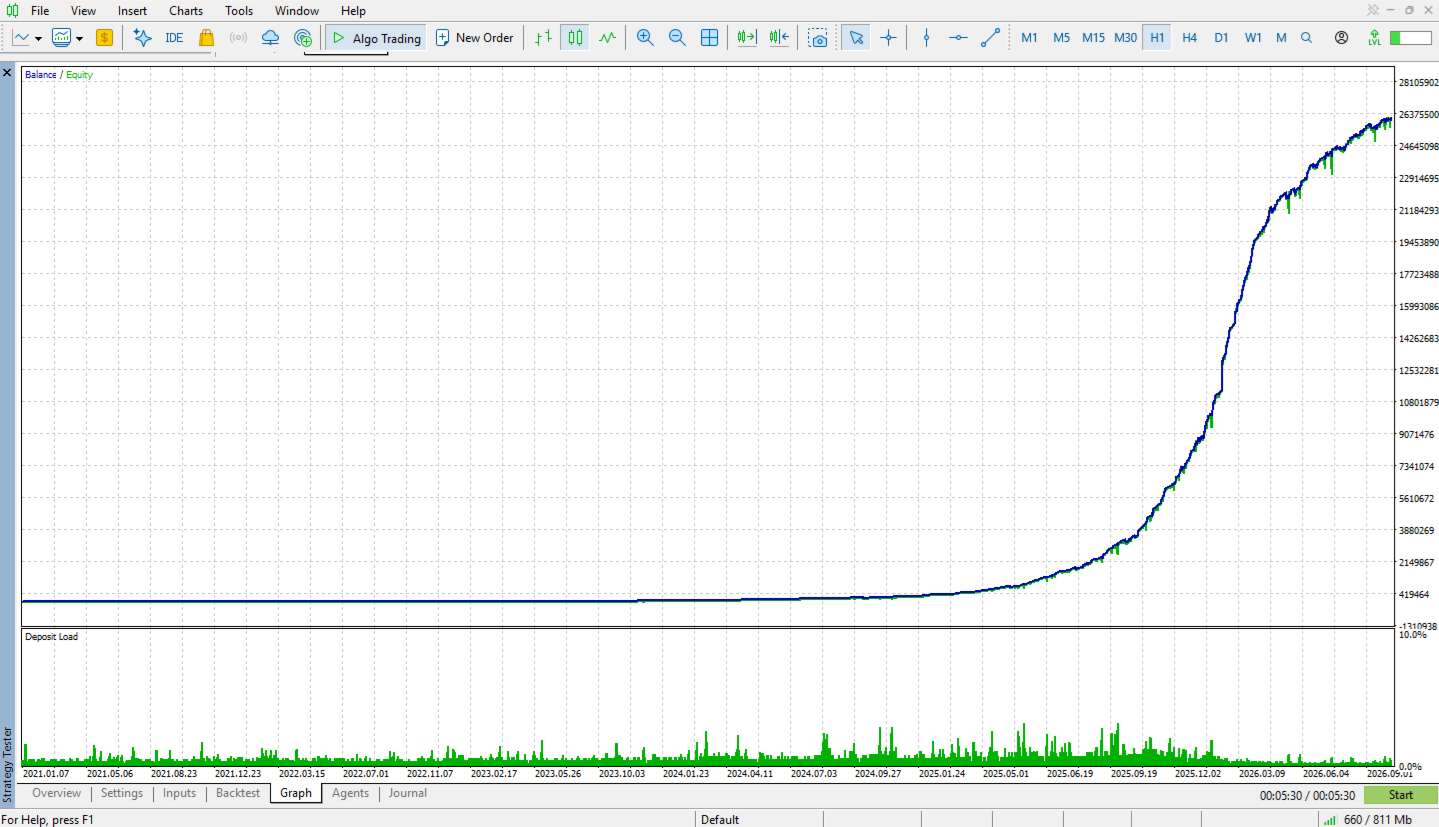
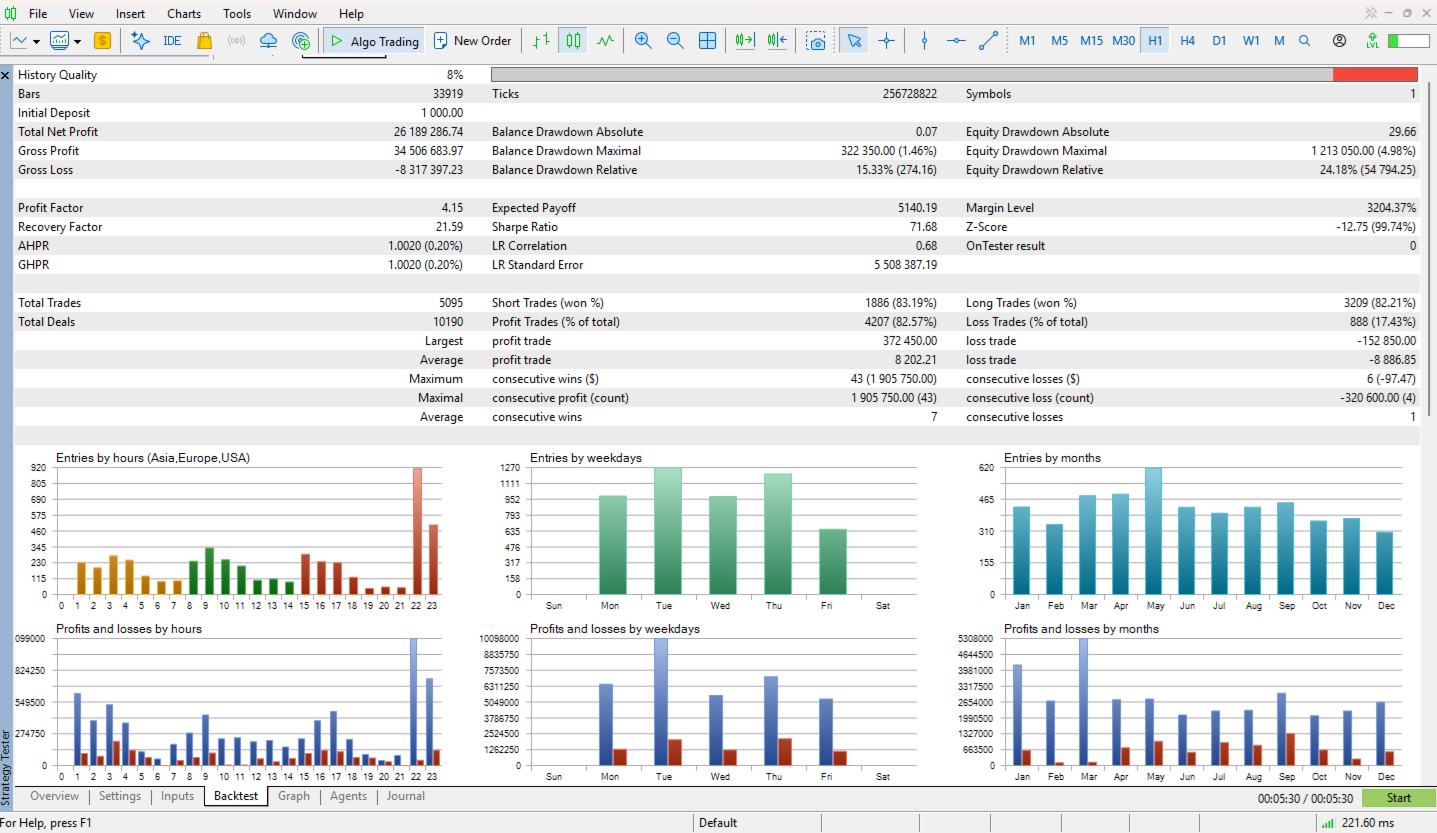
Evaluate the EA in Strategy Tester and on a demo account before live deployment. Testing should reflect the intended broker specifications, strategy selection, account balance, and execution costs.
There is no single deposit amount appropriate for every broker or strategy combination. Selecting more strategies or larger sizing presets can increase simultaneous exposure and margin requirements.
Trading involves the risk of losing capital. Grid trading can accumulate substantial exposure during sustained adverse movements. Historical and demo results do not guarantee future performance.
Product support
Support is available through the MQL5 product comments and MQL5 messaging system.
For technical assistance, provide the EA version, symbol, account accounting mode, relevant settings, and the corresponding Experts or Journal messages. For Strategy Tester issues, include the test period, modeling method, and broker symbol specifications.