VibeFox SuperTrend
- Indicators
- Version: 1.10
- Updated: 2 July 2026
- Activations: 5

VibeFox Supertrend — dynamic ATR trend bands with adaptive multiplier and entry signals
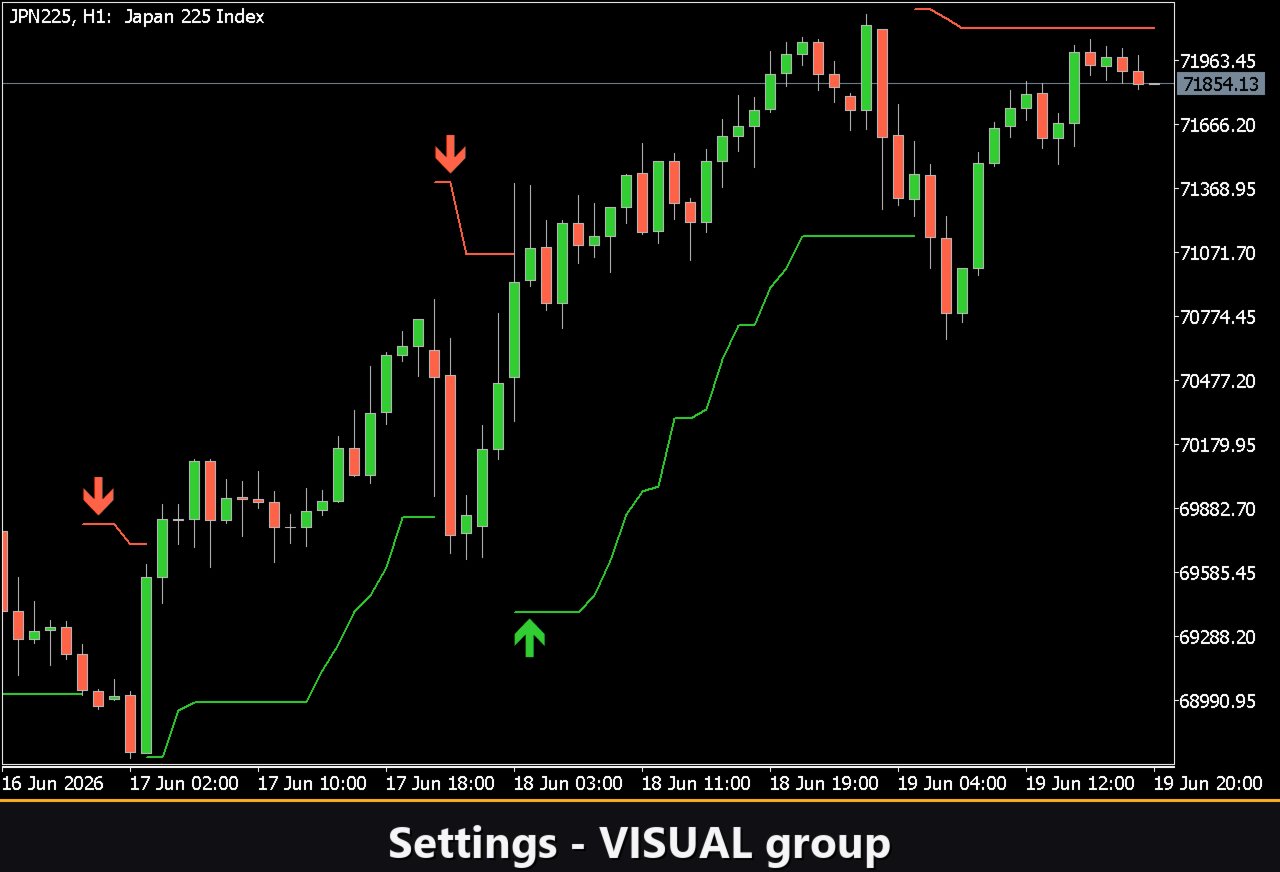
VibeFox Supertrend is a real-time overlay indicator for MetaTrader 5. It draws a single dynamic line directly on the price chart: the line runs below the bars in an up trend and above them in a down trend, switching sides only when the trend genuinely reverses. ATR-based bands determine how far the line sits from price, so the indicator naturally widens on volatile markets and tightens when the market quiets down. An optional adaptive multiplier (Kaufman Efficiency Ratio) tightens the band further in trending conditions and widens it in choppy ones, reducing false flips. All controls are gathered in one modern interactive canvas panel.
What Supertrend measures
The indicator tracks one thing: the direction of the dominant trend and how far away from price the dynamic band sits. On each bar the band is computed from the Average True Range multiplied by a configurable factor, then anchored to the midpoint of the bar (hl2 by default, or Close). The rule is simple: as long as the closing price stays on the correct side of the band, the trend holds. The moment price closes through the band from the other side the trend flips, the line jumps to the opposite side and changes color.
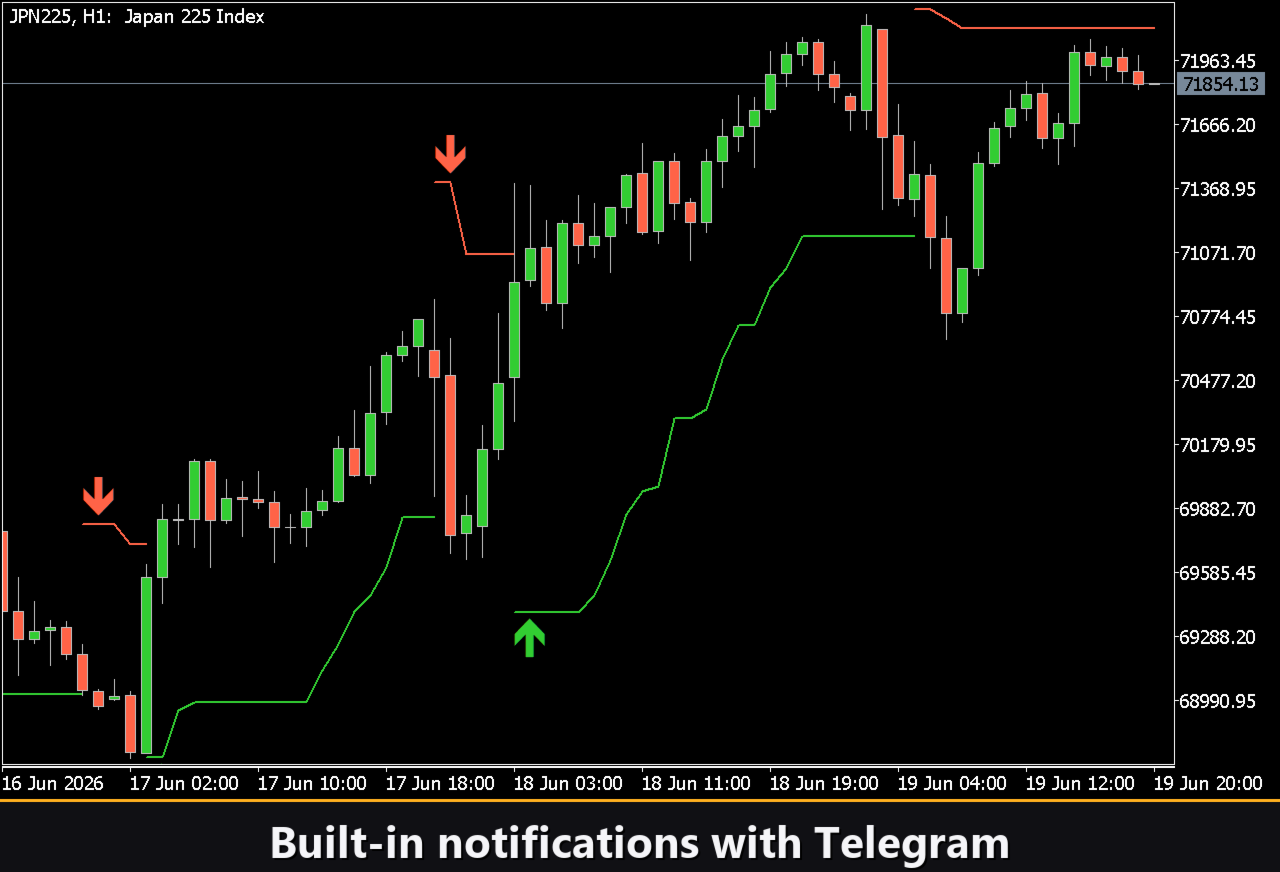
Reading the chart is instant. A green line below the candles means the market is in an up trend and the line acts as a dynamic trailing stop. A red line above the candles means the market is in a down trend. The moment the line switches side a flip has occurred — and that is the entry point.
Adaptive multiplier
When Adaptive is on, the ATR multiplier is no longer fixed. It scales with the Kaufman Efficiency Ratio: in a clean, directional market the ER is high and the band tightens, keeping the line close to price and capturing more of the trend. In a choppy, sideways market the ER is low and the multiplier grows, pushing the line further from price and filtering out noise. The Sens (Sensitivity) parameter controls how strongly the ER shifts the multiplier — a value of 0 disables the adjustment entirely, while 3 applies the maximum shift.
Multi-timeframe support
The TF control selects the timeframe on which the ATR and Supertrend are calculated. Setting it to anything other than Current makes the indicator compute on a higher timeframe while drawing on the current chart — useful for confirming the dominant trend direction without switching charts.
Entry points
VibeFox Supertrend marks the precise moment a trend changes direction, placing a colored arrow on the price chart so the entry is visible at a glance.
Trend Flip
The only entry type is the Trend Flip: it fires on the bar where the Supertrend line switches sides. When the line flips from red (above price) to green (below price), a BUY marker is placed. When it flips from green to red, a SELL marker is placed. Enable the flip with the Entry toggle. The marker color and size are set separately with Buy, Sell and Size.
Full visual control
Every aspect of the trend line is tunable. The colors for the up-trend and down-trend states are set independently with their own transparency sliders — you can make one side subtle and highlight the other. The Width control adjusts the line thickness, and Style chooses between Solid, Dash, Dot and compound variants. Enabling Fill shades the area between the trend line and the price, which makes the current trend state stand out even more. The small flip Arrows option draws a tiny directional arrow at every reversal point independently of the full entry signal.
Interactive on-chart panel
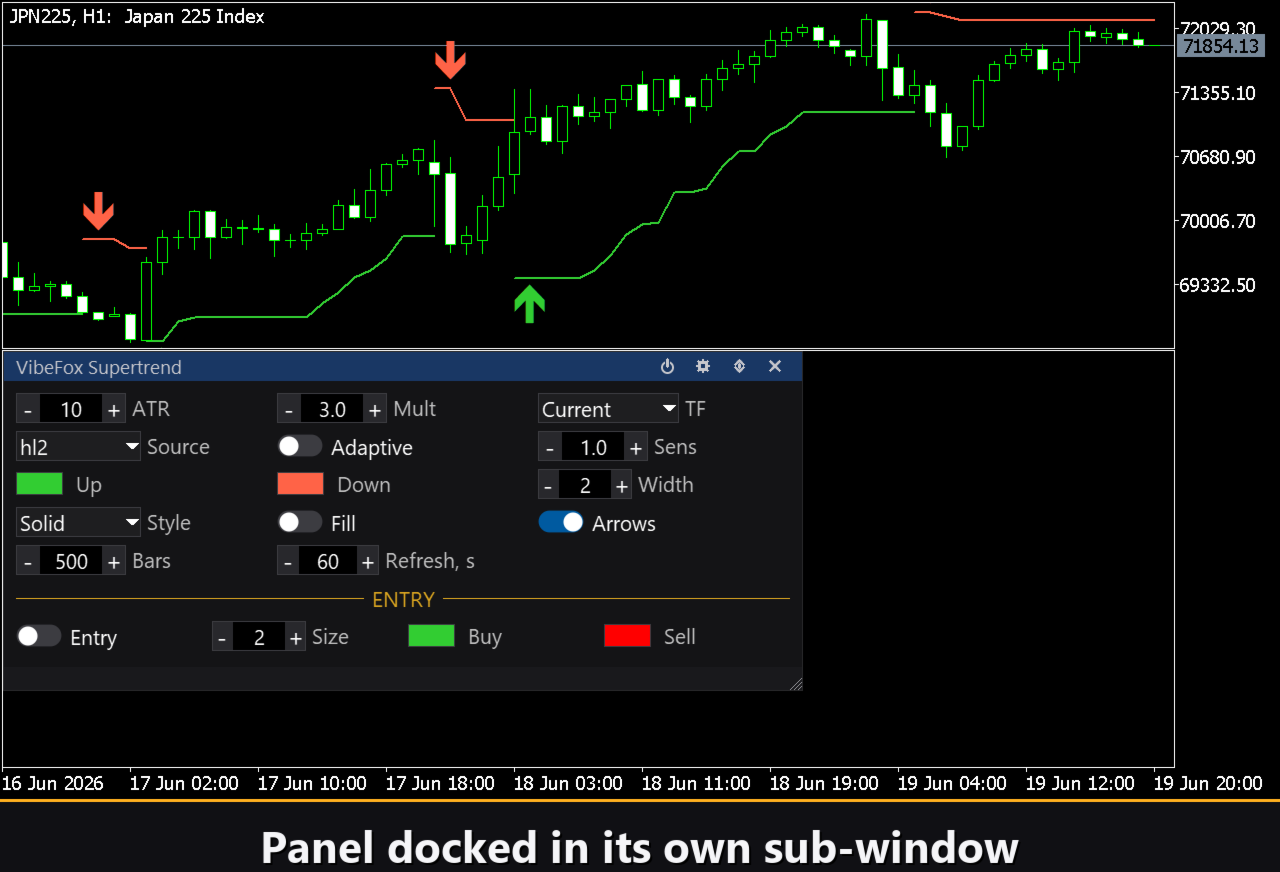
The whole interface is a smooth canvas-based panel built for fast mouse control. All parameters are arranged in compact rows and the entry block is separated with its own gold ENTRY heading. The panel header holds the control icons.
Power — turns the drawing of the trend line and all signals on and off without removing the indicator from the chart.
Settings (gear) — opens and closes the Settings section.
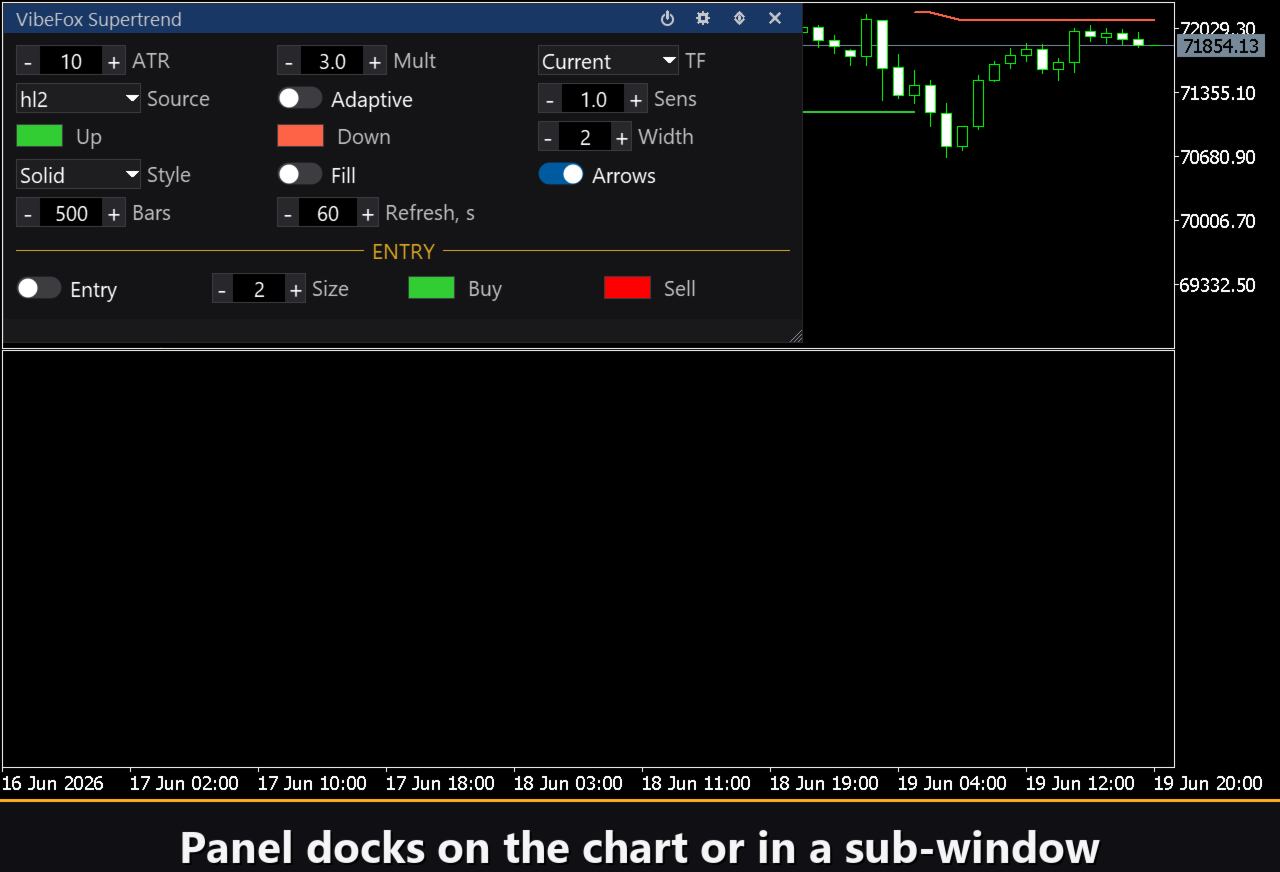
Updown (arrows) — moves the panel between a separate subwindow and the main chart.
Close (cross) — closes the indicator.
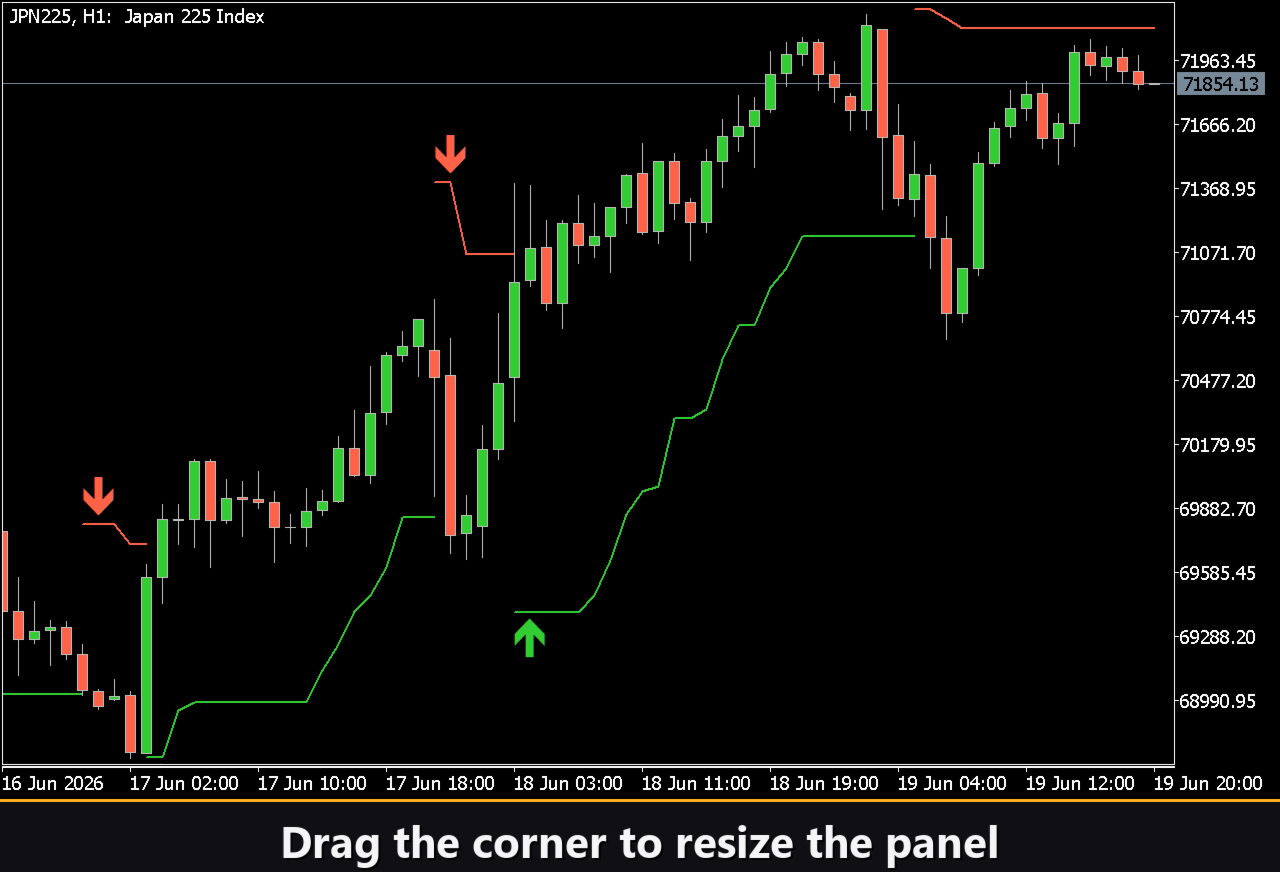
Resizable — drag the bottom-right corner to scale the panel to any width or height.
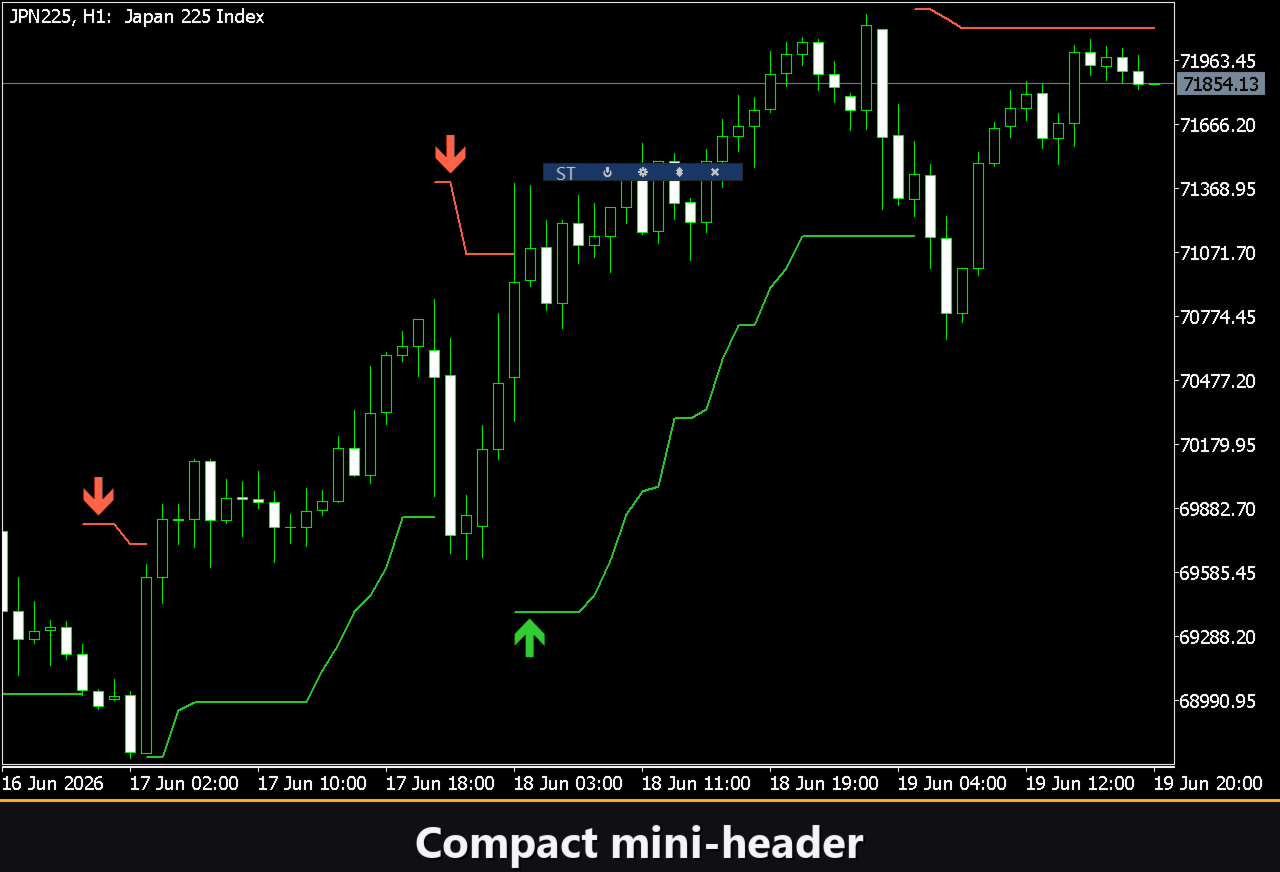
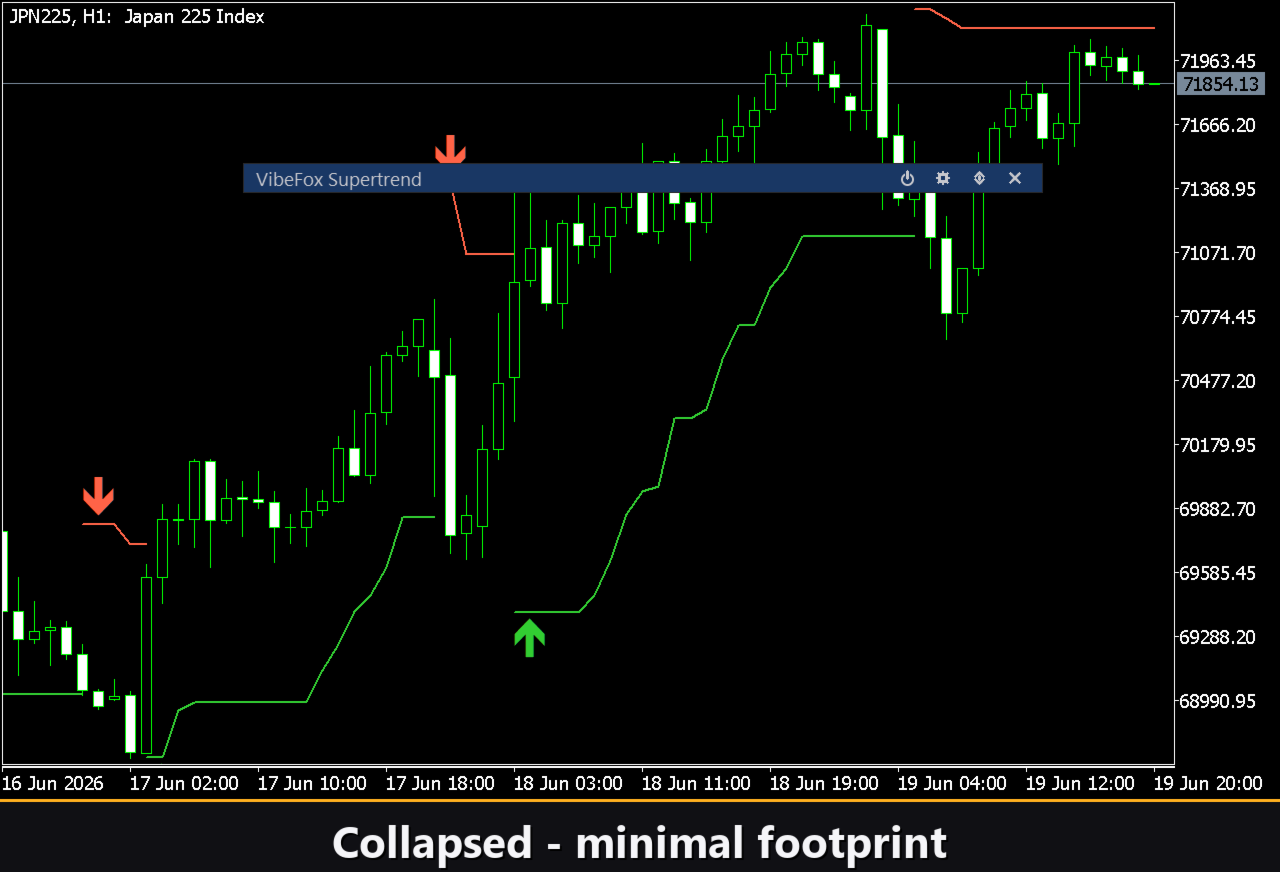
Collapsible — a double click on the header collapses the panel into a compact strip; the mini-header option keeps a small label visible when collapsed.
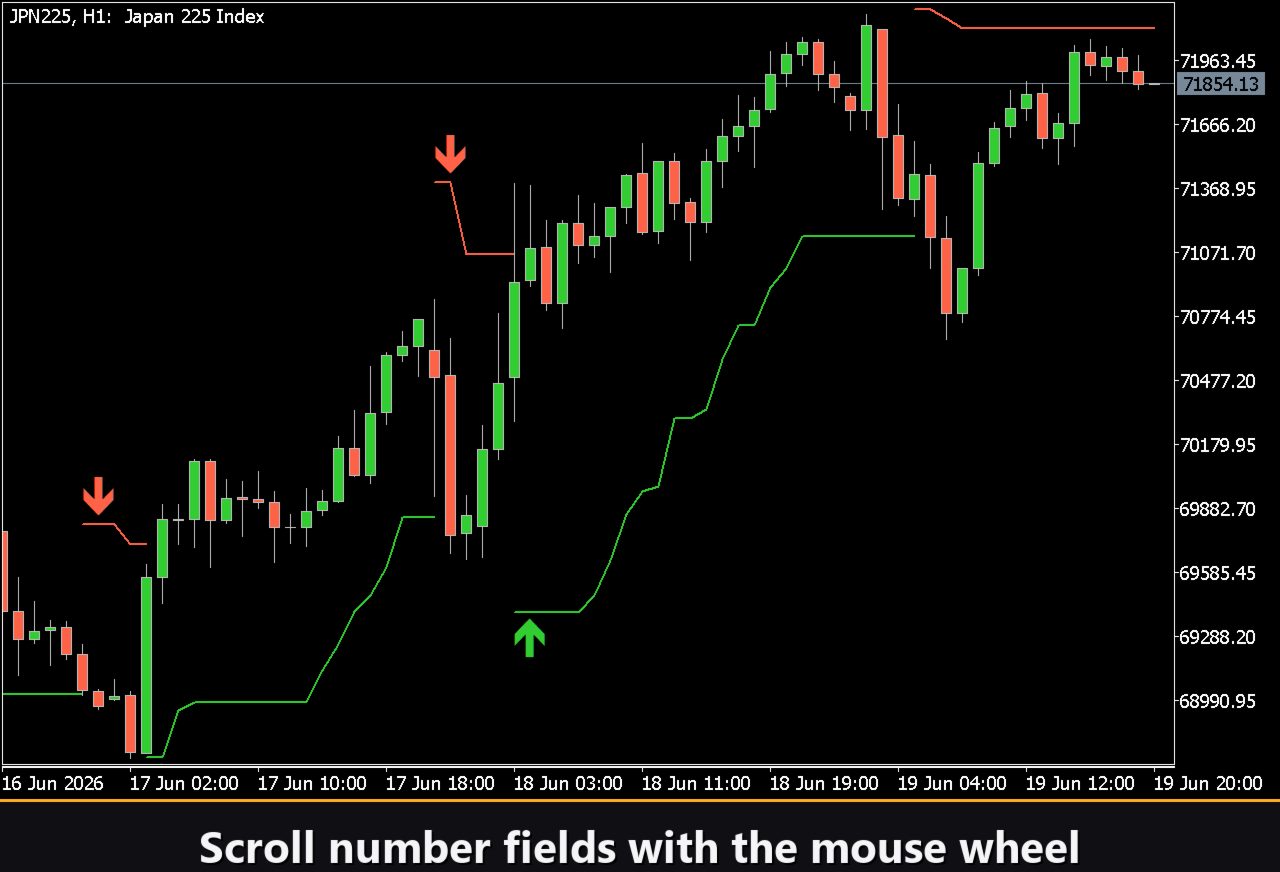
Mouse wheel — hover over any numeric field and scroll the wheel to change the value without opening the keyboard.
Settings and personalization
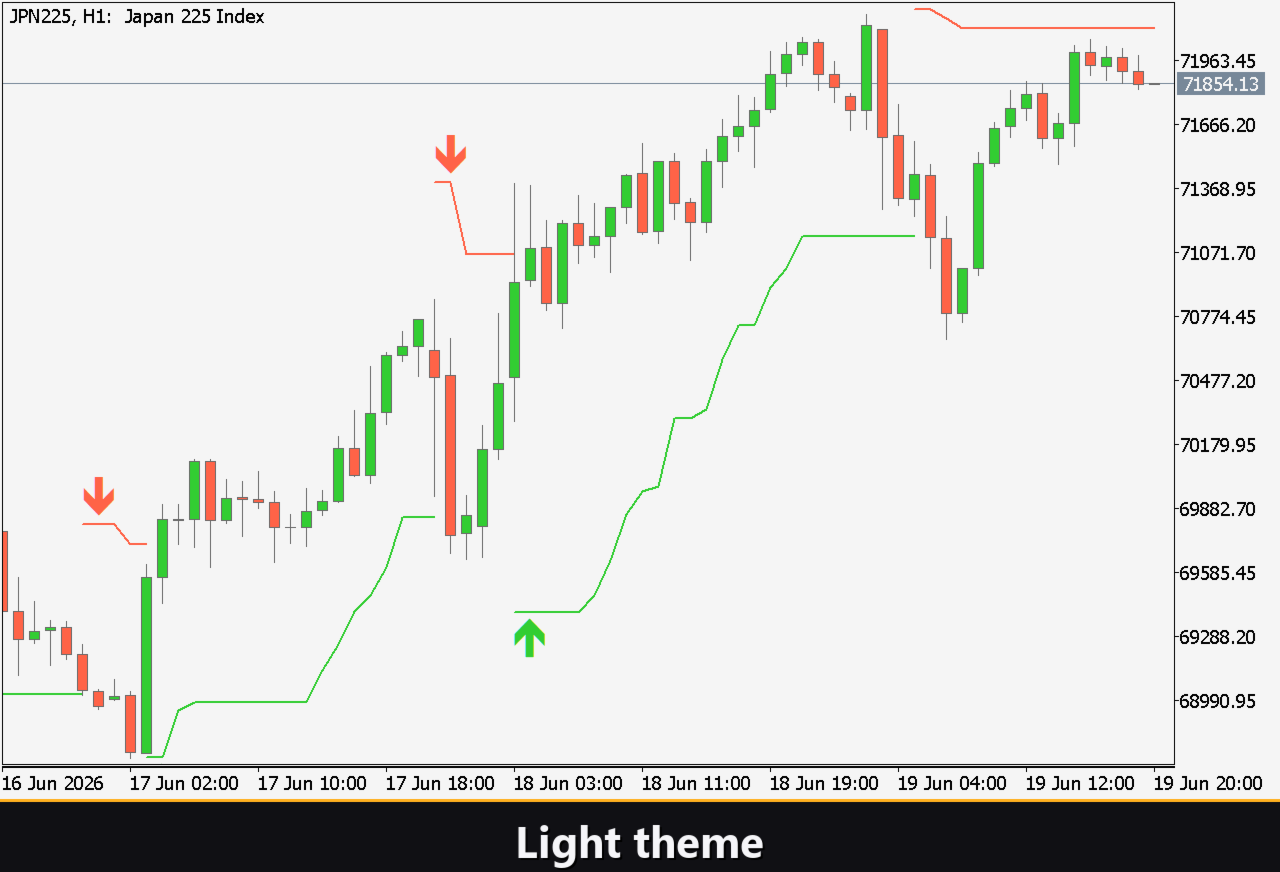
The Settings button opens a section where the panel is fitted to the workspace: a light, dark or automatic Theme, an adjustable panel Width, Header size, Row height and Font size. Hide Footer removes the status bar at the bottom. Mini Header shows a compact label when the panel is collapsed. Close outside automatically collapses the panel on a click anywhere outside it. Nearly every parameter also changes live right on the panel — the input fields on the Inputs tab only set the starting values. Running several independent copies on one chart is possible by giving each a unique Instance number.
Entry notifications
Each Trend Flip can be delivered through several notification channels that are enabled independently right on the panel.
Alert — a pop-up message inside the terminal.
Push — a mobile notification to the MetaTrader app on your phone.
Email — a letter sent through the terminal's mail settings.
Telegram — the alert text together with a chart screenshot, sent straight to your Telegram chat.
Enable only the channels you need and you will be notified the moment a new flip appears on the symbol and timeframe you are working with.
Visual history (HTML report)
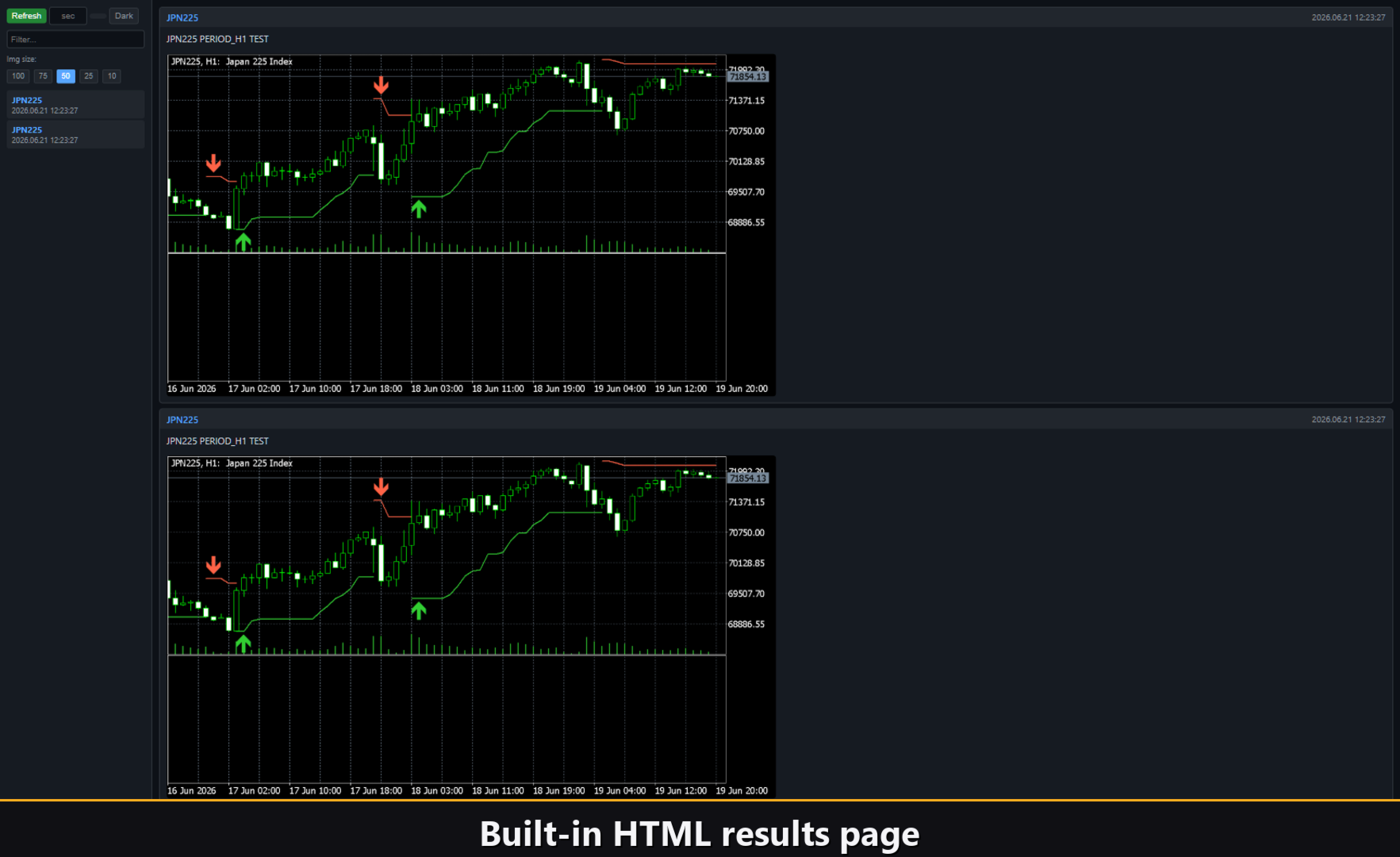
Enable the Html channel and every Trend Flip is saved to an HTML report together with a screenshot of the chart at the moment it fired. The report is stored in the terminal's Files folder under the VibeFox_Supertrend directory and opens in any browser — you get a visual log of all the flips the indicator found. A one-click trash button on the panel clears the report and its screenshots whenever you want to start over.
To find the report: open MetaTrader 5, go to File → Open Data Folder, then navigate to MQL5/Files/VibeFox_Supertrend/result.html. Open the file in any browser. To clear it, click the trash icon next to the Html checkbox on the panel.
Built-in multilingual help
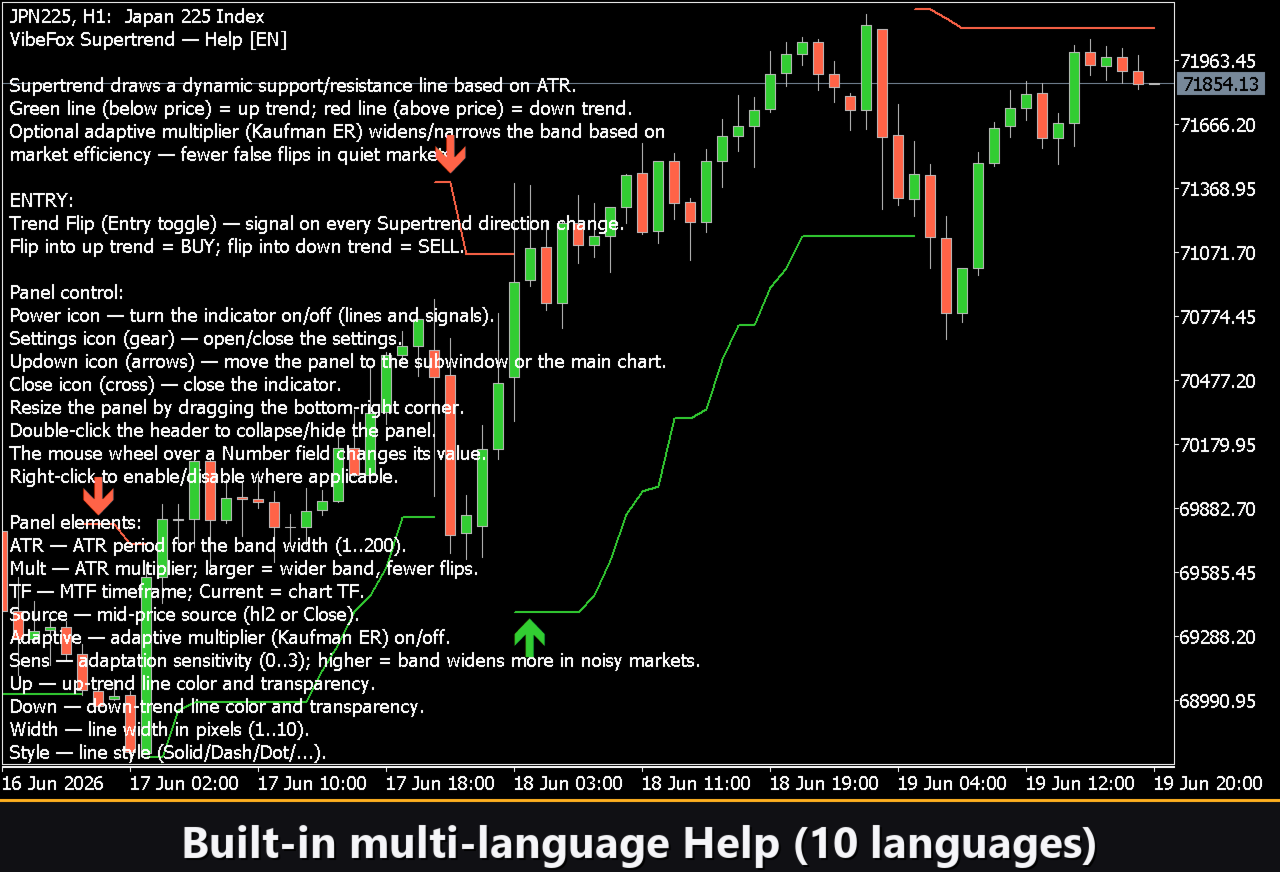
A full help page is built into the panel, available in 10 languages, so every control is explained right where you use it. Click a language button inside the Settings section to display the help text on the chart.
Parameters (Inputs tab)
Most settings can also be changed live right on the panel via the Settings button — the input parameters only set the initial values at startup.
Trend
ATR Period — number of bars for the ATR calculation, range 1..200. Default: 10.
Multiplier — ATR multiplier controlling the band distance from price, range 0.5..20. Default: 3.0.
Source (mid price) — price used as the band midpoint: hl2 (High+Low)/2 or Close. Default: hl2.
MTF Timeframe (Current = chart) — timeframe on which ATR and Supertrend are computed; Current uses the chart timeframe. Default: Current.
Adaptive
Adaptive multiplier (Kaufman ER) — when on, the multiplier scales with the Efficiency Ratio: tighter in trending markets, wider in choppy ones. Default: off.
Adaptive Sensitivity (0..3) — how strongly the ER adjusts the multiplier; 0 = no adjustment, 3 = maximum. Default: 1.0.
Visual
Up Color — color of the trend line in the up-trend state. Default: LimeGreen.
Up Transparency % — transparency of the up-trend line, 0 = opaque, 100 = invisible. Default: 0.
Down Color — color of the trend line in the down-trend state. Default: Tomato.
Down Transparency % — transparency of the down-trend line, 0 = opaque. Default: 0.
Line Width (1-10) — thickness of the trend line in pixels. Default: 2.
Fill line to price — shade the area between the trend line and the price bar. Default: off.
Flip arrows — draw a small directional arrow at each trend reversal point. Default: on.
Entry Points
Entry on Trend Flip (up=BUY, down=SELL) — enable the Trend Flip entry signal; places a BUY marker when the trend flips up and a SELL marker when it flips down. Default: off.
Marker Size (1-5) — size of the signal marker on the chart. Default: 2.
Buy Marker Color — color of the BUY entry marker. Default: LimeGreen.
Sell Marker Color — color of the SELL entry marker. Default: Red.
Notifications
Push Notification — push notification to the mobile MetaTrader terminal. Default: off.
Alert Popup — Alert pop-up window inside the terminal. Default: off.
Email — a letter through the terminal's mail settings. Default: off.
Html — saves every signal with a chart screenshot to an HTML report (Files folder, VibeFox_Supertrend directory). Default: off.
Telegram (send from result.html via JS) — send each signal to your Telegram chat (alert text plus a chart screenshot) through the HTML report. Default: off.
Telegram - bot token — the token of your Telegram bot, used to send the messages.
Telegram - chat id — the id of the Telegram chat that receives the signals.
Panel / Settings
Panel width, px (300..800) — panel width in pixels. Default: 800.
Header size (1..6) — header height in size units. Default: 1.
Theme — color theme: Auto (follows chart background), Dark or Light. Default: Auto.
Row height (px) — height of each panel row in pixels. Default: 34.
Font size — panel font size. Default: 8.
Hide Footer — hide the panel's bottom status bar. Default: off.
Mini Header on collapse — show a compact mini-header when the panel is collapsed. Default: off.
Close on click outside — collapse the panel when clicking anywhere outside it. Default: off.
Instance (unique per copy: 1,2,3...) — indicator copy number; assign a different number to each independent copy on the same chart. Default: 1.
Panel Start Window — where the panel opens at startup: Subwindow (indicator's own subwindow) or Chart (main price chart). Default: Subwindow.