Manager Orders Pro Mt5
- Utilities
- Version: 1.80
- Activations: 5

Manager Orders Pro MT5 is a professional manual order and position management panel for MetaTrader 5. The product is designed for traders who open trades manually but want better control over risk, order parameters, Stop Loss, Take Profit and position management.
The panel does not predict market direction and does not provide trading signals. Its purpose is to help the trader calculate, prepare, open and manage trades in a more structured and controlled way.
Who is this product for?
Manager Orders Pro MT5 is suitable for manual traders who need a clear and practical trading control panel directly inside the MetaTrader 5 terminal.
It can be useful for:
-
intraday traders;
-
scalpers;
-
swing traders;
-
traders working with Forex, metals, indices, CFDs and other MT5 symbols;
-
traders who manage several instruments from one chart;
-
traders who want to control risk before opening a position;
-
traders who use fixed lot trading;
-
traders who prefer risk-based position sizing;
-
traders who want faster access to Buy, Sell, Close All, Breakeven and Trailing Stop functions.
The panel is especially useful when the trader wants to control several symbols without constantly switching between charts.
What problems does it solve?
Many manual traders face the same practical problems during trading:
-
They open trades too quickly without clearly seeing the real Stop Loss and Take Profit levels.
-
They use a fixed lot without understanding the real financial risk of the trade.
-
They calculate position size manually, which can be slow and inaccurate.
-
They manage several open positions without a clear view of total risk.
-
They forget to move Stop Loss to breakeven when the trade moves in their favor.
-
They manually trail positions and may react too late.
-
They have no quick way to close all managed positions.
-
They cannot easily see whether their current risk is acceptable before opening a new trade.
Manager Orders Pro MT5 solves these problems by combining order entry, risk calculation, symbol selection and position management in one compact panel.
Main idea of the panel
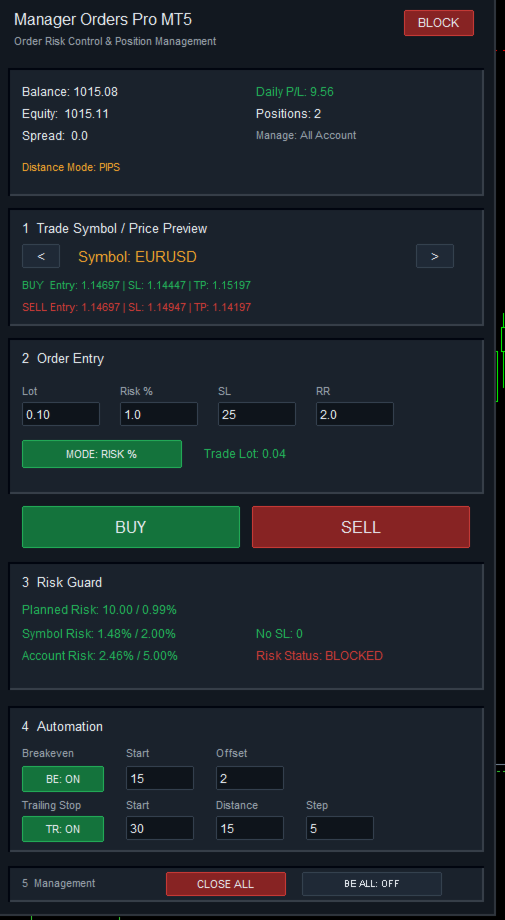
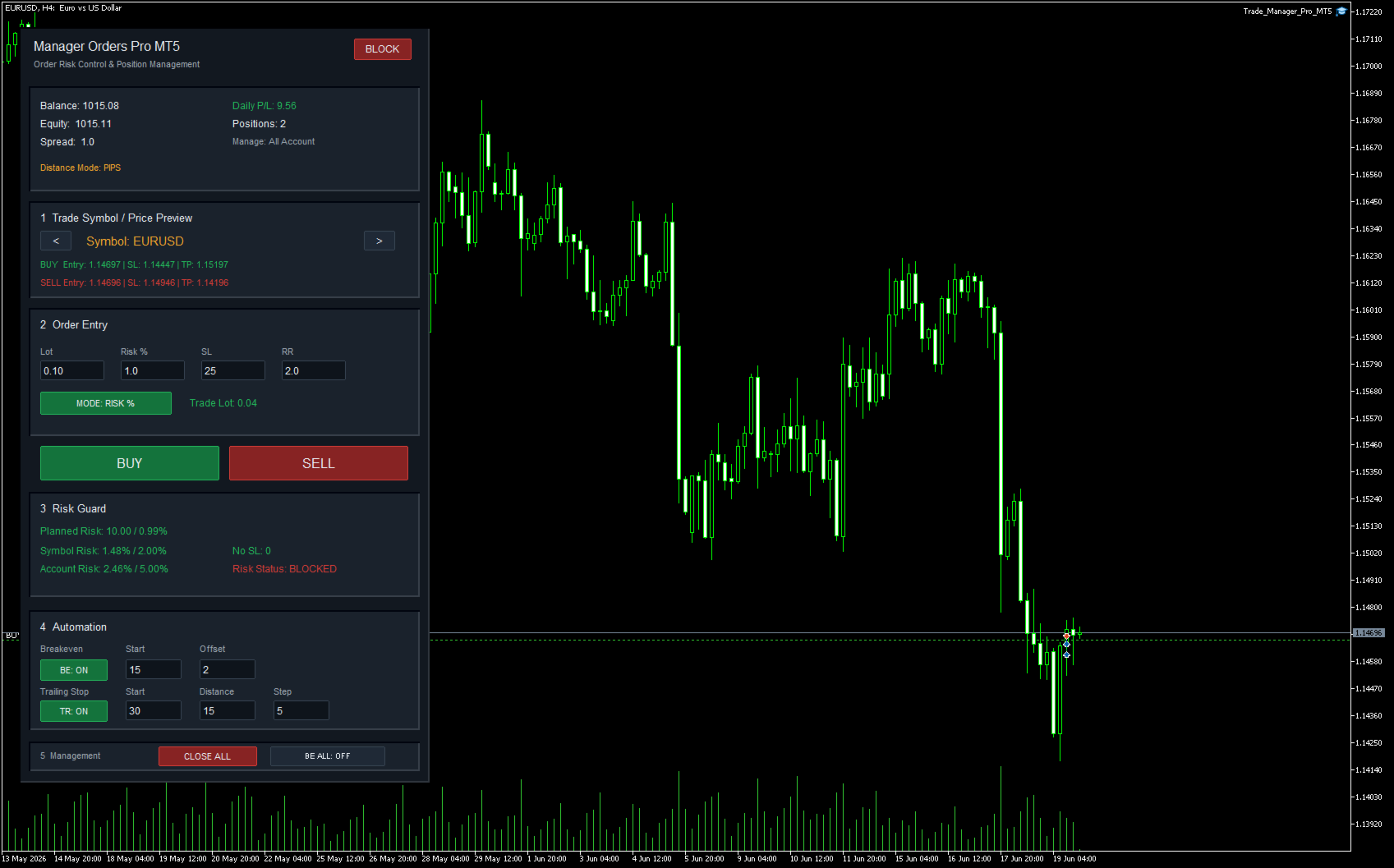
Manager Orders Pro MT5 acts as a central control panel for manual trading. The trader selects a symbol, enters the desired Stop Loss, Risk %, Risk/Reward ratio or fixed lot, and the panel calculates the planned trade parameters before the position is opened.
Before opening a trade, the panel displays:
-
selected trading symbol;
-
current Buy entry price;
-
current Sell entry price;
-
calculated Stop Loss level;
-
calculated Take Profit level;
-
trade lot;
-
planned risk in account currency;
-
planned risk as a percentage of account balance.
This helps the trader make a more informed decision before clicking Buy or Sell.
Key features
1. Multi-symbol order management
The panel can work with different symbols from one chart. The trader can define a symbol list in the input settings and switch between symbols directly from the panel using navigation buttons.
Supported management modes:
Selected symbol only
The panel manages only the currently selected symbol.
Symbols from input list
The panel manages only the symbols listed in the input settings.
All account positions
The panel can manage all open positions on the trading account.
This makes the panel useful as a central trading desk inside MetaTrader 5.
2. Buy and Sell order execution
The panel includes clear Buy and Sell buttons for manual trade execution.
Before sending an order, the panel checks:
-
whether trading is allowed in the terminal;
-
whether Expert Advisor trading is allowed;
-
whether the account allows trading;
-
whether the symbol allows trading;
-
whether the lot size is valid;
-
whether the volume follows the broker’s minimum, maximum and step requirements;
-
whether Stop Loss and Take Profit respect broker StopLevel and FreezeLevel limits;
-
whether there is enough free margin for the trade.
These checks help reduce common order execution errors.
3. Price preview before opening a trade
For the selected symbol, the panel shows a real-time preview of the future trade levels.
For Buy orders, it shows:
-
Buy entry price;
-
Buy Stop Loss;
-
Buy Take Profit.
For Sell orders, it shows:
-
Sell entry price;
-
Sell Stop Loss;
-
Sell Take Profit.
This is useful when the panel is attached to one chart but the trader is preparing an order for another symbol.
4. Fixed lot mode
In Fixed Lot Mode, the panel uses the lot size entered by the trader.
This mode is useful for traders who prefer to trade with a fixed volume, for example:
-
0.01 lot;
-
0.10 lot;
-
1.00 lot.
Even in fixed lot mode, the panel still calculates and displays the planned risk of the trade based on the selected lot and Stop Loss distance.
5. Risk percentage mode
In Risk % Mode, the panel calculates the trading lot automatically based on:
-
account balance;
-
selected risk percentage;
-
Stop Loss distance;
-
symbol tick size;
-
symbol tick value;
-
broker volume step.
For example, if the trader enters 1% risk and a Stop Loss distance, the panel calculates the closest valid lot size according to broker rules.
This helps the trader keep position sizing more consistent across different symbols.
6. Planned risk calculation
The panel displays the planned risk before opening a trade.
The planned risk is shown in two formats:
-
account currency amount;
-
percentage of account balance.
Example:
Planned Risk: 10.00 / 0.99%
This helps the trader immediately understand how much the trade may lose if Stop Loss is reached.
7. Symbol risk control
The panel calculates the current open risk for the selected symbol.
It shows:
-
current risk on the symbol;
-
maximum allowed symbol risk.
Example:
Symbol Risk: 1.25% / 2.00%
This helps the trader avoid increasing exposure on one instrument beyond the selected limit.
8. Account risk control
The panel also calculates total open risk across managed positions.
It shows:
-
current account risk;
-
maximum allowed account risk.
Example:
Account Risk: 3.40% / 5.00%
This helps the trader monitor total exposure on the trading account.
9. Risk Guard
Risk Guard is a protection system that monitors planned and open risk.
It can warn or block trading if:
-
symbol risk limit is exceeded;
-
account risk limit is exceeded;
-
there are managed positions without Stop Loss, if this option is enabled.
The panel displays the current risk status:
SAFE
Risk is within the selected limits.
WARNING
There is a risk-related condition that requires attention.
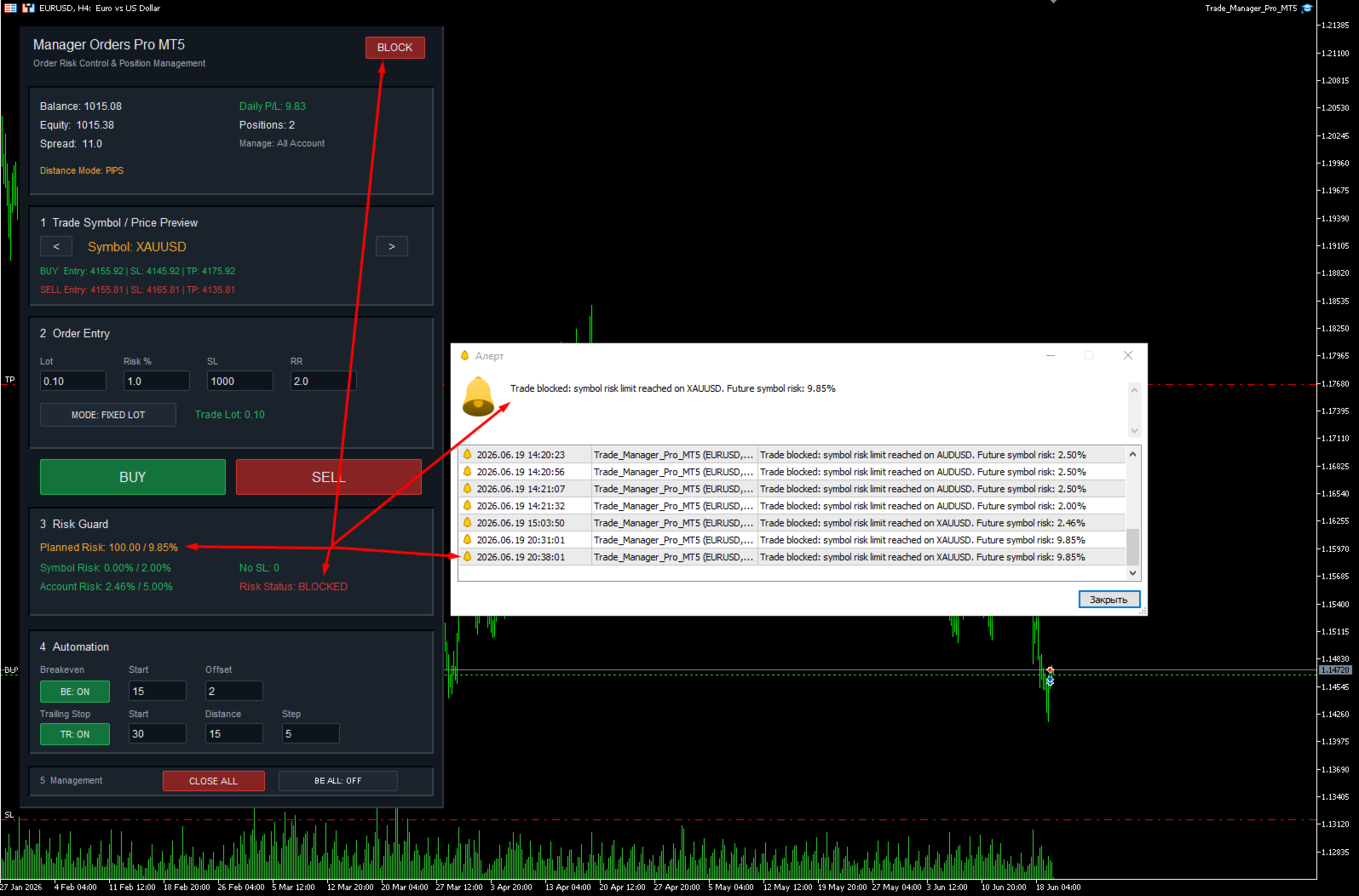
BLOCKED
A new trade is blocked because one of the selected risk limits has been exceeded.
Risk Guard is designed to support risk discipline and reduce accidental overexposure.
10. Stop Loss and Take Profit calculation
The trader enters:
-
Stop Loss distance;
-
Risk/Reward ratio.
The panel automatically calculates the Stop Loss and Take Profit prices for both Buy and Sell scenarios.
Example:
If the trader sets:
-
SL = 25;
-
RR = 2.0;
then Take Profit is calculated as two times the Stop Loss distance.
The panel supports both pips and points mode.
11. Pips and points mode
The panel can calculate distances in two ways:
PIPS mode
Useful for standard Forex trading logic.
POINTS mode
Useful for symbols where the broker’s point structure is different, such as metals, indices or CFDs.
This is especially important for instruments like XAUUSD, where broker specifications can differ.
12. Breakeven automation
The panel includes an automatic Breakeven function.
The trader can define:
-
Start distance;
-
Offset.
When the trade moves in favor of the position by the selected Start distance, the panel can move Stop Loss to breakeven plus/minus the Offset.
For Buy positions:
Stop Loss is moved above the entry price by the Offset.
For Sell positions:
Stop Loss is moved below the entry price by the Offset.
This can help protect a position after the market has moved in the desired direction.
13. BE ALL mode
The panel includes a special BE ALL: ON/OFF mode.
When BE ALL mode is enabled, the panel continuously checks all managed positions and moves their Stop Loss to breakeven when conditions are suitable.
Before moving Stop Loss, the panel checks:
-
whether the position is already in profit;
-
whether the price has moved far enough;
-
whether the new Stop Loss is better than the current one;
-
whether the broker’s StopLevel and FreezeLevel allow the modification;
-
whether the position belongs to the selected management mode.
This helps avoid premature Stop Loss modifications and reduces the chance of invalid stop errors.
14. Trailing Stop automation
The panel includes Trailing Stop functionality.
The trader can define:
-
trailing start distance;
-
trailing distance;
-
trailing step.
Once the position moves in favor of the trade by the selected start distance, the panel can trail Stop Loss according to the selected settings.
The trailing logic also checks broker minimum stop distance before modifying Stop Loss.
15. Close All function
The Close All button allows the trader to close all managed positions quickly.
Depending on the selected management mode, this can apply to:
-
selected symbol only;
-
symbols from the input list;
-
all account positions.
If Magic Number filtering is enabled, the panel will manage only positions matching the selected Magic Number.
16. Magic Number filter
The panel can be configured to manage only positions with a specific Magic Number.
This is useful if the trader wants Manager Orders Pro MT5 to manage only its own positions and ignore other manual or automated trades.
Main input settings
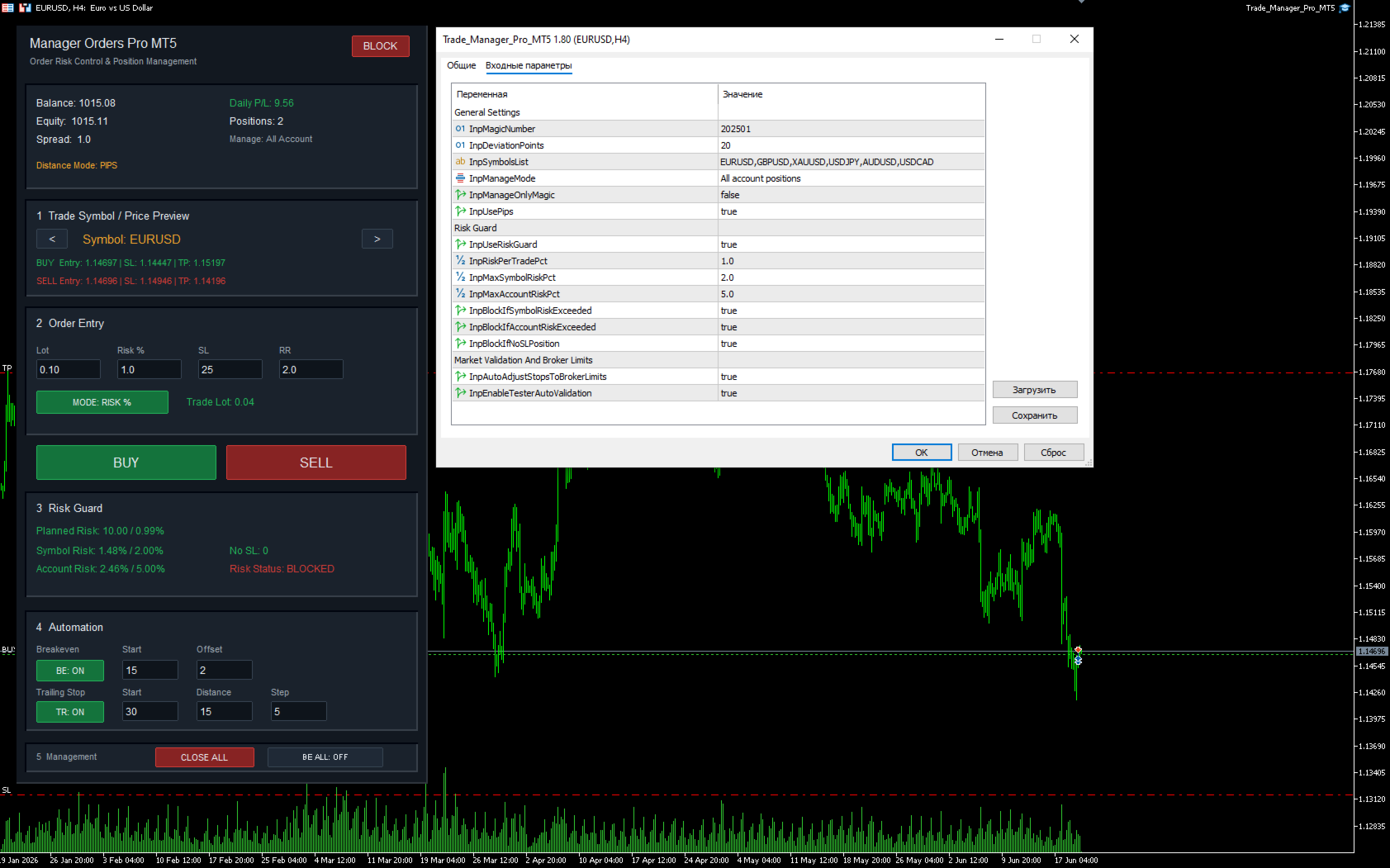
General Settings
InpMagicNumber
Magic Number used by the panel for orders.
InpDeviationPoints
Maximum allowed deviation in points for order execution.
InpSymbolsList
List of symbols available for switching and management.
InpManageMode
Defines whether the panel manages the selected symbol, the input symbol list or the entire account.
InpManageOnlyMagic
If enabled, the panel manages only positions with the selected Magic Number.
InpUsePips
If enabled, distance values are treated as pips. If disabled, they are treated as points.
Risk Guard Settings
InpUseRiskGuard
Enables or disables the Risk Guard system.
InpRiskPerTradePct
Default risk percentage per trade.
InpMaxSymbolRiskPct
Maximum allowed risk for one symbol.
InpMaxAccountRiskPct
Maximum allowed total account risk.
InpBlockIfSymbolRiskExceeded
Blocks new trades if symbol risk would exceed the limit.
InpBlockIfAccountRiskExceeded
Blocks new trades if account risk would exceed the limit.
InpBlockIfNoSLPosition
Blocks new trades if there are managed positions without Stop Loss.
Broker and Market Validation Settings
InpAutoAdjustStopsToBrokerLimits
Automatically adjusts Stop Loss and Take Profit levels to broker StopLevel and FreezeLevel restrictions when needed.
InpEnableTesterAutoValidation
Enables safe Strategy Tester behavior for automatic validation.
How to use
-
Attach Manager Orders Pro MT5 to any chart.
-
Select the trading symbol using the panel buttons.
-
Choose the desired mode: Fixed Lot or Risk %.
-
Enter Lot or Risk % depending on the selected mode.
-
Enter Stop Loss distance.
-
Enter Risk/Reward ratio.
-
Check the Buy and Sell price preview.
-
Check planned risk and Risk Guard status.
-
Click Buy or Sell to open a trade.
-
Use Breakeven, BE ALL, Trailing Stop or Close All to manage open positions.
Important note
Manager Orders Pro MT5 is not a trading strategy and does not generate trading signals. It does not predict price movement and does not guarantee profit. The panel is a trade management and risk control utility for traders who make their own trading decisions.
Trading involves risk. The trader is fully responsible for all trading decisions, lot size selection, Stop Loss placement and risk settings.