Advanced POC Fixed Range Volume Profile
- Indicators
- Version: 1.1
- Updated: 14 September 2026
- Activations: 20

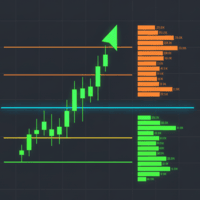
The Advanced POC Fixed Range Volume Profile is an interactive Volume Profile indicator developed for MetaTrader 5. Its operating concept and smooth user experience were inspired by TradingView's well-known Fixed Range Volume Profile tool.
The indicator allows you to manually select any region of the chart to analyze the volume distribution within that period. This makes it easier to identify areas of higher volume concentration, rejection zones, and price regions considered relevant by the market.
You choose exactly where you want to perform the analysis, and the indicator builds the Volume Profile directly over the selected region.
Main Features
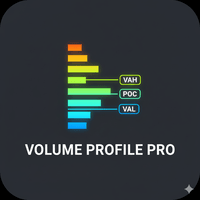
- Visual highlighting of POC (Point of Control), VAH (Value Area High), and VAL (Value Area Low).
- On-demand volume analysis: you choose exactly where the calculation starts and ends.
- Creation of multiple Volume Profiles on the same chart.
- New compact tool panel for quickly controlling the indicator's main functions.
- Interactive interface designed to make profile creation and removal simple and fast.
- Automatic profile adjustment when changing the timeframe or chart view.
- Profile recovery after timeframe changes, parameter changes, template applications, or indicator restarts.
- Optimizations for working smoothly with different range sizes.
Tool Panel
The indicator features a compact panel directly on the chart, providing quick access to its main functions without relying exclusively on mouse or keyboard shortcuts.
The panel can be shown or hidden by pressing the V key. The key used for this function can also be changed in the indicator parameters.
Draw Button
Activates the creation mode for a new Volume Profile.
After activating it:
- Choose the candle where you want to start the analysis.
- Press the Left Mouse Button.
- Drag the mouse to the point where you want to end the range.
- Release the button to complete the Volume Profile.
When drawing mode is active, the panel provides a visual indication, making it easy to identify the tool's current state.
Pressing the Draw button again cancels creation mode.
Clear Button
Removes all Volume Profiles currently drawn on the chart.
Use this function when you want to completely clear the chart and start a new analysis.
Show or Hide the Panel
Press the V key to quickly show or hide the tool panel.
This allows you to keep the chart completely clean when the panel is not being used and quickly restore it whenever necessary.
The V key is the default setting and can be customized in the Advanced POC Fixed Range Volume Profile parameters.
How to Create a Volume Profile
There are different ways to activate drawing mode.
You can use the Draw button on the panel or the shortcuts available directly on the chart.
After activating creation mode, select the starting candle, press the Left Mouse Button, and drag over the region you want to analyze.
When you release the button, the Volume Profile will automatically be created for the selected range.
Cancel Creation
If you activate drawing mode by mistake, simply use the Draw button on the panel again or the corresponding shortcut to cancel the operation.
The indicator will exit creation mode without adding a new profile to the chart.
Delete a Specific Profile
To remove only one Volume Profile, simply Left-Click inside the area of the profile you want to delete.
Only the selected profile will be removed, while the other Volume Profiles remain on the chart.
Clear All Profiles
To instantly remove all drawn Volume Profiles, use the Clear button on the panel or press the C key.
All profiles will be removed at once.