

Developing a Multi-Currency Expert Advisor (Part 28): Adding a Position Closing Manager
 1 879
1 879
 0
0

Introduction
In Part 12, we added a risk manager module to the multi-currency EA to limit daily and overall drawdown. It does not increase profits, but is critical to protecting funds in adverse conditions. It is based on prop trading rules with flexible settings: drawdown in currency, as a percentage of the balance, or from the start of the day.
The module is implemented as the CVirtualRiskManager class with methods for tracking balance, profit, and checking limitations. A profit-locking function is also provided: once the target is reached, all positions are closed and trading stops.
For regular accounts, it would be preferable for trading to restart automatically once the profit target has been reached. Currently, this requires manual intervention. It is time to automate this as well.
I have considered two options of restarting trading strategies when reaching the target profit:
- expand the current risk manager,
- create a separate module.
I have chosen the second path because the current risk manager operates independently of strategies: it closes only real positions without affecting virtual ones. Changing this logic would complicate the architecture and violate modular independence.
The risk manager also creates additional testing overhead, so it is better to move the new functionality into a separate module — it can be used even without the risk manager running.
The new goal is a module that can restart all strategies when specified conditions (profit, loss, time, etc.) are met, without relying on trading history and without manual intervention. I will call the new module the closing manager, as it is a separate optional module, but its addition can improve the results, and it manages the process of completely closing all positions, both real and virtual.
Initial requirements
Let's formulate more clearly the closing manager's responsibilities and parameters.
The closing manager should:
- Take profit, which means closing all virtual positions when the specified profit is reached. In this case, real positions are also automatically closed. Let's introduce three parameters to achieve that:
- Basic balance. The amount of funds in the trading account that serves as the reference balance for calculating profit or loss.
- Profit calculation method. It can take one of several possible values, for example, as a percentage of the base balance or a fixed amount in the deposit currency.
- Profit value. The number used to calculate profit using the chosen method.
- Limit loss, which means closing all virtual positions when a specified loss is reached. This process also requires three parameters, one or two of which can be shared with the profit-taking parameters:
- Basic balance. The amount of funds in the trading account that serves as the reference balance for calculating profit or loss.
- Loss calculation method. It can also take one of several possible values, as for the method of calculating profit.
- Loss value. The number used to calculate the loss using the selected method.
- Enable profit trailing — upon reaching the specified profit, virtual positions are not closed, but a certain lower profit level is saved the positions will be actually closed at. If profits grow, then this level should also increase. The increase can occur either continuously or in steps with some increment. The following parameters can be added for this process:
- Enabling trailing (Yes / No).
- Level setting method. In this parameter, we can select the preferred method for setting the trailing enable level. For example, the level can be set as a percentage of the fixed profit or as an absolute value in the trading account currency.
- Trailing start level. The number used to calculate the trailing start level for the selected method.
- Step size. The level at which the trailing threshold is moved. For calculation, we can use the same method as for the trailing start level.
- Enable breakeven level — when the profit reaches this value, we save a certain small positive profit level the positions will be closed at. With a further increase in profit, this level, unlike trailing, will not increase. The parameters that control this process can be as follows:
- Enabling breakeven (Yes / No).
- Level setting method. This parameter is similar to the same-name parameter for trailing meaning that it can also be either relative or absolute.
- Breakeven enabling level. The number used to calculate the breakeven level for the selected method.
Project repository
In Part 25, we added a new strategy and looked at how to create a project to automatically optimize the selected strategy and create a final EA that includes multiple instances of trading strategies with different parameters. The entire code was divided into two parts — library and project. For the library section, Part 26 already features the Adwizard public code repository in the MQL5 Algo Forge storage. However, for the project one this has not yet been done.
Let's fix this and create the new SimpleCandles repository. This repository will contain the project part for creating the final EA using strategies with the same name. Beyond the main branch, we will also introduce a development branch named develop. If this project is dedicated to several articles, then edits related to different articles will be distributed across different branches generated from the develop branch. As they are ready, they will be merged back into the develop and main branches.
Let's create a local folder to contain the project folder, for example, MQL5/Experts/Articles/17608. We clone this repository into the selected folder and create the Include folder in it. In this folder, we will place the repository of the library part this project depends on. The Include folder receives the clone of the Adwizard library repository.
Eventually, we get approximately the following folder structure in the terminal folder:
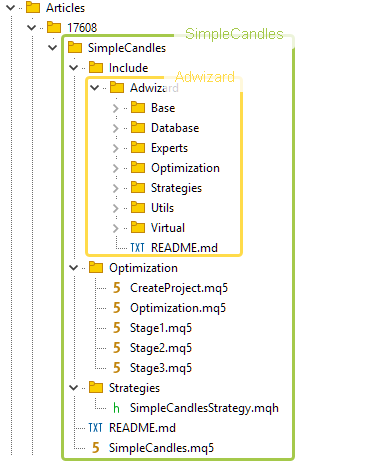
Fig. 1. The folder structure in the project repository after cloning the project and library parts
In the cloned folder of the Adwizard repository, switch to the develop branch. It will be common to all articles. However, as we work on this project, we will be making changes to the Adwizard library, so in this repository we will create a new branch generated from the develop one.
After that, create a separate branch for working on this article in the SimpleCandles project repository and start development.
Preparing the library code
Let's prepare the ground for the closing manager implementation. First of all, we should note that the latest MetaTrader builds have added stricter variable type checking, which is why previously compiled code now produces errors of the following type:
parameter convertion type 'short[260]' to 'ushort[] &' is not allowed   MTTester.mqh
   int user32::GetClassNameW(long,ushort&[],int)        winuser.mqh
Luckily, this occurred only once in the used code and was fixed by changing the array type:
static string GetClassName( const HANDLE Handle )
  {
    string Str = NULL;

    ushort Buffer[MAX_PATH] = {0};

    if (user32::GetClassNameW(Handle, Buffer, ::ArraySize(Buffer)))
      Str = ::ShortArrayToString(Buffer);

    return(Str);
  }
However, after the next terminal update, this file was completely replaced with the latest version from the MultiTester library to fix incorrect behavior that has some other cause.
The next change is related to the need for the closing manager to initiate the closing of all positions. Let's add a separate method for closing all positions to the CVirtualAdvisor EA class, so that the closing manager can call it if necessary.
To implement this method, we already have everything we need: every strategy inherited from CVirtualStrategy has a method of closing all its virtual positions. Therefore, in the EA class, we only need to call this method for each strategy:
//+------------------------------------------------------------------+
//| Close positions of all strategies                                |
//+------------------------------------------------------------------+
void CVirtualAdvisor::Close(void) {
// For all strategies, we call the method for closing virtual positions
   FOREACH(m_strategies) ((CVirtualStrategy *)m_strategies[i]).Close();
}
In Part 27, we created a component for displaying multi-line text in a window that expands to cover the entire chart to which the EA is attached. It was made as part of another project, but it will be useful to us here as well. So let's move it to the Adwizard library placing the file with the CConsoleDialog class in the Adwizard/Utils folder. To use it, we will add the creation of an object of this class in the Adwizard/Experts/Expert.mqh file of the EA class:
CConsoleDialog      *dialog;             // Dialog for displaying text with results

//+------------------------------------------------------------------+
//| Expert initialization function                                   |
//+------------------------------------------------------------------+
int OnInit() {
// ...

// Create and launch a dialog to display the results
   dialog = new CConsoleDialog();
   dialog.Create(__NAME__ + ":" + (string) magic_);
   dialog.Run();

// Successful initialization
   return(INIT_SUCCEEDED);
}
In the function for handling a new tick in the same file, we will add the setting of new text for this object. We will receive the text itself from the CVirtualAdvisor class calling its Text() method we are going to implement further on:
//+------------------------------------------------------------------+
//| Expert tick function                                             |
//+------------------------------------------------------------------+
void OnTick() {
   expert.Tick();

// ...

// Display text with information about the EA operation
   if (IsNewBar(Symbol(), PERIOD_M1)) {
      dialog.Text(expert.Text());
   }
}
To prevent the lines for opening virtual positions from being drawn against the background of the text, we will temporarily disable their visualization by making the CVirtualChartOrder::Show() method empty:
//+------------------------------------------------------------------+
//| Show virtual position (order)                                    |
//+------------------------------------------------------------------+
void CVirtualChartOrder::Show() {
   return;

   // ...
}
IsActive property for all descendants of CFactorable
When optimization is performed on trading instruments that include cryptocurrencies, and the launch is performed at a broker that does not support cryptocurrencies, an error may occur when launching the final EA. It involves trying to obtain the trading history and properties of a symbol that is not included in the Market Watch. In this case, if the final EA contains a large number of trading strategy instances working on the available symbols, we can simply disable strategies for the instruments not included in the Market Watch.
Currently, all trading strategies are descendants of the CFactorable class, which makes it possible to create objects of these strategies from the initialization string. This class provides for the possibility that the initialization string may not be entirely correct. Then this object and all previous objects from the common initialization string will be considered invalid. In this situation, the EA will not be able to initialize and resume its work.
What we would like is for a certain type of "error" in the initialization string to allow us to simply ignore part of the initialization string, ultimately creating an EA object from the full initialization string. To achieve this, let's add a new property to the CFactorable class named m_isActive , as well as the IsActive() method for reading its value:
//+------------------------------------------------------------------+
//| Base class of objects created from a string                      |
//+------------------------------------------------------------------+
class CFactorable {
private:
   // ...

protected:
   // ...

   bool              m_isActive; // Is the object active?

   // ...

public:
   // ...

   bool              IsActive();                         // Is the object active?

   // ...
};
Such a property already existed for some classes, such as the CVirtualRiskManager risk manager class, so in these classes we will remove its declaration, since it will be made in the base class. This also applies to the future closing manager class, which will also use this property to check whether it is active.
At the same time, we made it optional to specify the risk manager and closing manager in the initialization string by adding a check for their presence when launching the EA in the CVirtualAdvisor class constructor:
//+------------------------------------------------------------------+
//| Constructor                                                      |
//+------------------------------------------------------------------+
CVirtualAdvisor::CVirtualAdvisor(string p_params) {
// Save the initialization string
   m_params = p_params;

// Read the initialization string of the strategy group object
   string groupParams = ReadObject(p_params);

// Read the initialization string of the risk manager object
   string riskManagerParams = NULL;

   if(IsObjectOf(p_params, "CVirtualRiskManager")) {
      riskManagerParams = ReadObject(p_params);
   }

// Read the initialization string of the closing manager object
   string closeManagerParams = NULL;
   if(IsObjectOf(p_params, "CVirtualCloseManager")) {
      closeManagerParams = ReadObject(p_params);
   }

// Read the magic number
   ulong p_magic = ReadLong(p_params);

// Read the EA name
   string p_name = ReadString(p_params);

// Read the work flag only at the bar opening
   m_useOnlyNewBar = (bool) ReadLong(p_params);

// If there are no read errors,
   if(IsValid()) {
// Create a strategy group
      CREATE(CVirtualStrategyGroup, p_group, groupParams);

      // Initialize the symbol monitor with a static symbol monitor
      m_symbols = CSymbolsMonitor::Instance();

      // Initialize the receiver with the static receiver
      m_receiver = CVirtualReceiver::Instance(p_magic);

      // Initialize the interface with the static interface
      m_interface = CVirtualInterface::Instance(p_magic);

      // Form the name of the EA database file for saving the state from the EA name and parameters
      m_fileName = FileName(p_name, p_magic);

      // Save the work (test) start time
      m_fromDate = TimeCurrent();

      // Reset the last save time
      m_lastSaveTime = 0;

      // Add the contents of the group to the EA
      Add(p_group);

      // Remove the group object
      delete p_group;

      // Create the risk manager object
      if(riskManagerParams != NULL) {
         m_riskManager = NEW(riskManagerParams);
      }

      // Create the closing manager object
      if(closeManagerParams != NULL) {
         m_closeManager = NEW(closeManagerParams);
         m_closeManager.Expert(&this);
      }
   }
}
After making the changes, let's move on to the main part — creating the closing manager.
Creating the closing manager
To begin, let's highlight several possible states that the closing manager can be in. In a normal state, neither the planned profit nor the maximum loss has yet been achieved. While in this state, the closing manager only needs to wait for the transition to one of several subsequent states. Upon reaching a specified profit or loss, a transition to two corresponding states will be carried out. In these states, the close manager should close all positions, remember the new levels of the specified profit and loss, and return to the normal state.
If trailing is enabled, then when the specified profit level is reached, the closing manager will switch to another state. The transition back to a normal state will require more complex actions, so we will not describe them in detail for now.
We implement all states as the ENUM_CM_STATE enumerated type.
To define the methods for calculating planned profit and loss, we will also create two separate enumeration types: ENUM_CM_CALC_LOSS and ENUM_CM_CALC_PROFIT. Let's consider two options: a fixed value in monetary terms and a relative value as a percentage of a certain basic balance.
// Possible states of the closing manager
enum ENUM_CM_STATE {
   CM_STATE_OK,            // Limits are not exceeded
   CM_STATE_LOSS,          // Overall limit exceeded
   CM_STATE_PROFIT,        // Total profit reached
   CM_STATE_TRAIL_PROFIT   // Profit trailing
};

// Possible methods for calculating total loss
enum ENUM_CM_CALC_LOSS {
   CM_CALC_LOSS_MONEY_BB,           // [$] Fixed Money
   CM_CALC_LOSS_PERCENT_BB,         // [%] of Base Balance
};

// Possible methods for calculating total profit
enum ENUM_CM_CALC_PROFIT {
   CM_CALC_PROFIT_MONEY_BB,           // [$] Fixed Money
   CM_CALC_PROFIT_PERCENT_BB,         // [%] of Base Balance
};
The closing manager class itself will be inherited from the CFactorable base class to provide the ability to create the closing manager object from the initialization string. At the same time, it will immediately have an inherited activity property for easily enabling or disabling the closing manager.
To be able to carry out this task, the closing manager will need to remember the base balance level, from which the resulting profit or loss will be calculated. When taking a profit or loss, this level should also change to the value of the current account balance reached after closing all positions. This is the difference between this parameter and the parameter of the same name in the risk manager. There the level of the basic balance always remains unchanged.
The next group of properties will be used to select the calculation method and the calculation itself of the planned profit and loss. They will be used in the LossMoney() and ProfitMoney() calculation methods returning a value in monetary terms.
To close positions, the closing manager should be able to request the EA's object to close. Therefore, we will add the pointer to the EA object and the method for setting it to the list of properties of the closing manager.
We will add one more property to store the current state of the closing manager object.
Creating based on CFactorable requires placing the constructor in a private area and adding two special macros as described in Part 24.
As a result, we get a description of the closing manager class that looks something like this:
//+------------------------------------------------------------------+
//| Closing manager class (profit and loss taking)                   |
//+------------------------------------------------------------------+
class CVirtualCloseManager : public CFactorable {
protected:
// Main constructor parameters
   double            m_baseBalance;          // Base balance

   ENUM_CM_CALC_LOSS m_calcLossLimit;        // Method of calculating the maximum overall loss
   double            m_maxLossLimit;         // Parameter of calculating the maximum total loss

   ENUM_CM_CALC_PROFIT m_calcProfitLimit;    // Method for calculating maximum overall profit
   double            m_maxProfitLimit;       // Parameter for calculating the maximum overall profit

   CVirtualAdvisor*  m_expert;               // Pointer to the EA object

// Current state
   ENUM_CM_STATE     m_state;                // State

// Updated values
   double            m_balance;              // Current balance
   double            m_equity;               // Current equity
   double            m_profit;               // Current floating profit
   double            m_overallProfit;        // Current total profit relative to base balance

// Protected methods
   double            LossMoney();            // Maximum total loss
   double            ProfitMoney();          // Maximum profit

   void              UpdateProfit();         // Update current profit values
   void              CheckLimits();          // Check whether acceptable profit/loss levels have been achieved

   CVirtualCloseManager(string p_params);    // Private constructor

public:
   STATIC_CONSTRUCTOR(CVirtualCloseManager); // Static object creation method
   virtual void      Tick();                 // Handle tick in the closing manager

   virtual string    Text();                 // Information about the current state

   // Bind the EA to the closing manager
   void              Expert(CVirtualAdvisor* p_expert);

   virtual bool      Save();      // Save status
   virtual bool      Load();      // Load status

   virtual string    operator~() override;   // Convert object to string
};

REGISTER_FACTORABLE_CLASS(CVirtualCloseManager); // Register a new CFactorable child
Let's look at the two main class methods: the constructor and the tick handling method.
In the constructor, as usual, we read the parameter values sequentially from the initialization string and assign them to the corresponding properties, set the current state to normal, update the current profit values, and save the current balance value as the base one if it was not set directly:
//+------------------------------------------------------------------+
//| Constructor                                                      |
//+------------------------------------------------------------------+
CVirtualCloseManager::CVirtualCloseManager(string p_params) {
// Save the initialization string
   m_params = p_params;

// Read the initialization string and set the property values
   m_isActive = (bool) ReadLong(p_params);
   m_baseBalance = ReadDouble(p_params);
   m_calcLossLimit = (ENUM_CM_CALC_LOSS) ReadLong(p_params);
   m_maxLossLimit = ReadDouble(p_params);
   m_calcProfitLimit = (ENUM_CM_CALC_PROFIT) ReadLong(p_params);
   m_maxProfitLimit = ReadDouble(p_params);

// Set the state: Limits are not exceeded
   m_state = CM_STATE_OK;

// Update the current profit values
   UpdateProfit();

// Adjust the base balance if it is not set
   if(m_baseBalance == 0) {
      m_baseBalance = m_balance;
   }
}
In the basic tick handling method, we analyze the current state and, depending on it, either check whether the target profit or loss levels have been reached if the manager was in a normal state, or initiate the closure of all positions and then transition to a normal state:
//+------------------------------------------------------------------+
//| Tick processing in the risk manager                              |
//+------------------------------------------------------------------+
void CVirtualCloseManager::Tick() {
// If the risk manager is inactive, exit
   if(!m_isActive) {
      return;
   }

// Update the current profit values
   UpdateProfit();

// If the manager is in the trailing state,
   if(m_state == CM_STATE_TRAIL_PROFIT) {
      // immediately take the profit
      // switching the manager to the corresponding state
      if(true) {
         m_state = CM_STATE_PROFIT;
      }
   }

// If the manager is in normal condition,
   if(m_state == CM_STATE_OK) {
      // Check for exceeding loss and profit limits
      CheckLimits();
   }

// If the manager is in a state of achieved loss or profit,
   if(m_state == CM_STATE_LOSS || m_state == CM_STATE_PROFIT) {
      // Close all positions
      m_expert.Close();

      // If all positions are closed,
      if(PositionsTotal() == 0) {
         // Switch to normal state
         m_state = CM_STATE_OK;

         // Update the base balance value
         m_baseBalance = m_balance;
      } else {
         // Wait for all positions to close
      }

      // Save the EA state
      m_expert.Save();
   }
}
To begin with, we decided to limit ourselves to this functionality of the closing manager, so the profit trailing state is not used for now.
Passing inputs
After creating the closing manager class, we need to connect it to the EA. To do this, we need to add inputs through which we can control the creation of the initialization string for the closing manager. This needs to be done in the Adwizard/Experts/Expert.mqh file:
// ...

//+------------------------------------------------------------------+
//| Inputs                                                           |
//+------------------------------------------------------------------+
input group "::: Use a strategy group"
sinput int        groupId_       = 0;     // - ID of the group from the new library (0 - last)
sinput bool       useAutoUpdate_ = true;  // - Use auto update?

input group "::: Money management"
sinput double expectedDrawdown_  = 10;    // - Maximum risk (%)
sinput double fixedBalance_      = 10000; // - Used deposit (0 - use all) in the account currency
input  double scale_             = 1.00;  // - Group scaling multiplier

input group ":::  Closing manager"
input bool        cmIsActive_                = true;  // - Active?
input double      cmStartBaseBalance_        = 0;     // - Basic balance
input ENUM_CM_CALC_LOSS
cmCalcLossLimit_           = CM_CALC_LOSS_MONEY_BB;   // - Loss calculation method
input double      cmLossLimit_       = 100;           // - Threshold loss value
input ENUM_CM_CALC_PROFIT
cmCalcProfitLimit_                    = CM_CALC_PROFIT_MONEY_BB;  // - Method for calculating total profit
input double      cmProfitLimit_   = 1000000;                     // - Profit target

// ...
This file is included when compiling the final EA, so the added inputs will become available in it. By default, we set the values of taken profit and loss to be set in money (in the deposit currency). We still have to select the values themselves, so what is specified in the default values is not important for now.
Initial testing
Let's see what we got. First, let's check the correct operation of the mechanism for closing positions without regard to the profit received. If everything works correctly, then at the next stage we can start optimizing the profit we receive.
Let's use the database of the final EA obtained in Part 25 to launch the final EA in the tester. We then carried out accelerated optimization on several intervals lasting 1 year and obtained twelve groups of strategies stored in the strategy_groups table:
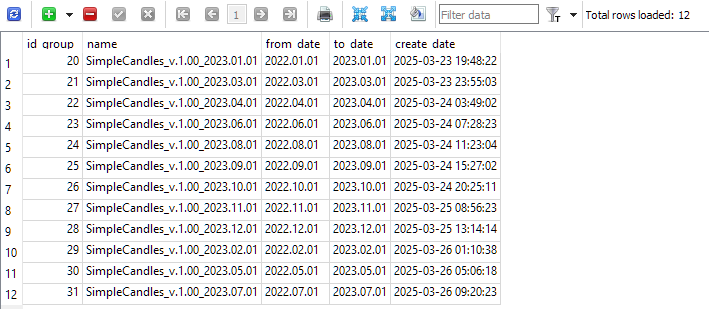
The database file was called SimpleCandles-27183.test.db.sqlite. In order for the final EA to be able to use this database, this file should be located in the common data folder of the MetaTrader 5 terminals in the Files subfolder. In addition, the final EA should be named SimpleCandles.ex5 and the value of the magic number in the inputs should be left equal to 27183.
Let's first launch the EA without using the closing manager with the very first group of strategies with id_group=20. To do this, let's set the following values for the inputs:
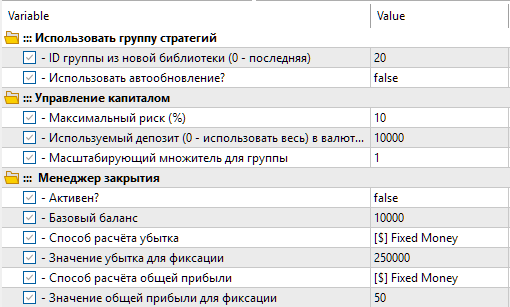
We will use the same interval during which auto optimization was carried out as the test interval, i.e., the entire year of 2022. We get the following results:
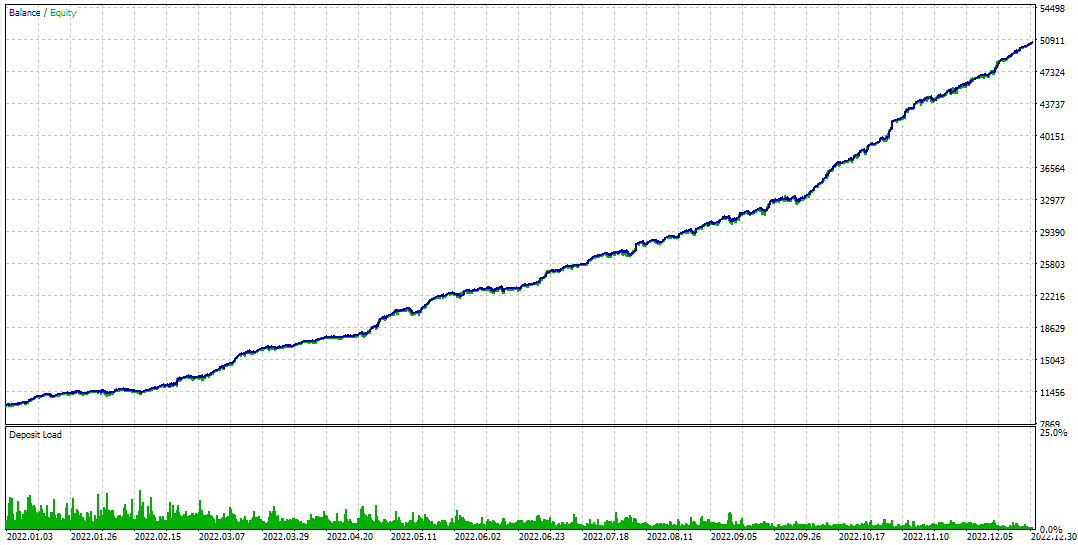

Fig. 2. Results of the final EA with id_group=20 without a closing manager for 2022
As you can see, the optimization found quite good combinations of parameters for different instances of simple trading strategies to ensure a significant profit over a given interval while remaining within the specified drawdown of 10%.
Now let's turn on the closing manager and set a small value, for example USD 10, as the expected profit for taking:
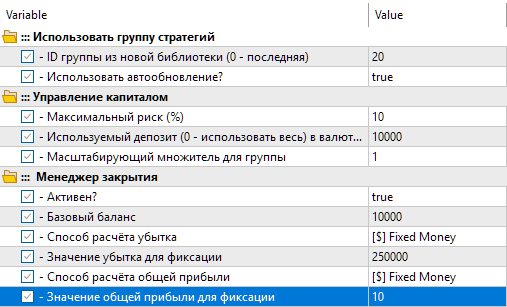
Let's run the EA in visual testing mode. Since we have added the display of operation data to the final EA, in this mode we can see which symbols and how many strategies are used in the group with the ID 20 from the EA database (three symbols GBPUSD, EURUSD, EURGBP and 48 strategies), the value of the base balance of the closing manager, as well as the target level of profit and loss for closing.
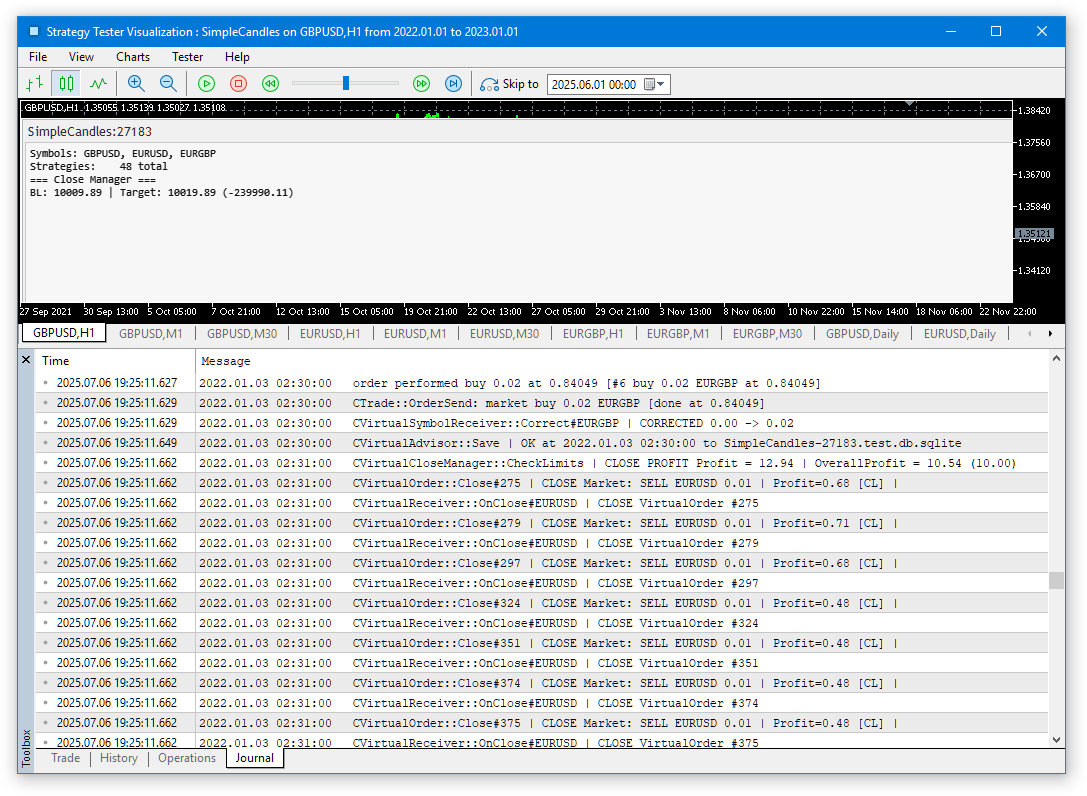
Fig. 3. Starting EA visual test with the closing manager enabled
Figure 3 shows that the closing manager's base balance has already reached USD 10009.89, meaning that all positions have been closed once the target profit of USD 10 has been reached.
We see the following line in the log:
2022.01.03 02:31:00 CVirtualCloseManager::CheckLimits | CLOSE PROFIT Profit = 12.94 | OverallProfit = 10.54 (10.00)
The closing manager was triggered when the total profit (OverallProfit = 10.54) relative to the initial base balance of USD 10,000 exceeded USD 10. Due to the testing mode only at the beginning of each minute bar (1 minute OHLC), closing all open positions was extended over two adjacent minutes, so the recorded new base level turned out to be slightly less than USD 10,010. We no longer observe such discrepancies when every tick mode is enabled.
Let's now test the loss limiting closing manager. Let's set a small value for sustaining a loss, for example USD 20, while making the value for taking a profit large, so that we most probably sustain a loss rather than take a profit.
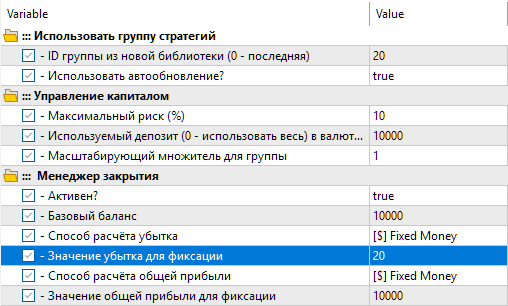
In other parameters, we will disable working only at the opening of the bar, so that when the simulation mode for every tick is enabled, the EA performs all the required actions on every tick, and not just at the beginning of the minute bar:

We will launch testing on a short interval of one day (2022.01.03). By filtering the log messages, we select only the lines displayed when the specified loss of USD 20 is reached:
2022.01.03 17:11:33 CVirtualCloseManager::CheckLimits | CLOSE LOSS Profit = -33.13 | OverallProfit = -20.06 (-20.00)
2022.01.03 17:30:39 CVirtualCloseManager::CheckLimits | CLOSE LOSS Profit = -20.51 | OverallProfit = -20.51 (-20.00)
2022.01.03 19:13:31 CVirtualCloseManager::CheckLimits | CLOSE LOSS Profit = -21.20 | OverallProfit = -20.11 (-20.00)
We can see that this occurred three times during the testing day. In every tick mode, the total profit (Overall Profit), which triggers the closing of positions upon reaching a specified loss, is much closer to the value specified in the parameters.
Please note that the first log entry above contains the following part:
Profit = -33.13
This is the value of the current profit on open positions (negative profit is a loss). In this case, it differs from the USD -20 value because several positions were initially closed with a profit of about USD 13. Therefore, a loss of USD 20 relative to the initial base account balance was achieved with exactly this value of profit on open positions.
So, initial testing has shown that the developed closing manager can already perform the basic part of its work.
Conclusion
We will take a short break here and continue developing the closing manager further in one of the next parts. Plans for further development of its functionality primarily include adding a profit trailing feature for open positions and the ability to set a breakeven level.
The improvements do not stop there. For example, the closing manager currently checks whether all positions have been closed by simply waiting for the number of open positions to reach zero. But this can also happen if there are open virtual positions, so let's see if we need to use a more reliable verification method here. We may also have to arrange interaction between the risk manager and the closing manager: when closing, the risk manager's status should be updated and vice versa.
Nevertheless, the first version has been made and the next step will not be made from scratch.
Thank you for your attention! See you soon!
Important warning
All results presented in this article and all previous articles in the series are based only on historical testing data and are not a guarantee of any profit in the future. The work within this project is of a research nature. All published results can be used by anyone at their own risk.
Archive contents
| # | Name | Version | Description | Recent changes |
|---|---|---|---|---|
| SimpleCandles | Project working folder (should be inside MQL5/Experts) | |||
| 1 | SimpleCandles.mq5 | 1.01 | Final EA for parallel operation of several groups of model strategies. The parameters will be taken from the built-in group library. | Part 25 |
| └ Optimization | Project optimization EAs folder | |||
| 2 | CreateProject.mq5 | 1.02 | EA script for creating a project with stages, jobs and optimization tasks. | Part 25 |
| 3 | Optimization.mq5 | 1.00 | EA for projects auto optimization | |
| 4 | Stage1.mq5 | 1.02 | Trading strategy single instance optimization EA (stage 1) | Part 25 |
| 5 | Stage2.mq5 | 1.01 | Trading strategies instances group optimization EA (stage 2) | Part 25 |
| 6 | Stage3.mq5 | 1.01 | The EA that saves a generated standardized group of strategies to an EA database with a given name. | Part 25 |
| └ Strategies | Project strategies folder | Part 25 | ||
| 7 | SimpleCandlesStrategy.mqh | 1.01 | SimpleCandles trading strategy class | Part 25 |
| └ Include/Adwizard | Adwizard library folder | |||
| └ Base | Base classes other project classes inherit from | |||
| 8 | Advisor.mqh | 1.04 | EA base class | Part 10 |
| 9 | Factorable.mqh | 1.06 | Base class of objects created from a string | Part 28 |
| 10 | FactorableCreator.mqh | 1.00 | Class of creators that bind names and static constructors of CFactorable descendant classes | Part 24 |
| 11 | Interface.mqh | 1.01 | Basic class for visualizing various objects | Part 4 |
| 12 | Receiver.mqh | 1.04 | Base class for converting open volumes into market positions | Part 12 |
| 13 | Strategy.mqh | 1.04 | Trading strategy base class | Part 10 |
| └ Database | Files for handling all types of databases used by project EAs | |||
| 14 | Database.mqh | 1.12 | Class for handling the database | Part 25 |
| 15 | db.adv.schema.sql | 1.00 | Final EA's database structure | Part 22 |
| 16 | db.cut.schema.sql | 1.00 | Structure of the truncated optimization database | Part 22 |
| 17 | db.opt.schema.sql | 1.05 | Optimization database structure | Part 22 |
| 18 | Storage.mqh | 1.01 | Class for handling the Key-Value storage for the final EA in the EA database | Part 23 |
| └ Experts | Files with common parts of used EAs of different type | |||
| 19 | Expert.mqh | 1.24 | The library file for the final EA. Group parameters can be taken from the EA database | Part 28 |
| 20 | Optimization.mqh | 1.04 | Library file for the EA that manages the launch of optimization tasks | Part 23 |
| 21 | Stage1.mqh | 1.19 | Library file for the single instance trading strategy optimization EA (Stage 1) | Part 23 |
| 22 | Stage2.mqh | 1.04 | Library file for the EA optimizing a group of trading strategy instances (Stage 2) | Part 23 |
| 23 | Stage3.mqh | 1.04 | Library file for the EA saving a generated standardized group of strategies to an EA database with a given name. | Part 23 |
| └ Optimization | Classes responsible for auto optimization | |||
| 24 | OptimizationJob.mqh | 1.00 | Optimization project stage job class | Part 25 |
| 25 | OptimizationProject.mqh | 1.00 | Optimization project class | Part 25 |
| 26 | OptimizationStage.mqh | 1.00 | Optimization project stage class | Part 25 |
| 27 | OptimizationTask.mqh | 1.00 | Optimization task class (creation) | Part 25 |
| 28 | Optimizer.mqh | 1.03 | Class for the project auto optimization manager | Part 22 |
| 29 | OptimizerTask.mqh | 1.03 | Optimization task class (conveyor) | Part 22 |
| └ Strategies | Examples of trading strategies used to demonstrate how the project works | |||
| 24 | HistoryStrategy.mqh | 1.00 | Class of the trading strategy for replaying the history of deals | Part 16 |
| 25 | SimpleVolumesStrategy.mqh | 1.11 | Class of trading strategy using tick volumes | Part 22 |
| └ Utils | Auxiliary utilities, macros for code reduction | |||
| 26 | ConsoleDialog.mqh | 1.01 | Class for displaying text data on a chart | Part 28 |
| 26 | ExpertHistory.mqh | 1.00 | Class for exporting trade history to file | Part 16 |
| 27 | Macros.mqh | 1.07 | Useful macros for array operations | Part 26 |
| 28 | MTTester.mqh | — | File for working with the strategy tester from the MultiTester library | Part 28 |
| 29 | NewBarEvent.mqh | 1.00 | Class for defining a new bar for a specific symbol | Part 8 |
| 30 | SymbolsMonitor.mqh | 1.01 | Class for obtaining information about trading instruments (symbols) | Part 28 |
| └ Virtual | Classes for creating various objects united by the use of a system of virtual trading orders and positions | |||
| 31 | Money.mqh | 1.01 | Basic money management class | Part 12 |
| 32 | TesterHandler.mqh | 1.07 | Optimization event handling class | Part 23 |
| 33 | VirtualAdvisor.mqh | 1.12 | Class of the EA handling virtual positions (orders) | Part 28 |
| 34 | VirtualChartOrder.mqh | 1.02 | Graphical virtual position class | Part 28 |
| 35 | VirtualCloseManager.mqh | 1.00 | Closing manager class | Part 28 |
| 36 | VirtualHistoryAdvisor.mqh | 1.00 | Trade history replay EA class | Part 16 |
| 37 | VirtualInterface.mqh | 1.00 | EA GUI class | Part 4 |
| 38 | VirtualOrder.mqh | 1.09 | Class of virtual orders and positions | Part 22 |
| 39 | VirtualReceiver.mqh | 1.04 | Class for converting open volumes to market positions (receiver) | Part 23 |
| 40 | VirtualRiskManager.mqh | 1.06 | Risk management class (risk manager) | Part 28 |
| 41 | VirtualStrategy.mqh | 1.09 | Class of a trading strategy with virtual positions | Part 23 |
| 42 | VirtualStrategyGroup.mqh | 1.04 | Class of trading strategies group(s) | Part 28 |
| 43 | VirtualSymbolReceiver.mqh | 1.00 | Symbol receiver class | Part 3 |
| Common/Files | MetaTrader 5 terminal data shared folder | |||
| 44 | SimpleCandles-27183.test.db.sqlite | — | Final EA database | Part 25 |
The source code is also available in SimpleCandles and Adwizard
How to use open source repositories
As we gradually transition to the new Algo Forge storage, we are still working on the best and most convenient way to use it. The MetaEditor restriction to using a single repository corresponding to the MQL5 root folder is not particularly convenient. Other repositories will only be available as subfolders of the Shared Projects folder, which makes things a bit more manageable, but not enough to warrant using this approach right away.
Moreover, during the transition, the only main repository was created on behalf of the superadmin twice, and the second time, for some reason, its creation destroyed other additional repositories previously created by the user. Fortunately, having a local copy of the repository allows us to re-upload it to the server, but this kind of forced action is not particularly desirable. Therefore, for now we will wait for further development of the MetaEditor functionality for handling repositories without using them directly.
There is nothing complicated about this: while continuing to work in MetaEditor, we will simply move all storage-related operations to external applications for now.
For example, we can get a copy of all the files containing the code for this article on our local computer by running the following script in the console, after first setting a folder within the MQL5 folder of the desired MetaTrader terminal as the current one:
# Create a project folder
mkdir SimpleCandles
# Go to the project folder
cd SimpleCandles
# Clone the project repository into the current folder
git clone https://forge.mql5.io/antekov/SimpleCandles.git .
# Switch the repository to the desired branch (for this article - "article-17608-close-manager")
git checkout article-17608-close-manager
# Make sure we have switched to the branch
git status
# Create a folder for the library part
mkdir Include
# Move on to it
cd Include
# Clone the Adwizard repository into the library folder
git clone https://forge.mql5.io/antekov/Adwizard.git
# Go to the created folder
cd Adwizard
# Switch the repository to the desired branch (for this article - "article-17608-close-manager")
git checkout article-17608-close-manager
# Make sure we have switched to the branch
git status
# Go up two levels to the original project folder
cd ./../..
The only thing missing from these repositories is a file with the database of the final EA, since the code in the repository allows us to obtain it by performing automatic optimization. If necessary, this file can be taken from the archive to the article and placed in the common terminal folder in the Files folder.
Translated from Russian by MetaQuotes Ltd.
Original article: https://www.mql5.com/ru/articles/17608
Warning: All rights to these materials are reserved by MetaQuotes Ltd. Copying or reprinting of these materials in whole or in part is prohibited.
This article was written by a user of the site and reflects their personal views. MetaQuotes Ltd is not responsible for the accuracy of the information presented, nor for any consequences resulting from the use of the solutions, strategies or recommendations described.

 Exchange Market Algorithm (EMA)
 MQL5 Wizard Techniques you should know (Part 93): Using Suffix Automation and an Auto Encoder in a Custom Money Management Class
 Carry Trade Logic in MQL5: Building an EA That Factors Swap Rates Into Position Sizing and Holding Decisions
 Price Action Analysis Toolkit Development (Part 71): Weekend Gap Structure Mapping in MQL5

- Free trading apps
- Over 8,000 signals for copying
- Economic news for exploring financial markets
You agree to website policy and terms of use