

Developing a Multi-Currency Advisor (Part 27): Component for Displaying Multi-Line Text
 3 691
3 691
 0
0

Contents
- Introduction
- Mapping out the path
- CConsoleDialog class
- Constructor and destructor
- Creating a dialog window
- Event handling
- Minimizing
- Handling text
- Setting the font and color
- Working with canvas
- Connecting the component
- Test
- Conclusion
Introduction
In the previous section, we created a basic version of an auxiliary EA informer that displays information about the average candle sizes in points and the lengths of series of candles in the same direction. This is not directly related to our main project — a system for auto optimization and launch of multi-currency EAs implementing a variety of simple strategies. However, further development of the EA informer itself will remain within the framework of this series for now, as we have already begun experimenting and refining the implementation of various components, which we hope to subsequently successfully integrate into the main project.
We have moved to a more optimal code structure, which opens up the possibility of parallelizing work across multiple areas of the Adwizard library's development. One of these areas is the creation of a visual interface for managing the resulting EAs. The EA informer project considered in this article will help us further explore different approaches to implementing the interface without unnecessary complexity. Having studied their advantages and disadvantages, we will be able to choose the most suitable one and purposefully develop the main project.
Last time we wrote an implementation of the calculation part, which did not have any strict requirements for efficiency. To display the calculation results, we used two simple methods available "out of the box". The first one is to use the Comment() standard function, which displays the sent text directly on the chart. The second one is to use another standard function Print() to display text to the EA logs. This is quite convenient for simple tasks.
However, these methods have a number of limitations. The main problem with the first one is the lack of control over the font size, style and color, as well as the inability to scroll through the text when there is a large amount of information. This creates inconvenience, especially when outputting multi-line or structured data. The second method has the same problems, except for scrolling, plus the added inconvenience of constantly adding entries to the journal.
Therefore, in this article, we will create our own component - a full-screen dialog window capable of displaying multi-line text with flexible font settings and scrolling support. This tool will make information visualization more convenient and clear. After we validate this component in practice, it will likely become part of the Adwizard library as a tool for displaying various types of information about multicurrency EAs.
Mapping out the path
Let's list the features we would like to implement:
-
Displaying multi-line text — the component is passed a fully formed text in the form of a string variable, which may contain line feed symbols. Each part, separated by line feed symbols, will be displayed in the chart window on a new line.
-
Scrolling text — if all the text does not fit within the available output area, you can use the mouse wheel to scroll vertically and horizontally (while holding down the Shift key). We will not display scrollbars for now, but we might add them later.
-
Changing the font size — using the Ctrl key + mouse wheel, we can decrease or increase the font size used to display text.
-
Support for changing font parameters — font style, text color and background color. For now, changing these parameters will only be done programmatically. In the future, you can add an interface for changing these parameters when the program is running.
-
Automatic adaptation to chart resizing — if the user performs any actions that change the size of the chart window, on which the EA that uses this component for output is running, then the size of the text output area also changes, still occupying the entire available area for output.
-
Minimizing — ability to minimize and maximize the output area.
We may need to further refine some of the requirements during the implementation, but the list above is quite sufficient.
CConsoleDialog class
Let's create a new class CConsoleDialog. We will make it a descendant of an existing standard library class CAppDialog, since this parent class already contains quite a lot of what we planned to implement. For example, the display of a window with buttons for minimizing/maximizing and closing the EA application is already ready. All that remains for us to do is to take care of the internal content of the window's client area — this is where the text will be displayed.
To display the text we will use the CCanvas class object for rendering text, while support for scrolling and changing font size will be implemented through handling chart events.
Here is what the description of the new class will look like:
//+------------------------------------------------------------------+
//| Fullscreen dialog window class                                   |
//| to display multi-line text                                       |
//+------------------------------------------------------------------+
class CConsoleDialog : public CAppDialog {
protected:
   CCanvas           m_canvas;         // Canvas object for displaying text

   string            m_lines[];        // Array of text lines
   string            m_text;           // Text to display in the dialog window

   int               m_startRow;       // Initial line of visible text
   int               m_startCol;       // Starting column (symbol) of visible text

   int               m_totalRows;      // Total number of text lines
   int               m_totalCols;      // Total number of symbols in the longest line of text

   int               m_visibleRows;    // Maximum number of visible lines
   int               m_visibleCols;    // Maximum number of visible symbols in a line

   string            m_fontName;          // Text font name
   int               m_fontSize;          // Font size
   uint              m_fontColor;         // Font color

   int               m_fontSymbolWidth;   //  Width of one symbol in pixels
   int               m_fontSymbolHeight;  // Text line height in pixels

   uint              m_backgroundColor;   // Background color

   bool              m_mouseWheel;        // Previous state of mouse scroll event tracking

   bool              CreateCanvas();      // Create a canvas
   void              UpdateCanvas();      // Output text on canvas
   void              UpdateCanvasFont();  // Change the canvas font

public:
                     CConsoleDialog();       // Constructor
                    ~CConsoleDialog(void);   // Destructor

   // Methods for creating a dialog window
   bool              Create(string name);
   virtual bool      Create(const long chart, const string name, const int subwin,
                            const int x1, const int y1, const int x2, const int y2);
   // Event handling
   virtual void      ChartEvent(const int id, const long &lparam,
                                const double &dparam, const string &sparam);

   virtual void      Minimize();             // Minimize the dialog window
   virtual void      Maximize();             // Maximize the dialog window

   virtual void      Text(string text);      // Set the new text

   virtual void      FontName(string p_fontName);  // Set the font name
   virtual bool      FontSize(int p_fontSize);     // Set the font size
   virtual void      FontColor(uint p_fontColor);  // Set the font color

   // Set the background color
   virtual void      BackgroundColor(uint p_backgroundColor);
};
Of all the public methods listed, we will, for now, mainly use the method for setting a new Text() and the first version of the Create() method allowing us to create a dialog window by specifying only its name. It will also be used as a caption in the window header.
Constructor and destructor
When creating an object of the CConsoleDialog class, the constructor initializes the default font, which is a monospaced font called Consolas of size 13 with the text color set to black with slight transparency. This font was chosen so that tabular data could be displayed as text, and they would look exactly like tables with even columns. If the font is not monospaced, then even tables will no longer be possible.
A font size of 13 pixels is, on the one hand, small enough to display a large amount of text, but on the other hand, not so small as to become unreadable. Given the planned ability to easily change the size, the choice of a specific initial value does not play a special role. The background color is made transparent, so we will see the standard gray background color used in the CDialog class through the canvas.
For correct display, the FontSize() method is called immediately to define basic parameters for drawing text on the canvas. In turn, the destructor is responsible for correctly deleting the canvas resource and restoring the original settings for handling mouse wheel scroll events on the chart.
//+------------------------------------------------------------------+
//| Constructor                                                      |
//+------------------------------------------------------------------+
CConsoleDialog::CConsoleDialog() :
   m_fontName("Consolas"),
   m_fontSize(13),
   m_fontColor(ColorToARGB(clrBlack, 240)),
   m_backgroundColor(ColorToARGB(clrBlack, 0)) {
   FontSize(m_fontSize);
}

//+------------------------------------------------------------------+
//| Destructor                                                       |
//+------------------------------------------------------------------+
CConsoleDialog::~CConsoleDialog() {
// Delete the canvas
   m_canvas.Destroy();

// Return the previous mouse scroll event handling settings
   ChartSetInteger(m_chart_id, CHART_EVENT_MOUSE_WHEEL, (long)m_mouseWheel);
}
Creating a dialog window
There are two options of the Create() method for creating a window. The first option accepts only the window name and automatically sets the position and size of the window to the entire chart screen with a small top margin. The method calculates the dimensions of the chart and calls the second option Create() with specific coordinates.
The second method allows us to create a dialog window with specified parameters - chart number, name, subwindow number and coordinates. The method first calls the parent implementation to create the window, then sets the dimensions for the minimized state, creates the canvas, enables mouse scroll event tracking, and initializes the positions of the visible text area so that display starts from the beginning.
//+------------------------------------------------------------------+
//| Method to create a dialog window by name only                    |
//+------------------------------------------------------------------+
bool CConsoleDialog::Create(string name) {
// Set the corner position and window size
   int x1 = 0;
   int y1 = DIALOG_VERTICAL_MARGIN;
   int y2 = (int) ChartGetInteger(0, CHART_HEIGHT_IN_PIXELS, 0);
   int x2 = (int) ChartGetInteger(0, CHART_WIDTH_IN_PIXELS, 0);

// Call the method for creating according to the given dimensions
   return Create(0, name, 0, x1, y1, x2, y2);
}

//+------------------------------------------------------------------+
//| Dialog window creation method                                    |
//+------------------------------------------------------------------+
bool CConsoleDialog::Create(const long chart, const string name, const int subwin, const int x1, const int y1, const int x2, const int y2) {
// Call the parent method to create the dialog
   if(!CAppDialog::Create(chart, name, subwin, x1, y1, x2, y2)) {
      return false;
   }

// Set the size of the minimized dialog window
   m_min_rect.SetBound(0, DIALOG_VERTICAL_MARGIN,
                       250, DIALOG_VERTICAL_MARGIN + CONTROLS_DIALOG_MINIMIZE_HEIGHT);

// Create a canvas
   if(!CreateCanvas()) {
      return false;
   }

// Save the previous mouse scroll event handling settings
   m_mouseWheel = ChartGetInteger(0, CHART_EVENT_MOUSE_WHEEL);

// Set up tracking mouse scroll events
   ChartSetInteger(chart, CHART_EVENT_MOUSE_WHEEL, 1);

// Set the initial text position in the window
   m_startRow = 0;
   m_startCol = 0;

   return true;
}
The value of the upper margin from the edge of the chart window is set by the DIALOG_VERTICAL_MARGIN constant. This margin allows us to see the symbol name and timeframe, as well as the name of the running EA, at the top of the chart. By clicking on the EA's name, we can quickly access its parameters. If the dialog window started from the very top of the chart, this option would not exist. However, if it suddenly turns out to be unnecessary, you can simply set the value of the above-mentioned constant to 0, and then the dialog window will actually occupy the entire available area of the chart.
Event handling
The ChartEvent() method is responsible for handling various chart events. Basically, we will be handling mouse wheel scroll events (CHARTEVENT_MOUSE_WHEEL). If the window is not minimized, the keys pressed are checked: holding down Shift scrolls the text horizontally if the width exceeds the visible range; if no additional keys are present, scrolls vertically if the text height exceeds the visible area; and holding down Ctrl allows you to change the font size by scaling the text. If the chart size changes, the method automatically adapts the window size, expanding it to fill the entire available area if necessary. All other events are handled in the CAppDialog base class.
//+------------------------------------------------------------------+
//| Event handling                                                   |
//+------------------------------------------------------------------+
void CConsoleDialog::ChartEvent(const int id, const long &lparam, const double &dparam, const string &sparam) {
// Handle the mouse wheel scroll event
   if(id == CHARTEVENT_MOUSE_WHEEL) {
      // If the dialog window is minimized, then we do not handle this event
      if(m_minimized) {
         return;
      }

      // Parse the state of the buttons and the mouse wheel for this event
      int flg_keys = (int)(lparam >> 32);       // Flag of the states of the Ctrl, Shift keys and mouse buttons
      int delta    = (int)dparam;               // total value of the wheel scroll,
                                                // triggered when +120 or -120 is reached

      // If the SHIFT key is pressed,
      if((flg_keys & 0x0004) != 0) {
         // If the number of symbols in the string is greater than the number of visible
         // symbols in the dialog, then we perform a horizontal shift
         if(m_totalCols > m_visibleCols) {
            // For one scroll event we will move by 2 symbols (120 / 60 = 2)
            delta /= 60;

            // If the new start position is within the allowed range,
            if(m_startCol - delta >= 0
                  && m_startCol - delta <= m_totalCols - m_visibleCols + 2) {
               // Save the new starting position
               m_startCol -= delta;

               // Update the canvas
               UpdateCanvas();
            }
         }
      } else if (flg_keys == 0) {
         // Otherwise, if the number of lines of text is greater than the number of visible
         // lines in the dialog, then we perform a vertical shift
         if(m_totalRows > m_visibleRows) {
            // For each scroll event we will move by 1 line (120 / 120 = 1)
            delta /= 120;

            // If the new start position is within the allowed range,
            if(m_startRow - delta >= 0
                  && m_startRow - delta <= m_totalRows - m_visibleRows + 1) {
               // Save the new starting position
               m_startRow -= delta;

               // Update the canvas
               UpdateCanvas();
            }
         }
      } else if((flg_keys & 0x0008) != 0) {
         // Otherwise, if the CTRL key is pressed, we try to set a new font size
         if(FontSize(m_fontSize + delta / 120)) {
            // Update the canvas
            UpdateCanvas();
         }
      }

      return;
   }

// Handle chart changing event
   if(id == CHARTEVENT_CHART_CHANGE) {
      // If the display size changed
      if(m_chart.HeightInPixels(m_subwin) != Height() + DIALOG_VERTICAL_MARGIN
            || m_chart.WidthInPixels() != Width()) {
         // Set new size for the dialog window
         m_norm_rect.SetBound(0, DIALOG_VERTICAL_MARGIN, m_chart.WidthInPixels(), m_chart.HeightInPixels(m_subwin));

         // If the dialog window is not minimized,
         if(!m_minimized) {
            // maximize it to fill the chart area with new dimensions
            Maximize();
         }
         return;
      }
   }

// Handle other events in the parent class
   CAppDialog::ChartEvent(id, lparam, dparam, sparam);
}
Since in this dialog we do not use components that inherit the CWndObj class, we cannot use standard macros to generate the OnEvent() function that binds dialog component events to their handler functions. The applied CCanvas component forces the use of the ChartEvent() general chart event handler.
Minimizing
When minimizing a window using the Minimize() method, the canvas is destroyed, which frees up the used resources. After this, the base implementation is called to change the window state. Similarly, when maximizing by the Maximize() method, the parent method is called first to maximize the window, after which the canvas is created and the text display is updated to ensure correct output given the new client area dimensions.
//+------------------------------------------------------------------+
//| Minimize the dialog window                                       |
//+------------------------------------------------------------------+
void CConsoleDialog::Minimize() {
// Delete the canvas
   m_canvas.Destroy();

// Call the parent Minimize method
   CAppDialog::Minimize();
}

//+------------------------------------------------------------------+
//| Maximize the dialog window                                       |
//+------------------------------------------------------------------+
void CConsoleDialog::Maximize() {
// Call the parent Maximize method
   CAppDialog::Maximize();

// Create a canvas
   CreateCanvas();

// Display text on the canvas
   UpdateCanvas();
}
It may be more convenient for us to write a wrapper class for canvas in the future, making it a descendant of the CWndObj class. But for now this approach is quite sufficient.
Handling text
To set or change the displayed text, the Text() method is used. It checks if the new text is different from the current one. If yes, then the original string is split into an array of strings at the '\n' line feed symbol. After this, the number of lines is saved and the maximum length of the longest line is determined. This data is necessary for the correct arrangement of scrolling and display. Then a canvas refresh is called to display the new text.
//+------------------------------------------------------------------+
//| Set a text                                                       |
//+------------------------------------------------------------------+
void CConsoleDialog::Text(string text) {
// If the text changes,
   if(text != m_text) {
      // Save the new text
      m_text = text;

      // Divide the text into lines
      StringSplit(m_text, '\n', m_lines);

      // Remember the number of lines
      m_totalRows = ArraySize(m_lines);

      // Define the maximum length of lines
      m_totalCols = 0;
      FOREACH(m_lines) {
         m_totalCols = MathMax(m_totalCols, StringLen(m_lines[i]));
      }

      // Display text on the canvas
      UpdateCanvas();
   }
}
Setting the font and color
The FontName() method allows setting the name of the font used to display text and updates the canvas settings accordingly.
Changing the font size is implemented in the FontSize() method, which takes a new value and checks that it is within reasonable limits (from 8 to 72). If the change is successful, the scroll position is reset to the start of the text and the canvas font properties are updated to reflect the new size value. Also, for the new size, the width and height values of one symbol are calculated and saved to correctly calculate the visible part of the text.
The FontColor() method allows setting the font color.
//+------------------------------------------------------------------+
//| Set the font name                                                |
//+------------------------------------------------------------------+
void CConsoleDialog::FontName(string p_fontName) {
// Save the new font name
   m_fontName = p_fontName;

// Update the canvas font
   UpdateCanvasFont();
}

//+------------------------------------------------------------------+
//| Set the font size                                                |
//+------------------------------------------------------------------+
bool CConsoleDialog::FontSize(int p_fontSize) {
// If the size is within reasonable limits,
   if (p_fontSize >= 8 && p_fontSize <= 72) {
      // Save the new font size
      m_fontSize = p_fontSize;

      // Reset the starting row and column
      m_startRow = 0;
      m_startCol = 0;

      // Update the canvas font
      UpdateCanvasFont();

      return true;
   }

   return false;
}

//+------------------------------------------------------------------+
//| Set the font color                                               |
//+------------------------------------------------------------------+
void CConsoleDialog::FontColor(uint p_fontColor) {
   m_fontColor = p_fontColor;
}
Working with canvas
The method responsible for creating the CreateCanvas() canvas, which initializes a CCanvas object with the size of the dialog window client area and specifies a color format with an alpha channel. When the canvas is successfully created, the font and symbol parameters are immediately set. The UpdateCanvas() method is responsible for actually rendering text on the canvas: it clears the background and then displays the visible lines, taking into account the current scroll positions by lines and symbols. For each visible line, the beginning of the line is trimmed if necessary, and the text is displayed with small margins. Once rendering is complete, a canvas refresh is called so that the changes become visible to the user.
Finally, the UpdateCanvasFont() method updates the font settings on the canvas, calculates the size of one symbol based on the M letter, and calculates how many lines and symbols can fit in the current window dimensions, which is necessary for scrolling.
//+------------------------------------------------------------------+
//| Create a canvas                                                  |
//+------------------------------------------------------------------+
bool CConsoleDialog::CreateCanvas() {
// Get the dimensions of the dialog window client area
   int height = ClientAreaHeight();
   int width = ClientAreaWidth();

// If the size is non-zero
   if(height > 0 && width > 0) {
      // If an error occurred while creating the canvas, then exit
      if(!m_canvas.CreateBitmapLabel("display",
                                     ClientAreaLeft(),
                                     ClientAreaTop(),
                                     ClientAreaWidth(),
                                     ClientAreaHeight(),
                                     COLOR_FORMAT_ARGB_NORMALIZE)) {
         PrintFormat(__FUNCTION__" | ERROR: Creating canvas %d", GetLastError());
         return false;
      }

      UpdateCanvasFont();
   }

   return true;
}

//+------------------------------------------------------------------+
//| Display text on canvas                                           |
//+------------------------------------------------------------------+
void CConsoleDialog::UpdateCanvas() {
// Erase the canvas with the background color
   m_canvas.Erase(m_backgroundColor);

// For each line that falls within the visible range
   for (int i = m_startRow; i < MathMin(m_totalRows, m_startRow + m_visibleRows); i++) {
      // Take the next line of text
      string line = m_lines[i];

      // If it should be shown not from the first symbol, then
      if (m_startCol > 0) {
         // Cut out the initial symbols
         line = StringSubstr(line, m_startCol);
      }

      // Display the string on the canvas
      m_canvas.TextOut(5, 5 + (i - m_startRow) * m_fontSymbolHeight, line, m_fontColor, TA_LEFT | TA_TOP);
   }

// Call the method to draw the canvas on the screen
   m_canvas.Update(true);
}

//+------------------------------------------------------------------+
//| Change the canvas font                                           |
//+------------------------------------------------------------------+
void CConsoleDialog::UpdateCanvasFont() {
// Set font parameters for text output on canvas
   m_canvas.FontSet(m_fontName, m_fontSize);

// Set new sizes of one symbol
   m_canvas.TextSize("M", m_fontSymbolWidth, m_fontSymbolHeight);

// Determine the number of visible lines and symbols per line (columns)
   m_visibleRows = ClientAreaHeight() / m_fontSymbolHeight;
   m_visibleCols = ClientAreaWidth() / m_fontSymbolWidth;
}
Save the resulting code in the ConsoleDialog.mqh file of the project folder and see what changes need to be made to the EA informer file to connect the developed component.
Connecting the component
To display text on a chart using the new component, open the EA informer file. First, let's include the created library file:
#include "ConsoleDialog.mqh"
Next, create a global dialog object:
CConsoleDialog *dialog;
In the Init() method, add commands for creating and launching the dialog before starting the calculation and display:
//+------------------------------------------------------------------+
//| Initialize the EA                                                |
//+------------------------------------------------------------------+
int OnInit(void) {
// ...

// Create and launch a dialog to display the results
   dialog = new CConsoleDialog();
   dialog.Create("Symbols Informer");
   dialog.Run();

// Perform a forced recalculation
   Calculate(true);

// Show the results
   Show();

   return(INIT_SUCCEEDED);
}
Finally, in the Show() function, replace calling the Comment() function with setting the text with the results to our dialog:
//+------------------------------------------------------------------+
//| Show results                                                     |
//+------------------------------------------------------------------+
void Show() {
// Get the results as text
   string text = TextComment();

// Show it on the chart in the dialog window
   dialog.Text(text);
}
Save the changes made to the SymbolsInformer.mq5 file in the project folder.
Test
Launch the informer EA with default parameters. Since both scrolling and text resizing now work, you can easily select the most comfortable size and the desired visible results area.
If we are interested, for example, only in data on the average candle size for EURUSD M30, we can create the following display by increasing the font size:
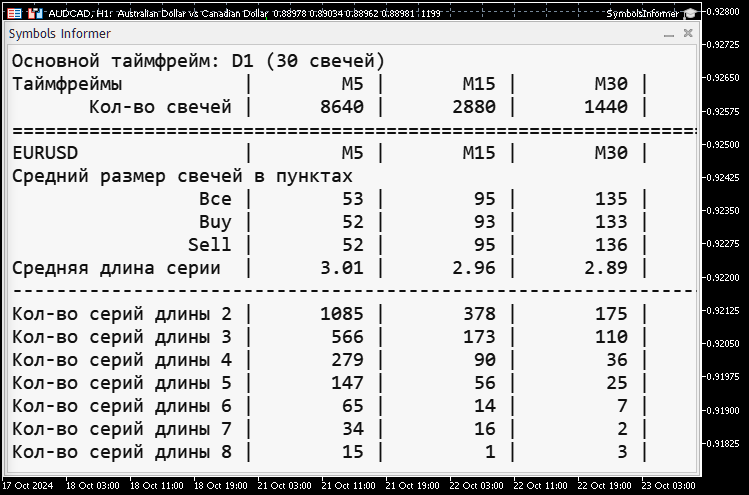
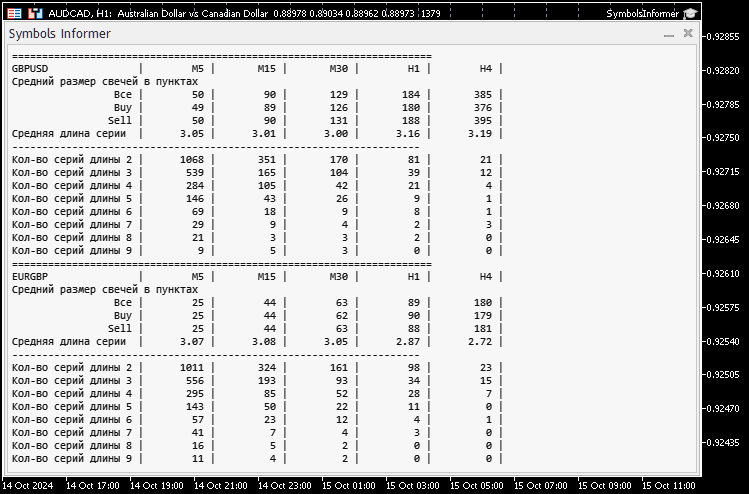
If we want to see all the values for GBPUSD and EURGBP at once, we can reduce the font size again and scroll down the text:
The developed component can be easily adapted for use in existing EAs, where a graphical interface is not used, and all information is displayed on the chart in text form.
For example, in the recent article "Forex Arbitrage Trading: A Matrix Trading System for Return to Fair Value with Risk Control", the author provides an example of such an EA:
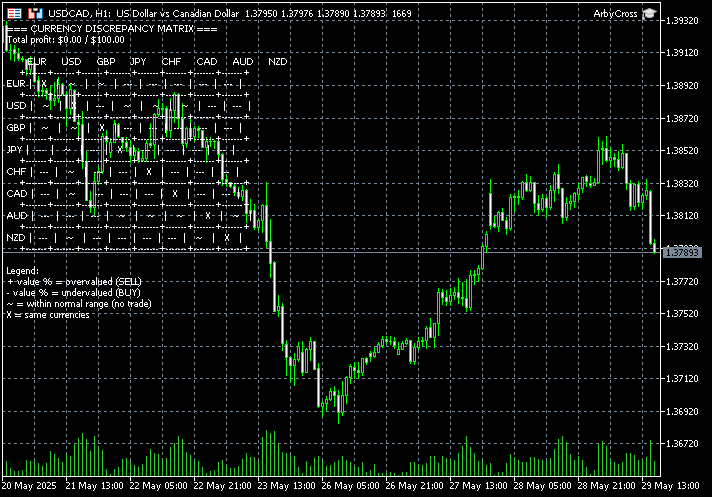
By making some minor changes to its source code, as described in the section on connecting the component, we get the following results:
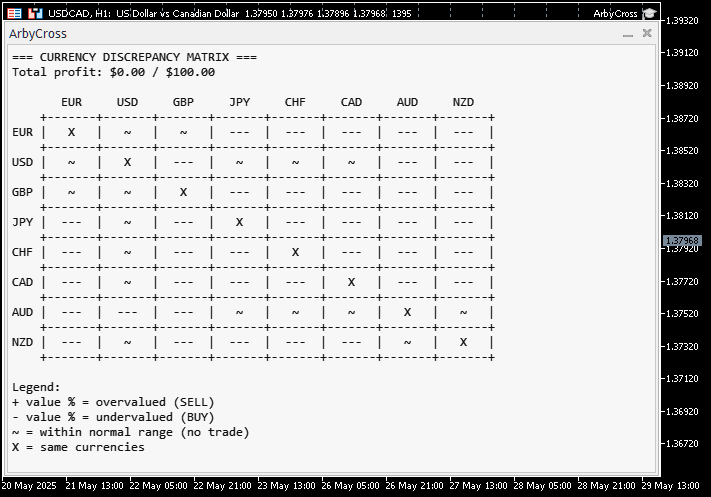
It is much more convenient to perceive information in this form.
Conclusion
We have improved the first version of an auxiliary informer EA, showing information about the average candle sizes in points and the lengths of series of candles moving in the same direction. Along the way, we have developed a component that might be useful in many other EAs.
But for now, we have one EA responsible for the calculation part and for displaying the results. Next time, we will try separating these two parts to provide more flexibility. We plan to transfer this approach to the multi-currency trading EA.
Thank you for your attention! See you soon!
Important warning
All results presented in this article and all previous articles in the series are based only on historical testing data and are not a guarantee of any profit in the future. The work within this project is of a research nature. All published results can be used by anyone at their own risk.
Archive contents
| # | Name | Version | Description | Recent changes |
|---|---|---|---|---|
| SymbolsInformer | Project working folder | |||
| 1 | SymbolsInformer.mq5 | 1.01 | The EA for displaying information about the lengths of series of unidirectional candles | Part 27 |
| 2 | CConsoleDialog.mqh | 1.00 | Part 27 | |
| 3 | AbbyCross.mq5 | — | An example of a third-party EA file with the CConsoleDialog class included | |
| SymbolsInformer/Include/Adwizard/Utils | Auxiliary utilities, macros for code reduction | |||
| 4 | Macros.mqh | 1.07 | Useful macros for array operations | Part 26 |
| 5 | NewBarEvent.mqh | 1.00 | Class for defining a new bar for a specific symbol | Part 8 |
Translated from Russian by MetaQuotes Ltd.
Original article: https://www.mql5.com/ru/articles/17883
Warning: All rights to these materials are reserved by MetaQuotes Ltd. Copying or reprinting of these materials in whole or in part is prohibited.
This article was written by a user of the site and reflects their personal views. MetaQuotes Ltd is not responsible for the accuracy of the information presented, nor for any consequences resulting from the use of the solutions, strategies or recommendations described.

 MQL5 Wizard Techniques you should know (Part 87): Volatility-Scaled Money Management with Monotonic Queue in MQL5
 Price Action Analysis Toolkit Development (Part 67): Automating Support and Resistance Monitoring in MQL5
 Mining Central Bank Balance Sheet Data to Get a Picture of Global Liquidity
 Building Volatility Models in MQL5 (Part II): Implementing GJR-GARCH and TARCH in MQL5

- Free trading apps
- Over 8,000 signals for copying
- Economic news for exploring financial markets
You agree to website policy and terms of use