

Developing a multi-currency Expert Advisor (Part 23): Putting in order the conveyor of automatic project optimization stages (II)
 2 818
2 818
 0
0

Introduction
One of the previous parts of the series has already been devoted to this issue. It allowed us to choose a more correct vector for the further development of the project. Instead of manually creating all the tasks performed within a single project in the optimization database, we now have a more convenient tool — an optimization project creation script. More precisely, it is more of a template that can be easily adapted to create projects for optimizing various trading strategies.
In this article, we have a fully functional solution that allows us to launch created optimization projects with the export of selected new groups of trading strategies directly to a new database. This database was named the EA database, so that it can be distinguished from the optimization database, which was used previously (in full and abbreviated versions). The EA database can be used by any final EA running on a trading account by updating the settings of the trading systems used without recompilation. We have yet to test the correctness of this mechanism. However, it can already be said that this approach simplifies the operation of the conveyor as a whole. Before this, we had planned to add several more stages to the three existing conveyor stages:
- Exporting the library to get ExportedGroupsLibrary.mqh in the data folder (Stage4).
- Copying the file to the working folder (Stage5, Python or DLL) or modifying the previous stage to export directly to the working folder.
- Compiling the final EA (Stage6, Python).
- Launching the terminal with the new version of the final EA.
Now these stages are no longer necessary. At the same time, we also got rid of a major drawback: it would be impossible to check the correct operation of such an auto update mechanism in the strategy tester. The presence of a recompilation stage is incompatible with the fact that during one tester pass the compiled code of the EA cannot change.
But most importantly, we will try to take an important step towards simplifying the use of all written code for optimizing arbitrary strategies and will try to describe a step-by-step algorithm of actions.
Mapping out the path
Let's start by implementing long-overdue changes to the project file structure. Currently, they are located in a single folder, which, on the one hand, simplifies the transfer and use of all the code in a new project, but on the other hand, in the process of continuous development, we end up with several almost identical working project folders for different trading strategies, each of which needs to be updated separately. Therefore, we will divide all the code into a library part, which will be the same for all projects, and a project part, which will contain code specific to different projects.
Next, we implement a check to ensure that if new strategy groups appear during the final EA's operation, it will be able to correctly load the updated parameters and continue working. Let's start, as usual, with modeling the desired behavior in an EA running in the strategy tester. If the results there are satisfactory, then it will be possible to move on to using it in final EAs that no longer work in the tester.
What do we need for this? In the previous section, we have not implemented saving information about the end dates of the optimization interval and the completion of the optimization conveyor execution in the EA database. Now we need this information, otherwise, when running the tester, the final EA will not be able to determine whether this group of strategies has already been formed on a specific simulated date or not.
The final EA will also need to be modified so that it can perform its own re-initialization when new strategy groups appear in its EA database. Currently, it simply does not have such functionality. Here, it would be useful to have at least some information about the current group of trading strategies, so that one could clearly see the successful transition from one group to another. It would be more convenient to see this information directly on the chart, on which the EA is running, but you can, of course, use the regular output to the terminal log for this purpose.
Finally, we will provide a description of the general algorithm for working with the tools developed to date.
Let's get started!
Transition to a different file structure
In all previous parts, development was carried out in one working project folder. Existing files in it were modified, and new ones were added from time to time. Sometimes files that were no longer relevant to the project were deleted or "forgotten". This approach was justified when working with a single possible trading strategy (for example, the SimpleVolumes strategy used as an example in the articles). But when extending the auto optimization mechanism to other trading strategies, it was necessary to create a complete copy of the project working folder and then change only a small portion of the files in it.
As the number of trading strategies connected in this way grew (and as the number of different working folders grew), keeping the code in all of them up to date became more and more labor-intensive. Therefore, we will move the part of the code that should be the same for all working folders into a separate library folder located in MQL5/Include. The name of the shared folder for library files has been set to Advisor, and to prevent it from conflicting with a possible existing folder with the same name, a unique component was added to it. Now the library files will be located in MQL5/Include/antekov/Advisor/.
Having transferred all the files into it, we began further systematization. It was decided to distribute all files into subfolders that reflect some common purpose for the files located within them. This required some work with the directives for including some files into others, since their relative locations had changed. But in the end, we managed to achieve successful compilation of both the EAs and all the library files separately.
This is what the file structure looked like after the modification:
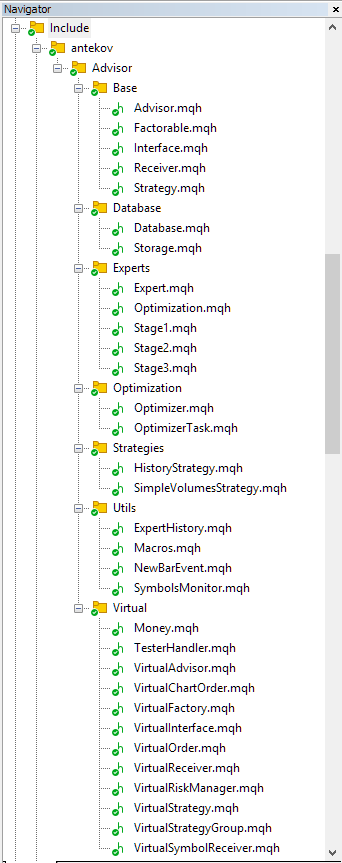
Fig. 1. Advisor library file structure
As you can see, we have selected several groups of files, placing them in the following subfolders:
- Base. Base classes other project classes inherit from.
- Database. Files for handling all types of databases used by project EAs.
- Experts. Files with common parts of used EAs of different type.
- Optimization. Classes responsible for auto optimization.
- Strategies. Examples of trading strategies used to demonstrate how the project works.
- Utils. Auxiliary utilities, macros for code reduction.
- Virtual. Classes for creating various objects united by the use of a system of virtual trading orders and positions.
Of all the subfolders listed above, only one stands out and deserves special mention. This is the Experts folder. If we compare the composition of the files in Fig. 1 with the composition of files from the previous part, we can notice that only this folder contains files that were not there before. At first, you might think that we simply partially renamed the files of the used EAs and moved them here, but note that their extension is not *.mq5, but *.mqh. But before we look at them in more detail, let's look at what will remain in the folder of a separate project for a certain trading strategy.
We will make a separate folder inside MQL5/Experts/ and name it whatever we want. It will contain files of all used EAs:
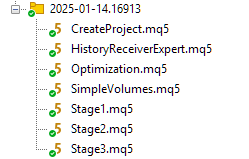
Fig. 2. File structure of a project using the EA library
The purpose of these files is as follows:
- CreateProject.mq5— EA for creating an auto optimization project in the optimization database. Each project in the database is presented as three stages, consisting of one or more tasks. Each job consists of one or more optimization tasks performed by stage EAs.
- HistoryReceiverExpert.mq5— EA for reproducing previously saved transaction history. We have not used it for a long time, as it was created only for the purpose of checking the repeatability of results when changing brokers. It is not required for auto optimization to work, so you can safely remove it if you wish.
- Optimization.mq5— EA that runs tasks from an auto optimization project. We called the process of sequentially performing such tasks the auto optimization conveyor.
- SimpleVolumes.mq5 — a final EA that combines many single instances of trading strategies of the SimpleVolumes type. It will take information about the composition of these specimens from the EA's database. This information, in turn, will be placed into the EA's database by the third stage EA of the auto optimization conveyor.
- Stage1.mq5— EA of the first stage of the auto optimization conveyor. It optimizes a single instance of a trading strategy.
- Stage2.mq5— EA of the second stage of the auto optimization conveyor. During the optimization, it selects from many good single instances obtained in the first stage a small group of instances (usually 8 or 16) that, when working together, shows the best results in terms of standardized profit.
- Stage3.mq5 — EA of the third stage of the auto optimization conveyor. It combines all groups obtained in the second stage, normalizes position sizes, and saves the resulting group with a scaling factor in the EA database specified in the settings.
Among the listed EA files, only CreateProject.mq5 saved its contents. All other EAs contain basically only a command to include the corresponding mqh file from the Advisor library located in MQL5/Include/antekov/Advisor/Experts. Notably, SimpleVolumes.mq5 and HistoryReceiverExpert.mq5 use the same Expert.mqh include file. As practice has shown, we do not need to write different code for second- and third-stage EAs for different trading strategies. For the first-stage EA, the only difference is the different inputs and the creation of the required initialization string from their values. Everything else will be the same too.
So, only CreateProject.mq5 will require more significant modification when switching to a project with a different trading strategy. In the future, we will try to extract the common part from it as well.
Let's now look at what changes need to be made to the library files to implement auto update of the final EA.
Completion dates
Let us recall that in the previous part we launched four almost identical optimization projects. The difference between them was in the end date of the optimization interval of single instances of trading strategies. The composition of trading instruments, timeframes and other parameters did not differ. As a result, the following entries appeared in the strategy_groups table of the EA database:
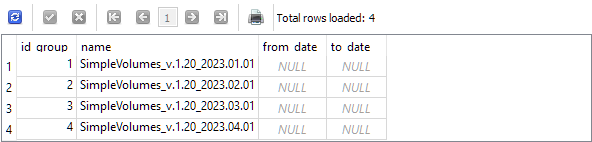
Since we added the end date of the optimization interval to the group name, this information allows us to understand which group corresponds to which end date. But the EA should be able to understand this as well. We specifically created two fields in this table to store these dates, which need to be filled in when creating records, and even prepared a place in the code where this needs to be done:
//+------------------------------------------------------------------+
//| Export an array of strategies to the specified EA database       |
//| as a new group of strategies                                     |
//+------------------------------------------------------------------+
void CTesterHandler::Export(CStrategy* &p_strategies[], string p_groupName, string p_advFileName) {
// Connect to the required EA database
   if(DB::Connect(p_advFileName, DB_TYPE_ADV)) {
      string fromDate = "";   // Start date of the optimization interval
      string toDate = "";     // End date of the optimization interval

      // Create an entry for a new strategy group
      string query = StringFormat("INSERT INTO strategy_groups VALUES(NULL, '%s', '%s', '%s', NULL)"
                                  " RETURNING rowid;",
                                  p_groupName, fromDate, toDate);
      ulong groupId = DB::Insert(query);

      // ...
   }
}
The start and end dates of the optimization interval are stored in the stages table of the database. Therefore, we can get them from there by executing the corresponding SQL query at this point in the code. But this approach turned out to be less than optimal, because we had already implemented the code that executed an SQL query to obtain information about these dates, among other things. This happened in the auto optimization EA. It was supposed to receive information from the database about the next optimization task. This information must include the dates we need. Let's take advantage of this.
We will need to create an object of the COptimizerTask class by passing the name of the optimization database to its constructor. It is present in the CTesterHandler::s_fileName static class field. Another static field CTesterHandler::s_idTask features the current optimization task ID. We will pass it to the method for loading optimization problem data. After this, the required dates can be obtained from the corresponding fields of the m_params structure of the task object.
//+------------------------------------------------------------------+
//| Export an array of strategies to the specified EA database       |
//| as a new group of strategies                                     |
//+------------------------------------------------------------------+
void CTesterHandler::Export(CStrategy* &p_strategies[], string p_groupName, string p_advFileName) {
// Create an optimization task object
   COptimizerTask task(s_fileName);
// Load the data of the current optimization task into it
   task.Load(CTesterHandler::s_idTask);

// Connect to the required EA database
   if(DB::Connect(p_advFileName, DB_TYPE_ADV)) {
      string fromDate = task.m_params.from_date; // Start date of the optimization interval
      string toDate = task.m_params.to_date;     // End date of the optimization interval

      // Create an entry for a new strategy group
      string query = StringFormat("INSERT INTO strategy_groups VALUES(NULL, '%s', '%s', '%s', NULL)"
                                  " RETURNING rowid;",
                                  p_groupName, fromDate, toDate);
      ulong groupId = DB::Insert(query);

      // ...
   }
}
Let's save the changes made to the TesterHandler.mqh file in the Virtual subfolder of the library.
Let's recreate several projects using the CreateProject.ex5 EA. To speed up the process, we will make the optimization interval small (4 months). We will move the start and end dates of the optimization interval for each subsequent project forward by one month. As a result, we get the following:
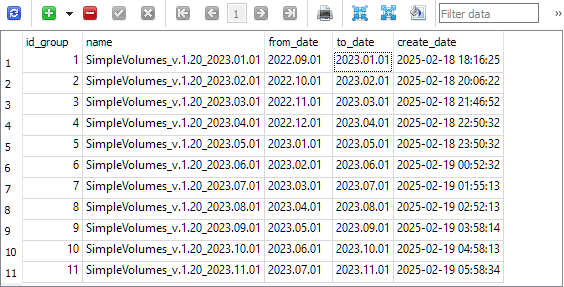
As you can see, each group in the EA database now contains the end date of the optimization interval. Note that this date is taken from the interval for the third stage task. For everything to be correct, the dates of the intervals of all three stages should be the same. This is provided in the project creation EA.
Modifying the final EA
Before we begin implementing auto updates to the strategy group used in the final EA, let's look at the changes caused by the transition to the new project file structure. As already noted, the final EA is now presented in the form of two files. The main file is located in the project folder and is called SimpleVolumes.mq5. Here is its full code:
//+------------------------------------------------------------------+
//|                                                SimpleVolumes.mq5 |
//|                                 Copyright 2024-2025, Yuriy Bykov |
//|                            https://www.mql5.com/en/users/antekov |
//+------------------------------------------------------------------+
#property copyright "Copyright 2024-2025, Yuriy Bykov"
#property link      "https://www.mql5.com/en/articles/16913"
#property description "The final EA, combining multiple instances of trading strategies:"
#property description " "
#property description "Strategies open a market or pending order when,"
#property description "the candle tick volume exceeds the average volume in the direction of the current candle."
#property description "If orders have not yet turned into positions, they are deleted at expiration time."
#property description "Open positions are closed only by SL or TP."
#property version "1.22"

#include <antekov/Advisor/Experts/Expert.mqh>

//+------------------------------------------------------------------+
In this code, there is essentially only one command to import the library file of the final EA. This is exactly the case when what is not is more important than what is. Let's compare it with the code of the second HistoryReceiverExpert.mq5 EA:
//+------------------------------------------------------------------+
//|                                        HistoryReceiverExpert.mq5 |
//|                                 Copyright 2024-2025, Yuriy Bykov |
//|                            https://www.mql5.com/en/users/antekov |
//+------------------------------------------------------------------+
#property copyright "Copyright 2024-2025, Yuriy Bykov"
#property link      "https://www.mql5.com/en/articles/16913"
#property description "The EA opens a market or pending order when,"
#property description "the candle tick volume exceeds the average volume in the direction of the current candle."
#property description "If orders have not yet turned into positions, they are deleted at expiration time."
#property description "Open positions are closed only by SL or TP."
#property version "1.01"

//+------------------------------------------------------------------+
//| Declare the name of the final EA.                                |
//| During the compilation, the function of generating               |
//| the initialization string from the current file will be used     |
//+------------------------------------------------------------------+
#define  __NAME__ MQLInfoString(MQL_PROGRAM_NAME)

//+------------------------------------------------------------------+
//| Inputs                                                           |
//+------------------------------------------------------------------+
input group "::: Testing the deal history"
input string historyFileName_    = "SimpleVolumesExpert.1.19 [2021.01.01 - 2022.12.30]"
                                   " [10000, 34518, 1294, 3.75].history.csv";    // File with history

//+------------------------------------------------------------------+
//| Function for generating the strategy initialization string       |
//| from the inputs                                                  |
//+------------------------------------------------------------------+
string GetStrategyParams() {
   return StringFormat("class CHistoryStrategy(\"%s\")\n", historyFileName_);
}

#include <antekov/Advisor/Experts/Expert.mqh>

//+------------------------------------------------------------------+
Three blocks that are not in the SimpleVolumes.mq5 file are highlighted in color. Their presence is taken into account in the Experts/Expert.mqh library file of the final EA: if a constant with the name of the final EA is not specified, then a function for generating the initialization string is declared, which will receive it from the EA's database. If the name is specified, then such a function must be declared in the parent file the library file is included to.
// If the constant with the name of the final EA is not specified, then
#ifndef __NAME__
// Set it equal to the name of the EA file
#define  __NAME__ MQLInfoString(MQL_PROGRAM_NAME)

//+------------------------------------------------------------------+
//| Function for generating the strategy initialization string       |
//| from the default inputs (if no name was specified).              |
//| Import the initialization string from the EA database            |
//| by the strategy group ID                                         |
//+------------------------------------------------------------------+
string GetStrategyParams() {
// Take the initialization string from the new library for the selected group
// (from the EA database)
   string strategiesParams = CVirtualAdvisor::Import(
                                CVirtualAdvisor::FileName(__NAME__, magic_),
                                groupId_
                             );

// If the strategy group from the library is not specified, then we interrupt the operation
   if(strategiesParams == NULL && useAutoUpdate_) {
      strategiesParams = "";
   }

   return strategiesParams;
}
#endif
Next, in the EA initialization function of the Experts/Expert.mqh library file, one of the possible options for the initialization string generation function is used:
//+------------------------------------------------------------------+
//| Expert initialization function                                   |
//+------------------------------------------------------------------+
int OnInit() {
// ...

// Initialization string with strategy parameter sets
   string strategiesParams = NULL;

// Take the initialization string from the new library for the selected group
// (from the EA database)
   strategiesParams = GetStrategyParams();

// If the strategy group from the library is not specified, then we interrupt the operation
   if(strategiesParams == NULL) {
      return INIT_FAILED;
   }

// ...

// Successful initialization
   return(INIT_SUCCEEDED);
}
Thus, we can, if desired, create a final EA that will not use loading the initialization string from the EA database. To do this, declare the __NAME__ constant and the signature function in the *.mq5 file.
string GetStrategyParams() Now we can proceed with auto update.
Auto update
The first option for implementing auto updates may not be the most pretty, but it will do for a start. The main thing is that it works. The required changes to the final EA library file consisted of two parts.
First, we slightly changed the composition of the inputs, removing the enumeration with the group number from the old library, replacing it with the group ID from the EA database, and adding a logical parameter that enables auto update:
//+------------------------------------------------------------------+
//| Inputs                                                           |
//+------------------------------------------------------------------+
input group "::: Use a strategy group"
sinput int        groupId_       = 0;     // - ID of the group from the new library (0 - last)
sinput bool       useAutoUpdate_ = true;  // - Use auto update?

input group "::: Money management"
sinput double expectedDrawdown_  = 10;    // - Maximum risk (%)
sinput double fixedBalance_      = 10000; // - Used deposit (0 - use all) in the account currency
input  double scale_             = 1.00;  // - Group scaling multiplier

// ...
Second, we added the following code to the new tick handling function, after the highlighted string:
//+------------------------------------------------------------------+
//| Expert tick function                                             |
//+------------------------------------------------------------------+
void OnTick() {
   expert.Tick();

// If both are executed at the same time:
   if(groupId_ == 0                       // - no specific group ID specified
         && useAutoUpdate_                // - auto update enabled
         && IsNewBar(Symbol(), PERIOD_D1) // - a new day has arrived
         && expert.CheckUpdate()          // - a new group of strategies discovered
     ) {
      // Save the current EA state
      expert.Save();

      // Delete the EA object
      delete expert;

      // Call the EA initialization function to load a new strategy group
      OnInit();
   }
}
Thus, the auto update will only work if groupId_=0 and useAutoUpdate_=true. If we specify a non-zero group ID, then this group will be used throughout the entire test interval. In this case, there is no limitation on when the final EA can make trades.
When auto update is enabled, the resulting EA will only execute trades after the end date of the optimization interval of the earliest group existing in the EA database. This mechanism will be implemented in the new method of the CVirtualAdvisor::CheckUpdate() class:
//+------------------------------------------------------------------+
//| Check the presence of a new strategy group in the EA database    |
//+------------------------------------------------------------------+
bool CVirtualAdvisor::CheckUpdate() {
// Request to get strategies of a given group or the last group
   string query = StringFormat("SELECT MAX(id_group) FROM strategy_groups"
                               " WHERE to_date <= '%s'",
                               TimeToString(TimeCurrent(), TIME_DATE));

// Open the EA database
   if(DB::Connect(m_fileName, DB_TYPE_ADV)) {
// Execute the request
      int request = DatabasePrepare(DB::Id(), query);

      // If there is no error
      if(request != INVALID_HANDLE) {
         // Data structure for reading a single string of a query result
         struct Row {
            int      groupId;
         } row;

         // Read data from the first result string
         while(DatabaseReadBind(request, row)) {
            // Remember the strategy group ID
            // in the static property of the EA class
            return s_groupId < row.groupId;
         }
      } else {
         // Report an error if necessary
         PrintFormat(__FUNCTION__" | ERROR: request \n%s\nfailed with code %d", query, GetLastError());
      }

      // Close the EA database
      DB::Close();
   }

   return false;
}
In this method, we obtain from the EA database the largest group ID, for which the optimization interval end date is no greater than the current date. Thus, even if a record of an entry is already physically present in the database, but the time of its appearance (>= the end time of the optimization interval) is located in the future relative to the current simulated time of the strategy tester, then it will not be obtained as a result of the SQL query used.
When initialized, the EA stores the ID of the loaded strategy group in the static field of the CVirtualAdvisor::s_groupId class. Therefore, we can detect the appearance of a new group by comparing the ID just obtained from the EA database with the ID of the previously loaded group. If the first one is larger, then a new group has appeared.
In the method for obtaining the initialization string from the EA database, which already directly interacts with the database, we use the same condition on the end date of the group test interval with auto update enabled:
//+------------------------------------------------------------------+
//| Get the strategy group initialization string                     |
//| from the EA database with the given ID                           |
//+------------------------------------------------------------------+
string CVirtualAdvisor::Import(string p_fileName, int p_groupId = 0) {
   string params[];   // Array for strategy initialization strings

// Request to get strategies of a given group or the last group
   string query = StringFormat("SELECT id_group, params "
                               "  FROM strategies"
                               " WHERE id_group = %s;",
                               (p_groupId > 0 ? (string) p_groupId
                                : "(SELECT MAX(id_group) FROM strategy_groups WHERE to_date <= '"
                                + TimeToString(TimeCurrent(), TIME_DATE) +
                                "')"));

// Open the EA database
   if(DB::Connect(p_fileName, DB_TYPE_ADV)) {
      // ...
   }

// Strategy group initialization string
   string groupParams = NULL;

// Total number of strategies in the group
   int totalStrategies = ArraySize(params);

// If there are strategies, then
   if(totalStrategies > 0) {
      // Concatenate their initialization strings with commas
      JOIN(params, groupParams, ",");

      // Create a strategy group initialization string
      groupParams = StringFormat("class CVirtualStrategyGroup([%s], %.5f)",
                                 groupParams,
                                 totalStrategies);
   }

// Return the strategy group initialization string
   return groupParams;
}
The last thing worth mentioning here is the addition of a method for loading the EA state after switching to a new group of strategies. The point is that new strategies from the new group will not find their settings in the EA database, since the Save() method has not yet been called for them, and report the download error. But this error should be ignored.
Another addition is related to the need to close virtual positions of old strategies immediately after loading new ones. To do this, it is necessary and sufficient to create symbol receiver objects for all symbols used by the old strategies. These objects will correct the volumes of open positions on the next tick. If this is not done, then the volume correction will only occur as virtual positions are opened with new strategies. If new strategies stop using one of the previously used symbols, then positions on it will remain open.
//+------------------------------------------------------------------+
//| Load status                                                      |
//+------------------------------------------------------------------+
bool CVirtualAdvisor::Load() {
   bool res = true;
   ulong groupId = 0;

// Load status if:
   if(true
// file exists
         && FileIsExist(m_fileName, FILE_COMMON)
// currently, there is no optimization
         && !MQLInfoInteger(MQL_OPTIMIZATION)
// and there is no testing at the moment or there is a visual test at the moment
         && (!MQLInfoInteger(MQL_TESTER) || MQLInfoInteger(MQL_VISUAL_MODE))
     ) {
      // If the connection to the EA database is established
      if(CStorage::Connect(m_fileName)) {
         // If the last modified time is loaded and less than the current time
         if(CStorage::Get("CVirtualReceiver::s_lastChangeTime", m_lastSaveTime)
               && m_lastSaveTime <= TimeCurrent()) {

            PrintFormat(__FUNCTION__" | LAST SAVE at %s",
                        TimeToString(m_lastSaveTime, TIME_DATE | TIME_MINUTES | TIME_SECONDS));

            // If the saved strategy group ID is loaded
            if(CStorage::Get("CVirtualAdvisor::s_groupId", groupId)) {
               // Load all strategies ignoring possible errors
               FOREACH(m_strategies, {
                  res &= ((CVirtualStrategy*) m_strategies[i]).Load();
               });

               if(groupId != s_groupId) {
                  // Actions when launching an EA with a new group of strategies.
                  PrintFormat(__FUNCTION__" | UPDATE Group ID: %I64u -> %I64u", s_groupId, groupId);

                  // Reset a possible error flag when loading strategies
                  res = true;

                  string symbols[]; // Array for symbol names

                  // Get the list of all symbols used by the previous group
                  CStorage::GetSymbols(symbols);

                  // For all symbols, create a symbolic receiver.
                  // This is necessary for the correct closing of virtual positions
                  // of the old strategy group immediately after loading the new one
                  FOREACH(symbols, m_receiver[symbols[i]]);
               }

               // ...
            }
         } else {
            // If the last modified time is not found or is in the future,
            // then start work from scratch
            PrintFormat(__FUNCTION__" | NO LAST SAVE [%s] - Clear Storage",
                        TimeToString(m_lastSaveTime, TIME_DATE | TIME_MINUTES | TIME_SECONDS));
            CStorage::Clear();
            m_lastSaveTime = 0;
         }

         // Close the connection
         CStorage::Close();
      }
   }

   return res;
}
After this, you can begin checking the functionality of auto loading new groups. Unfortunately, success was not achieved immediately, as it was necessary to correct the errors that had appeared. For example, it turned out that the EA falls into an infinite loop if the EA database suddenly turns out to be empty. Or a test does not start if the test start date is set even one day before the date of the first group of strategies appearing. Eventually, all the errors found were corrected.
Let's now look at the algorithm for using the created library as a whole and the results of the auto update check.
Algorithm for using the Advisor library
This time we will describe the algorithm for using the Advisor library for auto optimization of the SimpleVolumes model strategy, which is part of the library and launch in the tester of the final EA.
- Set the library to Include (Fig. 1).
- Create a project folder and transfer the EA files into it (Fig. 2).
- We make changes to the files of the first stage EA and the file of the project creation EA. When using a model strategy, no changes are required as they are up to date. Compile all the EAs in the project folder.
- Launch the project creation EA, setting the desired parameter values (you can leave them at default).
The output should be an optimization database filled with tasks for the project in the shared terminal data folder. You can specify anything in the project description, such as the start and end dates of the optimization interval. For now, this is just creating a task to launch the conveyor. The launch will be performed by another EA. - If desired, you can repeat the previous step any number of times, changing the parameters. For example, you can create several projects at once for auto optimization at different time intervals.
- Launch the optimization EA and wait. The time required to complete all projects added to the optimization database depends on their number, as well as on the number of symbols and timeframes in the projects, on the duration of the test/optimization time interval, and on the complexity of the implemented trading strategy. This time also depends on the number of test agents involved in the optimization.
The output is a file with the EA database in a shared folder. Its name is taken from the settings.
The EA database will contain saved strategy groups. - Let's launch the final EA. It is important that its name and magic number match those specified during optimization. Otherwise, it will create an empty EA database and wait for something to appear in it. If the final EA finds its base, it tries to load the strategy group with the specified ID or the last added group if the ID is 0. If the auto update option is set, the EA will check once a day whether a new group of strategies available by date has appeared in the EA database. If it appears, it replaces the previously used group.
Testing auto updates
So, after the optimization of all projects added to the database with different completion dates is finished, we will have an EA database with several groups of strategies of different compositions. They also differ in the end date of the optimization interval. And we have a final EA that can, as testing progresses, take a new group of strategies from the database when the simulated current time exceeds the end time of the optimization interval for this new group.
Please note that saving and loading EA parameters only works when the EA is launched on a chart or in visual testing mode. Therefore, to check auto updating in the tester, it is necessary to use visual mode.
Let's run the final EA specifying a certain group groupId_=1. In this case, regardless of the useAutoUpdate_ parameter value, only this group will be used. It was optimized for the interval 2022.09.01 — 2023.01.01, so we will launch the tester starting from the date 2022.09.01 (the main period), and from the date of 2023.01.01 we will start the forward period up to 2024.01.01.
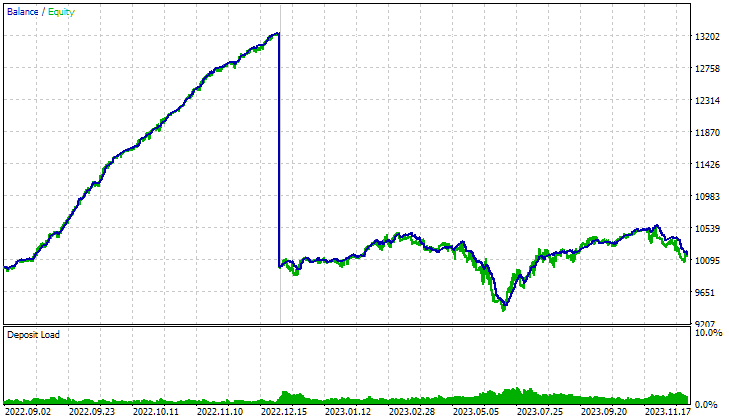
Main period 2022.09.01 — 2023.01.01
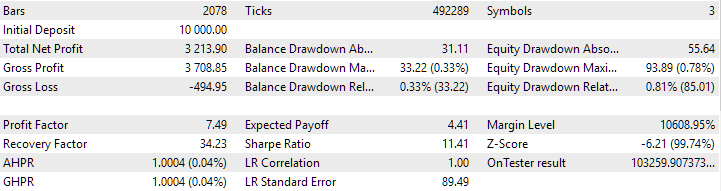
Forward period 2023.01.01 — 2024.01.01
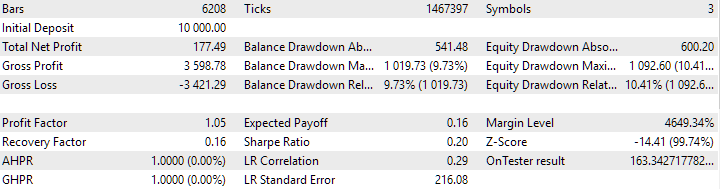
Fig. 3. Results of the final EA with parameters groupId_=1 on the interval of 2022.09.01 — 2024.01.01
As we can see, the EA shows good results on the main period, which coincides with the optimization interval, but on the forward period the picture is completely different. There is a much larger drawdown and no significant growth in the equity curve. Well, of course, I would like to see something more beautiful, but this result is not unexpected. After all, we used a very small interval during optimization, few symbols and few timeframes. Therefore, we found that in a known section the parameters were selected too well for this particular short section. The EA was unable to prove itself in such a way in an unknown area.
Let's see if a similar pattern is observed for another group of trading strategies out of interest. Let's run the resulting EA specifying the groupId_=3. This group was optimized for the interval 2022.11.01 — 2023.03.01, so we will launch the tester starting from 2022.11.01 (main period), and from the date of 2023.03.01 we will also start the forward period up to 2024.01.01.
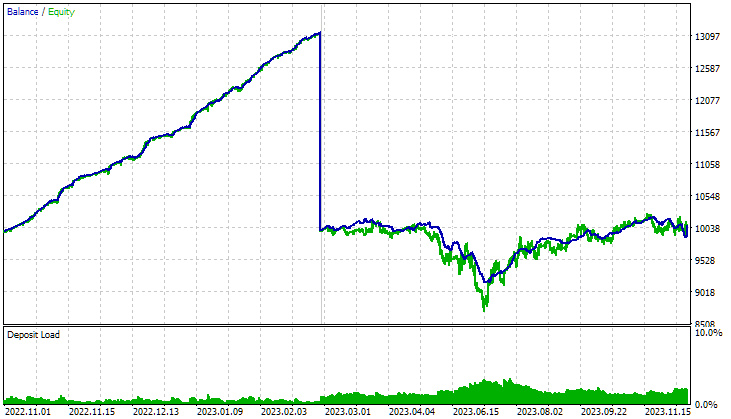
Main period 2022.11.01 — 2023.03.01
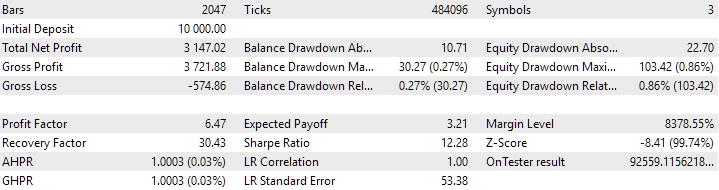
Forward period 2023.03.01 — 2024.01.01
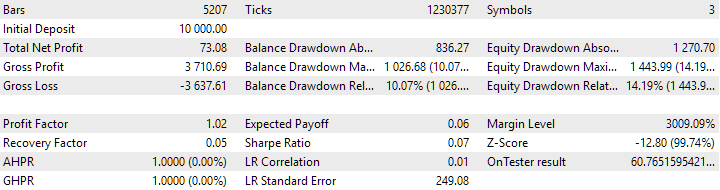
Fig. 4. Results of the final EA with parameters groupId_=3 on the interval of 2022.11.01 — 2024.01.01
Yes, the results were the same as for the first group. For both groups, a large drawdown is observed in May-June. You might think that this is an unfortunate period for the strategy. But if we take a group that was optimized on this range, we will see that here too the same parameters of the strategies from the group were successfully selected. It shows the same smooth and beautiful growth of the chart.
If we run the final EA starting from the date of 2023.01.01 with the parameters groupId_=0, useAutoUpdate=false, then we will get the same result as in the forward period for the first group, since in this case the first group will be loaded (it already "exists" as of the start date of the passage). However, due to the auto update being disabled, it will not be replaced by groups with a later appearance time.
And finally, let's run the final EA on the interval 2023.01.01 — 2024.01.01 with auto updating, specifying the groupId_=0, useAutoUpdate=true.
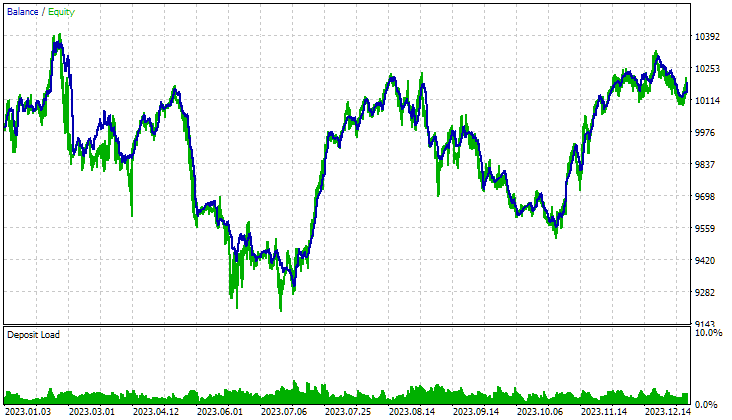
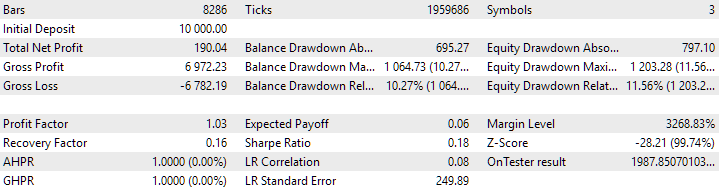
Fig. 5. Results of the final EA with the parameters groupId_=0, useAutoUpdate=true on the interval of 2023.01.01 — 2024.01.01
The trading results themselves are not of interest, since in order to reduce the time for auto optimization, a very short period of optimization was used (only 4 months). Now we just wanted to demonstrate the functionality of the mechanism for automatically updating the strategy groups used. And judging by the log entries and the automatic closing of positions at the beginning of each month, this works as intended:
SimpleVolumes (GBPUSD,H1)       2023.02.01 00:00:00   CVirtualReceiver::Get | OK, Strategy orders: 3 from 144 total
SimpleVolumes (GBPUSD,H1)       2023.02.01 00:00:00   CVirtualStrategyGroup::CVirtualStrategyGroup | Scale = 2.44, total strategies = 1
SimpleVolumes (GBPUSD,H1)       2023.02.01 00:00:00   CVirtualStrategyGroup::CVirtualStrategyGroup | Scale = 48.00, total groups = 48
SimpleVolumes (GBPUSD,H1)       2023.02.01 00:00:00   CVirtualStrategyGroup::CVirtualStrategyGroup | Scale = 1.00, total groups = 1
SimpleVolumes (GBPUSD,H1)       2023.02.01 00:00:00   CVirtualRiskManager::UpdateBaseLevels | DAILY UPDATE: Balance = 0.00 | Equity = 0.00 | Level = 0.00 | depoPart = 0.10 = 0.10 * 1.00 * 1.00
SimpleVolumes (GBPUSD,H1)       2023.02.01 00:00:00   CVirtualAdvisor::Load | LAST SAVE at 2023.01.31 20:32:00
SimpleVolumes (GBPUSD,H1)       2023.02.01 00:00:00   CVirtualAdvisor::Load | UPDATE Group ID: 1 -> 2
SimpleVolumes (GBPUSD,H1)       2023.02.01 00:00:59   CSymbolNewBarEvent::IsNewBar | Register new event handler for GBPUSD PERIOD_D1
SimpleVolumes (GBPUSD,H1)       2023.02.01 00:01:00   CSymbolNewBarEvent::IsNewBar | Register new event handler for EURUSD PERIOD_D1
SimpleVolumes (GBPUSD,H1)       2023.02.01 00:01:00   CSymbolNewBarEvent::IsNewBar | Register new event handler for EURGBP PERIOD_D1
Conclusion
Let's sum up some results. We have finally put all the reusable code in the Include folder in the form of the Advisor library. Now it will be possible to connect it to projects working with different trading strategies. Subsequent library updates will be automatically distributed to all projects where it is used.
It is becoming easier and easier to create and launch an auto optimization project. We have now simplified the mechanism for implementing optimization results into the final EA. Simply specify the desired EA database name in the settings for the third stage of optimization, and the results will be stored where the final EA can retrieve them.
However, there are still quite a few points that require attention. One of them is to develop an algorithm for adding a new type of trading strategy and including groups containing different types of trading strategies in the final EA. But more about that next time.
Thank you for your attention! See you soon!
Important warning
All results presented in this article and all previous articles in the series are based only on historical testing data and are not a guarantee of any profit in the future. The work within this project is of a research nature. All published results can be used by anyone at their own risk.
Archive contents
| # | Name | Version | Description | Recent changes |
|---|---|---|---|---|
| MQL5/Experts/Article.16913 | Project working folder | |||
| 1 | CreateProject.mq5 | 1.01 | EA script for creating a project with stages, jobs and optimization tasks. | Part 23 |
| 2 | HistoryReceiverExpert.mq5 | 1.01 | EA for replaying the history of deals with the risk manager | Part 23 |
| 3 | Optimization.mq5 | 1.00 | EA for projects auto optimization | Part 23 |
| 4 | SimpleVolumesExpert.mq5 | 1.22 | Final EA for parallel operation of several groups of model strategies. The parameters will be taken from the built-in group library. | Part 23 |
| 5 | Stage1.mq5 | 1.22 | Trading strategy single instance optimization EA (stage 1) | Part 23 |
| 6 | Stage2.mq5 | 1.00 | Trading strategies instances group optimization EA (stage 2) | Part 23 |
| 7 | Stage3.mq5 | 1.00 | The EA that saves a generated standardized group of strategies to an EA database with a given name. | Part 23 |
| MQL5/Include/antekov/Advisor/Base | Base classes other project classes inherit from | |||
| 8 | Advisor.mqh | 1.04 | EA base class | Part 10 |
| 9 | Factorable.mqh | 1.05 | Base class of objects created from a string | Part 22 |
| 10 | Interface.mqh | 1.01 | Basic class for visualizing various objects | Part 4 |
| 11 | Receiver.mqh | 1.04 | Base class for converting open volumes into market positions | Part 12 |
| 12 | Strategy.mqh | 1.04 | Trading strategy base class | Part 10 |
| MQL5/Include/antekov/Advisor/Database | Files for handling all types of databases used by project EAs | |||
| 13 | Database.mqh | 1.10 | Class for handling the database | Part 22 |
| 14 | db.adv.schema.sql | 1.00 | Final EA's database structure | Part 22 |
| 15 | db.cut.schema.sql | 1.00 | Structure of the truncated optimization database | Part 22 |
| 16 | db.opt.schema.sql | 1.05 | Optimization database structure | Part 22 |
| 17 | Storage.mqh | 1.01 | Class for handling the Key-Value storage for the final EA in the EA database | Part 23 |
| MQL5/Include/antekov/Advisor/Experts | Files with common parts of used EAs of different type | |||
| 18 | Expert.mqh | 1.22 | The library file for the final EA. Group parameters can be taken from the EA database | Part 23 |
| 19 | Optimization.mqh | 1.04 | Library file for the EA that manages the launch of optimization tasks | Part 23 |
| 20 | Stage1.mqh | 1.19 | Library file for the single instance trading strategy optimization EA (Stage 1) | Part 23 |
| 21 | Stage2.mqh | 1.04 | Library file for the EA optimizing a group of trading strategy instances (Stage 2) | Part 23 |
| 22 | Stage3.mqh | 1.04 | Library file for the EA saving a generated standardized group of strategies to an EA database with a given name. | Part 23 |
| MQL5/Include/antekov/Advisor/Optimization | Classes responsible for auto optimization | |||
| 23 | Optimizer.mqh | 1.03 | Class for the project auto optimization manager | Part 22 |
| 24 | OptimizerTask.mqh | 1.03 | Optimization task class | Part 22 |
| MQL5/Include/antekov/Advisor/Strategies | Examples of trading strategies used to demonstrate how the project works | |||
| 25 | HistoryStrategy.mqh | 1.00 | Class of the trading strategy for replaying the history of deals | Part 16 |
| 26 | SimpleVolumesStrategy.mqh | 1.11 | Class of trading strategy using tick volumes | Part 22 |
| MQL5/Include/antekov/Advisor/Utils | Auxiliary utilities, macros for code reduction | |||
| 27 | ExpertHistory.mqh | 1.00 | Class for exporting trade history to file | Part 16 |
| 28 | Macros.mqh | 1.05 | Useful macros for array operations | Part 22 |
| 29 | NewBarEvent.mqh | 1.00 | Class for defining a new bar for a specific symbol | Part 8 |
| 30 | SymbolsMonitor.mqh | 1.00 | Class for obtaining information about trading instruments (symbols) | Part 21 |
| MQL5/Include/antekov/Advisor/Virtual | Classes for creating various objects united by the use of a system of virtual trading orders and positions | |||
| 31 | Money.mqh | 1.01 | Basic money management class | Part 12 |
| 32 | TesterHandler.mqh | 1.07 | Optimization event handling class | Part 23 |
| 33 | VirtualAdvisor.mqh | 1.10 | Class of the EA handling virtual positions (orders) | Part 23 |
| 34 | VirtualChartOrder.mqh | 1.01 | Graphical virtual position class | Part 18 |
| 35 | VirtualFactory.mqh | 1.04 | Object factory class | Part 16 |
| 36 | VirtualHistoryAdvisor.mqh | 1.00 | Trade history replay EA class | Part 16 |
| 37 | VirtualInterface.mqh | 1.00 | EA GUI class | Part 4 |
| 38 | VirtualOrder.mqh | 1.09 | Class of virtual orders and positions | Part 22 |
| 39 | VirtualReceiver.mqh | 1.04 | Class for converting open volumes to market positions (receiver) | Part 23 |
| 40 | VirtualRiskManager.mqh | 1.04 | Risk management class (risk manager) | Part 23 |
| 41 | VirtualStrategy.mqh | 1.09 | Class of a trading strategy with virtual positions | Part 23 |
| 42 | VirtualStrategyGroup.mqh | 1.02 | Class of trading strategies group(s) | Part 23 |
| 43 | VirtualSymbolReceiver.mqh | 1.00 | Symbol receiver class | Part 3 |
| MQL5/Common/Files | Shared terminal folder | |||
| 44 | SimpleVolumes-27183.test.db.sqlite | — | EA database with added strategy groups |
Translated from Russian by MetaQuotes Ltd.
Original article: https://www.mql5.com/ru/articles/16913
Warning: All rights to these materials are reserved by MetaQuotes Ltd. Copying or reprinting of these materials in whole or in part is prohibited.
This article was written by a user of the site and reflects their personal views. MetaQuotes Ltd is not responsible for the accuracy of the information presented, nor for any consequences resulting from the use of the solutions, strategies or recommendations described.

 Market Positioning Codex for VGT with Kendall's Tau and Distance Correlation
 Market Simulation (Part 07): Sockets (I)
 MetaTrader 5 Machine Learning Blueprint (Part 6): Engineering a Production-Grade Caching System
 Neural Networks in Trading: Hierarchical Dual-Tower Transformer (Final Part)

- Free trading apps
- Over 8,000 signals for copying
- Economic news for exploring financial markets
You agree to website policy and terms of use