Journal
- Utilities
-
Arinze Michael Ejike
 I turn trading strategies into custom indicators and algorithmic solutions for NinjaTrader8, TradeLocker, MatchTrader, ForexTester6, cTrader, MetaTrader 4, and MetaTrader 5.
Core programs I build are Trade Copiers, Indicators, and other trading utilities. - Version: 1.0
- Activations: 10
Journal: the trading diary inside MetaTrader 5
Most traders can tell you what they did. Very few can tell you what they were thinking when they did it. Journal exists to capture that moment. It sits beside your chart, shows every trade you take, and gives you a place to write down, speak or photograph your reasoning while it is still fresh. Weeks later, when you reread your own words on a losing day, you learn things no statistics table can teach you.
Journal works entirely on your own computer. It runs inside your own terminal, and your notes, voice clips and screenshots are stored in your terminal’s own folder. Nothing is uploaded anywhere, and no account with any third party is needed. You create an ID and password that exist only on your machine.
How it works
Journal reads the history and live data directly from your MetaTrader 5 terminal and presents them in a clean page that you open in an embedded window or in your normal browser. The page is served locally by the terminal, so it is fast, private and available as long as your terminal is running.
The Trades screen
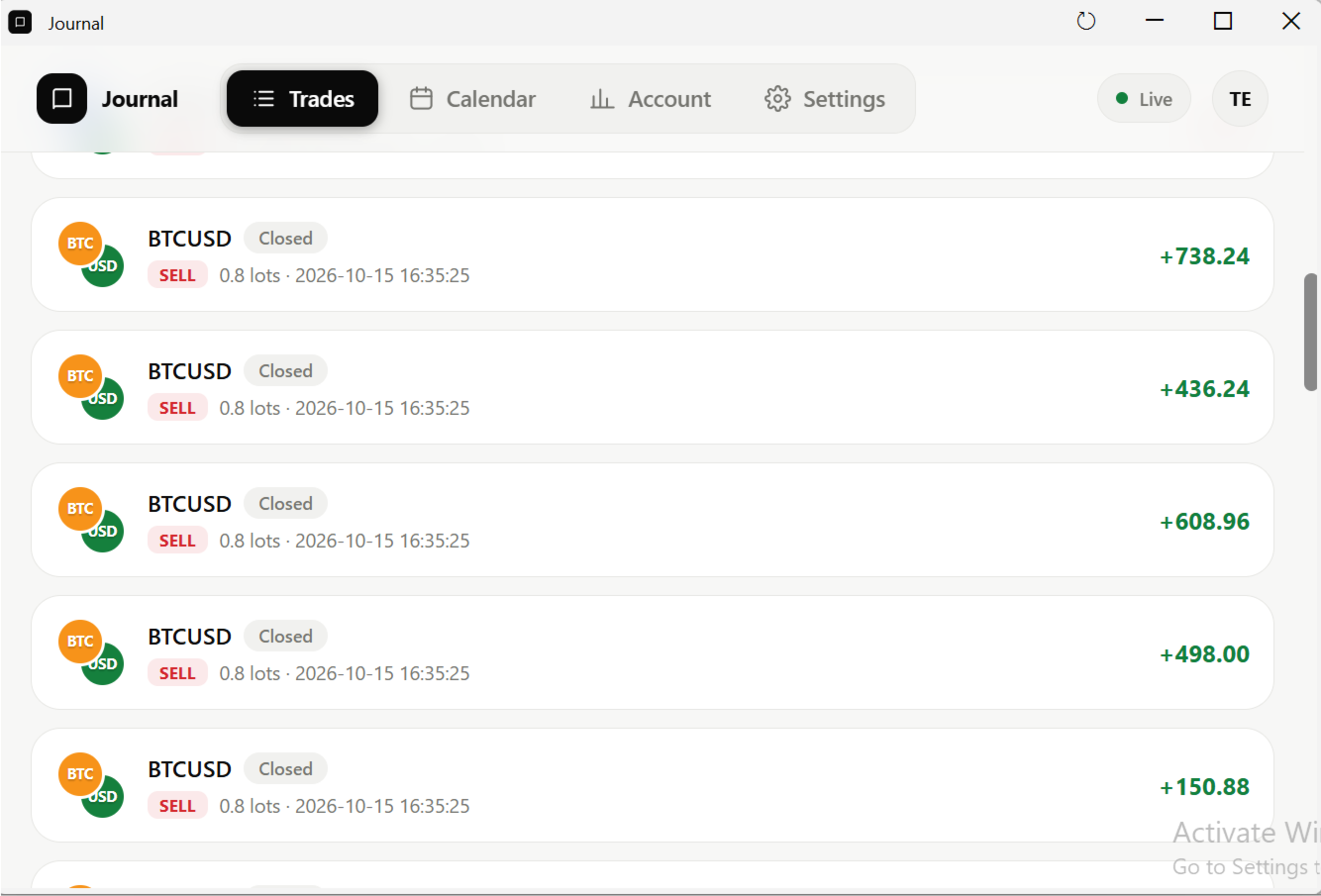
The first thing you see is the Trades screen. Three cards at the top show the open profit or loss of trades running now, the closed profit or loss of finished trades, and how many trades match your current filters. Below them, filter chips let you switch between All, Open, Pending, Closed and Cancelled, and you can search by part of a symbol and sort by newest, oldest, biggest profit or biggest loss. Live trades update every second. A pulsing dot marks a trade that is alive right now, either open or waiting as a pending order. Green means profit and red means loss, and pending orders show a dash until they trigger. Tap any card to open that trade.
Inside a trade
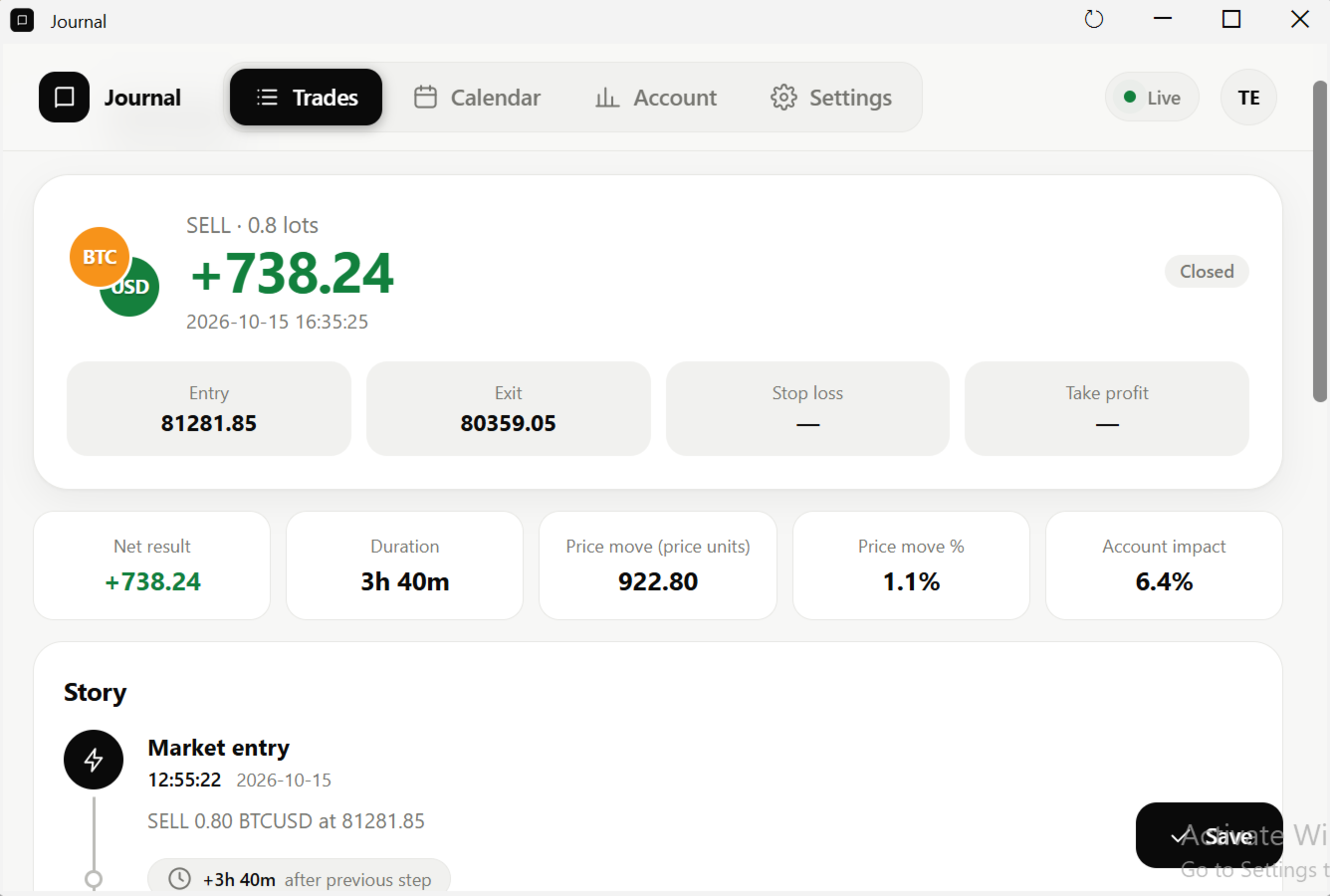
The top of a trade shows the side, lots, current result, entry price, exit or current price, stop loss and take profit. Beneath it you get a set of number tiles: duration, price move, effect on your account, margin used, the price at which your broker would close you out, breakeven price, spread, swap, commission, risk, R multiple and planned reward to risk. A tile only appears when the number exists, so risk, for example, needs a stop loss. At the bottom, a folded section lists every raw value for the trade.
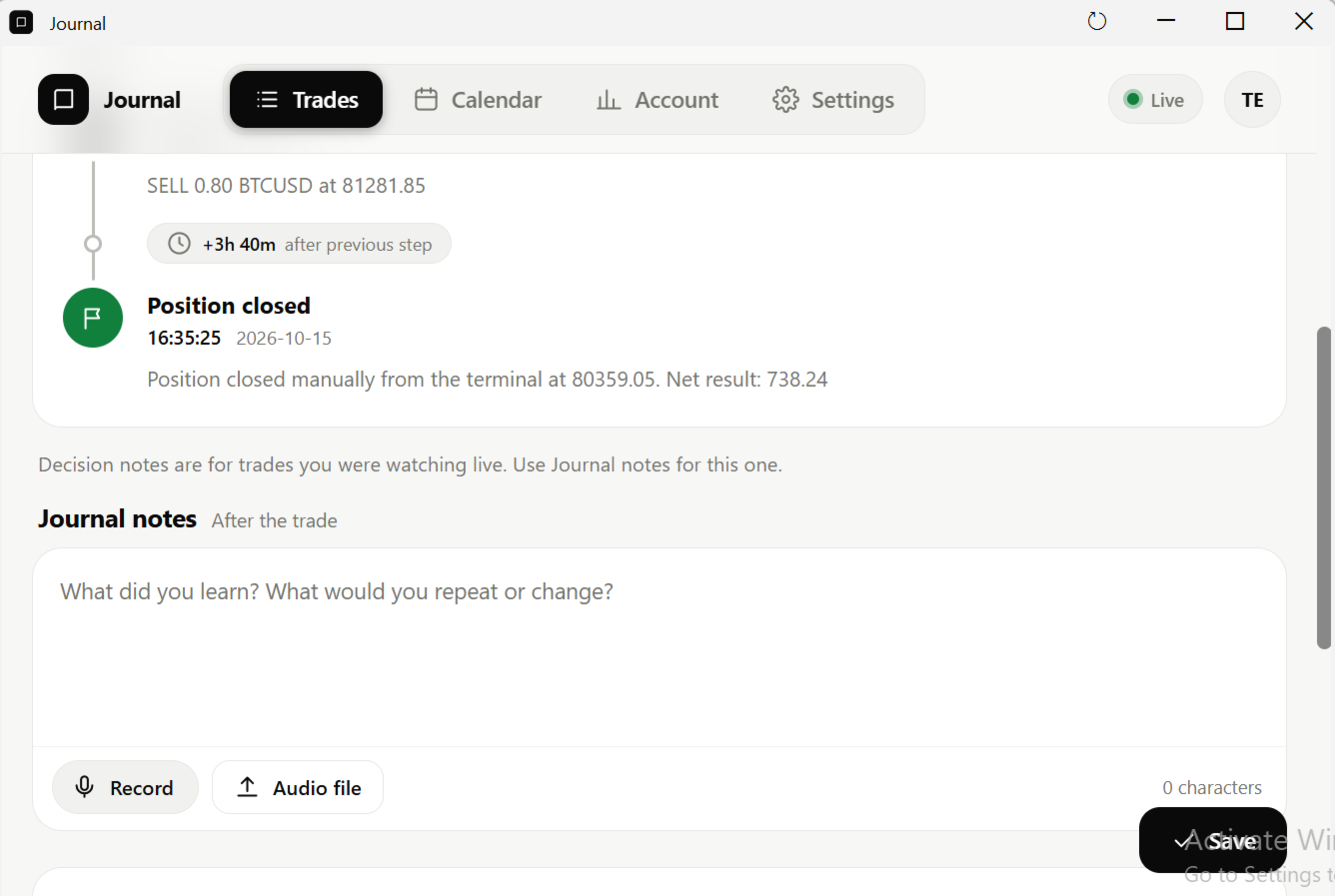
The Story is a timeline of what happened to the trade: the entry, added volume, partial closes, stop loss and take profit changes, and the final close, with the time between each step. Please note that stop loss and take profit moves are recorded only while Journal is running, because MetaTrader 5 does not keep a record of old modifications. If Journal was off when you moved a stop, that step will not appear.
Writing your notes
Each trade offers three notes, each for a different moment. The Decision note is for before or during the trade: why you entered and what the plan is. The Closing decision note is for the exit: why you are closing and what you saw. The Journal note is for afterwards: what you learned, what you would repeat and what you would change. Decision and Closing decision appear for trades you watched live with the page open and for any trade that already has such notes. For older trades you never watched, the Journal note is always available.
Your text saves by itself about a second after you stop typing. You can also press Save, and if you try to close the page with unsaved changes, the browser warns you. Every text box shows a character count. The notes for each trade can hold about 10 MB, while the trade data itself takes only a few kilobytes, so even 100,000 characters will not fill the limit. Voice notes and images do not count toward it.
Voice notes
Typing is slow in the middle of a fast market, and thoughts that sound good in your head often look clumsy on paper. So each of the three notes has its own voice recorder. Press Record, and allow microphone access the first time your browser asks. A live wave and a timer show that it is recording. Press Stop and the clip is saved under that note. Each clip has play, a seek bar and a delete button, and only one clip plays at a time. You can also press Audio file to attach a recording you already have, such as a phone voice memo.
Screenshots
Seeing is often better than describing. Add up to 15 images per trade by clicking the box to pick files, dragging and dropping them, or pasting from the clipboard while the trade is open. Click a thumbnail to enlarge it and click anywhere to close it. The small cross on a thumbnail removes the file for good.
The Calendar
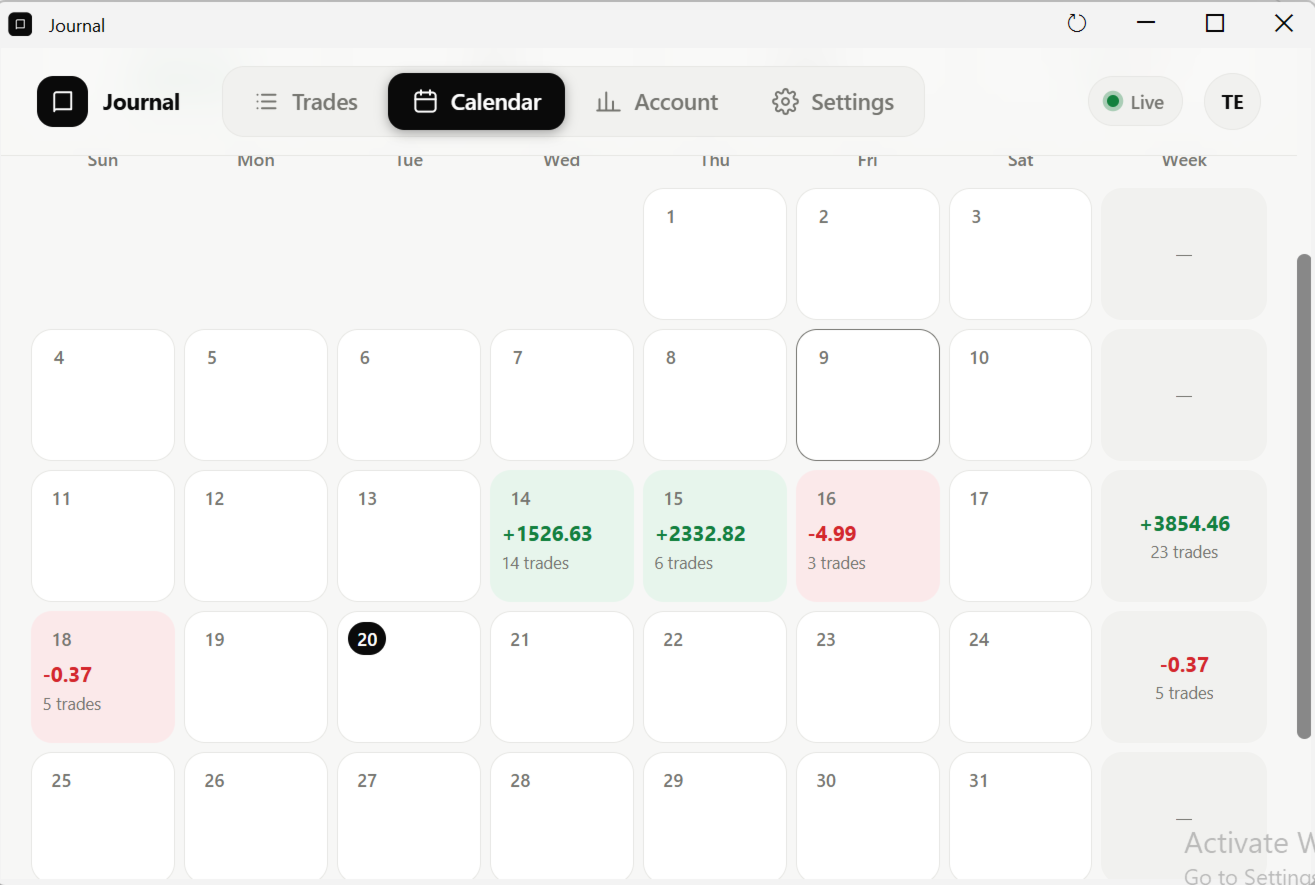
The Calendar switches between Month and Year views, with arrows to move by month or year and a Today button to jump back. The month summary shows month profit or loss, number of trades, win rate and the count of green and red days. Days are colored green for a net profit, red for a net loss and grey when there were only deposits or withdrawals, and a week column shows the net result and trade count for each week. Tap a day to see its numbers, deposits and withdrawals and its closed trades, and tap a trade to open it and read or add notes. The Year view shows twelve month tiles with net result and trade count, plus year totals such as win rate and profit factor.
The Account page
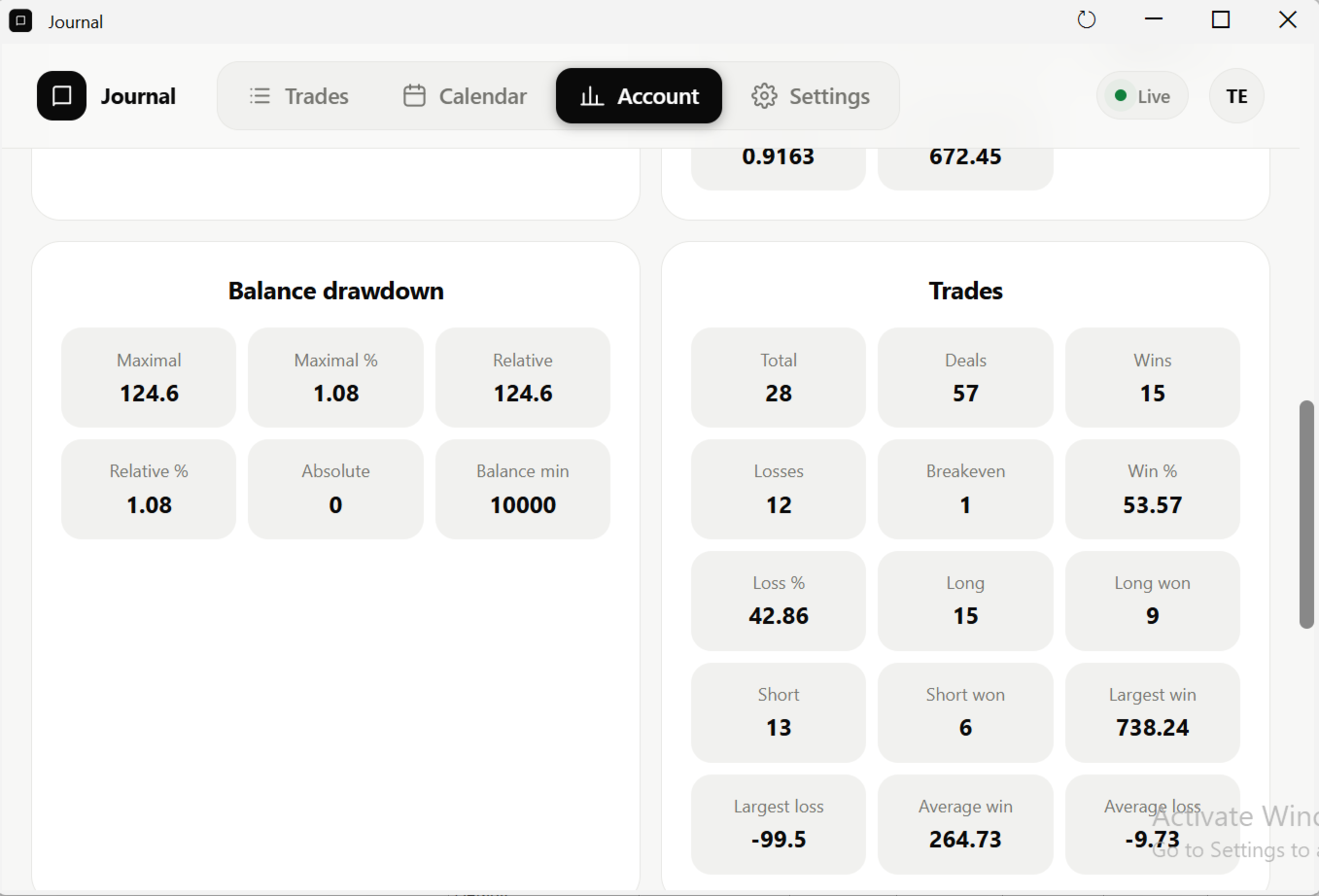
At the top you see equity, balance, floating profit and margin level. Below are groups for cash, performance, balance drawdown, trade counts and winning and losing streaks. These groups fill in a few seconds after Journal starts, once the first statistics are ready.
Settings and languages
Choose a light, dark or automatic theme and one of six accent colors, set the default list and order shown after login, and adjust the refresh speed, although the defaults are fine for almost everyone. Press Save settings after changing the list, order or speeds. Journal speaks English, Hebrew, Arabic, Spanish, French, German, Portuguese, Italian, Russian, Chinese, Japanese, Korean, Turkish, Hindi and Dutch. Hebrew and Arabic switch the whole page to right to left, and the trade stories are translated too.
Getting started
Journal is made of two parts. The first is the builder, TheJournal.ex5, which you download from the Market. Open the Navigator in MetaTrader 5, find TheJournal and drag it onto any chart. Wait for the alert Task completed. You run it once per terminal, and again after you receive an updated version. It prepares the data and the pages that Journal needs.
The second part is the server, TheJournalServer.ex5. Because it relies on system-level components, it is shared through the comments section of this page, and the developer is happy to help you with it. Contact the developer for access, setup help and support. With the builder still running, drag the server onto another chart, and in its Common tab tick Allow DLL imports. Set the inputs below or keep the defaults.
Open the Experts tab at the bottom of the terminal and look for a line such as HTTP ready. An Open button also appears and launches the embedded browser window. If that window is already active, the button is disabled, and it becomes enabled again when the window is closed. You can also open the address in your normal browser. Type an ID and a password, press Create ID, and next time press Log in. The ID is 3 to 32 characters of letters, digits, underscore or dash, and capital letters are turned into small ones. The password is at least 4 characters. There is no email reset, so keep it somewhere safe. To log out, go to Settings and choose Log out. Closing the browser tab also ends your session.
After login, wait for the account line to turn into your account name. This takes about 15 seconds after the terminal starts or after you switch account.
Inputs
| Input | Default | What it does |
|---|---|---|
| OpenAtStart | true | Opens the embedded browser window automatically at start. If false, press Open manually. |
| Port | 8089 | The number at the end of your address, from 1 to 65535. Every terminal needs its own number. |
| Token | empty | Leave empty and the server creates a private key on each start and hands it to the page by itself. If you set one, use 16 to 64 letters, digits, underscore or dash, otherwise the server will not start. |
| Root | empty | The folder where the page, IDs, notes and uploads live. Empty means the MQL5\Files\web folder of this terminal. Never point two terminals at the same folder. |
| MaxTradeDays | 0 | How many days back the Trades list looks. Older trades are not listed. 0 means all history. Negative values stop the server. |
| MaxTradeNum | 0 | The most closed trades the list keeps, and separately the most cancelled or expired orders. The newest are kept first. 0 means all history. |
| WeekStart | Sunday | The first day of the week in the Calendar. It decides how weeks are grouped and totalled. |
| CalendarMaxDays | 370 | Days of day by day detail the Calendar offers, counted back from your last active day. Month and year totals still cover your whole history. 0 means all data. |
| CalendarTime | ServerTime | ServerTime groups days by your broker’s clock, matching your broker statements. LocalTime uses your computer’s clock, which can move a late trade to another day. |
History limits explained
Two settings shape the Trades list: how far back it looks and how many trades it keeps. A trade older than MaxTradeDays is not in the list. If more closed trades fall inside the window than MaxTradeNum allows, the newest fill the list and the oldest are left out. Open trades and pending orders are always shown and never count toward the limits. Cancelled and expired orders have their own separate allowance. A position becomes closed history only when the whole position is closed, so a partial close does not create an entry yet. If an old trade is missing from the list, open its day in the Calendar and tap the trade, and your notes are safe.
Waits and refresh times
After starting the server, allow up to 10 seconds for the page to come up and about 15 more before data appears, and the login screen shows a waiting message with a spinner. Switching account takes about 15 seconds. Live trades update every second, history is rebuilt right after any trade event and every 10 seconds otherwise, and the Calendar updates about 2 seconds after a trade and every 30 seconds otherwise. Account statistics stay empty for a few seconds after start, until the first history build finishes. If you restart the terminal, the page shows server not reachable until the terminal is back, connected and the server is running again, and then it reconnects by itself. Keep the tab open or log in again.
Ports, terminals and accounts
Run Journal on one chart only in each terminal. Each terminal needs its own port, so if terminal 1 uses 8089, terminal 2 must use another number such as 8090. If two use the same number, the second one fails and the Experts tab shows HTTP start failed. Each terminal keeps its IDs, notes, screenshots and voice notes in its own folder, so an ID created in terminal 1 does not exist in terminal 2.
You can technically use two ports in the same terminal on two charts, but the IDs and notes created on one port will not appear on the other. For the same reason, changing the port in the same terminal means you must create your account again, and your theme and language may reset, since the browser treats each port as a separate site. Opening the wrong port takes you to another terminal’s Journal, or to nothing, and if your ID is unknown, you are on the wrong terminal.
One ID and password work for all broker accounts you open in the same terminal. Each account, identified by its login, broker and demo or real mode, keeps its own trades, calendar, account page and notes. When you log in to another account in the terminal, the page shows Switching account, waits about 15 seconds and loads the new account by itself. Unsaved text is not saved during a switch, so save first. A terminal shows one account at a time, because it uses the data from the MetaTrader 5 terminal. To watch two accounts together, use two terminals with the two accounts logged in, on two ports.
Troubleshooting
If Waiting for account never ends, the terminal must be connected to a broker with a logged-in account, so check the bottom right corner of the terminal and your internet connection. Server not reachable means the server is not running, or the browser address has a different port than the Experts tab shows. HTTP start failed means the port is taken by another terminal or program, or an input is invalid, so change Port and confirm that Allow DLL imports is ticked. If the server closes right after starting, an input is outside its range, such as a Port above 65535, a Token of the wrong length or a negative limit, and the Experts tab names it. If the page is blank or shows an old design, run the builder again and press Ctrl+F5 in the browser. If you see Account changed, try again, the terminal switched account while you were logging in, so press the button again. If you see Account changed, not saved, the terminal switched account during a save, so wait for the new account, reopen the trade and retype. If the microphone does not work, allow microphone access for the page in your browser and press Record again. If saving fails with a size error, the notes of that trade have reached their limit.
A simple routine
Before you click buy or sell, open Journal and be ready to write. Place the trade, and within a second it appears with a pulsing dot. Fill the Decision note with the setup, the plan and what would prove you wrong. After the exit, fill the Closing decision and Journal notes and add a chart screenshot. On the weekend, open the Calendar, tap the red days and reread your own words. That habit is where improvement comes from.
Disclaimer
Journal is a record keeping tool. It does not open, close or modify trades, it does not give signals or advice, and it does not guarantee profits or better results. Trading carries risk, and past results do not predict future results. Nothing in Journal is financial advice.
Support and trials
Contact the developer for support, setup help and trial access.