Corvux Gate
- Indicators
-
Miguel Angel Leon Yanez
 MQL5 Developer | Algorithmic Trading | Quantitative Systems & Risk Engineering
Independent developer focused on the engineering of trading software for MetaTrader 5, with an emphasis on systematic execution, risk management and robust market analysis. - Version: 1.0
- Activations: 5
Trading Permission Engine for MetaTrader 5
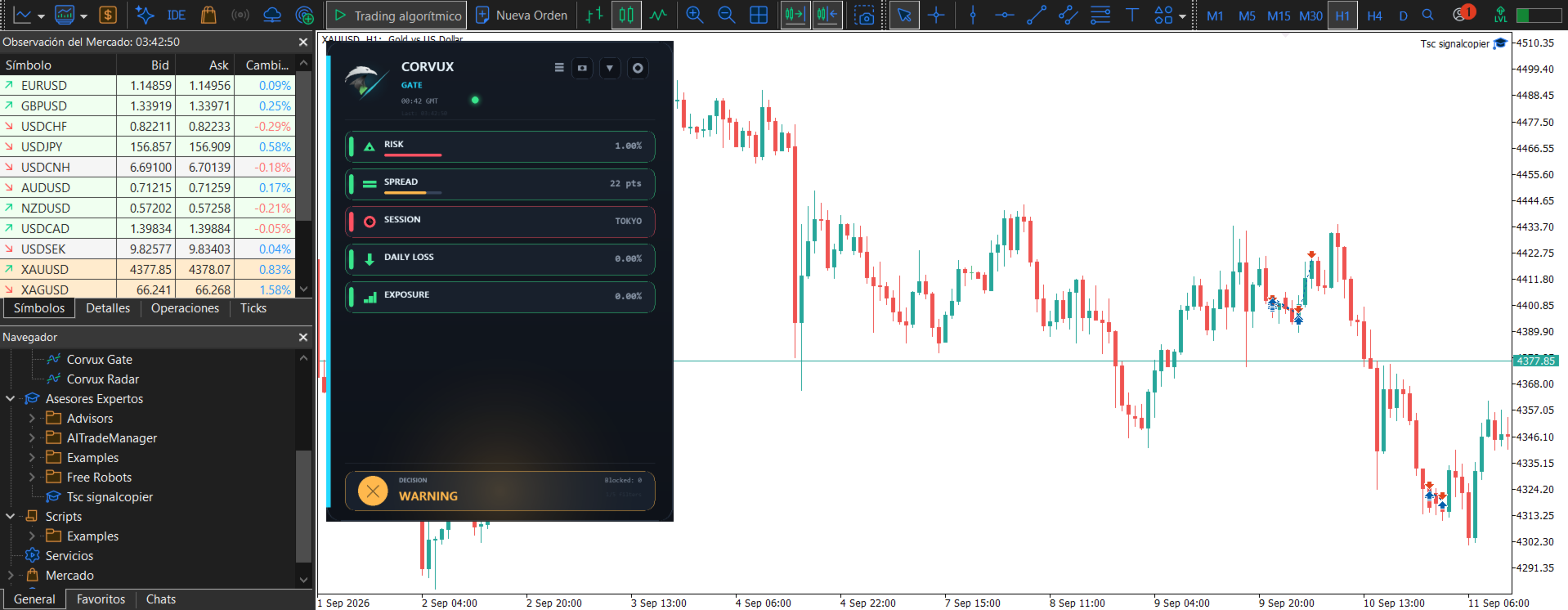
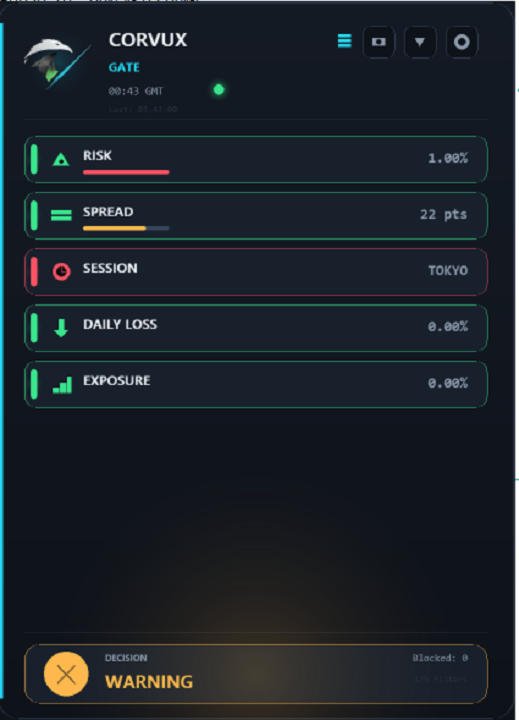
Corvux Gate is a trading permission engine that evaluates market conditions in real time and determines whether trading is permitted on the active symbol. It is not an Expert Advisor that opens trades. It is not a technical indicator that predicts direction. It is a validation layer that sits between the trader or EA and trade execution. It monitors five independent filters: risk per trade, spread, trading session, daily loss, and exposure, plus a news filter integrated with the MQL5 economic calendar. Based on the number of failed conditions, the panel displays one of three states: ALLOWED when no conditions fail, WARNING when one or two fail, and BLOCKED when three or more fail. Hard Block integration publishes global variables that any Expert Advisor can read before opening a position, and a CSV audit log documents every decision with full traceability.
[ Installation Guide | Update Guide | Troubleshooting | FAQ | All Products ]
What Problem Does It Solve
Most traders have written rules. Few follow them consistently at the moment of execution. The gap between intention and action is where accounts are lost. Corvux Gate closes that gap by turning trading rules into automatic blocks. It solves the problem of operational indiscipline by making it impossible to trade when predefined conditions are not met, regardless of the strength of the impulse to enter.
It solves the problem of trading in unfavorable conditions: high spreads, outside active sessions, near high impact news, with daily loss near the limit, or with excessive exposure. Corvux Gate blocks all of these situations automatically and continuously.
It solves the problem of integration between manual discipline and automated execution. A trader may have a profitable Expert Advisor that operates at moments he would never choose manually. Hard Block allows the EA to respect the same rules the trader would apply by hand through global variables that the EA reads before opening a position.
It solves the problem of compliance with proprietary trading firms. Firms impose strict rules on daily loss, exposure, and maximum drawdown. Corvux Gate applies those rules automatically and records every decision in CSV for audit. Presets for FTMO, FundingPips, E8, The5ers, and MyForexFunds configure all limits with a single click.
It solves the problem of lack of traceability. Many traders do not know why they did not trade at a given moment or why their EA did not open a position. The CSV log records every check with all values, allowing exact reconstruction of which condition blocked execution and when.
It solves the problem of visual fatigue and lack of feedback. Instead of manually reviewing multiple conditions before every trade, the trader sees a single clear state: ALLOWED, WARNING, or BLOCKED. Differentiated sounds allow identification of the blocking filter without looking at the screen.
Why Choose Corvux Gate
Choose Corvux Gate if you want your trading rules enforced automatically instead of having to remember them under pressure. It is built for traders who already know what they should and should not do, and who need a system that removes the decision from the moment of execution.
Choose it if you run Expert Advisors and want them to respect the same conditions you would respect manually. Hard Block integration is simple, documented, and fail-safe by design. If the utility is not running, the EA continues to operate normally.
Choose it if you trade funded accounts or intend to. The prop firm presets and CSV audit log provide both automatic compliance and a verifiable record of every decision.
Choose it if you value clarity over complexity. The panel communicates one state and one reason. There is no ambiguity about whether trading is permitted or why it is not.
Choose it if you want full control without renouncing automation. Corvux Gate does not interfere with your strategy. It only validates conditions and publishes a permission state that you or your EA may choose to respect.
What Corvux Gate Cannot Do
Corvux Gate does not open, modify, or close trades. It has no trading logic and no position management.
It does not predict market direction. It is not an indicator and does not generate entry or exit signals.
It does not guarantee profitability. It is a discipline and validation tool, not a strategy.
It does not impose its rules on an EA unless the EA is programmed to read the published global variables. Without that integration, Corvux Gate provides visual feedback only.
It does not replace the MQL5 economic calendar. The news filter depends on the calendar data available in the terminal.
It does not operate without MetaTrader 5 build 3000 or higher.
It does not store settings in the cloud. Configuration is local to each terminal and chart.
Input Parameters
General Configuration
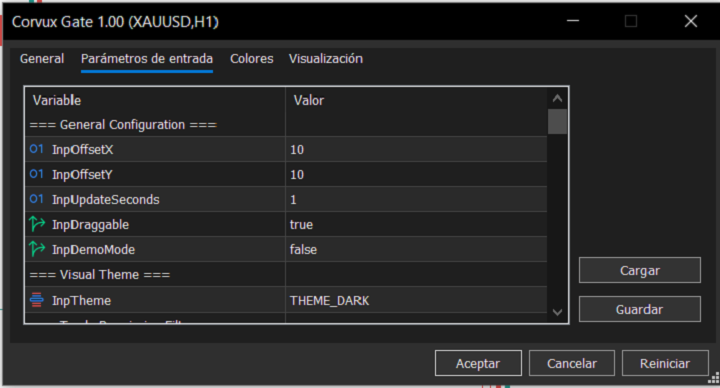
InpOffsetX and InpOffsetY: initial panel position in pixels from the top-left corner of the chart. Default values: 10 and 10.
InpUpdateSeconds: panel update interval in seconds. Default: 1.
InpDraggable: allows dragging the panel with the mouse. Default: true.
InpDemoMode: demonstration mode that simulates filter values without evaluating real conditions. Useful for presentations and visual testing. Default: false.
Visual Theme
InpTheme: panel visual theme. Options: THEME_DARK, THEME_LIGHT, THEME_NIGHT, THEME_HIGH_CONTRAST. Default: THEME_DARK.
Trade Permission Filters
InpMaxRiskPerTrade: maximum risk allowed per trade, expressed as a percentage. Default: 1.0.
InpMaxSpreadPoints: maximum spread allowed in points. If the current symbol spread exceeds this value, the filter blocks. Default: 30.0.
InpMaxDailyLoss: maximum daily loss allowed as a percentage of balance. If floating loss reaches this limit, the filter blocks. Default: 2.0.
InpMaxExposure: maximum exposure allowed as a percentage of balance. Measures margin usage. Default: 5.0.
InpCheckNews: enables or disables the news filter. Default: true.
InpCheckSession: enables or disables the session filter. Default: true.
News Filter
InpNewsUseHigh: includes high impact events. Default: true.
InpNewsUseMedium: includes medium impact events. Default: false.
InpNewsUseLow: includes low impact events. Default: false.
InpNewsMinutesBefore: minutes before the event during which trading is blocked. Default: 30.
InpNewsMinutesAfter: minutes after the event during which trading is blocked. Default: 30.
InpNewsCurrencies: comma-separated list of currencies to filter events. Empty means all currencies. Default: "".
Session Filter
InpTradeAsia: allows trading during the Asian session (00:00 to 09:00 GMT). Default: false.
InpTradeLondon: allows trading during the London session (08:00 to 17:00 GMT). Default: true.
InpTradeNewYork: allows trading during the New York session (13:00 to 22:00 GMT). Default: true.
Prop Firm Preset
InpPreset: selects a prop trading firm preset. Options: PRESET_CUSTOM, PRESET_FTMO, PRESET_FUNDINGPIPS, PRESET_E8, PRESET_THE5ERS, PRESET_MYFOREXFUNDS. Selecting a preset automatically adjusts daily loss, exposure, and maximum spread limits according to each firm's rules. Default: PRESET_CUSTOM.
InpApplyPresetOnInit: applies the selected preset when initializing the utility. Default: true.
Challenge Mode
InpChallengeMode: enables Challenge mode, which shows progress toward a profit target and tracks drawdown relative to the initial balance. Default: false.
InpChallengeTarget: profit target as a percentage over the initial balance. Default: 10.0.
InpChallengeStartBal: initial balance for Challenge calculation. If 0, the current balance at start is used. Default: 0.0.
Hard Block (EA Integration)
InpHardBlockEnabled: enables publishing of global variables for integration with Expert Advisors. Default: false.
InpHardBlockPrefix: prefix of the published global variables. The primary variable is CORVUX_GATE_PERMISSION_<Symbol> with value 1.0 when trading is permitted and 0.0 when blocked. CORVUX_GATE_PERMISSION_<Symbol>DD_REMAINING is also published with the remaining drawdown. Default: "CORVUX_GATE_PERMISSION".
Alerts
InpEnableAlert: enables on-screen alerts. Default: true.
InpEnableSound: enables differentiated sounds according to the blocking filter. Default: true.
InpEnablePush: enables push notifications. Default: true.
InpAlertCooldownSec: minimum time between alerts in seconds to avoid spam. Default: 60.
InpAlertSoundWarn, InpAlertSoundAnomaly, InpAlertSoundRecover: sound files for warning, anomaly, and recovery states. Defaults: "alert.wav", "alert2.wav", "ok.wav".
InpSoundSpread, InpSoundDailyLoss, InpSoundExposure, InpSoundRisk, InpSoundSession, InpSoundNews: specific sound files for each blocking filter. They allow identifying which condition failed without looking at the panel.
Persistence
InpPersistState: saves and restores panel position and minimized state between sessions. Default: true.
CSV Log
InpEnableCsvLog: enables the CSV audit log in MQL5/Files. Default: true.
InpCsvDetailedEverySec: writes a detailed line every second with all check values, the decision, the blocking filter, and the reason. If disabled, only decision changes are written. Default: true.
Tooltips
InpEnableTooltips: enables tooltips when hovering over each row, showing the current value, configured limit, remaining margin, and extra data such as reset time or news event name. Default: true.
Performance
InpCacheStaticLayer: enables the cached static layer to reduce CPU usage. Default: true.
InpPulseCycleFrames: number of frames in the pulsing connection point animation cycle. Default: 20.
InpShowPerfMetrics: shows performance metrics (milliseconds per frame and FPS) on the panel. Default: false.
Technical Information
The utility evaluates five independent filters: risk per trade, spread, trading session, daily loss, and exposure. Each filter is compared against its configured limit. The number of failed filters determines the displayed state: ALLOWED with zero failures, WARNING with one or two, BLOCKED with three or more.
The news filter reads the MQL5 economic calendar and blocks trading during events within the configured window before and after the event. Filtering by currency and importance is supported.
Hard Block publishes CORVUX_GATE_PERMISSION_<Symbol> with value 1.0 when trading is permitted and 0.0 when blocked. It also publishes CORVUX_GATE_PERMISSION_<Symbol>_DD_REMAINING with the remaining drawdown. The EA must be programmed to read these variables before opening a position.
The CSV audit log writes one line per second to MQL5/Files. Each line contains timestamp, symbol, active preset, all five check values, the decision, the blocking filter name, and the reason.
The panel is draggable, retains its position, and includes minimize, snapshot, and refresh buttons. Rendering uses a cached static layer and a 10 FPS frame limiter to reduce CPU usage.
Compatible with any broker and any account type. Requires MetaTrader 5 build 3000 or higher.
Support and Questions
Support is provided through the MQL5 Market comments section for this product. Post your questions there so that answers remain available to all users.