

CORVUX RADAR is a free observational market conditions monitor for MetaTrader 5. It provides real-time visibility into volatility, spread behavior, account risk, and session context in a compact horizontal panel. The indicator does not generate signals, does not execute trades, and does not predict market direction.
What It Does and Why It Is Useful
CORVUX RADAR gives you four structured metrics in a single glance:
Volatility — shows whether current ATR is normal, elevated, or anomalous versus its recent baseline.
Spread — shows current spread against a running EMA, with anomaly detection.
Account & Health — shows margin level, drawdown, and open positions at a glance.
Spread History — a real-time sparkline with hover crosshair showing the last 60 samples.
It also detects market regime (TRENDING, RANGE, DEAD, HOSTILE) and provides optional alerts, CSV logging, and a snapshot function.
Who is it for?
CORVUX RADAR is useful for:
Manual traders who want to avoid entering during hostile conditions. Algorithmic traders who need a quick read of execution environment quality. Any trader who wants structured, deterministic metrics without signals or predictions.

Installation via MQL5 Market
CORVUX RADAR is distributed as a free product on MQL5 Market. Free products have no activation limits, so you can install it on as many terminals as you need.
Step 1: Open MetaTrader 5
Launch MetaTrader 5 and log in to your MQL5 account. Go to Tools → Options → Community and enter your MQL5 login credentials if you have not already done so.
Step 2: Access the Market Tab
In the Toolbox panel (bottom of the screen), click the Market tab. If you do not see it, go to View → Toolbox or press Ctrl+T.
Step 3: Navigate to My Purchases
Click My Purchases to see products acquired through MQL5 Market.
Step 4: Locate CORVUX RADAR
Find CORVUX RADAR in the list. Since it is a free product, it will appear automatically after you acquire it from the Market page.
Step 5: Install the Indicator
Click the Install button. The indicator will be downloaded and placed in the correct folder automatically.
Step 6: Restart MetaTrader 5
Restart the terminal to ensure the indicator loads into the Navigator panel.
Adding CORVUX RADAR to a Chart
Step 1: Open the Navigator
Press Ctrl+N or go to View → Navigator.
Step 2: Locate CORVUX RADAR
Expand Indicators → Custom. CORVUX RADAR should be listed there.
Step 3: Add to Chart
Drag CORVUX RADAR onto the chart, or double-click it.
Step 4: Configure Inputs (Optional)
A dialog box will appear with input parameters. Adjust settings or use defaults. Click OK to apply.
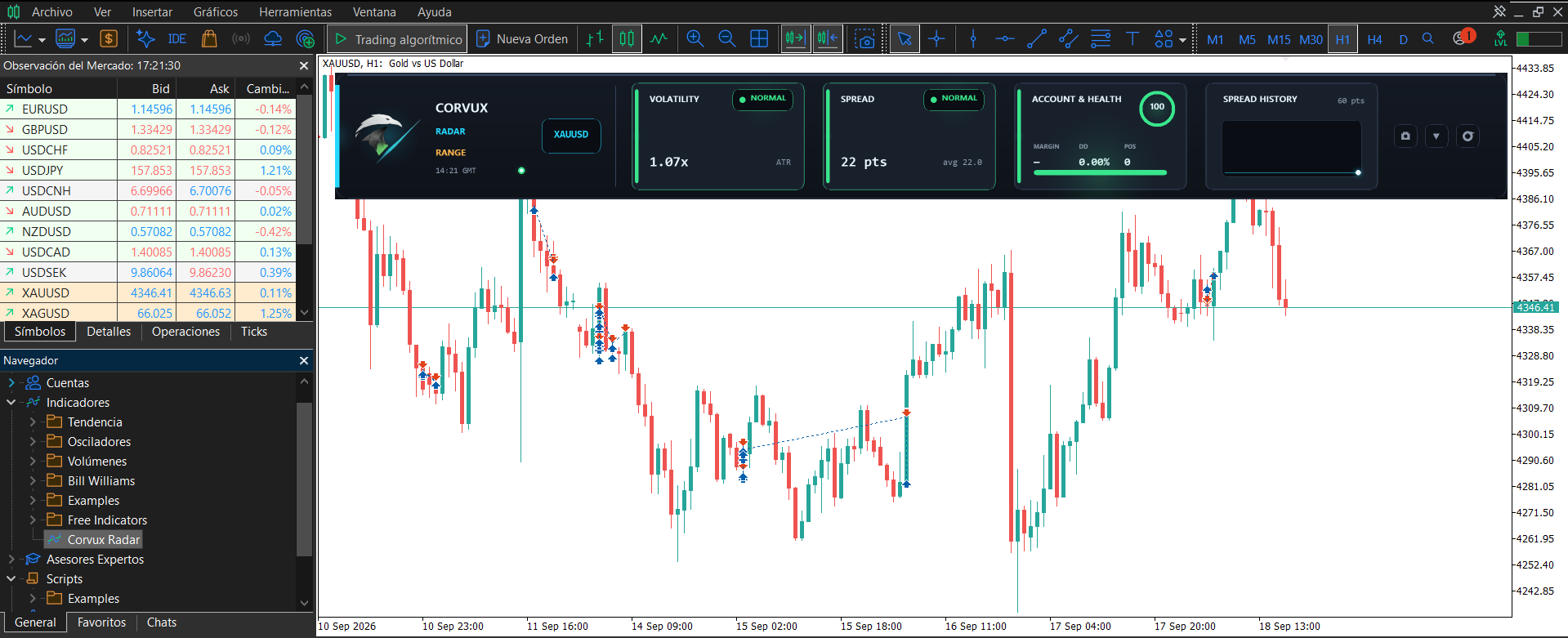
Verification
After installation, verify that CORVUX RADAR is working correctly:
The panel should appear at the top of the chart, spanning the full width.
The four blocks (VOLATILITY, SPREAD, ACCOUNT & HEALTH, SPREAD HISTORY) should be visible.
The connection indicator (pulsing dot) should be visible next to the GMT time.
After a few seconds, the metrics should populate with real-time data.
If the panel does not appear, check the chart's indicator list (right-click on the chart → Indicators List). If CORVUX RADAR is not there, repeat the installation steps.
Common Installation Issues
Issue: The indicator does not appear in the Navigator
Solution: Ensure you are logged into your MQL5 account in the terminal (Tools → Options → Community). Go to the Market tab and verify CORVUX RADAR is in your purchases. Right-click on Indicators in the Navigator and select Refresh.
Issue: The panel appears but shows "loading" for all blocks
Solution: This is normal during the first few seconds. The indicator needs to collect enough data points to calculate metrics. Wait 10-15 seconds on an active chart.
Issue: The logo BMP does not load, and the fallback vector icon is displayed
Solution: The fallback icon is part of the indicator's design. If you want the custom logo, ensure corvux_logo.bmp is placed in MQL5/Images/. However, the fallback works correctly without it.
Issue: The indicator is installed but does not appear on the chart
Solution: The panel is anchored to the top of the chart. If the chart is scrolled or zoomed, the panel may be temporarily hidden. Scroll back to the top. If the panel was minimized, click the chevron button to expand it.
Product Link
You can find CORVUX RADAR on MQL5 Market here:
https://www.mql5.com/en/market/product/196721
Next Steps
Review the CORVUX RADAR - Update Guide to learn how to update the indicator.
Read the CORVUX RADAR - Troubleshooting guide for solutions to common issues.
Check the CORVUX RADAR - FAQ for answers to frequently asked questions.