
You are missing trading opportunities:
- Free trading apps
- Over 8,000 signals for copying
- Economic news for exploring financial markets
Registration
Log in
You agree to website policy and terms of use
If you do not have an account, please register
Interesting thread was found: Metatrader 5 versions of indicators (MT5 versions of the famous MT4 indicators)
This is interesting indicator based on two standard indicators: Bears Power and Bulls Power:
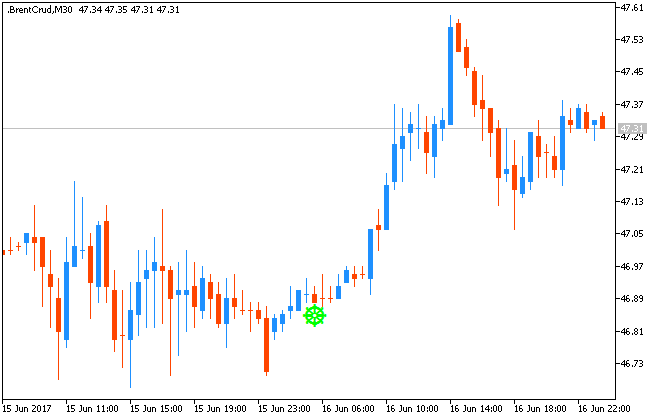
Total_Power_Indicator_Signal - indicator for MetaTrader 5----------------
This indicator is modified version of the other indicator: Total Power Indicator - indicator for MetaTrader 5
There are several different ways to use this indicator:
Forum on trading, automated trading systems and testing trading strategies
copy signals
Eleni Anna Branou, 2017.11.02 21:08
Below are step by step instructions, of how to subscribe to a MΤ4 signal:
1. Register a MQL5 account: https://www.mql5.com/en/auth_register
2. Open your MT4 platform and go to Menu >> Tools >> Optios and click on the Community tab. There you put your Login and Password of your MQL5 account and click OK.
3. Go to the search area of your MT4 platform, on the upper right corner (where the magnifying glass is), type in the name of the signal you want to subscribe and click Enter.
4. You will see lower, in the Terminal Window of your MT4 platform, the results of your search. Click on the name of the signal you want to subscribe.
5. Click on the green Subscribe for $$ USD button on the right side of your MT4's Terminal Window.
6. Select the payment method and complete payment for your subscription.
7. In the Options >> Signals window that opens, tick the following options:
8. In the Use no more than: ...... of your deposit (95% maximum) field below, put the percentage of your capital, you want to participate in signal's copying.
9. In the Stop if equity is less than: ...... field, put the amount of your capital, you want to preserve, or leave it empty.
10. In the Deviation/Slippage field, select an option and click OK in the Options window to close it.
11. Now you have completed the subscription process and the only thing you need is a VPS (Virtual Hosting) in order to copy the signal 24/7 without having your MT4 platform open all day long.
12. Go to your account details in the Navigator window of your MT4 platform, right click in your account number or name and select the option Register a Virtual Server.
13. In the Virtual Hosting Wizard window that opens, the VPS with the lower Ping, ms value is presented automatically.
14. Select your payment plan for 1, 3, 6 or 12 months and click Next.
15. Tick the: I agree to the virtual hosting service rules and the auto renewal option below (if you want) and click Next.
16. Complete your payment for the VPS Service.
17. In the next window, tick the Migrate signal: account and settings option, click End and you are done.
As many people (newbies) are still asking on facebook about how to open account on MT5 so I want to remind:
Forum on trading, automated trading systems and testing trading strategies
How to Start with Metatrader 5
Sergey Golubev, 2017.03.28 08:27
As many people are asking about "How to open account with MT5" and "How to add the broker to MT5" so I want to remind the following links:
MetaTrader 5 Help - Open an Account
MetaTrader 5 Android OS Help - Opening a Demo Account
MetaTrader 5 iPhone/iPad Help - Connecting to an Account and Opening a Demo AccountInteresting indicator was found: ColorBarRange_HTF - indicator for MetaTrader 5
The indicator builds a channel on the High and Low levels of the candle from a larger timeframe, fixed in the input parameters of the indicator.
This indicator can be used together with the following: ColorSchaffTriXTrendCycle - indicator for MetaTrader 5
The Schaff Trend Cycle indicator based on the difference between two TriX oscillators with different periods.
============
By the way, there is EA based on ColorSchaffTriXTrendCycle indicator: Exp_ColorSchaffTriXTrendCycle - expert for MetaTrader 5
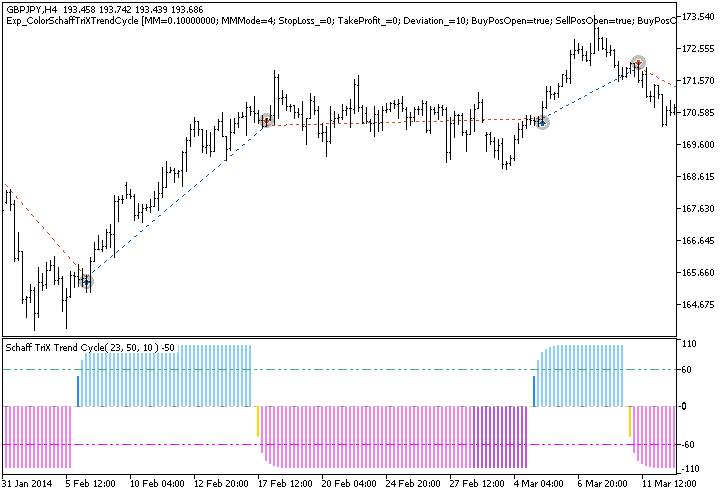
The Exp_ColorSchaffTriXTrendCycle Expert Advisor is based on the ColorSchaffTriXTrendCycle oscillator change of position relative to the overbought and oversold levels. The signal is formed when a bar is closing if there is a level breakthrough.
Forum on trading, automated trading systems and testing trading strategies
How to Start with Metatrader 5
Sergey Golubev, 2014.03.10 09:47
Transparent MetaTrader 5
The script allows to set transparency level of the client terminal window using Windows API
Summaries :
====
This is interesting EA: Get Rich or Die Trying GBP - expert for MetaTrader 5
Opening positions only at a strictly certain time (+ offset " Additional hour" ). Calculation of bull and bearish bars on PERIOD_M1 (M1). The capital management classes CMoneyFixedMargin and CMoneyFixedRisk were used.
Input parameters:
I think - the correct name of this EA may be the following:
Get Rich after Die ... or Get Die to be Rich ...
Anyway, this EA may be interesting for those who like crazy EAs trading on M1 timeframe.
Multi_arbitration version 1.000 preliminary version - download from this post.
Forum on trading, automated trading systems and testing trading strategies
Requests & Ideas (MQL5 only!)
Vladimir Karputov, 2017.07.07 09:50
There is a preliminary version
Multi_arbitration version 1.000
Restriction of "ACCOUNT_LIMIT_ORDERS" is considered.
Test EURUSD,H4. Start balanse $10000:
Schaff Trend Cycle - indicator for MetaTrader 4
Schaff Trend Cycle - indicator for MetaTrader 5
---------------
There are a lot of trading systems based on this indicator. So, this is the one of them :
Schaff Trend Cycle with EMA 100
1. Time Frame: 15 min and above
2. Pairs: Any
3. Indicators:
Rules to enter a long trade
Rules to enter a short trade
Template is attached. If you instal indicatiors and use this template so you will get the chart like that:
The system is really very profitable - look at the other chart with D1 timeframe: +439 pips (4 digit pips) :
Template is attached