[ English ] [ Русский ] [ 中文 ] [ Español ] [ Português ] [ 日本語 ] [ Deutsch ] [ 한국어 ] [ Français ] [ Italiano ] [ Türkçe ]
This guide shows how to install Trade Manager FX from the MQL5 Market and start it on a chart in MetaTrader 5 and MetaTrader 4. To learn how the panel works, read the User Manual.
Product pages: Trade Manager FX MT4 · Trade Manager FX MT5
1. Log in to your MQL5 account in MetaTrader
Market purchases are linked to your MQL5.community account, so the terminal has to know it. In MetaTrader open Tools > Options:
- (1) Open the Community tab.
- (2) Enter the login and password of your MQL5 account (the one you used to buy, not the number of your trading account).
- (3) MT5 only: keep the Market service ticked.
- (4) Click OK (number 3 in MetaTrader 4).
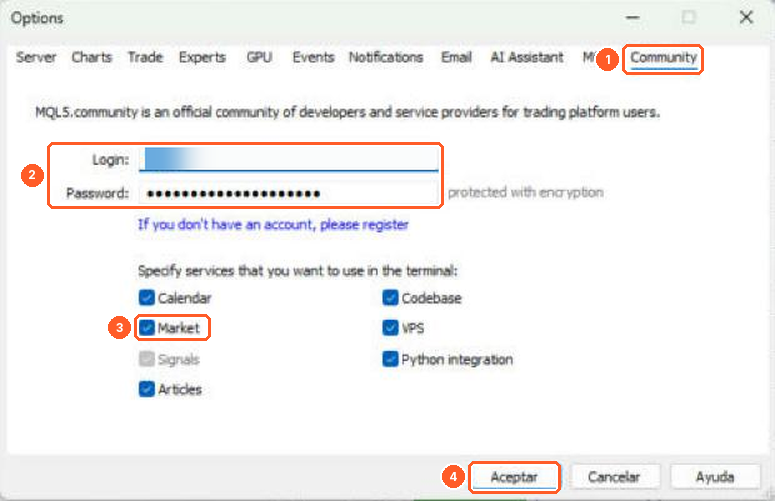
MetaTrader 5
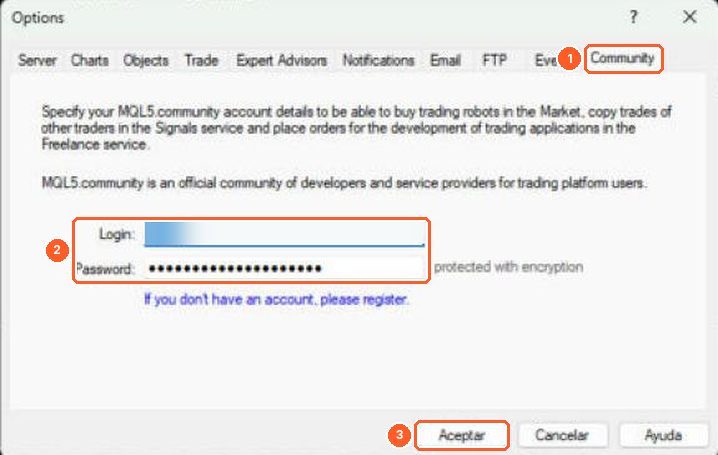
MetaTrader 4
2. Download Trade Manager FX
Buy or rent the product on its page in the Market (or from the Market inside the terminal). Then download it to the terminal:
MetaTrader 5: in the Navigator open Market > My Purchases (1). Find Trade Manager FX in the list and click Install (or Update when a new version is out) (2).
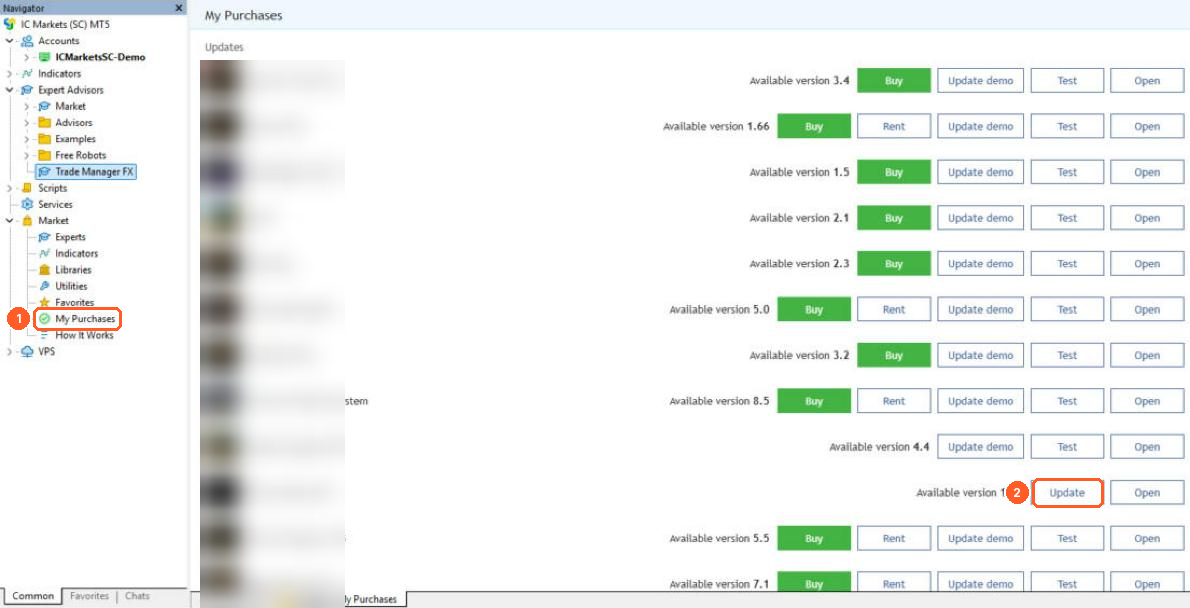
MetaTrader 4: open the Terminal window (Ctrl+T), go to the Market tab (1), then Purchased (2) and click Install (3).

The program is saved in Expert Advisors > Market in the Navigator.
Each purchase includes a limited number of activations (shown on the product page). An activation is used every time the product is installed on a new computer. Updates do not use a new activation.
3. Attach it to a chart
Open a chart of the symbol you want to trade. In the Navigator, right-click Trade Manager FX (1) and choose Attach to Chart (2). You can also drag it onto the chart or double-click it.
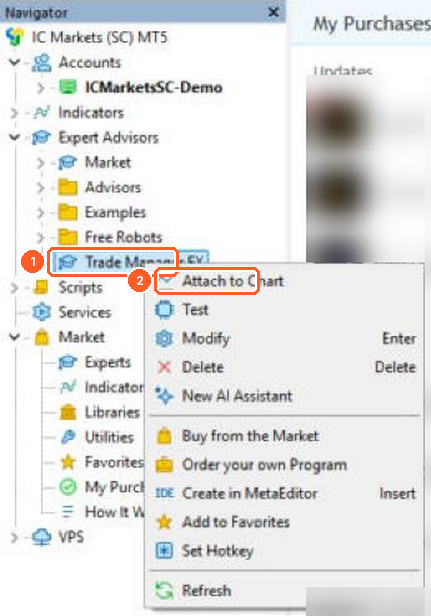
MetaTrader 5
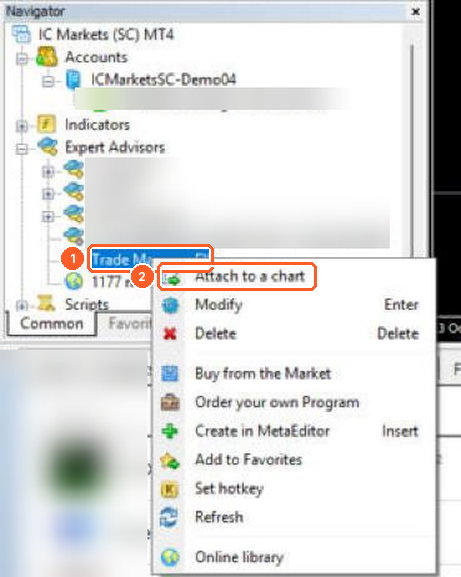
MetaTrader 4
4. Allow algorithmic trading
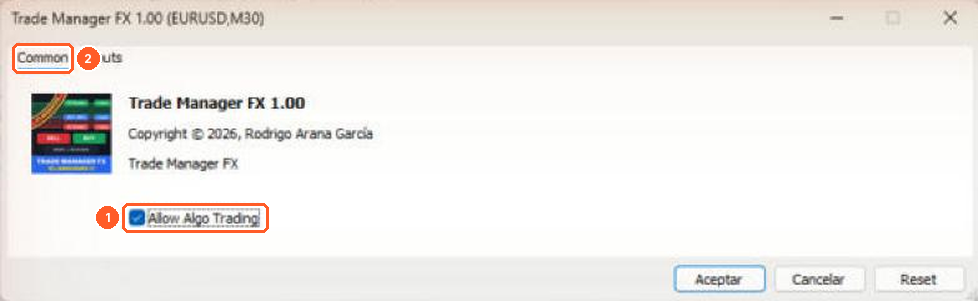
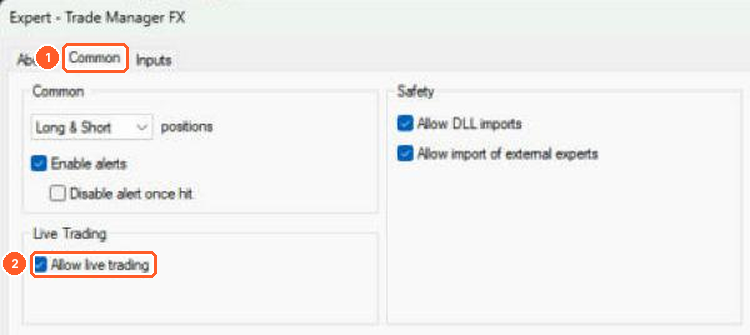
A properties window opens. Without this permission the panel works but cannot send or change orders.
MetaTrader 5: on the Common tab (2) tick Allow Algo Trading (1).
MetaTrader 4: on the Common tab (1) tick Allow live trading (2). Trade Manager FX does not need DLL imports.
Click OK. Then check that the Algo Trading button (MT5) or AutoTrading button (MT4) (1) on the toolbar is switched on (green). This button enables or disables trading for all Expert Advisors.

MetaTrader 5

MetaTrader 4
The panel appears in the top-left corner of the chart. Drag its title to move it.
5. Terminal options and economic news
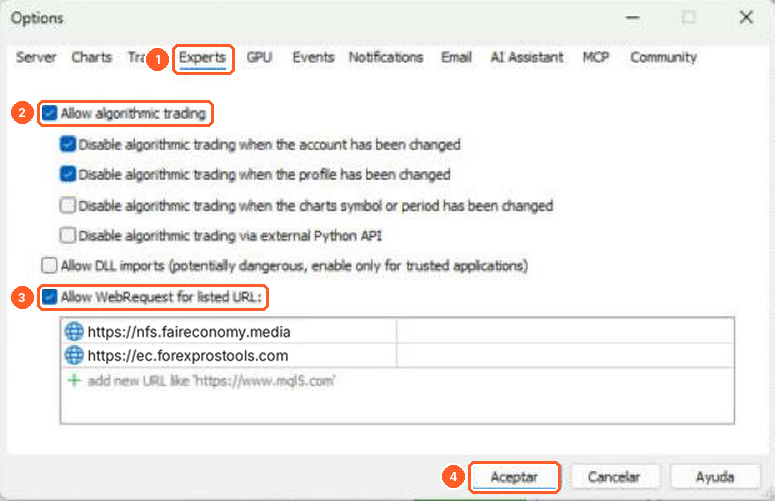
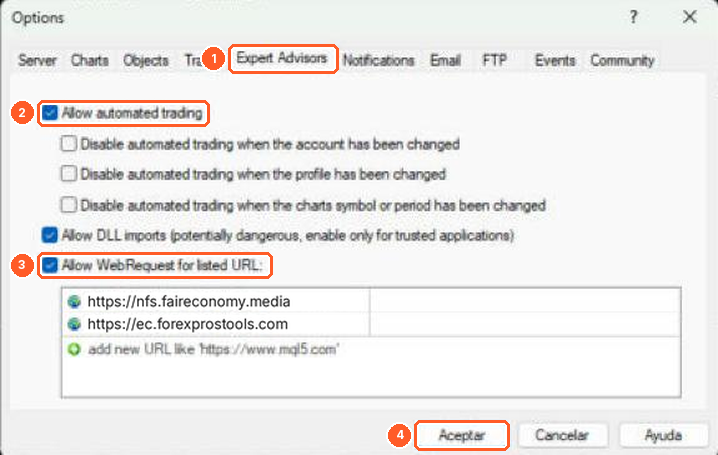
In Tools > Options open the Experts tab (MT4: Expert Advisors) (1) and check that Allow algorithmic trading (MT4: Allow automated trading) is ticked (2).
The economic news of the TOOLS tab can come from the MT5 calendar (built in, nothing to set up), Forex Factory or Investing.com. MetaTrader 4 has no calendar, so it always uses Forex Factory or Investing.com. For these two sources tick Allow WebRequest for listed URL (3) and add the addresses:
| Source | Address to add |
|---|---|
| Forex Factory | https://nfs.faireconomy.media |
| Investing.com | https://ec.forexprostools.com |
Click OK (4).
MetaTrader 5
MetaTrader 4
6. Input parameters and .set files
The Inputs tab (1) of the properties window sets the default values (risk, stops, break even, trailing, partial closes, hotkeys, colours…). They are explained in section 15 of the User Manual. With Load and Save (2) you can store your inputs in a .set file and load them on other charts or computers.
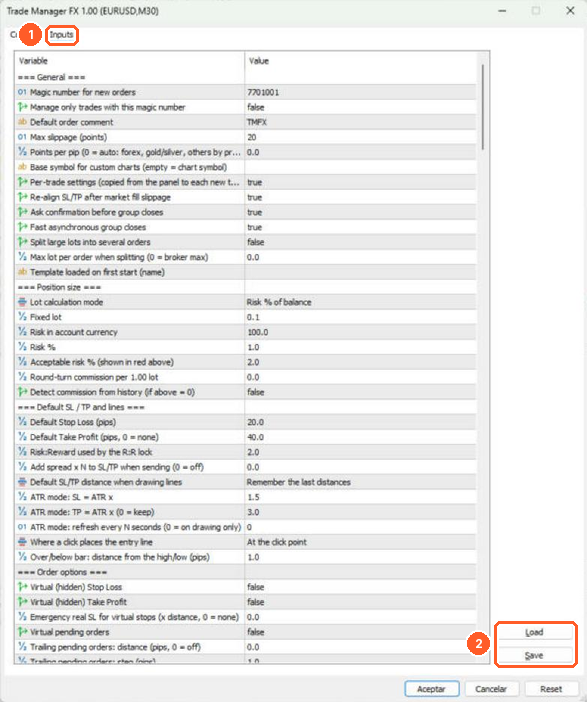
You do not have to set everything here: most settings can also be changed in the panel, and the panel remembers them for each chart. The PRESET tab of the panel saves complete setups as templates.
7. The candles cover the panel
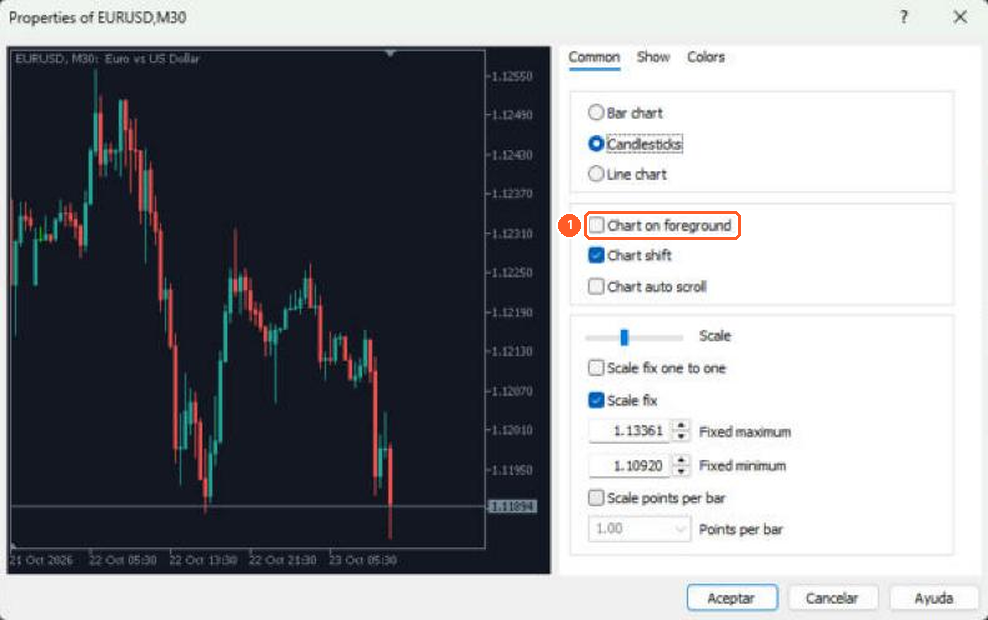
If the candles are drawn over the panel, open the chart properties (F8), Common tab, and untick Chart on foreground (1).
8. Running it 24/7 (VPS)
The panel must be running for everything it manages itself: virtual stops and virtual pending orders, break even, trailing stop, partial closes and the equity guard. If your computer is not always on, use a VPS.
- Windows VPS with MetaTrader: install and use Trade Manager FX exactly as on your computer (this uses one activation).
- MetaTrader VPS (built into the terminal): the chart with the EA is migrated to the server. The panel cannot be clicked on the virtual server, so it runs with the inputs set in step 6. Set the default values you want before migrating.
9. Updates
When a new version is released, the terminal shows it in My Purchases (MT5) or Purchased (MT4). Click Update. Then remove the panel from the chart and attach it again. Your panel settings are restored automatically.
10. Problems
- Trade Manager FX is not in My Purchases / Purchased: check that the terminal is logged in (step 1) with the same MQL5 account you used to buy.
- The buttons do nothing or "Algo trading is disabled": repeat step 4 and check the toolbar button.
- No news is shown: add the address of the source as explained in step 5.
- No activations left: contact MQL5 support or write to me.
For any other question write to me through the MQL5 messages or in the comments of the product.