[ English ] [ Русский ] [ 中文 ] [ Español ] [ Português ] [ 日本語 ] [ Deutsch ] [ 한국어 ] [ Français ] [ Italiano ] [ Türkçe ]
Trade Manager FX is a trading panel for MetaTrader 5 and MetaTrader 4. It sizes every order from your risk, lets you plan trades by dragging lines on the chart, and then manages them for you: break even, seven trailing stop modes, partial closes, equity protection, sessions and economic news. The panel speaks 15 languages and has a dark and a light theme.
Product pages: Trade Manager FX for MT4 · Trade Manager FX for MT5
Table of contents
- Installation and first start
- The panel at a glance
- TRADE tab — opening trades
- Open trades on the chart
- MANAGE tab — closing and protecting
- STOPS tab — break even and trailing stop
- EXITS tab — partial close and equity guard
- Account status panel
- SETUP tab — language, external trades and options
- PRESET tab — templates
- TOOLS tab — trading sessions and economic news
- Hotkeys
- Alerts and notifications
- Trading from the mobile app
- Input parameters
- Differences in the MT4 version
- Questions and troubleshooting
1. Installation and first start
- Buy or rent Trade Manager FX in the Market. MetaTrader installs it for you. It appears in the Navigator window under Expert Advisors > Market.
- Open a chart of the symbol you want to trade and drag Trade Manager FX onto it, or double-click it.
- In the window that opens, on the Common tab, tick Allow Algo Trading (MT4: Allow live trading). On the Inputs tab you can change the defaults described in Input parameters. Press OK.
- Make sure the Algo Trading button in the toolbar is green (MT4: AutoTrading). Without it the panel works, but it cannot send or change orders.
- The panel appears in the top-left corner of the chart. Drag its header to move it anywhere.
One panel per symbol. Attach the panel to one chart per symbol. If you need two panels on the same symbol (for example on two timeframes), give each one its own Magic number and switch on MAGIC ONLY in the SETUP tab; otherwise both panels would manage the same trades.
The panel must keep running for everything that is handled by the EA rather than by the broker: virtual stops, virtual pending orders, break even, trailing stop, partial closes and equity guard. Use a VPS if your computer is not always on. Real SL, TP and pending orders sent to the broker stay at the broker even when the terminal is closed.
All settings you change in the panel are saved automatically and restored the next time the EA starts on that chart, also after changing the timeframe or restarting the terminal.
2. The panel at a glance
The panel has a header and seven tabs. Each tab is explained in its own chapter.
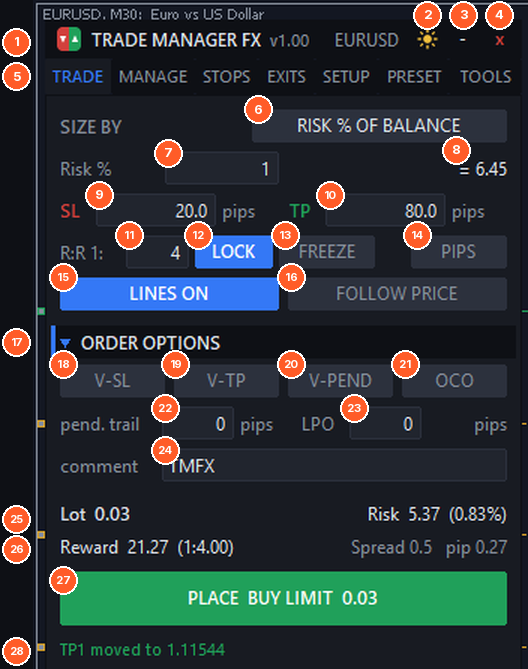
The panel with the TRADE tab open. Numbers 6–28 are explained in chapter 3.
- (1) Header. Drag it to move the panel. It shows the version and the symbol.
- (2) Theme. The sun switches to the light panel, the moon back to the dark one.
- (3) Minimize. Folds the panel into a small TMFX button (see below).
- (4) Close. Removes Trade Manager FX from the chart. Your trades are not touched.
- (5) Tabs: TRADE, MANAGE, STOPS, EXITS, SETUP, PRESET and TOOLS.
The last line of every tab is the status line. It confirms each action (order sent, SL moved, level reached…) and shows errors in red. Hover it to read the full message.
Sections with a small triangle (▼ ORDER OPTIONS, ▼ CLOSE, ▼ PROTECT…) can be folded with a click to make the panel shorter. Hover any button or field to see a tooltip that explains it.
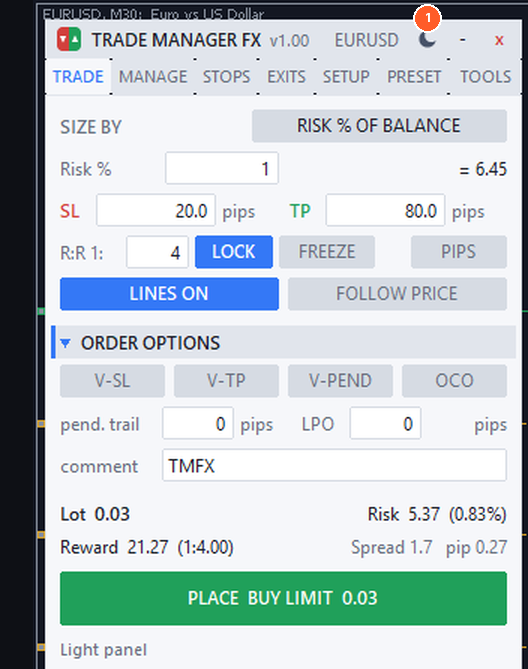
Light theme (1).
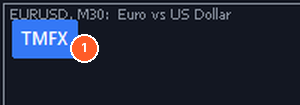
Minimized panel (1): click to open it again, drag to move it.
3. TRADE tab — opening trades
The TRADE tab is where you set the size, the stops and the type of every new order. You can trade at market in one click, or plan the trade with lines on the chart.
3.1 Position size
- (6) SIZE BY — click to change how the lot is calculated:
- RISK % OF BALANCE — the lot is calculated so that, if the Stop Loss is hit, you lose this percentage of your balance.
- RISK % OF EQUITY — the same, using the equity.
- RISK IN EUR/USD… — a fixed amount of money in your account currency.
- FIXED LOT — always the same lot.
- (7) Value of the selected mode: risk %, money or lot.
- (8) The equivalent value: with a % mode it shows the money at risk, with a money mode the %.
The lot includes the commission when there is one (see Commission / lot in SETUP), it is rounded down to the broker's lot step and it is limited by the broker's minimum and maximum lot. If the risk would be higher than the Acceptable risk % input (2% by default), or there is no Stop Loss, the risk is shown in red.
Example. Balance 10,000 EUR, risk 1%, Stop Loss 20 pips on EURUSD. The panel risks 100 EUR, so it calculates 0.50 lot (about 10 EUR per pip × 20 pips = 100 EUR). If you move the Stop Loss to 40 pips, the lot changes to 0.25 at once.
3.2 Stop Loss, Take Profit and R:R
- (9) SL — Stop Loss distance in pips (or the price, see 14). 0 = no Stop Loss.
- (10) TP — Take Profit distance. 0 = no Take Profit.
- (11) R:R 1: — the Risk:Reward ratio used by LOCK.
- (12) LOCK — keeps TP = SL × R:R. When you change the SL (in the field or by dragging its line), the TP follows. With R:R 4 and SL 20 pips the TP is 80 pips.
- (13) FREEZE — the SL and TP lines keep their price when you move the entry line (useful when the stop is on a technical level and you only want to adjust the entry).
- (14) PIPS / PRICE — the SL and TP fields show a distance in pips or the exact price.
The pip is detected automatically: 0.0001 on most forex pairs, 0.01 on JPY pairs, 0.1 on gold, and so on. You can force a value with the input Points per pip.
3.3 Market orders in one click
When there are no lines on the chart the panel shows two big buttons.
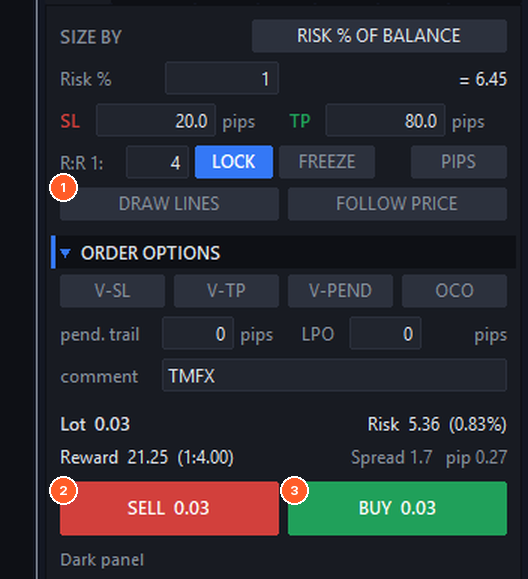
- (1) DRAW LINES — starts planning with lines (next section).
- (2) SELL — opens a sell at market with the lot, SL and TP shown above.
- (3) BUY — opens a buy at market.
After a market fill the SL and TP are re-aligned to the real fill price, so slippage does not change your distances (input Re-align SL/TP after market fill slippage).
3.4 Planning a trade with lines
Lines let you see the trade before sending it: where the entry, Stop Loss and Take Profit are, how much you risk and how much you can win.
- Click DRAW LINES (15). The button changes to CLICK THE CHART.
- Click the chart where you want the entry. Click the button a second time instead to draw the lines at the current price.
- Drag the lines to adjust them. Everything in the panel updates while you drag.
- Press PLACE (27). Click LINES ON to remove the lines without placing anything.
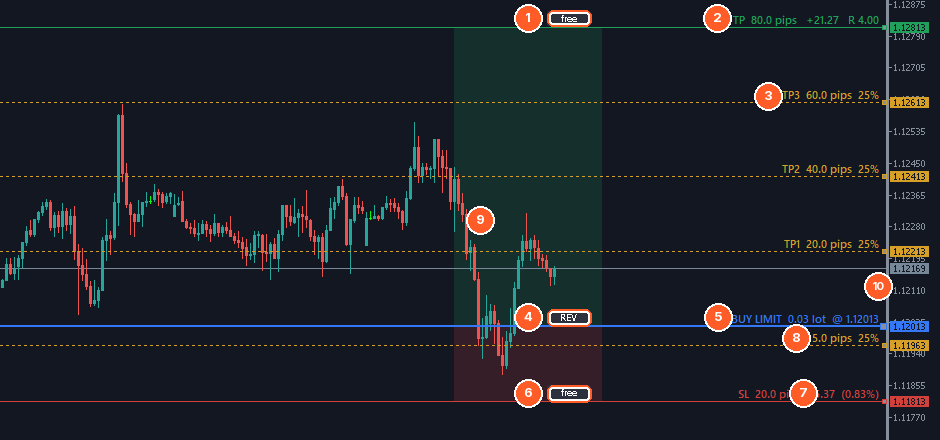
A planned BUY LIMIT with Take Profit, three partial close levels and one partial loss level.
- (1) TP handle. Click it to change the state of the line: free (moves with the entry), PIN (keeps its price when you move the entry) or LOCK (cannot be dragged at all).
- (2) Take Profit label: distance in pips, profit in money and R multiple.
- (3) Partial close levels (TP1–TP4) from the EXITS tab, with their distance and the % to close. Drag them to move the level; the EXITS tab updates.
- (4) REV — reverses the plan: a buy becomes a sell with the same distances.
- (5) Entry label: order type, lot and price. Ctrl+click the entry line to type an exact price.
- (6) SL handle — free / PIN / LOCK, like the TP.
- (7) Stop Loss label: distance in pips, money at risk and % of balance.
- (8) Partial loss levels (SL1–SL4), also draggable.
- (9) Plan zone: green for the profit area, red for the risk area. Its opacity and width are set in SETUP.
- (10) Every line also has its price on the price scale.
The direction comes from the lines: if you drag the SL above the entry the plan becomes a sell, and below it becomes a buy. The order type comes from where the entry is compared with the current price: buy below the price = BUY LIMIT, buy above = BUY STOP, sell above = SELL LIMIT, sell below = SELL STOP. The PLACE button always tells you which order will be sent.
FOLLOW PRICE (16) keeps the entry line on the current price, so PLACE sends a market order. Use it to plan the SL and TP visually and enter at market.
Where a click puts the entry, and which SL/TP distances new lines use, can be changed in SETUP (CLICK PLACES ENTRY and DEFAULT SL / TP).
3.5 Order options
- (17) ORDER OPTIONS — click the title to fold the section. When it is folded the active options are listed next to the title.
- (18) V-SL — virtual Stop Loss. The SL is not sent to the broker; the EA closes the trade when the price reaches it. The broker never sees your stop. The line is still shown on the chart and can be dragged.
- (19) V-TP — virtual Take Profit, the same for the TP.
- (20) V-PEND — virtual pending orders. Pending orders are kept by the EA and sent at market when the price reaches them.
- (21) OCO — One Cancels the Other. New pending orders placed while OCO is on form a group: when one of them is filled, the others are deleted. Typical use: a BUY STOP above a range and a SELL STOP below it.
- (22) pend. trail — trailing pending order: the pending order follows the price at this distance (pips) until it is filled. 0 = off.
- (23) LPO — Limit Pullback Order (needs V-PEND). When the price reaches a virtual limit order it is not filled at once: it becomes a stop that trails the pullback at this distance, so you enter when the price turns. 0 = off.
- (24) comment — comment written on new orders.
Safety net for virtual stops. With the input Emergency real SL for virtual stops you can also send a real, wider SL to the broker (for example 2 × the virtual distance). It protects the trade if the terminal or the connection stops.
3.6 Information and placing the order
- (25) Lot that will be sent, and Risk in money and % (red if above the acceptable risk or without SL). If the lot is bigger than the broker's maximum and Split large lots is on, the panel shows how many orders it will send.
- (26) Reward in money and the R:R, the current spread in pips, and the value of one pip for this lot.
- (27) PLACE — sends the planned order (type and lot are written on the button).
- (28) Status line — result of the last action.
Every new trade copies the current break even, trailing stop and partial close settings (when PER-TRADE SETTINGS is on, see SETUP), so you can later change them for that trade only.
4. Open trades on the chart
4.1 Info bar and trade lines
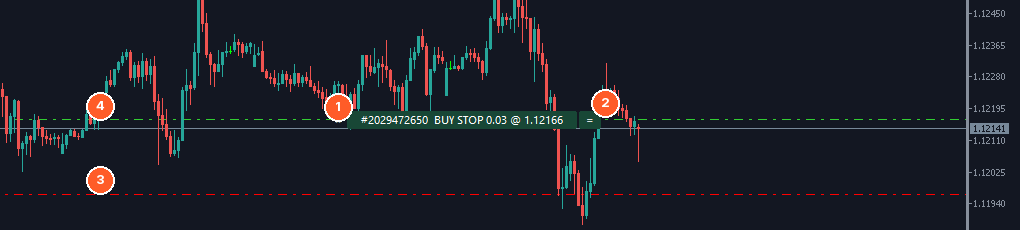
Info bar of a BUY STOP (1), its = button (2), Stop Loss line (3) and entry line (4).
Each open position and each pending order gets an info bar on its entry line, with the ticket, type, lot and the current profit (or the price for a pending order). The texts can be changed in SETUP > LINE TEXTS.
- Click the info bar to show or hide the SL and TP handles of that trade. With the handles shown you can drag the SL and TP lines to modify them; the labels show distance in pips and money. For a pending order you can also drag the entry line to move the order.
- Drag the bar sideways (double-click it first to select it) to place it where it does not cover the candles. Its default distance from the right edge is an input.
- The = button next to the bar opens the settings window of that trade.
- Virtual stops are drawn and labelled (virtual); virtual pending orders get their own bar with the word VIRTUAL.
The info bars can be switched off with the input Info bar on every open trade.
4.2 Settings window of one trade
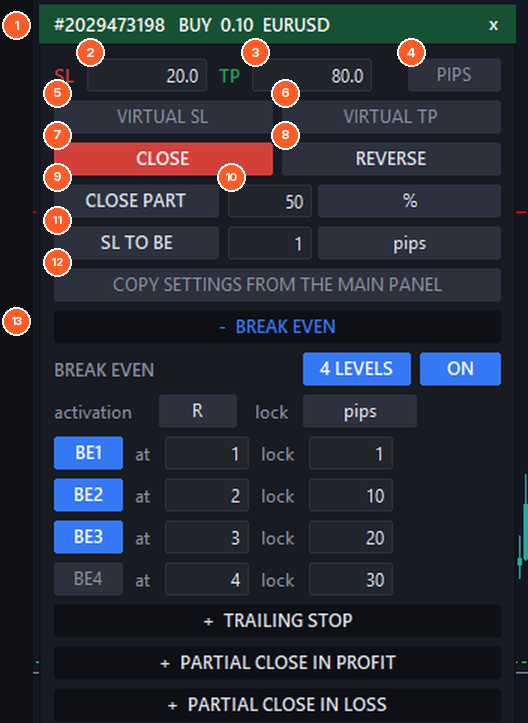
Click = on an info bar to open the window of that trade next to the panel.
- (1) Header with ticket, type, lot and symbol (green for buys, red for sells). x closes the window.
- (2) SL and (3) TP — type a new distance or price and press Enter. 0 removes it.
- (4) PIPS / PRICE — unit of the SL and TP fields.
- (5) VIRTUAL SL and (6) VIRTUAL TP — hide that stop from the broker, or make it real again.
- (7) CLOSE — closes the position (DELETE for a pending order).
- (8) REVERSE — closes the position and opens the opposite one with the same lot.
- (9) CLOSE PART — closes (10) this amount, in % of the current volume or lots.
- (11) SL TO BE — moves the SL of this position to break even plus the offset (pips or % of the distance to TP).
- (12) COPY SETTINGS FROM THE MAIN PANEL — replaces the break even, trailing and partial settings of this trade with the ones in the panel.
- (13) BREAK EVEN, TRAILING STOP, PARTIAL CLOSE IN PROFIT, PARTIAL CLOSE IN LOSS — click a title to open it and change the management of this trade only. They work like the STOPS and EXITS tabs. The indicator settings of the trailing modes (ATR period, MA, SAR…) are shared and set in the STOPS tab.
For a pending order the window also has:
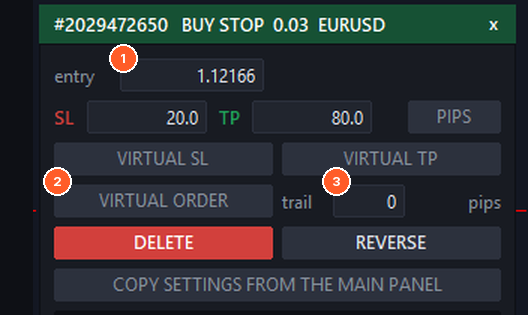
- (1) entry — type a new price to move the order.
- (2) VIRTUAL ORDER — removes the order from the broker and keeps it in the EA, or sends a virtual order to the broker.
- (3) trail — trailing distance of the pending order in pips (0 = off).
CLOSE becomes DELETE, REVERSE replaces it with the opposite order at the same price, and CLOSE PART and SL TO BE are not shown.
When PER-TRADE SETTINGS is off, the window says so and the main panel manages every trade.
5. MANAGE tab — closing and protecting
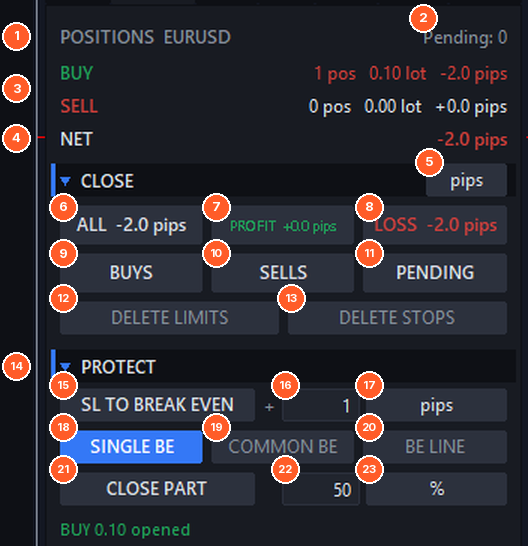
- (1) Positions of this symbol.
- (2) Number of pending orders (real and virtual).
- (3) BUY / SELL — number of positions, total lot and result of each side.
- (4) NET — total result.
- (5) Unit of the results: account currency, pips or % of balance (click to change).
- (6) ALL — closes all positions on this symbol.
- (7) PROFIT — closes only the positions in profit.
- (8) LOSS — closes only the positions in loss.
- (9) BUYS — closes the buys. (10) SELLS — closes the sells.
- (11) PENDING — deletes all pending orders, real and virtual.
- (12) DELETE LIMITS / (13) DELETE STOPS — deletes only limit or only stop orders.
- (14) PROTECT section.
- (15) SL TO BREAK EVEN — moves the SL of every position to its entry plus the offset.
- (16) Offset, and (17) its unit: pips or % of the distance to TP.
- (18) SINGLE BE — each position goes to its own entry.
- (19) COMMON BE — all positions go to one common break even, weighted by volume. Useful after scaling in at different prices. If buys and sells are mixed the panel shows a zone instead of a line.
- (20) BE LINE — shows the common break even line (or zone) on the chart.
- (21) CLOSE PART — closes a part of every position: (22) amount and (23) unit (% of the current volume or lots).
Group closes ask for confirmation (input Ask confirmation before group closes) and are sent asynchronously so many positions close almost at once (input Fast asynchronous group closes).
6. STOPS tab — break even and trailing stop
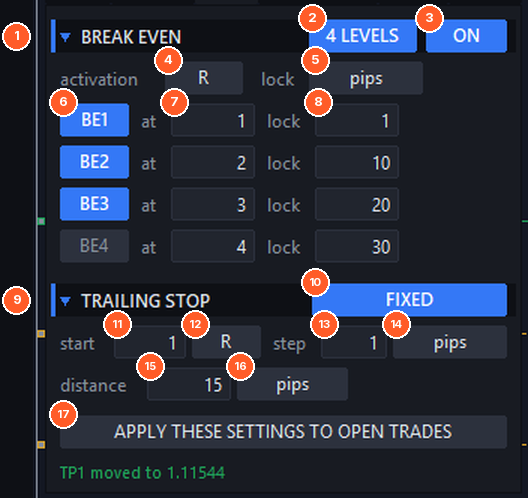
6.1 Break even
Break even moves the Stop Loss to the entry (plus a small profit) once the trade is far enough in profit, so a winning trade cannot turn into a loss.
- (1) BREAK EVEN section (click to fold).
- (2) 4 LEVELS — switches between basic break even (one level) and multi-level break even (up to four steps).
- (3) ON / OFF — automatic break even.
- (4) activation unit for the levels: pips, R, % of the distance to TP or price.
- (5) lock unit, the profit protected by the new SL: pips, R, % of the profit at activation or price.
- (6) BE1–BE4 — switch each level on or off.
- (7) at — profit that activates the level.
- (8) lock — profit protected by the level.
Example (4 levels, activation in R, lock in pips). SL = 20 pips. BE1 at 1 lock 1: at +20 pips the SL moves to entry +1 pip. BE2 at 2 lock 10: at +40 pips the SL moves to entry +10 pips. BE3 at 3 lock 20: at +60 pips to entry +20 pips. Each level only moves the SL forward, never back.
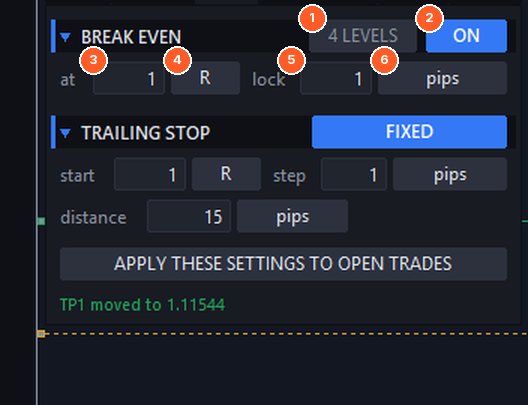
Basic break even (4 LEVELS off) has one line: at (3) with its unit (4) and lock (5) with its unit (6).
6.2 Trailing stop
The trailing stop moves the Stop Loss behind the price as the trade goes in your favour. Click the mode button (STOPS image, 10) to cycle through the modes. Fields common to most modes:
- (11) start — profit needed before trailing begins (0 = at once), with (12) its unit (pips, R, % of the distance to TP or price).
- (13) step — minimum SL move, so the SL is not modified on every tick, with (14) its unit (pips or R).
- (17) APPLY THESE SETTINGS TO OPEN TRADES — with PER-TRADE SETTINGS on, new trades copy the panel; this button also overwrites the settings of the trades that are already open.
The SL only moves in your favour. The trailing stop and the break even work together: the one that protects more wins.
FIXED
The SL stays at a fixed distance (15) from the price. Unit (16): pips, R, or % profit, which keeps a percentage of the current profit (for example 50% keeps half of what the trade is winning).
ATR
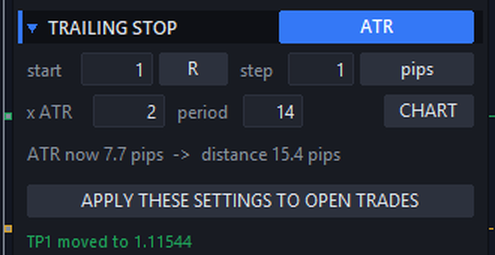
The distance is the ATR × multiplier, so it widens when the market is volatile and narrows when it is quiet. Set the multiplier, the ATR period and the timeframe (CHART = the chart timeframe). The panel shows the current ATR and the resulting distance.
4 LEVELS
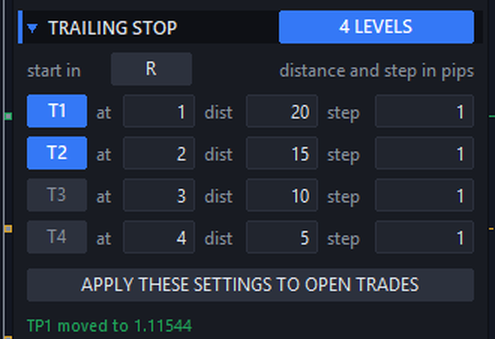
Up to four levels, each with its own start (at), distance and step in pips. As the profit grows the next level takes over, normally with a tighter distance. In the image: from 1 R the SL trails at 20 pips, from 2 R at 15 pips.
HIGHS / LOWS
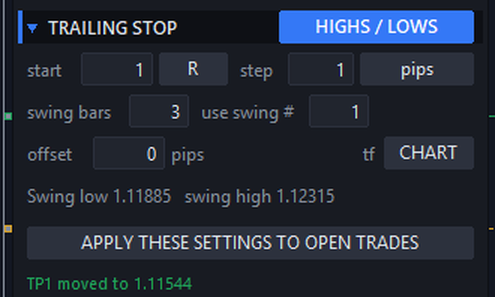
The SL follows the last swing low (buys) or swing high (sells). swing bars is the number of bars on each side that confirm a swing, use swing # chooses the latest swing (1) or an older one (2, 3…), offset adds pips beyond the level and tf sets the timeframe. The current swing values are shown.
MOVING AVG
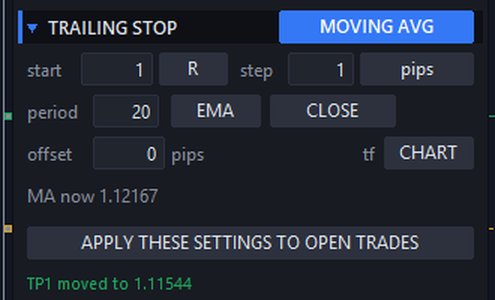
The SL follows a moving average. Set the period, the method (SMA, EMA, SMMA, LWMA), the price, an offset and the timeframe.
PARABOLIC SAR
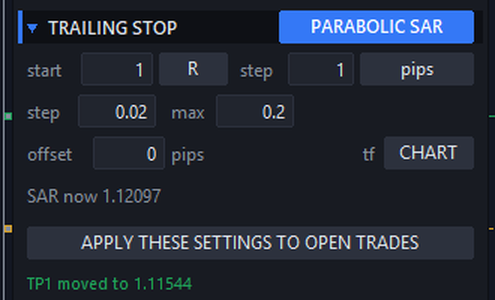
The SL follows the Parabolic SAR with the step and maximum you set, plus an optional offset.
FOLLOW PARTIALS
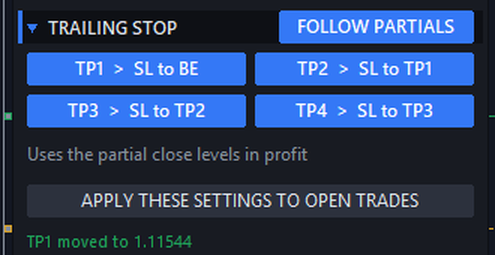
The SL jumps each time a partial close level in profit is reached: after TP1 to break even, after TP2 to TP1, after TP3 to TP2 and after TP4 to TP3. Each step can be switched on or off. It uses the levels of the EXITS tab.
6.3 Units: pips, R, % and price
| Unit | Meaning | Example (SL 20 pips, TP 60 pips) |
|---|---|---|
| pips | Distance from the entry in pips. | 15 = 15 pips |
| R | Multiples of the initial Stop Loss distance. | 1.5 R = 30 pips |
| % | % of the distance to the TP (to the SL for loss levels). | 50% = 30 pips |
| price | An exact price level. | 1.12500 |
| % profit | (lock and trailing distance) % of the current profit kept. | 50% of +40 pips = SL at +20 pips |
R and % need the trade to have an initial SL (and a TP for %). The panel remembers the initial SL of every trade, so R stays the same after the SL is moved.
7. EXITS tab — partial close and equity guard
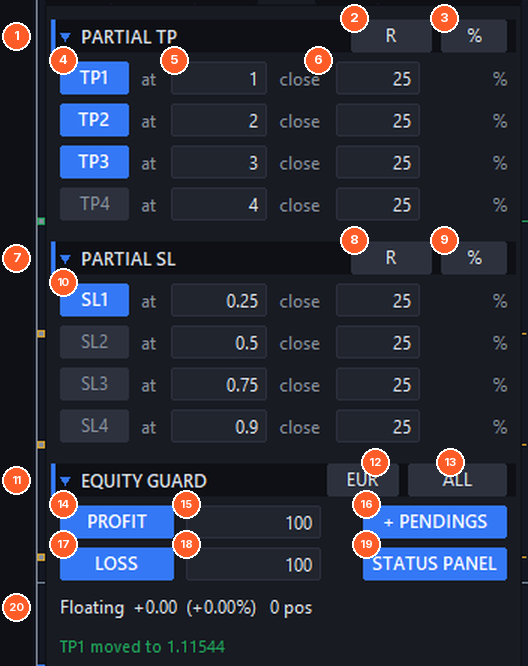
Partial close in profit
- (1) PARTIAL TP section.
- (2) Unit of the levels: pips, R, % of the distance to TP or price.
- (3) Unit of the size: % of the initial volume or lots.
- (4) TP1–TP4 — switch each level on or off.
- (5) at — level where part of the trade is closed.
- (6) close — how much to close.
Example. SL 20 pips, TP1 at 1 R close 25%, TP2 at 2 R close 25%, TP3 at 3 R close 25%. On a 1.00 lot trade the panel closes 0.25 lot at +20 pips, 0.25 at +40 and 0.25 at +60; the last 0.25 runs to the TP. Combine it with FOLLOW PARTIALS trailing to lock the profit after each step.
Partial close in loss
- (7) PARTIAL SL — the same, for losing trades: (8) level unit, (9) size unit, (10) SL1–SL4. It reduces the position step by step before the full Stop Loss (for example close 25% at 0.25 R of loss).
The partial levels are drawn on the chart as dashed lines and can be dragged.
Equity guard
- (11) EQUITY GUARD — closes everything when a profit target or a maximum loss is reached.
- (12) Unit: account currency, % of balance, or EQL (an absolute equity level, for example close all if equity falls to 9,500).
- (13) SYMBOL / ALL — trades tracked: this symbol only or the whole account.
- (14) PROFIT on/off and (15) the target.
- (16) + PENDINGS — also deletes pending orders when the guard closes.
- (17) LOSS on/off and (18) the maximum loss.
- (19) STATUS PANEL — shows the account status panel.
- (20) Current floating result and number of positions tracked.
8. Account status panel
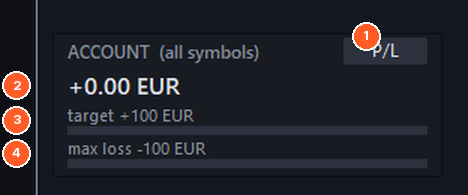
A small panel in the bottom-left corner of the chart that shows how close you are to the equity guard target and to the maximum loss.
- (1) Click to change what is shown: P/L in money, EQUITY, or P/L in %.
- (2) Current value (green in profit, red in loss).
- (3) Progress towards the profit target.
- (4) Progress towards the maximum loss.
9. SETUP tab — language, external trades and options
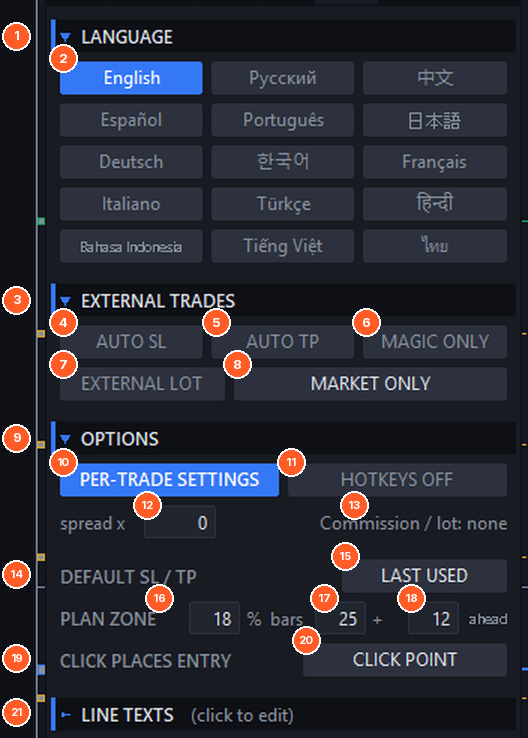
- (1) LANGUAGE — (2) click a language: English, Русский, 中文, Español, Português, 日本語, Deutsch, 한국어, Français, Italiano, Türkçe, हिन्दी, Bahasa Indonesia, Tiếng Việt and ไทย. The whole panel, the tooltips and the messages change at once.
- (3) EXTERNAL TRADES — trades opened outside the panel (mobile app, web terminal, other EAs, the terminal's own order window):
- (4) AUTO SL — adds the default SL to trades opened without one.
- (5) AUTO TP — adds the default TP to trades opened without one.
- (6) MAGIC ONLY — ON: the panel manages only trades opened by itself (its magic number). OFF: it manages every trade on the symbol, so break even, trailing and partials also work on trades opened from your phone.
- (7) EXTERNAL LOT — resizes external trades to your risk settings (needs MAGIC ONLY off). See Trading from the mobile app. (8) chooses which ones: market and pending, market only or pending only.
- (9) OPTIONS
- (10) PER-TRADE SETTINGS — ON: each new trade copies the panel settings and can be changed alone from its settings window. OFF: the panel settings apply to all trades at any time.
- (11) HOTKEYS — keyboard shortcuts on/off (see Hotkeys).
- (12) spread x — adds the current spread × N to SL and TP when an order is sent, so a stop is not hit by the spread alone. 0 = off.
- (13) Commission / lot — the commission used in the lot and risk calculation. Set it with the input Round-turn commission per 1.00 lot, or let the panel detect it from your history.
- (14) DEFAULT SL / TP — (15) distances used when new lines are drawn: LAST USED, DEFAULT PIPS (the inputs) or ATR (SL = ATR × n, TP = ATR × n, optionally refreshed every N seconds).
- PLAN ZONE — (16) opacity of the green/red zone (0 = no zone), (17) bars to the left and (18) bars to the right of the current bar.
- (19) CLICK PLACES ENTRY — (20) CLICK POINT (exactly where you click) or OVER / BELOW BAR (above the high of the clicked bar for a buy, below the low for a sell, plus a distance in pips).
- (21) LINE TEXTS — the texts of the lines and info bars (below).
Line texts
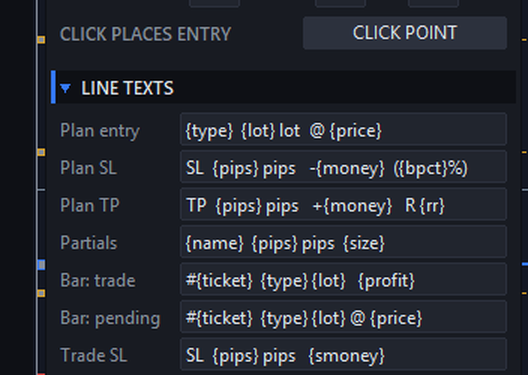
Every label on the chart can be changed. Click a field, edit it and press Enter. RESET TEXTS TO THE EA INPUTS restores the defaults. You can use these tags:
| Tag | Shows | Tag | Shows |
|---|---|---|---|
| {type} | Order type | {smoney} | Money with sign |
| {lot} | Lot | {bpct} | % of balance |
| {price} | Price of the line | {epct} | % of equity |
| {pips} | Distance in pips | {rr} | R multiple |
| {points} | Distance in points | {profit} | Current profit |
| {dprice} | Distance in price | {ticket} | Ticket |
| {money} | Money | {name} / {size} | Partial level name / size |
10. PRESET tab — templates
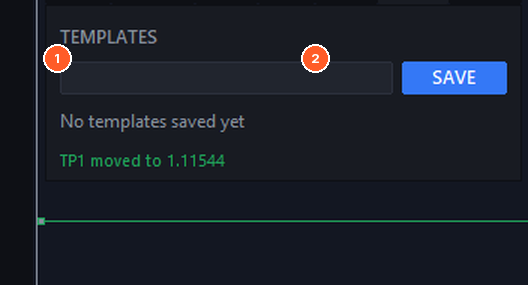
A template saves all the panel settings (size, stops, order options, break even, trailing, partials, equity guard…) under a name, so you can switch between setups in one click, for example "Scalping", "Swing" or "Gold".
- (1) Type a name and press (2) SAVE.
- Each saved template has its own row: * marks it as a favourite (listed first), click the name to load it, R renames it to the name typed above and x deletes it. With many templates use the < > arrows.
Templates are stored in MQL5\Files\TradeManagerFX\Templates (MT4: MQL4\Files\…). They are shared by all charts, so you can save a template on one symbol and load it on another. The input Template loaded on first start loads one automatically.
11. TOOLS tab — trading sessions and economic news
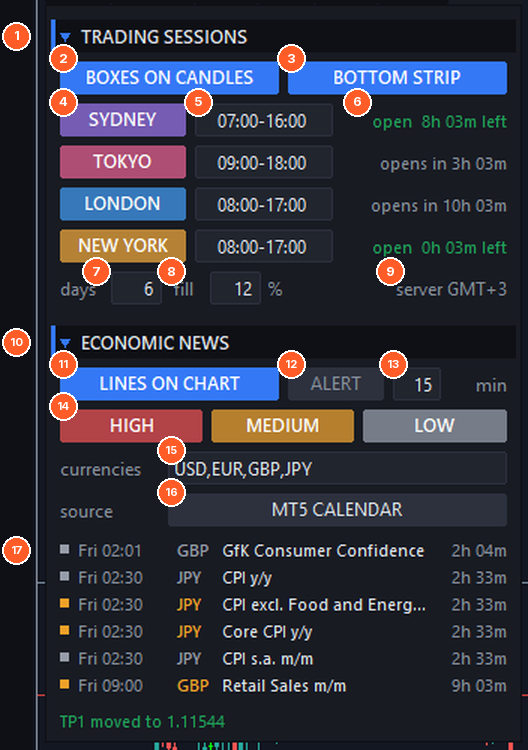
Trading sessions
- (1) TRADING SESSIONS section.
- (2) BOXES ON CANDLES — a box over the candles of each session with its high, low and range in pips.
- (3) BOTTOM STRIP — coloured bands at the bottom of the chart.
- (4) Show or hide each session (Sydney, Tokyo, London, New York).
- (5) Local hours of each city (HH:MM-HH:MM). Summer time is applied automatically for every city and for your broker's server.
- (6) State of the session now: open and time left, or time until it opens.
- (7) Days to show (1–30), (8) box fill opacity, (9) time zone of your broker's server (detected automatically).
Sessions are drawn on timeframes up to H1 (input Show sessions up to this timeframe).
Economic news
- (10) ECONOMIC NEWS section.
- (11) LINES ON CHART — a vertical line at the time of each news item. Hover it to read the details (forecast, previous).
- (12) ALERT — alert before each news item, (13) minutes before.
- (14) Impact filter: HIGH, MEDIUM and LOW.
- (15) Currencies to show, separated by commas.
- (16) Source: MT5 CALENDAR (built into MetaTrader 5, nothing to set up), FOREX FACTORY or INVESTING.COM.
- (17) List of the next news items with time, currency, name and countdown.
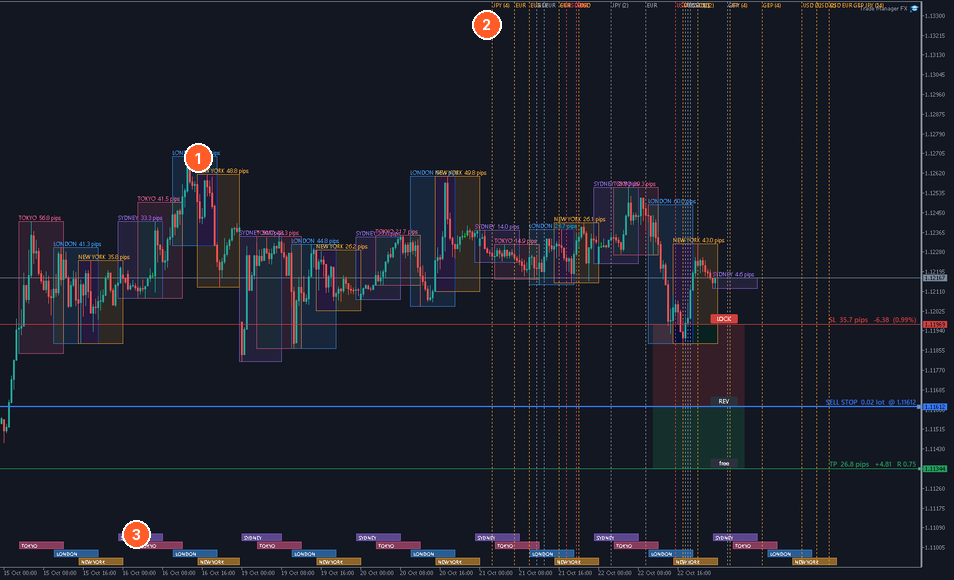
Session boxes with their range (1), news lines (2) and the session strip (3).
Forex Factory and Investing.com need permission to connect: in MetaTrader open Tools > Options > Expert Advisors, tick Allow WebRequest for listed URL and add the address the panel shows in the TOOLS tab (https://nfs.faireconomy.media for Forex Factory, https://ec.forexprostools.com for Investing.com). Until then the TOOLS tab is marked with "!" and no news is shown from that source.
12. Hotkeys
Switch them on with HOTKEYS in SETUP (or the input Hotkeys enabled). The keys are set in the inputs; leave a key empty to disable it. The chart must have the focus (click it first).
| Default key | Action | Default key | Action |
|---|---|---|---|
| Shift+B | Market buy | Shift+E | Move SL to break even |
| Shift+S | Market sell | Shift+H | Close part |
| Shift+L | Draw BUY lines at the mouse | Shift+C | Close all positions |
| Shift+K | Draw SELL lines at the mouse | Shift+W | Close profitable positions |
| Shift+P | Place the planned order | Shift+X | Close losing positions |
| Shift+R | Reverse the planned direction | Shift+D | Delete pending orders |
| Shift+F | Follow price on/off | Shift+N | Pin / unpin SL and TP |
| Shift+Q | R:R lock on/off | Shift+Z | Type the entry price |
| Shift+O | OCO on/off | Shift+M | Minimize / restore the panel |
Without a default key (assign one if you want it): pin SL, pin TP, close buys, close sells, delete limit orders, delete stop orders, TP1–TP4 and SL1–SL4 on/off, automatic break even on/off, trailing stop on/off.
13. Alerts and notifications
In the inputs (group Alerts) choose which events send an alert: market order opened, position closed, pending order placed, pending order activated, pending order deleted. Choose how: popup with sound, e-mail and/or push notification to your phone. For e-mail and push, set them up in Tools > Options > Email / Notifications of MetaTrader. The news alert of the TOOLS tab uses the same methods.
14. Trading from the mobile app
Trade Manager FX keeps working on your computer or VPS while you trade from the MetaTrader app on your phone:
- In SETUP, switch MAGIC ONLY off, so the panel also manages trades it did not open.
- Switch on EXTERNAL LOT.
- On your phone, open a trade with the minimum lot and the Stop Loss where you want it.
- The panel calculates the lot for your risk with that SL and adds the missing volume at market. For pending orders it deletes the order and places it again with the right lot.
Trades without SL are not resized. With AUTO SL / AUTO TP the default stops are added to them. Break even, trailing stop and partial closes are applied to these trades like to any other.
15. Input parameters
The inputs set the defaults the first time the EA runs on a chart. After that, the values changed in the panel are remembered. Most inputs can also be changed directly in the panel.
General
| Parameter | Default |
|---|---|
| Magic number for new orders | 7701001 |
| Manage only trades with this magic number | false |
| Default order comment | TMFX |
| Max slippage (points) | 20 |
| Points per pip (0 = auto: forex, gold/silver, others by price) | 0 |
| Base symbol for custom charts (empty = chart symbol) | (empty) |
| Per-trade settings (copied from the panel to each new trade) | true |
| Re-align SL/TP after market fill slippage | true |
| Ask confirmation before group closes | true |
| Fast asynchronous group closes | true |
| Split large lots into several orders | false |
| Max lot per order when splitting (0 = broker max) | 0 |
| Template loaded on first start (name) | (empty) |
Position size
| Parameter | Default |
|---|---|
| Lot calculation mode | Risk % of balance |
| Fixed lot | 0.10 |
| Risk in account currency | 100.0 |
| Risk % | 1.0 |
| Acceptable risk % (shown in red above) | 2.0 |
| Round-turn commission per 1.00 lot | 0.0 |
| Detect commission from history (if above = 0) | false |
Default SL / TP and lines
| Parameter | Default |
|---|---|
| Default Stop Loss (pips) | 20.0 |
| Default Take Profit (pips, 0 = none) | 40.0 |
| Risk:Reward used by the R:R lock | 2.0 |
| Add spread x N to SL/TP when sending (0 = off) | 0.0 |
| Default SL/TP distance when drawing lines | Remember the last distances |
| ATR mode: SL = ATR x | 1.5 |
| ATR mode: TP = ATR x (0 = keep) | 3.0 |
| ATR mode: refresh every N seconds (0 = on drawing only) | 0 |
| Where a click places the entry line | At the click point |
| Over/below bar: distance from the high/low (pips) | 1.0 |
Order options
| Parameter | Default |
|---|---|
| Virtual (hidden) Stop Loss | false |
| Virtual (hidden) Take Profit | false |
| Emergency real SL for virtual stops (x distance, 0 = none) | 0.0 |
| Virtual pending orders | false |
| Trailing pending orders: distance (pips, 0 = off) | 0.0 |
| Trailing pending orders: step (pips) | 1.0 |
| Limit Pullback Order distance (pips, 0 = off) | 0.0 |
| One-Cancels-Other for new pending orders | false |
Break even
| Parameter | Default |
|---|---|
| Automatic break even | false |
| Multi-level break even (4 levels) | false |
| Activation unit | R |
| Basic: activation | 1.0 |
| Lock (profit protected) unit | Pips |
| Basic: lock | 1.0 |
| Level 1 enabled | true |
| Level 1 activation | 1.0 |
| Level 1 lock | 1.0 |
| Level 2 enabled | true |
| Level 2 activation | 2.0 |
| Level 2 lock | 10.0 |
| Level 3 enabled | false |
| Level 3 activation | 3.0 |
| Level 3 lock | 20.0 |
| Level 4 enabled | false |
| Level 4 activation | 4.0 |
| Level 4 lock | 30.0 |
| "SL to BE" button: offset | 1.0 |
| "SL to BE" button: offset unit | Pips |
| "SL to BE" button: one common level for all positions | false |
| Show the common break even line / zone | false |
Trailing stop
| Parameter | Default |
|---|---|
| Trailing mode | Off |
| Start unit | R |
| Start (0 = immediately) | 1.0 |
| Fixed mode: distance unit | Pips |
| Fixed mode: distance | 15.0 |
| Step unit | Pips |
| Step | 1.0 |
| Offset for highs/lows, MA and SAR (pips) | 0.0 |
| ATR timeframe | Chart timeframe |
| ATR period | 14 |
| ATR multiplier | 2.0 |
| Multi level 1 enabled | true |
| Multi level 1 start | 1.0 |
| Multi level 1 distance (pips) | 20.0 |
| Multi level 1 step (pips) | 1.0 |
| Multi level 2 enabled | true |
| Multi level 2 start | 2.0 |
| Multi level 2 distance (pips) | 15.0 |
| Multi level 2 step (pips) | 1.0 |
| Multi level 3 enabled | false |
| Multi level 3 start | 3.0 |
| Multi level 3 distance (pips) | 10.0 |
| Multi level 3 step (pips) | 1.0 |
| Multi level 4 enabled | false |
| Multi level 4 start | 4.0 |
| Multi level 4 distance (pips) | 5.0 |
| Multi level 4 step (pips) | 1.0 |
| Highs/lows: bars on each side of a swing | 3 |
| Highs/lows: swing to use (1 = latest) | 1 |
| Highs/lows: timeframe | Chart timeframe |
| MA: period | 20 |
| MA: method | EMA |
| MA: price | Close |
| MA: timeframe | Chart timeframe |
| Parabolic SAR: step | 0.02 |
| Parabolic SAR: maximum | 0.2 |
| Parabolic SAR: timeframe | Chart timeframe |
| Follow partials: after TP1 move SL to break even | true |
| Follow partials: after TP2 move SL to TP1 | true |
| Follow partials: after TP3 move SL to TP2 | true |
| Follow partials: after TP4 move SL to TP3 | true |
Partial close
| Parameter | Default |
|---|---|
| Profit levels unit | R |
| Profit levels size unit (of the initial volume) | % of the volume |
| TP1 enabled | false |
| TP1 level | 1.0 |
| TP1 size | 25.0 |
| TP2 enabled | false |
| TP2 level | 2.0 |
| TP2 size | 25.0 |
| TP3 enabled | false |
| TP3 level | 3.0 |
| TP3 size | 25.0 |
| TP4 enabled | false |
| TP4 level | 4.0 |
| TP4 size | 25.0 |
| Loss levels unit | R |
| Loss levels size unit (of the initial volume) | % of the volume |
| SL1 enabled | false |
| SL1 level (loss) | 0.25 |
| SL1 size | 25.0 |
| SL2 enabled | false |
| SL2 level (loss) | 0.5 |
| SL2 size | 25.0 |
| SL3 enabled | false |
| SL3 level (loss) | 0.75 |
| SL3 size | 25.0 |
| SL4 enabled | false |
| SL4 level (loss) | 0.9 |
| SL4 size | 25.0 |
| "Close part" button: amount | 50.0 |
| "Close part" button: unit (of the current volume) | % of the volume |
Equity guard
| Parameter | Default |
|---|---|
| Close all at profit target | false |
| Profit target (money, % or equity level) | 100.0 |
| Close all at max loss | false |
| Max loss (money, % or equity level) | 100.0 |
| Target unit | Account currency |
| Trades tracked | Current symbol only |
| Also delete pending orders | true |
| Show the account status panel | false |
| Account panel display | Profit / loss in money |
External trades (mobile, web, other EAs)
| Parameter | Default |
|---|---|
| Add default SL to trades without SL | false |
| Add default TP to trades without TP | false |
| Resize external trades to the risk settings | false |
| External lot sizing applies to | Market and pending orders |
Alerts
| Parameter | Default |
|---|---|
| Alert: market order opened | false |
| Alert: position closed | false |
| Alert: pending order placed | false |
| Alert: pending order activated | false |
| Alert: pending order deleted | false |
| Method: popup with sound | true |
| Method: e-mail | false |
| Method: push notification | false |
Hotkeys
| Parameter | Default |
|---|---|
| Hotkeys enabled | false |
| Market buy | Shift+B |
| Market sell | Shift+S |
| Place the order planned with lines | Shift+P |
| Draw BUY lines at the mouse | Shift+L |
| Draw SELL lines at the mouse | Shift+K |
| Reverse the planned direction | Shift+R |
| Follow price on/off | Shift+F |
| R:R lock on/off | Shift+Q |
| OCO on/off | Shift+O |
| Pin / lock / free the planned SL | (empty) |
| Pin / lock / free the planned TP | (empty) |
| Pin / unpin SL and TP | Shift+N |
| Type the entry price | Shift+Z |
| Move SL to break even | Shift+E |
| Close part | Shift+H |
| Close all positions | Shift+C |
| Close profitable positions | Shift+W |
| Close losing positions | Shift+X |
| Close buy positions | (empty) |
| Close sell positions | (empty) |
| Delete pending orders | Shift+D |
| Delete limit orders | (empty) |
| Delete stop orders | (empty) |
| Partial TP1 to TP4 on/off | (empty) |
| Partial SL1 to SL4 on/off | (empty) |
| Automatic break even on/off | (empty) |
| Trailing stop on/off | (empty) |
| Minimize / restore the panel | Shift+M |
Texts of the lines and info bars
| Parameter | Default |
|---|---|
| Planned order: entry | {type} {lot} lot @ {price} |
| Planned order: Stop Loss | SL {pips} pips -{money} ({bpct}%) |
| Planned order: Take Profit | TP {pips} pips +{money} R {rr} |
| Planned partial levels | {name} {pips} pips {size} |
| Info bar: open position | #{ticket} {type} {lot} {profit} |
| Info bar: pending order | #{ticket} {type} {lot} @ {price} |
| Order line: Stop Loss | SL {pips} pips {smoney} |
| Order line: Take Profit | TP {pips} pips {smoney} |
| Pending order line: Stop Loss | SL {pips} pips {smoney} ({bpct}%) |
| Pending order line: Take Profit | TP {pips} pips {smoney} R {rr} |
Trading sessions (local hours of each city, summer time is automatic)
| Parameter | Default |
|---|---|
| Session boxes over the candles | false |
| Session strip at the bottom of the chart | false |
| Days to show (1-30) | 5 |
| Box fill opacity (%, 0 = outline only) | 12 |
| Show sessions up to this timeframe | H1 |
| Broker clock summer time | US summer time (most brokers) |
| Sydney: show / local hours / color | true / 07:00-16:00 / RGB(150,110,230) |
| Tokyo: show / local hours / color | true / 09:00-18:00 / RGB(230,90,140) |
| London: show / local hours / color | true / 08:00-17:00 / RGB(60,150,240) |
| New York: show / local hours / color | true / 08:00-17:00 / RGB(240,165,50) |
Economic news
| Parameter | Default |
|---|---|
| News source | MT5 economic calendar (MT4: Forex Factory) |
| News lines on the chart | true |
| Alert before each news | false |
| Alert: minutes before | 15 |
| High impact news | true |
| Medium impact news | true |
| Low impact news | true |
| Currencies (comma separated) | USD,EUR,GBP,JPY |
| Lines: days back | 2 |
| Lines and list: days ahead | 3 |
| High / medium / low impact colors | RGB(235,75,75) / RGB(240,160,40) / RGB(150,156,168) |
Panel and lines
| Parameter | Default |
|---|---|
| Panel X | 10 |
| Panel Y | 30 |
| Panel font size | 9 |
| Line labels font size | 8 |
| Plan zone opacity (%, 0 = no zone) | 18 |
| Plan zone: bars to the left | 25 |
| Plan zone: bars to the right | 12 |
| Info bar on every open trade | true |
| Info bar width (px) | 230 |
| Info bar distance from the right edge (px) | 620 |
| Colors: background, header, text, secondary text, buttons, edit fields, accent, buy, sell, acceptable / unacceptable risk, entry, Stop Loss, Take Profit and partial lines | Dark theme colors, all editable |
16. Differences in the MT4 version
- The panel, the tabs and the functions are the same as in MT5.
- Economic news: MetaTrader 4 has no economic calendar, so the news comes from Forex Factory or Investing.com. Allow their address in Tools > Options > Expert Advisors > Allow WebRequest for listed URL as explained in TOOLS.
- Languages: MT4 can only draw the alphabet of your Windows language for non-Unicode programs. Languages it cannot draw are shown with their English name and cannot be selected. Latin-alphabet languages always work.
- Partial closes: in MT4 the part that stays open gets a new ticket from the broker. The panel moves all the settings of the trade to the new ticket automatically.
17. Questions and troubleshooting
The buttons do nothing / "Algo trading is disabled".
Turn on the Algo Trading button in the toolbar (MT4: AutoTrading) and tick Allow Algo Trading in the EA's Common tab.
The lot is different from what I expected.
The lot includes the commission, it is rounded down to the broker's lot step and limited by the minimum and maximum lot. Check Commission / lot in SETUP and the size mode in TRADE.
Break even or trailing did not move my SL.
Check that it is ON for that trade (with PER-TRADE SETTINGS on, open the trade's = window), that the EA is running, and that the new SL respects the broker's minimum distance (stops level).
Virtual stops did not close my trade.
Virtual stops need the terminal and the EA running. Use a VPS, or the input Emergency real SL for virtual stops.
The panel manages trades of my other EA.
Switch on MAGIC ONLY in SETUP.
No news is shown.
With Forex Factory or Investing.com, allow the address in Tools > Options > Expert Advisors. Check the currencies and impact filters. The MT5 calendar is not available in the strategy tester.
The panel is too big or too small.
Change the input Panel font size. The panel also follows the Windows display scaling.
For any other question write to me through the MQL5 messages or in the comments of the product.