Trade Analyzer Panel

Trade Analyzer Panel — MT5 Expert Advisor

Version: 1.10
Platform: MetaTrader 5
Type: Panel EA (non-trading, analysis only)

Group support: https://www.mql5.com/en/channels/vuongphamtrading
Overview

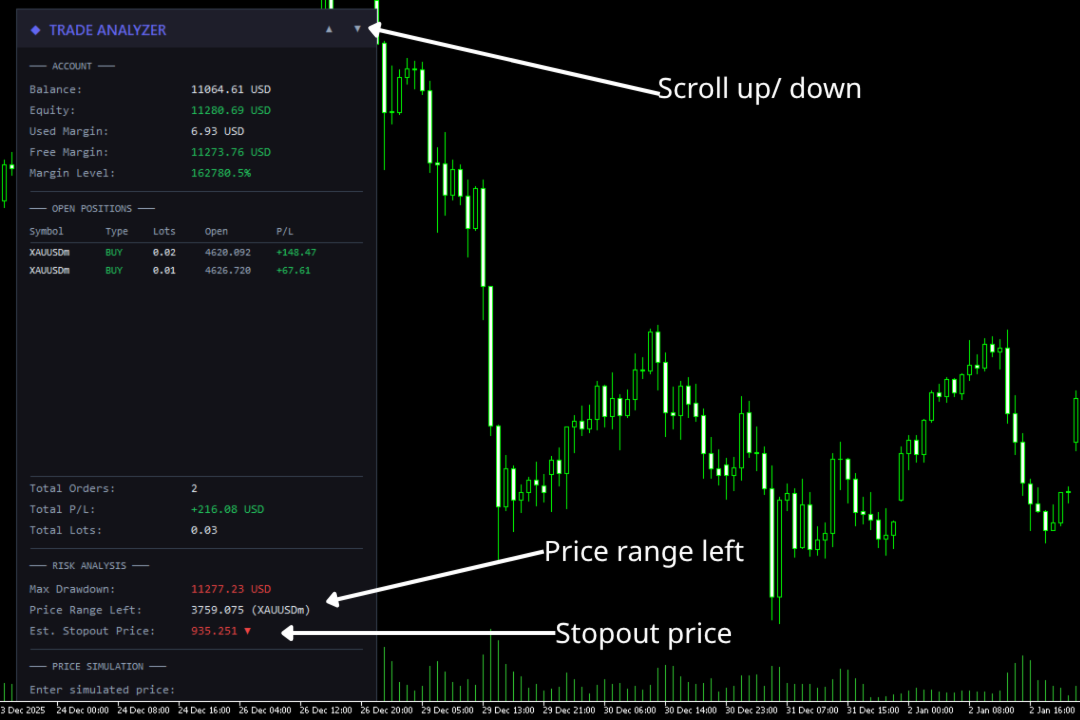
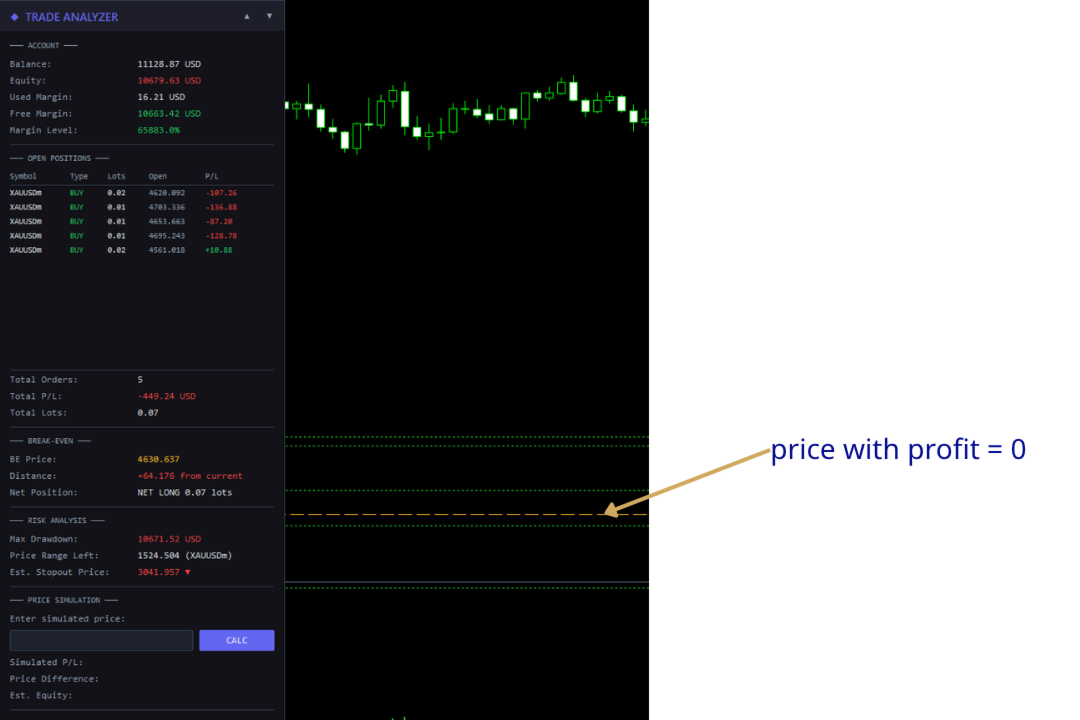
Trade Analyzer Panel is a real-time dashboard EA for MetaTrader 5 that gives you instant visibility into your open positions, account risk exposure, hypothetical P/L scenarios, and target profit planning — all from a single scrollable on-chart panel.

Key Features

Feature Description
Position Scanner Lists all open positions with symbol, direction, lot size, open price, and live P/L
Account Summary Displays balance, equity, used/free margin, and margin level in real time
Risk Analysis Calculates max drawdown before stop-out, price range the account can withstand, and estimated stop-out price
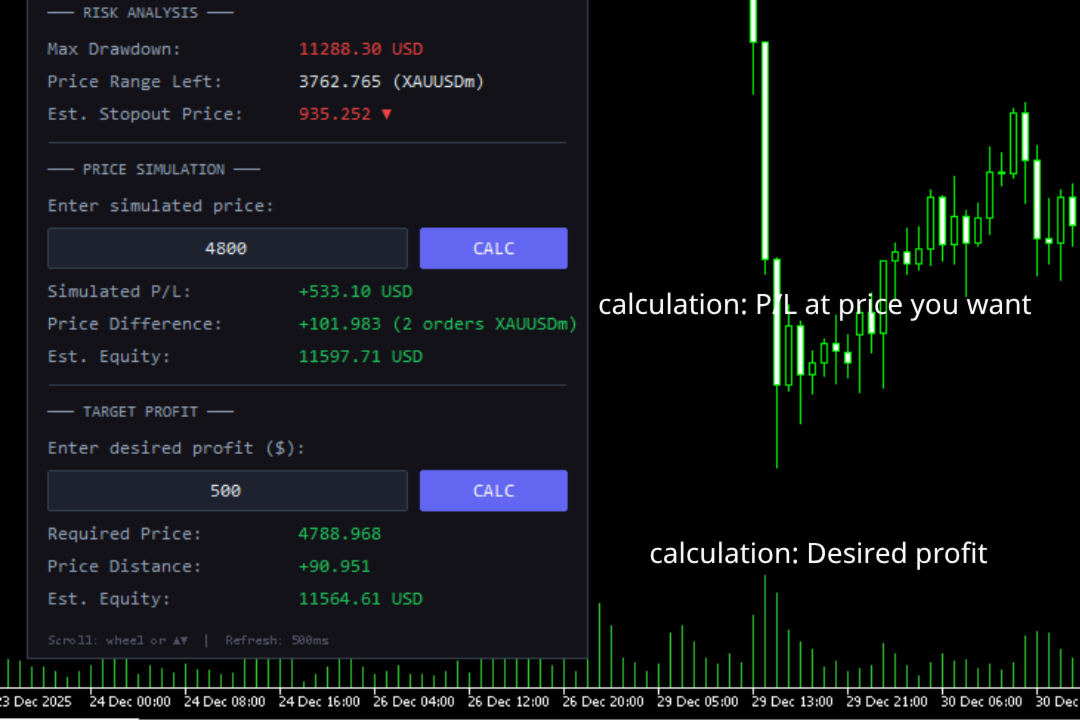
Price Simulator Enter any target price to see projected P/L, price difference, and estimated equity across all positions
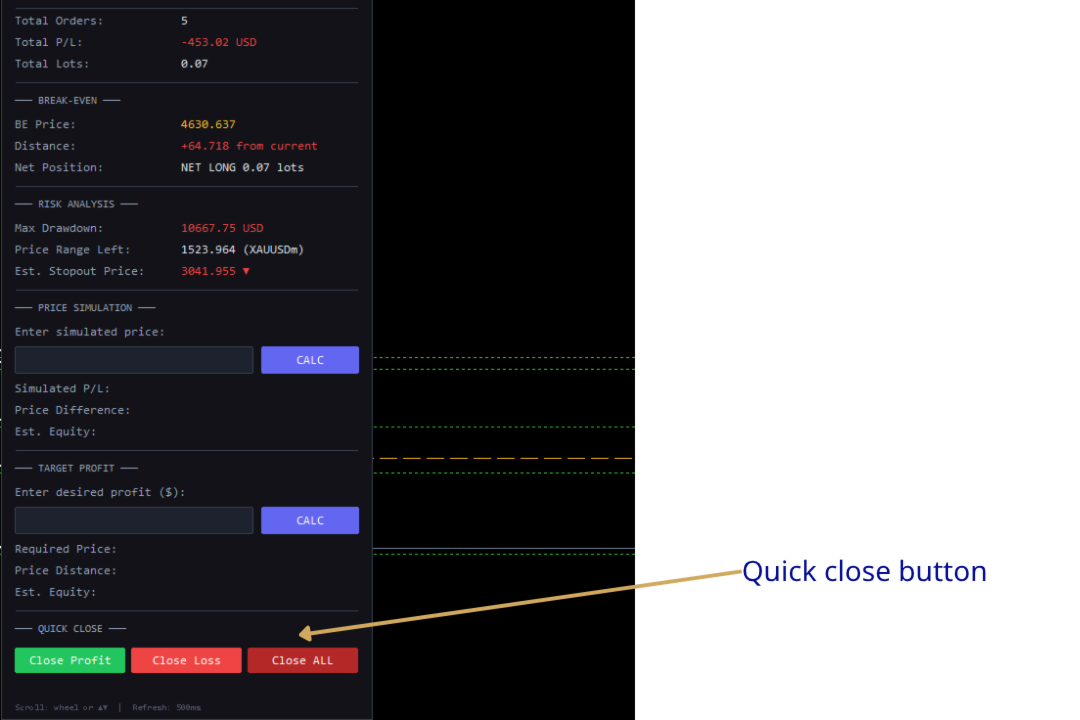
Target Profit Enter a desired profit amount and the EA calculates the exact price needed to reach that goal
Scrollable Panel Mouse wheel and ▲▼ buttons to scroll when the panel exceeds the chart height

Installation

  1. Copy the file — Place TradeAnalyzerPanel.mq5 into your MT5 data folder:

    [MT5 Data Folder]\MQL5\Experts\

    You can find the data folder via MT5 menu: File → Open Data Folder.

  2. Compile — Open TradeAnalyzerPanel.mq5 in MetaEditor and press F7 (or click Compile). Ensure there are no errors.

  3. Attach to chart — In MT5, open the Navigator panel (Ctrl+N), expand Expert Advisors, and drag TradeAnalyzerPanel onto any chart.

  4. Enable Algo Trading — Make sure the Algo Trading button on the MT5 toolbar is enabled (green icon).

Note: This EA does not place or modify any trades. It is purely an analysis and display tool.

Panel Sections

1. Account

The top section displays core account metrics updated in real time:

Field Description
Balance Current account balance (excluding floating P/L)
Equity Balance + floating profit/loss. Green if ≥ balance, red if below
Used Margin Margin currently locked by open positions
Free Margin Available margin for new positions. Green if > used margin
Margin Level Equity / Margin × 100%. Color-coded: green (>200%), yellow (100–200%), red (<100%)

2. Open Positions

Displays up to 12 open positions in a table format:

Column Description
Symbol Trading instrument (truncated to 10 characters if needed)
Type BUY (green) or SELL (red)
Lots Position volume
Open Entry price
P/L Current profit/loss including swap (green if positive, red if negative)

Below the table, three summary rows show Total Orders, Total P/L, and Total Lots across all open positions. Rows without positions are left blank.

3. Risk Analysis

Calculates how much adverse price movement your account can absorb before reaching the broker's stop-out level. All calculations are based on positions on the current chart symbol.

Field Description
Max Drawdown Maximum loss the account can sustain before stop-out: Equity - (Margin × StopOut% / 100)
Price Range Left How far the price can move against your net position before the account is stopped out
Est. Stopout Price The estimated price at which stop-out would occur, with a direction arrow (▼ for net-long, ▲ for net-short)

How it works:

  • The EA sums buy lots (positive) and sell lots (negative) on the current chart symbol to determine the net exposure.
  • It divides the max drawdown by the cost-per-tick of the net position to find how many ticks the account can endure.
  • The stop-out price is then projected from the current bid price.

Example: If you have 2.0 lots net-long on XAUUSD, equity of $10,000, and max drawdown of $8,000, the EA calculates: 8000 / (2.0 × tick_value) = number of ticks → converted to price distance. If the current price is 2350.00 and the price range is 400.00, the estimated stop-out price would be 1950.00 ▼.

4. Price Simulator

Lets you enter a hypothetical price to see what your P/L would be if the current chart symbol reached that price.

How to use:

  1. Type a price into the input field (e.g., 2400.50 ).
  2. Press Enter or click the CALC button.
  3. The panel displays:
Field Description
Simulated P/L Total projected profit/loss across all positions if the symbol reaches the entered price
Price Difference Distance between the simulated price and current bid, plus the number of affected orders
Est. Equity Projected account equity: Balance + Simulated Total P/L

Important notes:

  • The simulation applies to positions on the current chart symbol only. Positions on other symbols retain their current live P/L in the total calculation.
  • The P/L calculation accounts for each position's actual lot size, open price, direction (buy/sell), and swap.
  • The simulation updates automatically when the panel refreshes if a price is entered.

5. Target Profit Calculator

Enter a desired profit amount and the EA reverse-calculates the exact price the current chart symbol needs to reach.

How to use:

  1. Type the desired profit in account currency into the input field (e.g., 200 for +$200, or -100 for -$100).
  2. Press Enter or click the CALC button.
  3. The panel displays:
Field Description
Required Price The price the current chart symbol must reach for total P/L to equal your target
Price Distance Distance from the current bid to the required price (positive = price must go up, negative = price must go down)
Est. Equity Projected equity at target: Balance + Target Profit

How it works:

  • The EA gathers all positions on the current chart symbol: net lots, weighted open prices, and swap.
  • Positions on other symbols keep their current live P/L, which is subtracted from the target to isolate the required P/L from the chart symbol.
  • The formula solves for the price that would produce exactly that P/L given the actual lot sizes and open prices.
  • Supports negative values — enter -100 to find the price at which you'd lose $100.

Edge cases:

  • If positions are fully hedged (net lots ≈ 0), the panel shows "Hedged/No [symbol]" since no single price can change the P/L.
  • If the calculated price is negative (not achievable), the panel shows "Not achievable".

Scrolling

The panel supports scrolling when its content extends beyond the visible chart area. The header bar (title and scroll buttons) remains fixed at the top while content scrolls beneath it.

Scroll Methods

Method Action
Mouse wheel Hover the mouse over the panel and scroll up/down. Each tick scrolls by the configured step (default 40px)
▲ / ▼ buttons Click the arrow buttons in the top-right corner of the header. Each click scrolls 3× the step (120px by default)

Content that scrolls above the header is automatically hidden. The panel background resizes dynamically to fit the visible content area.

Tip: If the panel fits entirely on screen, scrolling has no effect — the EA automatically limits scroll range.

Input Parameters

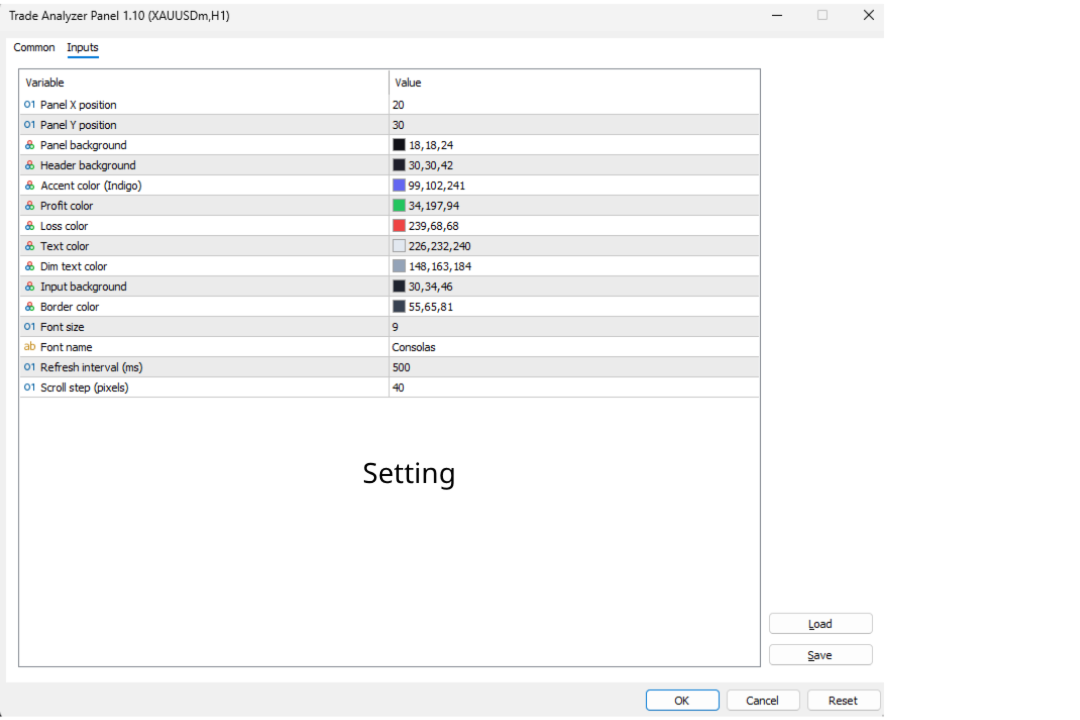
All parameters can be configured when attaching the EA to a chart or via the EA properties window.

Position & Layout

Parameter Default Description
InpPanelX 20 Panel X position (pixels from left)
InpPanelY 30 Panel Y position (pixels from top)
InpScrollStep 40 Pixels per mouse wheel tick

Colors

Parameter Default Description
InpPanelBg C'18,18,24' Main panel background
InpHeaderBg C'30,30,42' Header bar background
InpAccentColor C'99,102,241' Accent color (title, buttons)
InpProfitColor C'34,197,94' Profit / positive values
InpLossColor C'239,68,68' Loss / negative values
InpTextColor C'226,232,240' Primary text
InpDimText C'148,163,184' Secondary / label text
InpInputBg C'30,34,46' Input field background
InpBorderColor C'55,65,81' Borders and separators

Typography & Performance

Parameter Default Description
InpFontSize 9 Base font size
InpFontName "Consolas" Font family
InpRefreshMs 500 Data refresh interval in milliseconds

Tip: Increase InpRefreshMs to 1000 or higher if you notice performance impact on slower machines.

Frequently Asked Questions

Q: Does this EA place any trades?
A: No. It is strictly a read-only analysis panel. It does not open, close, or modify any positions.

Q: Why does Risk Analysis show nothing?
A: You have no open positions, or no positions on the current chart symbol. The risk calculation requires at least one position on the chart's symbol.

Q: Can I use this alongside other EAs?
A: MT5 allows only one EA per chart. Attach this EA to a separate chart window of the same symbol if you need another EA running simultaneously.

Q: The stop-out price seems inaccurate. Why?
A: The calculation is an approximation. It uses the current tick value and assumes a static market (no spread changes, no swap accrual, no other symbol movements). Real stop-out may differ due to these factors.

Q: Price Simulator and Target Profit only affect the current chart symbol?
A: Yes. They calculate based on positions matching the chart symbol. All other positions keep their real-time P/L in the total.

Q: Target Profit shows "Hedged/No XAUUSD" — what does this mean?
A: Your buy and sell lots on that symbol cancel each other out (net lots ≈ 0). Since the position is fully hedged, no single price movement can reach a specific profit target.

Q: How do I scroll the panel?
A: Use the mouse wheel while hovering over the panel, or click the ▲/▼ buttons in the top-right corner of the header bar.

Q: How do I change the panel position?
A: Modify InpPanelX and InpPanelY in the EA input parameters (right-click EA on chart → Properties → Inputs).

Technical Details

  • Refresh mechanism: Uses EventSetMillisecondTimer() for periodic updates independent of tick arrival.
  • Max displayed positions: 12 (configurable via MAX_DISPLAY constant in source code).
  • Stop-out level: Reads from ACCOUNT_MARGIN_SO_SO . Falls back to 50% if the broker returns 0.
  • Scroll system: Tracks base Y positions of all scrollable objects in fixed-size arrays ( MAX_SCROLL_OBJ = 200 ). Header and scroll buttons are excluded from scrolling. Objects scrolled above the header are moved off-screen (-2000px) to hide them. Mouse wheel events require CHART_EVENT_MOUSE_WHEEL enabled (set automatically on init).
  • Panel objects: All chart objects use the prefix TAP_ and are fully cleaned up on EA removal.
  • Dependencies: Standard MQL5 includes only ( Trade.mqh , PositionInfo.mqh , AccountInfo.mqh ).

Changelog

v1.10

  • Added Target Profit Calculator — enter desired profit to find the required price
  • Added scrollable panel with mouse wheel and ▲▼ button support
  • Fixed empty rows showing "Label" text (replaced with blank space)
  • Added InpScrollStep input parameter
  • Code refactored for cleaner scroll architecture

v1.00

  • Initial release
  • Account info display (balance, equity, margin, margin level)
  • Open position scanner with live P/L
  • Risk analysis: max drawdown, price range, stop-out estimation
  • Price simulation with projected P/L and equity

Recommended Companion Indicator

Recommended Companion Toolkits

1. One-Click Trade Panel  HIGHLY RECOMMENDED

Why you need it: When a signal fires, speed matters. The indicator shows you the entry price and SL/TP levels, but manually typing lot size, SL, and TP into the order window costs precious seconds — especially on M1–M15 where price moves fast.

2. Trailing Stop & Breakeven Manager  RECOMMENDED

Why you need it: The indicator draws 3 TP levels for a reason — the strategy works best when you scale out gradually. But manually moving SL to breakeven at TP1, then trailing behind swings toward TP2 and TP3, requires constant chart monitoring. This is impractical if you trade multiple pairs or cannot watch the screen non-stop.

3. Trade Journal & Dashboard 📋 NICE TO HAVE

Why you need it: The indicator does not track historical performance — it only shows signals in real time. Without journaling, you have no way to know your actual win rate, average R:R, which signal type performs best, or which sessions/pairs give you the best results.


Altri dall’autore
Scalp Signal with SL TP Indicator — Trading Guide What It Does Scalp Signal with SL TP detects high-probability reversal entries by combining RSI extremes with candlestick patterns. It prints buy/sell arrows on chart with auto-calculated SL and 3 TP levels based on ATR. Built for scalping and intraday trading on MT5. Signal Types The indicator generates 3 types of signals. Each requires RSI to be at an extreme level before triggering. 1. Engulfing (Default: ON) The primary and strongest signal.
FREE
SMC Complete Indicator v4 - Trading Guide Introduction Group support:  https://www.mql5.com/en/channels/vuongphamtrading The SMC Complete Indicator v4 is a Smart Money Concepts (SMC) trading tool for MetaTrader 5. It automatically identifies institutional trading patterns to help traders align with "smart money" - banks, hedge funds, and market makers. Core Principle: Large institutions need liquidity to fill massive orders. They create predictable patterns: accumulating at key levels, hunting s
FREE
Trade Journal & Dashboard v1.0 — MT5 Expert Advisor Real-Time Performance Analytics & Trade Journal on Your Chart What Is It? Trade Journal & Dashboard is an on-chart analytics panel that automatically tracks every closed trade and calculates professional performance metrics in real time. No spreadsheets, no external apps — everything you need to evaluate your trading performance lives directly on your MT5 chart. It reads your trade history, computes win rate, profit factor, expectancy, drawdown
FREE
Trendline with break
Minh Vuong Pham
5 (1)
Trendlines with Breaks (TWB) — Trading Guide What Is It? Trendlines with Breaks is an auto-drawn trendline indicator that detects swing pivots, draws dynamic upper/lower trendlines, and fires breakout signals when price closes beyond those lines. No more manually drawing and adjusting trendlines — the indicator does it systematically. *** Group support:  https://www.mql5.com/en/channels/vuongphamtrading Core Settings Parameter Default What It Does Swing Detection Lookback 14 Bars left & right t
FREE
OneClick Trade Panel v1.0 — MT5 Expert Advisor Professional On-Chart Trading Panel with Built-in Risk Calculator What Is It? Group support:  https://www.mql5.com/en/channels/vuongphamtrading OneClick Trade Panel is an all-in-one trading panel that sits directly on your MT5 chart. It replaces the default MT5 one-click window with a full-featured interface combining: order execution, automatic lot calculation, visual SL/TP planning, position monitoring, and batch close operations. Built for speed.
Trading Guide — Heatmap Volume 1. How the Indicator Works Heatmap Volume measures how many standard deviations the current volume is away from its moving average (SMA) . Core formula: stdbar = (Current Volume - SMA of Volume) / Standard Deviation The higher the stdbar value, the more abnormal the volume — and the more attention it deserves. Threshold Levels Level Default Multiplier Meaning Extra High > 4.0 σ Extremely abnormal volume — very rare High > 2.5 σ Unusually high volume — notewor
FREE
Trailing Stop Manager v1.0 — MT5 Expert Advisor Advanced Multi-Mode Trailing Stop for MetaTrader 5 What Is It? Trailing Stop Manager automatically moves your Stop Loss to protect profits as price moves in your favor. Unlike MT5's built-in trailing stop (which only has one mode), this EA offers 4 professional trailing methods that adapt to different trading styles and market conditions. Works on ALL symbols. Attach to any chart and it manages all matching positions. *** Group support:  https://ww
FREE
Trading Guide — Heatmap Volume BarColor What Is This Indicator? Group support:  https://www.mql5.com/en/channels/vuongphamtrading Heatmap Volume BarColor is a companion indicator that paints your candlesticks directly on the main chart based on volume intensity. It uses the exact same logic as the Heatmap Volume indicator (separate window) but applies the color-coding to the candles themselves. Instead of looking down at the volume window, you can read volume strength at a glance right on the pr
FREE
# Super Trend Indicator - User Guide *** Group support:  https://www.mql5.com/en/channels/vuongphamtrading **Version:** 1.04 | **Platform:** MetaTrader 5 | **Release:** January 2025 ## OVERVIEW The **Grid Trend Indicator** combines Supertrend with Dual EMA filters to identify high-probability trading opportunities. Unlike standard indicators showing only bullish/bearish signals, this adds a crucial third state: **NO TREND**. ### Key Features **Triple-State System**: UPTREND (Green) / DO

FREE
Support Resistance Channels - Trading Guide *** Group support:  https://www.mql5.com/en/channels/vuongphamtrading Overview The Support Resistance Channels indicator automatically identifies and displays the strongest support and resistance zones based on pivot points. Unlike simple horizontal lines, this indicator creates channels (zones) which better represent real market behavior where support and resistance act as areas rather than precise levels. Key Features Automatic Detection : Identifie
FREE
CCI advanded
Minh Vuong Pham
5 (1)
CCI VISUAL ENHANCED - MT5 USER GUIDE INTRODUCTION *** Group support:  https://www.mql5.com/en/channels/vuongphamtrading CCI Visual Enhanced for MetaTrader 5 features: Intuitive visual interface Automatic buy/sell signals Smart alert system Dynamic histogram Strong signal & divergence detection INSTALLATION Method 1: MetaEditor (Recommended) Open MT5 → Press F4 (MetaEditor) File → New → Custom Indicator Program Name: CCI_Visual_Enhanced → Finish Delete sample code, paste .
FREE
Smart mcd
Minh Vuong Pham
MCD Hot Money visualizes three distinct market participant groups as color-coded histograms in a separate sub-window, all normalized to a 0–20 scale. The indicator uses a sensitivity-weighted, offset-adjusted RSI engine to reveal when large institutional capital is entering or exiting the market. *** Group support:  https://www.mql5.com/en/channels/vuongphamtrading BUFFERS Retailer (Green) — fixed at 20, ceiling reference line Hot Money (Yellow) — short-term institutional flow, based on

FREE
EMA Offset Bands Indicator - Description & Trading Guide *** Group support:  https://www.mql5.com/en/channels/vuongphamtrading Description The EMA Offset Bands indicator is a custom technical analysis tool designed for MetaTrader 5 that displays a central Exponential Moving Average (EMA) line surrounded by percentage-based offset bands. This indicator creates dynamic support and resistance levels that automatically adjust based on the EMA value. Key Features: Central EMA line (default: 200-peri

FREE
1. Introduction Collective TP Manager v2 is a MetaTrader 5 Expert Advisor designed to automatically manage the collective Take Profit and Stop Loss of multiple open positions on a single symbol. Instead of setting individual TP/SL for each order, this EA monitors the combined profit/loss of all (or filtered) positions and takes action when your targets are reached. *** Group support:  https://www.mql5.com/en/channels/vuongphamtrading 1.1 Why You Need This EA In modern trading, especially scalp
FREE
Breakout Trend Trading Strategy Guide *** Group support:  https://www.mql5.com/en/channels/vuongphamtrading Core Concepts The Breakout Trend Indicator identifies two key market behaviors: Breakouts : Price breaks through support/resistance levels Rejections : Price fails to break through these levels Indicator Calculations Top = Highest high of X candles (excluding current) Top1 = Highest high of X candles (including current) Bottom = Lowest low of X candles (excluding current) Bottom1 = Lowest
FREE
Daily P/L Limiter v1.0 — MT5 Expert Advisor Automated Daily Loss/Profit Limiter & Max Drawdown Protection Essential for Prop Firm Challenges (FTMO, MFF, TFT, etc.) What Is It? Daily P/L Limiter automatically monitors your account's daily Profit & Loss and takes action when your limits are hit. It tracks both realized (closed trades) and unrealized (open positions) P/L, and can close all positions, disable trading, or send alerts. This is a must-have safety net for prop firm traders, where a sing
FREE
MACD ADVANCED - BRIEF DESCRIPTION INTRODUCTION MACD Advanced is an enhanced version of the traditional MACD indicator featuring an intelligent 4-color system that helps traders easily identify market trends and momentum. *** Group support:  https://www.mql5.com/en/channels/vuongphamtrading KEY FEATURES 1. Smart 4-Color System Bright Green (Lime) - Strong Bullish: MACD > 0 and MACD > Signal Light Green (DarkSeaGreen) - Weak Bullish: MACD > 0 but MACD < Signal ️ Bright Red (Red)
FREE
1. What It Does OrderByMagic is a display-only Indicator for MT5. It reads all open positions on your account and shows them grouped by Magic Number directly on the chart — updated every 2 seconds. It never opens, closes, or modifies any trade. *** Group support:  https://www.mql5.com/en/channels/vuongphamtrading 2. Why You Need It The Magic Number collision problem Every EA stamps a Magic Number on the orders it opens so it can identify and manage them later. When you run multiple EAs at the

FREE
RANGE TRADING METHOD GUIDE Using the MultiTF_TopBottom_Bands Indicator *** Group support:  https://www.mql5.com/en/channels/vuongphamtrading 1. INTRODUCTION 1.1. What is Range Trading? Range Trading is a trading method based on identifying the price oscillation zone (range) of the market and utilizing price movements within this zone to trade. 1.2. Basic Principles Top : Resistance zone - where price typically gets pushed down Bottom : Support zone - where price typically gets pushed up Range :
FREE
Quantum Scalp Momentum— Trading Guide Group support:  https://www.mql5.com/en/channels/vuongphamtrading What This Indicator Does The Scalping Combo is a 4-in-1 confluence indicator for MetaTrader 5. It overlays EMA9 and VWAP on your chart, monitors volume spikes and Stochastic momentum internally, then prints BUY/SELL arrows only when all four components align. A dashboard in the chart corner shows real-time status of every component. Components at a Glance Component Default Role EMA 9 9-period
Filtro:
Nessuna recensione
Rispondi alla recensione