Trade Analyzer Panel
- Utilitários
- Minh Vuong Pham
- Versão: 1.20
- Atualizado: 20 março 2026
- Ativações: 10
Version: 1.20
Platform: MetaTrader 5
Type: Panel EA (analysis + quick close)Group support: https://www.mql5.com/en/channels/vuongphamtrading
Overview
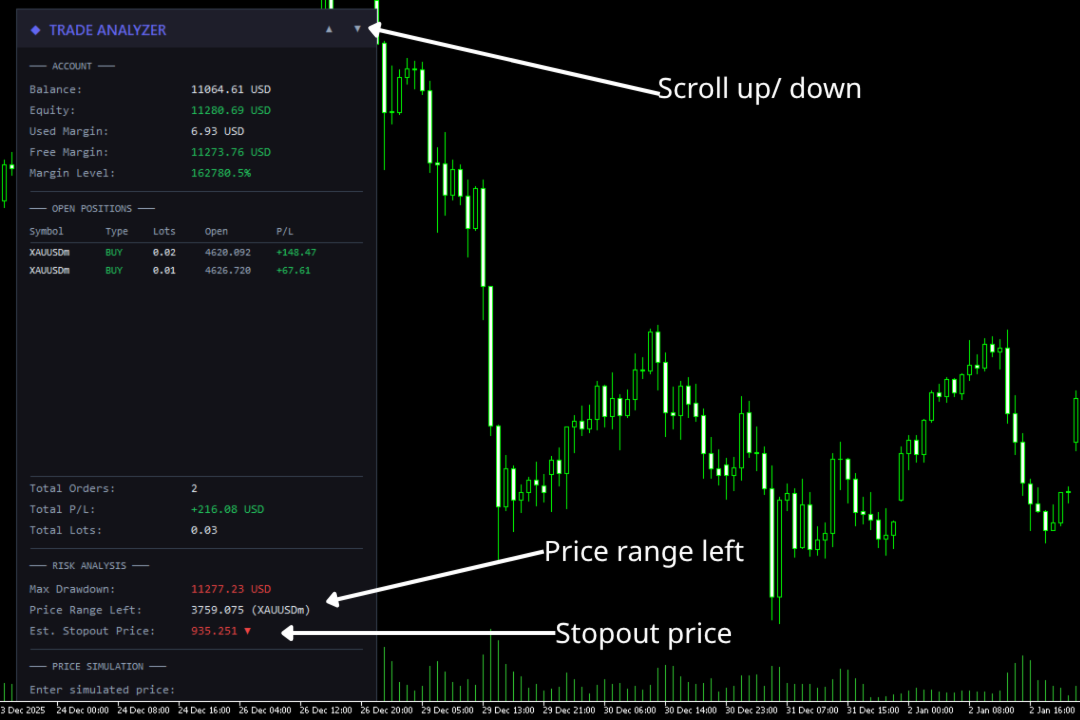
Trade Analyzer Panel is a real-time dashboard EA for MetaTrader 5. It consolidates position monitoring, risk analysis, P/L simulation, target profit planning, break-even visualization, and quick close controls into a single scrollable on-chart panel.
Key Features
| Feature | Description |
|---|---|
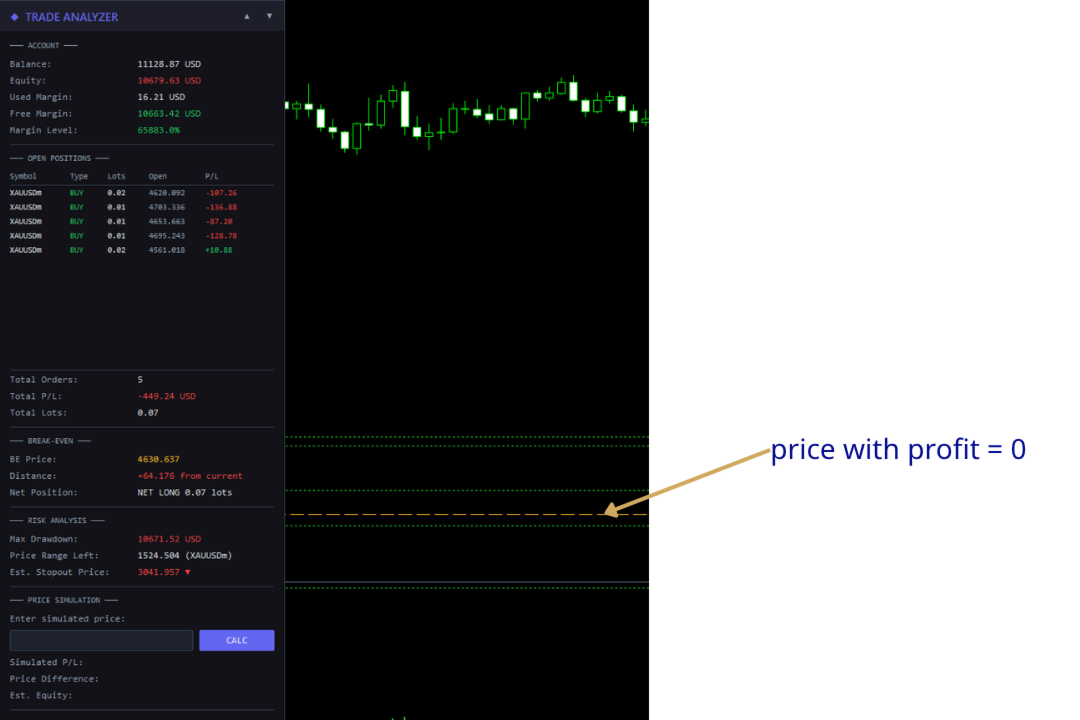
| Position Scanner | Lists all open positions with symbol, direction, lot size, open price, and live P/L |
| Account Summary | Balance, equity, used/free margin, and margin level in real time |
| Break-Even Line | Draws a horizontal line on the chart at the exact break-even price for the current symbol |
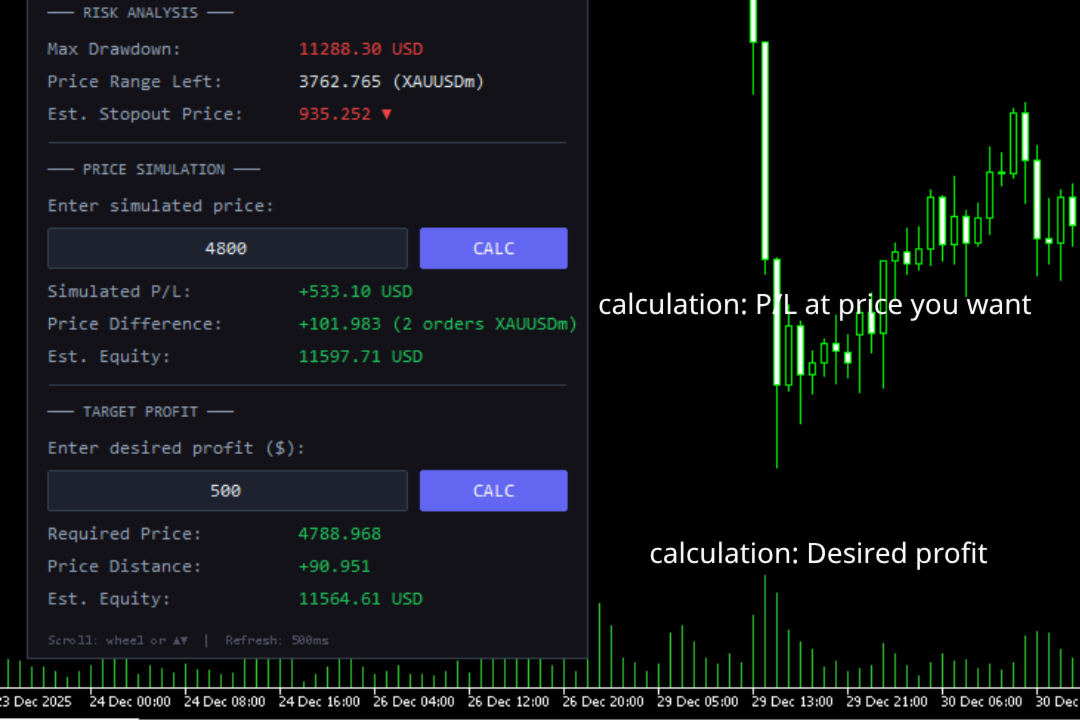
| Risk Analysis | Max drawdown, price range before stop-out, and estimated stop-out price |
| Price Simulator | Enter a hypothetical price to see projected P/L across all positions |
| Target Profit | Enter a desired profit and the EA calculates the required price |
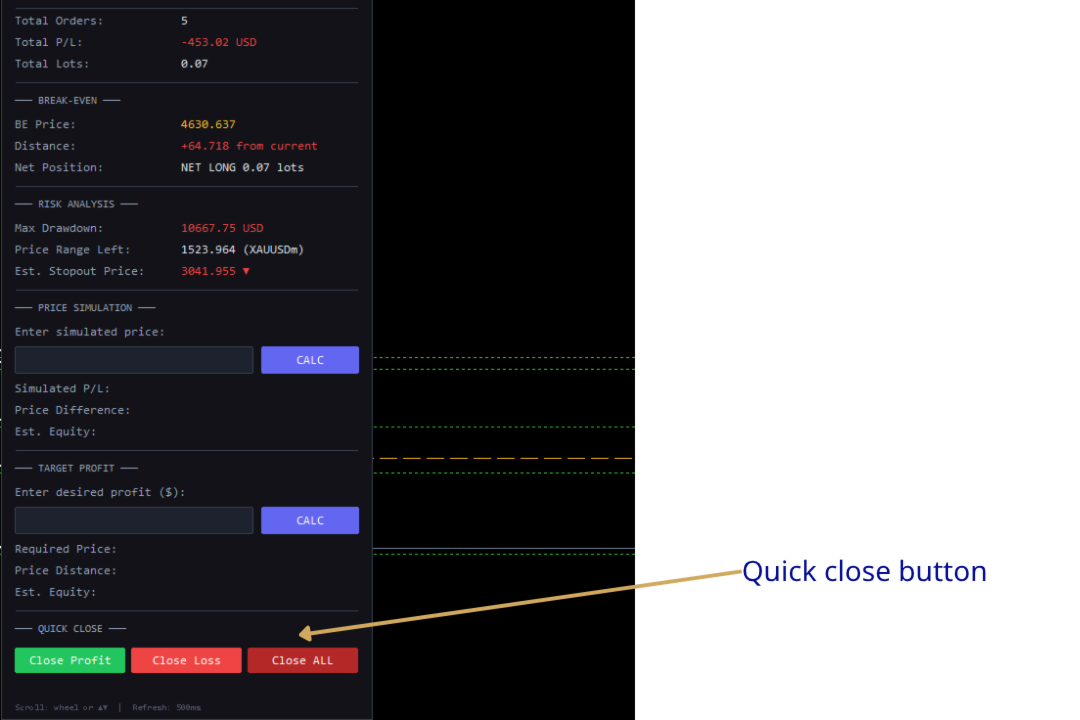
| Quick Close | One-click buttons to close profitable, losing, or all positions |
| Scrollable Panel | Mouse wheel and ▲▼ buttons when the panel exceeds chart height |
Installation
-
Copy the file — Place TradeAnalyzerPanel.mq5 into your MT5 data folder:
[MT5 Data Folder]\MQL5\Experts\
Find the data folder via MT5 menu: File → Open Data Folder.
-
Compile — Open the file in MetaEditor and press F7. Ensure zero errors.
-
Attach to chart — In MT5 Navigator (Ctrl+N), expand Expert Advisors and drag TradeAnalyzerPanel onto any chart.
-
Enable Algo Trading — The toolbar button must be green. This is required for the Quick Close feature to execute trades.
Important: The Quick Close buttons will send real trade requests. All other features are read-only analysis tools.
Panel Sections
1. Account
Real-time account metrics:
| Field | Description |
|---|---|
| Balance | Account balance excluding floating P/L |
| Equity | Balance + floating P/L. Green if ≥ balance, red if below |
| Used Margin | Margin locked by open positions |
| Free Margin | Available margin. Green if > used margin |
| Margin Level | Equity / Margin × 100%. Green (>200%), yellow (100–200%), red (<100%) |
2. Open Positions
Displays up to 12 positions in a table:
| Column | Description |
|---|---|
| Symbol | Instrument (truncated to 10 chars) |
| Type | BUY (green) or SELL (red) |
| Lots | Volume |
| Open | Entry price |
| P/L | Profit/loss including swap |
Summary rows below show Total Orders, Total P/L, and Total Lots. Unused rows are left blank.
3. Break-Even
Displays break-even information and draws a horizontal line directly on the chart at the price where total P/L for the current symbol equals zero.
| Field | Description |
|---|---|
| BE Price | The break-even price (displayed in gold/yellow, matching the chart line) |
| Distance | How far the current bid is from break-even. Green if the current price is in profit territory, red if in loss territory |
| Net Position | Shows direction (NET LONG or NET SHORT) and total net lot size |
How it works:
- The EA calculates the weighted average entry across all buy and sell positions on the current chart symbol, accounting for swap.
- The formula solves for the price at which total P/L = 0:
BE Price = (-totalSwap × tickSize / tickValue + buyWeightedPrice - sellWeightedPrice) / netLots
- A dashed horizontal line is drawn on the chart at this price, updating in real time as positions or swap change.
- The line is automatically removed when there are no positions on the chart symbol or when the EA is removed.
Customization: The line appearance can be configured via input parameters: InpBELineColor (default gold), InpBELineStyle (default dashed), and InpBELineWidth (default 1).
4. Risk Analysis
Calculates how much adverse price movement the account can absorb before the broker's stop-out level. Based on positions on the current chart symbol.
| Field | Description |
|---|---|
| Max Drawdown | Maximum loss before stop-out: Equity - (Margin × StopOut% / 100) |
| Price Range Left | How far price can move against the net position before stop-out |
| Est. Stopout Price | Projected stop-out price with direction arrow (▼ for net-long, ▲ for net-short) |
Example: 2.0 lots net-long on XAUUSD, equity $10,000, max drawdown $8,000. If the price range is 400.00 and current price is 2350.00, the estimated stop-out price is 1950.00 ▼.
5. Price Simulator
Enter a hypothetical price to preview P/L if the current chart symbol reaches that level.
Usage: Type a price → press Enter or click CALC.
| Field | Description |
|---|---|
| Simulated P/L | Projected total profit/loss at the entered price |
| Price Difference | Distance from current bid, plus number of affected orders |
| Est. Equity | Balance + simulated total P/L |
The simulation applies to positions on the current chart symbol only. Other symbols keep their live P/L. Updates automatically on each refresh cycle.
6. Target Profit Calculator
Enter a desired profit amount and the EA reverse-calculates the required price.
Usage: Type profit in account currency (e.g., 200 for +$200, -100 for -$100) → press Enter or click CALC.
| Field | Description |
|---|---|
| Required Price | Price the symbol must reach for total P/L to equal the target |
| Price Distance | Distance from current bid to required price |
| Est. Equity | Balance + target profit |
Edge cases:
- Fully hedged positions (net lots ≈ 0) → shows "Hedged/No [symbol]"
- Negative required price → shows "Not achievable"
7. Quick Close
Three action buttons for rapid position management:
| Button | Action |
|---|---|
| Close Profit (green) | Closes all positions currently in profit (P/L + swap > 0) |
| Close Loss (red) | Closes all positions currently in loss (P/L + swap < 0) |
| Close ALL (gray) | Closes every open position on the account |
Safety mechanism for Close ALL:
The Close ALL button uses a two-click confirmation to prevent accidental closures:
- First click — The button turns bright red and a warning message appears: !! CONFIRM CLOSE ALL !!
- Second click — All positions are closed.
- Clicking any other button — The confirmation resets and the button returns to its normal state.
Warning: Close Profit and Close Loss execute immediately on a single click. Close ALL is the only button with two-click confirmation.
Note: These buttons close positions across all symbols, not just the current chart symbol.
Scrolling
The panel supports scrolling when content extends beyond the visible chart area.
| Method | Action |
|---|---|
| Mouse wheel | Hover over the panel and scroll. Each tick moves by the configured step (default 40px) |
| ▲ / ▼ buttons | In the header's top-right corner. Each click scrolls 3× the step (120px) |
The header stays fixed. Content scrolled above the header is hidden. The background resizes dynamically.
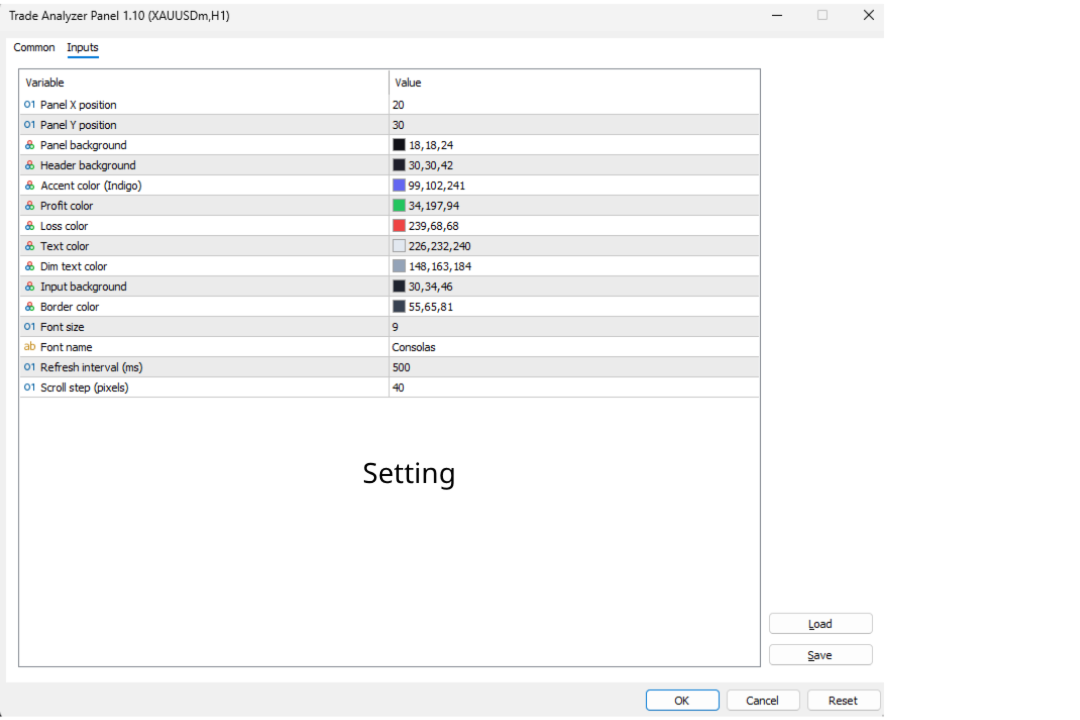
Input Parameters
Position & Layout
| Parameter | Default | Description |
|---|---|---|
| InpPanelX | 20 | Panel X position (px from left) |
| InpPanelY | 30 | Panel Y position (px from top) |
| InpScrollStep | 40 | Scroll step in pixels |
Colors
| Parameter | Default | Description |
|---|---|---|
| InpPanelBg | C'18,18,24' | Panel background |
| InpHeaderBg | C'30,30,42' | Header background |
| InpAccentColor | C'99,102,241' | Accent (title, calc buttons) |
| InpProfitColor | C'34,197,94' | Profit values |
| InpLossColor | C'239,68,68' | Loss values |
| InpTextColor | C'226,232,240' | Primary text |
| InpDimText | C'148,163,184' | Secondary text |
| InpInputBg | C'30,34,46' | Input field background |
| InpBorderColor | C'55,65,81' | Borders and separators |
Break-Even Line
| Parameter | Default | Description |
|---|---|---|
| InpBELineColor | C'255,193,37' | Line color (gold) |
| InpBELineStyle | STYLE_DASH | Line style (DASH, SOLID, DOT, DASHDOT, DASHDOTDOT) |
| InpBELineWidth | 1 | Line thickness |
Quick Close Buttons
| Parameter | Default | Description |
|---|---|---|
| InpCloseBtnBg | C'55,65,81' | Default close button background |
| InpCloseAllBg | C'180,40,40' | Close ALL button background |
Typography & Performance
| Parameter | Default | Description |
|---|---|---|
| InpFontSize | 9 | Base font size |
| InpFontName | "Consolas" | Font family |
| InpRefreshMs | 500 | Refresh interval (ms) |
Frequently Asked Questions
Q: Does this EA place trades?
A: The analysis features (sections 1–6) are strictly read-only. The Quick Close buttons (section 7) do send trade close requests.
Q: Will Quick Close buttons work if Algo Trading is disabled?
A: No. The MT5 Algo Trading button must be enabled (green) for close operations to execute.

Q: Do Close Profit / Close Loss only affect the current chart symbol?
A: No. They close qualifying positions across all symbols on the account.
Q: Why is the break-even line not showing?
A: The line only appears when there are open positions on the current chart symbol with a non-zero net exposure. If positions are fully hedged (equal buy and sell lots), no break-even line is drawn.
Q: The break-even price doesn't match my manual calculation. Why?
A: The EA includes accumulated swap in its break-even calculation. If you calculate purely from open prices, the result will differ when swap is non-zero.
Q: Why does Risk Analysis show nothing?
A: No open positions, or no positions on the current chart symbol.
Q: Can I use this alongside other EAs?
A: MT5 allows only one EA per chart. Use a separate chart window for the same symbol if needed.
Q: The stop-out price seems inaccurate.
A: It's an approximation using current tick value and assuming static market conditions. Real stop-out may differ due to spread changes, swap, and other symbol movements.

Q: How do I scroll the panel?
A: Mouse wheel over the panel, or click ▲/▼ in the header.
Q: How do I reposition the panel?
A: Change InpPanelX and InpPanelY in EA properties (right-click EA → Properties → Inputs).
Technical Details
- Refresh: EventSetMillisecondTimer() for tick-independent updates.
- Max positions displayed: 12 ( MAX_DISPLAY constant).
- Stop-out level: ACCOUNT_MARGIN_SO_SO , fallback 50%.
- Break-even line: OBJ_HLINE object named TAP_BreakEvenLine , drawn with OBJPROP_BACK = true so it renders behind candles. Automatically created/removed based on position state.
- Quick Close: Uses CTrade::PositionClose() . Iterates positions in reverse order to avoid index shifting issues during batch closes.
- Scroll system: Fixed-size arrays ( MAX_SCROLL_OBJ = 250 ) track object names and base Y positions. Header elements are excluded. Objects above the header are moved to Y=-2000 to hide.
- Panel objects: Prefix TAP_ , fully cleaned on removal including the break-even line.
- Dependencies: Trade.mqh , PositionInfo.mqh , AccountInfo.mqh (standard MQL5).
Changelog
v1.20
- Added Break-Even Line — horizontal line on chart at break-even price with real-time updates, distance display, and net position info
- Added Quick Close buttons — Close Profit, Close Loss, Close ALL with two-click safety confirmation
- Added input parameters for break-even line styling and close button colors
- Panel now has 7 sections (up from 5)
v1.10
- Added Target Profit Calculator — enter desired profit to find the required price
- Added scrollable panel with mouse wheel and ▲▼ button support
- Fixed empty rows showing "Label" text
- Added InpScrollStep input parameter
v1.00
- Initial release
- Account info display (balance, equity, margin, margin level)
- Open position scanner with live P/L
- Risk analysis: max drawdown, price range, stop-out estimation
- Price simulation with projected P/L and equity
Recommended Companion Indicator
Recommended Companion Toolkits
1. One-Click Trade Panel ⭐ HIGHLY RECOMMENDED
Why you need it: When a signal fires, speed matters. The indicator shows you the entry price and SL/TP levels, but manually typing lot size, SL, and TP into the order window costs precious seconds — especially on M1–M15 where price moves fast.
2. Trailing Stop & Breakeven Manager ⭐ RECOMMENDED
Why you need it: The indicator draws 3 TP levels for a reason — the strategy works best when you scale out gradually. But manually moving SL to breakeven at TP1, then trailing behind swings toward TP2 and TP3, requires constant chart monitoring. This is impractical if you trade multiple pairs or cannot watch the screen non-stop.
3. Trade Journal & Dashboard 📋 NICE TO HAVE
Why you need it: The indicator does not track historical performance — it only shows signals in real time. Without journaling, you have no way to know your actual win rate, average R:R, which signal type performs best, or which sessions/pairs give you the best results.