Algotrade Nova
- Experts
-
Nurettin Polat
 Hello, my name is Nurettin Polat. I am 40 years old and specialize in developing well-coded, highly efficient Expert Advisors (EAs) and trading utilities exclusively for the MQL5.com Market. My mission is to deliver highly practical tools at incredibly competitive prices, backed by outstanding user
 - Version: 1.75
- Updated: 24 September 2026
- Activations: 5
AlgoTrade — Multi-Asset Expert Advisor for MetaTrader 5
AlgoTrade is an algorithmic Expert Advisor for MetaTrader 5 built around a live wheel panel, structured risk rules, and multi-symbol scanning. It is designed for traders who want automation with visible controls and measured position sizing rather than grid or martingale logic.
PRODUCT OVERVIEW
What AlgoTrade does
The EA maintains an instrument universe (arena), ranks symbols by recorded behaviour, and opens at most one position per symbol. Entries are driven by multi-timeframe signal logic. Exits are handled inside the EA through virtual take-profit levels, optional peak tracking, and optional account-level harvest rules. Broker stop-loss and take-profit levels are not sent with new orders; risk is tracked internally.
Key features
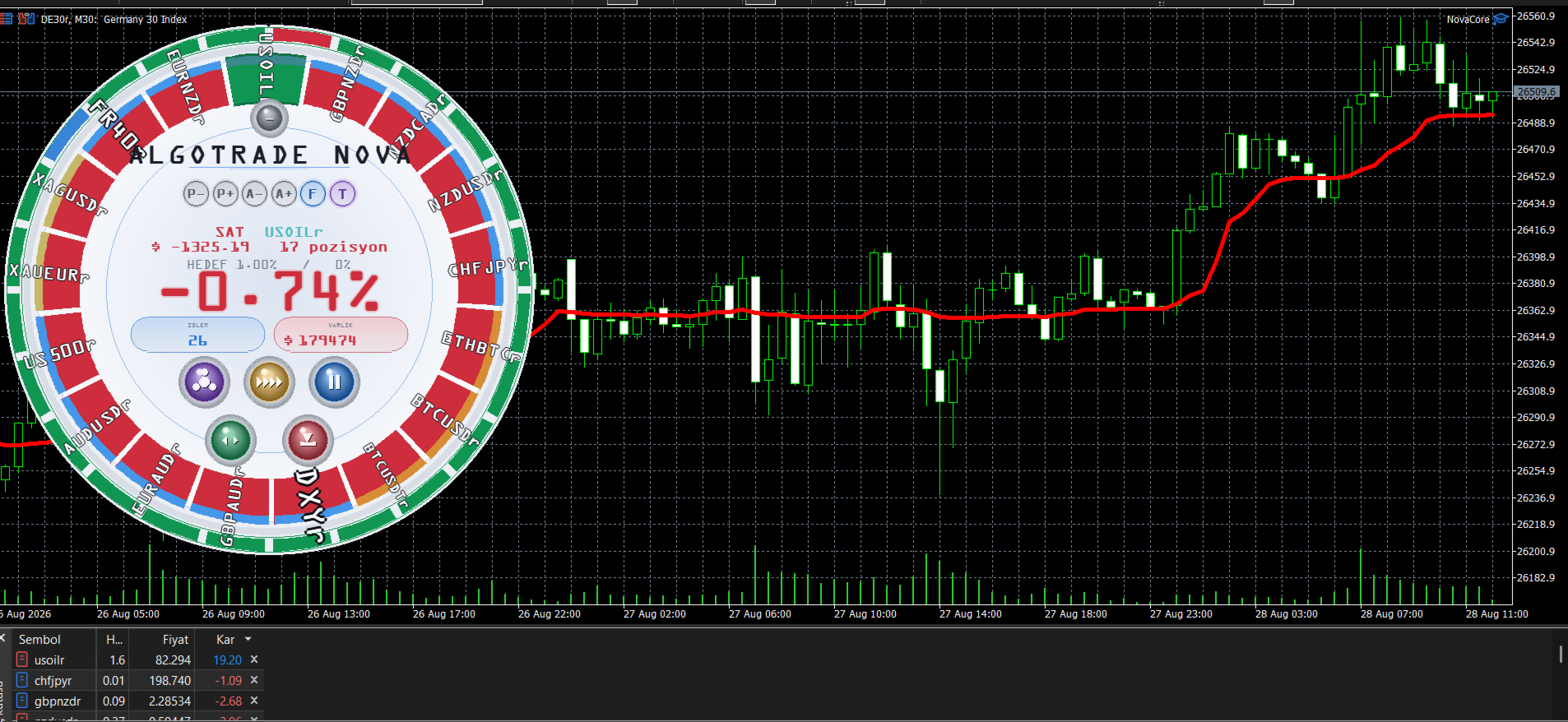
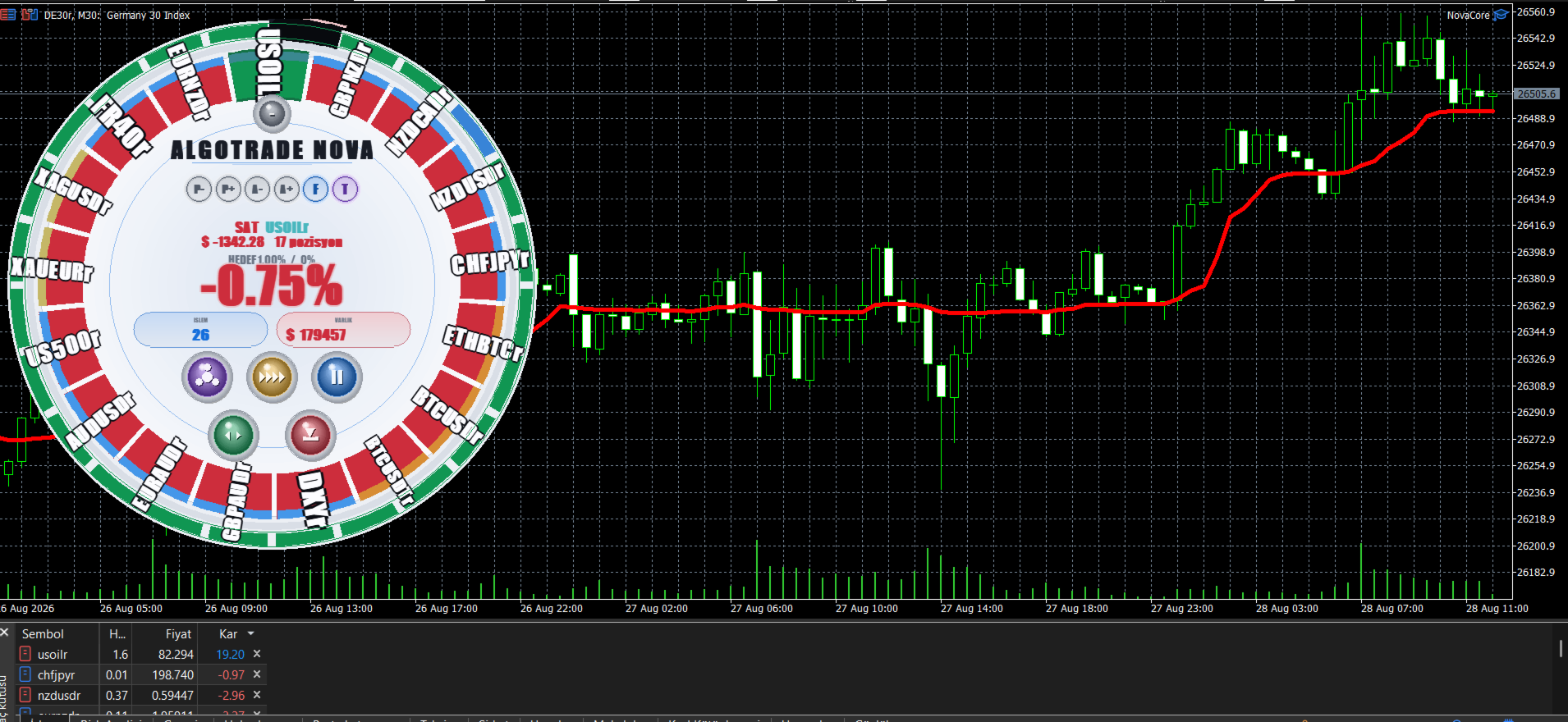
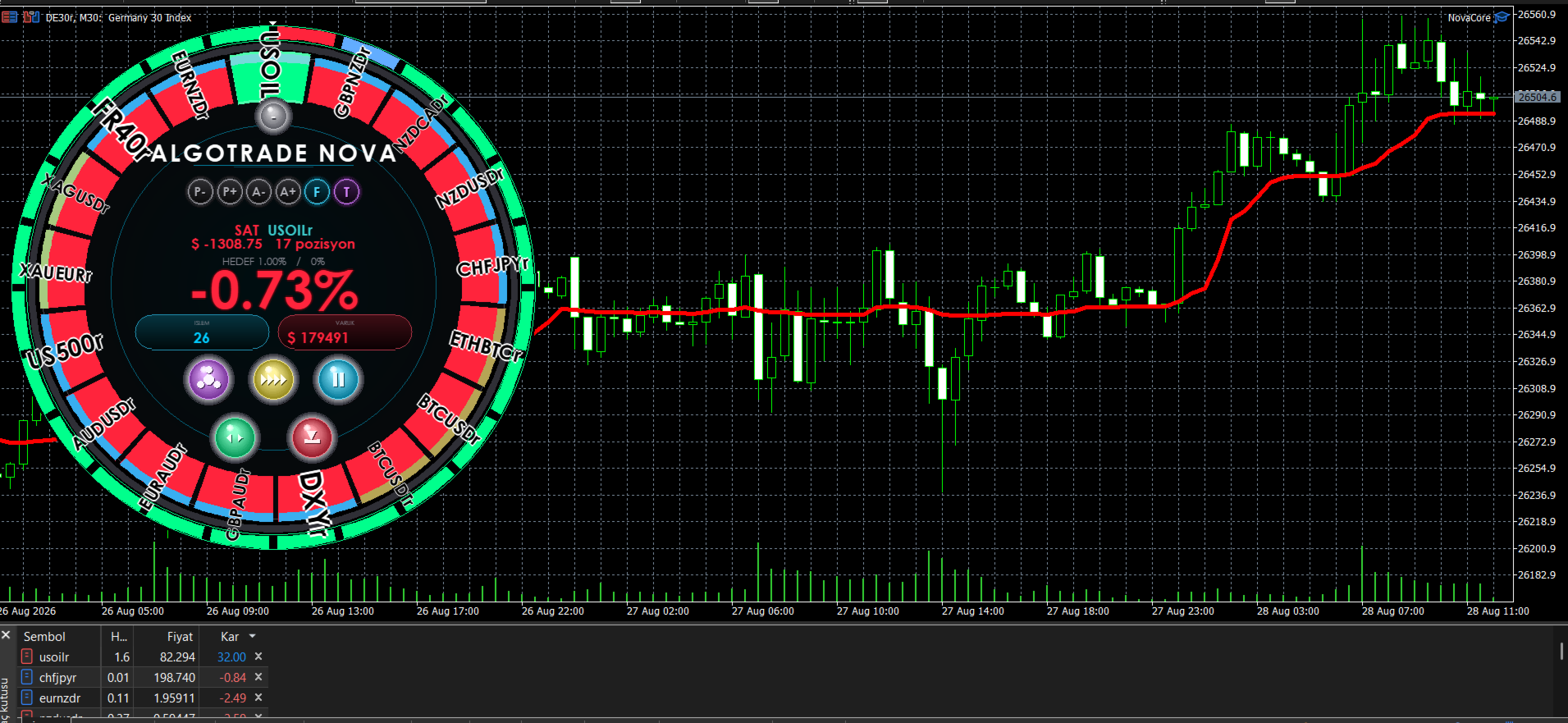
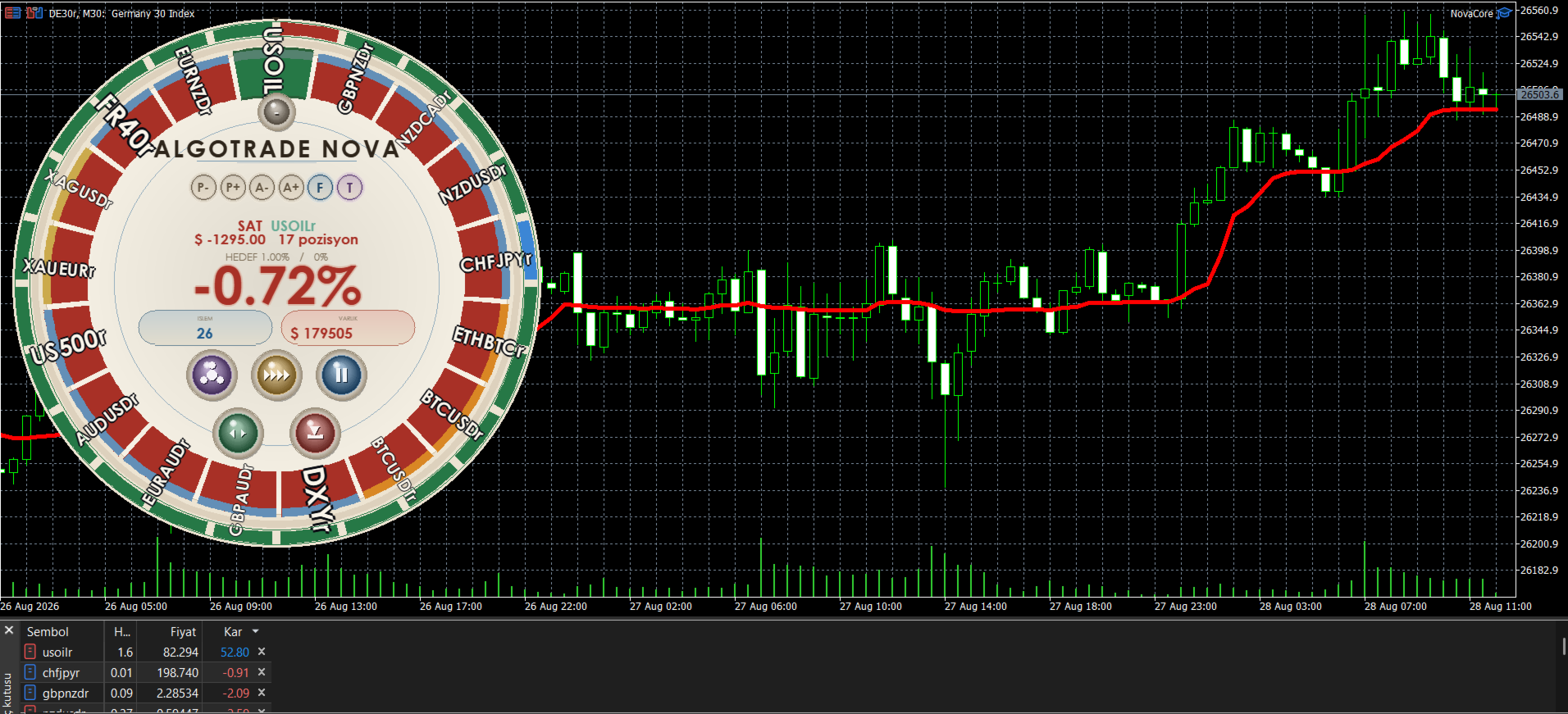
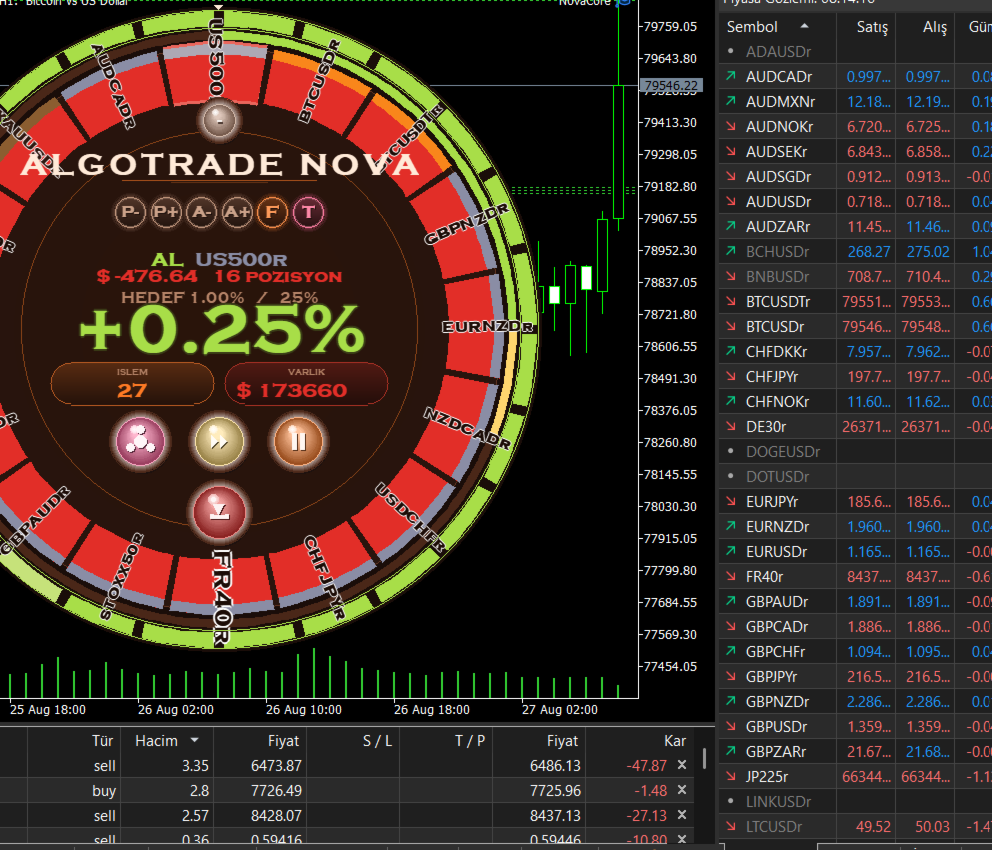
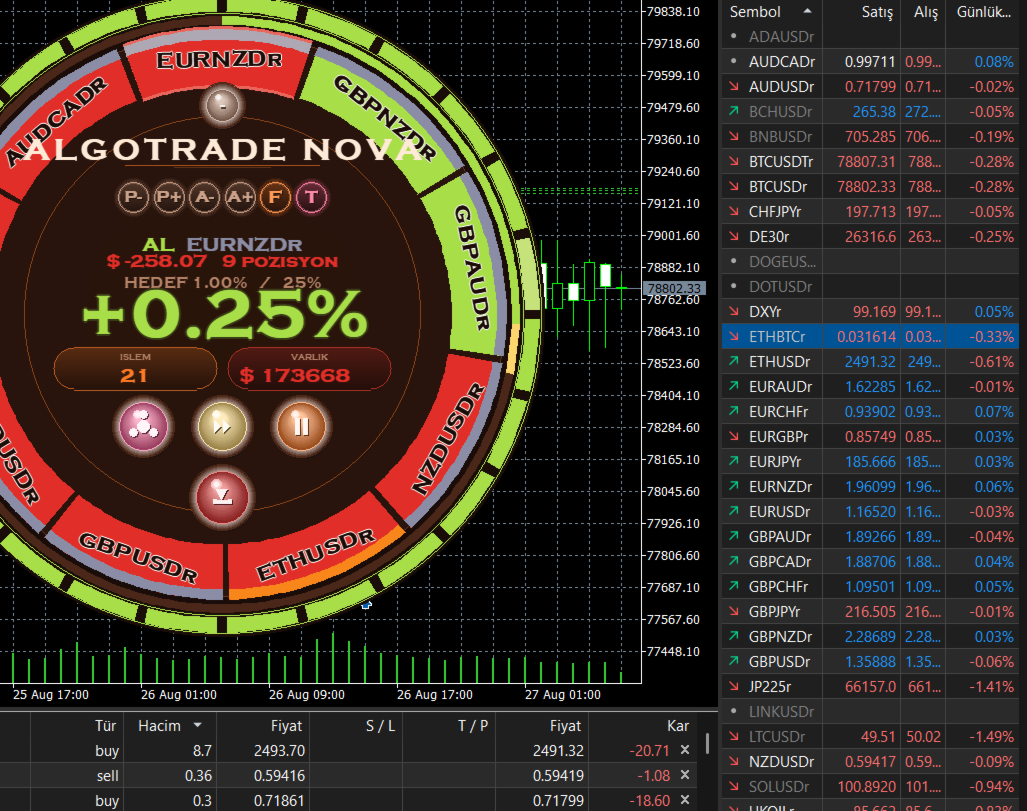
- Interactive wheel panel: mission progress arc, instrument ring, recent-result ring, trade-count and balance chips, and on-chart controls
- Five pace profiles: Classic architecture plus four HFT-tempo presets (Cautious, Balanced, Aggressive, HFT) with different harvest thresholds
- Solo or multi mode: restrict entries to the chart symbol, or scan the wider universe
- Evidence-based instrument states: Probe, Proven, and Bench; weak symbols are faded instead of force-traded
- Multi-asset support: forex, metals, indices, energy, and crypto where your broker provides symbols
- Virtual SL/TP: internal risk and target distances; the EA closes positions when its rules are met
- Account harvest: optional equity profit target and loss ceiling can close the full book and reset the mission base
- Optional reverse-signal repositioning: panel toggle; when enabled, an opposite signal on an open symbol may close the position and reopen with volume sized to recover the measured loss at target (disabled by default)
- Sound alerts: optional WAV alerts for opens, single-position closes, and account-level harvest events
Risk approach
Position size is derived from equity risk percentage, class limits, and instrument scoring. AlgoTrade does not use grid stacking or classic martingale doubling. The optional reverse-signal feature adjusts volume only after a defined reverse close and uses the actual recorded loss once; it remains off unless you enable it on the panel.
Requirements
- MetaTrader 5 (hedging or netting; test your account type on demo)
- Algorithmic trading enabled in the terminal toolbar and in the EA settings
- Sufficient symbol history and reasonable spreads for your chosen list
- Demo testing strongly recommended before live use
USER GUIDE
1. Installation
1. Purchase and download AlgoTrade from the MQL5 Market while logged into MetaTrader 5.
2. The file installs to Experts\Market\AlgoTrade\ (exact folder name may match the Market package).
3. Open any chart (symbol and timeframe are your choice; the EA can trade multiple symbols from one chart in multi mode).
4. Drag AlgoTrade onto the chart, or use Navigator - Expert Advisors - AlgoTrade.
5. In the Common tab, enable Allow Algo Trading.
6. In the Inputs tab, review settings or start with defaults on demo.
7. Click OK and ensure the AutoTrading button in the toolbar is active.
If the wheel panel does not appear, check Inputs - PANEL - InpPanelEnable = true.
2. Quick start (demo)
- Use a demo account first.
- Attach the EA to one chart; leave Solo mode off for multi-symbol scanning, or enable Solo to trade only the chart symbol.
- Watch the panel: the outer ring shows recent closed trades; the mission arc shows progress toward your equity target; the instrument ring lists candidates.
- Start with the default pace (HFT tempo preset) or switch to Classic from the centre pace button if you prefer the non-HFT architecture.
- Do not increase risk inputs until you have observed behaviour over multiple sessions.
3. Wheel panel overview
The on-chart panel is the main control surface. Labels on the chart may show ALGOTRADE NOVA; the Market product name is AlgoTrade.
Visual layers (outside to inside)
- Result ring: last closed trades (green = profit, red = loss on that close)
- Mission arc: progress toward account profit target
- Instrument ring: symbols in the arena with status colouring (proven / probing / reserve)
- Core disk: live metrics and control buttons
Main buttons (bottom area)
- Solo / Multi: toggles single-chart-symbol mode vs multi-instrument scanning
- Pace: cycles Classic, Cautious, Balanced, Aggressive, HFT, then Classic again
- Pause / Play: stops new entries; open positions continue to be managed
- Reverse compensation: grey = off, green = on (see section 6)
- Harvest: closes all EA-managed positions and resets the mission equity base
Chips (tap to cycle display)
- Trade count / Hit rate
- Balance / Equity / Hidden
View shortcuts (top of controls)
- P- / P+: panel scale
- A- / A+: text scale
- F: font cycle
- T: theme cycle
- - / +: collapse or expand the panel
4. Operating modes
4.1 Multi mode (default from inputs)
The EA scans a broker-dependent universe. It opens at most one position per symbol. Several symbols may be open at the same time subject to slot and risk limits.
4.2 Solo mode
When Solo is active on the panel (or InpSoloMode = true in inputs), entries are limited to the chart symbol (or InpSoloSymbol if set). Scanning for new entries on that symbol continues when no position is open. Open positions are managed normally.
4.3 Pace profiles
Pace changes harvest thresholds and which engine architecture runs:
- Classic: original non-HFT signal path
- Cautious / Balanced / Aggressive: HFT engine with different account harvest presets
- HFT: HFT engine with default harvest preset
Switch pace from the panel; changes apply without recompiling.
4.4 Pause
Pause blocks new entries. Existing positions are still managed (virtual targets, trails, account harvest).
5. Core input groups
Adjust inputs only after demo testing. Key groups:
NOVACORE MISSION
- InpMissionTargetPct: account profit target percent; at target, optional full-book harvest
- InpMissionLossPct: account loss ceiling percent; primary account-level brake
- InpHarvestOnTarget: close all and reset base when target or ceiling is hit
RISK
- InpRiskPercent: equity risk per trade basis
- InpMaxRiskPercent: hard cap on scaled lot
- InpTrailStartR / InpTrailGiveBackPct: peak-tracking exit after profit in R
- InpMaxPositions: concurrent symbol cap
- InpMaxPerCcy / InpMaxPerClassHard / InpMaxClassRiskPct: diversification limits
INSTRUMENT
- InpSymbols: seed list for the arena
- InpSoloMode / InpSoloSymbol: input-level solo mode
- InpAutoDiscover / InpArenaMax: automatic symbol discovery and arena size
SIGNAL
- InpSignalTF, InpMultiTF: timeframe logic
- InpStopATR, InpTargetATR: internal stop/target distances (virtual)
PANEL
- InpPanelEnable, InpPanelX, InpPanelY, InpPanelScale, InpTextScale
SOUND
- InpSoundEnabled and WAV paths under MQL5\Sounds\Nova\
Refer to the Inputs dialog in MetaTrader for the full list and tooltips.
6. Optional reverse-signal compensation
This feature is OFF by default (panel button grey).
When enabled (green button):
- If a position is open and a full opposite signal appears, the EA may close that position.
- The actual net loss of that close (including costs) is recorded.
- On the next entry for the same symbol, volume may be increased so that reaching the virtual target would offset that recorded loss.
When disabled:
- No reverse-signal scan runs on open positions.
- Solo and multi entry scanning otherwise behave as described in section 4.
This is not grid trading and not classic martingale doubling. It is a single optional recovery sizing step after a defined reverse close. Enable only if you understand the added exposure.
7. Exits and harvest
- Virtual take-profit: the EA monitors price against an internal target and closes with a market order when rules are met.
- Peak tracking: after a defined profit in R, a give-back percentage may close the trade.
- Account harvest: when equity rises to the mission target or falls to the loss ceiling (if enabled), the EA attempts to close the full book and reset its mission base.
- Manual harvest: panel harvest button closes EA book positions and resets the mission base.
Broker-side SL/TP on new orders are set to zero by design.
8. Broker and symbol notes
- Symbol names must match your broker suffix (for example EURUSD vs EURUSDr).
- Crypto, indices, and metals depend on broker offering and session hours.
- Wide spreads or low liquidity can block entries (spread filters).
- Test netting vs hedging account behaviour on demo.
9. Troubleshooting
No trades opening
- AutoTrading enabled? EA smiley on chart?
- Pause off on panel?
- Check Experts tab for block reason (slot full, spread, session, algo permission).
- In Solo mode, only the chart symbol is eligible.
Panel missing
- InpPanelEnable = true; chart not too small; try P+ scale or resize window.
Trades close differently than expected
- Remember exits are virtual; review trail and harvest settings.
- Account harvest closes all managed positions, not only the chart symbol.
Sounds silent
- InpSoundEnabled = true; WAV files present under Sounds\Nova\.
10. Responsible use
- Use demo until behaviour is clear on your broker and symbol set.
- Start with conservative risk inputs.
- Monitor drawdown and mission loss ceiling.
- Disable reverse compensation unless you explicitly want that logic.
- Keep MetaTrader and the EA updated through the Market.
DISCLAIMER
Trading financial instruments involves substantial risk of loss. AlgoTrade is software that executes rules you configure; it is not investment advice, a profit guarantee, or a recommendation to trade. Past or simulated results do not guarantee future performance. Spread, slippage, latency, symbol availability, and market conditions affect outcomes. The author does not guarantee profitability, accuracy, or uninterrupted operation. You are solely responsible for capital at risk, broker selection, VPS or connectivity, and compliance with local regulations. Use a demo account until you understand how the EA behaves on your broker.
Support: use the product comment thread on MQL5 Market for version-specific questions. Do not share account passwords or personal credentials in public posts.