OneClick Trader Pro
- Experts
- Version: 1.827
- Updated: 23 September 2026
- Activations: 5

OneClick Trader Pro MT5
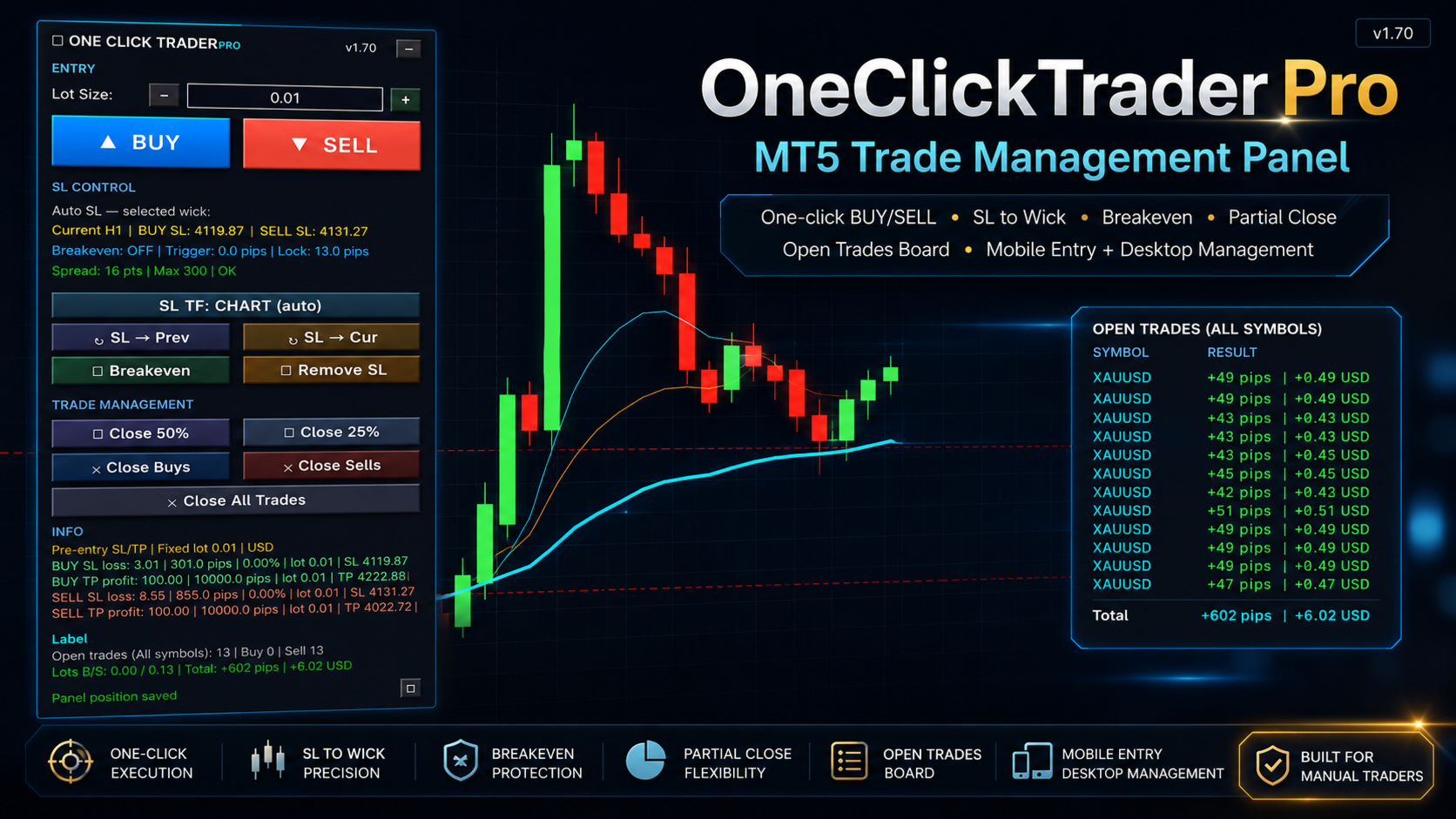
OneClick Trader Pro MT5 is a manual trade management panel for MetaTrader 5. It helps you enter, manage, and protect trades faster and with fewer clicks, directly from the chart. It is not an automated robot and does not open trades by itself — you stay in full control.
KEY FEATURES
FAST ONE-CLICK TRADING
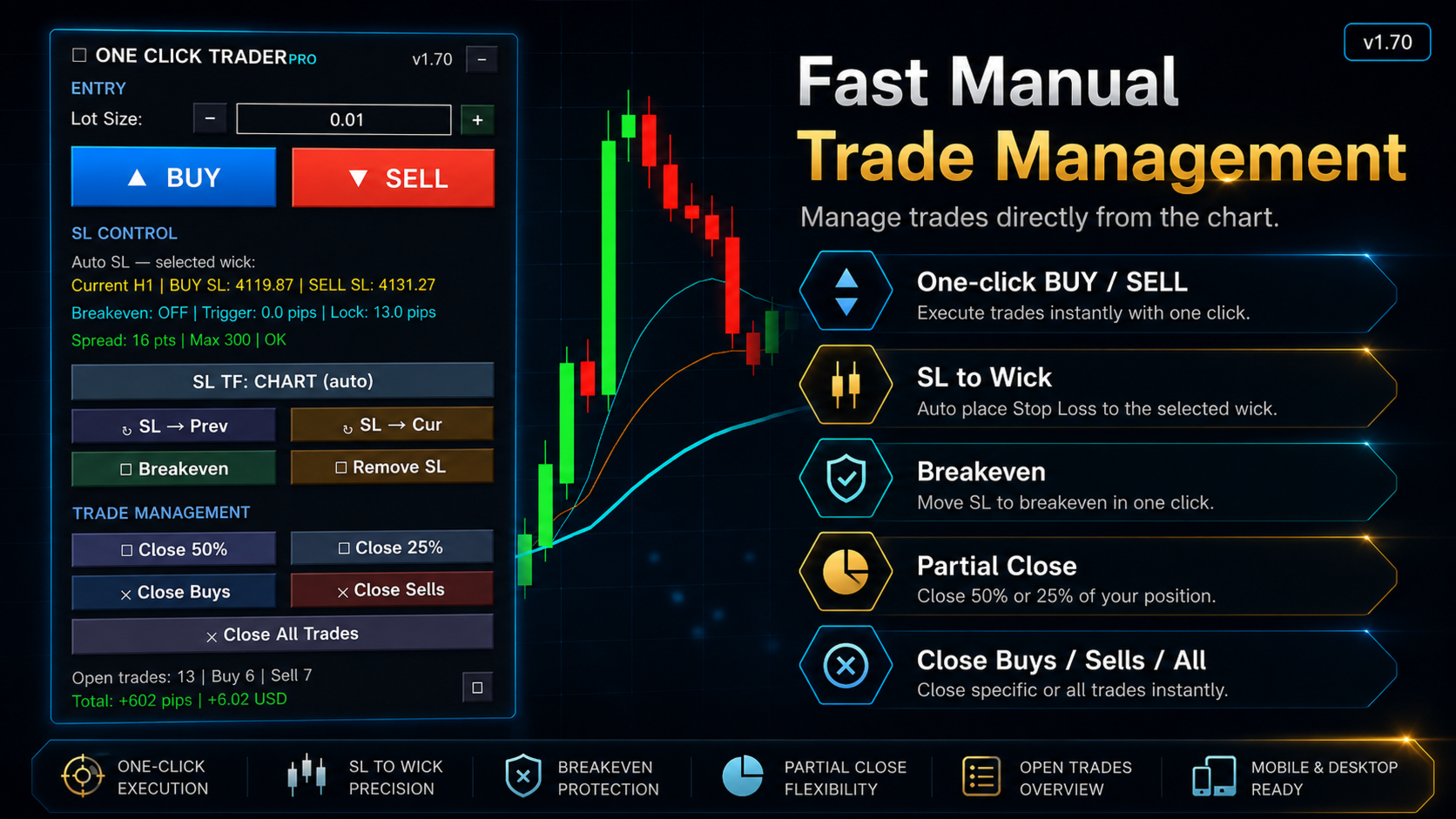
• One-click BUY and SELL from the chart panel, with an optional faster async request mode.
• Fixed lot, or automatic risk-based lot sizing (% of equity, % of balance, or fixed money risk) calculated from your stop-loss distance, with round-down and free-margin check.
• Quick − / + lot step buttons and live lot input.
• Risk preview and TP profit preview before you click.
SMART STOP LOSS AND TAKE PROFIT
• Stop loss from the previous or current candle wick, on any of the 21 MT5 timeframes, with an adjustable buffer.
• Optional SL that auto-follows the chart timeframe.
• Smart Color Wick SL: shift the SL to the nearest bullish/bearish wick over a lookback range.
• One-click SL-to-wick and Remove SL buttons, with a "tighten only" option so SL never loosens.
• Broker stop-level is respected, so a valid stop is used instead of the change failing.
• Take profit in pips, plus breakeven management (fast, multi-trade, targetable).
MANUAL AND MOBILE TRADE SUPPORT
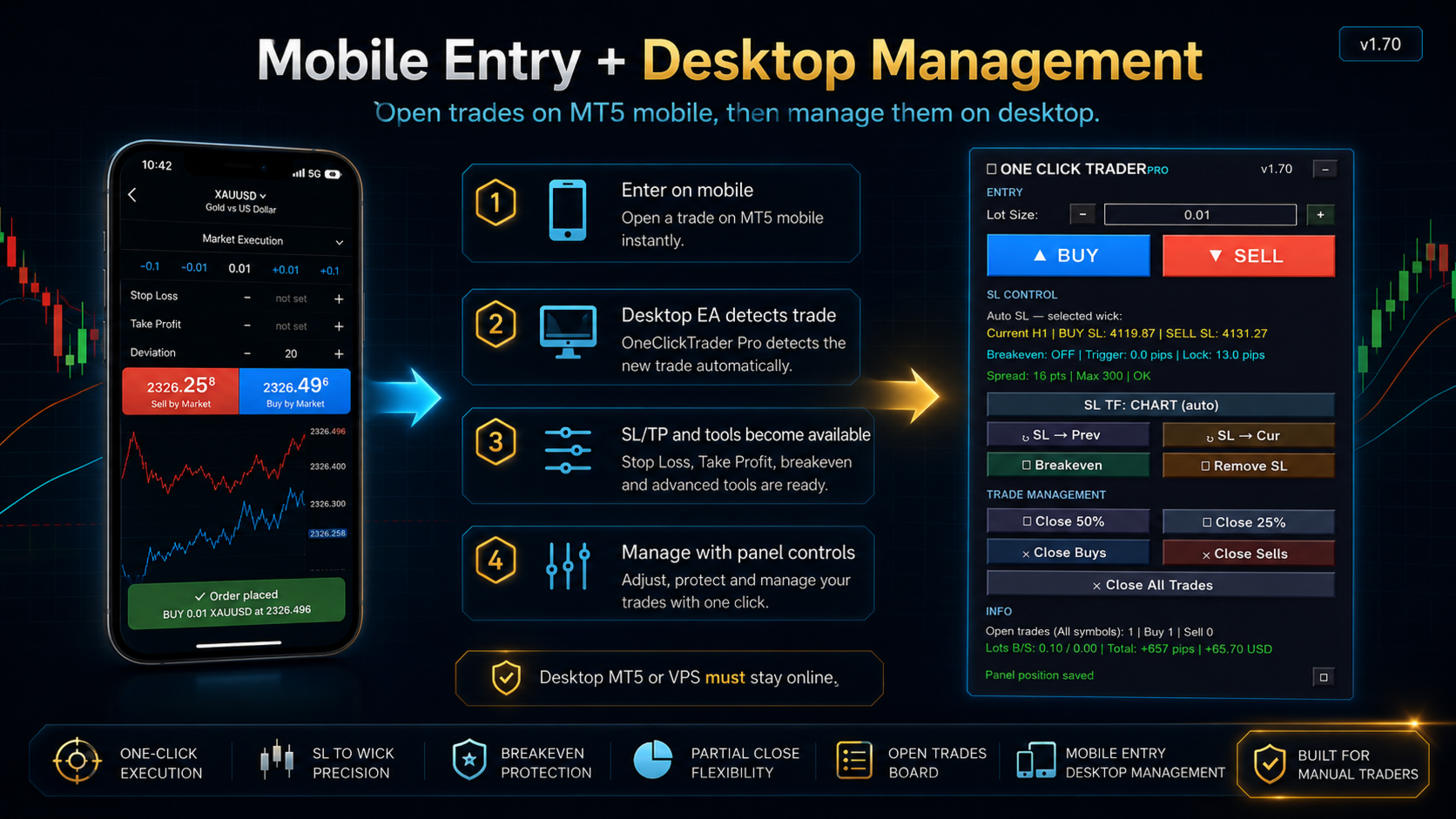
• Panel buttons (SL Prev, SL Cur, Remove SL, close) can manage trades opened from the MT5 mobile app on the chart symbol, not only trades opened from the panel.
• Auto-attach your wick SL and TP to manual/mobile trades, with a configurable delay so your phone entry stays fast, and an option to only add missing SL/TP.
• Remove SL is respected — auto SL/TP will not re-add an SL you removed.
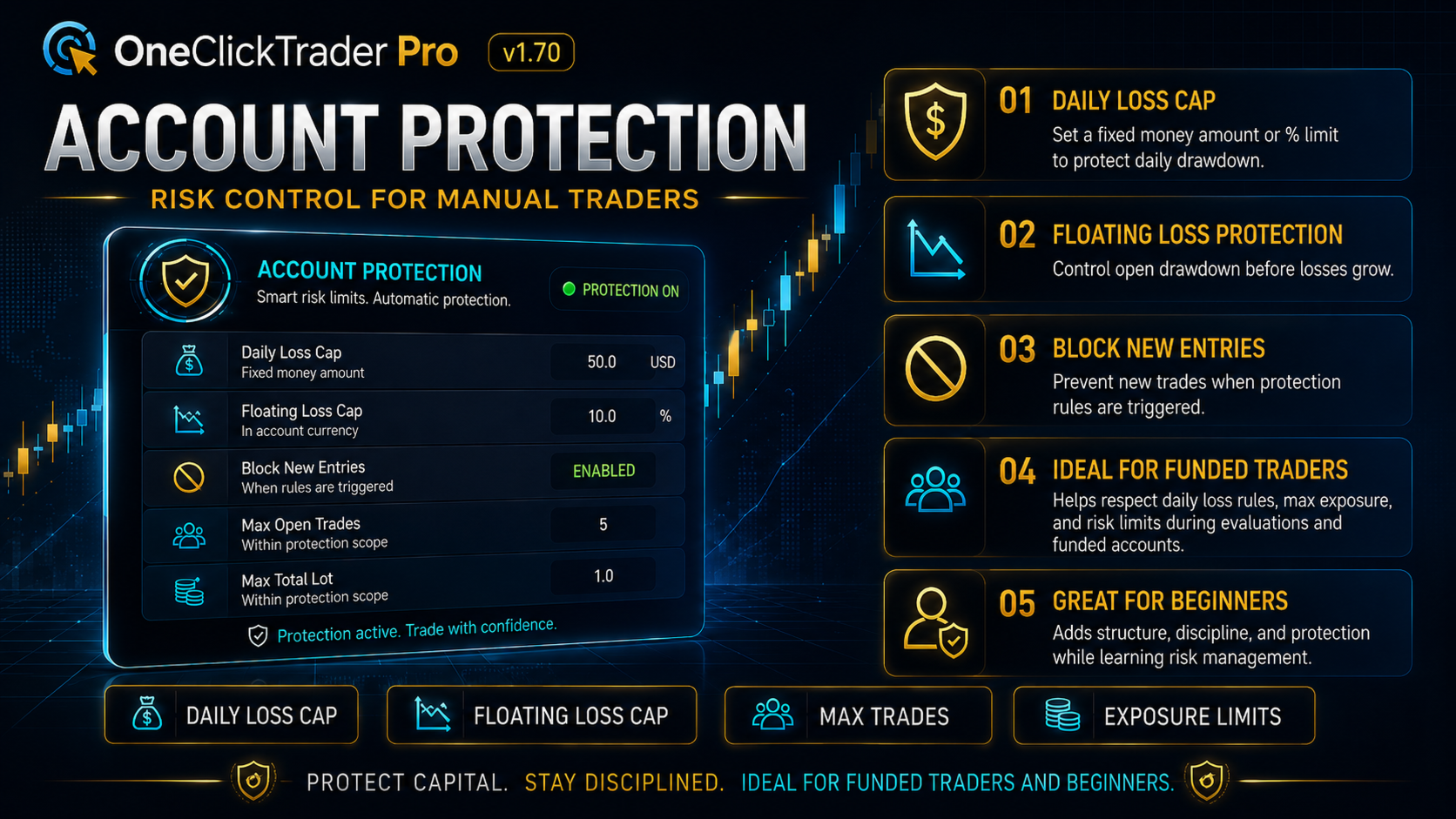
ACCOUNT PROTECTION SUITE
• Daily loss limit (money or percent), measured on realized or realized-plus-floating P/L.
• Live floating loss limit, with close-only or close-and-block options.
• Max open trades and max total lot guards.
• Choose scope (all symbols or current chart symbol) and action (block new entries, or close trades and block).
• One-click Master Reset for testing, plus optional debug logging in the Experts tab.
TRADE MONITORING
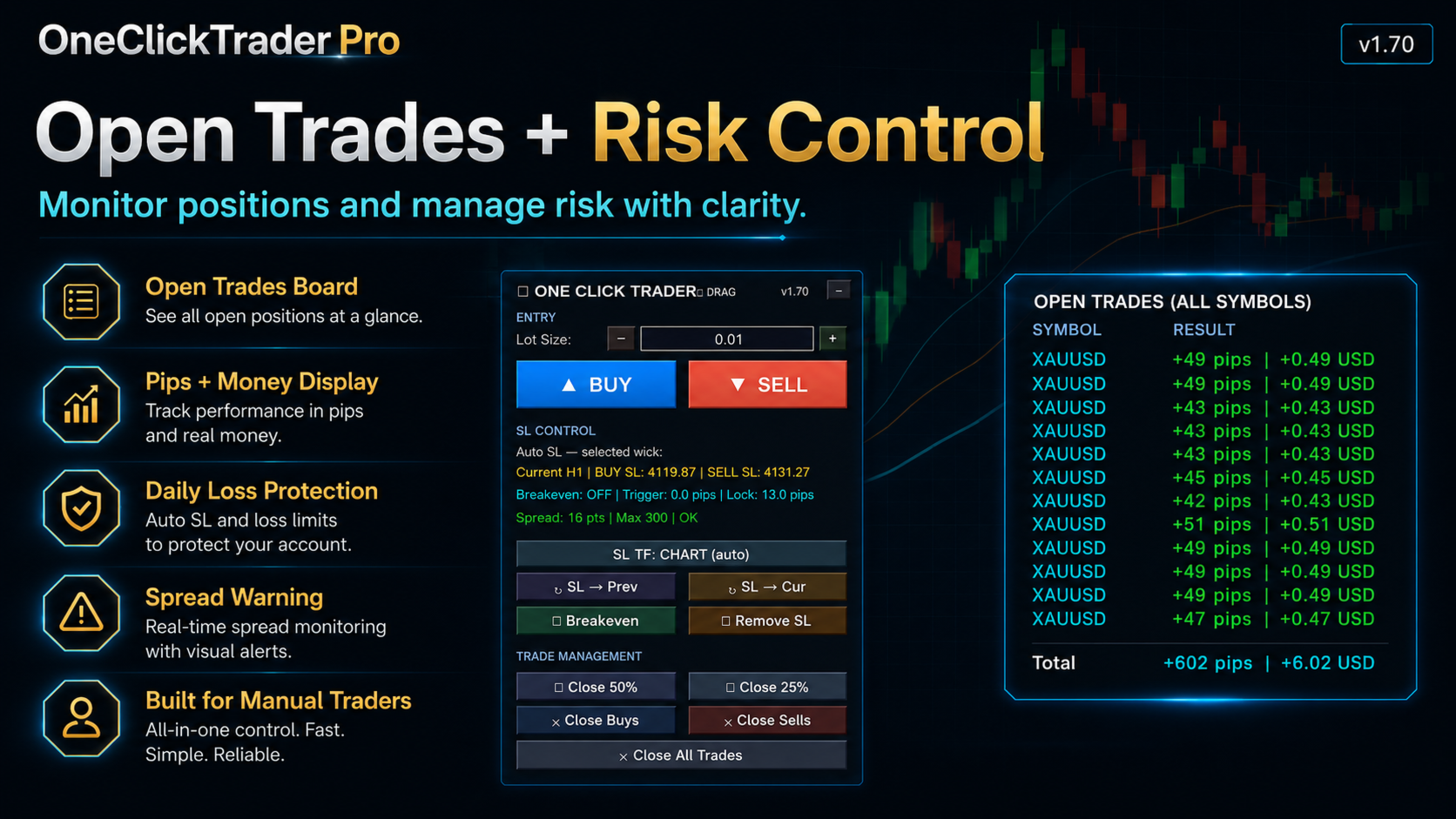
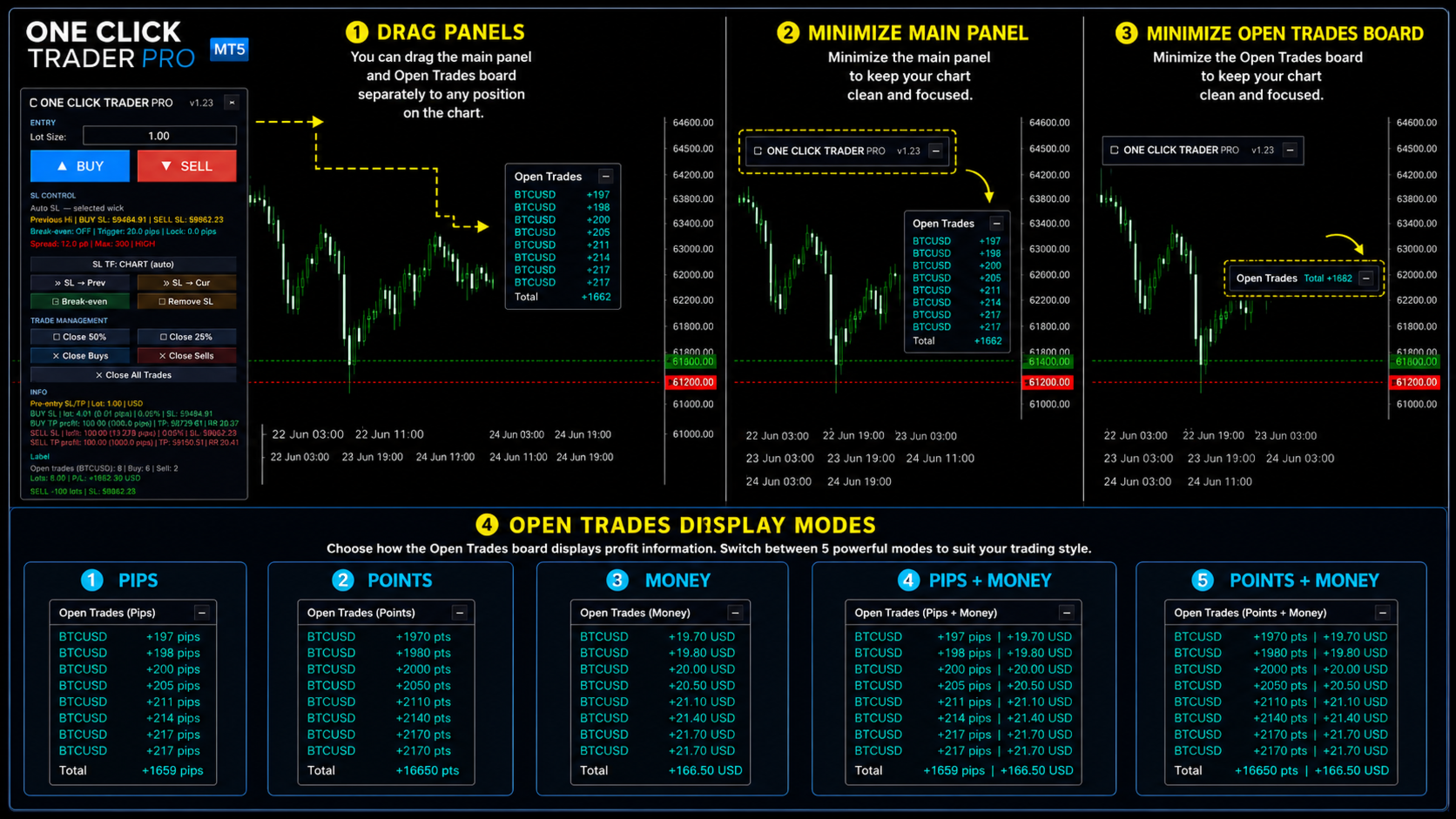
• Open Trades board on the chart with pips, points, money, or combined display (default: pips + money), running totals, all-rows mode, fast refresh, draggable and minimizable.
• Candle countdown timer and spread display with a high-spread warning.
FLEXIBLE PANEL
• Draggable, resizable, minimizable panel with saved position and size.
• Full color and layout customization.
• Inputs organized into clear numbered sections.
HOW IT WORKS
• Attach OneClick Trader Pro MT5 to the chart of the symbol you want to trade.
• The BUY/SELL buttons trade that chart's symbol. To trade another symbol, attach the EA to that symbol's chart.
• For multiple symbols, attach it to multiple charts.
• For manual/mobile management, keep your desktop MT5 or VPS running with Algo Trading ON.
IMPORTANT NOTES
• This EA does not provide trading signals, does not guarantee profit, and does not trade automatically. All trading decisions are yours.
• Account protection tools are risk-control utilities, not a guaranteed hard stop — gaps, fast markets, and slippage can exceed the limits. The daily limit resets at broker server midnight.
• Account protection and manual/mobile management run on a live desktop or VPS terminal — not in the Strategy Tester, and not on the mobile app.
• Partial close and risk-based lot sizing depend on your broker's volume rules and symbol specifications.
• Please test on a demo account first.
INPUT PARAMETERS
Parameter names are shown exactly as they appear in the MT5 inputs.
01. ENTRY & FAST ORDER
• DefaultLot — default lot size shown on the panel.
• Lot_Size_Mode — fixed lot, risk percent, or fixed money risk.
• Risk_Percent / Risk_Money_Amount — values used for auto lot sizing.
• Risk_Percent_Use_Equity — risk percent uses equity (off = balance).
• Risk_Lot_Round_Down / Risk_Lot_Check_Margin — round lot down to volume step; check free margin before entry.
• Lot_Input_Live_Update / Show_Lot_Step_Buttons / Lot_Button_Step — live lot input and − / + step buttons.
• Fast_Entry_Async / Entry_Deviation_Points — faster market requests and allowed price deviation.
• Show_Risk_Before_Entry / Show_TP_Profit_Preview — show estimated risk and TP profit before entry.
• Risk_Distance_Unit — unit used for risk display.
• Show_Spread_Info / Max_Spread_Points — show spread and the high-spread warning threshold.
• Show_Version_Label / Product_Version_Label — small version label on the panel.
02. MAIN PANEL SIZE & LAYOUT
• Start_Panel_Minimized — start with the panel minimized.
• Enable_Panel_Resize / Panel_Size_Mode — show the resize button and set the default size.
• Save_Panel_Size / Reset_Saved_Panel_Size — remember or reset the panel size.
03. CANDLE TIMER
• Show_Candle_Timer / Candle_Timer_Mode — enable the candle countdown and its timeframe.
• Show_Candle_Timer_On_Panel / Show_Candle_Timer_On_Chart — where the timer appears.
• Chart timer position, color, font size, and bold options.
04. OPEN TRADES SUMMARY
• Show_Open_Trades_Info — show the summary on the panel.
• OpenTrades_Only_Chart_Symbol / OpenTrades_Only_This_EA_Magic — limit the summary to this symbol and/or this EA's trades.
05. OPEN TRADES BOARD
• Show_Open_Trades_Board — show the on-chart open trades list.
• OpenBoard_Only_Chart_Symbol / OpenBoard_Only_This_EA_Magic — limit the board to this symbol and/or this EA's trades.
• OpenTrades_Display_Unit — display mode: Pips, Points, Money, or combined (default: Pips + Money).
• OpenBoard_Fast_Refresh_MS / OpenBoard_Max_Rows — refresh speed and max rows shown (0 = all).
• OpenBoard_Round_PL — clean whole numbers, or 2 decimals.
• Board corner, offsets, drag, minimize, spacing, font, and colors.
06. PARTIAL CLOSE
• Show_Partial_Close_Buttons — show the partial close buttons.
• Partial_Close_Percent_1 / Partial_Close_Percent_2 — the two partial close percentages.
• PartialClose_Only_This_EA_Magic — restrict partial close to this EA's trades.
07. STOP LOSS & TAKE PROFIT
• SL_Buffer_Pips — buffer beyond the selected wick.
• TP_Pips — take profit distance in pips.
• SL_Candle_Source — SL from the previous or current candle wick.
• SL_Follow_Chart_TF / SL_Timeframe — SL follows the chart timeframe, or use a fixed timeframe (all 21 supported).
• Auto_Fix_Invalid_Entry_SL — fall back to a valid wick if the selected one is on the wrong side of entry.
• Use_Smart_Color_Wick_SL / Smart_Color_Wick_Lookback_Bars — snap SL to the nearest bullish/bearish wick over a lookback range.
• ReSL_Only_Tighten — SL-to-wick buttons only move the SL closer to price, never looser.
• Auto_Manage_Manual_Mobile_With_All_Settings — desktop EA manages MT5 mobile/manual trades after they appear.
• Panel_Controls_Include_Manual_Mobile_Trades — panel buttons act on manual/mobile trades (magic 0) on this symbol.
• Auto_SLTP_For_Manual_Mobile_Trades — auto-attach SL/TP to manual/mobile trades.
• Auto_SLTP_Only_Manual_Magic / Auto_SLTP_Only_When_Missing — only magic-0 trades; only add missing SL/TP.
• Manual_Mobile_Auto_SLTP_Delay_MS — delay before auto SL/TP so the phone entry stays fast.
• Auto_SLTP_Respect_RemoveSL_Button — after Remove SL, do not auto-add SL back to that trade.
• Auto_Close_Manual_Mobile_If_Max_Limits_Exceeded — close the newest manual trade if it breaks max trades/lot.
08. BREAKEVEN
• Use_Breakeven — enable breakeven management.
• Breakeven_Unit / Breakeven_Trigger_Distance — trigger distance and its unit.
• Breakeven_Lock_Profit_Distance — extra profit to lock beyond entry (0 = exact breakeven).
• Breakeven_Target — which trades the breakeven button manages.
• Breakeven_Fast_Async — send all breakeven SL changes without waiting one by one.
09. ACCOUNT PROTECTION
• Use_Account_Protection — master switch for all protection rules.
• Protection_Scope — all symbols or current chart symbol.
• Use_Daily_Loss_Limit / Daily_Loss_Mode — enable the daily cap; money or percent.
• Daily_Loss_Amount / Daily_Loss_Percent — the daily cap values.
• Daily_Loss_Check — realized only, or realized plus floating.
• Daily_Loss_Action — block new trades, or close trades and block.
• Use_Floating_Loss_Limit / Floating_Loss_Amount / Floating_Loss_Action — live floating loss cap and its action.
• Use_Max_Open_Trades / Max_Open_Trades — block new entries beyond a trade count.
• Use_Max_Total_Lot / Max_Total_Lot — block new entries beyond a total lot.
• Reset_Daily_Protection_Block — one-shot: clear today's daily block.
• Master_Reset_Account_Protection — one-shot: clear the block and restart today's P/L baseline.
• Account_Protection_Debug_Log — print protection P/L, cap, and trigger state in the Experts tab.
10. MAGIC NUMBER & VALIDATION
• MagicNumber — magic number for the EA's own trades.
• Enable_Tester_Validation_Trade — Strategy Tester only: one tiny trade for MQL5 Market checks.
11. PANEL COLORS
• BuyColor, SellColor, PanelBG, TextColor — panel color settings.
12. PANEL POSITION & DRAG
• Save_Panel_Position / Reset_Saved_Panel_Position — remember or reset the panel position.
• Enable_Panel_Drag / Enable_Panel_Move_Buttons — drag by the title, or use arrow move buttons.
• Panel_Default_X / Panel_Default_Y / Panel_Move_Step_Pixels — default position and move step.
DISCLAIMER
Trading involves risk. This product is a trading utility and does not guarantee any trading result. Users are responsible for their own trading decisions and risk management.