
Smart Panel EA
- Experts
-
Mikita Kupchyk
 Практикующий алгоритмическую торговлю трейдер.
 - Version: 1.73
- Updated: 3 July 2026
SmartPanelEA — an interactive trading panel for the MetaTrader 5 terminal, designed to optimize manual trading, risk control, automate position entry, and provide visual trade management directly on the chart.
The utility eliminates the need for the trader to manually calculate trade volume, set Stop Loss and Take Profit via the broker's standard dialog windows, and also helps to pre-visualize risk zones, profit zones, and programmatic partial Take Profit levels.
The Expert Advisor is intended for manual trading and is not a fully automated trading system. All trading decisions are made by the user. SmartPanelEA handles the technical side: lot calculation, trade opening, setting protective levels, zone visualization, and, if enabled, programmatic partial position closure.
---
Key Features
Smart Risk Management
The panel automates the volume calculation for each trade and helps reduce the risk of accidental errors during manual trading.
Two lot calculation modes are available.
Fixed Lot
In this mode, trades are opened with a pre-defined volume. For example, if Fixed Lot Size is set to 0.10, every trade will open with 0.10 lots, provided the broker allows this volume for the current symbol.
Percent of Balance
In this mode, the advisor reads the current account balance and calculates the position size so that if the Stop Loss is hit, the loss is close to the specified percentage of the deposit.
The calculation accounts for: account balance, distance to Stop Loss, tick value, tick size, minimum and maximum volume, and the lot step for the current symbol.
Fast Execution & Pending Entry
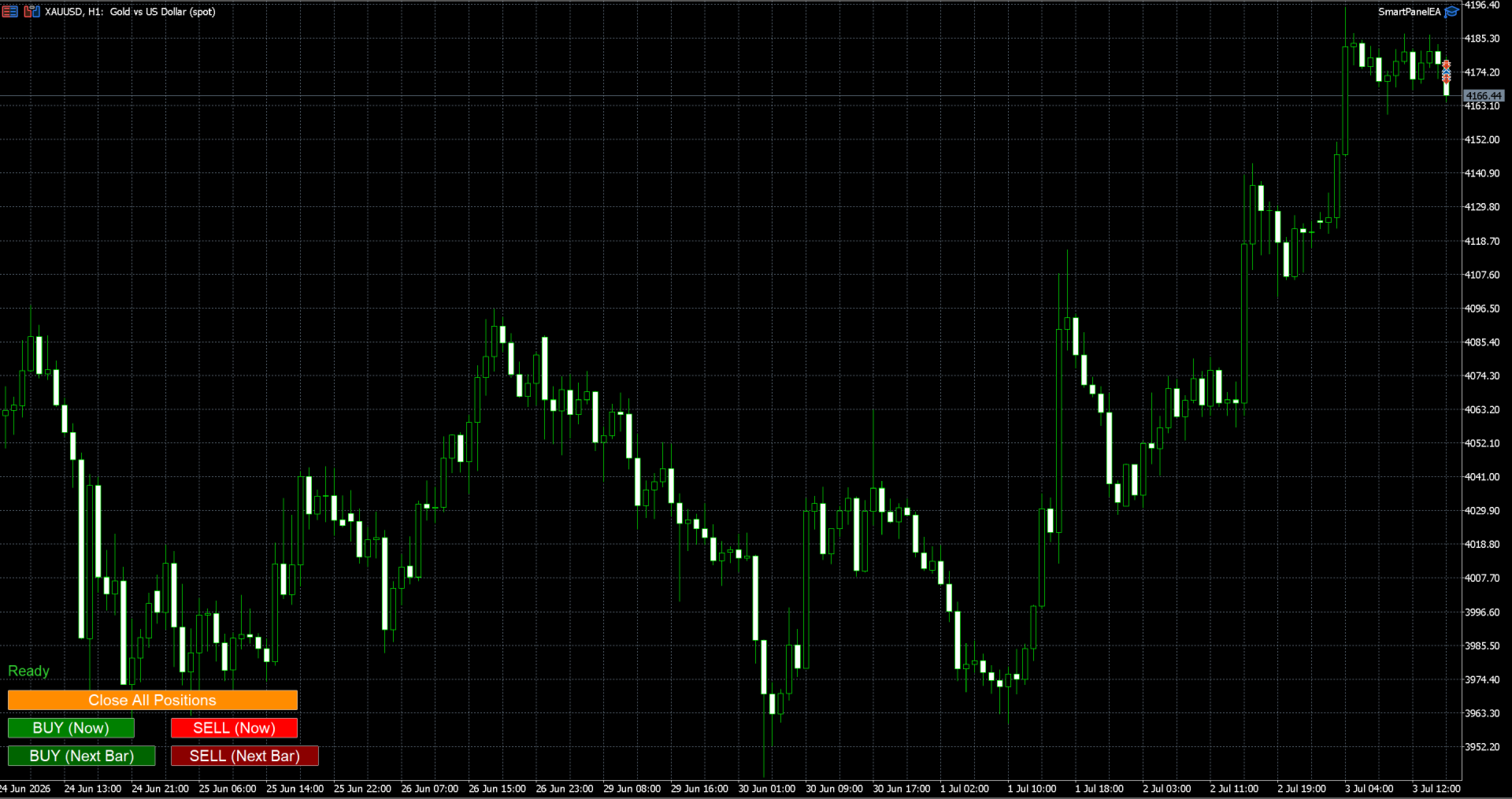
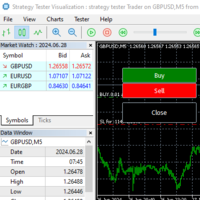
The panel contains four main buttons.
BUY — instantly opens a market BUY trade at the current Ask price with automatic lot, Stop Loss, and Take Profit calculation.
SELL — instantly opens a market SELL trade at the current Bid price with automatic lot, Stop Loss, and Take Profit calculation.
BUY on Next Candle — puts the advisor into standby mode. The BUY trade will be opened automatically upon the formation of the next candle of the current timeframe.
SELL on Next Candle — puts the advisor into standby mode. The SELL trade will be opened automatically upon the formation of the next candle of the current timeframe.
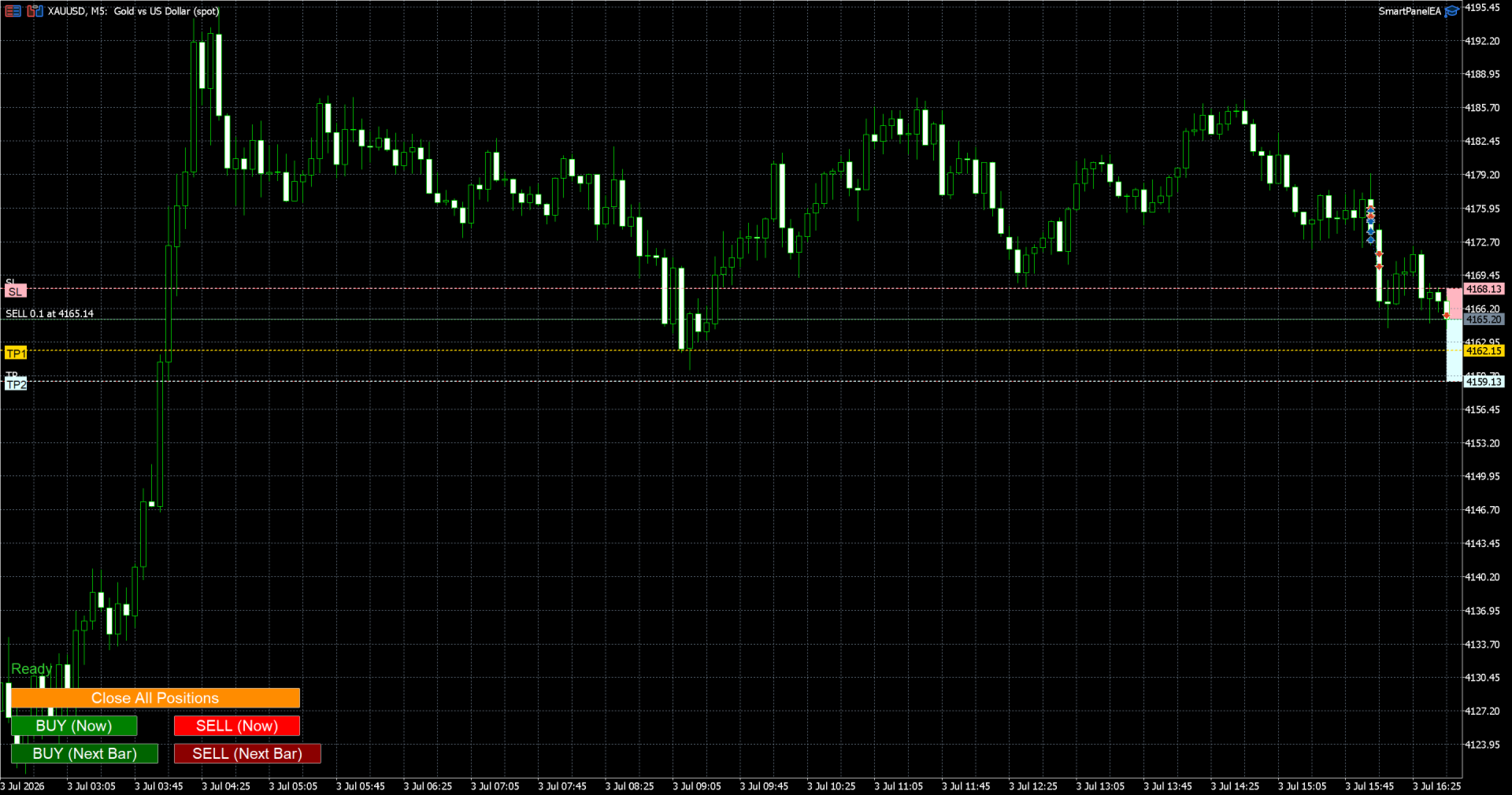
The "Next Candle" entry buttons act as trade intent triggers. The first click enables entry standby. A second click cancels the planned entry. Only one direction can be active at a time. Future SL, TP1, and TP2 levels are displayed on the chart in advance.
Partial Take Profit
SmartPanelEA supports a programmatic partial position closure mode.
If the Use Partial TP parameter is enabled, the advisor uses a two-level exit model.
TP1 — a programmatic partial profit-taking level. It is not a separate broker-side Take Profit, because in MetaTrader 5 a single position can have only one server-side TP.
Upon reaching TP1, the advisor can close a portion of the position, leave the remaining volume in the market, and move the Stop Loss to Break Even, if the corresponding setting is enabled.
Example settings: TP1 in R = 1.0, TP1 Close Percent = 50, Move SL to Break Even after TP1 = true.
This means that if the price moves 1R in profit, the advisor will close 50% of the position and then attempt to move the Stop Loss to the entry price.
TP2 — the final **broker-side Take Profit**. It is set in the trade order at the broker and calculated via the Profit Ratio parameter.
For example, if Stop Loss is 300 points and Profit Ratio is 2.0, the final TP2 will be placed 600 points from the entry price.
Key advantage of this implementation: even if the terminal or advisor is turned off, the final TP2 remains active on the broker's server.
Dynamic Visualization of Risks & Targets
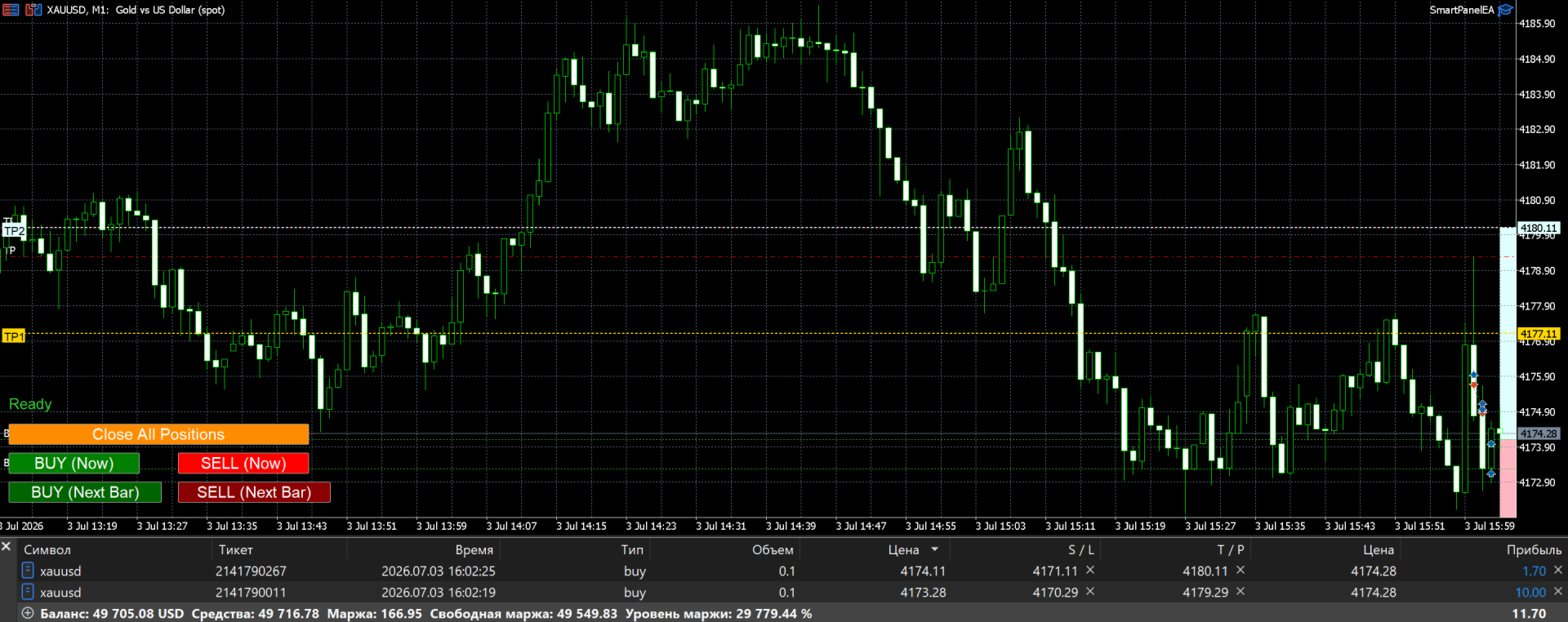
SmartPanelEA displays the trade structure directly on the chart. This helps visualize risk and profit levels before entry and while holding a position.
The chart displays the Stop Loss zone and Take Profit zone. Zones are built automatically when planning a next-candle entry, after a real position is opened, and when SL or TP are manually modified on the chart.
Additionally, the advisor displays exact levels as separate dashed lines:
- SL — protective Stop Loss.
- TP1 — programmatic partial Take Profit.
- TP2 — final broker-side Take Profit.
Compact colored labels SL, TP1, TP2 are displayed next to the lines. Labels are positioned on the left side of the chart to avoid cluttering the right price scale. The price level is not duplicated in the label, as it is already shown by the standard MetaTrader 5 price scale on the right.
TP1 has a dedicated color. This helps visually distinguish the programmatic partial exit from the final server-side Take Profit.
Pre-Trade Planning Mode
When the trader clicks BUY on Next Candle or SELL on Next Candle, the advisor shows the future trade structure in advance.
Before the position is actually opened, the chart displays: the Stop Loss zone, the final Take Profit zone, the SL line, the programmatic TP1 line, the final TP2 line, and the colored SL, TP1, TP2 labels.
This allows the trader to pre-assess level placement relative to local highs/lows, support/resistance zones, or other analysis elements.
Open Position Management Mode
After a position is opened, SmartPanelEA automatically switches to management mode.
The advisor reads the actual entry price, Stop Loss, Take Profit, position type (BUY/SELL), Magic Number, and current volume.
If the trader manually changes the Stop Loss or Take Profit on the chart, the visual zones and lines update automatically.
With Partial Take Profit enabled, the advisor additionally calculates and displays the programmatic TP1 level.
Pre-Trade Safety Checks
Before sending a trade order, SmartPanelEA performs a series of protective checks.
The advisor verifies: whether trading is allowed in the terminal, whether automated trading is allowed, whether the current symbol is tradable, whether the selected direction (BUY/SELL) is permitted, whether Stop Loss and Profit Ratio settings are valid, whether there is sufficient free margin, whether SL and TP meet the broker's minimum requirements, whether the calculated position volume is correct, and whether the volume complies with the symbol's min/max lot and lot step.
If the trade cannot be opened, the advisor outputs a status on the chart and logs the information to the terminal journal.
Adaptive Interface
The panel is designed with MetaTrader 5 interface specifics in mind.
Main panel buttons are anchored to the bottom-left corner of the chart window. This helps maintain a predictable interface layout when resizing the terminal window.
Buttons have an increased size and bold Arial Bold font, making the panel convenient for active manual trading.
Panel elements are raised above the bottom time scale to avoid overlapping with chart dates and times.
Input Parameters Description
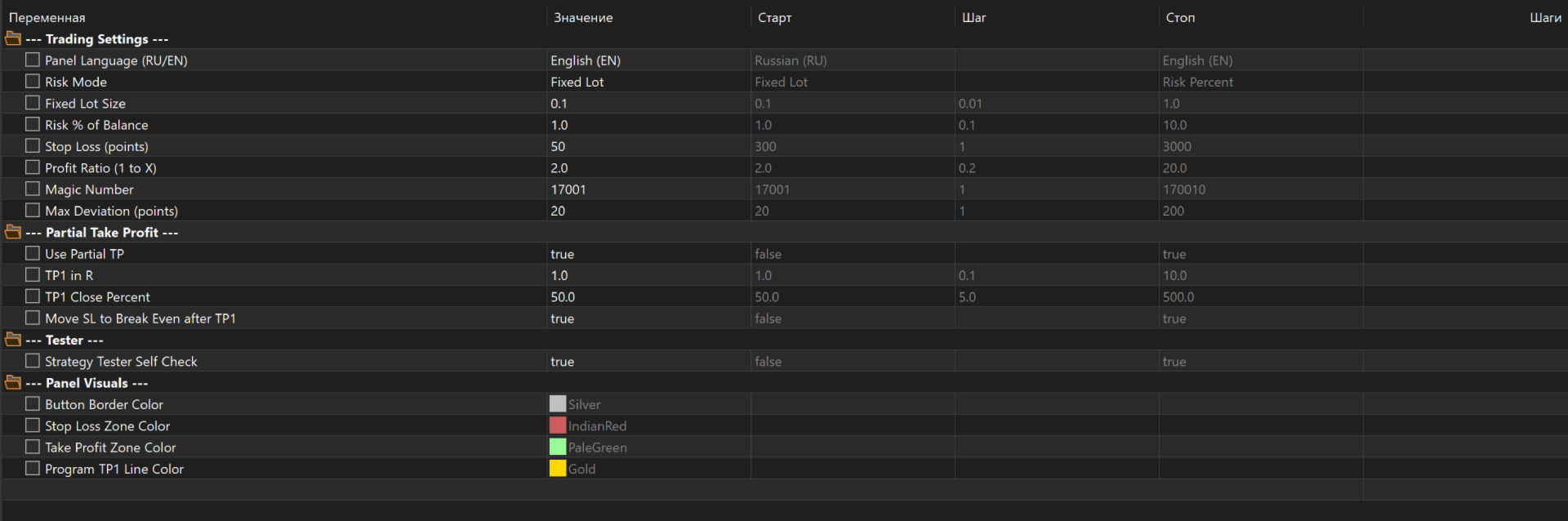
Trading Settings Block
- Panel Language — switches the panel button text language. Available: Russian (RU) and English (EN).
- Risk Mode — selects the position volume calculation mode. Available: Fixed Lot and Risk Percent.
- Fixed Lot Size — fixed position volume in lots. Used in Fixed Lot mode.
- Risk Percent — percentage of account balance the trader is willing to risk per trade. Used in Risk Percent mode.
- Stop Loss points — distance from entry price to protective Stop Loss in instrument points.
- Profit Ratio 1 to X — risk-to-reward ratio for the final TP2.
- Magic Number — advisor trade identifier. Used to filter and manage only positions belonging to SmartPanelEA.
- Max Deviation points — maximum allowed price deviation during market order execution.
Partial Take Profit Block
- Use Partial TP — enables/disables the programmatic partial Take Profit.
- TP1 in R — distance to programmatic TP1, expressed in Risk units (R).
- TP1 Close Percent — percentage of the position to be closed upon reaching TP1.
- Move SL to Break Even after TP1 — if enabled, after TP1 is hit, the advisor will attempt to move the Stop Loss to the position entry price.
Tester Block
- Strategy Tester Self Check — a service check for MetaTrader 5 Strategy Tester. When enabled, the advisor in the tester can perform a minimal test trade operation to verify the correctness of trading functions in the test environment. This function works **only in Strategy Tester** and is not intended for normal manual trading on a live chart.
Panel Visuals Block
- Button Border Color — panel button border color.
- Stop Loss Zone Color — background color of the Stop Loss zone, SL line, and SL label.
- Take Profit Zone Color — background color of the final Take Profit zone, TP2 line, and TP2 label.
- Program TP1 Line Color — color of the dashed line and label for programmatic TP1.
Important Notes
- MetaTrader 5 supports only one server-side Take Profit per position. Therefore, TP2 is set as a standard broker-side Take Profit, while TP1 is implemented programmatically by the advisor.
- For TP1 to work, the advisor must be running and automated trading must be enabled. If the terminal or advisor is turned off, the programmatic TP1 will not trigger, but the broker-side SL and TP2 will remain active on the broker's server.
- The TP1 line and label on the chart are only a visual representation of the programmatic level. They are not a pending order or a separate Take Profit on the broker's server.
Description updated to reflect new features: partial TP1, final TP2, move SL to Break Even, dedicated TP1 color, dashed SL/TP1/TP2 lines, left-side colored SL/TP1/TP2 labels, broker-side TP2, tester self-check, and additional pre-trade safety checks.





































User didn't leave any comment to the rating