A practical guide for testing trading robots, optimizing parameters, saving SET files, and checking results in the Strategy Tester.
This article explains how to test Expert Advisors in MetaTrader 4 and MetaTrader 5, how to prepare the Strategy Tester, how to run visual tests, how to optimize input parameters, and how to save the final SET file for further demo checking.
MetaTrader 5Real-tick testing, advanced optimization, visual testing, and MQL5 Cloud Network support. | MetaTrader 4Classic Strategy Tester workflow, fixed spread testing, parameter optimization, and report saving. | SET FilesSave selected settings after testing and load them later on a demo or real chart. |
| Video guide: testing and optimization example |
Quick Navigation
| 🌐 Language versions | ||||
| English | Español | Português | 中文 | 日本語 |
| Deutsch | 한국어 | Français | Italiano | Türkçe |
Important before you startOptimization is not a guarantee of future profit. It is only a method of searching for parameter combinations on historical data. Real trading can be affected by spread, commission, slippage, execution delay, stop levels, swaps, broker quote feed, VPS stability, and market conditions. Recommended workflow: test first, optimize carefully, run a single test, save the SET file, check it on a demo account with your broker, and only then decide whether it is suitable for live trading. |
MetaTrader 5: Testing an Expert Advisor in the Strategy Tester
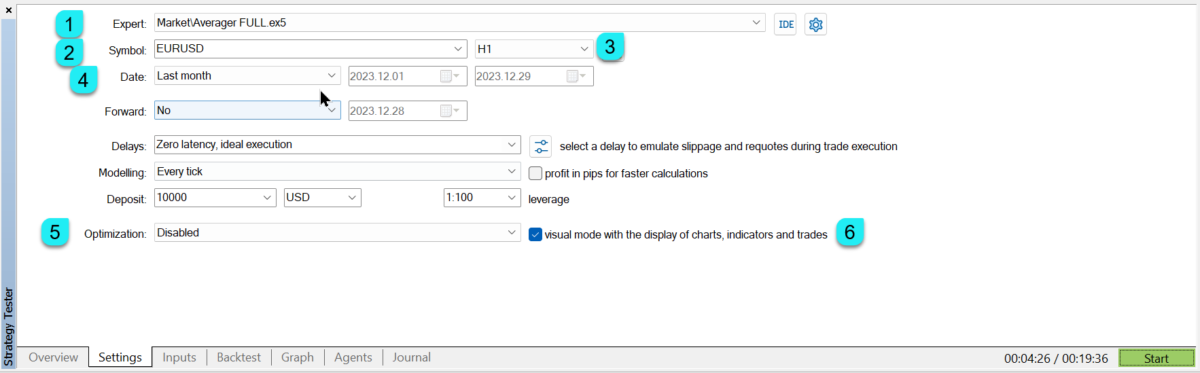
MetaTrader 5 Strategy Tester is usually the preferred environment for serious testing because it supports real ticks, floating spread conditions, multicurrency testing, and advanced optimization methods.
| Step | Recommended action |
| Select Expert Advisor | Choose the trading robot from the Strategy Tester list. |
| Select symbol | Choose the trading instrument you want to test. |
| Timeframe | M1 is often convenient for testing, while the EA itself can use its own internal timeframe settings. |
| Date range | Use a realistic period. For a first test, one month can be enough to check behavior. |
| Optimization | Disable optimization for a normal single test. |
| Visual mode | Enable it when you want to see how the EA works on the chart. |
| Deposit and leverage | Use values close to the account you plan to trade. |
| Model | Use Every tick based on real ticks when available. |
| MetaTrader 5 Strategy Tester settings |
| |
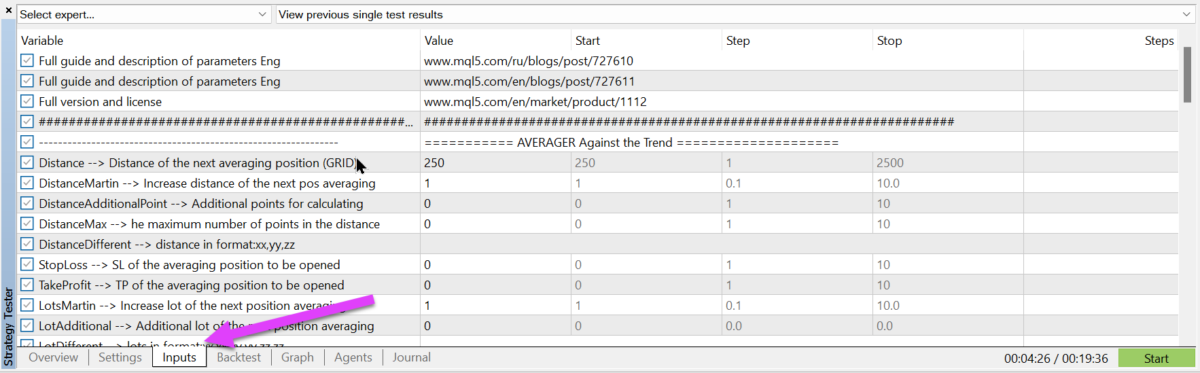
Expert Advisor inputs in the tester
Before you press Start, open the input parameters and check the EA settings. The Value column is used for a normal single test. Start, Step, Stop and checkbox fields are used for optimization.
| MetaTrader 5 Expert Advisor input settings |
| |
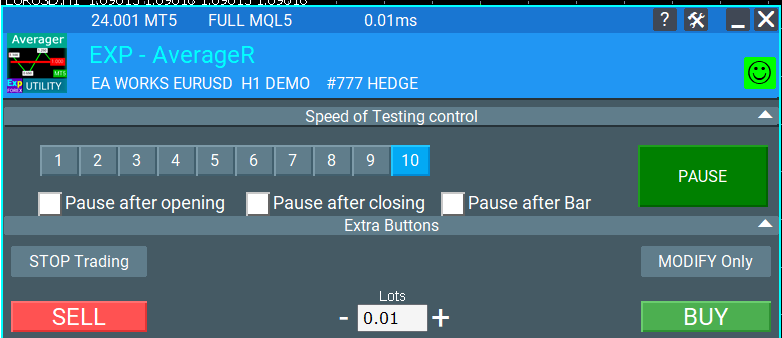
Visual mode and additional controls
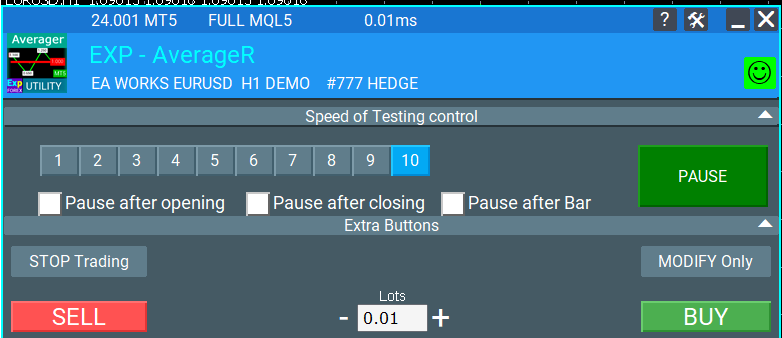
Many Expforex Expert Advisors include additional visual controls in the Strategy Tester. This is useful when you want to observe how the robot opens, manages, modifies, and closes trades during the test.
| Example of additional controls in visual testing |
| |
| | EAPADPRO information panelExpforex Expert Advisors can display an EAPADPRO control and information panel. It helps you understand the EA status, trading permissions, current mode, and possible reasons why the program does not trade. |
Examples of Strategy Tester work
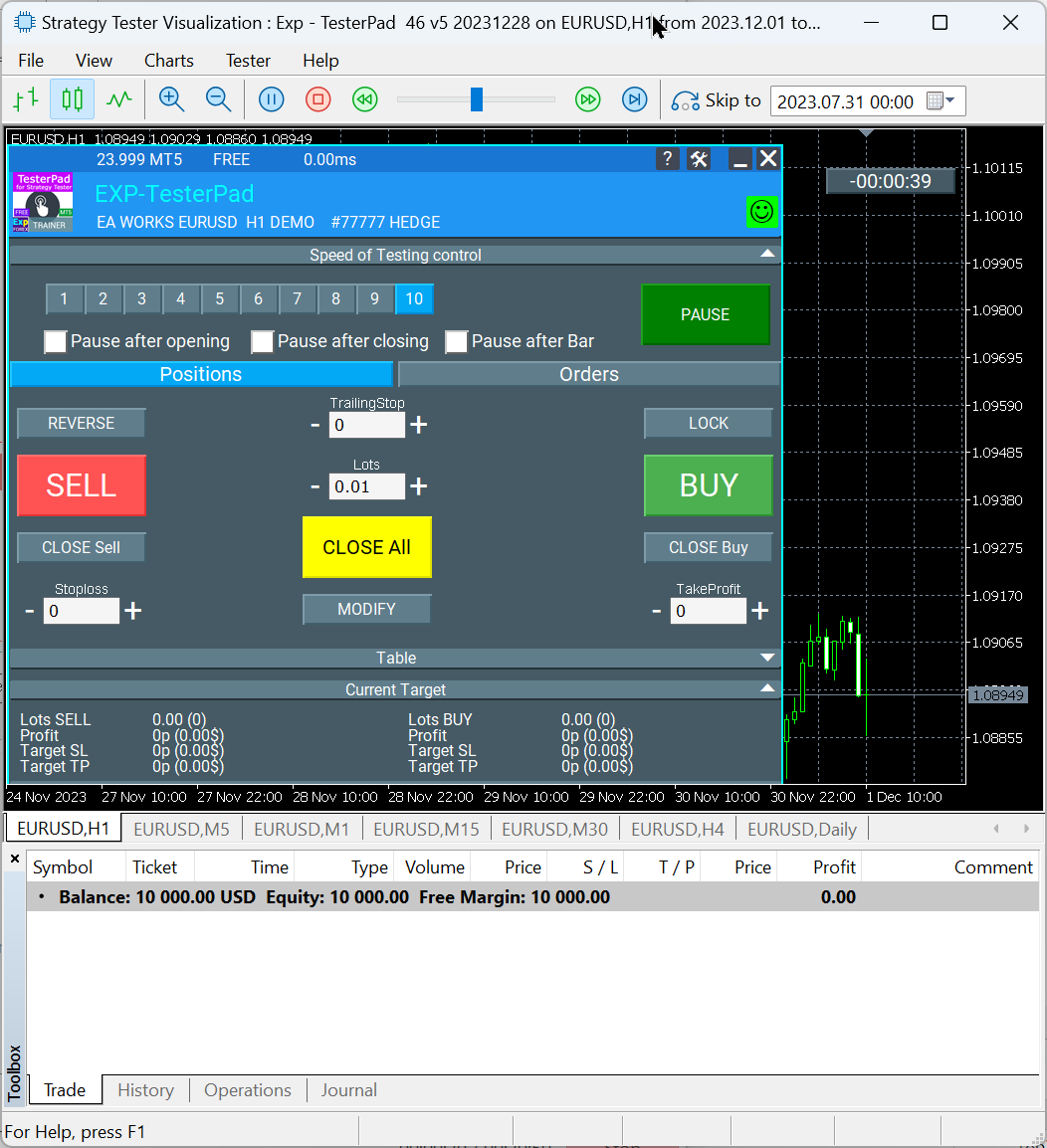
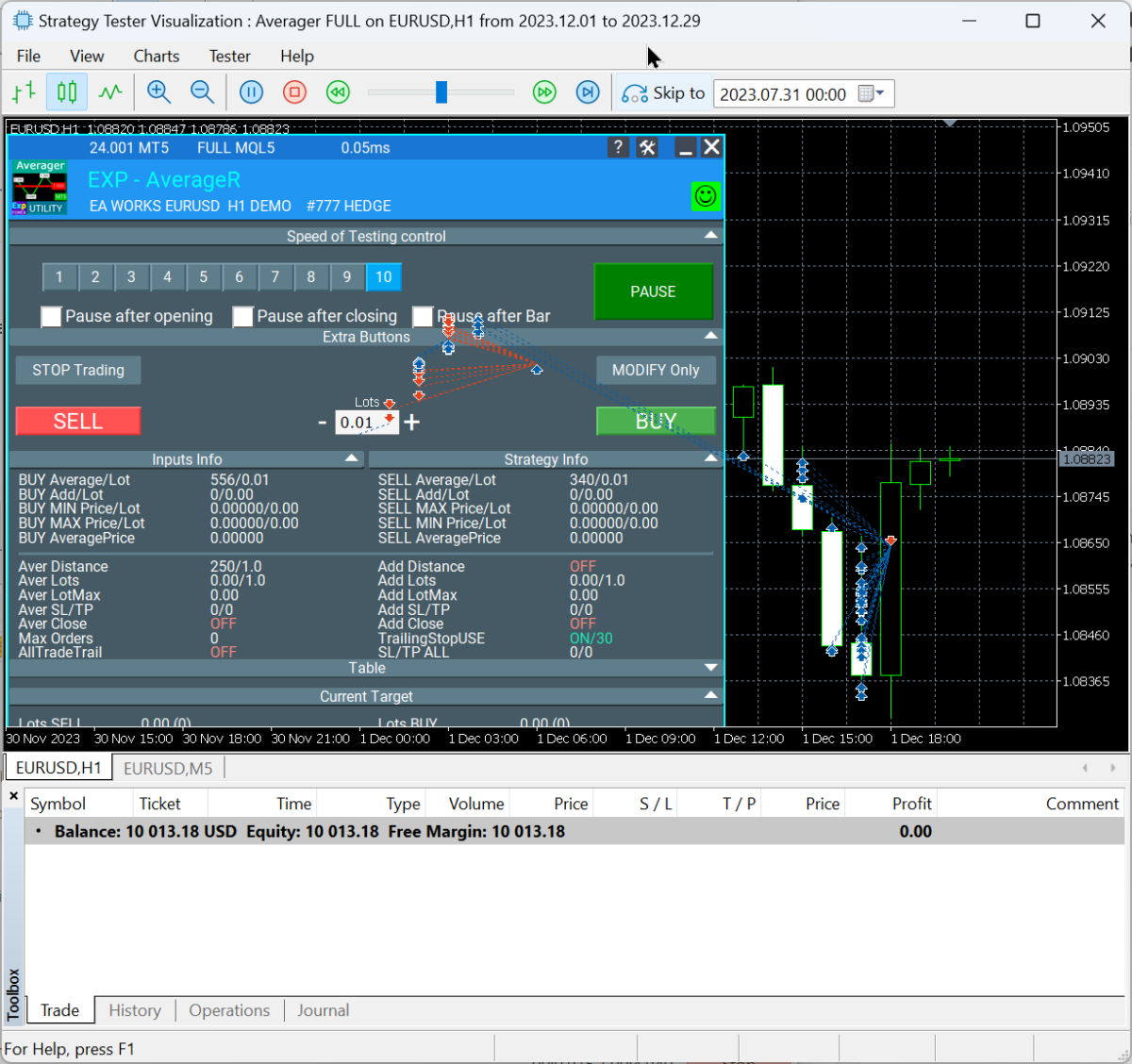
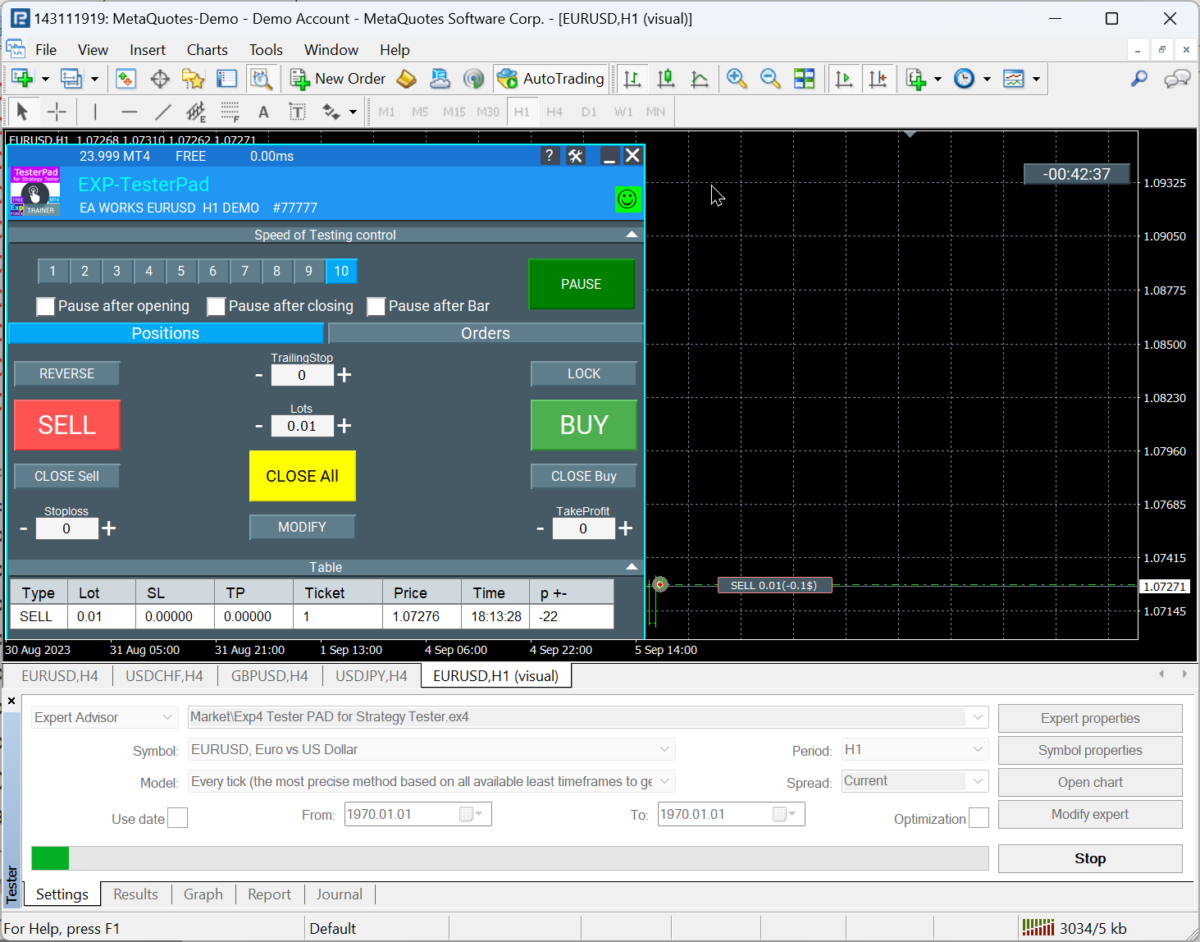
Below are examples of how Expforex tools can look inside the tester. These screenshots are useful for understanding the expected visual result after installation and test launch.
| Example: Exp TesterPad in the Strategy Tester |
| |
| Example: Exp Averager in the Strategy Tester |
| |
Checking the result after testing
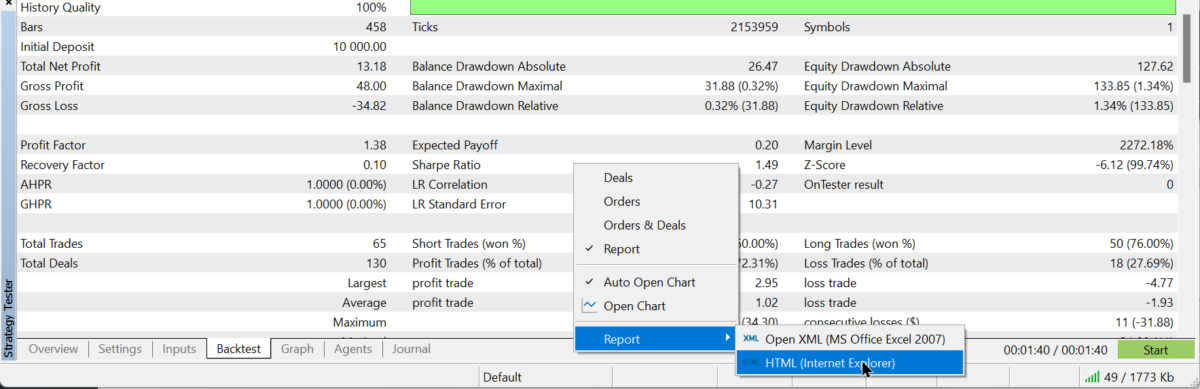
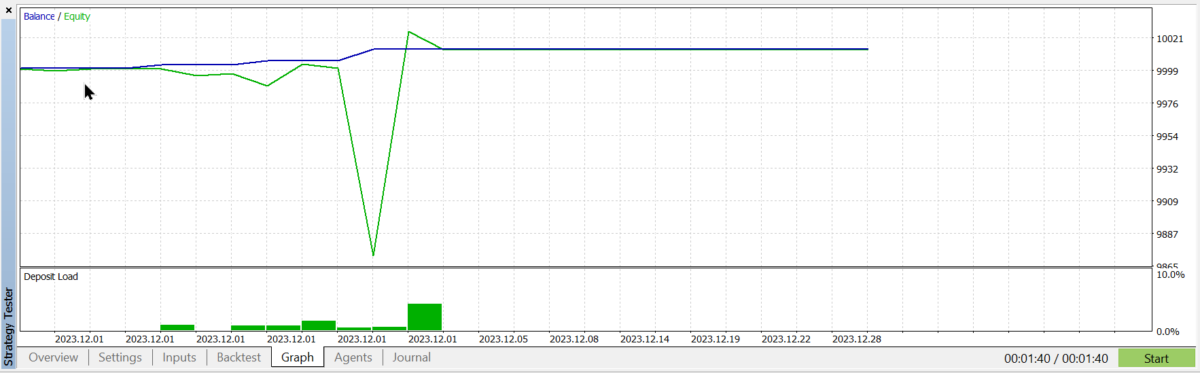
After the test is finished, open the report, results, graph, and journal tabs. These tabs help you evaluate the test result, equity curve, trades, drawdown, execution messages, and possible errors.
| MetaTrader 5 test report example |
| |
| MetaTrader 5 graph and results example |
| |
MetaTrader 4: Testing Expert Advisors in the Strategy Tester
MetaTrader 4 testing is still useful for many traders, especially when they work with MT4 Expert Advisors. However, MT4 testing has limitations: spread is fixed in the tester, real tick modeling is not the same as MT5, and the final result can differ from live trading conditions.
| MetaTrader 4 Strategy Tester setup |
| |
MT4 modeling methods
| Model | Meaning | When to use |
| Open prices only | Fast method based on formed bars. | For strategies that make decisions only on a new bar. |
| Control points | Approximate modeling using a lower timeframe. | For rough preliminary evaluation only. |
| Every tick | The most detailed MT4 model available in the tester. | For more serious backtesting when MT4 must be used. |
Important MT4 test settings
| Expert Advisor | Select the EA from the tester list. |
| Symbol | Select the symbol you want to test. |
| Period | Select the timeframe used by your trading logic. |
| Spread | Set a realistic spread. Do not rely on zero spread unless you understand the effect. |
| Use Date | Limit the date range for the selected test period. |
| Visual Mode | Enable it if you want to see the EA behavior on the chart. |
Visual testing in MT4
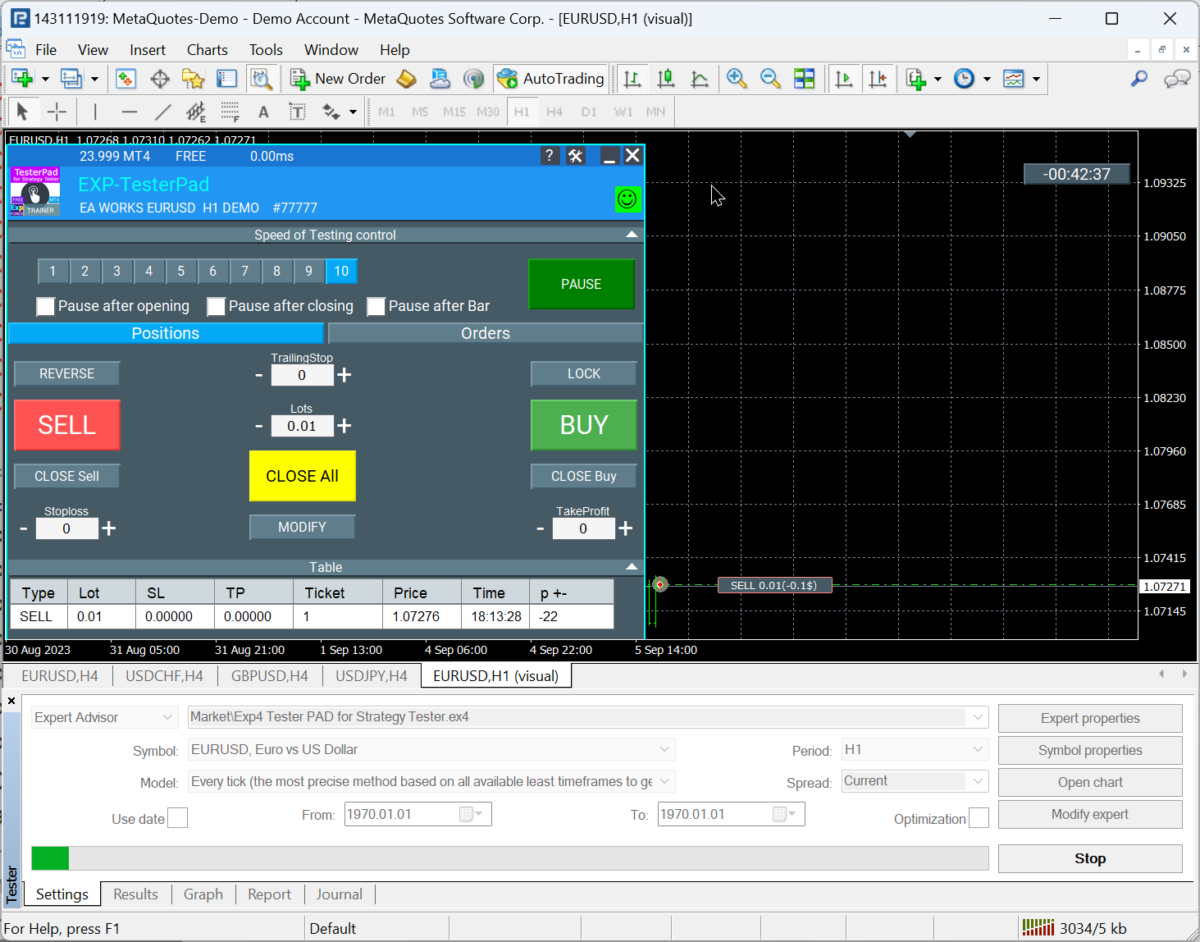
As in MetaTrader 5, visual testing can help you understand whether the EA works according to its settings and whether the chart behavior matches your expectations.
| Example of Expforex controls in MT4 visual tester |
| |
| | EAPADPRO in MT4The EAPADPRO panel helps you see the EA status directly on the chart. If something is wrong, first check AutoTrading, Allow live trading, broker permissions, symbol availability, and the Journal tab. |
| Example: Strategy Tester visualization in MT4 |
| |
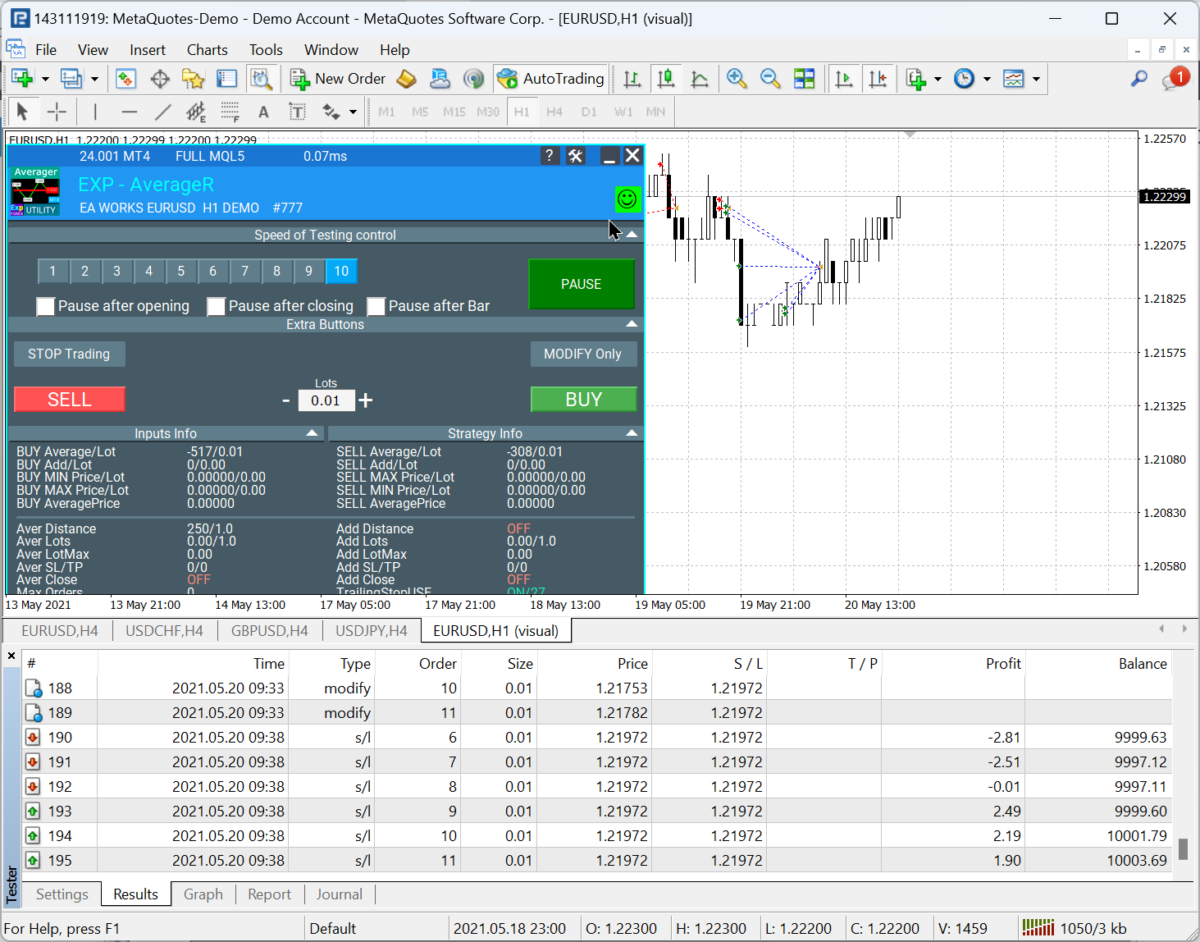
| Example: Exp Averager visual test in MT4 |
| |
Optimization of Expert Advisors
Optimization means running many tests with different input values to search for a better parameter combination. It is useful, but it must be used carefully. A beautiful historical result can be over-optimized and may fail in future market conditions.
| Field | Purpose |
| Value | The fixed value used for a normal single test. |
| Start | The first value that the optimizer will test. |
| Step | The increment between optimization passes. |
| Stop | The last value that the optimizer will test. |
| Checkbox | Enables or disables optimization for a specific parameter. |
Do not optimize everything at onceThe more parameters and steps you select, the more passes the tester must perform. This can increase testing time from minutes to hours or even days. Start with the most important parameters and use logical ranges. |
MetaTrader 5 and MQL5 Cloud Network
One of the strongest features of the MetaTrader 5 Strategy Tester is support for the MQL5 Cloud Network. It allows you to distribute optimization passes across many remote agents and significantly reduce the optimization time.
Cloud optimization is useful when the number of passes is large, but the selected optimization range should still be logical. More computing power does not fix unrealistic settings or poor optimization logic.
Optimization files for The XThe source article includes a link to example optimization files for The X. Use them as a reference, not as a universal profitable configuration. |
Saving and Loading SET Files
After optimization, select a promising result and run a single test with that parameter set. If the result is acceptable, save the input settings as a SET file. This file can later be loaded into the same Expert Advisor on a chart or in the tester.
| Action | Explanation |
| Open Optimization Results | Sort the results by the metric you need: profit, drawdown, profit factor, recovery factor, or another criterion. |
| Run a single test | Do not use the optimization row blindly. Always verify it with a normal single test. |
| Open Inputs | Check that the selected values were applied correctly. |
| Save SET file | Save the settings into your own folder with a clear file name. |
| Load on chart | Attach the EA to the chart, open Inputs, click Load, and select the SET file. |
| Check on demo | Run the settings on a demo account before any live use. |
Risk warning about optimized SET filesOptimization cannot guarantee future profitability. A SET file is only a saved configuration from a historical test. Before using it on a real account, check the settings on your broker, your symbol specification, your spread, your commission, your execution type, and your account conditions. Always start with a demo account or small-risk environment. Never increase risk only because an optimization report looks good. |
Multicurrency Testing and Optimization in MetaTrader 5
After finding a parameter set for one symbol, it is useful to test it on other major symbols. This helps you understand whether the settings are universal or only suitable for one specific instrument and broker feed.
| Recommended multicurrency workflow |
| 1. Test the selected settings on the original symbol. |
| 2. Run the same settings on several other major currency pairs or instruments. |
| 3. Compare profit, drawdown, number of trades, recovery, and stability. |
| 4. Avoid assuming that one optimized setup works equally well everywhere. |
| 5. If necessary, create separate SET files for different symbols or broker conditions. |
MT4 vs MT5 Testing: Practical Difference
| Feature | MetaTrader 4 | MetaTrader 5 |
| Tick model | Classic MT4 modeling, less realistic than MT5 real ticks. | Real ticks are available and usually more suitable for detailed testing. |
| Spread | Fixed tester spread. | Can be closer to floating market conditions. |
| Optimization | Useful but slower and more limited. | More advanced and supports cloud agents. |
| Multicurrency | Limited compared with MT5. | Better suited for multicurrency testing. |
| Recommended use | Use for MT4 Expert Advisors and preliminary analysis. | Use for deeper testing and optimization when MT5 version is available. |
FAQ: Questions and Answers
| Why are test results different between brokers? |
| Because every broker can have different quotes, spreads, commissions, swaps, stop levels, symbol specifications, execution rules, and historical data quality. Even the same EA with the same SET file can produce different results on another broker. |
| Should I use spread 0 in MT4 Strategy Tester? |
| Usually no. A zero or unrealistic spread can make the test result too optimistic. Use a spread close to real trading conditions for the selected symbol. |
| Can I use an optimized SET file on a real account immediately? |
| No. First test it on a demo account with the same broker and symbol conditions. Historical optimization is only a research tool, not a guarantee. |
| Why does the indicator show one signal, but the EA opens another trade? |
| Check that the indicator settings on the chart are exactly the same as the indicator parameters inside the Expert Advisor inputs. If they differ, the chart signal and EA signal may not match. |
Useful Links
| How to install an Expert Advisor from MQL5 Market | Open guide |
| The X Expert Advisor | Full instruction |
| EAPADPRO information panel | Read guide |
| Testing and optimization guide | Website version |
| Expforex products | All products |
| Expforex blog | My blog |
Final RecommendationUse the Strategy Tester as a professional research tool. Test the EA logic, check visual behavior, optimize only meaningful parameters, save SET files carefully, and confirm the result on a demo account before real trading. Good testing is not about finding the most beautiful historical graph. Good testing is about understanding how the Expert Advisor behaves under realistic market conditions. |
SEO tags: MetaTrader testing, MetaTrader 5 Strategy Tester, MetaTrader 4 Strategy Tester, Expert Advisor optimization, EA optimization, SET file, MQL5 Cloud Network, Forex robot testing, Expert Advisor backtest, Expforex, The X Expert Advisor, EAPADPRO, TesterPad, Averager