Market mql5.com: How to buy an advisor on mql5.com? How to rent? how to update? how to install?

| 🛒 How to Buy, Rent, Install and Update Expert Advisors from MQL5 Market Complete guide for installing MetaTrader Market products, activating purchased Expert Advisors, updating products, using activations, solving Market installation errors and asking support questions correctly. All Expforex products are purchased, rented, installed and updated only through the official MQL5 Market. This guide explains how to do everything correctly inside MetaTrader 4, MetaTrader 5 and on MQL5.com. |
[Русский] - [English] - [Español] - [Português] - [Deutsch] - [Français] - [한국어] - [日本語] - [中文] - [Türkçe] - [Italiano]
| 🛒 All Expforex Products | 💛 Products for MetaTrader 5 |
| 💛 Products for MetaTrader 4 | ⬇ Demo Versions and Documentation |
| ▶ Watch Video Guide | 💬 Contact Support |
🎬 Watch the Installation and Market GuideThis video explains how to buy, rent, install and update Market products inside MetaTrader and from MQL5.com. |
🚀 What This Guide Explains
Many users buy an Expert Advisor, indicator or utility on MQL5 Market and then have the same questions:
- Where can I find the purchased product?
- How do I install it in MetaTrader?
- How do I update it?
- What does activation mean?
- Can I copy the product file to another terminal?
- Why does the Market tab not show the product?
- Why does nothing happen after clicking Install?
- Where should I ask questions: Reviews or Comments?
This guide gives practical answers and shows the correct workflow.
⚠ ImportantExpforex does not sell programs directly. Purchases, rentals, payments, activations and installations are handled by the official MQL5 Market system. If you bought a product, you must install it from the Market section of the terminal using the same MQL5 account that was used for the purchase. |
📌 Quick Navigation
| 🛒 Buy / Rent | 📥 Install | 🔄 Update |
| 🔐 Activations | 💬 Comments | ⭐ Reviews |
| 🖥 VPS | ⚠ Errors | ❓ FAQ |
🛒 Method 1: Buy or Rent from MetaTrader Terminal
The fastest way is to buy or rent directly from MetaTrader.
Before buying, make sure that you are logged into the correct MQL5 account inside your terminal.
| Step | Action |
| 1 | Open MetaTrader 4 or MetaTrader 5. |
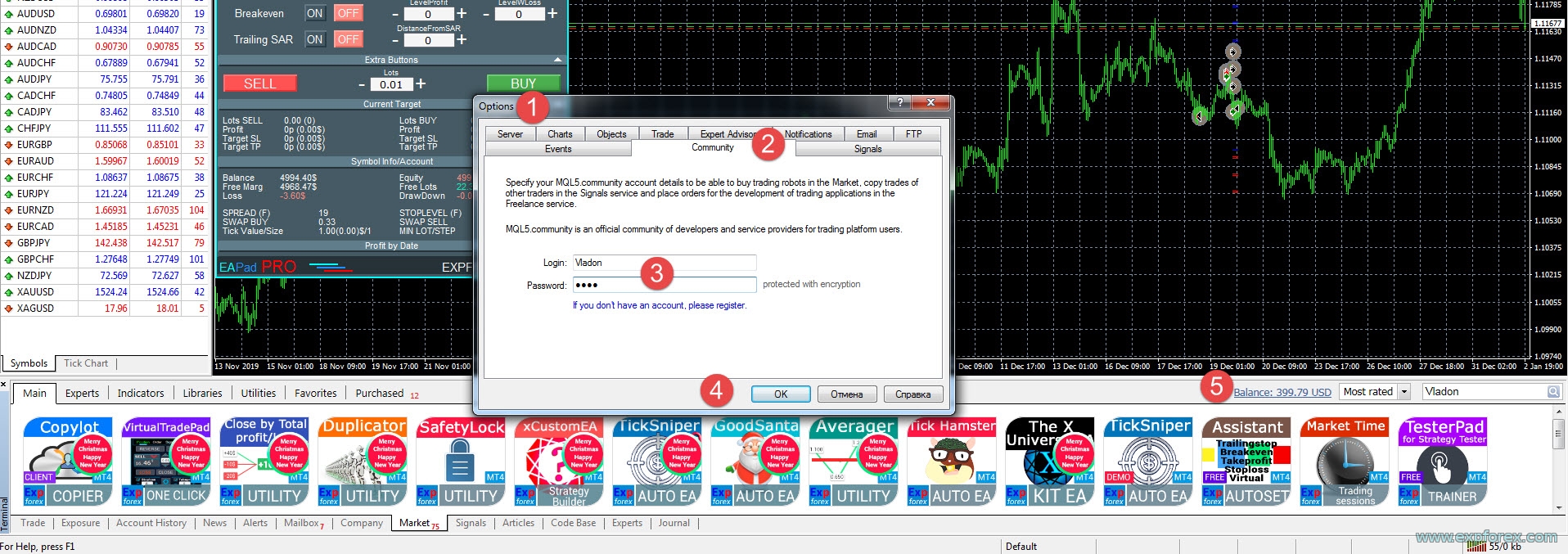
| 2 | Open Tools → Options → Community. |
| 3 | Enter your MQL5.com login and password. |
| 4 | Open the Market tab at the bottom of the terminal. |
| 5 | Search for Vladon or open the product page. |
| 6 | Click Buy or Rent. |
| 7 | Select payment method and follow the Market payment instructions. |
| 8 | After payment, install the product from the Market / Purchased tab. |
🔐 Log in to MQL5 Community in MetaTrader Use the same MQL5 account that you use for buying or renting products. |
🔎 Search Expforex Products in Market Search by author name or open the seller page with all Expforex products. |

🌐 Method 2: Buy or Rent from MQL5.com Website
You can also buy or rent from the MQL5.com website.
Open the product page, read the description, check screenshots, read comments and reviews, then click Buy or Rent.
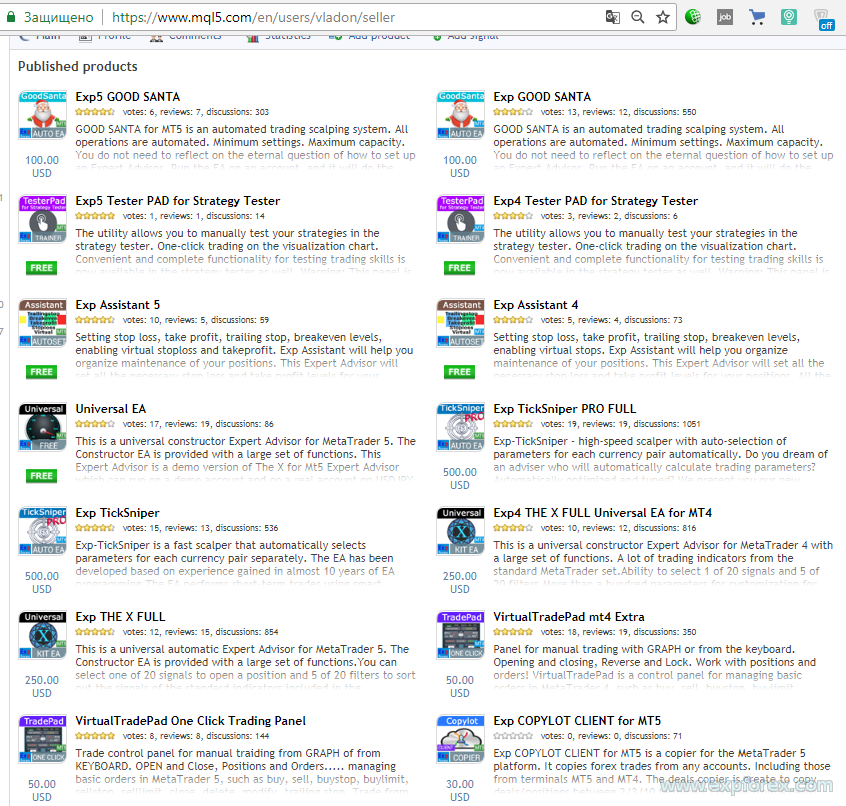
🛒 Expforex Seller Page All Expforex products are available on the official MQL5 Market seller page. |
| Step | Action |
| 1 | Open the product page on MQL5.com. |
| 2 | Make sure you selected the correct version: MT4 or MT5. |
| 3 | Click Buy or Rent. |
| 4 | If the website asks whether you have MetaTrader, choose the correct option. |
| 5 | Select payment method and complete payment. |
| 6 | Open MetaTrader and install the product from the Market / Purchased tab. |
📥 How to Install a Purchased Expert Advisor
After purchase, the product must be installed from the terminal. Do not copy product files manually from one terminal to another.
Installation is done through the official Market section.
| Step | Action |
| 1 | Open the terminal where you want to install the product. |
| 2 | Log in to the correct MQL5 account in Tools → Options → Community. |
| 3 | Open the Market tab. |
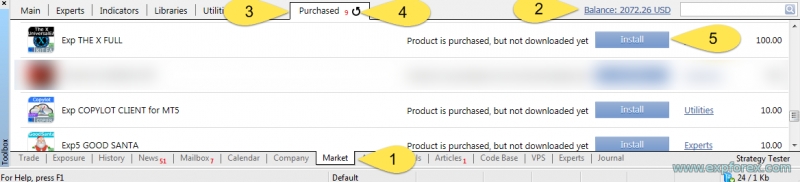
| 4 | Open the Purchased tab. |
| 5 | Click Refresh. |
| 6 | Click Install near the purchased product. |
| 7 | After installation, find the EA in the Navigator window. |
| 8 | Drag the Expert Advisor onto the chart or double-click it. |
| 9 | Allow automated trading in the EA settings and enable Algo Trading / AutoTrading. |
📥 Purchased Tab and Installation Use the Purchased tab to install products bought or rented from MQL5 Market. |
🧭 Product Appears in Navigator After installation, the Expert Advisor appears in the Navigator window. |

✅ How to Check That the Expert Advisor Works
After attaching the EA to the chart, check the following:
- Algo Trading / AutoTrading is enabled;
- the EA has permission to trade;
- the smiley or status indicator is green;
- there are no critical errors in the Experts tab;
- the product panel shows normal status;
- the product is attached to the correct symbol and timeframe;
- the settings match the instruction.
✅ Successful Installation Example A green status means that the Expert Advisor is attached and allowed to work. |
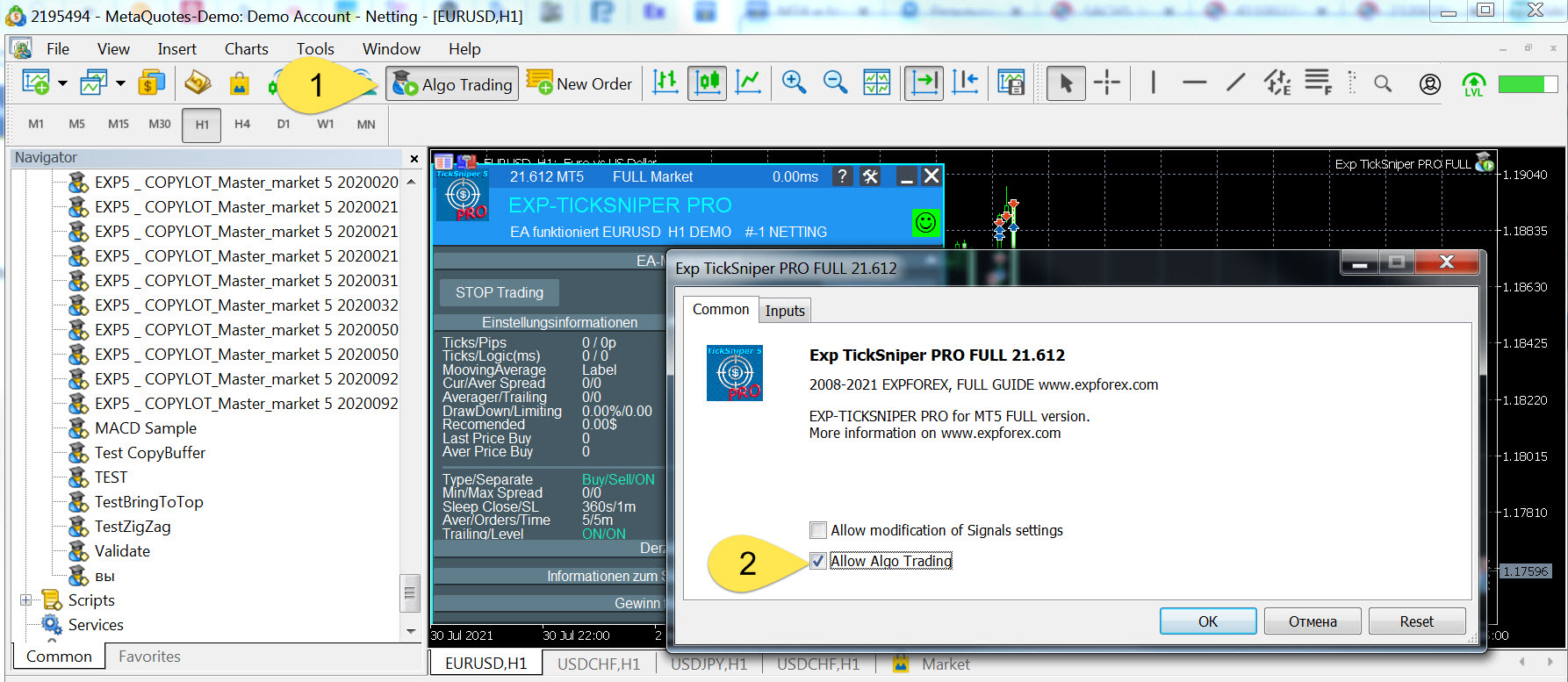
| Warning: if the smiley or status is red, trading is not allowed or the wrong product/version may be installed. Check AutoTrading, EA permissions, account type and product version. |
🔄 How to Update a Purchased Expert Advisor
When the author releases an update, the user can install the update through the Market / Purchased tab.
Before updating, always save your settings.
⚠ Important Before UpdatingWhen updating an Expert Advisor, utility or trading robot, settings can be reset to default values. Before updating, save your SET file or profile. This protects your configuration and makes it easier to restore settings after the update. |
| Step | Action |
| 1 | Save your current EA settings. |
| 2 | Open the Market tab in the terminal. |
| 3 | Make sure you are logged into the correct MQL5 account. |
| 4 | Open the Purchased tab. |
| 5 | Click Refresh. |
| 6 | If an update is available, click Update. |
| 7 | Restart the terminal after updating. |
| 8 | Load your saved settings if needed. |
🔄 Update Button in Market If the update button is visible, you can update the product directly from the terminal. |

What if the Update Button Does Not Appear?
If you know that a new version exists but the Update button does not appear:
- click Refresh in the Purchased tab;
- restart the terminal;
- wait until the update appears in the terminal;
- remove the old product from the terminal and install it again from Market;
- make sure you are logged into the correct MQL5 account.
Removing and reinstalling a purchased product from the Market does not normally require a new activation if it is done on the same computer and same environment.
🔐 License and Activations
Market products are protected by the MQL5 activation system.
An activation is linked to the computer environment. If the system changes significantly, MetaTrader may require a new activation.
| Question | Answer |
| What is one activation? | One activation allows the product to run on one computer environment. |
| Can I use the product in several terminals on the same computer? | Yes, after activation on the computer, you can install it in other terminals on the same computer. |
| Can I copy the product file to another terminal manually? | No. Market products must be installed from the Market section of the terminal. |
| What can consume a new activation? | Windows reinstall, hardware change, disk change, VPS change or major system modification. |
| Who controls activations and purchases? | MQL5 Market / MetaQuotes. The seller cannot manually reset activations or change payment history. |
| Simple rule: to install a purchased product on another terminal or another computer, log into your MQL5 account in that terminal and install the product again from Market / Purchased. |
🖥 How to Install Two MetaTrader Terminals on One Computer
If you need several MetaTrader terminals on one computer, install each terminal into a separate folder.
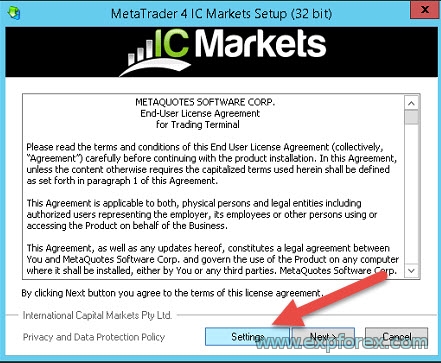
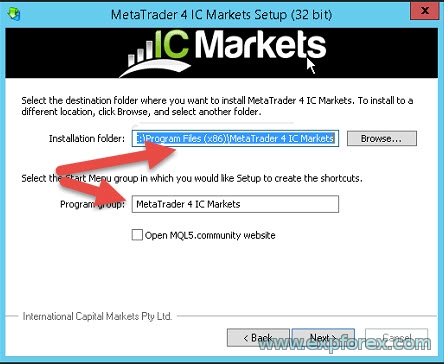
During installation, click Settings and choose a different folder name.
🖥 Install Terminal Into a Separate Folder Use different folders for different MetaTrader installations. |
⭐ Reviews and 💬 Comments: Important Difference
Please use Reviews and Comments correctly.
| Section | Purpose |
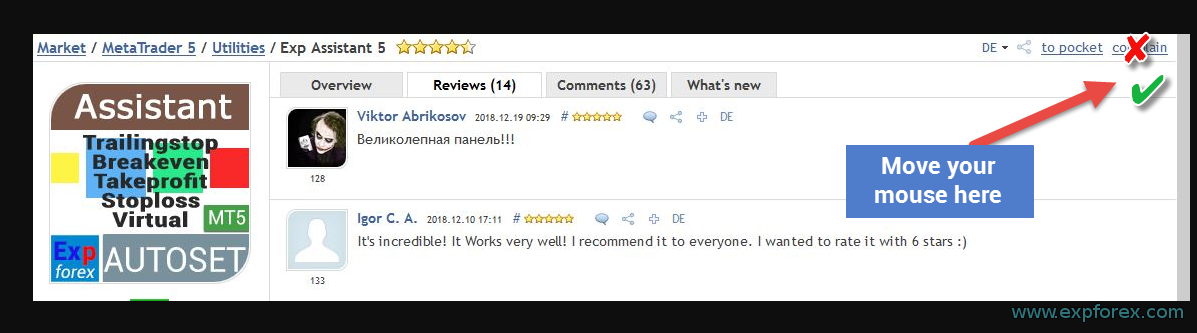
| Reviews | For rating the product after using it. Reviews are not the best place for technical questions. |
| Comments | For support questions, bug reports, settings questions and communication with the author. |
How to Leave a Review
- Open the product page.
- Go to the Reviews tab.
- Click Add Review.
- Rate the product and write your feedback.
⭐ Add Review Reviews are useful for rating and feedback after using the product. |
Where to Ask Questions
If you need support, use the Comments tab on the product page.
- Open the product page.
- Go to the Comments tab.
- Click New Comment.
- Describe the question clearly.
- Attach screenshots, settings and logs if needed.
| Support rule: technical questions should be posted in Comments, not Reviews. Reviews are for rating. Comments are for support. |
🧾 If You Registered with Google, Facebook or Yahoo
If your MQL5 registration was created through Google, Facebook or Yahoo, the terminal authorization still requires login and password.
Check your MQL5 profile and email. You should use the login and password connected to the MQL5 account that owns the purchase.
If the terminal does not show purchases, the most common reason is that you are logged into another MQL5 account.
🖥 MQL5 VPS and Market Products
You can use Market Expert Advisors on VPS.
The MQL5 VPS service can synchronize your terminal environment to a virtual server close to your broker server. This can help reduce latency and keep the robot running continuously.
| VPS Point | Meaning |
| Use a stable VPS | Expert Advisors need a terminal running continuously. |
| Install from Market first | The product must be installed and activated in the terminal before migration. |
| Synchronize correctly | After attaching and configuring the EA, migrate the environment to VPS. |
| Do not use unsupported systems | Old Windows systems and 32-bit environments can create Market installation problems. |
🍎 macOS and Linux
MetaTrader can be used on macOS or Linux depending on the installation method and current MetaTrader package support.
Possible options:
- use an official MetaTrader package if available;
- use Wine-based installation;
- use Windows in a virtual machine;
- use a Windows VPS for stable Market products and Expert Advisors.
For trading robots, the most stable environment is usually a clean Windows terminal or VPS.
↩ Wrong Version Bought: MT4 Instead of MT5 or MT5 Instead of MT4
If you bought the wrong version by mistake, for example MT4 instead of MT5, the seller cannot directly change the purchase.
Financial operations, purchases, rentals, refunds and activations are handled by MQL5 Market / MetaQuotes.
| Condition | Possible Action |
| You purchased on MQL5.com | You may try to contact MQL5 Service Desk or use the cancellation option if available. |
| You have not activated the product | Cancellation may be possible in some cases from your MQL5 profile purchase section. |
| The product is already activated | Changing or canceling is usually not available through the seller. |
| You bought inside the terminal | All payment and cancellation questions must be resolved through MQL5 / MetaQuotes. |
| Important: the seller cannot refund, cancel, replace, transfer or manually change Market purchases. All financial issues are processed by MQL5 Market / MetaQuotes. |
⚠ Common Market Installation Errors and Solutions
If the purchased product is not installed, first check the basic points:
- you are logged into the correct MQL5 account;
- the terminal is updated;
- the Internet connection is stable;
- the Market tab opens normally;
- the product is in the Purchased tab;
- Windows is updated;
- the terminal is not running in a broken or restricted environment;
- you are not using unsupported 32-bit Windows for Market products.
| Error | Recommended Action |
| Install button does nothing | Delete the old product from Navigator → Market folder, restart terminal, install again from Purchased tab. |
| Market page is blank | Update terminal, update Windows components, restart terminal and check Internet connection. |
| Failed to download product | Check connection, terminal build, login account and Market availability. |
| Failed to install | Remove previous Market copy, restart terminal and install again. |
| Product is not visible | Make sure you are logged into the same MQL5 account used for purchase. |
| Old Windows / old VPS problem | Install Windows updates or use a modern supported Windows/VPS environment. |
| Seller removed product from Market | If you bought the product and still have activations, try installing it from the terminal Purchased tab. |
| 32-bit VPS / unsupported VPS | Use a supported 64-bit Windows environment. Some VPS providers or old systems may not support Market installation. |
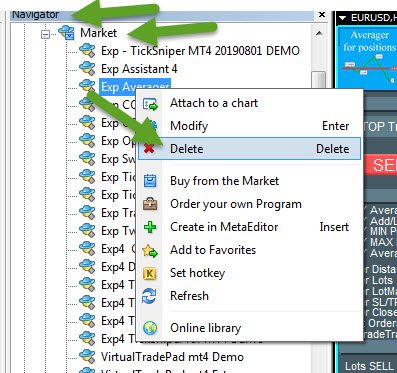
Install Button Does Nothing
If you click Install and nothing happens:
- Open Navigator.
- Open Expert Advisors or Indicators.
- Open the Market subfolder.
- Find the product.
- Right-click it.
- Delete it.
- Restart MetaTrader.
- Install the product again from Market / Purchased.
🗑 Delete Old Market Product Copy After deleting the old copy, repeat the installation from the Purchased tab. |
Problem with Symbols or Blank Market Tab
If the Market tab shows strange symbols, empty content or blank page, the problem may be caused by old Windows components, old terminal build or outdated system libraries.
Recommended actions:
- install all Windows updates;
- update MetaTrader to the latest available build;
- restart the terminal;
- avoid old server systems for Market installation;
- use a modern 64-bit Windows VPS.
| Practical recommendation: if Market products do not install on an old VPS, do not waste time fighting outdated system components. Use a modern Windows VPS with all updates installed. |
❓ FAQ
Can I buy your programs directly from you?
No. Expforex products are sold through the official MQL5 Market only. Payment, purchase, rent, activation and installation are handled by MQL5 Market.
Can you send me the EX4 or EX5 file manually?
No. Market products must be installed from the Market section of the terminal. Manual copying is not allowed.
Can I install the product on another computer?
Yes, if you have available activations. Log in to the same MQL5 account in the terminal and install the product from Market / Purchased.
Can I use the same product in several terminals on the same computer?
Yes. After activation on the computer, you can install the product into other terminals on the same computer through Market.
Why do I not see my purchase?
Most often, the terminal is logged into another MQL5 account. Check Tools → Options → Community and use the account that purchased the product.
Where should I ask support questions?
Use the Comments tab on the product page. Reviews are for rating the product, not for troubleshooting.
Can you refund or change my purchase?
No. The seller does not control Market payments or activations. Financial issues must be resolved through MQL5 Market / MetaQuotes.
📌 Final Checklist
| Done? | Check |
| ☐ | I selected the correct product version: MT4 or MT5. |
| ☐ | I logged into the correct MQL5 account in MetaTrader. |
| ☐ | I opened Market → Purchased and clicked Refresh. |
| ☐ | I installed the product from Market, not by manual copying. |
| ☐ | I enabled Algo Trading / AutoTrading. |
| ☐ | I allowed automated trading in EA settings. |
| ☐ | I saved my settings before updating. |
| ☐ | I use Comments for support questions and Reviews for rating. |
| ☐ | I understand that activations and payments are controlled by MQL5 Market. |
🔗 Useful Links
| 🛒 All Expforex Products | 💛 MetaTrader 5 Products |
| 💛 MetaTrader 4 Products | ⬇ Demo Versions and PDF |
| 📘 Full Market Installation Guide | 💬 Contact Expforex Support |
🏁 Final Thoughts
MQL5 Market installation is simple when the correct workflow is followed: log in to the correct MQL5 account, install from the Purchased tab, enable automated trading and keep your terminal updated.
Most problems happen because the user is logged into the wrong account, tries to copy files manually, uses an outdated VPS, installs the wrong MT4/MT5 version or asks technical questions in Reviews instead of Comments.
Use this guide as a checklist. It will help you buy, rent, install, update and troubleshoot Market Expert Advisors much faster.
🚀 Start Correctly with MQL5 Market ProductsChoose the correct MT4 or MT5 version, install it through the official Market system, read the full instruction and test the product on demo before real trading. |
SEO Tags
MQL5 Market, MetaTrader Market, how to buy Expert Advisor, how to rent Expert Advisor, how to install Expert Advisor, how to update Expert Advisor, MT4 Market product, MT5 Market product, MetaTrader 4 Expert Advisor installation, MetaTrader 5 Expert Advisor installation, MQL5 activations, Market activation, MetaTrader purchased tab, MQL5 Community login, install purchased EA, update purchased EA, Market installation error, Market tab blank, failed to download product, failed to install product, Expert Advisor support, MQL5 reviews, MQL5 comments, Expforex products, Vladon seller, MQL5 Market troubleshooting, Forex robot installation, trading robot installation


![[BRENT]: Weekly Liquidity Activation Points (LAP), October 12-16, 2026](https://c.mql5.com/6/1035/splash-preview-777303.png "[BRENT]: Weekly Liquidity Activation Points (LAP), October 12-16, 2026")
![[XAUUSD]: Weekly Liquidity Activation Points (LAP), October 12-16, 2026](https://c.mql5.com/6/1035/splash-preview-777299.png "[XAUUSD]: Weekly Liquidity Activation Points (LAP), October 12-16, 2026")
![[EURUSD]: Weekly Liquidity Activation Points (LAP), October 12-16, 2026](https://c.mql5.com/6/1035/splash-preview-777305.png "[EURUSD]: Weekly Liquidity Activation Points (LAP), October 12-16, 2026")