EXP COPYLOT Trade Copier. Copies deals with any forex accounts MT4-MT5

| 🔄 COPYLOT for MetaTrader 4 & MetaTrader 5 Professional trade copier for MetaTrader terminals: MT4 ↔ MT4, MT5 ↔ MT5, MT4 ↔ MT5, MT5 ↔ MT4. COPYLOT copies trades, positions and pending orders from a Master account to one or many Client accounts. It supports flexible lot control, symbol suffixes, Magic filters, reverse copying, SL/TP synchronization, pending orders, risk limits, client-side trade management and updated partial close support for MetaTrader 5. |
[Русский] - [English] - [Español] - [Português] - [Deutsch] - [Français] - [한국어] - [日本語] - [中文] - [Türkçe] - [Italiano]
| 💎 COPYLOT Master MT4 | 💎 COPYLOT Client MT4 |
| 💎 COPYLOT Master MT5 | 💎 COPYLOT Client MT5 |
| ⬇ Download COPYLOT DEMO + PDF | 📘 Full COPYLOT Instruction |
| ▶ Watch Installation Video | 🛒 All Expforex Products |
| 🏠 Main | 🎓 Documentation | ⚙ Settings |
| ❓ FAQ | ⭐ Reviews | 💬 Comments |
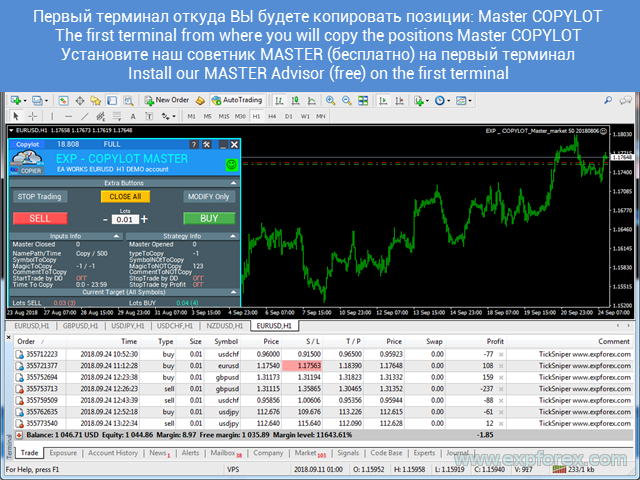
🎬 Watch How COPYLOT WorksThe video shows the standard COPYLOT installation: Master terminal sends trades, Client terminal receives them, and both terminals synchronize through the same copy channel name. |
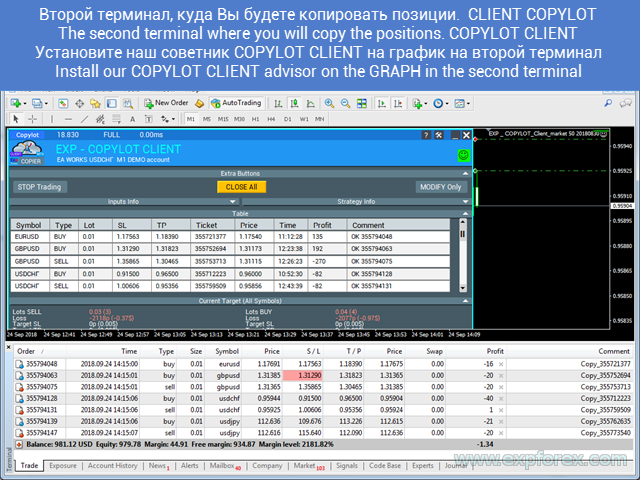
🔄 COPYLOT Master and Client Versions COPYLOT is built as a Master / Client system. The Master reads trades from the source terminal. The Client opens, modifies and closes copied trades on the destination terminal. |


🚀 What is COPYLOT?
COPYLOT is a professional trade copier for MetaTrader 4 and MetaTrader 5. It copies trades, positions and pending orders from one trading terminal to another terminal.
You can use COPYLOT to copy manual trades, Expert Advisor trades, signal accounts, investment-password accounts, demo accounts, real accounts, different brokers, different symbols and different MetaTrader versions.
The system uses two parts:
- COPYLOT Master — installed on the source terminal where original trades are opened.
- COPYLOT Client — installed on the destination terminal where trades must be copied.
COPYLOT is not a signal provider and not a trading strategy. It does not decide where to buy or sell. It synchronizes trading actions from one MetaTrader environment to another according to your rules.
🔄 Terminal-to-Terminal CopyingCopy trades between MetaTrader terminals: MT4 to MT4, MT5 to MT5, MT4 to MT5, or MT5 to MT4. | ⚡ Fast Local SynchronizationDesigned for local copying between terminals with a fast file-based synchronization algorithm. |
📊 Flexible Lot ControlCopy the same lot, fixed lot, coefficient lot, balance-ratio lot, or risk-based lot. | 🧩 Advanced FiltersFilter copied trades by symbol, Magic number, direction, comment, lot, profit, loss and new trades only. |
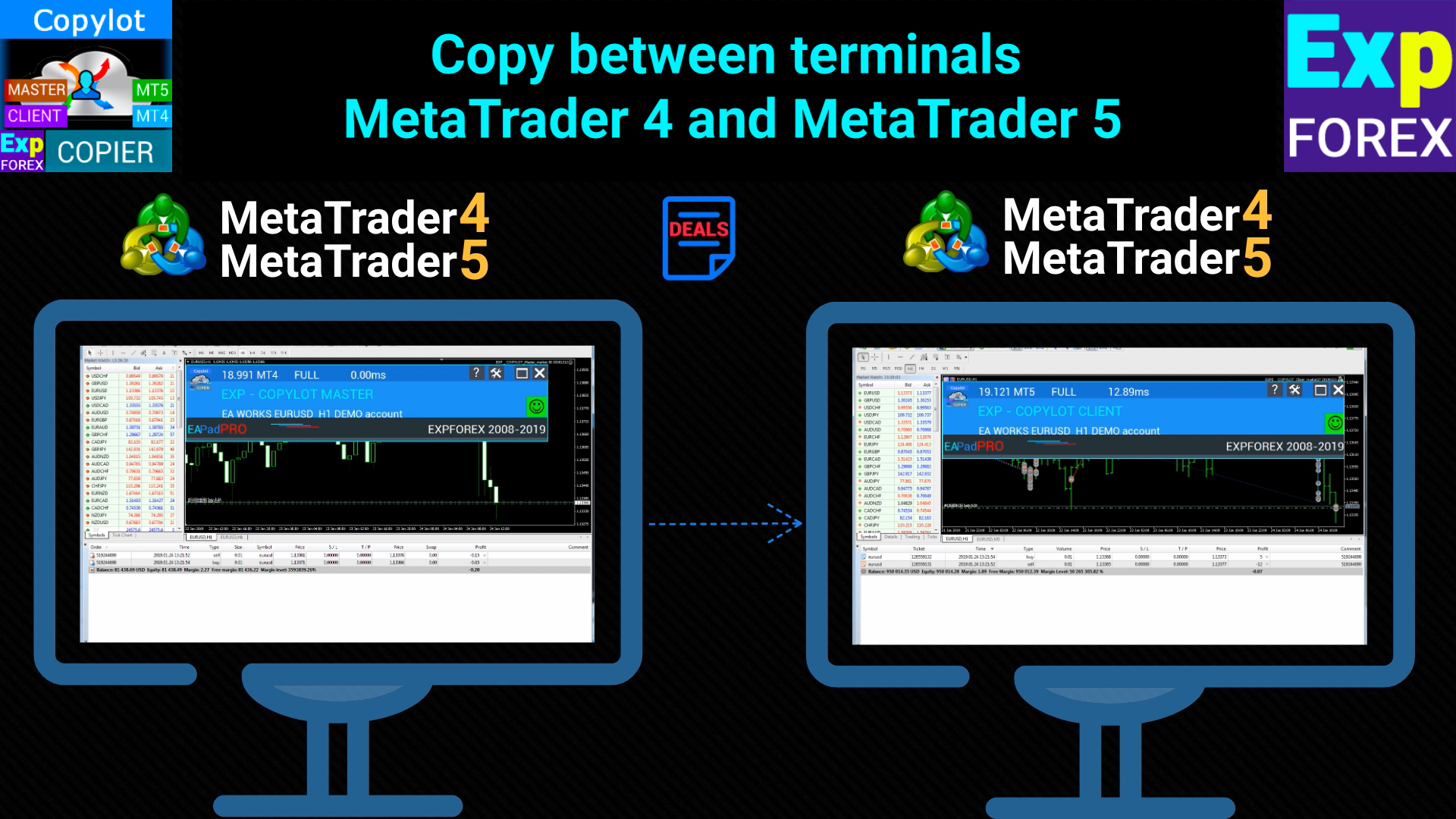
🔄 Copy Between MetaTrader 4 and MetaTrader 5 This image shows the main idea of COPYLOT: one MetaTrader terminal sends trades, another MetaTrader terminal receives and opens matching trades. |
⭐ Why Traders Use COPYLOT
- Copy trades from one MetaTrader terminal to another
- Copy from MT4 to MT4, MT5 to MT5, MT4 to MT5, or MT5 to MT4
- Copy manual trades and Expert Advisor trades
- Copy from demo account to real account
- Copy from accounts opened by investor password
- Copy from one Master to many Clients
- Copy from many Masters to one Client
- Copy with changed lot size or balance ratio
- Copy only selected symbols, Magic numbers or comments
- Reverse trades during copying
- Copy pending orders, Stop Loss and Take Profit
- Use trailing stop, breakeven, virtual stops and risk limits on the Client side
- Copy partial close operations, including updated MT5 partial close support
| ✅ Main value: COPYLOT allows you to trade on one account and automatically synchronize positions to other MetaTrader terminals with your own lot, symbol, risk and management rules. |
🧠 How COPYLOT Works
COPYLOT uses Master / Client logic.
The Master terminal writes information about open positions, pending orders, modifications and closing operations. The Client terminal reads this information and repeats the required actions on its own account.
The connection between Master and Client is controlled by the text channel name:
- pathWrite on Master
- pathREAD on Client
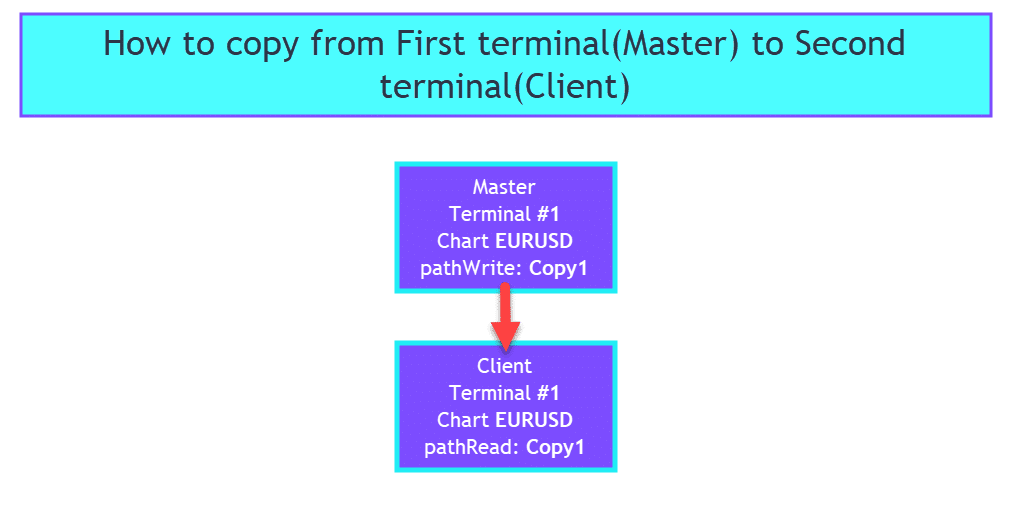
These values must match. For example, if Master uses pathWrite = Copy, then Client must use pathREAD = Copy.
| Component | Role |
| Master | Source terminal. Reads original trades and sends trade data to the copy channel. |
| Client | Destination terminal. Reads the copy channel and opens, modifies or closes copied trades. |
| pathWrite | Master channel name used to write trade information. |
| pathREAD | Client channel name used to read trade information. |
| Important: do not use the same copy channel for different independent Master / Client pairs unless they are intentionally connected. Each separate copying bundle should use its own pathWrite / pathREAD name. |
🛠 Install in Two Steps
The basic installation is simple:
- Install COPYLOT Master on the terminal where the original trades are opened.
- Install COPYLOT Client on the terminal where trades must be copied.
- Set the same channel name in pathWrite and pathREAD.
- Enable AutoTrading and Allow Live Trading.
🛠 COPYLOT Installation Example The Master and Client must use the same copy channel name, otherwise they will not communicate with each other. |
🛠 COPYLOT Client Installation Example Install the Client on the terminal where copied trades should appear. |
🔄 Standard Copying: One Master to One Client
The standard scenario is copying from one Master terminal to one Client terminal.
This is the best configuration for first testing. It helps verify that terminals communicate correctly, symbols are available, lot settings are correct, and the Client opens positions as expected.
| Step | Action |
| 1 | Open the Master terminal where original trades are opened. |
| 2 | Attach COPYLOT Master to one clean chart. |
| 3 | Open the Client terminal where trades must be copied. |
| 4 | Attach COPYLOT Client to one clean chart. |
| 5 | Set the same pathWrite / pathREAD channel name. |
| 6 | Open a test trade on Master and check that Client copies it correctly. |
🔄 Standard 1 → 1 Copying Scheme One Master account sends trades to one Client account through one copy channel. |
📡 Copy From One Master to Several Clients
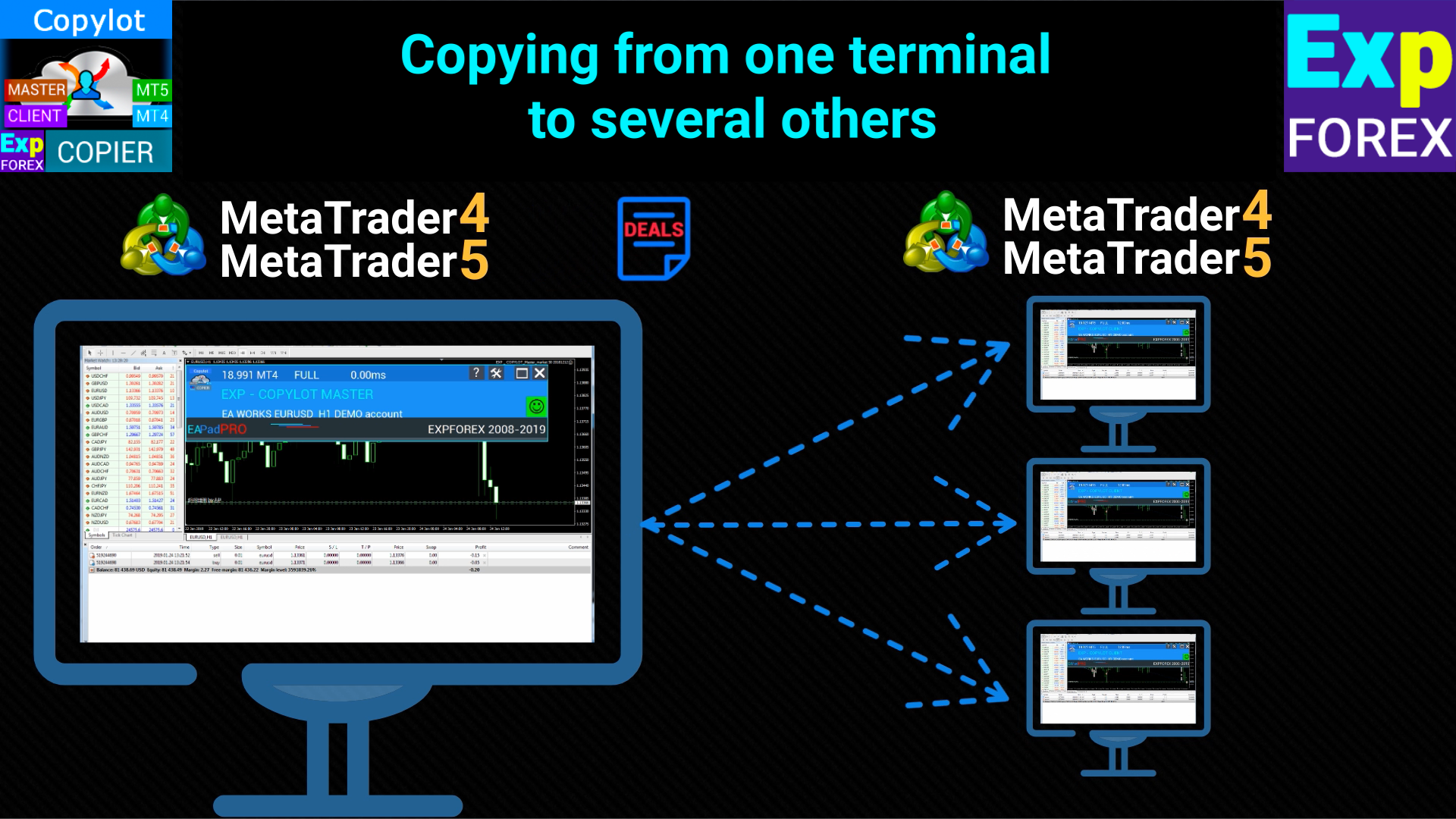
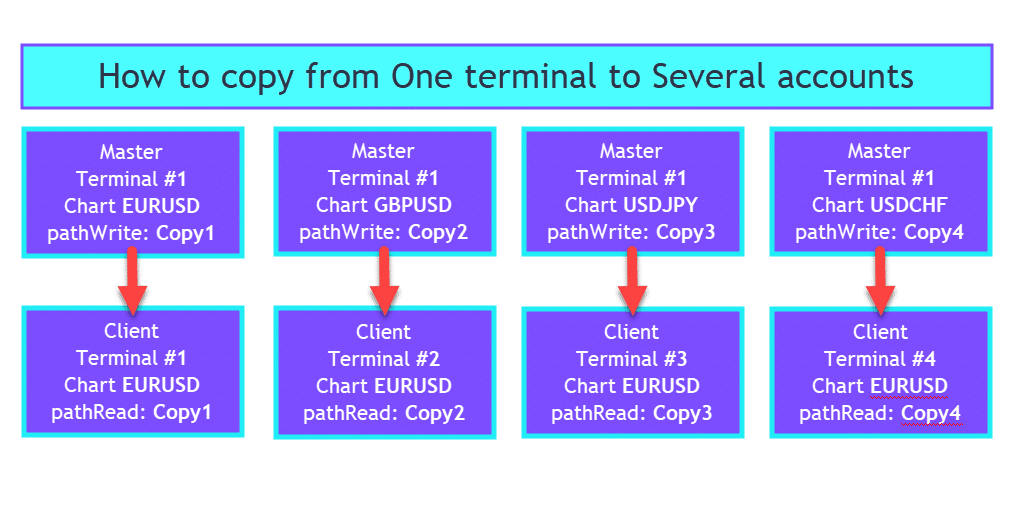
COPYLOT can copy trades from one Master account to several Client accounts.
This is useful when one trading account is used as the source of trades and several other accounts must follow it. For example, one strategy account can broadcast trades to multiple personal accounts, demo accounts, investor accounts or accounts on different brokers.
📡 One Master → Several Clients One Master terminal can broadcast trades to several Client terminals. |
📡 One Master to Many Accounts Scheme This scheme is useful for broadcasting trades from one source account to multiple receivers. |
📥 Copy From Several Masters to One Client
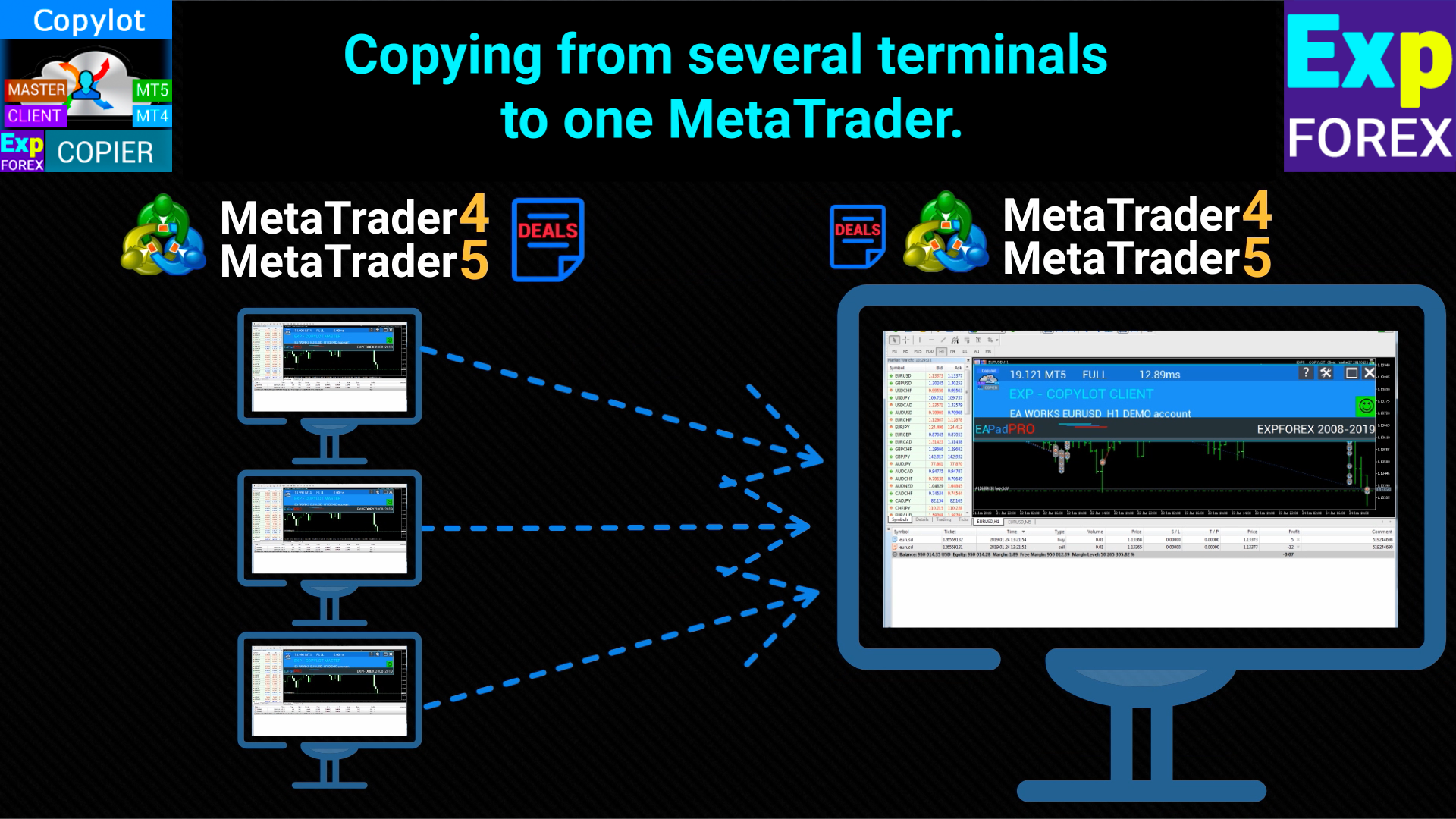
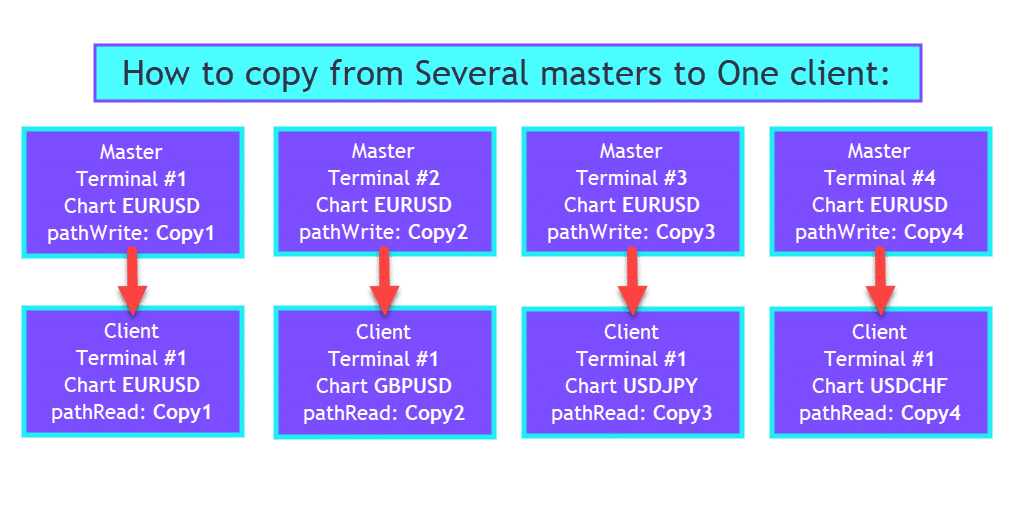
COPYLOT also supports the opposite architecture: several Master terminals can copy trades to one Client account.
This can be useful when you have several strategies or signal sources and want one account to receive them. In this configuration, each Master should use its own copy channel, and the Client terminal should have separate Client charts for each channel.
📥 Several Masters → One Client Several Master terminals can send trades to one Client account when each copy channel is configured separately. |
📥 Many Masters to One Account Scheme Use different pathWrite / pathREAD names for each Master source to avoid mixing signals. |
🧩 Copy Different Expert Advisors With Different Rules
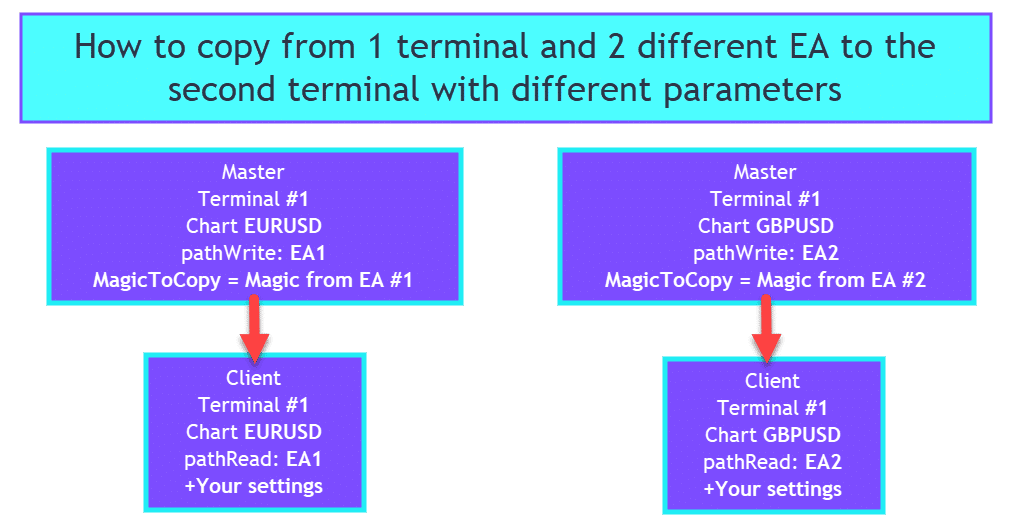
A powerful scenario is copying different Expert Advisors from one Master account to one Client account with different settings.
For example:
- EA #1 uses Magic 111 and should be copied normally.
- EA #2 uses Magic 222 and should be copied in reverse mode.
In this case, you can install two Master instances with different pathWrite names and Magic filters, then install two Client instances with different pathREAD names and different Client settings.
🧩 Different EAs, Different Copy Rules This setup allows different strategies to be copied with different rules: normal, reverse, filtered by Magic, or adjusted by lot. |
📊 Lot Control: Same Lot, Fixed Lot, Coefficient and Balance Ratio
Lot management is one of the most important parts of any copier.
Master and Client accounts may have different balances, leverage, currencies, risk models or broker conditions. COPYLOT allows you to adjust the lot size instead of blindly copying the same volume.
| Lot Mode | Meaning |
| Lot = 0 | Client copies the Master lot. |
| Lot > 0 | Client always opens a fixed lot selected in settings. |
| KoefLot | Client lot is multiplied by a coefficient, for example 0.1, 0.5, 2 or 10. |
| LotRiskFromMaster | Client can calculate lot using the relationship between Master and Client balances. |
| RiskLot | Client can calculate lot from free margin, balance or Stop Loss based on selected risk mode. |
| MinLott / MaxLott | Defines minimum and maximum allowed lot for copied trades. |
Lot Examples
- KoefLot = 0.1 — Client opens 10 times smaller lot than Master.
- KoefLot = 2 — Client opens 2 times larger lot than Master.
- Lot = 0.05 — Client always opens fixed 0.05 lot, regardless of Master lot.
- MinLott / MaxLott — protect Client account from too small or too large copied volumes.
🔃 Reverse Copy: Flip Trade Direction
COPYLOT can reverse copied trades.
For example, if the Master opens BUY, the Client can open SELL. If the Master opens SELL, the Client can open BUY. Pending order types can also be reversed according to the selected logic.
This is an advanced function. It can be used for testing opposite strategies, hedging ideas or special recovery systems, but it must be used carefully because the Client result will be the opposite of the Master direction.
| Master | Client with ReverseCopy |
| BUY | SELL |
| SELL | BUY |
🛡 Stop Loss, Take Profit and Client-Side Management
COPYLOT can copy Stop Loss and Take Profit from the Master account, correct the distances if entry prices are different, or set custom Client-side levels.
This is important because brokers can have different spreads, execution prices, stop levels and symbol specifications.
| Function | Purpose |
| TakeProfitCopy | Copy Take Profit from Master account. |
| StopLossCopy | Copy Stop Loss from Master account. |
| CorrectSLTPbyMaster | Correct SL/TP distances if Master and Client opening prices differ. |
| My_STOPLOSS | Set your own Stop Loss on Client trades. |
| My_TAKEPROFIT | Set your own Take Profit on Client trades. |
| VirtualStopLossTakeProfit | Use virtual Stop Loss and Take Profit on Client side. |
| TrailingStopUSE | Enable trailing stop for copied positions. |
| Breakeven | Enable breakeven logic on copied positions. |
✂ Partial Close Copying, Including MT5 Update
Partial close is one of the most important functions for modern copy trading.
When the Master closes only part of a position volume, the Client should not close the full trade. It should reduce the copied position volume according to the Master action and the configured copy logic.
In the updated COPYLOT logic, partial close support for MetaTrader 5 has been improved. This is especially important for traders who copy from MT5 to MT5, from MT4 to MT5, or from several sources into one MT5 Client account.
| Scenario | Expected Client Behavior |
| Master closes part of volume | Client reduces the copied position volume instead of closing everything. |
| Master uses several partial closes | Client follows each volume reduction according to the copying logic. |
| MT5 hedging account | Partial close can be tracked through copied position relation and volume changes. |
| MT5 netting account | Requires careful testing because position volume is aggregated by symbol. |
✂ Updated COPYLOT Client MT5 Workflow The Client side monitors copied trades and synchronizes opening, modification, closing and partial volume changes according to the Master state. |
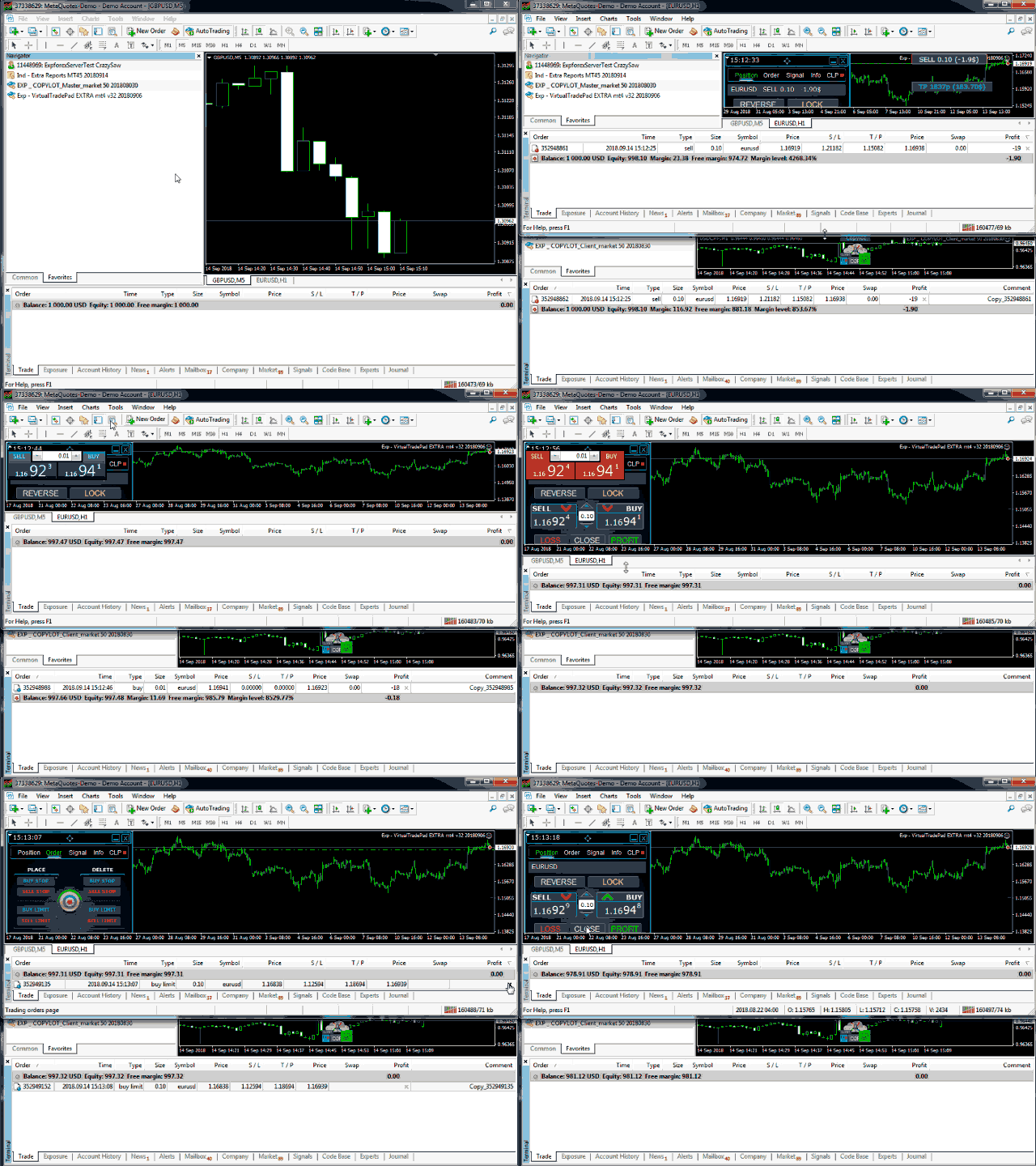
| Important for MT5: partial close behavior depends on account type, broker execution, symbol volume step, hedging/netting mode and exact Master/Client configuration. Always test partial close copying on demo before using it on a real account. |
🔎 Filters: Copy Only What You Need
Not every trade must be copied. COPYLOT includes filters to select exactly which trades should be transferred from Master to Client.
| Filter | Purpose |
| SymbolToCopy | Copy only selected symbols. |
| SymbolNOtToCopy | Exclude selected symbols from copying. |
| MagicToCopy | Copy only selected Magic numbers. |
| MagicToNotCopy | Exclude selected Magic numbers. |
| CommentToCopy | Copy only trades with selected comment text. |
| ProfitCopyOnly | Copy only profitable positions. |
| LossCopyOnly | Copy only losing positions. |
| NewTradeONLY | Copy only trades opened after the Client started. |
| FilterLotMin / FilterLotMax | Copy only positions inside selected lot range. |
🌐 Symbol Suffix, Prefix and Symbol Mapping
Different brokers often use different symbol names.
For example, the Master may trade EURUSD, while the Client broker uses EURUSDm, EURUSD.pro or another suffix. COPYLOT provides tools to solve this.
| Setting | How it helps |
| PreFixSymbol | Allows copying to Client symbols with suffix or prefix. Auto mode can detect suffix from the Client chart symbol. |
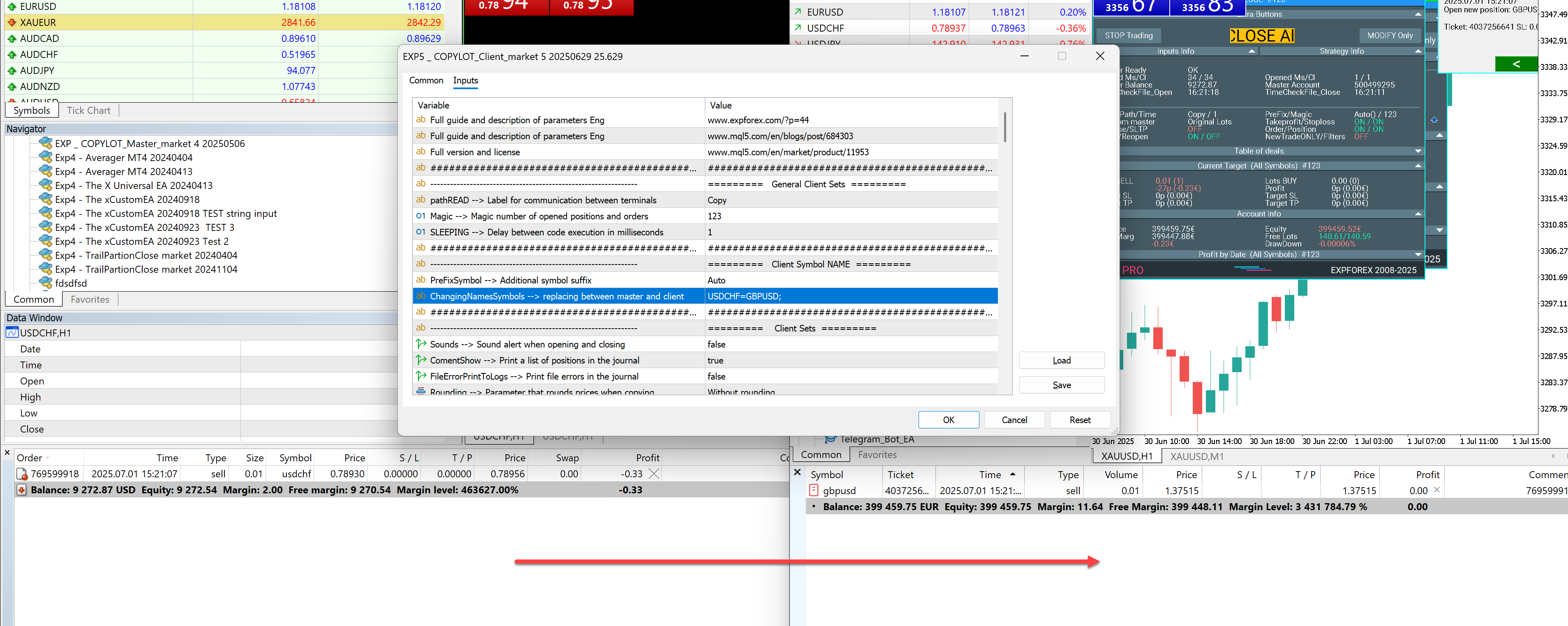
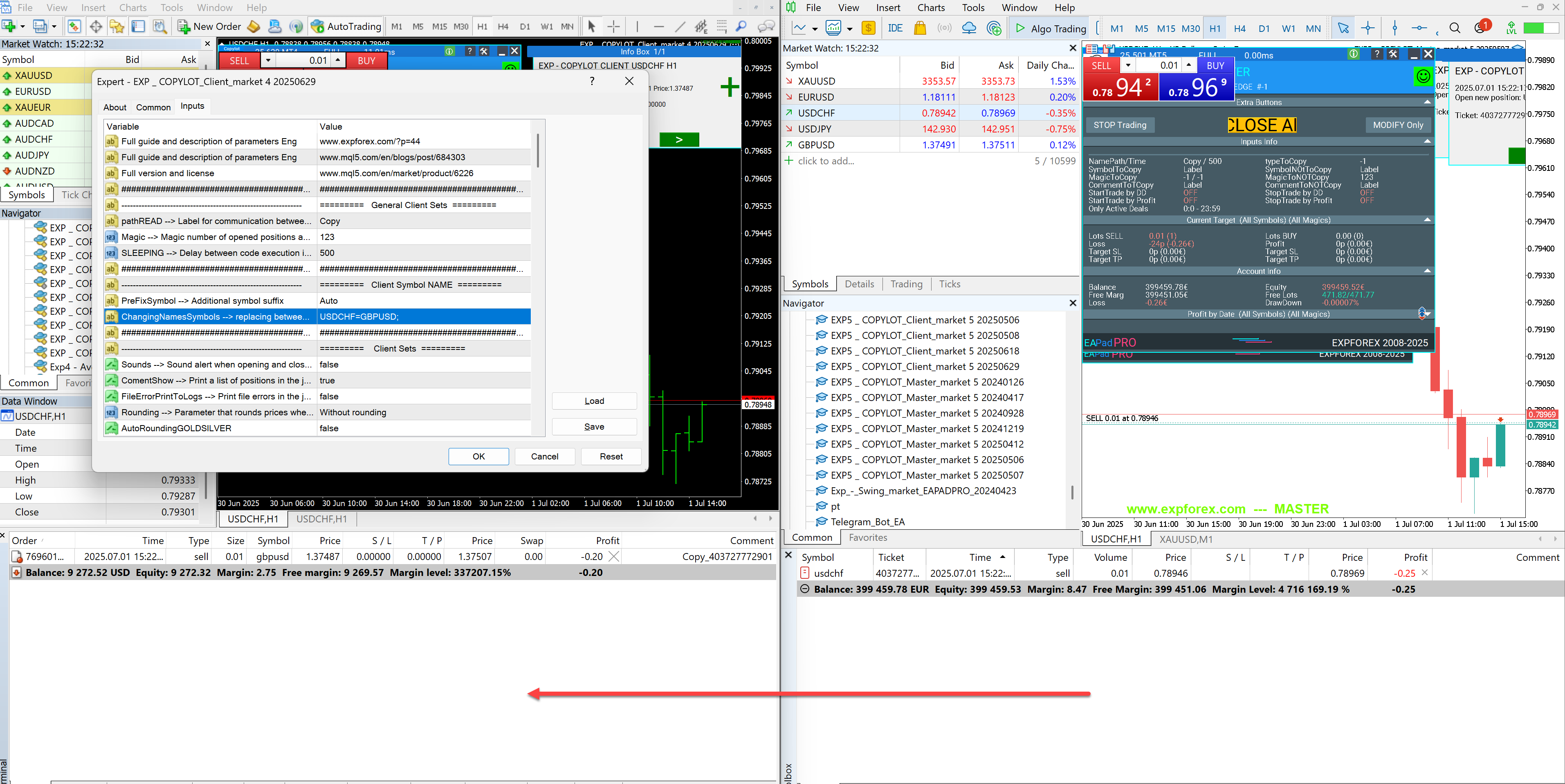
| ChangingNamesSymbols | Manually maps Master symbol names to Client symbol names. |
| Gold / Silver automatic detection | Helps with common differences such as GOLD / XAUUSD and SILVER / XAGUSD. |
Examples
- EURUSD = EURUSDm;
- XAUUSD = GOLD;
- US30 = DJI30;
- EURUSD = GBPUSD; — advanced mapping if you intentionally want another symbol on Client.
| Practical note: do not mix Auto suffix detection with unnecessary manual mappings unless you clearly understand the result. If PreFixSymbol = Auto already detects the Client suffix, extra ChangingNamesSymbols rules can create confusion. |
📌 Pending Orders and Position-to-Order Logic
COPYLOT can copy pending orders or transform positions into pending orders depending on your settings.
This can be useful if the Master price and Client price differ too much, or when you want the Client to enter only if price returns to a more acceptable level.
| Function | Purpose |
| PendingOrdersCopy | Enables copying of pending orders from Master to Client. |
| PricePointSlip | Limits copying if Client price differs from Master price by more than selected points. |
| PositionsToOrders | Can transform Master market positions into Client pending orders when price deviation is too large. |
| OIP_Order_Instead_Position | Opens pending order instead of immediate market position on Client. |
| PendingPrice_adjust | Shifts pending order price from the Master price by selected points. |
⚙ Extra Client Management: Trailing, Breakeven, Limits and TPWCM
COPYLOT is not only a simple copier. The Client side can add its own trade-management rules.
This is useful when you want the Client account to copy entries from the Master but manage exits differently.
| Function | Meaning |
| TrailingStopUSE | Enable trailing stop on copied positions. |
| Breakeven | Move copied positions to breakeven after selected profit. |
| TPWCM_Use | Keep Client positions active after Master closes and manage them separately. |
| LimitFor | Use day / week / month limits for profit or loss control. |
| ClosebyLIMITING | Close copied trades if configured profit/loss limits are exceeded. |
| UseCurrentProfit | Include current floating profit/loss in limit calculations. |
🖥 COPYLOT Interface and Copying Table
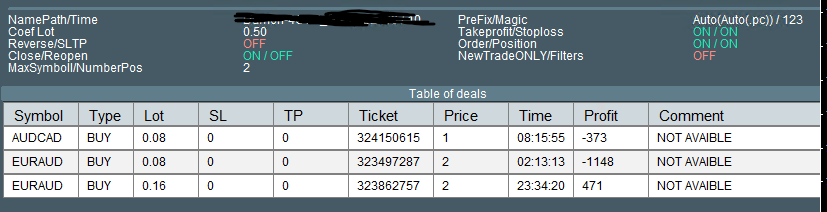
COPYLOT includes an information panel based on the EAPADPRO concept. It helps the user see copying status, Master state, copied deals, ticket relation, SL/TP, profit, copied comments, symbol information and account state directly on the chart.
This is especially important for support and diagnostics because screenshots with the panel visible usually explain much more than a simple message saying “it does not copy”.
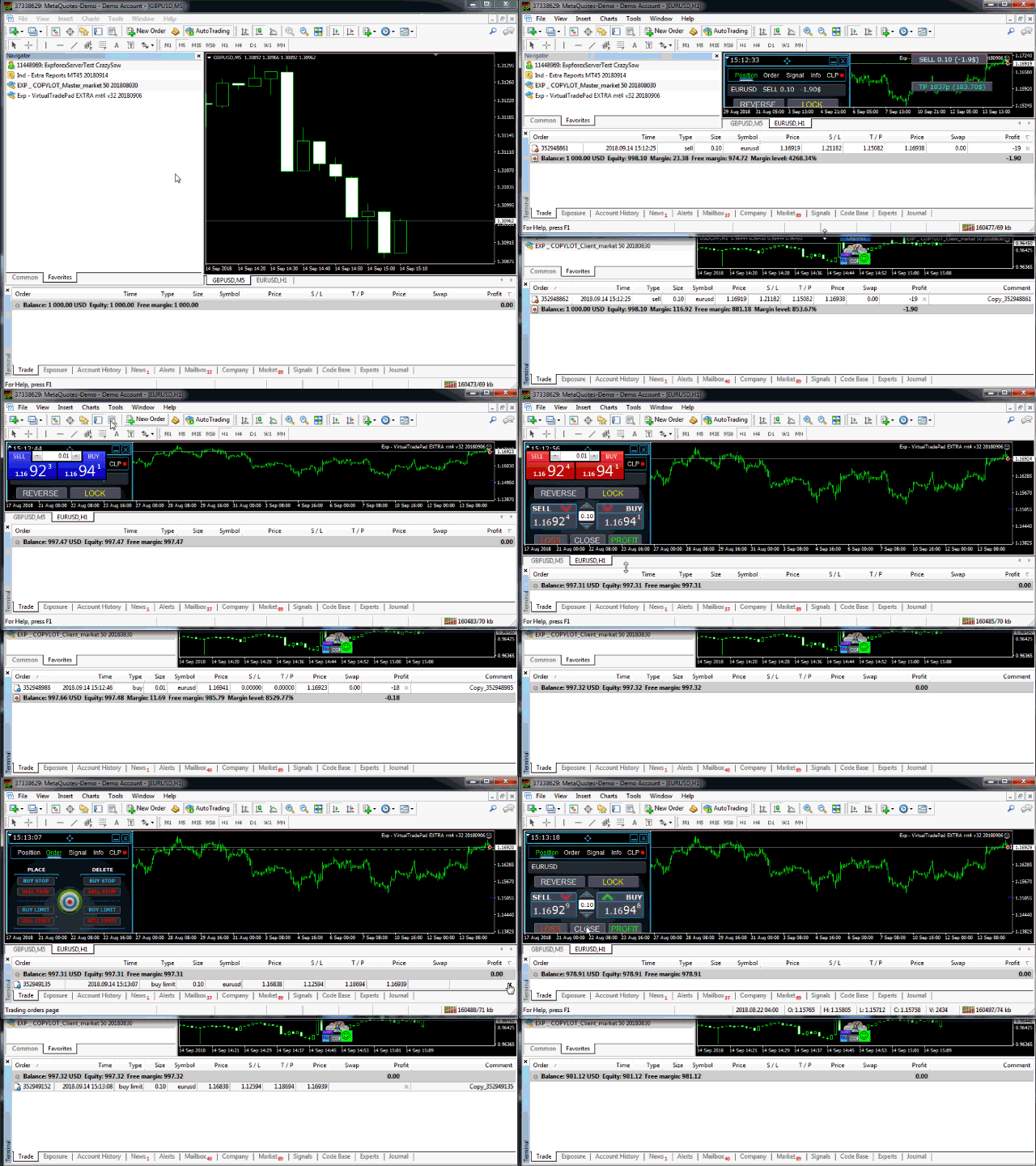
🖥 COPYLOT Working Interface The panel helps monitor copied trades and understand whether the Client is synchronized with the Master. |
🖥 COPYLOT Client MT5 Gallery Example The Client side receives signals from the Master and opens matching positions according to the selected copy settings. |
🚦 Stop Trading and Modify Only
The panel can include control buttons for safer operation.
- Stop Trading — stops the copying algorithm completely: opening, closing, modifying, trailing and breakeven.
- Modify Only — stops opening new trades but allows existing copied trades to be modified, closed or managed.
This is useful when you want to pause new copying without removing the Expert Advisor from the chart.
🧪 What to Test Before Real Trading
COPYLOT can be very powerful, but every broker and account can behave differently. Always test the full workflow before real trading.
| Test | Why it matters |
| Open market BUY / SELL | Check that basic copying works. |
| Modify SL / TP | Check that the Client follows Master modifications. |
| Close position | Check that Client closes when Master closes. |
| Partial close | Check that Client reduces volume correctly, especially on MT5. |
| Pending orders | Check that pending orders are copied or filtered according to settings. |
| Different symbols / suffix | Check PreFixSymbol and ChangingNamesSymbols logic. |
| Lot coefficient | Check that copied lot matches your risk model. |
| Reverse mode | Check that direction and SL/TP logic are correct. |
⚠ Important Rules Before Using COPYLOT
|
🌐 Broker, VPS and Performance Recommendations
COPYLOT can copy quickly, but final execution is always affected by the trading environment.
✅ Recommended
| ⚠ Check Carefully
|
🛠 How to Start COPYLOT Correctly
| Step | Action |
| 1 | Install the required COPYLOT Master version on the source terminal. |
| 2 | Install the required COPYLOT Client version on the destination terminal. |
| 3 | Attach each EA to one clean chart. The chart symbol and timeframe are not critical for copying all symbols. |
| 4 | Set the same copy channel: pathWrite on Master and pathREAD on Client. |
| 5 | Enable AutoTrading and Allow Live Trading in all terminals. |
| 6 | Configure lot logic, symbol suffix, Magic filters and copy modes. |
| 7 | Open one small test trade on Master and verify Client behavior. |
| 8 | Test modification, close, partial close, SL/TP copying and pending orders. |
| 9 | Check Experts and Journal logs if something is not copied. |
| 10 | Use real volume only after the full workflow is tested and stable. |
🔗 Useful Links🔹 Buy / Rent COPYLOT Master MT4 🔹 Buy / Rent COPYLOT Client MT4 🔹 Buy / Rent COPYLOT Master MT5 |
🆚 COPYLOT vs Exp-Duplicator
COPYLOT and Duplicator solve different tasks. This distinction is important.
| COPYLOT | Exp-Duplicator |
| Copies trades between different MetaTrader terminals or accounts. | Duplicates positions inside one MetaTrader terminal/account. |
| Uses Master / Client architecture. | Monitors source positions inside the same account. |
| Useful for account-to-account copying. | Useful for increasing, reducing or repeating trades inside one account. |
| Can copy from one terminal to many or from many terminals to one. | Creates additional duplicate positions from existing positions. |
| Best choice for trade copier networks. | Best choice for local duplication inside one terminal. |
📌 Practical Recommendations
- Start with one Master and one Client.
- Use the same pathWrite and pathREAD name only for one connected pair.
- Use different channel names for different Master sources.
- Check suffix and symbol mapping before copying real trades.
- Test lot settings with small volume.
- Use NewTradeONLY if you do not want old Master trades copied after Client launch.
- Use MaxPosBySymbol, MaxOrderBySymbol and MaxSymboll to reduce risk.
- Do not copy high-frequency strategies where very small delays change the result.
- Use a VPS for continuous copying.
- Check logs when a trade is not copied: Experts and Journal tabs are essential for diagnostics.
⚠ Risk Warning
| Trading Forex and CFDs involves risk. COPYLOT is a trade-copying utility. It can copy positions, orders, lot sizes, partial closes, Stop Loss, Take Profit and closing operations, but it cannot guarantee profit or protect from market risk. Final results depend on broker execution, spread, slippage, connection quality, VPS stability, account type, symbol specifications and your own settings. |
🏁 Final Thoughts
COPYLOT is one of the most important Expforex utilities for traders who need professional copying between MetaTrader terminals.
It can connect MT4 and MT5 accounts, synchronize trades between brokers, copy from one account to many, collect trades from many Masters into one Client, adjust lot sizes, reverse trades, filter symbols and Magic numbers, copy SL/TP, manage Client-side exits and support updated partial close workflows in MT5.
If you need a serious local trade copier for MetaTrader, COPYLOT is not just a simple “copy trade” tool. It is a complete copying system for different trading architectures.
🚀 Start Using COPYLOTDownload the demo, install Master and Client, set the same copy channel, test your broker environment and start building your MetaTrader copying network. |
| ▶ Watch Video | 📘 Full Instruction |
| 💎 Master MT5 | 💎 Client MT5 |
| 💎 Master MT4 | 💎 Client MT4 |
| ⬇ Download DEMO + PDF | 🛒 All Expforex Products |
SEO Tags
COPYLOT, Exp COPYLOT, MetaTrader trade copier, MT4 trade copier, MT5 trade copier, Forex copier, local trade copier, MT4 to MT4 copier, MT5 to MT5 copier, MT4 to MT5 copier, MT5 to MT4 copier, Master Client trade copier, copy trades between terminals, copy forex trades, copy positions MetaTrader, copy pending orders, copy Stop Loss, copy Take Profit, partial close copier, MT5 partial close, Master account copier, Client account copier, copy demo to real account, copy Invest password account, reverse copy, lot coefficient copier, balance ratio copier, Magic number filter, symbol suffix copier, ChangingNamesSymbols, PreFixSymbol, copy multiple accounts, one master many clients, many masters one client, Forex signal copier, trade replication tool, Expforex COPYLOT, MQL5 Market copier