

MQL5 Trading Tools (Part 29): Step-by-Step Butterfly Animation on Canvas
 1 533
1 533
 1
1

Introduction
You have a fully detailed and lifelike butterfly rendered on your MetaTrader 5 canvas. The drawing includes layered wing fills, vein lines, scale texture, and a complete anatomical body. However, it appears instantly as a static image, lacking any sense of life or motion. This article is for MetaQuotes Language 5 (MQL5) developers and creative coders who want to move beyond static canvas rendering. You will learn to animate the butterfly through a sequenced lifecycle, from its first outline stroke through to continuous flight.
In our previous article (Part 28), we enhanced the butterfly curve canvas program with three-layer gradient wing fills, radiating vein lines, dense scale-texture dots, and a fully detailed body (abdomen, thorax, head, compound eyes, and antennae). All elements were rendered through a supersampled pipeline for clean anti-aliased output. In this article, we introduce a four-phase animation system. It progressively draws the curve outline, fades in the wing fills, reveals surface details and the body, and then transitions into continuous flight. During flight, we add wing flapping, vertical bobbing, horizontal sway, tilt oscillation, a neon glow bloom effect, and hue-based color cycling. We will cover the following topics:
- Understanding Butterfly Animation Phases and Flight Mechanics
- Implementation in MQL5
- Visualization
- Conclusion
By the end, you will have an animated butterfly that draws itself, fills with color, gains detail, and flies across the MetaTrader 5 canvas. Let's dive in!
Understanding Butterfly Animation Phases and Flight Mechanics
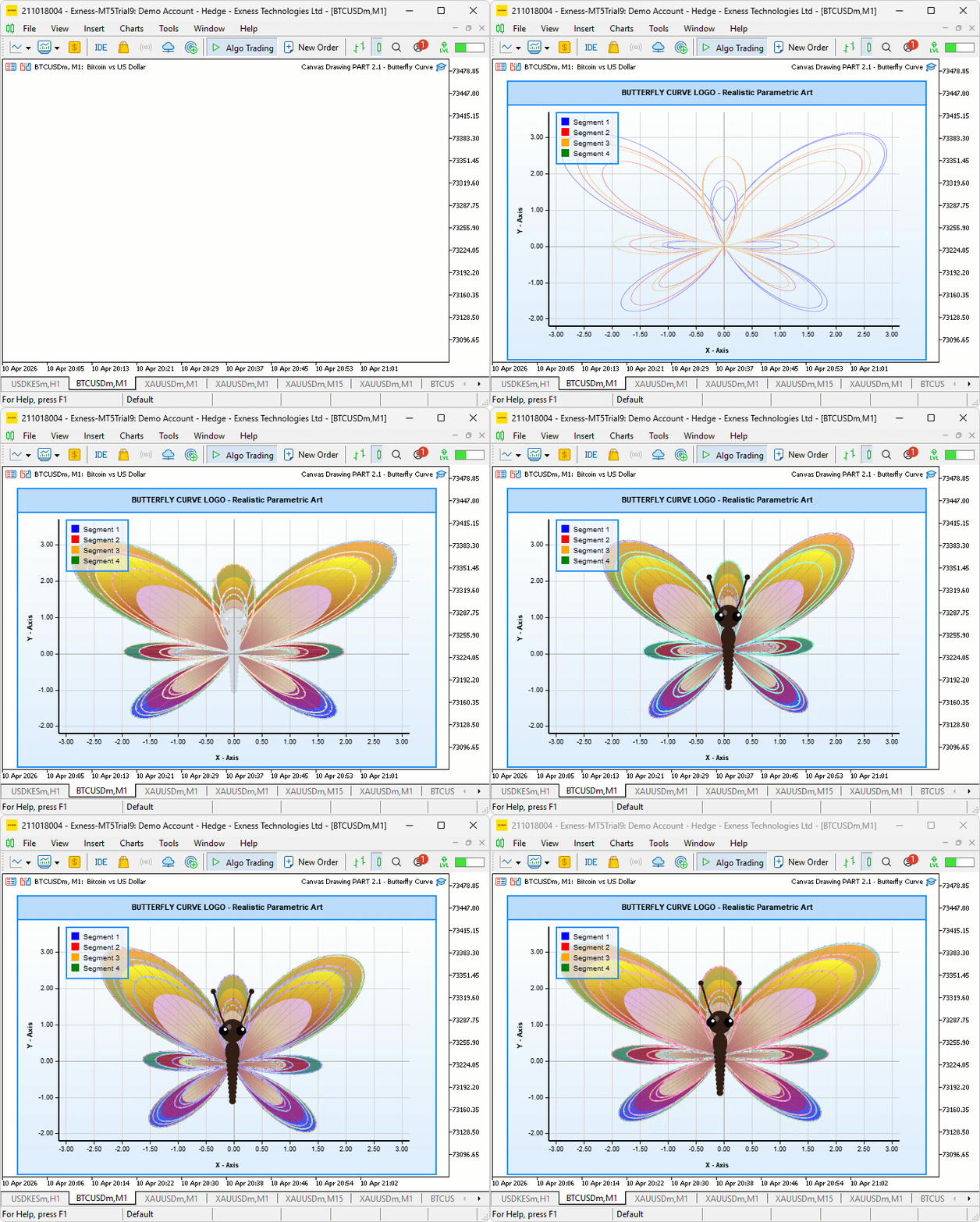
The animation unfolds through four sequential phases: the curve outline draws itself progressively by advancing the parameter t from zero to 12π; then the wing fills fade in from transparent to full opacity; next, the surface detail and body fade in; and finally, the butterfly transitions into continuous flight. Each phase is driven by a millisecond timer that advances the relevant state variable each tick and hands off to the next phase once complete.
The flight system runs four independent oscillators simultaneously. Wing flapping compresses the horizontal spread of every curve point toward the body center using the absolute value of a sine wave, producing the open-close motion of real wings. Vertical bobbing and horizontal sway apply sine offsets to the Y and X coordinates, respectively, making the butterfly rise, fall, and drift. Tilt adds a small shear transform that leans the butterfly slightly as it sways, giving the motion a natural three-dimensional quality.
During flight, we render a neon glow by drawing multiple semi-transparent, offset lines around each wing outline stroke. We also cycle wing colors each frame by converting colors to HSV, advancing the hue, and converting back. This makes the wings pulse as the butterfly flies. We will implement all of this on top of the existing supersampled rendering pipeline, driven entirely by the timer event handler. Here is a visualization of what we will be achieving.
Implementation in MQL5
Adding the Animation Enumeration, Input Parameters, and State Variables
To support the full animation system, we introduce a new enumeration, three new input groups, and a comprehensive set of global animation state variables that together define and track every aspect of the butterfly's lifecycle.
//+------------------------------------------------------------------+
//|                    Canvas Drawing PART 2.1 - Butterfly Curve.mq5 |
//|                           Copyright 2026, Allan Munene Mutiiria. |
//|                                   https://t.me/Forex_Algo_Trader |
//+------------------------------------------------------------------+
#property copyright "Copyright 2026, Allan Munene Mutiiria."
#property link      "https://t.me/Forex_Algo_Trader"
#property version   "1.00"
#property strict

//---

enum AnimationPhaseEnum
  {
   ANIM_DRAWING_CURVE,  // Phase 1: progressively draw the outline curve
   ANIM_FILLING_WINGS,  // Phase 2: fade wing fill layers in
   ANIM_ADDING_DETAILS, // Phase 3: fade veins, scales, and body in
   ANIM_FLYING          // Phase 4: continuous flying oscillation
  };

input group "=== ANIMATION SETTINGS ==="
input bool   enableAnimation    = true; // Enable Drawing Animation
input int    animationTimerMs   = 30;   // Animation Timer (ms)
input double curveDrawSpeed     = 0.30; // Curve Draw Speed (radians/frame)
input double fillFadeSpeed      = 0.08; // Fill Fade-In Speed (per frame)
input double detailsFadeSpeed   = 0.12; // Details Fade-In Speed (per frame)

input group "=== FLYING ANIMATION SETTINGS ==="
input bool   enableFlyingAnimation   = true;  // Enable Flying After Draw
input double wingFlapSpeed           = 0.24;  // Wing Flap Speed (radians/frame)
input double wingFlapAmplitude       = 0.25;  // Wing Flap Depth (0=none, 0.5=extreme)
input double verticalBobSpeed        = 0.08;  // Vertical Bob Speed (radians/frame)
input double verticalBobAmplitude    = 0.15;  // Vertical Bob Amount (world units)
input double horizontalSwaySpeed     = 0.05;  // Horizontal Sway Speed (radians/frame)
input double horizontalSwayAmplitude = 0.08;  // Horizontal Sway Amount (world units)
input double tiltSwaySpeed           = 0.06;  // Tilt Oscillation Speed
input double tiltSwayAmplitude       = 0.06;  // Tilt Amount (shear factor)

input group "=== BUTTERFLY ENHANCEMENT SETTINGS ==="
input bool   enableCurveGlow     = true;  // Enable Neon Glow On Curves
input int    curveGlowLayers     = 3;     // Glow Bloom Layers (1-5)
input double curveGlowIntensity  = 0.7;   // Glow Intensity (0-1)
input bool   enableColorCycling  = true;  // Enable Wing Color Cycling (Flying)
input double colorCycleSpeed     = 0.02;  // Color Cycle Speed


//+------------------------------------------------------------------+
//| Global Variables - Animation State                               |
//+------------------------------------------------------------------+
AnimationPhaseEnum animationPhase       = ANIM_DRAWING_CURVE; // Current animation phase
double             animationCurveT      = 0.0;                // Current T value reached by the drawing animation
double             animationFillAlpha   = 0.0;                // Current fill opacity during the fill-in phase
double             animationDetailAlpha = 0.0;                // Current detail opacity during the details phase

double flyWingPhase  = 0.0; // Wing flap phase accumulator
double flyBobPhase   = 0.0; // Vertical bob phase accumulator
double flySwayPhase  = 0.0; // Horizontal sway phase accumulator
double flyTiltPhase  = 0.0; // Tilt phase accumulator

double currentWingFlap   = 0.0; // Current wing X-scale factor (0=fully open)
double currentBobOffset  = 0.0; // Current vertical offset in world coordinates
double currentSwayOffset = 0.0; // Current horizontal offset in world coordinates
double currentTiltShear  = 0.0; // Current shear factor for slight tilt
double globalTime        = 0.0; // Master time accumulator for all frame-based effects
double colorCyclePhase   = 0.0; // Hue shift accumulator for color cycling
The "AnimationPhaseEnum" enumeration defines the four sequential states of the animation — curve drawing, wing fill fade-in, detail fade-in, and continuous flight — giving us a clean way to track and switch between phases throughout the program.
The animation settings group introduces a master toggle, a timer interval in milliseconds that controls how often each frame fires, and three speed values that govern how quickly the curve draws itself, how fast the fill fades in, and how fast the detail layer appears. The flying animation group then provides independent speed and amplitude controls for each of the four flight oscillators — wing flapping, vertical bobbing, horizontal sway, and tilt shear — giving full tuning control over the character of the flight motion. The enhancement group rounds out the new inputs with toggles and parameters for the neon glow bloom effect and the color cycling system.
On the global state side, we declare the current animation phase initialized to "ANIM_DRAWING_CURVE", the curve T accumulator that tracks how far the outline has been drawn, and two opacity accumulators for the fill and detail fade-in phases. For the flight system, we declare four phase accumulators — one per oscillator — that advance each frame, and four corresponding output variables that hold the current computed transform values: wing flap scale, vertical bob offset, horizontal sway offset, and tilt shear factor. Finally, a master time accumulator and a hue shift accumulator track the overall frame count and the current color cycle position, respectively. Next, we extend the helper functions to include new helpers that will enable a smooth transition to animated frames. We will start with a helper for rotating wing colors for the curve.
Rotating Wing Colors Through the Hue Spectrum
To power the color cycling effect during flight, we define the "ShiftHue" function, which takes any color and rotates its hue by a given amount without affecting its brightness or saturation — producing a smoothly shifted variant of the original color.
//+------------------------------------------------------------------+
//| Shift a color hue by rotating through HSV space                  |
//+------------------------------------------------------------------+
color ShiftHue(color c, double shift)
  {
   //--- Normalize red channel to 0-1 range
   double r = ((c >> 16) & 0xFF) / 255.0;
   //--- Normalize green channel to 0-1 range
   double g = ((c >>  8) & 0xFF) / 255.0;
   //--- Normalize blue channel to 0-1 range
   double b = ( c        & 0xFF) / 255.0;

   //--- Compute HSV value as the maximum of R, G, B
   double maxC = MathMax(r, MathMax(g, b));
   //--- Compute the minimum channel for saturation calculation
   double minC = MathMin(r, MathMin(g, b));
   //--- Initialize hue and saturation to zero
   double h = 0, s = 0;
   //--- Set value to the maximum channel
   double v = maxC;
   //--- Compute the channel spread
   double d = maxC - minC;

   //--- Compute saturation; avoid division by zero for achromatic colors
   s = (maxC == 0) ? 0 : d / maxC;

   //--- Compute hue only for chromatic colors
   if(d > 0)
     {
      //--- Hue from red sector
      if(maxC == r)
         h = (g - b) / d + (g < b ? 6 : 0);
      //--- Hue from green sector
      else if(maxC == g)
         h = (b - r) / d + 2;
      //--- Hue from blue sector
      else
         h = (r - g) / d + 4;
      //--- Normalize hue to 0-1 range
      h /= 6.0;
     }

   //--- Apply the requested hue shift
   h += shift;
   //--- Wrap hue above 1.0 back into range
   while(h > 1.0) h -= 1.0;
   //--- Wrap hue below 0.0 back into range
   while(h < 0.0) h += 1.0;

   //--- Compute the HSV sector index
   int    hi = (int)(h * 6);
   //--- Compute the fractional part within the sector
   double f2 = h * 6 - hi;
   //--- Precompute HSV intermediate values
   double p = v * (1 - s),   q = v * (1 - f2 * s),   t2 = v * (1 - (1 - f2) * s);
   //--- Initialize output channels to the value
   double ro = v, go = v, bo = v;

   //--- Map HSV sector to RGB output channels
   switch(hi % 6)
     {
      case 0: ro = v;  go = t2; bo = p;  break;
      case 1: ro = q;  go = v;  bo = p;  break;
      case 2: ro = p;  go = v;  bo = t2; break;
      case 3: ro = p;  go = q;  bo = v;  break;
      case 4: ro = t2; go = p;  bo = v;  break;
      case 5: ro = v;  go = p;  bo = q;  break;
     }

   //--- Recompose and return the hue-shifted color
   return ((uchar)(ro * 255) << 16) | ((uchar)(go * 255) << 8) | (uchar)(bo * 255);
  }
We begin by extracting the red, green, and blue channels via bitwise shifts and normalizing each to the 0–1 range. From these, we compute the hue-saturation-value representation of the color. The value is simply the maximum of the three channels, the saturation is the channel spread divided by the value — with a zero guard for achromatic colors — and the hue is derived by identifying which channel is dominant and computing the angular position within its 60-degree sector of the color wheel, then normalizing the result to a 0–1 range covering the full 360 degrees.
With the hue extracted, we add the shift value directly to it and wrap the result back into the 0–1 range using a simple loop, ensuring the hue always stays within bounds regardless of how many full rotations the cycle accumulator has accumulated over time.
Converting back to red, green, and blue requires mapping the shifted hue to one of six sectors of the color wheel. We compute the sector index and the fractional position within it, then derive three intermediate values — p, q, and t2 — from the saturation and value, which represent the channel levels at the sector boundaries. A switch statement then assigns these intermediates to the output red, green, and blue channels according to which sector the hue falls in, covering all six transitions around the wheel. The final channels are scaled back to the 0–255 range and recomposed into a single color value. Called once per wing segment per frame with the slowly advancing color cycle phase, this function is what gives the flying butterfly its continuously shifting wing colors. Next, we define helper functions for glow rendering and flight.
Glow Rendering and the Flying Transform
These two functions handle the visual bloom effect and the core geometric transformation that drives all flight motion — one paints soft radial halos onto the canvas, and the other repositions every point on the butterfly each frame.
//+------------------------------------------------------------------+
//| Draw a soft radial glow circle with quadratic falloff            |
//+------------------------------------------------------------------+
void DrawGlowCircle(CCanvas &canvas, int cx, int cy, int radius, color clr, uchar maxAlpha)
  {
   //--- Iterate over every row within the bounding box of the glow circle
   for(int dy = -radius; dy <= radius; dy++)
     {
      //--- Iterate over every column within the bounding box
      for(int dx = -radius; dx <= radius; dx++)
        {
         //--- Compute the exact Euclidean distance from the center
         double dist = MathSqrt((double)(dx * dx + dy * dy));
         //--- Process only pixels within the glow radius
         if(dist <= radius)
           {
            //--- Compute linear falloff factor (1 at center, 0 at edge)
            double f = 1.0 - dist / (double)radius;
            //--- Apply quadratic falloff for a soft bloom appearance
            f = f * f;
            //--- Scale max alpha by the falloff factor
            uchar a = (uchar)(maxAlpha * f);
            //--- Skip fully transparent pixels for performance
            if(a > 0)
              {
               //--- Compute the absolute pixel X coordinate
               int px = cx + dx;
               //--- Compute the absolute pixel Y coordinate
               int py = cy + dy;
               //--- Write the pixel only if it lies within canvas bounds
               if(px >= 0 && px < canvas.Width() && py >= 0 && py < canvas.Height())
                  canvas.PixelSet(px, py, ColorToARGB(clr, a));
              }
           }
        }
     }
  }

//+------------------------------------------------------------------+
//| Apply flying transform to a world-space point                    |
//+------------------------------------------------------------------+
void ApplyFlyingTransform(double &x, double &y)
  {
   //--- Compute wing flap scale: 1.0 = fully open, reduces by flap amplitude
   double flapScale = 1.0 - currentWingFlap;
   //--- Scale X distance from the body center axis to simulate wing flapping
   x = x * flapScale;

   //--- Apply vertical shear proportional to X distance for organic tilt
   y = y + x * currentTiltShear;

   //--- Translate horizontally by the sway offset
   x += currentSwayOffset;
   //--- Translate vertically by the bob offset
   y += currentBobOffset;
  }
The "DrawGlowCircle" function iterates over every pixel within the bounding box of the given radius, computing the exact Euclidean distance from the center with the MathSqrt function. For pixels within the radius, we compute a linear falloff factor from 1.0 at the center down to 0.0 at the edge, then square it to apply a quadratic falloff — this squaring is what gives the glow its soft, gradual fade rather than a harsh linear drop. The resulting factor scales the maximum alpha to produce a per-pixel transparency, and any pixel with a non-zero alpha is written to the canvas with the PixelSet method. Pixels that fall fully transparent are skipped entirely for performance. This function supports the broader glow infrastructure used alongside the line-based bloom passes in the curve drawing loop.
The "ApplyFlyingTransform" function is the single point through which all flight motion flows. It takes a world-space coordinate pair by reference and modifies it in place through four sequential operations. First, the X coordinate is scaled toward zero by the current wing flap factor — since the body sits at the origin, scaling X compresses all wing points inward symmetrically, simulating the closing of the wings. Next, a small X-proportional offset is added to Y using the current tilt shear, introducing a lean that makes points farther from the body axis shift more vertically — giving the tilt its organic, perspective-like quality.
Finally, the horizontal sway and vertical bob offsets are added to X and Y, respectively, translating the entire butterfly through space. Every point on the curve, every vein endpoint, every scale dot, and the body center all pass through this function during the flying phase, ensuring the whole butterfly moves as a single coherent shape. Next, we collect the butterfly points, which will serve as the entire source of curve data.
Centralizing Point Collection With Optional Flying Transform
Rather than repeating the curve evaluation and coordinate mapping logic in multiple places as we did previously, we now consolidate everything into the "CollectButterflyPoints" function, which serves as the single source of curve data for the entire rendering pipeline.
//+------------------------------------------------------------------+
//| Collect full butterfly curve points with optional flying transform|
//+------------------------------------------------------------------+
int CollectButterflyPoints(double tEnd, double &xWorld[], double &yWorld[],
                           double &xPx[], double &yPx[],
                           double rangeX, double rangeY, int plotW, int plotH,
                           bool applyFlying, double &outMaxDist, double &outCX, double &outCY)
  {
   //--- Estimate the maximum number of points to pre-allocate arrays
   int est = (int)((tEnd - butterflyTStart) / butterflyTStep) + 2;
   //--- Ensure at least one slot is allocated
   if(est < 1) est = 1;

   //--- Pre-allocate world-space and pixel-space coordinate arrays
   ArrayResize(xWorld, est); ArrayResize(yWorld, est);
   ArrayResize(xPx,    est); ArrayResize(yPx,    est);

   //--- Initialize point counter
   int count = 0;
   //--- Initialize the maximum radial distance from center
   outMaxDist = 0;

   //--- Compute the wing center at the world-space origin
   double cx = 0, cy = 0;
   //--- Apply flying transform to the center if in flying phase
   if(applyFlying) ApplyFlyingTransform(cx, cy);

   //--- Map the transformed center X to a pixel column
   outCX = (cx - butterflyMinX) / rangeX * plotW;
   //--- Map the transformed center Y to a pixel row (inverted axis)
   outCY = (butterflyMaxY - cy) / rangeY * plotH;

   //--- Traverse the parametric domain and collect valid curve points
   for(double t = butterflyTStart; t <= tEnd; t += butterflyTStep)
     {
      //--- Evaluate the butterfly radial term at this T
      double term = MathExp(MathCos(t)) - 2 * MathCos(4 * t) - MathPow(MathSin(t / 12), 5);
      //--- Compute X world coordinate
      double x = MathSin(t) * term;
      //--- Compute Y world coordinate
      double y = MathCos(t) * term;
      //--- Skip invalid coordinate pairs
      if(!MathIsValidNumber(x) || !MathIsValidNumber(y)) continue;

      //--- Store the raw world-space coordinates
      xWorld[count] = x;
      yWorld[count] = y;

      //--- Copy world coordinates for optional transform
      double wx = x, wy = y;
      //--- Apply flying transform to pixel-mapped coordinates if required
      if(applyFlying) ApplyFlyingTransform(wx, wy);

      //--- Map the (possibly transformed) X to a pixel column
      xPx[count] = (wx - butterflyMinX) / rangeX * plotW;
      //--- Map the (possibly transformed) Y to a pixel row (inverted axis)
      yPx[count] = (butterflyMaxY - wy) / rangeY * plotH;

      //--- Compute radial distance of this pixel point from the wing center
      double dist = MathSqrt(MathPow(xPx[count] - outCX, 2) + MathPow(yPx[count] - outCY, 2));
      //--- Update the maximum distance for gradient normalization
      outMaxDist = MathMax(outMaxDist, dist);
      //--- Increment the valid point count
      count++;
     }

   //--- Trim all arrays to the exact number of valid points collected
   ArrayResize(xWorld, count); ArrayResize(yWorld, count);
   ArrayResize(xPx,    count); ArrayResize(yPx,    count);

   //--- Return the total number of valid points collected
   return count;
  }
Here, we open by estimating the maximum point count from the T range and step size and pre-allocating all four coordinate arrays — world-space X and Y, and pixel-space X and Y — with ArrayResize to avoid repeated reallocations during the collection loop. The wing center is computed at the world-space origin and optionally passed through "ApplyFlyingTransform" before being mapped to pixel coordinates, ensuring that the center reference used for radial gradient normalization and scale dot distance calculations always matches the transformed butterfly position rather than the static origin.
The loop traverses the parametric domain from the start to the specified "tEnd". During the curve-drawing phase, "tEnd" may cover only a partial range. At each step, the butterfly equation is evaluated, invalid points are skipped, and the raw world coordinates are stored in the world arrays. A copy of those coordinates is then optionally transformed through "ApplyFlyingTransform" before being mapped to pixel space and stored in the pixel arrays.
The radial distance from the transformed center is computed for each pixel point using MathSqrt, and the maximum distance is tracked via MathMax for use as the radial gradient normalization reference. Once the loop completes, all four arrays are trimmed to the exact valid count, and the function returns that count. Every subsequent rendering step — fills, outlines, veins, scales, and body — draws from the arrays this function produces, keeping the data consistent across the entire frame. That is all for the new helpers. We will now extend or overhaul the existing helpers to support the new animation system. We will begin with the helper for getting the wing color. Where necessary, we will be adding highlights for clarity.
Extending Wing Color Resolution With Hue Cycling
This is a small but meaningful update to the existing "GetWingColorForT" function. The segment boundary comparisons and color selection logic remain exactly as before, but we now add one new step before returning.
//+------------------------------------------------------------------+
//| Resolve wing curve color for a given parametric T value          |
//+------------------------------------------------------------------+
color GetWingColorForT(double tParameter)
  {
   //--- Select base color by T segment position
   color base;
   if     (tParameter <= 3.0 * M_PI) base = blueCurveColor;    // Segment 1: blue
   else if(tParameter <= 6.0 * M_PI) base = redCurveColor;     // Segment 2: red
   else if(tParameter <= 9.0 * M_PI) base = orangeCurveColor;  // Segment 3: orange
   else                               base = greenCurveColor;  // Segment 4: green

   //--- Apply hue shift during flying phase if color cycling is enabled
   if(enableColorCycling && animationPhase == ANIM_FLYING)
      base = ShiftHue(base, colorCyclePhase);

   //--- Return the resolved wing segment color
   return base;
  }
Previously, the function returned the segment color directly. Now, after selecting the base color, we check whether color cycling is enabled and whether the current animation phase is "ANIM_FLYING" — and only if both conditions are true do we pass the base color through "ShiftHue" with the current cycle phase accumulator before returning it. This means the color cycling is strictly confined to the flight phase and has no effect during the drawing, filling, or detail phases, keeping those earlier stages visually clean and consistent. Since "GetWingColorForT" is called for every scale dot placed along the wing boundary, this single addition is enough to make the entire scale texture shift in color in sync with the outline curves during flight. With that done, our next target is the veins helper, so they move in sync with the flight transform.
Updating Wing Veins and Scales for Animation Support
Both "DrawWingVeins" and "DrawWingScales" carry over their core drawing logic from the previous part unchanged, but each receives two targeted additions to integrate them into the animation system.
//+------------------------------------------------------------------+
//| Draw anti-aliased wing vein lines radiating from the body center |
//+------------------------------------------------------------------+
void DrawWingVeins(CCanvas &canvas, double &xPts[], double &yPts[], int ptCount,
                   double rangeX, double rangeY, int plotW, int plotH, double opMul = 1.0)
  {
   //--- Skip drawing if wing veins have been disabled by the user
   if(!showButterflyWingVeins) return;

   //--- Initialize body center in world space at the origin
   double bcx = 0, bcy = 0;
   //--- Apply flying transform to the body center if in flying phase
   if(animationPhase == ANIM_FLYING) ApplyFlyingTransform(bcx, bcy);

   //--- Map the transformed body center X to a pixel column
   int cxPx = (int)((bcx - butterflyMinX) / rangeX * plotW);
   //--- Map the transformed body center Y to a pixel row (inverted axis)
   int cyPx = (int)((butterflyMaxY - bcy) / rangeY * plotH);

   //--- Set vein color as a darkened body color scaled by opacity multiplier
   uint argbVein = ColorToARGB(DarkenColor(butterflyBodyColor, 0.2),
                               (uchar)(150 * butterflyWingOpacity * opMul));

   //--- Sample wing edge points at regular intervals to define vein endpoints
   for(int i = 0; i < ptCount; i += 50)
     {
      //--- Get the world-space X coordinate of this wing edge sample
      double wx = xPts[i];
      //--- Get the world-space Y coordinate of this wing edge sample
      double wy = yPts[i];
      //--- Apply flying transform to the wing edge point if in flying phase
      if(animationPhase == ANIM_FLYING) ApplyFlyingTransform(wx, wy);

      //--- Map the transformed wing point X to a pixel column
      int px = (int)((wx - butterflyMinX) / rangeX * plotW);
      //--- Map the transformed wing point Y to a pixel row (inverted axis)
      int py = (int)((butterflyMaxY - wy) / rangeY * plotH);

      //--- Draw an anti-aliased vein line from the body center to the wing edge
      canvas.LineAA(cxPx, cyPx, px, py, argbVein);
     }
  }

//+------------------------------------------------------------------+
//| Draw wing scale texture dots along and inside the wing boundary  |
//+------------------------------------------------------------------+
void DrawWingScales(CCanvas &canvas, double &xCoords[], double &yCoords[],
                    int ptCount, double rangeX, double rangeY,
                    int plotW, int plotH,
                    double ctrX, double ctrY, double maxDist, double opMul = 1.0)
  {
   //--- Skip drawing if wing scales have been disabled by the user
   if(!showButterflyWingScales) return;

   //--- Sample wing edge points at a dense interval for scale placement
   for(int i = 0; i < ptCount; i += 4)
     {
      //--- Get the world-space X coordinate of this scale sample
      double wx = xCoords[i];
      //--- Get the world-space Y coordinate of this scale sample
      double wy = yCoords[i];
      //--- Apply flying transform to the scale point if in flying phase
      if(animationPhase == ANIM_FLYING) ApplyFlyingTransform(wx, wy);

      //--- Map the transformed scale point X to a pixel column
      double pixelX = (wx - butterflyMinX) / rangeX * plotW;
      //--- Map the transformed scale point Y to a pixel row (inverted axis)
      double pixelY = (butterflyMaxY - wy) / rangeY * plotH;

      //--- Reconstruct the approximate T parameter for this point index
      double tP = butterflyTStart + (double)i * butterflyTStep;
      //--- Resolve the wing segment color for this T value (with cycling support)
      color baseColor = GetWingColorForT(tP);

      //--- Compute the radial distance of this scale from the wing center
      double dist = MathSqrt(MathPow(pixelX - ctrX, 2) + MathPow(pixelY - ctrY, 2));
      //--- Normalize distance to a 0-1 blend factor
      double factor = (maxDist > 0) ? dist / maxDist : 0;
      //--- Blend the base color slightly toward white for a shimmering edge effect
      color scaleColor = InterpolateColors(baseColor, LightenColor(baseColor, 0.2), factor);

      //--- Convert scale color to ARGB with wing opacity and multiplier applied
      uint argbScale = ColorToARGB(scaleColor, (uchar)(180 * butterflyWingOpacity * opMul));
      //--- Vary scale dot radius slightly based on point index for organic texture
      int radius = 2 + (i % 3);
      //--- Draw the primary scale dot on the wing boundary
      DrawFilledCircle(canvas, (int)pixelX, (int)pixelY, radius, argbScale);

      //--- Compute a vector from the wing center to this scale point
      double dx = pixelX - ctrX, dy = pixelY - ctrY;
      //--- Compute the vector magnitude for normalization
      double norm = MathSqrt(dx * dx + dy * dy);
      //--- Add a second inward-offset scale dot only if the vector is non-degenerate
      if(norm > 0)
        {
         //--- Normalize the X component of the inward direction
         dx /= norm;
         //--- Normalize the Y component of the inward direction
         dy /= norm;
         //--- Draw a secondary inward scale dot slightly smaller for depth
         DrawFilledCircle(canvas,
                          (int)(pixelX - dx * radius * 2),
                          (int)(pixelY - dy * radius * 2),
                          radius - 1, argbScale);
        }
     }
  }
The first change in both functions is the addition of the "opMul" parameter, defaulting to 1.0. This opacity multiplier is folded directly into the alpha calculation for the vein color and scale dot color, respectively — multiplying against the existing opacity values so that during the detail fade-in phase, both layers gradually appear from transparent to fully visible rather than snapping in at full strength.
The second change is the flying transform integration. In "DrawWingVeins", the body center is initialized at the world-space origin and then passed through "ApplyFlyingTransform" if the current phase is "ANIM_FLYING", ensuring the vein root moves with the butterfly rather than staying fixed at the canvas center. Each sampled wing edge point is similarly transformed before being mapped to pixel space, so the vein lines stretch from the correct transformed body center out to the correct transformed wing boundary during flight. "DrawWingScales" applies the same pattern — each scale sample point is copied, transformed if flying, and then mapped to pixel space before the scale dot is placed, keeping the entire scale texture locked to the moving wing surface throughout the animation. Next, we will add animation-aware rendering when drawing the butterfly.
Updating the Main Butterfly Renderer for Animation and Glow
The "DrawRealisticButterfly" function retains all of its existing fill, detail, and outline drawing logic, but receives two significant additions at the top and inside the outline drawing loop — phase-aware rendering control and the neon glow system.
//+------------------------------------------------------------------+
//| Render filled, outlined, and detailed butterfly with animation   |
//+------------------------------------------------------------------+
void DrawRealisticButterfly(CCanvas &canvas, int plotWidth, int plotHeight,
                             double rangeX, double rangeY)
  {
   //--- Set defaults: use full curve range and full opacity for both fills and details
   double effectiveTEnd       = butterflyTEnd;
   double effectiveFillOp     = 1.0;
   double effectiveDetailOp   = 1.0;
   bool   drawFills           = true;
   bool   drawDetails         = true;
   //--- Determine whether flying transform should be applied this frame
   bool   applyFlying         = (animationPhase == ANIM_FLYING);

   //--- Adjust draw parameters according to the current animation phase
   switch(animationPhase)
     {
      case ANIM_DRAWING_CURVE:
         //--- Limit curve drawing to the current animation T progress
         effectiveTEnd = animationCurveT;
         //--- Suppress fills and details during the curve-drawing phase
         drawFills = false; drawDetails = false;
         break;
      case ANIM_FILLING_WINGS:
         //--- Scale fill opacity by the current fill fade progress
         effectiveFillOp = animationFillAlpha;
         //--- Suppress details until filling is complete
         drawDetails = false;
         break;
      case ANIM_ADDING_DETAILS:
         //--- Scale detail opacity by the current details fade progress
         effectiveDetailOp = animationDetailAlpha;
         break;
      case ANIM_FLYING:
         //--- Use full opacity for all elements during flying
         break;
     }

   //--- EXISTING LOGIC

   //--- Draw each of the four wing outline color segments
   for(int s = 0; s < 4; s++)
     {
      //--- Get the T start value for this segment
      double sFrom = segBounds[s];
      //--- Clamp the T end value to the current animation progress
      double sTo   = MathMin(segBounds[s + 1], effectiveTEnd);
      //--- Skip segments that have not yet been reached by the animation
      if(sFrom >= effectiveTEnd) break;

      //--- Retrieve the base color for this segment
      color curveClr = segBaseColors[s];
      //--- Apply color cycling if in flying phase and cycling is enabled
      if(enableColorCycling && animationPhase == ANIM_FLYING)
         curveClr = ShiftHue(curveClr, colorCyclePhase);
      //--- Convert segment color to fully opaque ARGB
      uint segARGB = ColorToARGB(curveClr, 255);

      //--- Initialize previous pixel coordinates for connectivity
      double prevPx = -1, prevPy = -1;

      //--- Traverse this segment's T range to draw the outline
      for(double t = sFrom; t <= sTo; t += butterflyTStep)
        {
         //--- Evaluate the butterfly radial term at this T
         double term = MathExp(MathCos(t)) - 2 * MathCos(4 * t) - MathPow(MathSin(t / 12), 5);
         //--- Compute X world coordinate
         double x = MathSin(t) * term;
         //--- Compute Y world coordinate
         double y = MathCos(t) * term;
         //--- Reset connectivity on invalid points
         if(!MathIsValidNumber(x) || !MathIsValidNumber(y))
           {
            prevPx = -1; prevPy = -1; continue;
           }
         //--- Apply flying transform to the curve point if in flying phase
         if(applyFlying) ApplyFlyingTransform(x, y);

         //--- Map X to pixel column
         double cpx = (x - butterflyMinX) / rangeX * plotWidth;
         //--- Map Y to pixel row (inverted axis)
         double cpy = (butterflyMaxY - y) / rangeY * plotHeight;
         //--- Round to nearest integer pixel coordinate
         int ix = (int)MathRound(cpx), iy = (int)MathRound(cpy);

         //--- Draw the segment line only if a valid previous point exists
         if(prevPx >= 0 && prevPy >= 0)
           {
            //--- Store rounded previous pixel coordinates
            int px1 = (int)MathRound(prevPx), py1 = (int)MathRound(prevPy);

            //--- Draw neon glow bloom layers behind the core line if enabled
            if(enableCurveGlow)
              {
               //--- Iterate from outermost to innermost glow layer
               for(int g = curveGlowLayers; g >= 1; g--)
                 {
                  //--- Compute alpha for this bloom layer (diminishes with layer)
                  uchar ga = (uchar)(25 * curveGlowIntensity / g);
                  //--- Skip layers that are effectively invisible
                  if(ga < 2) continue;
                  //--- Convert glow color to ARGB with computed bloom alpha
                  uint gc = ColorToARGB(curveClr, ga);
                  //--- Draw offset lines around the core to simulate glow spread
                  for(int off = -g; off <= g; off++)
                    {
                     //--- Horizontal offset glow pass
                     canvas.LineAA(px1 + off, py1, ix + off, iy, gc);
                     //--- Vertical offset glow pass
                     canvas.LineAA(px1, py1 + off, ix, iy + off, gc);
                    }
                 }
               //--- Compute a brightened center highlight color for the hot core
               color bright = LightenColor(curveClr, 0.5);
               //--- Draw the white-hot center highlight over the bloom layers
               canvas.LineAA(px1, py1, ix, iy,
                             ColorToARGB(bright, (uchar)(150 * curveGlowIntensity)));
              }

            //--- Draw the primary anti-aliased outline line
            canvas.LineAA(px1, py1, ix, iy, segARGB);
            //--- Draw the offset line for additional visual thickness
            canvas.LineAA(px1 + 1, py1, ix + 1, iy, segARGB);
           }
         //--- Store current pixel X for next iteration
         prevPx = cpx;
         //--- Store current pixel Y for next iteration
         prevPy = cpy;
        }
     }
   //--- EXISTING LOGIC
  }
At the top of the function, we now declare a set of effective rendering parameters before any drawing begins. The effective T end, fill opacity, and detail opacity all default to their full values, and the fill and detail draw flags default to true. A switch statement then overrides these defaults based on the current animation phase — during curve drawing, the effective T end is clamped to the current animation accumulator and both fills and details are suppressed entirely; during wing filling, the fill opacity is scaled by the current fill alpha and details remain suppressed.
During detail adding, the detail opacity is scaled by the detail alpha accumulator; and during flight, all defaults remain unchanged. These parameters are then passed downstream to the fill calls and detail function calls, so every layer of the butterfly responds correctly to whichever phase is currently active without any drawing function needing to know about the phase directly.
Inside the outline segment drawing loop, two changes appear. The first is that the segment color is now passed through "ShiftHue" with the current color cycle phase if cycling is enabled and the butterfly is in the flying phase, so the outline strokes shift color in sync with the scale dots during flight. The second and more substantial change is the neon glow block that executes before the two primary LineAA calls for each line segment.
When glow is enabled, we loop from the outermost bloom layer count down to one, computing a diminishing alpha for each layer by dividing the base glow intensity by the layer index — so outer layers are fainter and inner layers are brighter. For each layer, we draw a grid of offset "LineAA" passes around the core line position, stepping both horizontally and vertically by the layer distance to spread the bloom in all directions. After all bloom passes, a final brightened highlight line is drawn at full position using a lightened version of the curve color, creating a white-hot core that sits on top of the bloom halo.
The two solid primary outline strokes are then drawn last, sitting cleanly over all the glow layers. With all that done, we will set the animation time in the OnTimer event handler, but we need to initialize the timer with the other variables we added.
Initializing the Animation System on Startup
The OnInit event handler retains all of its existing canvas creation and setup logic, but receives a new block at the end that initializes the animation state before the first render.
//+------------------------------------------------------------------+
//| Expert initialization function                                   |
//+------------------------------------------------------------------+
int OnInit()
  {

   //--- EXISTING LOGIC

   //--- Initialize animation state if drawing animation is enabled
   if(enableAnimation)
     {
      //--- Start from the curve-drawing phase
      animationPhase       = ANIM_DRAWING_CURVE;
      //--- Begin the T accumulator at the curve start
      animationCurveT      = butterflyTStart;
      //--- Begin fill opacity at zero (fully transparent)
      animationFillAlpha   = 0.0;
      //--- Begin detail opacity at zero (fully transparent)
      animationDetailAlpha = 0.0;
     }
   //--- Skip drawing animation but enable flying if only flying is requested
   else if(enableFlyingAnimation)
     {
      animationPhase = ANIM_FLYING;
     }
   //--- Both animations disabled: show full static butterfly immediately
   else
     {
      //--- Use flying state as the complete steady state
      animationPhase   = ANIM_FLYING;
      //--- Zero all flying transform values to lock wings open and centered
      currentWingFlap  = 0; currentBobOffset   = 0;
      currentSwayOffset = 0; currentTiltShear  = 0;
     }

   //--- Reset all flying oscillation phase accumulators
   flyWingPhase = 0; flyBobPhase  = 0;
   flySwayPhase = 0; flyTiltPhase = 0;
   //--- Reset all flying transform values to neutral
   currentWingFlap   = 0; currentBobOffset  = 0;
   currentSwayOffset = 0; currentTiltShear  = 0;

   //--- Start the millisecond timer if any animation is enabled
   if(enableAnimation || enableFlyingAnimation)
      EventSetMillisecondTimer(animationTimerMs);

   //--- Render the full main visualization on startup
   RenderMainVisualization();
   //--- Render the legend panel on startup
   RenderLegend();

   //--- Enable mouse move events for drag and resize interaction
   ChartSetInteger(0, CHART_EVENT_MOUSE_MOVE, true);
   //--- Force an immediate chart redraw
   ChartRedraw();
//---
   return(INIT_SUCCEEDED);
  }
A three-branch conditional determines the starting state based on the animation inputs. If the full drawing animation is enabled, the phase is set to "ANIM_DRAWING_CURVE", the curve T accumulator is reset to the parametric start value, and both the fill and detail opacity accumulators are zeroed so the butterfly begins completely invisible and builds itself up from scratch. If only the flying animation is enabled without the drawing sequence, we skip straight to "ANIM_FLYING" so the butterfly appears immediately in its complete form and begins flying right away. If both animations are disabled, we also set the phase to "ANIM_FLYING" but zero all transform values — wing flap, bob offset, sway offset, and tilt shear — locking the butterfly in its fully open, centered, static position with no motion.
Regardless of which branch executes, all four oscillator phase accumulators and all four transform output variables are then reset to zero to ensure a clean neutral starting state. Finally, if either animation toggle is active, EventSetMillisecondTimer is called with the configured timer interval to start the frame clock that will drive the OnTimer event handler — if both toggles are off, no timer is started, and the butterfly simply renders once as a static image. We now use the timer in the timer event handler.
Driving the Animation From the Timer and Cleaning Up on Exit
The "OnTimer" event handler is the engine of the entire animation system — firing every frame at the configured interval and advancing whichever phase is currently active before triggering a redraw. The OnDeinit event handler receives one small but important addition.
//+------------------------------------------------------------------+
//| Expert timer function                                            |
//+------------------------------------------------------------------+
void OnTimer()
  {
   //--- Advance the master global time accumulator each frame
   globalTime += 0.05;

   //--- Drive the correct animation behavior based on the current phase
   switch(animationPhase)
     {
      case ANIM_DRAWING_CURVE:
         //--- Advance the curve T by the configured draw speed
         animationCurveT += curveDrawSpeed;
         //--- Transition to fill phase once the full curve has been drawn
         if(animationCurveT >= butterflyTEnd)
           {
            //--- Lock T at the exact end value
            animationCurveT = butterflyTEnd;
            //--- Advance to the wing-filling phase
            animationPhase  = ANIM_FILLING_WINGS;
            //--- Reset fill opacity to start the fade-in from transparent
            animationFillAlpha = 0.0;
           }
         break;

      case ANIM_FILLING_WINGS:
         //--- Advance fill opacity by the configured fade speed
         animationFillAlpha += fillFadeSpeed;
         //--- Transition to details phase once fill is fully opaque
         if(animationFillAlpha >= 1.0)
           {
            //--- Lock fill opacity at full
            animationFillAlpha = 1.0;
            //--- Advance to the details-adding phase
            animationPhase = ANIM_ADDING_DETAILS;
            //--- Reset detail opacity to start the fade-in from transparent
            animationDetailAlpha = 0.0;
           }
         break;

      case ANIM_ADDING_DETAILS:
         //--- Advance detail opacity by the configured fade speed
         animationDetailAlpha += detailsFadeSpeed;
         //--- Transition to flying phase once all details are fully visible
         if(animationDetailAlpha >= 1.0)
           {
            //--- Lock detail opacity at full
            animationDetailAlpha = 1.0;
            //--- Start the flying animation if it is enabled
            if(enableFlyingAnimation)
              {
               //--- Advance to the flying phase
               animationPhase = ANIM_FLYING;
               //--- Reset all oscillation phase accumulators
               flyWingPhase = 0; flyBobPhase  = 0;
               flySwayPhase = 0; flyTiltPhase = 0;
              }
            else
              {
               //--- Animation fully complete; transition to static flying state
               animationPhase    = ANIM_FLYING;
               //--- Zero transform values to lock the butterfly in place
               currentWingFlap   = 0; currentBobOffset  = 0;
               currentSwayOffset = 0; currentTiltShear  = 0;
               //--- Stop the timer; no further animation is needed
               EventKillTimer();
               //--- Perform a final render to show the completed static butterfly
               RenderMainVisualization();
               ChartRedraw();
               //--- Exit early; no further processing needed this tick
               return;
              }
           }
         break;

      case ANIM_FLYING:
         //--- Stop the timer if flying animation has been disabled
         if(!enableFlyingAnimation) { EventKillTimer(); return; }

         //--- Advance the wing flap oscillation phase
         flyWingPhase  += wingFlapSpeed;
         //--- Advance the vertical bob oscillation phase
         flyBobPhase   += verticalBobSpeed;
         //--- Advance the horizontal sway oscillation phase
         flySwayPhase  += horizontalSwaySpeed;
         //--- Advance the tilt oscillation phase
         flyTiltPhase  += tiltSwaySpeed;

         //--- Compute current wing flap scale using an abs-sine for smooth open-close
         currentWingFlap   = wingFlapAmplitude   * MathAbs(MathSin(flyWingPhase));
         //--- Compute current vertical bob offset using a sine wave
         currentBobOffset  = verticalBobAmplitude   * MathSin(flyBobPhase);
         //--- Compute current horizontal sway offset using a sine wave
         currentSwayOffset = horizontalSwayAmplitude * MathSin(flySwayPhase);
         //--- Compute current tilt shear factor using a sine wave
         currentTiltShear  = tiltSwayAmplitude   * MathSin(flyTiltPhase);

         //--- Advance the color cycle phase if color cycling is enabled
         if(enableColorCycling) colorCyclePhase += colorCycleSpeed;
         break;
     }

   //--- Rebuild the main visualization for this animation frame
   RenderMainVisualization();
   //--- Refresh the chart to display the new frame
   ChartRedraw();
  }

//+------------------------------------------------------------------+
//| Expert deinitialization function                                 |
//+------------------------------------------------------------------+
void OnDeinit(const int reason)
  {
//---
   //--- Stop the animation timer
   EventKillTimer();
   //--- Destroy the main canvas and release its resources
   mainCanvas.Destroy();
   //--- Destroy the curve canvas and release its resources
   curveCanvas.Destroy();
   //--- Destroy the legend canvas and release its resources
   legendCanvas.Destroy();
   //--- Refresh the chart after all objects have been removed
   ChartRedraw();
  }
On each tick, we advance the global time accumulator and then switch on the current animation phase. In "ANIM_DRAWING_CURVE", the curve T accumulator is advanced by the draw speed each frame — once it reaches or exceeds the full end value, it is locked at exactly that value, the phase transitions to "ANIM_FILLING_WINGS", and the fill opacity accumulator is reset to zero to begin the next fade from transparent. In "ANIM_FILLING_WINGS", the fill alpha advances by the fill fade speed each frame until it reaches 1.0, at which point it is locked, and the phase transitions to "ANIM_ADDING_DETAILS" with the detail alpha reset to zero.
In "ANIM_ADDING_DETAILS", the detail alpha advances similarly — once complete, the transition branches on whether flying is enabled. If it is, the phase moves to "ANIM_FLYING" and all oscillator accumulators are reset to zero for a clean flight start. If flying is disabled, the transform values are all zeroed to lock the butterfly static, the timer is stopped with EventKillTimer, a final render is triggered, and the function returns early since no further ticking is needed.
In "ANIM_FLYING", all four oscillator phase accumulators advance by their respective speed inputs each frame, and the four transform output variables are recomputed from them — wing flap using an absolute sine for smooth open-close cycling, and bob, sway, and tilt each using a regular sine wave. The color cycle phase advances each frame if cycling is enabled. After the switch, "RenderMainVisualization" and ChartRedraw are called to push the updated frame to the screen.
The OnDeinit event handler adds a call to "EventKillTimer" before the three canvas destroy calls, ensuring the animation timer is stopped cleanly the moment the program is removed, rather than continuing to fire into a destroyed canvas state. That marks the full overhaul to add the animations. Next, we test the program in the following section.
Visualization
We compiled the program and attached it to a MetaTrader 5 chart to verify the full animation output. Below is the result captured as a Graphics Interchange Format (GIF) image.
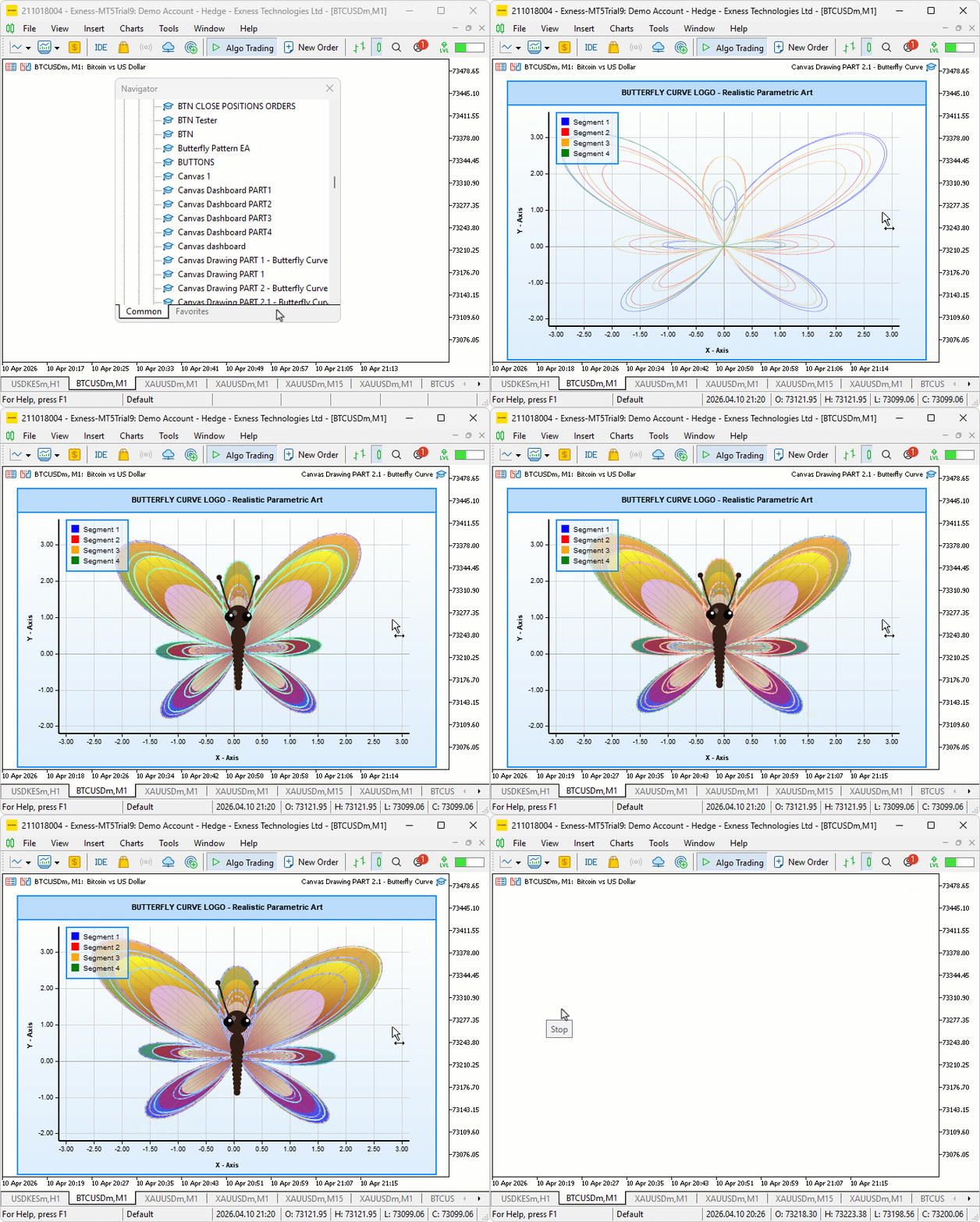
The butterfly draws itself stroke by stroke, then fades in the wing fills, followed by the surface detail and body. It then transitions into continuous flight with visible wing flapping, vertical bobbing, horizontal sway, and tilt. The neon glow halo sits cleanly around the outline strokes, and the wing colors cycle gradually through the hue spectrum throughout the flight.
Conclusion
In conclusion, we have extended the butterfly canvas program with a four-phase animation system that progressively draws the curve outline, fades in the wing fills, reveals the surface detail and body, and transitions into continuous flight driven by four independent oscillators for wing flapping, vertical bobbing, horizontal sway, and tilt. We also added a neon glow bloom effect around the wing outline curves and a hue-cycling system that shifts wing colors through the color spectrum during flight, all driven by a millisecond timer. After reading the article, you will be able to:
- Build a multi-phase animation system on an MQL5 canvas using a timer-driven state machine that sequences drawing, fading, and motion phases automatically
- Simulate organic flight motion by combining independent sine-wave oscillators for flapping, bobbing, sway, and tilt applied as geometric transforms to every rendered point
- Add a neon glow bloom effect to canvas line drawings by layering multiple semi-transparent offset line passes around a brightened core stroke
In the next part, we will continue exploring the MQL5 canvas drawing capabilities by venturing into a completely different mathematical curve, expanding the series with a new parametric shape and its own unique visual rendering approach.
Warning: All rights to these materials are reserved by MetaQuotes Ltd. Copying or reprinting of these materials in whole or in part is prohibited.
This article was written by a user of the site and reflects their personal views. MetaQuotes Ltd is not responsible for the accuracy of the information presented, nor for any consequences resulting from the use of the solutions, strategies or recommendations described.

 Building Volatility Models in MQL5 (Part II): Implementing GJR-GARCH and TARCH in MQL5
 How to connect AI agents to MetaTrader 5 via MCP
 Price Action Analysis Toolkit Development (Part 67): Automating Support and Resistance Monitoring in MQL5
 CAPM Model Indicator for the Forex Market

- Free trading apps
- Over 8,000 signals for copying
- Economic news for exploring financial markets
You agree to website policy and terms of use
Check out the new article: MQL5 Trading Tools (Part 29): Step-by-Step Butterfly Animation on Canvas.
Author: Allan Munene Mutiiria