

How to connect AI agents to MetaTrader 5 via MCP
 17 536
 1
1

Introduction
The world of AI agents has exploded in early 2026. Tools like OpenClaw — the open-source personal AI assistant that surpassed 250,000 GitHub stars in under 60 days — have shown that AI can do far more than chat. These agents browse the web, manage calendars, send emails, execute code, and now, thanks to a growing ecosystem of integrations, they can even trade cryptocurrencies autonomously. Projects like BankrBot offer complete crypto trading automation through OpenClaw, and prediction-market bots on Polymarket have reportedly generated hundreds of thousands of dollars in profit.
But there is a glaring gap. If you are a Forex or CFD trader using MetaTrader 5, none of these AI agent integrations exist for you. The crypto side has dozens of skills, MCP servers, and automation tools. The MetaTrader side has essentially nothing. A feature request on the OpenClaw GitHub repository specifically asks for native MetaTrader 5 execution capability, and forum threads on Forex Factory show traders actively searching for solutions. The demand is real, but nobody has filled it — until now.
In this article, we will build an MCP server. It is a standardized bridge that lets any AI agent interact directly with MetaTrader 5. When we are finished, you will be able to message your AI assistant on Telegram, Claude Desktop, or any MCP-compatible client. The AI will pull live data from your terminal and execute real trades on your behalf. We will cover:
- What is MCP? The Universal Protocol for AI Tools
- Architecture Overview
- Project Setup and Dependencies
- Building the MetaTrader 5 Client Wrapper
- Implementing the MCP Tools
- The MCP Server Entry Point
- Testing with MCP Inspector
- Connecting to AI Agents
- Conclusion
The complete source code is provided at the end of this article. Everything is written in Python using the official MetaTrader 5 library from MetaQuotes, so if you have worked with MetaTrader 5's Python integration before, you will feel right at home. If you have not, do not worry — we will walk through every piece.
1. What is MCP? The Universal Protocol for AI Tools
Before we write any code, we need to understand what MCP is and why it matters. MCP stands for Model Context Protocol, and it was created by Anthropic (the company behind Claude) as an open standard for connecting AI models to external tools and data sources. Think of it as a universal adapter: instead of every AI application building its own custom integration for every service, MCP provides one standardized protocol that any AI client can use to communicate with any tool server.
The analogy for the MQL5 community is straightforward. The MetaTrader 5 Python package from MetaQuotes is a bridge between Python and your MetaTrader 5 terminal — it gives Python scripts a standardized way to call MetaTrader 5 functions. MCP does the same thing, but one level higher: it gives AI agents a standardized way to discover and call tools that Python scripts (or any other programs) expose. Without MCP, every AI application (OpenClaw, Claude Desktop, Cursor, VS Code Copilot) would need its own custom plugin format. With MCP, you build one server, and every compatible client can use it immediately.
How MCP Works
An MCP server is a program that exposes tools — functions that an AI agent can call. Each tool has a name, a description (so the AI knows when to use it), a set of typed parameters, and a return value. When you connect an MCP server to an AI client, the client automatically discovers all available tools and their schemas. The AI model then decides which tools to call based on the user's request, constructs the correct parameters, calls the tool, and interprets the result.
For example, our MetaTrader 5 MCP server will expose a tool called get_rates with parameters for symbol, timeframe, and count. When a user asks their AI assistant "Show me the last 10 hourly candles for EURUSD," the AI recognizes this requires market data, calls get_rates with symbol="EURUSD", timeframe="H1", and count=10, receives the OHLCV data, and presents it in a human-readable format. The user never needs to know that an MCP tool was called — they just have a conversation with their assistant.
MCP Transport: stdio
MCP supports multiple transport mechanisms. For local servers, the standard is stdio (standard input/output). This requires no HTTP server, port configuration, or network exposure. The server starts when the client needs it and communicates through pipes. This is the simplest and most secure transport for a tool that manages a trading terminal on your local machine.

Fig. 1. MCP bridge from the AI agent to the MetaTrader 5 terminal
From the diagram, we can see that the MCP server sits between the AI agent and the MetaTrader 5 terminal. The user communicates with the AI agent in natural language, the agent translates the request into an MCP tool call, our Python server processes that call using the MetaTrader 5 library, and the result flows back to the user. The entire round trip happens in milliseconds.
2. Architecture Overview
Our MCP server consists of four layers, each with a clear responsibility. Understanding these layers will make the code walkthrough in the following sections much easier to follow.
Layer 1 — Constants (constants.py)
The MetaTrader 5 Python API uses numeric constants for things like timeframes (TIMEFRAME_H1 = 16385), order types (ORDER_TYPE_BUY = 0), fill policies, and time-in-force rules. Humans and AI agents work with strings like "H1", "BUY", "IOC", and "GTC". The constants layer provides mapping dictionaries that translate between the two worlds. This is a thin file but a critical one — without it, every handler would need its own conversion logic.
Layer 2 — MetaTrader 5 Client Wrapper (mt5client.py)
This layer handles the connection to MetaTrader 5 and provides utility functions used by all handlers. Its key responsibilities are: initializing the MetaTrader 5 connection (with timeout protection), ensuring the terminal is connected and logged in before each operation, converting MetaTrader 5 named tuples to plain Python dictionaries, and building properly formatted order requests from human-readable parameters.
Layer 3 — Handlers (handlers/*.py)
Five handler modules contain the actual business logic — account queries, symbol/market data retrieval, position management, order management, and trade history. Each handler function takes plain Python parameters, calls the appropriate MetaTrader 5 API functions, and returns a dictionary. No framework dependencies, no HTTP concepts — just pure business logic.
Layer 4 — MCP Server (server.py)
The top layer registers 14 MCP tools using the FastMCP framework. Each tool is a thin wrapper that checks the MetaTrader 5 connection and delegates to the appropriate handler. The tool descriptions (docstrings) guide the AI agent on when and how to use each tool. In practice, they act as prompt engineering for the tool layer.

Fig. 2. Layered architecture of the MetaTrader 5 MCP server project
The full project structure looks like this:
mt5-mcp-server/
├── server.py              # MCP server entry point + 14 tool registrations
├── mt5client.py           # MT5 connection wrapper + utilities
├── constants.py           # String-to-MT5-constant mapping tables
├── handlers/
│   ├── account.py         # Account info (1 function)
│   ├── symbols.py         # Market data (5 functions)
│   ├── positions.py       # Position management (3 functions)
│   ├── orders.py          # Order management (4 functions)
│   └── history.py         # Trade history (1 function)
├── config.json            # MT5 path and optional credentials
└── requirements.txt       # MetaTrader5 + fastmcp
The entire project is 676 lines of Python. There is no Flask, no HTTP server, no Docker, and no complex deployment. It runs directly on the same Windows machine where your MetaTrader 5 terminal is installed.
3. Project Setup and Dependencies
Before we start building, let us set up the project. You will need three things: Python 3.10 or newer installed on your Windows machine, a MetaTrader 5 terminal installed and logged into a broker account (we strongly recommend a demo account for testing), and two Python packages.
Download and extract the zip, then install the dependencies:
pip install -r requirements.txt
The MetaTrader5 package is the official Python integration from MetaQuotes. It communicates with the MetaTrader 5 terminal through a COM interface and provides functions for everything from pulling candle data to placing trades. The fastmcp package is a Python framework for building MCP servers — it handles the JSON-RPC protocol, tool registration, parameter schema generation from type hints, and the stdio transport. With these two packages, we have everything we need.
Configuration File
{
    "mt5_path": "C:\\Program Files\\MetaTrader 5\\terminal64.exe",
    "login": 12345678,
    "password": "your_password",
    "server": "YourBroker-Server",
    "timeout": 60
}
All fields are optional. If mt5_path is set to null, the MetaTrader 5 library will find your terminal automatically (this works when you have a single MetaTrader 5 installation). If login, password, and server are null, the server assumes your terminal is already logged in — which it usually is if you have MetaTrader 5 open on your desktop. The timeout value (in seconds) controls how long we wait for MetaTrader 5 operations before giving up. For most users, the default configuration works without any changes.
4. Building the MetaTrader 5 Client Wrapper
The client wrapper is the foundation that every handler depends on. It handles connection management, data conversion, and order request building. Let us walk through each piece.
Configuration Loading and Initialization
We start with a function to load the configuration file and initialize the MetaTrader 5 connection:
import json
import logging
import os
import threading

import MetaTrader5 as mt5

log = logging.getLogger("mt5mcp")
INIT_TIMEOUT = 60

_CONFIG_PATH = os.path.join(
    os.path.dirname(os.path.abspath(__file__)), "config.json"
)

def load_config():
    if not os.path.exists(_CONFIG_PATH):
        return {}
    with open(_CONFIG_PATH, "r") as f:
        return json.load(f)
The configuration file path is resolved relative to the script's own location using os.path.dirname(os.path.abspath(__file__)). This ensures that no matter which working directory the MCP server is launched from, it always finds its config.json. If the file does not exist, we return an empty dictionary — the server will still work by using MetaTrader 5's default behavior.
Timeout Protection
The MetaTrader 5 Python library can occasionally hang, especially particularly during initialization or when the terminal is unresponsive. We wrap every MetaTrader 5 call in a timeout mechanism:
def _run_with_timeout(fn, timeout=INIT_TIMEOUT):
    """Run fn() in a thread with a timeout. Returns None if timed out."""
    result = [None]

    def _worker():
        result[0] = fn()

    t = threading.Thread(target=_worker, daemon=True)
    t.start()
    t.join(timeout=timeout)

    if t.is_alive():
        log.warning("MT5 call timed out after %ds", timeout)
        return None
    return result[0]
This function runs the given callable in a daemon thread and waits for it to complete within the specified timeout. If the call takes longer than 60 seconds (the default), we return None rather than hanging indefinitely. This pattern is used for every MetaTrader 5 operation — initialization, terminal info checks, and login attempts. It is a simple but essential safety net when your trading terminal is the backend.
Connection Management: ensure_initialized()
The most important function in the client wrapper is ensure_initialized(), which is called before every MCP tool invocation. It implements a three-step check:
def ensure_initialized():
    info = _run_with_timeout(mt5.terminal_info, timeout=15)
    if info is None:
        log.warning("Terminal not responding, attempting full init...")
        return init_mt5()

    acc = _run_with_timeout(mt5.account_info, timeout=15)
    if acc is not None and acc.login != 0:
        return True

    log.warning("Not logged in, attempting login...")
    config = load_config()
    if not config.get("login"):
        return True
    return _run_with_timeout(
        lambda: mt5.login(
            login=int(config["login"]),
            password=config["password"],
            server=config["server"],
        ),
        timeout=INIT_TIMEOUT,
    )
First, we check if the terminal is responding at all by calling terminal_info() with a short 15-second timeout. If it returns None, the terminal is not running or not connected — we attempt a full initialization. Second, if the terminal is alive, we check if we are actually logged in by calling account_info() and verifying the login is non-zero. Third, if we are not logged in and credentials are available in config.json, we attempt to log in using mt5.login(). If no credentials are configured, we return True anyway — assuming the user has already logged in manually.
Data Conversion and Order Building
Two utility functions complete the client wrapper. The to_dict() function converts MetaTrader 5's namedtuples into plain dictionaries:
def to_dict(named_tuple):
    if named_tuple is None:
        return None
    return named_tuple._asdict()
The build_order_request() function takes a dictionary with human-readable parameters (like type="BUY_LIMIT", type_filling="IOC") and converts them into the numeric format that mt5.order_send() expects. It validates each field, maps strings to MetaTrader 5 constants using the mapping dictionaries from constants.py, and returns either a valid request dictionary or an error message. We will see this function in action when we build the order handler.
5. Implementing the MCP Tools
With the client wrapper in place, we can build the handler functions that each MCP tool will call. We have organized these into five modules by domain: account, market data, positions, orders, and history. Let us walk through the most important ones.
Constants: The Translation Layer
Before looking at any handler, we need the mapping tables that translate human-readable strings into MetaTrader 5 constants. Here is the complete constants.py file:
import MetaTrader5 as mt5

TIMEFRAME_MAP = {
    "M1": mt5.TIMEFRAME_M1, "M5": mt5.TIMEFRAME_M5,
    "M15": mt5.TIMEFRAME_M15, "M30": mt5.TIMEFRAME_M30,
    "H1": mt5.TIMEFRAME_H1, "H4": mt5.TIMEFRAME_H4,
    "D1": mt5.TIMEFRAME_D1, "W1": mt5.TIMEFRAME_W1,
    "MN1": mt5.TIMEFRAME_MN1,
    # ... plus M2, M3, M4, M6, M10, M12, M20, H2, H3, H6, H8, H12
}

ORDER_TYPE_MAP = {
    "BUY": mt5.ORDER_TYPE_BUY,
    "SELL": mt5.ORDER_TYPE_SELL,
    "BUY_LIMIT": mt5.ORDER_TYPE_BUY_LIMIT,
    "SELL_LIMIT": mt5.ORDER_TYPE_SELL_LIMIT,
    "BUY_STOP": mt5.ORDER_TYPE_BUY_STOP,
    "SELL_STOP": mt5.ORDER_TYPE_SELL_STOP,
    "BUY_STOP_LIMIT": mt5.ORDER_TYPE_BUY_STOP_LIMIT,
    "SELL_STOP_LIMIT": mt5.ORDER_TYPE_SELL_STOP_LIMIT,
}

FILLING_MAP = {
    "FOK": mt5.ORDER_FILLING_FOK,
    "IOC": mt5.ORDER_FILLING_IOC,
    "RETURN": mt5.ORDER_FILLING_RETURN,
}

TIME_MAP = {
    "GTC": mt5.ORDER_TIME_GTC,
    "DAY": mt5.ORDER_TIME_DAY,
    "SPECIFIED": mt5.ORDER_TIME_SPECIFIED,
    "SPECIFIED_DAY": mt5.ORDER_TIME_SPECIFIED_DAY,
}
These four dictionaries are the entire translation layer between human-readable strings and the numeric constants that the MetaTrader 5 API expects. The TIMEFRAME_MAP covers all 21 available timeframes from 1-minute to monthly. The ORDER_TYPE_MAP covers all 8 order types including the less common stop-limit orders. The FILLING_MAP and TIME_MAP cover fill policies and time-in-force rules respectively. When an AI agent says "place a BUY_LIMIT order with GTC expiration," these dictionaries translate that directly into the numeric values that mt5.order_send() requires.
Market Data: Retrieving OHLCV Candles
The market data handler is where most AI interactions begin — the user asks about a symbol's situation, and the agent needs price data. Here is the get_rates function:
from constants import TIMEFRAME_MAP
from mt5client import to_dict

def get_rates(symbol, timeframe="M1", count=100):
    tf_str = timeframe.upper()
    tf = TIMEFRAME_MAP.get(tf_str)
    if tf is None:
        return {"error": f"Invalid timeframe: {tf_str}"}

    count = max(1, min(count, 10000))
    rates = mt5.copy_rates_from_pos(symbol, tf, 0, count)
    if rates is None or len(rates) == 0:
        return []

    return [{
        "time": int(r[0]), "open": float(r[1]),
        "high": float(r[2]), "low": float(r[3]),
        "close": float(r[4]), "tick_volume": int(r[5]),
        "spread": int(r[6]), "real_volume": int(r[7]),
    } for r in rates]
This function validates the timeframe against our TIMEFRAME_MAP, clamps the count to a safe range of 1 to 10,000 candles, and calls copy_rates_from_pos() to retrieve OHLCV data starting from the most recent bar. One important detail: copy_rates_from_pos returns Numpy structured arrays rather than named tuples, so we cannot use our to_dict() utility here. Instead, we manually construct dictionaries by indexing into each row. The time field is the candle open time as a Unix epoch timestamp.
Position Management: Closing Trades
Position management is where things get interesting. The close_position function must determine the correct closing direction and price automatically:
def close_position(ticket, volume=None, deviation=20):
    positions = mt5.positions_get(ticket=ticket)
    if not positions:
        return {"error": f"Position {ticket} not found"}
    pos = positions[0]

    close_volume = float(volume) if volume is not None else pos.volume
    close_type = mt5.ORDER_TYPE_SELL \
        if pos.type == mt5.ORDER_TYPE_BUY else mt5.ORDER_TYPE_BUY
    tick = mt5.symbol_info_tick(pos.symbol)
    if tick is None:
        return {"error": f"Cannot get price for {pos.symbol}"}
    price = tick.bid if close_type == mt5.ORDER_TYPE_SELL \
        else tick.ask

    req = {
        "action": mt5.TRADE_ACTION_DEAL,
        "position": ticket,
        "symbol": pos.symbol,
        "volume": close_volume,
        "type": close_type,
        "price": price,
        "type_filling": mt5.ORDER_FILLING_IOC,
        "deviation": int(deviation),
    }

    result = mt5.order_send(req)
    if result is None or result.retcode != mt5.TRADE_RETCODE_DONE:
        err = result.comment if result else str(mt5.last_error())
        return {"error": f"Failed to close position: {err}"}
    return to_dict(result)
To close a position, we must send a trade in the opposite direction. If the position is a BUY, we close it with a SELL at the bid price. If the position is a SELL, we close it with a BUY at the ask price. The function first looks up the position by ticket number using positions_get(), determines the opposite direction and the correct price by calling symbol_info_tick(), and then sends the closing order via order_send(). The volume parameter is optional — if omitted, the entire position is closed. If specified, you get a partial close, which is useful for scaling out of positions.
Order Placement: The Core Trading Function
The create_order function in orders.py is the most complex handler. It must handle both market orders (immediate execution) and pending orders (limit and stop), with automatic price filling for market orders:
def create_order(symbol, type, volume, price=None, sl=None, tp=None,
                deviation=20, magic=0, comment="", type_filling="IOC",
                type_time="GTC"):
    order_type = type.upper()
    if order_type not in ORDER_TYPE_MAP:
        return {"error": f"Invalid type: {order_type}"}

    is_market = order_type in ("BUY", "SELL")

    if is_market and price is None:
        tick = mt5.symbol_info_tick(symbol)
        if tick is None:
            return {"error": f"Cannot get price for {symbol}"}
        price = tick.ask if order_type == "BUY" else tick.bid

    body = {
        "action": "DEAL" if is_market else "PENDING",
        "symbol": symbol, "type": order_type,
        "volume": volume, "price": price,
        "deviation": deviation, "magic": magic,
        "comment": comment,
        "type_filling": type_filling,
        "type_time": type_time,
    }
    if sl is not None: body["sl"] = sl
    if tp is not None: body["tp"] = tp

    req, err = build_order_request(body)
    if err:
        return {"error": err}

    result = mt5.order_send(req)
    if result is None:
        return {"error": f"order_send failed: {mt5.last_error()}"}
    return to_dict(result)
The key design decision here is automatic price filling for market orders. When the AI agent says "buy 0.01 lots of EURUSD," it does not need to specify a price — the function detects that this is a market order (BUY or SELL), fetches the current ask price for BUY orders or bid price for SELL orders, and fills it in automatically. For pending orders (BUY_LIMIT, SELL_LIMIT, BUY_STOP, SELL_STOP), the price parameter is required since the user must specify at what level they want the order to trigger. The action is set to DEAL for market orders (immediate execution) and PENDING for limit/stop orders. Finally, the dictionary is passed through build_order_request() to convert all string values to MetaTrader 5 constants before calling order_send().
6. The MCP Server Entry Point
With all the handlers built, the server entry point wires everything together. This is where we register our 14 MCP tools using the FastMCP framework. Let us look at the key patterns.
Server Setup and Global Instructions
from fastmcp import FastMCP
from mt5client import ensure_initialized
from handlers import account, symbols, positions, orders, history

mcp = FastMCP(
    "MT5 Trading Server",
    instructions=(
        "Always call get_account before placing trades to verify margin. "
        "Always call get_symbol_info before placing orders to get volume "
        "constraints (volume_min, volume_max, volume_step, trade_stops_level). "
        "Use get_positions to find ticket numbers before modifying or closing."
    ),
)
The instructions parameter is a global prompt that the AI agent receives when it discovers the server. This is our chance to set behavioral rules: always check account margin before trading, always check symbol constraints before placing orders, and always look up ticket numbers before modifying positions. These instructions act as a safety net — even if the AI's general training does not cover MetaTrader 5 trading conventions, these rules ensure it follows a sensible workflow. You can modify and provide your custom instructions to change the AI behavior.
Tool Registration Pattern
Every tool follows the same pattern: a thin wrapper that checks the connection and delegates to the handler. Here is how the read-only tools look:
def _ensure():
    """Check MT5 connection, return error dict if not connected."""
    if not ensure_initialized():
        return {"error": "MT5 terminal not connected"}
    return None

@mcp.tool(annotations={"readOnlyHint": True})
def get_account() -> dict:
    """Get current trading account information including balance, equity,
    margin, free margin, leverage, and whether trading is allowed. Call
    this before placing trades to verify account state."""
    err = _ensure()
    if err:
        return err
    return account.get_account()
The @mcp.tool() decorator registers the function as an MCP tool. FastMCP automatically derives the tool's JSON schema from the function's type hints and uses the docstring as the tool description. The annotations parameter tells the AI client whether the tool is read-only (safe to call without user confirmation) or destructive (should ask before executing). The _ensure() helper avoids duplicating the connection check in every tool.
And here is how the mutation tools look — note the destructiveHint annotation on close_position:
@mcp.tool(annotations={"destructiveHint": True})
def close_position(ticket: int, volume: float | None = None,
                   deviation: int = 20) -> dict:
    """Close an open position entirely or partially. Use get_positions
    first to get the ticket number. For partial close, specify the volume
    to close. retcode 10009 = success."""
    err = _ensure()
    if err:
        return err
    return positions.close_position(ticket, volume, deviation)
The destructiveHint:True annotation tells the AI client that this tool has irreversible effects. A well-behaved AI client will ask the user for confirmation before calling it. This is an important safety mechanism when real money is on the line.
The server is started with a single line at the bottom of the file:
if __name__ == "__main__":
    mcp.run()
The mcp.run() call starts the stdio transport — the server reads JSON-RPC messages from stdin and writes responses to stdout. There is no HTTP server, no port to configure, and no network exposure. The AI client launches the server as a subprocess and communicates through pipes.
7. Testing with MCP Inspector
Before connecting to any AI agent, we should verify that every tool works correctly. The MCP ecosystem provides an interactive testing tool called MCP Inspector that lets us call tools manually and inspect their responses.
Make sure your MetaTrader 5 terminal is open and logged in, then run:
npx @modelcontextprotocol/inspector
This opens a browser-based interface. Configure the connection as: Transport = stdio, Command = python, Args = server.py. Once connected, you will see all 14 tools listed in the Tools panel.
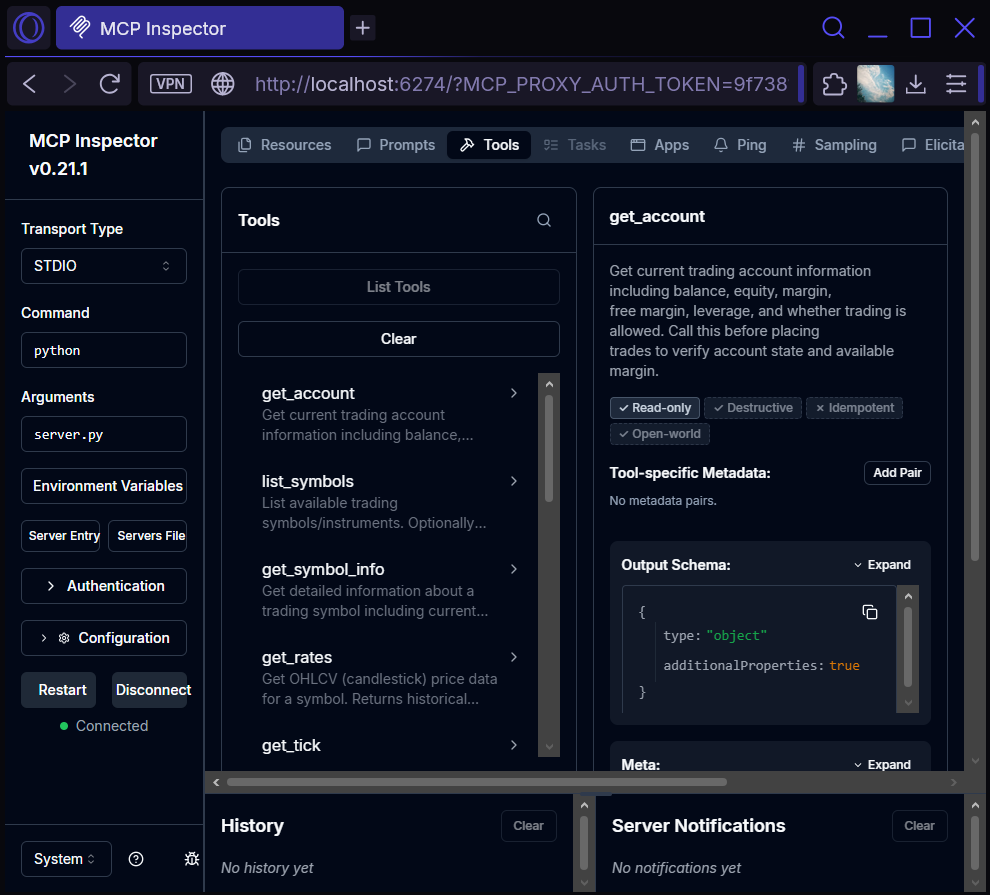
Fig. 3. MCP Inspector listing the MetaTrader 5 tool set
Start by clicking get_account and executing it with no parameters. You should see your account balance, equity, leverage, and other details returned as JSON. This confirms the MetaTrader 5 connection is working.
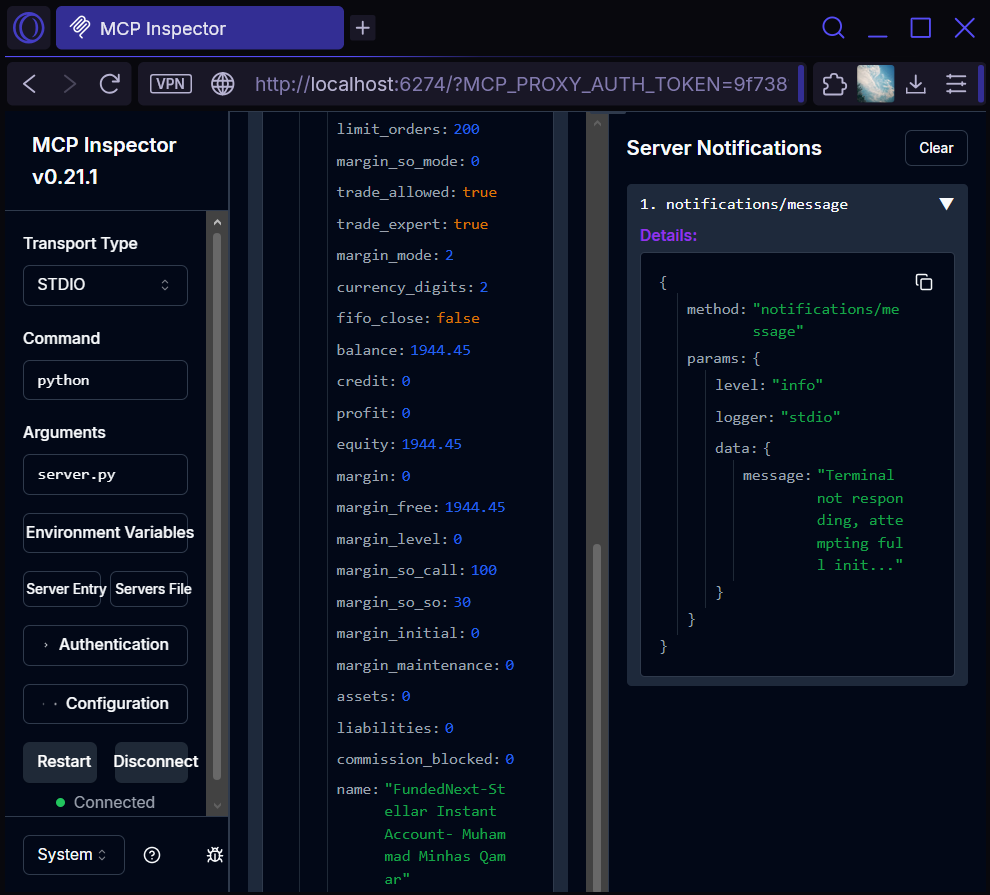
Fig. 4. MCP Inspector returning live account information from MetaTrader 5
Now that we have confirmed the tools work, we'll test on a demo account with Claude Desktop, which will call get_symbol_info and get_rates tools to provide live market analysis.
Important: Always test on a demo account first. The MCP server executes real trades on whatever account your MetaTrader 5 terminal is logged into. Verify every tool's behavior before connecting it to an AI agent that might call tools autonomously.
8. Connecting to AI Agents
With the server tested, we can now connect it to actual AI agents. We will cover two integration paths: Claude Desktop for direct usage and OpenClaw for Telegram-based access.
Claude Desktop Integration
Claude Desktop supports MCP servers natively. To add our MetaTrader 5 server, edit the Claude Desktop configuration file located at %APPDATA%\Claude\claude_desktop_config.json:
{
    "mcpServers": {
        "mt5": {
            "command": "C:\\Path\\To\\python.exe",
            "args": ["C:\\Path\\To\\mt5-mcp-server\\server.py"]
        }
    }
}
Replace the paths with the actual location of your Python interpreter and server.py file. Use the Python installation where you installed the MetaTrader 5 and fastmcp packages. Restart Claude Desktop, and you will see the MetaTrader 5 tools available in the tools menu.
Now you can have natural conversations with Claude about your trading account. Ask "What is my current account balance?" and Claude will call get_account. Ask "Show me the EURUSD situation on the H4 timeframe" and Claude will call get_symbol_info and get_rates, then provide analysis based on the live data. Ask "Place a buy order for 0.01 lots of EURUSD with a stop loss at 1.1500" and Claude will check your margin, verify the symbol constraints, and execute the trade — asking for your confirmation before any destructive action.
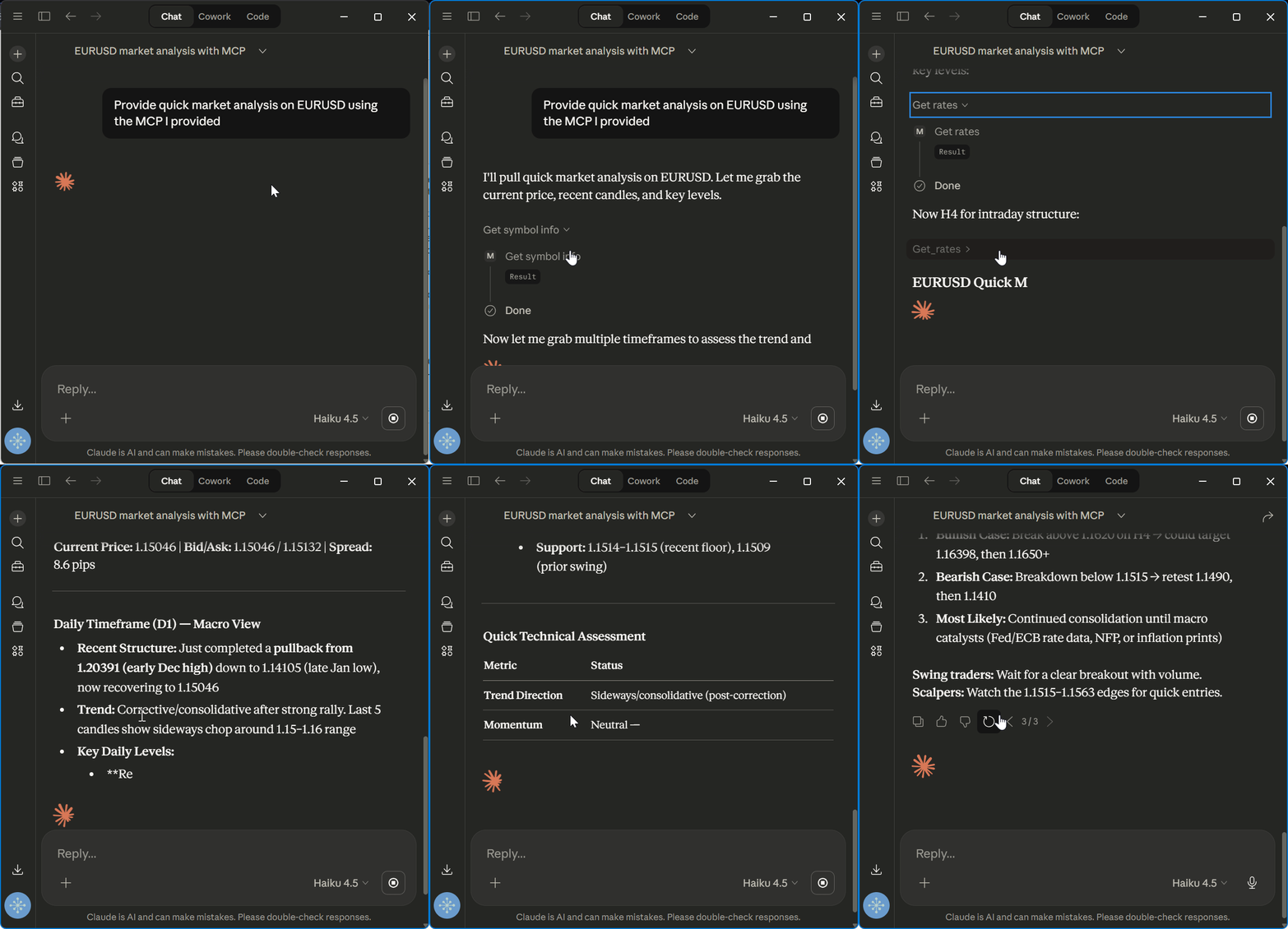
Fig. 5. Claude Desktop using the MetaTrader 5 MCP server for live market analysis
From the GIF above, we can see Claude pulling live market data from MetaTrader 5 and providing analysis — all through a natural conversation. The user does not need to know about MCP tools, JSON schemas, or Python APIs. They simply ask a question and get an answer backed by real-time data from their trading terminal.
OpenClaw + Telegram Integration
For traders who want to interact with MetaTrader 5 from their phone, OpenClaw provides the path. OpenClaw is an open-source AI agent that connects to messaging platforms like Telegram, WhatsApp, and Discord. By creating an OpenClaw skill — a markdown file that tells the agent how to use our MCP tools — we can enable Telegram-based trading.
The skill file (SKILL.md) tells OpenClaw when to invoke our MetaTrader 5 tools and what rules to follow:
---
name: mt5-trading
description: Trade forex/CFDs via MetaTrader 5. Use when the user asks
  about account balance, symbol prices, open positions, or wants to
  place/modify/close trades.
metadata:
  openclaw:
    requires:
      env:
        - MT5_MCP_PATH
---
# MT5 Trading Skill

Use the MT5 MCP server tools for all trading operations.

## Rules
- Always call get_account before placing any trade
- Always call get_symbol_info to check volume_min and trade_stops_level
- Never place trades without user confirmation
- Report retcode from order results (10009 = success)
With the skill installed and the MCP server configured in OpenClaw, you can message your Telegram bot: "What are my open positions?" or "Close the EURUSD position" and the AI agent will execute the appropriate tools. The experience is the same as Claude Desktop, but accessible from any device with Telegram installed.
Conclusion
In this article, we built a complete MCP server that bridges MetaTrader 5 with the world of AI agents. The server exposes 14 tools covering account information, market data, position management, order placement, and trade history — everything an AI assistant needs to function as a capable trading companion.
- Universal compatibility. The MCP server works with any MCP-compatible client — Claude Desktop, OpenClaw, Cursor, VS Code, and any future client that supports the protocol. Build once, use everywhere.
- Natural language trading. Users interact through conversation, not command syntax. Ask "What is the EURUSD spread right now?" instead of writing code to call symbol_info_tick.
- Safety by design. The server includes connection guards on every tool call, timeout protection against MetaTrader 5 hangs, destructive action annotations for trade execution, and global instructions that enforce pre-trade checks.
- Minimal footprint. The entire project is 676 lines of Python with only two dependencies (MetaTrader 5 and fastmcp). No Docker, no virtual machines, no web servers.
- Extensible foundation. The handler-based architecture makes it easy to add new tools — for example, a tool that calculates position size based on risk percentage, or a tool that monitors positions and sends alerts when stop losses are hit.
There are several limitations. The MetaTrader 5 Python library is Windows-only, so the server must run on the same machine as the terminal. The MetaTrader 5 Python API is single-threaded, so concurrent calls may cause issues. Thorough demo testing is essential before using live funds.
For future development, there are several exciting directions. Signal parsing from Telegram channels — using OpenClaw's existing Telegram integration to read trading signals and automatically execute them through our MCP tools. Multi-terminal support — extending the config to manage multiple broker connections simultaneously. And analytical tools — combining the market data capabilities with technical analysis libraries to give the AI agent deeper market insight.
The gap between AI agents and MetaTrader 5 no longer exists. The code is attached below — install it, connect it, and start trading with your AI assistant.
Disclaimer: This article is for educational purposes only. Automated trading carries significant risk. Always test thoroughly on demo accounts before using with real funds. The author is not responsible for any financial losses resulting from the use of this software.
| File name | Description |
|---|---|
| mt5-mcp-server.zip | Complete MCP server project — server.py, mt5client.py, constants.py, all handlers, config.json, and README |
| SKILL.md | OpenClaw skill definition for MetaTrader 5 trading integration (Included In ZIP) |
Warning: All rights to these materials are reserved by MetaQuotes Ltd. Copying or reprinting of these materials in whole or in part is prohibited.
This article was written by a user of the site and reflects their personal views. MetaQuotes Ltd is not responsible for the accuracy of the information presented, nor for any consequences resulting from the use of the solutions, strategies or recommendations described.

 MQL5 Trading Tools (Part 29): Step-by-Step Butterfly Animation on Canvas
 CAPM Model Indicator for the Forex Market
 Building Volatility Models in MQL5 (Part II): Implementing GJR-GARCH and TARCH in MQL5
 Trading Options Without Options (Part 1): Basic Theory and Emulation Through Underlying Assets

- Free trading apps
- Over 8,000 signals for copying
- Economic news for exploring financial markets
You agree to website policy and terms of use
Nice writeup.. the four-layer split (constants/mapping, MT5 client wrapper, domain handlers, MCP entry point) is the right shape for this, and I like that you called out connection guards and destructive-action annotations explicitly rather than leaving safety as an afterthought.
Worth adding for anyone extending this toward live execution, the trickiest part in our experience wasn't the MCP plumbing itself, it was making the read-back tools (positions/balance/P&L) reliable enough that the agent's view of account state doesn't drift from actual terminal state ( especially across reconnects.) Timeout protection helps but doesn't fully solve staleness. We hit the same class of problem building our MCP execution layer for MT4/MT5, and ended up treating "state sync" as its own subsystem rather than bolting it onto the trade-management handlers.
Curious whether you're planning a follow-up on the client integration side (Claude Desktop / OpenClaw) — that's usually where the UX gets interesting.