

Larry Williams Market Secrets (Part 15): Trading Hidden Smash Day Reversals with Market Context
 3 320
3 320
 0
0

Introduction
In the previous article in this series, a custom indicator was developed to detect Hidden Smash Day reversal patterns described by Larry Williams. The indicator identifies Hidden Smash bars on the chart and visually marks them, allowing the pattern to be recognised objectively without manual interpretation.
Detecting the pattern, however, is only the first step. A complete trading approach requires additional rules that determine when a detected setup should be traded and when it should be ignored. These rules may involve factors such as trade direction, the prevailing trend, or restrictions based on the day of the week. Without clearly defined conditions, it becomes difficult to evaluate the pattern systematically.
This article focuses on translating those additional conditions into a structured trading system. It is intended for algorithmic traders who want to automate Hidden Smash Day setups with explicit, testable rules.
Building on the earlier indicator, we implement an Expert Advisor that reads Hidden Smash signals and applies configurable context filters before executing trades. These filters include trend alignment with a Supertrend indicator, optional trading-day restrictions, and disciplined risk management via stop-loss and position-sizing rules.
The result is an objective framework for studying and trading Hidden Smash Day setups, grounded in context rather than relying solely on pattern detection.
The Hidden Smash Day Pattern and Signal Confirmation
Before implementing the trading system, it is useful to briefly revisit the structure of the Hidden Smash Day pattern described by Larry Williams and clarify how a valid trading signal is produced.
A Hidden Smash Day bar is identified by the position of its closing price within its own range. For a bullish Hidden Smash setup, the bar closes in the lower portion of its range while still closing above the previous bar’s close. This configuration suggests that although the session finished higher than the previous one, the close occurred near the lower end of the day’s range, indicating potential weakness.
For a bearish Hidden Smash setup, the logic is reversed. The bar closes in the upper portion of its range while still closing below the previous bar’s close. In this case, the market appears weak relative to the prior session, but the close occurs near the top of the bar’s range, suggesting possible internal strength.
However, the Hidden Smash bar itself is not a trading signal. The setup becomes actionable only after confirmation occurs on the following bar. In this implementation, confirmation is evaluated strictly on completed bars to avoid intrabar noise and ensure reproducible behaviour during testing.
A valid buy signal follows this sequence:
- A bullish Hidden Smash bar is detected at bar index 2.
- The next bar closes above the high of that Hidden Smash bar.
- At the opening of the new bar, the system allows a long position to be executed.
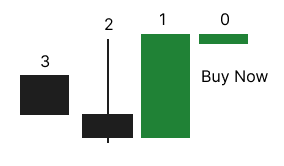
A valid sell signal mirrors this structure:
- A bearish Hidden Smash bar is detected at bar index 2.
- The next bar closes below the low of that Hidden Smash bar.
- At the opening of the new bar, the system allows a short position to be executed.
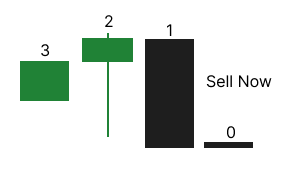
To simplify the implementation, the Expert Advisor does not detect the pattern directly. Instead, it reads confirmed Hidden Smash signals from the custom indicator developed in the previous article of this series. That indicator marks detected patterns in dedicated buffers. When a Hidden Smash bar exists at index 2, the indicator buffer contains a non-EMPTY value, which the Expert Advisor uses as a reliable reference point for evaluating confirmation and generating trading signals.
Expert Advisor Design and Trade Execution Rules
The Expert Advisor developed in this article builds directly on the Hidden Smash Day indicator introduced earlier in this series. Instead of detecting the pattern internally, the system reads signals from that indicator and then evaluates additional rules before executing a trade. This design clearly separates the responsibilities of pattern detection and trade management. The indicator identifies Hidden Smash setups while the Expert Advisor focuses on filtering, risk control, and order execution.
All trading decisions are evaluated only at the start of each new bar. This ensures that both the Hidden Smash bar and the confirmation bar are fully completed before any signal is processed. By waiting for completed bars, the system avoids intrabar fluctuations and produces consistent behaviour during historical testing.
Signal Processing
The Expert Advisor reads indicator buffer values to determine whether a Hidden Smash pattern has been detected. The indicator marks detected patterns using arrow buffers. When the buffer contains a value other than EMPTY_VALUE at bar index 2, the system interprets this as a detected Hidden Smash setup.
Once a setup is established at index 2, the Expert Advisor evaluates whether a valid signal has been confirmed. A bullish signal becomes eligible for execution if the confirmation bar has closed above the high of the Hidden Smash bar. A bearish signal follows the opposite logic and becomes valid when the confirmation bar closes below the Hidden Smash bar's low. Only after this confirmation step does the system allow a trade to be opened.
Trade Direction Control
The Expert Advisor allows flexible control over which trade directions are permitted. Through the trade mode parameter, the system can be configured to execute only buy trades, only sell trades, or both directions. This option allows studying the behaviour of Hidden Smash setups under different directional assumptions.
Trend Context Filter
An optional trend filter is available through the Supertrend indicator. When this filter is enabled, long trades are permitted only when the market is currently in a bullish Supertrend state. Similarly, short trades are allowed only when the Supertrend indicator signals a bearish trend condition. When the filter is disabled, trades are evaluated without any trend restriction.
Trading Day Filter
The Expert Advisor also includes a trading-day filter that restricts trading to specific days of the week. Two operating modes are available. In the first mode, trading is allowed on all days without restriction. In the second mode, each day of the week can be turned on or off individually. This feature allows the strategy's behaviour to be studied under different weekday conditions.
Stop Loss Models
Two stop-loss models are implemented. The first model uses the Hidden Smash bar's structure. In this mode, the stop loss for a long trade is placed at the low of the Hidden Smash bar, while the stop loss for a short trade is placed at the high of that bar.
The second model uses volatility measured by the Average True Range indicator. When this option is selected, the stop loss distance is calculated by multiplying the ATR value by a configurable multiplier. This approach allows the protective stop to adapt to changing market volatility.
Take Profit Calculation
Take profit levels are calculated using a configurable reward-to-risk ratio. Once the stop loss distance has been determined, the reward distance is derived from the chosen ratio and added to the entry price for long trades or subtracted from the entry price for short trades. This ensures that every position follows a consistent risk-to-reward structure.
Position Sizing
The Expert Advisor supports both manual and automatic position sizing. In manual mode, a user-specified fixed position size is applied to every trade. In automatic mode, the position size is calculated as a percentage of the account balance the trader is willing to risk.
The automatic method calculates the potential loss for a single lot using the OrderCalcProfit function. The position size is then adjusted to match the configured risk percentage. Broker limits, such as minimum volume, maximum volume, and volume step, are respected to ensure the calculated position size remains valid.
Position Management
To maintain consistent trade management, the Expert Advisor allows only one active position at a time. Before opening a new trade, the system checks whether an existing buy or sell position with the same magic number is already active. If a position is present, the new signal is ignored.
Together, these components form a structured trading framework that combines pattern detection, contextual filters, and disciplined risk management. The resulting Expert Advisor provides a flexible environment for studying how Hidden Smash Day setups behave when traded under different contextual conditions.
Hidden Smash Day Context Strategy Execution Flow
Before examining the implementation, the complete trading logic of the Expert Advisor can be summarized in a structured sequence. This overview connects the conceptual rules discussed earlier with the program logic that will appear in the source code.
This sequence ensures that the trading process follows a clear and disciplined structure.
if a new bar has opened

 Update Hidden Smash indicator buffers
 Update Supertrend indicator values
 Update ATR values

 if no open position exists

  Check for a Hidden Smash Buy setup at index two

  if a setup exists

   Check whether buy trades are permitted by the trade direction setting

   if the Supertrend filter is enabled

    Verify that the market is currently in a bullish trend state

   if trading day restrictions are active

    Verify that trading is allowed on the current day

   if all conditions are satisfied

    Compute the stop loss level
    Compute the take profit level
    Determine the position size
    Open a buy order

  Check for a Hidden Smash Sell setup at index two

  if a setup exists

   Check whether sell trades are permitted by the trade direction setting

   if the Supertrend filter is enabled

    Verify that the market is currently in a bearish trend state

   if trading day restrictions are active

    Verify that trading is allowed on the current day

   if all conditions are satisfied

    Compute the stop loss level
    Compute the take profit level
    Determine the position size
    Open a sell order
Signal detection is separated from trade execution because the pattern itself is identified by the Hidden Smash indicator. All evaluations are performed only after a new bar begins, which guarantees that the smash bar and the confirming bar are fully completed before any action is taken. Protective levels and position size are calculated before sending an order, ensuring that each trade is opened with defined risk parameters. Finally, the system enforces a single position rule so that only one trade can exist at any given time.
Preparing the Development Environment and Project Foundation
Before implementing the Expert Advisor, several components must be prepared. The trading system described in this article relies on two custom indicators introduced earlier in this series. These indicators provide the signals and market context required for the strategy to operate.
The first component is the Supertrend indicator. This indicator is an optional trend filter that allows the Expert Advisor to open trades only when the market direction aligns with the selected trend condition. The construction of this indicator was explained in a previous article of its own series. Readers who wish to understand how the indicator itself was developed can review that article for a full explanation of its internal logic.
The source file for the indicator used in this project is attached to the article as supertrend.mq5. The indicator can be prepared for use in two different ways.
The first method is to download the provided source file and place it inside the Indicators directory of the main MQL5 folder. This can be done through the following steps.
- Open the MetaTrader 5 platform.
- From the main menu, select the option that opens the data folder.
- Navigate to the directory named MQL5.
- Open the folder named Indicators.
- Copy the file supertrend.mq5 into this directory.
- Return to the MetaEditor development environment and compile the indicator.
After compilation, the indicator becomes available to other programs, including Expert Advisors.
The second method is to create the indicator source file manually. In this approach, a new indicator file named supertrend.mq5 is created inside the Indicators directory. The source code from the attached file can then be copied and pasted into the new file before compiling it inside MetaEditor.
The same preparation process applies to the Hidden Smash Day indicator developed in the previous article of this series. The source file, lwHiddenSmashDayIndicator.mq5, is also attached to this article. It should be placed in the Indicators directory and compiled in the same manner.
This article assumes that both indicators are located inside the Indicators directory under the root MQL5 folder. Once compiled, they can be accessed directly by the Expert Advisor through indicator handles.
Before proceeding further, several prerequisites must be met to follow the implementation process effectively. First, familiarity with the syntax and basic constructs of the MQL5 programming language is required. Concepts such as variables, functions, conditional statements, loops, enumerations, and standard libraries should already be understood. If these topics are unfamiliar, the official MQL5 documentation provides a reliable starting point for learning the language.
Second, prior experience using the MetaTrader 5 trading platform is important. Navigation of the platform interface should be comfortable, including opening charts, attaching programs, and launching the strategy tester. These operations are part of the normal workflow when developing algorithmic trading systems.
Third, the MetaEditor development environment should also be familiar. This environment is used to create source files, write code, compile programs, and inspect possible errors during development.
As the implementation progresses, coding alongside the tutorial is strongly encouraged. Programming concepts become clearer when they are applied directly in practice rather than observed passively. To support this process, the completed Expert Advisor source code has been attached to this article as lwHiddenSmashDayContextExpert.mq5. Keeping this file open in a separate editor tab can serve as a helpful reference while building the system step by step.
With the environment prepared, the development process can begin. Open MetaEditor and create a new Expert Advisor source file. The file name can be chosen freely, although the version developed in this article is named lwHiddenSmashDayContextExpert.mq5. Once the empty file is created, the following code lays the foundation for the rest of the system.
//+------------------------------------------------------------------+
//|                                lwHiddenSmashDayContextExpert.mq5 |
//|          Copyright 2026, MetaQuotes Ltd. Developer is Chacha Ian |
//|                          https://www.mql5.com/en/users/chachaian |
//+------------------------------------------------------------------+

#property copyright "Copyright 2026, MetaQuotes Ltd. Developer is Chacha Ian"
#property link      "https://www.mql5.com/en/users/chachaian"
#property version   "1.00"
#resource "\\Indicators\\lwHiddenSmashDayIndicator.ex5"
#resource "\\Indicators\\supertrend.ex5"

//+------------------------------------------------------------------+
//| Custom Enumerations                                              |
//+------------------------------------------------------------------+
enum ENUM_TDW_MODE
{
   TDW_ALL_DAYS,
   TDW_SELECTED_DAYS
};

enum ENUM_SMASH_TRADE_MODE
{
   SMASH_TRADE_BUY_ONLY,
   SMASH_TRADE_SELL_ONLY,
   SMASH_TRADE_BOTH
};

enum ENUM_STOP_LOSS_MODE
{
   SL_ATR_BASED,
   SL_SMASH_BAR_STRUCTURE
};

enum ENUM_LOT_SIZE_INPUT_MODE
{
   MODE_MANUAL,
   MODE_AUTO
};

//+------------------------------------------------------------------+
//| Standard Libraries                                               |
//+------------------------------------------------------------------+
#include <Trade\Trade.mqh>

//+------------------------------------------------------------------+
//| User input variables                                             |
//+------------------------------------------------------------------+
input group "Information"
input ulong magicNumber          = 254700680002;
input ENUM_TIMEFRAMES timeframe  = PERIOD_CURRENT;

input group "Supertrend configuration parameters"
input bool useSupertrendFilter            = false;
input ENUM_TIMEFRAMES supertrendTimeframe = PERIOD_CURRENT;
input int32_t supertrendAtrPeriod         = 10;
input double  supertrendAtrMultiplier     = 1.5;

input group "TDW filters"
input ENUM_TDW_MODE tradeDayMode = TDW_SELECTED_DAYS;
input bool tradeSunday           = false;
input bool tradeMonday           = true;
input bool tradeTuesday          = false;
input bool tradeWednesday        = false;
input bool tradeThursday         = false;
input bool tradeFriday           = false;
input bool tradeSaturday         = false;

input group "Trade and Risk Management"
input ENUM_STOP_LOSS_MODE smashStopLossMode = SL_SMASH_BAR_STRUCTURE;
input int32_t atrPeriod                     = 14;
input double  atrMultiplier                 = 2.0;
input ENUM_SMASH_TRADE_MODE smashTradeMode  = SMASH_TRADE_BOTH;
input ENUM_LOT_SIZE_INPUT_MODE lotSizeMode  = MODE_AUTO;
input double riskPerTradePercent            = 1.0;
input double positionSize                   = 0.1;
input double riskRewardRatio                = 3.0;

//+------------------------------------------------------------------+
//| Global Variables                                                 |
//+------------------------------------------------------------------+
//--- Create a CTrade object to handle trading operations
CTrade Trade;

//--- To help track current market prices for Buying (Ask) and Selling (Bid)
double askPrice;
double bidPrice;

//--- To store current time
datetime currentTime;

//--- To help track new bar open
datetime lastBarOpenTime;

//--- Hidden Smash bar indicator handle and values
int hiddenSmashDayIndicatorHandle;
double buySmashArrowBuffer[];
double sellSmashArrowBuffer[];

//--- Supertrend indicator handle and values
int    supertrendIndicatorHandle;
double upperBandValues[];
double lowerBandValues[];

//--- ATR Values
int atrHandle;
double atrValues [];

//+------------------------------------------------------------------+
//| Expert initialization function                                   |
//+------------------------------------------------------------------+
int OnInit(){

   //---  Assign a unique magic number to identify trades opened by this EA
   Trade.SetExpertMagicNumber(magicNumber);

   //--- Initialize global variables
   lastBarOpenTime = 0;

   //--- Initialize the hidden smash day indicator
   hiddenSmashDayIndicatorHandle    = iCustom(_Symbol, timeframe, "::Indicators\\lwHiddenSmashDayIndicator.ex5");
   if(hiddenSmashDayIndicatorHandle == INVALID_HANDLE){
      Print("Error while initializing The Hidden Smash Day Indicator: ", GetLastError());
      return(INIT_FAILED);
   }

   // Initialize the Supertrend Indicator
   supertrendIndicatorHandle = iCustom(_Symbol, supertrendTimeframe, "::Indicators\\supertrend.ex5", supertrendAtrPeriod, supertrendAtrMultiplier);
   if(supertrendIndicatorHandle == INVALID_HANDLE){
      Print("Error while initializing the Supertrend indicator: ", GetLastError());
      return(INIT_FAILED);
   }

   //--- Initialize the ATR indicator
   atrHandle = iATR(_Symbol, timeframe, atrPeriod);
   if(atrHandle == INVALID_HANDLE){
      Print("Error while initializing the ATR indicator ", GetLastError());
      return(INIT_FAILED);
   }

   //--- Set arrays as series
   ArraySetAsSeries(buySmashArrowBuffer, true);
   ArraySetAsSeries(sellSmashArrowBuffer, true);
   ArraySetAsSeries(upperBandValues, true);
   ArraySetAsSeries(lowerBandValues, true);
   ArraySetAsSeries(atrValues, true);

   return(INIT_SUCCEEDED);
}

//+------------------------------------------------------------------+
//| Expert deinitialization function                                 |
//+------------------------------------------------------------------+
void OnDeinit(const int reason){

   //--- Release Supertrend
   if(hiddenSmashDayIndicatorHandle != INVALID_HANDLE){
      IndicatorRelease(hiddenSmashDayIndicatorHandle);
   }

   //--- Release Supertrend
   if(supertrendIndicatorHandle != INVALID_HANDLE){
      IndicatorRelease(supertrendIndicatorHandle);
   }

   //--- Release ATR
   if(atrHandle != INVALID_HANDLE){
      if(IndicatorRelease(atrHandle)){
         Print("The computer memory tracking ATR has been freed.");
      }
   }

   //--- Notify why the program stopped running
   Print("Program terminated! Reason code: ", reason);
}

//+------------------------------------------------------------------+
//| Expert tick function                                             |
//+------------------------------------------------------------------+
void OnTick(){

   //--- Retrieve current market prices for trade execution
   askPrice    = SymbolInfoDouble (_Symbol, SYMBOL_ASK);
   bidPrice    = SymbolInfoDouble (_Symbol, SYMBOL_BID);
   currentTime = TimeCurrent();
}

//+------------------------------------------------------------------+
This initial code establishes the Expert Advisor's structural framework. It defines program properties, declares configuration parameters, initialises global variables, and implements basic program functions that control initialisation, execution, and termination.
The property declarations at the beginning of the file define metadata information for the program.
//+------------------------------------------------------------------+
//|                                lwHiddenSmashDayContextExpert.mq5 |
//|          Copyright 2026, MetaQuotes Ltd. Developer is Chacha Ian |
//|                          https://www.mql5.com/en/users/chachaian |
//+------------------------------------------------------------------+

#property copyright "Copyright 2026, MetaQuotes Ltd. Developer is Chacha Ian"
#property link      "https://www.mql5.com/en/users/chachaian"
#property version   "1.00"
#resource "\\Indicators\\lwHiddenSmashDayIndicator.ex5"
#resource "\\Indicators\\supertrend.ex5"
These values identify the author, provide a reference link, and specify the Expert Advisor version. The resource declarations also appear in this section. They allow the compiled indicator files to be bundled together with the Expert Advisor so that they can be accessed directly during execution.
Following the property definitions, several custom enumerations are declared.
//+------------------------------------------------------------------+
//| Custom Enumerations                                              |
//+------------------------------------------------------------------+
enum ENUM_TDW_MODE
{
   TDW_ALL_DAYS,
   TDW_SELECTED_DAYS
};

enum ENUM_SMASH_TRADE_MODE
{
   SMASH_TRADE_BUY_ONLY,
   SMASH_TRADE_SELL_ONLY,
   SMASH_TRADE_BOTH
};

enum ENUM_STOP_LOSS_MODE
{
   SL_ATR_BASED,
   SL_SMASH_BAR_STRUCTURE
};

enum ENUM_LOT_SIZE_INPUT_MODE
{
   MODE_MANUAL,
   MODE_AUTO
};
These enumerations describe the selectable modes that control how the strategy operates. The enumerations define available trading-day filters, trade-direction settings, stop-loss calculation methods, and position-sizing modes. Using enumerations improves readability and ensures that configuration options remain clearly defined.
The next section includes the standard trading library.
//+------------------------------------------------------------------+
//| Standard Libraries                                               |
//+------------------------------------------------------------------+
#include <Trade\Trade.mqh>
This library provides the CTrade class, which simplifies sending trade requests to the trading server. Instead of manually constructing low-level order structures, the CTrade object allows orders to be opened with simple method calls.
After the library inclusion, the user input parameters are declared.
//+------------------------------------------------------------------+
//| User input variables                                             |
//+------------------------------------------------------------------+
input group "Information"
input ulong magicNumber          = 254700680002;
input ENUM_TIMEFRAMES timeframe  = PERIOD_CURRENT;

input group "Supertrend configuration parameters"
input bool useSupertrendFilter            = false;
input ENUM_TIMEFRAMES supertrendTimeframe = PERIOD_CURRENT;
input int32_t supertrendAtrPeriod         = 10;
input double  supertrendAtrMultiplier     = 1.5;

input group "TDW filters"
input ENUM_TDW_MODE tradeDayMode = TDW_SELECTED_DAYS;
input bool tradeSunday           = false;
input bool tradeMonday           = true;
input bool tradeTuesday          = false;
input bool tradeWednesday        = false;
input bool tradeThursday         = false;
input bool tradeFriday           = false;
input bool tradeSaturday         = false;

input group "Trade and Risk Management"
input ENUM_STOP_LOSS_MODE smashStopLossMode = SL_SMASH_BAR_STRUCTURE;
input int32_t atrPeriod                     = 14;
input double  atrMultiplier                 = 2.0;
input ENUM_SMASH_TRADE_MODE smashTradeMode  = SMASH_TRADE_BOTH;
input ENUM_LOT_SIZE_INPUT_MODE lotSizeMode  = MODE_AUTO;
input double riskPerTradePercent            = 1.0;
input double positionSize                   = 0.1;
input double riskRewardRatio                = 3.0;
These parameters allow important aspects of the strategy to be configured directly from the trading platform. Parameters define the working timeframe, Supertrend settings, trading-day restrictions, and risk management configuration.
Global variables are declared after the input parameters.
//+------------------------------------------------------------------+
//| Global Variables                                                 |
//+------------------------------------------------------------------+
//--- Create a CTrade object to handle trading operations
CTrade Trade;

//--- To hep track current market prices for Buying (Ask) and Selling (Bid)
double askPrice;
double bidPrice;

//--- To store current time
datetime currentTime;

//--- To help track new bar open
datetime lastBarOpenTime;

//--- Hidden Smash bar indicator handle and values
int hiddenSmashDayIndicatorHandle;
double buySmashArrowBuffer[];
double sellSmashArrowBuffer[];

//--- Supertrend indicator handle and values
int    supertrendIndicatorHandle;
double upperBandValues[];
double lowerBandValues[];

//--- ATR Values
int atrHandle;
double atrValues [];
These variables store values that must remain accessible throughout the entire program. Examples include the current market prices, indicator handles, and arrays that will later store indicator data. These variables provide the storage required for communication between different parts of the Expert Advisor.
The initialization function appears next.
//+------------------------------------------------------------------+
//| Expert initialization function                                   |
//+------------------------------------------------------------------+
int OnInit(){

   //---  Assign a unique magic number to identify trades opened by this EA
   Trade.SetExpertMagicNumber(magicNumber);

   //--- Initialize global variables
   lastBarOpenTime = 0;

   //--- Initialize the hidden smash day indicator
   hiddenSmashDayIndicatorHandle    = iCustom(_Symbol, timeframe, "::Indicators\\lwHiddenSmashDayIndicator.ex5");
   if(hiddenSmashDayIndicatorHandle == INVALID_HANDLE){
      Print("Error while initializing The Hidden Smash Day Indicator: ", GetLastError());
      return(INIT_FAILED);
   }

   // Initialize the Supertrend Indicator
   supertrendIndicatorHandle = iCustom(_Symbol, supertrendTimeframe, "::Indicators\\supertrend.ex5", supertrendAtrPeriod, supertrendAtrMultiplier);
   if(supertrendIndicatorHandle == INVALID_HANDLE){
      Print("Error while initializing the Supertrend indicator", GetLastError());
      return(INIT_FAILED);
   }

   //--- Initialize the ATR indicator
   atrHandle = iATR(_Symbol, timeframe, atrPeriod);
   if(atrHandle == INVALID_HANDLE){
      Print("Error while initializing the ATR indicator ", GetLastError());
      return(INIT_FAILED);
   }

   //--- Set arrays as series
   ArraySetAsSeries(buySmashArrowBuffer, true);
   ArraySetAsSeries(sellSmashArrowBuffer, true);
   ArraySetAsSeries(upperBandValues, true);
   ArraySetAsSeries(lowerBandValues, true);
   ArraySetAsSeries(atrValues, true);

   return(INIT_SUCCEEDED);
}
The function prepares the program when it is first attached to a chart. During initialization the Expert Advisor assigns its unique magic number, creates indicator handles, and prepares the arrays that will store indicator values. If any of these initialization steps fail the program terminates early to prevent incorrect execution.
The deinitialization function is responsible for releasing resources when the program stops running.
//+------------------------------------------------------------------+
//| Expert deinitialization function                                 |
//+------------------------------------------------------------------+
void OnDeinit(const int reason){

   //--- Release Supertrend
   if(hiddenSmashDayIndicatorHandle != INVALID_HANDLE){
      IndicatorRelease(hiddenSmashDayIndicatorHandle);
   }

   //--- Release Supertrend
   if(supertrendIndicatorHandle != INVALID_HANDLE){
      IndicatorRelease(supertrendIndicatorHandle);
   }

   //--- Release ATR
   if(atrHandle != INVALID_HANDLE){
      if(IndicatorRelease(atrHandle)){
         Print("The computer memory tracking ATR has been freed.");
      }
   }

   //--- Notify why the program stopped running
   Print("Program terminated! Reason code: ", reason);
}
Indicator handles created during initialisation are properly released, freeing system memory.
Finally, the tick processing function is introduced.
//+------------------------------------------------------------------+
//| Expert tick function                                             |
//+------------------------------------------------------------------+
void OnTick(){

   //--- Retrieve current market prices for trade execution
   askPrice    = SymbolInfoDouble (_Symbol, SYMBOL_ASK);
   bidPrice    = SymbolInfoDouble (_Symbol, SYMBOL_BID);
   currentTime = TimeCurrent();
}
This function runs whenever the market receives a new price update. At this early stage, the function retrieves the current ask and bid prices and records the current time. These values will later be used when the trading logic is implemented.
At this point, the Expert Advisor's structural foundation is complete. The program now has the essential framework required to support the trading logic that will be developed in the following sections.
Implementing Signal Detection, Context Filters, and Trade Execution
With the Expert Advisor's structural foundation already in place, the next stage is to implement the logic that powers the trading system. This stage introduces several small functions that work together to detect trading signals, evaluate market context, calculate risk parameters, and execute trades.
Each function is designed to handle one specific task. This modular approach improves clarity and keeps each component of the strategy easy to understand and maintain. We begin by detecting new bars.
Detecting the Opening of a New Bar
The strategy evaluates trading conditions only after a bar has fully closed. This ensures that signals are based on completed market data rather than partially formed candles. To detect this event, we define the following helper function.
//+------------------------------------------------------------------+
//| Function to check if there's a new bar on a given chart timeframe|
//+------------------------------------------------------------------+
bool IsNewBar(string symbol, ENUM_TIMEFRAMES tf, datetime &lastTm){

   datetime currentTm = iTime(symbol, tf, 0);
   if(currentTm != lastTm){
      lastTm       = currentTm;
      return true;
   }
   return false;
}
This function retrieves the opening time of the most recent bar. If this time differs from the previously recorded value, a new bar has formed. The function then updates the stored time and returns true. This simple mechanism ensures the program evaluates the signal exactly once per bar.
Updating Hidden Smash Indicator Data
The Hidden Smash indicator, developed earlier in this series, identifies the underlying price pattern. The Expert Advisor reads the indicator buffers to determine whether a pattern exists. Two arrays are used to store these values. One stores bullish signals and the other stores bearish signals. The following functions update those arrays with the most recent indicator values.
//+------------------------------------------------------------------+
//| Updates the buySmashArrowBuffer with latest buy arrow values     |
//+------------------------------------------------------------------+
void UpdateBuySmashArrowBuffer()
{
   int copied = CopyBuffer(hiddenSmashDayIndicatorHandle,
                           0,          // Buy buffer index
                           0,          // Start from most recent bar
                           5,          // Number of values to copy
                           buySmashArrowBuffer);

   if(copied <= 0)
   {
      Print("Failed to copy buy smash arrow buffer. Error: ", GetLastError());
   }
}
This function copies recent values from the indicator buffer that marks bullish smash patterns.
//+------------------------------------------------------------------+
//| Updates the sellSmashArrowBuffer with latest sell arrow values   |
//+------------------------------------------------------------------+
void UpdateSellSmashArrowBuffer()
{
   int copied = CopyBuffer(hiddenSmashDayIndicatorHandle,
                           1,          // Sell buffer index
                           0,          // Start from most recent bar
                           5,          // Number of values to copy
                           sellSmashArrowBuffer);

   if(copied <= 0)
   {
      Print("Failed to copy sell smash arrow buffer. Error: ", GetLastError());
   }
}
This second function performs the same operation for bearish signals. These functions are executed whenever a new bar appears.
//+------------------------------------------------------------------+
//| Expert tick function                                             |
//+------------------------------------------------------------------+
void OnTick(){

   ...

   if(IsNewBar(_Symbol, timeframe, lastBarOpenTime)){
      UpdateBuySmashArrowBuffer ();
      UpdateSellSmashArrowBuffer();
   }
}
This ensures that the arrays always contain fresh data before signal evaluation begins.
Detecting Valid Hidden Smash Signals
After updating the indicator buffers, the program can determine whether a trading signal exists. Two functions perform this task. First,
//+------------------------------------------------------------------+
//| Returns true if a bullish Hidden Smash signal exists at index    |
//+------------------------------------------------------------------+
bool IsBullishHiddenSmashSignal(int index)
{
   if(index < 0)
      return false;

   if(buySmashArrowBuffer[index] != EMPTY_VALUE)
      return true;

   return false;
}
This function checks the buy buffer at the specified index. If the value is not empty, the indicator has identified a bullish smash pattern. Second,
//+------------------------------------------------------------------+
//| Returns true if a bearish Hidden Smash signal exists at index    |
//+------------------------------------------------------------------+
bool IsBearishHiddenSmashSignal(int index)
{
   if(index < 0)
      return false;

   if(sellSmashArrowBuffer[index] != EMPTY_VALUE)
      return true;

   return false;
}
The second function performs the same evaluation for bearish signals. These functions allow the Expert Advisor to react only when a valid pattern exists.
Updating Supertrend Context Data
The strategy can optionally filter trades based on the trend direction provided by a Supertrend indicator. To use this information, the program must first retrieve the indicator values.
//+------------------------------------------------------------------+
//| Fetches recent Supertrend upper and lower band values            |
//+------------------------------------------------------------------+
void UpdateSupertrendBandValues(){

   //--- Get a few Supertrend upper band values
   int copiedUpper = CopyBuffer(supertrendIndicatorHandle, 5, 0, 5, upperBandValues);
   if(copiedUpper == -1)
   {
      Print("Error while copying Supertrend upper band values: ", GetLastError());
      return;
   }

   //--- Get a few Supertrend lower band values
   int copiedLower = CopyBuffer(supertrendIndicatorHandle, 6, 0, 5, lowerBandValues);
   if(copiedLower == -1)
   {
      Print("Error while copying Supertrend lower band values: ", GetLastError());
      return;
   }

   if(copiedUpper < 5 || copiedLower < 5){
      Print("Insufficient Supertrend indicator data!");
      return;
   }
}
This function retrieves the latest Supertrend band values and stores them in arrays for later analysis. It is also called whenever a new bar appears.
Determining the Current Trend State
The Supertrend indicator can exist in only two states: bullish or bearish. Two small functions determine the current trend direction.
//+------------------------------------------------------------------+
//| Returns true if Supertrend is currently in a bullish trend state |
//+------------------------------------------------------------------+
bool IsSupertrendCurrentlyBullish(){

   if(lowerBandValues[1] != EMPTY_VALUE){
      return true;
   }

   return false;
}
This function returns true when the indicator shows bullish conditions.
//+------------------------------------------------------------------+
//| Returns true if Supertrend is currently in a bearish trend state |
//+------------------------------------------------------------------+
bool IsSupertrendCurrentlyBearish(){

   if(upperBandValues[1] != EMPTY_VALUE){
      return true;
   }

   return false;
}
This function returns true when bearish conditions exist. These functions allow the Expert Advisor to open trades only in the direction of the prevailing trend when the filter is enabled.
Updating ATR Values for Volatility-Based Stops
The strategy supports a volatility-based stop loss mode that uses the Average True Range indicator. To obtain ATR values, we define the following function.
//+------------------------------------------------------------------+
//| To update ATR values                                             |
//+------------------------------------------------------------------+
void UpdateATRValues(){

   //--- Get some ATR Values
   int numberOfCopiedATRValues = CopyBuffer(atrHandle, 0, 0, 5, atrValues);
   if(numberOfCopiedATRValues == -1){
      Print("Error while copying ATR values: ", GetLastError());
   }
}
This function updates the ATR array so the program can later calculate stop-loss levels based on current market volatility.
Implementing the Trade Day Filter
Some traders prefer to restrict trading to specific days of the week. The Expert Advisor includes a configurable filter for this purpose. The following helper function determines the day of the week.
//+------------------------------------------------------------------+
//| Returns the day of the week (0 = Sunday, 6 = Saturday) for the given datetime value|
//+------------------------------------------------------------------+
int TimeDayOfWeek(datetime time){
   MqlDateTime timeStruct = {};
   if(!TimeToStruct(time, timeStruct)){
      Print("TimeDayOfWeek: TimeToStruct failed");
      return -1;
   }
   return timeStruct.day_of_week;
}
Using this value, the program can check whether trading is allowed.
//+------------------------------------------------------------------+
//| Determines whether trading is permitted for the given datetime based on the selected trade-day mode |
//+------------------------------------------------------------------+
bool IsTradingDayAllowed(datetime time)
{
   // Baseline mode: no filtering
   if(tradeDayMode == TDW_ALL_DAYS){
      return true;
   }

   int day = TimeDayOfWeek(time);

   switch(day)
   {
      case 0: return tradeSunday;
      case 1: return tradeMonday;
      case 2: return tradeTuesday;
      case 3: return tradeWednesday;
      case 4: return tradeThursday;
      case 5: return tradeFriday;
      case 6: return tradeSaturday;
   }

   return false;
}
This function reads the user configuration and determines whether trading is permitted on the current day.
Checking for Existing Positions
The system allows only one open position at a time. Before opening a trade, the program must confirm that no other positions exist. The following function checks for active buy positions.
//+------------------------------------------------------------------+
//| To verify whether this EA currently has an active buy position.  |                                 |
//+------------------------------------------------------------------+
bool IsThereAnActiveBuyPosition(ulong magic){

   for(int i = PositionsTotal() - 1; i >= 0; i--){
      ulong ticket = PositionGetTicket(i);
      if(ticket == 0){
         Print("Error while fetching position ticket ", _LastError);
         continue;
      }else{
         if(PositionGetInteger(POSITION_MAGIC) == magic && PositionGetInteger(POSITION_TYPE) == POSITION_TYPE_BUY){
            return true;
         }
      }
   }

   return false;
}
The next function performs the same check for sell positions.
//+------------------------------------------------------------------+
//| To verify whether this EA currently has an active sell position. |                                 |
//+------------------------------------------------------------------+
bool IsThereAnActiveSellPosition(ulong magic){

   for(int i = PositionsTotal() - 1; i >= 0; i--){
      ulong ticket = PositionGetTicket(i);
      if(ticket == 0){
         Print("Error while fetching position ticket ", _LastError);
         continue;
      }else{
         if(PositionGetInteger(POSITION_MAGIC) == magic && PositionGetInteger(POSITION_TYPE) == POSITION_TYPE_SELL){
            return true;
         }
      }
   }

   return false;
}
These functions enforce the strategy's single-trade rule.
Calculating Risk-Based Position Size
Risk management is optionally implemented through dynamic position sizing.
//+------------------------------------------------------------------+
//| Calculates position size using OrderCalcProfit for accuracy      |
//+------------------------------------------------------------------+
double CalculatePositionSizeByRisk(ENUM_ORDER_TYPE orderType, double entryPrice, double stopLossPrice){

   //--- Amount willing to risk
   double amountAtRisk = (riskPerTradePercent / 100.0) *
                         AccountInfoDouble(ACCOUNT_BALANCE);

   //--- Calculate loss for 1 lot
   double lossPerLot = 0.0;

   if(!OrderCalcProfit(orderType,
                       _Symbol,
                       1.0,              // 1 lot
                       entryPrice,
                       stopLossPrice,
                       lossPerLot))
   {
      Print("OrderCalcProfit failed: ", GetLastError());
      return 0.0;
   }

   // Loss will be negative for losing scenario
   lossPerLot = MathAbs(lossPerLot);

   if(lossPerLot <= 0.0)
      return 0.0;

   //--- Raw volume
   double volume = amountAtRisk / lossPerLot;

   //--- Apply broker constraints
   double minLot   = SymbolInfoDouble(_Symbol, SYMBOL_VOLUME_MIN);
   double maxLot   = SymbolInfoDouble(_Symbol, SYMBOL_VOLUME_MAX);
   double lotStep  = SymbolInfoDouble(_Symbol, SYMBOL_VOLUME_STEP);

   // Normalize to step
   volume = MathFloor(volume / lotStep) * lotStep;

   if(volume < minLot)
      volume = minLot;

   if(volume > maxLot)
      volume = maxLot;

   return NormalizeDouble(volume, 2);
}
This function determines the maximum volume that can be traded while risking only the configured percentage of the account balance. It uses the OrderCalcProfit function to estimate potential loss per lot, then scales the volume accordingly. The result is adjusted to match the broker's minimum and maximum lot constraints.
Computing Stop Loss and Take Profit Levels
Two functions compute stop-loss levels based on the chosen stop-loss mode. One mode places the stop at the extreme of the smash bar. The other mode places the stop based on ATR volatility.
//+--------------------------------------------------------------------------+
//| Computes the bullish stop loss level based on the index of the smash bar |
//+--------------------------------------------------------------------------+
double GetBuyStopLoss(int index){

   if(smashStopLossMode == SL_ATR_BASED){
      double atrValue = atrValues[1] * atrMultiplier;
      double slLevel  = askPrice - atrValue;
      return NormalizeDouble(slLevel, Digits());
   }else{
      return NormalizeDouble(iLow(_Symbol, timeframe, index), Digits());
   }
}
This function returns the stop loss level for buy positions.
//+--------------------------------------------------------------------------+
//| Computes the bearish stop loss level based on the index of the smash bar |
//+--------------------------------------------------------------------------+
double GetSellStopLoss(int index){

   if(smashStopLossMode == SL_ATR_BASED){
      double atrValue = atrValues[1] * atrMultiplier;
      double slLevel  = bidPrice + atrValue;
      return NormalizeDouble(slLevel, Digits());
   }else{
      return NormalizeDouble(iHigh(_Symbol, timeframe, index), Digits());
   }
}
This function performs the same calculation for sell trades.
Take profit levels are projected from the defined risk distance.
//+--------------------------------------------------------------------------------------------------+
//| Computes the bullish take profit level based on entry price, stop loss, and risk to reward ratio |
//+--------------------------------------------------------------------------------------------------+
double GetBuyTakeProfit(double entryPrice, double stopLoss){
   double riskDistance = entryPrice - stopLoss;
   double rewardDistance = riskDistance * riskRewardRatio;
   rewardDistance = MathAbs(rewardDistance);
   return NormalizeDouble((entryPrice + rewardDistance), Digits());
}
and
//+--------------------------------------------------------------------------------------------------+
//| Computes the bearish take profit level based on entry price, stop loss, and risk to reward ratio |
//+--------------------------------------------------------------------------------------------------+
double GetSellTakeProfit(double entryPrice, double stopLoss){
   double riskDistance = stopLoss - entryPrice;
   double rewardDistance = riskDistance * riskRewardRatio;
   rewardDistance = MathAbs(rewardDistance);
   return NormalizeDouble((entryPrice - rewardDistance), Digits());
}
These functions apply the configured risk-reward ratio.
Sending Trade Orders
Once all conditions are satisfied, the Expert Advisor sends the order to the trading server.
//+------------------------------------------------------------------+
//| Function to open a market buy position                           |
//+------------------------------------------------------------------+
bool OpenBuy(double entryPrice, double stopLoss, double takeProfit, double lotSize){

   if(lotSizeMode == MODE_AUTO){
      lotSize = CalculatePositionSizeByRisk(ORDER_TYPE_BUY, entryPrice, stopLoss);
   }

   if(!Trade.Buy(lotSize, _Symbol, entryPrice, stopLoss, takeProfit)){
      Print("Error while executing a market buy order: ", GetLastError());
      Print(Trade.ResultRetcode());
      Print(Trade.ResultComment());
      return false;
   }
   return true;
}
This function opens a market buy position.
//+------------------------------------------------------------------+
//| Function to open a market sell position                          |
//+------------------------------------------------------------------+
bool OpenSell(double entryPrice, double stopLoss, double takeProfit, double lotSize){

   if(lotSizeMode == MODE_AUTO){
      lotSize = CalculatePositionSizeByRisk(ORDER_TYPE_SELL, entryPrice, stopLoss);
   }

   if(!Trade.Sell(lotSize, _Symbol, entryPrice, stopLoss, takeProfit)){
      Print("Error while executing a market sell order: ", GetLastError());
      Print(Trade.ResultRetcode());
      Print(Trade.ResultComment());
      return false;
   }
   return true;
}
This function opens a market sell position. Both functions also calculate the automatic position size when the automatic mode is enabled.
Bringing the Trading Logic Together
With all helper functions implemented, the final step is to assemble the complete trading logic inside the OnTick function.
//+------------------------------------------------------------------+
//| Expert tick function                                             |
//+------------------------------------------------------------------+
void OnTick(){

   ...

   if(IsNewBar(_Symbol, timeframe, lastBarOpenTime)){

      ...

      double stopLossLevel   = 0.000000;
      double takeProfitLevel = 0.000000;

      //--- Act on a bullish signal
      if(IsBullishHiddenSmashSignal(2)){

         stopLossLevel   = GetBuyStopLoss(2);
         takeProfitLevel = GetBuyTakeProfit(askPrice, stopLossLevel);
         if(!IsThereAnActiveBuyPosition(magicNumber) && !IsThereAnActiveSellPosition(magicNumber)){
            if(smashTradeMode == SMASH_TRADE_BUY_ONLY || smashTradeMode == SMASH_TRADE_BOTH){
               if(useSupertrendFilter){
                  if(IsSupertrendCurrentlyBullish()){
                     //---
                     if(tradeDayMode == TDW_SELECTED_DAYS){
                        if(IsTradingDayAllowed(currentTime)){
                           OpenBuy(askPrice, stopLossLevel, takeProfitLevel, positionSize);
                        }
                     }else{
                        OpenBuy(askPrice, stopLossLevel, takeProfitLevel, positionSize);
                     }
                  }
               }else{
                  //---
                  if(tradeDayMode == TDW_SELECTED_DAYS){
                     if(IsTradingDayAllowed(currentTime)){
                        OpenBuy(askPrice, stopLossLevel, takeProfitLevel, positionSize);
                     }
                  }else{
                     OpenBuy(askPrice, stopLossLevel, takeProfitLevel, positionSize);
                  }
               }
            }
         }
      }

      //--- Act on a bearish signal
      if(IsBearishHiddenSmashSignal(2)){
         stopLossLevel   = GetSellStopLoss(2);
         takeProfitLevel = GetSellTakeProfit(bidPrice, stopLossLevel);
         if(!IsThereAnActiveBuyPosition(magicNumber) && !IsThereAnActiveSellPosition(magicNumber)){
            if(smashTradeMode == SMASH_TRADE_SELL_ONLY || smashTradeMode == SMASH_TRADE_BOTH){
               if(useSupertrendFilter){
                  if(IsSupertrendCurrentlyBearish()){
                     //---
                     if(tradeDayMode == TDW_SELECTED_DAYS){
                        if(IsTradingDayAllowed(currentTime)){
                           OpenSell(bidPrice, stopLossLevel, takeProfitLevel, positionSize);
                        }
                     }else{
                        OpenSell(bidPrice, stopLossLevel, takeProfitLevel, positionSize);
                     }
                  }
               }else{
                  //---
                  if(tradeDayMode == TDW_SELECTED_DAYS){
                     if(IsTradingDayAllowed(currentTime)){
                        OpenSell(bidPrice, stopLossLevel, takeProfitLevel, positionSize);
                     }
                  }else{
                     OpenSell(bidPrice, stopLossLevel, takeProfitLevel, positionSize);
                  }
               }
            }
         }
      }
   }
}
This function evaluates signals after a new bar appears, verifies all context filters, computes risk parameters, and executes trades only when all conditions are satisfied.
The resulting structure ensures that signals are validated, risk is calculated, and trades are executed consistently and in a controlled manner.
Improving Chart Visibility During Testing
Before moving to strategy testing, it is useful to configure the chart appearance to improve visual clarity. The following function adjusts chart colours and display settings.
//+------------------------------------------------------------------+
//| This function configures the chart's appearance.                 |
//+------------------------------------------------------------------+
bool ConfigureChartAppearance()
{
   if(!ChartSetInteger(0, CHART_COLOR_BACKGROUND, clrWhite)){
      Print("Error while setting chart background, ", GetLastError());
      return false;
   }

   if(!ChartSetInteger(0, CHART_SHOW_GRID, false)){
      Print("Error while setting chart grid, ", GetLastError());
      return false;
   }

   if(!ChartSetInteger(0, CHART_MODE, CHART_CANDLES)){
      Print("Error while setting chart mode, ", GetLastError());
      return false;
   }

   if(!ChartSetInteger(0, CHART_COLOR_FOREGROUND, clrBlack)){
      Print("Error while setting chart foreground, ", GetLastError());
      return false;
   }

   if(!ChartSetInteger(0, CHART_COLOR_CANDLE_BULL, clrSeaGreen)){
      Print("Error while setting bullish candles color, ", GetLastError());
      return false;
   }

   if(!ChartSetInteger(0, CHART_COLOR_CANDLE_BEAR, clrBlack)){
      Print("Error while setting bearish candles color, ", GetLastError());
      return false;
   }

   if(!ChartSetInteger(0, CHART_COLOR_CHART_UP, clrSeaGreen)){
      Print("Error while setting bearish candles color, ", GetLastError());
      return false;
   }

   if(!ChartSetInteger(0, CHART_COLOR_CHART_DOWN, clrBlack)){
      Print("Error while setting bearish candles color, ", GetLastError());
      return false;
   }

   return true;
}
This function removes grid lines and sets clear candle colours, making signals and price action easier to observe during testing.
The function is called from the initialisation stage.
//+------------------------------------------------------------------+
//| Expert initialization function                                   |
//+------------------------------------------------------------------+
int OnInit(){

   ...

   //--- To configure the chart's appearance
   if(!ConfigureChartAppearance()){
      Print("Error while configuring chart appearance", GetLastError());
      return INIT_FAILED;
   }

   return(INIT_SUCCEEDED);
}
Compiling the Expert Advisor
At this stage, the core implementation of the Expert Advisor is complete. The source code can now be compiled in MetaEditor. If the development steps were followed correctly, the program should compile without errors.
If compilation problems occur, the attached source file lwHiddenSmashDayContextExpert.mq5 can be used as a reference to verify the implementation.
The next stage of this article will move from development to strategy testing and evaluation of the trading system.
Testing the Hidden Smash Day Context Strategy
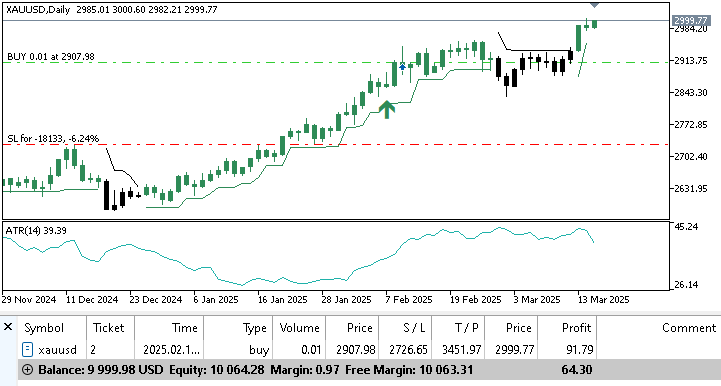
Before evaluating long-term performance, let us confirm that the Expert Advisor executes trades according to the Hidden Smash Day pattern described earlier in the article.
Two screenshots are therefore presented first. One image shows an active long position.
The other screenshot shows an active short position.
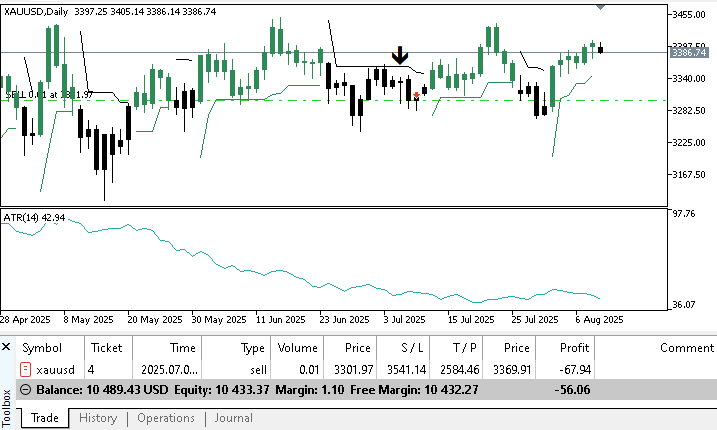
These examples demonstrate that the system correctly detects Hidden Smash Day setups and executes trades only after a valid confirmation bar appears.
In the long trade example, the smash bar closes in the lower portion of its range while also closing above the previous bar close. The following bar closes above the high of the smash bar, which activates a valid buy signal. At the opening of the next bar, the Expert Advisor opens a long position in accordance with the defined rules.
In the short trade example, the smash bar closes near the upper portion of its range while also closing below the previous bar close. The next bar closes below the low of the smash bar, which produces a confirmed sell signal. The Expert Advisor then executes a short position at the opening of the next bar.
These examples verify that the signal detection logic implemented earlier behaves exactly as intended. With this verification complete, the next step is to examine how the system performs when applied to historical data.
Experiment One: Trading All Hidden Smash Signals
The first experiment evaluates the strategy without any trend filtering. In this configuration, the Expert Advisor is allowed to trade every valid Hidden Smash Day pattern. The following environment settings were used.
Timeframe:
Daily D1
Test period:
1 January 2025 to 28 February 2026
Both buy and sell smash setups were enabled so the system could take all valid signals. Position size was automatically determined using the AUTO_MODE configuration, and risk per trade was limited to 1% of the account balance.
To allow replication of these results, two files are attached to the article.
- configurations_exp1.ini, which contains the Strategy Tester environment settings
- parameters_exp1.set, which contains the exact Expert Advisor input parameters used during this test
The experiment began with an account balance of $10,000. At the end of the test period, the strategy produced a total net profit of 1058.18 dollars, which represents slightly above ten per cent return on investment.
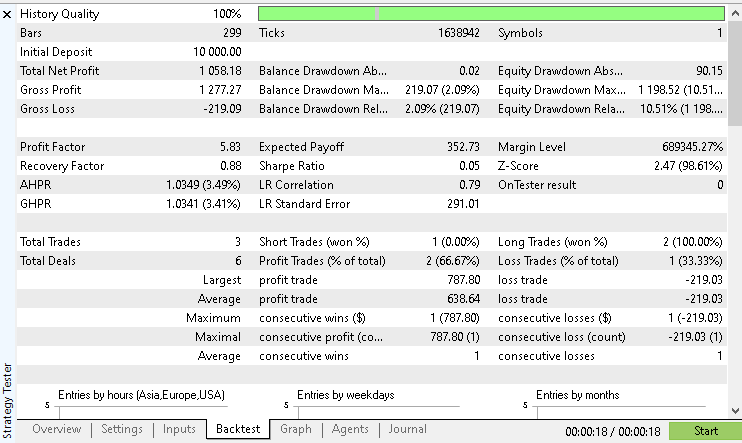
The win rate during this test was 100%. The accompanying equity curve shows a smooth upward progression without a dramatic drawdown.
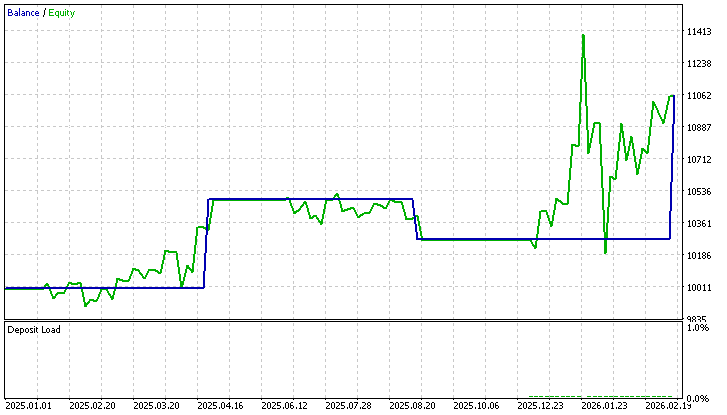
This suggests that during the selected test period, the Hidden Smash Day pattern produced a series of clean signals on Gold.
Experiment Two: Adding Supertrend Market Context
The second experiment evaluates the same strategy while introducing market context via the Supertrend filter.
In this configuration, the Expert Advisor only takes trades when the signal aligns with the direction of the Supertrend indicator calculated on the weekly timeframe. This adds a higher timeframe trend condition to the decision process.
The testing environment remained identical to the first experiment.
Timeframe
Daily D1
Test period
1 January 2025 to 28 February 2026
Both buy and sell smash setups remained enabled, and position sizing continued to use AUTO_MODE with a 1% risk per trade. The files required to reproduce this experiment are also attached.
- configurations_exp2.ini, which stores the Strategy Tester environment settings
- parameters_exp2.set, which stores the Expert Advisor parameter configuration
Starting again with an account balance of ten thousand dollars, the strategy produced a total net profit of 1862.62 dollars during the test period.
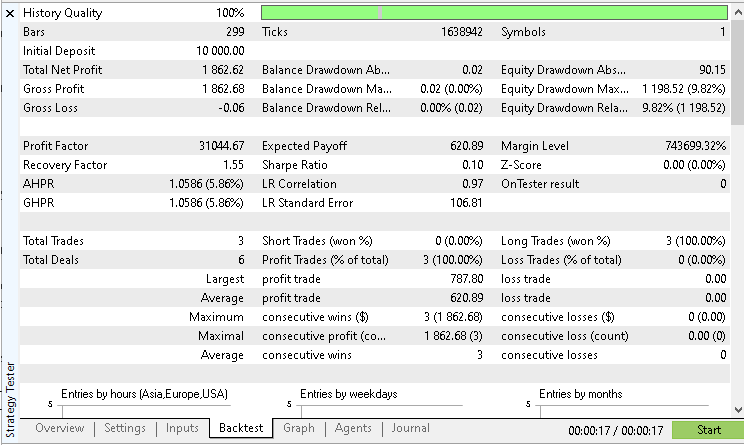
This represents a slightly above 18% return on investment. The win rate during this experiment also reached 100%.
Observations from the Experiments
Several observations can be drawn from these two tests.
The first experiment demonstrates that Hidden Smash Day reversals can generate profitable trades when executed mechanically under controlled risk management.
The second experiment shows that adding market context via a higher-timeframe trend filter can significantly influence results. In this case, the Supertrend filter reduced unnecessary trades and improved overall performance.
It is important to remember that these results reflect only the specific market and test period used in this study. Different instruments, data feeds, or time periods may yield different outcomes.
System Limitations
Although the Expert Advisor clearly implements the Hidden Smash Day concept, it is intentionally kept simple. Several features are not included in the current design.
- No time of day trading filter
- No spread control or execution filters
- No news event protection
These elements can influence automated system behaviour and may be explored in future research.
The Expert Advisor developed in this article was intentionally designed with flexible input parameters. Stop-loss mode, trade direction, trend filtering, and risk management settings can all be easily adjusted from the input panel. Because of this flexibility, the system can serve as a research framework rather than a fixed trading solution.
Further experimentation across different markets, timeframes, and parameter combinations may reveal additional insights about the Hidden Smash Day concept.
Readers are encouraged to run their own tests and share their findings in the article comment section. Community feedback often helps uncover new ideas and improvements that benefit the entire research process.
Conclusion
This article focused on transforming the Hidden Smash Day reversal concept into a structured trading system that can be executed automatically.
Starting from the earlier indicator developed in this series, a complete Expert Advisor was constructed that reads Hidden Smash signals, evaluates market conditions, calculates risk parameters, and executes trades according to clearly defined rules.
Several practical components were implemented during development.
- Detection of confirmed Hidden Smash Day signals
- Optional trend filtering using a Supertrend indicator
- Trade day filtering to control when trading is allowed
- Two stop loss modes based on structure or volatility
- Automatic position sizing based on account risk
- Execution logic that prevents overlapping trades
By following the steps presented in this article, the reader now has access to a fully functional Expert Advisor that can be compiled and tested directly in MetaTrader.
The system also provides a flexible framework for further research. Because each component is modular, additional filters, risk models, or context conditions can be integrated without rewriting the entire program.
Most importantly, this work demonstrates how a trading idea can be translated from a chart-based concept into a reproducible algorithm. When rules are clearly expressed in code, they can be tested objectively using historical data and refined through experimentation.
Below is a description of all the files attached for this article:
| File Name | Description |
|---|---|
| lwHiddenSmashDayContextExpert.mq5 | The completed source file of the Expert Advisor developed in this article |
| configurations_exp1.ini | Strategy tester configuration file containing the environment settings used for experiment 1 |
| parameters_exp1.set | Input parameter used for experiment 1 |
| configurations_exp2.ini | Strategy tester configuration file containing the environment settings used for experiment 2 |
| parameters_exp2.set | Input parameter used for experiment 2 |
Warning: All rights to these materials are reserved by MetaQuotes Ltd. Copying or reprinting of these materials in whole or in part is prohibited.
This article was written by a user of the site and reflects their personal views. MetaQuotes Ltd is not responsible for the accuracy of the information presented, nor for any consequences resulting from the use of the solutions, strategies or recommendations described.

 Price Action Analysis Toolkit Development (Part 64): Synchronizing Manually Drawn Trendlines with Automated Monitoring
 MetaTrader 5 Machine Learning Blueprint (Part 8): Bayesian Hyperparameter Optimization with Purged Cross-Validation and Trial Pruning
 Integrating MQL5 with Data Processing Packages (Part 8): Using Graph Neural Networks for Liquidity Zone Recognition
 From Novice to Expert: Enhancing Liquidity Strategies with Multi-Timeframe Structural Confirmation in MQL5

- Free trading apps
- Over 8,000 signals for copying
- Economic news for exploring financial markets
You agree to website policy and terms of use