

Custom Indicator Workshop (Part 1): Building the Supertrend Indicator in MQL5
 8 818
8 818
 2
2

Introduction
Picture this: It is early 2022. The crypto winter is biting hard, and Bitcoin has just plunged below $20,000. Panic is everywhere—forums are flooded with despair, portfolios are bleeding red, and most traders are either frozen in fear or frantically selling at the bottom.
However, on a quiet chart, a single thick line calmly flips from red to green, hugging the price from below, as if whispering, “Relax, the downtrend just ended.” That line was the Supertrend indicator.
While most traders were guessing, it delivered a clear, unambiguous message: the trend has changed. Moreover, those who trusted it did not just survive the noise—they caught the entire move that followed.
Despite its simplicity and long-standing popularity, Supertrend remains one of the most misunderstood and poorly implemented indicators on retail trading platforms. Many versions repaint, behave inconsistently in live markets, or hide their internal logic behind opaque calculations. For developers, this creates a recurring pain point: traders keep requesting Supertrend-based tools, yet reliable, extensible, and well-documented implementations are surprisingly rare.
This article aims to solve that problem. Rather than treating Supertrend as a black box, we will design and build a non-repainting Supertrend indicator in MQL5 from first principles—with clarity, correctness, and professional structure in mind. The indicator will expose its internal buffers in a documented, developer-friendly way, making it suitable not only for visual analysis but also for commercial EAs, strategies, and further extensions.
At the same time, students and aspiring MQL5 developers will gain practical insight into clean indicator architecture, proper buffer management, and safe live-market calculation techniques—skills that extend far beyond Supertrend itself.
Welcome to the first installment of Custom Indicator Workshop, a new series where we stop being passive consumers of ready-made tools and start becoming creators. We will take popular indicators, tear them apart, rebuild them better, and make them truly ours—no more settling for someone else’s fixed parameters or clunky visuals. By coding them ourselves in MQL5, we gain total control and a much deeper understanding of how they really work.
Let us begin the workshop by understanding what Supertrend really is, and why building it correctly matters.
What the Supertrend Indicator Really Is
Before writing a single line of MQL5 code, it is essential to understand what the Supertrend indicator actually represents and what it does not.
The Supertrend indicator was first introduced by Olivier Seban, who initially implemented and shared it on the TradingView charting platform. Since then, it has grown into one of the most widely used trend-following tools across retail trading platforms, particularly in crypto, forex, and indices.
At its core, Supertrend is a volatility-based trend indicator. It does not predict price direction, forecast reversals, or attempt to find tops and bottoms. Instead, it answers a much more straightforward—and far more practical—question: “Given current volatility, is the market trending up or down right now?” It achieves this by combining:
- Average True Range (ATR) to measure volatility
- A price midpoint reference
- A dynamic trailing band that flips sides when the trend changes
When the price remains above the trailing band, the indicator assumes a bullish trend and plots the line below the price. When the price closes below the band, the assumption flips, and the line moves above the price, signaling a bearish trend.
This single flip, above or below price, is what gives Supertrend its clarity. There are no oscillations, no competing signals, and no interpretation gymnastics. One line. One direction. One state. Because of this simplicity, Supertrend has become especially popular in trend-following strategies, trailing stop systems, and algorithmic decision-making. That said, many online discussions focus heavily on trading strategies, parameter optimization, and performance comparisons. Those topics are well covered elsewhere and are not the focus of this workshop.
For readers interested in a deeper conceptual explanation, Investopedia provides a solid, neutral overview of the indicator’s theory and usage.
How Our Supertrend Will Look and Behave
Before we touch any code, it helps to be very clear about what we are building and how it should behave on the chart. The Supertrend indicator relies entirely on ATR to determine where its trend line should be drawn. Instead of reinventing the wheel, we will leverage the fact that MetaTrader 5 already provides a highly optimized ATR indicator. Our custom Supertrend uses an indicator handle to consume ATR values, allowing us to focus on trend logic and visualization rather than volatility calculations.
This indicator will be implemented as a custom MQL5 indicator and plotted directly on the main chart window. The chart canvas will use a white background to maximize contrast and improve visual clarity. At any point in time, the indicator will maintain a single internal state that describes the current market environment. That environment can be in only one of two states: bullish or bearish.
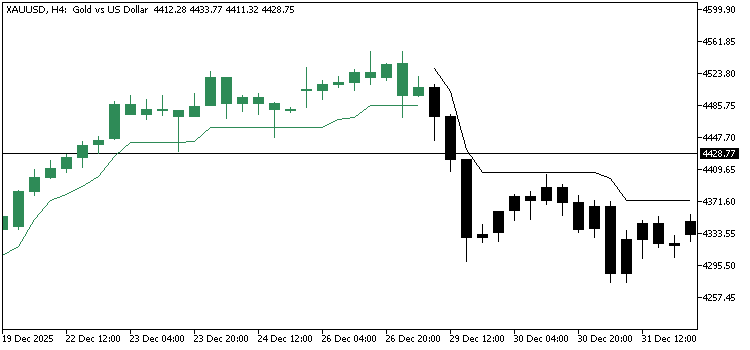
In a bullish environment, a thin SeaGreen-colored line is drawn below the price. This line is calculated by taking the candle's midpoint and subtracting the ATR multiplied by the user-defined multiplier, allowing it to trail price dynamically as volatility changes. At the same time, all price candles on the chart will adopt the same SeaGreen color. This creates immediate visual confirmation that the market is trending upward.
In a bearish environment, the behavior is inverted. A thin,black line will be plotted above the price until the trend changes. All candles will also be colored black. The moment price breaks the trailing band in the opposite direction, the trend state flips and the indicator updates accordingly.
At this point, please review the screenshot below. It shows the indicator's final appearance on a live chart. So you know, the trend state is communicated without the need for additional indicators or interpretation. One line. One color. One direction.
By default, the indicator will calculate and render using the chart's timeframe. No multi-timeframe logic is introduced at this stage to keep behavior predictable and transparent.
To control the sensitivity of the Supertrend, two user input parameters will be exposed:
- atrPeriod, which defines the ATR lookback window
- atrMultiplier, which controls how closely the Supertrend line trails price
Finally, and most importantly, this implementation will be non-repainting. Once a bar closes and a trend decision is made, it will not be altered retroactively. This makes the indicator suitable not only for discretionary analysis, but also for use in Expert Advisors, signal generators, and commercial trading systems.
Implementing Supertrend in MQL5
At this point, it is time to buckle up and get our hands dirty. In this section, we begin translating the Supertrend concept into a working custom indicator written in MQL5.
Before proceeding, the reader must meet a few basic prerequisites. You should already have a basic understanding of MQL5 programming. You should also be comfortable navigating the MetaTrader 5 desktop terminal, including attaching indicators to charts. Finally, you should be familiar with MetaEditor and know how to create new files, compile code, inspect errors, and debug when necessary. If you are comfortable with the above, then you are ready to continue.
The complete source code for the final indicator is attached to this article. For best results, it is highly recommended that you code along. Writing the code yourself and comparing it with the provided source is one of the most effective ways to learn indicator development. If you encounter errors along the way, you can always cross-check your work against the implementation I've attached.
Creating the Initial Indicator Structure
Open MetaEditor and create a new empty Custom Indicator file. Name it supertrend.mq5, then paste the following source code into the file.
//+------------------------------------------------------------------+
//|                                                   supertrend.mq5 |
//|          Copyright 2026, MetaQuotes Ltd. Developer is Chacha Ian |
//|                          https://www.mql5.com/en/users/chachaian |
//+------------------------------------------------------------------+

#property copyright "Copyright 2026, MetaQuotes Ltd. Developer is Chacha Ian"
#property link      "https://www.mql5.com/en/users/chachaian"
#property version   "1.00"

//+------------------------------------------------------------------+
//| User input variables                                             |
//+------------------------------------------------------------------+
input group "Information"
input int32_t atrPeriod     = 10;
input double  atrMultiplier = 1.5;

//+------------------------------------------------------------------+
//| Global Variables                                                 |
//+------------------------------------------------------------------+
ENUM_TIMEFRAMES timeframe = PERIOD_CURRENT;

//+------------------------------------------------------------------+
//| Indicator buffers                                                |
//+------------------------------------------------------------------+

//+------------------------------------------------------------------+
//| Custom indicator initialization function                         |
//+------------------------------------------------------------------+
int OnInit(){

   //--- To configure the chart's appearance
   if(!ConfigureChartAppearance()){
      Print("Error while configuring chart appearance", GetLastError());
      return INIT_FAILED;
   }

   return INIT_SUCCEEDED;
}

//+------------------------------------------------------------------+
//| Custom indicator iteration function                              |
//+------------------------------------------------------------------+
int OnCalculate(const int32_t rates_total,
                const int32_t prev_calculated,
                const datetime &time[],
                const double &open[],
                const double &high[],
                const double &low[],
                const double &close[],
                const long &tick_volume[],
                const long &volume[],
                const int32_t &spread[])
{

   //--- This block is executed when the indicator is initially attached to a chart
   if(prev_calculated == 0){
   }

   //--- This block is executed on every new bar open
   if(prev_calculated != rates_total && prev_calculated != 0){
   }

   return rates_total;
}

//+------------------------------------------------------------------+
//| Deinitiatialization function                                     |
//+------------------------------------------------------------------+
void OnDeinit(const int reason){

   //---

}

//--- CUSTOM UTILITY FUNCTIONS
//+------------------------------------------------------------------+
//| This function configures the chart's appearance.                 |
//+------------------------------------------------------------------+
bool ConfigureChartAppearance()
{
   if(!ChartSetInteger(0, CHART_COLOR_BACKGROUND, clrWhite)){
      Print("Error while setting chart background, ", GetLastError());
      return false;
   }

   if(!ChartSetInteger(0, CHART_SHOW_GRID, false)){
      Print("Error while setting chart grid, ", GetLastError());
      return false;
   }

   if(!ChartSetInteger(0, CHART_MODE, CHART_LINE)){
      Print("Error while setting chart mode, ", GetLastError());
      return false;
   }

   if(!ChartSetInteger(0, CHART_COLOR_FOREGROUND, clrBlack)){
      Print("Error while setting chart foreground, ", GetLastError());
      return false;
   }

   if(!ChartSetInteger(0, CHART_COLOR_CANDLE_BULL, clrWhite)){
      Print("Error while setting bullish candles color, ", GetLastError());
      return false;
   }

   if(!ChartSetInteger(0, CHART_COLOR_CANDLE_BEAR, clrWhite)){
      Print("Error while setting bearish candles color, ", GetLastError());
      return false;
   }

   if(!ChartSetInteger(0, CHART_COLOR_CHART_UP, clrSeaGreen)){
      Print("Error while setting bearish candles color, ", GetLastError());
      return false;
   }

   if(!ChartSetInteger(0, CHART_COLOR_CHART_DOWN, clrBlack)){
      Print("Error while setting bearish candles color, ", GetLastError());
      return false;
   }

   return true;
}

//+------------------------------------------------------------------+
This file serves as the foundation for the complete Supertrend indicator. At first glance, it may look like a lot, but it is intentionally structured to keep the code organized, readable, and easy to extend. Could we walk through it section by section?
File Properties and Metadata
At the very top, we define the indicator metadata.
//+------------------------------------------------------------------+
//|                                                   supertrend.mq5 |
//|          Copyright 2026, MetaQuotes Ltd. Developer is Chacha Ian |
//|                          https://www.mql5.com/en/users/chachaian |
//+------------------------------------------------------------------+

#property copyright "Copyright 2026, MetaQuotes Ltd. Developer is Chacha Ian"
#property link      "https://www.mql5.com/en/users/chachaian"
#property version   "1.00"
This includes the file name, author information, version number, and reference link. These properties are displayed inside the MetaTrader terminal and help users identify the indicator, its author, and its origin. While this section does not affect logic, it is a good professional practice, especially for indicators that may later be shared publicly or sold commercially.
User Input Variables
Next, we define the user input parameters. These are values that the trader can modify directly from the indicator settings window.
//+------------------------------------------------------------------+
//| User input variables                                             |
//+------------------------------------------------------------------+
input group "Information"
input int32_t atrPeriod     = 10;
input double  atrMultiplier = 1.5;
Here, we expose two inputs. The ATR period controls how volatility is measured. The ATR multiplier controls how sensitive the Supertrend line is to price movement. Together, these parameters allow the user to fine-tune the indicator without touching the code. As the indicator evolves, this section will remain the home for all user-configurable settings.
Global Variables
The global variables section defines values shared across multiple functions. For now, we only define the timeframe variable, which defaults to the current chart timeframe.
//+------------------------------------------------------------------+
//| Global Variables                                                 |
//+------------------------------------------------------------------+
ENUM_TIMEFRAMES timeframe = PERIOD_CURRENT;
As we progress, this section will grow to include indicator handles, trend state tracking, and other shared values required for calculation.
Indicator Buffers
//+------------------------------------------------------------------+
//| Indicator buffers                                                |
//+------------------------------------------------------------------+
This section is intentionally left empty for now. Later in the article, we will declare and bind all buffers used to store candle data, Supertrend bands, and trend states. Keeping buffer declarations isolated here makes the structure easy to follow and avoids clutter elsewhere in the code.
OnInit Function
//+------------------------------------------------------------------+
//| Custom indicator initialization function                         |
//+------------------------------------------------------------------+
int OnInit(){

   //--- To configure the chart's appearance
   if(!ConfigureChartAppearance()){
      Print("Error while configuring chart appearance", GetLastError());
      return INIT_FAILED;
   }

   return INIT_SUCCEEDED;
}
The OnInit function is executed once when the indicator is attached to a chart. Its primary role is initialization and configuration.
In our case, the first thing we do is configure the chart appearance by calling the ConfigureChartAppearance utility function. If this configuration fails for any reason, the indicator initialization is aborted gracefully.
Chart Appearance Configuration
The ConfigureChartAppearance function prepares the chart canvas for the Supertrend indicator.
//+------------------------------------------------------------------+
//| This function configures the chart's appearance.                 |
//+------------------------------------------------------------------+
bool ConfigureChartAppearance()
{
   if(!ChartSetInteger(0, CHART_COLOR_BACKGROUND, clrWhite)){
      Print("Error while setting chart background, ", GetLastError());
      return false;
   }

   if(!ChartSetInteger(0, CHART_SHOW_GRID, false)){
      Print("Error while setting chart grid, ", GetLastError());
      return false;
   }

   if(!ChartSetInteger(0, CHART_MODE, CHART_LINE)){
      Print("Error while setting chart mode, ", GetLastError());
      return false;
   }

   if(!ChartSetInteger(0, CHART_COLOR_FOREGROUND, clrBlack)){
      Print("Error while setting chart foreground, ", GetLastError());
      return false;
   }

   if(!ChartSetInteger(0, CHART_COLOR_CANDLE_BULL, clrWhite)){
      Print("Error while setting bullish candles color, ", GetLastError());
      return false;
   }

   if(!ChartSetInteger(0, CHART_COLOR_CANDLE_BEAR, clrWhite)){
      Print("Error while setting bearish candles color, ", GetLastError());
      return false;
   }

   if(!ChartSetInteger(0, CHART_COLOR_CHART_UP, clrSeaGreen)){
      Print("Error while setting bearish candles color, ", GetLastError());
      return false;
   }

   if(!ChartSetInteger(0, CHART_COLOR_CHART_DOWN, clrBlack)){
      Print("Error while setting bearish candles color, ", GetLastError());
      return false;
   }

   return true;
}
It sets a white background, removes the grid, adjusts candle colors, and ensures bullish and bearish movements are visually distinct. This creates a clean, high-contrast environment where the Supertrend line and colored candles can stand out clearly.
Each setting is applied defensively. If any chart modification fails, the function reports the error and stops execution. This makes debugging easier and prevents silent failures.
OnCalculate Function
The OnCalculate function is where all indicator calculations ultimately occur. It is called whenever new price data becomes available.
//+------------------------------------------------------------------+
//| Custom indicator iteration function                              |
//+------------------------------------------------------------------+
int OnCalculate(const int32_t rates_total,
                const int32_t prev_calculated,
                const datetime &time[],
                const double &open[],
                const double &high[],
                const double &low[],
                const double &close[],
                const long &tick_volume[],
                const long &volume[],
                const int32_t &spread[])
{

   //--- This block is executed when the indicator is initially attached to a chart
   if(prev_calculated == 0){
   }

   //--- This block is executed on every new bar open
   if(prev_calculated != rates_total && prev_calculated != 0){
   }

   return rates_total;
}
For now, we separate the two logical scenarios. The first occurs when the indicator is attached to the chart for the first time.
   //--- This block is executed when the indicator is initially attached to a chart
   if(prev_calculated == 0){
   }
The second occurs when new bars are formed.
   //--- This block is executed on every new bar open
   if(prev_calculated != rates_total && prev_calculated != 0){
   }
This structure allows us to clearly distinguish initialization logic from ongoing calculations, which becomes especially important for non-repainting indicators like Supertrend.
OnDeinit Function
//+------------------------------------------------------------------+
//| Deinitiatialization function                                     |
//+------------------------------------------------------------------+
void OnDeinit(const int reason){

   //---

}
The OnDeinit function is called when the indicator is removed from the chart. At the moment, it is empty, but it exists to allow proper cleanup if needed later. As we add indicator handles and dynamic objects, this function will become helpful for releasing resources.
Utility Functions Section
Finally, we group all helper and utility functions at the bottom of the file.
//--- CUSTOM UTILITY FUNCTIONS

---
This keeps the main indicator logic easy to read while allowing reusable functionality to live in one place. As the indicator grows, additional utility functions will be added here without cluttering the core logic.
Initializing the ATR Indicator
As mentioned earlier, the Supertrend indicator is based on the Average True Range. Since MetaTrader 5 already provides a reliable, well-tested ATR indicator, we don't need to recreate it from scratch. Instead, we will read its values directly from the terminal and integrate them into our logic.
To make this possible, we first need two global variables. The first one is an indicator handle. This handle represents a live connection between our custom indicator and the built-in ATR indicator running inside the terminal. The second one is a dynamic array that will store the ATR values calculated by MetaTrader.
We declare them in the global scope as follows:
int atrHandle;
double atrValues [];
atrHandle holds the reference to the ATR indicator, while atrValues[] stores the ATR values returned by the terminal. Declaring them globally allows us to access the ATR values anywhere in our indicator logic, both during initialization and during calculations.
Creating the ATR Indicator Handle
With the variables in place, we now initialize the ATR indicator inside the OnInit function.
//+------------------------------------------------------------------+
//| Custom indicator initialization function                         |
//+------------------------------------------------------------------+
int OnInit(){

   ...

   //--- Initialize the ATR indicator
   atrHandle = iATR(_Symbol, timeframe, atrPeriod);
   if(atrHandle == INVALID_HANDLE){
      Print("Error while initializing the ATR indicator ", GetLastError());
      return(INIT_FAILED);
   }

   return INIT_SUCCEEDED;
}
This is done using the iATR function. The function tells MetaTrader which symbol to use, which timeframe to read, and how many periods to use when calculating the ATR. In our case, we use the current symbol, the current timeframe, and the user-provided ATR period.
When iATR is called successfully, it returns a valid handle. If something goes wrong, it returns an invalid handle. This is why we immediately check the return value. If the handle is invalid, we print an error message and stop the indicator from loading. This prevents our logic from running without valid ATR data, which would lead to incorrect results later.
At this stage, the ATR indicator is running quietly in the background, and MetaTrader is ready to provide us with ATR values whenever we request them.
Releasing the ATR Indicator
Every indicator handle that is created must also be released when the indicator is removed from the chart. This is handled inside the OnDeinit function.
//+------------------------------------------------------------------+
//| Deinitiatialization function                                     |
//+------------------------------------------------------------------+
void OnDeinit(const int reason){

   //--- Release ATR
   if(atrHandle != INVALID_HANDLE){
      IndicatorRelease(atrHandle);
   }
}
Here, we check whether the ATR handle is valid. If it is, we release it using IndicatorRelease. This step is vital for memory management. It ensures that MetaTrader frees the resources used by the ATR indicator once our Supertrend indicator is no longer needed. While MetaTrader is good at managing resources, explicitly releasing handles is considered best practice and helps keep our code clean and professional.
Resolving Compilation Warnings
At this point, compiling the indicator produces a few warnings. These warnings are expected and indicate that some required properties have not yet been defined. The first warning tells us that no indicator window property is specified. In MetaTrader, indicators must explicitly declare where they will be drawn.
There are two common display types. Some indicators are drawn directly on the price chart, such as Moving Averages and Bollinger Bands. Others are drawn in a separate subwindow below the chart, such as RSI and ATR.
Since Supertrend is an overlay indicator that follows price, we want it to appear directly on the main chart window. We declare this by adding the following directive:
#property indicator_chart_window
After adding this, the first warning disappears.
Understanding Graphic Plots
The second warning tells us that no indicator plot has been defined. A graphic plot is a visual output that MetaTrader draws on the chart using data from indicator buffers. Each plot represents one visual element, such as a line, a histogram, or colored candles. MQL5 supports up to eighteen different plot types, giving developers flexibility in how indicator data is visualized. Each plot must be explicitly declared so the terminal knows how many visual elements to prepare.
In our Supertrend indicator, we plan to use three plots. One plot will be used for the custom colored candles, and two plots will be used for the Supertrend lines. To declare this, we add the following directive:
#property indicator_plots 3
This removes the second warning.
Indicator Buffers and Their Purpose
After declaring the number of plots, MetaTrader displays another warning stating that the indicator's buffer size is insufficient. Indicator buffers are special arrays used to store data that will later be drawn on the chart. Each buffer holds one stream of data, such as open prices, line values, or color indices. MetaTrader automatically reads from these buffers and uses their contents to render the corresponding plots.
Since our Supertrend indicator uses multiple data streams, including candle values, trend colors, band values, and internal trend states, we need to reserve enough buffers in advance. We do this by declaring the total number of buffers we plan to use:
#property indicator_buffers 8
This tells MetaTrader to allocate up to 8 indicator buffers. Once this directive is added, all compilation warnings disappear.
Declaring Indicator Buffer Arrays
With the buffer count defined, we can now declare the actual arrays that will act as our indicator buffers. These arrays must be of type double and must be declared in the global scope. They are declared as dynamic arrays because MetaTrader automatically resizes them based on the number of available chart bars. We declare buffers for the custom candle data, the Supertrend bands, and the internal trend state.
//+------------------------------------------------------------------+
//| Indicator buffers                                                |
//+------------------------------------------------------------------+
double bufCandleOpen[];
double bufCandleHigh[];
double bufCandleLow[];
double bufCandleClose[];
double bufCandleTrendColor[];

double bufSupertrendUpperBand[];
double bufSupertrendLowerBand[];

double bufTrendState[];
At this stage, we are only declaring the arrays. Declaring them alone is not enough. In the next step, we will bind each array to a specific buffer index inside the OnInit function so that MetaTrader recognizes them as true indicator buffers.
//+------------------------------------------------------------------+
//| Custom indicator initialization function                         |
//+------------------------------------------------------------------+
int OnInit(){

   ...

   //--- Bind arrays to indicator buffers
   SetIndexBuffer(0, bufCandleOpen, INDICATOR_DATA);
   SetIndexBuffer(1, bufCandleHigh, INDICATOR_DATA);
   SetIndexBuffer(2, bufCandleLow, INDICATOR_DATA);
   SetIndexBuffer(3, bufCandleClose, INDICATOR_DATA);
   SetIndexBuffer(4, bufCandleTrendColor, INDICATOR_COLOR_INDEX);
   SetIndexBuffer(5, bufSupertrendUpperBand, INDICATOR_DATA);
   SetIndexBuffer(6, bufSupertrendLowerBand, INDICATOR_DATA);
   SetIndexBuffer(7, bufTrendState, INDICATOR_DATA);

   return INIT_SUCCEEDED;
}
At this stage, we have already declared all indicator buffers and bound them correctly. These buffers act as storage containers for candles, Supertrend bands, and trend states. However, at the moment, they do not contain meaningful data. Until we fill them in a structured way, nothing can be rendered on the chart.
To populate these buffers, we now implement the Supertrend algorithm. Like most indicators in MQL5, the core calculation logic lives inside the OnCalculate function. This function is executed whenever new price data becomes available in the terminal.
Our goal is twofold. First, we compute Supertrend values based on price and ATR. Second, we color candles according to the detected trend. Bullish candles will appear in SeaGreen, while bearish candles will appear in black. To support candle coloring, we define a simple color palette.
#property indicator_color1 clrBlack, clrSeaGreen
The color buffer uses numeric indices to map to these colors. A value of 0 corresponds to black, while a value of 1 corresponds to SeaGreen.
Avoiding Code Duplication with Helper Functions
When constructing candles, the same buffer assignments appear repeatedly. Writing this logic inline would quickly lead to duplication and reduced readability. To avoid this, we define two helper functions. The first function fills candle buffers for a bullish bar and assigns the bullish color index.
//+---------------------------------------------------------------------------------------------------+
//| Populates candle buffers for a bullish bar and assigns the bullish trend color at the given index |
//+---------------------------------------------------------------------------------------------------+
void SetBullishCandle(int index, double &open[], double &high[], double &low[], double &close[]){
   bufCandleOpen [index]  = open [index];
   bufCandleHigh [index]  = high [index];
   bufCandleLow  [index]  = low  [index];
   bufCandleClose[index]  = close[index];
   bufCandleTrendColor[index] = 1;
}
Within this function, the open, high, low, and close values for the specified bar are copied into the indicator's candle buffers. The trend color buffer is then set to 1, which maps to the bullish color. The second function performs the same task for bearish candles.
//+---------------------------------------------------------------------------------------------------+
//| Populates candle buffers for a bearish bar and assigns the bearish trend color at the given index |
//+---------------------------------------------------------------------------------------------------+
void SetBearishCandle(int index, double &open[], double &high[], double &low[], double &close[]){
   bufCandleOpen [index]  = open [index];
   bufCandleHigh [index]  = high [index];
   bufCandleLow  [index]  = low  [index];
   bufCandleClose[index]  = close[index];
   bufCandleTrendColor[index] = 0;
}
The only difference is that the color buffer is set to 0, indicating a bearish candle. These two functions allow us to construct and color candles consistently, while keeping the main Supertrend logic readable and compact.
Working with Price Arrays Safely
The OnCalculate function provides arrays of price series, such as open, high, low, and close. These arrays are constant and cannot be passed by reference to custom functions. To work around this limitation, we create local copies of these arrays inside OnCalculate.
//+------------------------------------------------------------------+
//| Custom indicator iteration function                              |
//+------------------------------------------------------------------+
int OnCalculate(const int32_t rates_total,
   ...
{

   //--- Temporary buffers used to store price data for rendering custom colored candles
   double sOpen [];
   double sHigh [];
   double sLow  [];
   double sClose[];

   ...

   return rates_total;
}
These arrays act as working buffers. We copy the price data into them and pass them safely to our helper functions without modifying the original price series.
Initial Calculation on Indicator Attachment
When the indicator is first attached to a chart, the prev_calculated parameter is set to zero. This signals that no prior calculations exist and that we must process all available historical data. We detect this condition using:
if(prev_calculated == 0)
Inside this block, we begin by initializing all indicator buffers with EMPTY_VALUE.
   //--- This block is executed when the indicator is initially attached to a chart
   if(prev_calculated == 0){

      //--- Start with clean buffers at first calculation
      ArrayInitialize(bufCandleOpen, EMPTY_VALUE);
      ArrayInitialize(bufCandleHigh, EMPTY_VALUE);
      ArrayInitialize(bufCandleLow,  EMPTY_VALUE);
      ArrayInitialize(bufCandleClose, EMPTY_VALUE);
      ArrayInitialize(bufSupertrendUpperBand, EMPTY_VALUE);
      ArrayInitialize(bufSupertrendLowerBand, EMPTY_VALUE);
   }
In MQL5, EMPTY_VALUE tells the terminal not to draw anything at that index. This behavior is beneficial for Supertrend bands, since only one band is visible at any given time, depending on the trend direction.
Defining and Initializing Trend States
Supertrend logic relies on trend direction. At any bar, the trend can be bullish, bearish, or still developing. To represent these states clearly, we define three constants:
const double TREND_BULLISH =  1.0;
const double TREND_BEARISH =  0.0;
const double TREND_NEUTRAL = -1.0;
These values are stored in a dedicated trend state buffer. Before calculations begin, we initialize the entire buffer to the neutral state: This ensures that the algorithm knows there is no trend at the start.
Copying Price Data and Validating History
Still inside the initial calculation block, we copy the terminal price arrays into our local working buffers:
   //--- This block is executed when the indicator is initially attached to a chart
   if(prev_calculated == 0){

      ...

      //--- Copy price data into local working buffers to safely manipulate candle values without altering the original price arrays
      ArrayCopy(sOpen, open);
      ArrayCopy(sHigh, high);
      ArrayCopy(sLow, low);
      ArrayCopy(sClose, close);

   }
Next, we verify that there is enough historical data to calculate the ATR.
   //--- This block is executed when the indicator is initially attached to a chart
   if(prev_calculated == 0){

      ...

      //--- Ensure sufficient historical data is available to calculate the ATR period.
      if(rates_total < atrPeriod){
         Print("Insufficient bars to initialize Supertrend: ATR period requires more historical data.");
         return rates_total;
      }
   }
Since Supertrend depends on ATR, we cannot proceed without at least atrPeriod bars. If there is insufficient data, we exit early and wait for more bars to load.
Retrieving ATR Values
The Supertrend bands are derived from ATR values. We retrieve the entire ATR series using CopyBuffer:
   //--- This block is executed when the indicator is initially attached to a chart
   if(prev_calculated == 0){

      ...

      //--- Get all ATR values
      int numberOfCopiedATRValues = CopyBuffer(atrHandle, 0, 0, rates_total, atrValues);
      if(numberOfCopiedATRValues == -1){
         Print("Error while copying ATR values: ", GetLastError());
         return rates_total;
      }
   }
If this operation fails, we stop processing to avoid working with invalid data.
Computing Supertrend on Historical Bars
Once all prerequisites are met, we iterate through historical bars to compute Supertrend values.
   //--- This block is executed when the indicator is initially attached to a chart
   if(prev_calculated == 0){

      ...

      //--- Iterate through historical price data to calculate Supertrend values starting from the first valid ATR window.
      for(int i = atrPeriod - 1; i < rates_total - 1; i++){

         //--- Calculate the current bar midpoint and derive the raw Supertrend upper and lower bands using the ATR multiplier
         double barMidpoint    = (high[i] + low[i]) / 2.0;
         double upperBandValue = barMidpoint + atrValues[i] * atrMultiplier;
         double lowerBandValue = barMidpoint - atrValues[i] * atrMultiplier;

         //--- Initialize the first valid Supertrend bands once enough ATR data is available and skip further processing for this bar
         if(i == (atrPeriod - 1)){
            bufSupertrendUpperBand[atrPeriod - 1] = upperBandValue;
            bufSupertrendLowerBand[atrPeriod - 1] = lowerBandValue;
            continue;
         }

         //--- Handle initial trend resolution when no prior trend has been established
         if(bufTrendState[i - 1] == TREND_NEUTRAL){

            if(close[i] > bufSupertrendUpperBand[i - 1] || close[i] < bufSupertrendLowerBand[i - 1]){

               if(close[i] > bufSupertrendUpperBand[i - 1]){
                  bufTrendState[i] = TREND_BULLISH;
                  SetBullishCandle(i, sOpen, sHigh, sLow, sClose);
                  bufSupertrendUpperBand[i] = EMPTY_VALUE;
                  bufSupertrendLowerBand[i] = lowerBandValue;
               }

               if(close[i] < bufSupertrendLowerBand[i - 1]){
                  bufTrendState[i] = TREND_BEARISH;
                  SetBearishCandle(i, sOpen, sHigh, sLow, sClose);
                  bufSupertrendLowerBand[i] = EMPTY_VALUE;
                  bufSupertrendUpperBand[i] = upperBandValue;
               }

            }else{

               if(upperBandValue < bufSupertrendUpperBand[i - 1]){
                  bufSupertrendUpperBand[i] = upperBandValue;
               }else{
                  bufSupertrendUpperBand[i] = bufSupertrendUpperBand[i - 1];
               }

               if(lowerBandValue > bufSupertrendLowerBand[i - 1]){
                  bufSupertrendLowerBand[i] = lowerBandValue;
               }else{
                  bufSupertrendLowerBand[i] = bufSupertrendLowerBand[i - 1];
               }
            }
         }

         //--- Maintain or invalidate the bullish trend based on price interaction with the lower Supertrend band
         if(bufTrendState[i - 1] == TREND_BULLISH){
            if(close[i] < bufSupertrendLowerBand[i - 1]){
               bufTrendState[i] = TREND_BEARISH;
               SetBearishCandle(i, sOpen, sHigh, sLow, sClose);
               bufSupertrendLowerBand[i] = EMPTY_VALUE;
               bufSupertrendUpperBand[i] = upperBandValue;
            }else{
               if(lowerBandValue > bufSupertrendLowerBand[i - 1]){
                  bufSupertrendLowerBand[i] = lowerBandValue;
                  SetBullishCandle(i, sOpen, sHigh, sLow, sClose);
                  bufTrendState[i] = TREND_BULLISH;
               }else{
                  bufSupertrendLowerBand[i] = bufSupertrendLowerBand[i - 1];
                  SetBullishCandle(i, sOpen, sHigh, sLow, sClose);
                  bufTrendState[i] = TREND_BULLISH;
               }
            }
         }

         //--- Maintain or invalidate the bearish trend based on price interaction with the upper Supertrend band
         if(bufTrendState[i - 1] == TREND_BEARISH){
            if(close[i] > bufSupertrendUpperBand[i - 1]){
               bufTrendState[i] = TREND_BULLISH;
               SetBullishCandle(i, sOpen, sHigh, sLow, sClose);
               bufSupertrendUpperBand[i] = EMPTY_VALUE;
               bufSupertrendLowerBand[i] = lowerBandValue;
            }else{
               if(upperBandValue < bufSupertrendUpperBand[i - 1]){
                  bufSupertrendUpperBand[i] = upperBandValue;
                  SetBearishCandle(i, sOpen, sHigh, sLow, sClose);
                  bufTrendState[i] = TREND_BEARISH;
               }else{
                  bufSupertrendUpperBand[i] = bufSupertrendUpperBand[i - 1];
                  SetBearishCandle(i, sOpen, sHigh, sLow, sClose);
                  bufTrendState[i] = TREND_BEARISH;
               }
            }
         }
      }
   }
The loop starts at atrPeriod - 1, the first index at which ATR becomes valid. For each bar, we calculate the midpoint price and derive the raw upper and lower Supertrend bands using the ATR multiplier. At the first valid bar, we initialize both bands and skip the rest of the logic. From that point onward, trend resolution begins.
If the previous trend is neutral, price interaction with the prior bands determines whether a bullish or bearish trend is established. Once a trend exists, only one band remains active while the opposite band is suppressed using EMPTY_VALUE.
When the previous trend is bullish, price crossing below the lower band triggers a bearish reversal. Otherwise, the bullish trend continues, and the lower band is adjusted or carried forward. The bearish case follows the same logic in reverse. A close above the upper band signals a bullish reversal, while continuation tightens or preserves the upper band. At each step, candles are constructed and colored using the helper functions, ensuring visual consistency.
Updating Supertrend in Real Time
After the initial calculation, OnCalculate is called again whenever a new bar forms. In this case, prev_calculated is neither zero nor equal to rates_total.
   //--- This block is executed on every new bar open
   if(prev_calculated != rates_total && prev_calculated != 0){

      //--- Copy price data into local working buffers to safely manipulate candle values without altering the original price arrays
      ArrayCopy(sOpen, open);
      ArrayCopy(sHigh, high);
      ArrayCopy(sLow, low);
      ArrayCopy(sClose, close);

      //--- Start with clean buffers
      bufSupertrendLowerBand[rates_total - 1] = EMPTY_VALUE;
      bufSupertrendLowerBand[rates_total - 2] = EMPTY_VALUE;
      bufSupertrendUpperBand[rates_total - 1] = EMPTY_VALUE;
      bufSupertrendUpperBand[rates_total - 2] = EMPTY_VALUE;

      //--- Get all ATR values
      int numberOfCopiedATRValues = CopyBuffer(atrHandle, 0, 0, rates_total, atrValues);
      if(numberOfCopiedATRValues == -1){
         Print("Error while copying ATR values: ", GetLastError());
         return rates_total;
      }

      //--- Define indices for the most recently closed bar and the bar immediately preceding it
      int elapsedBarIndex      = rates_total - 2;
      int priorElapsedBarIndex = rates_total - 3;

      //--- Compute the Supertrend midpoint and derive the upper and lower bands using the ATR multiplier
      double barMidpoint    = (high[elapsedBarIndex] + low[elapsedBarIndex]) / 2.0;
      double upperBandValue = barMidpoint + atrValues[elapsedBarIndex] * atrMultiplier;
      double lowerBandValue = barMidpoint - atrValues[elapsedBarIndex] * atrMultiplier;

      //--- Handle Supertrend continuation or reversal logic when the previous bar was bullish
      if(bufTrendState[priorElapsedBarIndex] == TREND_BULLISH){
         if(close[elapsedBarIndex] < bufSupertrendLowerBand[priorElapsedBarIndex]){
            bufTrendState[elapsedBarIndex] = TREND_BEARISH;
            SetBearishCandle(elapsedBarIndex, sOpen, sHigh, sLow, sClose);
            bufSupertrendUpperBand[elapsedBarIndex] = upperBandValue;
            bufSupertrendLowerBand[elapsedBarIndex] = EMPTY_VALUE;
         }else{
            if(lowerBandValue > bufSupertrendLowerBand[priorElapsedBarIndex]){
               bufSupertrendLowerBand[elapsedBarIndex] = lowerBandValue;
               bufSupertrendUpperBand[elapsedBarIndex] = EMPTY_VALUE;
               SetBullishCandle(elapsedBarIndex, sOpen, sHigh, sLow, sClose);
               bufTrendState[elapsedBarIndex] = TREND_BULLISH;
            }else{
               bufSupertrendLowerBand[elapsedBarIndex] = bufSupertrendLowerBand[priorElapsedBarIndex];
               bufSupertrendUpperBand[elapsedBarIndex] = EMPTY_VALUE;
               SetBullishCandle(elapsedBarIndex, sOpen, sHigh, sLow, sClose);
               bufTrendState[elapsedBarIndex] = TREND_BULLISH;
            }
         }
      }

      //--- Handle Supertrend continuation or reversal logic when the previous bar was bearish
      if(bufTrendState[priorElapsedBarIndex] == TREND_BEARISH){
         if(close[elapsedBarIndex] > bufSupertrendUpperBand[priorElapsedBarIndex]){
            bufTrendState[elapsedBarIndex] = TREND_BULLISH;
            SetBullishCandle(elapsedBarIndex, sOpen, sHigh, sLow, sClose);
            bufSupertrendLowerBand[elapsedBarIndex] = lowerBandValue;
            bufSupertrendUpperBand[elapsedBarIndex] = EMPTY_VALUE;
         }else{
            if(upperBandValue < bufSupertrendUpperBand[priorElapsedBarIndex]){
               bufSupertrendUpperBand[elapsedBarIndex] = upperBandValue;
               bufSupertrendLowerBand[elapsedBarIndex] = EMPTY_VALUE;
               SetBearishCandle(elapsedBarIndex, sOpen, sHigh, sLow, sClose);
               bufTrendState[elapsedBarIndex] = TREND_BEARISH;
            }else{
               bufSupertrendUpperBand[elapsedBarIndex] = bufSupertrendUpperBand[priorElapsedBarIndex];
               bufSupertrendLowerBand[elapsedBarIndex] = EMPTY_VALUE;
               SetBearishCandle(elapsedBarIndex, sOpen, sHigh, sLow, sClose);
               bufTrendState[elapsedBarIndex] = TREND_BEARISH;
            }
         }
      }
   }
This block updates only the most recently closed bar, preventing repaints. We begin by copying price data into local buffers again, then clear Supertrend band values for the last two bars to avoid leftover drawings. ATR values are refreshed, and we identify two key indices: the most recently closed bar and the bar before it. Using these indices, we compute the new Supertrend bands and apply the same continuation/reversal logic used during historical processing. Only the latest bar is updated, keeping calculations efficient and results stable.
Configuring Graphic Plots for Rendering
At this point, all indicator buffers are defined correctly, and the Supertrend logic is fully implemented. However, when the indicator is attached to the chart, nothing is displayed yet. This is expected behavior. In MQL5, calculating values and rendering graphics are two separate responsibilities. Although our buffers are being filled with valid data, the terminal still cannot render them. To make the indicator visible, we must explicitly configure graphic plots.
Graphic plots are configured using the PlotIndexSetInteger and related functions. This configuration is customarily done inside the OnInit function, immediately after binding indicator buffers to their respective plot indices.
Configuring the Colored Candle Plot
Our first plot renders price candles with dynamic colors based on trend direction. This plot uses the DRAW_COLOR_CANDLES drawing mode. Inside OnInit, we configure the first plot as follows:
//+------------------------------------------------------------------+
//| Custom indicator initialization function                         |
//+------------------------------------------------------------------+
int OnInit(){

   ...

   //--- Configure Graphic Plots
   PlotIndexSetInteger(0, PLOT_DRAW_TYPE, DRAW_COLOR_CANDLES);
   PlotIndexSetDouble (0, PLOT_EMPTY_VALUE, EMPTY_VALUE);

   return INIT_SUCCEEDED;
}
Here, plot index zero refers to the first indicator plot. By setting the draw type to DRAW_COLOR_CANDLES, we instruct the terminal to treat the first five buffers as candle data. This drawing mode expects five buffers in a specific order—open, high, low, close, and color index. The empty value configuration ensures that any candle buffer value marked as EMPTY_VALUE is not rendered. This allows us to draw candles only when our logic explicitly populates them selectively.
Naming Candle Buffers for the First Plot
To correctly associate multiple buffers with a single candle plot, we define their labels using a property directive:
#property indicator_label1 "SupertrendOpen;SupertrendHigh;SupertrendLow;SupertrendClose"
This directive assigns names to the candle data buffers for the first plot. The order is essential. The terminal uses this sequence to map each buffer to its corresponding candle component. By doing this, MQL5 understands that these buffers together form a single colored candle plot rather than separate graphical objects. This also improves clarity when inspecting indicator buffers in the Data Window.
Configuring the Downtrend Supertrend Band
The following plot renders the upper Supertrend band, which is visible during bearish trends. This band is drawn as a simple line. The configuration is done as follows:
//+------------------------------------------------------------------+
//| Custom indicator initialization function                         |
//+------------------------------------------------------------------+
int OnInit(){

   ...

   //--- Configure Graphic Plots

   ...

   PlotIndexSetInteger(1, PLOT_DRAW_TYPE, DRAW_LINE);
   PlotIndexSetInteger(1, PLOT_LINE_STYLE, STYLE_SOLID);
   PlotIndexSetInteger(1, PLOT_LINE_WIDTH, 1);
   PlotIndexSetInteger(1, PLOT_LINE_COLOR, clrBlack);
   PlotIndexSetDouble (1, PLOT_EMPTY_VALUE, EMPTY_VALUE);
   PlotIndexSetString (1, PLOT_LABEL, "downtrend");

   return INIT_SUCCEEDED;
}
Plot index one refers to the second indicator plot. We define it as a line with a solid style and a width of one pixel. The color is set to black to match bearish conditions visually. The empty value setting plays an important role here. Whenever the buffer contains EMPTY_VALUE, the line is not drawn at that bar. This allows the downtrend band to appear only when the market is bearish and remain hidden otherwise. The plot label defines how this line appears in the Data Window and legend.
Configuring the Uptrend Supertrend Band
The uptrend band is configured in the same way as the downtrend band, with the only differences being the plot index, color, and label.
//+------------------------------------------------------------------+
//| Custom indicator initialization function                         |
//+------------------------------------------------------------------+
int OnInit(){

   ...

   //--- Configure Graphic Plots

   ...

   PlotIndexSetInteger(2, PLOT_DRAW_TYPE, DRAW_LINE);
   PlotIndexSetInteger(2, PLOT_LINE_STYLE, STYLE_SOLID);
   PlotIndexSetInteger(2, PLOT_LINE_WIDTH, 1);
   PlotIndexSetInteger(2, PLOT_LINE_COLOR, clrSeaGreen);
   PlotIndexSetDouble (2, PLOT_EMPTY_VALUE, EMPTY_VALUE);
   PlotIndexSetString (2, PLOT_LABEL, "uptrend");

   return INIT_SUCCEEDED;
}
This plot displays the lower Supertrend band during bullish trends. Since the logic mirrors the downtrend configuration, the same rendering rules apply. Only one band is visible at a time, depending on the trend state.
Setting General Indicator Properties
Finally, we configure general indicator properties that affect how the indicator appears in the terminal.
//+------------------------------------------------------------------+
//| Custom indicator initialization function                         |
//+------------------------------------------------------------------+
int OnInit(){

   ...

   //--- General indicator configurations
   IndicatorSetString(INDICATOR_SHORTNAME, "Supertrend Indicator");
   IndicatorSetInteger(INDICATOR_DIGITS, Digits());

   return INIT_SUCCEEDED;
}
The short name defines how the indicator is listed in the chart and the indicator list. Keeping it concise improves readability when multiple indicators are applied. The digits setting ensures that all plotted values respect the symbol’s price precision. This is important for consistency, especially when working with symbols that use different decimal formats.
With these plot configurations in place, the terminal now understands how to render our data. Colored candles reflect the current trend, Supertrend bands appear only when relevant, and empty values prevent unwanted drawings. At this stage, the Supertrend indicator is fully functional, visually correct, and non-repainting. The indicator logic, buffer management, and rendering configuration now work together as a complete and coherent system.
Testing
At this stage, the indicator should compile without errors and render correctly on the chart. We can now attach it to any symbol and timeframe of choice to observe how the colored candles and Supertrend bands respond to changing market conditions in real time.
Below is a screenshot of the completed Supertrend indicator applied to the Gold four-hour chart.
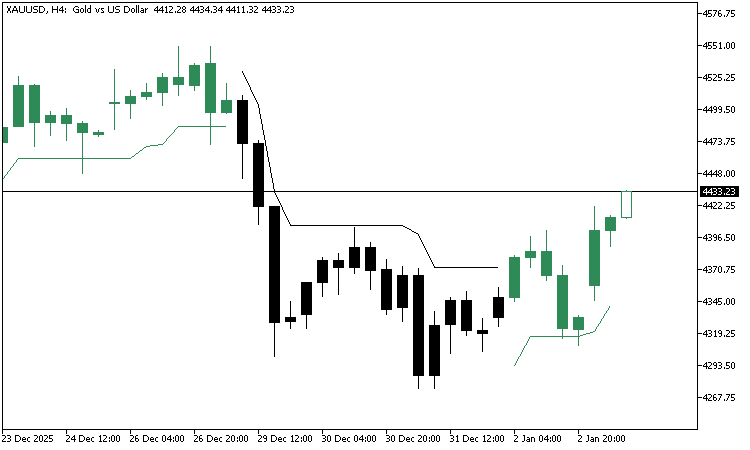
This confirms that both the calculation logic and the rendering configuration are working as intended.
Conclusion
In this article, we moved beyond theory and built something real. We designed and implemented a fully functional Supertrend indicator in MQL5 that works reliably in live markets, does not repaint, and exposes its internal logic in a clean and structured way. This is not a demo or a shortcut implementation. It is a practical tool that can be used immediately in trading and analysis, or as a building block in Expert Advisors and commercial systems.
More importantly, the indicator itself is only part of the achievement. Along the way, we practiced sound indicator architecture, disciplined buffer management, safe handling of live data, and precise separation between calculation and rendering. These are core skills that apply to every serious MQL5 indicator, not just Supertrend. Once these foundations are understood, building more advanced and customized tools becomes far less intimidating.
By writing the indicator ourselves, we removed the mystery that often surrounds popular trading tools. We gained control over behavior, visuals, and performance, and we now understand exactly why the indicator behaves the way it does in real time. That confidence is what separates a user of indicators from a creator of them.
This marks the end of the first Custom Indicator Workshop Series. In the next installments, we will continue this approach by taking other widely used indicators, breaking them down, and rebuilding them with clarity and intent. The goal remains the same: fewer black boxes, better tools, and a deeper understanding of the charts we rely on every day.
Warning: All rights to these materials are reserved by MetaQuotes Ltd. Copying or reprinting of these materials in whole or in part is prohibited.
This article was written by a user of the site and reflects their personal views. MetaQuotes Ltd is not responsible for the accuracy of the information presented, nor for any consequences resulting from the use of the solutions, strategies or recommendations described.

 Integrating External Applications with MQL5 Community OAuth
 Employing Game Theory Approaches in Trading Algorithms
 From Basic to Intermediate: Events (II)
 From Novice to Expert: Developing a Liquidity Strategy

- Free trading apps
- Over 8,000 signals for copying
- Economic news for exploring financial markets
You agree to website policy and terms of use
You have taken material from the article “Published: 18 October 2011 at 15:10”
https://www.mql5.com/en/code/576
When this indicator was written for MetaTrader 5, TradingView did not yet exist.
Please provide a more thorough description and ensure the facts are checked.
You have taken material from the article “Published: 18 October 2011 at 15:10”
https://www.mql5.com/en/code/576
When this indicator was written for MetaTrader 5, TradingView did not yet exist.
Please provide a more thorough description and ensure the facts are checked.