
VirtualTradePad PRO SE — Professional MetaTrader Trading Panel for MT4 and MT5

| 🎛 VirtualTradePad PRO SE for MetaTrader 4 and MetaTrader 5 Professional MetaTrader trading control center for manual trading, position management, pending orders, partial exits, averaging levels, ATM rules, signals, Strategy Tester workflow and MQL5 VPS-oriented operation. VirtualTradePad PRO SE is the next generation of the VirtualTradePad idea. It is not only a one-click trading panel, but a complete chart-based workspace for traders who want to control the full trading process from one professional interface. |
🌐 Language versions: English | Русский | 中文 | Español | Português | 日本語 | Deutsch | 한국어 | Français | Italiano | Türkçe
Full product guide, documentation and support: https://expforex.com/vtpprose/
| 💎 VirtualTradePad PRO SE MT5 | 💎 VirtualTradePad PRO SE MT4 |
| 📘 Full Documentation | 🛒 All Expforex Products |
| ⬇ Download Demo Version from Expforex | |
| Need help with MQL5 Market purchase, rent, update or installation? Read this practical guide: Market mql5.com: how to buy, rent, update and install an Expert Advisor. |
| 🏠 Product Page | 🎓 Documentation | ⚙ Settings |
| ❓ FAQ | 💬 Support | 🧩 Seller Profile |
What if every trade inside MetaTrader could be controlled from one professional workspace?VirtualTradePad PRO SE brings together multiple trading modules in one chart-based interface: manual trading, pending orders, live position information, partial close, basket profit/loss control, averaging and trend-add levels, ATM rule logic, signal monitoring, market information, Strategy Tester controls and MQL5 VPS workflow. Different modules. One connected trading workflow. |
🖥 POS — Manual Trading Control The POS tab is the main manual trading workspace. It gives direct control over BUY, SELL, Close, Reverse, Lock, Stop Loss, Take Profit, trailing, breakeven and position-management actions. |

📌 POS Chart Position Management This chart view shows how VirtualTradePad PRO SE works directly on the chart after positions are opened. The main idea is simple: the trader does not only press buttons on the panel. |

🚀 What is VirtualTradePad PRO SE?
VirtualTradePad PRO SE is a professional trading panel and trade-management workspace for MetaTrader 4 and MetaTrader 5. It is created for traders who want faster execution, clearer position control and a structured way to manage trades directly from the chart.
The standard MetaTrader terminal is powerful, but active trading often requires many clicks, several windows, separate scripts and manual calculations. VirtualTradePad PRO SE reduces this fragmentation by placing the most important trading controls into one visual workspace.
The product can be used as a simple manual trading panel, but its main strength is the larger professional workflow: position details, pending orders, partial exits, CLP basket logic, AVG levels, ATM rules, signal monitoring, live market information, Strategy Tester analysis and MQL5 VPS-oriented state handling.
⚡ Manual TradingOpen, close, reverse, lock and protect trades directly from the chart. | 📦 Pending OrdersPrepare Buy Stop, Sell Stop, Buy Limit and Sell Limit orders using a dedicated order workspace. |
🎯 Trade ManagementUse partial close, Close Profit, Close Loss, trailing profit and structured basket-control logic. | 🧠 Advanced WorkflowUse AVG levels, ATM rules, signals, INFO monitoring, Strategy Tester and VPS workflow. |
⭐ Why PRO SE is different
- It is not only a BUY / SELL panel. It is a multi-module trading workspace.
- It works directly from the chart. The trader can see the market and the controls in the same place.
- It supports structured trade management. Partial close, CLP, AVG and ATM help organize the workflow.
- It is useful for testing. Strategy Tester tools help study behavior before real trading.
- It is prepared for VPS workflow. The panel is designed with stable operation and state continuity in mind.
- It contains live information. Position, exposure, risk and closed P/L information help the trader understand current context.
- It helps reduce routine actions. Many common actions can be executed from the panel without constantly opening standard terminal windows.
- It is designed as a workspace. The goal is not only speed, but also visibility, control and a more professional workflow.
- It is suitable for different screen sizes. The panel is designed to remain practical on compact screens and large 4K-style workspaces.
- It creates a learning path. Users can start with simple manual actions, then move to CLP, PART, AVG, ATM, SIG, Tester and VPS workflow step by step.
| Important: VirtualTradePad PRO SE is a trade-management tool. It does not predict the market and does not guarantee profit. All advanced functions must be tested on demo or in the Strategy Tester before real use. |
🧩 Main Working Modules
The panel is divided into logical modules. Each module solves a specific trading task, but the main idea is that all modules work together as one trading environment.
| Module | Main purpose | Typical use |
| POS | Manual market trading and position control. | BUY, SELL, Close, Reverse, Lock, SL/TP, trailing, breakeven. |
| Live Details | Compact terminal-style information inside the panel. | Open positions, pending orders, floating result, virtual levels, partial data. |
| ORD | Pending order placement and order planning. | Buy Stop, Sell Stop, Buy Limit, Sell Limit and Magic Target logic. |
| CLP | Close Profit, Close Loss and Profit Trailing. | Basket-level closing by money, points or percent. |
| PART | Partial close and step-by-step exit management. | Scale out of a position using levels and partial volumes. |
| AVG | Averaging and trend-add level planning. | Preview future levels and manage basket protection. |
| ATM | Advanced Trade Management rules. | Create rule-based actions with conditions and parameters. |
| SIG | Signal matrix and alerts. | Monitor indicators, timeframes, alerts and signal permissions. |
| INFO | Live market, exposure and risk overview. | Spread, floating result, drawdown, SL/TP targets and closed P/L. |
| Tester / VPS | Testing and stable environment workflow. | Visual testing, Auto-Pause events and MQL5 VPS preparation. |
📌 POS — Manual Trading Control
The POS tab is the first module most users should learn. It is responsible for fast manual trading and direct position control. The trader can open a position, set protection, close a trade, reverse exposure or lock the current direction without opening the standard MetaTrader order window.
This is useful for scalping, intraday trading, fast manual execution and situations where the trader wants all major controls in front of the chart.
| Control | What it does |
| BUY / SELL | Open market positions directly from the chart. |
| Close | Close selected positions according to the current panel logic. |
| Reverse | Close current exposure and open the opposite direction. |
| Lock | Create opposite exposure to balance or hedge the current direction. |
| SL / TP | Set or manage Stop Loss and Take Profit values. |
| TS / BE | Use trailing stop and breakeven logic when the position moves in profit. |
| Profit / Loss close | Close only profitable or only losing positions when the workflow requires it. |
| Quick actions | Use fast panel actions instead of repeating the same terminal operations manually. |
For the first start, POS should be tested with a small fixed lot on a demo account. This helps confirm that the broker allows the selected lot, SL/TP distance and execution type.
Chart-side POS tools
The POS workspace is not limited to the main panel. When chart-side controls are visible, the trader can work with the position directly on the chart. This is especially useful when several levels are active and the trader wants to understand the structure visually.
| Chart-side element | Purpose |
| Floating position header | Shows the trade type, lot, ticket, SL, TP, points, percent and current floating result near the managed position. |
| Position quick menu | Gives fast access to partial close buttons, Reverse, Lock, Clear SL, Clear TP and other selected position actions. |
| Take Profit zone | Displays TP target area, expected points and estimated result, so the trader can read potential outcome directly on the chart. |
| Stop Loss zone | Displays risk area, stop distance and estimated loss, making risk easier to evaluate visually. |
| Draggable SL / TP levels | Allows the trader to move protective levels on the chart when visual level modification is enabled. |
| Partial close buttons | Allow quick partial close by preset percent or fixed lot when the selected position and broker lot rules allow it. |
| Grouped closed trades | Shows closed trade history on the chart in a grouped and readable way, especially useful for visual review. |
This visual layer is one of the key differences between a simple one-click panel and a professional trade-management workspace. The trader can manage the current position while still seeing price action, levels and expected risk/reward context.
📊 Live Position Terminal The live details area works like a compact terminal inside the panel. It can show open positions, pending orders, hedge information, floating result, points, percent result, virtual SL/TP values, partial-close information and quick position actions. |

📊 Live Details — a compact terminal inside the panel
One of the most important parts of PRO SE is the compact live information area. It helps the trader understand the current position state without switching to the standard MetaTrader terminal.
The panel can show position type, lot, result, points, percent, virtual stop information, partial close information and other values that are useful during active trading.
This is especially important when the trader manages several positions or uses modules such as CLP, PART, AVG or ATM. The more complex the workflow is, the more important it becomes to see the current situation clearly.
| Live information | Why it helps |
| Open positions and pending orders | The trader can see active exposure without leaving the chart. |
| Floating result | Profit/loss can be monitored while the position is still open. |
| Virtual SL/TP information | Useful when virtual protection is enabled and hidden broker-side levels are not used. |
| Partial close information | Helps understand which position or level is being managed. |
| Quick position actions | Allows faster interaction with a selected position or group of trades. |
📦 ORD — Pending Orders and Magic Target
The ORD tab is designed for traders who prefer planned entries. Instead of opening a market position immediately, the trader can prepare pending orders around technical levels, breakout areas or pullback zones.
ORD can be used for Buy Stop, Sell Stop, Buy Limit and Sell Limit orders. It can also support chart-based planning through Magic Target logic.
📦 ORD Tab — Pending Order Workspace ORD is used for pending order placement, order distance, lot, SL/TP and order-control workflow. |

🎯 Magic Target and Chart Planning Magic Target helps plan entry, Stop Loss and Take Profit visually on the chart before placing the order. |
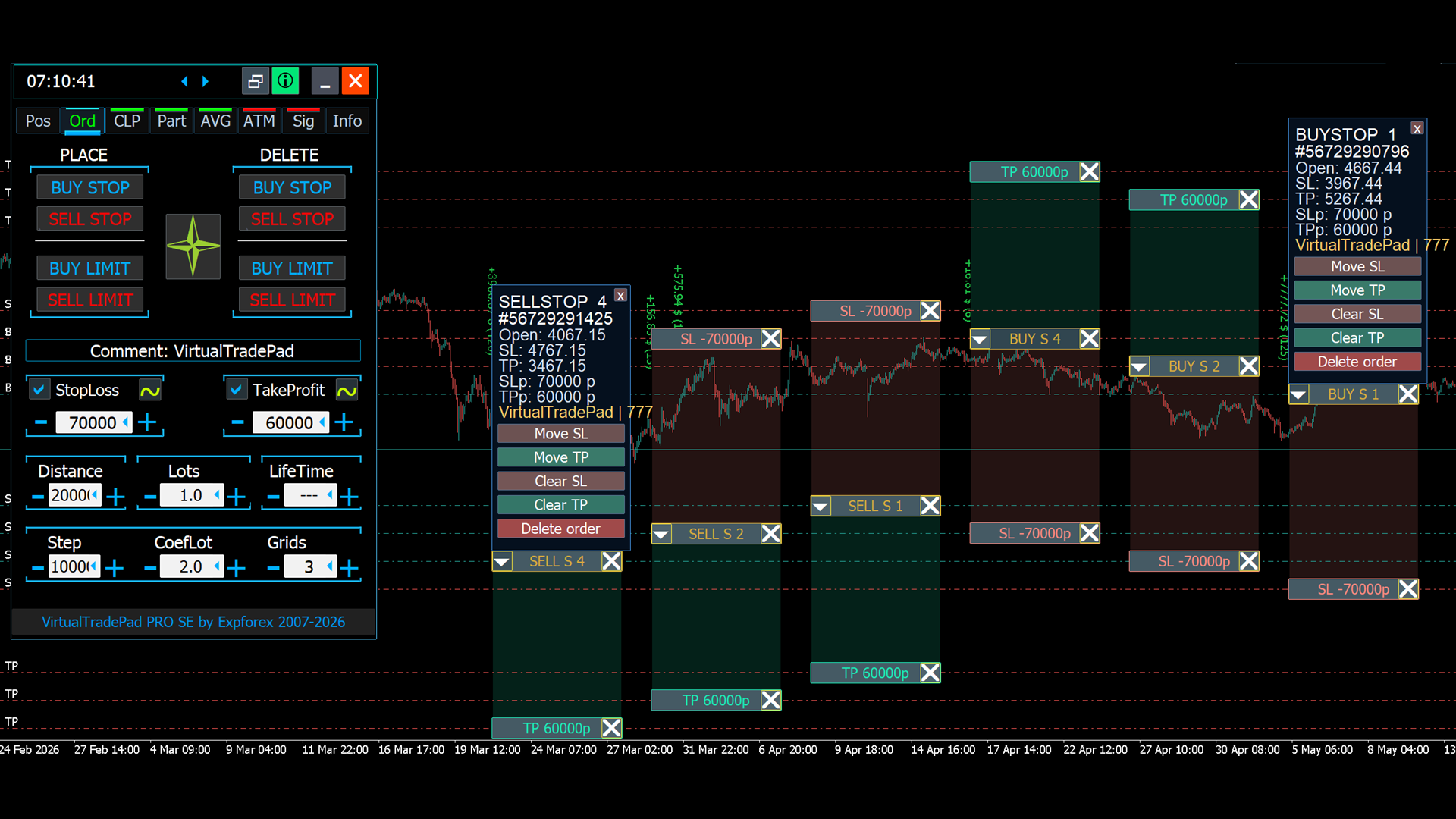
| ORD workflow | Why it matters |
| Prepare pending order type | The trader can select Buy Stop, Sell Stop, Buy Limit or Sell Limit according to the trading idea. |
| Set distance, lot, SL and TP | The order can be prepared with controlled volume and protection before it is placed. |
| Use chart planning | Magic Target makes order planning more visual and easier to understand. |
| Confirm before placing | The trader can review the position of levels before execution. |
| Test pending order rules | Broker stop levels, freeze levels and execution limits can affect order placement. |
💰 CLP — Close Profit, Close Loss and Profit Trailing
The CLP module is one of the strongest parts of VirtualTradePad PRO SE. It is designed for basket-level management. Instead of closing one position manually, the trader can define total profit, total loss or trailing-profit conditions for selected positions.
CLP can be used as a virtual basket Take Profit or virtual basket Stop Loss. It can also help manage a group of trades when several positions belong to the same trading idea.
💰 CLP — Basket Profit and Loss Control CLP can close positions by total profit, total loss or trailing-profit conditions in money, points or percent. |
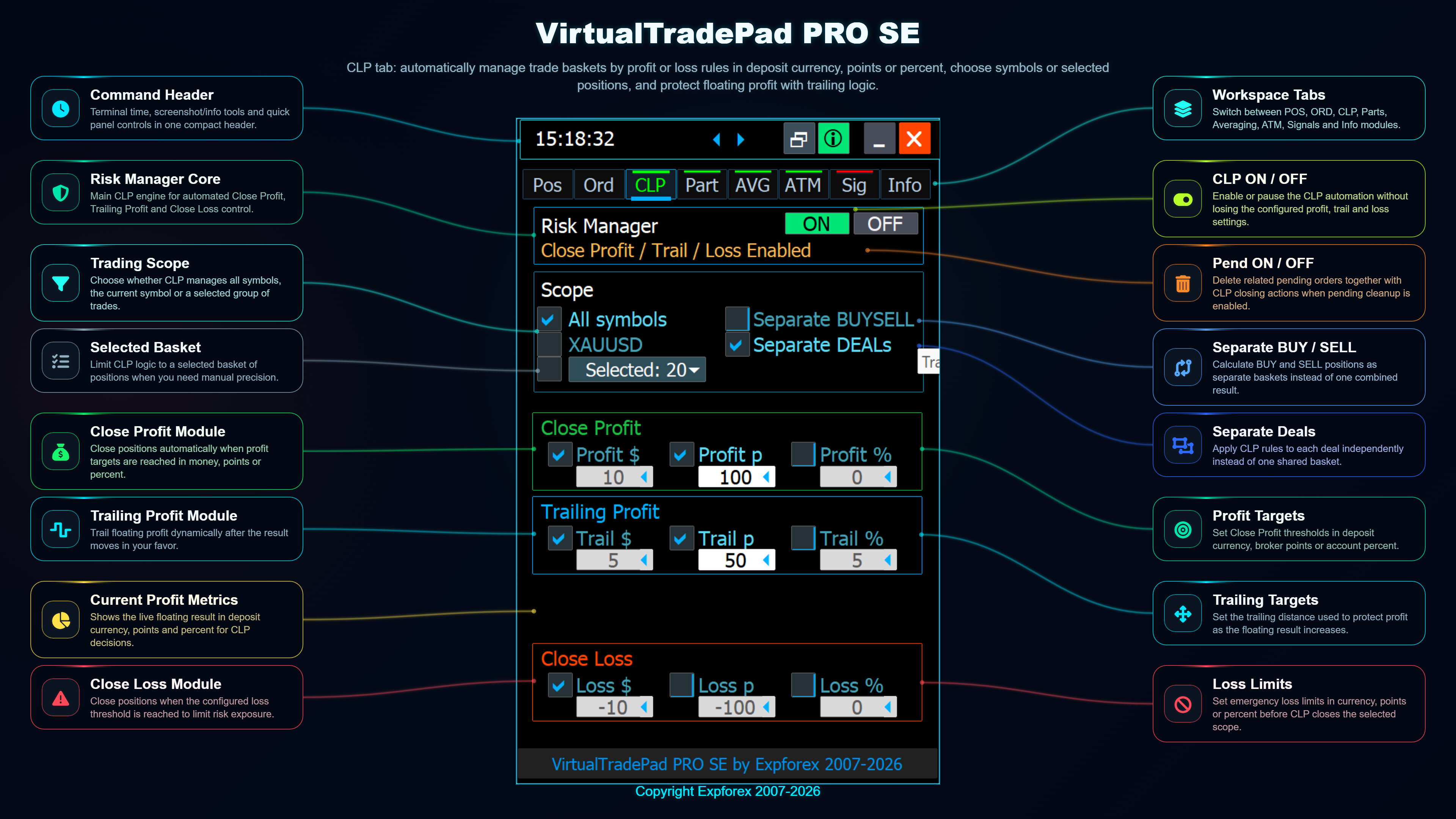
| CLP mode | Purpose |
| Close Profit | Close selected positions when the configured profit target is reached. |
| Close Loss | Close selected positions when the configured loss limit is reached. |
| Profit Trailing | Protect accumulated floating profit after it reaches a configured level. |
| Separate BUY / SELL | Manage long and short exposure independently when needed. |
| Current Symbol / All Symbols | Choose the scope of positions included in the calculation. |
| Currency / Points / Percent | Use the calculation method that matches your trading workflow. |
| CLP warning: this module can close several positions at once. Before using it on a real account, test the scope, symbol filter, magic filter and selected calculation mode in a safe environment. |
| More about CLP logic: the PRO SE version includes its own symbol-selection workflow, but the core idea of closing by total profit/loss and trailing profit is explained here: CloseIfProfitorLoss with Trailing — closing positions using total profit/loss with trailing stop. |
✂ PART — Partial Close Manager
The PART module is built for traders who do not want to close the entire position at one price. It allows the trader to create a structured exit plan with partial close levels.
This can be useful when a trader wants to lock part of the result, reduce exposure gradually or keep a smaller remaining position active after the first target has been reached.
✂ PART — Partial Close Levels on the Chart PART can display and manage partial TP/SL levels directly on the chart. It helps build a structured exit plan for each position. |

| PART idea | Practical meaning |
| Close in several steps | The position does not need to be closed fully at one price. |
| Reduce exposure | Part of the volume can be closed while the rest remains in the market. |
| Chart visibility | Levels can be shown on the chart, making the exit plan easier to understand. |
| Position-based control | Partial levels can be connected to the actual position-management workflow. |
| Broker lot rules | Minimum lot and lot step must allow the partial close volume. |
The most important point in partial close is volume. If the broker minimum lot or lot step does not allow the requested partial volume, the operation cannot be executed as expected. This is why partial close should always be tested with the same broker and same symbol conditions that will be used later.
| Related partial-close tool: if you need a separate utility focused specifically on smart partial closing, see: Smart partial close utility. In PRO SE, partial close is integrated into the full panel workflow. |
📈 AVG — Averaging and Trend-Add Levels
The AVG module is designed for additional-entry workflows.
It can show planned averaging or trend-add levels directly on the chart before they happen.
This is important because additional entries can increase exposure quickly.
AVG is not a toy. It must be configured carefully and tested with conservative lots.
But when used responsibly, visual level planning can help the trader understand the future grid structure before automatic entries are opened.
📈 AVG Basket Protection AVG can work with average basket Stop Loss, average Take Profit, average trailing stop, AddLot and level-control logic. |

📍 AVG Chart Levels Levels can be drawn directly on the chart, so the trader can see future averaging or trend-add entries before they are triggered. |

| AVG component | Meaning |
| Against mode | Additional levels can be used when price moves against the current exposure. |
| Trend mode | Additional entries can be planned in the direction of market movement. |
| Lot multiplier | Defines how the next level lot can scale from the first position lot. |
| AddLot | Adds a fixed extra volume to automatic levels when configured. |
| Level distance | Defines where the next level may be placed relative to the current price or basket logic. |
| Avg SL / Avg TP / Avg TS | Basket protection can be managed from the average price. |
| AVG risk warning: averaging and trend-add logic can increase exposure quickly. Always test level distances, lot multiplier, AddLot and average protection in the Strategy Tester or on demo before live use. |
| More about averaging workflow: the AVG tab follows the same practical idea of additional openings by trend or against the trend. See the separate guide: Averager — additional opening by trend and against the trend, grid workflow. |
🧠 ATM — Advanced Trade Management Rules
ATM is a rule-based management module. It helps prepare structured trading actions instead of reacting manually to every event. A rule usually consists of an action, a condition and detailed parameters.
The idea is simple: first define what the rule should do, then define when it is allowed to happen, then review the final rule before running it.
🧠 ATM Trade Workflow ATM helps combine action, condition and details into a structured semi-automatic trade-management workflow. |

1️⃣ ATM Step 1 — Select Action Step 1 defines what the rule should do: open, close, modify, protect or manage a trade. |

2️⃣ ATM Step 2 — Conditions Step 2 defines when the selected action is allowed to trigger. Conditions help prevent uncontrolled execution. |

4️⃣ ATM Step 4 — Review and Run Step 4 gives a final review of the rule before activation. This is where the trader checks that the rule matches the intended logic. |

▶ ATM Rule Execution Dashboard The Run Rules view helps monitor active ATM rules, their state and execution logic. |
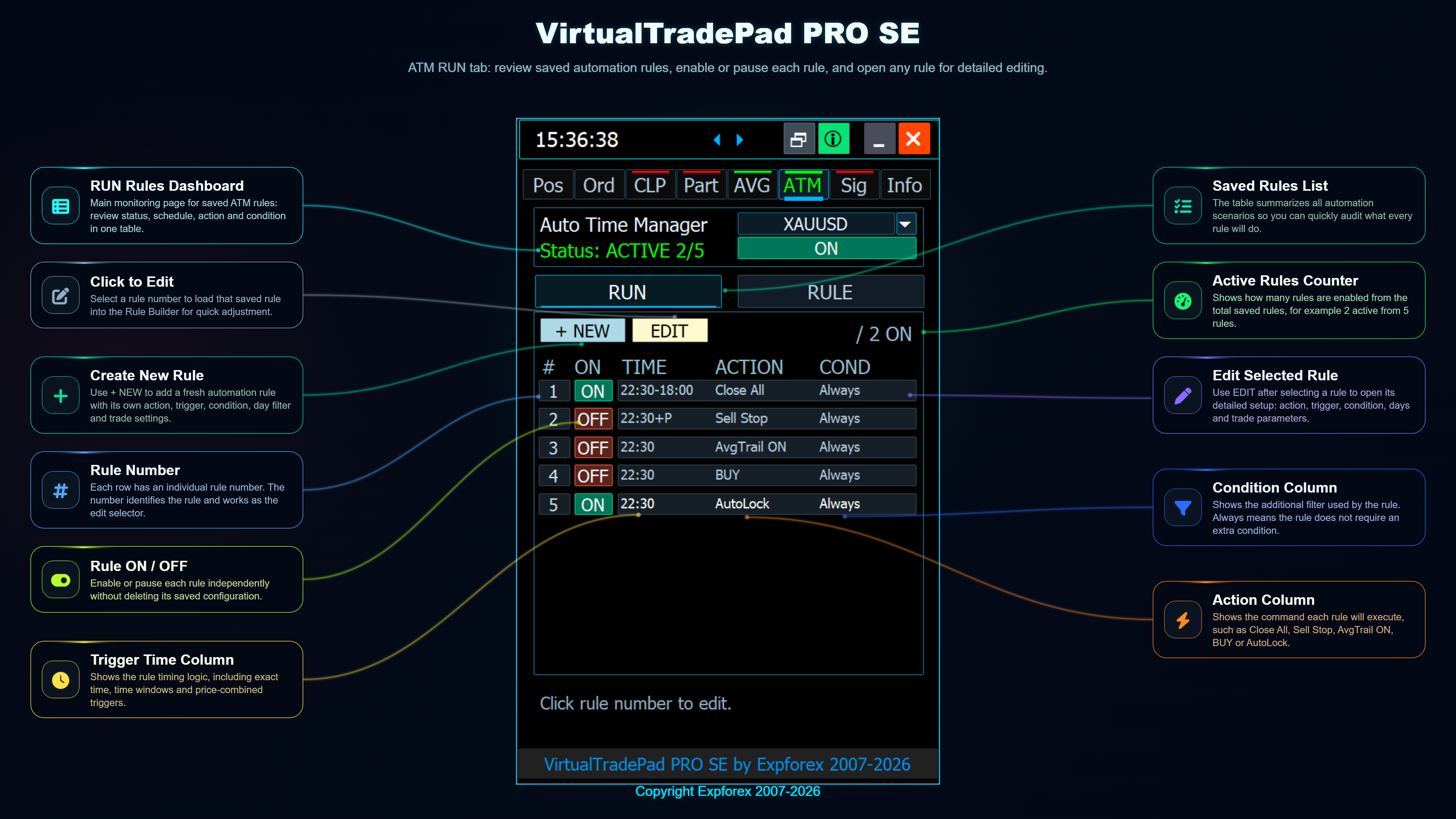
| ATM step | Question it answers |
| Action | What should the rule do? |
| Condition | When is the rule allowed to trigger? |
| Details | Which symbol, direction, volume, price, timing or value should be used? |
| Review | Is the final logic correct before running it? |
ATM should be tested one rule at a time. When too many rules are enabled at once, it becomes harder to understand which rule triggered a trade action.
📡 SIG — Custom Signal Set
The SIG module is designed as a signal-monitoring and alert workspace. It can combine several indicator sources and timeframes into one matrix-style view.
Signals can be useful for decision support, alerts and market context. They should not be treated as guaranteed predictions or as a replacement for risk management.
📡 SIG — Signal Manager SIG can monitor multiple signal sources, timeframes and indicators from one compact workspace. |
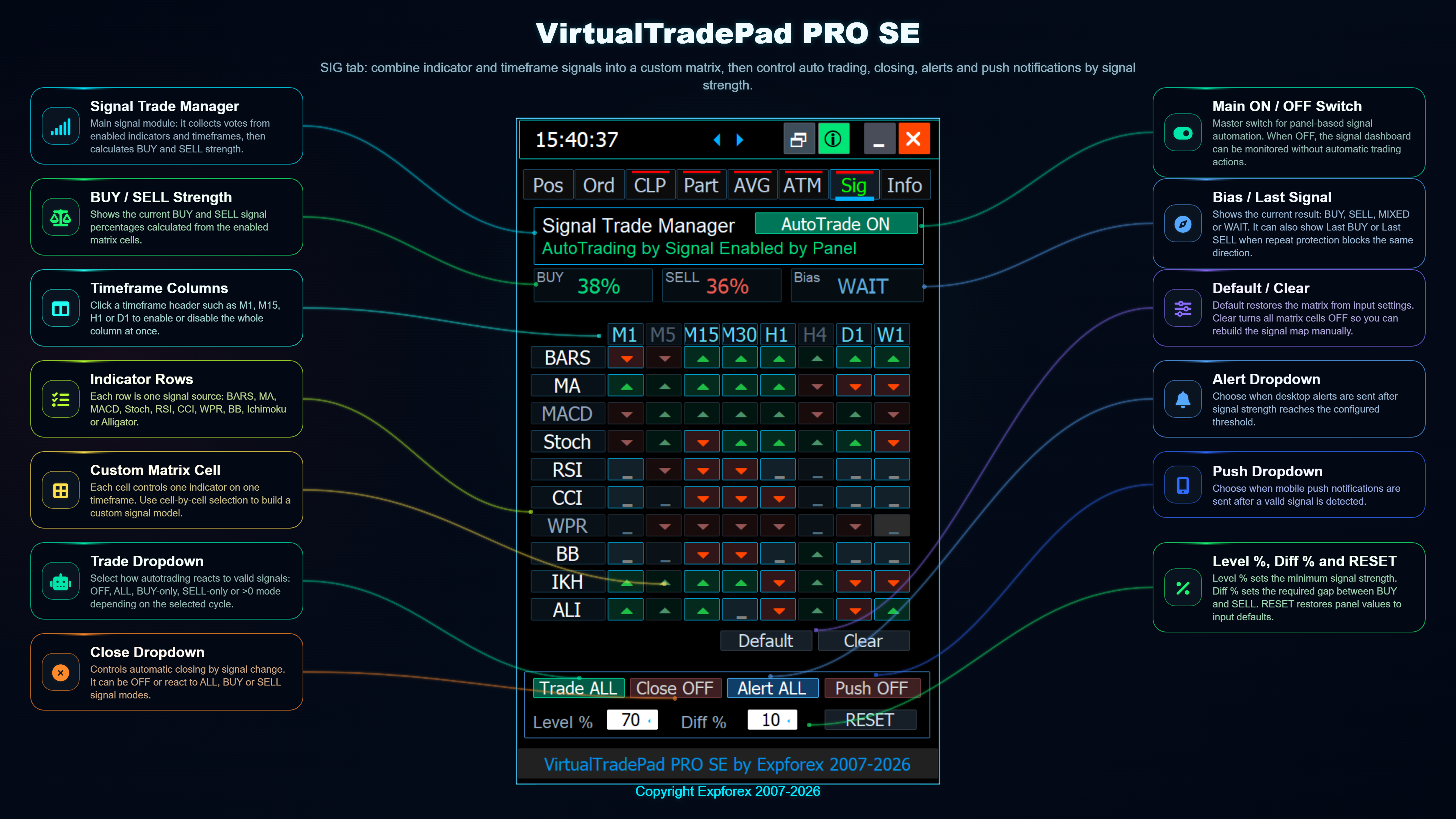
- Monitor several signal sources in one matrix.
- Use selected timeframes and indicator groups.
- Enable alerts or push notifications when configured conditions appear.
- Study signal direction before connecting it to any trading permission.
- Start with visual monitoring before enabling automatic behavior.
| Want to build a strategy from your own indicators? If you do not want to trade only by panel signals and you prefer a separate Expert Advisor based on user indicators, see: EXP — The xCustomEA: universal trade adviser on user indicators. |
ℹ INFO — Market and Risk Overview
The INFO tab gives the trader a wider context before making trade-management decisions.
It can show market status, spread, exposure, floating result, drawdown, SL/TP targets, prop-style risk status and closed P/L information.
This is especially useful before using basket closing, partial exits, AVG or ATM rules. Before a trader changes exposure, the current state must be understood.
ℹ INFO — Market and Risk Overview INFO displays important trading context such as spread, exposure, floating result, drawdown, SL/TP targets and closed P/L statistics. |

| INFO area | Why it matters |
| Market status and spread | Helps understand whether trading conditions are normal. |
| Floating result and drawdown | Shows current risk and account pressure. |
| SL/TP target information | Helps understand how close the account is to important protective levels. |
| Prop-style risk control | Helps monitor configured limits and trading status. |
| Closed P/L statistics | Helps review recent trading performance. |
| Need deeper account statistics? The INFO tab gives fast live context directly inside VirtualTradePad PRO SE. If you also want a separate professional reporting tool with deeper account analysis, charts and modern trading statistics, see: Extra Report Pad — a professional solution for the analysis of your trading account. |
🧪 Strategy Tester Control
VirtualTradePad PRO SE is designed to be useful not only during live trading, but also during visual testing. The Strategy Tester is the safest place to study panel behavior, module interaction and rule logic before using complex workflows on a real account.
The tester controls help analyze what happens when positions open, close, modify or when a new bar appears. This is especially useful for ATM, AVG, PART and signal-related testing.
🧪 Strategy Tester Control The Strategy Tester workspace helps test manual actions, automation, partial close, AVG levels, ATM rules and Auto-Pause events. |
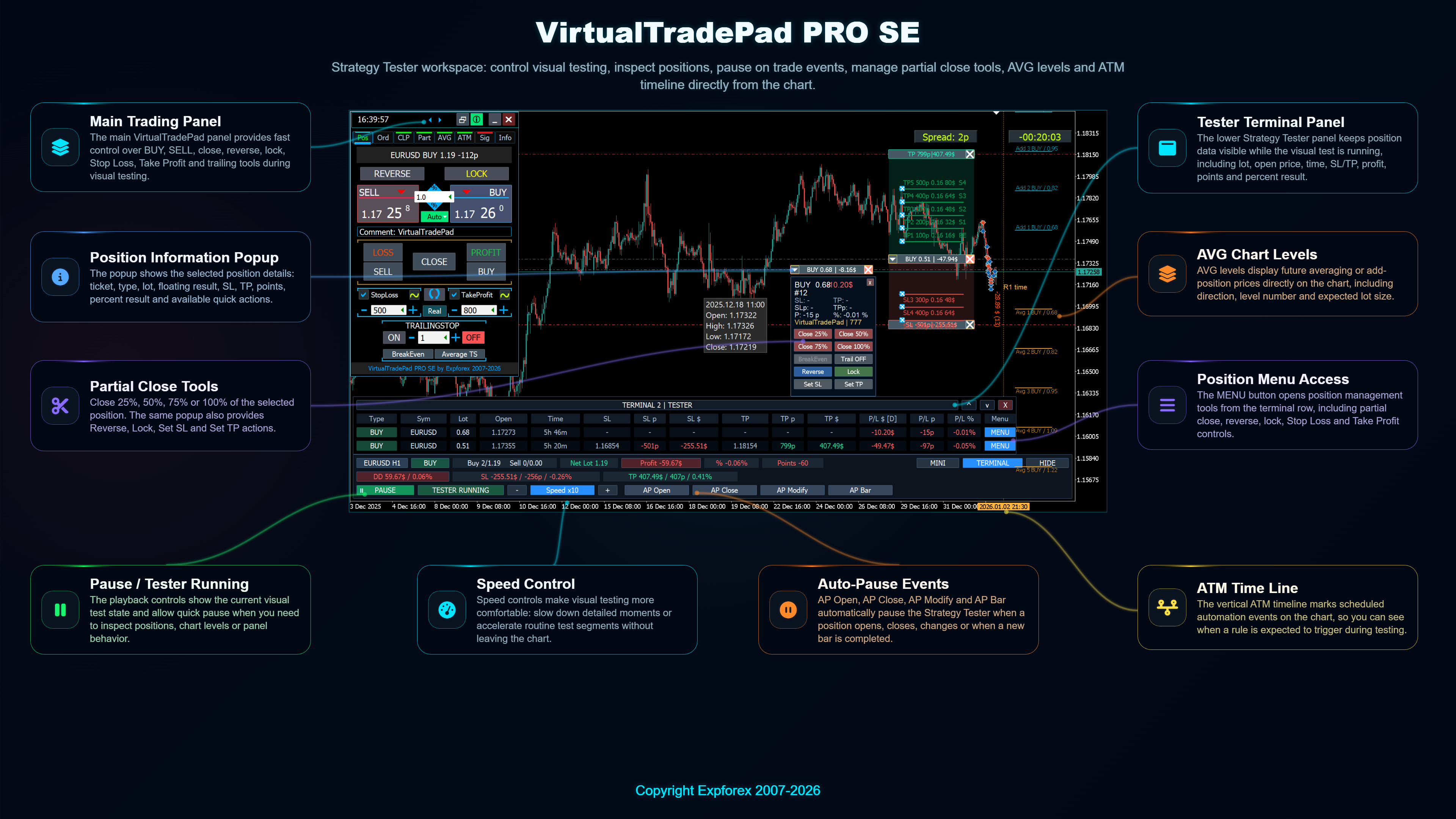
| Auto-Pause button | Purpose |
| AP Open | Pause when a position or order opens. |
| AP Close | Pause when a position or order closes. |
| AP Modify | Pause when SL, TP, order or position data changes. |
| AP Bar | Pause when a new bar is completed. |
A good Strategy Tester workflow is not only about the final result. It is also about understanding why every trade action happened.
| Testing guide: before using complex modules live, study this article: Testing and optimization of EA in Strategy Tester. |
☁ MQL5 VPS Workflow
VirtualTradePad PRO SE is prepared for stable MQL5 VPS-oriented operation when the panel is configured correctly before migration. VPS usage is especially important when the trader uses virtual levels, monitoring, basket control or rule-based workflows that require the terminal to remain active.
☁ MQL5 VPS Workflow The VPS workflow helps keep the trading environment stable after configuration, testing, preset saving and migration. |
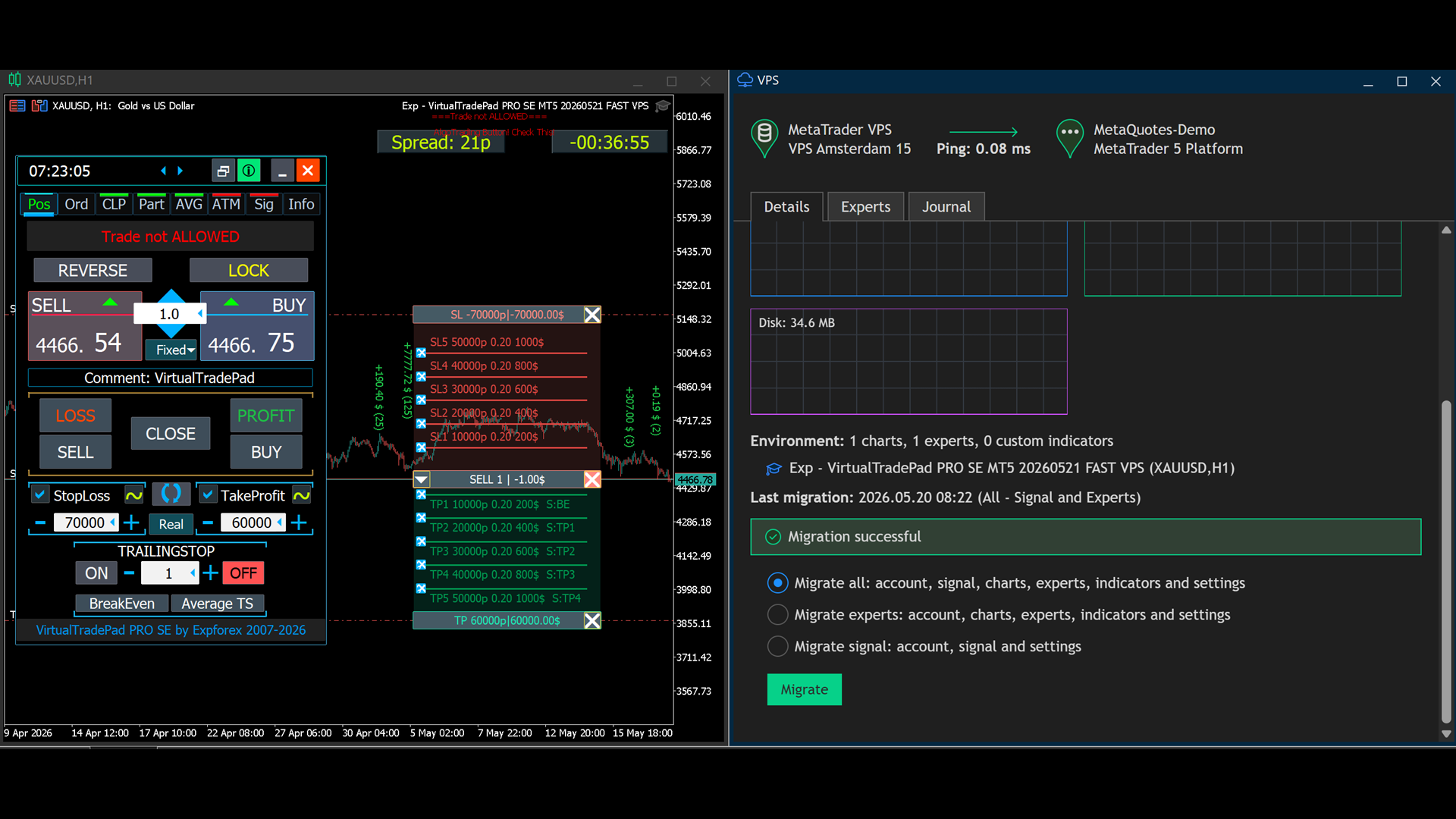
- Configure the panel locally first.
- Test important settings on demo or in the Strategy Tester.
- Save a stable preset.
- Migrate the terminal environment to MQL5 VPS.
- Check logs and confirm that the expected state is restored correctly.
| MQL5 VPS guide: for long-running Expert Advisor operation, read: Forex VPS for MetaTrader 4/5 — dedicated MetaQuotes VPS for Expert Advisors. |
🛠 Installation and First Launch
Installation is standard for MQL5 Market products, but a professional trading panel should be launched carefully. The goal of the first launch is not to enable every module. The goal is to confirm that the product is installed correctly, trading permissions are enabled, the broker allows the selected lot and the basic trade actions work as expected.
| Demo version: before working on a real account, you can download the demo directly from the Expforex website: Download VirtualTradePad PRO SE Demo. |
| Step | Action | Why it matters |
| 1 | Open MetaTrader 4 or MetaTrader 5. | Use the terminal version that matches the product version. |
| 2 | Log in to your MQL5 account in the terminal. | Market products require correct account authorization. |
| 3 | Install the correct VirtualTradePad PRO SE version from the Market. | MT4 and MT5 versions are separate products. |
| 4 | Open a demo account and select one symbol chart. | First tests should be safe and controlled. |
| 5 | Attach the Expert Advisor to the chart. | The panel works on the chart where it is attached. |
| 6 | Enable Algo Trading / AutoTrading. | Trade actions require terminal permission. |
| 7 | Allow automated trading in Expert Advisor properties. | The EA must be allowed to open, close and modify trades. |
| 8 | Set a small fixed lot. | Testing must not create unnecessary risk. |
| 9 | Test BUY, SELL, Close, SL and TP. | This confirms the basic trade workflow. |
| 10 | Open the Experts and Journal tabs if something does not work. | Most terminal and broker errors are visible in logs. |
After the first successful test, continue with pending orders, CLP, PART, AVG, ATM and SIG one by one. If something does not work as expected, do not enable more modules. First read the logs and understand the current problem.
| Recommended before the first launch: How to install an Expert Advisor and indicators to the MetaTrader terminals How to buy, rent, update and install products from MQL5 Market |
| If you contact support: please prepare screenshots, settings and terminal log files. This guide explains how to create and send logs correctly: MT4-MT5 Expert reports: how to make Log files and send them to the programmer. |
🆚 PRO SE vs Classic VirtualTradePad
The classic VirtualTradePad remains useful as a lighter manual trading panel. VirtualTradePad PRO SE is a more advanced workspace for traders who need deeper control, more modules and a more structured management system.
| Classic VirtualTradePad | VirtualTradePad PRO SE |
| Lightweight manual trading panel. | Professional multi-module MetaTrader workspace. |
| Core market and pending order control. | POS, ORD, CLP, PART, AVG, ATM, SIG, INFO, Strategy Tester and VPS workflow. |
| Good for simpler manual trading. | Built for advanced trade management and structured workflow control. |
| Lower price and simpler entry point. | Premium version with deeper functionality and full documentation. |
🌐 Who can use this product?
- Manual traders who want faster control from the chart.
- Scalpers and intraday traders who need quick execution.
- Traders who use pending orders and visual level planning.
- Users who manage several positions or baskets.
- Traders who need partial close and structured exits.
- Users who work with averaging or trend-add logic and want visible future levels.
- Traders who want to test trade-management ideas in the Strategy Tester.
- Users who want a serious MetaTrader workspace instead of many disconnected tools.
- Traders who prefer to understand position state before making the next decision.
- Users who want a single place for execution, monitoring, protection and testing.
| If you prefer fully automatic trading instead of manual panel work: VirtualTradePad PRO SE is mainly a professional control and management workspace. If you want a separate fully automatic Expert Advisor concept, you can also review: fully automatic Expert Advisor solution. |
⚠ Risk Warning
| Trading Forex and CFDs involves risk. VirtualTradePad PRO SE is a professional trading and trade-management tool, not a guarantee of profit. One-click trading, keyboard trading, basket closing, partial close, averaging, ATM rules, signals, virtual levels and VPS workflows must be tested before live use. Always use reasonable lot sizes and responsible risk management. Advanced modules should be enabled only when the trader understands what each active rule or function is allowed to do. |
🔗 Useful Links
| 💎 Buy / Rent MT5 Version | 💎 Buy / Rent MT4 Version |
| ⬇ Download Demo Version | |
| 📘 Full Documentation | 🛒 All Expforex Products |
❓ Practical FAQ
| Question | Answer |
| Can I use PRO SE only for manual trading? | Yes. You can use only POS and ORD as a manual trading panel and ignore advanced modules until you need them. |
| Should I start with AVG or ATM immediately? | No. First test POS, ORD, CLP and PART. AVG and ATM should be tested after you understand the basic workflow. |
| Can CLP close many positions? | Yes. That is why the symbol scope, magic filter and calculation method must be checked carefully. |
| Can partial close fail? | It can fail if the broker minimum lot or lot step does not allow the requested partial volume. |
| Is SIG a prediction system? | No. Signals are decision-support information and alerts. They should not replace risk management or trader analysis. |
| Why use the Strategy Tester? | The tester allows you to understand how rules, levels and actions behave before using them on a real account. |
| Do virtual levels require terminal activity? | Yes. Virtual logic is monitored by the Expert Advisor, so the terminal, chart or VPS environment must remain active. |
🧭 Suggested Workflow Templates
| Template | Modules | Description |
| Simple manual control | POS + INFO | Use BUY/SELL, SL/TP, Close and live information. This is the safest starting mode. |
| Planned pending entry | ORD + Magic Target | Prepare a pending order from a chart level with predefined SL and TP. |
| Profit basket protection | CLP + INFO | Manage a group of positions by total profit, loss or trailing profit. |
| Structured exit | PART + POS | Close part of the volume at different levels and keep the remaining position active. |
| Averaging study | AVG + Strategy Tester | Draw planned levels, check future exposure and test protection from the average price. |
| Rule automation study | ATM + Strategy Tester | Create one rule, define the condition, review it and test the exact behavior. |
| Signal monitoring | SIG + INFO | Monitor indicator and timeframe context, use alerts first, then decide whether to enable permissions. |
| Long-running control | VPS + CLP + virtual levels | Configure locally, test, migrate and verify that the VPS environment works as expected. |
🏁 Final Thoughts
VirtualTradePad PRO SE is created for traders who want a serious MetaTrader workspace directly on the chart. It combines execution, visibility, protection, analysis, testing and structured trade management in one product.
The strongest part of the product is not only that it can open or close trades quickly. The real value is the connected workflow: the trader can see positions, plan orders, manage partial exits, control baskets, preview AVG levels, build ATM rules, monitor signals, check risk information, test in Strategy Tester and prepare the setup for VPS operation.
Use it carefully, test every important feature and build your workflow step by step.
🚀 Start with VirtualTradePad PRO SEOpen the product page, read the full documentation, download the demo version, test the panel in MetaTrader and decide whether the PRO SE workflow fits your trading style. |
SEO Tags
VirtualTradePad PRO SE, MetaTrader trading panel, MT4 trading panel, MT5 trading panel, chart trading, manual trading panel, one click trading, trade management panel, partial close, close by profit, close by loss, averaging levels, ATM rules, Strategy Tester panel, MQL5 VPS, Forex trading tools, Expert Advisor utility, Expforex, Vladon, MetaTrader control center, Forex position manager, advanced trade management, trading dashboard, MQL5 Market Expert Advisor, MetaTrader workspace


![[EURUSD]: Weekly Liquidity Activation Points (LAP), October 12-16, 2026](https://c.mql5.com/6/1035/splash-preview-777305.png "[EURUSD]: Weekly Liquidity Activation Points (LAP), October 12-16, 2026")
![[XAUUSD]: Weekly Liquidity Activation Points (LAP), October 12-16, 2026](https://c.mql5.com/6/1035/splash-preview-777299.png "[XAUUSD]: Weekly Liquidity Activation Points (LAP), October 12-16, 2026")
![[Nasdaq]: Weekly Liquidity Activation Points (LAP), October 12-16, 2026](https://c.mql5.com/6/1035/splash-preview-777311.png "[Nasdaq]: Weekly Liquidity Activation Points (LAP), October 12-16, 2026")