Product Links
INFO
Working Specifications:
- Symbols: EURUSD, GBPUSD, USDJPY, USDCAD (verified presets included); any pair supported
- Timeframe: M1 (all presets are M1-tuned)
- Minimum Deposit: $5,000 recommended per 1-2 pairs (presets optimized at $5,000)
- Leverage: 1:100 or higher recommended
- Account Type: Hedging account recommended (required for Grid mode with hedge enabled on MT5)
- Broker: ECN broker with tight spreads (M1 scalping is spread-sensitive)
- VPS: Highly recommended for uninterrupted 24/5 operation
Core Features:
- v2 Hard Risk Core - basket equity stop, account max-drawdown failsafe, re-entry cooldown, total exposure cap, optional hard stop-loss (see Step 2)
- Dual strategy: Scalp mode (single entry) and Grid mode (capped martingale recovery)
- RSI + dual ATR volatility entry signals with multi-timeframe support
- Martingale lot progression with dynamic grid distances
- Virtual or Real TP/SL/Trailing Stop modes
- Overlap recovery mechanism for grid reduction
- Live News Filter with economic calendar integration
- Interactive on-chart dashboard with Buy/Sell toggle buttons
- 8 optimized preset files included: a Safe and an Aggressive variant for each pair
STEP 1 - INSTALLATION
For MT5:
- Purchase Blaze Synchro EA from the MQL5 Market
- The EA installs automatically into your MetaTrader 5 terminal
- Open the Navigator panel (Ctrl+N)
- Find "Blaze Synchro EA" under Expert Advisors > Market
- Drag it onto an M1 chart of your pair
For MT4:
- Purchase Blaze Synchro EA from the MQL5 Market
- The EA installs automatically into your MetaTrader 4 terminal
- Open the Navigator panel (Ctrl+N)
- Find "Blaze Synchro EA" under Expert Advisors > Market
- Drag it onto an M1 chart of your pair
Important: Enable WebRequest for News Filter
The News Filter requires internet access to fetch the economic calendar.
MT4/MT5: Go to Tools > Options > Expert Advisors > Check "Allow WebRequest for listed URL" and add:
https://nfs.faireconomy.media
Also make sure "Allow algorithmic trading" is enabled.
Load a Preset - Choose Your Family
Each pair ships with TWO presets:
| Preset | Drawdown ceiling | Character |
|---|---|---|
| <PAIR>_Safe.set | ~10% | Steady compounding, maximum headroom |
| <PAIR>_Aggressive.set | 20% | 2-3x the return at roughly double the drawdown |
In the EA Inputs tab, click Load, select the preset for your pair and risk appetite (e.g. EURUSD_Safe.set ), and click OK. One chart per pair.
Load the preset files for YOUR platform - the MT4 and MT5 presets are tuned separately (for example, the USDCAD Aggressive preset uses a smaller lot size on MT5).
New to grid systems? Start with the Safe family.
STEP 2 - THE v2 HARD RISK CORE
Version 2.0 adds five independent, always-on circuit breakers. All shipped presets have them enabled.
| Parameter | Default | What it does |
|---|---|---|
| equityStopPercent | 4.0 | Basket equity stop. Closes a losing side the moment its floating loss exceeds this % of live equity. A small realized loss instead of a margin call. (0 = off) |
| maxDDPercent | 15.0 | Account max-DD failsafe. Tracks the equity high-water mark; if equity falls this % below the peak, closes everything on the symbol and HALTS the EA until re-attached. Aggressive presets ship 25 as a backstop above the verified worst case. (0 = off) |
| cooldownMinutes | 240 | Re-entry cooldown. After any equity-stop loss cut, that side is locked out for this many minutes so the EA cannot instantly rebuild the same losing grid. |
| maxTotalLots | 1.0 | Total exposure cap. Refuses new orders once summed open lots on the symbol reach this ceiling. Presets ship pair-specific values (1.5-2.0). (0 = off) |
| hardSLPips | 0 | Optional hard stop-loss. Attaches a real broker-side SL this many pips from entry to EVERY order. (0 = off) |
Why it matters: the v1 engine had no stop-loss anywhere - a losing grid could martingale until margin call. The v2 risk core realizes small controlled losses and halts trading before damage becomes catastrophic. Every published backtest result was achieved WITH the risk core active.
STEP 3 - STRATEGY SELECTION
Blaze Synchro EA offers two trading modes controlled by the Strategy parameter:
Scalp Mode (Strategy = 0)
- Opens a single trade per RSI + ATR signal
- Uses virtual Take Profit and Stop Loss (not placed on broker server)
- TP_virt = 50 points (virtual take profit)
- SL_virt = 1500 points (virtual stop loss)
- SignalBarTP1 / SignalBarSL1 control whether TP/SL is measured from the live bar or signal bar price
- LevelTP controls whether TP is measured from open price or lossless (breakeven) level
Best for: Traders who prefer single-entry scalping without grid exposure. The risk core stays active.
Grid Mode (Strategy = 1) - DEFAULT
- Opens an initial trade on RSI + ATR signal, then adds grid orders as price moves against the position
- Each grid level multiplies lot size by Martin (v2 default 1.3; presets use 1.5-1.7)
- Grid depth is capped by MaxOrdersBuy / MaxOrdersSell (v2 default 7)
- Supports Real or Virtual TP/SL/Trail via TP_Mode , SL_Mode , Trail_Mode
- Includes overlap recovery for paired order closing
- Every layer runs under the v2 risk core caps
Best for: Traders who want grid recovery with martingale progression - now with hard limits.
STEP 4 - MONEY MANAGEMENT
Preset Lots (Recommended)
The shipped presets use fixed Lot_Init values sized for a $5,000 account - from 0.01 (Safe) up to 0.02-0.045 (Aggressive, pair-specific). For a different balance, scale Lot_Init proportionally: e.g. $10,000 -> double it, $2,500 -> halve it (minimum 0.01).
Autolot (Optional)
When Autolot = true, the EA calculates lot size from free margin:
- Autolotsize = 1000 means $1,000 of free margin = 0.01 lot
- Lot is capped by MaxLot (v2 default: 1.0)
Grid Lot Progression (Grid Mode Only)
Each grid level multiplies the lot: Lot_Init x Martin^level , capped by MaxLot per order and maxTotalLots in total. Example with the EURUSD Aggressive preset (Lot_Init 0.02, Martin 1.60, 7 levels max):
| Grid Level | Calculation | Lot Size |
|---|---|---|
| Level 1 | 0.02 x 1.60^0 | 0.02 |
| Level 2 | 0.02 x 1.60^1 | 0.03 |
| Level 3 | 0.02 x 1.60^2 | 0.05 |
| Level 4 | 0.02 x 1.60^3 | 0.08 |
| Level 5 | 0.02 x 1.60^4 | 0.13 |
| Level 6 | 0.02 x 1.60^5 | 0.21 |
| Level 7 | 0.02 x 1.60^6 | 0.34 |
Full 7-level side ≈ 0.86 lots - inside the preset's 2.0 maxTotalLots cap even with both sides open.
STEP 5 - GRID SETTINGS
| Parameter | v2 Default | Description |
|---|---|---|
| Martin | 1.3 | Lot multiplier per grid level (presets: 1.5-1.7) |
| MaxOrdersBuy | 7 | Maximum buy orders in the grid (presets: 5-8) |
| MaxOrdersSell | 7 | Maximum sell orders in the grid |
| MinuteStop | 0 | Minimum minutes between grid orders (0 = disabled) |
| Flag_Use_hedge | true | Allow buy and sell positions simultaneously |
Distance Formula
| Parameter | Default | Description |
|---|---|---|
| Fix_Distance | 200 | Fixed distance in points for initial grid orders |
| Order_dinamic_distance | 6 | Number of orders before switching to dynamic distance |
| Dynamic_distance_start | 200 | Starting distance when dynamic mode activates |
| Distance_multiplier | 1.2 | Multiplier applied per subsequent dynamic order |
The dynamic phase creates a widening grid that spaces orders further apart as drawdown deepens, reducing the rate of capital commitment.
STEP 6 - TAKE PROFIT, STOP LOSS & TRAILING
Virtual vs Real Modes
Each of TP, SL, and Trailing can be set independently to Virtual (EA-managed, hidden from broker, requires EA running) or Real (placed on the order, survives disconnects).
Grid Mode
| Parameter | Default | Description |
|---|---|---|
| TP_Mode | Virtual | Take profit mode |
| TP | 200 | Take profit in points from the lot-weighted average entry (presets: 100-450) |
| SL_Mode | Virtual | Stop loss mode |
| SL | 0 | Stop loss in points (presets keep 0 - protection comes from the v2 risk core) |
| Trail_Mode | Virtual | Trailing mode |
| iTS / iTD | 0 / 100 | Trail start / step in points (0 = trailing off; presets keep it off) |
Scalp Mode
| Parameter | Default | Description |
|---|---|---|
| TP_virt / SL_virt | 50 / 1500 | Virtual TP / SL in points |
| LevelTP | From lossless | TP from open price or breakeven level |
| Flag_Close_All | false | Close all sides at TP/SL or just the triggered side |
STEP 7 - OVERLAP RECOVERY
| Parameter | Default | Description |
|---|---|---|
| Overlap | true | Enable overlap recovery |
| OverlapOrderNumber | 8 | Minimum open orders before overlap activates |
| OverlapPercent | 3 | Profit target (%) for overlap pair close |
The EA pairs the oldest order (deepest in loss) with the newest (most in profit) and closes both when their combined profit meets the target - shrinking deep grids without a full reversal.
STEP 8 - SIGNAL SETTINGS
All entries require RSI + dual ATR confirmation.
RSI
| Parameter | Default | Description |
|---|---|---|
| RSI_Period | 7 | RSI period (presets: 7-14) |
| RSI_Up_Level | 80 | Overbought level - triggers SELL (presets: 70-85) |
| RSI_Down_Level | 40 | Oversold level - triggers BUY (presets: 30-40) |
ATR Volatility Filters
| Parameter | Default | Description |
|---|---|---|
| ATR_Signal_Period / ATR_form / ATR_to | 15 / 0 / 10000 | Filter 1 (chart TF): entry allowed when ATR in points is inside [form..to] |
| ATR_Signal_Period2 / ATR_form2 / ATR_to2 / ATR2_TF | 15 / 0 / 10000 / Current | Filter 2 on a configurable timeframe |
The shipped presets leave both filters pass-through (0-10000). Tighten them to skip dead or hyper-volatile markets.
STEP 9 - NEWS FILTER CONFIGURATION
Activation
Set Flag_Use_News = true to enable live economic calendar filtering (recommended for live trading).
How It Works
- The EA fetches the weekly economic calendar from the FairEconomy API every 4 hours
- It filters events by currency and impact level
- Trading pauses 15 minutes before and resumes 30 minutes after each matching event
- If the API is unavailable, a built-in fallback detects major events (NFP, FOMC, CPI, GDP, ECB Rate)
| Parameter | Default | Description |
|---|---|---|
| highImpact / medImpact / lowImpact | true / true / false | Impact levels to filter |
| closeBefore / startAfter | 15 / 30 | Pause window in minutes |
| currencies | AUD,CAD,EUR,GBP,JPY,NZD,USD | Currencies to filter |
| showNewsBox / showNewsLines / showText | true | Chart display of upcoming events |
WebRequest setup is REQUIRED (see Step 1). Without the URL, only the pattern-based fallback works.
STEP 10 - GENERAL SETTINGS
| Parameter | Default | Description |
|---|---|---|
| sOrdComm | "Blaze Synchro" | Comment attached to all orders |
| Magic | 280920 | Unique EA identifier |
| MaxSpred | 0 | Maximum spread filter in points (0 = disabled) |
| Start_Hour / End_Hour | 0 / 0 | Trading window, server time (0 = always on) |
| flag_Hand_Ord | false | Include manually placed orders in EA management |
Important: If running multiple instances on the same account, each chart may keep the same Magic - the EA filters by symbol - but never run two instances on the SAME symbol.
PANEL
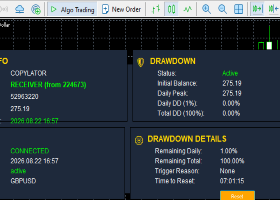
The on-chart dashboard shows: buy/sell order counts and floating P/L per side, total P/L, balance, equity, spread, strategy mode, news countdown, and interactive Buy / Sell toggle buttons (disabling a direction only blocks new orders - existing orders continue to be managed).
| Parameter | Default | Description |
|---|---|---|
| X1 / Y1 | 10 / 30 | Panel position |
| fDraw | true | Show/hide panel (false reduces CPU on VPS) |
| FontSizeMark / FontSizeButt | 13 / 11 | Font sizes |
PRESETS & VERIFIED RESULTS
8 optimized preset files are included (load the set matching YOUR platform):
| Pair | Safe preset | Aggressive preset |
|---|---|---|
| EURUSD | EURUSD_Safe.set | EURUSD_Aggressive.set |
| GBPUSD | GBPUSD_Safe.set | GBPUSD_Aggressive.set |
| USDJPY | USDJPY_Safe.set | USDJPY_Aggressive.set |
| USDCAD | USDCAD_Safe.set | USDCAD_Aggressive.set (buy-only by design) |
Backtest results (Strategy Tester, M1, $5,000 start, 2025.07 - 2026.07)
MetaTrader 4:
| Pair | Safe | Aggressive |
|---|---|---|
| EURUSD | +57% (8.5% DD) | +113% (16.4% DD, PF 1.90) |
| USDJPY | +41% (8.9% DD) | +100% (19.2% DD, PF 1.51) |
| USDCAD | +20% (6.7% DD) | +65% (14.8% DD, PF 1.51) |
| GBPUSD | +19% (7.7% DD) | +51% (14.7% DD, PF 1.16) |
MetaTrader 5 (1-minute OHLC):
| Pair | Safe | Aggressive |
|---|---|---|
| USDJPY | +59% (8.0% DD) | +132% (18.7% DD, PF 1.61) |
| GBPUSD | +30% (7.0% DD) | +83% (13.5% DD, PF 1.24) |
| EURUSD | +43% (10.1% DD) | +77% (17.9% DD, PF 1.48) |
| USDCAD | +15% (9.7% DD) | +50% (15.3% DD, PF 1.55) |
Robustness-first selection: the two families come from a combined 8,000+ optimization passes. Every shipped preset had to stay profitable and under its drawdown ceiling in a four-window battery - the full year on BOTH tester fill models, plus each half-year run standalone from a fresh $5,000 (cold-start stress). Higher-profit configurations that failed any window were rejected.
Note: backtests are historical simulations on optimized settings and do not guarantee future results.
RECOMMENDED SETTINGS FOR BEGINNERS
- Load <PAIR>_Safe.set for your platform - all risk-core protections ship enabled
- One M1 chart per pair - don't stack multiple instances on one symbol
- Flag_Use_News = true (live trading)
- Never raise Martin , MaxOrders , Lot_Init or maxTotalLots beyond the preset values until you fully understand the grid behavior
- Start on Demo - test for at least 2-4 weeks before going live
- Move to the Aggressive family only once you are comfortable with ~20% drawdown episodes
IMPORTANT NOTES
-
Presets: Always load the preset for your pair, family AND platform. Default parameters are generic - presets contain pair-specific optimizations verified across two fill models and standalone half-year windows.
-
Multi-Pair: Running all four pairs on one account multiplies exposure. The per-pair drawdown ceilings do NOT cap account-level drawdown when pairs draw down together - scale your deposit accordingly ($5,000 per 1-2 pairs) and keep maxDDPercent as the account-level backstop.
-
USDCAD is buy-only: sell grids on USDCAD failed every robustness test on a full year of M1 data (confirmed by a dedicated genetic search), so both USDCAD presets ship with Flag_Trade_Sell = false . This is intentional - do not enable sells on USDCAD.
-
VPS: M1 scalping with virtual TP requires the EA running continuously. Use a VPS close to your broker's server.
-
Broker: Choose an ECN broker with tight spreads. M1 grid scalping is spread-sensitive.
-
WebRequest: The news filter REQUIRES the URL in platform settings (Step 1). Without it, only the pattern-based fallback works.
-
Martingale Risk: Grid mode increases exposure per level. The v2 risk core (equity stop, max-DD failsafe, exposure cap) realizes small controlled losses instead of letting grids run to margin call - but grid trading remains high-risk. Only trade capital you can afford to lose.
-
Hedging: If your broker/account does not support hedging, set Flag_Use_hedge = false . MT5 netting accounts are not recommended for Grid mode.
CONTACT & SUPPORT
- Email: info@forexobroker.com
- Questions: Use the Comments section on the product page or send a private message
- Bug Reports: Please include your broker name, account type, and a screenshot of the Experts tab log
-
✅ All MQL Tools: https://www.mql5.com/en/users/forexobroker/ ✅
--------------------------------------------------------------------------------------------------------------
🏦 **Broker I use**: https://icmarkets.com/?camp=55869
🏦 **Broker I use 1**: https://affs.click/2coEm
🏦 **Broker I use 2**: https://one.exnessonelink.com/boarding/sign-up/a/c_thuv62ocfq
💻 **VPS**: https://chocoping.com/processing/aff.php?aff=738
💼 **Companies I use for getting funded**:
Fundednext: https://fundednext.com/?fpr=kestutis39
The5ers: https://www.the5ers.com/?afmc=16kl
FTMO: https://trader.ftmo.com/?affiliates=nRAyOhmFRnEnFdOpdLeh