[ Русский ]—[ 中文 ]—[ Español ]—[ Português ]—[ 日本語 ]—[ Deutsch ]—[ 한국어 ]—[ Français ]—[ Italiano ]—[ Türkçe ]
Table of contents
Read this before use
This is something you need to know before buying and using TradeCopier:
- TradeCopier does not copy trades over the internet; the provider's terminal and the recipient's terminal must be installed on the same computer or VPS server.
- TradeCopier does not copy trades if the provider terminal is connected to Signal. (This is technically impossible, which is why there is no copier on the Market that copies trades from signals).
- Before buying, test the demo version of TradeCopier with your settings to make sure TradeCopier suits you.
- TradeCopier MT4 does not work in MetaTrader 5 and TradeCopier MT5 does not work in MetaTrader 4. So, to copy between different terminals (MT4 > MT5 or MT5 > MT4), you need to buy two versions - TradeCopier MT4 + TradeCopier MT5.
- Before changing settings, switching trading accounts, or updating TradeCopier, turn off the copying process. Click the STOP button on the TradeCopier panel.
- Before installing a new version, wait for the current orders and positions to close. When updating, don’t forget to update both the "Master" and the "Slave". "Master" and "Slave" should have the same version.
- If you change the "Master" account and there are still open trades on the "Slave" account from the old "Master" account, be sure to change the "Magic number" parameter for the "Slave" (the new "Magic number" value should not match the old one).
- TradeCopier has some restrictions for Netting accounts, since this position accounting system assumes that at any given time, there can only be one open position per symbol on the account:
- When copying trades to a Netting account, the opening price for the 'Deviation' function is taken from the last trade.
- TradeCopier does not support the disabled 'Repeat' option when copying to a Netting account.
- TradeCopier does not support the enabled 'Retry Copy' filter when copying to a Netting account.
- TradeCopier does not support copying pending orders if either the provider or receiver is a Netting account.
- TradeCopier does not support 'Proportional to Balance' or 'Proportional + Coefficient' lot calculations if either the provider or receiver is a Netting account. You can only copy trades to a Netting account from a single 'Master' account.
- If the recipient's and provider's accounts are connected to different brokers, there may be discrepancies between Ask and Bid prices. This can lead to asynchronous triggering of pending orders, stop loss, and take profit for the provider and recipient. Therefore, for more accurate copying in such systems, we recommend enabling copying only of positions, while disabling the copying of pending orders, stop loss, and take profit (the triggering of pending orders, stop loss, and take profit on the 'Master' account will still be copied since these events lead to opening or closing a position).
- Partial closure does not work if the lot calculation mode is set to 'Fixed lot'.
- TradeСopier does not support working on Metatrader VPS because it is impossible to install two terminals (provider and receiver) on this VPS (there is no copier on the Market that can work on Metatrader VPS). Use any other VPS that has a Desktop, on which you can install the terminal.
How to start the process of copying trades
Copying trades is done within a single computer (or VPS server). To set up copying on a computer, you need to install at least two terminals:
- Provider terminal — this is the trading account from which trades need to be copied. The TradeCopier installed on this terminal will collect trade information and send this data to the receiver terminal.
- Receiver terminal — this is the trading account where the copied trades will be opened. The TradeCopier installed on this terminal will receive data from the provider terminal and execute the copied trades.
To start the deal copying process, follow these steps:
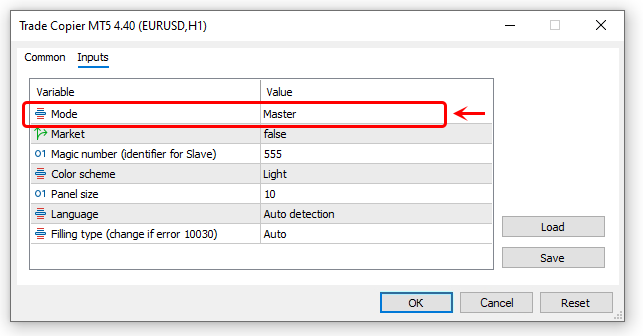
1️⃣ Install the provider's terminal on your computer. Launch TradeCopier on a chart with any symbol. In the window that opens, go to the "Inputs" tab and set the "Mode" input parameter to "Master". Click the "OK" button.
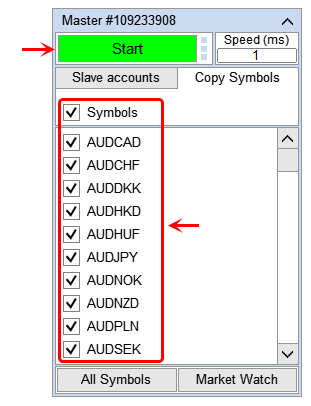
2️⃣ On the panel that appears, select the symbols for which trades will be sent to the recipient terminals. Click the 'Start' button on the app panel.
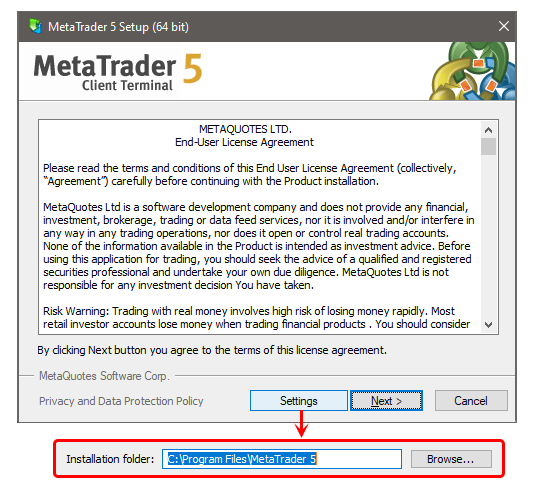
3️⃣ Install the recipient's terminal on the same computer where the provider's terminal is installed. If the provider's and recipient's terminals belong to the same broker, change the folder name when installing the second terminal. This is necessary so that the second terminal doesn't get installed over the first one.
⚠️ Download the terminal from the broker's website where you opened your account. If the terminal and trading account belong to different brokers, it may lead to trading errors, because each broker sets up terminals according to the parameters of their own trading accounts.
4️⃣ Turn on auto-trading for the recipient's terminal.

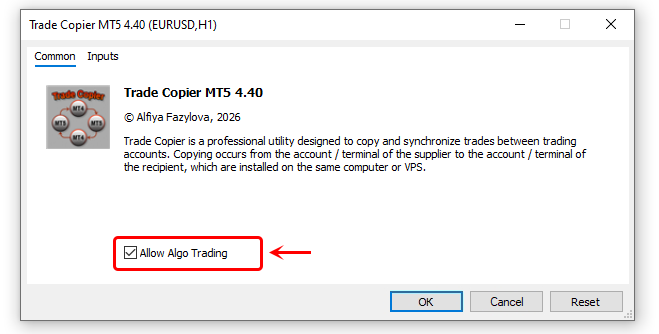
5️⃣ Install TradeCopier on a chart with any symbol. In the window that opens, go to the "Common" tab and turn on "auto-trading" for the app.
6️⃣ Go to the ‘Inputs’ tab and set the ‘Mode’ input parameter to ‘Slave’. Set a value for the ‘Magic number’ parameter (the order identifier). If there are several ‘Slaves’ running on the trading account, give each of them a different ‘Magic number’. Click ‘OK’.
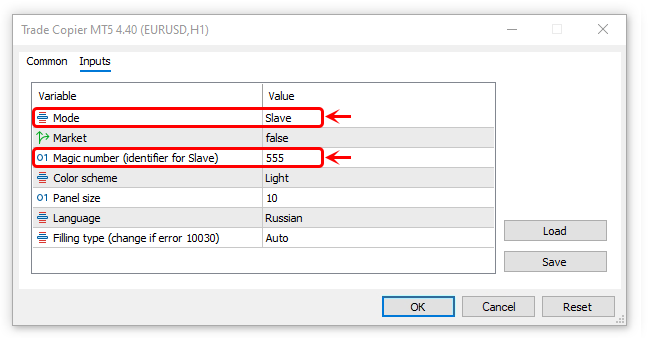
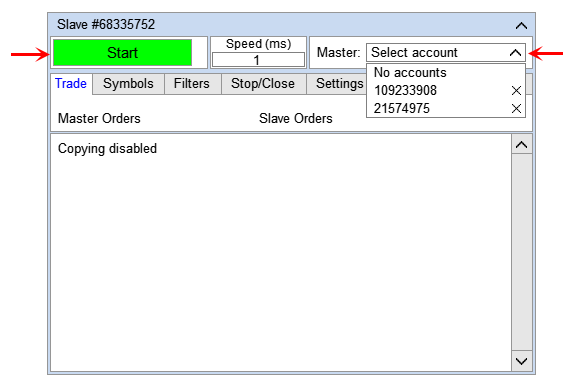
7️⃣ On the panel that appears, select the “Master” account from which trades will be copied, and set the copying parameters (see below). Click the “Start” button.
⚠️ The list only shows accounts where the “Master” TradeCopier is installed and the START button is pressed.
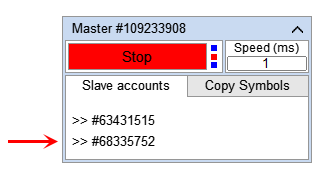
8️⃣ Go to the provider's terminal and make sure that in the “TradeCopier-Master” panel, a line with the “Slave” account number appears in the list of “Slave” accounts.
Input parameters
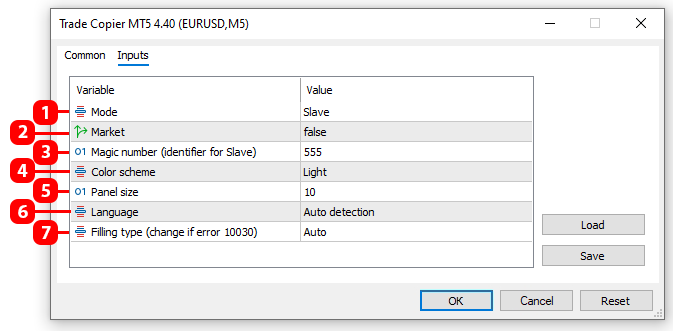
- Mode:
- "Master" – supplier mode. This mode sends data to the recipient terminals. It's used on the terminal from which you want to copy orders (positions).
- "Slave" – recipient mode. This mode receives data from the supplier terminal. It's used on the terminal where you want to open orders (positions).
- Market – "Market" execution mode. This mode is used on a trading account where opening positions with preset stop loss and take profit is not allowed. In this mode, TradeCopier will open positions in two steps:
- It will open the position without stop loss and take profit.
- After opening the position, it will set stop loss and take profit (if they were in the original position).
- Magic number (identifier for Slave) – identifier for the TradeCopier 'Slave'. In 'Slave' mode, TradeCopier tags its orders and positions with this number to later distinguish its own orders and positions from others.
- Color scheme – panel color scheme.
- Panel size – panel size.
- Language – panel language.
- Filling type - order volume filling policy. (MT5 only).
Master mode
This mode collects information about orders and positions and sends this information to receiving terminals. You install the TradeCopier in this mode on the terminal whose orders and positions need to be copied.
Slave accounts tab
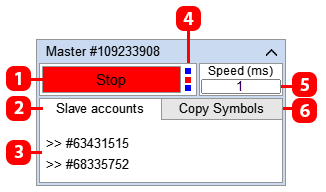
- Button to turn on/off data transmission to recipient terminals.
- Tab with a list of connected recipient trading accounts.
- Numbers of connected recipient trading accounts.
- TradeCopier operation indicator. When processing large volumes of data, TradeCopier may stop updating this indicator briefly, which is not an error or problem.
- Field for entering the frequency of data transmission to recipient terminals.
- Tab for configuring the list of symbols to be copied.
Copy Symbols tab
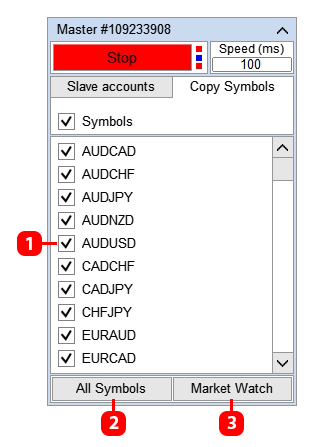
- Turn on/off the symbol for copying.
- Show all symbols available for this terminal in the list.
- Show in the list the symbols that are selected in the terminal's "Market Watch" window.
⚠️ The “Master” will send to the “Slave” the data of symbols that are in this list and are included for copying (1).
Slave mode
This mode gets data from the supplier terminal and, based on this data, copies trades (opening, closing, and modifying orders and positions). TradeCopier with this mode is installed on the terminal where you need to open orders and positions.
Trade tab
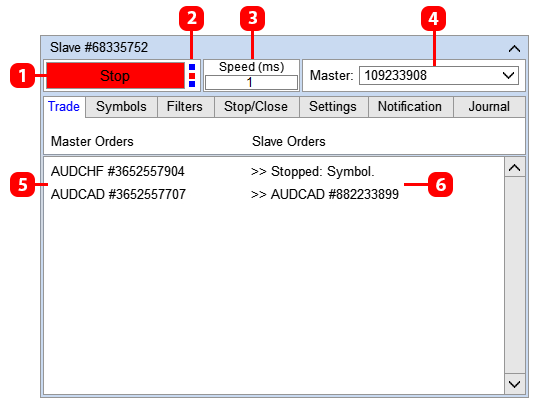
- Button to turn deal copying on/off.
- TradeCopier activity indicator. When trading operations are being executed, TradeCopier stops processing this indicator, and it may briefly stop blinking; this is not an error or a problem.
- Field to enter the frequency of data retrieval from the provider terminal.
- Trading account from which deals are copied.
- List of orders (positions) on the "Master" account.
- List of orders (positions) on the "Slave" account. If an order (position) isn't copied, the row will show the reason why the order (position) cannot be copied at the moment.*
* For example, you set the filters:
"Max. spread": 20 points.
"Retry copy attempts": 30 sec.
If on the “Slave” within 30 seconds after opening a position on the “Master,” the spread stays above 20 points, the row will show the following entries:
- During the first 30 seconds, TradeCopier will try to copy the position. Since the spread on the symbol stays above 20 points the whole time, the “Max. spread: 20 points” filter will apply to the symbol, and the position won’t be copied. During this time, the row will show “Stopped: Max spread.”
- After 30 seconds, TradeCopier will stop all attempts to copy the position because the “Repeated copy attempts: 30 sec” parameter kicks in. So, after 30 seconds, the message “Stopped: Max spread” will change to “Stopped: Repeated attempts to copy.”
As you can see from the example, the reason described in the line isn’t necessarily the root cause of why the position wasn’t copied.
TradeCopier logs all events on the "Journal" tab. If an order (position) wasn’t copied and you want to figure out why, open the "Journal" tab and look for entries that were generated at the time the order (position) was supposed to be copied.
Symbols tab
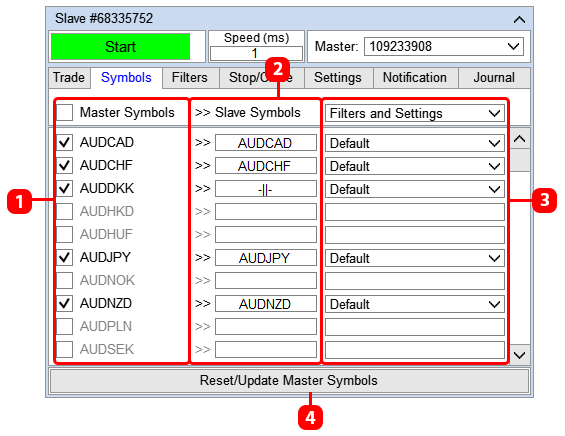
- ‘Master’ account symbols. Use the checkbox to enable or disable symbol copying.
- ‘Slave’ account symbols. Use the input fields to edit the symbol name.
- ‘Filters’ and ‘Settings’ templates applied to a symbol. Use templates if you want to apply different copying settings to symbols.
- Refresh the symbol lists.
Note that this tab will only display the symbols you selected in the "Master" panel. If the symbols you need are missing from this tab, go to the "Master" panel and enable the symbols you want to copy, then click the "Reset/Update Master Symbols" button (4) on the "Slave" panel.
The app automatically matches the symbol lists of the "Master" and "Slave" accounts. If the app can't match a symbol, the "Slave" symbol field will show the sign "-||-". In that case, click in the symbol input field (2) and manually enter the required symbol name.
If the Symbol on the "Master" or "Slave" has trading sessions, make sure that the "Master" and "Slave" sessions match (use the symbol specifications to check). If they don't match, it can happen that an order (position) opens on the "Master," but this order won't be copied to the "Slave" because the market is closed there.
If you need to apply individual copying settings for a symbol, create a template with the individual settings and apply this template to the corresponding symbol (3). The template is created in the "Filter" or "Settings" tab (see details below).
Filters tab
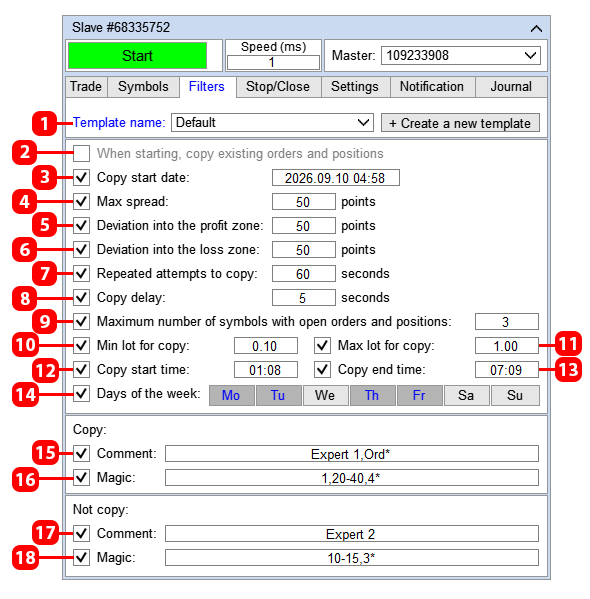
- Editable template. See more details below.
- Copy orders and positions that already exist at the time the copying process starts (copy orders and positions that were open before the copying process started).
- Date and time when copying starts. For example, if set to 2025.03.14 20:00, only orders (positions) opened after 2025.03.14 20:00 will be copied.
- Maximum allowed spread. Do not copy the Master position if the spread on the symbol exceeds the set value.
- Maximum deviation (difference) of the receiver price from the provider price, towards profit (in points).
For example:
Deviation towards profit = 50 and a Buy was opened on the provider account with an opening price of 1.00000.
This position will be copied only if the current price on the receiver at the time of copying is less than or equal to 1.00050 (1.00000 + 0.00050 = 1.00050).
If you set Deviation into the profit zone = 0, then positions will be copied only if the current price of the receiver is equal to or better than the provider. The prices of the provider and receiver may differ for the following reasons: different brokers of the provider and receiver, who have different current prices, or from the moment the position was opened on the provider and until the moment the position was copied on the receiver, the price on the receiver changed. This filter only works for positions. - Maximum deviation (difference) of the provider price from the receiver price, towards loss (in points).
For example:
Deviation towards loss = 50 and Buy was opened on the provider account, with the opening price of 1.00000.
This position will be copied only if the current receiver price is greater than or equal to 0.99950 (1.00000-0.00050=0.99950).
This filter limits the opening of positions at the best price. Therefore, do not enable this filter unless necessary. The provider and receiver prices may differ for the following reasons: different brokers of the provider and receiver, which have different current prices, or from the moment the position was opened on the provider and until the moment the position was copied on the receiver, the price on the receiver changed. This filter only works for positions. - The maximum time period during which Trade Copier will try to open (copy) a position (in seconds). The time is counted from the moment the position was opened on the Master account.
For example:
if Repeated attempts to copy = 90 sec is set, and the provider position was opened at 1:00:00, then the copier will try to open a copy position until 1:01:30. After 1:01:30, Trade Copier will stop all attempts to copy this position. The position may not be copied in time for the following reasons: loss of connection with the trading server, activation of a filter, trading error, etc. This filter only works for positions. - Delay copying an order or position for a specified number of seconds.
For example:
if 25 seconds is specified, and the supplier's position was opened at 1:00:00, then the copier will copy this position at 1:00:25. - The position or order will be copied only for a certain number of characters.*
- Minimum lot for copying. Do not copy the Master order or position if its lot is less than this value.
- Maximum lot for copying. Do not copy the Master order or position if its lot is greater than this value.
- Copy orders from the specified time.**
- Copy orders before the specified time.**
- Copy orders only on specified days of the week.**
- Copy orders only with the specified comment.***
- Copy orders only with the specified magic number.***
- Do not copy orders that have the specified comment.***
- Do not copy orders that have the specified magic number.***
*** For comments:
- To enter multiple comments, use the "," separator. For example, to enter comments: Exp1, Exp2 and Exp3, enter Exp1,Exp2,Exp3 in the field.
- If the comments have the same part, you can use the "*" symbol. For example, Exp1453, Exp7565, Exp1453 have the same part Exp, so you can enter Exp* in the field.
- You can combine these options, for example, if you enter Ord*,Master23,Exp*, then the parameter will use Master23 comments and comments that contain a combination of Ord or Exp characters in their body.
- The body of the comment should not contain the characters "," and ";", since these characters are used as a separator.
For magic numbers:
- To enter several magic numbers, use the separator ",". For example, to enter the magic numbers: 1, 25 and 148, enter 1,25,148 in the field.
- If the magic numbers have the same part, you can use the "*" sign. For example, 431,432, 433 have the same part 43, so you can enter 43* in the field.
- If the magic numbers are in a certain range, you can use the "first-last" format. For example, you need to enter a range of numbers from 23 to 34, so you can enter 23-34 in the field.
- You can combine these options, for example, if you enter 3,10-21,55, the parameter will use the magic numbers 3, 55 and a range of numbers from 10 to 21.
Stop/Close tab
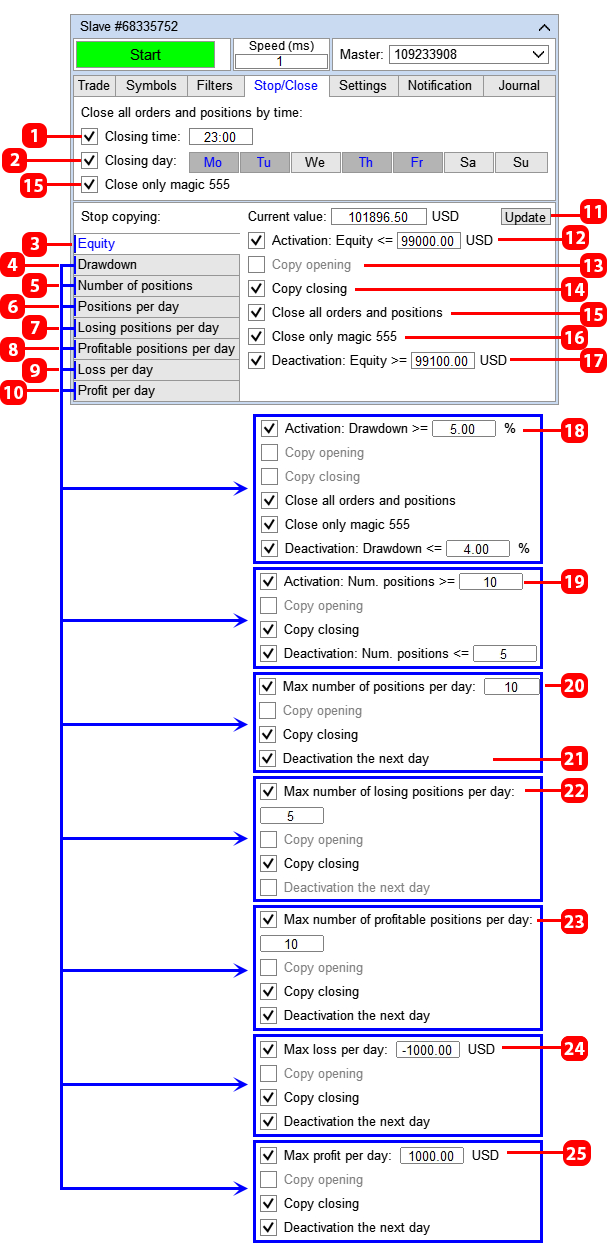
- Time of closing orders and positions. When the specified time is reached, the copier will close all orders and positions. *
- Day of the week, in which the closing of orders and positions specified in paragraph 1 is applied.*
- Stop copying if the Equity size reaches the specified value.
- Stop copying if the account drawdown reaches the specified value (the drawdown is expressed as a percentage of the balance).
- Stop copying if the number of open positions (positions in the market) reaches the specified value.**
- Stop copying if the number of open positions per day reaches the specified value.**
- Stop copying if the number of unprofitable positions closed per day reaches the specified value.**
- Stop copying if the number of profitable positions closed per day reaches the specified value. **
- Stop copying if the loss of positions closed per day reaches the specified value.**
- Stop copying if the profit of positions closed per day reaches the specified value.**
- Update current account data. To optimize the copying process, the app doesn't update the dashboard in the background, so to see the latest account data, click the "Refresh" button.
- The Equity size at which copying will stop.
- When the function is activated, Trade Copier will stop copying the closing of orders and positions (copying the opening of new orders and positions will continue).***
- When the function is activated, Trade Copier will stop copying the opening of new orders and positions (copying the closing of orders and positions will continue).***
- Close all orders and positions if the function stop copying when the specified Equity is reached is triggered.
- Close only your orders and positions (only orders and positions that have the magic number of the copier will be closed).
- Equity size, upon reaching which copying will be restored (cancellation of copy stop by Equity).
- Drawdown size, upon reaching which copying will stop.
- The number of open positions (positions in the market), upon reaching which copying stops.
- The number of open positions per day, upon reaching which copying stops.**
- Resume the copying process the next day. ****
- The number of unprofitable positions closed per day, upon reaching which copying stops.
- The number of profitable positions closed per day, upon reaching which copying stops.
- The amount of loss from positions closed during the day, upon reaching which copying stops.
- The amount of profit from positions closed during the day, upon reaching which copying stops.
* Orders and positions are closed according to terminal time.
** Only positions opened by the copier (which have a magic copier number) are used in the calculation. "Per day " means from 00:00 to 23:59.
*** For example, according to the specified conditions, copying stopped at 11:00.
Parameter "Copy Opening":
- if disabled: after 11:00 the copier will stop copying orders and positions that will be opened on the Master account after 11:00.
- if enabled: after 11:00 the copier will continue to copy new orders and positions, regardless of the fact that the function is activated and copying has stopped.
Parameter "Copy Closing":
- if disabled: after 11:00 the copier will stop copying the closing of orders and positions that will be closed on the Master account after 11:00.
- if enabled: after 11:00 the copier will continue copying the closing of orders and positions, regardless of the fact that the function is activated and copying has stopped.
We recommend installing:
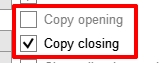
- Copy Opening = disabled,
- Copy Closing = enabled.
In this variant, when copying is stopped, TradeCopier will stop opening (copying) new orders and positions, while the copier will close existing orders and positions if they are closed on the Master account. Set other variations only if your strategy for copying orders and positions requires it, and you understand why you are doing it.
**** For example, a specified number of positions were opened per day, and the copying process was stopped at 2025.03.14 18:59. If this parameter is enabled, then at 2025.03.15 00:00 (the next day) copying will be restored. If the number of open positions reaches the specified value the next day, copying will be stopped again.
Settings Tab
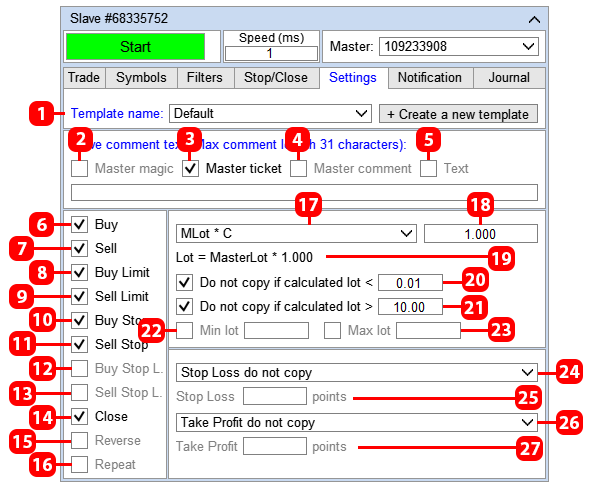
- Editable template. See below for more details.
- Write the magic number of the Master order in the Slave order comment.
- Write the ticket of the Master order in the Slave order comment.
- Write the comment of the Master order in the Slave order comment.
- Write your own text in the Slave order comment. The maximum allowed length of the order comment is 31 characters.
- Copy Buy.
- Copy Sell.
- Copy Buy Limit.
- Copy Sell Limit.
- Copy Buy Stop.
- Copy Sell Stop.
- Copy Buy Stop_Limit (only for MT5).
- Copy Sell Stop_Limit (only for MT5).
- Copy closing orders and positions (close an order or position if this order or position is closed on the master).
- Open orders and positions in the opposite direction.
- Repeat copying of an order or position if the copy of this order or position on the Slave was closed manually or by another expert. Do not enable this checkbox if you do not understand what it is for!!!
- The method for calculating the lot of the copy order.*
- The applied coefficient or lot size (depending on the lot calculation method).
- Visualization of the lot calculation method.
- Minimum lot, if the calculated lot is less than or equal to this value, Trade Copier will not copy this order.
- Maximum lot, if the calculated lot is greater than or equal to this value, Trade Copier will not copy this order.
- Minimum lot, if the calculated lot is less than this value, then Trade Copier will apply this value.
- Maximum lot, if the calculated lot is greater than this value, then Trade Copier will apply this value.
- Method of copying Stop Loss.**
- Field for entering the Stop Loss distance for the "Set Stop Loss in points" method, or the coefficient for the "Copy Stop Loss points" method.
- Method of copying Take Profit.**
- Field for entering the Take Profit distance for the "Set Take Profit in points" method, or the coefficient for the "Copy Take Profit points" method.
* Lot calculation methods:
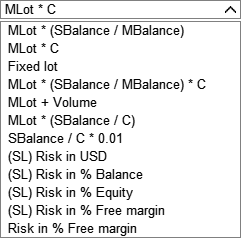
The order (position) lot is calculated in one of the following ways:
- MLot * (SBalance / MBalance) — the order (position) lot will be proportional to the recipient's account balance relative to the provider's account balance,
Lot = MasterLot * (BalanceSlave/BalanceMaster). - MLot * C — the order (position) lot will be equal to the provider's lot multiplied by a set coefficient,
Lot = MasterLot * Coefficient. - Fixed lot — the order (position) lot will be equal to a specified, fixed lot.
- MLot * (SBalance / MBalance) * C — the order (position) lot will be proportional to the recipient account balance relative to the provider account balance, multiplied by a given coefficient. That is, the lot will be calculated using the Balance Proportional and Multiply by Coefficient method at the same time,
Lot = MasterLot * (BalanceSlave/BalanceMaster) * Coefficient. - MLot + Volume — the order (position) lot will equal the provider's lot plus a specified volume,
Lot = MasterLot + Volume. - MLot * (SBalance / C) — the order (position) lot will be proportional to the recipient account balance relative to the coefficient,
Lot = MasterLot * (BalanceSlave/Coefficient). - (SL) Risk in $ - the lot size is calculated so that if the position is closed at the stop-loss, the loss will be the specified amount in $. If the stop-loss order is zero, the order will be opened with the minimum allowed lot.
- (SL) Risk in % Balance - the loss is set as a percentage of the balance.
- (SL) Risk in % Equity - the loss is set as a percentage of the equity.
- (SL) Risk in % Free Margin - the loss is set as a percentage of the free margin.
- % of MaxLot for the symbol — the lot size will be equal to the percentage of the maximum possible lot for the symbol (the lot for which there is enough free margin). For example, if it's 10%, and the maximum lot on the symbol that the free margin can cover is 50 lots, then the copied trade will be 5 lots.
** Take profit and stop loss calculation:
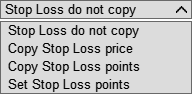
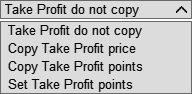
Take profit and stop loss of an order (position) are calculated in one of the following ways:
- Do not copy stop loss / take profit — do not copy the supplier's stop loss/take profit.
- Copy stop loss / take profit price — copy the supplier's stop loss/take profit price. With this option, stop loss and take profit will be set exactly at the supplier's SL and TP prices, even if there is a price shift of the Slave relative to the Master.
- Copy stop loss / take profit points — copy the supplier's stop loss/take profit points. With this option, stop loss and take profit will be set as points offset from the order (position) opening price, and if the Slave price shifts relative to the Master price, the SL and TP levels will shift as well.
- Set stop loss / take profit in points — set your own stop loss and take profit values, without copying the supplier's SL/TP. The stop loss and take profit values should be entered in the fields that activate when this method is selected.
Notification tab
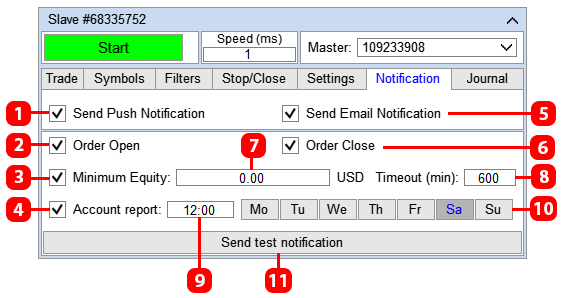
- Send a message to the phone (mobile terminal).*
- Message when opening an order or position.
- Message when the account equity reaches a specified value. The message will be sent if the current account equity drops to the value specified in the field 7. The message will repeat at the interval specified in the field 8 (number of minutes), provided that the equity still exceeds the set level.
- Message with a report on the trading account status (balance, equity, and free margin). The message is sent once a day on selected weekdays. The report time is specified in the field 9, and the day of the week is set using the buttons 10.
- Send a message to EMAIL.**
- Message when closing an order or position.
- Equity size at which a message will be sent.
- Number of minutes between messages.
- Report sending time.
- Day of the week to send the report.
- Send a test message. Click this button to make sure you set up message sending correctly.
* For TradeCopier to be able to send a message to the mobile terminal, enter the recipient's address in the terminal settings:
** For TradeCopier to be able to send messages to EMAIL, enter the recipient's address in the terminal settings:
Journal tab
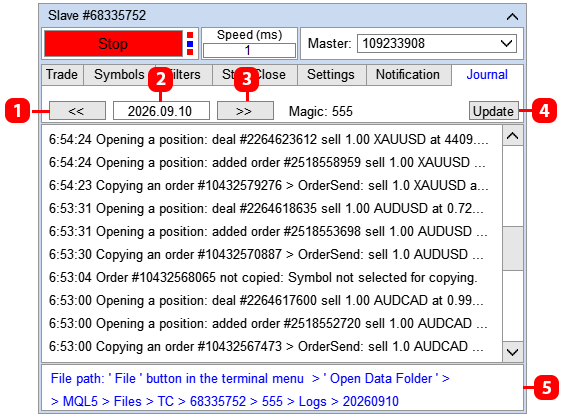
- Switch to showing records from the previous day.
- The date for which the records are displayed on the tab.
- Switch to showing records for the next day.
- Refresh the list of records. To optimize the copying process of deals, the app doesn’t update the panel in the background, so to see the latest records, click the “Refresh” button.
- The address of the current log file. Using this address, you can find the file where these records are saved. For example, this is useful if you want to see records without trimming on the right, or if you contacted the app developer about an issue and they requested the log files.
Using settings templates
You can set different copy settings for symbols using templates.
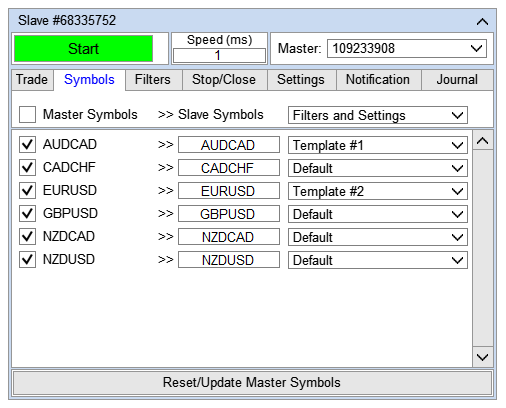
For example, let's consider the following situation: you need to apply individual copy settings for AUDUSD and EURUSD, while the copy settings for the other symbols will be identical.
For all symbols except AUDUSD and EURUSD, we'll apply the "Default" settings template. Let's go to the "Filters" and "Settings" tabs and set the settings for the "Default" template, which we'll apply to all symbols except AUDUSD and EURUSD.
For AUDUSD, let's create a new template, call it “Template #1”:
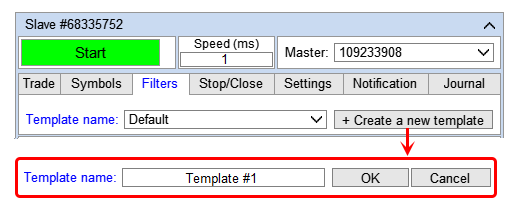
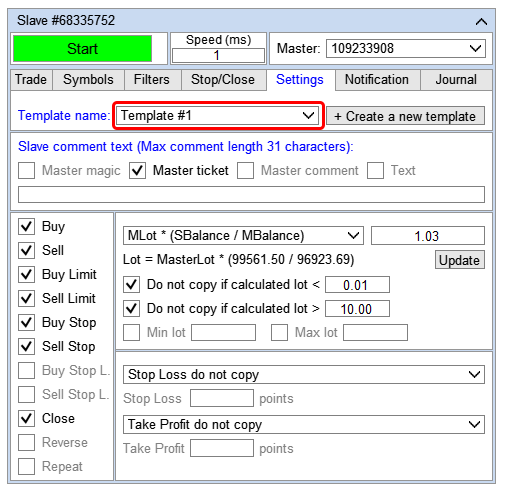
Set the necessary settings in the "Filters" and "Settings" tabs for the AUDUSD symbol:
For EURUSD, let's create a new template, call it “Template #2”:
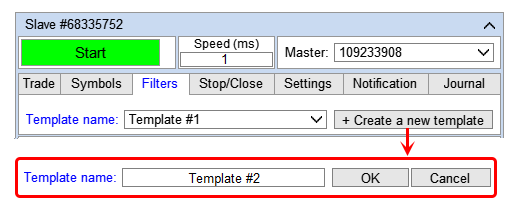
Set the necessary settings in the "Filters" and "Settings" tabs for the EURUSD symbol:
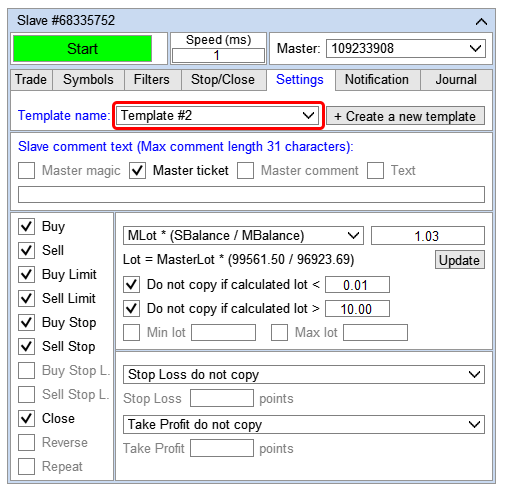
Go to the Symbols tab and set the corresponding templates for the symbols:
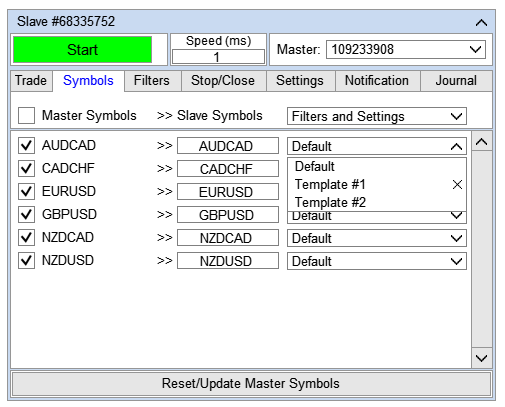
Done! Now, individual copy settings will be applied to the AUDUSD and EURUSD symbols:
Optimizing the process of copying
How to speed up copying:
- Choose a VPS provider with data centers located close to your broker's trading server. Use your terminal's ping for comparison.
- Ensure a reliable and stable internet connection for connecting terminals to trading servers.
- Use only as many terminals on your computer or VPS as it can support.*
- Close all unused Windows applications and processes.
- In each terminal, close all unused charts, leaving only the charts with TradeCopier installed.
- Remove all indicators from the chart.
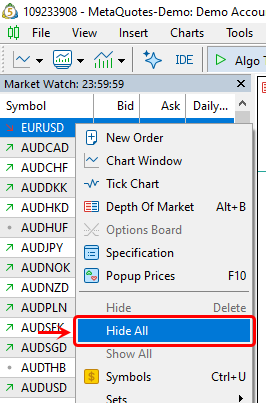
- In each terminal, open the "Market Watch" window and hide all unused symbols. The terminal only updates and processes the symbols listed in "Market Watch," so by hiding all unused symbols, you significantly lighten the load on the terminal:
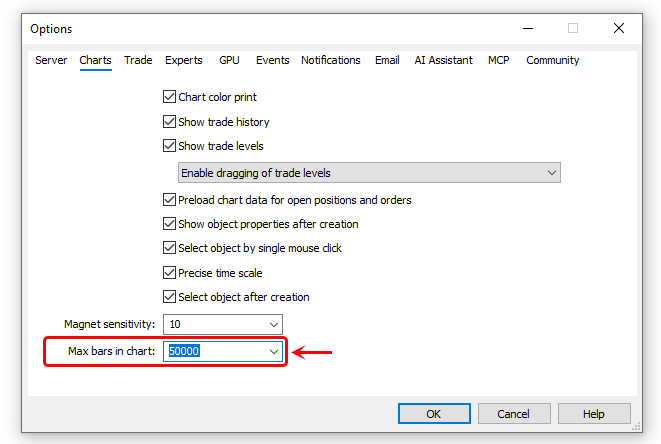
- In each terminal, go to the terminal settings (top terminal menu > service > settings):
- On the "Charts" tab, reduce the "Max bars in chart" parameter to the minimum value:
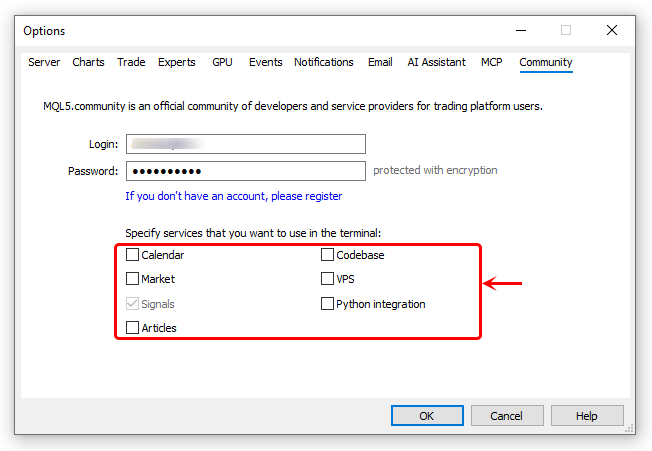
- Turn off unused services:
- On the "Charts" tab, reduce the "Max bars in chart" parameter to the minimum value:
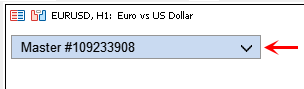
- Minimize the TradeCopier panel so it doesn't use up app resources. Only open it when you're checking the copying process, and make sure to minimize it right after leaving the VPS:

* Approximate minimum requirements:
- For 2 terminals: 2-core CPU and 4 GB RAM.
- For 3–6 terminals: 4-core CPU and 6 GB RAM.
- For 7–9 terminals: 6-core CPU and 12 GB RAM.
- For 10–15 terminals: 8-core CPU and 16 GB RAM.
- For more than 15 terminals: 16–24-core CPU and 48–64 GB RAM.