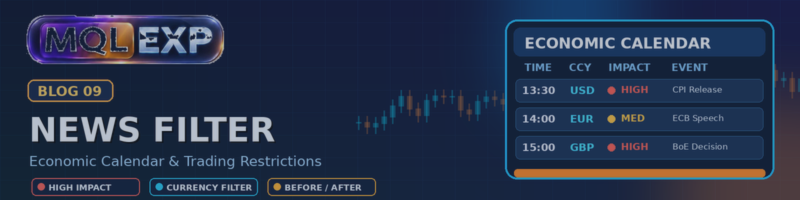
News Filter in Multi Risk Manager Pro: Forex Factory, MT5 Economic Calendar and Trading Restrictions

Economic news can cause sudden price movements, wider spreads, and unpredictable execution conditions. For traders using MetaTrader 5, managing exposure around scheduled announcements can be an important part of a trading plan.
Multi Risk Manager Pro includes news-related tools designed to help traders monitor economic events and apply trading restrictions around selected announcements.
This guide explains the documented news-filter options, how to approach configuration, and what to verify before relying on the feature.
MT5 : https://www.mql5.com/en/market/product/201074
MT4 : https://www.mql5.com/en/market/product/201075
Public channel : https://www.mql5.com/en/channels/mqlexp
MT5 : https://www.mql5.com/en/market/product/201074
MT4 : https://www.mql5.com/en/market/product/201075
Public channel : https://www.mql5.com/en/channels/mqlexp
1. Why Use a News Filter?
Economic announcements can affect currencies, indices, commodities, and other financial instruments. Depending on the event and market conditions, prices may move rapidly or liquidity may change around the release.
Some traders prefer to avoid opening new positions immediately before or after major announcements. Others may use news restrictions as one part of a broader risk-management plan.
A news filter can help automate selected restrictions, but it cannot predict the market's reaction or guarantee protection from slippage, gaps, or losses.
2. Supported News Sources
Multi Risk Manager Pro documents two news-data sources:
-
Forex Factory: Requires the relevant WebRequest permission in MetaTrader 5.
-
MT5 Economic Calendar: Uses the economic-calendar functionality available through the trading platform, where supported data is available.
The information available to the EA depends on the selected source, platform environment, permissions, and data availability.
Before enabling a source, verify that it is functioning correctly in your terminal. Do not assume that the absence of displayed events means there are no scheduled announcements.
Configuring Forex Factory access
When using Forex Factory, MetaTrader 5 may require the relevant address to be allowed in its WebRequest settings.
A practical setup procedure is:
-
Open the MetaTrader 5 / 4 terminal settings.
-
Locate the Expert Advisors settings.
-
Find the option for allowing WebRequest access to listed URLs.
-
Add the address required by the EA's current documentation.
-
Apply the settings and verify that news data can be retrieved.
Use the exact address specified by the installed EA or its documentation rather than relying on an address remembered from another version.
WebRequest permissions should be granted deliberately. Only allow sources that you trust and that the EA actually needs.
3. Filtering by Currency and Impact
Not every economic event is equally relevant to every trading strategy.
Multi Risk Manager Pro documents filters based on currency and news impact. These options help narrow the events that trigger restrictions.
For example, a trader focusing on EUR/USD may want to pay particular attention to events associated with EUR and USD.
However, a currency filter is not a complete measure of market relevance. An announcement involving another currency or a broader economic event can sometimes affect correlated instruments.
Review the filter settings against the instruments you trade and the scope of the news data available from the selected source.
4. Setting the Before-and-After News Window
A news filter may restrict trading for a period before and after a scheduled announcement.
Multi Risk Manager Pro provides configurable pre-news and post-news windows. The intended purpose is to apply restrictions around selected events rather than treating all market hours in the same way.
A sensible configuration process is:
-
Identify which news categories matter to your strategy.
-
Choose the currencies and impact levels to monitor.
-
Set a pre-news restriction period.
-
Set a post-news restriction period.
-
Test how the EA behaves immediately before, during, and after a qualifying event.
The appropriate time window depends on the instrument, trading strategy, and event type. A short-term strategy may require different restrictions from a longer-term approach.
Do not assume that a particular window is universally safe. Price movement can continue well after the scheduled release.
5. What Actions Can the News Filter Take?
The documented news functionality includes alerts and options to restrict trading around selected events.
Depending on the configured options, the EA can support actions such as:
-
Notifying the trader about relevant news.
-
Blocking new entries during the configured restriction window.
-
Optionally closing eligible positions.
These actions serve different purposes. An alert informs the trader, while an entry restriction prevents eligible new trades. Closing positions is a more direct intervention and can realize a loss or incur additional transaction costs.
Before using automatic closing, verify precisely which positions are eligible for the action. The documented implementation may not cover every symbol, pending order, or position in every configuration.
Test the chosen action in a demo environment before enabling it on a live account.
6. News Filters and Existing Positions
Blocking new trades does not necessarily protect positions that are already open.
For example, a filter may prevent a new order from being placed shortly before a scheduled announcement while an existing position remains exposed to the same event.
If your trading plan requires existing exposure to be reduced, determine whether the relevant closing option supports the positions you want to manage.
Also consider the difference between:
-
Preventing new entries.
-
Closing eligible open positions.
-
Managing pending orders.
-
Managing positions on symbols other than the chart symbol.
Do not assume that one news-filter setting automatically performs all four tasks.
7. Interaction with Trade Copying
Multi Risk Manager Pro also includes trade-copying functionality. When a news filter is used alongside a copier, it is important to understand where the restriction is applied.
The documented behavior does not establish that a news filter on a receiver automatically blocks every trade arriving from a sender.
If you use copied trades, test the sender and receiver separately. Confirm whether a restriction prevents a new trade, whether the receiver can still accept copied activity, and how the setup behaves when the two terminals have different news-data availability.
Never assume that a protection configured on one terminal is automatically enforced throughout an entire copying network.
8. Practical Testing Checklist
Before relying on the news filter, complete these checks:
-
Confirm data availability. Verify that the selected source provides events in the terminal.
-
Check permissions. If using Forex Factory, confirm that the required WebRequest permission is configured.
-
Review currency filters. Ensure the relevant currencies are included.
-
Review impact filters. Confirm which event categories trigger restrictions.
-
Test the timing windows. Check the behavior before and after a scheduled event.
-
Verify the chosen action. Determine whether the EA sends alerts, blocks entries, or closes eligible positions.
-
Check symbol coverage. Confirm how the current setup handles positions and orders across symbols.
-
Test copied trading separately. Verify the behavior on both sender and receiver terminals if using the copier.
-
Test data interruptions. Observe how the system behaves when the news source is unavailable or events cannot be retrieved.
Use the current EA version and its accompanying settings reference to confirm the exact options and defaults.
9. Important Limitations
News data and trading conditions can change quickly. An event may be revised, delayed, missing from a source, or represented differently across data providers.
A news filter also cannot guarantee that every relevant event will be identified. Unscheduled announcements and unexpected geopolitical or economic developments may occur without warning.
Automatic closing is not a guarantee of an exit at a particular price. Slippage, spreads, execution delays, and broker restrictions can affect the result.
Finally, restrictions that depend on the EA monitoring events require the relevant platform and EA functionality to be operating as expected. Test the behavior before using it as part of a critical risk-control process.
Conclusion
Multi Risk Manager Pro provides news-related tools that can help traders monitor selected economic events and restrict trading around scheduled announcements in MetaTrader 5.
Its documented functionality includes Forex Factory and MT5 Economic Calendar data sources, currency and impact filters, configurable pre-news and post-news windows, alerts, entry restrictions, and optional closing actions for eligible positions.
The most important step is to verify data availability and test the precise behavior of the selected configuration. A news filter is a useful component of a broader trading plan, but it cannot eliminate event risk or guarantee a particular trading outcome.
Always test the news filter in your own MT5 environment and verify the current implementation before relying on it for live trading.




