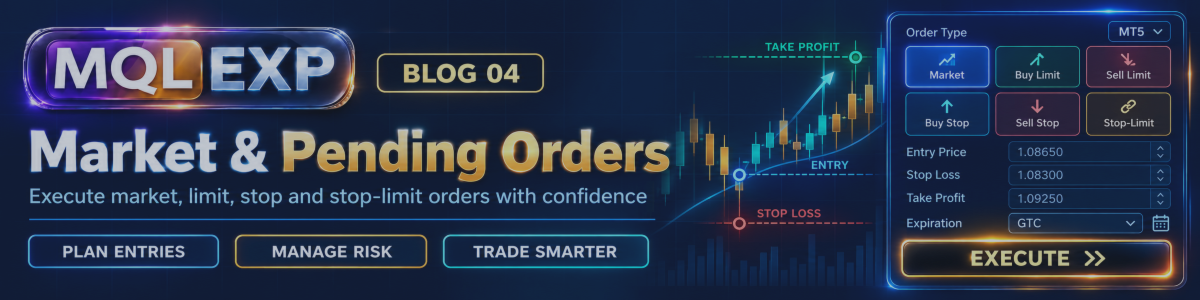
Multi Risk Manager Pro: How to Place and Manage Market and Pending Orders in MT5 / 4

Placing an order is more than clicking Buy or Sell. Traders may need to choose between immediate execution and a pending order, define an entry price, configure Stop Loss and Take Profit levels, check volume and margin requirements, and confirm that the order complies with their trading rules.
Multi Risk Manager Pro by Mqlexp provides an order-execution interface for MetaTrader 5 / 4 that brings these tasks together with its risk calculator and trade-planning tools.
In this tutorial, we will explain the main order types, show how to prepare an order using the chart interface, and cover the important settings that affect execution.
MT5 : https://www.mql5.com/en/market/product/201074
MT4 : . . .
Public channel : https://www.mql5.com/en/channels/mqlexp
| Blogs | Description | Link |
|---|---|---|
| 1 | A Complete Trade Management Toolkit for MeteTrader 5 / 4 | https://www.mql5.com/en/blogs/post/777677 |
| 2 | How to Use the 8 Money Management Methods in MetaTrader 5 / 4 | https://www.mql5.com/en/blogs/post/777683 |
| 3 | How to Use the Risk-to-Reward Box in MetaTrader 5 / 4 | https://www.mql5.com/en/blogs/post/777775 |
1. Market Orders vs. Pending Orders
Multi Risk Manager Pro supports two main order-placement workflows.
Market orders
A market order is submitted for execution at the current market price.
The main controls are:
-
BUY to submit a Buy order
-
SELL to submit a Sell order
-
The configured position-sizing method
-
Stop Loss and Take Profit settings
-
Execution and confirmation controls
The final execution price can differ from the displayed price because of market movement, spread, slippage, and broker execution conditions.
Pending orders
A pending order is placed at a specified price and waits for the market to reach the relevant level.
Depending on the direction and entry price, the EA supports:
-
Buy Limit
-
Buy Stop
-
Sell Limit
-
Sell Stop
-
Stop-Limit orders where the broker and symbol support them
Pending orders are useful when a trading plan requires the market to reach a specific price before an entry is activated.
The broker's rules determine whether a pending order is accepted. Minimum distance requirements, trading sessions, volume restrictions, and supported order types can all affect placement.
2. Preparing an Order with the Chart Lines
Multi Risk Manager Pro includes a chart-based interface for planning an order before submitting it.
You can use the Risk-to-Reward Box or individual chart lines to configure the planned entry, Stop Loss, and Take Profit levels.
A typical workflow is:
-
Display the box or order lines.
-
Adjust the entry price.
-
Set the Stop Loss.
-
Configure one or more Take Profit levels.
-
Review the calculated lot size, estimated risk, reward, and margin.
-
Select BUY or SELL.
-
Confirm the order settings and execute the trade.
The calculated lot depends on the selected money-management method and applicable risk and volume limits.
The chart is a planning interface; moving a line does not by itself mean that an order has been submitted.
3. Using EXECUTE Mode
The documented default for pendarm is enabled, activating the EXECUTE workflow.
When the box or lines are displayed:
-
BUY selects the Buy direction.
-
SELL selects the Sell direction.
-
EXECUTE submits the prepared order using the selected direction, order type, entry, Stop Loss, Take Profit levels, and calculated lot.
-
The plus or X control can add or remove the box.
This workflow is designed to let you review the planned trade before sending it.
Without the box or lines, BUY and SELL can submit an order immediately using the configured default Stop Loss.
Important: Scalping mode uses a different execution workflow and does not use the EXECUTE mode described above.
4. How Pending Order Prices Determine the Order Type
When configuring a pending order, the relationship between the entry line and the current market price determines the order type.
For Buy orders:
-
An entry below the current Ask price corresponds to a Buy Limit.
-
An entry above the current Ask price corresponds to a Buy Stop.
For Sell orders, the relationship is reversed:
-
An entry above the current Bid price corresponds to a Sell Limit.
-
An entry below the current Bid price corresponds to a Sell Stop.
The EA provides a PEND control and individual pending-order buttons. The documented keyboard shortcut for switching the pending-order workflow is Shift+P.
The first click prepares the pending-order lines using the configured offset. The next action places the order, or, when EXECUTE mode is active, reminds you to press EXECUTE.
Always review the actual order type and entry price shown on the panel before sending the request.
5. Configure the Pending Order Offset
The pending-order workflow includes settings that determine the initial distance of the entry from the reference price.
The documented options include:
-
pendoff: an offset expressed as a percentage of the Stop Loss distance
-
pendpct: an offset expressed as a percentage of the price
The documented default for pendoff is 50%.
For example, if the configured Stop Loss distance is 200 points and the offset is 50%, the initial offset based on that setting would be 100 points.
This is an illustration of the percentage calculation, not a recommendation for a particular symbol.
After the pending-order lines appear, check their actual chart positions. The final entry should match your trading plan and the broker's permitted order distances.
6. Stop-Limit Orders
A Stop-Limit order combines a stop trigger with a limit price.
When the stop price is reached, the order is submitted as a limit order rather than being executed as an unrestricted market order.
Multi Risk Manager Pro includes the stoplimit setting, which is disabled by default in the supplied documentation.
The slimoff setting controls the offset between the stop and limit prices. Its documented default is 50 points.
Stop-Limit behavior depends on the broker and symbol supporting this order type. If the broker does not allow Stop-Limit orders for the selected instrument, the request may be rejected.
Before using this feature, verify the symbol's supported order types and confirm how your broker handles Stop-Limit requests.
7. Pending Order Expiration
Pending orders can have an expiration setting.
The documented expiry setting is expressed in hours, with zero meaning Good Till Cancelled (GTC).
However, the broker's symbol settings determine which expiration policies are available. If the symbol does not support the requested specified expiration, the EA may ignore it and the order may use GTC or DAY behavior instead.
For this reason, do not assume that every pending order will expire at the exact time you entered.
After placing an order, inspect its expiration information in the MetaTrader 5 terminal to confirm the broker accepted the intended policy.
8. Order Confirmation
The confirm setting is enabled by default in the supplied documentation.
When confirmation is enabled, the EA displays the planned order information before submitting it. This provides an opportunity to review the order direction, entry, protective levels, and calculated volume.
Confirmation is skipped in scalping mode and in the Strategy Tester.
After confirmation, the market Stop Loss is re-anchored to the new execution price. The documentation states that the lot size and Take Profit levels are not recalculated at that stage.
Therefore, review the proposed order before confirming it, particularly when the market has moved significantly since the original plan was prepared.
9. Slippage and Execution Settings
The requested price is not always the final fill price.
Multi Risk Manager Pro includes a maximum-slippage setting called maxslippage. A value of zero disables this threshold according to the supplied technical documentation.
When the configured threshold is exceeded, the EA can generate an alert. The slipclose option controls whether the position is closed after the slippage condition is detected.
Closing a position after an unfavorable fill can itself produce a loss and may be affected by market conditions. It should not be considered a guarantee of execution at the requested price.
The EA also supports order-filling configuration:
-
Automatic selection based on the symbol's supported filling modes
-
A forced filling mode, where configured
An unsupported forced filling mode can be rejected by the broker. Pending orders use RETURN filling according to the technical documentation.
Use the automatic mode unless you have a clear reason to select a supported alternative and have tested it with your broker.
10. What Happens Before an Order Is Sent?
The EA checks several conditions before sending an order. The documented checks include:
-
Whether algorithmic trading is allowed
-
Whether the symbol permits the selected trade direction
-
Account protection and configured restrictions
-
Maximum spread and news filters
-
Maximum trades per day
-
Minimum risk-to-reward requirements, if enabled
-
Stop and entry distances against relevant broker restrictions
-
Calculated lot size
-
Take Profit direction and distance
-
Maximum positions on the symbol
-
Maximum total open risk across symbols
-
Broker volume limits
-
Available free margin
-
Prop firm risk limits
These checks help prevent orders that violate configured conditions from being sent.
They do not eliminate every possible execution failure. Market conditions can change between calculation and execution, and the broker may reject an otherwise valid request.
The documented default for min_rr is zero, which means the minimum R check is disabled until a threshold is configured.
The documented default for maximum total open risk is 10%. Positions without a Stop Loss are counted as zero risk by that particular calculation, so this setting should not be treated as a complete measure of every possible account exposure.
11. Hidden Stop Loss and Take Profit
Multi Risk Manager Pro includes a hidden-level mode.
When hidden SL/TP is enabled, the order is sent to the broker without ordinary Stop Loss and Take Profit values. The EA stores the selected levels and monitors the price to close the position when a hidden level is reached.
This behavior is different from placing protective levels directly on the broker's server.
Critical limitation: If the terminal, computer, or EA stops running, the position has no broker-held Stop Loss or Take Profit from this hidden-level configuration. The EA cannot execute its hidden-level logic while it is not operating and receiving the required price updates.
For this reason, hidden protection should be used only when you understand the operational risk. Test it thoroughly on a demo account and consider whether visible broker-side protection is more appropriate for your situation.
12. Common Order-Placement Problems
The broker rejects the pending order
Check the permitted order types, minimum entry distance, trading session, symbol status, and expiration policy.
The lot is smaller than expected
Review the selected money-management method, maximum-risk limit, maximum lot, broker volume step, margin limit, and Stop Loss distance.
The order cannot use the requested filling mode
Return to automatic filling mode or select a mode that the broker explicitly supports.
The pending order does not expire as expected
Check the expiration policy accepted by the broker. The requested expiration may not be supported for that symbol.
The order is executed at a different price
Review the spread, market movement, configured slippage threshold, and execution mode.
The confirmation window is missing
Check whether confirmation is enabled and whether scalping mode or the Strategy Tester is active. Confirmation is skipped in those documented cases.
13. A Pre-Execution Checklist
Before placing a market or pending order, verify:
-
The correct symbol and trade direction are selected.
-
The entry price matches the intended setup.
-
The order type is correct.
-
The Stop Loss and Take Profit levels are appropriate.
-
The calculated lot and estimated risk are acceptable.
-
The broker supports the selected order and filling modes.
-
The pending order's expiration policy is understood.
-
Spread, margin, and account restrictions have been checked.
-
You understand whether the protective levels are broker-held or EA-managed.
-
The setup has been tested in a demo environment.
Conclusion
Multi Risk Manager Pro combines market and pending-order workflows with chart-based trade planning, position sizing, confirmation, execution checks, and optional hidden protection.
Understanding the distinction between preparing an order and submitting it is essential. The chart lines help define the plan, while the execution controls send the configured order to the broker.
Broker support, symbol specifications, market conditions, and the EA's settings determine the final outcome. Always verify the submitted order in MetaTrader 5 / 4 and test the relevant execution features before using them on a live account.
Risk disclosure: Trading leveraged financial instruments involves substantial risk. Execution controls and risk-management features cannot eliminate market risk or guarantee a specific fill price or financial outcome.



