How to Copy Telegram and Discord Signals to MT4 or MT5 with Your Own Risk Settings

A signal channel publishes a buy order for GOLD, but your broker lists the instrument as XAUUSD. The message includes an entry, a Stop Loss and two Take Profit levels, yet says nothing about lot size. Before your terminal can act on that message, it needs to identify the correct contract, interpret the price levels and calculate a volume for your account.
Article 20 covered outgoing trade updates. This guide follows a signal in the other direction: from a Telegram or Discord channel, through the Multi Risk Manager Pro Windows companion, to a MetaTrader receiver. You will set up one source, test its message format and check a copied trade on a demo account before enabling automatic execution.
Multi Risk Manager Pro for MT5 · Multi Risk Manager Pro for MT4 · MQLEXP public channel on MQL5
1. Connect a Channel as a Signal Source
Start the Windows companion on the same computer as the MetaTrader terminal running Multi Risk Manager Pro. Open Accounts and confirm that you can identify the intended demo account.
For Telegram, connect an account or bot that can read the source messages. If you subscribe to a channel and cannot add a bot to it, use the companion’s Telegram user-account connection. This requires your Telegram API ID, API hash and account authorization. The connected account must already have access to the channel.
For Discord, connect a bot with access to the source channel and enable Message Content Intent for the bot. A webhook is useful for the outgoing posts covered in Article 20. Reading incoming signal text uses the bot connection.
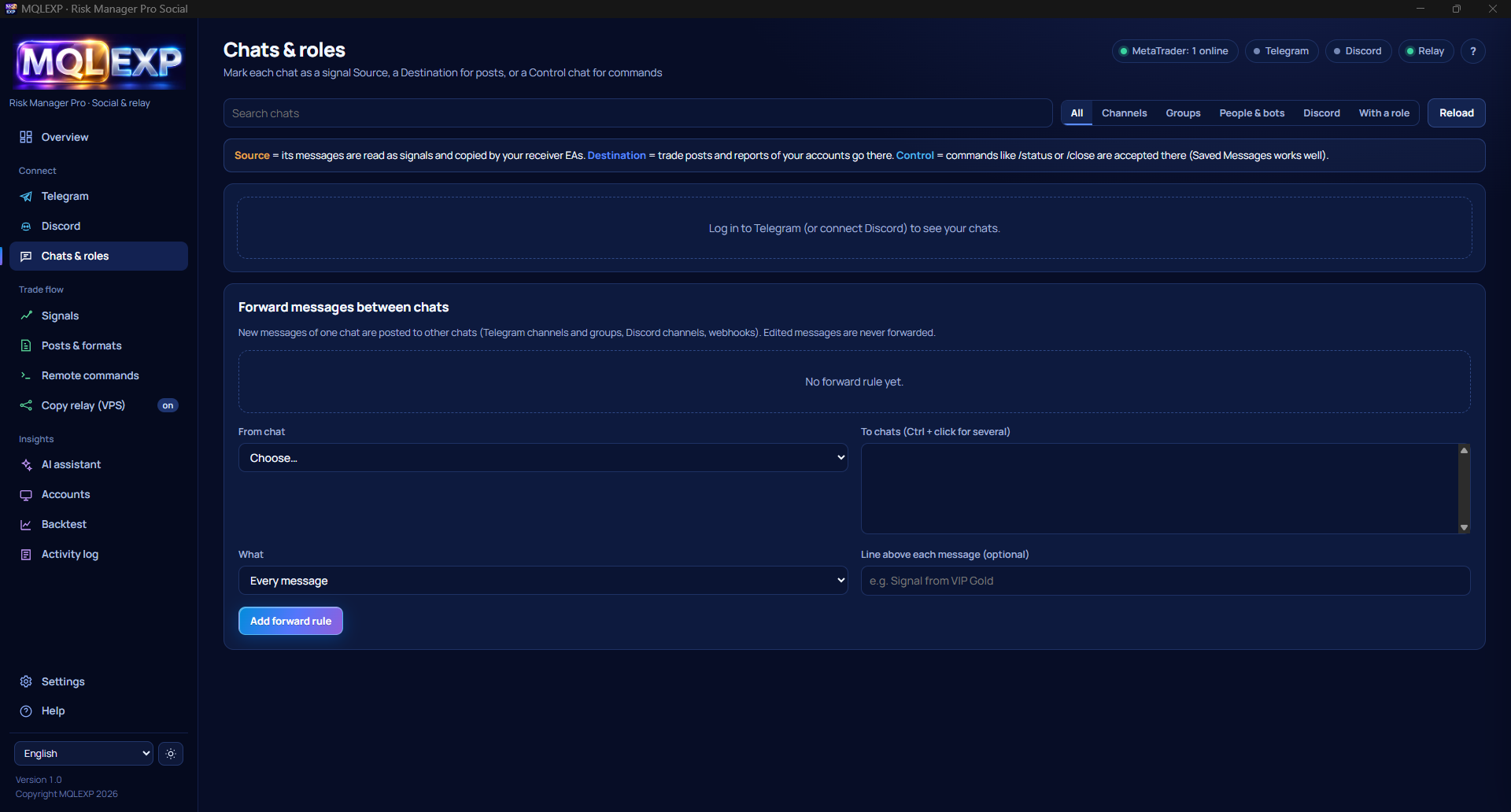
In Chats & roles, find the channel and select Source. Open its source settings and note the copy channel ID. This is the identifier you will enter in the EA’s Signal IDs field. It can differ from the channel’s public name or Telegram address.
2. Check What the Parser Reads
Open Signals → Parser tester in the Windows companion. Paste a representative message from the channel, preserving its original wording and line breaks. For a first exercise, you can use this fictional example:
BUY GOLD Entry 2400 SL 2390 TP1 2410 TP2 2420
These prices are for testing the parser. Compare the result with the original message before attempting a demo trade.
| Field | Expected interpretation |
|---|---|
| Direction | Buy |
| Source symbol | GOLD |
| Entry | 2400 |
| Stop Loss | 2390 |
| Take Profit levels | 2410 and 2420, in that order |
Next, try a message written in the channel’s usual style. Some channels put the symbol before the direction, use an entry range or publish targets on separate lines. If a field is missing or misread, define the channel’s pattern under My message formats and test it again. Also try a message with the Stop Loss removed. This shows you what information the receiver would have for a stop-based volume calculation.
3. Match the Source Symbol to Your Broker
Open Market Watch in the receiving terminal and locate the exact instrument offered by your broker. For the example above, map GOLD to XAUUSD only if that is the contract you intend to trade. If the broker uses a suffix, enter the full symbol as listed, such as XAUUSD.a .
Check the contract size, minimum volume and volume step. This matters when two instruments have similar names but different specifications. A parser can read “GOLD” correctly while the receiver still needs a mapping to select the intended contract.
4. Configure the MetaTrader Receiver
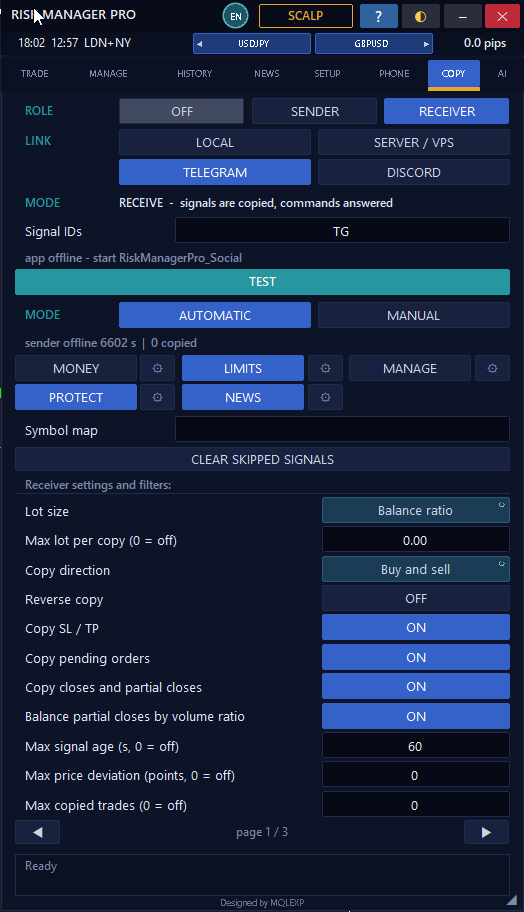
On the demo terminal, open the EA’s COPY tab and configure the following settings:
- Set ROLE to RECEIVER.
- Set LINK to TELEGRAM or DISCORD, matching the source connection.
- Enter the source’s copy channel ID in Signal IDs.
- Start with MODE = MANUAL so you can inspect an incoming signal before pressing ACCEPT.
- Review the receiver’s volume method and its MONEY, LIMITS, MANAGE, PROTECT and NEWS settings. Enable the controls you want this receiver to apply.
Volume deserves a separate check. Fixed Lot requests the volume you configure. A risk-based method uses the available Stop Loss and the receiver’s contract specifications to calculate volume. If the source supplies no lot size, a method that depends on sender volume may lack the information it needs. Choose a method that fits the messages your channel actually publishes.
For a stop-based test, compare two otherwise identical examples with different stop distances. With the same monetary risk, a wider stop generally produces a smaller calculated volume, subject to the broker’s minimum and volume step.
5. Follow One Demo Signal from Message to Position
Use one source, one receiver and one symbol. For this part, choose demo prices appropriate to the test session rather than the fictional prices in Section 2.
First, inspect the incoming signal in the companion. Then check the proposal in the EA: receiving account, mapped symbol, direction, entry, SL, targets and volume. If the source provides several targets, review how you configured multiple TPs for that source before accepting.
After you press ACCEPT, inspect MetaTrader. A pending entry should be checked under orders. For a filled entry, inspect the open position and record the executed price, volume and protective levels. Market movement, volume rounding and broker restrictions can affect the result. Activity log helps you trace the message through the companion; the receiving terminal shows what the broker accepted.
6. Test a Follow-Up Message
A channel may later reply to its original signal with “move SL to entry” or “close half.” Test one of these follow-ups while only one demo position is active. Where possible, reply directly to the original signal. The reply gives the companion a reference when several signals for the same symbol appear in one channel.
For example, suppose the copied position is 0.10 lots and the source replies “close half.” On a symbol that permits 0.05-lot trades, the expected reduction is 0.05 lots, leaving 0.05 lots open. Compare the follow-up shown in the companion with the remaining volume in MetaTrader. For a stop update, compare the new SL with the receiver’s actual entry price.
7. Find Where a Signal Stopped
| What you observe | What to check first |
|---|---|
| The message is visible in the chat but absent from the companion | Service connection, channel-reading permissions and the Source role |
| The companion receives the message but reads the wrong fields | Original wording, parser output and the source’s message format |
| The signal is parsed but absent from the EA | RECEIVER role, selected LINK, matching copy channel ID and running terminal |
| The EA shows the signal but no position opens | Manual acceptance, pending-order status, symbol mapping, volume constraints and the receiver’s active filters |
| The entry opens but a later update affects the wrong trade | Which original message the update replied to and which signal the companion associated with it |
Conclusion
Before using automatic mode, verify three things on demo: the receiver opens the intended broker symbol, the resulting volume matches your chosen sizing method, and a follow-up updates the correct position. Keeping the original message beside the parser result and the MetaTrader record makes discrepancies much easier to identify.