
📥 Install or Update Your Purchased Product
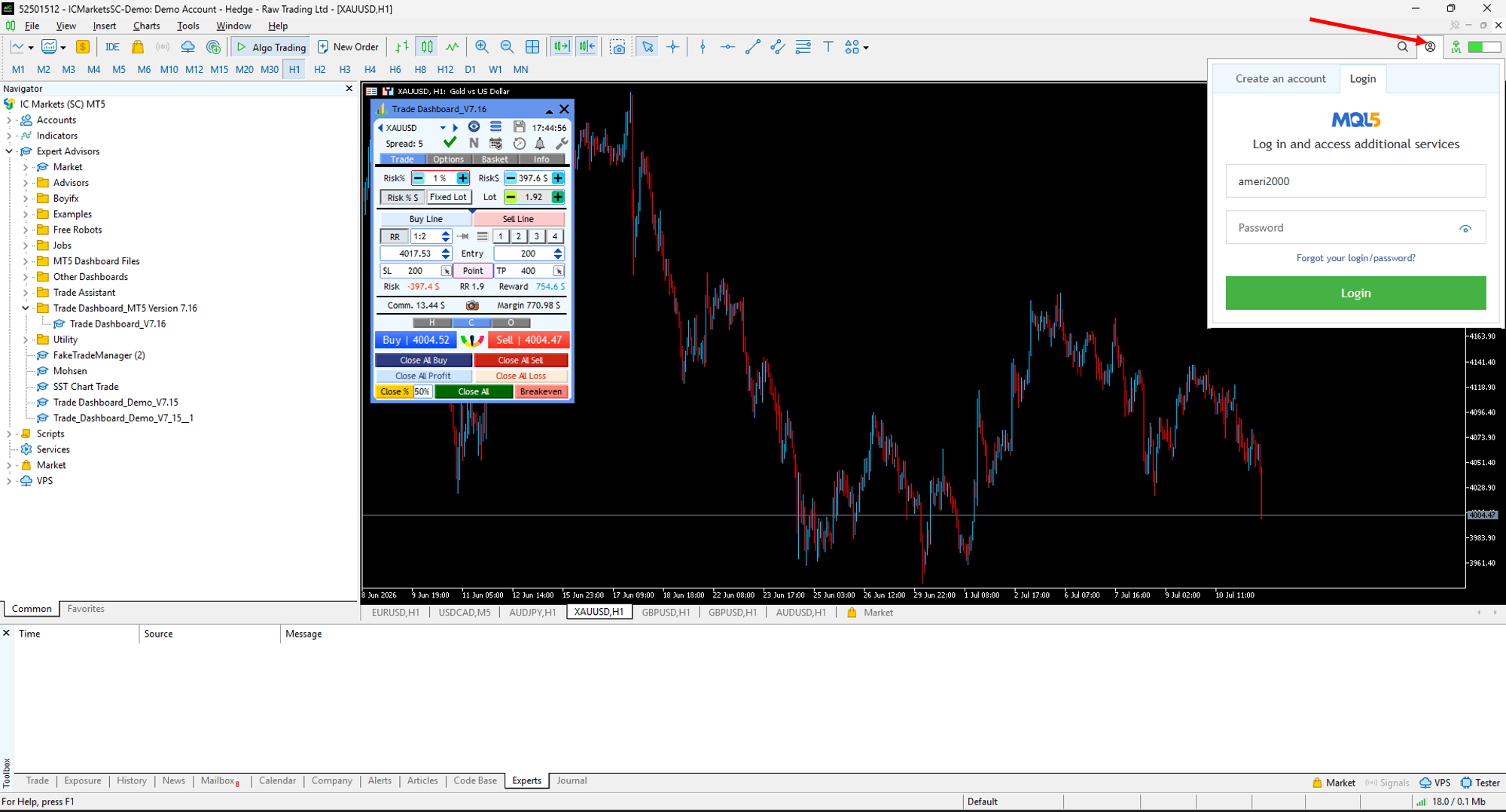
Products purchased from the MQL5 Market are installed and updated directly through your MetaTrader platform. Before you begin, make sure you are logged in to your MQL5 account.
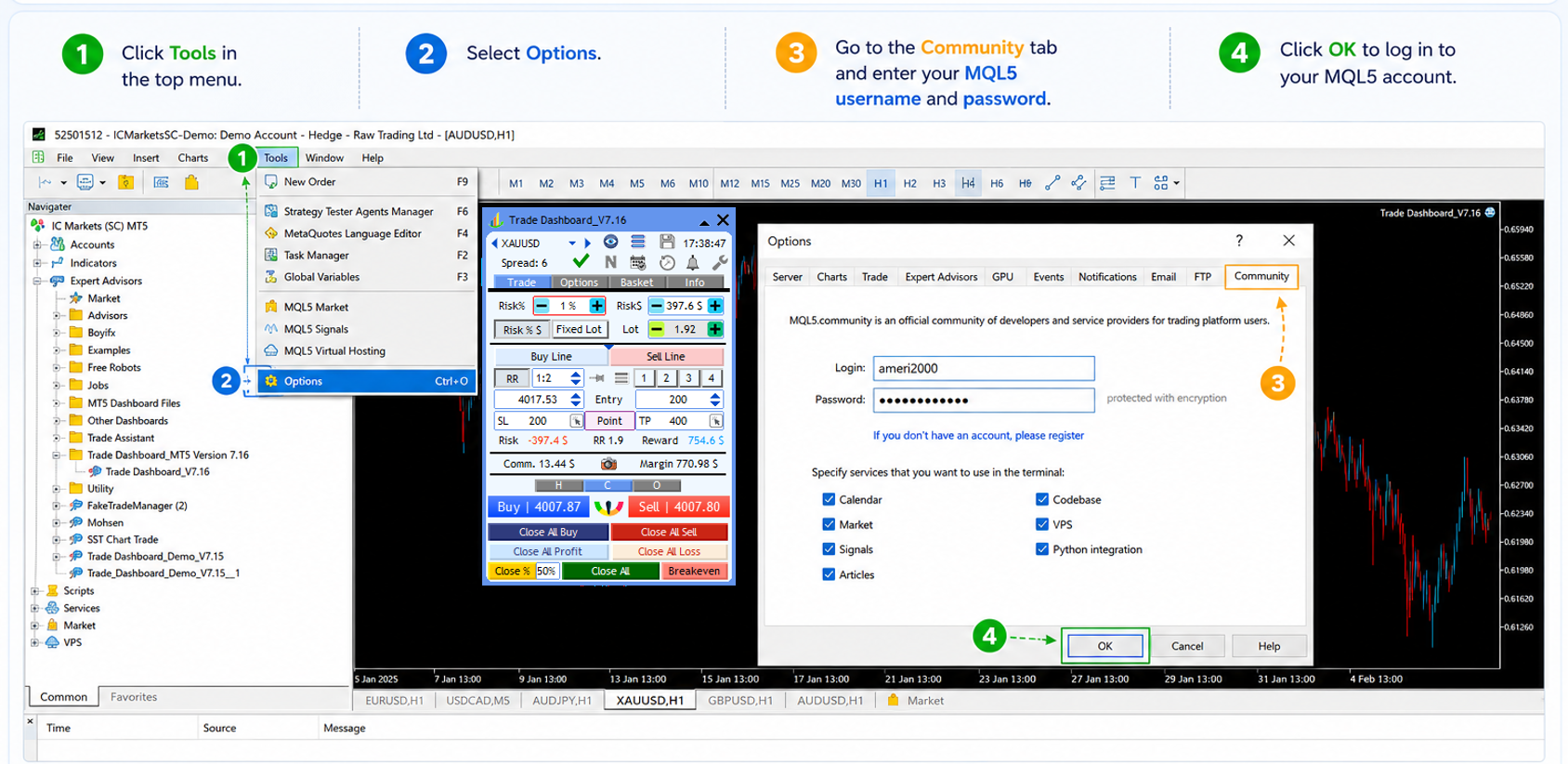
- 🚀 Open your MetaTrader 4 or MetaTrader 5 platform.
- ⚙️ Click Tools → Options.
- 👤 Open the Community tab.
- 🔑 Enter your MQL5 username and password.
- ✅ Click OK to sign in to your MQL5 account.
💡 Once you're logged in, you can install new purchases or update existing products directly from the MQL5 Market.
💡 Alternative login methods: You can also press Alt + M to open the MQL5 login window, or click the Login button (👤) in the upper-right corner of MetaTrader to sign in to your MQL5 account.
📥 Install or Update Your Purchased Product (MT5)
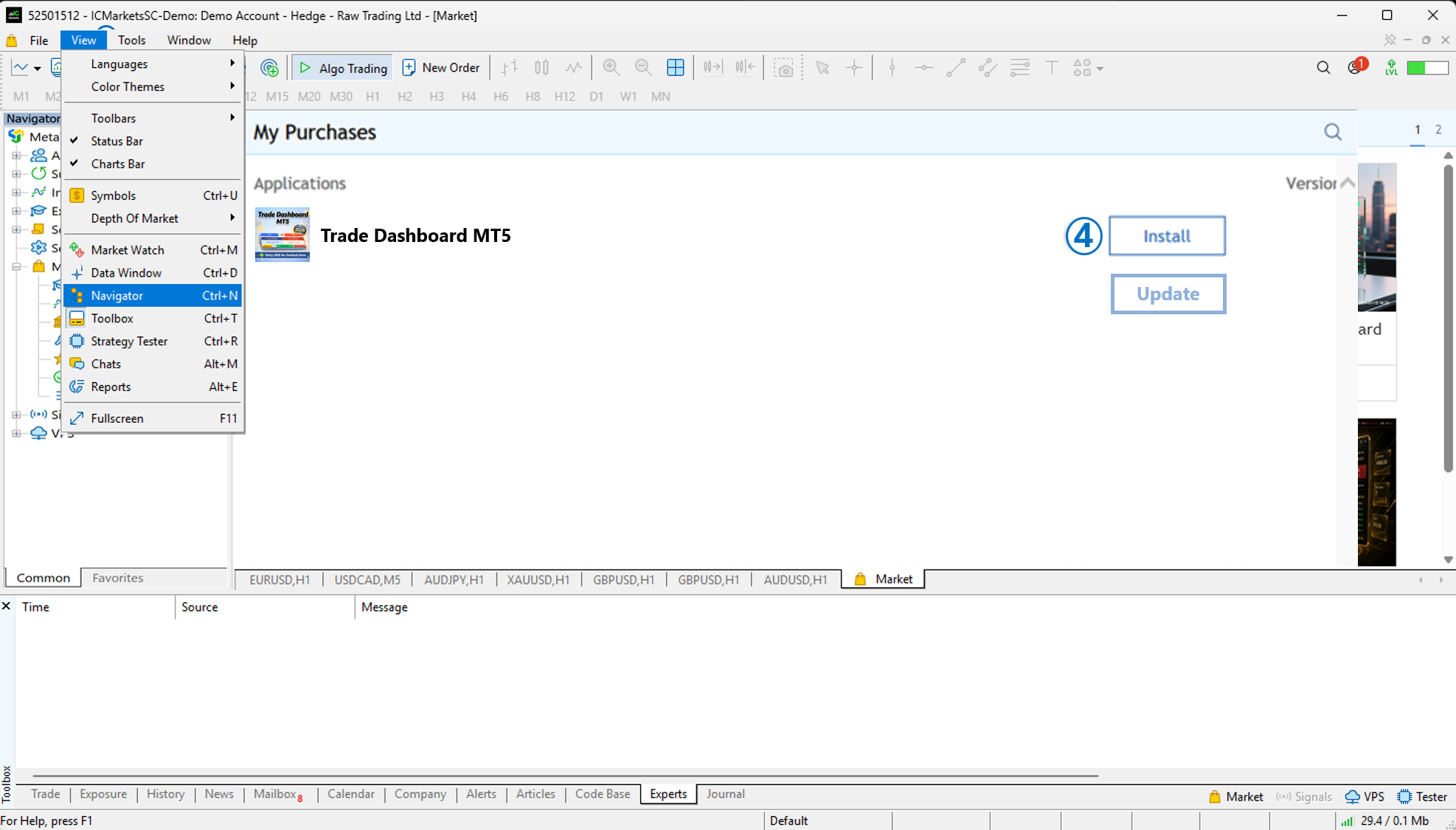
Once you're logged in to your MQL5 account, you can download or update your purchased products directly from the Market section in MetaTrader 5.
- 🚀 Open MetaTrader 5.
- 🧭 Open the Navigator window by selecting View → Navigator or pressing Ctrl + N.
- 🛒 Expand the Market section.
- 📦 Double-click My Purchases.
- 📋 Your purchased products will be displayed in the list.
- ⬇️ Click Download to install the product, or Update if a newer version is available.
💡 Tip: If you don't see your purchased product, make sure you're logged in to the same MQL5 account that was used to purchase it.
💡 Tip: If you can't see a product that you've already purchased, your firewall or antivirus software may be blocking MetaTrader's connection to the MQL5 server. Allow MetaTrader to access the Internet, then refresh the My Purchases page.
📥 Install / Update (MT4 Version)
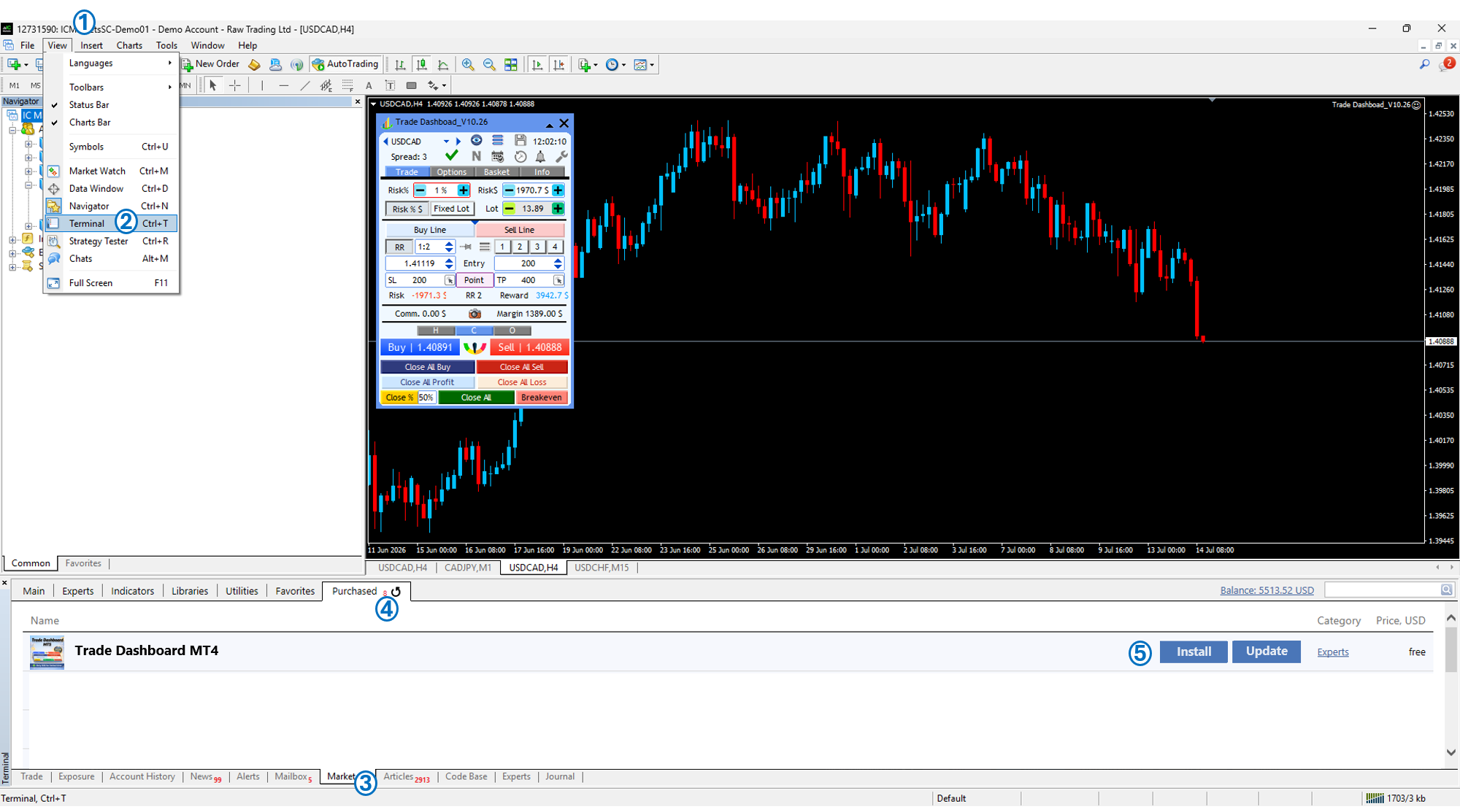
To install or update Trade Dashboard MT4, open the View menu and select Terminal, or simply press Ctrl+T.
In the Terminal pane, switch to the Market tab, then select Purchased from the top menu.
Locate Trade Dashboard MT4 in the list. Depending on your installation status, you will see either an Install or Update button next to the product.
💡 Tip: If your purchased product does not appear in the list, make sure you are logged in to your MQL5 account. If the problem persists, check your firewall or antivirus settings, as they may be blocking MetaTrader's connection to the MQL5 Market server.
🚀 Run the Product
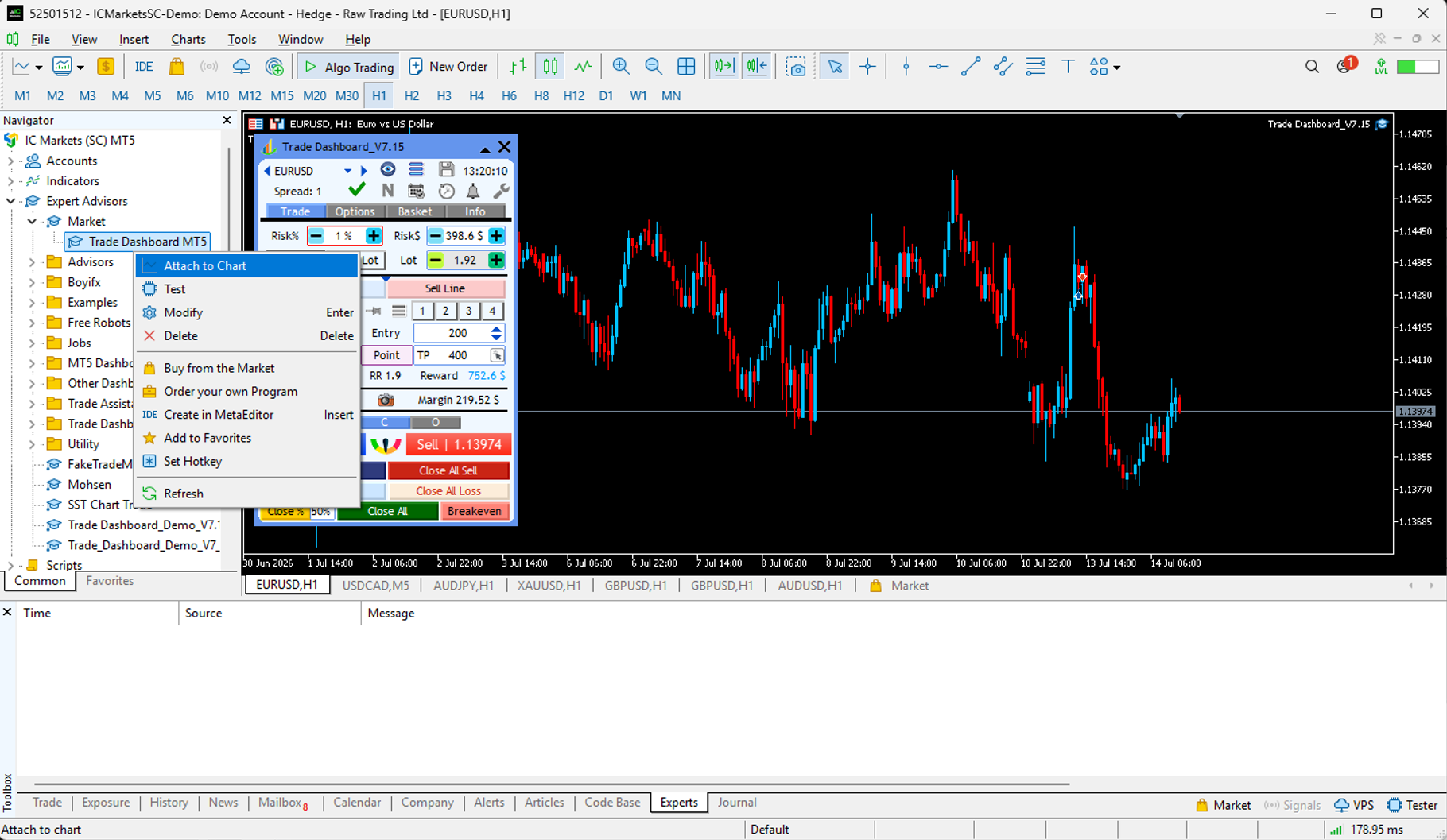
After installing Trade Dashboard, open the Navigator window by pressing Ctrl+N or selecting View → Navigator.
Expand the Expert Advisors section and then open the Market folder. Your purchased Trade Dashboard will appear in the list.
To launch the program, simply double-click the product or drag and drop it onto any chart.
⚠️ Before You Start Trading
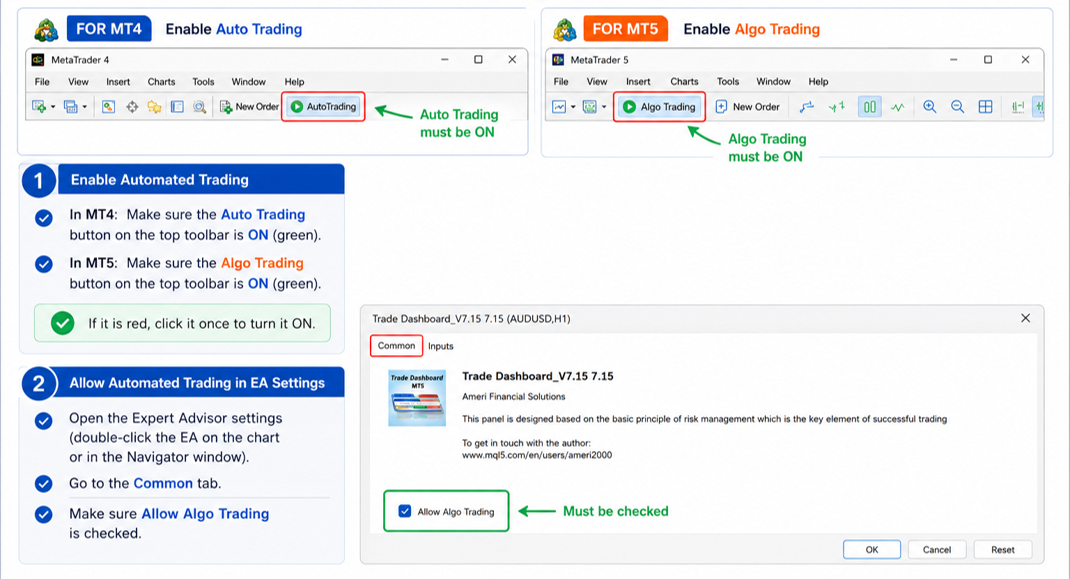
Before opening trades with Trade Dashboard Demo, make sure automated trading is enabled in MetaTrader:
- ✅ MT4: The Auto Trading button on the toolbar must be ON.
- ✅ MT5: The Algo Trading button on the toolbar must be ON.
- ✅ Open the Expert Advisor Properties window, go to the Common tab, and make sure Allow Live Trading is checked.
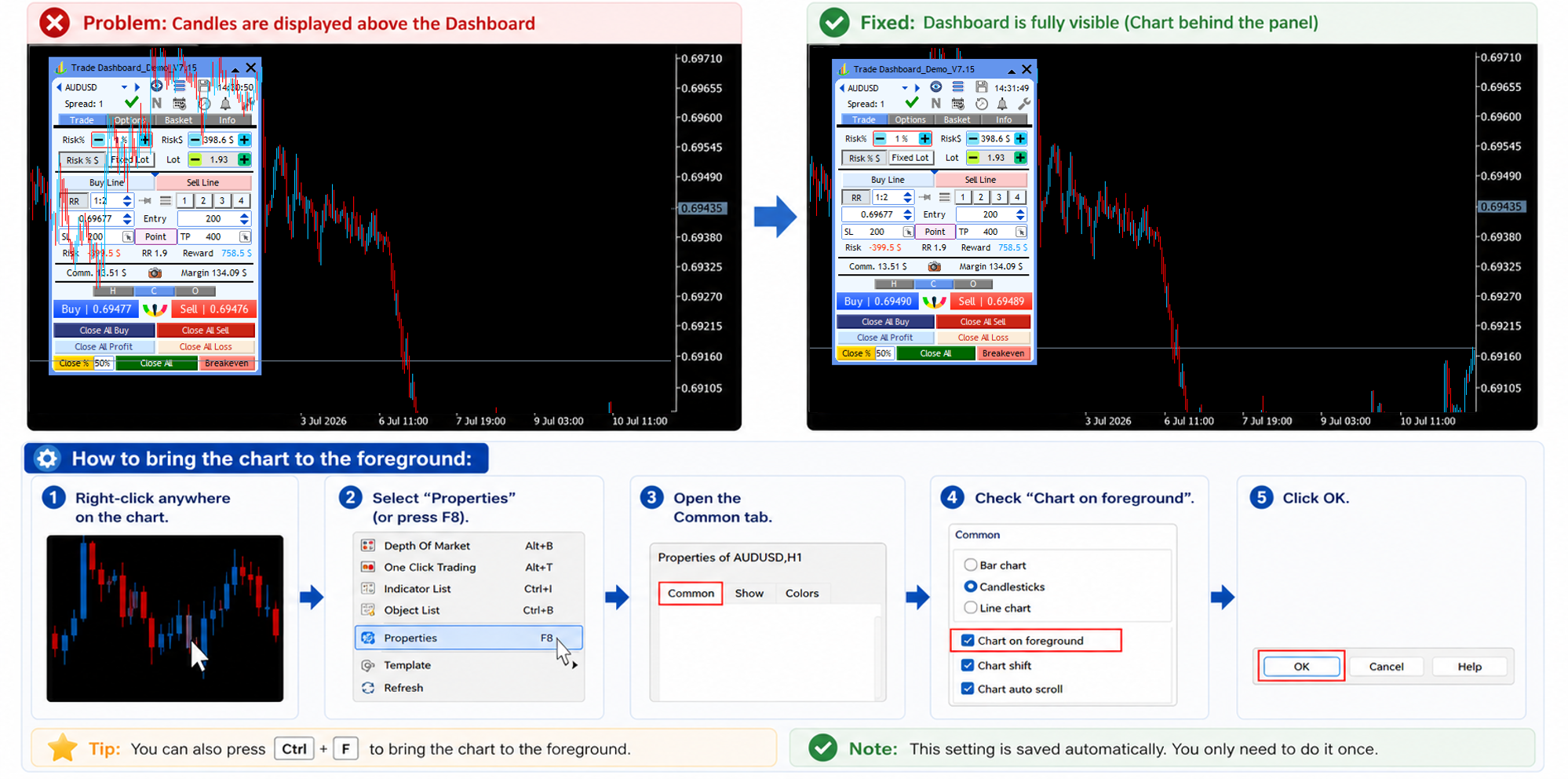
🖥️ If Candles Are Displayed Above the Dashboard
If the chart candles appear above the Trade Dashboard panel, the chart is currently displayed in the foreground. You can fix it in a few seconds:
- 🖱️ Right-click anywhere on the chart.
- ⚙️ Select Properties (or press F8).
- 📑 Open the Common tab.
- ☑️ Check the Chart on foreground option.
- ✅ Click OK.
💡 Result: The chart candles will be displayed behind the Trade Dashboard, keeping the panel fully visible and easy to use.