How export the trades in fantastic PDF file in MetaTrader

Rhino PDF Trade Report turns your MetaTrader account history into a clean, print-ready PDF report in one click. It is free, and it is available for both MetaTrader 4 and MetaTrader 5.
The report has two parts: a one-page performance summary with an equity curve and the headline statistics, followed by a full register of every closed trade in the selected period. The output is a real vector PDF with selectable text, so it stays sharp at any zoom level and prints properly on A4.
Where to get it
- MT5 version: Rhino PDF Trade Report for MetaTrader 5 (free)
- MT4 version: Rhino PDF Trade Report for MetaTrader 4 (free)
Contents
- What the report is for
- Page 1 - performance summary
- Pages 2 and beyond - the trade register
- Choosing which trades to include
- Output quality and where the file is saved
- Input parameters
- How to produce a report
- What it does and does not do
- Questions and answers
1) What the report is for
MetaTrader keeps your history in the terminal, but getting it out in a form someone else can read is awkward. The built-in statement is an HTML file that looks like a spreadsheet, and a screenshot of the History tab is not something you would send to anyone.
This utility produces a document you can actually hand over: to a prop firm reviewing your track record, to an investor asking how the account performed, to an accountant at the end of the tax year, or into your own trading journal at the end of each month. It is also useful simply for reading your own results properly, because the summary page puts the numbers that matter next to each other on one page.
2) Page 1 - performance summary
The first page collects the account's headline figures for the selected period:
- Net result - the total profit or loss
- Number of trades - how many closed positions are in the report
- Win rate - the share of trades that closed in profit
- Profit factor - gross profit divided by gross loss
- Expectancy - the average result per trade
- Total volume - the total lots traded
Alongside these it draws:
- An equity curve showing how cumulative profit developed across the period
- A win and loss breakdown, and a separate buy and sell breakdown, so you can see whether one direction is carrying the account
- Result by weekday, which often shows a pattern traders have not noticed in their own history
- Result by symbol, ranked, so the instruments making and losing the money are immediately visible
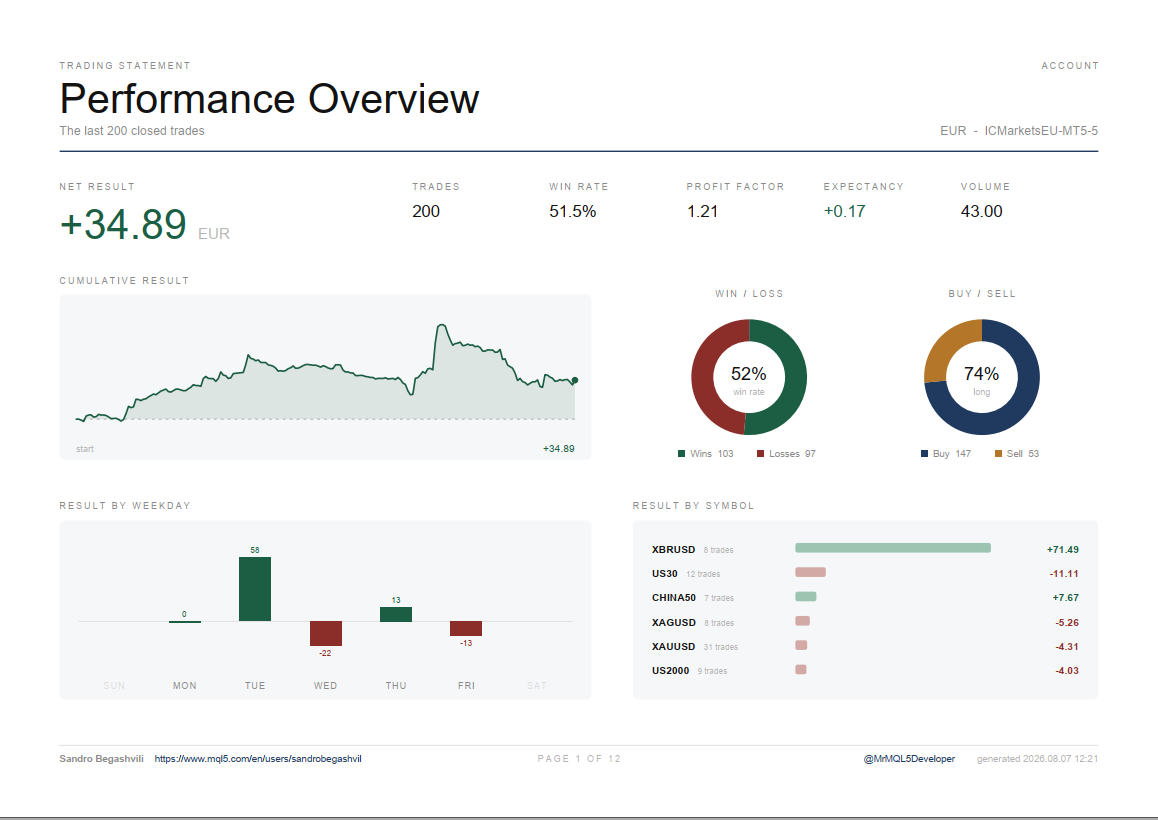
Fig 1. Performace Overivew page of the report
3) Pages 2 and beyond - the trade register
After the summary, every closed trade in the period is listed in full. For each trade the register shows:
- Ticket number
- Open time and close time
- Symbol
- Direction, colour coded so buys and sells are distinguishable at a glance
- Volume
- Entry price and exit price
- Stop Loss and Take Profit
- Swap and commission
- Running profit total, carried down the list
The register continues across as many pages as the selected period requires.
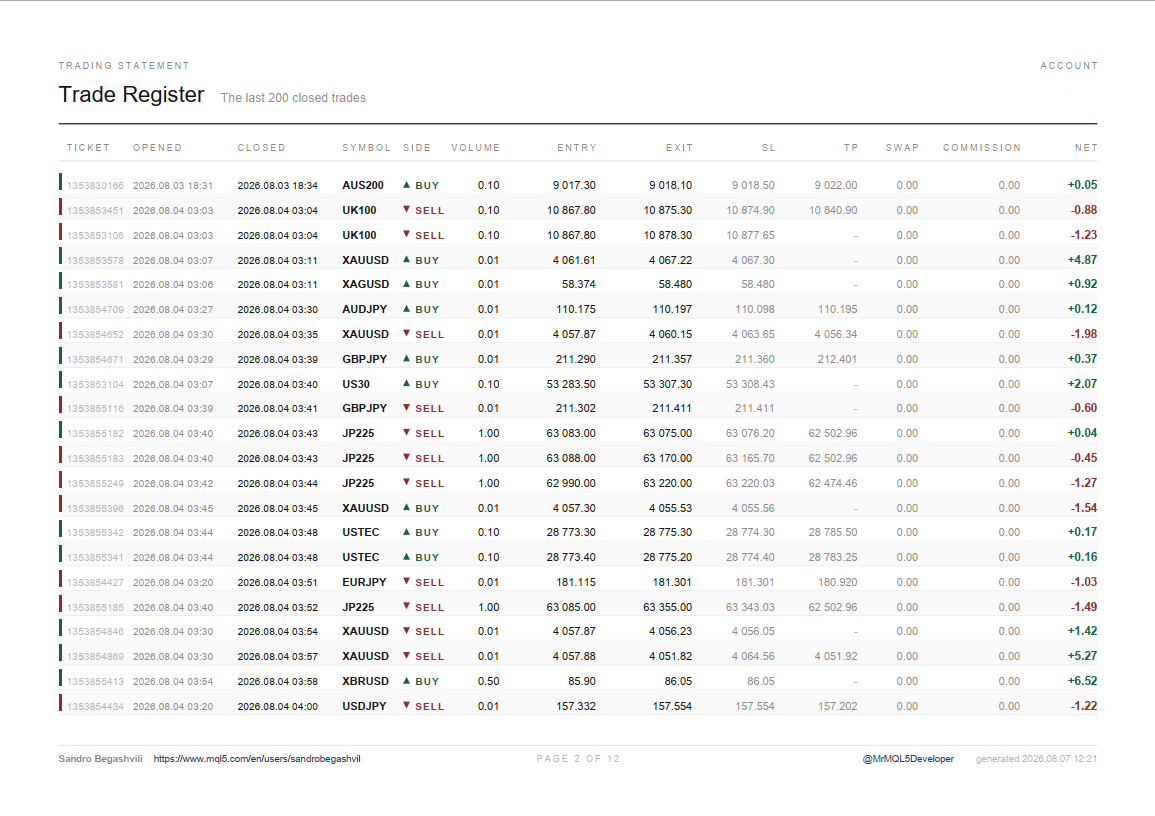
Fig 2. List of the Trades in a Table in order to Close time.
4) Choosing which trades to include
You do not have to export the whole account. There are three ways to narrow the report:
- By number of trades. The last N closed positions - the last 20, 50, 200, or any number you set. Useful for a quick look at recent activity.
- By date range. A from and to date. This is the one to use for a monthly journal entry, a quarterly review, or a tax year.
- By symbol. Restrict the report to a single instrument, or leave the filter empty to include everything.
The symbol filter can be combined with either selection mode, so a report such as "every EURUSD trade in March" is a matter of setting two fields.
5) Output quality and where the file is saved
The PDF is generated as true vector output. This matters more than it sounds:
- The text is real text, not an image of text. You can select it, copy it, and search it. Anyone reviewing the report can find a ticket number with Ctrl+F.
- It stays sharp at any zoom. Nothing pixelates, because nothing is a bitmap.
- The files are small, so they attach to an email without trouble.
- The layout is A4 landscape, so it prints as intended rather than being cropped or rescaled.
The finished file is written to the RhinoPDF folder inside your terminal's file directory - MQL5\Files\RhinoPDF on MetaTrader 5, MQL4\Files\RhinoPDF on MetaTrader 4. The full path is also printed in the Experts tab of the terminal journal after the report is generated, so you can find the file without hunting for it.
6) Input parameters
| Parameter | Purpose |
|---|---|
| Selection mode | Choose whether the report is built from a number of recent trades or from a date range |
| Number of trades | How many of the most recent closed positions to include, when selecting by count |
| Date from / date to | The reporting period, when selecting by date |
| Symbol filter | Restrict the report to one instrument, or leave empty for all symbols |
| Output file name | The name of the PDF written to the RhinoPDF folder |
7) How to produce a report
1. Install the product from the Market. It is free, so no purchase or activation is involved.
2. Run it on any chart. The chart's symbol does not restrict the report - use the symbol filter for that.
3. Set the selection mode, then either the number of trades or the date range.
4. Set the symbol filter if you want a single instrument, and give the output file a name.
5. Confirm. The PDF is written to the RhinoPDF folder, and the full path appears in the Experts journal.
8) What it does and does not do
It works on any MetaTrader account - live or demo, hedging or netting - across all brokers, and on any instrument type: forex, metals, indices, crypto and stocks.
It reads closed trades only. The report is built from your deal history, so open positions are not included. The figures are reconstructed from that history and match what the terminal itself reports.
It does not trade. This is a reporting tool. It does not open, modify or close positions, and it does not need to touch your account in any way beyond reading the history.
9) Questions and answers
Is it really free? Yes. Both the MT4 and the MT5 version are free in the Market.
Does it work on a demo account? Yes, and on live accounts, in both hedging and netting mode.
Can I report a single symbol? Yes, using the symbol filter. Leave it empty to include every instrument.
Where is the PDF saved? In the RhinoPDF folder under your terminal's file directory. The full path is printed in the Experts journal each time a report is generated.
Are open positions included? No. The report covers closed trades only.
Can I send the report to a prop firm or an investor? That is one of the main reasons it exists. The output is a standard A4 landscape PDF with selectable text.
Will it change anything on my account? No. It only reads your trade history.
Get the product
- MT5 version: Rhino PDF Trade Report for MetaTrader 5 (free)
- MT4 version: Rhino PDF Trade Report for MetaTrader 4 (free)
If a figure in the report does not match what you expect, or you would like an additional statistic in a future version, send me a private message.