
| 📥 Install or Update Smart Easy Dashboard Products purchased from the MQL5 Market are installed and updated directly through MetaTrader 5 — there is no file to download manually and nothing to copy into folders. This page walks through the whole process, plus the two settings the panel needs before it can trade.
|
1. Sign in to your MQL5 account
Before anything else, MetaTrader must be signed in to the same MQL5 account you used to buy the product.
- Open MetaTrader 5.
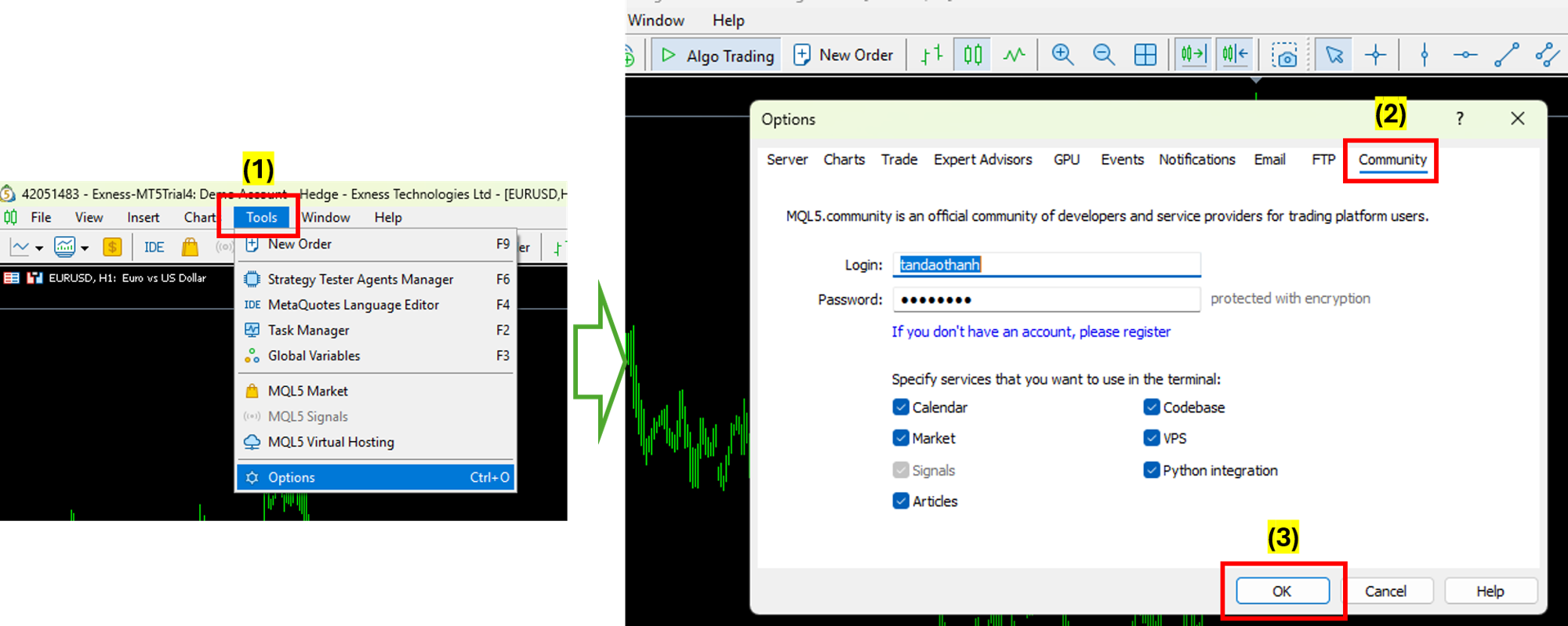
- Click Tools → Options.
- Open the Community tab.
- Enter your MQL5 login and password.
- Click OK.
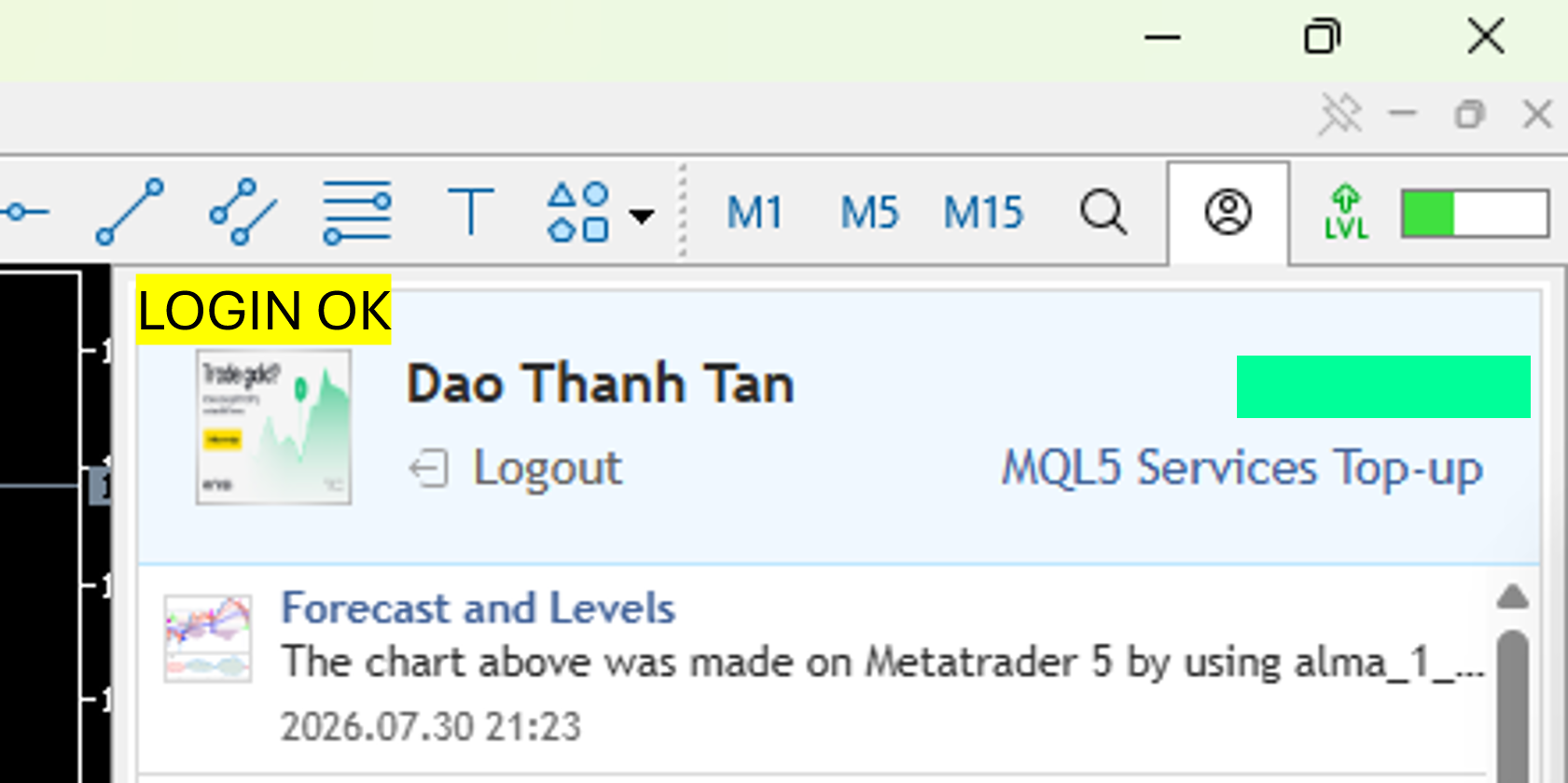
| 💡 Two faster ways to sign in. Press Alt + M to open the MQL5 login window directly, or click the account icon in the top-right corner of MetaTrader. |
2. Install or update the product
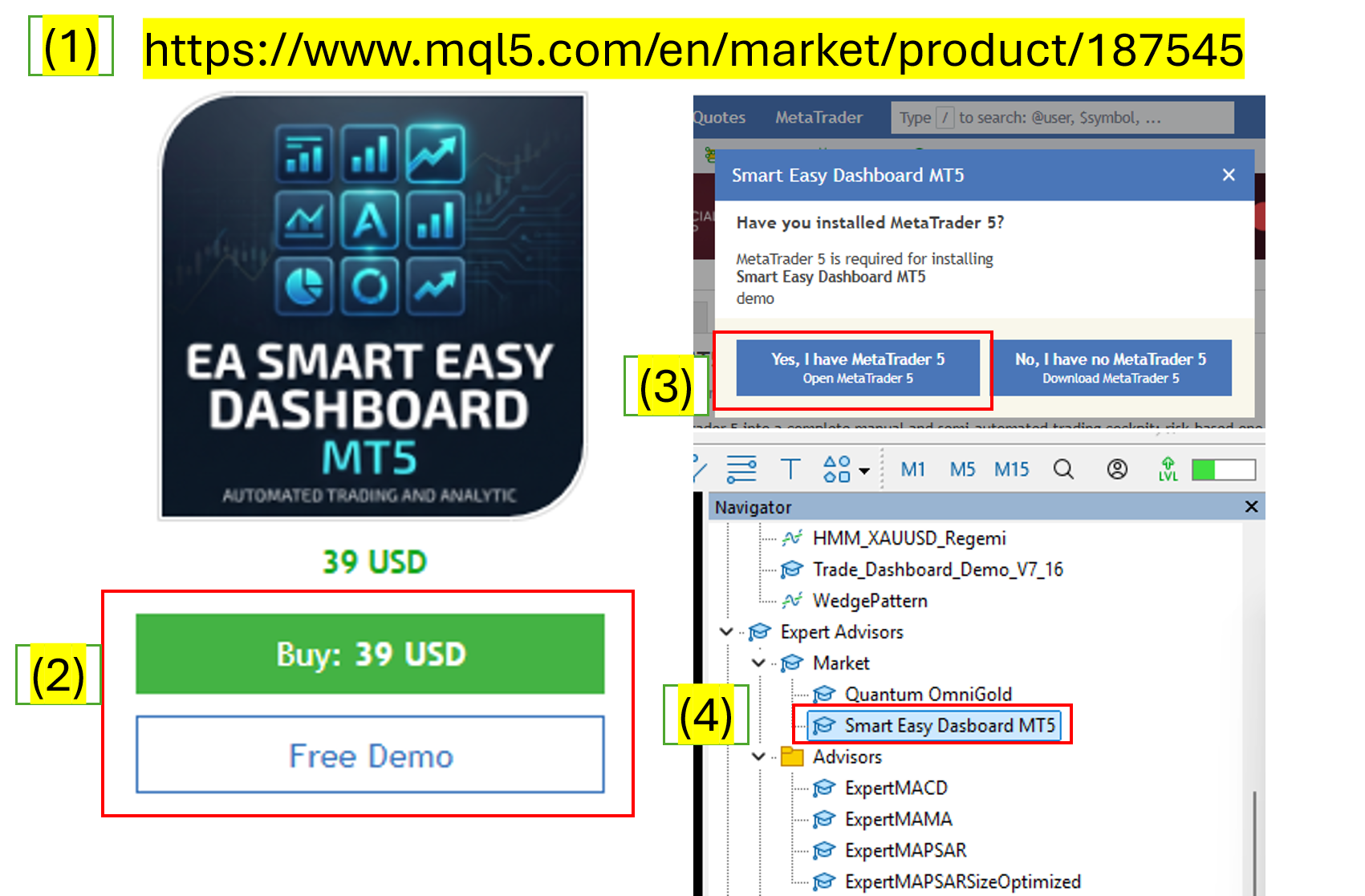
- Open the Navigator window: View → Navigator, or press Ctrl + N.
- Expand the Market section.
- Double-click My Purchases.
- Find Smart Easy Dashboard in the list.
- Click Download to install it, or Update if a newer version is available.
| ⚠ Product not in the list? Two usual causes. First, MetaTrader may be signed in to a different MQL5 account than the one that made the purchase — check step 1. Second, a firewall or antivirus may be blocking MetaTrader's connection to the MQL5 server; allow MetaTrader through, then refresh My Purchases. |
3. Run the product
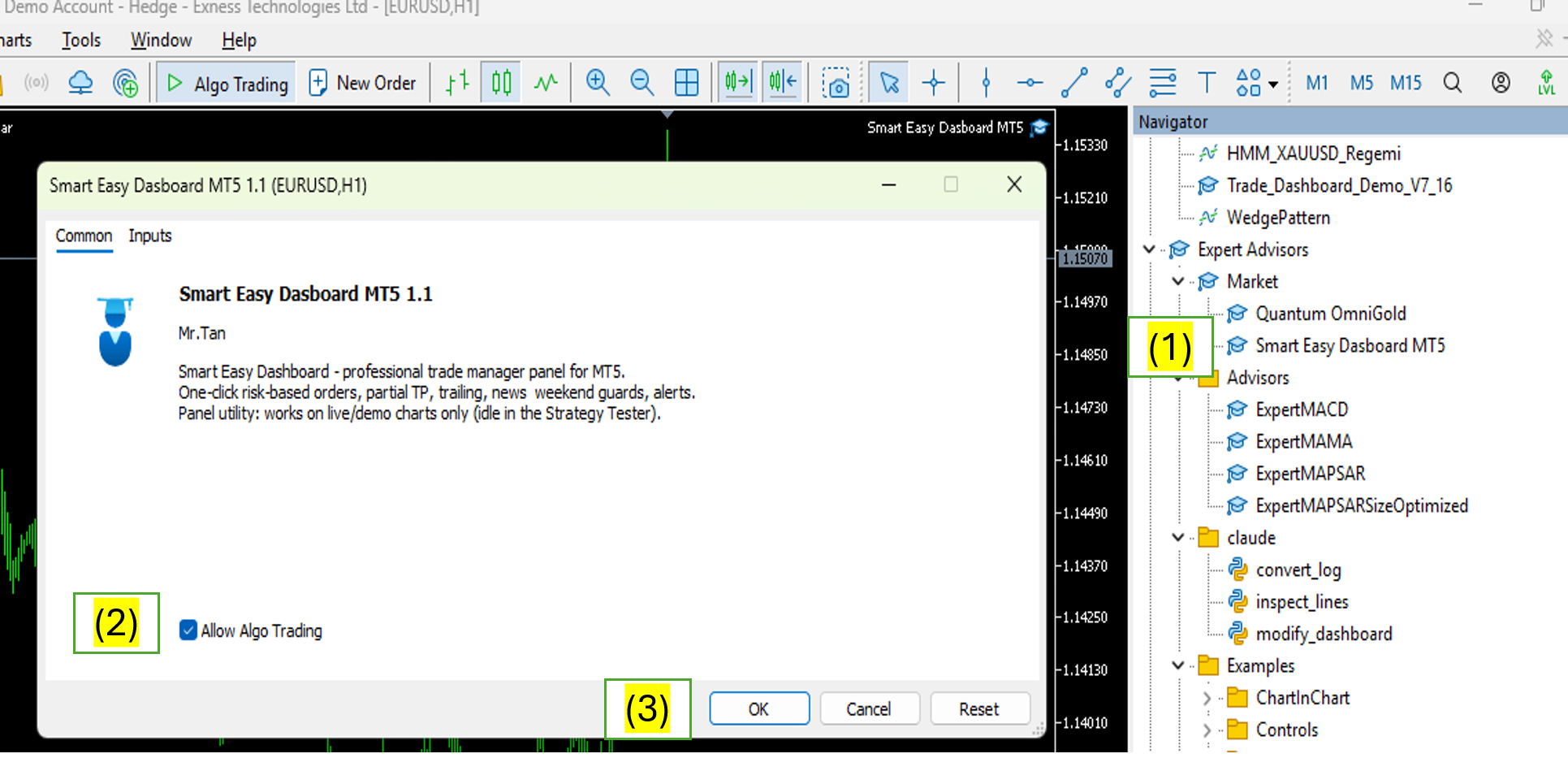
In the Navigator, expand Expert Advisors and open the Market folder. Smart Easy Dashboard appears there after installation.
Double-click it, or drag and drop it onto any chart. The panel appears immediately.
4. Enable Algo Trading
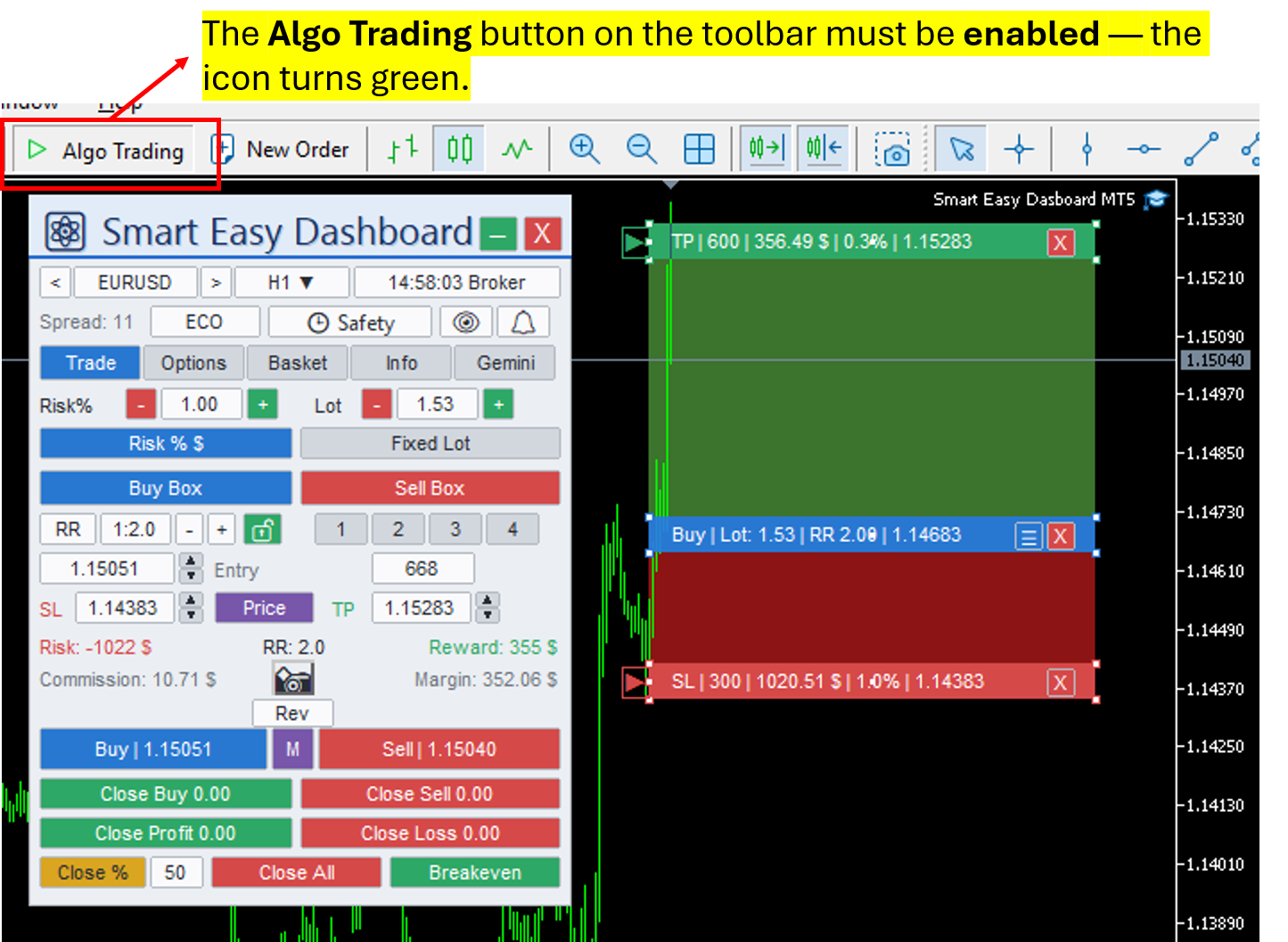
The panel can display information without it, but it cannot send orders until automated trading is allowed. Two switches must both be on:
- The Algo Trading button on the MetaTrader toolbar.
- Allow Algo Trading in the EA properties window — it opens when you attach the panel, and you can reopen it any time with Right-click on the chart → Expert Advisors → Properties, or by pressing F7.
| ⚠ The panel is a manual tool. In the MT5 Strategy Tester it stays idle by design and prints a message saying so. Attach it to a normal live or demo chart to use it. |
5. Enable WebRequest — for the AI co-pilot only
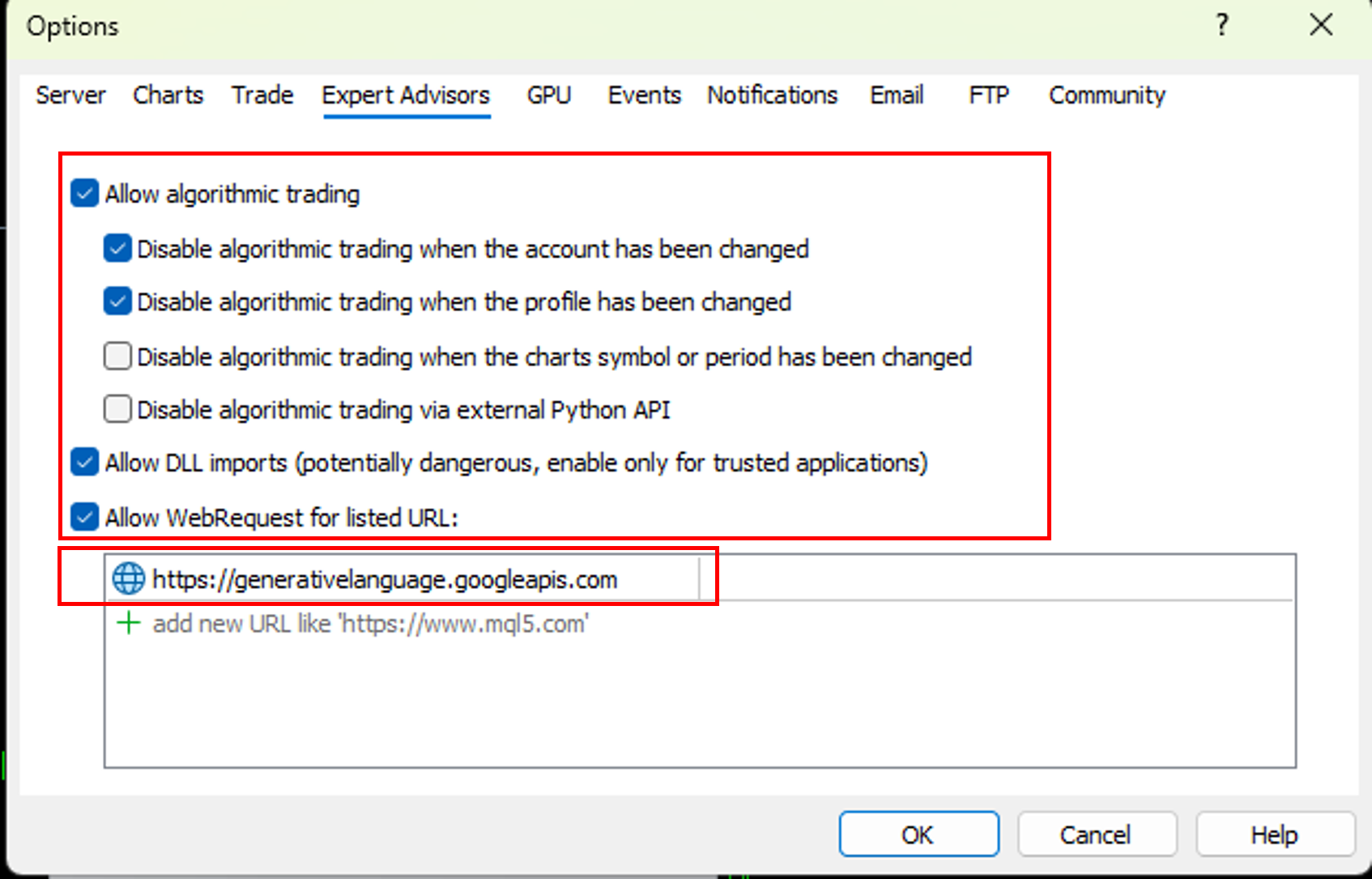
The Gemini AI tab is the only part of the panel that talks to the internet, and MetaTrader blocks outgoing requests by default. If you plan to use it:
- Open Tools → Options → Expert Advisors.
- Tick "Allow WebRequest for listed URL".
- Add this exact address to the list:
https://generativelanguage.googleapis.com - Click OK.
You also need a free Google Gemini API key. Create one at Google AI Studio, then open the Gemini tab in the panel, paste the key and press Save Key. The key is stored locally on your computer and is never sent anywhere except to Google's API.
| 💡 This step is optional. Every other feature — risk sizing, partial closes, trailing, the SMC overlay, guards, calendar, alerts and reports — works without it. If you see "WebRequest not allowed" in the Gemini tab, the URL above is missing from the list. |
6. If the candles cover the panel
By default MetaTrader draws the chart above chart objects, so the candles can appear on top of the panel. It takes a few seconds to fix:
- Right-click anywhere on the chart.
- Select Properties, or press F8.
- Open the Common tab.
- Tick Chart on foreground.
- Click OK.
The candles now draw behind the panel, keeping it fully visible.
Updating later
When a new version is released, MetaTrader shows an Update button next to the product in My Purchases. Click it, then remove and re-attach the panel — or simply restart MetaTrader — for the new version to load.
Your panel settings are stored separately from the program file, so risk values, partial plans, guards, alerts and your chosen theme survive an update.
Common questions
- The panel does not appear after attaching it. Check the icon in the top-right corner of the chart: a smiling face means the EA is running, a sad face means Algo Trading is off. Also make sure you are not in the Strategy Tester.
- Buy and Sell buttons do nothing. Look at the Safety badge on the panel — a guard may be blocking new trades — or the current spread may be above the Max spread input.
- The panel opens but shows no positions. Check the Management scope input: by default the panel manages only its own trades, not positions opened manually or by other EAs.
- Lines disappeared from the chart. The eye button in the panel header hides and shows them. Press it again.
- I changed the EA inputs but nothing looks different. Panel-side settings are remembered independently of the inputs. Adjust them on the panel itself.
| 📌 Links
If something still does not work, please use the Comments section of the product page on the MQL5 Market. Include your MT5 build number and a screenshot of the Experts or Journal tab — that is usually enough to identify the cause immediately. |