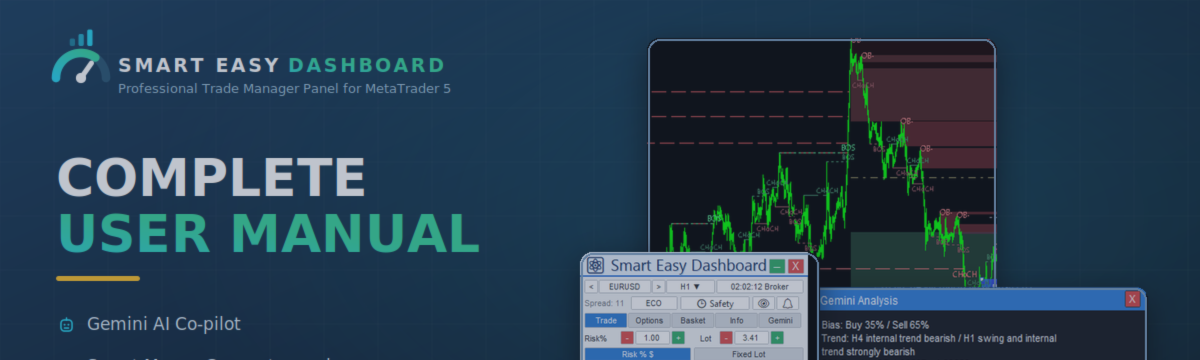

| 🚀 Get Started with Smart Easy Dashboard Smart Easy Dashboard is a manual trade-manager panel for MetaTrader 5. It combines risk-based position sizing, visual trading, basket management, automatic trade management, an on-chart Smart Money Concepts overlay and a Google Gemini AI co-pilot into one panel.
Note: This page is a visual overview of every tab and feature. For step-by-step instructions, worked examples and full parameter reference, download the PDF User Guide. |
| ✅ Why Smart Easy Dashboard?
|
| 📑 Feature Overview Smart Easy Dashboard combines risk-based execution, position management, market-structure analysis and AI assistance into one panel.
|
Introduction
The dashboard does not trade automatically — you stay in full control. Draggable price lines, interactive popups and one-click actions replace the long list of input parameters most tools rely on.
| ⚠ Panel utility — live/demo charts only. In the MT5 Strategy Tester the dashboard stays idle by design. Attach it to a normal live or demo chart. |
Installation
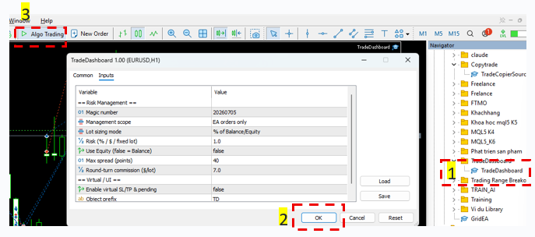
Drag Smart Easy Dashboard from the Navigator onto any chart, tick "Allow Algo Trading" in the dialog, and make sure the toolbar Algo Trading button is on.
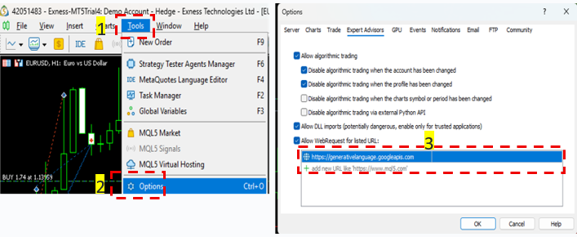
For the AI Co-pilot only, add https://generativelanguage.googleapis.com under Tools → Options → Expert Advisors → Allow WebRequest. Every other feature works without this step.
| 💡 Practice on demo first. Place a few trades until the workflow feels natural before using a live account. |
Header controls
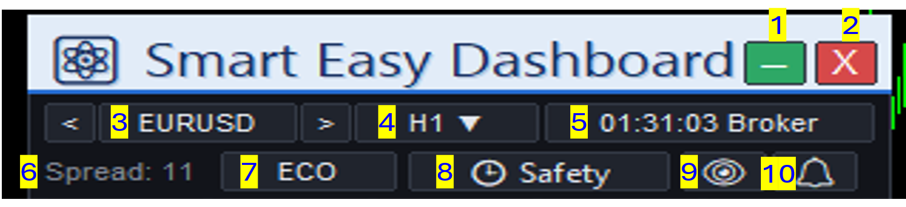
One-click access to every tool. The panel and all popups are draggable by their title bar.
Minimize · Close · Symbol switcher · Timeframe · Clock (Broker / GMT / Local) · Spread · ECO calendar · Safety guards · Show-hide lines · Alert Center
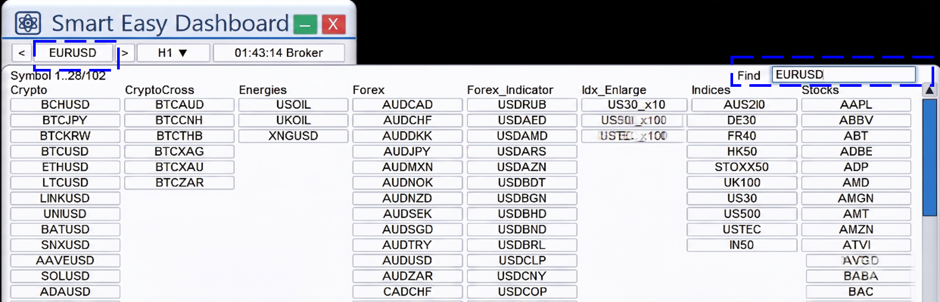
The symbol picker groups every Market Watch symbol by category — Forex, Crypto, Indices, Stocks, Energies — with a Find box, so you can switch between 100+ symbols without leaving the chart.
Trade Tab — order entry
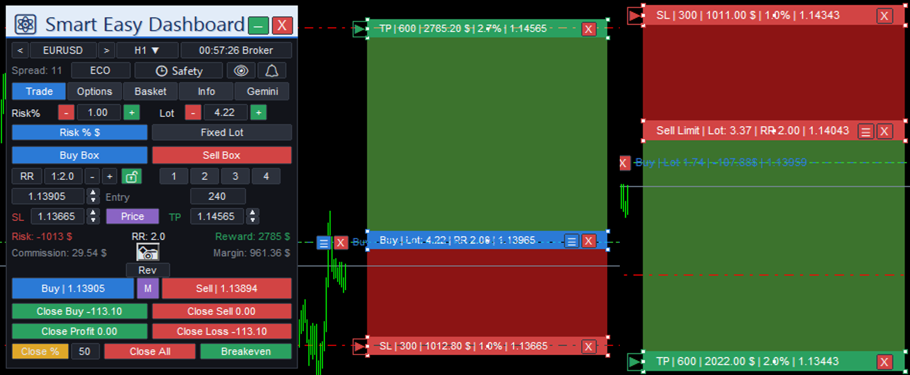
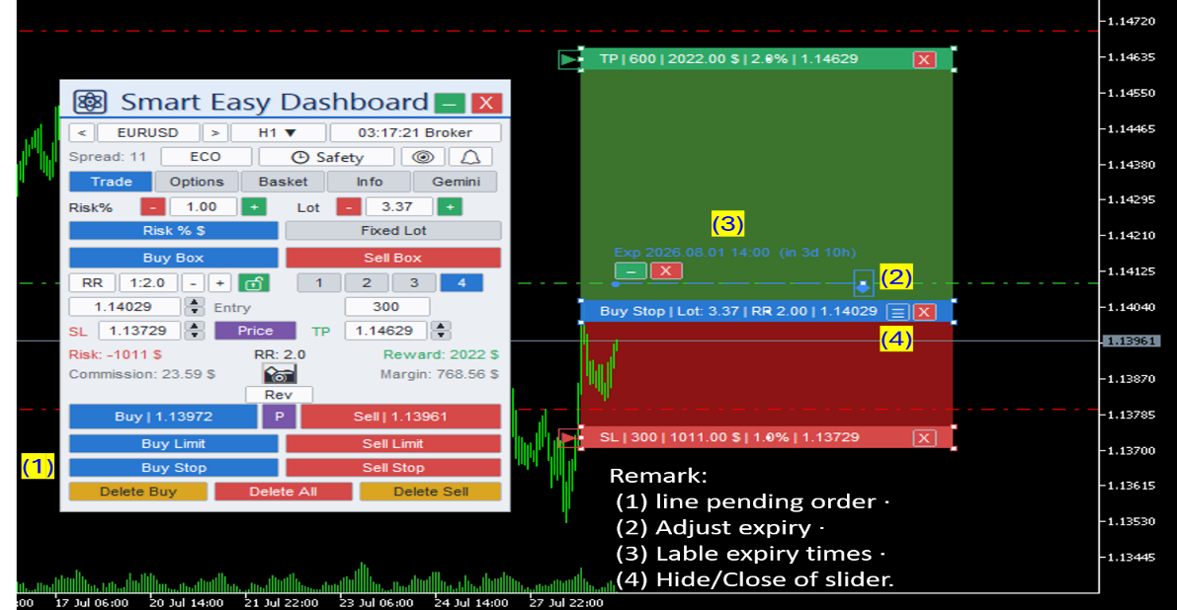
Choose Risk % $ and the lot is calculated from your risk and the SL distance; choose Fixed Lot and the panel reports the resulting risk instead. Press Buy Box or Sell Box, drag the lines, and Risk, RR, Reward, commission and margin update live before you click.
The RR lock keeps your target ratio while you move the SL. The 1 / 2 / 3 / 4 buttons split the volume across that many take-profit levels. Dragging the Entry line to a custom price turns the setup into a pending order automatically.
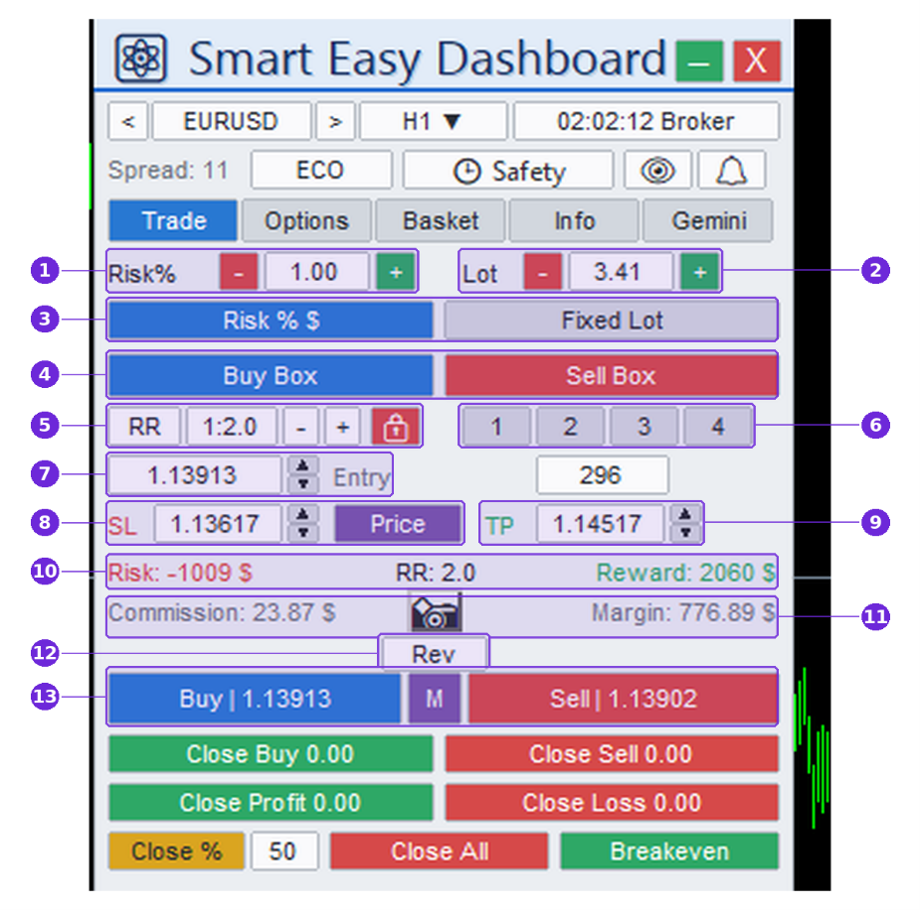
| Example — risking 1% of your account |
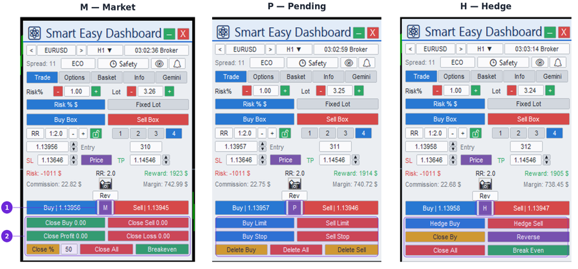
M / P / H action modes
The purple button between Buy and Sell cycles the action block at the bottom of the panel:
- M — Market — Close Buy / Close Sell with live P/L on the buttons, Close Profit / Close Loss, Close %, Close All, commission-aware Breakeven.
- P — Pending — Buy/Sell Limit and Stop at the Entry line, Delete by side or all. Orders can be given an expiry and linked as OCO pairs.
- H — Hedge — Hedge Buy / Hedge Sell, Close By (saves one side's commission), Reverse. Requires a hedging account.
Every pending order gets a horizontal expiry slider on the chart. Drag the handle along the time axis to set the expiration, or leave it at default for GTC.
Options Tab → Partial
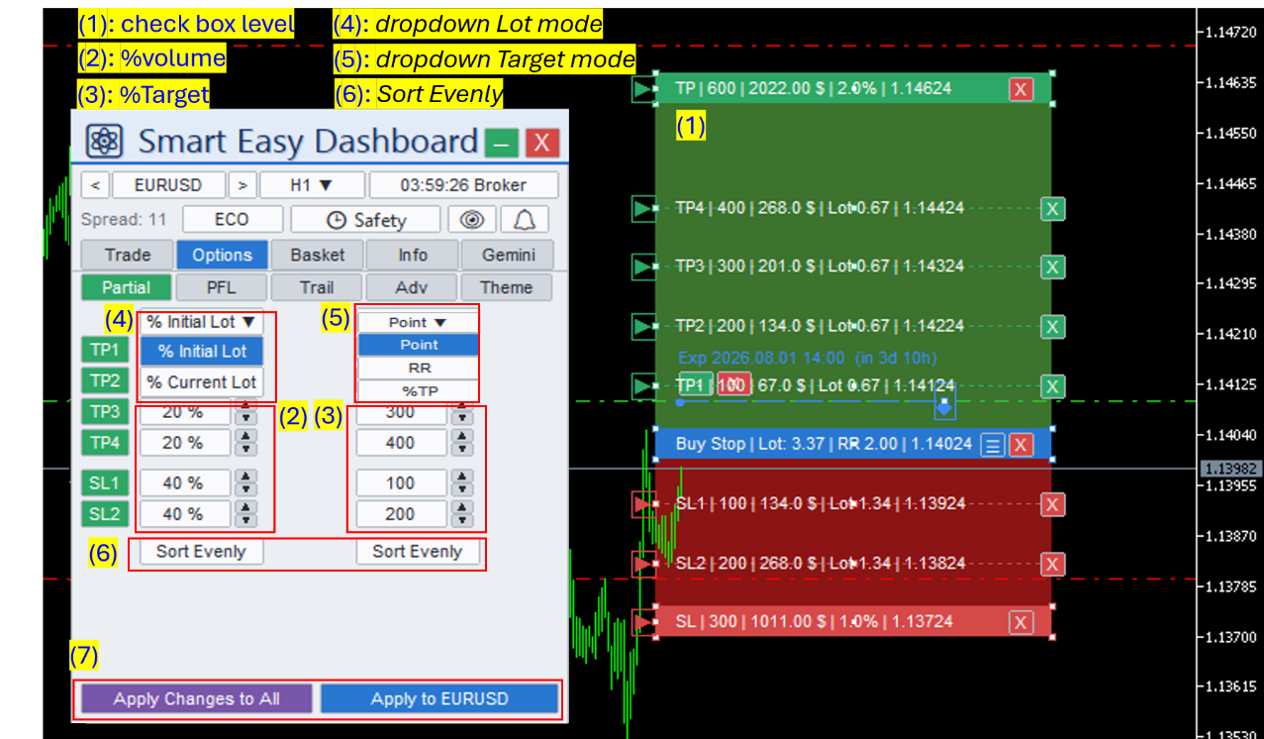
Up to 4 TP levels and 2 SL levels, each with its own percentage of volume and target. Volume is taken as % Initial Lot or % Current Lot; the target is measured in Point, RR or %TP. Sort Evenly spreads the percentages or the targets across enabled levels in one press.
| Risk-free at 1R, let the rest run |
Options Tab → PFL (Profit Lock)
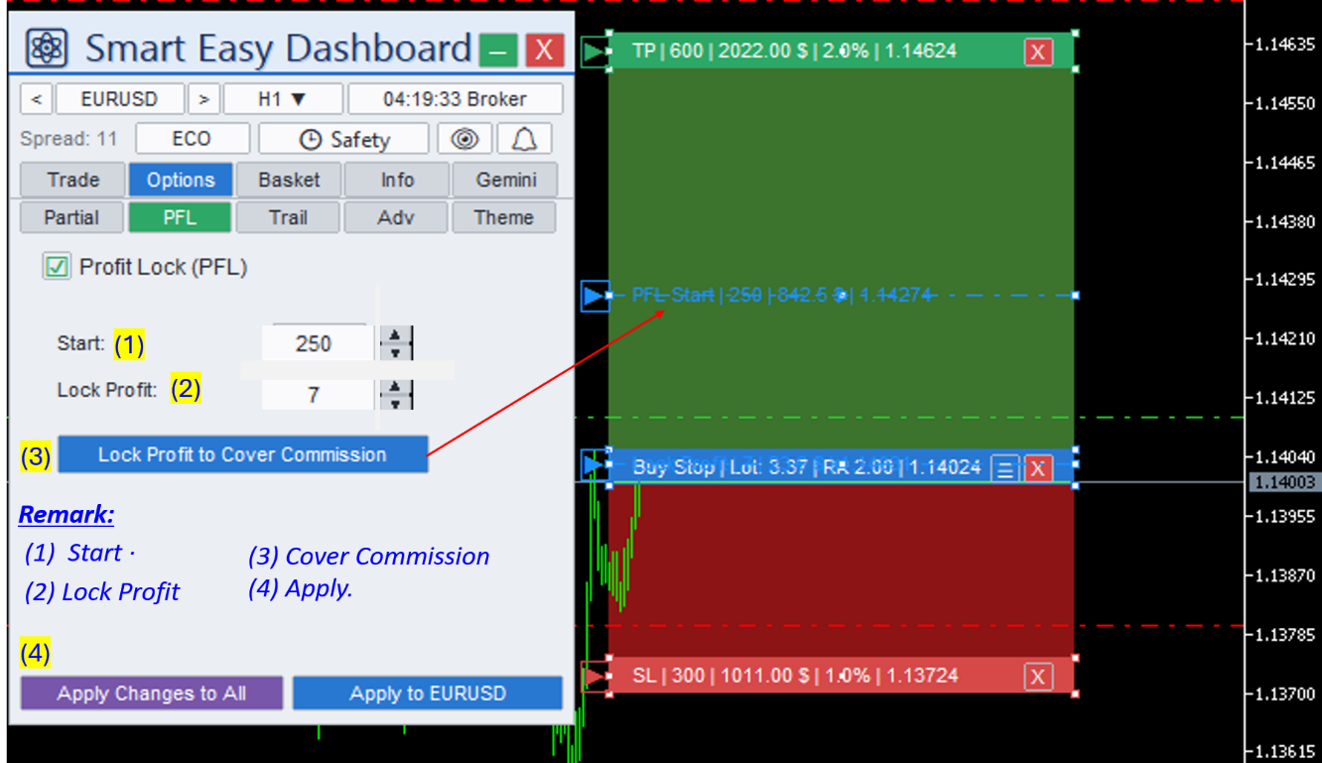
Once the position is in profit by Start (pts), the SL moves to entry plus Lock Profit (pts), so the trade can no longer lose. Lock Profit to Cover Commission is a one-click preset that locks just enough to pay the round-turn fee.
Options Tab → Trail (8 modes)
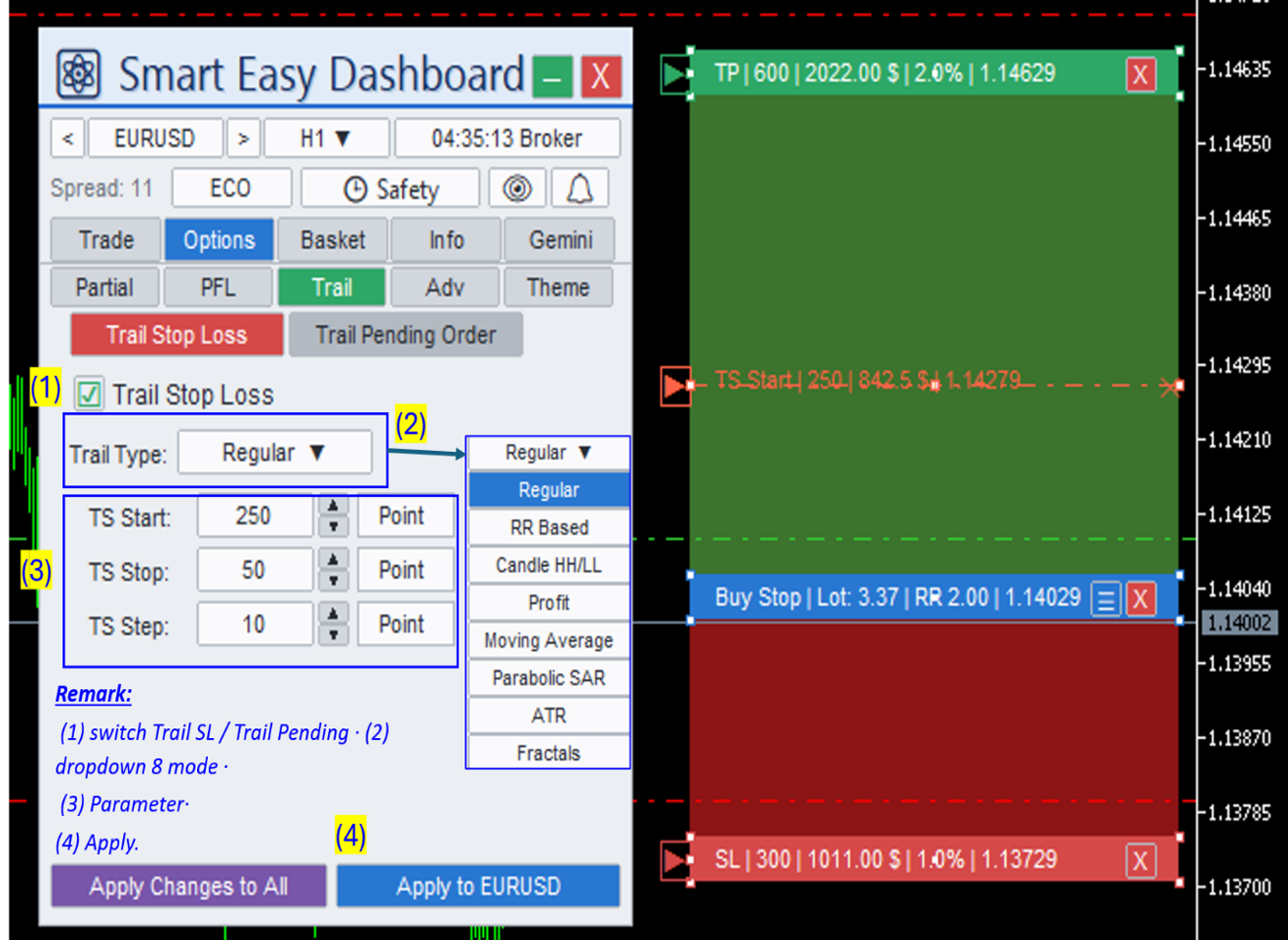
Trail positions or make pending orders follow price. Pick a type, set its parameters and press Apply; trailing can also be toggled per-ticket.
| Type | How the SL trails |
| Regular | Fixed distance behind price |
| RR Based | Locks profit at each Risk:Reward milestone |
| Candle HH/LL | Under the lowest low / above the highest high of the last N candles |
| Profit | Money-based: locks a $ amount, stepping up as profit grows |
| Moving Average | Follows a moving average at an offset |
| Parabolic SAR | Follows the SAR dots |
| ATR | Volatility-scaled distance (ATR × multiplier) |
| Fractals | Moves to the most recent fractal pivot |
Options Tab → Adv
- OCO pending — when one pending order fills, its siblings are deleted.
- Spread × — adds a multiple of the live spread to your SL/TP at execution; the lot is recalculated so your risk stays on target.
- Multi-order 1–4 — splits one click into several identical positions, each managed independently.
- Auto SL/TP — ATR-based or structure-based levels, with a live Est. SL / Est. TP preview before you commit.
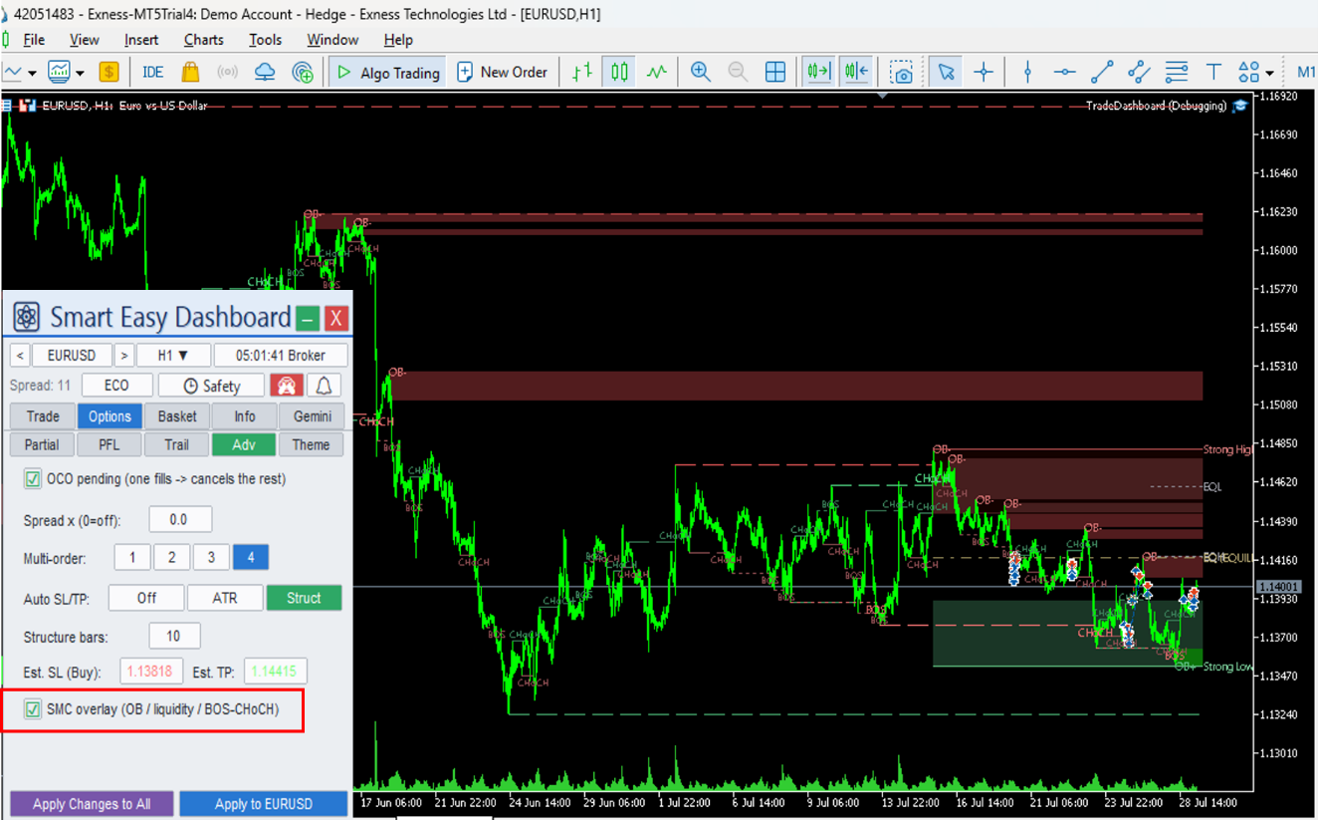
- SMC overlay — the on-chart market-structure engine.
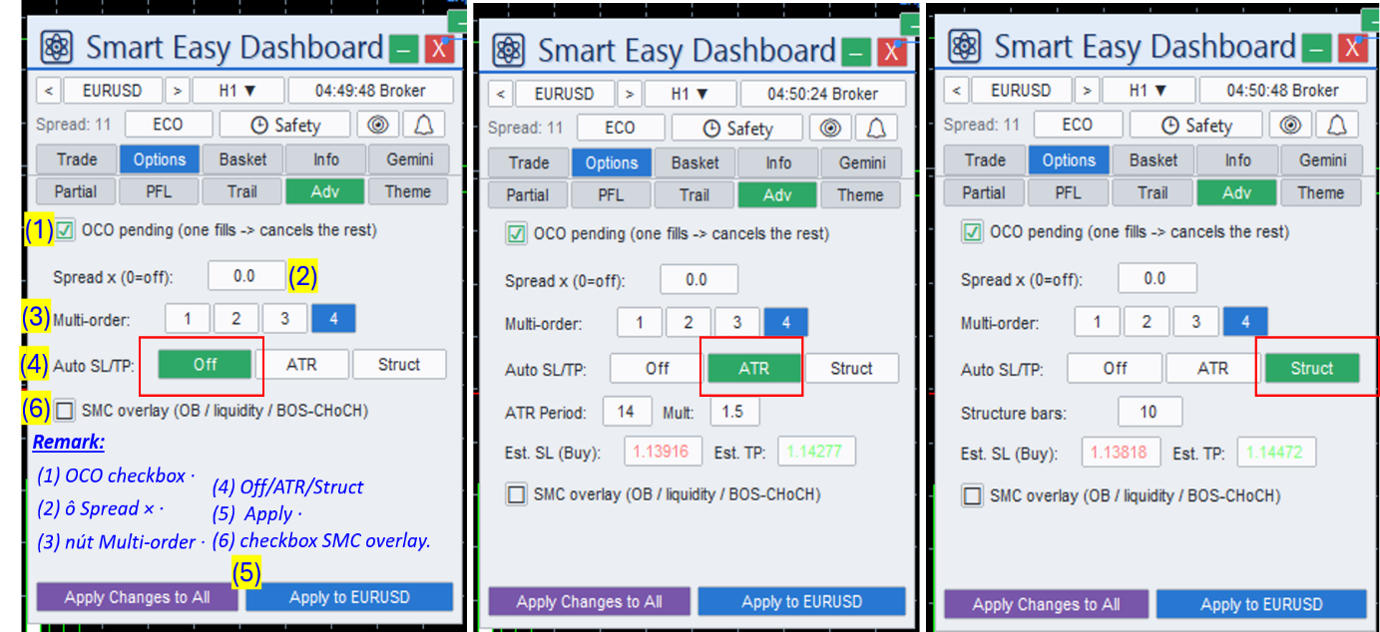
| Volatility-adaptive stops |
Options Tab → SMC Overlay
Live Smart Money Concepts structures computed from the last ~1500 bars:
| Structure | Meaning |
| Order Blocks | Supply and demand zones left before an impulsive move |
| Liquidity levels | Stop pools above and below obvious swings |
| EQH / EQL | Equal highs and lows — levels often targeted before reversal |
| BOS / CHoCH | Break of Structure and Change of Character |
| Premium / Discount | Upper and lower half of the current range |
| Strong High / Low | Swing extremes protecting the current structure |
The same engine feeds the SMC zone alert and gives the Gemini co-pilot its market-structure context — the overlay simply makes visible what the EA already computes.
Options Tab → Theme
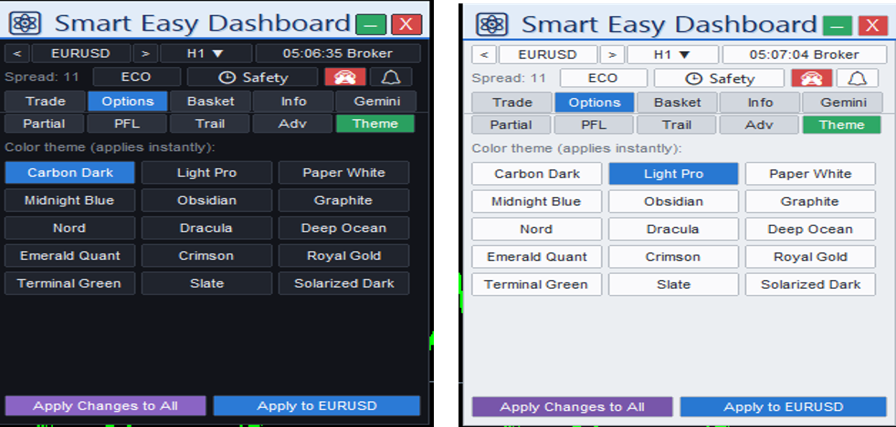
A 15-theme grid, applied instantly and remembered across restarts. Default is Carbon Dark; the set includes light themes, dark themes, developer classics and accent palettes.
Ticket Box — a private plan for one trade
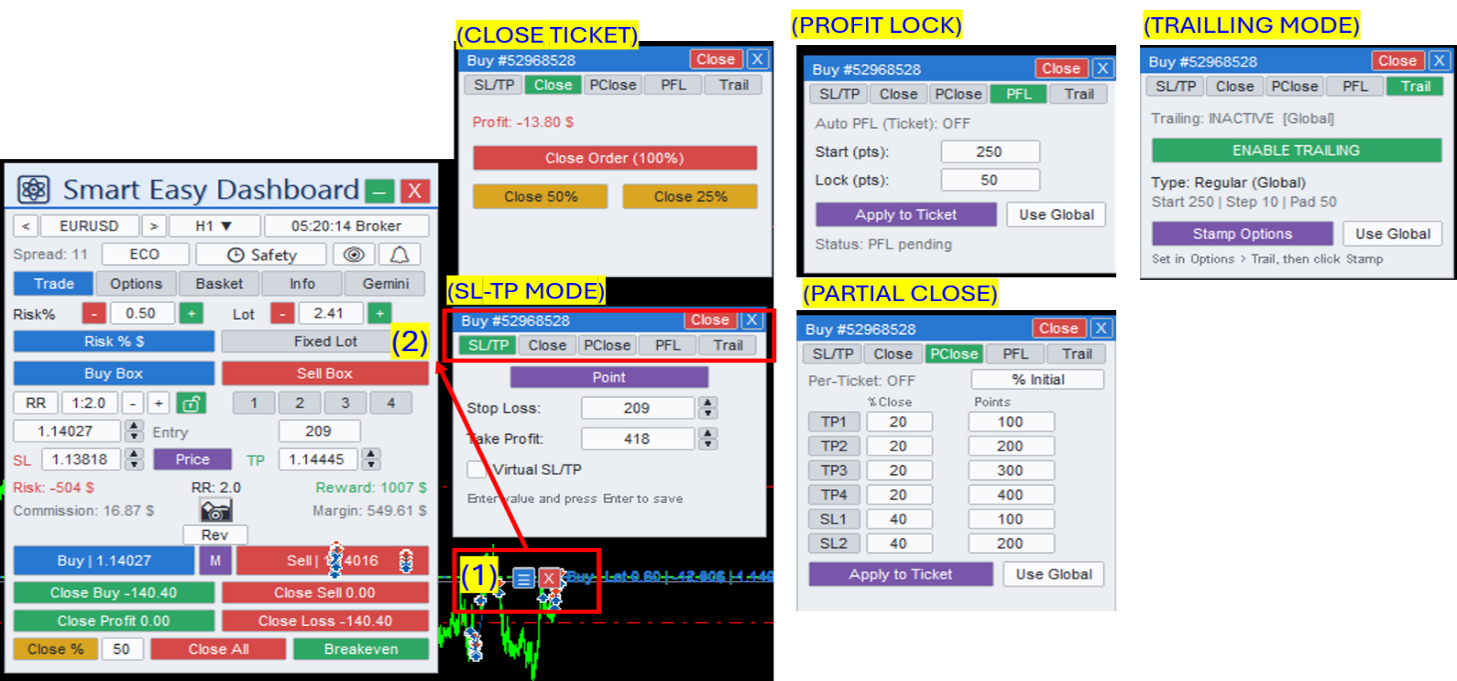
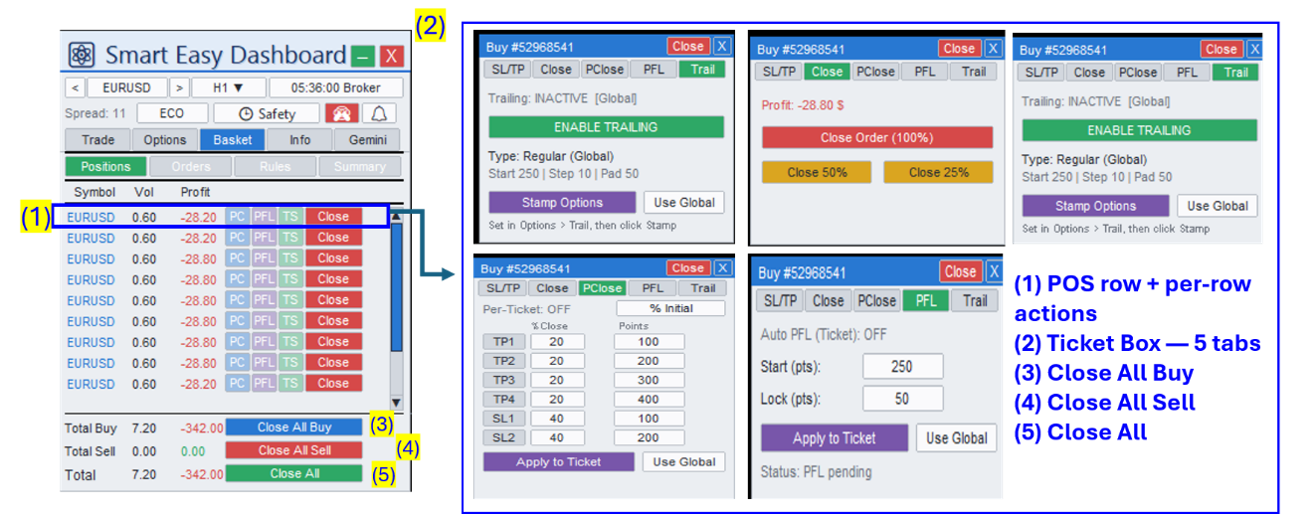
Click any position or its chart line to open five tabs that control that single ticket, independent of your global settings: SL/TP (with Virtual SL/TP), Close (100% / 50% / 25%), PClose (a private partial plan), PFL and Trail. Every tab has an Apply to Ticket / Use Global pair, so you can break the rules for one trade without touching your defaults.
Basket Tab
Every managed position and pending order in one list. Each row shows Symbol · Volume · live P/L with four quick actions: PC partial close, PFL breakeven now, TS trailing for this ticket, Close. The footer holds Close All Buy, Close All Sell and Close All.
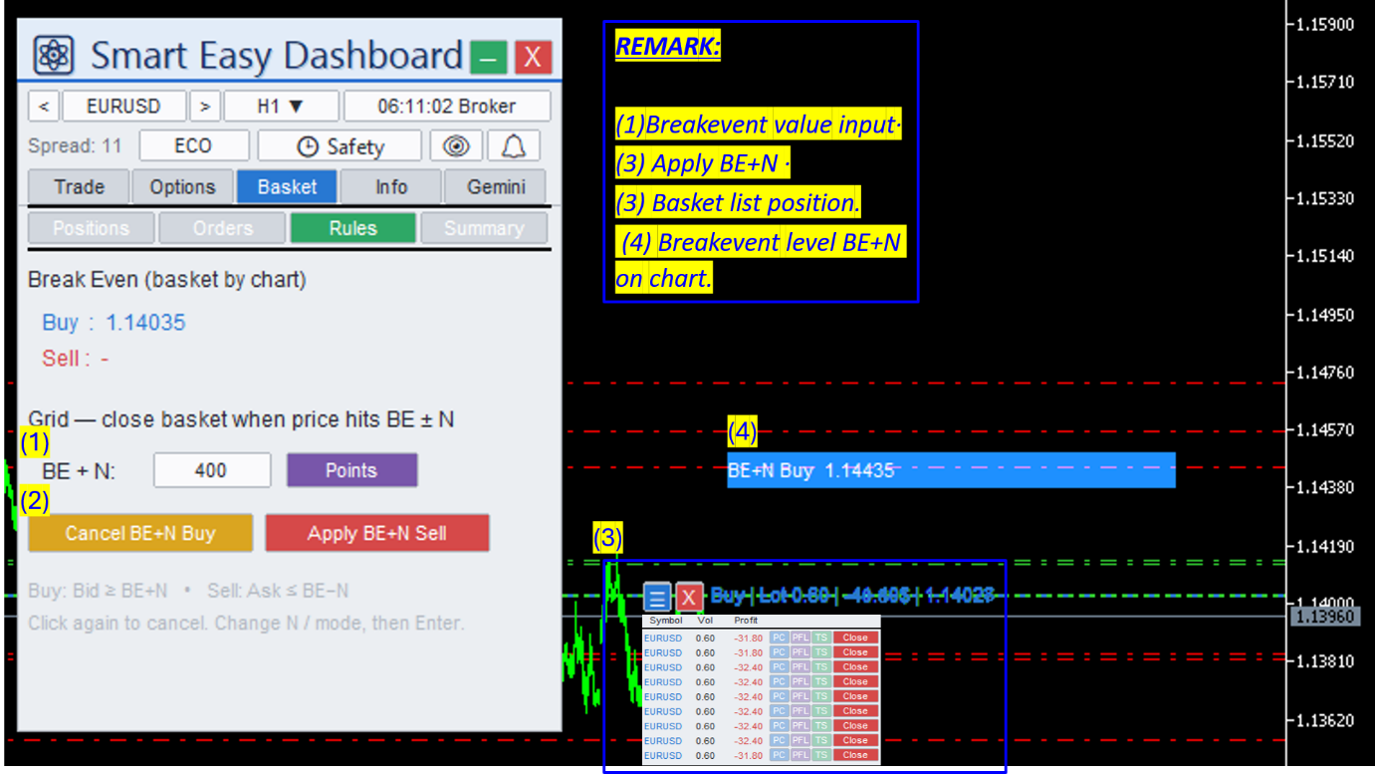
The Rules sub-tab closes a whole basket at its combined breakeven price plus a buffer — BE+N — computed volume-weighted and drawn as a labelled line on the chart.
| Exiting an averaged-in basket |
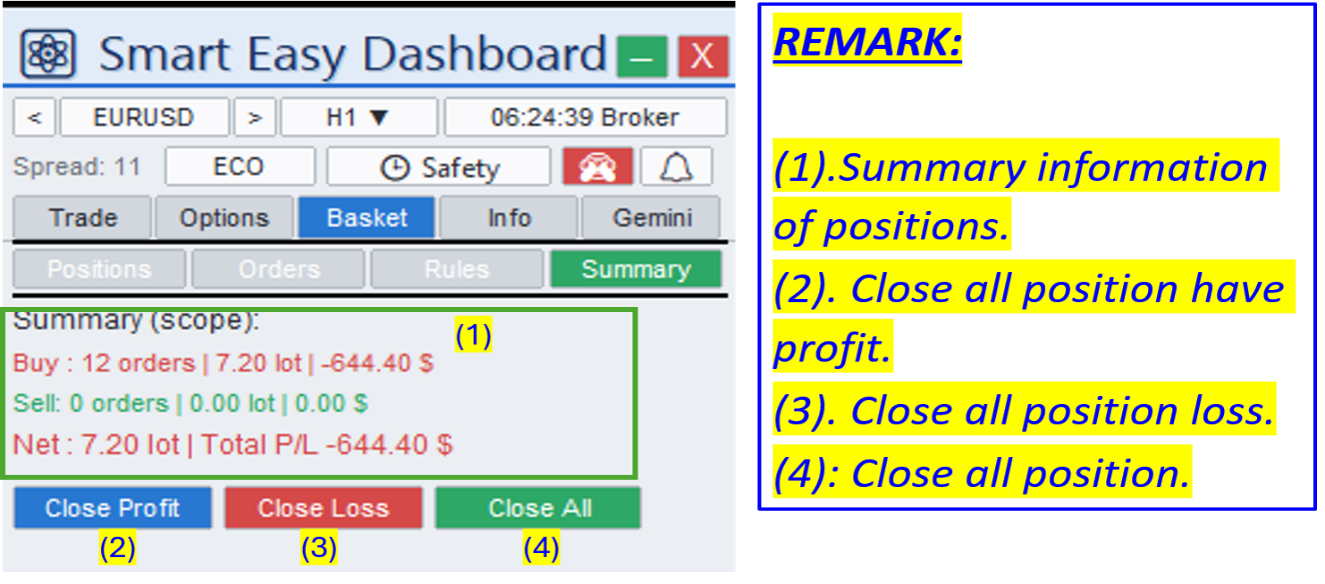
The Summary sub-tab shows Buy / Sell / Net exposure with three bulk exits: Close Profit, Close Loss, Close All.
Execution Safety — the discipline enforcer
Two groups of opt-in guards, with a status badge that always tells you why trading is blocked.
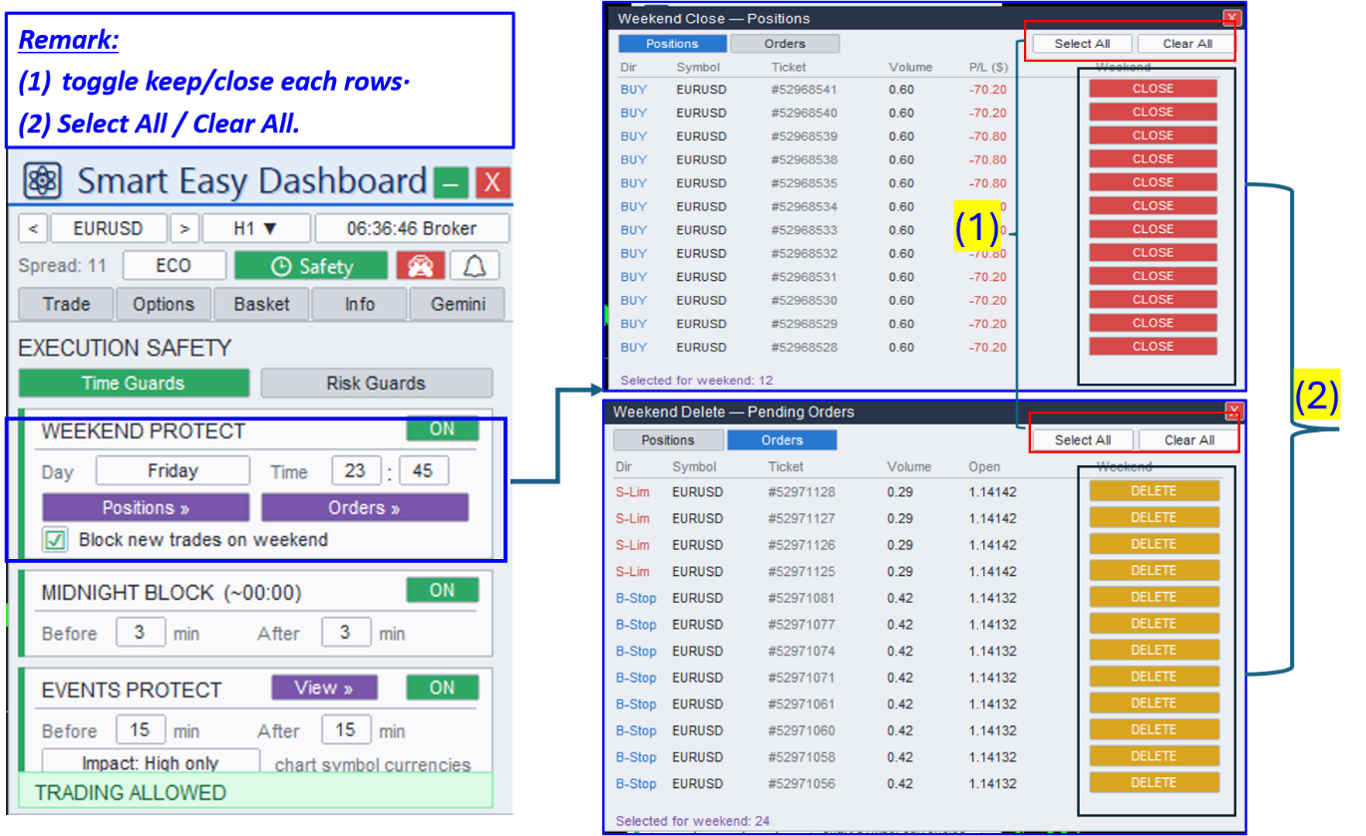
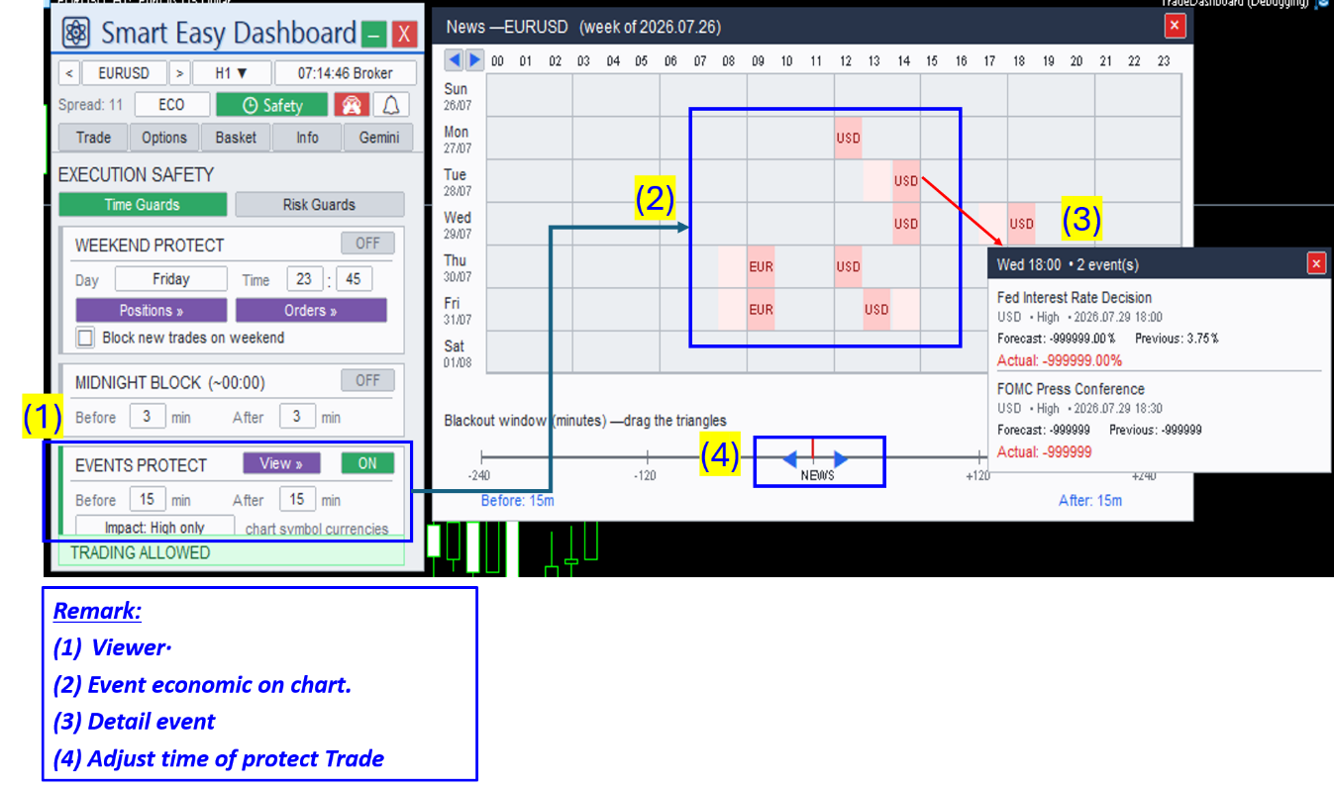
- Time Guards — Weekend Protect (close what you selected at a chosen day and time), Midnight Block (avoid the rollover window), Events Protect (block trades around news affecting the chart symbol).
- Risk Guards — Overtrade, Daily Loss, Daily Profit target, Equity Drawdown %. A live line shows Today: X trades | P/L $Y | Eq DD Z%.
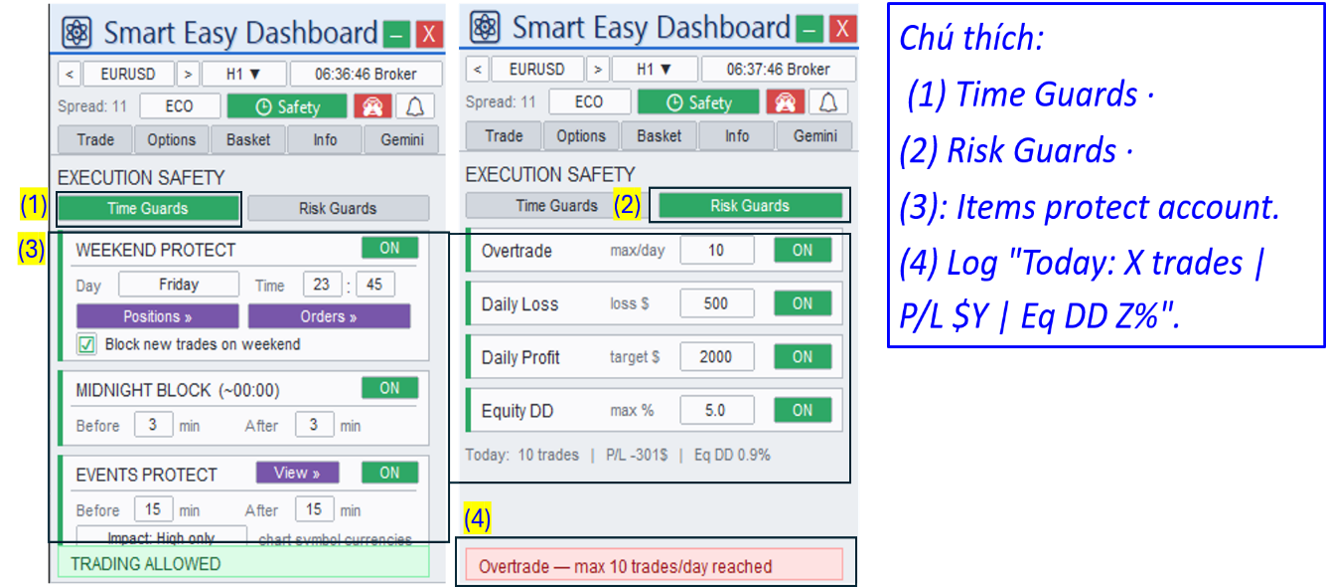
Weekend Protect lets you choose exactly what is flattened: every position and pending order is listed with a keep / close toggle.
The weekly news map shows the whole trading week as a grid of days × hours. Two draggable triangles set how many minutes before and after each event new trades are blocked.
| 💡 Prop-firm example. Your firm allows a maximum daily loss of 500 $. Set Daily Loss = 400 $. After a bad morning the panel refuses new entries for the rest of the day — the rule is enforced by software, not willpower. The guards never close your positions except the Weekend Protect action you configure. |
Info Tab — reports and statistics
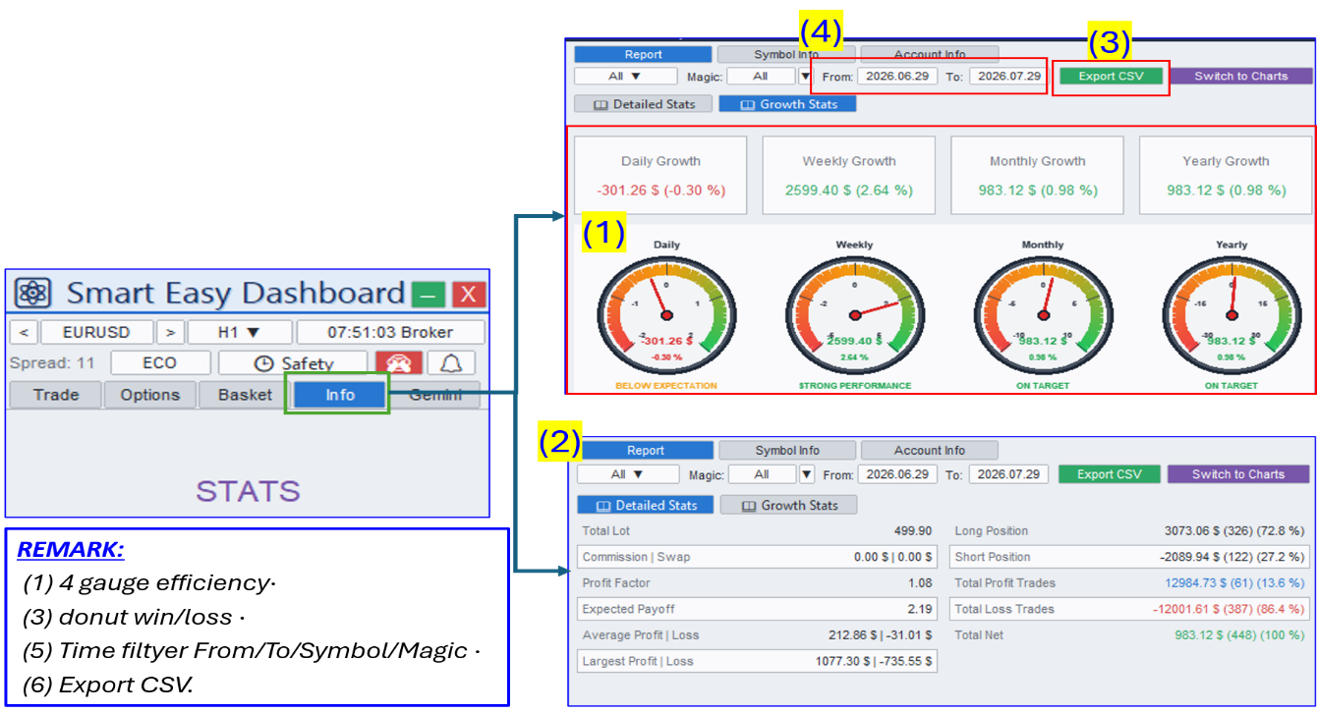
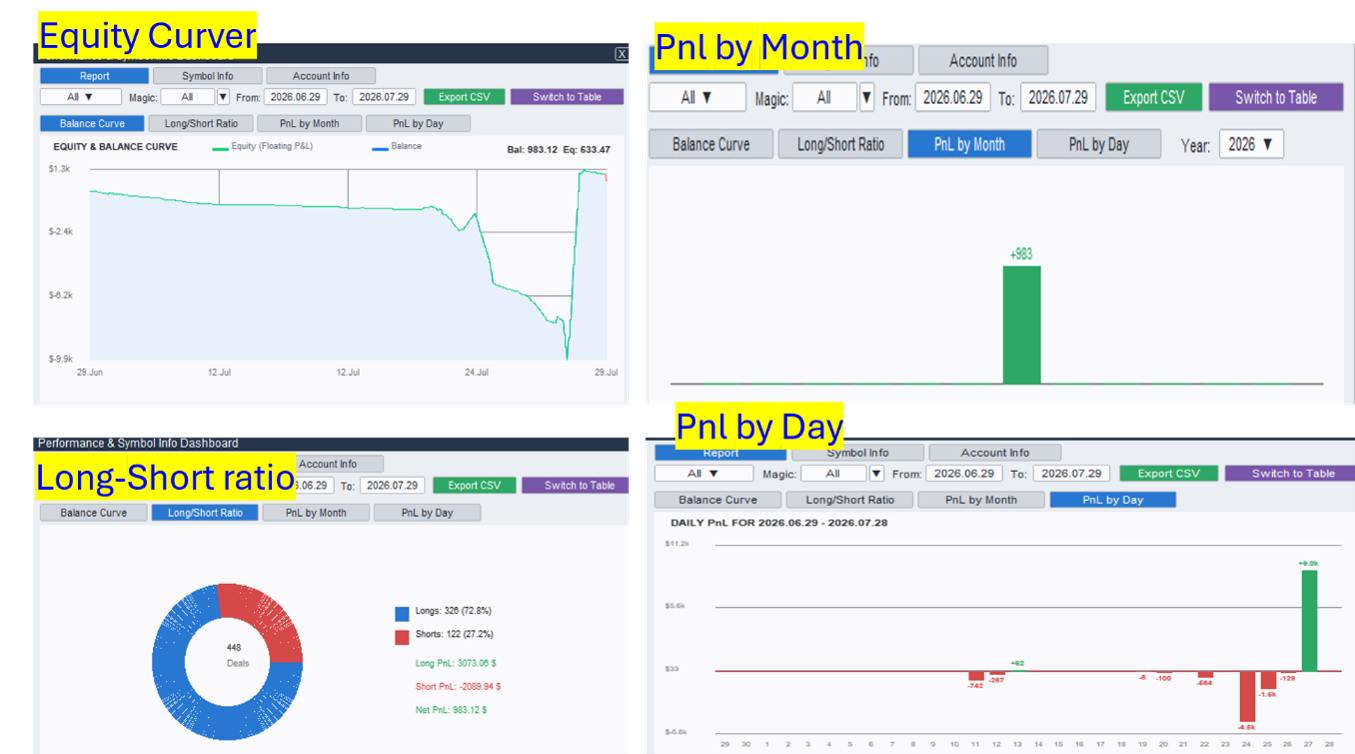
Four gauges show Daily / Weekly / Monthly / Yearly P/L in both $ and %. Below them: a trade-by-trade Detailed table, a Growth summary with win rate and profit factor, and a Charts view with equity curve, win/loss donut and monthly and daily PnL bars. Filter by date range, symbol and magic number, then export to CSV.
Sym Info and Account Info tabs show the live broker values the panel uses internally for lot, risk and margin calculations.
Gemini AI Co-pilot
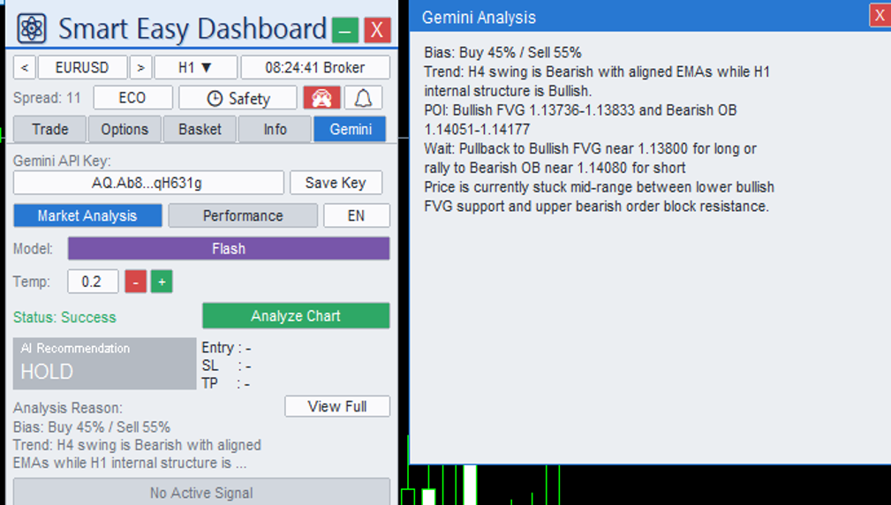
Press Analyze Chart and the EA sends the current chart context — price data, detected market structure, your account state — to Google Gemini. It returns bias %, trend, points of interest, wait-for levels and a BUY / SELL / HOLD verdict with suggested Entry / SL / TP. Apply AI Levels to Chart loads them into the Trade tab for you to review and execute manually.
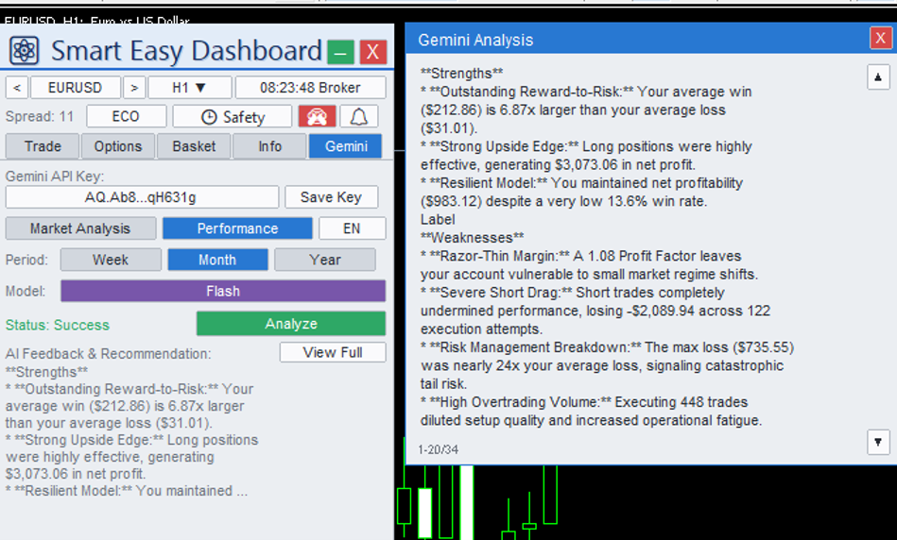
Performance mode reviews your closed trades for a week, month or year and returns coaching-style feedback: what you did well, recurring mistakes, concrete suggestions.
Flash (free tier) or Pro model, adjustable temperature, response in EN / VI / ZH.
| ⚠ Prerequisites and disclaimer. The feature needs the WebRequest URL whitelisted and your own free Google Gemini API key, stored locally on your computer. Gemini's analysis is an assistant, not a signal service and not financial advice — always validate suggestions against your own plan. |
Economic Calendar
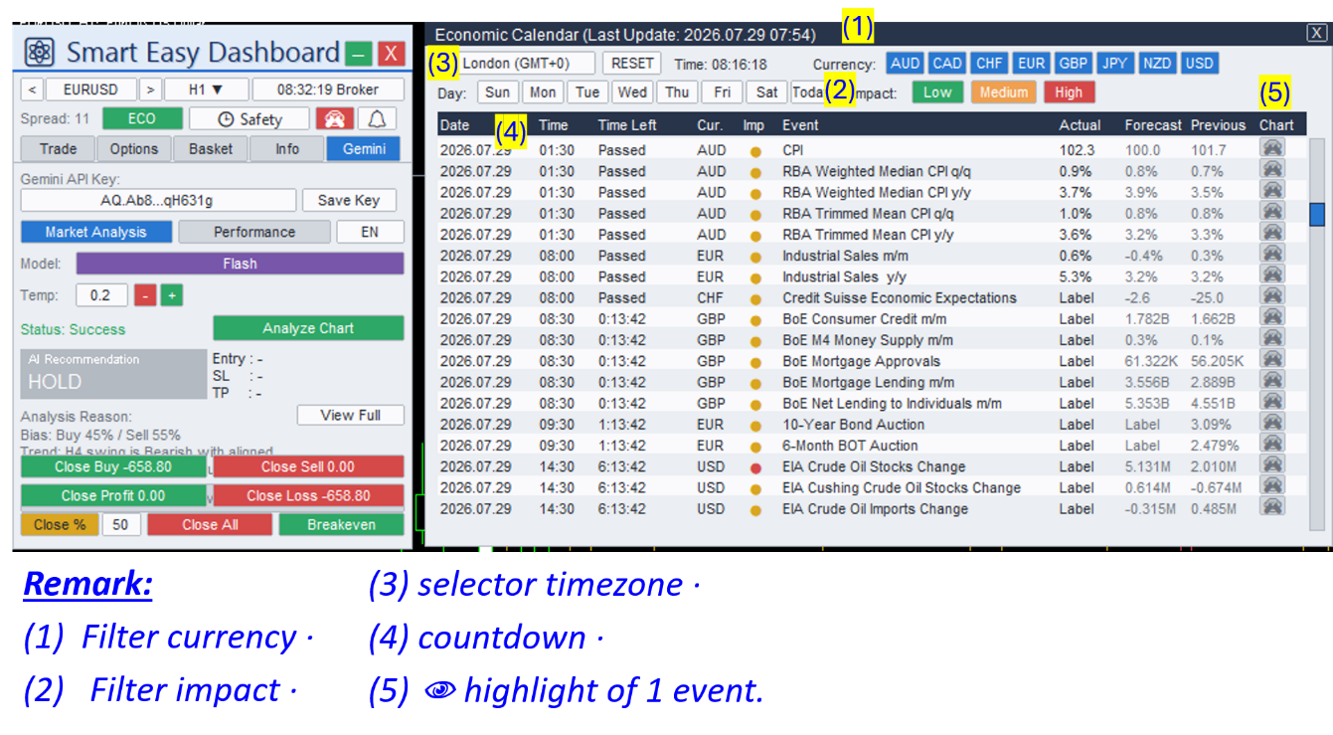
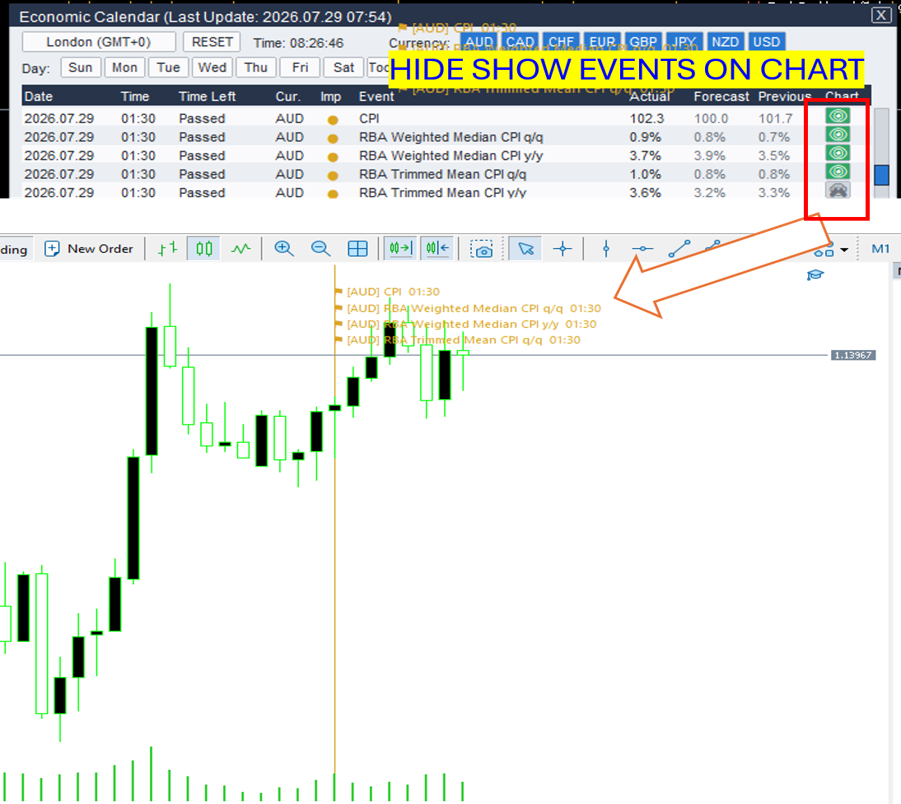
Upcoming and past events with Forecast / Actual / Previous values and a live countdown, in any of 31 timezones. Filter by currency, by day or Today, and by impact level. Pin an event to highlight its window on the chart. The same feed powers the Events Protect guard.
Alert Center
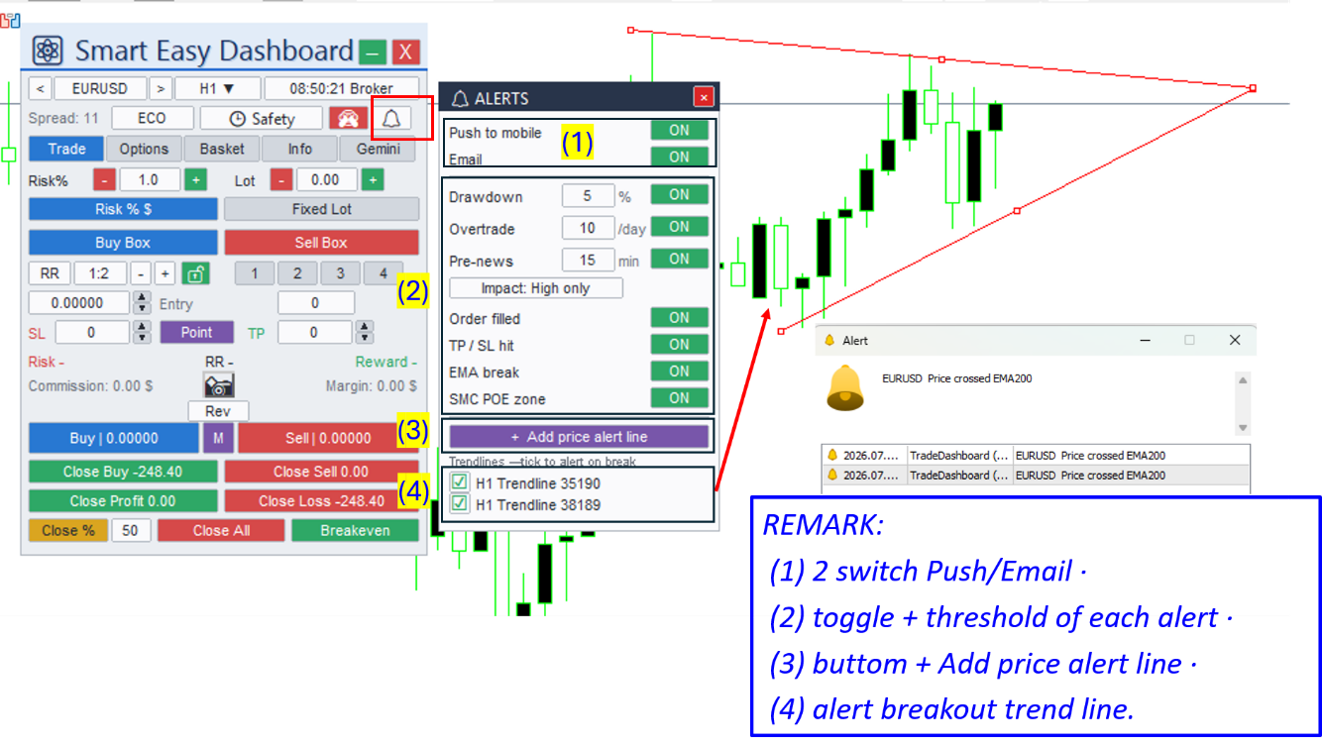
Nine alert types, three delivery channels — terminal sound, mobile push and e-mail — each with its own toggle and threshold:
Price level · Drawdown · Overtrade · Pre-news · Order filled · TP/SL hit · EMA crossover · SMC zone · Trendline break
Price alert lines are draggable and each has its own delete button. The trendline alert monitors lines you drew yourself.
Hotkeys
B buy at market · S sell at market · R reverse the setup · C close all in scope — all using your current risk and SL/TP configuration.
| ⚠ Hotkeys execute instantly — no confirmation. Be careful when typing while a chart is focused. Execution-safety guards still apply to hotkey orders. |
Virtual SL/TP mode
Your stop-loss, take-profit and pending levels can be held inside the EA instead of at the broker — as a global input or per-ticket. The broker does not see them; when price touches a virtual level the EA closes or opens the trade with a market order. Virtual levels survive an EA reload, timeframe change or terminal restart.
| ⚠ Important. Virtual levels only work while MetaTrader 5 is running with the EA on the chart and Algo Trading enabled. For overnight or unattended trading, prefer real broker-side SL/TP or run the terminal on a VPS. |
EA inputs and troubleshooting
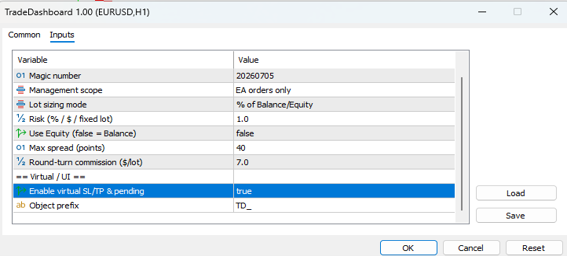
The EA inputs only provide startup defaults — magic number, management scope, sizing mode and startup risk, max spread, round-turn commission, virtual levels and object prefix. Everything you adjust day to day lives on the panel itself and is remembered independently.
The PDF User Guide contains the full parameter reference and a troubleshooting table covering the panel not appearing, blocked order buttons, margin caps, Gemini errors, push notifications and hidden chart lines.
| 📌 Links
Smart Easy Dashboard is a manual trading utility — it executes only the actions you configure or click. Test on a demo account first. Trading leveraged products carries a high level of risk; past performance and AI-generated analysis are not indicative of future results and are not investment advice. For questions or issues, please use the Comments section of the product page on the MQL5 Market — include your MT5 build number and a screenshot of the Experts/Journal tab. |




