| 🛠 How to Send a Correct Bug Report for MetaTrader Expert Advisors Complete guide for collecting screenshots, SET files, Expert logs, Terminal logs, Strategy Tester reports and account history reports for fast technical support. If an Expert Advisor, indicator or script works differently than expected, the fastest way to solve the problem is to send a complete diagnostic package. Without logs, settings and screenshots, any programmer can only guess what happened. |
[Русский] - [English] - [Español] - [Português] - [Deutsch] - [Français] - [한국어] - [日本語] - [中文] - [Türkçe] - [Italiano]
⚠ Important Support RuleIf you have a problem with an Expert Advisor, a question about a function, or you do not understand an error message, please collect the full package of reports and files before sending the request. This saves your time and my time. It also allows the problem to be reproduced, checked and solved much faster. |
| 📸 Screenshot | ⚙ SET File | 📄 Expert Logs |
| 🖥 Terminal Logs | 📊 Detailed Report | 🧪 Tester Report |
🎬 Watch the Video GuideThe video explains how to collect the required files from MetaTrader and send a correct report for troubleshooting. |
🚀 Why a Full Bug Report Is Important
When a trader writes “the Expert Advisor does not work”, “the trade was opened incorrectly”, “the robot did not close the order”, or “I see an error”, this is not enough for technical support.
MetaTrader robots depend on many details:
- Expert Advisor settings;
- broker symbol specifications;
- spread, stop level and freeze level;
- account type;
- terminal build;
- AutoTrading permission;
- logs from the Experts tab;
- logs from the Terminal / Journal tab;
- exact ticket numbers;
- time of the problem;
- Strategy Tester configuration if the issue appears in the tester.
A complete diagnostic package allows the developer to see the real situation, reproduce the error and understand what happened.
| ✅ Main idea: a good support request is not just a message. It is a package of evidence: screenshot, settings, logs, report and a clear description of the problem. |
📦 What You Need to Send
Please collect all files listed below. If one part is missing, the problem may be impossible to reproduce.
| Item | Why It Is Needed |
| Full terminal screenshot | Shows the chart, panel, symbol, timeframe, Expert Advisor status and visible messages. |
| SET file | Contains the exact Expert Advisor settings used when the problem happened. |
| Expert logs | Shows messages printed by the Expert Advisor, including errors, trade operations and internal checks. |
| Terminal logs | Shows server responses, trade errors, connection events and terminal-level information. |
| Detailed account report | Shows trade history, tickets, profit, open/close prices and account behavior. |
| Strategy Tester logs | Needed if the issue appears in the Strategy Tester. |
| Strategy Tester report | Shows test settings, balance graph, trades and results from the test. |
| Problem description | Explains what exactly happened, when it happened and which ticket numbers are involved. |
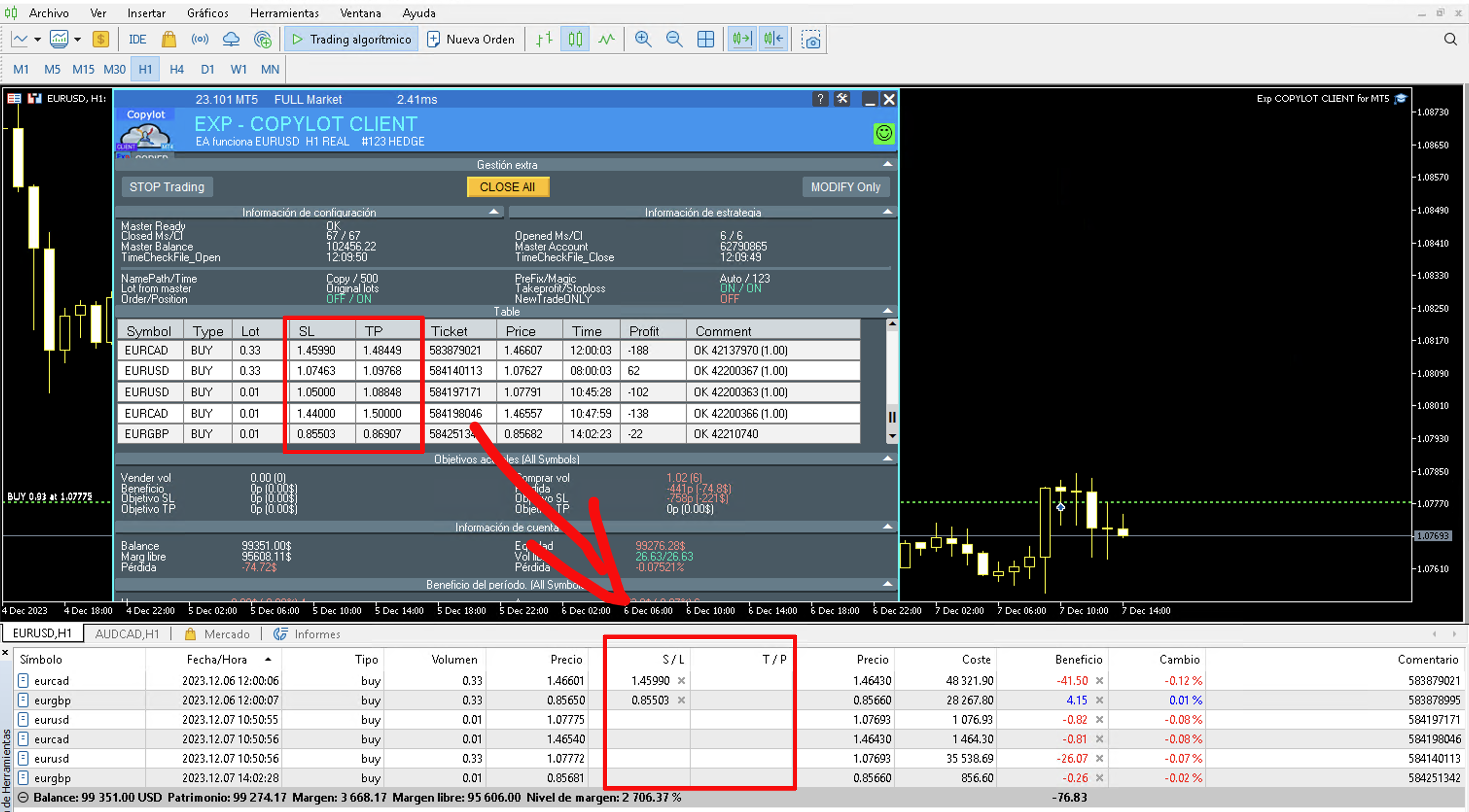
📸 1. Take a Full Screenshot of the Terminal
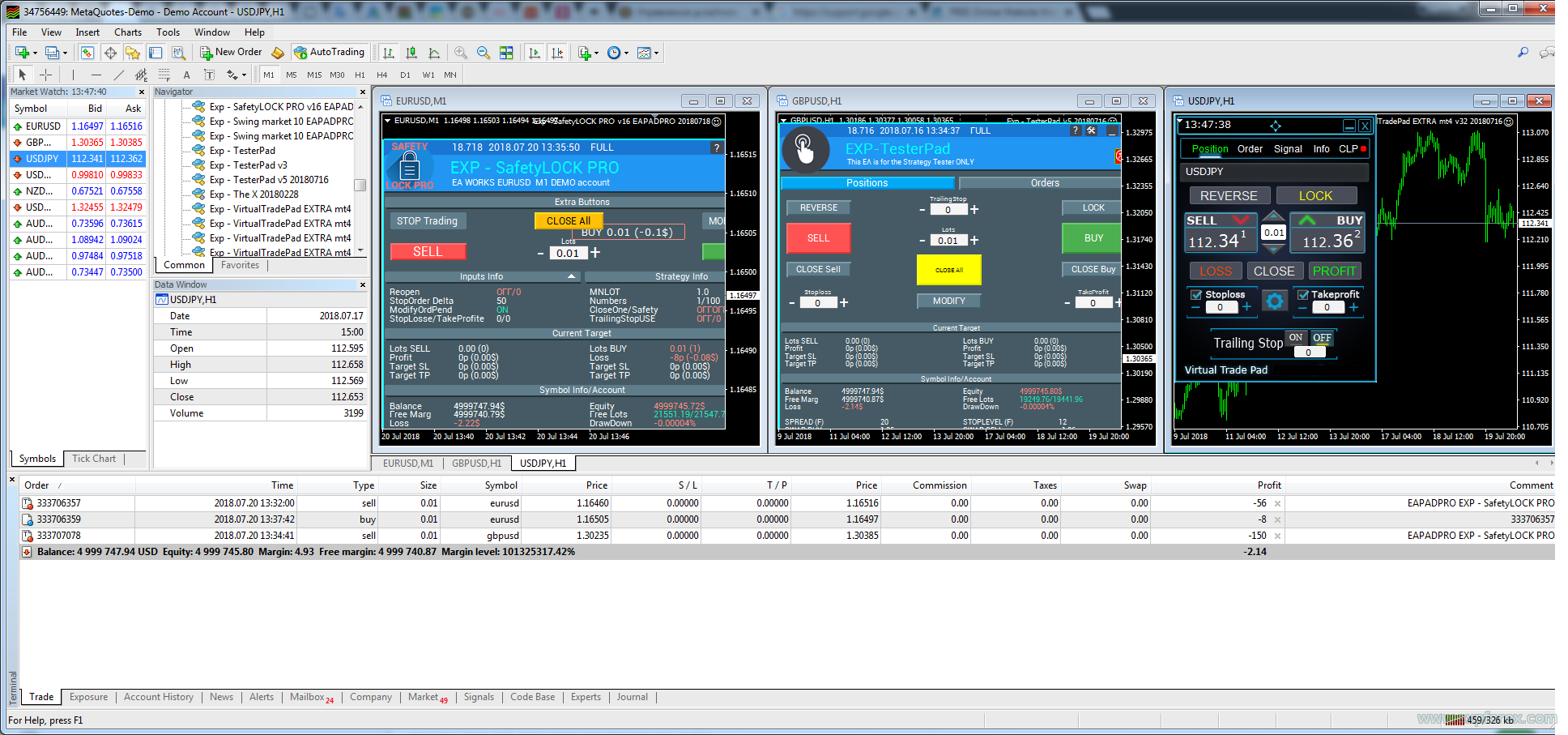
The screenshot must show the whole terminal, not only a small part of the chart.
It should include:
- the chart where the Expert Advisor is installed;
- the Expert Advisor panel, if it exists;
- symbol and timeframe;
- open positions or orders;
- Experts / Journal messages if relevant;
- visible error messages;
- the exact moment of the problem, if possible.
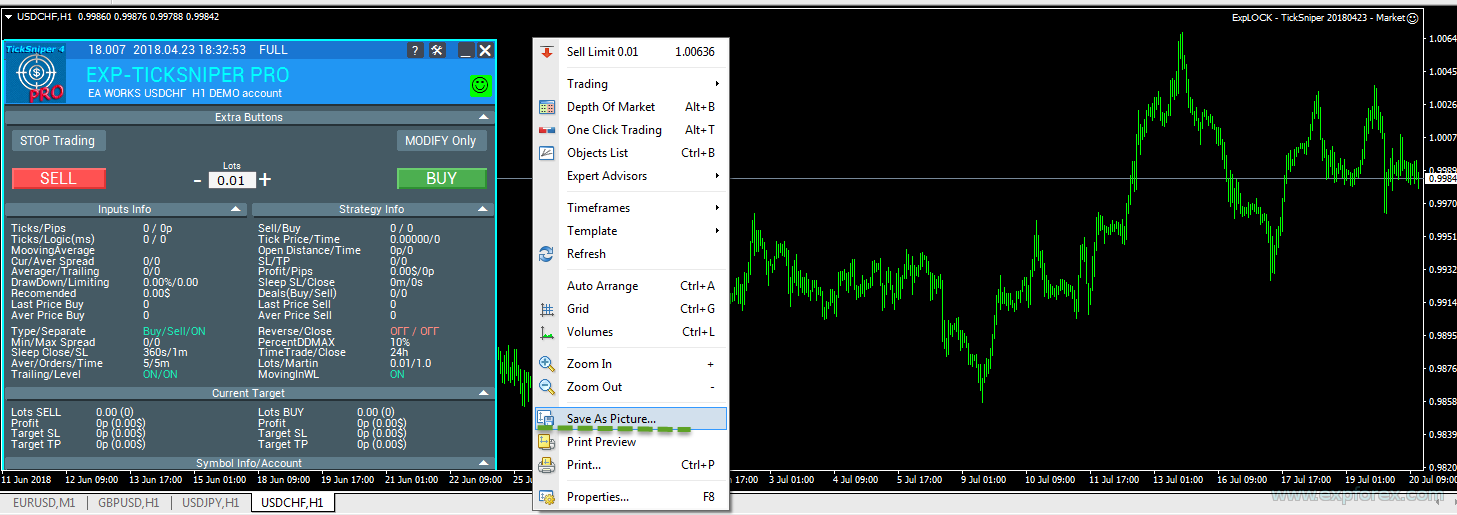
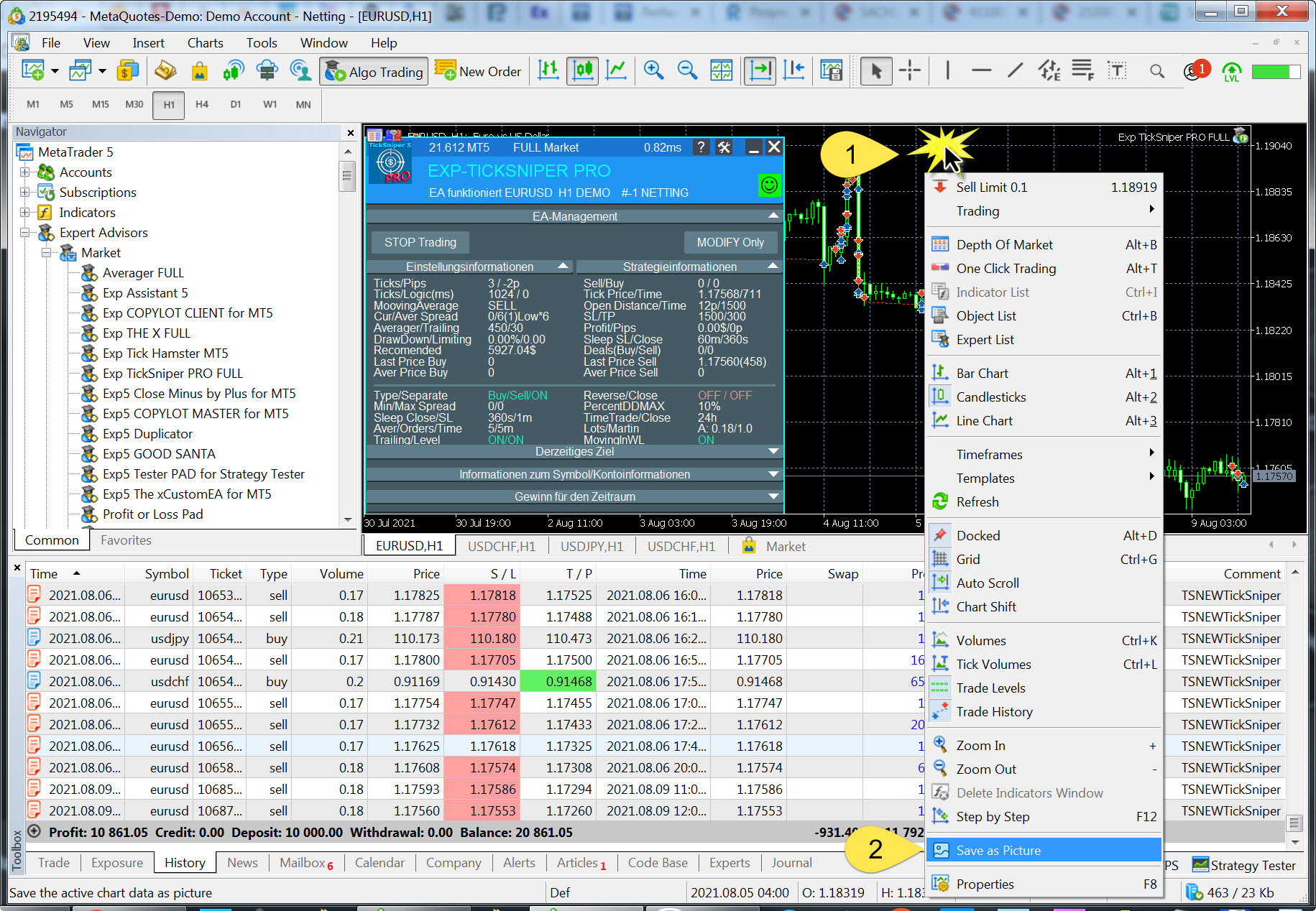
📸 Save the Active Work Area Right-click on the chart and use the screenshot function to save the active work area. |
🖼 Screenshot Example A full screenshot helps support see the chart, terminal state and Expert Advisor environment. |
✅ Screenshot Result This type of screenshot gives much more information than a cropped image. |
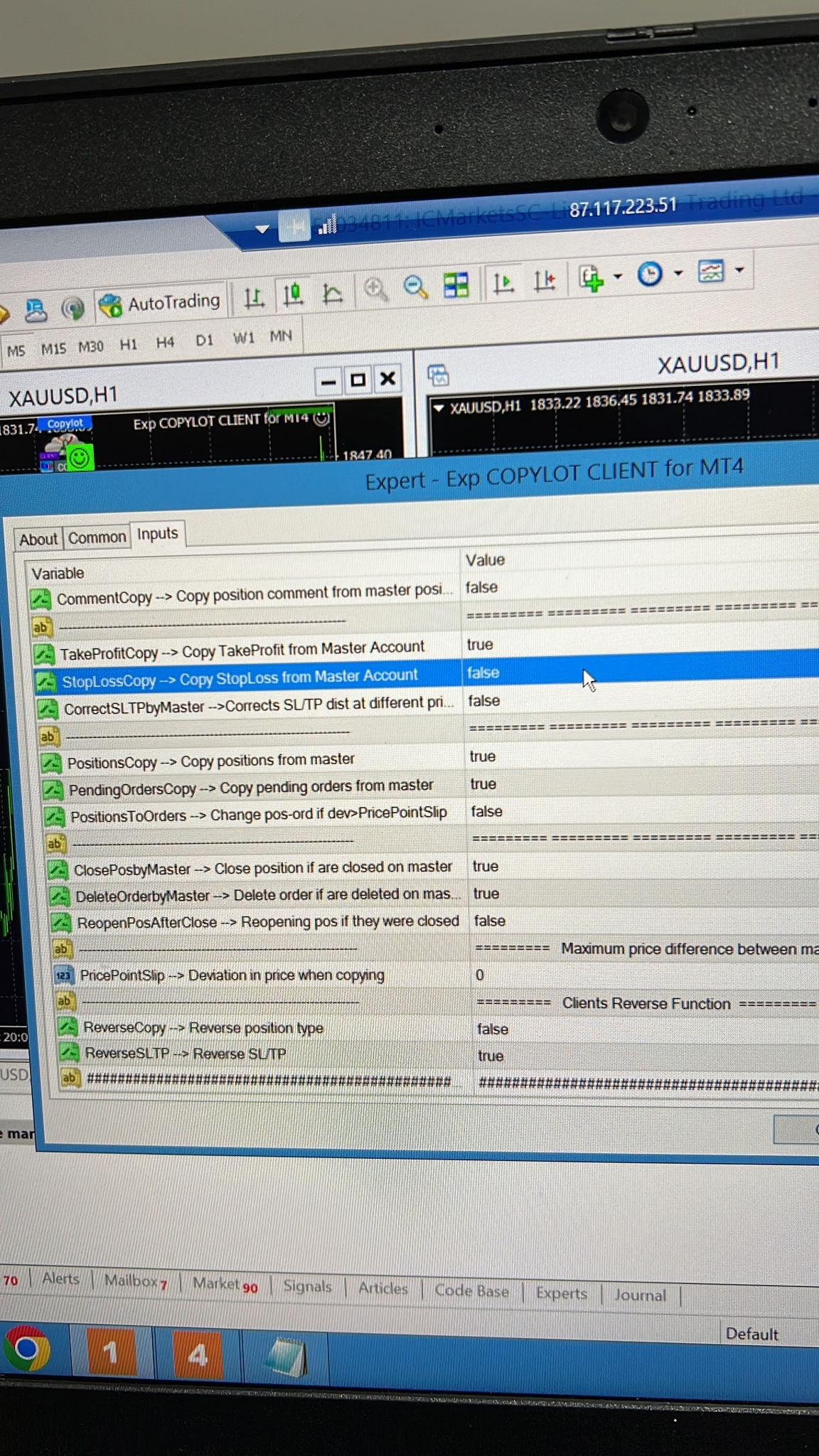
⚙ 2. Save the Expert Advisor SET File
The SET file is one of the most important parts of the support package.
It contains all input parameters of the Expert Advisor. Without this file, it is almost impossible to reproduce the same behavior.
| Step | Action |
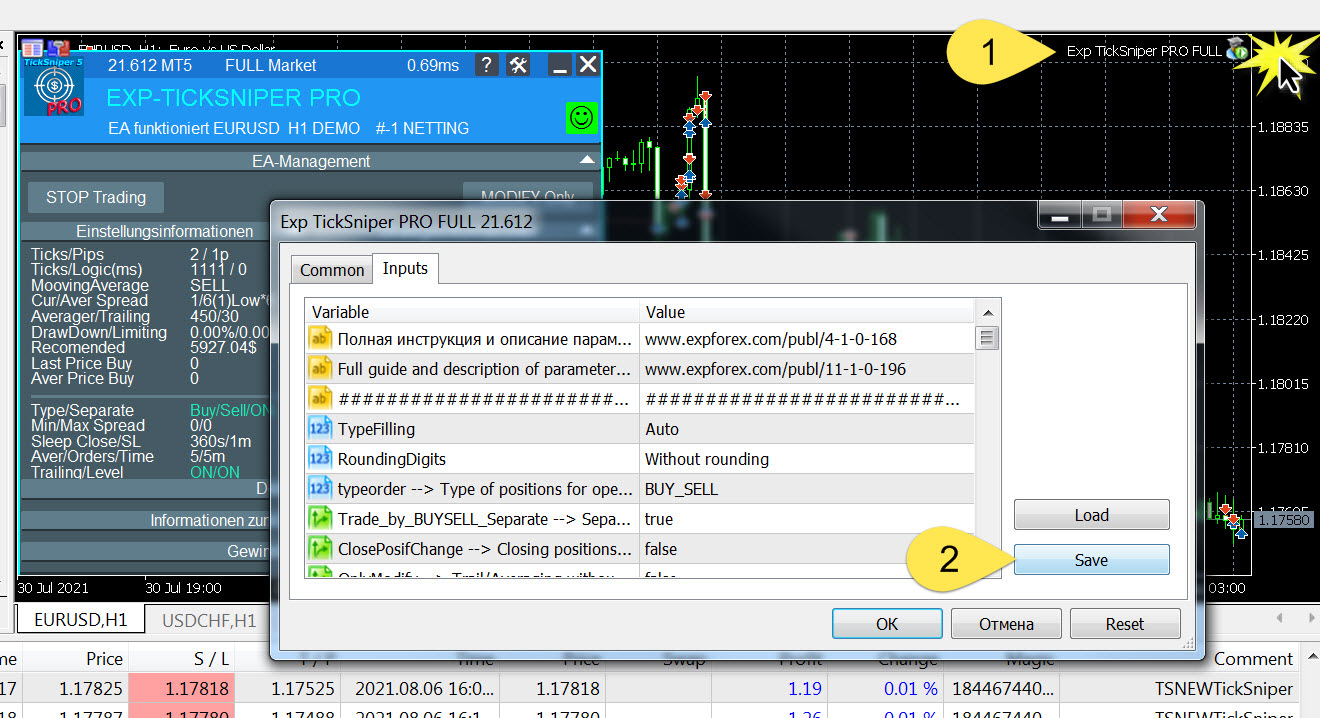
| 1 | Open the chart where the Expert Advisor is installed. |
| 2 | Press F7 on the chart. |
| 3 | Open the Inputs / Settings tab. |
| 4 | Click Save. |
| 5 | Send the saved .set file together with the logs. |
⚙ Saving the SET File The SET file allows the developer to load exactly the same Expert Advisor settings and reproduce the issue. |
🖼 3. Send Entry Screenshots Created by the Expert Advisor
Some Expert Advisors can automatically save screenshots when opening trades.
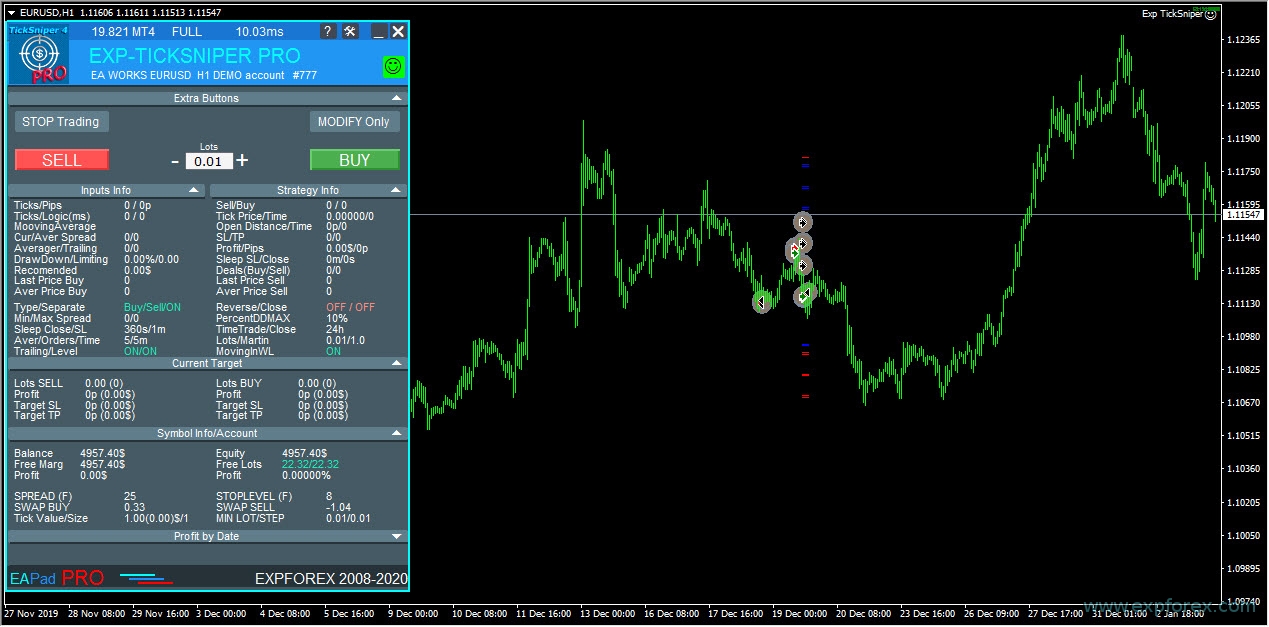
These screenshots are useful because they show the chart at the exact moment of entry. If a trade was opened “not where expected”, the entry screenshot can help understand why the signal appeared.
Usually these files can be found in the terminal folder:
| Your terminal folder \ MQL4 \ Files \ Name of your Expert Advisor |
For MetaTrader 5, check the corresponding MQL5 \ Files folder.
Please remember:
- screenshots may not be created in the Strategy Tester;
- to see the signal context, your indicators should be visible on the chart;
- send screenshots from the date and time when the problem happened.
🖼 Example of Entry Screenshot Such screenshots help analyze the reason for opening a trade at a specific moment. |
📄 4. Collect Expert Logs
Expert logs are written by the Expert Advisor itself.
They contain important information about:
- initialization;
- settings check;
- trading permission;
- signals;
- order opening attempts;
- order modification attempts;
- order closing attempts;
- broker error codes;
- internal protection messages.
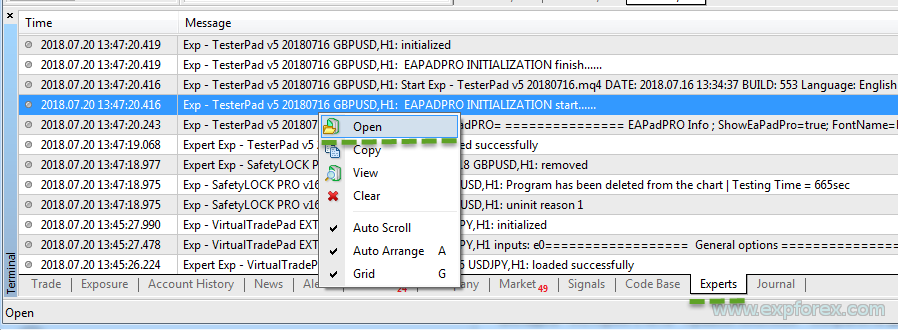
| Step | Action |
| 1 | Open the Experts tab in MetaTrader. |
| 2 | Right-click inside the tab. |
| 3 | Click Open. |
| 4 | Archive the log files for the last 3 days of Expert Advisor work. |
📄 Open Expert Logs Send the Expert log files from the period when the problem happened. |
🖥 5. Collect Terminal / Server Logs
Terminal logs are different from Expert logs.
They show terminal-level and broker-server information:
- connection status;
- trade server responses;
- authorization problems;
- market closed errors;
- invalid stops;
- invalid volume;
- requotes or execution problems;
- terminal events.
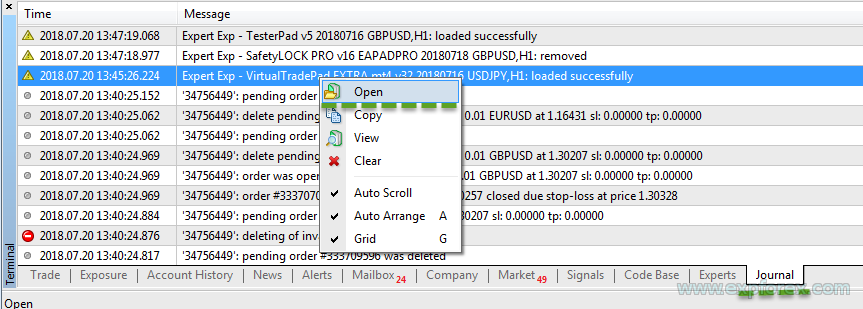
| Step | Action |
| 1 | Open the Journal / Log tab. |
| 2 | Right-click inside the tab. |
| 3 | Click Open. |
| 4 | Archive the terminal log files for the last 3 days. |
🖥 Open Terminal Logs Terminal logs are needed because some trade errors are returned by the broker server, not by the Expert Advisor. |
| Note: if the terminal does not show the required log files, try starting MetaTrader as Administrator or using portable mode. |
📊 6. Save a Detailed Account Report
A detailed account report helps analyze actual trades and ticket numbers.
It is especially important when the problem is related to:
- incorrect opening price;
- incorrect closing price;
- partial close;
- wrong lot size;
- Stop Loss or Take Profit modification;
- trailing stop;
- copying or duplication of trades;
- profit or loss calculation.
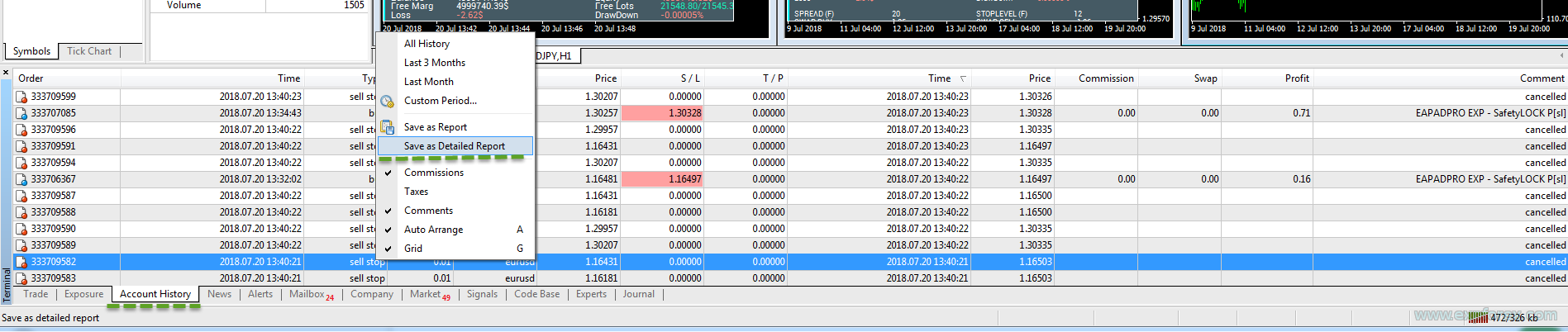
| Step | Action |
| 1 | Open the Account History tab. |
| 2 | Right-click inside the account history. |
| 3 | Select Save Detailed Report. |
| 4 | Send the generated report file together with logs and SET file. |
📊 Save Detailed Report The detailed report allows support to check ticket numbers, trade sequence, opening and closing data. |
🧪 7. If the Problem Appears in Strategy Tester
If the problem happens only in the Strategy Tester, please send Strategy Tester logs and the tester report.
Tester logs are different from real trading logs. They show what happened during the test run.
| Step | Action |
| 1 | Run the test until the problem appears. |
| 2 | Open the Strategy Tester Log tab. |
| 3 | Right-click inside the log. |
| 4 | Click Open. |
| 5 | Archive the log file from the test date. |
🧪 Open Strategy Tester Logs Tester logs are required if the issue happens during backtesting or optimization. |

📈 8. Save the Strategy Tester Report
After the test is complete, save the tester report.
This report helps check:
- test symbol;
- timeframe;
- modeling settings;
- test period;
- spread settings;
- Expert Advisor parameters;
- trade list;
- balance graph;
- profit and drawdown results.
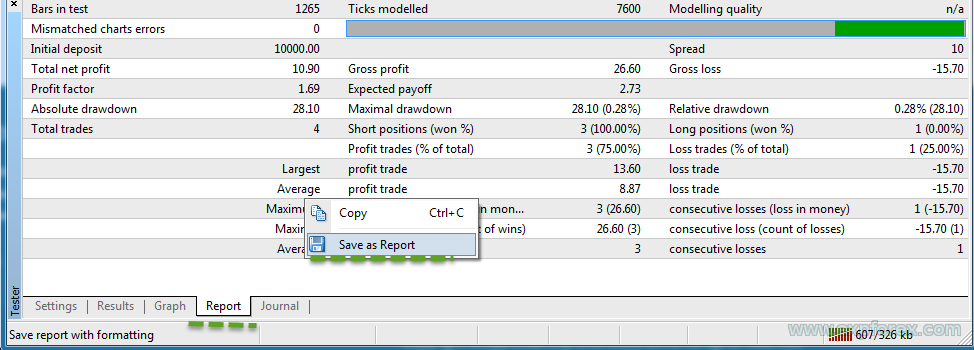
| Step | Action |
| 1 | Wait until the test is complete. |
| 2 | Open the Report tab. |
| 3 | Right-click inside the report. |
| 4 | Select Save as. |
| 5 | Send the saved tester report. |
📈 Save Strategy Tester Report The tester report helps reproduce the same test conditions and analyze the result correctly. |
📝 9. Write a Clear Problem Description
Please do not send only the archive without explanation. Add a short text description of the issue.
The best description contains:
- Expert Advisor name and version;
- MetaTrader version: MT4 or MT5;
- broker name;
- account type: demo, real, hedge or netting if MT5;
- symbol and timeframe;
- exact time when the issue happened;
- ticket numbers of the trades involved;
- what you expected the EA to do;
- what actually happened;
- whether the problem happens always or only sometimes.
Example DescriptionProduct: COPYLOT Client MT5 Broker: Example Broker Account type: MT5 hedging Symbol: XAUUSD Problem time: 14:35 terminal time Ticket: 123456789 Expected: Client should partially close the copied position. Actual: Client did not reduce the copied volume. Attached: screenshot, SET file, Experts logs, Journal logs, detailed report. |
🗜 10. Put Everything Into One ZIP Archive
After collecting all files, put everything into one ZIP archive.
The archive should contain:
- full terminal screenshot;
- SET file;
- Expert logs for the last 3 days;
- Terminal / Journal logs for the last 3 days;
- Detailed account report;
- Strategy Tester logs if the problem happened in the tester;
- Strategy Tester report if the problem happened in the tester;
- entry screenshots created by the EA, if available;
- text file with the problem description.
✅ Correct Support PackageScreenshot + SET file + Expert logs + Terminal logs + Detailed report + Problem description = fast and correct analysis. |
❌ What Not to Send
These messages usually do not help solve the problem:
- “The robot does not work.”
- “It opened incorrectly.”
- “It did not close.”
- “There is an error.”
- “Please check.”
- “I changed something, but I do not remember what.”
Such messages do not contain enough information. Please send the full diagnostic package instead.
✅ Why This Saves Time
When you send all files at once, support can immediately check:
- whether AutoTrading was enabled;
- whether the EA had permission to trade;
- whether broker rejected the trade;
- whether the volume was invalid;
- whether Stop Loss or Take Profit was too close;
- whether the market was closed;
- whether the settings were correct;
- whether the ticket was managed by this EA;
- whether the issue appeared in the EA logic or broker execution.
This is why the full package is the professional way to report problems.
🔗 Useful Links
| 📘 Full Instruction on Expforex.com | 💬 Contact Support |
| 🛒 All Expforex Products | ⬇ Downloads and Documentation |
🏁 Final Checklist Before Sending
| Done? | Required File or Action |
| ☐ | Full screenshot of the terminal and chart |
| ☐ | Expert Advisor SET file |
| ☐ | Expert logs from the Experts tab |
| ☐ | Terminal / Journal logs |
| ☐ | Detailed account report |
| ☐ | Strategy Tester logs, if the issue happened in tester |
| ☐ | Strategy Tester report, if the issue happened in tester |
| ☐ | Entry screenshots created by the EA, if available |
| ☐ | Text description with ticket numbers and exact problem time |
| ☐ | All files packed into one ZIP archive |
📩 Send a Complete Report — Get Faster SupportWhen all diagnostic files are included, the problem can be checked faster, more accurately and without unnecessary back-and-forth questions. |
SEO Tags
MetaTrader logs, MT4 logs, MT5 logs, Expert Advisor logs, MetaTrader Expert logs, MetaTrader Journal logs, server logs, bug report MetaTrader, Expert Advisor support, MQL4 logs, MQL5 logs, SET file, MetaTrader SET file, Strategy Tester report, MetaTrader detailed report, Account History report, troubleshooting Expert Advisor, Forex robot support, Expert Advisor error, invalid stops, invalid volume, market closed error, MetaTrader screenshot, trading robot diagnostics, Expforex support, MQL5 Market Expert Advisor support, how to send logs MetaTrader, how to report EA bug